Category: News

Up‑to‑date Android news, smartphone launches, software updates and industry trends, written in a clean, editorial style for informed readers.

  • What languages should you learn for developing Android apps

    What languages should you learn for developing Android apps

    You’ve therefore chosen that you want to learn how to create Android apps. Great! Sadly, good intentions can only go you so far. It can be challenging to learn how to code. Sometimes even where to begin is a mystery! So, before you even begin, you undoubtedly have a ton of questions to address.

    • What programming language should you learn?
    • Where can you learn about your chosen language?
    • Once you’ve grasped the basics, where do you even start typing the code?

    Lot of options

    Selecting a language is the first step in developing Android apps. The distinctions among the various programming languages for Android can be somewhat subtle and complex.

    But the primary characteristics and objectives of the tool to which the language is tied matter more than the language itself.

    The languages you might consider learning for Android development include:

    • Java – Java is an official language of Android development and is supported by Android Studio. It has been an official language longer than Kotlin, and it is also popular outside of Kotlin development for many other purposes. Java and Android Studio have a steep learning curve, however.
    • Kotlin – Kotlin is another official Android language. It is similar to Java in many ways but is a little easier to get your head around. It is also now Google’s preferred language of choice, though it is not as widely used outside of Android Studio. This may make it slightly less appealing for those hoping to work as developers across numerous projects.
    • C++ — Android Studio also supports C++ with the use of the Java NDK. This allows for native coding applications, which can be handy for things like games. C++ is more complicated though, and this option is mostly only going to appeal to large, professional teams. C++ is also supported by Unreal Engine.
    • C# — C# is a more beginner-friendly alternative to C or C++ that obfuscates more code. It is also a little less difficult than Java, though the two languages are extremely similar. It’s supported by some very handy tools like Unity and Xamarin, which are great for game development and cross-platform development. C# with Unity is the best option for many mobile game developers.
    • LUA (Corona) – Another cross-platform tool built on LUA. It massively simplifies the app-building process while stilling allowing you to call native libraries.
    • JavaScript (PhoneGap) – If you already know how to build interactive web pages, then you can use this knowledge with PhoneGap to build a more basic cross-platform app.

    Java

    Java is still one of the two authorized platforms for creating Android apps. This indicates that Google is quite supportive of it. Kotlin or Java were probably used to create the majority of non-game apps.
    java Android apps

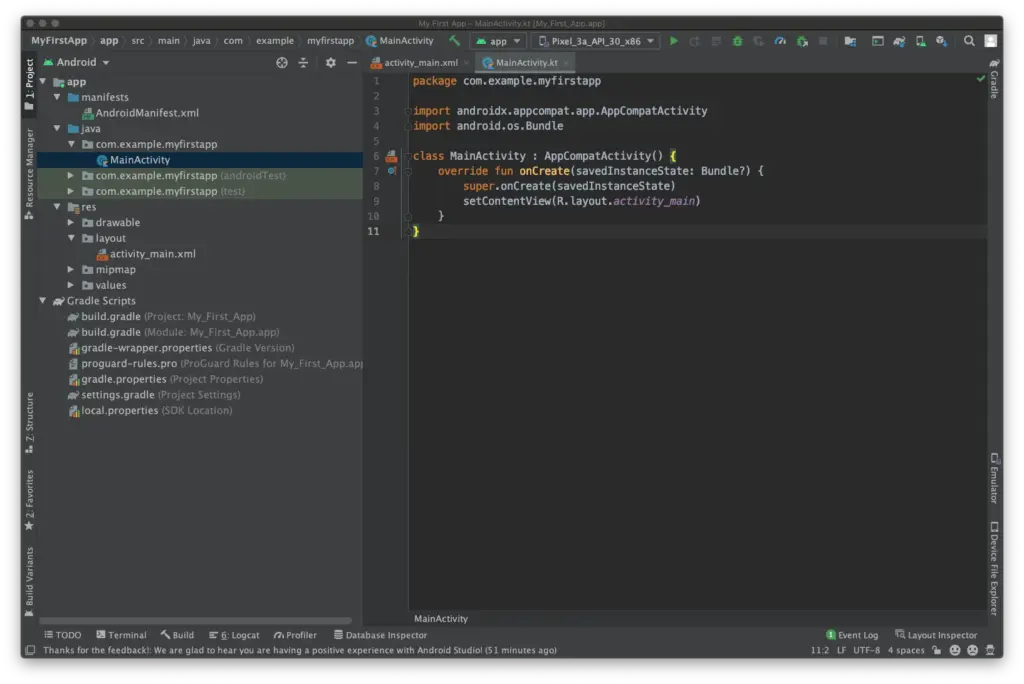
    Downloading Android Studio is the best approach to start creating Android apps. Integrated Development Environment, or IDE, is the name of the piece of software in question. You will have everything you need in one location to get started thanks to the Android SDK that is supplied with it (a collection of tools designed expressly to make Android development easier).

    Official documentation from Google will refer to Android Studio and Java (or Kotlin), and you’ll be able to find a lot of support online.

    Sun Microsystems first introduced Java in 1995, and it is now utilized for a variety of programming applications. Even though Google has made it clear that it prefers Kotlin, many development teams have decided to continue with Java since it is so well-established and well-known.

    Java is really difficult as well and not a fantastic “first language.” Once the Android SDK is included, things become much more challenging; a novice programmer may find it difficult to distinguish between Java and Android! Constructors, null pointer exceptions, checked exceptions, and other baffling concepts are all part of the object-oriented programming language known as Java.

    You’ll use a lot of “boilerplate” code to do simple tasks, and it’s not very understandable. A rudimentary familiarity of ideas like Gradle, the Android Manifest, and the markup language XML is also necessary for development using this approach.

    This is not meant to imply that Java is a terrible language; just the contrary. It is incorrect to label any language as “evil,” since the majority of Java’s drawbacks exist to promote clean code and serve our own interests.

    Java is one of the most popular and versatile programming languages because of this, and many people adore it. Java is the programming language that employers are most interested in using, according to the PYPL (Popularity of Programming Languages) table.

    Android Studio, has also been going from strength to strength over the last few years. Features like a visual designer and suggestions make the process a fair bit smoother, while advanced, powerful features are being added all the time to give developers access to things like cloud storage with easy implementation.

    It’s worth getting aboard, even if this rapid progress does make it hard to keep up sometimes (especially if you’re some poor guy who writes about this stuff for a living!).

    Kotlin

    Kotlin has been an official language for Android development for a while now, and Google has even gone so far as to make it the preferred option for Android development. That said, with many development teams already deeply invested in Java, there are many who have chosen not to make the switch.

    Kotlin utilizes the Java Virtual Machine much like Java does. Additionally, it fully integrates with Java and doesn’t result in any file size or performance issues. The distinction is that Kotlin is a more streamlined and simple-to-read system since it doesn’t require as much “boilerplate” code.

    Additionally, it eliminates mistakes like null point exceptions and exempts you from using semicolons at the end of each line. In summary, it’s ideal if you’re just starting to learn how to design Android apps.
    Kotlin Android apps

    So, Kotlin is definitely an easier starting point for beginners, and the fact that you can still use Android Studio is a big plus. That said, it’s still a complex language in its own right, and you’ll still need to figure out an awful lot of extra “stuff” to build an Android app this way. There’s also the slight drawback of Kotlin being less widely used outside of Android development.

    Learn why you should try Kotlin here.

    C/C++

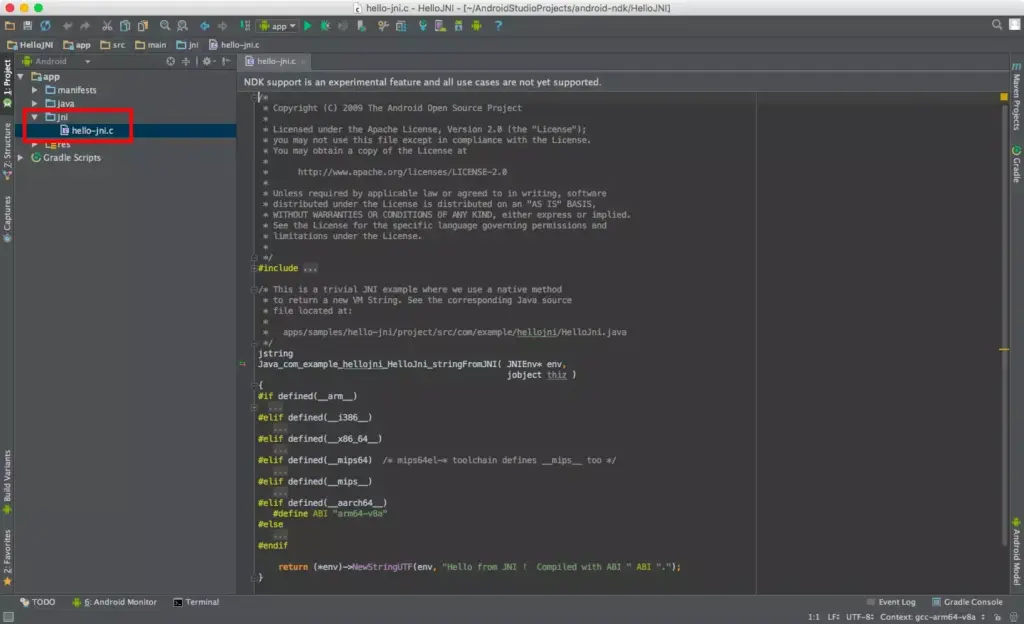
    It’s safe to assume that the majority of readers shouldn’t choose this method of Android app development. The Android NDK’s C/C++ code can be supported by Android Studio (Native Development Kit). As a result, you’ll be creating code that runs natively on the device rather than on the Java Virtual Machine, giving you more control over processes like memory allocation. This can help you get more performance out of your Android device for demanding applications like 3D games. Also, it means you’ll be able to use C or C++ libraries.
    1453992535project view

    However, it also tends to be much harder to set up, it introduces more bugs and it is less flexible. And if you did want to create a computer game, you’d probably be better off using a ready-made game engine such as Unity.

    C#

    Microsoft created C# with the intention of fusing the strength of C++ with the simplicity of Visual Basic. If you are familiar with one of these languages, such as Java, switching to the other should be rather easy. C# is garbage collected, just like Java, so you don’t have to worry about problems like memory leaks and manually freeing up memory. If this might simply be my own bias showing through, C# has a better syntax and is more current than Java. The best language for creating Android apps is frequently a matter of personal preference!
    maxresdefault 4

    If you want a particularly easy and welcoming introduction to Android app development, I recommend the combination of C# and Unity. Unity is a game engine (meaning it provides things like physics calculations and 3D graphics rendering) and an IDE (like Android Studio). This is a free tool that makes it incredibly easy to create your own games – with just a few lines of code you can have a basic platform game set up in less than an hour. No exaggeration! And it’s perfectly powerful too, being the tool used by most game studios on the Google Play Store.

    As a cross-platform solution, Unity will also let you port your games to other operating systems such as iOS and Windows. You can even make console games! On top of all that, developing in this way provides a very practical way to learn Object-Oriented coding (because the objects in this case actually are objects most of the time!). For those hoping to start a career in game development, learning Unity is an excellent first step.

    The limitation? Unity is useful for creating games but sub-par for creating standard Android Apps, especially if you want to conform to Google’s Material Design language.

    Not keen on Unity? Then you could consider Unreal instead (better graphics, less suited to mobile) or simplified game-makers like GameMaker Studio.

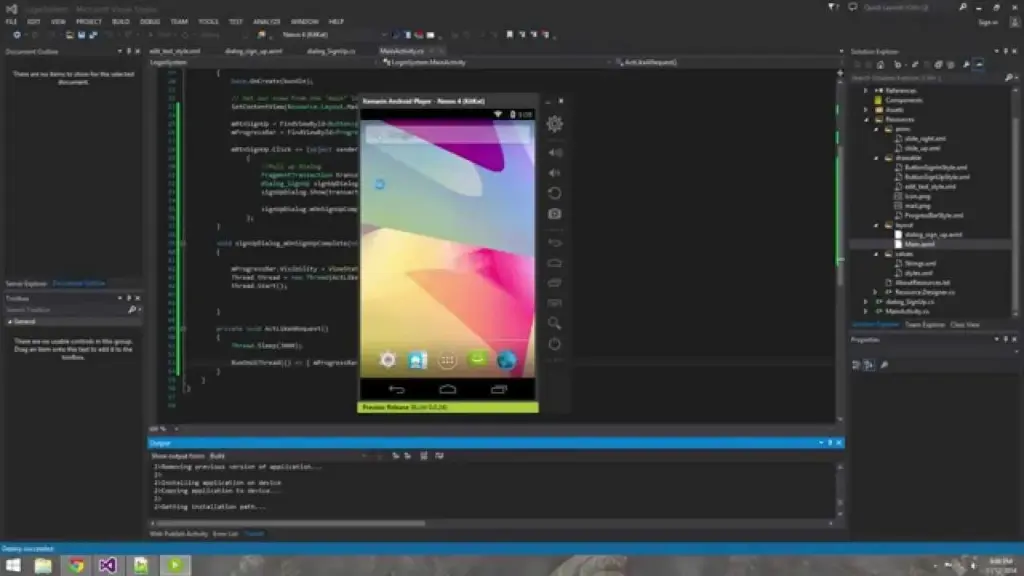
    C# can also be used with Xamarin through Visual Studio. This is more akin to traditional Android development with the advantage of being cross-platform (one codebase for Android and iOS). For a complete beginner, this route is again a slightly obtuse entry point to Android development. But for a small company wanting to create an app for iOS and Android, it makes sense, and there’s plenty of support and information out there to help you out.

    LUA (Corona)

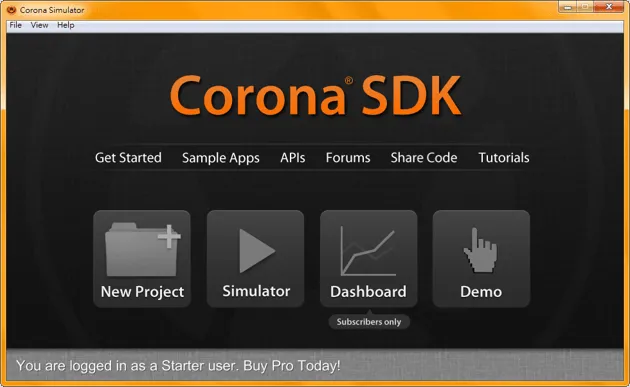
    Corona provides a different, far easier alternative for creating Android apps while still offering you a good deal of authority and control. It will be lot easier for you to code in LUA than in Java. Moreover, the Software Development Kit for Corona will make things much simpler. You can publish to several platforms and it supports all native libraries. It is mostly used for making games but can be used in a variety of other ways too. To enter your code, use a text editor like Notepad++; you don’t even need to build it before running it on an emulator. When the time comes, you’ll be able to use an online tool to develop and distribute an APK.
    introduction to lua corona simul

    This does require basic coding skills, but it offers a nice and gentle introduction to the world of code. At the same time though, it is definitely limited in what it can accomplish and is only a few steps removed from getting into “app builder” territory. This is more useful for someone who wants to create something relatively simple and isn’t as concerned about developing their coding skills or becoming a pro. If you want to use features such as in-app purchasing, then you’ll need to pay a fee. The same goes for using native Android APIs.

    HTML/CSS/JavaScript (PhoneGap)

    PhoneGap is powered by Apache Cordova and essentially allows you to create apps using the same code you’d normally use to create a website: HTML, CSS and JavaScript. This is then shown through a “WebView”  — a widget that displays a website within an app. PhoneGap acts like a bridge, allowing developers to access some basic native features of the phone or tablet such as the accelerometer or the camera.

    2d0ed3ba4aad0ac0856cb6adc22fcf4c

    This isn’t really “true” Android development though, and the only real programming will be JavaScript. For many basic tasks, it will do the job, but if you want to be able to claim true “Android app developerhood” (that’s a thing), then you should brave one of the other choices on this list.

    Conclusion

    So take your pick! Tere are plenty of options there for developing Android apps: from Java and Kotlin, to C, C#, and JavaScript!

    Whatever you chose, you’ll find that learning to code is a tremendously satisfying experience and one that opens up a lot of options for you. The best choice will rely on your sensibility and your goals. And the best way to get started is by learning to code for Android. We hope that you now at least have a basic understanding of how to create Android apps, but if you still have any questions, feel free to post them in the comments below and our team and readers will try our best to respond.
  • Android 14 preview to test drive the new features on Pixels

    Android 14 preview to test drive the new features on Pixels

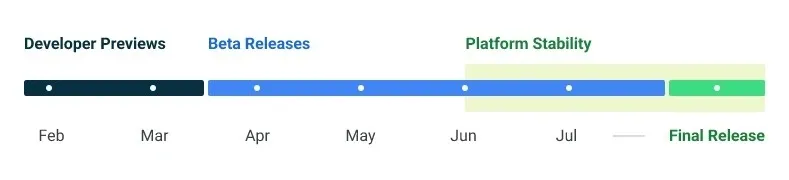
    Google made the Android 14 Developer Preview (DP) available for testing on devices from the Pixel 7, Pixel 6, and Pixel 5 series, even the rudimentary Pixel 4a. A new DP edition is expected to be published in March, followed by a few beta releases until the summer, when more stable and feature-rich versions will be issued, and finally the final Android 14 release in the fall.

    android 14 release calendar

    New Android 14 features

    Speaking of new Android 14 features, as usual in the Developer Preview stage, there aren’t many user-facing ones, but rather deep under-the-hood changes that bring interface speed and power-draw optimizations, as well as security and privacy upgrades. Still, there is one biggie one it comes to new Android 14 feature that you will immediately notice.

    System fonts

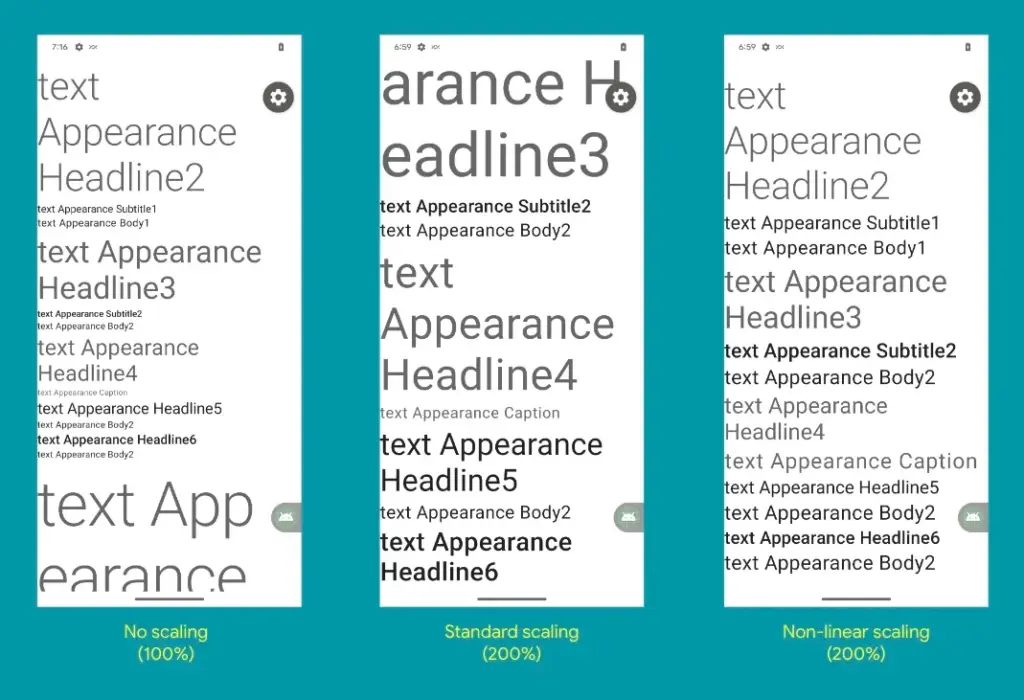
    Bigger fonts with non-linear scaling is exactly what Google refers it as this new Android 14 option as. Instead of the current 130% threshold, Android phone owners will be able to increase the size of the system fonts by two times.

    It makes sense considering that screens are growing bigger and bigger—we now have foldables with screens north of 7 inches diagonal and difficult-to-read small print. Without a doubt, Google uses “non-linear” scaling to raise text in fonts that are already sufficiently large compared to the smaller text that receives a size increase, rather than simply increasing the font size of Android 14 in a way that is deserving of the list of the best phones for seniors.

    android 14 new features font

    Performance and battery life

    Android 14 will optimize the speed of the mobile OS system overall and offer less of a power pull from unnecessary activities thanks to a clever combination of background process optimization and presenting actionable requests to apps only when they are out of a cached state.

    Additionally, without the user’s express consent, apps that don’t need a strict timing schedule, such clocks or calendars, won’t be able to continuously probe for resources by setting precise alarms.

    Adapting to foreign language 

    With Android 14, a number of foreign language optimizations address the accessibility issues of the device by modifying the text to reflect the peculiarities of non-English speakers, such as tailored translations that take into account the different grammatical genders used in various languages.

    The ability to dynamically update the list of foreign languages in an app’s settings to reflect the location and even alter the keyboard based on the interface language that the app is displaying in is another fantastic locale adaption improvement in Android 14.

    Security and privacy

    Down on the system level, Android 14 will include several new malware-fighting features that plug known exploits by blocking app installations or only allow them if they meet certain criteria. 

    Dynamically loaded applications that can be changed by injecting code in the process will be marked to be read-only in Android 14 in order to close another door for the installation of malware and various exploits.

    Android 14 release date

    • Android 14 Beta: April 2023
    • Final Android 14 release build: October-November 2023

    How to install Android 14 Developer Preview on Pixel phones

  • Android 14 may come with root certificates

    Android 14 may come with root certificates

    The foundation of Public Key Infrastructure (PKI) is its root certificates, which are certified by reputable Certificate Authorities, or CAs. A pre-packaged root store seen in browsers, apps, and other programs serves as a trust seal for these certificates. A website that supports HTTPS but isn’t using a certificate signed by a CA in the root store of your browser will be marked as insecure when you visit it. Applications and browsers can frequently update their certificates, but unless you use an OTA update, your phone cannot. According to Esper, with Android 14, that might alter.

    Due to our reliance on certificates as the foundation of a chain of trust when visiting websites, there have been a few scares involving them throughout the years. Let’s Encrypt, a nonprofit CA, has signed the certificate used here on XDA. Your connection to this website is safe and secure thanks to their certificate, which was signed by the Internet Security Research Group. The same holds true for any other HTTPS-enabled website you visit.

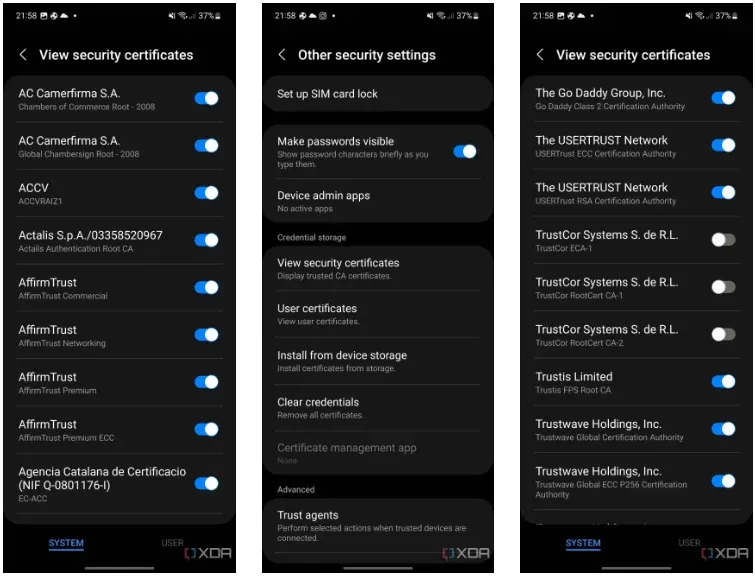
    Every operating system has its own built-in root store, and Android is no different. You can actually view this root store on your Android smartphone by navigating to security and privacy in your device’s settings. From there, it will depend on the type of device you’re using, but the screenshots below show where it is on OneUI 5.

    android 14 root certificates

    But even this root shop isn’t the be-all and end-all, you know? In an effort to fend off Man-in-the-Middle (MITM) attacks, apps can choose to utilize and trust their own root store (like Firefox does) and they can accept only particular certificates (a practice known as certificate pinning). Users can install their own certificates, but since Android 7, app developers have had to agree to let their apps utilize these certificates.

    Why having these root certificates is important

    A large portion of the internet depends on the security of the Internet Security Research Group since Let’s Encrypt certificates are cross-signed by this organization. The ISRG would have to revoke the key if it lost control of its private key (should it be stolen, for instance). Depending on how businesses react, some portions of the internet may become inaccessible to hardware lacking an updateable root certificate. Even though it’s a completely improbable nightmare scenario, Google aims to prevent situations like that from happening. Because of this, what is happening with TrustCor right now might be telling Google that it’s time to give Android updatable root certificates.

    As an example, academics have questioned TrustCor after discovering that company allegedly has close ties to a US military contractor. Although TrustCor still has access to its private key, many businesses that must choose which certificates to include in their root stores no longer trust the company. These researchers said that TrustCor, a contractor for the US military, had paid programmers to include malware that gathered data from smartphone apps. Faith is crucial in PKI, but after these claims surfaced, TrustCor lost that trust. Since then, TrustCor has been abandoned as a certificate authority by organizations like Google, Microsoft, and Mozilla. But even though the commit has already made, an OTA update will be necessary to remove TrustCor’s certificates from the Android root store.

    The upside is that you can disable TrustCor’s certificates on your device now by going to your certificates on your device, as we showed above, and then scrolling to TrustCor and disabling the three certificates that come with your device. According to developers from the GrapheneOS project, there should be “very little impact on web compatibility due to this CA barely being used by anyone other than a specific dynamic DNS provider.”

    Solution: Project Mainline

    If you’re familiar with Project Mainline, then you can already see how this can help solve the problem. Google makes use of Mainline modules which are delivered through the Google Play Services framework and the Google Play Store. Each Mainline module is delivered as either an APK file, an APEX file, or an APK-in-APEX. When a Mainline module is being updated, the user sees a “Google Play System Update” (GPSU) notification on their device. Effectively, to deliver updates to critical components, Google has bypassed the need to wait for an OEM to roll out an update, choosing to do the task itself. Bluetooth and Ultra-wideband are two essential Mainline modules handled by Google.

    Conscrypt, a Mainline module that provides Android’s TLS implementation, will allow updatable root certificates in a future release, according to changes on the AOSP Gerrit (found by Esper). In the event that a situation similar to TrustCor (or worse) arises in the future, this would mean that certificates may be removed (or even added) via a Google Play System Update through Project Mainline, ensuring a considerably speedier process. It’s unclear when this will launch, but Android 14 is probably going to get it. Technically, Google could launch it with Android 13 QPR2, but it would only help Google Pixel users until Android 14 is released to the rest of the world next year. This is due to the fact that other OEMs usually do not release QPR updates.

    The entire reason for this to exist would be so that Google can maintain control over another crucial aspect of device security without needing to rely on OEMs pushing updates instead. An OTA is currently required to update certificates, but in an emergency situation, every day where users don’t have an update could matter. Utilizing Project Mainline to ensure that users can get crucial certificate updates in time if they’re ever needed is certainly a welcome change.

  • Delete these 12 apps from your device now!

    Delete these 12 apps from your device now!

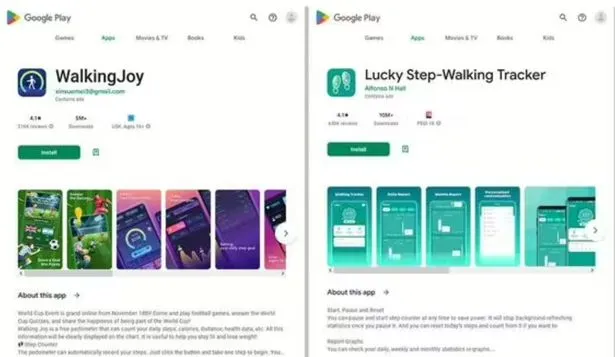
    Popular apps have been pulled from the Google Play store, and users of Android devices are being asked to do so right away.

    Millions of users have downloaded the harmful apps, which pose as questionnaire, fitness, or gaming apps and lure users into accepting bogus incentives or clicking on links that take them to dubious websites.

    The most recent apps that were banned offered prizes to users for remaining active by giving them points for walking and working out. However, when individuals attempted to pay out, they were either prevented from doing so or have to watch interminable commercials for no reason.

    Cybersecurity experts at Dr.Web flagged these apps, some of which already had millions of downloads before being booted from the Play store.

    As reported by the Express, the apps that have recently flagged by the IT cybersecurity firm are:

    • Lucky Step: Walking Tracker – 10 million downloads
    • WalkingJoy: walking tracker – 5 million downloads
    • Lucky Habit: health tracker – 5 million downloads

    Despite being flagged for using the same tactics as the other two, Lucky Habit has not been removed from the app store at this time.

    0 Screenshot 2023 02 01 113906

    It comes after 10 more apps were also axed for the Google store, in this instance due to bad links that downloaded malware, or direct users to dodgy websites.

    According to Dr.Web, these fake applications presented themselves as investing software, directories, questionnaires and addictive games. They are as follows:

    • Golden Hunt – 100K downloads
    • Reflector – 100K downloads
    • Seven Golden Wolf blackjack – 100K downloads
    • Unlimited Score – 50K downloads
    • Big Decisions – 50K downloads
    • Jewel Sea – 10K downloads
    • Lux Fruits Game – 10K downloads
    • Lucky Clover – 10K downloads
    • King Blitz – 5K downloads
    • Lucky Hammer – 1Kdownloads

    All of these apps have already been removed from the Play Store, but if you have one of them on your device it should be deleted right away.

    According to Dr.Web for Android’s detection statistics, the activity of spyware, trojans, and adware surged in December 2022.

    Hundreds of bogus apps and trojans that sign their victims up for premium services were among the several new risks they discovered at the same time on Google Play.

  • MIUI 14 released global for Xiaomi 11T

    MIUI 14 released global for Xiaomi 11T

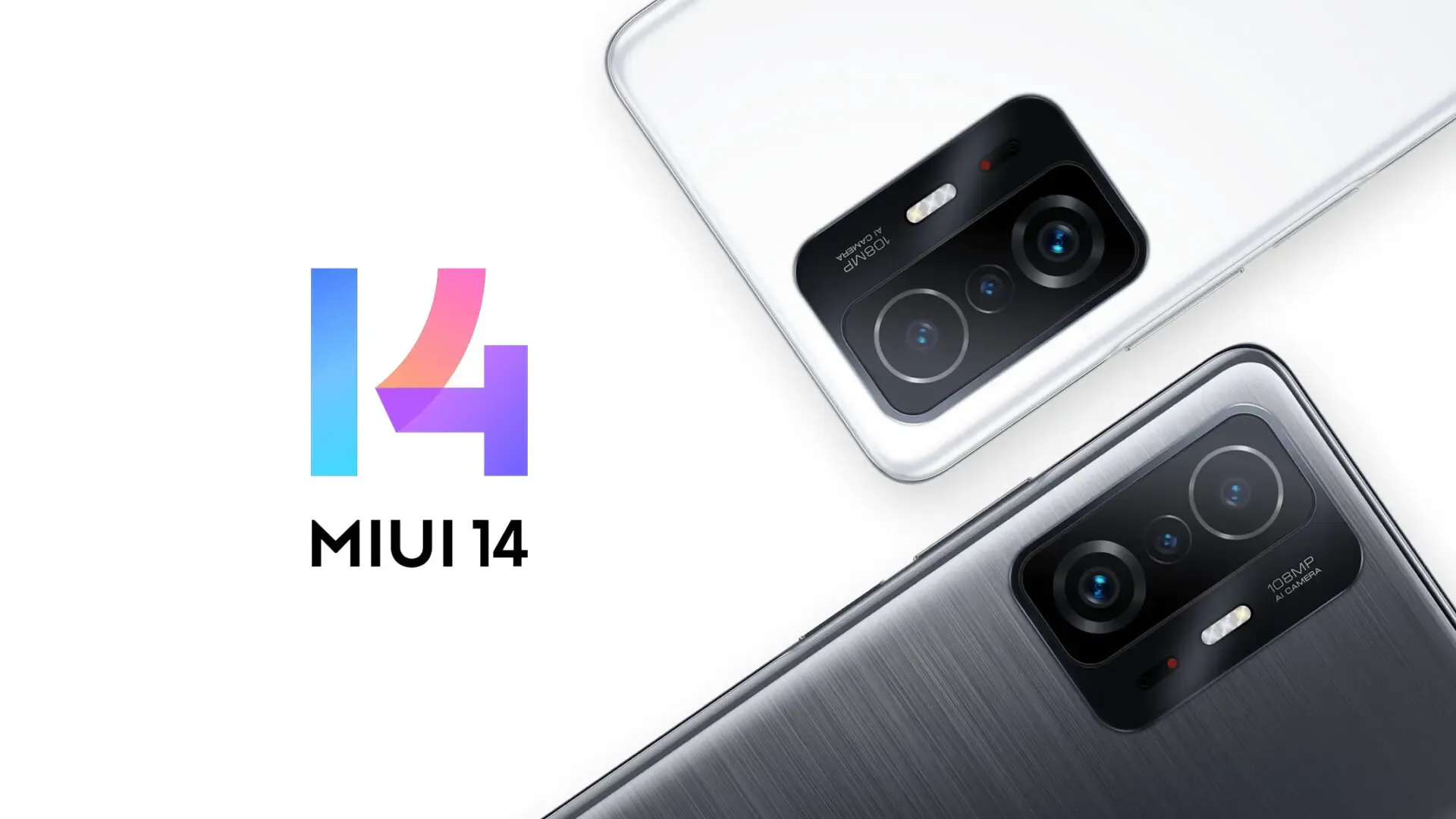
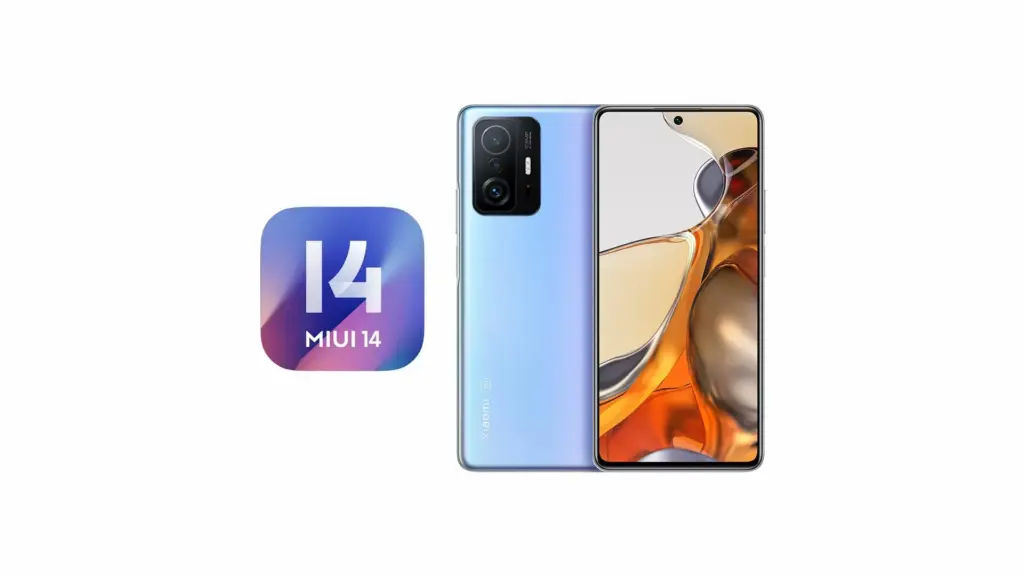
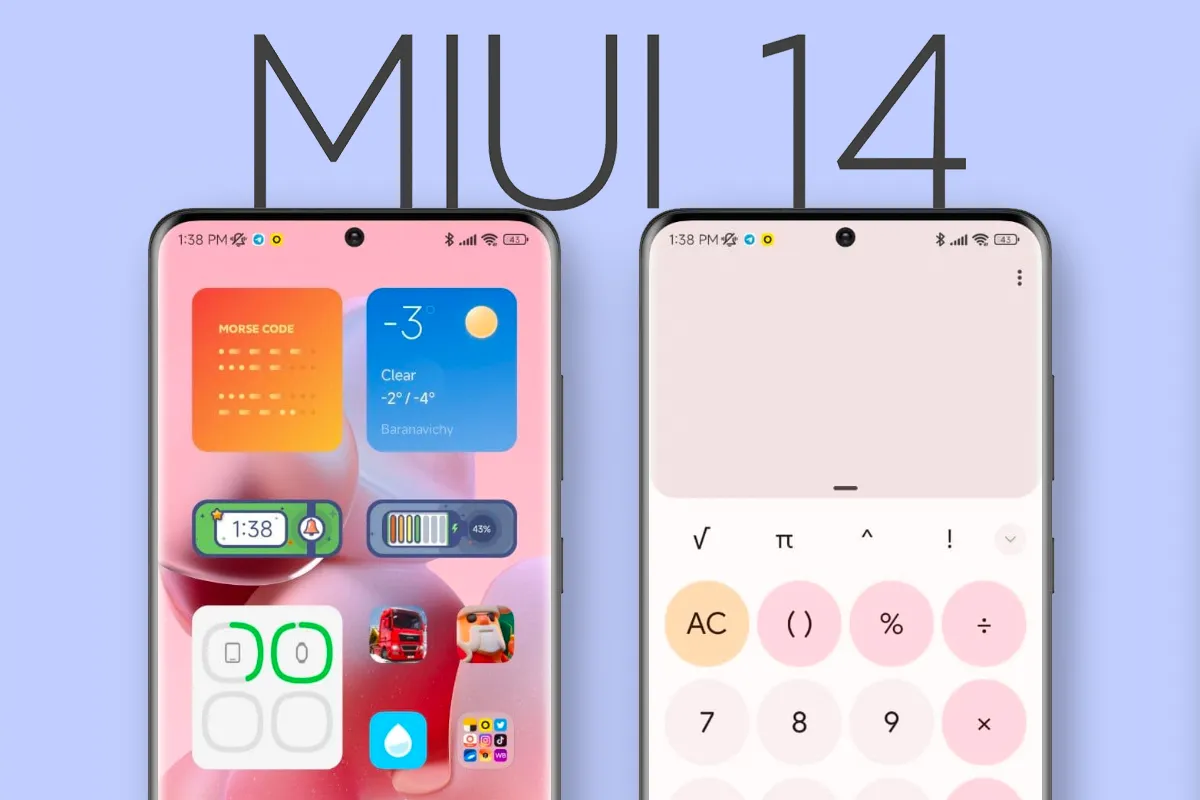
    The most recent version of Xiaomi’s customized Android interface, MIUI 14, has just been made available for the Xiaomi 11T. Numerous new features and enhancements to the user experience are included in this new version. The redesigned super icons, widgets, and updated aesthetic style in MIUI 14 are some of the most noticeable improvements. The new layout seeks to update the interface and make it more aesthetically pleasant while also improving usability.

    At the same time, MIUI 14 Global keeps the innovations of the Android 13 operating system together. The system responds faster, application launches are faster. In addition to all this, the new Android version 13 is said to increase battery life. Now MIUI is faster, more fluid, and highly efficient. Now, this new interface update is being rolled out to 11T. Xiaomi 11T users will be amazed by the new 11T MIUI 14 update.

    xiaomi14 mi 11t

    Xiaomi 11T MIUI 14 Update

    The Xiaomi 11T was launched in 2021. It came out of the box with Android 11-based MIUI 12.5. It had received an Android and 1 MIUI update. With the Xiaomi 11T MIUI 14 update released today, the device received the 2nd Android and MIUI update. Great innovations and optimizations of MIUI 14 are now with you! The new Android 13-based MIUI 14 version brings many optimizations and improvements. The build number of the update is V14.0.3.0.TKWMIXM.

    Xiaomi 11T MIUI 14 Update Global Changelog

    As of January 28, 2023, the changelog of the first Xiaomi 11T MIUI 14 update released for the Global region is provided by Xiaomi.

    [MIUI 14] : Ready. Steady. Live.

    [Highlights]

    • MIUI uses less memory now and keeps being swift and responsive over much more extended periods.
    • Attention to detail redefines personalization and brings it to a new level.

    [Basic experience]

    • MIUI uses less memory now and keeps being swift and responsive over much more extended periods.

    [Personalization]

    • Attention to detail redefines personalization and brings it to a new level.
    • Super icons will give your Home screen a new look. (Update the Home screen and Themes to the latest version to be able to use Super icons.)
    • Home screen folders will highlight the apps you need most making them just one tap away from you.

    [More features and improvements]

    • Search in Settings is now more advanced. With search history and categories in results, everything looks much crisper now.

    [System]

    • Stable MIUI based on Android 13

    Where can download the Xiaomi 11T MIUI 14 update?

    This update is open to anyone. Via MIUI Downloader, you may download the Xiaomi 11T MIUI 14 update. Additionally, while learning about news regarding your device, you will be able to use the MIUI’s secret capabilities thanks to this app. To get the MIUI Downloader, click here. Our coverage of the Xiaomi 11T MIUI 14 upgrade is now complete. Please remember to follow us for such updates.

  • Choose the best Google Pixel 7 Pro screen protectors

    Choose the best Google Pixel 7 Pro screen protectors

    The Google Pixel 7 Pro‘s display is simply beautiful. The curved AMOLED QHD+ 120Hz display is simply stunning. However, because it is curved, replacing it if it breaks or cracks can be quite expensive. Therefore, purchasing a screen protector is both a really smart idea and absolutely necessary.

    Here, we’ve compiled a list of the top screen shields for the Google Pixel 7 Pro. So that you may protect that lovely display from scratches.

    Best Google Pixel 7 Pro screen protectors

    You can find the standard, inexpensive plastic screen protectors on this list. Several toughened glass screen protectors are also included. We would advise using tempered glass screen protectors. As they will feel identical to the display itself. Furthermore, they appear better. However, they might also cost more, so bear that in mind.

    CostWhere to buy
    AFSKU Tempered Glass Screen Protector$15Amazon
    Whitestone Dome Screen Protector$40Amazon
    IMBZBK Tempered Glass Screen Protector$35Amazon
    ArmorSuit Military Shield Screen Protector$11Amazon
    OMOTON Clear Screen Protector$7Amazon

    AFSKU Tempered Glass Screen Protector

    This screen protector is made of tempered glass, which has a 9H hardness rating. Therefore, it may sustain some harm without breaking your screen. Your phone’s glass screen will continue to feel as though it is unprotected. Additionally, they’ve made it really simple to install and prevent air bubbles.

    google pixel 7 pro screen protector

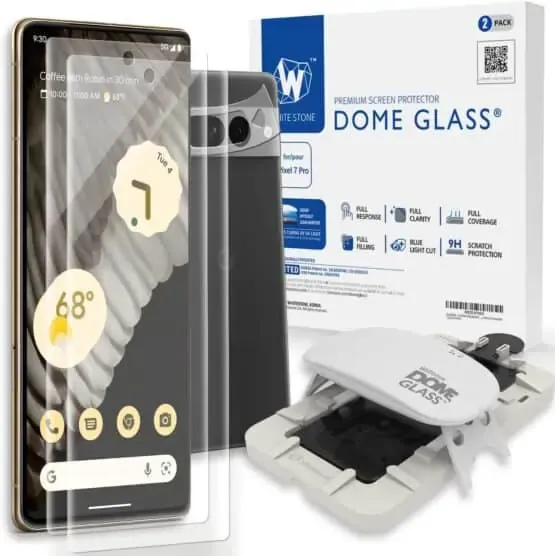
    Whitestone Dome Glass Screen Protector

    The most costly screen protector on this list is the Whitestone Dome Glass, which isn’t surprising in all honesty. Its inclusion of a UV curing light, which aids in the screen protector’s adhesion to your phone, is a major factor in its high price. Because liquid dispersion technology is employed at Whitestone Dome.

    This does make it possible to apply the screen protector correctly, without creating any air bubbles underneath it. They also come with a camera protector and two screen protectors.

    71x870sZXL. AC SL1500 555x556 1

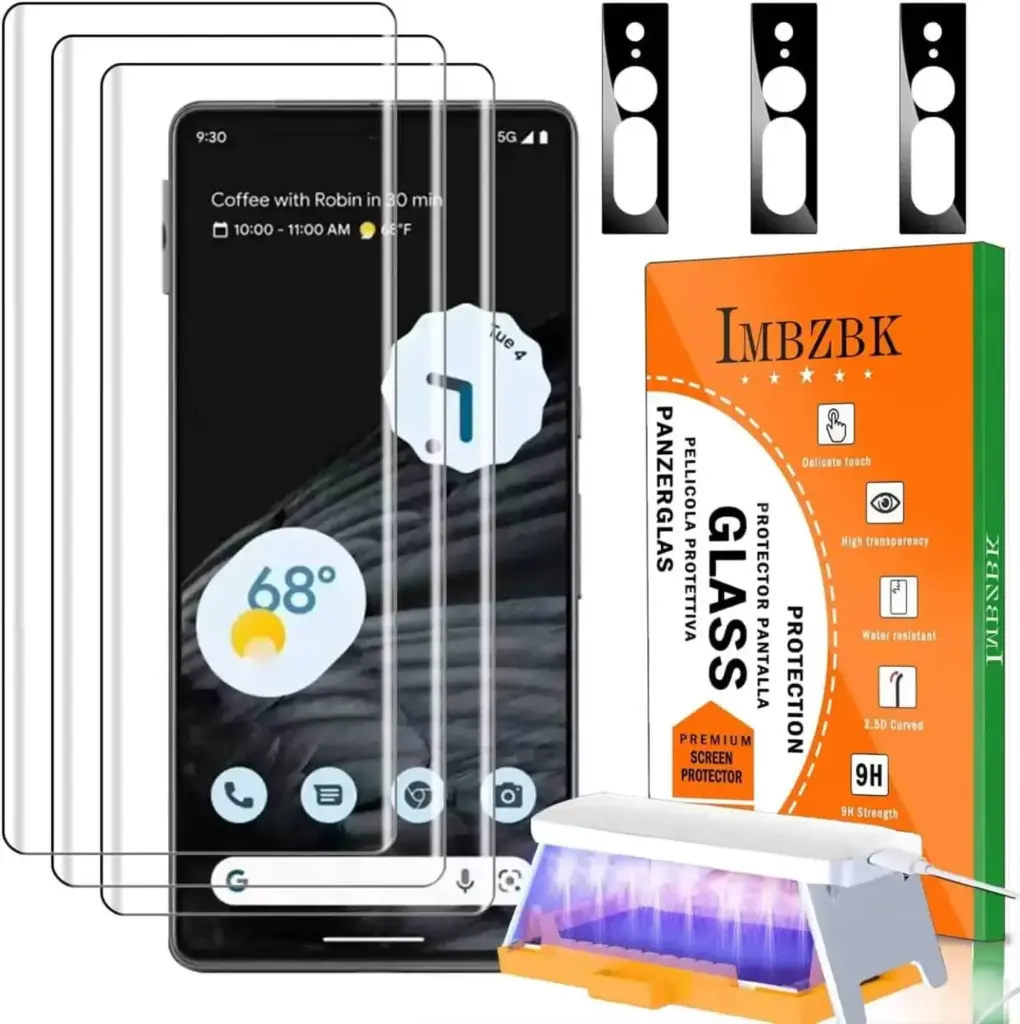
    IMBZBK Tempered Glass Screen Protector

    A UV light is included in this additional tempered glass screen protector, much to the Whitestone Dome type, to ensure that it adheres to your screen properly. In addition, IMBZBK has provided three screen covers and three for your camera bar. This is significant since the camera bar is prone to scratching.

    719aQaKZbYL. AC SL1500 1420x142 1

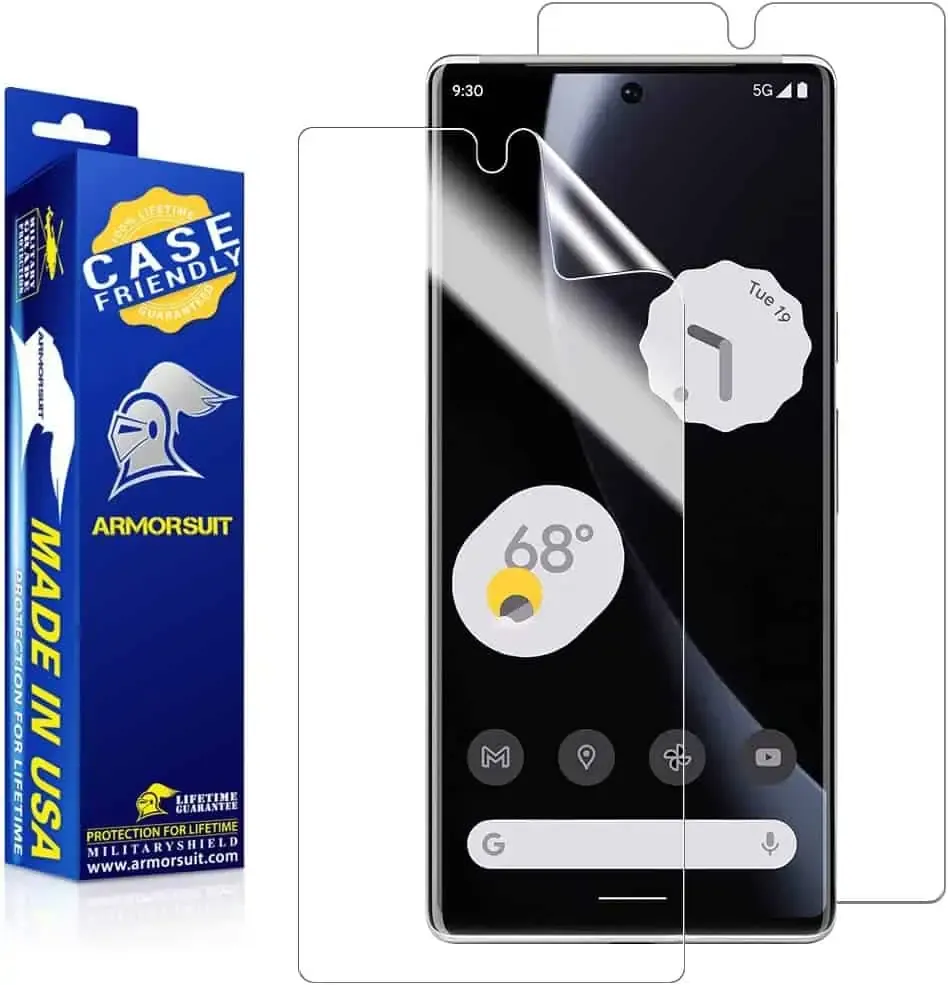
    ArmorSuit MilitaryShield Screen Protector

    The MilitaryShield from ArmorSuit is a crystal-clear HD screen protector. This model does not have toughened glass. This is the reason why a two-pack costs only $11 here. This does include a cutout for the front-facing camera, so taking selfies with it won’t be a problem.

    61077BFoRTL. AC SL1000

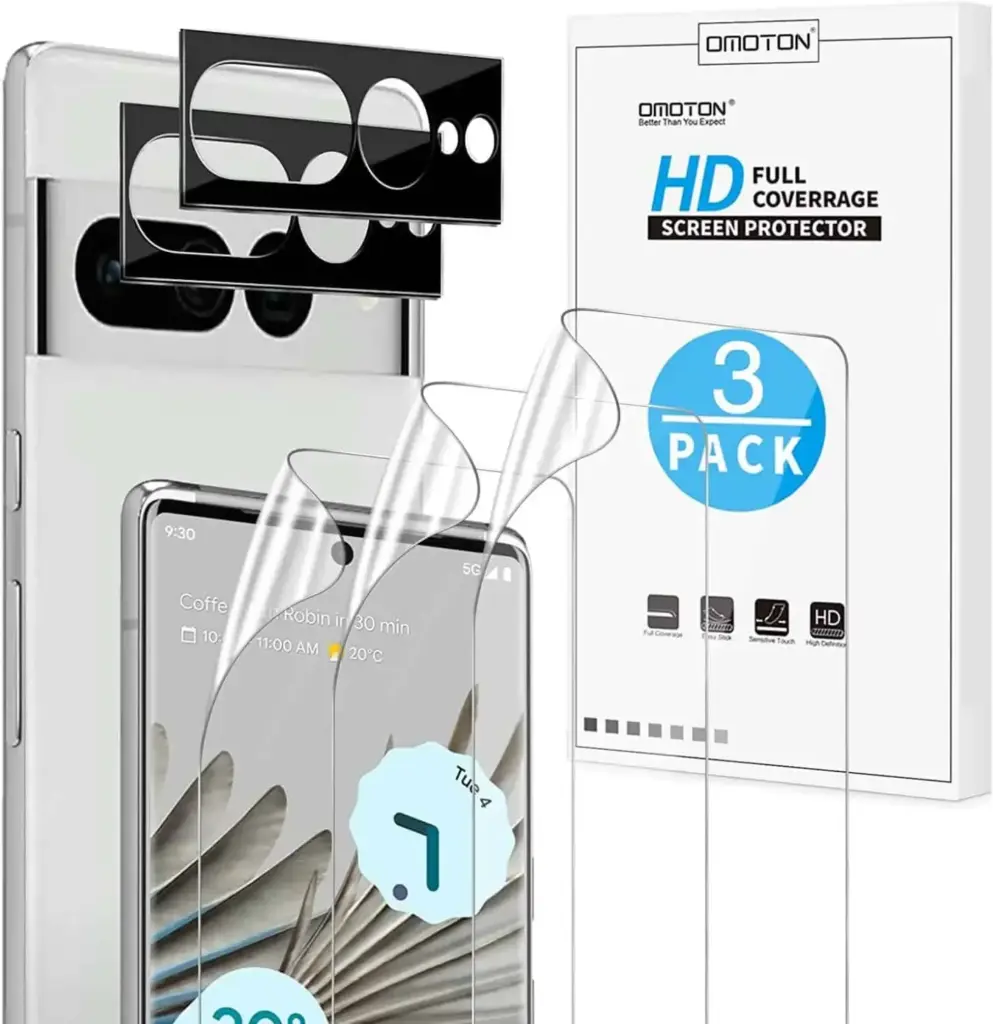
    OMOTON Clear Screen Protector

    Because it is not made of tempered glass, this screen protector from OMOTON may be purchased in quantities of three for less than $7. Three screen protectors and two camera bar protectors are included. In order to keep your complete phone secure. It’s fantastic to see that here as usual. It’s crucial to note that the front camera is not cut out of this, so you’ll need to keep it clean to avoid having poor selfies.

    71K2peKzbIL. AC SL1500 1420x146 1

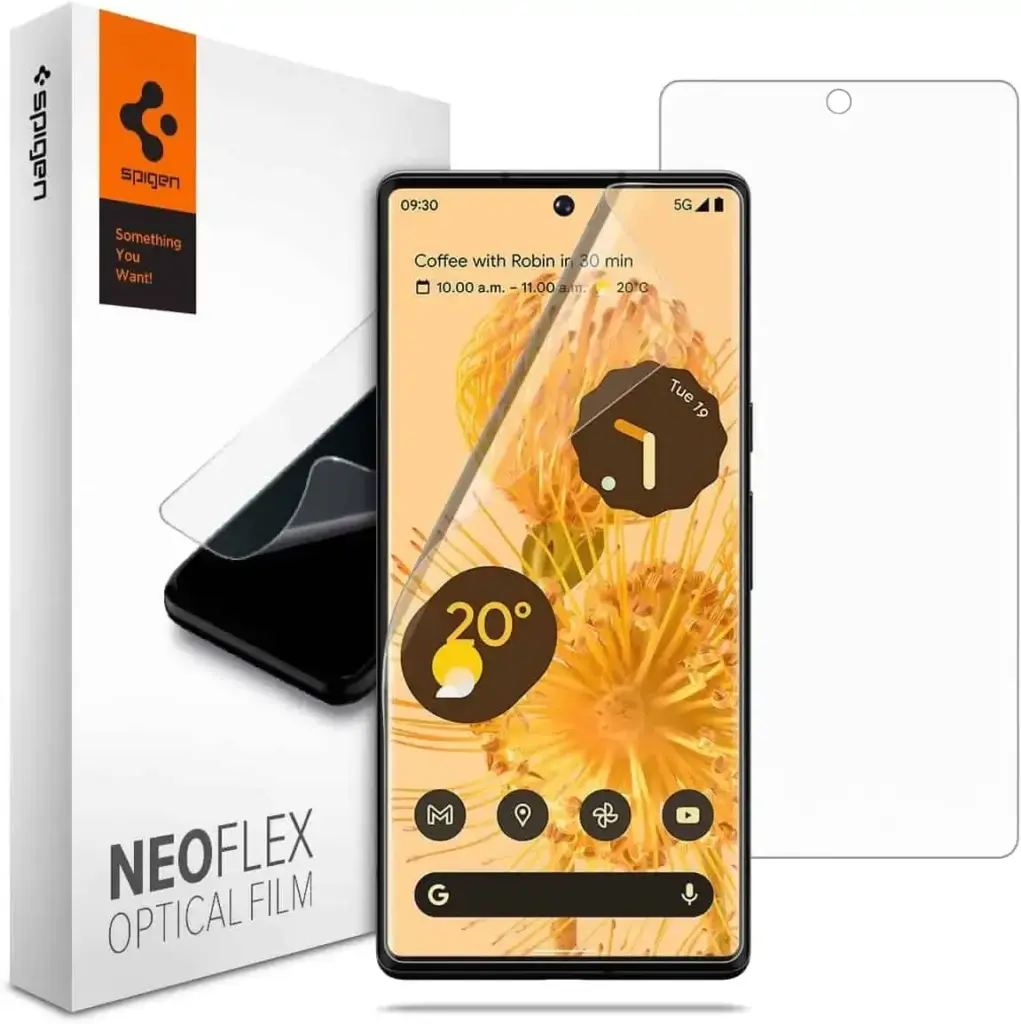
    Spigen Tempered Glass Screen Protector

    This is one of the best screen protectors available right now, yet Spigen has recently entered the market. Spigen really provides the equipment you need to apply your screen protector flawlessly.

    Actually, this is a different model than what is offered for the normal Pixel 7. This is because the Pixel 7 Pro has to be designed slightly differently because to its curved display. Here, the installation was also slightly different.

    61LEUnqKODL. AC SL1200
  • Android 13 update through Mi Pilot program started rolling out for Xiaomi 12 – MIUI 14

    Android 13 update through Mi Pilot program started rolling out for Xiaomi 12 – MIUI 14

    Despite Xiaomi’s official presentation of MIUI 14 in December, the OS update has not yet been widely released. At the time, Xiaomi stated that the OS update would be made available for the Xiaomi 12 series starting in January 2023, and it followed through with the Xiaomi 12 Lite. The Xiaomi 12 has now been added to the short list of devices that can download MIUI 14 in one way or another. Before February is up, the Xiaomi 12 Pro, MIX Fold 2, Xiaomi 12S series, and Redmi K50 series are all scheduled to receive MIUI 14.

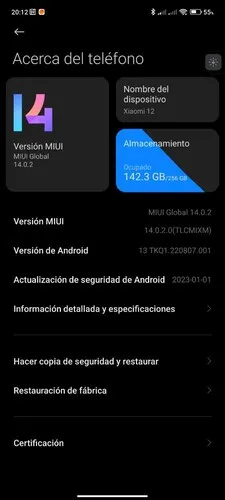
    Currently, Xiaomi has only made MIUI 14 available to Xiaomi 12 devices that have been accepted into the Mi Pilot Program. The build number suggests that Xiaomi issued MIUI 14 as MIUI 14.0.2.0 to the Xiaomi 12 at this early stage of the OS’s lifecycle, according to The Update Box. For perspective, the update is 4.45 GB in size and comes with the January 2023 set of Android security updates. Before switching from MIUI 13 to MIUI 14, Xiaomi advises users to create a complete backup. The following is the URL to download MIUI 14.0.2.0:

    Xiaomi 12 – MIUI V14.0.2.0.TLCMIXM

    miui 14

    Unless Xiaomi finds any significant flaws, Mi Pilot Program builds typically take a few weeks before they are released to a larger audience. Even though MIUI 14 is a hefty download, once loaded, the OS should use less storage space than MIUI 13 did. In addition, MIUI 14 offers more system program uninstall options than MIUI 13 provides, which when combined with an automatic duplicate file finder can help users use built-in storage more efficiently. It is claimed that MIUI 14 consumes up to 22% less power than MIUI 13 while loading apps up to 60% faster. However, it is unknown whether all the advancements featured in the Chinese version of MIUI 14 will be included in the international release.

  • Android 13 beta hotfix for Nothing Phone 1 released

    Android 13 beta hotfix for Nothing Phone 1 released

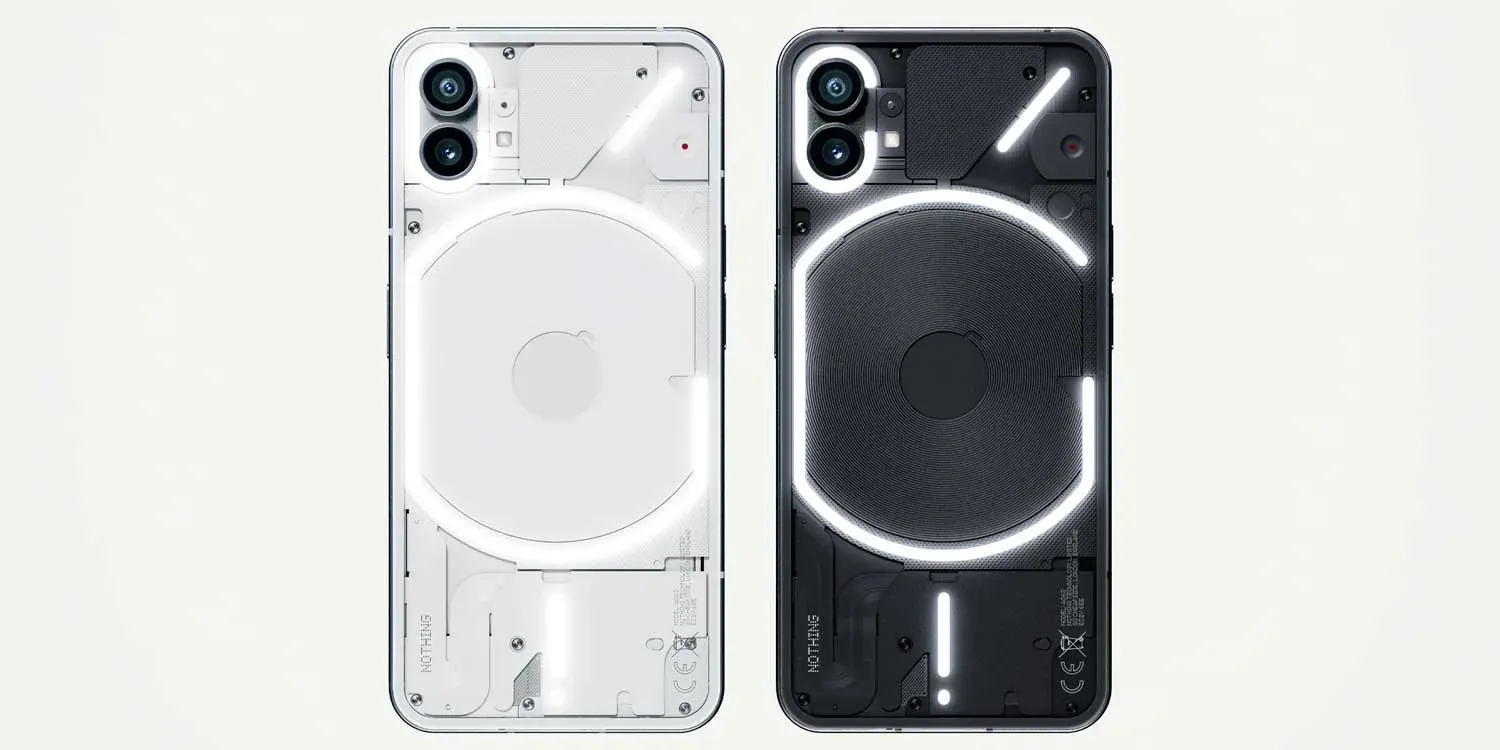
    One of the most anticipated phones of the previous year was the Nothing Phone 1. Glyph Lighting was the sole cause. The best feature of the gadget, in my opinion, is the stock Android interface. However, given that it is the only smartphone produced by Nothing, the handset is expected to get the Android 13 update fairly late.

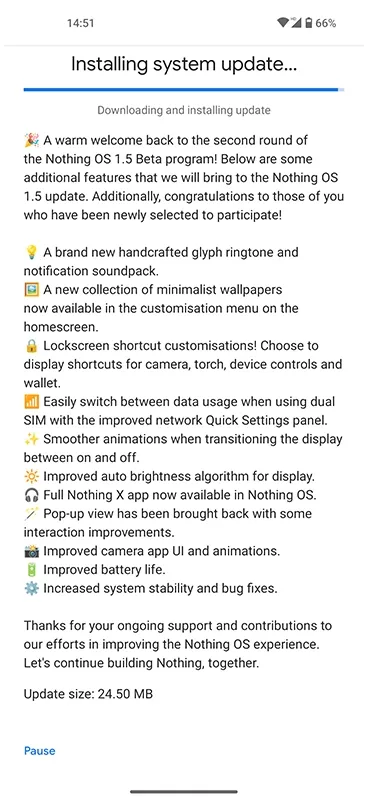
    The Android 13-based Nothing OS 1.5 second open beta has only been available for one week. And a fresh update is already being released. The latest update, which is a hotfix update for the second open beta of Android 13, is not a full release. Therefore, aside from bug patches, it does not introduce anything new.

    Nothing said in 2017 that the phone’s first significant update to Android 13 and Nothing OS 1.5 will arrive in 2023 rather than 2022. In late November, the startup, which has Carl Pei’s support, released a closed beta.

    Later, in the middle of December, the Nothing Phone 1 was given access to the first open beta of Android 13 running Nothing OS 1.5. The second Android 13 beta version with several additional features and improvements was then applied to the smartphone, which was approximately a month later.

    nothing phone update

    The build number for the most recent hotfix OTA update for the Nothing Phone 1 is TKQ1.220915.002/1673708663. It weighs relatively little because it is a tiny OTA update. And it’s spreading throughout Europe. In terms of bug fixes, it resolves several issues, including one where the device displays the wrong RAM configuration.

    You will soon receive the minor OTA update if you chose to participate in the Android 13 open beta program and are currently using the second open beta. Keep in mind that as this is a beta update, it could have both small and major errors. The stable update may also be made available soon. You can therefore wait for the stable build if you decided against the beta. Once the update is available, we’ll let you know.

    Source

  • How to use ADB and Fastboot on Android device

    How to use ADB and Fastboot on Android device

    You have probably come across ADB and Fastboot if you have ever rooted an Android device. Although they are a crucial component of the rooting toolset, these utilities can be challenging to grasp, let alone master.

    So read on if you’re interested in learning more about ADB and Fastboot, need assistance setting them up, or want to know what you can do with them.

    What are ADB and Fastboot?

    While your phone is linked to a desktop computer via a USB cable, the tools ADB and Fastboot enable access to the Android operating system. There is no app for this, and while you may use ADB wirelessly, the setup is considerably more difficult, therefore the computer and cord are essential.

    ADB is typically used when Android is active. It gives you access to system folders or lets you change hidden settings that are otherwise inaccessible to users. ADB can be used to copy system files to and from the device. System updates can also be installed via the sideload capability.

    When Android is not active and the device is booted into “Fastboot mode,” Fastboot functions. It gives you access to every partition on your device, including the data partition, boot partition, and others in addition to the Android operating system.

    Fastboot is a diagnostic tool for Android. It is frequently used to install a custom recovery and is necessary if you need to unbrick your phone.

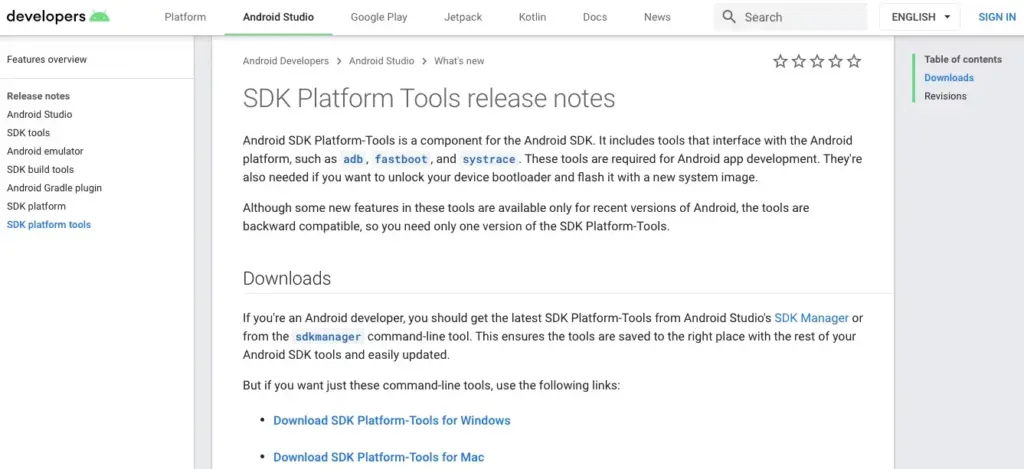
    Both are included in the Platform Tools collection of the Android software development kit.

    android platform tools

    Both tools run through the Command Prompt on Windows, or Terminal on Mac and Linux. This means they aren’t especially user-friendly, even though they are quite easy to get the hang of.

    How to set up ADB and Fastboot

    windows drivers

    First, you need to set up your phone to use the tools. If you haven’t already, enable the Developer Options by going to Settings > About phone and tapping on Build number seven times.

    Then, in Settings > Developer options, check the box next to USB debugging and walk through the dialog box that follows.

    Download ADB and Fastboot from the Android Developer website. When you unzip the download, the contents will be collected together into a folder called platform-tools. There are several other items in the folder, but you can ignore these.

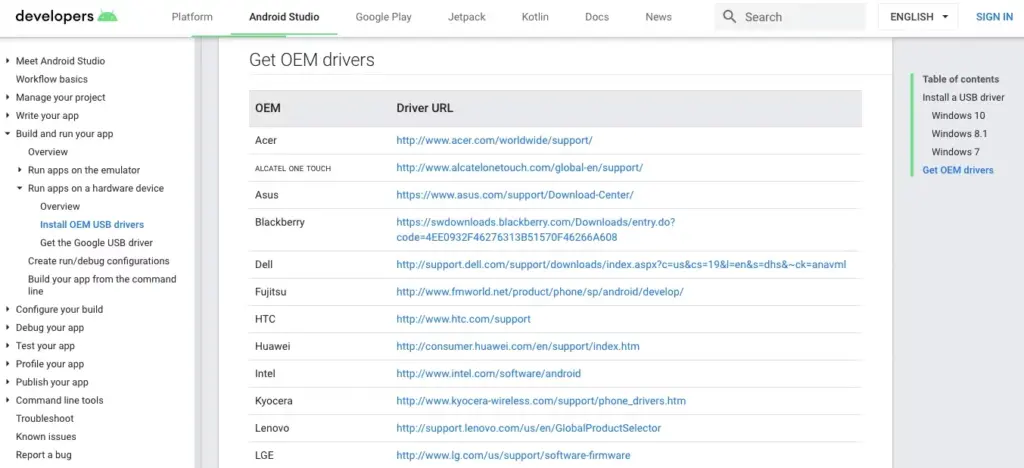
    If you’re on Windows, you will also need to download drivers for your device. There’s a list of links for most popular manufacturers on the Android developer website. Drivers aren’t needed on Mac or Linux.

    Using the command prompt or terminal

    Use the cd command to accomplish this: type cd [path to platform-tools]. The path will automatically fill in for you if you type cd[space] and then drag the platform-tools folder into the Command Prompt window.

    Even simpler, on Windows you may pick Open Command Prompt Here by right-clicking the platform-tools folder while holding the shift key down.

    The difference between Windows and Mac/Linux

    There’s one small but essential difference between using Windows and Mac or Linux. On the latter two, every ADB and Fastboot command must be preceded by a dot-slash.

    So where you type adb on Windows, you must type ./adb on Mac and Linux. And fastboot on Windows needs to be ./fastboot on Mac and Linux.

    For the sake of simplicity, we’ll stick with the Windows commands going forward.

    How to use ADB

    adb devices 1

    Launch Android on your phone, then use a USB cord to connect it to your desktop computer. Open the Command Prompt on your PC and modify the directory to point to the platform-tools folder.

    Hit Enter after entering adb devices. The list of attached devices should now be visible, along with their serial numbers. This indicates that it is effective.

    How to use fastboot

    Fastboot works the same way as ADB, except you need to boot your phone into Fastboot mode instead of Android. You normally do this by holding a combination of the power and volume keys when turning on the phone.

    Alternatively, use ADB and type adb reboot bootloader.

    After that it’s the same. Enter fastboot devices to check that your phone is being recognized. Enter fastboot reboot to relaunch Android.

    Things you can do with ADB and Fastboot

    Now that you know how to use ADB and Fastboot, what can you do with them? Here are a few tools to try:

    • adb pull [path to file] [path to folder] This copies a file stored anywhere on your phone, and saves it to a specified folder on your computer.
    • adb push [path to file] [path to folder] The opposite of pull; send a file from your desktop to your phone.
    • adb install [path to file] Installs an APK app on your phone. This is of most use to app developers.
    • adb uninstall [package name] Uninstalls an app. You need to enter the full package name—usually something along the lines of com.devname.appname—instead of the common app name.
    • adb shell wm density [dpi] Changes the pixel density of your display. A lower number fits more content onto the screen, while a higher number will fit less. For example, older devices like the OnePlus 3 have a native DPI of 480. Setting it to 400 makes text, icons, and everything else smaller.
    • adb sideload [path to update.zip] Sideloads an update.zip firmware update. This one runs via the custom recovery on your phone. Useful if you can’t wait for an update to get pushed to your device.
    • fastboot oem unlock OR fastboot flashing unlock Which command you should use depends on which version of Android you’re running. From Android 6 onwards you also need to enable OEM unlocking in Developer Options. Unlocking the bootloader this way wipes your phone completely.
    • fastboot flash recovery [filename.img] Installs a custom recovery, such as TWRP, on your device. For ease of use, we suggest changing the recovery filename to something easy—twrp.img, for instance—and moving it into the platform-tools folder.
    • fastboot -w Completely wipes your phone in preparation for flashing a custom ROM.
    • fastboot update [path to rom.zip] Flashes a custom ROM. A useful option if you haven’t rooted your phone.

    Why you should learn ADB and Fastboot

    Obviously, the aforementioned instructions are simply meant to provide general direction. On some gadgets, they might not all function. Only use them if you are aware of what they will do and how to reverse any modifications they could cause.

    The Android rooting and modding process depends heavily on ADB and Fastboot. It’s crucial to learn how to use them because doing so will enable you to employ more sophisticated tweaks.

    As previously indicated, you must first enable the Developer Options in order to use ADB and Fastboot. Once you’ve done that, you’ll have access to a number of other handy settings.

  • Xiaomi 13 Pro vs  iPhone 14 Pro Max –  Snapdragon 8 Gen 2 wins real-world gaming testing

    Xiaomi 13 Pro vs iPhone 14 Pro Max – Snapdragon 8 Gen 2 wins real-world gaming testing

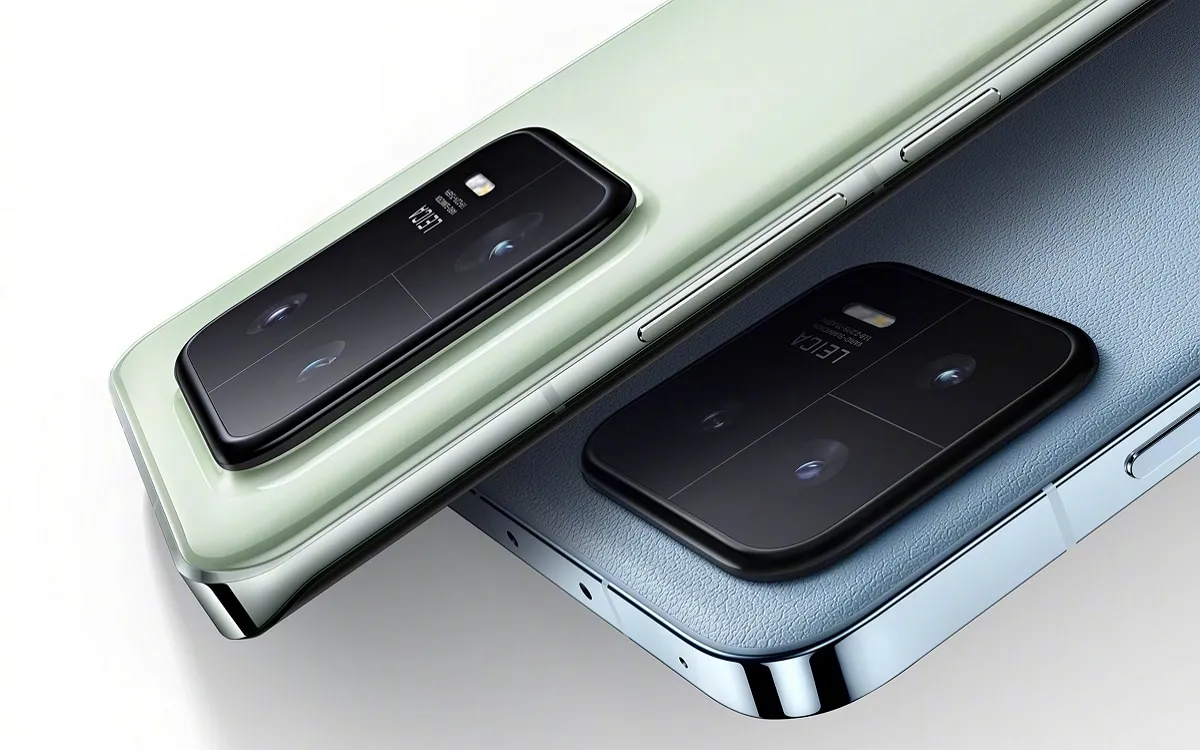
    After making its debut in November, the new Snapdragon 8 Gen 2 is now slowly making its way into the market. The new Xiaomi 13 series is powered by the company’s flagship processor, and the Xiaomi 13 Pro has just been put to the test in a competitive gaming environment.

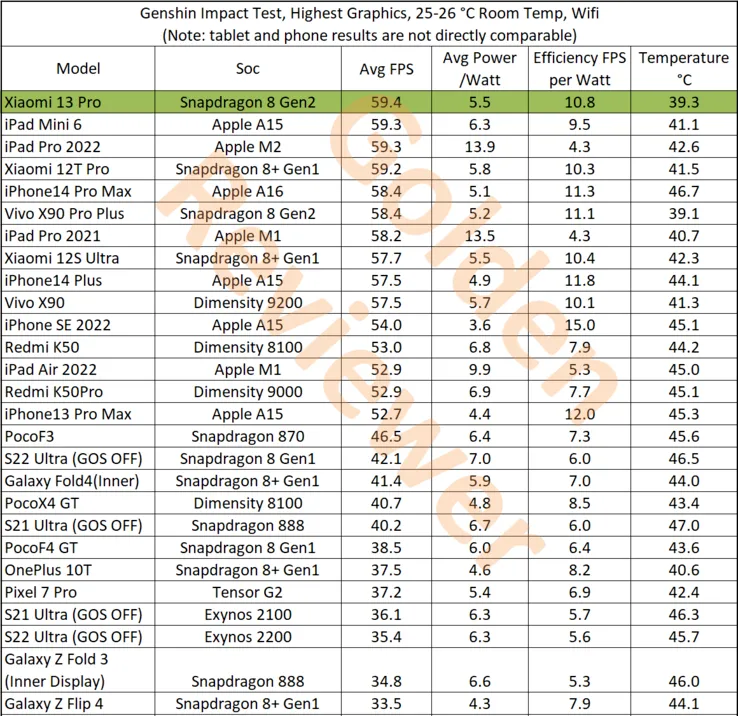
    This test, conducted by Golden Reviewer on the well-known game Genshin Impact, demonstrates the Snapdragon 8 Gen 2 in the Xiaomi 13 Pro’s performance, which easily exceeds all competitors. The Xiaomi 13 Pro has the highest tested raw performance, averaging 59.4 frames per second (FPS). Comparatively, the Dimensity 9200 on the Vivo X90 achieves 57.5 FPS while the iPhone 14 Pro Max and its A16 Bionic accomplish 58.4 FPS.

    With higher efficiency scores and lower power consumption than the Dimensity 9200, the Xiaomi 13 Pro and Snapdragon 8 Gen 2 also outperform it in terms of efficiency. However, the iPhone 14 Pro Max does have a slight edge in some areas. Most impressively, though, is that the Xiaomi 13 Pro achieves these performance benchmarks while remaining cooler than every other tested tablet. It only reaches a maximum temperature of 39.3°C. In contrast, the iPhone 14 Pro Max achieves a maximum temperature of 46.7°C, while a tablet like the iPad Pro 2022 only hits 42.6°C.

    Snapdragon

    Source: Golden Reviewer