Category: News

Up‑to‑date Android news, smartphone launches, software updates and industry trends, written in a clean, editorial style for informed readers.

  • What role Cybersecurity plays in electronic devices

    What role Cybersecurity plays in electronic devices

    It is widely known that the security of networks, devices, and information from cyberthreats is referred to as cybersecurity. This involves safeguarding against criminals, hackers, and other harmful agents who may attempt to acquire unauthorized exposure to networks or seize sensitive data. 

    Measures to defend against inadvertent data loss or destruction due to human mistake, hardware or software malfunction, or natural catastrophes are also included in cyber security. If you are someone interested in being a part of Cyber Security, then we strongly recommend you to enroll in Cyber Security Course!

    In this blog we will be discussing cyber security and what role does it play in electronic devices:

    Why do we use Cyber Security?

    Cybersecurity is absolutely crucial because it protects people, organizations, and government from destructive assaults and data breaches. Cyber security protects against worms, spyware, and other dangerous software while also simultaneously preventing data access. Forgery, extortion, and other internet frauds are also protected by cyber security. It also helps to secure data integrity and confidentiality, as well as defend against data breaches.

    Today’s cyber security sector is largely concerned with defending devices and systems from attackers. While the bits and bytes driving these efforts might be difficult to visualize, the implications are much easier to consider. Many websites would be practically impossible to enjoy if cyber security specialists did not work ceaselessly to prevent denial-of-service attacks. 

    Without strong cyber security measures, it would be relatively easy to destroy modern-day necessities such as electricity systems and water treatment plants that keep the globe operating smoothly.

    Cybersecurity

    Who is a Cyber Security Professional?

    A Cyber Security Professional is someone who is in charge of securing computer systems, networks, and records against hostile assaults or illegitimate access. They are in charge of developing, executing, and administering safety procedures to safeguard an organization’s computer networks, systems, and data against cyber attacks. They often develop security rules, monitor networks for suspicious behavior, investigate security breaches, and provide technological solutions to improve security.

    What Role Cybersecurity Plays in Electronic Devices

    Cybersecurity is an important feature of electronic equipment because it protects them from malicious assaults and manipulation. Cybersecurity may be used to stop online criminals from gaining access to sensitive data like passwords, credit card numbers, and personal details. It also assists in safeguarding against viruses and other undesirable apps that might impair a device’s functionality. Cybersecurity solutions such as encryption, two-factor authentication, and firewalls can help safeguard devices from hostile attackers. Additionally, people should be conscious of the dangers of utilizing electronic devices and exercise good cyber hygiene by using secure passwords and updating their software.

    Cyberspace does not exist in isolation. The actual hardware of semiconductor chips, which are present in all contemporary electronics, computers, communications networks, and other essential infrastructure, is used to construct all cyber systems. Since these processors are getting faster, more affordable, and more potent, autonomous systems, the internet of things (IoT), and artificial intelligence have emerged as important future technologies.

    Absolute faith in hardware is no longer an option as the globe grows more dependent on cutting-edge technologies for national security and economic success. In the end, the basis for digital trust is hardware. The cybersecurity of a system can be fatally undermined by a compromised physical component, which can also compromise all other levels. As a result, hardware security focuses on safeguarding systems against vulnerabilities at the physical layer.

    Computers are more than just laptops and desktop computers. Many electronic gadgets, from mobile phones and tablets to video games and auto navigation systems, are computers. While computers provide more capabilities and capability, they also pose new dangers. Attackers may be able to target previously “safe” gadgets because of technical improvements. An attacker, for example, may infect your phone with a virus, take your phone or cellular service, or access the data on your device. These activities not only have repercussions for your personal information, but they may also have major effects if you store company data on the device.

    So, What kinds of gadgets are at risk?

    Any electrical device that contains a computerized component is prone to software flaws and vulnerabilities. If the gadget is linked to a network or the internet, which an attacker might be able to access, the hazards rise. Keep in mind that a wireless connection adds these hazards as well. An attacker can use the outside connection to send information to or take information from your device.

    But, you can always take some precautions to prevent it all and ultimately protect yourself:

    • Keep physical security in mind

    Physical access to a device facilitates an attacker’s extraction or corruption of data. In public or easily accessible places, never leave your device alone.

    • Maintain software updates

    If the manufacturer provides software updates for your device, install them as soon as possible. Installing these will prevent attackers from exploiting known flaws or vulnerabilities.

    • Make use of strong passwords

    Choose gadgets that allow you to password-protect your data. Choose passwords that are difficult to guess for criminals, and use separate passwords for different applications and devices.

    • Turn off remote connection

    Some mobile devices have wireless technologies, such as Bluetooth, that allow them to communicate with other devices or computers. When not in use, you should disable these functionalities.

    • Encrypt your files

    Check to determine if your device allows you to encrypt files containing personal or business information. Encrypting files ensures that unauthorized individuals cannot examine data even if they have physical access to it. It is critical to remember your passwords while using encryption; if you forget or lose them, you may lose your data.

    Future of Cyber Security

    It is obvious that cyber security will continue to be a major focus and investment subject in the coming years. Risks will grow along with technology, and firms and governments must stay up.

    Encryption and two-factor authentication will be used in both proactive and reactive cyber security measures in the future. As the internet of things expands, so will the demand for security, as these devices become increasingly vulnerable to attacks.
  • Huawei rebranded to support 5G and escape U.S. restrictions

    Huawei rebranded to support 5G and escape U.S. restrictions

    The Huawei Nova 9 SE was released in March, and of course, the specifications of the device had to abide with the limitations imposed on Huawei by the US. This indicates that the 6nm Snapdragon 680 4G SoC powers the phone. You see, a current export regulation forbids foundries employing American technology from exporting chips to Huawei, even if those chips are created by the company itself, preventing Huawei from having its devices enable 5G.

    In order to get around this, Huawei has filed a patent for parts that would be used by an ultra-violet lithography device (EUV). There is only one business in the world that makes this equipment, and that company, ASML, does not send EUV machines to China. This machine etches circuity patterns on a silicon wafer that are thinner than the width of a human hair. In order to cram billions of transistors into a chip, smaller designs are required. A chip becomes more powerful and energy-efficient as its transistor count increases.

    huawei wiko rebrand

    Huawei might make a significant comeback in the smartphone industry if it can construct its own EUV machine, which is something that isn’t totally evident right now. Its ecosystem, app marketplace, and operating system are all unique. Huaweri only need cutting-edge chips, and if it develops its own EUV, it might be able to assist SMIC, China’s top foundry, in producing chips that are compatible with the silicon offered by TSMC and Samsung Foundry.

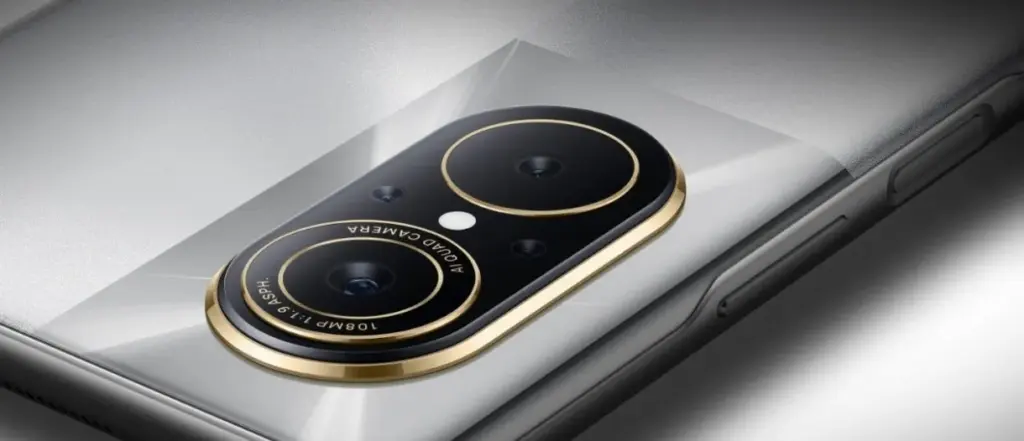
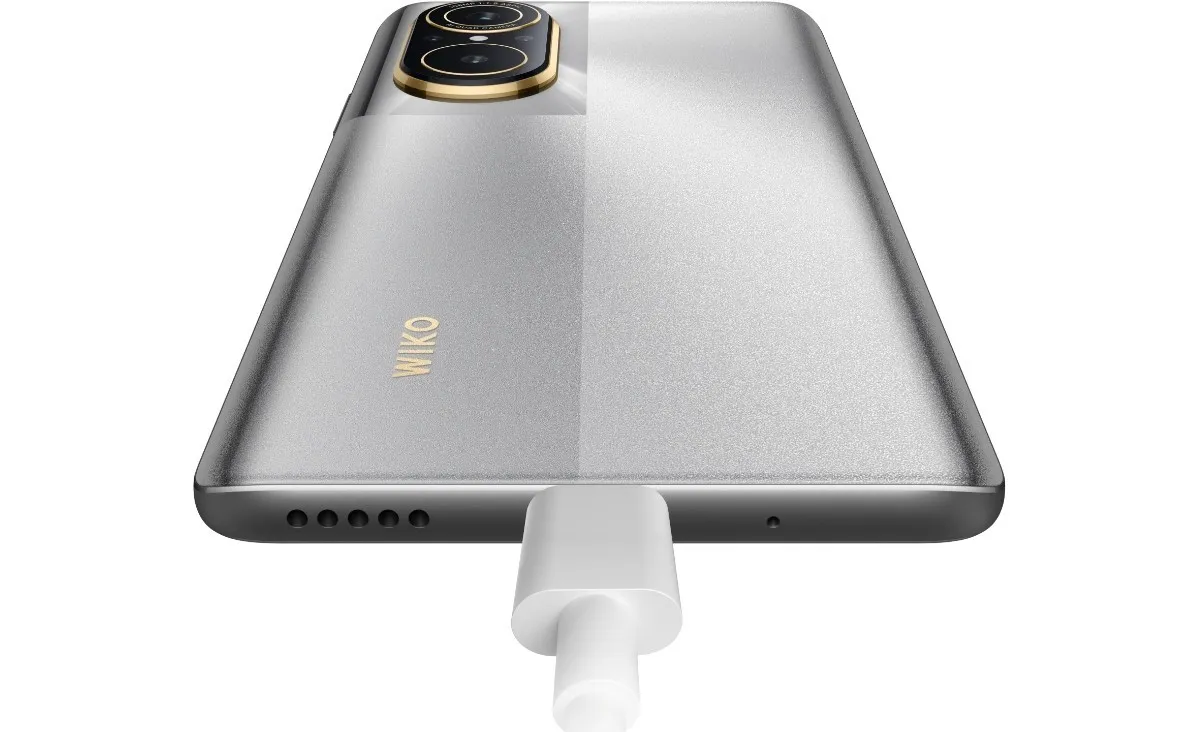
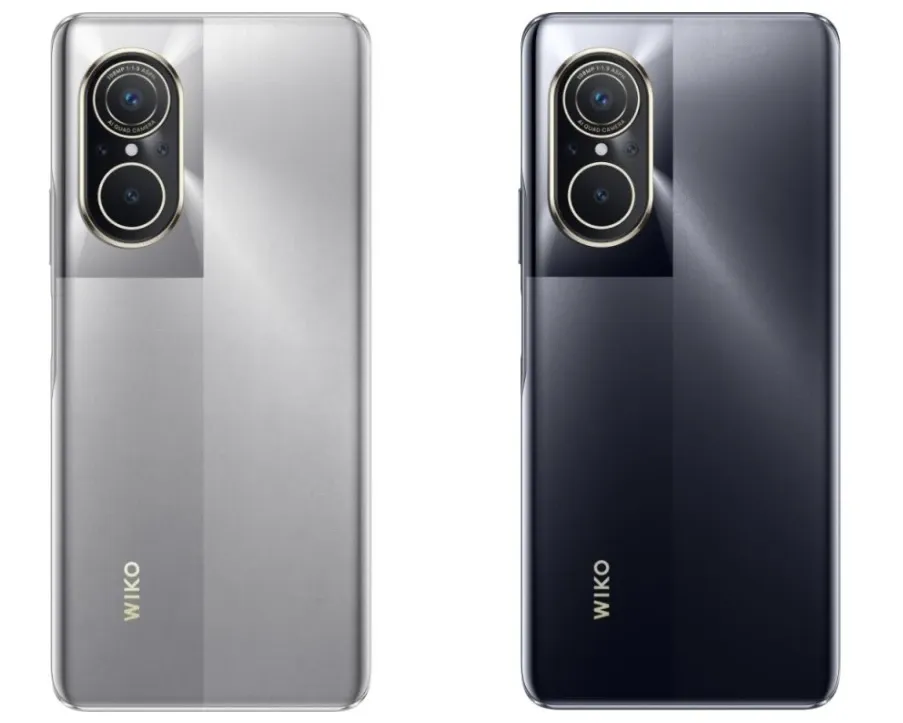
    According to GSMArena, a French company using the Wiko brand name is trying to make a comeback in the marketplace by rebranding the Huawei Nova 9 SE as the Wiko 5G. The phone uses a chipset that Huawei doesn’t have access to, the Snapdragon 695 SoC which does feature 5G support. The Wiko 5G, like the Nova 9 SE, sports a 6.78-inch LCD display with an FHD+ resolution of 1080 x 2388 and a 120Hz refresh rate.

    wiko phone

    The Wiki 5G features 8GB of RAM along with either 128GB or 256GB of storage. Keeping the lights on is a 4000mAh battery with 66W wired charging. The rear camera array is intriguing as it comes with a 108MP Primary camera, an 8MP Ultra-wide camera, a 2MP Macro camera for extreme close-ups, and a 2MP depth sensor. The front-facing selfie snapper weighs in at 16MP. The handset is pre-installed with HarmonyOS which means that software updates for the device will be coming straight from Huawei.

    The price for the Wiko 5G is 1,999 Chinese yuan ($287) for the model with 128GB. The model with 256GB of storage is priced at 2,199 Chinese Yuan ($315).

  • Rooting – custom ROMs –  Android language

    Rooting – custom ROMs – Android language

    Every profession or pastime creates its own own particular jargon for explaining complex concepts in an understandable manner, and the Android world is no exception.

    This article is for you if you’ve googled a problem with your Android smartphone or tablet and came across terms like “rooting,” “flashing a custom ROM,” “unlocking the SIM,” or anything similar that you didn’t understand.

    This article is a reference for the novice who wants to learn about all the terminology behind our Android nerdiness because Android experts presumably already know what these phrases represent.

    custom rom

    What Is Rooting?

    Getting access to the system files on your Android device is what it means to root your phone. No Android device comes pre-rooted by default. Therefore, it is probably not rooted if you recently purchased an Android device and did nothing to it. 

    Manufacturers take this action because allowing everyone root access would cause several issues. You can access files on your device that, if deleted or altered improperly, could damage it if you have root access. 

    But many people still decide to root their devices because it enables them to make a lot of pretty fascinating adjustments if they know what they’re doing. It should be noted that rooting an Android device would void the warranty. 

    Youtube video

    How you root your device is different for every single model. For some devices, this can prove to be a difficult process involving circumventing the manufacturer’s safety precautions. For others, it can be as simple as plugging your phone into your computer and pressing a button. You can always check out the XDA forums for instructions for your specific device. 

    You won’t instantly notice any significant changes after your device has been rooted. The excitement is in what you can do with a rooted device. Then, you may utilize root-required apps, flash custom ROMs, modify specific features of your phone, and more—which we’ll go over in more detail later. 

    For instance, when unrooted, you can remove some bloatware, but rooting your device and using Titanium Backup or a root uninstaller are required to completely remove it. 

    What Is Unlocking?

    Unlocking is a confusing term because there are different things you could unlock. 

    Unlocking the Network/SIM

    A device that has been network/SIM locked was typically purchased through a carrier or for a certain carrier at a discounted price. That phone is then locked by the carrier so that you can only use it with them. 

    However, if you pay off the phone and decide to switch carriers, the carrier is obligated by law to provide you with the unlock code (at least in the US and the EU). To obtain the code, simply get in touch with your current carrier. 

    Sometimes, unlocking your device gets more complicated than that, so we have a guide to SIM unlocking. Other times, you buy your phone unsubsidized and unlocked, meaning you can already use it with any carrier. 

    Unlocking the Bootloader

    The bootloader is a piece of software that runs every time you switch on your Android phone, and it is usually locked by the manufacturers. With a locked bootloader, you can’t root your device. Instructions for unlocking your bootloader are found within the instructions for rooting your device.

    What Are Custom ROMs?

    Read-Only Memory is referred to as ROM, however the term is somewhat misleading today because it has nothing to do with it. A ROM is essentially the software that runs on your device, at least in the Android universe. 

    Therefore, a Xiaomi smartphone looks and operates differently than a Samsung smartphone when you pick it up. This is so that Xiaomi and Samsung could each create their own ROMs by altering the original Android code. Even though they both run Android, Xiaomi’s ROM and Samsung’s ROM are distinct from one another. 

    A custom ROM, then, is a ROM that was built not by the manufacturer but by someone else. Sometimes it’s just a lone programmer with some time on their hands and a passion for making ROMs—other times, it’s a bigger group like LineageOS that has a team and intentionally makes a certain type of ROM. 

    Once you’re rooted, you can flash a custom ROM. Flash, in this case, basically means to load or install. Flashing a custom ROM means you are installing a new ROM on your device and completely wiping the old ROM. 

    When looking for custom ROMs for your device, there are some names you’re likely to run into:

    • Pixel Experience: As the name suggests, features a ROM similar to that of Google’s Pixel phones. This ROM is currently one of the most commonly used custom ROMs out there, and for good reasons. 
    • LineageOS: LineageOS, formerly known as CyanogenMod, is one of the most popular custom ROMs you’ll come across. It offers a great feature set and has even featured as the stock ROM for some manufacturers in the past. 
    • AOSP: Android Open Source Project is the version of Android that Google gives to the world, often called stock or stock Android. You might see people say that their ROMs are “AOSP-based” or “based on stock Android,” which just means they took the AOSP code and altered it to their liking. 
    • AOSIP: Android Open Source Illusion Project integrates features from various popular custom ROMs into AOSP ROMs. 

    However, don’t be hesitant to try ROMs with different names from less well-known people. There are other reliable ones besides these. They’re simply the most well-known in general.

    Other Android Terms

    Custom recovery

    If you enjoy playing around with your Android device, the recovery process could take a while. It’s where you can perform the necessary heavy lifting, create backups, and flash ROMs. 

    You need a custom recovery because the stock recovery on your device is unable to perform any of those tasks. For installing custom ROMs, TWRP is the preferred custom recovery. Team Win Recovery Project is referred to as TWRP. 

    Nandroid backup

    There are, of course, ways to backup your Android device without rooting it, but a Nandroid backup is a complete backup. It essentially makes a full copy of everything on your device and saves it. That way, if you screw up anything (since you have root access and that is possible), you can always just flash your Nandroid backup and return to where you were. 

    The name is just NAND (a type of flash memory) and Android mashed together. 

    Kernel

    The kernel is like the engine of your operating system—you don’t really see it, but it’s in the background doing all the hard work. 

    If you want, you can flash a custom kernel. Sometimes these kernels are optimized for performance or battery life—sometimes, they’re just necessary to get some feature to work right. Either way, you can be okay just sticking with your stock kernel unless you really want to change it. 

    Brick

    Bricking your phone is essentially breaking it. If your phone isn’t working anymore, you’ve bricked it. This is generally not a phrase you’re going to be happy to run into. 

    • A soft brick usually means it’s fixable. Maybe you’re stuck in a bootloop (your phone just continually reboots), or you boot it up, but it only displays half the screen properly. That’s generally something you can get out of quite easily. 
    • A hard brick is when the device is toast. You messed with something at a system level that can’t be fixed, and your device is out of commission. Sorry. This is a rare thing to happen, but it can happen—and you’ll see warnings everywhere that no one but yourself is responsible for your device being bricked. 

    If you end up bricking your Android phone, try these steps to try and unbrick it

  • Configure Android USB tethering on macOS

    Configure Android USB tethering on macOS

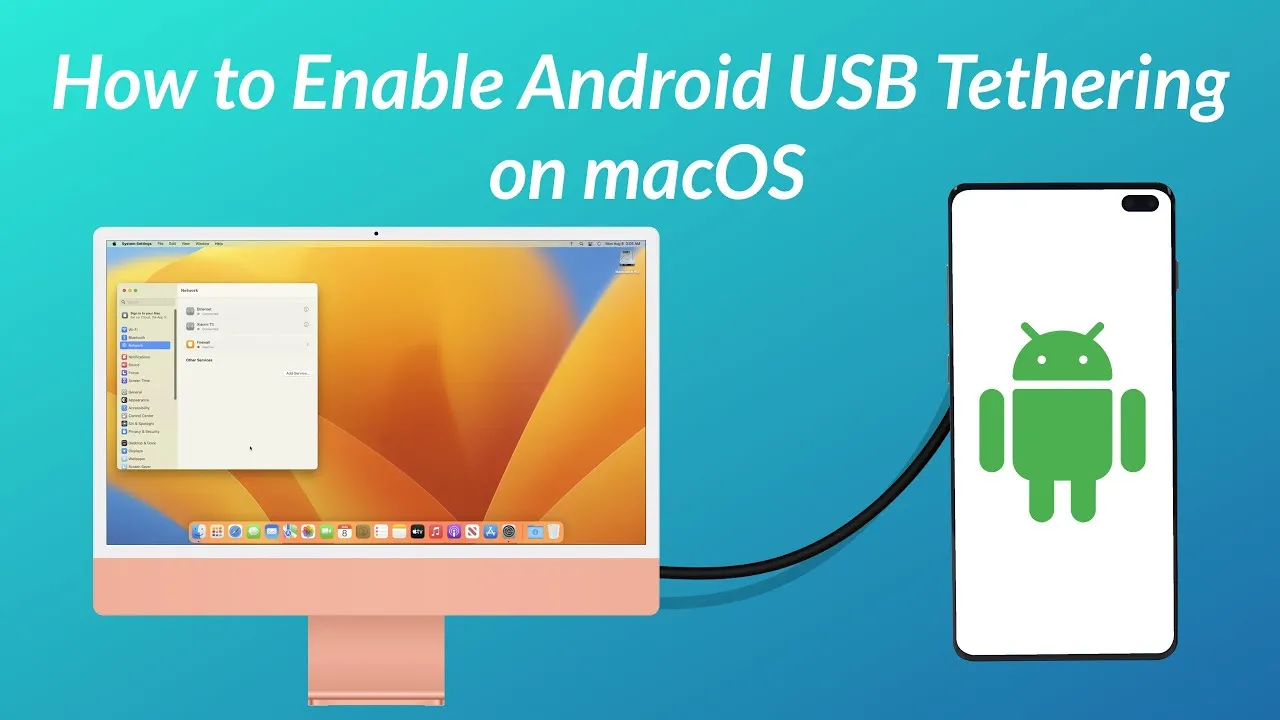
    Even though Wi-Fi tethering is the most practical method for connecting an Android phone to a Mac, you may occasionally need to utilize USB instead.

    However, USB tethering between Android and Windows is simple, but depending on the Android device you’re using, connecting it between Android and Mac can be more difficult. Here’s how to configure Mac OS for Android USB tethering.

    Use the Built-In USB Tethering Option (if Supported)

    A contemporary Android device running Android 12 or later may already have built-in support for USB tethering on macOS. To make it work, you might not need any additional strategies. For instance, on a Pixel 7 running Android 13, all you need to do is connect your phone to your computer to get started.

    1. Unlock and connect your phone to your Mac via a USB cable.
    2. If you’re using macOS 13, you may need to click to allow your phone to connect
    3. A notification will appear on your phone labeled something like Charging this device via USB. Tap on it.
    4. Under the USB Preferences screen that opens, set Use USB for to USB tethering.
    macOS tethering
    USB tethering Android

    Now that the issue has been resolved, you should be able to use your Mac to access the internet as usual. If you have a limited data plan and are using a 4G or 5G mobile data connection, be mindful of your usage.

    If the notification doesn’t appear when you connect your phone, you can instead go to Settings > Network and Internet > Hotspot and tethering and toggle on USB tethering. This option will be grayed out if your phone isn’t connected to a computer using a USB cable, and remember that some of the menus may be slightly different depending on what phone you’re using.

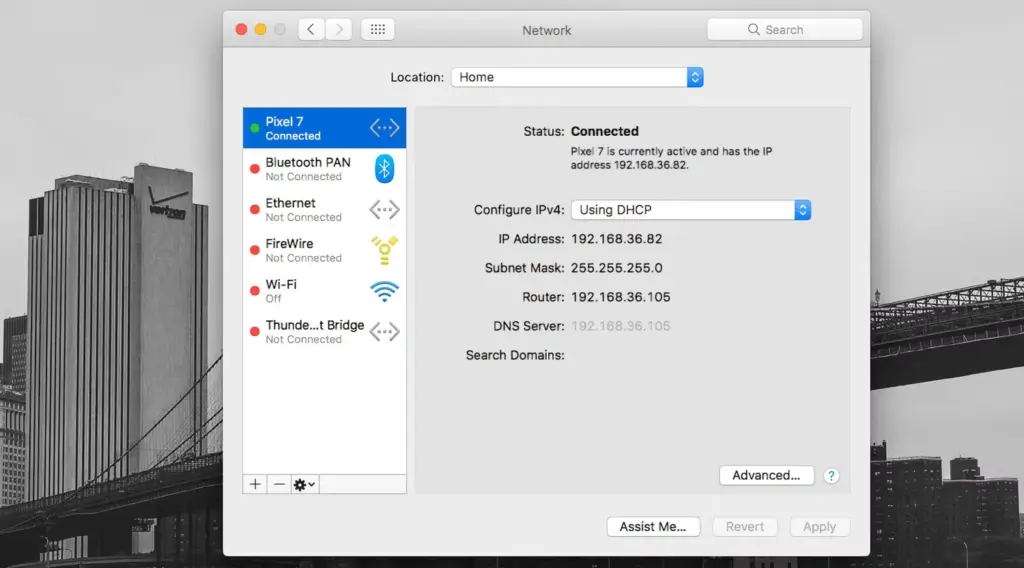
    To verify the connection on your Mac, go to System Settings (or System Preferences) > Network, where you’ll see your phone’s name listed with a green dot next to it.

    If USB tethering on macOS isn’t supported on your phone and you can’t set up Wi-Fi tethering, you do have another option. However, this comes with a potential snag of its own.

    Use the HoRNDIS Driver

    The required driver is not present on older Android devices or those that lack built-in support for USB tethering on a Mac, which prevents the sharing of an internet connection. Fortunately, you can get it working by installing the third-party HoRNDIS driver. All Android devices are compatible with this driver, which is akin to the one used by Windows computers.

    HoRNDIS is free and open-source and should work well in many cases. However:

    • It hasn’t been updated since 2018, so may not support newer versions of macOS.
    • It doesn’t work on Macs powered by Apple Silicon.

    The discussions on the software’s Github page do include some workarounds to get HoRNDIS running on M1 and M2 machines. But it’s a complicated process that involves disabling your Mac’s System Integrity Protection, so is not suitable for most users.

    Assuming the caveats don’t apply to you, here’s how to set up HoRNDIS on your (Intel-based) Mac.

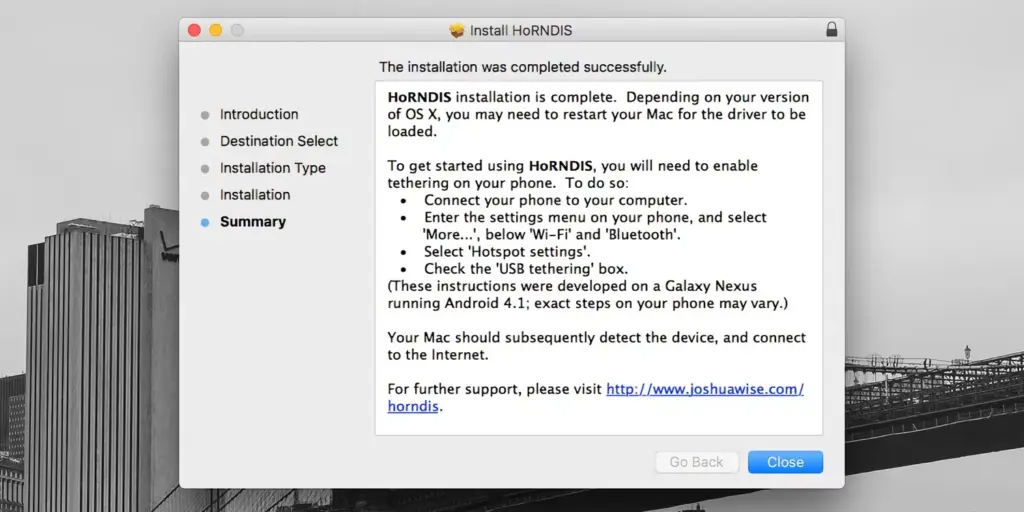
    1. Download and install the most recent version of HoRNDIS on your Mac (the PKG file).
    2. It’s a good idea to reboot your Mac at this stage, although this may not be necessary depending on what version you’re using.
    3. Now run through the steps we outlined above. Connect your phone via USB, tap the notification labeled Charging this device via USB, and set Use USB for to USB tethering.
    MacOS tethering horndis

    You should now be able to connect to the internet. Go to System Preferences > Network, where you should see your phone listed with the green dot alongside it. This confirms that the connection is active.

    To uninstall HoRNDIS, check the /System/Library/Extensions/ and /Library/Extensions/ folders and delete HoRNDIS.kext. Then reboot your Mac.

    tethering connect macos

    Using HoRNDIS is easy enough if your Mac is compatible. However, we’d only choose to use it if wireless tethering is not an option. You can troubleshoot your Android mobile hotspot to see if that helps.

    USB Tethering on macOS Is Simple

    If your Android phone doesn’t support USB tethering with a Mac natively, you’ll need to install a driver, but it’s simple to accomplish and functions as expected.

    Sharing a data connection with a desktop or laptop from your phone is practical. However, you may share the connection from your Mac to other devices as well, so it doesn’t stop there.

  • Pixel 7 is 64-bit only, 32-bit apps still have roles to play

    Pixel 7 is 64-bit only, 32-bit apps still have roles to play

    Google is making 64-bit apps the main focus of Android for phones and tablets. To get app creators in shape and accomplish this goal, years of transition policy were required. We discovered a few weeks back that the Pixel 7 and 7 Pro couldn’t install 32-bit apps, possibly indicating that the firm was prepared to put a stop to 32-bit Android. However, until recently, no formal statement on the subject has been made.

    The Pixel 7 series has been recognized as the first Android smartphones to exclusively run 64-bit software in the most recent entry on the Android Developers Blog. The majority of the letter is devoted to quantifying the advantages of doing away with 32-bit support, including gains in CPU performance of up to 25%, an additional 150MB of RAM allocation, support for better security tools, quicker OS updates, and more.

    Android Pixel7 64bit 4209x1253

    The company anticipates an additional wave of 64-bit-only devices as time goes on, including Google’s own Pixel Tablet, not the least of which is the requirement that devices with Armv9 CPUs (i.e., chipsets like Qualcomm’s Snapdragon 8 Gen 1 or later) forgo 32-bit support in order to run Android 14 out of the box.

    Google isn’t entirely abandoning 32-bit apps for devices like budget phones, Wear OS watches, and Android TVs. The company says it’s committed to making sure that the Play Store will continue to accept, host, and serve 32-bit apps for 32-bit devices.

    But while there are cost incentives to keeping lower-grade parts on such hardware, pressures also exist to improve the bottom end of the Android mobile experience where there may be greater susceptibility and sensitivity to bugs and exploits — notably, Android 13 Go edition has bumped the minimum RAM requirement from 1GB to 2GB. Money and Moore’s Law seem like conflicting principles here, but eventually, something has to give.

  • Battery improvements on Samsung Galaxy S23 – leak

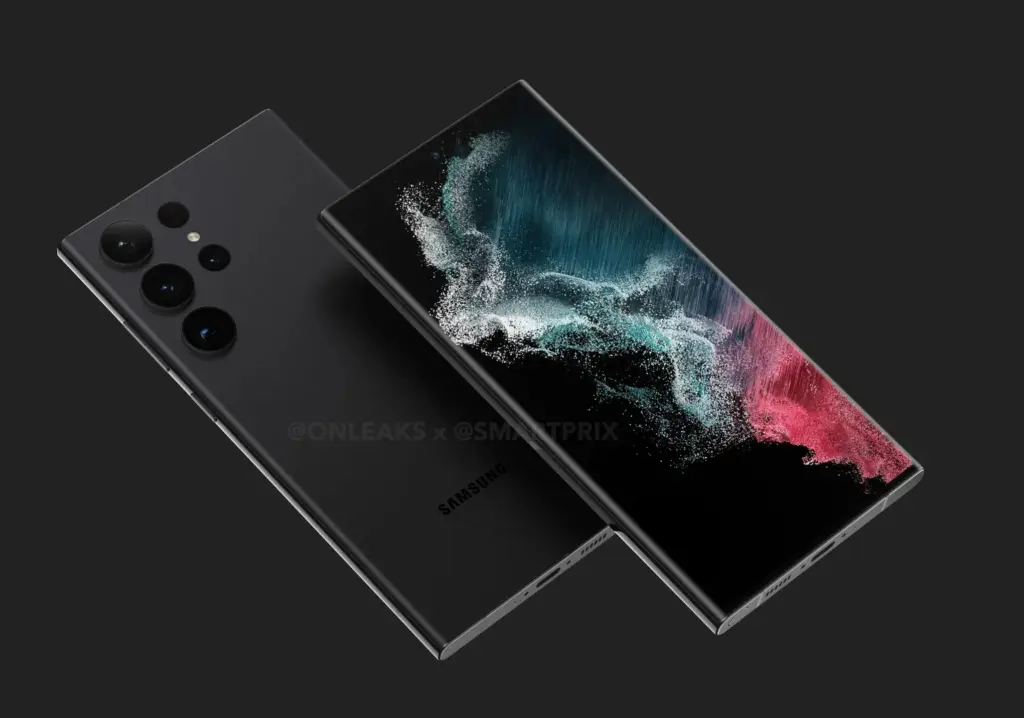
    The Samsung Galaxy S22 series was an incremental improvement over the Galaxy S21 series from 2021. Although the non-Ultra variants had a faster CPU and a newer primary camera sensor, overall these phones were not much different from their predecessors.

    Given how excellent Samsung’s flagship phones are, the company’s decision to make little changes was not unwise.

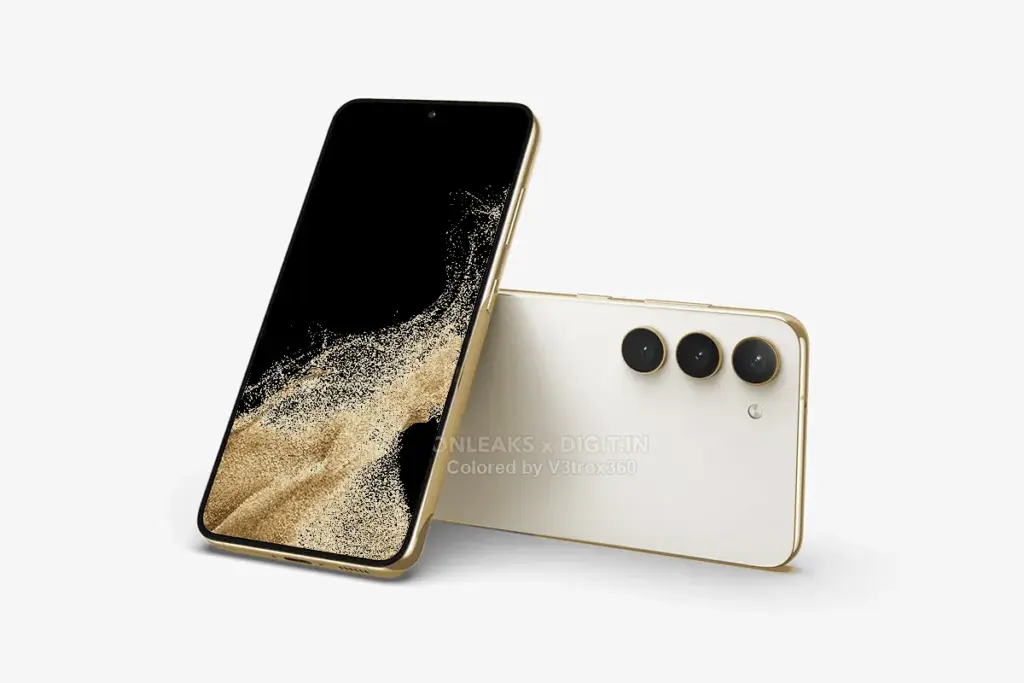
    For the Galaxy S23, the Korean manufacturer is anticipated to use the same approach while making a few small design adjustments. This is further supported by a fresh leak, which suggests that Samsung may make changes to fix two serious problems with its current infant flagship.

    Galaxy S23

    The Galaxy S22 received criticism for its poor battery life, throttling under heavy load, and poor sustained performance. Its 3,700mAh battery was nowhere near enough to power the device for an entire day. Now, rumored Galaxy S23 specifications indicate that the Korean company may use a larger 3,900mAh battery and Qualcomm’s Snapdragon 8 Gen 2 CPU in its smallest flagship phone for 2023. For instance, Samsung employed a 4,000mAh battery in its Galaxy 21 device, and the device’s battery life was adequate for a typical workday.

    According to rumors, Qualcomm’s upcoming flagship processor will significantly improve CPU and GPU performance. According to reports, it will be based on TSMC’s 4nm fab, which ought to improve power efficiency. The Galaxy S23’s 200mAh larger battery and quicker chip should help with the current model’s overheating issues and short battery life.

    Galaxy S23

    According to reports, the baby Galaxy S23’s other specifications won’t change from the present model. It is expected to maintain its 6.1-inch FHD+ 120Hz AMOLED display, triple-camera system with a 50MP main camera, 8GB RAM, and 128 or 256GB of storage.

    If Samsung can ensure the Galaxy S23 can last an entire day of use on a single charge, it could have a winner on its hands despite following the same formula as last year.

  • Facebook find 400 Android and iOS apps that steals log-in credentials

    Facebook find 400 Android and iOS apps that steals log-in credentials

    On Friday, Meta Platforms announced that it had discovered over 400 malicious apps on Android and iOS that it claimed were aimed at online users in order to steal their Facebook login credentials.

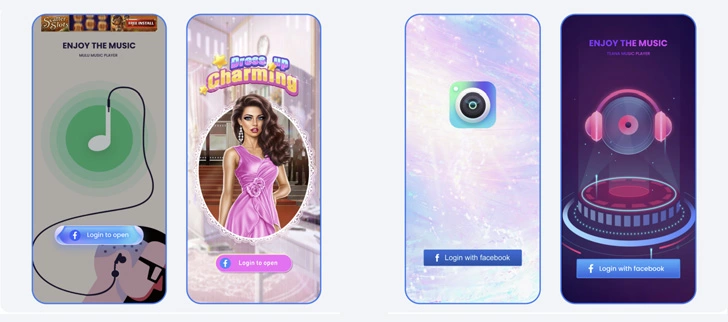
    According to a study provided with Droid Tools by the social media giant, “These programs were placed on the Google Play Store and Apple’s App Store and disguised as photo editors, games, VPN services, business apps, and other utilities to deceive consumers into downloading them.”

    ezgif.com gif maker 76

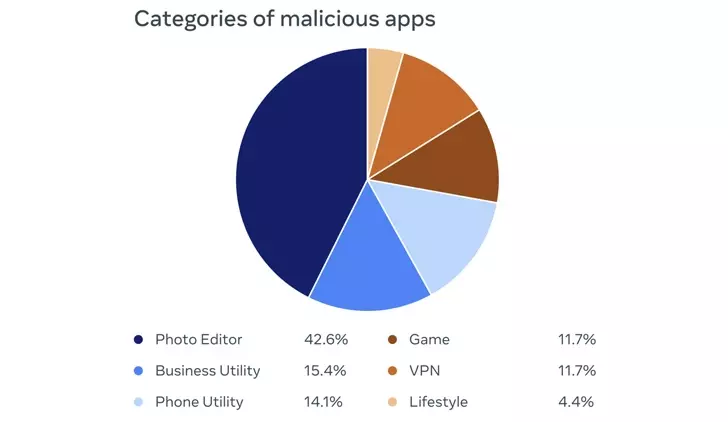
    42.6% of the rogue apps were photo editors, followed by business utilities (15.4%), phone utilities (14.1%), games (11.7%), VPNs (11.7%), and lifestyle apps (4.4%). Interestingly, a majority of the iOS apps posed as ads manager tools for Meta and its Facebook subsidiary.

    The owners of the plan not only disguised its nefarious nature as a collection of seemingly innocent apps, but they also posted fictitious reviews in an effort to counteract any unfavorable comments made by users who may have previously downloaded the apps.

    By presenting a “Login With Facebook” prompt, the apps ultimately served as a way to steal the user login information.

    login with facebook

    “If the login information is stolen, attackers could potentially gain full access to a person’s account and do things like message their friends or access private information,” the company said.

    Both app stores have removed all of the disputed apps. You may view the list of 402 apps, which includes 355 Android apps and 47 iOS apps.

    It is crucial to use caution while downloading apps and providing access to Facebook in order to get the claimed functionality, as it is with all programs of this nature. This entails carefully examining app permissions and user evaluations as well as confirming the legitimacy of the app creators.

    The disclosure was made at the same time that three Chinese and Taiwanese businesses were sued by Meta-owned WhatsApp for allegedly deceiving over a million users into compromising their own accounts by disseminating fake versions of the messaging software.

  • Setup fall detection on Galaxy Watch5 and Galaxy Watch5 Pro

    Setup fall detection on Galaxy Watch5 and Galaxy Watch5 Pro

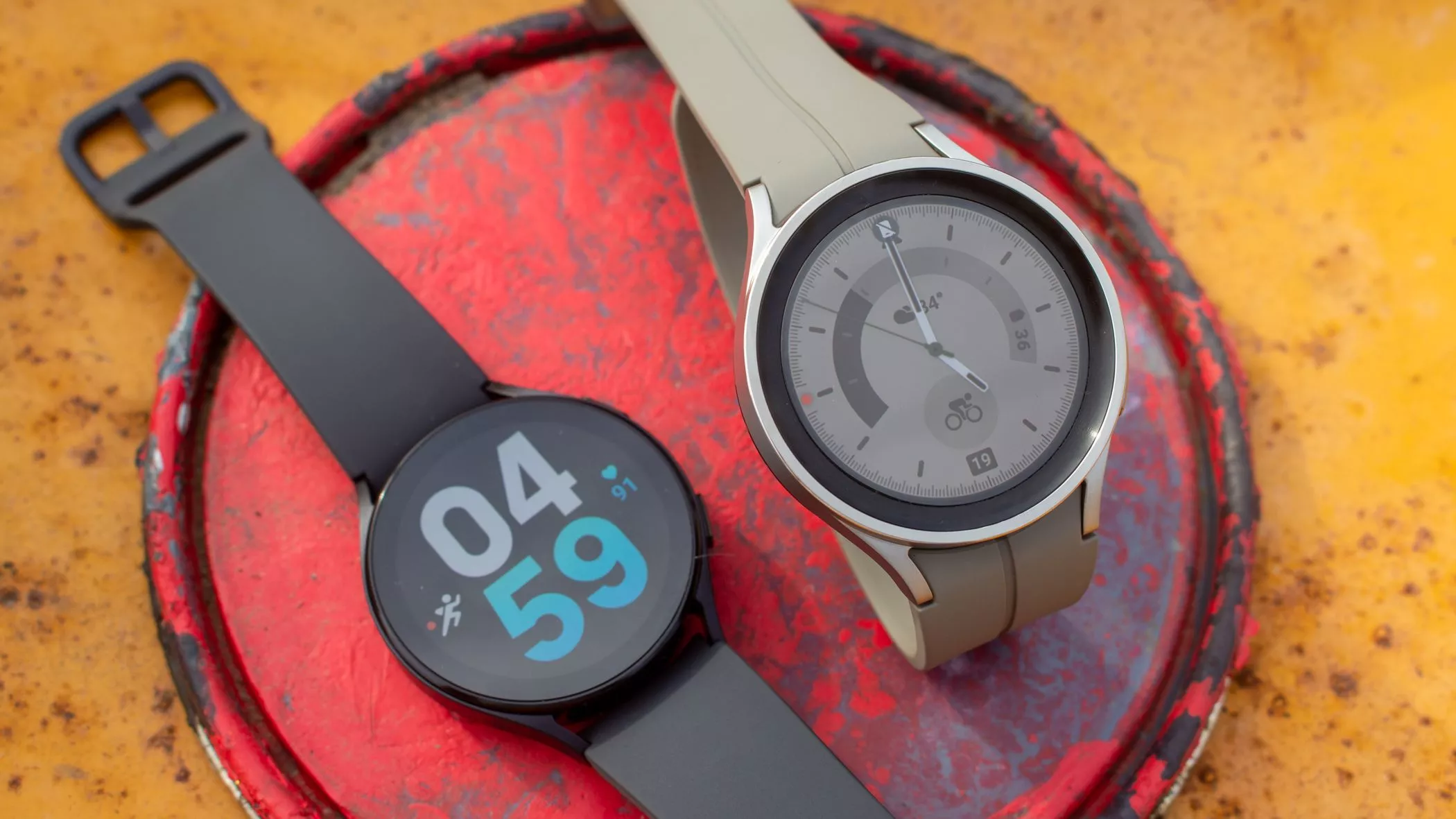
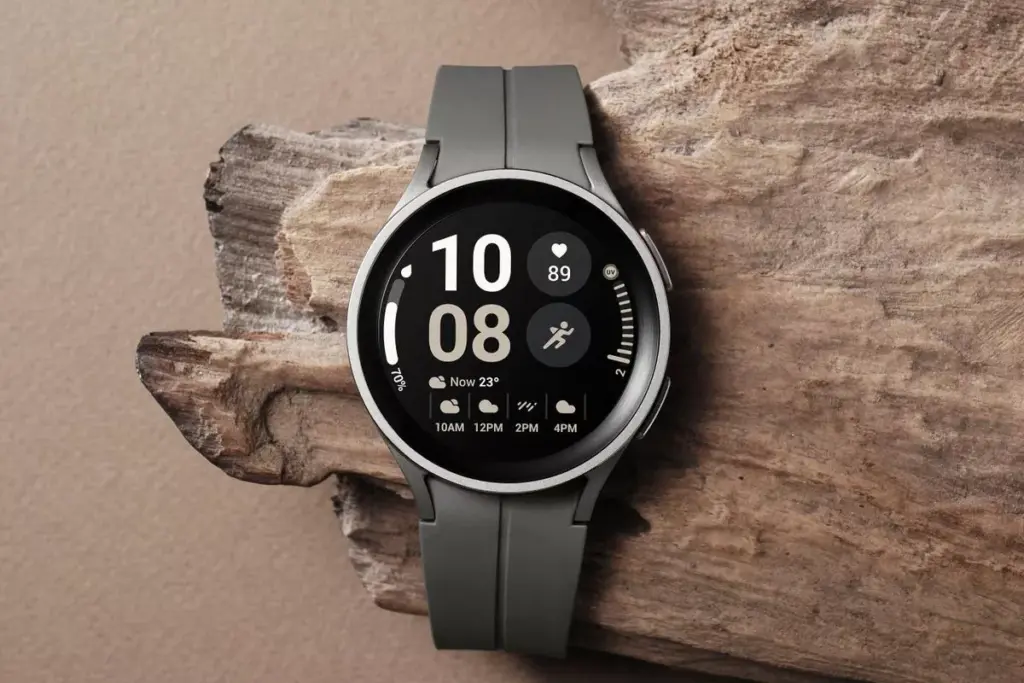
    In response to the popularity of the previous Samsung Galaxy Watch, Samsung recently introduced the Galaxy Watch5 and Watch5 Pro. The most recent Samsung Galaxy Watch uses the same cutting-edge technologies but drastically alters the Battery Life rather than reinventing the wheel. The Samsung Galaxy Watch5 series offers a surplus of health and wellness features, in contrast to its older predecessor. Additionally, the most recent Samsung Galaxy Watch now has a fall detection feature and emergency help.

    You might be wondering what is fall detection feature. It’s a completely life-saving feature that monitors the random or hard falls. It’s equipped with an accelerometer that helps to detect all your body movements. During a hard fall, it will feature emergency assistance. And in case, if you didn’t reply in a design within 60 seconds of time-frame, it will instantly and automatically deliver the SOS alert to the emergency contacts and services. 

    Setup fall detection on Galaxy Watch5 and Galaxy Watch5 Pro

    Can The Samsung Galaxy Watch5 Series Detect A Fall?

    As of now, the Galaxy Watch5 series is craved with a feature known as the Fall detection feature. Here in this guide, we have mentioned step-by-step to set up the fall detection feature on Galaxy Watch5 Pro and Galaxy Watch5

    Steps To Set up Fall Detection On Galaxy Watch5 Series 

    First of all, to use the SOS feature, your watch must be connected to a phone. At the same point, you should keep the Emergency Contact on the list through an application. 

    • Step 1 → Navigate to the Galaxy Wearable App on your device.
    • Step 2 → Choose Watch Settings > Advanced Features.
    • Step 3 → Tap SOS. On the next screen, turn on the When Hard Fall Detected > Continue.
    • Step 4 → Tap Agree > Emergency Contacts.
    • Step 5 → Here you can setup up to 4 Contacts > Done.

    Right after that, click on any contact to create an SOS call right after the messages are sent > Save.

    Samsung Watch That Supports Fall Detection

    • Galaxy Watch Active 2
    • Galaxy Watch3 
    • Galaxy Watch4 
    • Galaxy Watch5 

    Keep Yourself Safe!

    I’m damn sure you are now updated with what is fall detection and how to setup it up on the Galaxy Watch5 series. In case, if your loved one, parent, toddler, or grandmother has Samsung Watch, prompt them to enable the feature as it’s completely life-saving. 

    How Do You Use Fall Detection On Galaxy Watch?

    If you have fall detection compatible Galaxy Watch, you can easily activate “Hard Fall Detection” from the phone settings: Navigate to the Galaxy Wearable App > Watch Settings > SOS > tap on the toggle next Detects Falls.

    Does Samsung Have Hard Fall Detection?

    Thanks to it’s advanced Accelerometer will help alert you when your device attempts random falls.

  • What to expect from Google Pixel launch

    What to expect from Google Pixel launch

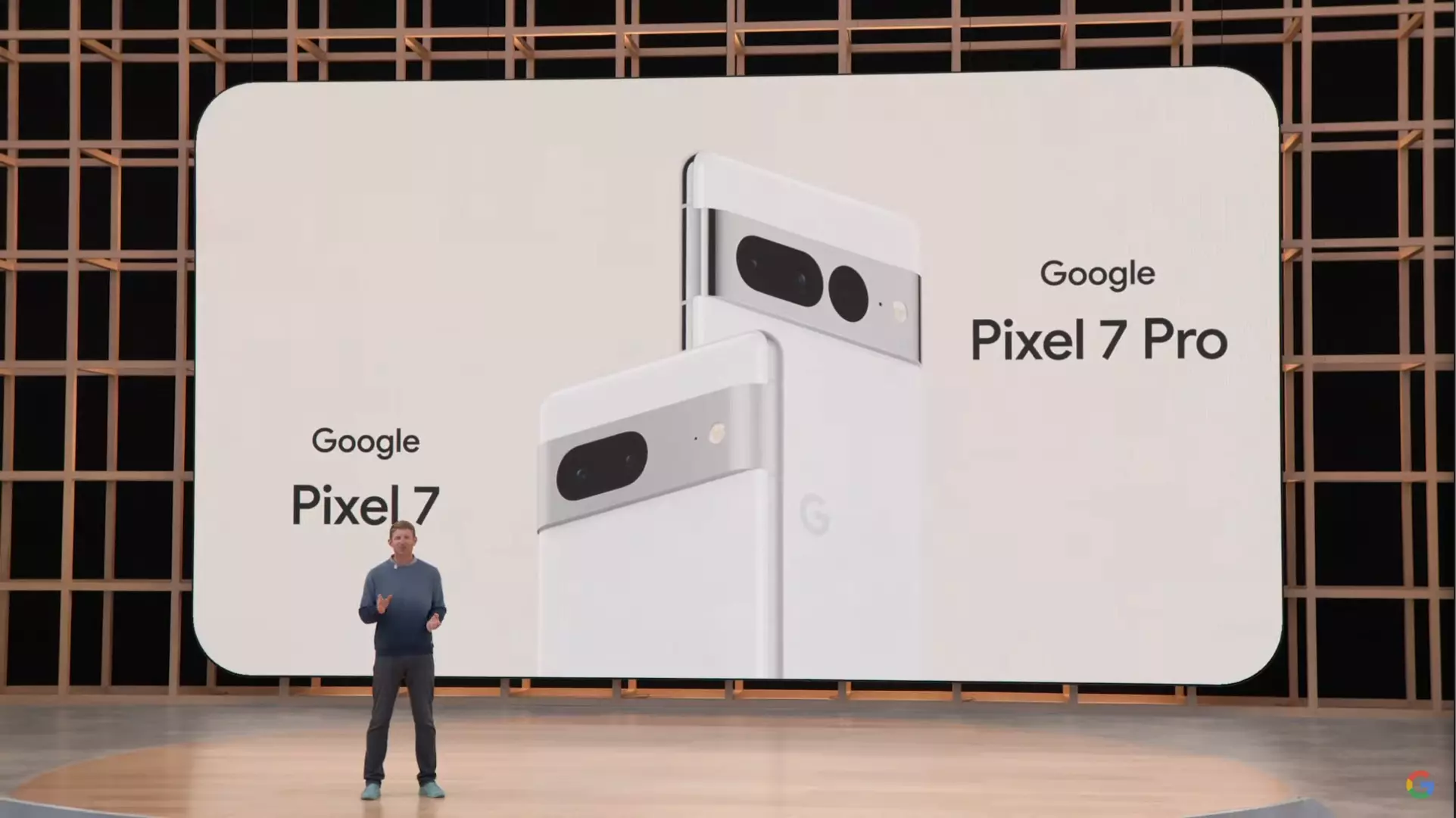
    On October 6, Google will hold its upcoming hardware launch event, during which the Pixel 7 series and a number of other new items will be made public. The Pixel 7 series duo was originally shown off by Google at its 2022 I/O event, but additional crucial information has been kept under wraps.

    The pair has been the subject of numerous rumors, and Google has been gradually disclosing features from the Pixel 7 series. We’ll outline how to watch the Pixel 7 series event live as well as what to look forward to.

    When will Google launch the Pixel?

    On October 6, 2022, Google’s Pixel 7 series will debut. At a live event in Brooklyn, New York, beginning at 10 AM ET, Google will reveal the Pixel 7. (3:00 PM London time, 9:30 PM Indian time).

    How to watch Google’s launch event

    Although Google’s hardware event will take place in person, you can watch it live online from the comfort of your home. The Made by Google YouTube channel will broadcast the event live.

    What to expect at Google’s event

    What hardware is hence most likely to be presented at the event? While rumors and leaks have disclosed some of the other details, Google has already confirmed a large portion of it.

    1. Google Pixel 7 Series

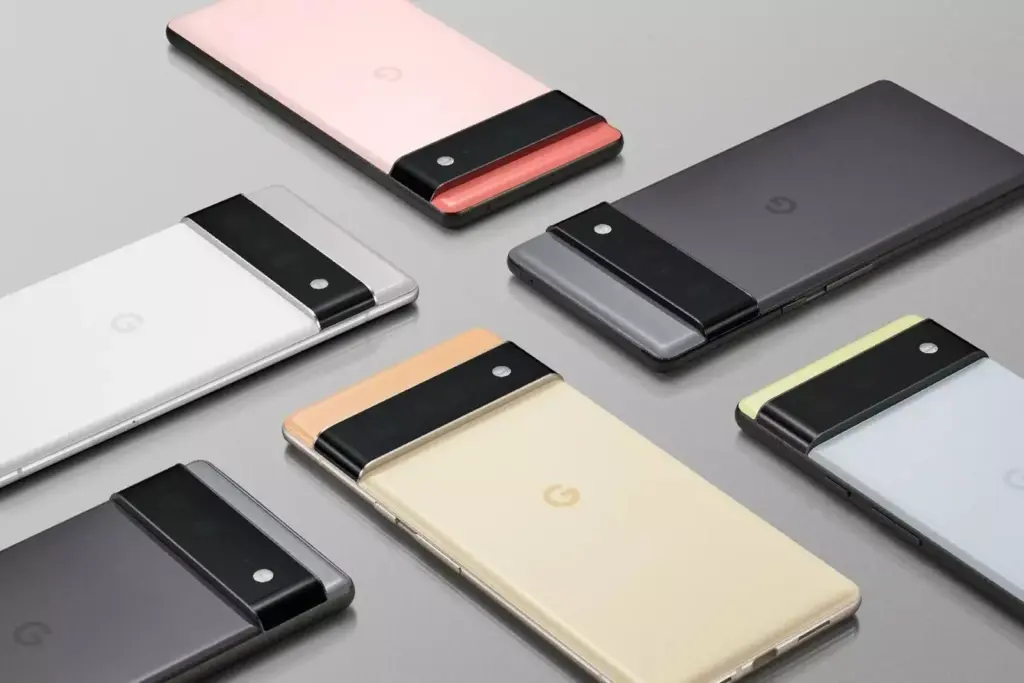
    Google will unveil two models, the standard Pixel 7 and the Pixel 7 Pro. The duo maintains Google’s modern design introduced with the Pixel 6 series in 2021.

    Youtube video

    The edge-to-edge rear camera bar is still there on both phones, but Google is prepared to differentiate between the two by adding a third camera to the Pro model, making a total of three. The third rear camera on the Pixel 7 Pro is also located in a distinct dot cutout. Both variants’ back camera bars are made of metal instead of the glass found on the Pixel 6.

    Google recently posted a photo showing the Pixel 7 Pro’s display, which is somewhat curved. Google continues to employ a rounded notch, which is said to include an 11MP Samsung 3J1 front camera.

    According to 9To5Google, rumors indicate that Google will keep using the primary 50MP Samsung GN1 sensor and Sony’s IMX381 for ultrawide pictures. The usage of Google’s second-generation Tensor G2 processor, which is expected to employ a 4nm chip with Samsung’s upcoming Exynos 5300 modem, is one of the greatest upgrades.

    The Tensor G2 is supposedly combined with 12GB of memory and 128GB of storage on the Pixel 7 Pro, according to a report from Android Authority. According to rumors, the stock Pixel 7 will have Bluetooth Low Energy-enabled dual speakers, 8GB of RAM, 128/256GB of storage, a 4700mAh battery, 30W charging capability, and a 6.3-inch display.

    Google Pixel 7

    Both versions will be available in the colors Obsidian and Snow out of the box, but there is also a third special choice for each model: Hazel for the Pro and Lemongrass for the Pixel 7.

    Early price rumors have suggested the Pixel 7 series starts at $599 for the standard model and $899 for the Pro model, identical to the Pixel 6 and Pixel 6 Pro launch prices, respectively.

    While there’s still uncertainty on other important features of the Pixel 7 series like battery, fast charging speeds, camera, price, and more, it looks like you shouldn’t expect a massive update from the Pixel 6 series.

    2. Pixel Watch

    Google is almost ready to introduce its first wristwatch. In leaked images, the Pixel Watch has a svelte circular shape and muted hues similar to the Pixel 7 series. It has a pill-shaped button on the right and a silver crown on the left.

    According to an early hands-on in the wild that was posted on Reddit in April 2022, the Pixel Watch is expected to be 40mm in diameter, 14mm thick, and 30mm in diameter (without the bezels).

    https://youtube.com/watch?v=_p7v1PTABSU

    It has been suggested that the Pixel Watch would include fitness and health tracking capabilities for heart rate, blood oxygen, skin temperature, and other parameters. Most significantly, the Fitbit Charge 5 has been compared to the Pixel Watch’s rear sensors, which debuted in 2021.

    The Fitbit’s Charge 5 has several tracking features, including an ECG and EDA sensor. Besides, Google notes in a teaser that Fitbit powers the smartwatch’s health and fitness features, and, as a result, you may need a Fitbit account as well as the app to enjoy some functionalities.

    Reports suggest Google could use the Exynos 9110 chip, an old chip first seen in Samsung’s 2018 Galaxy Watch, according to a 9To5Google report. On the bright side, Google will reportedly include over 1.5GB of memory to compensate for that.

    Under the hood, the Pixel Watch will run Wear OS 3, the latest version of Google’s smartwatch operating system.

    3. Google Nest Wi-Fi Pro and Nest Doorbell (Wired)

    google nest

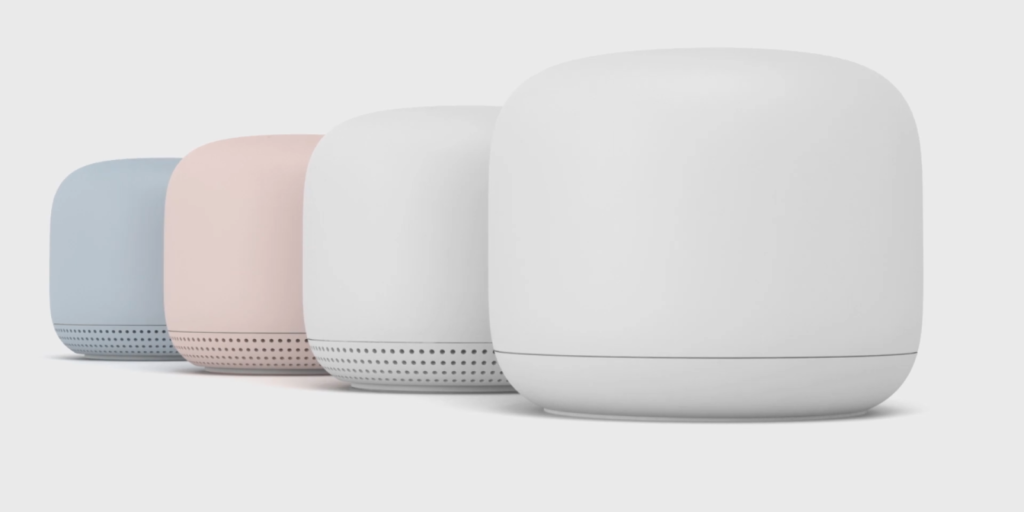
    The newest Nest Wi-Fi mesh network is anticipated to be unveiled by Google’s Nest division. The Nest Wi-Fi Pro will be the name of the next-generation Wi-Fi mesh network, according to a B&H retail page leak. According to reports, it will start at $199 for a single router and enable Wi-Fi 6E.

    The Nest Doorbell (wired), a variation of the current Nest Doorbell, could also be announced (battery). Despite the fact that no significant modifications have been noticed in terms of design, leaks indicate it may be shorter but thicker than the Nest Doorbell (battery).

    Get Ready for Google’s Hardware Event

    The Pixel 7 and Pixel Watch are expected to be unveiled in person at Google’s fall hardware event. The Nest Wi-Fi Pro and Nest Doorbell could also be made public by the business (wired). Prepare for the event because Google may have further surprises in addition to these.

  • Qualcomm could launch two versions of the Snapdragon 8 Gen 2

    Qualcomm could launch two versions of the Snapdragon 8 Gen 2

    Snapdragon 8 Gen 2

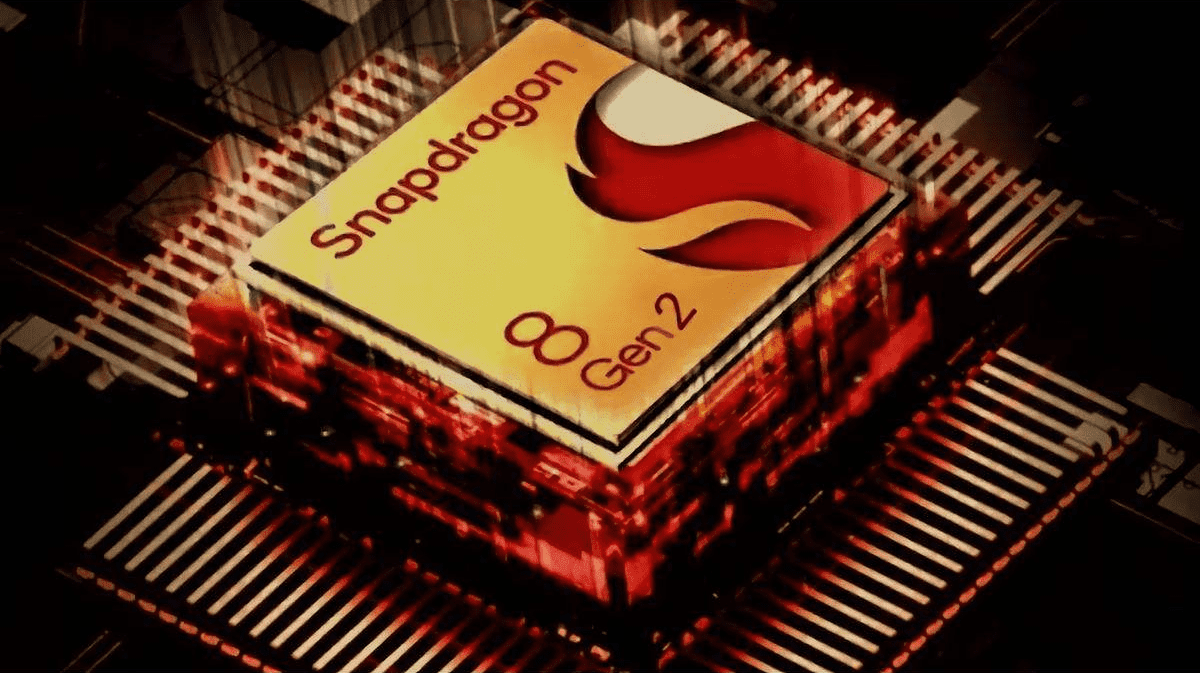
    The introduction of Qualcomm’s upcoming flagship system on a chip (SoC) is about to be announced; it is anticipated to take place during the company’s event in November. Although the Snapdragon 8 Gen 2 has been anticipated for some time, there is a speculation that a surprise version of the chipset may be on the horizon.

    The rumor was passed along via informant Digital Chat Station. According to a post on the Chinese social media platform Weibo, Qualcomm may be getting ready to introduce two different Snapdragon 8 Gen 2 processor models.

    According to reports, this variant would have a microprocessor with an ultra-high frequency that significantly increases clock rates. One of the chipsets would be your typical chipset, while the ultra-high frequency processor may operate at 3.4 to 3.5GHz, according to Digital Chat Station. Snapdragon 8 Gen 1 currently operates at 3.19GHz as a point of comparison.

    Even while everything seems thrilling, you should treat this rumor with a lot of skepticism. The likelihood of this rumor being true is remote. The rumor is that Qualcomm will release two chipsets simultaneously, which wouldn’t make much sense.

    The informant also highlighted Mediatek’s future Dimensity chip in addition to the Snapdragon 8 Gen 2 chip. They assert that Mediatek’s upcoming chip could significantly boost CPU performance. Check out the comparisons here to see how the Dimensity 9000 and the current Snapdragon 8 Gen 1 stack up against one another.