Category: Guides

Expert Android guides that help you master phones, apps, operating systems and wearables with clear, step‑by‑step advice for real‑life use.

  • How to transfer files from Android to PC (no cable needed)

    How to transfer files from Android to PC (no cable needed)

    Gone are the days when a USB cable was the only way to move files between your Android phone and computer. Whether you’re transferring photos, documents, or videos, there are now several wireless methods that make the process faster and more convenient — no cables, no drivers, and no hassle.

    In this article, you’ll discover how to transfer files from Android to your PC wirelessly utilizing free built-in utilities and reliable third-party apps. All ways are easy, secure, and don’t need rooting your smartphone.

    Why Go Wireless?

    Here’s why transferring files without a cable is the smarter choice:

    • No need to carry cables or adapters
    • Works on all modern Windows, macOS, and Linux PCs
    • Faster for frequent transfers
    • No risk of physical damage to USB ports

    1. Use Google Drive (Cloud Sync)

    If you have a Google account, you already have access to Google Drive — one of the easiest ways to transfer files wirelessly.

    Steps:

    1. Open the Google Drive app on your Android device.
    2. Tap the “+” icon, then select Upload.
    3. Choose the file(s) you want to send.
    4. Wait for the upload to complete.
    5. On your PC, go to https://drive.google.com and log in.
    6. Download the files to your computer.

    Pros:

    • Seamless for documents and photos
    • Files are stored in the cloud, so they’re safe even if your phone is lost
    • Works across devices and operating systems

    Cons:

    • Requires an internet connection
    • File size limits apply (15GB free storage per Google account)

    2. Send via Nearby Share (Best for Windows)
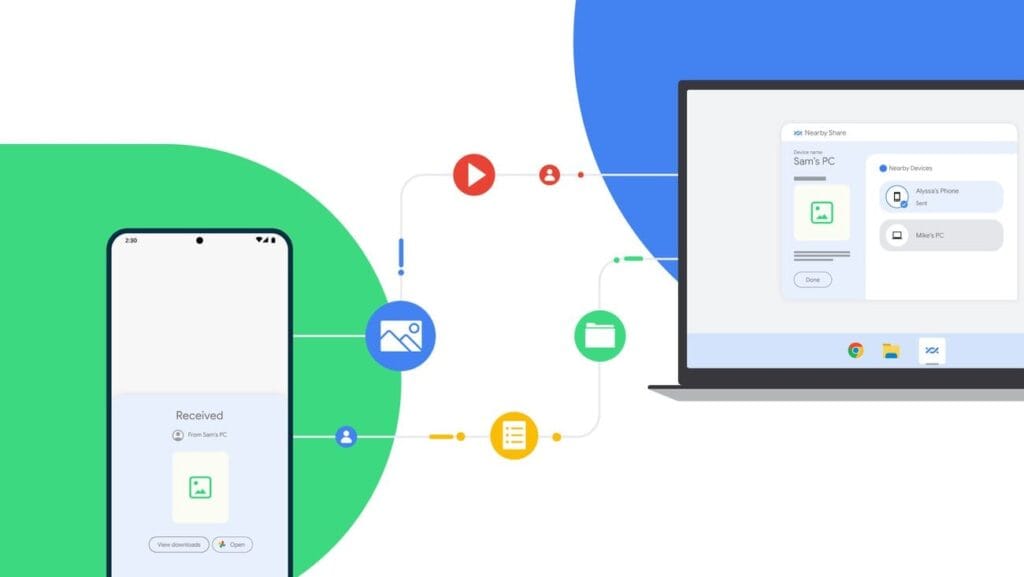
    Nearby Share for transfer files

    Currently fully supported on Windows 10/11, Nearby Share is Google’s AirDrop-style solution for sharing files instantly between Android and Windows devices.

    Set It Up:

    1. On your Android, go to Settings > Google > Devices & sharing > Nearby Share and turn it on.
    2. On your PC, install the official Nearby Share for Windows app from Google’s website.
    3. Connect both devices to the same Wi-Fi network and ensure Bluetooth is on.

    Send Files:

    1. Select a file on your Android device.
    2. Tap the Share icon and choose Nearby Share.
    3. Your PC should appear in the list — tap it to send the file.
    4. Accept the transfer on your computer.

    Pros:

    • Fast and secure
    • Works offline (local Wi-Fi or Bluetooth)
    • No cloud storage needed

    Cons:

    • Not available on older PCs or operating systems
    • Some routers may block discovery if firewall settings are strict

    Method 3: Transfer with File Sharing Apps (like Send Anywhere)

    Direct wireless transfers between your computer and phone are possible through Wi-Fi thanks to apps like Xender, Feem, and Send Anywhere.

    Using Send Anywhere:

    1. Install Send Anywhere on your Android from the Play Store.
    2. Visit https://send-anywhere.com on your PC.
    3. On your phone, select the files you want to send.
    4. You’ll get a 6-digit code — enter this on your PC to receive the files.

    Pros:

    • Works on any OS and browser
    • No account required
    • Fast local transfer via Wi-Fi Direct (not over the internet)

    Cons:

    • Ads in the free version
    • Interface might be confusing for first-time users

    Method 4: FTP File Transfer via File Manager Apps

    If you prefer full control over file navigation, FTP (File Transfer Protocol) is a powerful option — no internet needed.

    Using Solid Explorer or ES File Explorer:

    1. Install a file manager that supports FTP (e.g., Solid Explorer).
    2. Open the app and go to Network > FTP Server.
    3. Start the server — the app will display an IP address like ftp://192.168.1.10:1234.
    4. On your PC, open a browser or FTP client (like FileZilla) and enter the address.
    5. Browse your phone’s storage and download files directly.

    Pros:

    • Full control over folders and files
    • High-speed transfers over local network
    • No cloud or apps required on the PC

    Cons:

    • Not user-friendly for beginners
    • Must stay on the same Wi-Fi network

    Method 5: Microsoft Phone Link (Windows 10/11)
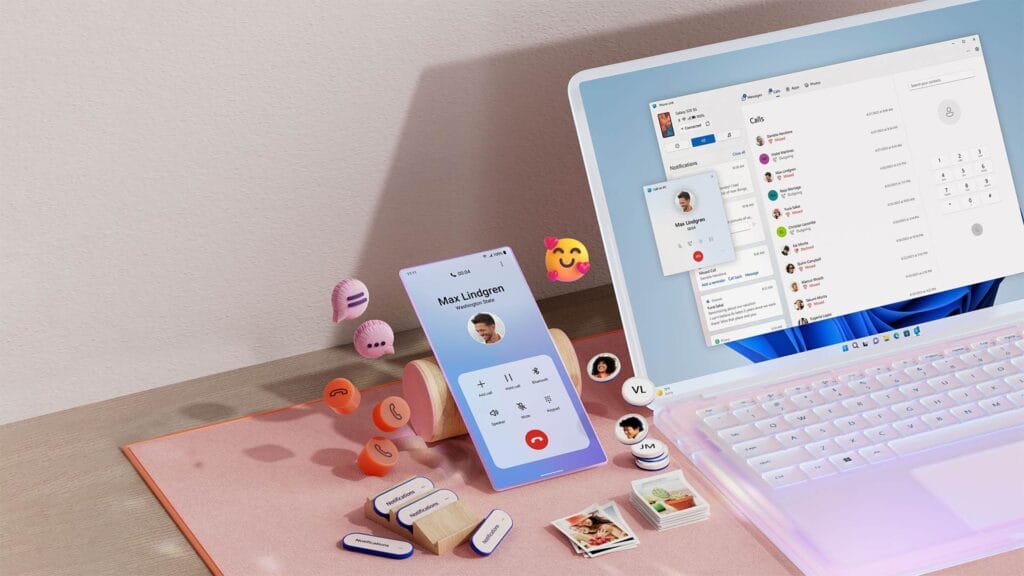
    msft open laptop with mobile phone floating emojis RW10WBx

    Microsoft’s Phone Link app (previously “Your Phone”) enables seamless connectivity between Android and Windows.

    Setup:

    1. On your Android, install the Link to Windows app.
    2. On your PC, open the Phone Link app (pre-installed on Windows 10/11).
    3. Follow on-screen instructions to link the two devices.

    Features:

    • Access photos, messages, notifications, and files
    • Drag-and-drop files directly between phone and PC

    Pros:

    • Seamless experience for Samsung and Surface users
    • Files transfer instantly without cables

    Cons:

    • Requires Microsoft account
    • Full feature set limited to specific models (Samsung, Honor)

    Bonus: Email, Telegram, or WhatsApp (for Small Files)

    For documents or images under 100MB, you can simply email them to yourself or use Telegram’s Saved Messages to transfer between devices.

    • Email: Attach files and send them to your own address.
    • Telegram: Send the file to yourself from your Android and download it on your PC.
    • WhatsApp Web: Share with a trusted contact and download via WhatsApp Web on PC.

    What’s the Best Option?

    MethodSpeedInternet RequiredSetup ComplexityBest For
    Google DriveMedium✅ YesLowBackups & multi-device use
    Nearby ShareHigh❌ NoMediumWindows 10/11 users
    Send AnywhereHigh✅/❌ OptionalMediumFast wireless transfers
    FTP via File ManagerVery High❌ NoHighTech-savvy users
    Microsoft Phone LinkHigh✅ YesMediumWindows users w/ Samsung

    You no longer require a USB cable to transfer data between your Android phone and computer. Whether you want to backup your gallery, transfer work documents, or send huge films, wireless solutions make the process simple and effective.

    Nearby Share and Google Drive are the most user-friendly solutions. If you desire speed and complete control, FTP or Send Anywhere would suffice, as they do not require cloud storage.

    Experiment with the way that best suits your workflow; once you go wireless, you will not want to plug in again.
  • How to Fix Battery Drain Issues in One UI 7

    How to Fix Battery Drain Issues in One UI 7

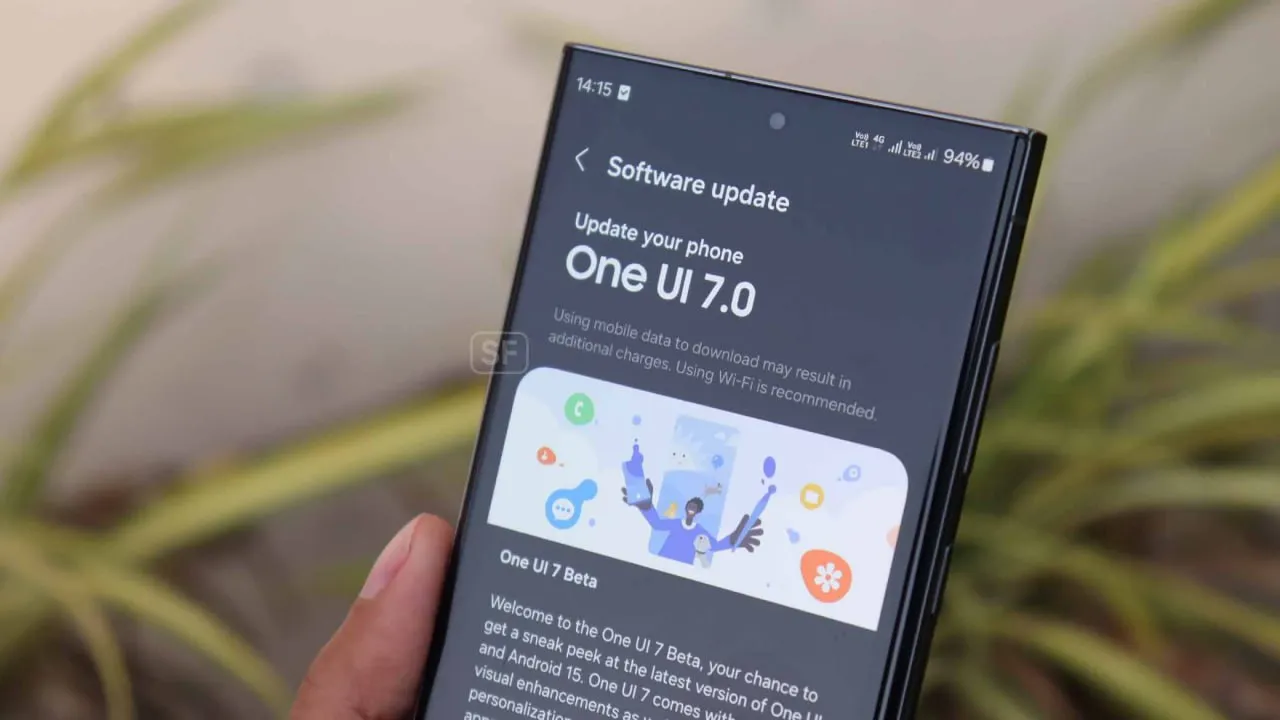
    Experiencing battery drain after updating to One UI 7 on your Samsung Galaxy device? This comprehensive guide explains why battery drain happens, how to fix it, and the best settings to optimize battery life on One UI 7. Follow these proven steps to restore your phone’s battery performance and enjoy the latest features without compromise.

    Battery drain after a major update like One UI 7 is common. Your device may use more power due to background optimization, app updates, and new features. Additionally, system apps such as location services may run more often, impacting battery life.

    1. Allow System Optimization

    It may take up to 14 days for your Galaxy phone to optimize battery usage after downloading One UI 7. Avoid making significant modifications during this time, and keep an eye out for any natural improvements in battery life.

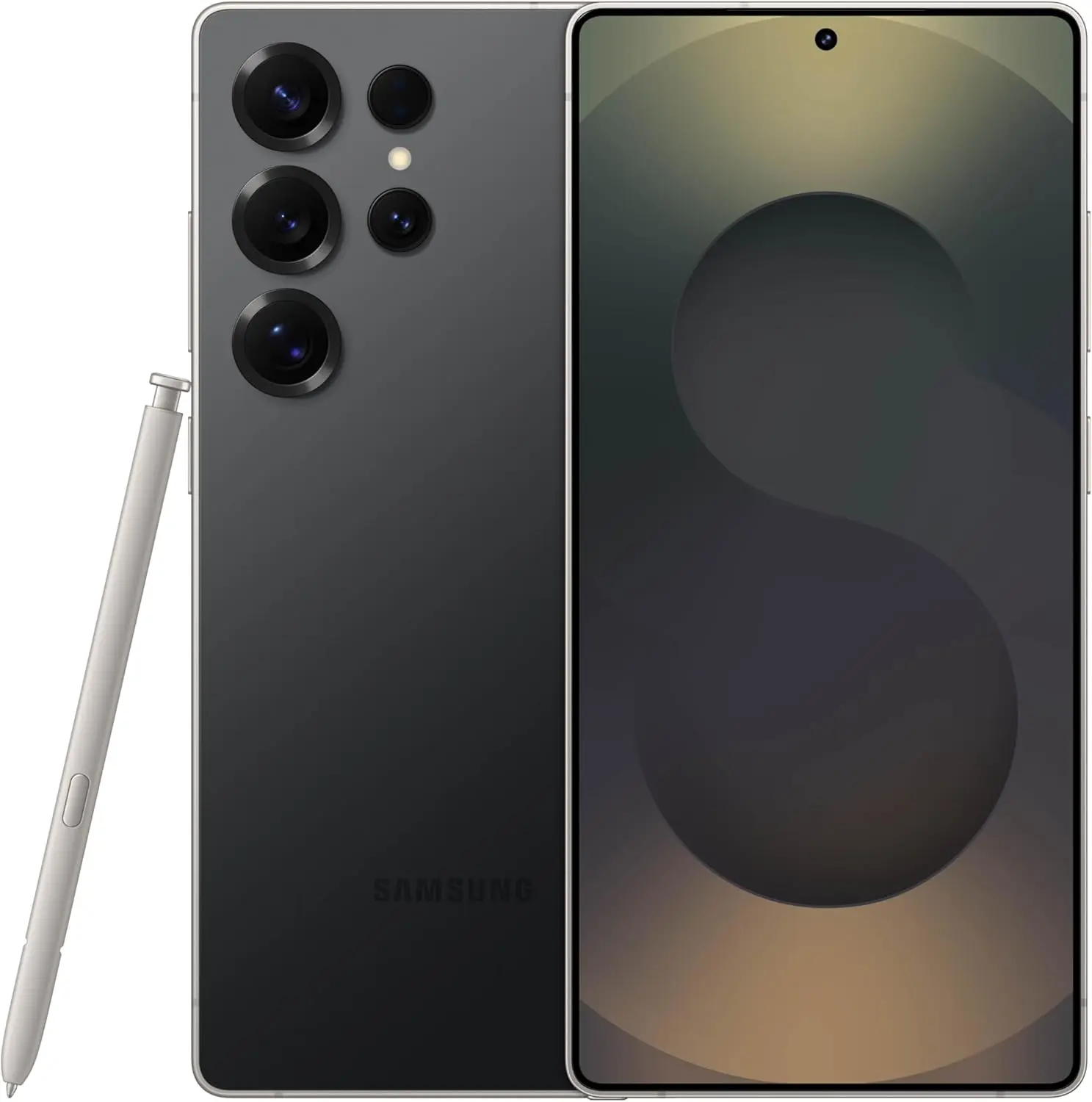
    samsung galaxy s25 ultra

    Samsung Galaxy S25 Ultra

    Streamline your day with an assistant that gets you. Ask it to Google search for a pet-friendly vegan restaurant nearby and text it to your friend – your Galaxy S25 Ultra handles multiple tasks with a single ask.

    Best choice
    $1,299.99$1,067.99Get It Now

    2. Wipe Cache Partition

    wipe cache to fix battery drain

    After an update, a damaged cache may result in excessive battery consumption. One secure method to fix this without erasing sensitive information is to wipe the cache partition.

    How to Wipe Cache Partition:

    • Turn off your Galaxy device.
    • Connect it to a computer via USB.
    • Hold Power + Volume Up until the Samsung logo appears.
    • Use the volume buttons to highlight “Wipe cache partition” and press Power.
    • Confirm and reboot.

    3. Update All Apps

    Older apps might not be One UI 7 compatible. To guarantee compatibility and effectiveness, update every app from the Google Play Store and Galaxy Store.

    4. Check Battery and Location Settings

    • To find out which apps use the most power, navigate to Settings > Battery & Device Care > Battery.
    • Limit background activity for apps that use a lot of resources.
    • For apps that do not require continuous access, check location permissions and turn off “Allow all the time.”

    5. Use One UI 7 Battery Protection Features

    One UI 7 introduces new battery protection tools:

    • Adaptive Mode: Limits charging to 80% overnight, topping up before you wake.
    • Maximum Mode: Set a custom maximum charge (80%, 85%, 90%, 95%) to extend battery lifespan.
    • Auto Dim Screen: Automatically dims the display when battery drops below 5%.

    Access these in Settings > Battery > Battery Protection and Settings > Display > Auto Dim Screen.

    6. Factory Reset as a Last Resort

    If other solutions fail, a factory reset can resolve persistent battery drain. Back up your data before proceeding.

    Extra Tips to Extend Battery Life on One UI 7

    • Turn off functions you do not use, such as background sync, fast refresh rate, and always-on display.
    • Reduce screen timeout and screen brightness.
    • When necessary, activate power-saving modes.

    Frequently Asked Questions (FAQ)

    How long does it take for battery life to stabilize after updating to One UI 7?

    It can take up to two weeks for your device to optimize battery usage after a major update.

    Will wiping the cache partition delete my personal data?

    No, wiping the cache partition only clears temporary system files and does not affect your personal data.

    Why is my location icon always on after the update?

    Some apps may have gained new permissions. Review your location settings and restrict access where unnecessary.

    Quick Fixes for One UI 7 Battery Drain

    SolutionEffectivenessData Loss RiskDifficulty
    Wait for optimizationModerateNoneEasy
    Wipe cache partitionHighNoneMedium
    Update all appsModerateNoneEasy
    Adjust battery settingsModerateNoneEasy
    Factory resetHighYesHard

    If you’re still experiencing battery drain after trying these steps, keep your device updated and monitor community forums for official fixes. Reporting your issue helps Samsung identify and resolve widespread problems faster.

    samsung galaxy s25 ultra

    Samsung Galaxy S25 Ultra

    Streamline your day with an assistant that gets you. Ask it to Google search for a pet-friendly vegan restaurant nearby and text it to your friend – your Galaxy S25 Ultra handles multiple tasks with a single ask.

    Best choice
    $1,299.99$1,067.99Get It Now
  • How to check for Android updates manually – don’t miss crucial features & fixes

    How to check for Android updates manually – don’t miss crucial features & fixes

    Software updates are vital for keeping your Android smartphone secure, efficient, and compatible with the most recent apps. However, many users disable auto-updates, either to save data or to avoid unpleasant modifications. What is the good news? You can still manually check for and apply updates, rather than waiting for a system prompt.

    In this extensive article, we will teach you how to manually check for Android system updates across many brands and what to do if no update appears – even if you assume one is available.

    Why Android updates matter

    There are several good reasons to check for Android updates manually:

    1. Get Critical Security Patches Faster

    Waiting for the automatic update prompt could expose your phone to known exploits. Manually checking allows you to keep ahead of security issues by ensuring that your device always has the most recent patch.

    2. Access New Features Early

    Android upgrades frequently include new interface modifications, battery optimizations, and system features. Manual updates allow you to try the latest enhancements as soon as they are published.

    3. Fix Device Glitches or Bugs

    Some updates contain stability fixes for specific devices. If your phone has been behaving up, a system update may fix crashes, poor performance, or connectivity issues.

    4. Ensure App Compatibility

    Many apps now require the latest Android versions to function properly. Without regular upgrades, your favorite apps may cease to function or lose essential features.

    Check for updates via settings (standard Android)

    This is the most common way to check for updates on Android, regardless of the manufacturer.

    Steps:

    1. Open your device’s Settings.
    2. Scroll down and tap on System.
    3. Tap Software Update or System Update (name may vary).
    4. Tap Check for updates.
    5. If an update is available, follow the on-screen instructions to download and install.

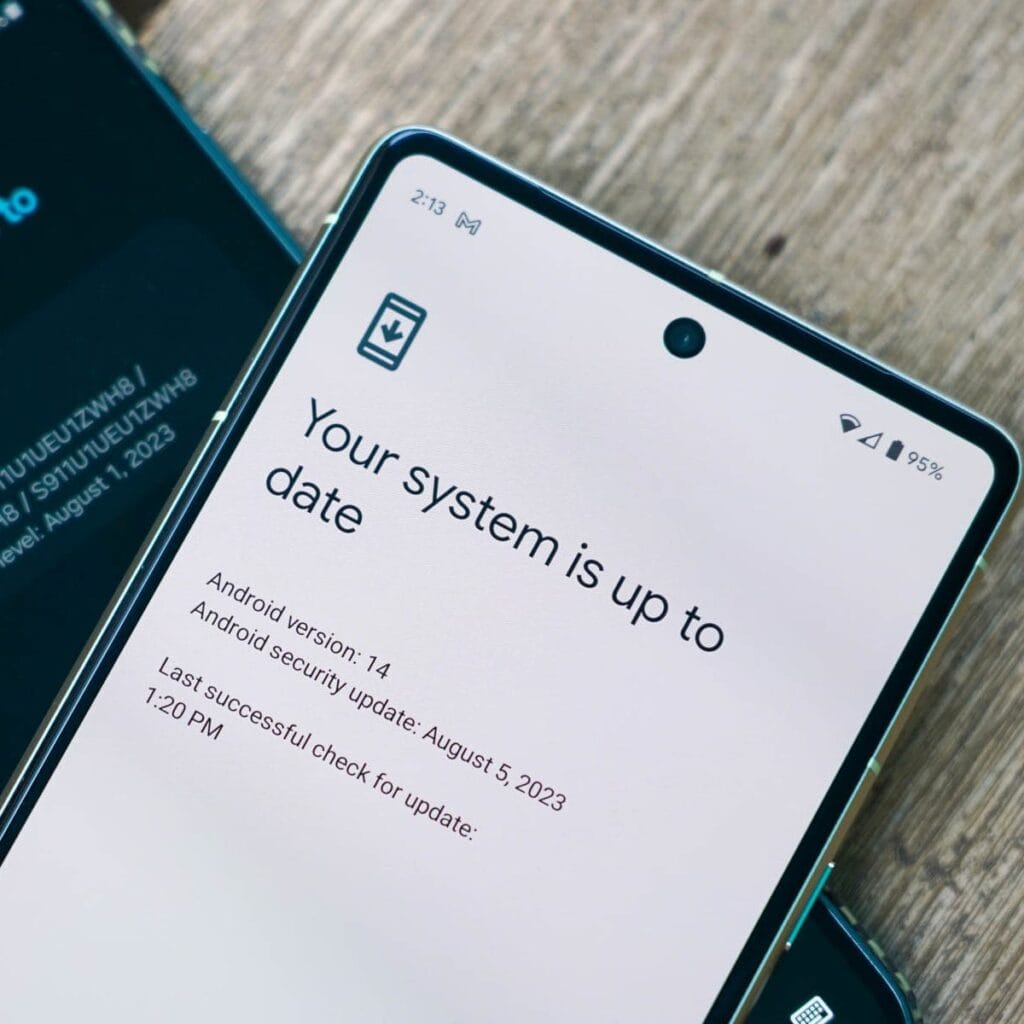
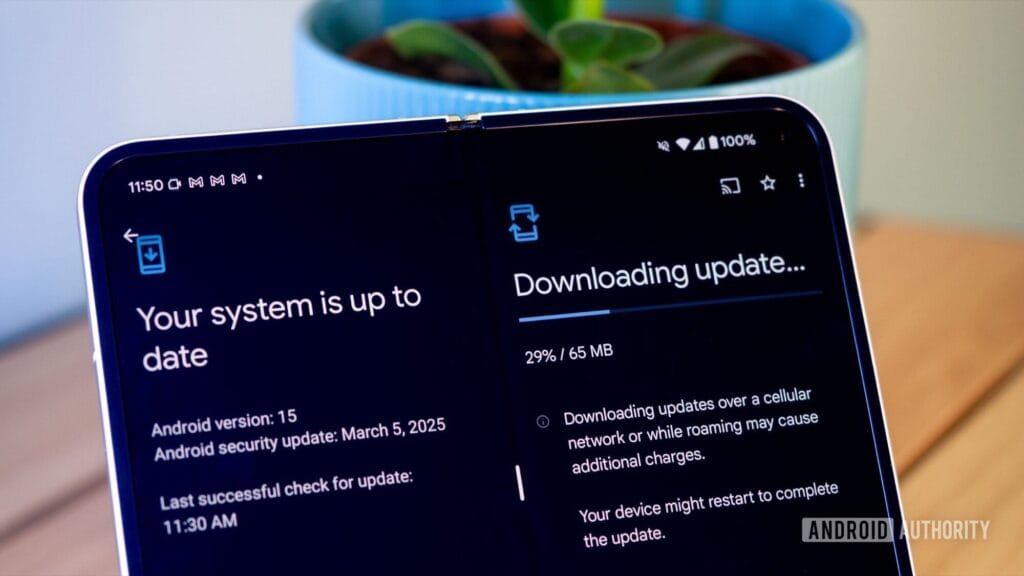
    What if it says “Your system is up to date”?

    Android updates system is up to date

    That alerting does not always indicate that there is no update; it could simply have not yet reached your region or device build. In that situation, consider the advanced methods listed below.

    How to check updates on specific Android oems

    Because manufacturers customize Android OS, the update settings may be in slightly different locations.

    Samsung Devices

    • Go to Settings > Software update > Download and install
    • Samsung pushes monthly security patches and One UI feature updates through this panel.

    Google Pixel

    • Go to Settings > System > System update
    • Pixel devices receive updates directly from Google — typically first among all brands.

    Xiaomi, Redmi, POCO (MIUI)

    • Go to Settings > About Phone > MIUI Version
    • Tap on Check for updates.
    • For advanced control, use the Updater app found in system apps.

    OnePlus (OxygenOS)

    • Go to Settings > About phone > OxygenOS version
    • Tap Check for updates
    • Alternatively, download the OnePlus Updater APK for sideloading updates.

    Oppo / Realme (ColorOS & Realme UI)

    • Go to Settings > Software update
    • Tap on Check for updates
    • Oppo also has an “Early Access” program for beta releases.

    Motorola

    • Go to Settings > System > Advanced > System Updates
    • Tap Check for updates

    Use Google Play system updates (separate from OS)

    android updates

    Since Android 10, Google has separated certain security and performance updates from full OS upgrades. These are delivered via Google Play system updates.

    How to check:

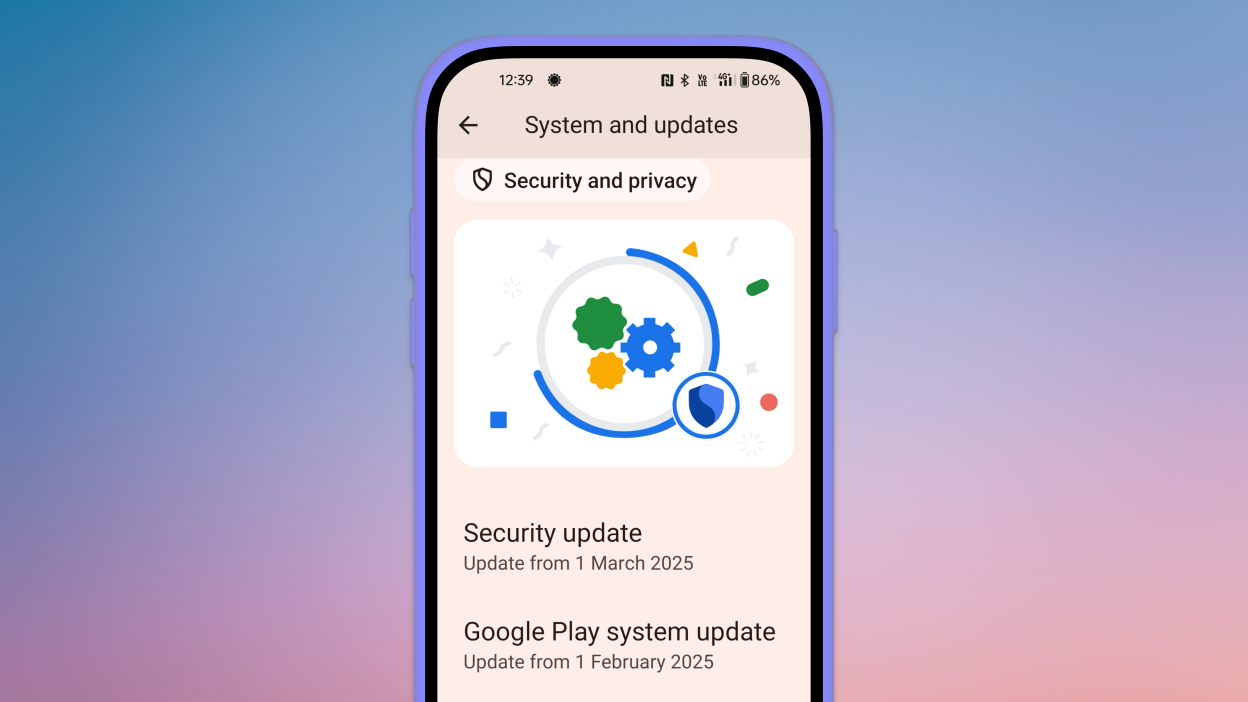
    1. Go to Settings > Security > Google Play system update
    2. Tap Check for update

    These are smaller updates that often improve background processes like biometric security, encryption modules, or system services.

    Force update with OTA Zip files (advanced users)

    If your manufacturer has released an official firmware update but it hasn’t reached your phone yet, you can manually install it using an OTA (Over-The-Air) zip file.

    Steps (for advanced users):

    1. Visit your manufacturer’s official website or trusted forums like XDA.
    2. Download the correct OTA update file for your model and region.
    3. Place the file in the root directory of your internal storage.
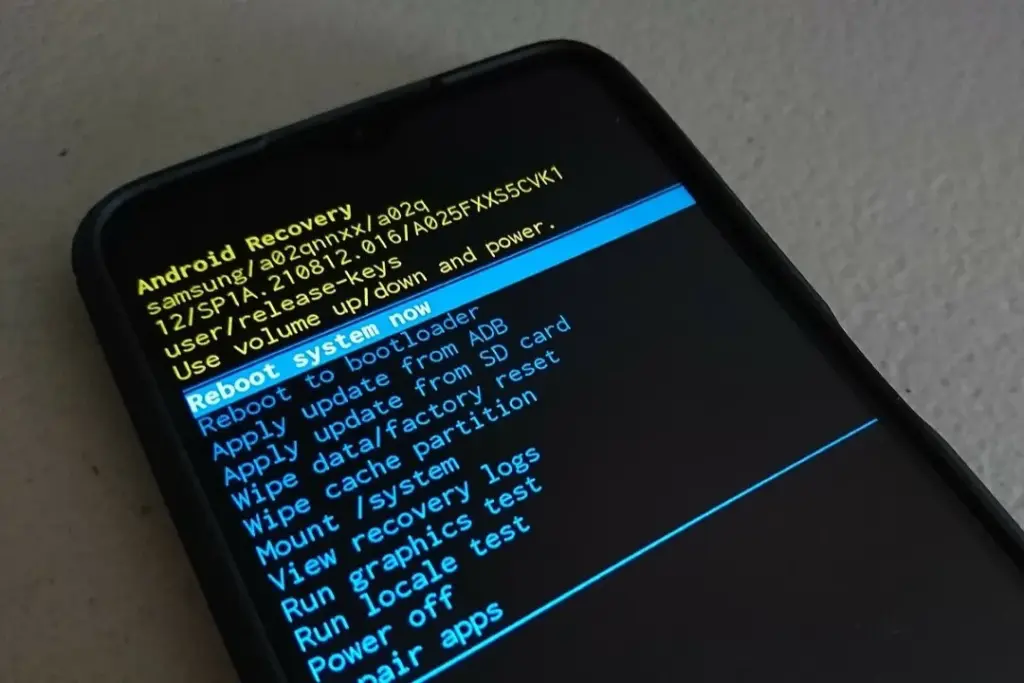
    4. Boot into Recovery Mode (usually via holding Power + Volume Up).
    5. Choose Apply update from SD card or Install update.zip.

    ⚠️ Caution: Flashing the wrong file or interrupting the process can brick your device. Always back up your data.

    What to Do If No Update Appears?

    If you’ve tried everything and your device still says it’s up to date, here are possible reasons:

    • Carrier Delay: Devices tied to mobile carriers often receive updates later than unlocked models.
    • Staged Rollouts: Updates are released in waves. Your device may be queued for later.
    • Region Restriction: Updates may reach some countries first. A VPN won’t help because updates are tied to device build numbers, not IP addresses.
    • Outdated Device: If your device is more than 2–3 years old, it may have reached its end of life for updates.

    Pro Tips to Get Updates Faster

    • Enroll in beta programs if your phone supports them (Pixel, Samsung One UI Beta, etc.)
    • Use the manufacturer’s official updater app (like the Xiaomi Updater).
    • Keep at least 3–5 GB of free storage so updates can install smoothly.
    • Fully charge your battery before downloading any major update.

    Final Thoughts

    Checking for Android updates manually is a good practice, especially if you value efficiency, security, or new features. While auto-updates may manage this silently in the background, taking control ensures that you are always using the most recent and safest version of Android.

    Whether you are using a Samsung, Pixel, Xiaomi, or Motorola, the steps are usually only a few taps away. Stay up to date and secure.

  • How to block ads on Android without root (2025 guide)

    How to block ads on Android without root (2025 guide)

    Online ads can be annoying, whether you are watching YouTube, perusing a news website, or using a free software. Aside from being unpleasant, they can slow down your device, use bandwidth, and compromise your privacy. Fortunately, you can disable most advertising on Android without rooting your device or installing costly apps. This comprehensive guide describes the best ways to block advertisements on websites, applications, and games using free and secure techniques.

    Why should you block ads on your device?

    Blocking ads on your Android phone does more than merely improve the user experience. There are practical advantages that improve device performance, privacy, and security. Here’s why many users prefer to block advertisements:

    1. Improved Performance

    Ads frequently load media-rich material such as photos, animations, and videos, which eat memory and CPU cycles. On smartphones with limited resources, this might result in slower loading times, slowness, and even app crashes. Blocking advertisements frees up system resources and improves program responsiveness.

    2. Better Battery Life

    Since many ads are dynamic and constantly update, they continue running in the background, which drains the battery. Blocking these elements can significantly extend battery life, especially on older devices.

    3. Reduced Data Usage

    When an ad loads, it consumes bandwidth. For individuals with limited data plans, this may result in higher mobile bills or throttling. Blocking advertising helps you save your monthly data allowance.

    4. Enhanced Privacy and Security

    Ads sometimes include tracking scripts that track your activity across apps and websites. Malicious advertising (malvertising) can occasionally lead consumers to phishing or malware-infected websites. Blocking advertisements reduces the likelihood of tracking and exposure to hazardous content.

    Block ads in browsers with Brave or Firefox + uBlock Origin

    Use Brave browser with built-In ad blocking

    The Brave browser prioritizes privacy and includes built-in ad and tracker blocking. Unlike Chrome, which does not enable ad-blocking, Brave automatically removes the majority of advertisements and tracking scripts from websites.

    How to use Brave:

    1. Go to the Google Play Store and install Brave Browser.
    2. Open the app and begin browsing — ad blocking is enabled by default.
    3. To customize settings, go to Brave’s menu > Settings > Shields. You can adjust how strictly ads and trackers are blocked.

    Brave also provides other settings such as script blocking, cookie control, and HTTPS upgrades to improve your surfing privacy even further.

    Best Use Case: Blocking ads on most websites instantly, without needing any extensions or additional configuration.

    Use Firefox with the uBlock Origin Add-On

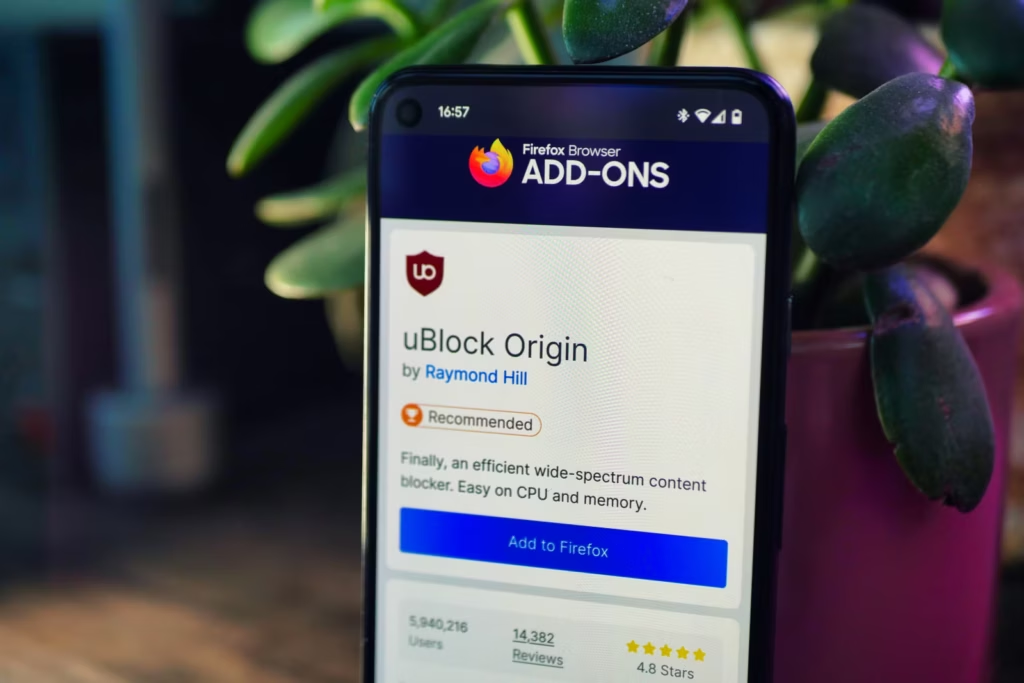
    Firefox with the uBlock Origin Add-On to block ads

    If you prefer Firefox, it provides a more personalized experience by supporting third-party add-ons such as uBlock Origin, one of the most powerful ad blocks accessible.

    Steps to set up uBlock Origin on Firefox:

    1. Install the latest version of Firefox for Android.
    2. Visit addons.mozilla.org from within the browser.
    3. Search for “uBlock Origin” and add it to Firefox.
    4. Once installed, uBlock Origin will immediately begin filtering ads on websites.

    You may set up custom filters, activate regional ad lists, and block certain aspects on a webpage. This level of control makes Firefox with uBlock Origin excellent for users seeking extensive filtering options.

    Best Use Case: Users who want granular control over what gets blocked and which filters are applied.

    Use private DNS to block ads system-wide (Android 9+)

    android private dns for ad block

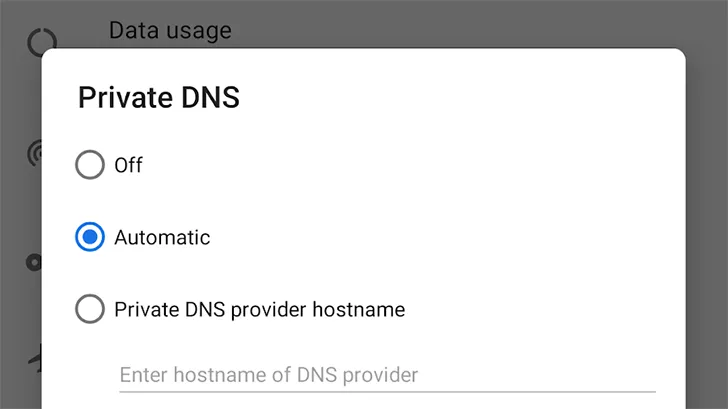
    Since Android 9 (Pie), users can use a feature known as Private DNS. It connects you to a DNS provider, which filters out known ad-serving domains before they load, essentially blocking advertisements in all browsers and many apps.

    Steps to enable Private DNS:

    1. Open Settings on your phone.
    2. Navigate to Network & Internet > Private DNS.
    3. Select “Private DNS provider hostname
    4. Enter the hostname of a DNS provider that supports ad blocking.
    5. Save the changes.

    Popular Ad-Blocking DNS Providers:

    ProviderHostnameDescription
    AdGuard DNSdns.adguard.comBlocks most ads and trackers
    NextDNSdns.nextdns.io/your-config-idHighly customizable with user-defined filters
    Control D Freefreedns.controld.comOffers ad/tracker filtering without an account

    Advantages:

    • Blocks ads across apps, not just in browsers
    • Doesn’t require any apps or root access
    • Improves loading speeds and reduces unwanted traffic

    Limitations:

    • May not block all in-app ads or YouTube ads
    • Some mobile networks may not support encrypted DNS

    Best Use Case: Non-root system-wide ad blocking with minimal setup effort.

    Use AdGuard content blocker for supported browsers

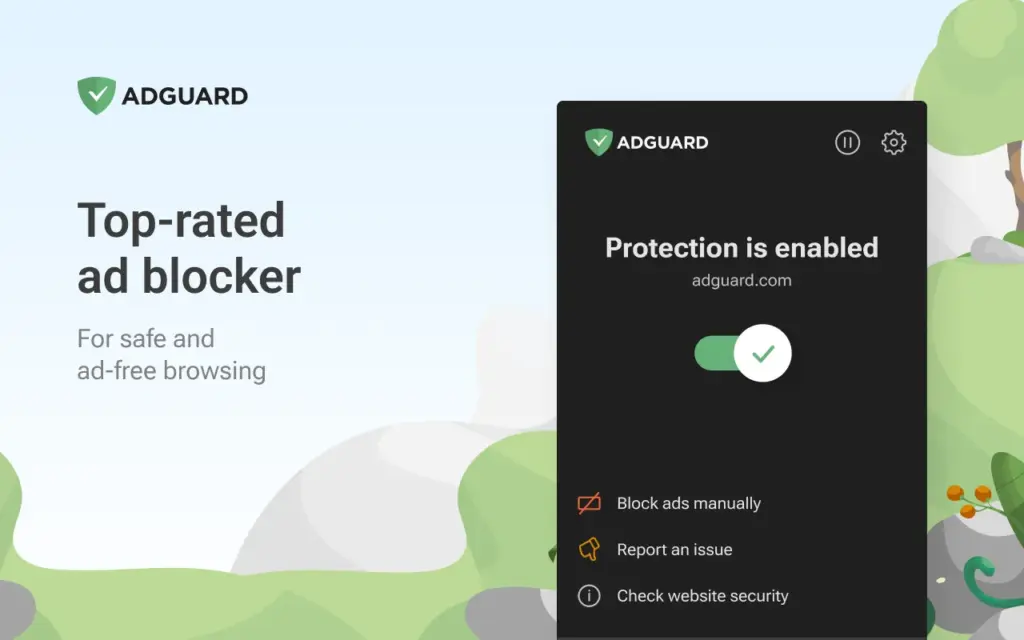
    AdGuard content blocker block ads on Android

    The AdGuard Content Blocker is a free application that disables advertisements in browsers such as Samsung Internet and Yandex Browser without having root access.

    How to install and use AdGuard Content Blocker:

    1. Download the app from the official AdGuard website or from F-Droid.
    2. Open the app and select the browser you use (Samsung Internet or Yandex).
    3. Enable content filters like EasyList or AdGuard Base Filter.
    4. Ads will be blocked while browsing within the supported browser.

    Advantages:

    • Offers control over what filters are applied
    • Requires no permissions or rooting
    • Supports multiple languages and filter lists

    Limitations:

    • Does not block ads inside other apps
    • Only works with supported browsers (not Chrome)

    Best Use Case: Samsung or Yandex browser users seeking browser-specific ad blocking without full system-wide solutions.

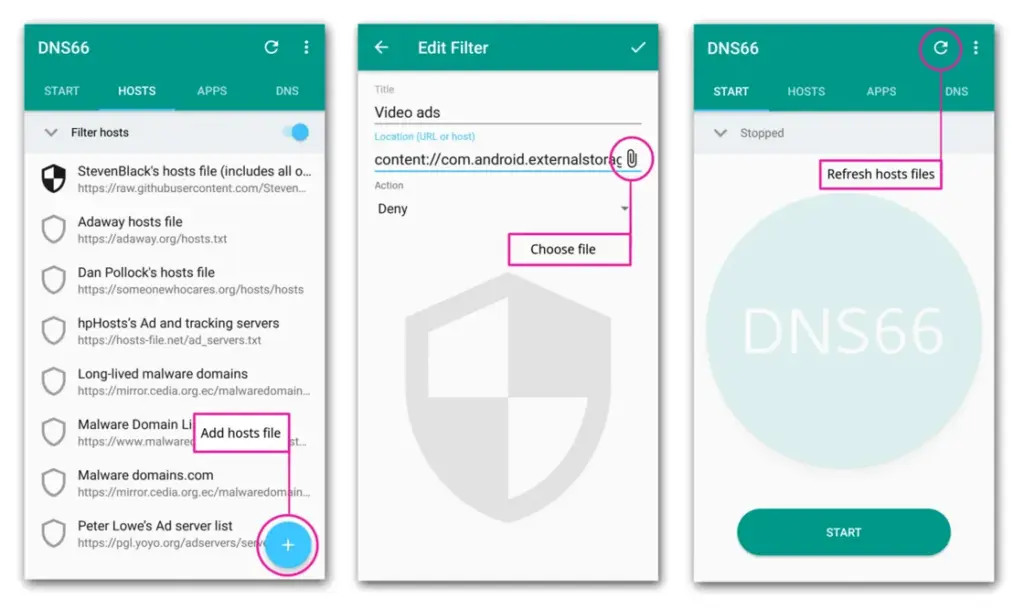
    Use a custom hosts file or DNS66 (No Root Required)

    l 0bef42fe 4178 4057 8acf 5f7ada

    Tech-savvy users may prefer to utilize a custom hosts file that redirects known ad-serving domains to a blank IP address. DNS66, for example, provides this capabilities without the need for root access.

    How it works:

    • DNS66 creates a local VPN tunnel and uses a custom hosts file.
    • Any requests to known ad servers are blocked at the DNS level.
    • It filters traffic system-wide, including ads in apps and games.

    Steps to use DNS66:

    1. Download DNS66 from F-Droid (it’s not available on the Play Store).
    2. Launch the app and configure which hosts files to use (e.g., AdAway or Energized).
    3. Start the VPN service and allow the app to block domains across the system.

    Best Use Case: Advanced users who want fine-tuned control over DNS-level ad blocking without root.

    Note: Since DNS66 uses a local VPN, you cannot run other VPNs at the same time.

    What about YouTube ads?

    YouTube uses server-side ad distribution, which makes it difficult to prevent adverts in the official YouTube app. However, there are various workarounds available:

    youtube ads

    Option 1: watch YouTube in Brave or Firefox with Ad Blocking

    • Open YouTube.com in Brave or Firefox with uBlock Origin enabled.
    • Ads will be stripped from videos on the web interface.
    • You can even use picture-in-picture mode on supported devices.

    Option 2: Use YouTube Vanced or ReVanced

    YouTube Vanced (now discontinued) and its successor, ReVanced, offer modified YouTube apps with built-in ad-blocking and background playback.

    Important Notes:

    • These apps must be sideloaded and are not available on the Play Store.
    • Use trusted sources such as GitHub or community forums to avoid malware.
    • YouTube may update its API to block these apps in the future.

    Best Use Case: Users who regularly watch YouTube and want a consistent ad-free experience without paying for YouTube Premium.

    Additional tips to reduce ads and trackers on Android devices

    If you want even more control over your privacy and device experience, consider these extra steps:

    • Use a privacy-focused VPN with built-in ad and malware blocking (e.g., Proton VPN, NordVPN, Surfshark).
    • Enable Data Saver or Lite Mode in Chrome to minimize ad-heavy content.
    • Regularly clear app cache and browsing data to remove trackers.
    • Turn off personalized ads by visiting Google Ad Settings and disabling ad personalization.

    Final Thoughts

    Blocking ads on Android no longer necessitates technical knowledge or rooting the device. The majority of advertisements may be removed from your browsing and app experience using browser-based blockers, DNS-based filtering, and content-blocking applications.

    These methods are safe, effective, and frequently free. Whether you are concerned about performance, data use, or privacy, using these ad-blocking tactics will significantly enhance your Android experience.

  • How to hide photos and videos on Android without any app

    How to hide photos and videos on Android without any app

    Do you want to protect specific images and videos without downloading additional apps? Android offers you multiple options to conceal your media, whether it be private memories, sensitive work material, or sensitive information – no dangerous tools or third-party apps are needed.

    Using built-in capabilities like Google Photos, File Manager, and brand-specific tools like Samsung‘s Secure Folder or Xiaomi’s Hidden Album, you will discover various ways to conceal images and videos on Android in this guide.

    Why hide media on your device?

    Privacy isn’t just about hiding things from others – it’s also about peace of mind. You might want to hide photos or videos that are:

    • Sensitive work screenshots or files
    • Personal or intimate photos
    • Copies of IDs, passwords, or financial info
    • Photos you don’t want others to see when scrolling through your gallery

    And the good news? You don’t need to install any shady apps to protect your content.

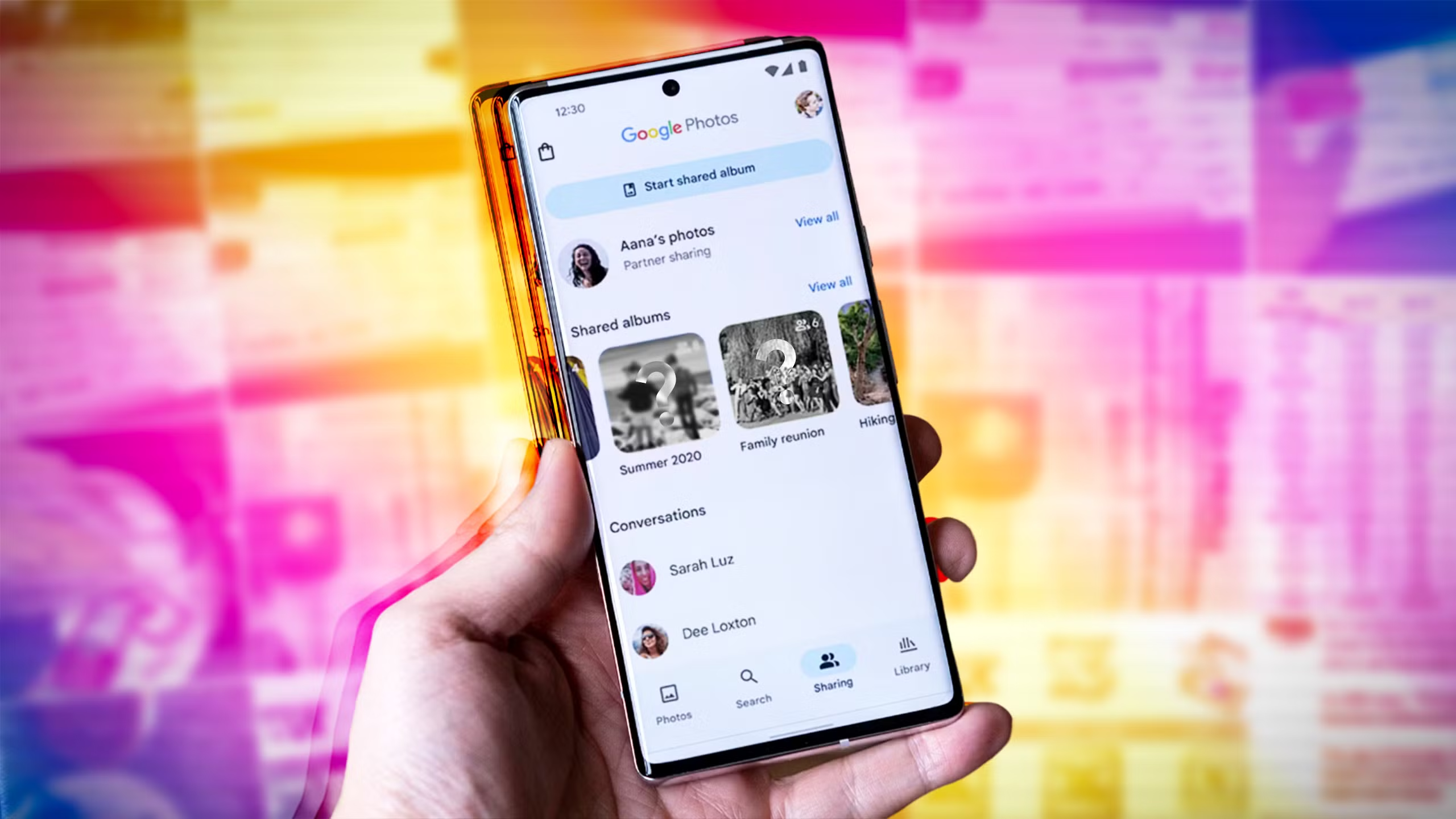
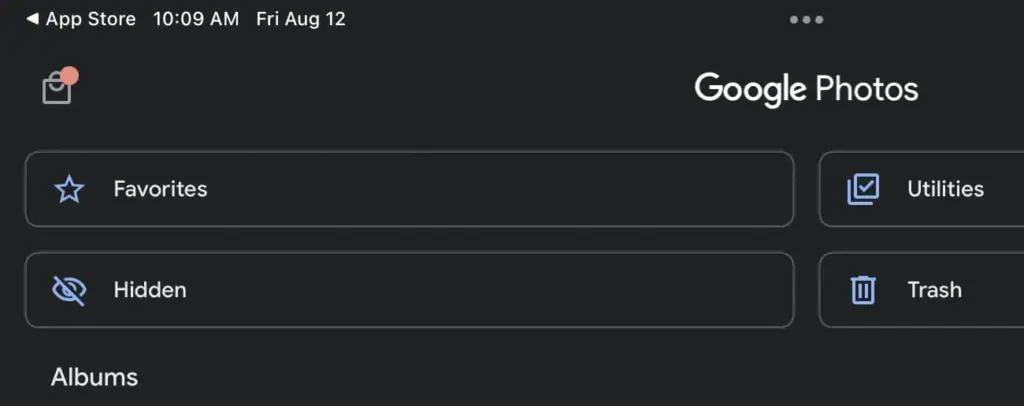
    Method 1: Hide Photos Using Google Photos Archive

    Hide Photos Using Google Photos Archive

    If you’re using Google Photos (which is pre-installed on most Android devices), archiving is the quickest and safest way to hide images from your main gallery view – all without deleting them or moving files around manually.

    Step-by-Step Instructions:

    1. Open the Google Photos app
    2. Select the image(s) or video(s) you want to hide
    3. Tap the three-dot menu in the top right
    4. Select “Move to Archive”

    These files will now disappear from your main timeline but stay safely stored in the “Archive” section.

    Where to find archived photos later:

    • Go to Library > Archive in the bottom navigation of the Google Photos app

    Why it’s useful:

    • Doesn’t delete or move files — just removes them from the spotlight
    • Perfect for semi-private content you might need later
    • Works across devices if you’re syncing with Google Account

    Note: Archived photos still appear in albums or search results unless you manually remove them from those albums.

    📌 Best for: Casual privacy without breaking anything or hiding files completely.

    Method 2: Use File Manager to Hide Files Manually

    Android file manager

    Regardless of brand or Android version, this is a universal solution that works with almost all Android phones. You will make a hidden folder that will be automatically ignored by the Android operating system and media scanning applications.

    Step-by-Step:

    1. Open the File Manager or My Files app on your phone
    2. Navigate to Internal Storage
    3. Create a new folder and name it with a dot (.) at the beginning, such as .HiddenMedia or .SecretFolder
    4. Move the photos and videos you want to hide into this folder

    Why it works:

    • Android treats folders starting with a “.” as hidden directories
    • Media in these folders won’t appear in your gallery, Google Photos, or other media apps

    Once done, your Gallery and Google Photos app will no longer detect those files — making them invisible unless you go looking.

    To view them again: enable “Show hidden files” in your file manager’s settings

    Best for: Total manual control over media hiding

    Method 3: Rename File Extensions

    This method only hides files so they will not open in photo or video apps; it does not actually hide them.

    Step-by-Step:

    1. Open your File Manager
    2. Find the photo or video file you want to hide
    3. Tap Rename and change the file extension (e.g., .jpg.xyz)

    At this point, the file will show up as an unopenable generic document. Just change the extension to its original format to get access again.
    Caution: Make sure you remember the original extension (.jpg, .png, .mp4, etc.) so you can restore it!

    Best for: Hiding media from gallery apps without deleting it

    Method 4: Use Built-In Secure Folder (Samsung, Xiaomi, Huawei)

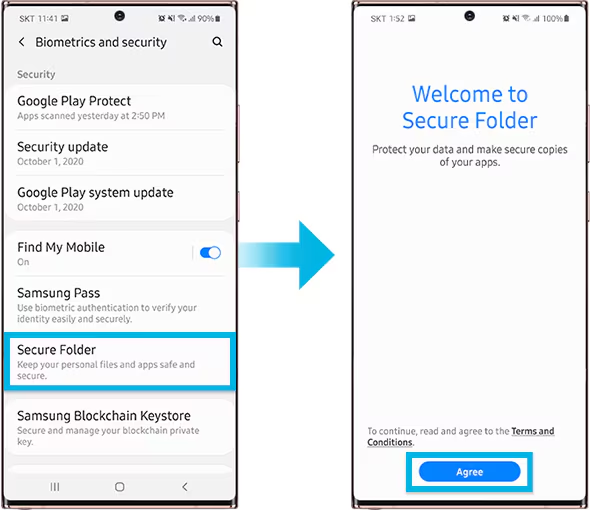
    secure folder

    Nowadays, a lot of oems include built-in safe storage options that enable you to conceal documents, programs, and media using password or biometric security.

    Samsung: Secure Folder

    With Samsung’s Secure Folder, your phone has a private, encrypted area. It is secured by a distinct passcode or fingerprint, which is distinct from the lock on your phone.

    To set it up:

    • Go to Settings > Biometrics & Security > Secure Folder
    • Sign in with your Samsung account
    • Create your Secure Folder with fingerprint, PIN, or pattern
    • Open the Secure Folder and import photos/videos from your gallery

    Even the application’s access is limited without unlocking the folder, and these files are totally concealed from the main gallery and file manager.

    Xiaomi/Redmi: Hidden Album

    The Hidden Album function in Xiaomi’s Gallery app makes it quick and easy to conceal private material.

    How to use:

    • Open the Gallery app
    • Go to Albums > Hidden Album
    • Set up the feature (may require Mi account login)
    • Move selected images/videos to this section

    Content in the Hidden Album is protected and will not appear elsewhere unless explicitly restored.

    For Huawei or OnePlus:

    Use PrivateSpace (Huawei) or App Lock & Hidden Space (OnePlus). These offer similar levels of privacy and allow photos/videos to be locked with additional credentials.

    Best for: Maximum privacy with encryption and authentication — perfect for work or highly sensitive media.

    Method 5: Use Guest Mode or Multiple Users

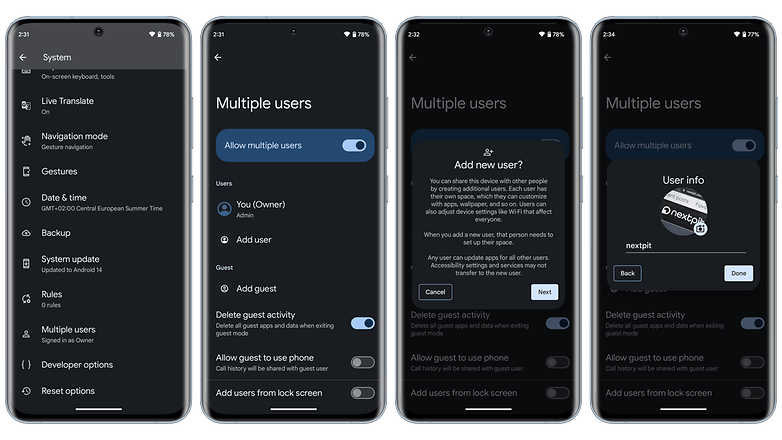
    guest mode on Android, hide photos and videos

    Another sneaky method is to create a Guest account on your phone:

    How to enable Guest Mode:

    Like a computer, Android allows for many user profiles. You can set up a Guest Mode on your phone to keep other users from seeing your messages, apps, or pictures.

    To activate Guest Mode:

    1. Open Settings > System > Multiple Users
    2. Enable Guest Mode or add a new User
    3. Switch to the guest profile when someone else is using your phone

    Switch to Guest mode when someone else wants to use your phone. This keeps all your media, apps, and settings hidden by default.

    Bonus Tip: Some phones allow locking the switch between users with a password or fingerprint.

    Best for: Sharing your phone without giving others access to your personal content.

    What NOT to Do

    While hiding media is easy, here are some common mistakes to avoid:

    • Don’t delete files unless you’re sure you have a backup
    • Don’t trust sketchy third-party apps from unknown developers—many are filled with ads, trackers, or even malware
    • Avoid cloud backups for sensitive files unless encrypted

    Extra Privacy Tips

    • Use a Gallery app with built-in vault (e.g., Simple Gallery Pro)
    • Encrypt your phone under Settings > Security > Encryption
    • Back up sensitive images to a secure cloud (e.g., Proton Drive or a password-protected ZIP file on Google Drive)

    Hide It the Smart Way

    You don’t need to clutter your phone with apps just to hide a few private photos. Android gives you several easy, built-in ways to hide images and videos safely:

    • Archive them in Google Photos
    • Move them to a dot-folder via File Manager
    • Use Secure Folder or Guest Mode for stronger protection

    Choose the method that best fits your comfort level and device brand—and enjoy peace of mind knowing your private media stays private.

  • 5 ways to enhance your Pixel Camera experience

    5 ways to enhance your Pixel Camera experience

    The Google Pixel phones are notable for their outstanding photography capabilities, even with their flaws. You may capture beautiful pictures with a Pixel by pressing the shutter button. No need for retakes. The Pixel Camera app is crucial in providing that experience because it has the ideal combination of functionality and a clear, user-friendly layout.

    Even so, you have probably missed a number of the Pixel Camera app’s incredible features. Some make taking the ideal picture easy, while others streamline the image-sharing process.

    #deal – Google Pixel 9

    Google Pixel 9 with Gemini gets the best of Google AI first, so you can take amazing photos, make edits like magic, and get things done even easier

    Best choice
    $799.00$599.00Buy on Amazon

    Quick access controls

    The performance of their point-and-shoot cameras makes Pixel phones unique. The best results can be obtained without adjusting settings or switching to a specific mode. Remove your phone from your pocket, open the app, and begin taking pictures. To get the desired effect, you might need to change the brightness, shadows, or white balance.

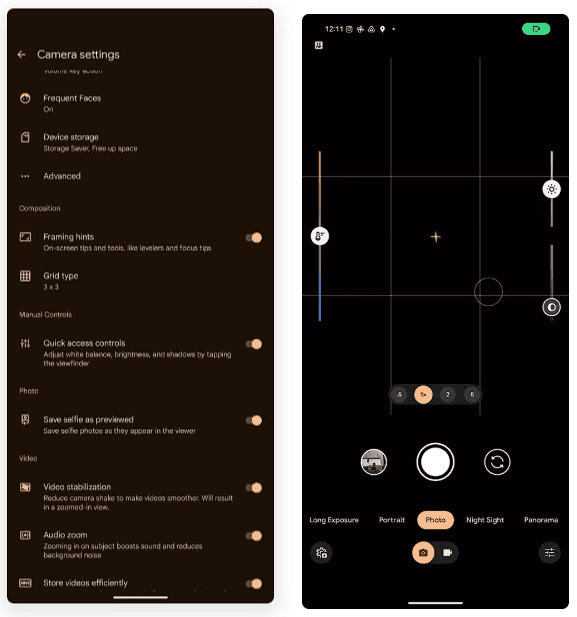
    Quick access controls google camera

    To adjust these settings, you do not have to go into Pro mode in the Pixel Camera app like you would on other phones. Instead, go to the settings menu and enable Quick access controls. Then, by tapping the viewfinder, you may activate sliders to adjust the brightness, shadows, and white balance.

    Panorama with audio

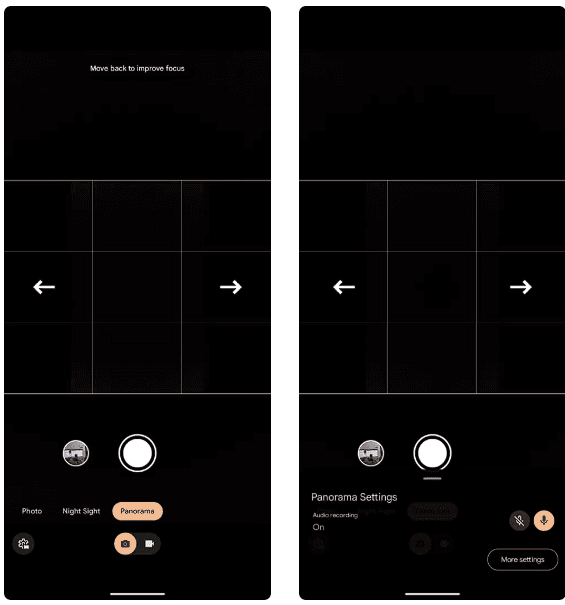
    The Google Pixel supports panoramic photography, just like a lot of Android phones. In contrast to most, they have a remarkable 50MP resolution for taking panoramas. But that is not it. The latest Pixel phones have yet another secret weapon. Audio can be recorded while taking a panorama picture. Although this feature may seem like a gimmick to you, there are several situations in which it might be helpful.

    google pixel panorama with audio

    Imagine recording a breathtaking panoramic scene and narrating it in the backdrop with your voice. After that, you can show it to your loved ones. This function is well-executed by Google, which makes sure the soundtrack plays in the background and fades in and out while you see the panoramic.

    The only drawback is that it can be challenging to share panorama photographs with audio. The noise is eliminated when sending the picture via Instagram, Google Messages, or WhatsApp. The panorama cannot even be uploaded to Google Photos. Sending the photograph to another Pixel using Quick Share is your best bet.

    Guided frame

    google pixel camera guided frame

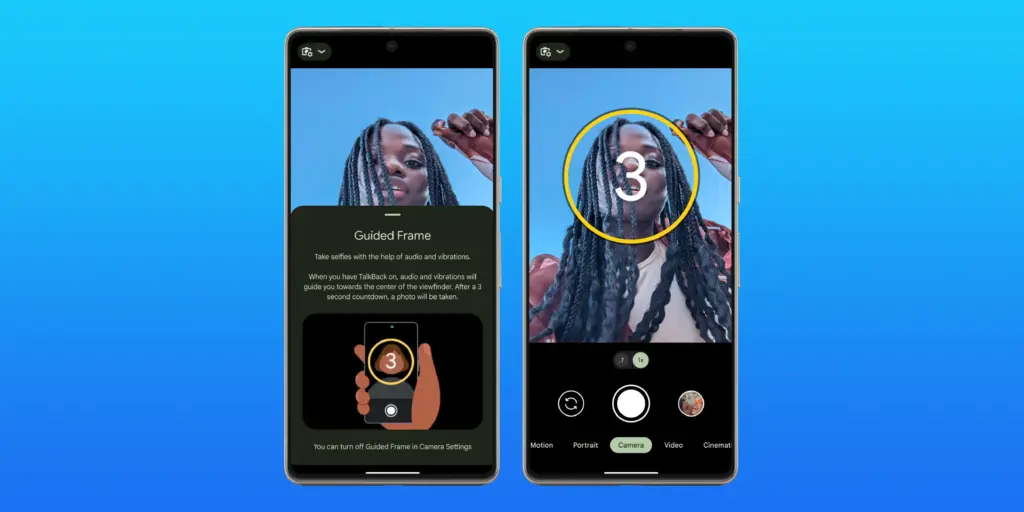
    Pixel phones have excellent photography. However, this does not imply that anyone can shoot beautiful photos with a Pixel phone. People with visual impairments may often find it challenging to frame their subjects correctly before taking a picture. This is where the Guided Frame function of the Pixel Camera is useful.

    This accessibility feature offers auditory and visual cues to assist in appropriately framing subjects. It is intelligent enough to assist with framing by automatically recognizing faces, objects, and scenes. Your Pixel phone will automatically take a picture when it is properly framed.

    When using the front camera to take selfies, Guided Frame is useful. You can move around until the Pixel Camera app recognizes better lighting circumstances after it recognizes your face. The picture is then automatically taken.

    By pressing the Settings icon in the bottom-left corner of the Pixel Camera app and selecting More settings > Guided Frame, you may enable guided frame. When you turn on TalkBack mode on your Pixel, the feature is automatically enabled.

    #deal – Google Pixel 9

    Google Pixel 9 with Gemini gets the best of Google AI first, so you can take amazing photos, make edits like magic, and get things done even easier

    Best choice
    $799.00$599.00Buy on Amazon

    Quick short video

    Enjoy posting quick videos on Snapchat or Instagram? For this, you do not have to put the Pixel Camera in video mode. Hold down the shutter button while using the camera app instead.

    A video is being recorded by your Pixel phone. When you remove your finger from the shutter, it stops. As an alternative, you can continue recording even after you pull your finger off the screen by sliding it to the lock icon on the left of the viewfinder.

    This tool is ideal for shooting video or swiftly taking brief clips. Additionally, you can export a full-resolution frame from the movie to share as a photo because Top Shot functions in this mode.

    Palm timer

    google pixel camera palm timer

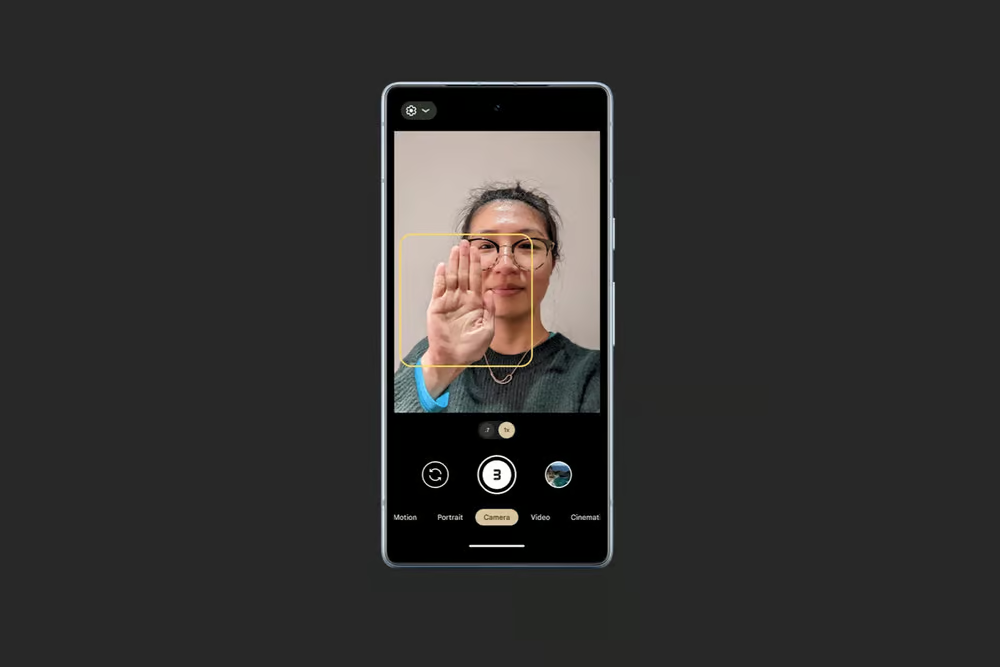
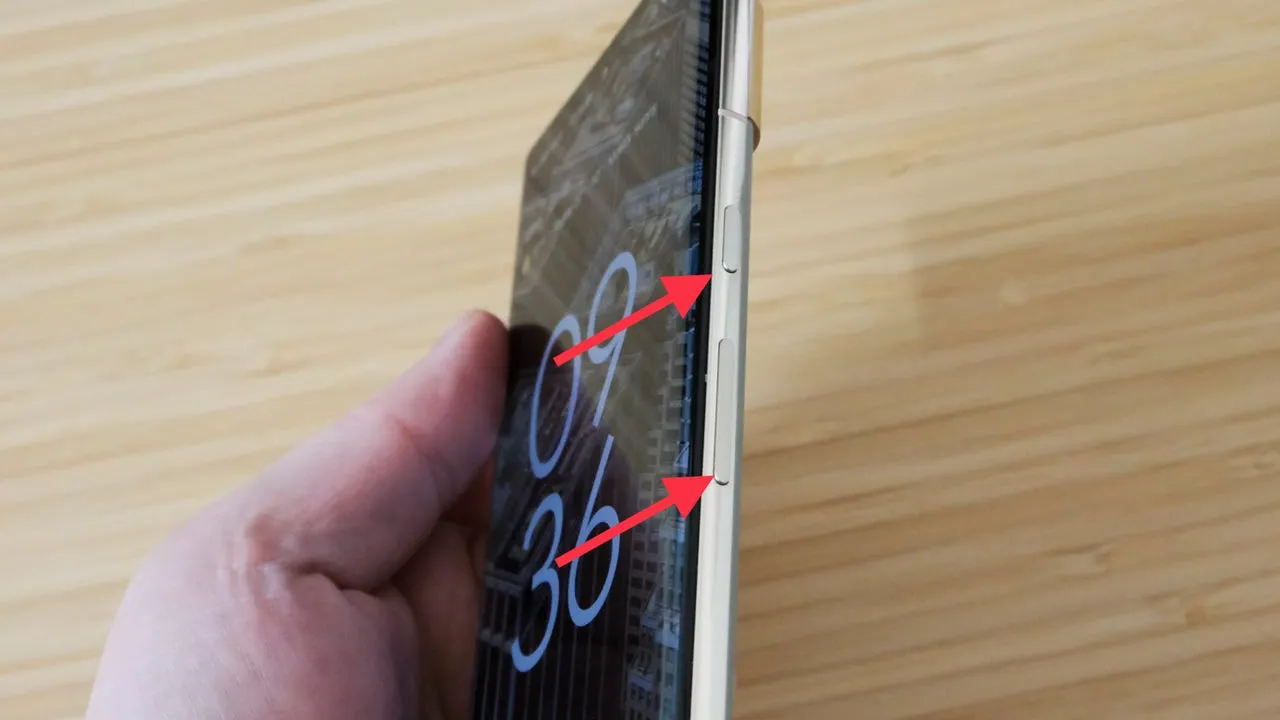
    Sometimes you want to capture a picture with your Pixel propped up on a table. Or, when taking a group selfie, have your arm fully extended. It can be challenging to press the volume key or tap the on-screen shutter button in these circumstances without shifting the phone or readjusting your grasp. In these circumstances, the Pixel Camera’s palm timer function can be useful.

    You may enable a three-second timer on your Pixel simply lifting your palm. You do not have to have it. Your Pixel automatically takes a picture after the countdown. It is helpful while taking solo photos with a tripod. Both the front and back cameras are compatible with the function.

    I use the Palm timer to take selfies or group photos using the rear camera, as the larger sensor means better quality images. You can enable Palm timer from the Pixel Camera settings.

    #deal – Google Pixel 9

    Google Pixel 9 with Gemini gets the best of Google AI first, so you can take amazing photos, make edits like magic, and get things done even easier

    Best choice
    $799.00$599.00Buy on Amazon
  • The easiest ways to take a screenshot on any Android device (no 3rd app required)

    The easiest ways to take a screenshot on any Android device (no 3rd app required)

    Screenshots are quite useful. Most Android users save receipts, share humorous memes, and capture bugs to report on a daily basis. However, not all Android phones employ the same approach for taking screenshots.

    In this guide, you will learn how to take a screenshot on any Android device, including Samsung, Google Pixel, Xiaomi, OnePlus, and others. We will also show you how to take screenshots without using physical buttons, which are sometimes damaged or inconvenient.

    ✅ Common Methods to Take a Screenshot on Android

    📱 1. The Universal Button Combo: Power + Volume Down

    This method works on 99% of Android devices:

    • Press and hold the Power button and Volume Down at the same time
    • Hold for about 1 second until the screen flashes or you hear a shutter sound
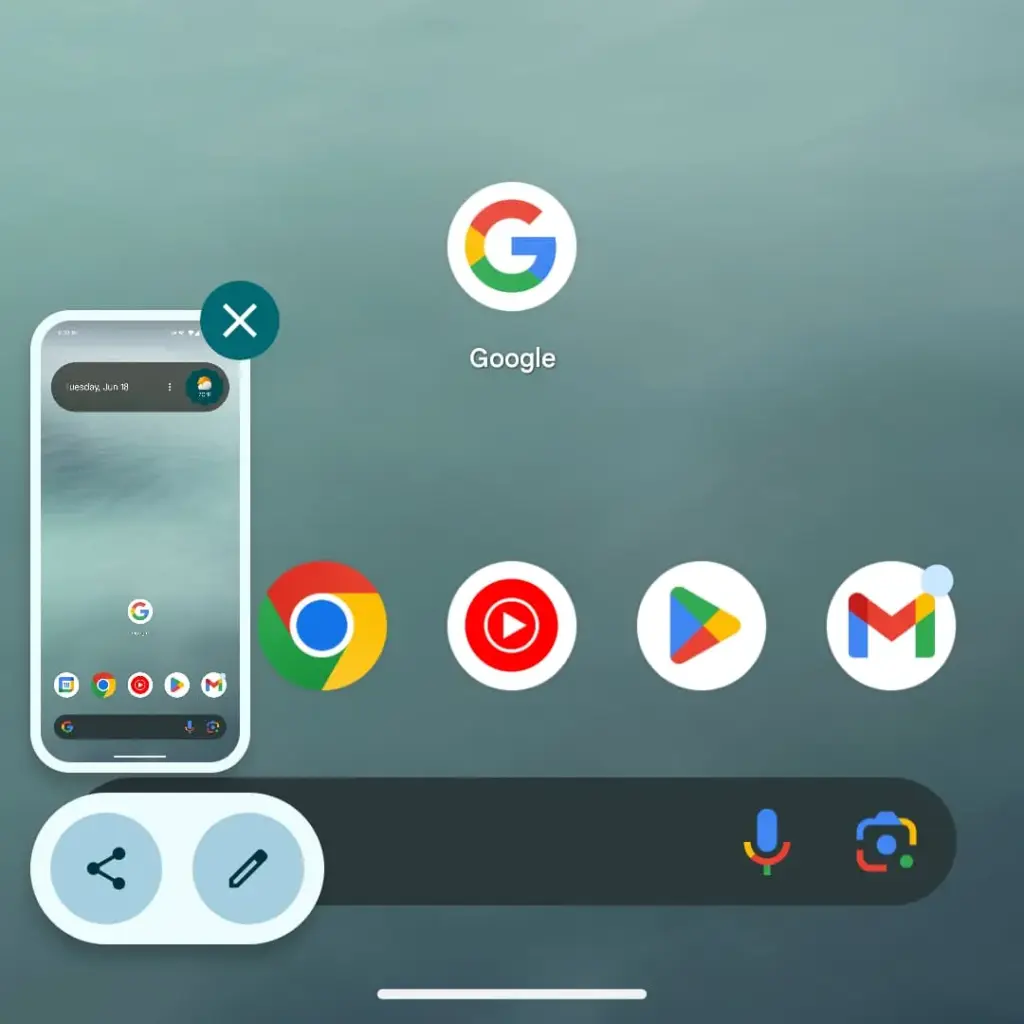
    • A preview of the screenshot will appear with options to Edit, Share, or Delete

    📝 Works on: Samsung, Pixel, OnePlus, Xiaomi, Motorola, Realme, and most others.

    📸 Recommended image here: A screenshot showing fingers pressing Power + Volume Down on a phone.

    📲 Brand-Specific Methods (With Enhancements)

    📱 Samsung Galaxy Devices

    Samsung offers multiple screenshot options beyond the button combo:

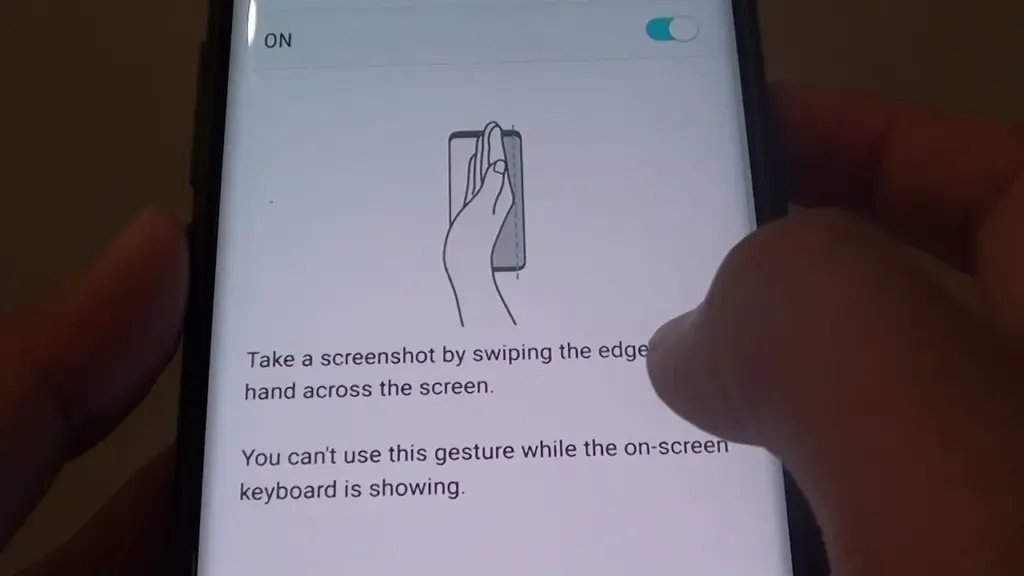
    ✋ Palm Swipe Gesture

    • Go to Settings > Advanced Features > Motions and Gestures
    • Toggle on Palm swipe to capture
    • Swipe your palm horizontally across the screen (left to right or vice versa)
    maxresdefault

    ✨ Smart Capture (Scroll Capture)

    • After taking a screenshot, tap the scroll icon in the preview to capture an entire page (e.g., a long webpage)

    🧠 Tip: Scroll Capture is perfect for saving full chats, articles, or receipts.

    📷 Google Pixel Devices

    Google Pixel sticks to simplicity:

    • Power + Volume Down is the main method
    • On Android 13+, when you open the Recent Apps view, there’s a Screenshot button under each app window

    🔒 Screenshots are disabled for secure apps like banking apps or Netflix (for DRM protection)

    android screenshot options

    ⚙️ Xiaomi, Redmi, and POCO (MIUI)

    Xiaomi devices give you gesture and quick-access methods:

    • Power + Volume Down (standard)
    • Swipe three fingers downward on the screen for a quick snap
    • Use the Quick Ball feature:
      • Enable via Settings > Additional Settings > Quick Ball
      • Tap it, and choose Screenshot from the floating menu

    🔴 OnePlus (OxygenOS)

    • Power + Volume Down
    • Three-finger swipe down also works (enable in Settings > Buttons & Gestures)
    • Long screenshot (scrolling) is available on preview pop-up

    🧑‍💻 How to Take a Screenshot Without Buttons

    If your power or volume buttons are broken, don’t worry—you can still capture the screen using these workarounds:

    🧠 1. Use Google Assistant or Voice Command

    Just say:

    “Hey Google, take a screenshot.”

    The Assistant will snap the screen and save it to your gallery.

    🔒 Note: Google Assistant cannot take screenshots in some secure apps or during voice calls.

    🧮 2. Enable On-Screen Screenshot Shortcut

    Some phones let you add a screenshot shortcut to the navigation bar or status shade:

    • Samsung: Add “Screenshot” to the Edge Panel or Quick Settings
    • Xiaomi: Enable Quick Ball or Button Shortcuts
    • OnePlus: Add Screenshot to the Navigation gestures

    ♿ 3. Use Accessibility Menu (for all Android phones)

    If you’re on Android 9 or later:

    1. Go to Settings > Accessibility > Accessibility Menu
    2. Enable it
    3. You’ll see a little person icon at the bottom right
    4. Tap it > Tap Screenshot

    This is a great method for users with limited mobility or hardware button issues.

    💡 4. Use Third-Party Apps (Optional)

    If built-in methods don’t work for you, apps like:

    • Screenshot Easy
    • Screen Master
    • Assistive Touch for Android

    …can provide floating buttons, auto scroll, and editing tools. But these aren’t always needed if your Android version is recent.

    🖼️ Where Are Screenshots Saved?

    Where Are Screenshots Saved?

    After taking a screenshot, your phone automatically saves it in a specific folder based on the manufacturer, Android version, and any file management settings.

    Here’s how to find them on most Android phones.

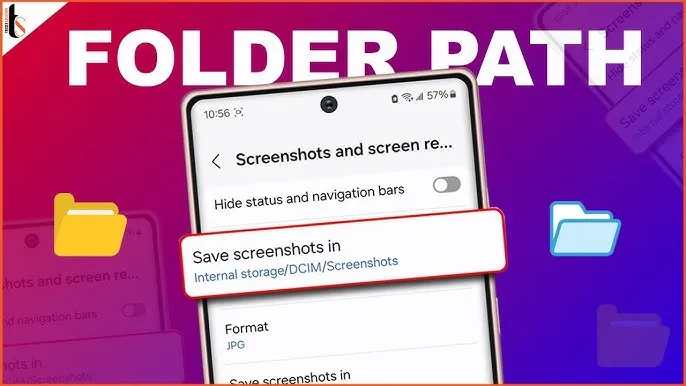
    DCIM > Screenshots
    This is the most common location for screenshots. “DCIM” stands for Digital Camera Images, and it’s where the system stores photos taken with your camera and screenshots.

    Pictures > Screenshots
    On some devices or third-party camera apps, screenshots go here instead of DCIM. This is especially true for older Android versions or modified versions like MIUI (Xiaomi) or ColorOS (OPPO/Realme).

    🧭 To manually browse:

    Navigate to DCIM > Screenshots or Pictures > Screenshots

    Open your File Manager or My Files app

    Tap Internal Storage

    You can also find them in the Google Photos app under the “Screenshots” section.


    ✂️ How to Edit or Share a Screenshot Instantly

    After taking a screenshot:

    • Tap the preview popup before it disappears
    • You can:
      • Crop or annotate the image
      • Share via WhatsApp, Gmail, social media
      • Delete if it was a mistake

    Some phones even allow adding text, shapes, or blur effects directly in the screenshot editor.

    🧼 Screenshot Tips & Tricks

    ✔️ Tip 1: Use Scroll Capture for Long Pages

    Don’t take 5 screenshots for a single chat—use the scrolling option instead.

    ✔️ Tip 2: Organize Your Screenshots

    Create folders like Receipts, Meme folder, Work notes in your file manager.

    ✔️ Tip 3: Don’t Rely on Screenshots for Sensitive Info

    Avoid screenshotting 2FA codes, passwords, or anything too personal. Use a secure note app instead.

    🔚 Wrapping Up

    Taking a screenshot on Android is easier than ever, with different options based on your phone and preferences. Whether you like buttons, gestures, or voice commands, Android has a technique for you.

    Now that you know how to screenshot on any Android phone, try each approach and discover which one works best for you. Also, remember to wipe up old screenshots every now and then – those memes add up quickly!

  • How to speed up your Android device in just minutes

    How to speed up your Android device in just minutes

    You are not dreaming if your Android phone used to be blazing fast but suddenly feels slow. Android devices naturally slow down over time for a number of reasons, the majority of which are entirely resolvable without the need for third-party apps or technical know-how.

    Why Android is getting slower?

    📦 1. App Cache Buildup

    An application, such as Instagram, YouTube, or your web browser, saves small amounts of temporary data (called cache) each time you use it so that it loads more quickly the following time. Although useful when used sparingly, this cache accumulates over time, depleting storage and occasionally making the program (or even your phone) slow.

    Example: Chrome can build up hundreds of MBs in cache after a few weeks of browsing. Clearing it can noticeably improve speed.

    ⚙️ 2. Background Processes Piling Up

    Applications do not simply launch when you use them. Multiple apps keep running in the background, syncing data, giving notifications, and even tracking position. This depletes the battery and RAM (your phone’s memory), which can affect speed.

    Tip: Social media and messaging apps are the biggest offenders. If you’ve got 10+ apps running in the background, expect a performance dip.

    📲 3. Unused or Pre-installed Apps

    Bloatware is the term for the numerous apps that are pre-installed on your phone and frequently continue to run in the background even if you have never used them. You end up with a cluttered, overloaded system when you include the apps you downloaded, used once, and then forgot about.

    You don’t have to delete everything, but disabling or uninstalling apps you don’t use makes a big difference.

    🔁 4. Software Updates and Feature Overload

    Software updates can be bulky, yet they are necessary for security and new functionality. Updates for apps and newer Android versions are gradually tailored for more modern hardware. This implies that all of the new features and animations may be too much for your outdated device to handle.

    Ever noticed how a major Android update seems to slow your phone a bit? That’s usually why.

    🗄️ 5. Low Internal Storage

    For Android to function properly, it requires a buffer of free space. Your phone may begin to crawl if it is overloaded with pictures, movies, downloads, and residual program data for background processing.

    Rule of thumb: Keep at least 4 GB free at all times. If you’re below that, expect slowdowns.

    ✅ The Good News?

    You don’t need root access, expensive cleaner apps, or a trip to the repair shop. Most speed issues can be solved in just a few minutes using built-in settings.

    📍 In the next section, we’ll walk through the exact steps you can take right now to get your Android device running like new again.
    how to speed up android phone wi

    ✅ 1. Restart Your Phone

    Why it matters: Restarting your phone clears temporary files, ends frozen background processes, and resets system performance. It’s like giving your phone a fresh breath of air.

    What to do:

    • Hold the Power button until the menu appears
    • Select Restart (or Power Off, then turn it back on)

    📌 Do this at least once a week — it can fix lag, crashes, and battery issues instantly.


    🧹 2. Clear App Cache (Not Data!)

    Apps store cache to improve loading times, but too much of it can cause lag, glitches, or even crashes.

    Here’s how to clear cache:

    1. Go to Settings > Apps
    2. Tap on an app like Chrome, TikTok, or Instagram
    3. Tap Storage & Cache
    4. Tap Clear Cache

    ⚠️ Important: Don’t tap Clear Storage/Data unless you want to log out or reset the app.

    🧠 Pro Tip: Clear cache for your most-used apps once every 2–3 weeks.


    📦 3. Uninstall or Disable Unused Apps

    Apps you never use can:

    • Take up precious storage
    • Run silently in the background
    • Slow down boot times

    To remove them:

    • Long-press the app icon > tap Uninstall
    • OR go to Settings > Apps > [App Name] > Uninstall

    If an app can’t be uninstalled:

    • Tap Disable — it won’t run or consume resources anymore.

    🔇 Example: Carrier apps, pre-installed games, or assistant tools you never asked for.


    🛠️ 4. Reduce Animations (Developer Options)

    Android’s transitions and animations may look sleek — but they can delay actions on older or budget phones.

    Here’s how to disable or reduce animations:

    1. Go to Settings > About Phone
    2. Tap Build Number 7 times to unlock Developer Options
    3. Go back to Settings > System > Developer Options
    4. Scroll down to:
      • Window Animation Scale
      • Transition Animation Scale
      • Animator Duration Scale
    5. Change all three to 0.5x or Animation Off

    📈 Expect a noticeable speed boost — especially on devices with less RAM.


    🗃️ 5. Free Up Storage Space

    Storage nearing full = a major performance killer. Your phone needs free space to install updates, load files, and run background tasks.

    Quick ways to free up space:

    • Open Files by Google > Clean to remove junk, large files, and duplicates
    • Go to Gallery > Albums > Downloads and delete old files
    • Offload videos/photos to Google Photos or an SD card

    💾 Aim to keep 15–20% of your total storage free (e.g. at least 4–6 GB on a 32 GB phone).


    🔋 6. Disable Background Sync & Battery Hogs

    Many apps sync data constantly — even when you’re not using them.

    To limit background activity:

    • Go to Settings > Battery > App usage
    • Tap on heavy apps (Facebook, Gmail, etc.)
    • Restrict background use or set to “Battery Optimized”

    For syncing:

    • Go to Settings > Accounts > Auto-sync Data
    • Turn it off for accounts you rarely use

    💡 This saves RAM and battery life — a win-win.


    🔄 7. Update Android & Your Apps

    Updates contain bug fixes and performance improvements. If you’re behind, you could be missing important optimizations.

    Update system:

    • Settings > System > System Update > Check for updates

    Update apps:

    • Open Google Play Store
    • Tap your profile icon > Manage apps & device
    • Tap Update All

    🔄 Do this monthly, especially if you notice app crashes or slowness.


    🧩 8. Use Lite Versions of Apps

    Heavy apps = more RAM, more battery, more lag.

    Try these alternatives:

    • Facebook Lite instead of Facebook (saves over 500 MB!)
    • Messenger Lite instead of Messenger
    • YouTube Go (lighter on data and resources)
    • Twitter Web via browser instead of the app

    You’ll free up space and speed up daily use.


    🖼️ 9. Use Static Wallpapers

    Live wallpapers constantly run behind the scenes, draining battery and processing power.

    Change it:

    • Long press on the home screen > Wallpaper & Style
    • Choose a static image from your gallery or system wallpapers

    🌓 Tip: Dark wallpapers also save battery on AMOLED/OLED screens.


    🧠 10. Try a Lightweight Launcher

    Your phone’s default launcher (like Samsung’s One UI or Xiaomi’s MIUI) can be bloated and animation-heavy.

    Better options:

    • Nova Launcher (fast, customizable)
    • Niagara Launcher (minimalist & smooth)
    • Smart Launcher 6 (lightweight & sleek)

    Switching to one of these can reduce memory use and simplify your experience.

    speed up android
  • Android 15 Adaptive Vibration – how to setup guide

    Android 15 Adaptive Vibration – how to setup guide

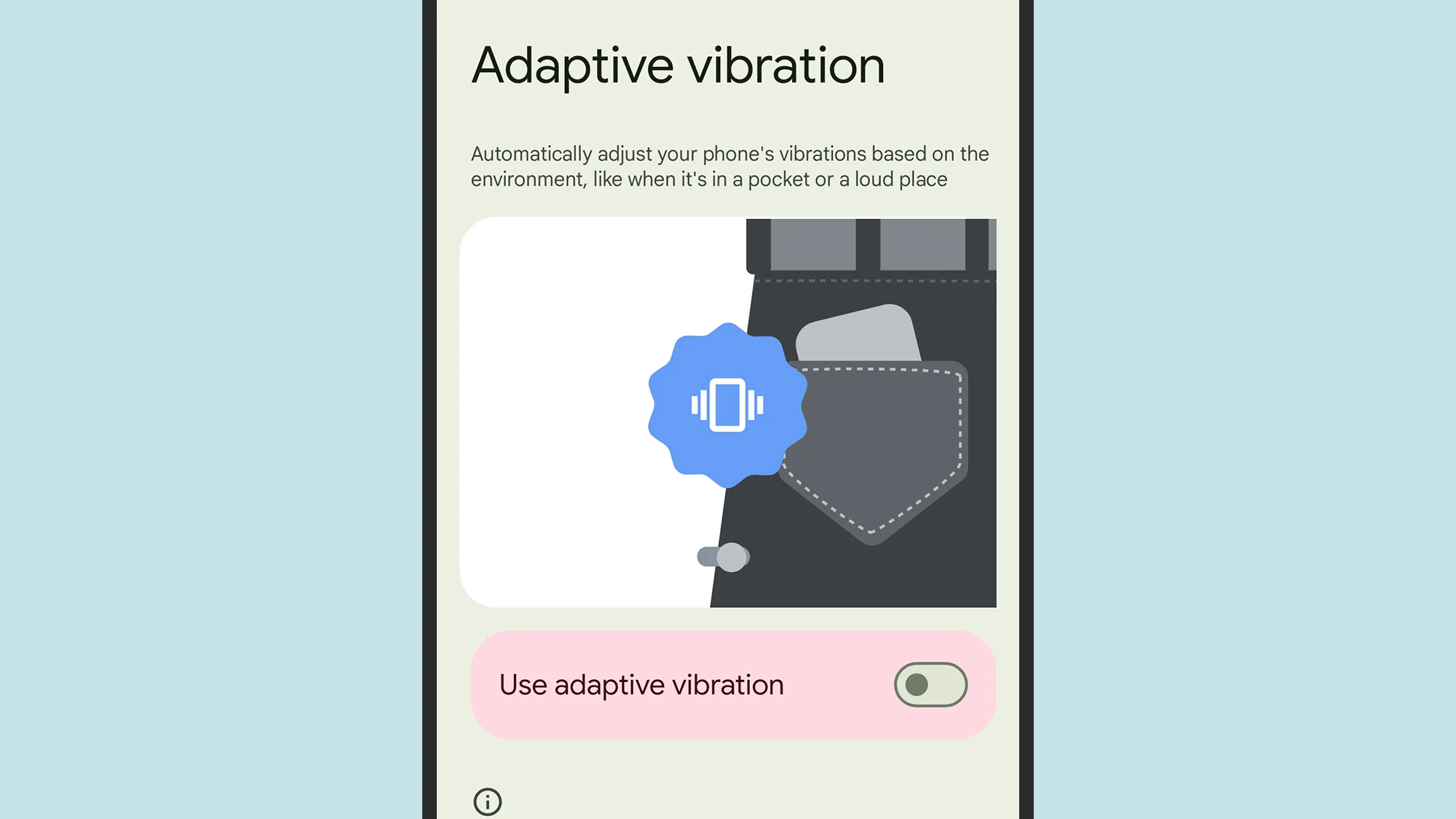
    When your phone is vibrating, do you miss any calls or messages? It is easy, and you are not alone. Google has an answer. The most recent Android 15 version for Google Pixel smartphones has an Adaptive Vibration feature to help you avoid missing notifications. This function determines the degree of movement, location, and environment the device is in using the microphones and sensors on your phone. It modifies the vibration motor’s strength based on the contextual information.

    You will notice when your phone buzzes thanks to Adaptive Vibration, even whether it is in your backpack, pocket, or lying away from you on your bed. It prevents loud vibrations when the gadget is put on a hard surface, such as a table. Adaptive Vibration takes only a few seconds to set up.

    How to turn on Adaptive Vibration

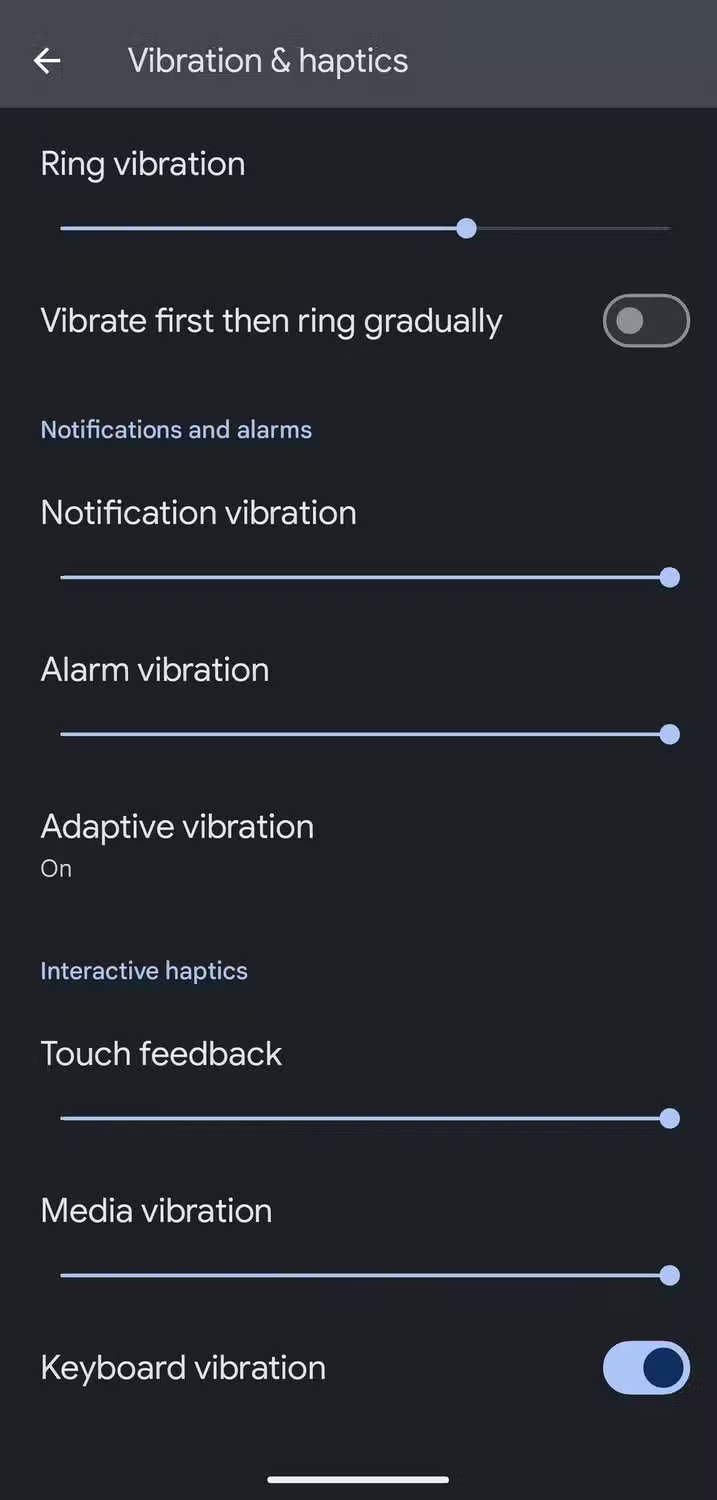
    To enable Android 15’s Adaptive Vibration function, launch the Pixel Settings app, navigate to the Sound & Vibration section, scroll down, and select Vibration & Haptics. Then select Adaptive Vibration and tap the toggle to enable it.

    android 15 vibration and haptics

    When turned on, it begins operating on incoming notifications like as calls and messages. The haptics of the keyboard are unaffected. Adaptive Vibration is useful in a variety of contexts, particularly in noisy surroundings where incoming notifications are difficult to detect. It also works the opposite way around, dampening the vibration in quiet environments where it could cause a stir, such as when resting the handset on a table in a library or at a movie theater.

    The feature is accessible on Google Pixel 7 phones and higher. You will need Android 15. If you have a compatible smartphone but can not discover the function, make sure it is up to date by accessing the device Settings, navigating to the System section, hitting Software Updates, and ensuring you are running Android 15.

    Other vibration features do Google Pixel phones

    Adaptive Vibration is the most recent vibration feature, however it is not the only one worth knowing about. For example, you can select several vibrating ringtones. Open the device’s Settings app, navigate to the Sound & Vibration section, and select an audible ringtone from the Phone Ringtone menu. When you flip between them, the vibration pattern adjusts to match the sound.

    The Vibration & Haptics option allows you to customize the strength of the vibration for each sort of alert, such as calls, notifications, and alarms. For phone calls, you can begin with a vibration before gradually turning on the out loud ring. On the same page, you may change the amount of haptic feedback you get when you touch the screen or keyboard, as well as when media plays.

    Another interesting way Pixel phones employ vibration is in the Weather app. If it is raining, the vibration motor simulates the sense of raindrops on the phone when you start the app, accompanied with an animation of rain falling. It is not the most useful feature, but it is a pleasant addition.

  • Step-by-step guide: move from a physical SIM to an eSIM on your smartphone – Android and iOS

    Step-by-step guide: move from a physical SIM to an eSIM on your smartphone – Android and iOS

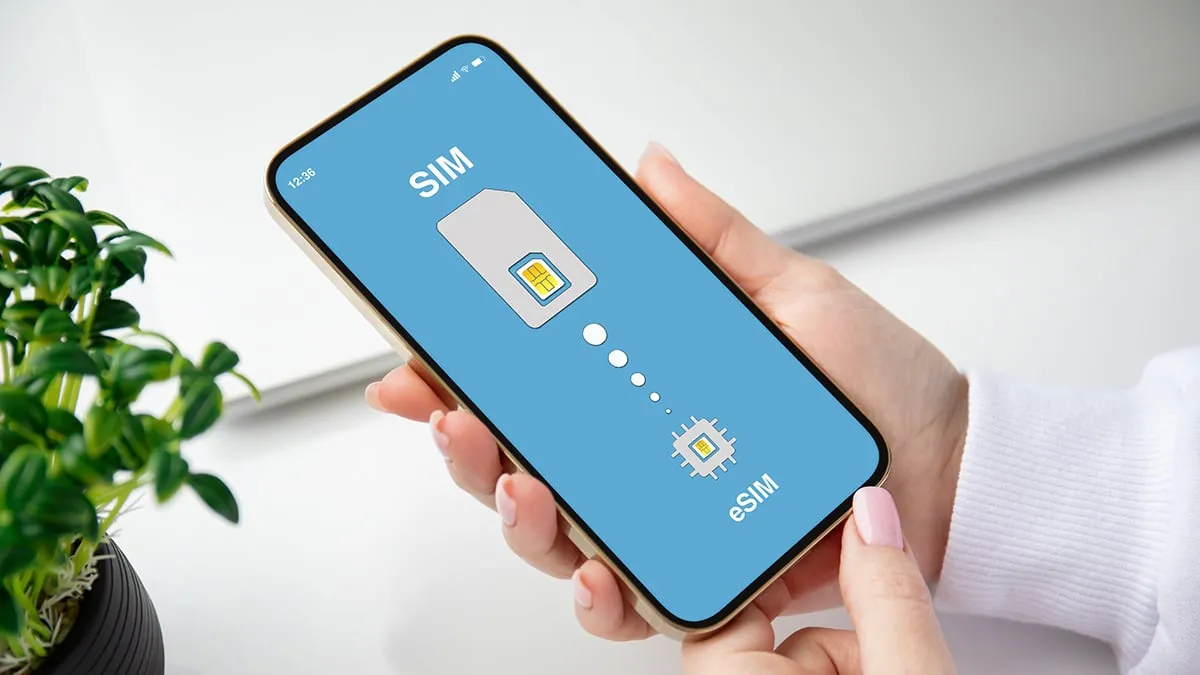
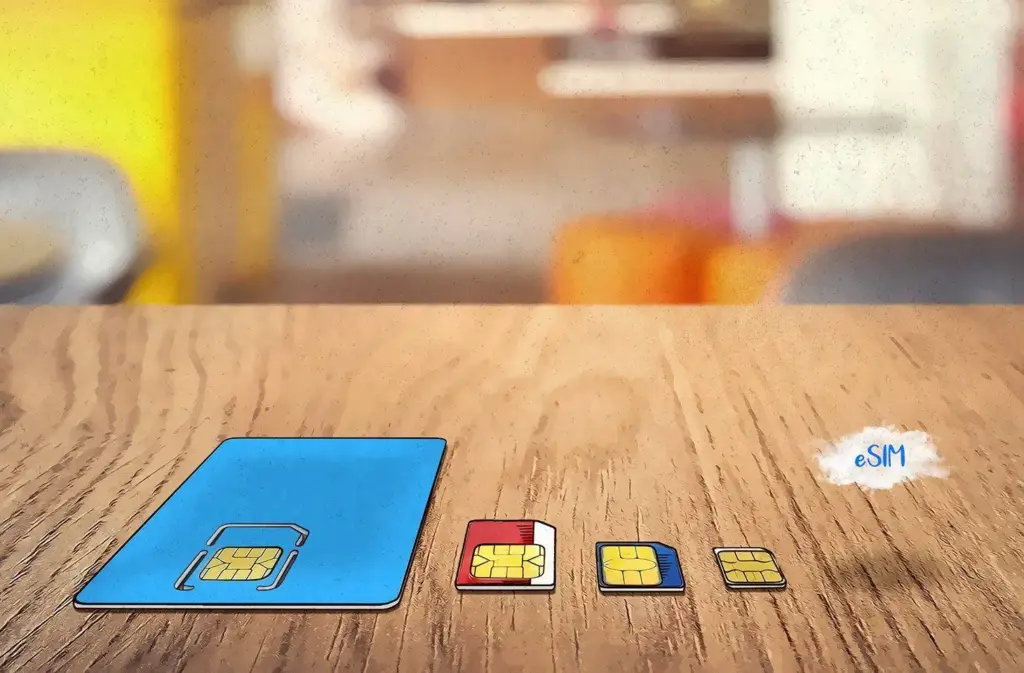
    The SIM card, a small chip in your phone that links it to your chosen cell phone provider, is probably already obvious to you. For many years, this chip was located on a physical card that you could replace by removing your phone’s SIM card tray. However, the majority of contemporary phones also support eSIMs. eSIMs are integrated into the phone’s hardware in place of a physical card, and software is used to remotely program the carrier information.

    A few conveniences are made possible by this, like the ability to test out service on a different carrier without having to pick up an actual SIM card in person or over the mail.

    Converting an existing physical SIM card to an eSIM presents a challenge. If you want to load many eSIMs into a single device or if a new phone is eSIM-only, you might want to do this. Or maybe you simply do not want to go through the trouble of constantly changing actual cards between machines. Thankfully, the process of switching a physical SIM to an eSIM is not too difficult.

    Make sure your new phone is compatible with eSIMs before you begin. The majority of contemporary phones do, as we already stated. In the US, the iPhone 14 and later are eSIM-only, however all iPhones since the iPhone XS and XR support eSIM. The majority of Android phones—including the Google Pixel 6 and later, as well as the Samsung Galaxy S21 and later—also support eSIM.

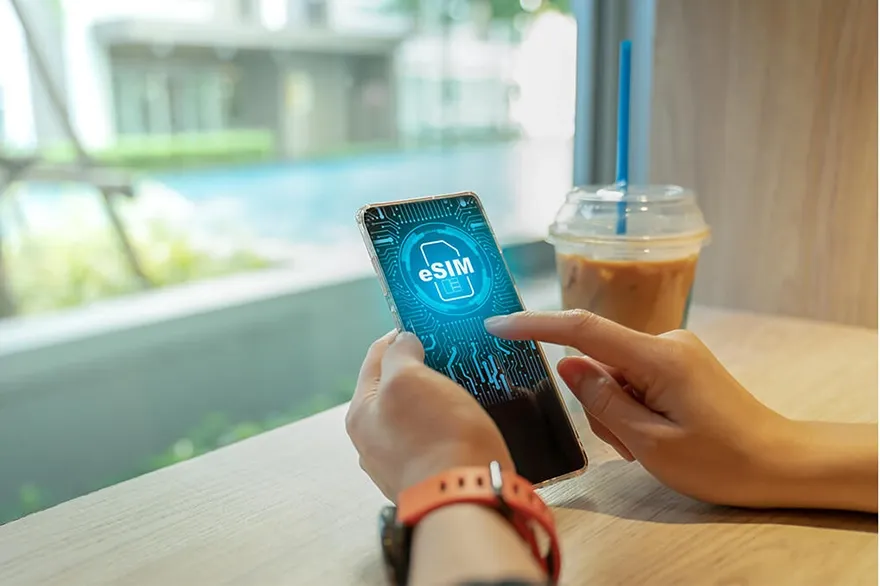
    move to esim on Android and iOS

    eSIM on an Android phone

    Depending on the manufacturer, there may be differences in how to convert a physical SIM to an eSIM on Android. Telling your carrier that you are moving to an eSIM is the most reliable method to accomplish this. After that, they will either send you a QR code or manually lead you through the procedure. Here’s how to add a QR code to your phone if they do send one.

    1. Go to Settings. Then tap either Connections or Network & Internet.
    2. Select Sim Manager or SIMS.
    3. Tap Add mobile plan or Download SIM card or Add SIM.
    4. Then follow the on-screen instructions and scan the QR code when prompted.

    However, the procedure is a bit simpler if you own a Samsung handset. To do it on a Samsung, follow these steps.

    • Launch Settings. Then tap Connections.
    • Select SIM card manager.
    • Choose your SIM (If you only have a physical SIM, it’ll just be the only one listed).
    • Tap Convert to eSIM.
    • Follow the on-screen instructions and then you’re done.

    eSIM on an iPhone

    Converting a physical SIM to an eSIM on an iPhone can be done in a few different ways.

    If you want to change a physical SIM to an eSIM on the same iPhone (which requires the phone to support both), here’s how to accomplish it.

    1. Open Settings, then select Cellular.
    2. Then, if your carrier allows it, you’ll see an option that says Convert to eSIM. If you don’t see it, then your carrier likely does not support this action.
    3. Tap Convert Cellular Plan.
    4. Tap Convert to eSIM. Your eSIM will now activate.

    If, on the other hand, your transferring a physical SIM to an eSIM on a completely different iPhone, here’s how to do it.

    1. On your new iPhone, go to Settings, then choose Cellular.
    2. Scroll down until you see Add eSIM. Select it.
    3. Then you have two choices. One is Transfer From a Nearby Phone, which requires both handsets to have iOS 16 or newer. If you select that, you’ll follow the instructions on your previous iPhone. You can then select Transfer to confirm and then enter a verification code. Obviously this only works if both phones are iPhones.
    4. Another option is to Use a QR Code. This is what you would use if a QR Code is provided by your carrier, or if your previous phone was a non-Apple handset. To scan the code, you open up the Camera app and point it at the QR Code. Tap the Cellular Plan Detected notification. If using an iPhone with iOS 17.4 or later, you can touch and hold the QR code and then tap Add eSIM.
    5. Go ahead and follow the on-screen instructions, hit Continue and tap Add Cellular Plan.

    If your carrier supplied the eSIM information, you may also opt to manually enter it. You can choose Settings, Cellular, Add Cellular Plan, and then Enter Details Manually if you wish to accomplish so.


    how esim works featured1

    It should be understood that inserting a new eSIM to your device may be done differently by different carriers. Please get in touch with them directly if you have any issues. Additionally, you will need to receive help from your carrier to make the switch if you are switching from an iPhone to an Android phone or vice versa.

    Take a look to our eSIM guide, which goes into greater detail on the benefits and drawbacks of each, if you would like to understand more about eSIMs and if they are superior than physical cards.