Category: Guides

Expert Android guides that help you master phones, apps, operating systems and wearables with clear, step‑by‑step advice for real‑life use.

  • 6 useful connectivity features you should know

    6 useful connectivity features you should know

    Connectivity features enable communication between networks and devices. Numerous tools are available on Android, with Bluetooth, Wi-Fi, Near-Field Communication, and mobile hotspot being among the most widely used. There are very few users that do not utilize any of them in a given day.

    You might be using a wireless connection to watch videos or pair your wireless headphones with your phone. You may be surprised to learn that there are more features available to improve your experience. Let’s examine your device’s settings in more detail and get you using them immediately.

    Use QR code to share your internet connection

    It’s uncomfortable to pause what you’re doing, type or speak out your Wi-Fi or mobile hotspot password, and ensure sure no one else can see or hear it. Use a QR code if you want to share it more quickly. Here’s how:

    For wi-fi network

    • Go to Settings > Wi-Fi.
    • While your device is connected to a network, tap the information icon beside the network.
    • Tap Share. You may need to enter your security method to continue.
    • You should see a QR code. It’s a square filled with a black and white pattern.
    • From the device you’re sharing to, access the QR code tile from Quick Settings.
    • Scan the QR code to get access immediately.
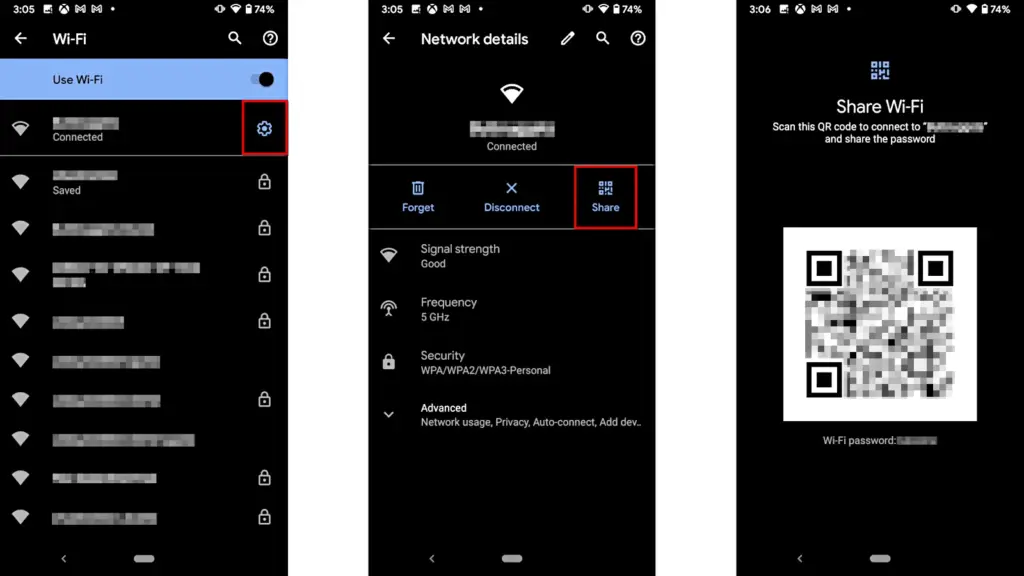
    android share network password

    Mobile hotspot password

    1. Open Settings.
    2. Go to Network & internet or Connection & sharing.
    3. Tap Hotspot & tethering or Personal hotspot.
    4. Tap the toggle button to enable hotspot.
    5. Tap the tiny QR code icon beside the hotspot name. You should see the enlarged version after entering your security unlock method.
    6. On the other devicce, access the QR code tile from Quick Settings and scan it to gain access.

    Share files to iPhone wirelessly

    It can be frustrating and difficult to move files and data between the iOS and Android environments. Due to Apple’s closed-off ecosystem design, cross-platform compatibility necessitates a significant amount of manual labor. Although it is incompatible with iPhones, Quick Share for Android is an alternative to Apple’s AirDrop. But on Android 15, OnePlus’ new Share with iPhone feature unites the worlds of Oppo, Realme, and OnePlus devices. Since the receiving device needs to download the O+ software in order to connect, the solution isn’t entirely native. Nevertheless, it’s quick and not too difficult. To utilize it, follow these steps:

    1. Open Settings.
    2. Go to Connection & sharing.
    3. Select Share with iPhone. Then tap the toggle button to turn on the feature.
    4. On the iPhone, install the O+ Connect app from the Apple App Store. Then open it and turn on Bluetooth.
    5. Select the files you want to send from either phone.
    6. You should see the detected devices while preparing to send them. Tap your preferred device.
    7. Accept the transfer request on the receiving device. The files should arrive in seconds, depending on the size.
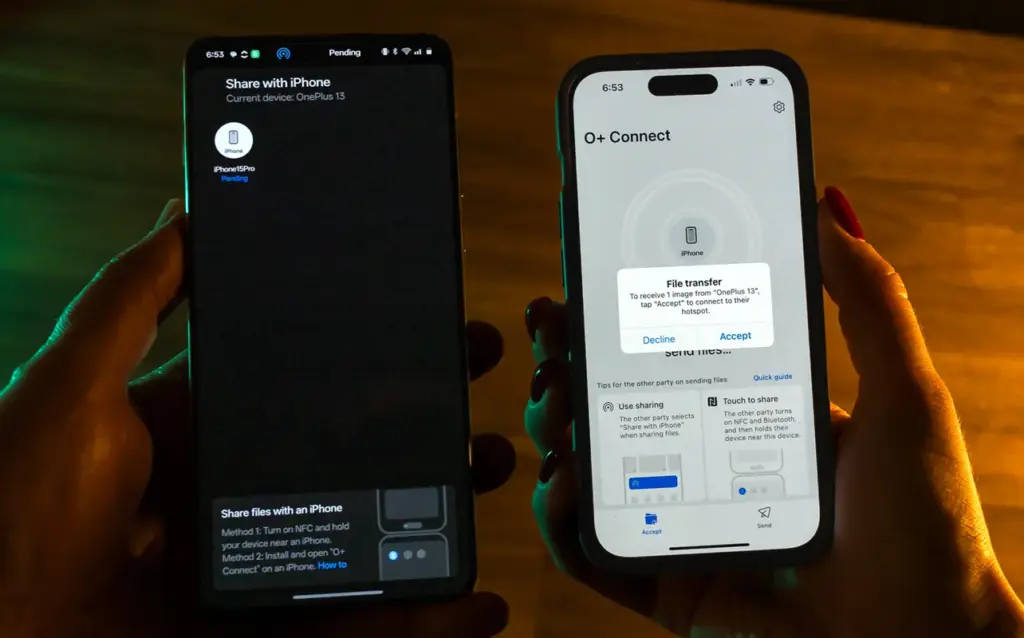
    OnePlus 13 share with iPhone

    Use Wi-FI calling and texting

    Signals from routine phone calls and texts travel through cell towers before they are received by the recipient. Connecting with individuals will be difficult if you’re in a rural location far from a cell tower or in a building with high walls. Use Wi-Fi calling instead for better outcomes. Your phone uses Wi-Fi to send a message or make a call over the internet, avoiding the cell tower, as long as you have access to a Wi-Fi network. To utilize it, follow these steps:

    1. Ensure that Wi-Fi is turned on and you’re connected to a network.
    2. Open the Google Phone app.
    3. Tap the three-dot icon in the upper-right corner. Then select Settings.
    4. Tap Calls.
    5. Select Wi-Fi calling.
    6. Turn on the toggle button beside Use Wi-Fi calling.
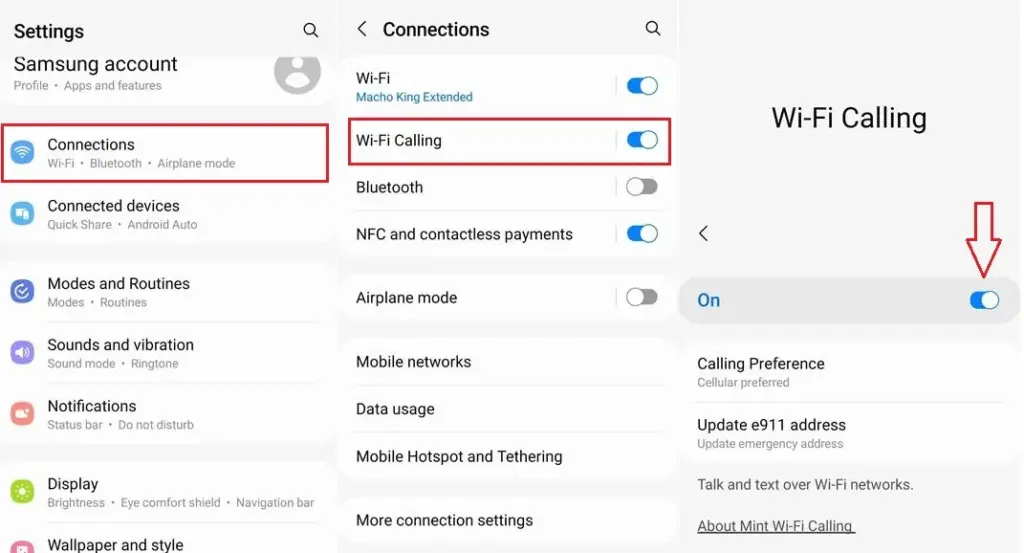
    enable android wifi calling og

    Use your phone as a PC webcam

    The size of the camera sensor and lens is constrained by the tiny area in the top bezel of a laptop. PC cameras are typically blurry and uninteresting for proper video calls because of this. Thankfully, your phone has more space for wider apertures and larger sensors, which provide sharper images. With Android 14, you can now take advantage of that feature and use your smartphone as a camera. It was enhanced with Android 15’s high-quality mode. To enhance your virtual meetings using the functionality, take the following actions:

    1. Connect your PC and phone with a USB cable. You should see a notification on your phone recognizing the connection.
    2. Tap the notification and choose to use USB for Webcam.
    3. Tap the HQ button in the upper-right corner of the call screen to use High Quality mode.

    Activate Bluetooth automatically every day

    iOS has had automatic Bluetooth activation for many years. It is only temporarily disabled when you disable it from the Control Center. Unless you disable the option from the settings menu, it reactivates. Keep it on if you’re constantly connecting to Bluetooth speakers, earphones, or even your automobile, even though most people find it annoying. The automation setting was first available on Pixel phones running Android 15, and it might eventually be available on other devices. Here’s how to make it active:

    1. Open the Settings app.
    2. Go to Connected devices Connection preferences.
    3. Tap Bluetooth.
    4. Turn on the toggle button beside Bluetooth, then the button beside Automatically turn on tomorrow.

    After you deactivate Bluetooth, it can now turn on by itself the next day. It probably tries to avoid interfering with your short-term preferences and believes you need it during your regular activity hours. As long as you aren’t actively using the linked device, it will drain the battery a little but not significantly. When no music is playing on the speaker or earphones you’re wearing, the connection remains in a low-power mode.

    Android’s best-kept secrets

    Every phone brand on Android has special features that are just waiting to be found, making it a labyrinth of capabilities. What you see on a Samsung may not be the same on a OnePlus or Pixel, and it’s precisely this diversity that adds excitement to the ecosystem. Digging behind those layers will reveal more hidden gems in productivity, privacy, accessibility, and multitasking.

  • 10 settings you need to change to improve your Pixel experience

    10 settings you need to change to improve your Pixel experience

    While Pixel phones offer many beneficial features by default, altering these specific settings can drastically affect The Google Pixel 9a could be the best-value phone of 2025, especially now that it has flagship-level AI capabilities, a dazzling 120Hz display, and a large battery at a more inexpensive price. However, like with every Pixel phone, the most useful functions are frequently disabled by default.

    These suggestions are for a Pixel 9a running Android 15. The specific menu locations may differ slightly depending on the Pixel model and Android version you’re using, but the settings are broadly available throughout recent Pixel generations.Enhance your user experience.

    Use smooth display

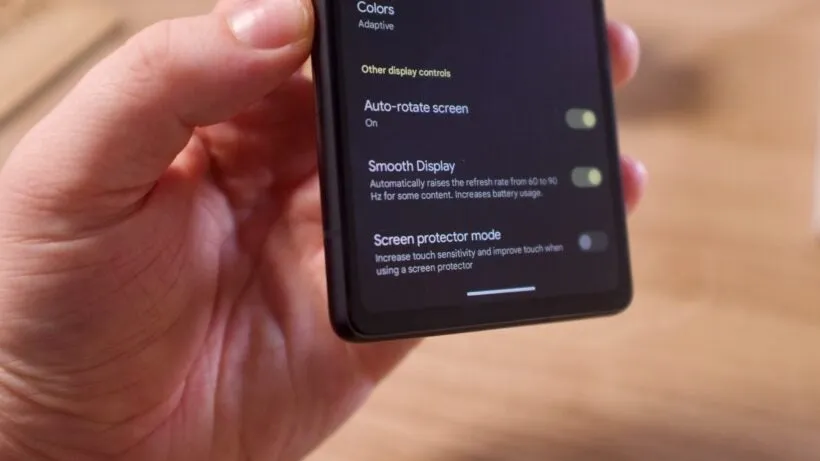
    Pixels continue to ship with a dazzling Actua 120Hz OLED panel, which is set to a more cautious 60Hz by default. It’s fine for battery conservation, but if you prefer buttery-smooth scrolling and animations that showcase the screen’s full capability, enable Smooth Display.

    pixel smooth display

    Go to Settings > Display > Smooth Display and turn it on. You’ll notice an immediate improvement in responsiveness when scrolling through social networks or navigating the UI.

    Use “At a Glance”

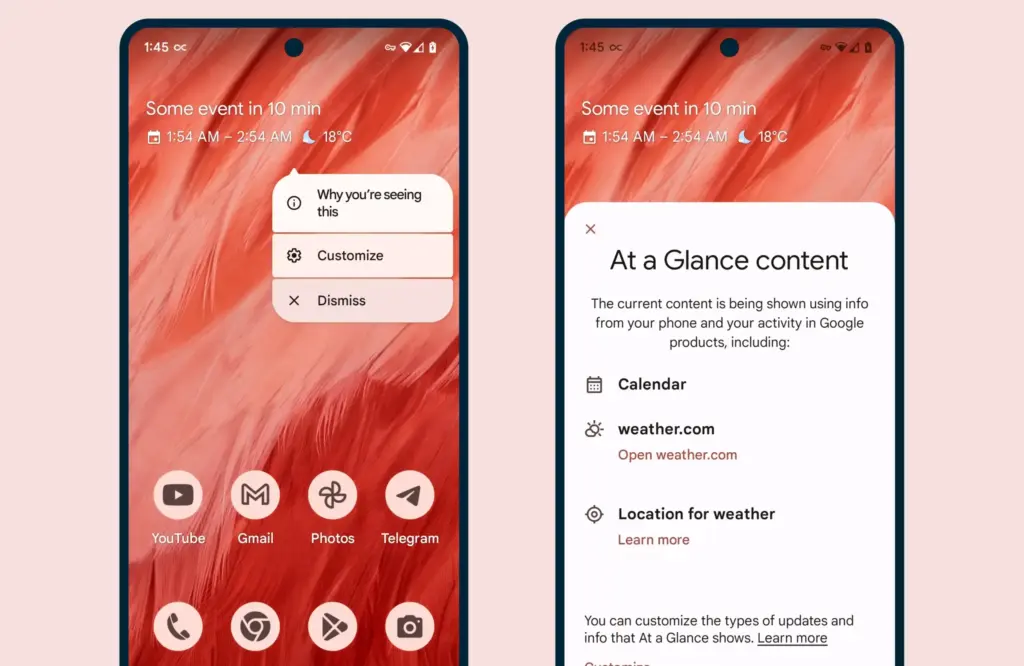
    When you enable the Pixel’s smart widgets, the lock screen may transform into a small command center. At a Glance displays travel information, weather alerts, calendar events, and more.

    at a glance

    All of this happens via the Pixel Launcher. Tap and hold any available space on the home screen, then pick Home settings, followed by the At a Glance settings button. There, you may control what kind of information display and what data sources it uses (with your permission, of course).

    As an added bonus, the At a Glance widget on your home screen will display this information, increasing your chances of receiving notifications and updates.

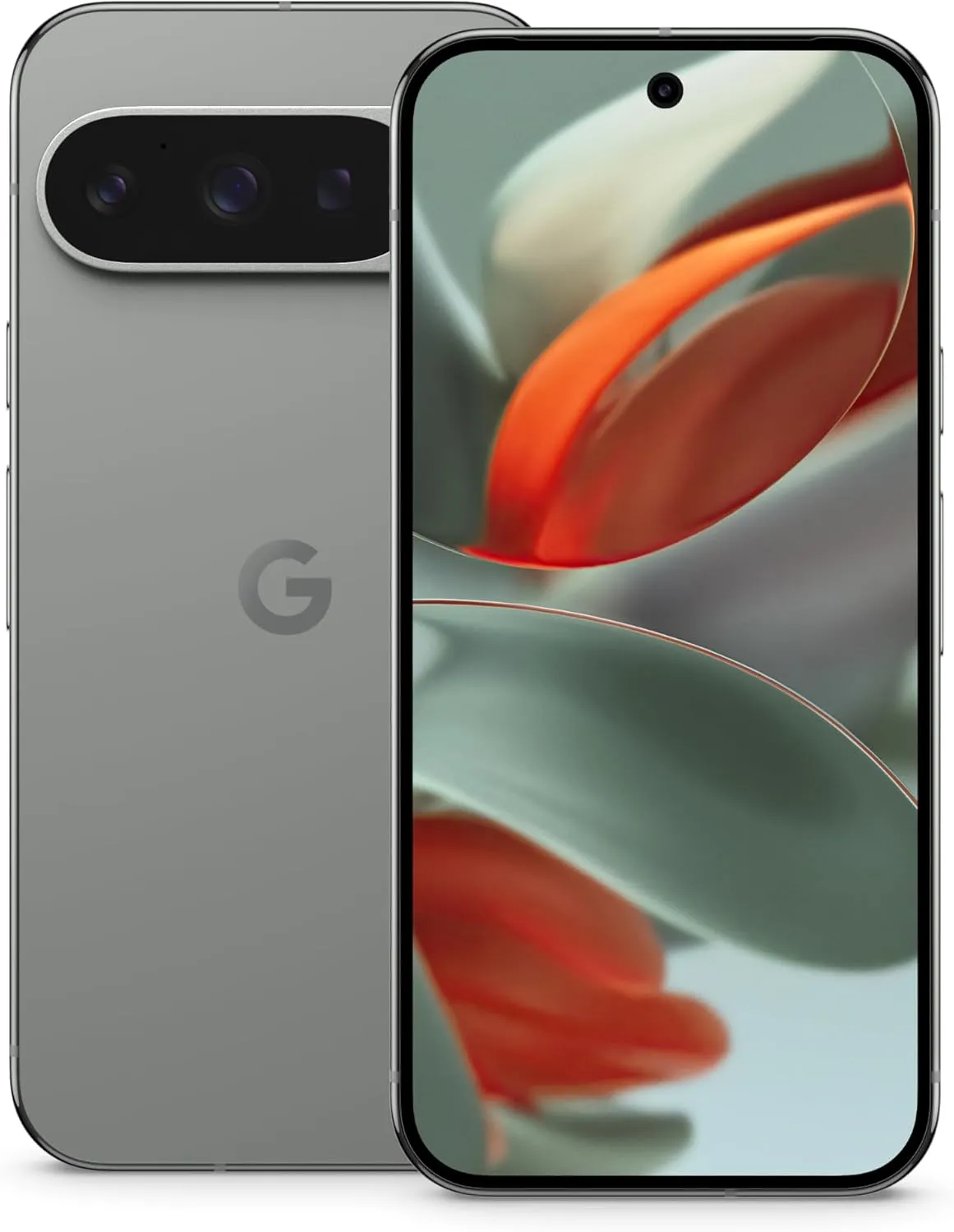
    Pixel 9 pro

    Google Pixel 9 Pro

    Pixel 9 Pro with Gemini is the most powerful Pixel yet, and now comes in two sizes; it has a pro-level camera and it’s engineered by Google, so it gets the best of Google AI first

    $999$799Amazon

    Use caller ID and spam ID to save your time

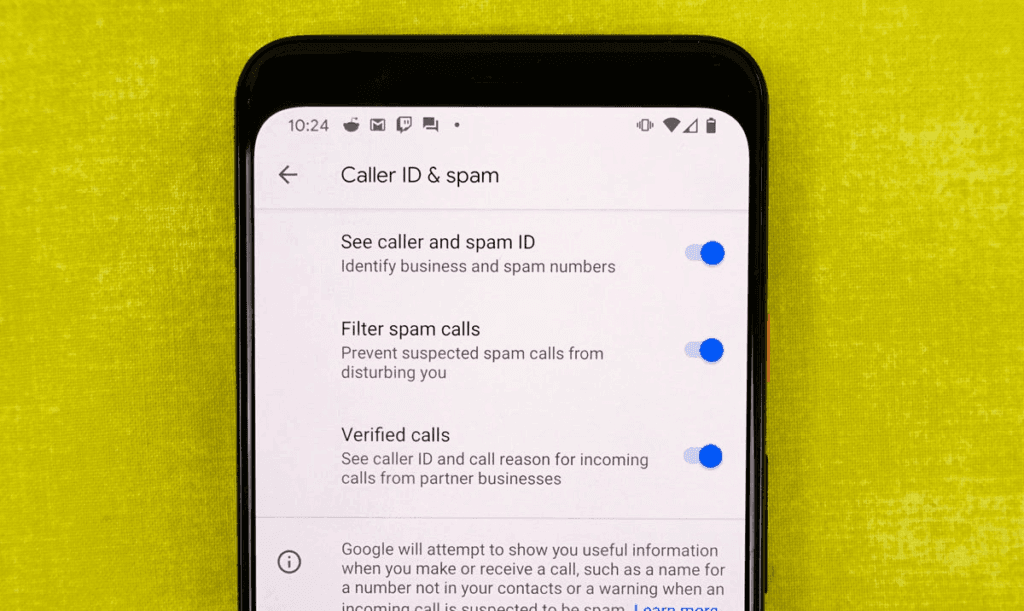
    Pixel phones actively filter out spam and unrecognized numbers. Google’s Caller ID and Spam feature detects robocalls and other unwanted calls before you answer.

    caller ID and spam ID

    Open the Phone app and navigate to Settings > Caller ID and Spam. Enable See caller and spam ID, and incoming calls will have a vivid red alert that cannot be ignored. If your Pixel has the option to filter spam calls, I recommend turning it on, as this prevents those calls from ringing your phone and instead sends them directly to voicemail.

    Dismiss notifications across Pixel devices

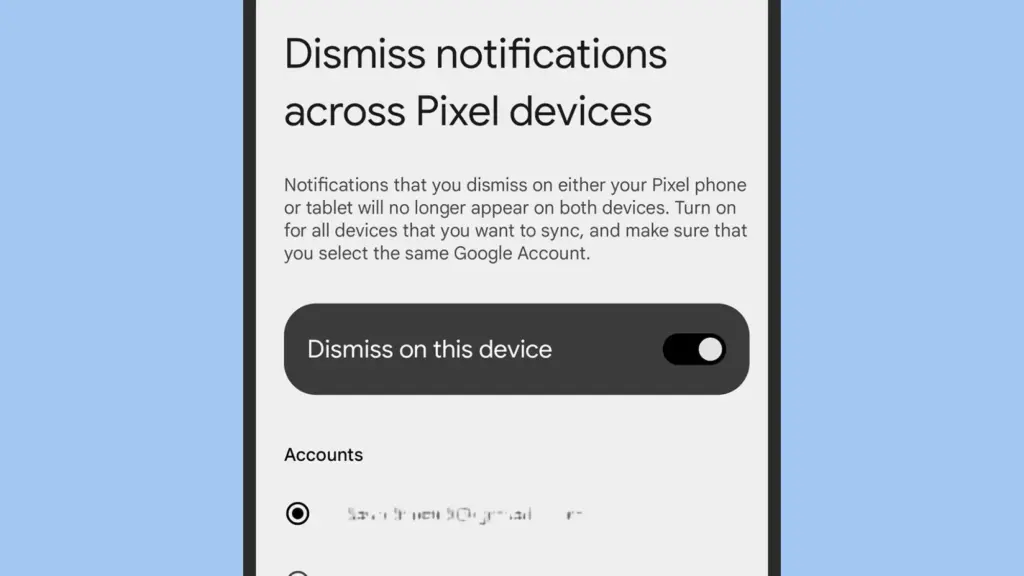
    This one is for the Pixel fanatics out there. If you have multiple Pixel devices signed in with the same Google account, you can sync notification dismissals between them.

    Dismiss notifications across Pixel devices

    Go to Settings > Notifications > Dismiss notifications from all Pixel devices. Toggle Dismiss on this device, grant notification access, and select the apps you wish to sync. Repeat the process on all of your Pixel devices to ensure that you never see the same notice twice.

    Enable app suggestions on the home screen

    The Pixel Launcher may provide app suggestions based on personal information such as location, time of day, and usage habits.

    android app suggestion

    Tap and hold an available space on the home screen to access Home Settings > Suggestions. Enable Suggestions on Home Screen, then remove at least one static symbol from the bottom row of your Home Screen. That location will turn yellow and begin to change dynamically based on usage trends. You may even do this on the entire row if you like.

    Increase battery life using Adaptive Battery and Extreme Saver.

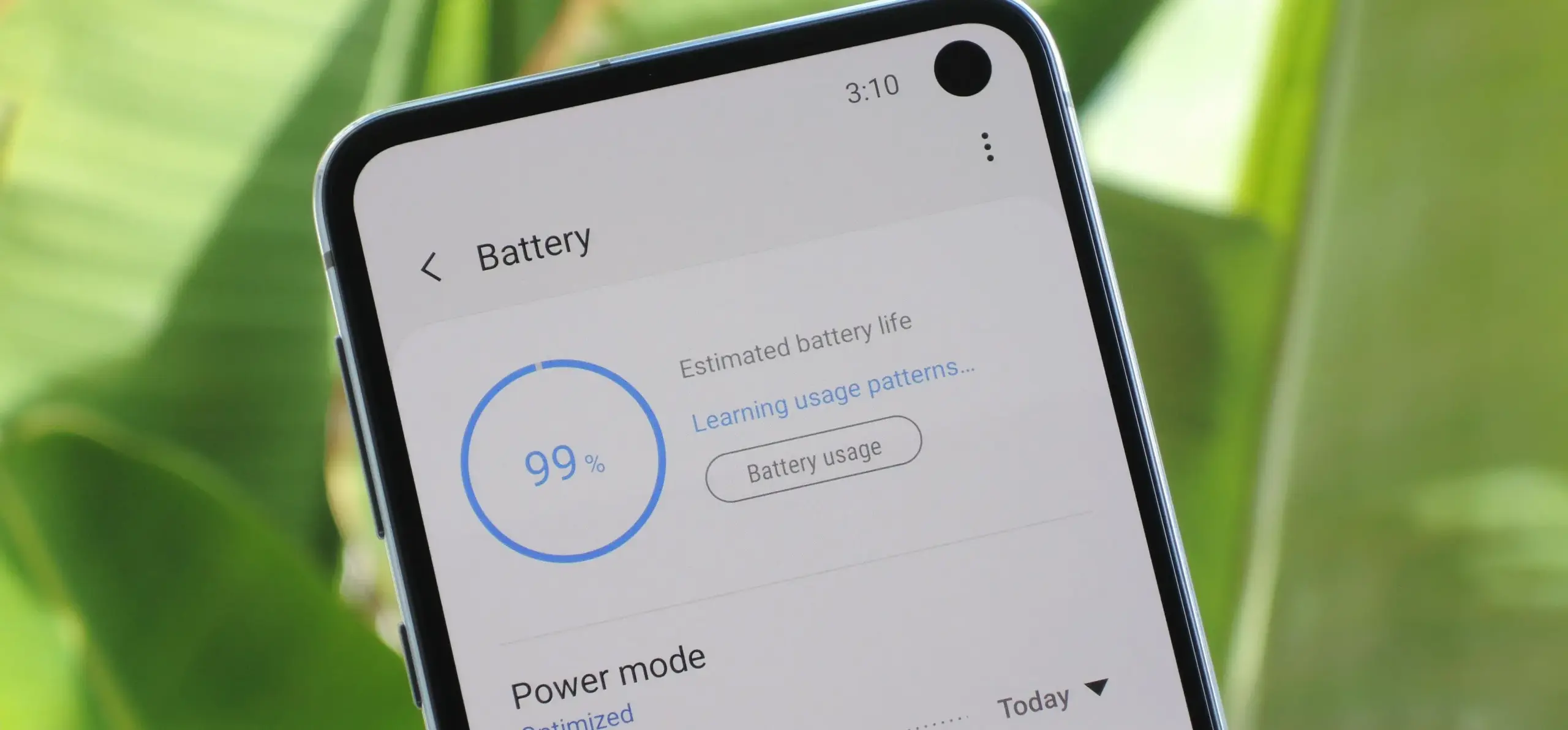
    Pixels already have a long battery life, but Google’s battery-saving features extend it much further. Adaptive Battery learns which apps you use the most and reduces power to the others. Extreme Battery Saver turns down non-essential apps to save power for days.

    Enable both under Settings > Battery > Battery Saver > Adaptive Battery and Battery Saver > Extreme Battery Saver. You can also set schedules so that they activate automatically when needed.

    Use Pixel Quick Tap feature

    The Pixel’s Quick Tap function allows you to double-tap anywhere on the phone’s back to perform customized actions, but it is not activated by default. You can configure it to start the camera, take a screenshot, pause music, or open your preferred app.

    Go to Settings > System > Gestures > Quick Tap, then enable it and select your chosen shortcut. Mine is set to toggle the flashlight, which is quite useful.

    Enhance Now Playing on your lockscreen

    Now Playing is a great tool that automatically recognizes songs that are playing around you. The phone displays that information on your lock screen in a passive manner. Even though the database is remarkable and entirely on-device, it cannot identify every song out there. This is where Google Search comes in.

    636427227765739451 742d249ba0

    Go to Settings > Display > Lock Screen > Now Playing and select Identify Songs Playing Nearby. Then, enable the Show search button on Lock Screen. The next time Now Playing fails, hit the lock screen icon to transmit the audio fingerprint to Google Search for a second viewpoint. It does not always work, but when it does, you will be glad you tried.

    Change your lock screen privacy settings

    By default, notifications appear on your lock screen, so others may view your messages. I always change this option on my new devices.

    Go to Settings > Notifications and turn Sensitive notifications off. This keeps the sender and app visible while hiding the message contents. To ensure utmost privacy, go to Notifications on the lock screen and select Don’t show any notifications.

    Make use of Live Translate and Interpreter Mode

    Tensor-powered Pixels offer offline translation tools. Live Translate enables you to automatically translate text messages in real time.

    pixel 6 live translate

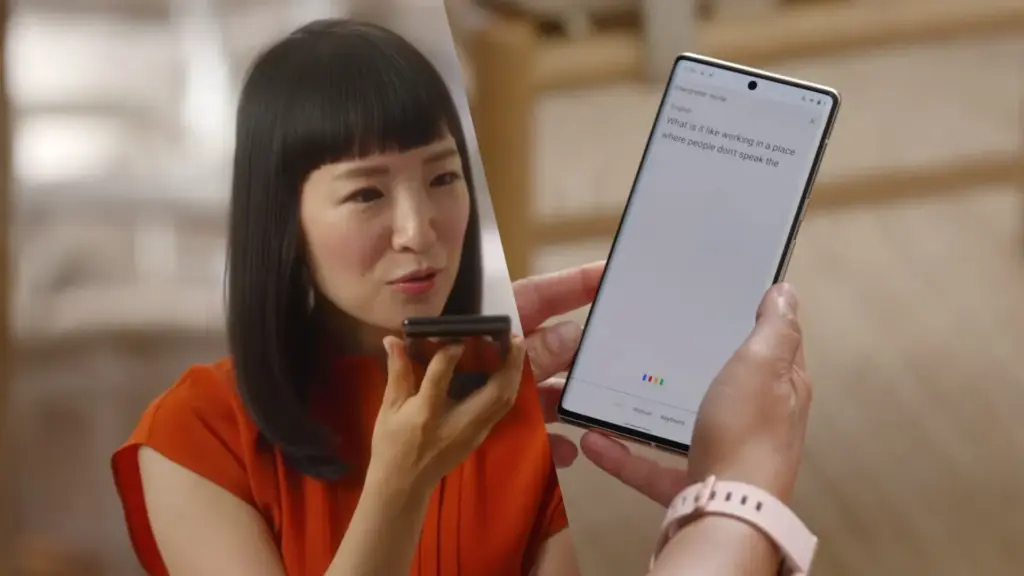
    Go to Settings > System > Live Translate, then Add a language. Depending on your choices, you’ll have access to services such as in-message translation, camera view translation, and live captioning for videos. Interpreter mode still requires Google Assistant, which is becoming less important now that Gemini has taken over.

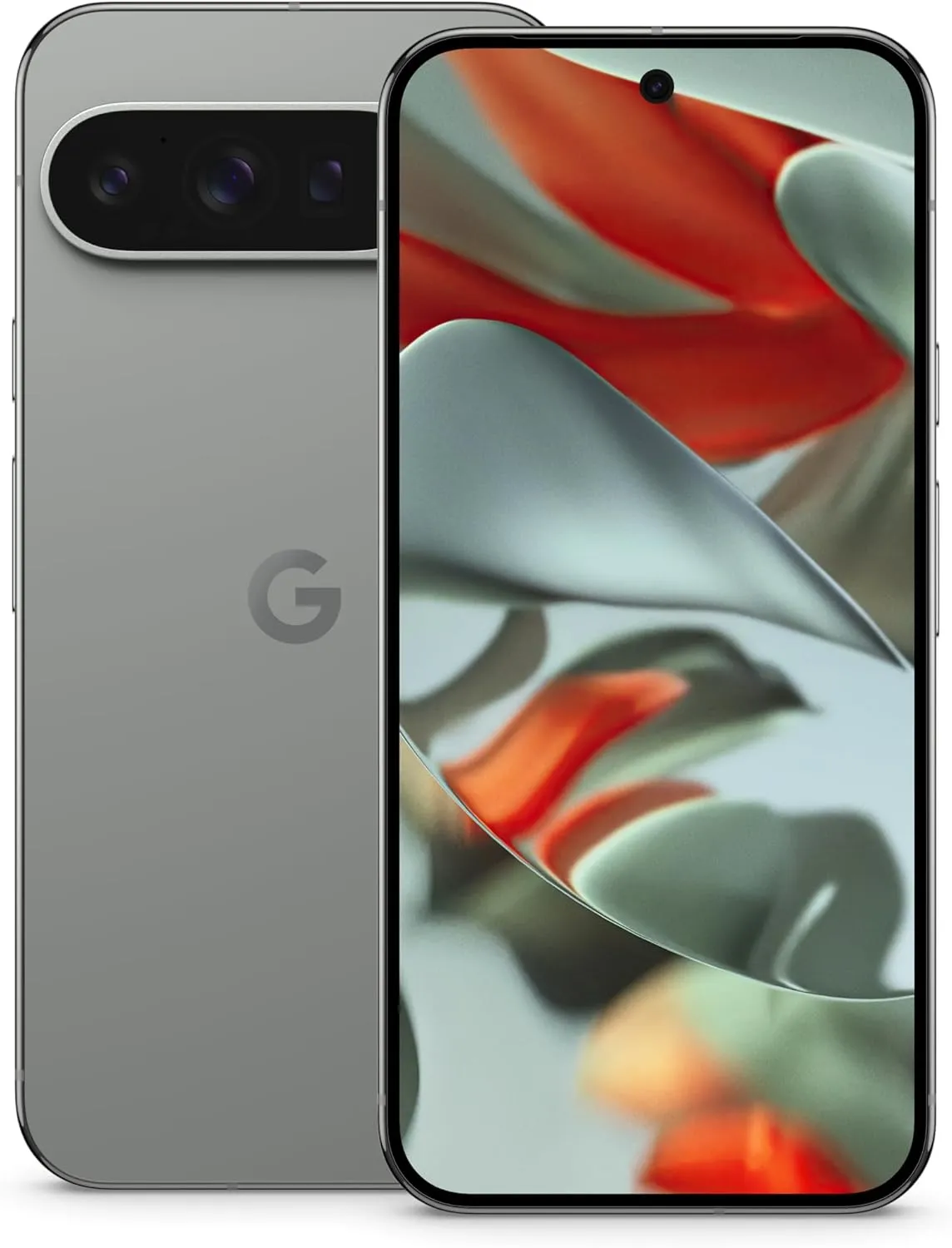
    Google Pixel 9 Pro XL
    $1,099.0$899.00Amazon
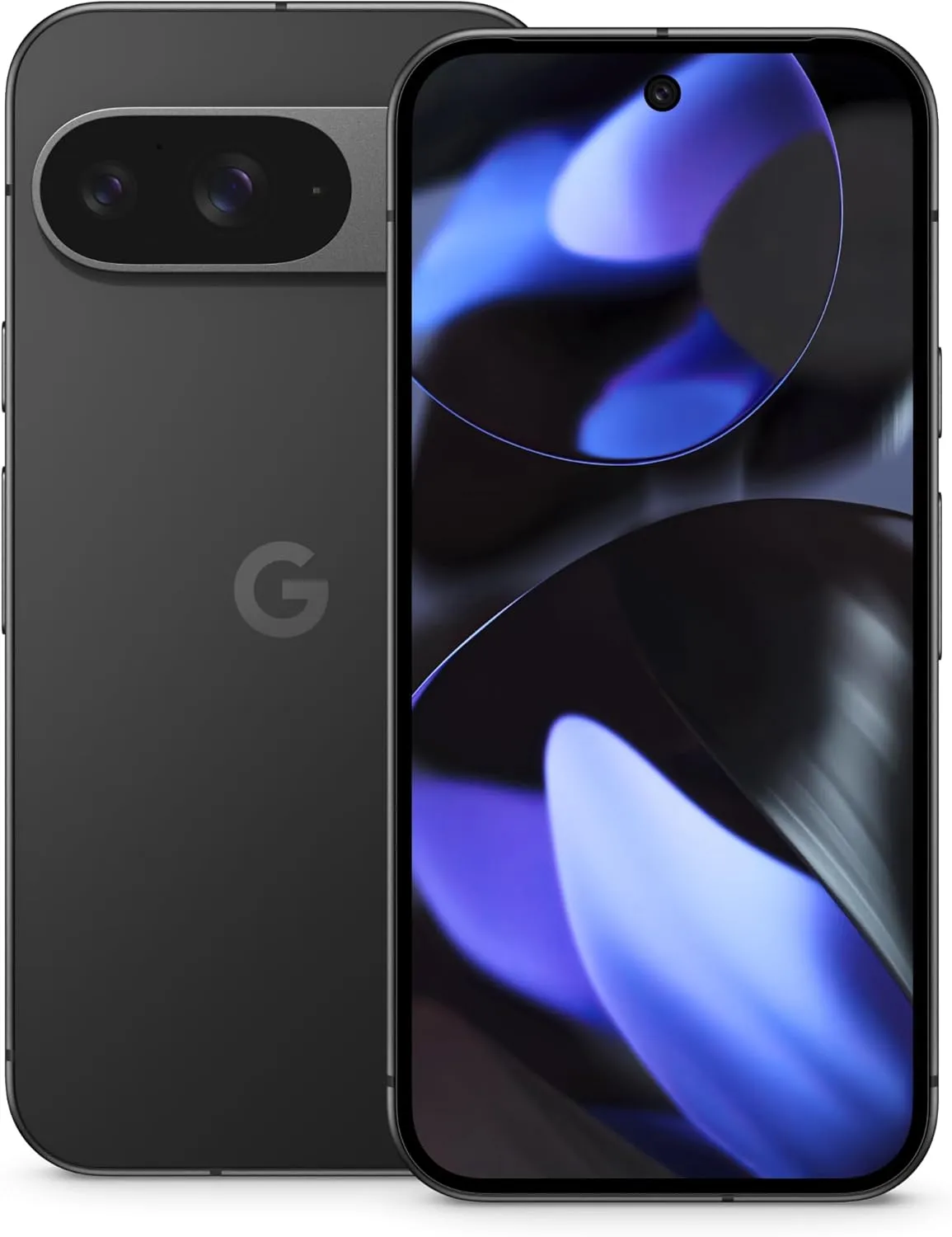
    Google Pixel 9 Pro
    $999.00$799.00Amazon
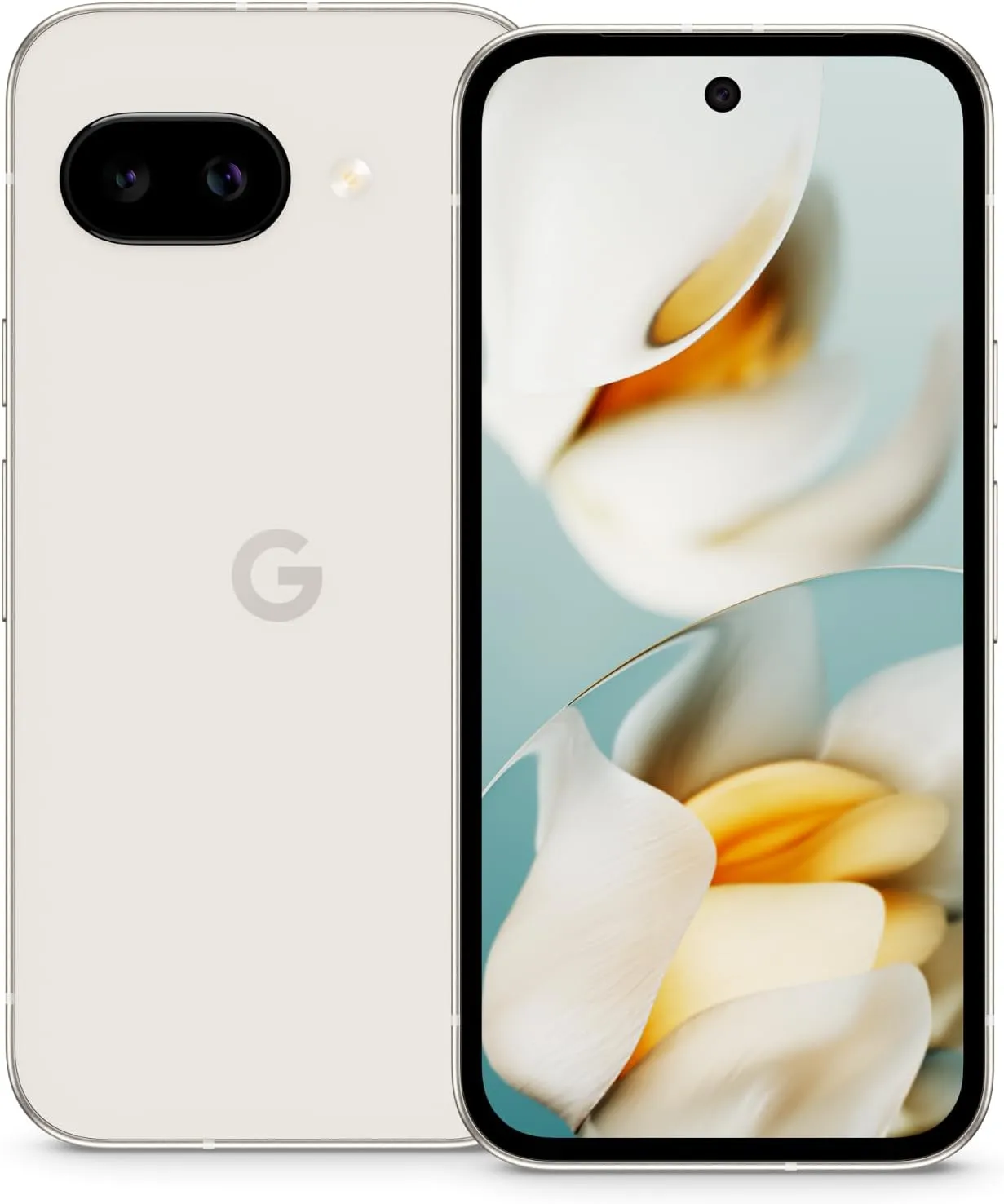
    Google Pixel 9
    $799.00$599.00Amazon
    Google Pixel 9a
    $499.00Amazon

    A few small changes can help your new Pixel feel faster, smarter, and more personal. Whether this is your first Pixel or you’ve lost count by now, taking the time to explore these options unlocks some of the best of what Google has to offer.

  • How to uninstall system apps on Android (without root)

    How to uninstall system apps on Android (without root)

    Unnecessary system apps and bloatware can be annoying. They drain your battery, take up important storage, operate in the background, and are frequently impossible to remove with standard methods. Although rooting your Android device gives you complete control over system programs, most users are not advised to do so because it violates your warranty and jeopardizes security.

    Thankfully, there are secure and efficient methods for disabling or removing system programs without rooting, particularly when using ADB (Android Debug Bridge). We will go over every technique in this article, from basic settings adjustments to more sophisticated (yet secure) desktop tools.

    android system apps unistall with adb

    What are system apps and why can’t you delete them easily

    Applications that are pre-installed by the manufacturer or carrier of the device are known as system apps. These consist include third-party programs like Facebook or Netflix that OEMs package, stock utilities, or branded services.

    They cannot be removed using the standard app menu since they are installed in the system partition. ADB commands, however, can be used to disable or even uninstall many.

    Common examples of pre-installed system apps include:

    • Duplicate media players or browsers
    • OEM app stores
    • Partner bloatware like Amazon Shopping, LinkedIn, or TikTok
    • Preloaded games or theme services

    Disable system apps from settings

    This is the simplest method and doesn’t require a PC.

    Steps:

    1. Open Settings > Apps.
    2. Tap See all apps to view the complete list.
    3. Select the system app you want to disable.
    4. Tap Disable. You may be asked to confirm your choice.

    What happens when you disable an app:

    • It is removed from the app drawer.
    • It can no longer run in the background.
    • It won’t receive updates or use system resources.
    • The app is still stored on your device but rendered inactive.

    Limitations:

    • Not all system apps can be disabled (depends on OEM).
    • Disabled apps can be re-enabled manually.

    This is the safest approach for beginners.

    Uninstall system apps using ADB (no root)

    You can use ADB to perform advanced commands on your Android device by connecting it to a computer. This technique allows you to remove system programs for the current user without requiring root access.

    Step 1: Set up ADB on your computer

    1. Download the Android SDK Platform Tools for Windows, macOS, or Linux from Google’s official site.
    2. Extract the contents to a folder (e.g., C:\adb).

    Step 2: Enable developer options and USB debugging

    1. Go to Settings > About phone.
    2. Tap Build number 7 times until you see a message saying “You are now a developer.”
    3. Go back to Settings > System > Developer options.
    4. Enable USB debugging.

    Step 3: Connect your phone to your PC

    • Use a USB cable to connect your device.
    • When prompted on your phone, allow USB debugging.

    Step 4: Open ADB and check the connection

    1. Open a terminal or command prompt in the ADB folder.
    2. Type: adb devices – you should see your device listed.

    Step 5: Find the package name of the app

    To uninstall an app, you need its package name. You can find this using:

    adb shell pm list packages | grep [app name]

    For example, to find Facebook‘s package name:

    adb shell pm list packages | grep facebook

    Step 6: Uninstall the app

    Use the following command:

    adb shell pm uninstall --user 0 com.facebook.katana

    That command will remove Facebook from your user profile, freeing up memory and removing it from the interface.

    Note: The app is only removed for the current user, not deleted from the system partition.

    Method 3: Use a no-root app debloater tool (GUI)

    If you’re not comfortable with the command line, you can use a graphical tool like:

    • Universal Android Debloater (UAD)
    • ADB AppControl
    • Android Debloater by XDA Developers

    These tools allow you to:

    • Browse installed system apps
    • Uninstall or disable them safely
    • See app names with friendly UI
    • Restore apps if needed

    Most tools require:

    • ADB installed on your system
    • USB debugging enabled
    • Windows PC (some versions work with Linux/macOS)

    They’re beginner-friendly and support a wide range of devices.

    Should you uninstall or disable every system app?

    No. Some system apps are critical to core Android functions. Removing them may cause:

    • Boot loops
    • Broken system features (e.g., notifications, calls, camera)
    • Incompatibility with future updates

    Always check what a system app does before removing it. You can research package names or use a debloater tool with built-in safety warnings.

    Safe-to-remove examples:

    • Social media bloatware
    • OEM-specific cloud services you don’t use
    • Built-in browser (if you use Chrome)
    • AR apps, Game Launcher, or duplicate music players

    Unsafe-to-remove examples:

    • com.android.systemui
    • com.google.android.gms
    • com.android.providers.*

    How to restore system apps uninstalled via ADB

    If you want to bring back an app removed via ADB:

    adb shell cmd package install-existing [package name]

    For example:

    adb shell cmd package install-existing com.facebook.katana

    This will restore the app for the current user, assuming it wasn’t fully deleted from the system partition.

    Uninstalling system apps without root gives you more control over your Android phone without compromising safety. ADB is a powerful tool that helps remove bloatware, reclaim storage, and speed up your device. If you’re cautious and avoid critical system packages, you can safely declutter your phone and enjoy a cleaner experience.

    Whether you’re using the built-in disable function or running ADB commands, you don’t need root access to take control of your device anymore.

  • How to create secure folders on any Android device

    How to create secure folders on any Android device

    Android users are particularly concerned about privacy and data safety, especially when saving sensitive files, images, or papers. Whether you are concerned about someone peeking through your gallery or want to protect business-related content, Android has built-in security features that do not require third-party apps.

    This guide describes how to use secure folders and app-based file protection features on several Android devices, including Samsung, Google Pixel, and more.

    What is a secure folder

    A secure folder is a safe location on your Android smartphone where you can keep programs, files, and media separate from the main user interface. Access requires authentication (PIN, pattern, or fingerprint), ensuring that only you can open it. When data is moved to a safe folder, it is rendered invisible in conventional folders and apps such as Google Photos or File Manager.

    Samsung’s Secure Folder is the best-known example, however other manufacturers provide comparable functionality.

    How to use Secure Folder on Samsung Galaxy devices

    Samsung offers a native solution called Secure Folder, available on most devices running One UI:

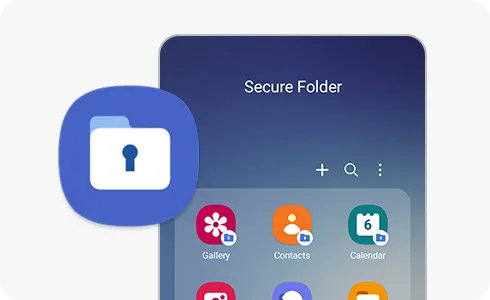
    samsung secure folder
    1. Enable Secure Folder:
      • Go to Settings > Security and privacy > Secure Folder.
      • Sign in to your Samsung account if prompted.
      • Set your preferred lock method (PIN, password, or biometric).
    2. Add apps or files:
      • Open the Secure Folder app from your app drawer.
      • Tap Add apps to duplicate apps like Gallery, Notes, or Email.
      • Tap Add files to move photos, videos, or documents from regular storage.
    3. Access and manage your folder:
      • Secure Folder functions as a sandbox. Files here do not interact with the rest of your phone.
      • Notifications from apps inside Secure Folder can be hidden.
      • You can even hide the Secure Folder icon for additional privacy.

    Samsung’s Secure Folder is protected by Samsung Knox, ensuring hardware-based encryption.

    How to create secure folders on Google Pixel (and stock Android)

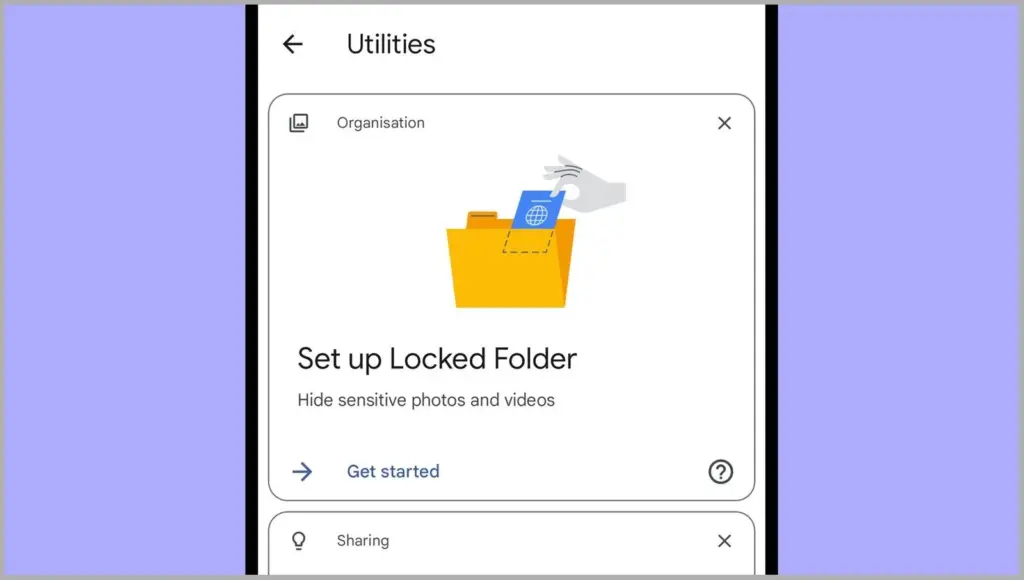
    secure folder on Google Pixel

    Google Pixel and stock Android phones don’t include a “Secure Folder” app like Samsung, but there are still options:

    1. Use Files by Google – Safe Folder

    Files by Google includes a Safe Folder to protect sensitive files.

    • Open the Files by Google app.
    • Tap Browse, then scroll to Collections > Safe folder.
    • Set up a 4-digit PIN when prompted.
    • Move any files (photos, documents, videos) into the Safe Folder for encryption and restricted access.

    Limitations:

    • No secure app duplication.
    • Cannot protect entire apps—only individual files.

    2. Use screen pinning or app lock (if supported)

    On Pixel phones, you can use screen pinning to lock a specific app:

    • Go to Settings > Security > Advanced > Screen pinning.
    • Turn it on and set it to ask for unlock credentials.

    When enabled, you can lock an app to the screen and prevent switching until your PIN or fingerprint is entered.

    Secure folder alternatives for OnePlus, Xiaomi, Vivo, and Realme

    Many Android OEMs offer their own version of secure folder functionality:

    • OnePlus (App Lock & Hidden Space):
      • Go to Settings > Utilities > App lock to lock apps.
      • Use Hidden Space (swipe right in the app drawer) to hide apps or files from plain view.
    • Xiaomi (Second Space or App Lock):
      • Second Space lets you create a full-profile clone for private use.
      • App Lock in Settings lets you password-protect apps and media.
    • Vivo/Realme:
      • Use File Safe or Private Safe under Security settings.
      • This lets you encrypt and store sensitive files securely.

    Each of these tools serves a similar purpose: creating a private area for your data and apps that only you can access.

    When should you use a secure folder

    Secure folders are ideal for:

    • Storing sensitive photos, work files, or legal documents
    • Keeping personal messages or notes private
    • Isolating apps with private data
    • Creating a private profile for shared phones or kids

    If your phone is shared, stolen, or accessed without your knowledge, a protected folder provides an additional layer of security.

    Android provides numerous options to protect your most sensitive data, with secure folders ranking among the best built-in solutions for the purpose. Whether you use Samsung’s powerful Secure Folder, Google’s Safe Folder, or manufacturer-specific features, these solutions offer true privacy without the need to install third-party apps. To protect your digital life, ensure that they are correctly configured and that you use a strong authentication technique.

  • How to increase RAM using virtual memory (Android 13+)

    How to increase RAM using virtual memory (Android 13+)

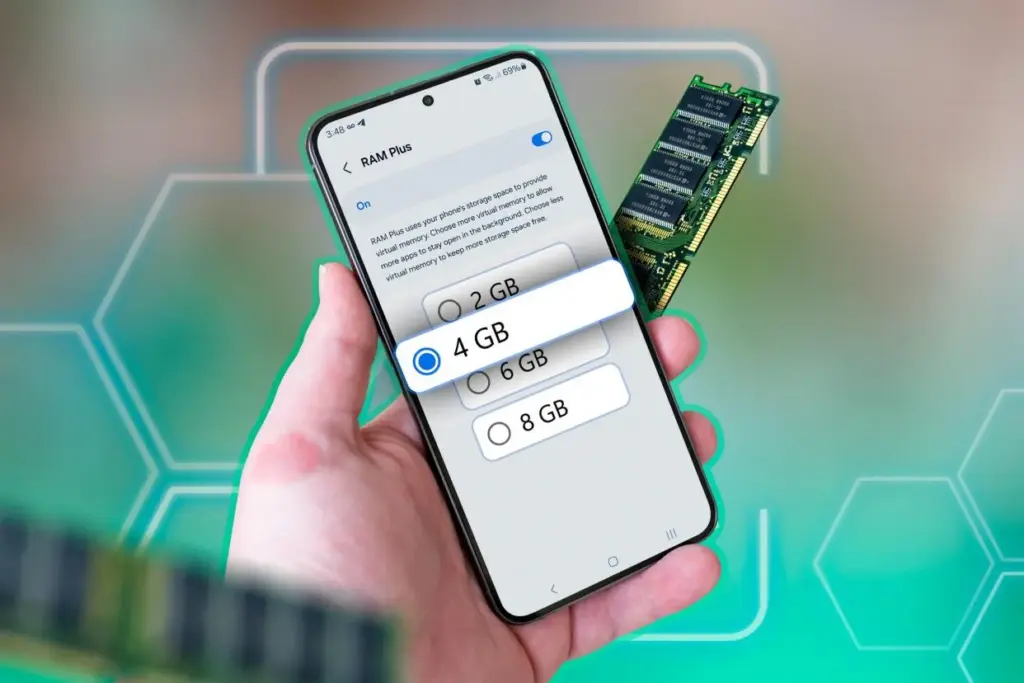
    Modern Android phones have powerful hardware, but even with high-end components, your handset may slow down while multitasking or gaming. To help with this, Android 13 added virtual RAM, sometimes known as “RAM Plus.” This function enables your device to use a portion of its internal storage as additional RAM, which improves performance in memory-intensive operations.

    This guide explains what virtual memory is, how it works on Android 13+, and how to enable or adjust it.

    virtual ram android

    What is virtual RAM and how does it work

    Virtual RAM, also known as virtual memory or swap space, is a technology that allows some of your phone’s internal storage to be used as RAM. While this memory is slower than physical RAM, it allows the system to manage more background processes, keep apps open for longer periods of time, and minimize app reloads.

    In Android 13, many manufacturers added a user-accessible option known as “RAM Plus” or “Memory Expansion.” This feature is particularly handy on phones with 4GB to 6GB of RAM, as multitasking frequently exceeds physical RAM limits.

    How to check if your device supports RAM Plus

    Not every Android smartphone supports RAM increase. It is up to the manufacturer to incorporate the capability in their version of Android 13 or later. Here is how to check:

    1. Go to Settings.
    2. Scroll down and tap Battery & device care or About phone (varies by brand).
    3. Look for an option called RAM Plus, Memory Expansion, or similar.
    4. If it’s available, you’ll be able to view and configure it from here.

    Samsung, Xiaomi, Oppo, Realme, and Vivo are among the brands that offer this feature.

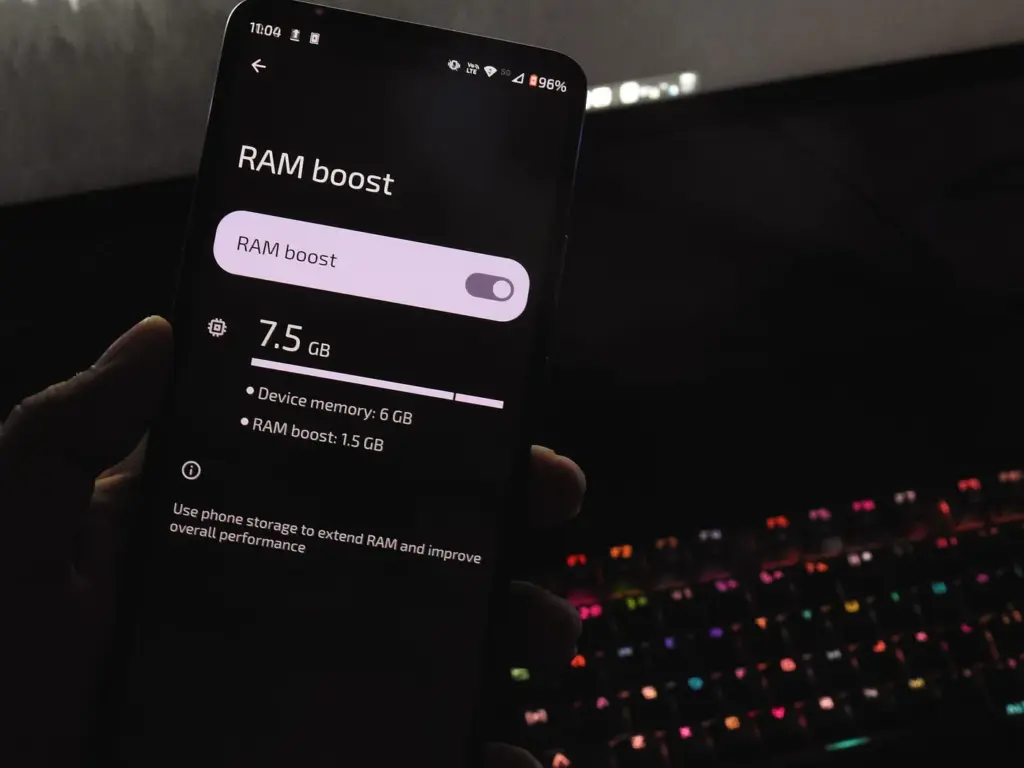
    Android ram boost

    Enable RAM Plus on Samsung devices

    Samsung phones running One UI 4.1 or later (based on Android 13) come with RAM Plus built-in. Here’s how to enable or adjust it:

    1. Open the Settings app.
    2. Scroll to Battery and device care.
    3. Tap Memory.
    4. Select RAM Plus.
    5. Choose the amount of virtual RAM to allocate (2GB, 4GB, 6GB, or 8GB).
    6. Restart your phone if prompted.

    Samsung doesn’t let you disable RAM Plus entirely but allows you to choose the allocation size.

    Enable virtual RAM on Xiaomi/Redmi/POCO phones

    Devices with MIUI 13+ (Android 13-based) often support memory extension:

    1. Open Settings.
    2. Tap Additional settings.
    3. Look for Memory Extension.
    4. Toggle it on and allocate additional storage as virtual RAM.
    5. Restart your phone for changes to take effect.

    The memory extension size is usually fixed depending on the device—commonly 2GB or 3GB.

    Enable virtual RAM on Realme, Oppo, and Vivo devices

    These brands typically offer memory expansion as well:

    • Realme UI/ColorOS:
      1. Open Settings.
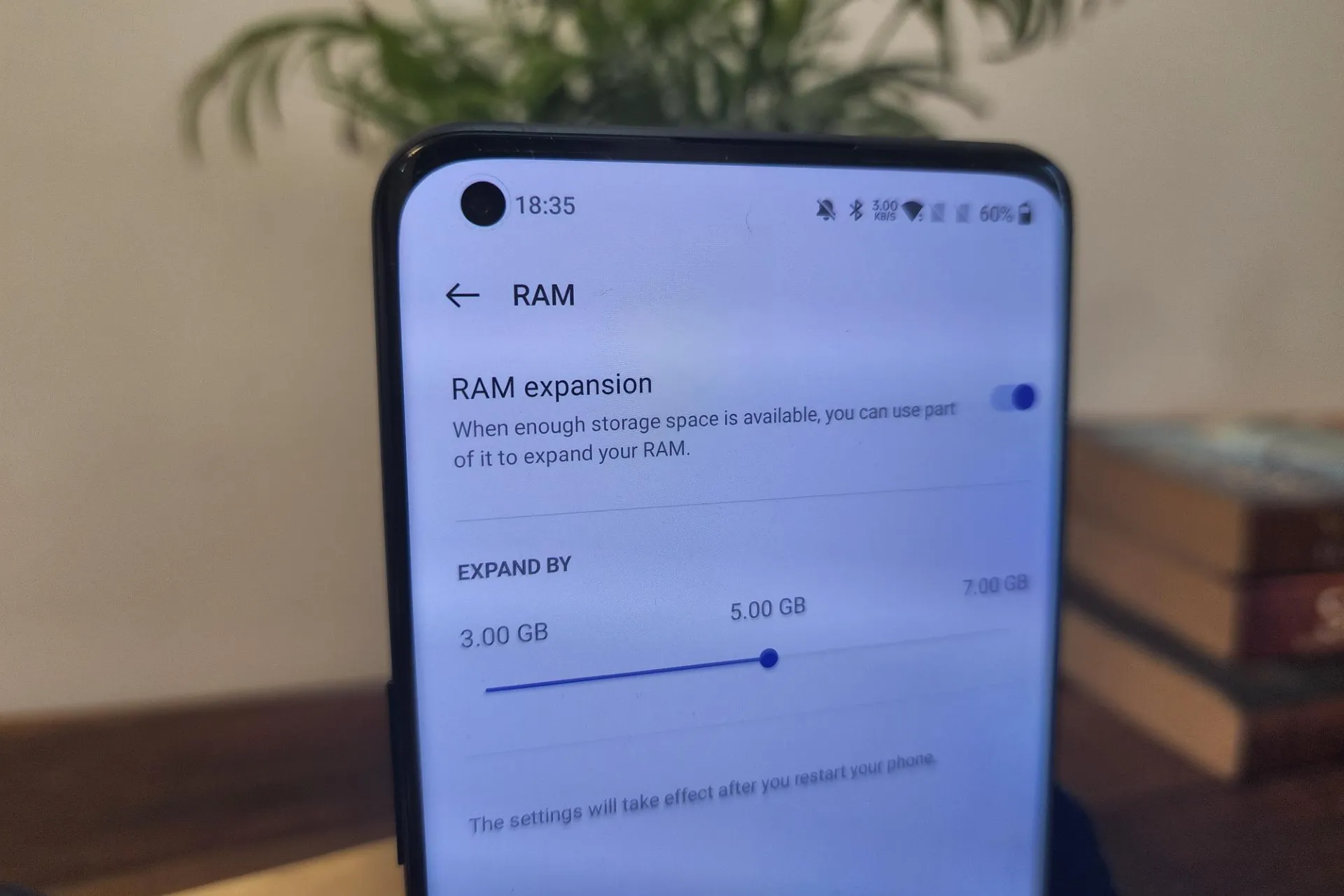
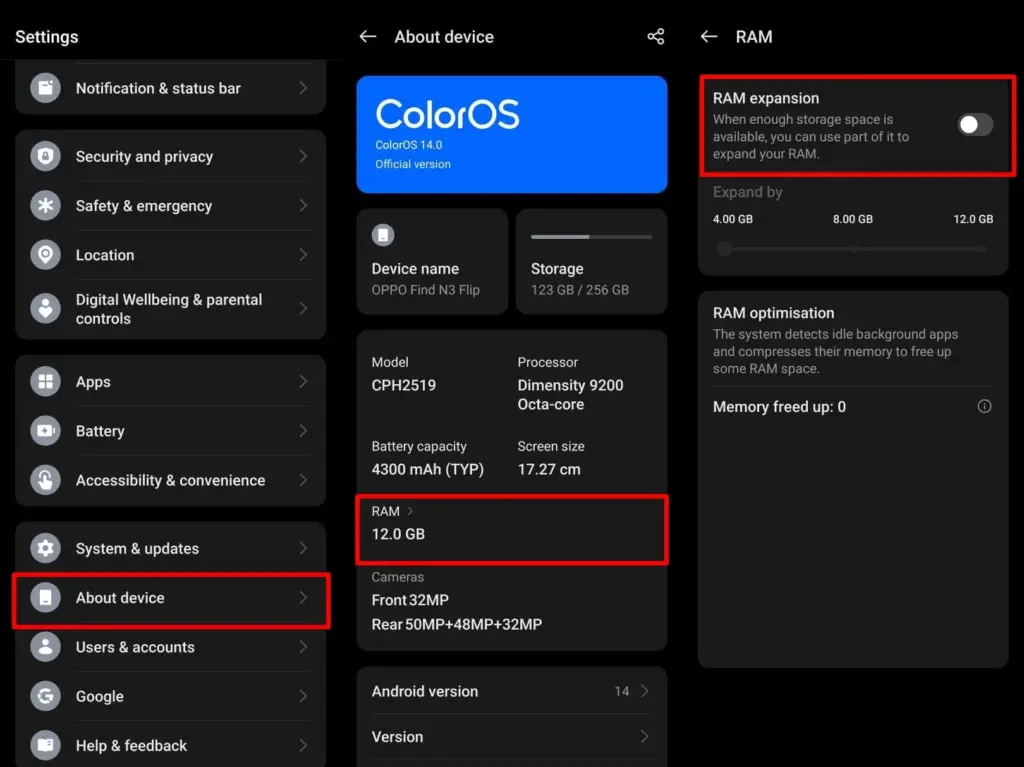
      2. Tap About Phone > RAM.
      3. Enable RAM Expansion and select a size.
      4. Restart when prompted.
    • Vivo Funtouch OS:
      1. Open Settings.
      2. Tap RAM and storage space.
      3. Tap RAM Expansion.
      4. Turn on and choose the RAM boost size.

    If you can’t find this feature, ensure your phone is running the latest version of Android 13 or consult the manufacturer’s support site.

    color os extend virtual memory

    Does virtual RAM actually improve performance

    Virtual RAM helps in specific scenarios, especially on phones with less physical RAM (4GB or 6GB). Benefits include:

    • Reduced app reloads
    • Smoother multitasking
    • Better background app retention
    • Less lag during memory-heavy tasks

    However, it will not transform an affordable phone into a premium gadget. Because internal storage is slower than actual RAM, the benefit is minimal yet visible during heavy multitasking.
    How much virtual RAM should you use

    The best setting depends on your device’s internal storage space and usage pattern:

    • If your phone has at least 128GB of storage and you multitask often, you can allocate 4GB–6GB.
    • If your storage is nearly full, avoid setting high values to prevent system lag.
    • On 64GB devices, 2GB–3GB is usually safe.

    You can experiment to determine what works best, but keep some open storage space to avoid overall slowdowns.

    Virtual RAM is an excellent technique to increase your phone’s memory capacity without updating the hardware. While it is not a miracle cure, allowing RAM expansion can boost your Android device’s performance and multitasking abilities. If your phone supports it, give it a shot—just do not use up all of your storage space.

  • How to change the default apps on new Android devices

    How to change the default apps on new Android devices

    You have complete control over the default apps you use on Android for email, calls, texts, browsing, and more. Android lets you select your favorite apps as defaults, whether it be Chrome or Firefox, Gmail or Outlook, or any other third-party software that is compatible, in contrast to other mobile operating systems that force you to use a limited number of apps.

    We will show you how to change the default Android apps in this tutorial. We will go over how it functions on both stock Android and well-known manufacturer skins, such as Xiaomi’s MIUI and Samsung’s One UI, as well as what to do in situations when Android lacks a default app option.

    Why change your default apps?

    Changing your default apps can increase productivity and improve your experience. For instance, you may wish to use:

    • A privacy-focused browser like DuckDuckGo instead of Chrome
    • A lightweight email app instead of the default one
    • A better gallery app with cloud backup support
    • A different SMS app with customization features

    Once set, Android uses your selected app automatically — no need to choose each time.

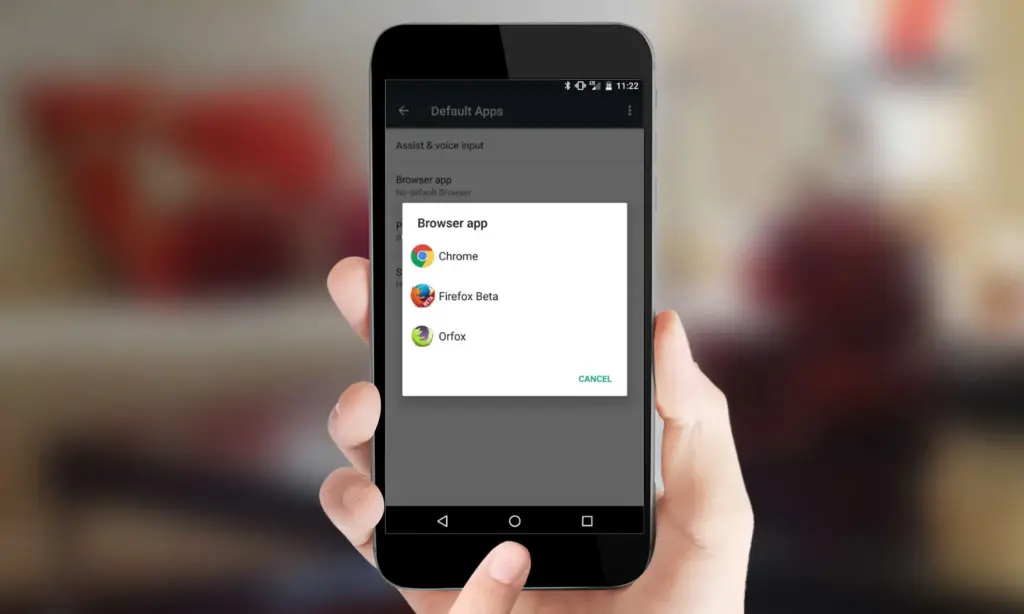
    change default apps in Android

    What types of default apps can be changed?

    Android supports default app selection for a variety of functions, including:

    • Browser (e.g., Chrome, Firefox, Brave)
    • Phone (dialer apps)
    • Messaging/SMS (e.g., Google Messages, Textra)
    • Email (e.g., Gmail, Outlook, K-9 Mail)
    • Home screen launcher
    • Digital assistant
    • Camera
    • Gallery/photos
    • Music player
    • Navigation apps (Maps, Waze, etc.)
    • Links handling (web, YouTube, etc.)

    Some apps will request to be the default when first installed or opened but you can always change this manually.

    How to change default apps on stock Android

    Here’s how to manage your default apps on phones running near-stock Android (such as Pixel, Motorola, or Nokia devices):

    1. Open the Settings app.
    2. Tap on Apps.
    3. Choose Default apps.
    4. You’ll see a list of categories: browser app, phone app, SMS app, assistant app, home app, etc.
    5. Tap any category to see installed apps compatible with that function.
    6. Choose your preferred app from the list.

    Android will immediately make the chosen app the activity’s default. If you change the browser’s default, for instance, any link you click will open in the selected browser.

    How to change default apps on Samsung (One UI)

    Samsung devices with One UI take a somewhat different path:

    1. Go to Settings.
    2. Tap on Apps.
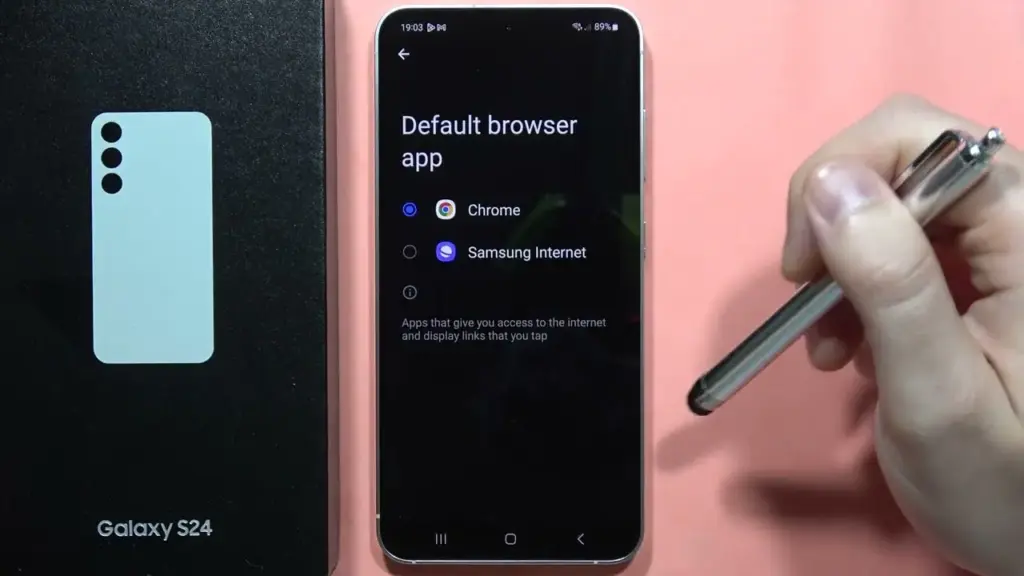
    3. Tap the three dots in the top-right corner and select Default apps.
    4. You’ll see the same categories as stock Android: browser, calling, messaging, and more.
    5. Tap the category you want to change.
    6. Select your new default app.
    change default broser on OneUI Samsung

    Samsung devices also let you reset all default apps at once via Settings > Apps > Three dots > Reset app preferences.

    How to change default apps on Xiaomi (MIUI)

    MIUI includes a “Manage apps” section to control default apps:

    1. Open the Settings app.
    2. Go to Apps > Manage apps.
    3. Tap the three dots in the top-right and select Default apps.
    4. Choose a category like browser, dialer, messaging, or gallery.
    5. Select your desired app.

    MIUI might ask you to select a new default app after installation or when you attempt to open related content.

    How to handle app-specific defaults (like file types or links)

    Some apps don’t appear in the general default app settings but can still be set as defaults when opening certain file types or links.

    To manage these:

    1. Go to Settings > Apps.
    2. Tap See all apps and choose the app you want to configure.
    3. Tap Open by default.
    4. Enable Open supported links or clear defaults by tapping Clear defaults.

    This is useful if you want all YouTube links to open in the app rather than in a browser, or if you have accidentally enabled an app to always open PDFs or photos.

    How to reset default apps

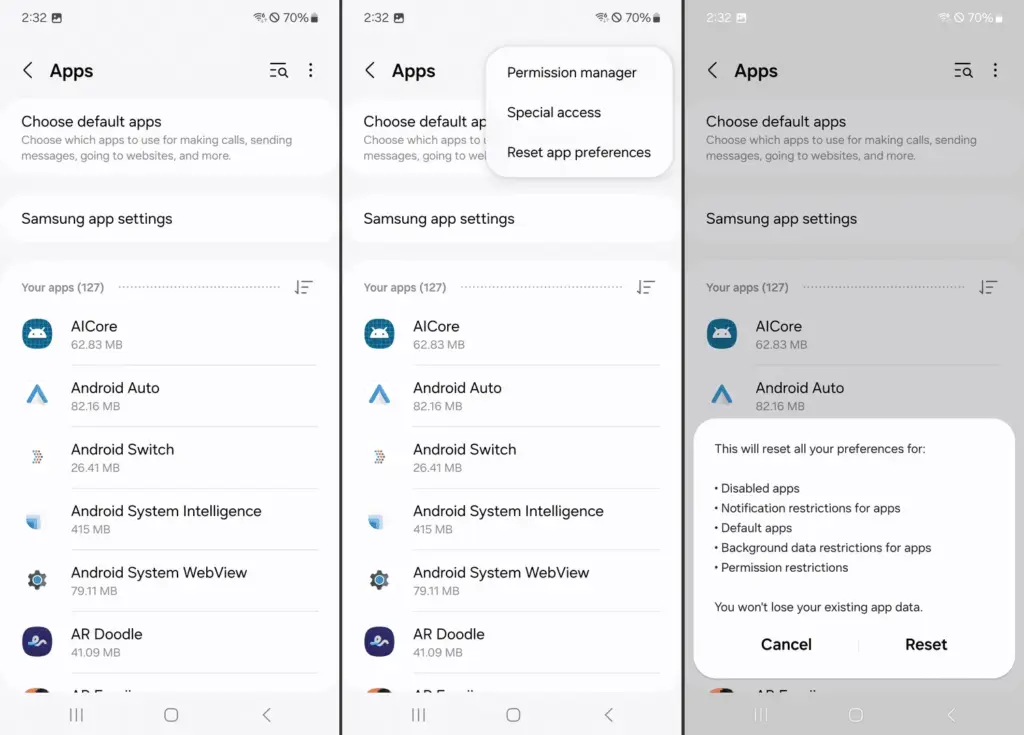
    reset default apps on Android

    If you’ve set the wrong default app or want to start over:

    1. Open Settings > Apps.
    2. Tap the three dots (or menu icon).
    3. Select Reset app preferences.
    4. Confirm to reset all app defaults.

    This won’t delete any data but will clear app defaults, disabled apps, and permission restrictions.

    Alternatively, to reset just one app:

    • Go to Settings > Apps > [App Name] > Open by default
    • Tap Clear defaults

    This lets you reassign that app’s function later.

    Choosing the best default apps

    Here are some recommended apps to consider setting as default:

    • Browser: Firefox Focus (privacy), Brave (ad blocking), Chrome (sync)
    • Email: Gmail (Google integration), Outlook (work email), BlueMail (multi-account)
    • Messaging: Signal (privacy), Google Messages (RCS), Textra (customizable)
    • Gallery: Simple Gallery, Google Photos, Aves
    • Music: YouTube Music, VLC, Poweramp
    • Navigation: Google Maps, Waze, HERE WeGo

    Make sure the app supports being set as a default. Some lightweight or older apps may not offer this functionality.

    What if Android won’t let you change a default?

    Some Android versions or manufacturers may restrict default app changes for certain functions — especially camera or dialer apps. In those cases:

    • Make sure the new app is fully updated and has the necessary permissions.
    • Check for manufacturer limitations in forums.
    • Use Activity Launcher or ADB commands (for advanced users) to override.
    • Root access may be required for some deep changes — though this is not recommended for most users.

    Changing the default apps on Android provides you control over your digital experience. Whether you want a speedier browser, a cleaner messaging app, or a more powerful camera, Android allows you to select what works best for you.

    By looking into your device’s default app settings, you may optimize your workflows and eliminate annoyances such as accessing links in the wrong app or using services you dislike. With a few touches, Android becomes your own—not what the manufacturer or carrier wants you to use.

  • How to take scrolling screenshots on Android – the easy way

    How to take scrolling screenshots on Android – the easy way

    With just a few button presses, you can quickly take a screemshot of your Android device screen.

    What occurs, though, if the material you are attempting to store is too large for a single screen? It could be an app settings page, a lengthy web page, or a conversation thread. Scrolling screenshots can help with that.

    This tutorial describes how to take scrolling screenshots on Android without the use of third-party apps, how to handle the situation where the choice is not available, and how it functions on various devices.

    What is a scrolling screenshot?

    You can record vertically scrollable content in a single lengthy image by taking a scrolling screenshot, sometimes referred to as an extended screenshot. Your phone does it automatically, saving you the trouble of painstakingly piecing together many screenshots and providing you with a clear, comprehensive representation of the full page or discussion.

    Although some manufacturers had already included this capability through custom Android skins prior to the official distribution, Android 12 marked the wide availability of this feature. After taking a standard screenshot, you can continue taking screenshots as you scroll by selecting the scrolling screenshot option.

    Why scrolling screenshots are useful

    When you need to record a lot of information without dividing it into many photos, scrolling screenshots come in handy. Typical use scenarios include the following:

    • Capturing an entire article from a website for offline reading
    • Saving long chats or SMS conversations
    • Recording step-by-step settings in apps or system menus
    • Documenting online orders, receipts, or bank statements
    • Archiving long social media posts or comments

    Instead of managing and sending five or six individual screenshots, you get a single, clean image that’s easier to share, store, or annotate.

    How to take a scrolling screenshot on stock Android

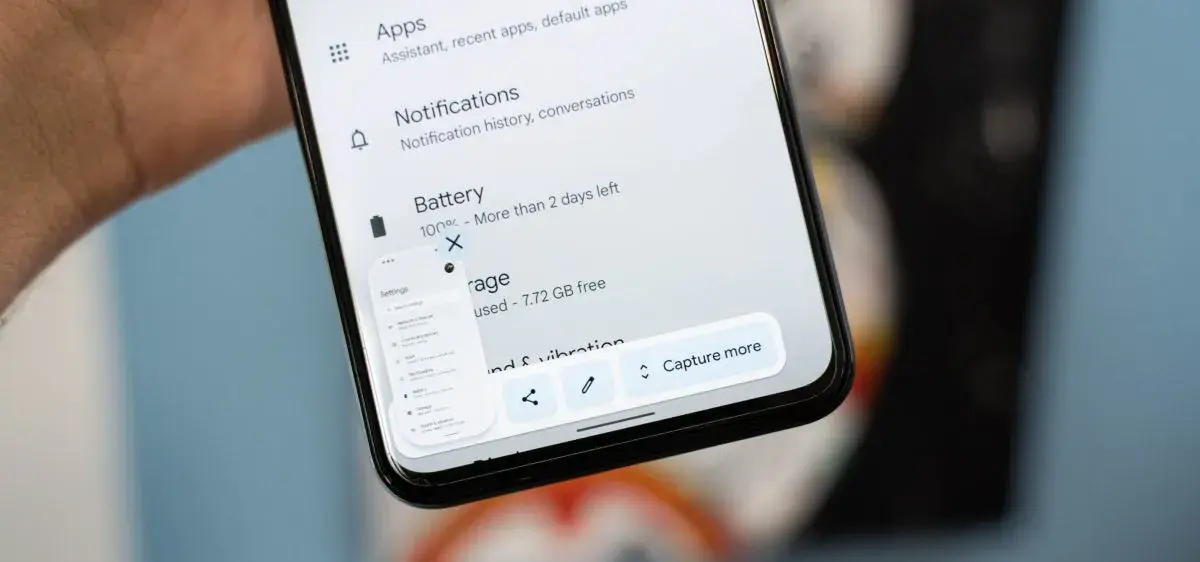
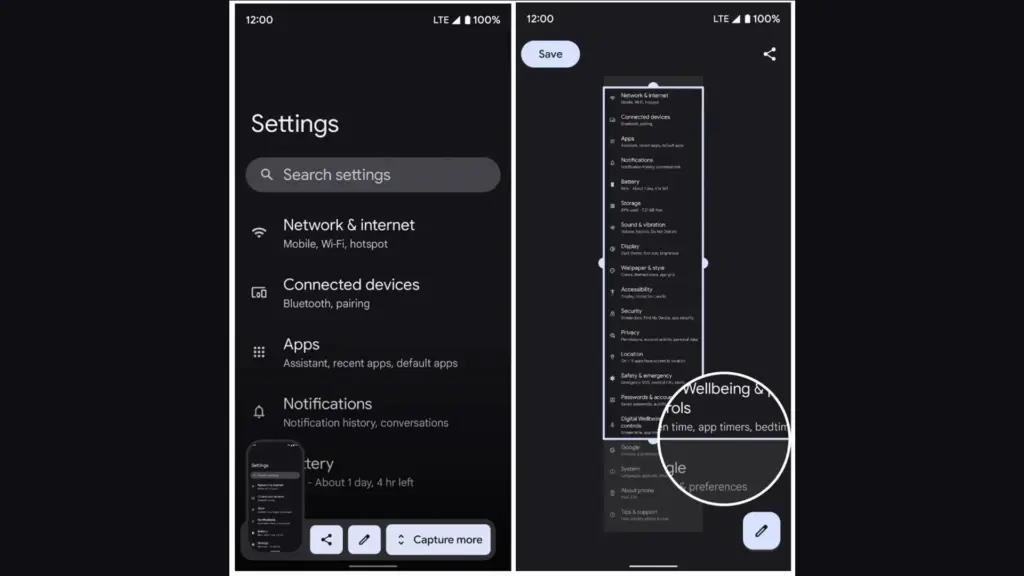
    scrolling screenshots on stock Android

    If you’re using a Google Pixel or another phone running near-stock Android 12 or higher, the steps are straightforward:

    1. Navigate to the screen you want to capture.
    2. Press the Power and Volume Down buttons at the same time to take a screenshot.
    3. After the screenshot is taken, a preview appears in the bottom corner with an option labeled Capture more.
    4. Tap Capture more to open a screen where you can scroll and adjust how much of the page to include.
    5. Drag the crop handles to select the desired length, then tap Save when finished.

    The scrolling screenshot will be saved to your Screenshots folder and accessible via the Google Photos or Files app.

    How it works on Samsung devices (One UI)

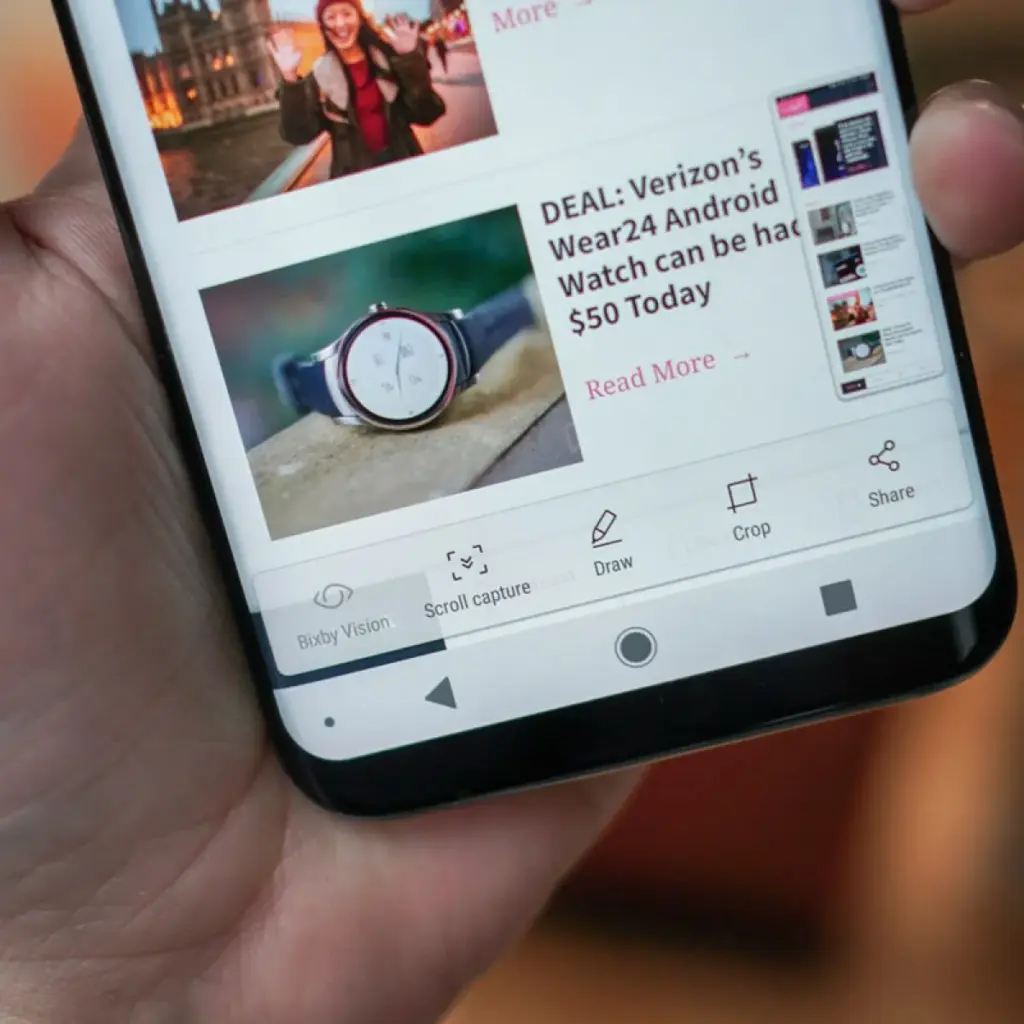
    Samsung introduced scrolling screenshots before Android 12 and calls the feature Scroll capture. To use it:

    scrolling screenshots on Samsung OneUI
    1. Open the page or conversation you want to capture.
    2. Take a screenshot by pressing Power + Volume Down, or use the palm swipe gesture if it’s enabled.
    3. A toolbar will appear at the bottom of the screen.
    4. Tap the Scroll capture icon (a downward arrow within a bracket) repeatedly to continue capturing more content.
    5. The phone scrolls down automatically each time you tap the icon, and stitches the new content to the previous image.
    6. Once finished, the combined screenshot is saved to your Gallery in the Screenshots folder.

    Samsung’s implementation is intuitive and works in most apps, including browsers, chat apps, and system settings.

    Taking scrolling screenshots on Xiaomi (MIUI)

    Xiaomi users with MIUI 12 or later can use the Scroll option built into the screenshot tool:

    1. Go to the screen you want to capture.
    2. Press Power + Volume Down, or use the three-finger swipe gesture.
    3. A floating screenshot preview will appear in the corner.
    4. Tap the Scroll option next to the preview.
    5. The device will automatically scroll the page and compile the screenshot.
    6. Tap Done or wait for the auto-scroll to finish.

    Your scrolling screenshot is then saved and ready to share or edit.

    How it works on OnePlus (OxygenOS)

    On most OnePlus phones running OxygenOS 11 or higher:

    1. Take a screenshot using Power + Volume Down or the three-finger swipe.
    2. A preview appears with a button called Expanded screenshot or Scroll.
    3. Tap the button, and the phone will begin scrolling down and capturing content.
    4. You can tap to stop the scroll when you’ve captured everything you need.
    5. The final result is a seamless long image.

    OnePlus makes the process easy and generally reliable in apps like Chrome, WhatsApp, and system menus.

    What to do if scrolling screenshot is not working

    If you don’t see the scrolling option after taking a screenshot, here are a few reasons and possible solutions:

    1. Your Android version is outdated

    With Android 12, scrolling screenshot functionality was formally introduced. The native option might not be available if you are using Android 11 or earlier and the manufacturer of your phone has not included the functionality in its unique user interface.

    Solution: Check for software updates under Settings > System > System update and update to the latest available Android version.

    2. The app you’re using doesn’t support it

    Certain applications may completely disable screen capture capabilities, particularly those with security limitations (such as banking or media streaming apps). In other situations, the scrolling capture feature will not be activated for static content that does not scroll vertically, such as games or films.

    Solution: Try taking the screenshot in another app to confirm the feature works elsewhere.

    3. The screenshot method didn’t trigger the right menu

    If you take screenshots using Google Assistant or a third-party button remapper, the scroll option may not appear.

    Solution: Stick with the hardware button method or built-in gesture support for consistent results.

    4. Your device brand disables it

    Rarely, the feature might be removed from select low-cost or carrier-locked devices. Check your device’s manual or a help website relevant to your brand if your Android version allows it but you are unable to see the choice.

    Solution: As a last resort, third-party apps like LongShot or Stitch & Share can be used, though they won’t integrate as seamlessly.

    Where scrolling screenshots are saved

    Your scrolling screenshots are typically saved in the same folder as regular screenshots. The default locations include:

    • Internal Storage > DCIM > Screenshots
    • Internal Storage > Pictures > Screenshots

    You can also find them in gallery apps like Google Photos under the “Screenshots” album. The long image format will usually be saved as a standard PNG or JPEG file, depending on your phone.

    Scrolling screenshots make it significantly easier to capture and share large amounts of vertical content in one image. Whether you’re preserving a full article, archiving a conversation, or saving a list of settings for future reference, this feature streamlines the process and saves time.

    Most modern Android phones with Android 12 or later support scrolling screenshots natively, with even better integration in custom skins from brands like Samsung, Xiaomi, and OnePlus. If the feature isn’t available on your phone, checking for updates or exploring brand-specific gestures may help you unlock it.

    Scrolling screenshots are one of those tiny but useful features that you will find yourself utilizing regularly once you get used to it, particularly if you share content or document information from your phone on a regular basis.

  • 7 settings to drasticaly improve battery life on any Samsung device

    7 settings to drasticaly improve battery life on any Samsung device

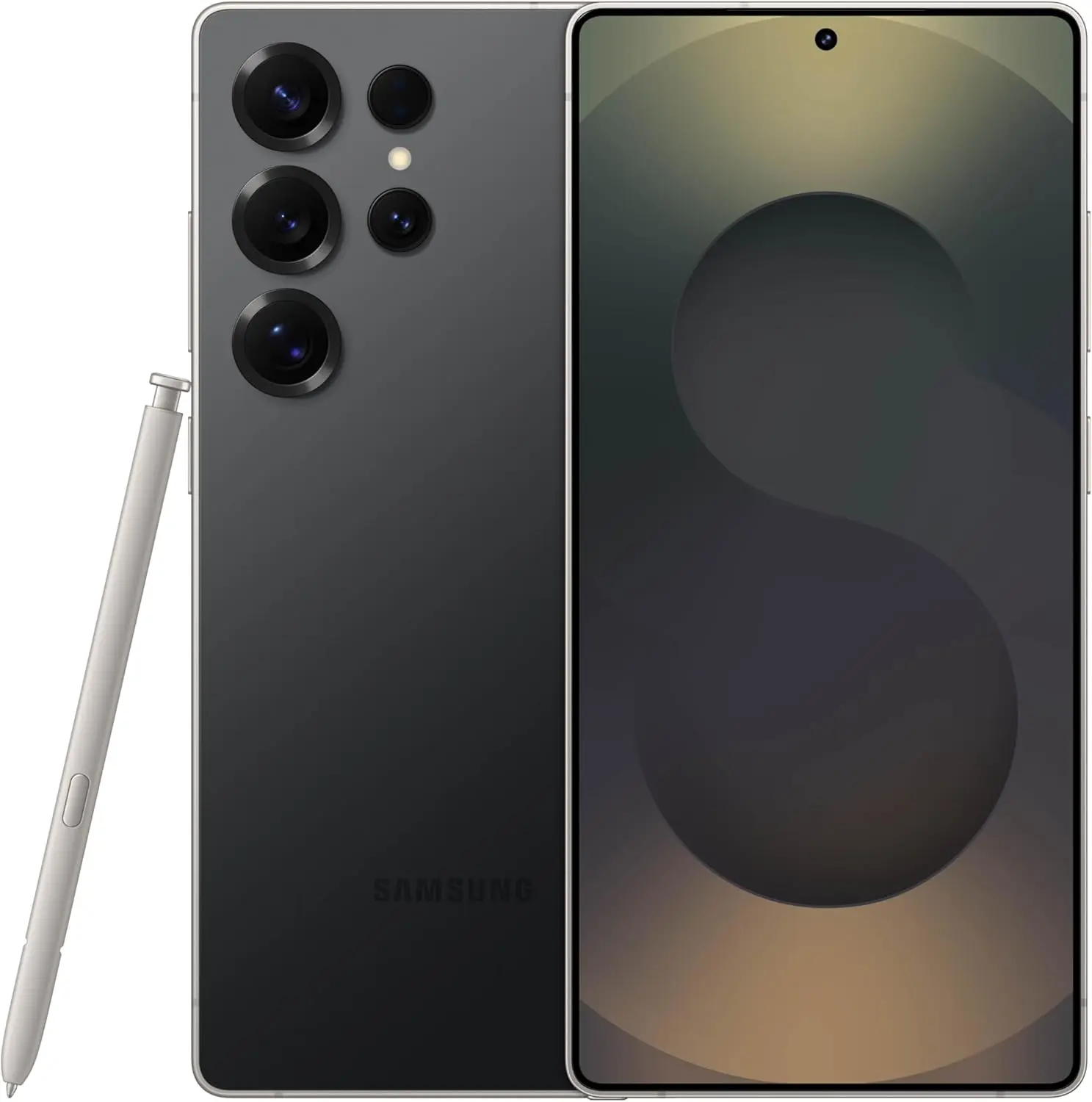
    Because of their full of features and efficient software, Samsung’s Galaxy smartphones are among the best Android phones on the market right now. However, the majority of Samsung phones, particularly premium models like the Galaxy S25 Ultra, Galaxy Z Fold 6, and Z Flip 6, include extravagant features that you might not utilize on a regular basis. There are ways to maximize what you have without degrading the user experience if your new Galaxy phone is not able to last a full day between charges.

    Here are seven ways to extend your Galaxy phone‘s battery life. Do not worry, I will not be Captain Obvious and suggest that you use your phone at a lower refresh rate or lower the screen resolution. The suggestions on this list ought to enhance your quality of life while optimizing the functionality of your phone.

    Use Dark Mode

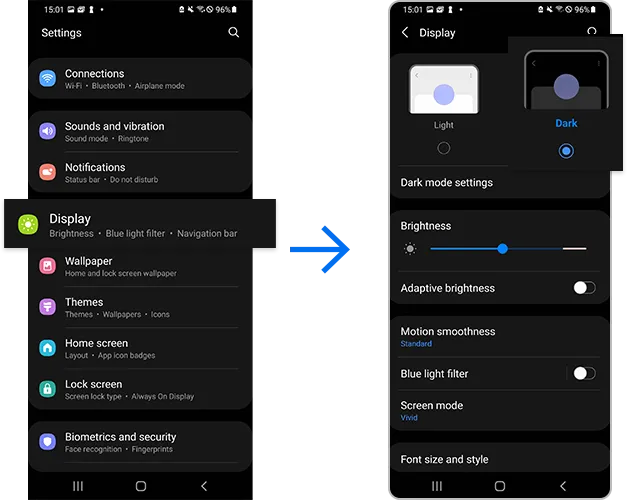
    AMOLED screens, which can light individual pixels, are seen on the majority of Samsung phones. Therefore, the area of the screen that must remain black will not activate those pixels when you choose a dark theme or dark wallpaper. As a result, your screen uses less power and your battery lasts a little longer.

    dark mode enable 2

    How to do it: Go to Settings > Display. Two cards for Light and Dark will be dealt to you. Press the Dark option. Changing the system wallpaper and sticking with the light theme is an alternative, but it will not have the same impact on energy life as switching to dark mode.

    Use Adaptive Brightness

    Although this feature should ideally be turned on by default, some individuals disable it because it is not always reliable. Nonetheless, the quality of Samsung’s ambient light sensor has increased over time. Your Galaxy phone is capable of accurately detecting ambient illumination and adjusting the screen brightness on its own. By doing this, you can make sure your display is more effective and not overly bright.

    Toggle on Adaptive Brightness by going to Settings > Display. Although it should function in most settings, you can use the Quick Settings panel to slide down to change the brightness if necessary.

    Force stop or uninstall power-draining apps

    Many applications, including Facebook, Microsoft 365, OneDrive, and numerous Samsung and Google apps, are pre-installed on Samsung devices. To stop them from running in the background, find the ones you do not need and either remove them or force-disable them.

    For instance, not everyone requires OneDrive or the Samsung Smart TV app. I remove those two apps along with others like Facebook, Outlook, Microsoft 365, Tutor, and more when I set up a new Galaxy phone.

    How to: Tap and hold the app you want to uninstall. A pop-up menu will appear. Tap Uninstall. As a result, none of these non-required apps will use your battery.

    Identify power-draining apps

    Depending on your location, 5G connectivity, and background usage, some apps need more power. To assist you reduce unnecessary battery usage, Samsung allows you to recognize certain power-hungry programs.

    By selecting Settings > Battery and Device care > Battery > Background usage limits, you may find and disable power-draining apps on your device.

    samsung galaxy s25 ultra

    Samsung Galaxy S25 Ultra

    Streamline your day with an assistant that gets you. Ask it to Google search for a pet-friendly vegan restaurant nearby and text it to your friend – your Galaxy S25 Ultra handles multiple tasks with a single ask.

    $1,299.99$1,067.99See It

    Scheduled Always-On Display

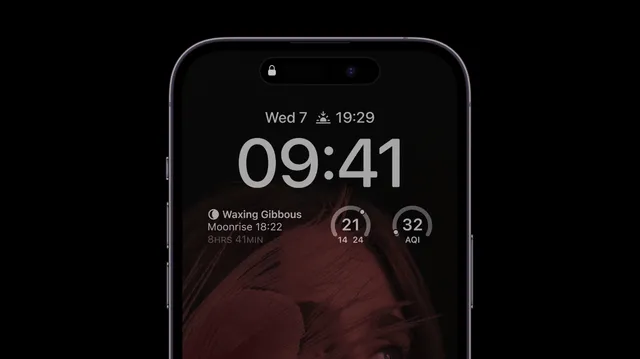
    I like my Galaxy S25 Ultra’s Always-On Display (AOD). For efficiency, its LTPO display lowers to 1Hz, which is useful for functions like AOD. Using AOD may not be as effective if your Galaxy phone is midrange and has a minimum refresh rate of 60 Hz. You can use it wisely, though, by planning AOD for when it is required.

    samsung aod battery life

    How to: Go to Settings > Lock Screen and AOD > Tap on Always On Display > When to show > As scheduled. While you’re at it, also turn off the Show lock screen wallpaper within AOD settings.

    Use Performance profile

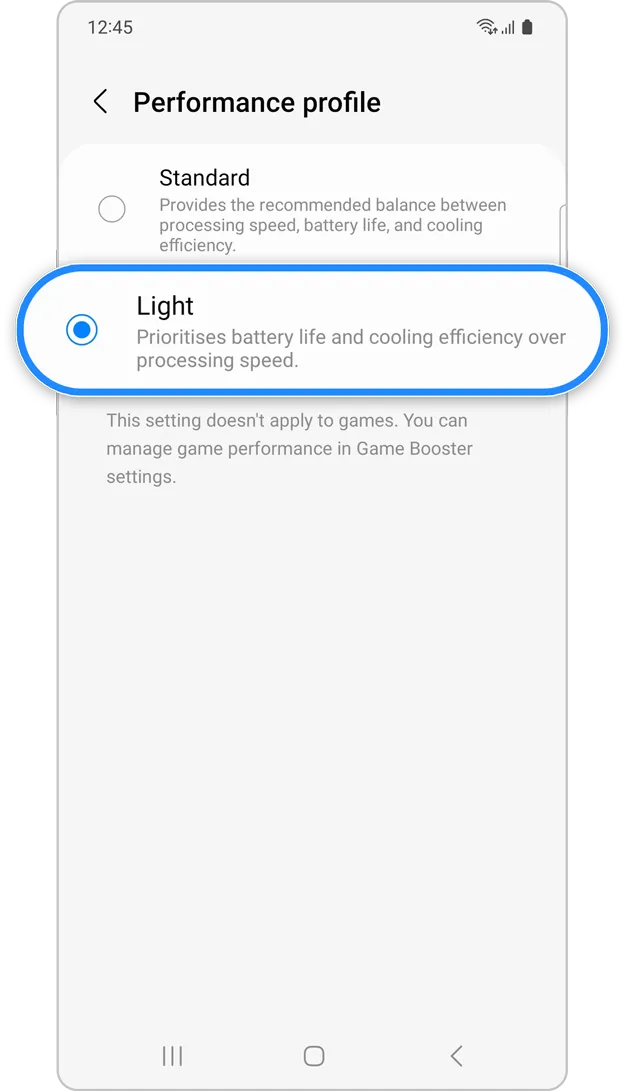
    Samsung lets you select a performance profile according on how you use it. The Light Performance profile is a better option than the Standard if you do not play games and use your phone mostly for everyday activities like surfing and making calls. It will put cooling and battery life ahead of processing performance.

    samsung performance profile

    How to: Open the Settings app and go to Device care > Performance profile and select Light. This is ideal for average phone users.

    Download offline content before travel

    It is a good idea to download such stuff offline if you listen to the same podcasts and playlists or travel the same path every day. Google Maps and the majority of streaming apps use a lot of battery power over 5G and LTE. It may also cause your phone to feel warm to the touch when you are outside. With a little advance forethought, you can handle this: Before you leave the house, use Wi-Fi to download your favorite music or maps.

    How to: Go to the streaming apps you want to download content from and follow the in-app steps. For instance, YouTube has a download button on videos, and Spotify lets you download complete playlists.

    What should you do if the battery on Galaxy phone runs low?

    The seven settings above will not hinder your user experience and will retain the best Galaxy phone features. However, if you’re out and your phone is low on battery, you should:

    • Turn on Power Saving
    • Toggle off data roaming
    • Turn off location services
    • Switch off AOD altogether

    When your phone’s battery is less than 15% and you are still a few hours away from a charger, I advise activating these options. The Samsung settings listed above will also help you get the most out of your Galaxy phone’s battery.

    samsung galaxy s25 ultra

    Samsung Galaxy S25 Ultra

    Streamline your day with an assistant that gets you. Ask it to Google search for a pet-friendly vegan restaurant nearby and text it to your friend – your Galaxy S25 Ultra handles multiple tasks with a single ask.

    $1,299.99$1,067.99See It
  • How to record screen on Android devices without third-party apps

    How to record screen on Android devices without third-party apps

    The days of rooting your device or looking for third-party apps to record your screen on Android devices are long gone. The majority of modern smartphones with Android 11 and later have an integrated screen recorder.

    Convenience, more privacy, and enhanced performance are provided by this native feature. Whether you are recording a livestream, creating a tutorial, or recording a game session, this guide will show you how to make the most of Android’s built-in screen recorder.

    Why screen recording matters

    For many Android users, the ability to record screen has become indispensable. Content producers frequently have to capture mobile gaming, app evaluations, and walkthroughs. Professionals might have to show colleagues how to use bugs or make quick educational videos. When recording video chats, social media stories, or instructions for assisting friends in troubleshooting a phone problem, this tool might be useful even for novice users.

    Users had to rely on apps from the Play Store prior to Android having this feature built in; many of these apps had restricted functionality, data tracking, advertisements, or required a subscription. Native tools now provide a smoother, safer, and ad-free experience.

    Check if your device supports native screen recording

    Android 11 and later versions support the built-in screen recording feature. Open the Settings app, navigate to “About phone,” and locate the Android version section to verify your Android version. You can move forward if your device is running version 11 or later.

    It is also important to note that almost every major brand has this capability in their operating systems, including Google, Samsung, OnePlus, Xiaomi, Realme, and Motorola. However, each manufacturer may have somewhat different interfaces and extra options.

    screen record on Android Samsung OneUI

    How to start screen recording on Android

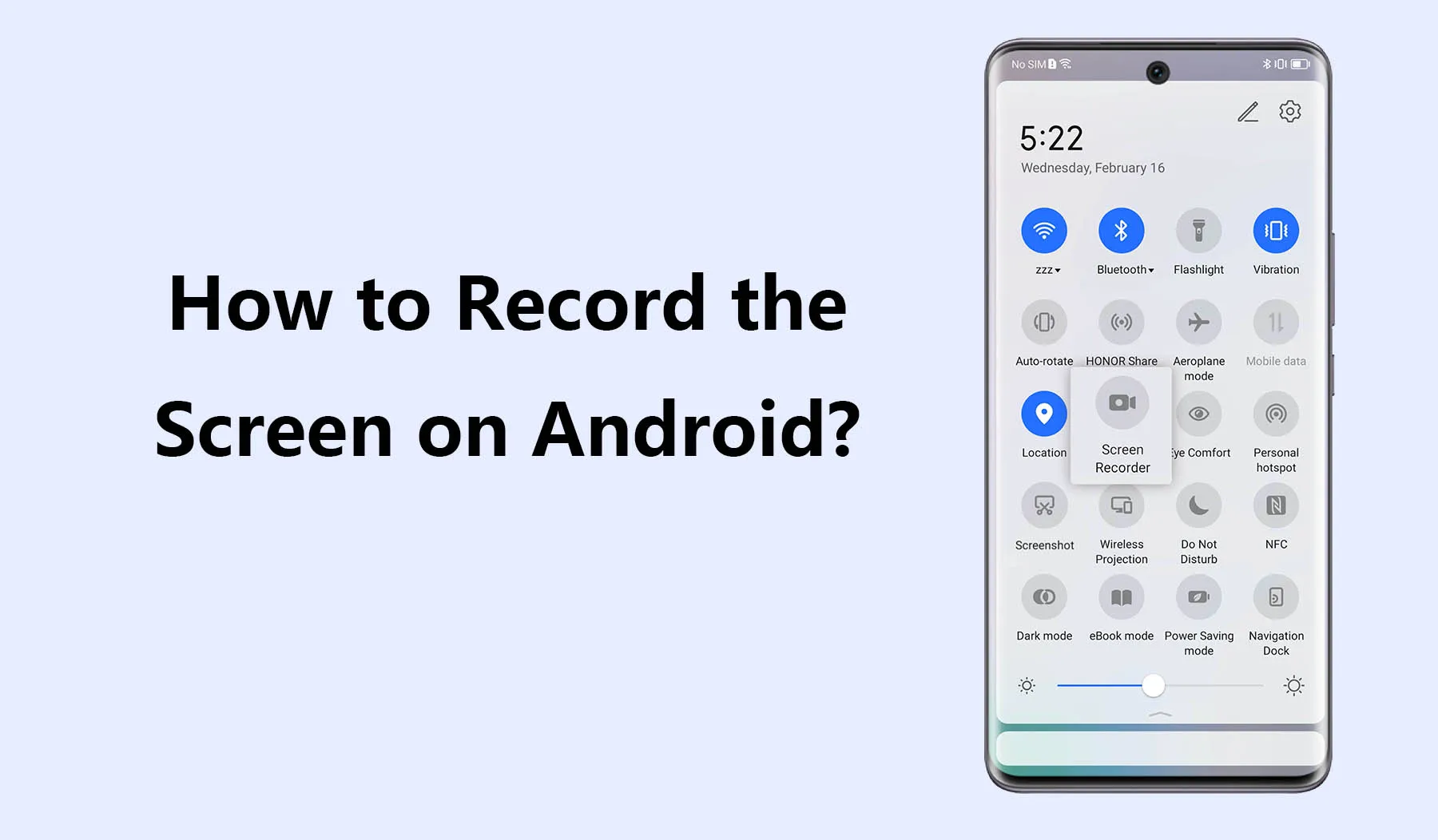
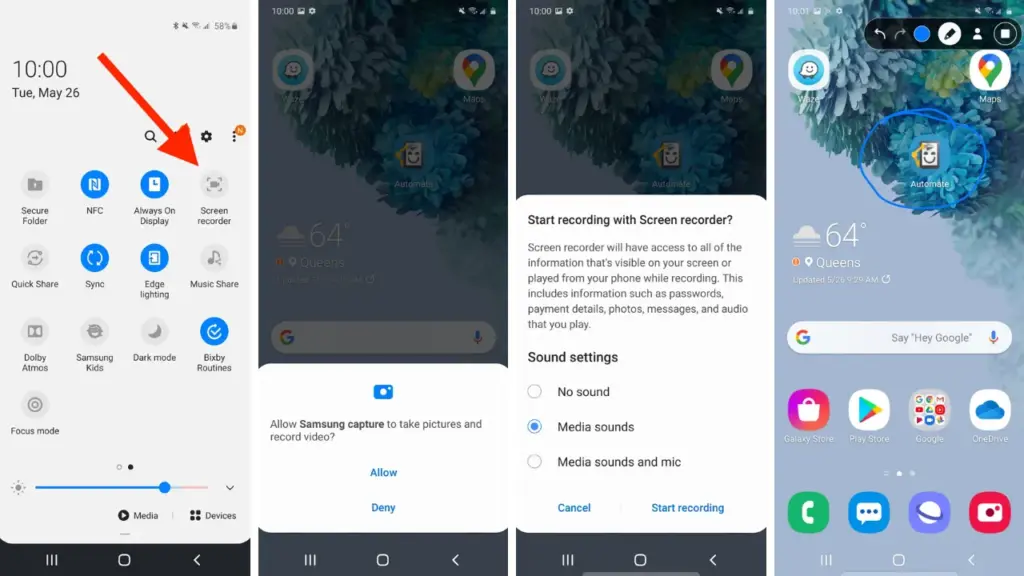
    Swipe down from the top of your screen to see the Quick Settings panel, then activate the screen recorder. To fully enlarge the panel, swipe down once more. Next, search for a tile that says “Screen record” or “Screen recorder” If it does not appear right away, you can add the screen recording option and reorder your Quick Settings tiles by tapping the pencil or “Edit” symbol.

    When you tap the tile, a dialog will pop up offering a few choices before recording begins. You can choose whether to:

    • Record audio from the microphone, internal device audio, or both
    • Show visual touches on the screen during the recording

    Depending on your recording requirements, these choices can be helpful. For example, you could want to use the microphone when narrating a tutorial. Internal sound may be better suitable if you are recording gaming or app audio. Once your choices have been set, press “Start” and watch for the three-second countdown. After that, your recording will start.

    A tiny toolbar or red symbol will show that the screen is being recorded during the recording. Pull down the notification shade and press the stop button when you are done. Your device’s storage will automatically store your video.

    How screen recording differs by device brand

    Each Android manufacturer may offer a slightly different version of the screen recorder:

    • Samsung (One UI): One of the most feature-rich native recorders is offered by Samsung. You can record your face with the front camera, record internal audio, and choose from a variety of video quality options. During the recording, you can even draw on the screen, which is a terrific way to graphically explain topics.
    • Google Pixel: Pixel phones running Android 11+ have a clean, minimal screen recorder built into Quick Settings. It’s simple to use but doesn’t offer the same advanced features as Samsung’s version.
    • Xiaomi and Redmi (MIUI): These devices often include a standalone “Screen Recorder” app, which can be found in the Tools folder. It allows you to configure video resolution, frame rate, sound source, and orientation. Recordings are saved in an organized, dedicated folder.
    • OnePlus (OxygenOS): Native screen recording is available from OnePlus as early as Android 10. It has settings to set bit rates and frame rates, record system sounds, and display touches. The user interface is clear and simple to use.
    • Realme and Oppo: These brands also offer native recording tools similar to Xiaomi, with a balance of customizability and ease of use.

    These slight differences can impact your experience, so it’s useful to explore your device’s specific implementation for the best results.

    Where screen recordings are saved

    Once you finish recording, the saved video can typically be found in your phone’s internal storage under:

    • Internal Storage > Movies > Screen recordings
    • Internal Storage > DCIM > Screen recordings

    Also, screen recordings are typically shown in a distinct folder or album called “Screen recordings” in your normal gallery software (like Google Photos or Samsung Gallery). Use a file manager tool and search for recently edited MP4 files if you are having problems finding your file.

    This consistent file structure helps you quickly retrieve, share, or edit your recordings.

    Tips for better screen recording results

    Here are some suggestions to improve the quality and usability of your recordings:

    • Use Do Not Disturb mode: This prevents interruptions from calls, texts, or notifications while recording.
    • Close unnecessary apps: Reducing background processes ensures smoother performance and fewer lags during recording.
    • Enable touch indicators: If you’re creating tutorials, visual touches help viewers understand where you’re interacting on the screen.
    • Choose appropriate resolution and frame rate: Higher settings give better quality but consume more storage space. For gameplay, use 1080p at 60fps if available.
    • Record with adequate lighting and contrast: If you’re recording apps or system settings, avoid dark themes that make the video harder to see.

    Limitations and common issues

    While native screen recorders are generally reliable, there are a few caveats:

    • DRM-protected content: Apps like Netflix or some banking services block screen recording to protect sensitive or copyrighted material. In such cases, you’ll see a black screen or an error message.
    • Lack of internal audio on some devices: Not all Android phones allow internal audio recording due to manufacturer restrictions or legal considerations. Some devices default to microphone-only input.
    • Storage limitations: Long screen recordings take up a lot of space. Ensure you have enough free storage to avoid failed recordings or low-quality output.

    In rare cases, the screen recorder might not appear in the Quick Settings panel. This can usually be fixed by updating your software or resetting the tile arrangement in settings.

    The screen recording feature built into Android is a game-changer for productivity, communication, and content creation. Whether you’re capturing a quick how-to for a family member, recording an epic moment in a mobile game, or documenting a tech issue for support, the ability to do it all without third-party apps makes the process simple and secure.

    As long as your device runs Android 11 or higher, you already have this powerful tool at your fingertips. With a few simple settings and some creative uses, you’ll be able to record anything on your screen with clarity and ease – no installations required.

  • How to use Android split screen to increase productivity without using additional apps

    How to use Android split screen to increase productivity without using additional apps

    Android’s split-screen mode is a potent productivity tool that lets you utilize two apps at once, whether you are browsing the web while taking notes or watching YouTube while responding to emails. The finest aspect? Root access and third-party apps are not required. The majority of Android devices running Android 7.0 (Nougat) or later come pre-installed with this feature.

    We will go over how to use split screen on well-known Android devices including Samsung, Google Pixel, Xiaomi, OnePlus, and more in this post. We will also go over restrictions, troubleshooting techniques, and ideas to help you multitask seamlessly.

    What Is Split Screen Mode?

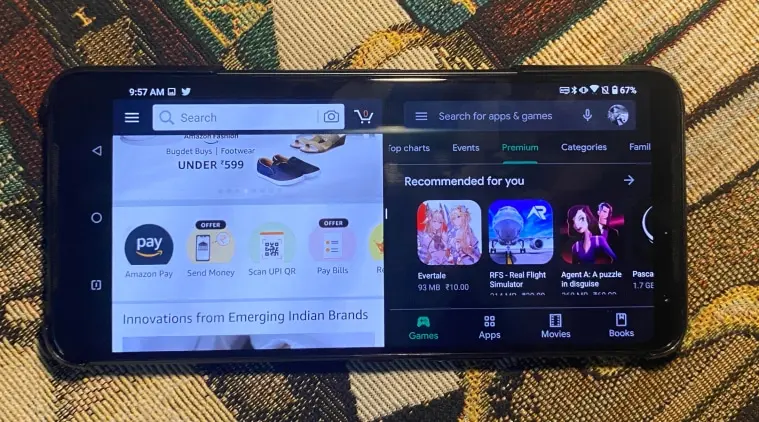
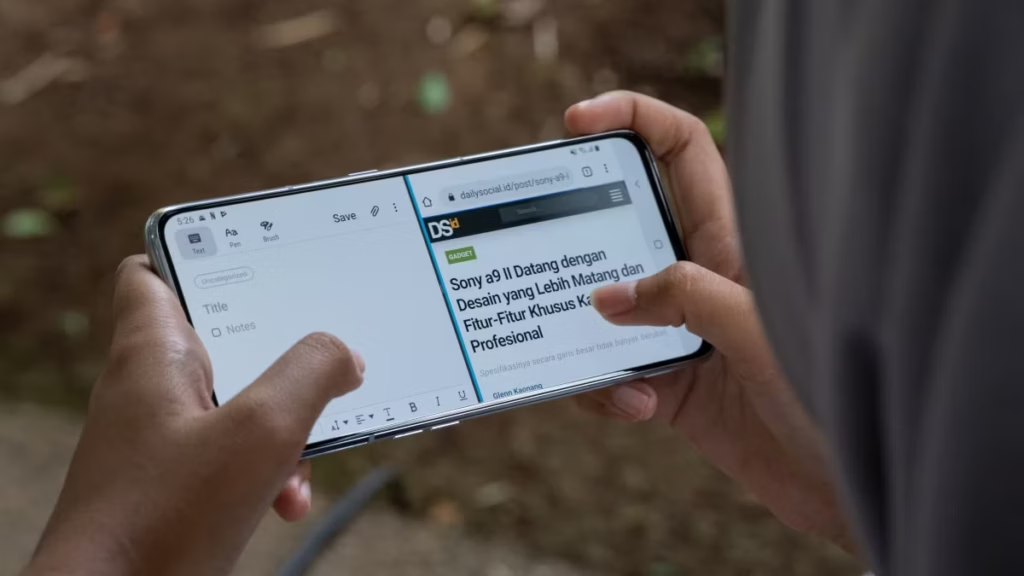
    Two apps can be opened and used side by side in split screen mode (or top and bottom in portrait orientation). You may use two apps simultaneously, using up half of the screen. You can scroll, type, watch, or even copy and paste text between them.

    When you can use use split screen?

    Split screen is a truly strong feature that may completely change the way you use your Android device; it is not simply a gimmick. Here are some typical and astute methods to fully benefit from it:

    Multitasking with messaging and media

    Do you want to view a YouTube video while responding to messages on Telegram or WhatsApp? You can do both without missing a beat thanks to split screen. It is ideal for catching up on material and remaining sociable at the same time because you can keep viewing your video and participating in your conversations.

    Working while referencing other apps

    Do you need to draft an email while reviewing data from a notes app or spreadsheet? For productivity tasks like replying to work emails, producing content, or organizing chores while consulting other resources, split screens are perfect. It keeps you productive and engaged without requiring you to switch between programs.

    Comparing products and prices

    You can explore Amazon using one app and check pricing on eBay or another store using another. You may save time and money by using split screen to evaluate features, costs, and offers in real time.

    Reading and translating content

    You can use a translation app (like Google Translate) in conjunction with a browser or reading app if you are learning a new language or reading articles written in a foreign language. Instantaneous phrase translation without app switching enhances convenience and comprehension.

    Planning trips or events

    Put your calendar or itinerary app on one half of your screen and Google Maps on the other. Travelers who need to check locations while managing their schedules, booking confirmations, and to-do lists will find it ideal.

    Organizing your day

    Having a time-blocking calendar open in one app and your to-do list open in another is a way to employ split screens for personal efficiency. Planning your day, setting priorities, and scheduling tasks are all made much easier with this arrangement.

    Following tutorials while performing tasks

    When learning anything new, such as how to set up a feature, edit a photo, or follow tech instructions, you can try the steps in one app while a YouTube or browser instructional is open on the other. It is very helpful for experiential learning.

    how to use split screen on ANdroid devices

    How to use split screen on different devices

    The exact method can vary slightly depending on your device’s manufacturer and software version. Here’s how to activate it on most devices:

    📱 Generic Android / Stock Android (Pixel, Motorola, etc.)

    1. Open the first app you want to use.
    2. Tap the Recent Apps button (square or swipe-up gesture depending on your navigation settings).
    3. Tap the app icon at the top of the preview card.
    4. Select “Split screen” from the dropdown menu.
    5. Choose the second app from the recent apps list or app drawer.

    🔍 Tip: Not all apps support split screen (e.g., Instagram, some games).

    📱 Samsung Devices (One UI)

    1. Open the app you want to use in split screen.
    2. Tap the Recent Apps button.
    3. Tap the app icon on the top of the preview window.
    4. Choose “Open in split screen view.”
    5. Select the second app from the list or app drawer.

    📌 On Samsung devices, you can also drag apps into split screen from the Edge Panel (if enabled).

    📱 Xiaomi / Redmi / POCO (MIUI)

    1. Open the Recent Apps screen (swipe up or tap the button).
    2. Tap and hold the app’s card.
    3. Tap the “Split screen” option.
    4. Choose the second app from the bottom half of the screen.

    📢 MIUI may disable split-screen for certain apps by default.

    📱 OnePlus (OxygenOS)

    1. Go to Recent Apps.
    2. Tap the three-dot menu or app icon.
    3. Select “Split screen.”
    4. Choose another app from your recent apps or app drawer.

    Adjusting Split Screen Size

    You can resize the split by dragging the divider bar between the two apps:

    • Drag up or down (in portrait)
    • Drag left or right (in landscape)

    Some phones even allow 70/30 splits, not just 50/50.

    Exiting Split Screen Mode

    To exit:

    • Drag the divider bar all the way to the top or bottom.
    • Or press Home or Recent Apps, and both windows will close or return to full screen.

    What If Split Screen Is Not Working?

    Here are common reasons why split screen may not work:

    • The app does not support split screen (like some games or camera apps).
    • You are using an older Android version (prior to 7.0).
    • Your device manufacturer has disabled it (rare in modern phones).
    • You’re using full-screen gestures that conflict with multitasking.
    Solution: Try enabling Developer Options > Force Activities to be Resizable and reboot your phone.

    Can You Use Split Screen with Floating Apps (Pop-up View)?

    On Samsung and some Xiaomi/OnePlus devices, yes!

    • You can combine split screen with floating apps for 3-window multitasking.
    • For example, split screen for YouTube + Chrome, while Messenger floats in a bubble.

    Productivity Tips

    • Use clipboard managers to quickly paste between apps.
    • Pin your favorite apps in the Recents menu for quicker access.
    • On Samsung, save split-screen pairs to the Edge Panel.
    • Combine with voice-to-text for ultra-productive workflows.

    Despite being one of Android’s most potent features, split screen is one of its most underutilized. It can significantly enhance your experience without requiring additional setup, whether your goal is to multitask more effectively or do more tasks.

    You can turn your phone into a little workstation with a few touches.