Category: Guides

Expert Android guides that help you master phones, apps, operating systems and wearables with clear, step‑by‑step advice for real‑life use.

  • The simplified truth you need to know about AVIF to PNG

    The simplified truth you need to know about AVIF to PNG

    AVIF and PNG are the two most popular image formats, but both serve different functions. AVIF is developed primarily for excellent compression, which is superb for use on the Internet. PNG, on the other hand, is a conventional image format highly admired for its compatibility and transparency. 

    You may need to transform AVIF to PNG in specific cases, especially to gain support in old editing software. Transforming AVIF to PNG is also required to maintain transparency in applications that do not fully support it.    

    But how can you bridge the gap between the two? This is exactly what we will cover in this blog post. We will explore some of the best ways to convert AVIF to PNG using multiple tools and software. 

    Whether you need to convert your images one-by-one, or you need them in batch conversions, this blog will have you covered.

    The Whys of AVIF to PNG

    What makes AVIF stand out compared to other image formats is that it is a next-gen image format, offering superb compression and photo quality compared with PNGs. 

    But, there are other reasons why you need to change from AVIF to PNG. 

    • Compatibility: AVIF is like a cool new kid in the image neighbourhood, due to which many old browsers and applications do not fully support it.

    PNG, on the other hand, is also known as a universal image format that is recognized and supported in almost all devices and software.

    • Support for Transparency: The PNG image format is broadly used for its high transparency. 

    Although AVIF also supports transparency still some applications may not be able to render it properly.  

    • Editing Purposes: Many old image-editing tools do not have native support for AVIF. Therefore, you need to convert AVIF to PNG for editing purposes. 

    The Basics of AVIF and PNG Image Formats

    Both AVIF and PNG are highly popular image formats, but they differ in their purposes. 

    AVIF 

    In simple terms, AVIF stands for AV1 Image File Format, a new image format created for the Internet. This image format supports exceptionally high image quality at the lowest file sizes. It makes AVIF one of the most ideal for fast and data-efficient web pages. 

    AVIF also supports HDR and Wide Color Gamut, which gives images life-like visuals. These features give AVIF a perfect balance of compression, quality, and versatility.  

    PNG 

    PNG is a universally used lossless image format that is ideal for preserving image fidelity. The full form of PNG is Portable Network Graphics, which is the most efficient for compatibility. They are also great for making icons and logos with transparent backgrounds. 

    However, the biggest disadvantage of the PNG format is that they do not support advanced compression abilities. This makes a PNG image higher in file size. 

    Easy Ways to Convert AVIF to PNG

    There are multiple ways in which you can convert AVIF to PNG, ranging from online tools to editing software. In this section, we will take a closer look at some of the easiest ways to do so. 

    Online Image Converters

    If you want a fast and hassle-free way of converting AVIF to PNG, then online image converters are your best bet. You just need an active internet connection to work with these tools. 

    Some popular and efficient image converters are listed below. 

    1. RabbitLoader Image Converter: RabbitLoader’s image converter is a fast and easy-to-use tool for converting your AVIF images to PNG format. Visit the tool from your browser and follow the instructions to unlock hassle-free conversions in minutes. 

    2. Convertio: It is a great tool for fast and reliable image conversion from AVIF to PNG. This image converter boasts a highly user-friendly interface, which makes it easy to use. Convertio also offers a cloud space for easy storage of your images. 

    3. Zamzar: Zamzar is a highly popular online file converter admired for its efficiency and simplicity. The tool offers a quick and simple way to convert your AVIF images to PNG. All you need to do is visit the platform and select your output type, and initiate the conversion.  

    Software Tools

    Those who want more control over the image conversion process can opt for editing software tools. 

    Some of the most famous software tools for photo editing are summarized below. 

    1. GIMP: To save your image in PNG format from an AVIF file, you should first open the file in the GIMP software. Then, you need to navigate to “File” and “Save As” and then choose “Select File Type.” PNG must be the output format, and lastly, click on the “Export” button.   

    2. XnConvert: This software is a free and user-friendly batch image converter. It supports all other types of image formats, except AVIF and PNG. You can use this software for simple and advanced compression tasks. 

    Bulk Conversion of AVIF to PNG

    If you have many images in AVIF format and want them converted to PNGs, batch conversion is the most reliable and fastest way to do so. Instead of converting your images individually, batch conversion converts all your images at once. 

    The best way to batch convert your images from AVIF to PNG is by using RabbitLoader’s website optimization plugin. The plugin is primarily designed for WordPress websites, but site owners in WooCommerce and Shopify can also use RabbitLoader. 

    Installing RabbitLoader and connecting it with your website will leave you worry-free about handling hectic image conversions. RabbitLoader takes responsibility for converting your large-sized PNG or other conventional image formats to fast and efficient next-gen formats like AVIF and WebP. 

    The image optimization process in RabbitLoader is automatic. Apart from seamless image optimizations, RabbitLoader’s all-in-one optimization tool also offers advanced optimization techniques like lazy loading, minification, and caching to upgrade your website’s speed to a whole new level.
  • Change how notifications are displayed on Android lockscreen

    Change how notifications are displayed on Android lockscreen

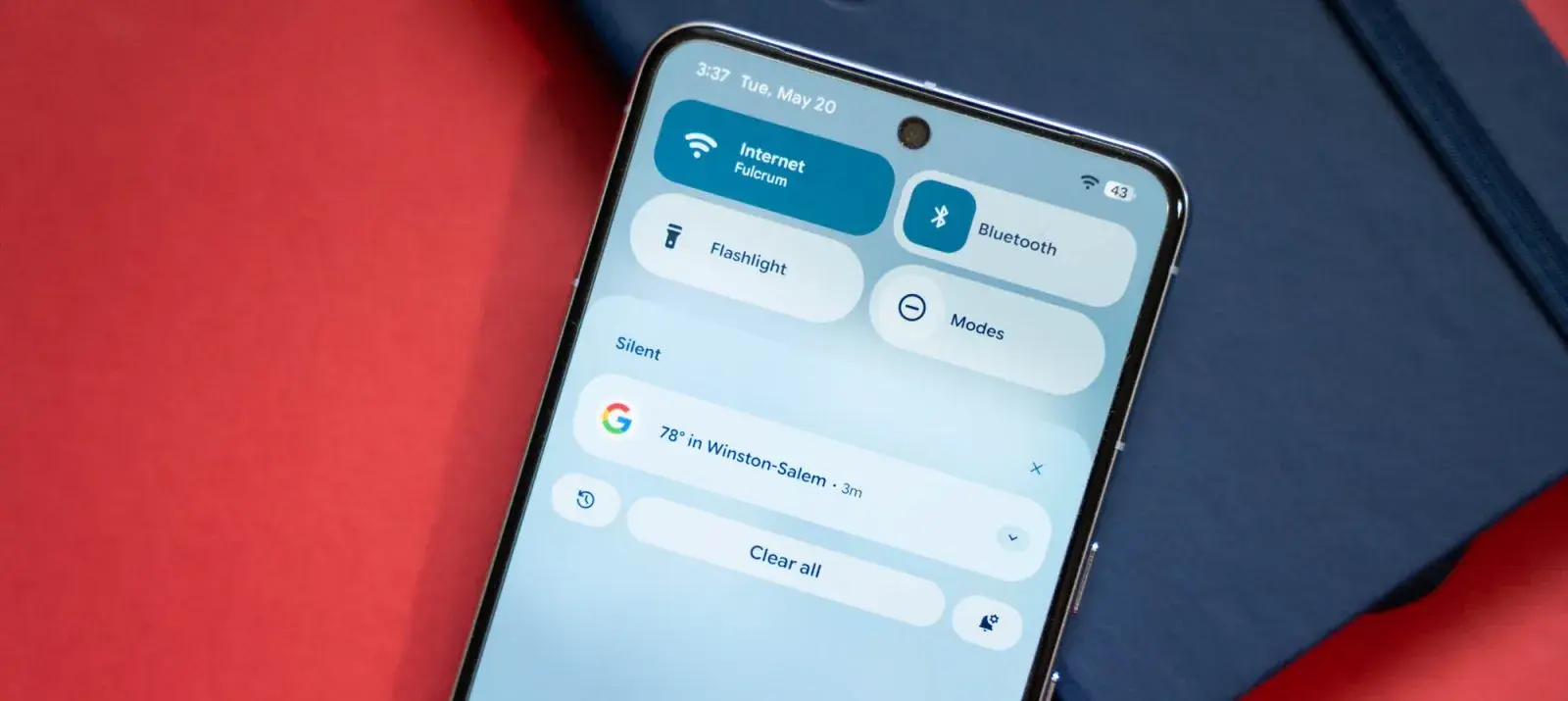
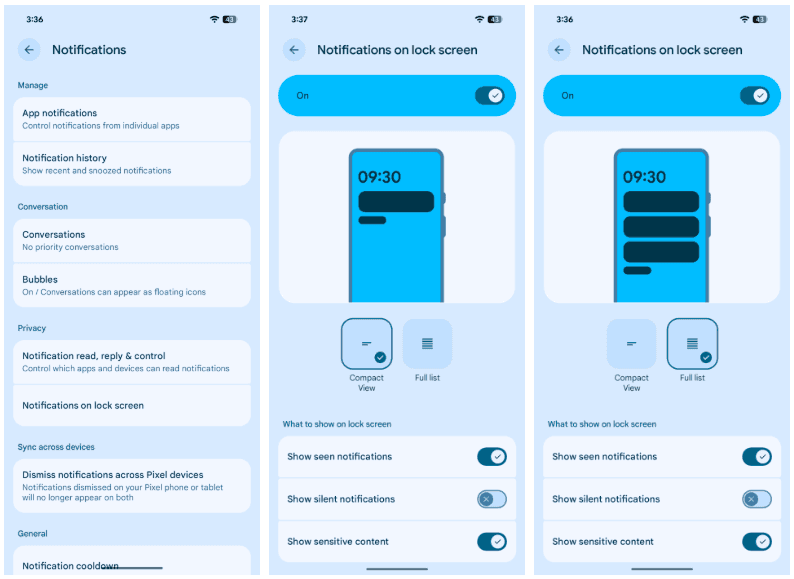
    With Android 16 QPR1, changes on how the how lock screen notifications are displayed came. The abrupt shift may be a little confusing if you’re not used to it. Now that the “compact” and “full” views are available, this guide will assist you in selecting the appropriate one.

    In its new condensed layout, Google’s latest Android release by default shows notifications on the lock screen. merely one notification is displayed in the presentation; all other notifications are merely represented by app icons in the overflow menu below. The secondary compact portion receives alerts that are viewed.

    The only alternative way for alerts to appear on the Pixel’s lock screen is “full list.” Notifications are displayed in cards and in the order they were received. Although they can be enlarged, they do occupy a considerable lot of room.

    There are further choices as well. Notifications that are viewed without any action performed, such as unlocking the phone, are buried until the phone is unlocked when the “display seen notifications” setting is disabled. In order to keep the shade clear, the option to “Show silent notifications” will show alerts from apps that have been manually or automatically switched to silent.

    Here’s how to set your preferred view:

    1. On your Pixel running Android 16 QPR1 or later, head to settings.
    2. Find and tap Notifications.
    3. Hit Notifications on lock screen.
    4. Choose between Compact View and Full list.
    notifications list on Android 16

    Although you can always go back, for some people, full view can be the greatest choice. In contrast to compact mode, which only shows one notification at the top, all Pixel lock screen notifications are always shown in that mode. All of this depends on personal taste, but that’s what makes Android what it is!

  • HyperOS 3.0 panel on older versions

    HyperOS 3.0 panel on older versions

    HyperOS 3 has generated a lot of interest, particularly because of its revamped Control Center, which is obviously more useful and aesthetically pleasing than HyperOS 2. Users are asking whether it’s possible to extend the new Control Center experience to their existing HyperOS 2 devices, which is understandable given the excitement.

    To put it simply, that’s not feasible. You cannot just install the HyperOS 3 Control Center as a stand-alone feature. Because it depends on improved user interface elements, animations, and fundamental optimizations not seen in HyperOS 2, it is closely interwoven with the system. If you try to install it on an outdated system, you run the risk of software instability or, in the worst case, the device being unusable.

    xiaomi hyperos control panel 1

    Although it is not possible to migrate the actual Control Center from HyperOS 3 to HyperOS 2, there is a useful workaround for those that desire a comparable appearance. A variety of themes that visually update icons, the Control Center interface, and wallpapers to closely mirror the most recent design are available in the Xiaomi Themes shop, some of which are specifically inspired by HyperOS 3.

    It is crucial to remember that this is only a cosmetic remedy. You won’t get the new functionality or underlying speed improvements of HyperOS 3, just the redesigned graphics.

  • Guide on how to clear cache of any Android device

    Guide on how to clear cache of any Android device

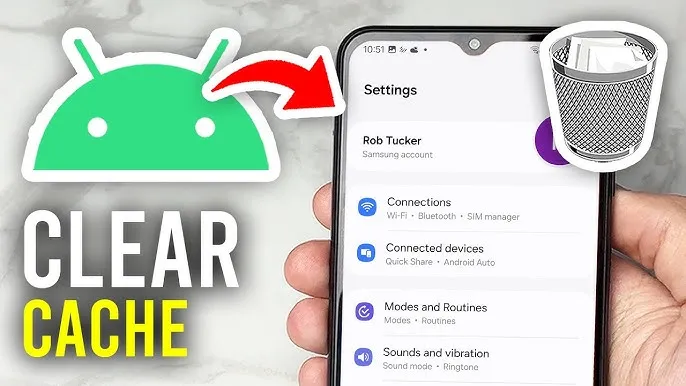
    Your device may slow down as a result of cached data that builds up, corrupts, or just becomes out of date over time. Although a targeted cache clear is a quick fix that doesn’t require updating hardware, restarting your phone frequently helps.

    In June, Google introduced Android 16 to Pixel devices and a few OEMs, bringing with it new Material You updates, performance enhancements, and other improvements. Clearing the cache on your Android phone or tablet can give it a new boost and free up some storage space if you want to attempt this update but are concerned since you’ve observed it already feels too sluggish.

    Although each manufacturer may have somewhat different processes, the overall procedure is the same.

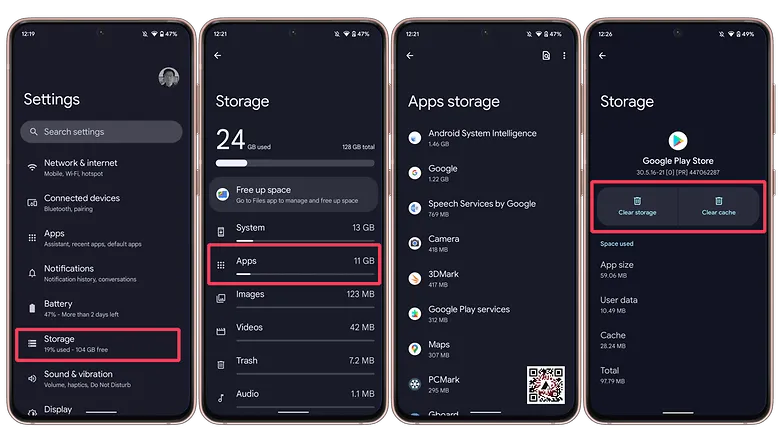
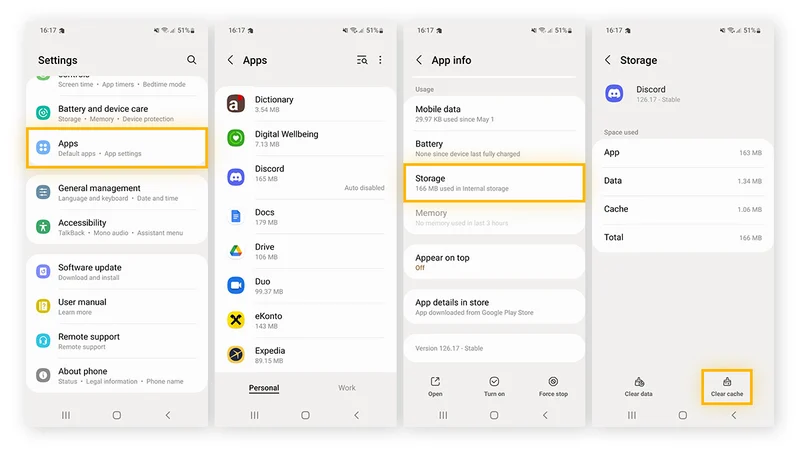
    Navigate to Storage in Settings, then select Apps. If there isn’t a specific Apps entry, you may easily locate it in Settings by using the search bar.

    Some Android devices now offer a “Free up space” option through the Google Files app in the Storage menu as well. This can be used by opening Files, selecting Clean from the three-line menu in the top-left. Examine each recommendation (such as duplicates, huge files, and useless apps), then follow the instructions to remove any files you no longer require.

    clear cache android

    (Avoid system services) press an installed app, choose “Storage and cache,” and then press “Clear cache.” Tap “Clear storage” only if you wish to fully reset the application.

    Clear cache for individual apps

    Do the same with any programs that consume a lot of storage. Data-hungry hogs like social apps and streaming services are a good place to start.

    Additionally, some Android versions make it simple to view which apps are using the most space when you’re in the Apps menu. Just choose Sort by Size from the three-dot menu that appears in the upper-right corner.

    Note: There may be an integrated clear-all-cache feature on some Android phones. There should be a ‘Select All’ button at the top under Settings > Storage > and App Cache.

    How to clear cache from Chrome

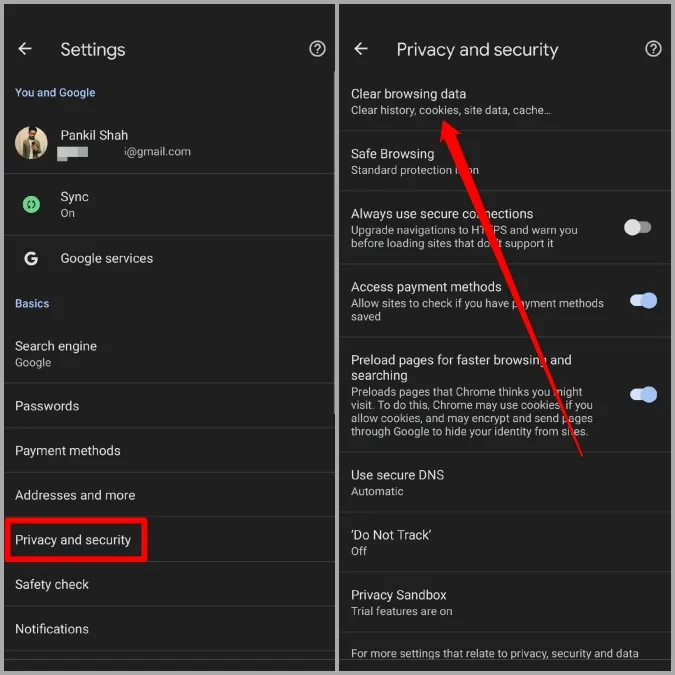
    Open Chrome, tap the three-dot menu Settings > History > Clear browsing data.

    Check “Cached pictures and files” (as well as anything else you want to delete) after choosing the time frame. Next, select “Clear data.”

    Every choice describes its function and how it impacts your experience. removing cached files and pictures may result in Chrome loading images more slowly the next time you visit a website, while removing cookies and site data will log you out of many or all websites.

    In recent versions of Chrome for Android, hitting the menu button brings up the Clear Browsing Data option. When you choose this, a pop-up window requesting that you delete your browsing history from a certain time frame will show up. Selecting More Options will bring up the Browsing Data screen, where you can pick which data to remove and what time period to use.

  • Do the background apps on your phone use up your battery more quickly?

    Do the background apps on your phone use up your battery more quickly?

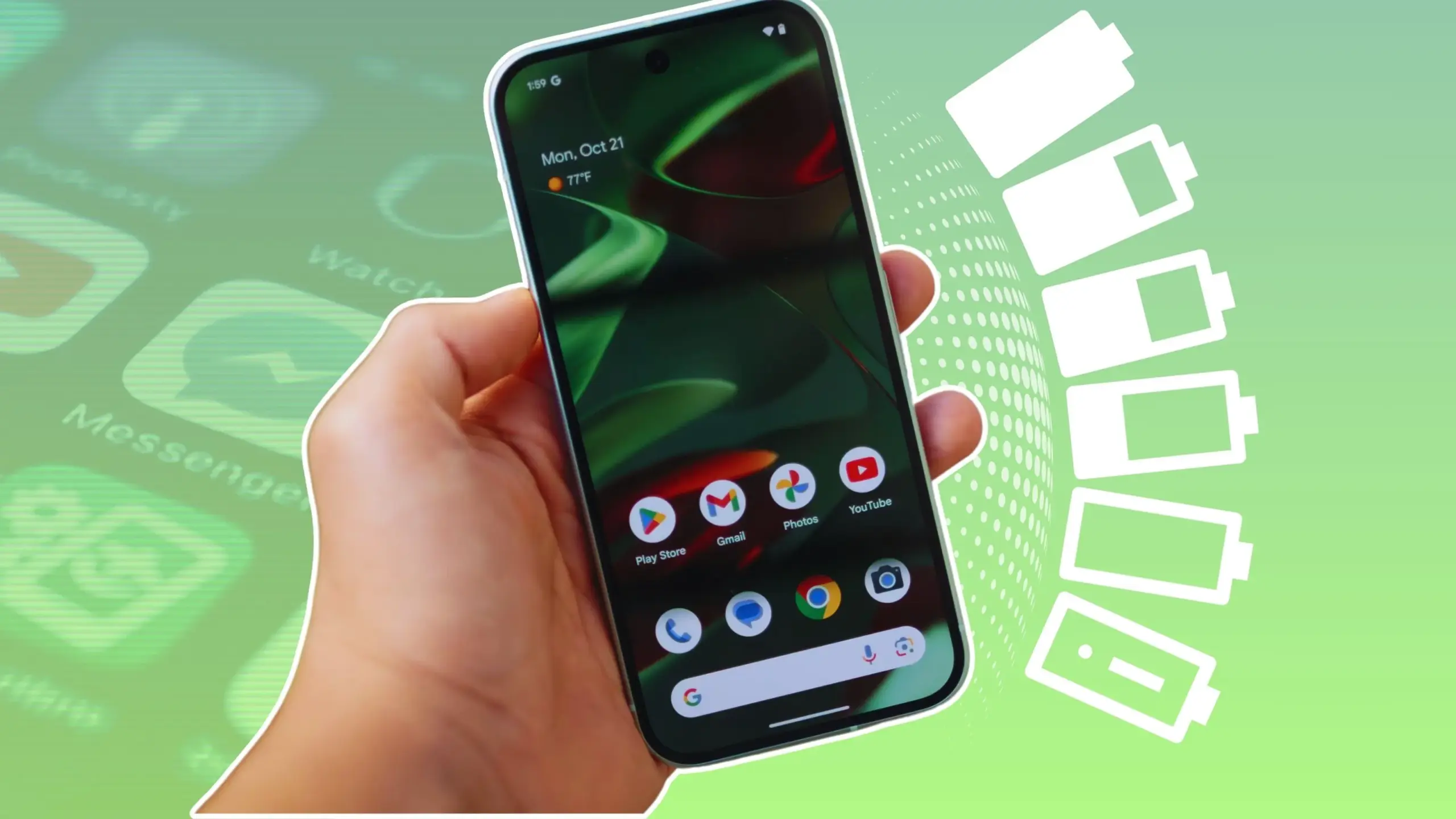
    In terms of convenience, smartphones have advanced significantly. You can communicate with your loved ones online using a variety of instant messaging apps, such as Facebook Messenger and WhatsApp. Additionally, with almost every phone release in recent years, there has been an increase in AI-assisted features. These include smart object removal, precise transcriptions, and even the ability to screen and handle incoming calls for you.

    The our phones manage and communicate information to us continuously through notifications. Have you received a text on iMessage? On your iPhone, a notice appears instantly. Since leaving an app open all the time would have been the alternative, this is really convenient and, to be honest, taken for granted.

    The ability to upload huge files to Google Drive and switch between apps without stopping or terminating the upload is also made possible via background app activity. It’s reasonable to believe that most of the apps on your phone have access to background data given the volume of notifications it receives, but how? When not in use, do all apps burn up the same amount of battery life? Viewing and controlling background apps is really simple in recent iterations of iOS and Android. Here’s how to optimize your phone to extend its battery life.

    Android background app management

    managing background apps on android 1754413851

    Android largely divides battery consumption based on three states of an app — foreground app when in use, foreground service that isn’t visible, and background parts of an app. Phones running Android 13 and newer are equipped with a power consumption tracker that monitors and alerts users if any foreground or background service has been consuming more battery than usual.

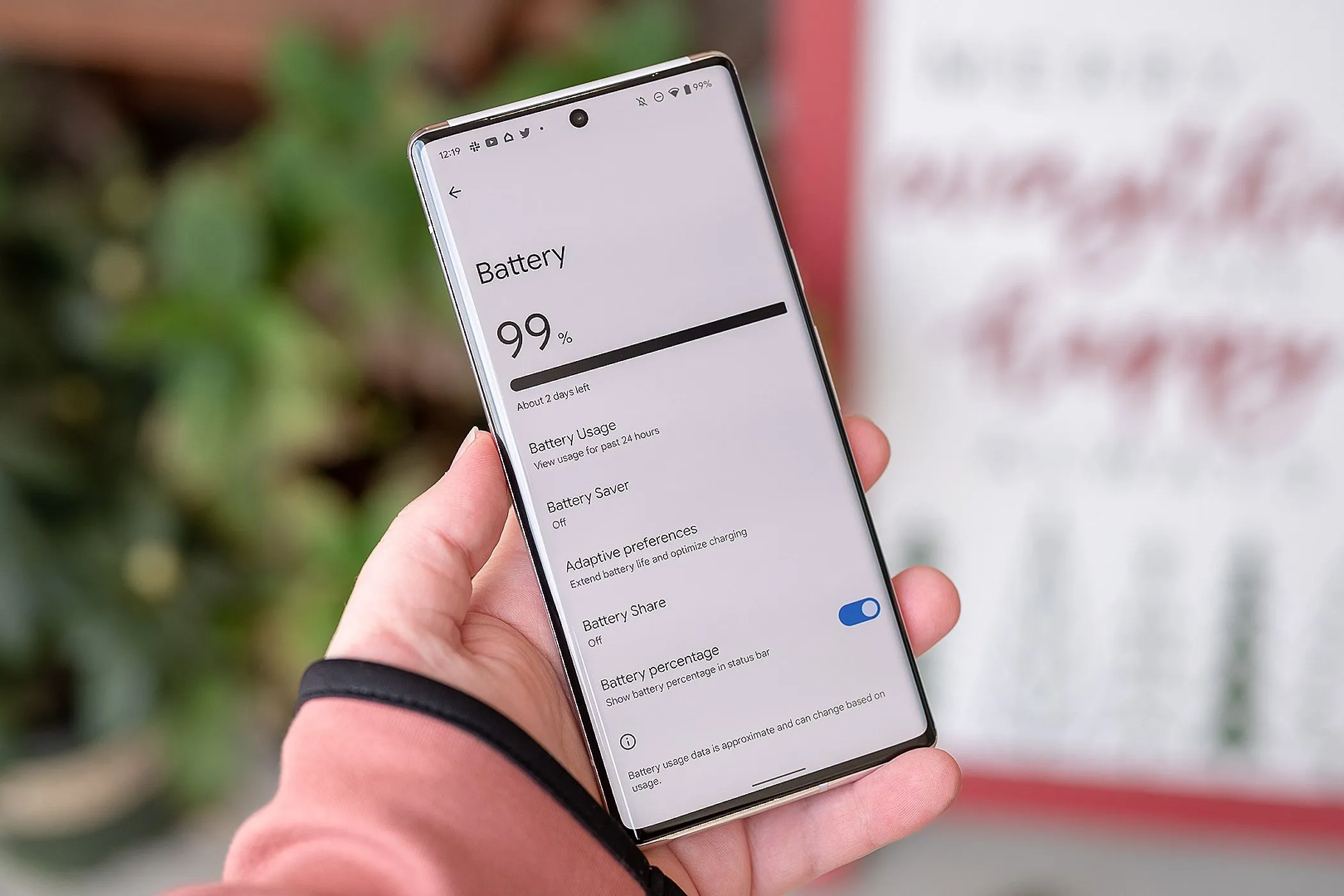
    Pulling down to reach the quick controls for phones running a vanilla Android experience, such as Pixel or Motorola smartphones, will display a list of apps that are now active. Here, you can see how long each background program has been running and use a simple press to end it. By going to Settings > Battery > Battery Usage, you can also see how much battery your apps have been using. Keep in mind that the manufacturer and model of your phone will have a minor impact on the precise menu titles.

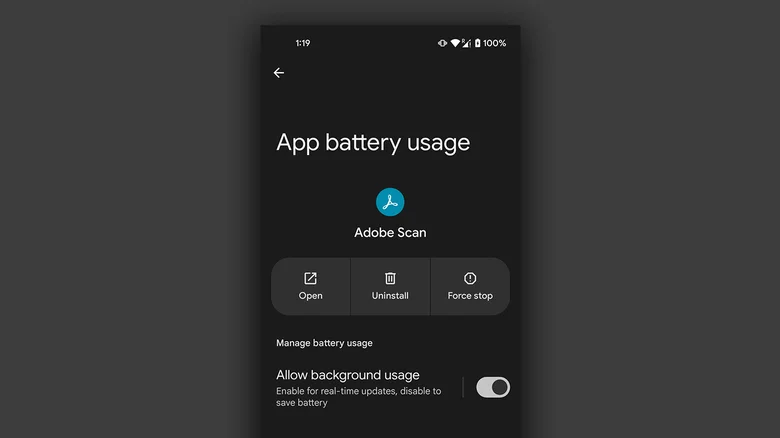
    On Android, you can manually disable an app’s background usage if you discover that it has been using excessive amounts of battery power even when it is not in use.

    • On your Android phone, launch the Settings app.
    • Navigate to Apps > See all apps, and select the one that has been draining your phone’s battery.
    • Tap on “App battery usage” and uncheck the “Allow background usage” toggle.

    Note that certain services like messaging apps require background activity to function properly and send you notifications in real time.

    Managing background apps on iOS

    managing background apps on ios 1754413851

    When it comes to power management and app speed, iPhones have generally improved over time, but malicious actors may still consume excessive resources in the background. Although iOS does not alert users when an app is using more battery than is necessary, it does include safeguards against this. This is in contrast to Android.

    The “open app to finish upload” prompt may occasionally appear on iOS due to the substantially stricter operation of background services. To see how much battery life your iPhone or iPad has used, go to Settings > Battery and scroll down to see a list of the apps that have used up the most in the last 24 hours. Additionally, you can see how long an app has been running in the background and how well your iPhone’s battery is doing.

    If you find a culprit that has been draining way more juice than it needs to, chances are that it has been consuming a lot of resources in the background.

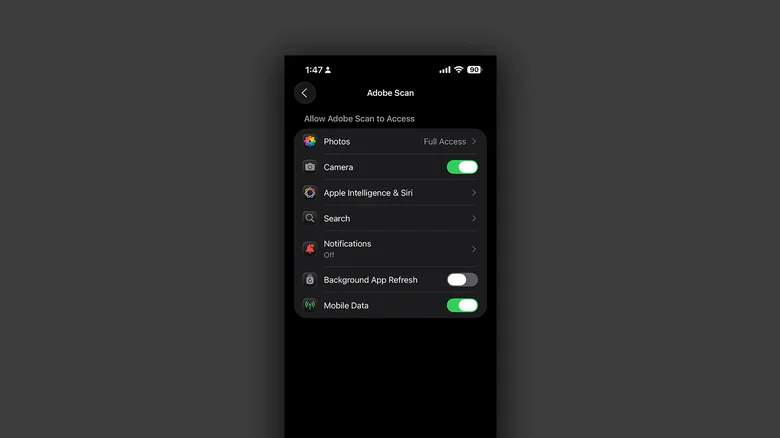
    • On your iPhone, launch the Settings app.
    • Navigate to Apps and select the one that has been causing you battery issues.
    • Tap the “Background App Refresh” toggle to turn it off.

    Once more, this will prevent the app from updating data in the background, which is undesirable if you rely significantly on real-time updates from a service, such as location sharing or navigation.

  • 2 ways to check your battery health on any Android phone

    2 ways to check your battery health on any Android phone

    It’s likely that you carry an Android phone in your pocket if you’re not using an iPhone. Google’s mobile operating system, Android, powers a variety of phones, including the Google Pixel and Samsung Galaxy. The lithium-ion battery is a feature shared by almost all Android phones. Only when these batteries are in good health can they be strong and effective. Your phone may start to drain more quickly, take longer to charge, or even shut down without warning as it ages or wears out. Because of this, monitoring the condition of your battery is more crucial than you may imagine.

    You can check the condition of your Android phone’s battery in two major ways. You can access your phone’s diagnostics by dialing a code. But not every phone can use this dial code. You can also utilize a third-party or internal app, such as Samsung’s Members app, to keep an eye on the condition of your phone’s battery.

    Using a dial code to check the battery health

    A dial code is a string of characters and digits that you enter as though you were making a phone call. You can access an automated system that gives you a summary of your phone’s diagnostics by dialing a code on compatible phones. This will cover the temperature and condition of the battery.

    Enter ##4636## on the dial screen of your phone. After that, access your battery health diagnostics by navigating through the menu. In the menu, this is typically called Battery Information. Depending on the phone kind you own, the options could change.

    Regretfully, not all Android smartphones are compatible with this code. Some are in favor of it, while others are not. You can determine whether the model of your phone supports this dial code in advance if you still have the manual or can get it online. However, just dialing it and seeing what happens might be quicker.

    Using an app to check the battery health

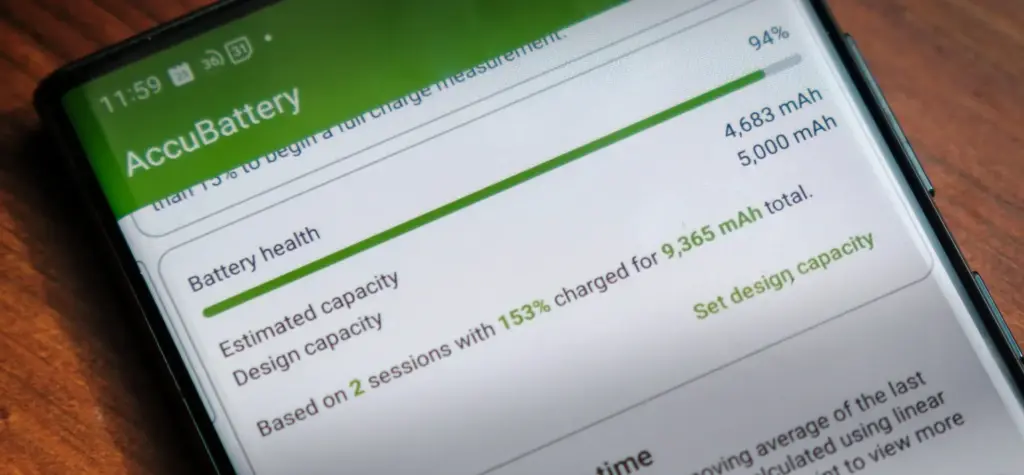
    AccuBattery Battery Health App e1754229139525

    To check the health of the battery, several Android phones offer a personal app option. The Samsung Members app is available from Samsung. You navigate to Support and then Phone Diagnostics using that app. From there, you can test the phone’s battery and other systems.

    acubattery battery logo

    Accu​Battery

    Accu​Battery displays battery usage information, and measures battery capacity (mAh) based on science.

    Another option is to use a third-party app, such as AccuBattery. AccuBattery can be downloaded from the Google Play Store. To demonstrate how well the battery is charging, it has a health monitor. Additionally, it offers up-to-date information about the battery life of your phone. This can help you maximize the battery’s performance and extend its lifespan.

    Maintaining the health of your Android’s battery is essential to its long-term functionality. The dial code is a fast way to check the battery, but not all phones can use it. By downloading an app, you can keep an eye on the condition of your battery and receive real-time reports to improve battery performance. With these resources at your disposal, you can properly care for your phone.

  • Get almost 60% off for the Galaxy Watch 6 Classic LTE

    Get almost 60% off for the Galaxy Watch 6 Classic LTE

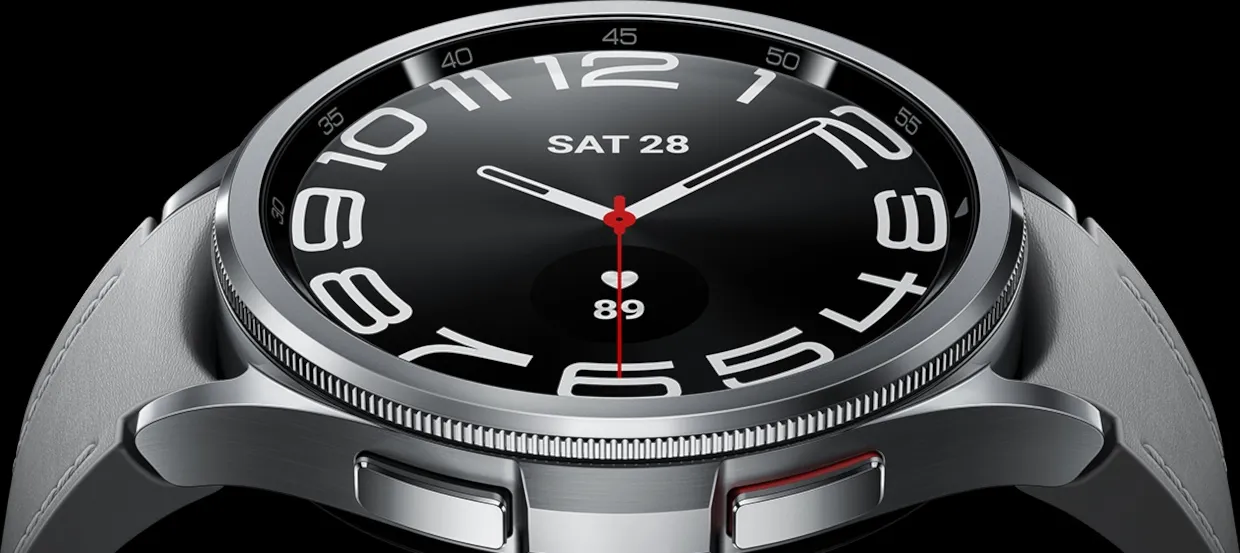
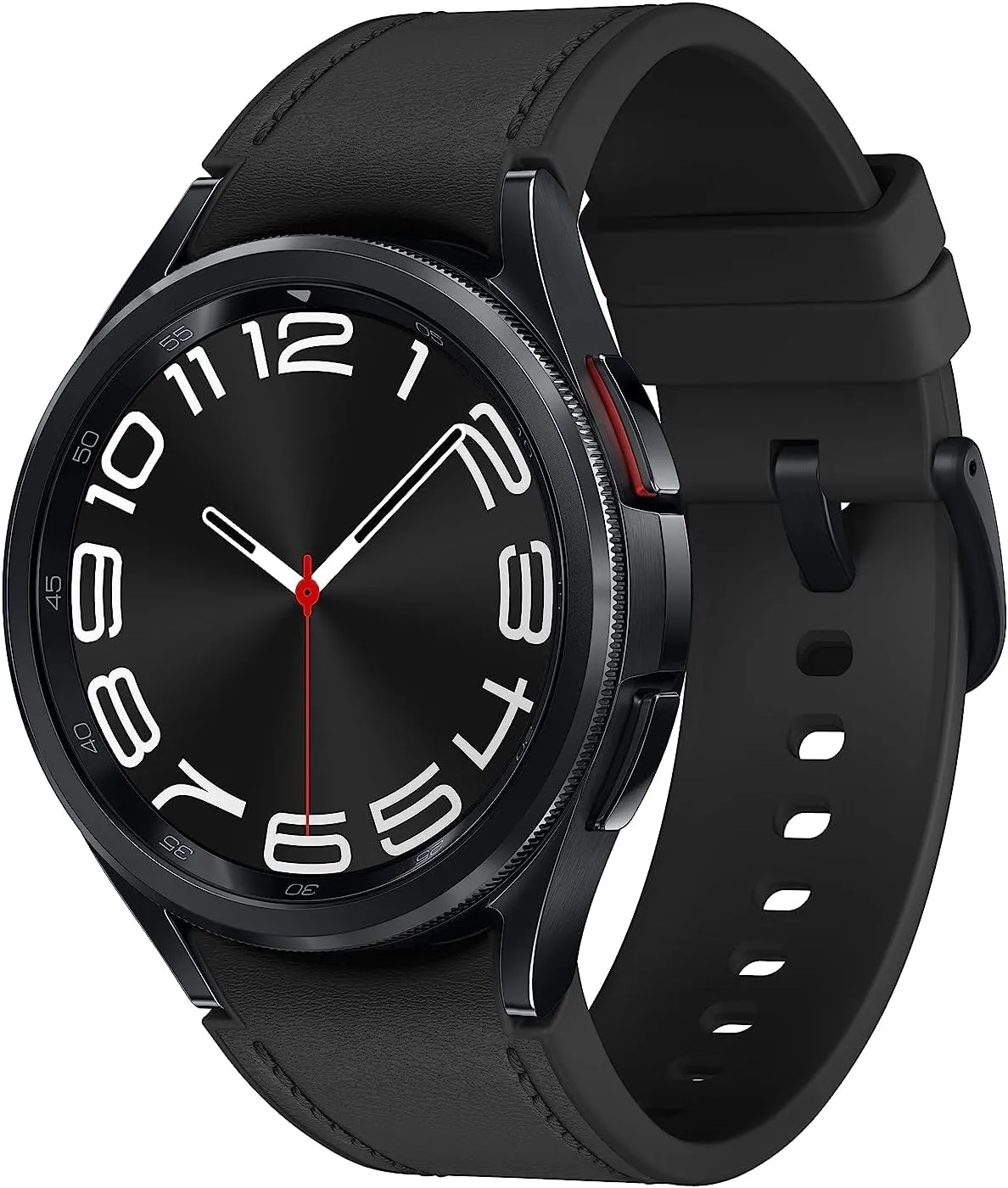
    The Pixel Watch 2 for Android users is the primary competitor of the Samsung Galaxy Watch 6, which debuted in 2023 with excellent specifications and features. By 2025, both of these smartwatches – made by Samsung and Google, respectively—remain viable choices for users in those ecosystems. If you’re searching for a good price on a reliable wristwatch and you use Samsung or Android, the Galaxy Watch 6 Classic is now only $180.99 (was $449.99) thanks to an almost 60% reduction from Best Buy. For comparison, the current price of this model on Amazon is $329.99.

    The 1.3-inch, 2,000-nit brilliant AMOLED screen of the Watch 6 features a digital bezel that allows for fast menu navigation. Best Buy also offers the larger 47mm screen with LTE for $240.99 (was $479.99) if that’s what you’re looking for.

    watch6classic 16

    All of the newest Wear OS features are available to you if you have an Android smartwatch. The Watch 6 has a number of unique functions, such as a temperature sensor, heart rate monitor, blood oxygen monitor, GPS tracking, and an accelerometer for measuring speed. Whether or whether your Android phone is within Bluetooth range, the Galaxy Watch 6 also lets you make and receive calls from it.

    galaxy watch 6 classic lte

    Samsung Galaxy Watch 6

    Galaxy Watch6 Classic features a timeless, iconic look and a bezel that just clicks with your style; It not only looks great, but it also rotates to give you easy access to all your apps

    $449.99$180.99Best Buy

    The Galaxy Watch 6 is “outstanding,” according to PCMag, which also named it the top 2023 wristwatch that works with Android. Yes, that was nearly two years ago, but for the price, Samsung customers still have a good choice. The main drawback will be the battery’s short lifespan of 22 hours, depending on usage.

    The Galaxy Watch 6 Classic is a cost-effective way to monitor your body composition, calendar, daily activities, heart rate, sleep, stress, weather, and exercises. Even though it was only released this month, the Galaxy Watch 8 is also on sale right now if you want the newest model.

  • Does fully charging your Android device damage the battery?

    Does fully charging your Android device damage the battery?

    Although charging your Android phone to 100% seems like a sensible approach to make sure it lasts you the entire day, doing so may be harming your phone over time. This is due to the fact that lithium-ion batteries, which power the majority of Android smartphones, deteriorate with time. Because your phone battery is always maintained at a high voltage, charging it to full can hasten its chemical aging. Compared to charging your battery to a smaller level, like 90%, this can gradually degrade its capacity by 10-15% more quickly.

    Thus, you may eventually have a reduced battery life and require a replacement sooner if you’re always charging to 100%.Fortunately, you can preserve the best possible battery health by changing the way you charge your devices.

    However, the majority of modern phones have excellent battery life, so occasionally using a full charge is unlikely to cause any issues. Therefore, topping up to 100% is not an issue if you have a very busy day or if you require a constant supply of movies and music to keep you from becoming bored while traveling.

    It can decrease the overall capacity

    an android with a dead battery c

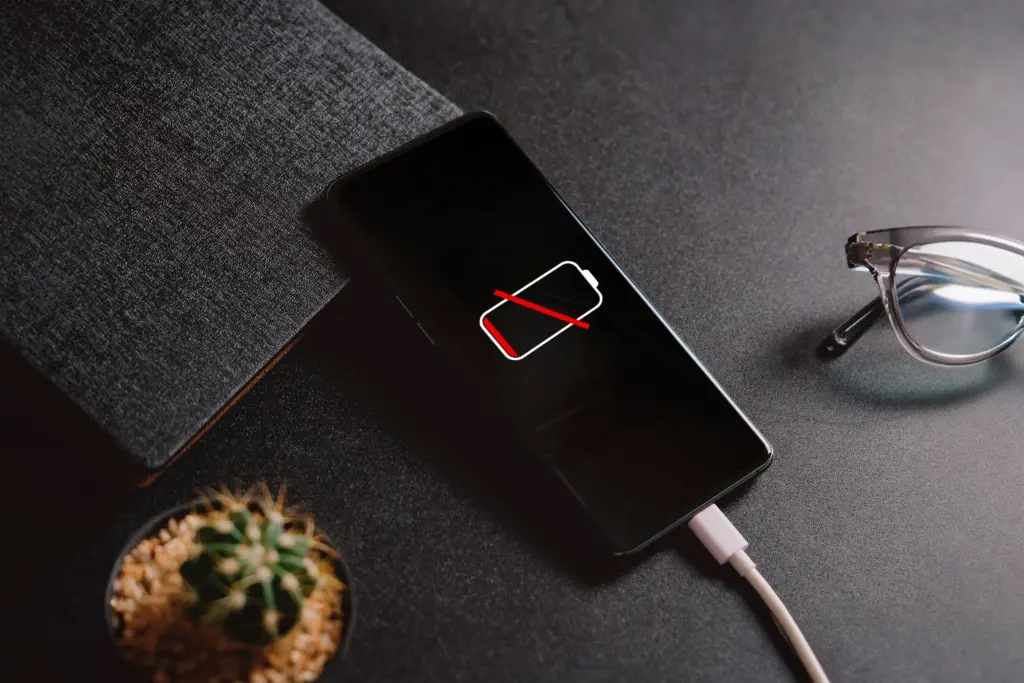
    To keep your Android phone in top condition, top manufacturers recommend that you keep it charged above 50% most of the time. The life of your phone can be shortened by repeatedly letting it run completely dead, but it can also be shortened by always charging it to 100%. Therefore, until batteries that hardly degrade become commonplace, the sweet spot is to maintain your battery charged between 50 and 80% whenever possible.

    The good news is that majority of modern smartphones come equipped with functions that optimize battery health. For example, several Samsung models come with the “Protect battery” feature, which automatically sets the charging limit at 85%. Similar to this, “Charging optimization” on a lot of Google Pixel phones can be adjusted to limit charging to 80%. By cutting down on the amount of time spent at full charge, these features aid in reducing battery wear.

    Another element that affects battery health is extremely high or low temperatures. The battery of your phone will deteriorate more quickly if you often use it in extremely hot or cold temperatures. For the same reason, many Android phones include the really handy option of quick charging, which over time may harm battery health because of the increased heat generation.

    Extreme temperatures – both hot and cold – can actually be worse for battery health than fully charged. The ideal range of outside temperatures to preserve the battery life of your phone is 32 to 95 degrees Fahrenheit (or 0 to 35 degrees Celsius).

    A good solution

    Developing more intelligent charging practices, such as maintaining the battery at its ideal temperature and range, can significantly extend the life of your Android phone’s battery.Additionally, utilize certified or original chargers for your phone. Although third-party or generic ones could be less expensive, they run the danger of damaging voltage fluctuations or overheating your battery.

    You can get more battery life during the day by making a few minor adjustments if you’re seeing that your battery isn’t lasting as long. For example, you may extend the life of your phone’s battery by lowering the screen brightness, using dark mode, and shutting off Bluetooth and location services when not in use.When your phone’s battery is low and you don’t have access to a charger, you can temporarily activate the battery saving feature on many phones to reduce background tasks.

    It’s a good idea to update your apps to the most recent versions to prevent problems like a certain program draining your battery life.You can check the general health of your phone’s battery and see which apps use the most juice by opening the settings.

    battery life
  • How to fix Xiaomi battery drain after HyperOS update

    How to fix Xiaomi battery drain after HyperOS update

    Many users of Xiaomi devices have complained of a notable decline in battery performance after major HyperOS updates. This problem has affected productivity for professionals who depend on their smartphones for work throughout the day. These abrupt variations in power usage can be unpleasant and uncomfortable, especially for corporate activities that rely on reliable devices. Thankfully, there are practical measures you can take to lessen these problems and extend the battery life of your device.

    hyperos screen

    Restart the device to complete optimization

    Xiaomi devices frequently carry out a number of background operations following major updates, like reindexing apps and rebuilding caches, which can momentarily raise battery consumption. Usually, these procedures take between thirty and an hour to do. You should restart your device 15 to 30 minutes after the update is finished to speed up system stabilization. This can aid in your device’s more effective adaptation to the new software environment by renewing the optimization cycle.

    Remove bloatware applications

    debloat remove bloatware hyperos

    New, pre-installed apps that operate in the background and can cause significant battery drain are frequently introduced by updates. It’s crucial for business users to periodically check their device’s app list and disable or delete any apps that aren’t directly necessary. There are a number of monitoring solutions on the Play Store that offer real-time data if you need to determine which apps are using the most resources.

    Roll back to a stable version

    Reverting to an earlier, stable software version might be the best course of action when a particular upgrade is associated with widespread battery drain problems. Depending on your Xiaomi model, the rewind procedure can differ greatly, thus it’s important to review official documentation or knowledgeable community members before moving forward. By taking this precaution, data loss and gadget malfunction can be avoided.

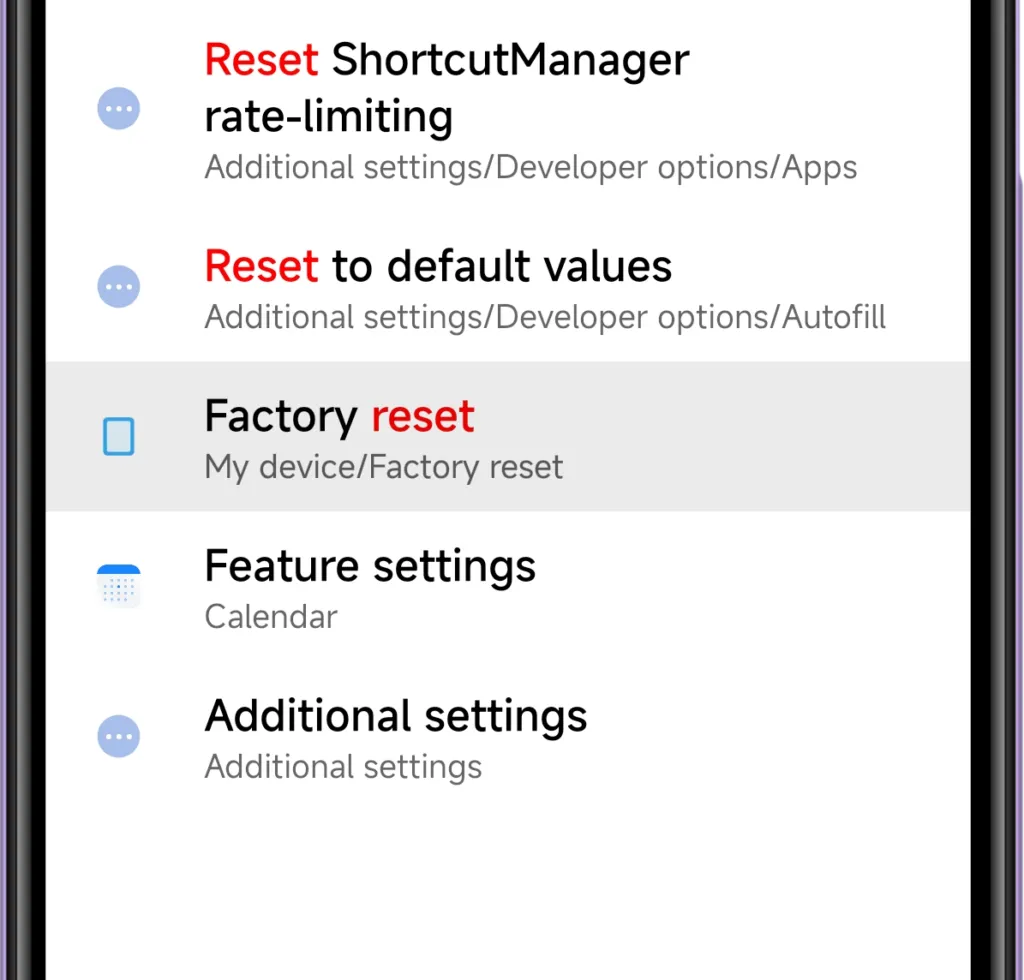
    Device reset

    factory reset hyperos

    A complete system reset might be required if battery problems continue after trying alternative fixes. Conflicts between new features and residual data from previous software versions can occasionally lead to persistent issues with power consumption. Since a reset will remove all personal data and return to factory settings, make sure all crucial business data, including contacts, documents, and messages, are safely backed up before starting the procedure.

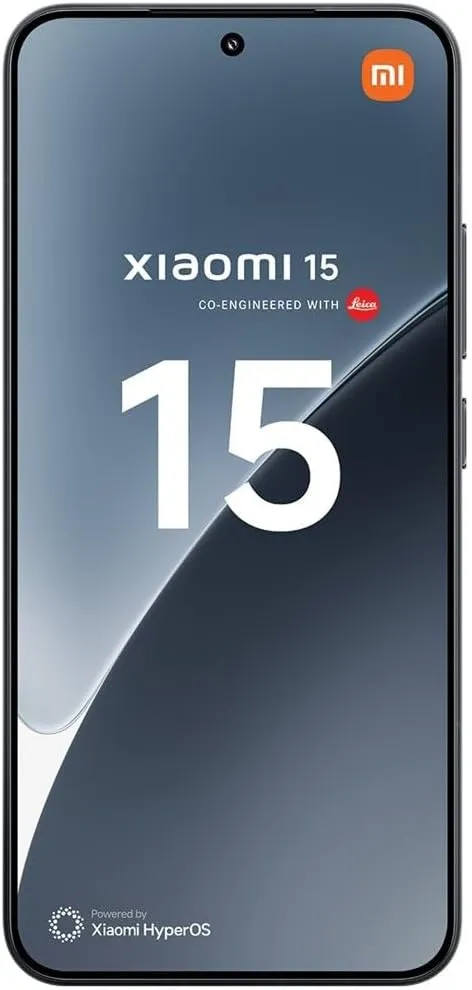
    Xiaomi 15

    Xiaomi 15 5G

    International Model Dual SIM eica Summilux optical lensLEICA VARIO-SUMMILUX 6.36″ 3200 nits ultra-bright displayCrystalRes AMOLED Snapdragon 8 Elite Mobile Platform 3nm Ultrasonic in-screen fingerprint sensor 32MP in-display selfie camera

    999.00$942.50Amazon

    Stay connected with the latest from Droid Tools—follow us on X @droid_tools, like our page on Facebook, check out our updates on Instagram, and follow us on Google News for real-time news, device tips, and mobile tech insights.

  • Most common smartphone charging myths debugged

    Most common smartphone charging myths debugged

    Android smartphones nowadays are available in a wide variety of sizes, styles, and form factors. There is a large market with many possibilities for foldable phones in addition to the traditional slab flagship smartphones and all-around mid-range smartphones.

    However, battery life has always been a problem for all Android users, regardless of the device they use. The majority of Android users are concerned about how long their phone will last between charges. Many people adopt practices based more on misconceptions than facts in an effort to maintain battery health.

    Although many old pieces of advise still exist, Android phones have become much more intelligent. Here are some typical fallacies about charging that people still hold onto, along with the actual facts.

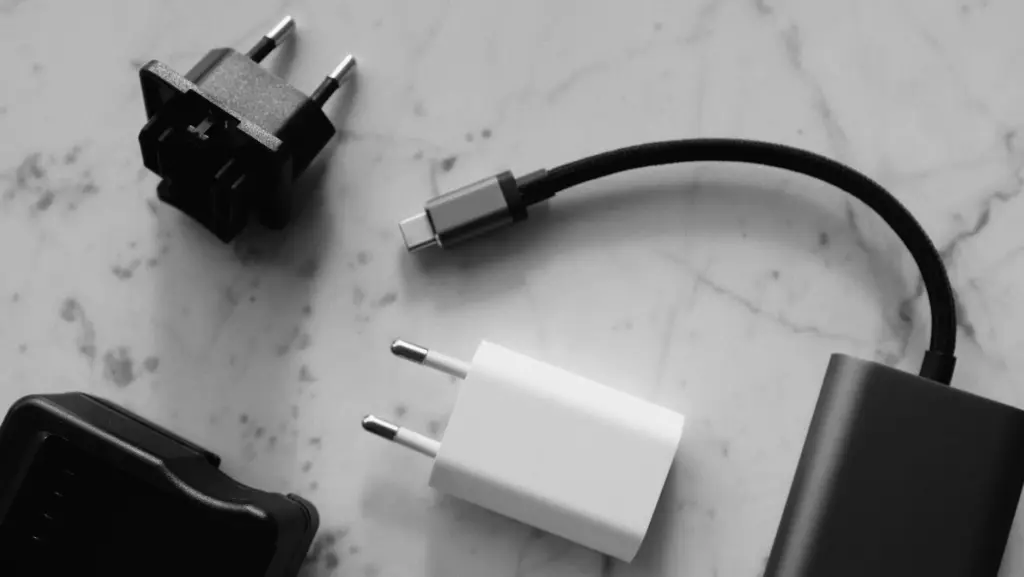
    Only the original charger for your phone brand should be used.

    charging smartphone

    The majority of smartphone manufacturers have followed Apple’s example and ceased included a charger in the box since the release of the iPhone 12 in 2020. Additionally, they frequently encourage you to purchase their official charger, which is typically more expensive than alternatives found on Amazon or Best Buy. However, that isn’t the complete story.

    For a quick and safe charge, you don’t have to use the same brand of charger. In addition to meeting all safety and charging requirements, certified third-party chargers from companies like Anker, Belkin, Spigen, and UGreen are less expensive than those offered by phone OEMs.

    Additionally, the majority of these brands’ chargers support the majority of fast charging protocols, including USB-PD, PPS, and Quick Charge. It’s likely that a decent third-party charger will function perfectly unless your handset uses extremely specialized proprietary charging technology, like as Xiaomi’s HyperCharge or OnePlus’ SuperVOOC.

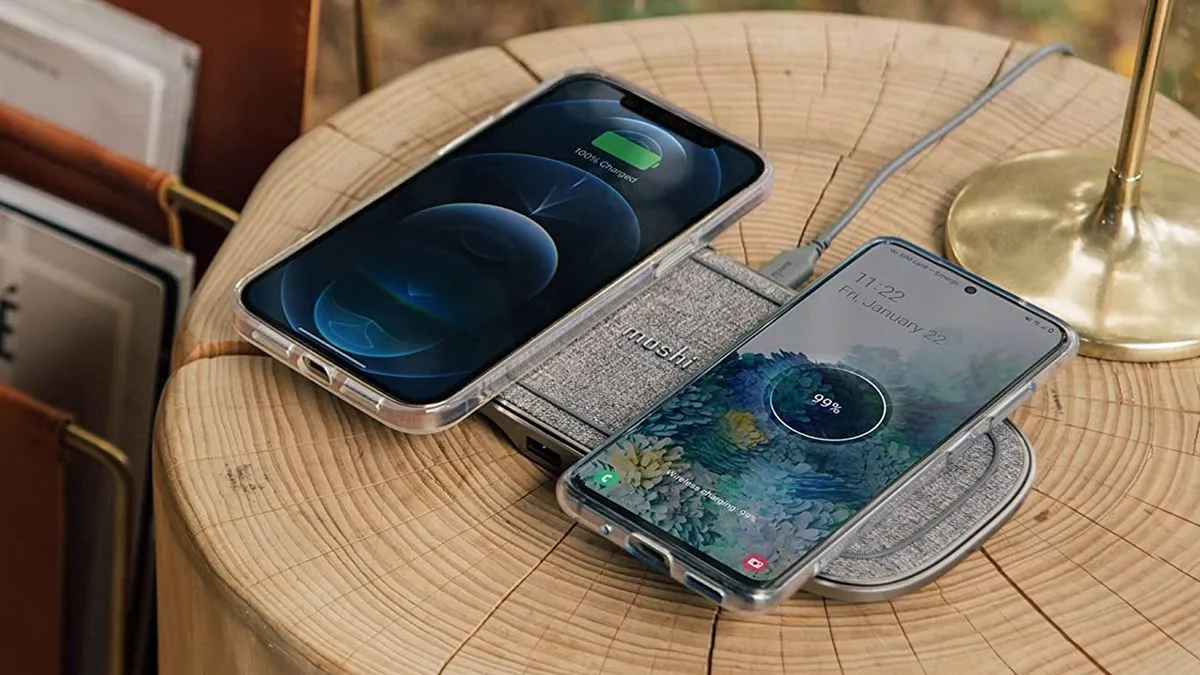
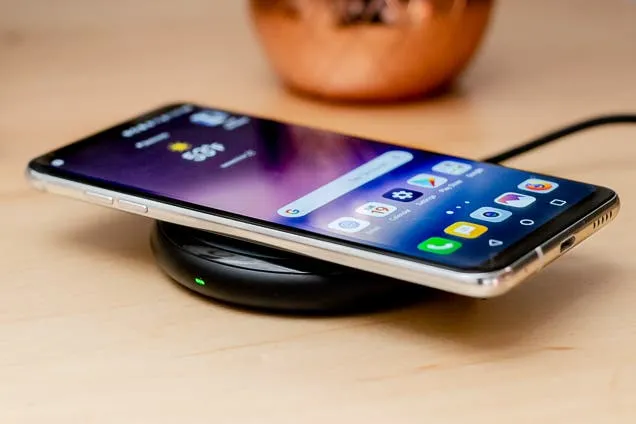
    Wireless charging is incredibly effective and safe.

    wireless charging android

    Wireless charging is now supported by the majority of Android flagship handsets, and although it’s a handy feature, it’s not necessarily the best option for battery health. Compared to wired charging, wireless charging produces more heat. Your battery may lose some of its original charge over time due to the accelerated degradation caused by excessive heat.

    Therefore, try to avoid using wireless charging on a regular basis. Although it’s acceptable on occasion, if you would rather use a Qi-certified charger on a regular basis, take into account wireless chargers with integrated fans or temperature control, as these features aid in lowering heat production. Despite this, cable charging is still one of the greatest choices (and it’s typically faster, too).

    Your phone’s battery will die if you leave it plugged in all night.

    The idea that leaving cellphones plugged in overnight will “overcharge” the battery, damage it, and accelerate its depletion is one of the most widespread misconceptions regarding charging. However, that is untrue. These days, Android devices are intelligent enough to charge overnight without causing battery damage.

    myth - Your phone's battery will die if you leave it plugged in all night.

    Nowadays, the majority of phones have intelligent battery optimizations that learn your usage and cut off charging when the battery reaches 80%. These optimizations are frequently AI-enabled. To reduce battery stress, the last 20% is charged right before you usually disconnect your phone.

    However, charging to 100% on a regular basis is also not recommended. When left fully charged for extended periods of time, lithium-ion batteries—found in phones like the Google Pixel 9 Pro and Samsung Galaxy S25 Ultra—degrade more quickly. Setting a charge restriction, such as stopping at 80%, is a better long-term habit if your phone allows it.

    It’s not good to charge your phone several times a day.

    It's not good to charge your phone several times a day.

    Another widespread misconception is that you should only charge your phone when battery reaches 0% and that charging it more than once a day is detrimental. However, that is untrue. Frequently charging lithium-ion batteries is not a problem for them. Actually, tapping 0% repeatedly may cause more damage than good to these cells.

    For the optimum battery health, you should try to keep your phone within the 20% to 80% range, as this is where lithium-ion batteries are meant to operate. Charging your phone in short bursts throughout the day is less stressful on the battery than completely draining it to nothing.

    Every phone is compatible with every fast charger.

    fast charging

    Fast charging is supported by almost all Android devices nowadays, although it is unrealistic to expect all fast chargers to function in the same manner. The charger you’re using might not function as intended because the majority of Android OEMs utilize different fast charging protocols. There are numerous rapid charging protocols, such as USB-PD, PPS, and OnePlus’s proprietary SuperVOOC.

    An incompatible fast charger won’t harm your phone’s port, but it probably won’t provide rapid charging. Using the correct charger will charge your phone as intended. You won’t receive the speed you’re hoping for if you don’t check your phone’s supported charging protocol before purchasing a new charger.

    Did you knew all these?

    Overall, we still hold onto several widespread myths about charging gadgets, many of which date back to the 2000s. However, cellphones have advanced significantly over time, and thanks to a number of clever features, they can now control charging more effectively.

    Beyond being aware of these facts, you can really extend the battery life of your phone by incorporating a few simple tips into your daily routine.

    Stay connected with the latest from Droid Tools—follow us on X @droid_tools, like our page on Facebook, check out our updates on Instagram, and follow us on Google News for real-time news, device tips, and mobile tech insights.