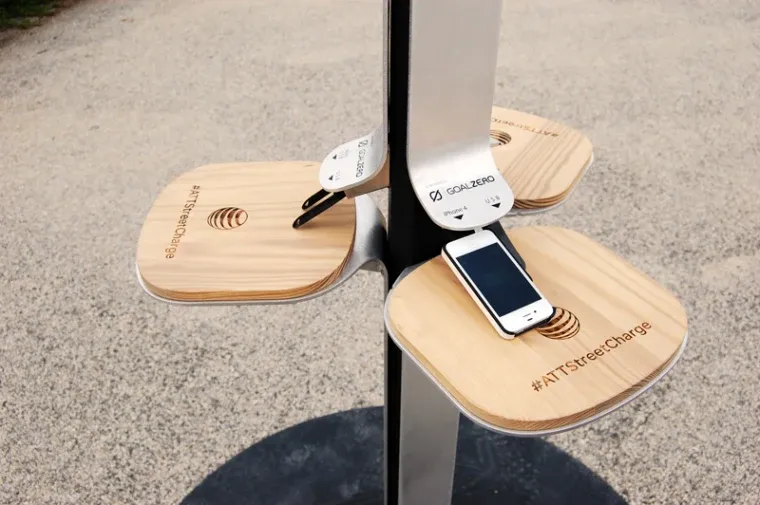
The FBI has issued a warning on public charges that may be found in malls, airports, and other places and requests that nobody make use of them. When traveling or doing other things, it’s a good idea to utilize your own portable charger or power bank since you’re not confined to one place.
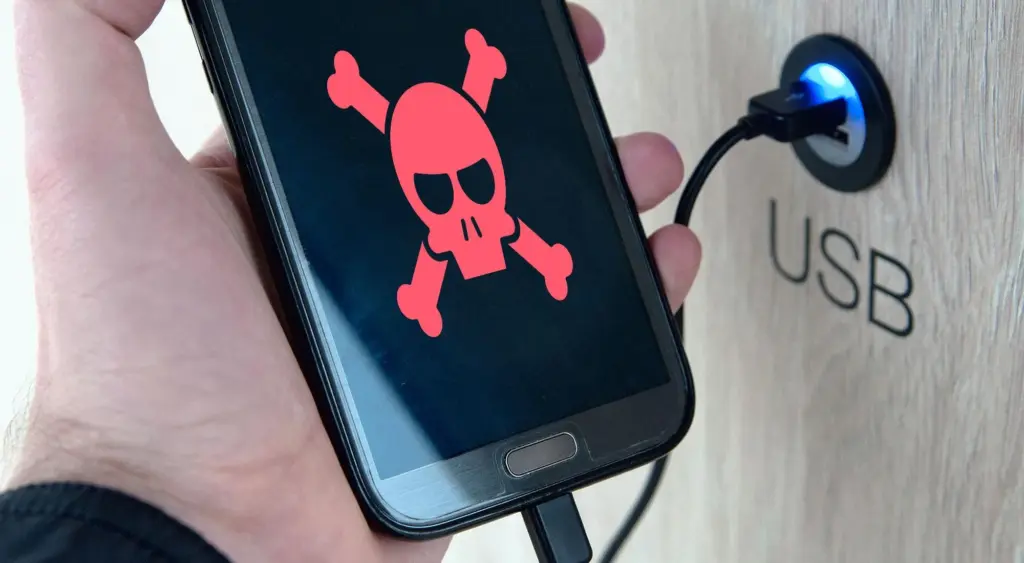
The FBI claims that criminals have discovered a way to use USB connections available in these places to install malware and monitoring software onto devices. and advises everyone to use an electrical outlet instead and bring their own charger and USB wire.
Juice jacking is the term used to describe this practice. This is how malicious software can be added to public charging stations by hackers. It gives them the ability to view, steal, and even track the data from your mobile devices. Regrettably, iOS devices are not immune to juice jacking; Android smartphones are more likely to be affected.
So how can juice jacking be prevented? The simplest solution is to always travel with your own USB cord and charger. For this reason, we advise getting a battery pack for your gadget. There are numerous solutions available for this as well.
This can be avoided
The simplest method is to use a battery pack. Since you are not required to remain confined to one outlet, you can carry it in your pocket and wander around the mall, airport, or anywhere else. Also, it functions when you need to charge your phone but are not in certain areas.
Although this is quite frightening, it is quite simple to avoid. It’s difficult to use one of those USB ports when you’re at the airport because they’re normally all occupied. But right now, you need to steer clear of them.
Let’s have a look at some of the free apps and games on the Google Play Store. Now keep in mind that these apps typically have a price tag but are only free for a short period of time. This article will notify you of the special offers for paid apps that are completely free!
Please be aware that although these apps are advertised as being free at the time of publication, we are unable to predict when these offers will finish, so they may become paid by the time you read this post or attempt to download them. This is problematic because there is no predetermined duration for app promotions on the Google Play Store, and offers may end just as fast as they were placed without any warning.
If you come across an app or game on our list that piques your interest but you don’t need it right now, consider installing it and then deleting it from your device. This will save it to your app library, allowing you to install it again in the future when you need it. It’s a great way to take full advantage of short-lived promotions.
Android apps available for free for a limited time
Android apps for productivity and lifestyle
QR & Barcode Scanner Pro[4.8-stars / $1.99]: A separate app for those who do not want to settle for their stock QR and barcode scanner on their smartphones.
Speed View GPS Pro[4.9-stars / $1.49]: Track your speed, distance, time, location, and other metrics when you travel.
Electron Config Engine[4.4-stars / $2.49]: This is a good companion to have if you are learning chemistry.
Android games
Demon Warrior Premium[4.3-stars / $0.99]: Here is an anti-hero game, where you are in the race to be the best demon possible.
Burning Fortress 2[4.1-stars / $0.99]: Do you have what it takes to keep your fortress safe and sound from incoming enemies?
Rogue Hearts[4.1-stars / $0.99]: An isometric dungeon crawler that sees you survive using your gear, abilities, and wits.
Surface Trimino[4.1-stars / $0.99]: Your goal is to gain as much of the board’s surface as possible.
Monkey Go Happy[4.7-stars / $0.99]: Over 75 puzzles to solve, where you monkey around.
Missile Dude[4.7-stars / $1.99]: The more you progress, the bigger and more destructive your weapons get.
All apps on Google’s platform will be impacted by a new requirement that is being added to the Play Store. The goal of this new requirement is to provide people more control and privacy over their data.
All Google Play Store applications that currently support account creation will soon be required to support account deletion as well. The tech behemoth blogged about the new rule modification.
For apps that enable app account creation, developers will soon need to provide an option to initiate account and data deletion from within the app and online. This web requirement, which you will link in your Data safety form, is especially important so that a user can request account and data deletion without having to reinstall an app.
As the company mentions, the Data safety section in the Play Store already lets developers provide data deletion options. However, this move is meant to give users “an easier and more consistent way to request them.”
The developer will now have to remove the data connected to that account if you ask for your data to be erased. Hence, temporary account deactivation or deactivating will not be sufficient to comply with the new guideline. Developers must “clearly disclose those data retention procedures” if they need to retain data for justifiable purposes like fraud prevention or legal compliance.
It appears that the rule change won’t go into effect immediately, however. To give developers enough time to comply with the order, Google is rolling out the policy slowly.
As a first step, we’re asking developers to submit answers to new Data deletion questions in your app’s Data Safety form by December 7. Early next year, Google Play users will begin to see reflected changes in your app’s store listing, including the refreshed data deletion badge in the Data safety section and the new Data deletion area.
The company also notes that developers who need more time can file for an extension in Play Console until May 31, 2024.
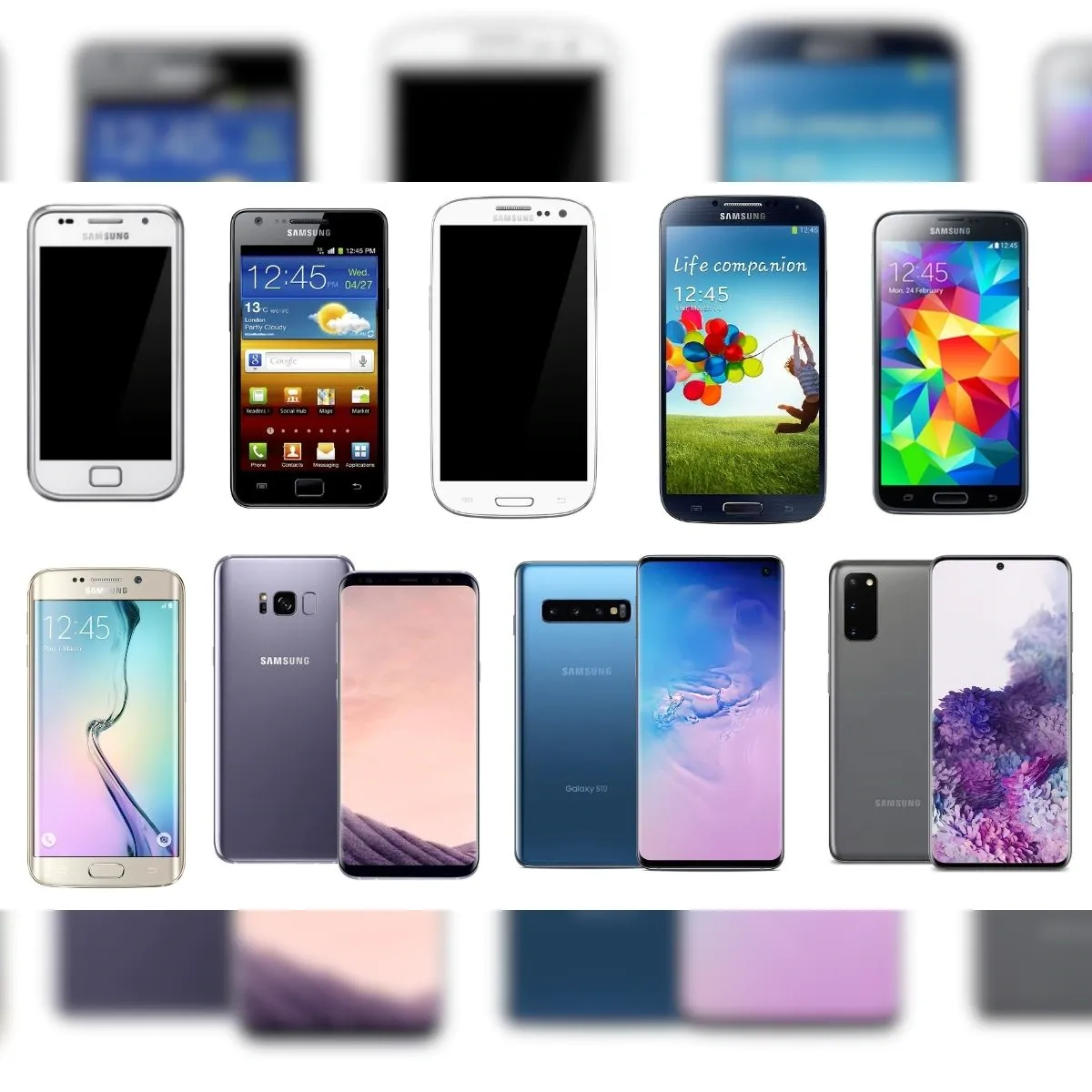
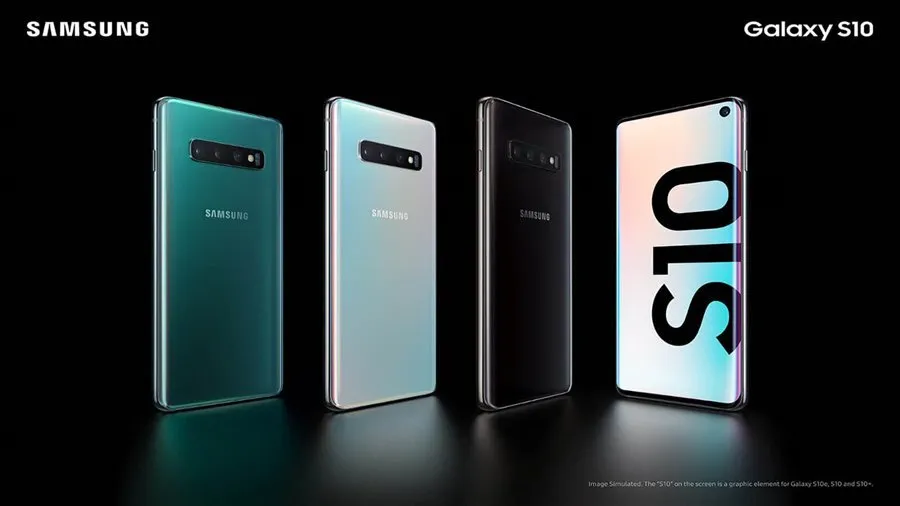
The Samsung S10 series has run out of options. Together with a few other 2019 products, Samsung has discontinued the S10 series.
Samsung has removed several of its older handsets from its public security update page, as 9to5Google has discovered. The Galaxy S10 series, Galaxy A30, and Galaxy A50 were among the gadgets taken out. The Galaxy S10 5G and Galaxy S10 Lite, on the other hand, have not been dropped. They haven’t been discontinued because those devices came out later, which is why.
This development happens as Samsung starts to put its new update strategy into practice. The business declared last year that it would extend its policy by a year, offering its phones five years of security upgrades and four years of significant OS changes. Nevertheless, the Galaxy S21 series and later were the only models covered by this regulation, leaving older models out.
The security update from March 2023 was the last one that the Galaxy S10 and other discontinued phones were supposed to receive. This update just recently went live. This upgrade is crucial following the disclosure of a serious vulnerability in Samsung’s Exynos chip by Google’s Project Zero team. The Galaxy S10 series was not, however, mentioned as being impacted by this issue.
Along with this information, it appears that the Galaxy Z Flip is no longer receiving monthly upgrades. It now only receives updates once every three months.
Let’s start this brand-new week off by compiling a list of apps from the Google Play Store that are only accessible for a short period of time. You can find special offers for paid apps on this page without spending a dime.
Please be aware that although these apps are currently free, they may become paid by the time you read this post or attempt to download them because we are unsure of when these offers will expire. Because there is no predetermined duration for app promotions on the Google Play Store, bargains may be pulled just as quickly as they were published, which is terrible.
Here’s a good tip: If you see an app or game on our list that interests you but isn’t currently necessary, think about installing it and then removing it from your smartphone. This will add it to your app library so you may install it again whenever you need it in the future. It’s a fantastic technique to fully benefit from transient promotions.
Android apps for productivity and lifestyle
Pro MP3 Player QAMP[4.5-stars / $1.19]: Another versatile MP3 player just in case you want to spruce up your options.
Flashcards Club[3.9-stars / $3.99]: Create flashcards on the move with this app for easy teaching and learning.
500X Game Booster Pro[4.2-stars / $0.49]: Do you think your smartphone has what it takes to work to its maximum? Perhaps this app will be able to help you push out every single drop of performance.
Android games
Peppa Pig: Theme Park[3.9-stars / $3.99]: Let Peppa Pig keep your little ones entertained at a nearby theme park.
Concrete Defense 1940[4.0-stars / $0.99]: A tower defense title that takes place during World War II, so expect to see some old-school weaponry in action.
Shadow Knight: Ninja Fighting[4.4-stars / $0.99]: Do you want to earn the Shadow Legends title? Fight your way through hordes of enemies.
Defense Zone 3 Ultra HD[4.7-stars / $2.99]: Tower defense never looked so good on Android with this futuristic-looking title.
The Enchanted Worlds[4.4-stars / $2.99]: Find out uncle Henry’s secrets in this unique puzzle adventure title.
Angular Velocity Full[4.3-stars / $0.99]: In a physics-based world, the grappling hook is your only means of getting around. Will you swing correctly?
Whether you’re switching from an iPhone or an Android device, Google has improved data transfers from old smartphones to new ones for years. The information is mainly restricted to contact information, user account information, and default settings. As a result, third-party apps are no longer supported and require configuration. Thankfully, Xiaomi and Oppo have now made this possible on Android.
Certain iOS and Android apps currently allow for the movement of third-party data, but doing so necessitates synchronizing your account and putting the necessary data in the cloud. However, there are additional processes like downloading the appropriate apps and entering your security information again on a new phone. Several of these laborious processes are being eliminated by the most recent Chinese OEM program.
Third-party data transfer on Android
The three Android device makers, including Vivo, declared that they would simplify data switching and migration between their products, beginning in China. Incidentally, upon starting a transfer, data from third-party Android apps, such as recorded chat messages, will also be moved.
It was not stated which specific smartphones from these companies will be compatible or if there are plans to expand the availability of this feature to further nations and areas. To be safe, it might also only be available for the most recent models that make use of more advanced communication technologies like UWB (ultra wideband) or Bluetooth LE, on which Google’s Quick Pair is built.
It’s also unknown whether Google will later, maybe with Android 14, introduce a comparable feature to Android. Also, the feature appears to have been developed jointly by the three Chinese firms, so the search engine giant will probably need to contact other significant producers like Samsung to make it possible for a larger acceptance rate.
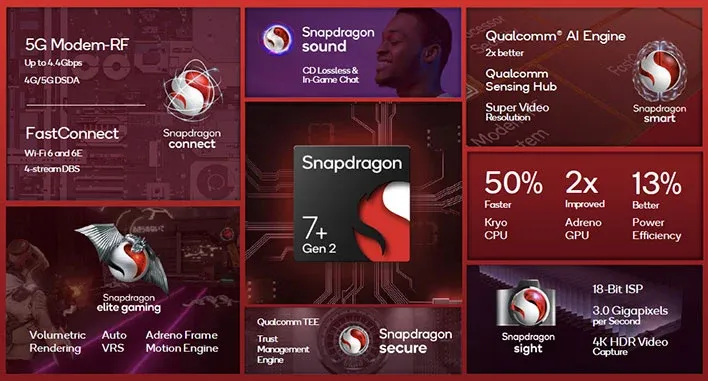
This week, Qualcomm unveiled the Snapdragon 7 Plus Gen 2, which is obviously a significant improvement over the mid-range Snapdragon 7 series on paper.
A single Cortex-X2 core running at 2.91 GHz, three Cortex-A710 cores running at 2.49 GHz, and four Cortex-A510 cores operating at 1.8 GHz make up the new chipset’s amazing CPU system, which is reminiscent of the Snapdragon 8 Gen 1 series. The Cortex-X CPU core is now present in a Snapdragon 7 series chipset for the first time. Moreover, Qualcomm claims that the Adreno GPU has been updated and will perform twice as well as the Snapdragon 7 Gen 1 did.
What does this all mean in terms of actual performance, though? We were able to benchmark a Snapdragon 7 Plus Gen 2 reference handset ahead of launch to get a better idea of what to expect.
Design
Obviously, the reference devices from Qualcomm are not smartphones. In essence, these are test versions intended for internal use. It’s important to remember that although this specific device is rather slim, reference designs often have a tendency to be fairly thick when compared to commercial handsets. But, due to software, cooling systems, and various designs, we are still anticipating diverse results for commercial devices.
Nonetheless, the Qualcomm reference design features a 4,192mAh battery, a 6.65-inch 144Hz OLED screen in FHD+, 12GB of LPDDR5 Memory, and 256GB of UFS 3.1 storage. Moreover, the phone lacks an active cooling system like a fan.
Snapdragon 7 Plus Gen 2 tests
Since all three chipsets use the same CPU cores, we anticipated CPU-related results to be comparable to those of the Snapdragon 8 Gen 1 family going into this. Due to greater Processor clock speeds, nevertheless, we might anticipate the Snapdragon 8 Plus Gen 1 to have a slight advantage.
The normal Snapdragon 8 Gen 1 is a particularly interesting comparison because it is made using the lesser 4nm Samsung technology, whereas the 7 Gen 2 uses the superior 4nm TSMC process. Our research demonstrates that, at least in part as a result of the move from Samsung to TSMC, the Snapdragon 8 Plus Gen 1 enjoys a significant performance and efficiency increase. Let’s examine the 7 Plus Gen 2 to determine if the same is the case.
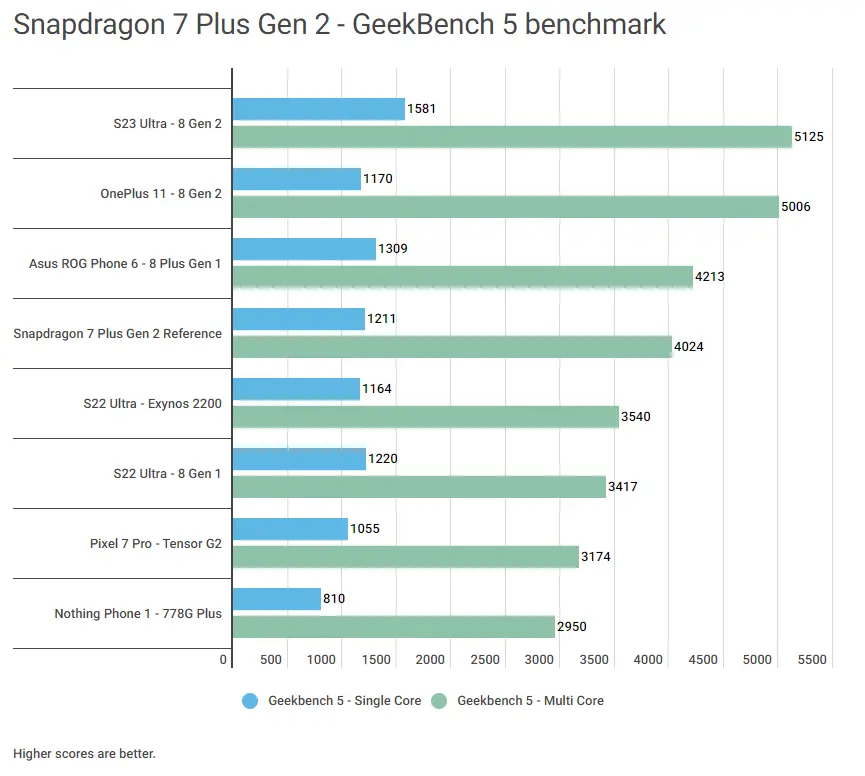
Furthermore, in single-core tests, the Snapdragon 7 Plus Gen 2 reference phone defeats the Exynos 2200-equipped and Snapdragon 8 Gen 1 S22 Ultra and even edges out the OnePlus 11 powered by the Snapdragon 8 Gen 2. To maximize efficiency, OnePlus is extremely careful with single-core performance in the latter circumstance. Yet the S23 Ultra, which has less restrictions, outperforms rivals like the recently released Snapdragon 7.
The reference design manages to outperform every Snapdragon 8 Gen 1 device on the list when looking at multi-core CPU results. Also, it has a score that is comparable to smartphones with Snapdragon 8 Plus Gen 1. However Qualcomm’s most recent flagship 8 Gen 2 chip continues to hold a significant lead.
Overall, it appears that, in terms of CPU performance, the Snapdragon 7 Plus Gen 2 is competitive with the Snapdragon 8 Gen 1 across the board. The Snapdragon 8 Plus Gen 1 phones, meanwhile, are also not far behind. The somewhat quicker CPU clock rates and possibly different cache capacities could account for this.
GPU testing
The question of graphical performance is a murkier one on paper, owing to the closed-box nature of the Adreno GPU architecture. However, Qualcomm has noted that the Snapdragon 7 Plus Gen 2 enjoys a two-fold performance boost over the Snapdragon 7 Gen 1. How does this compare to flagship silicon, though?
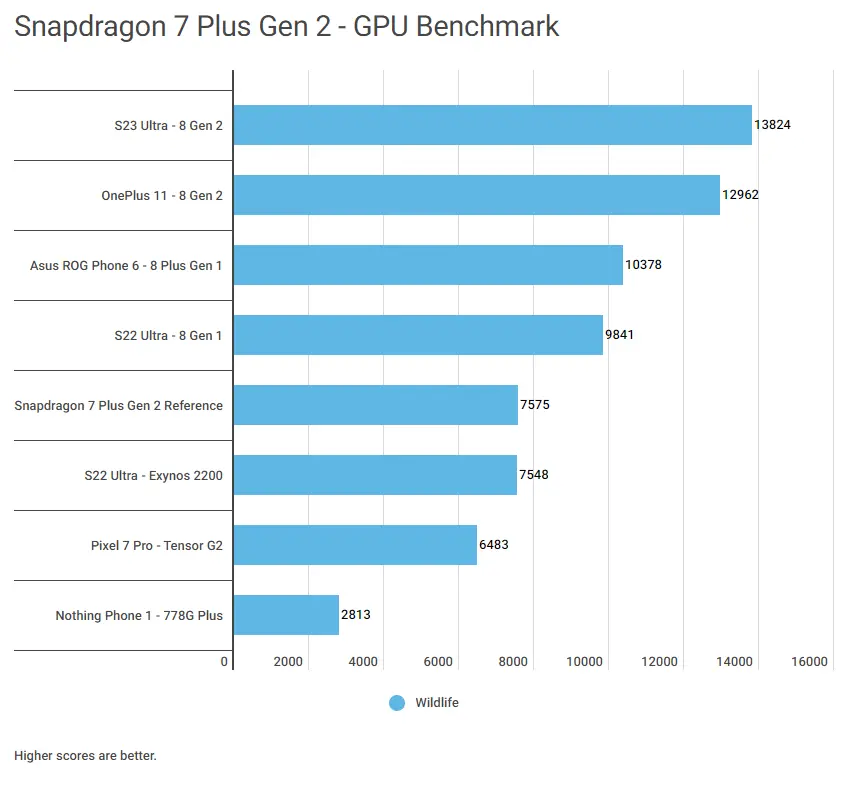
Comparing mid-range chipsets to their flagship counterparts, mid-range chipsets often perform worse in the GPU domain, and the traditional 3DMark Wild Life test confirms this is still the case. The 7 Plus Gen 2 reference design and the Snapdragon 8 Gen 1 series as a whole have significantly different scores.
Thankfully, the Snapdragon 7 Plus Gen 2 easily surpasses the Arm Mali GPU of the Pixel 7 Pro while matching the high-end AMD GPU of the Exynos 2200. Moreover, the reference design score indicates that the Snapdragon 778G Plus GPU in the Nothing Phone 1 offers 2.7x the GPU performance.
This score highlights that Snapdragon 7 Plus Gen 2 phones can handle today’s demanding games at respectable frame rates. Demanding gamers might still want a phone with a Snapdragon 8 Gen 1 series or Snapdragon 8 Gen 2 processor for advanced games down the line, but this is a significant win for the mid-tier chipset nonetheless.
Snapdragon 7 Plus Gen 2 stress testing
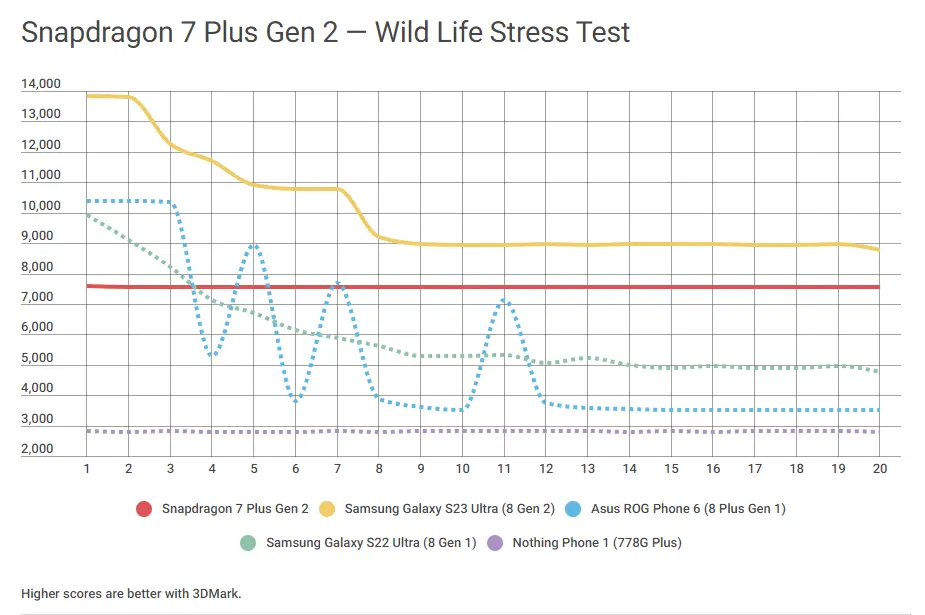
One-off GPU testing is one thing, but a lot can be gleaned from stress tests. We subjected the Snapdragon 7 Plus Gen 2 device to a 3DMark Wild Life Stress Test to get a better idea of sustained performance.
The stress test results make for very interesting reading, as the Snapdragon 7 Plus Gen 2 reference device displays rock-solid stability of 99.76%. In fact, this stability means that the Snapdragon 7 Plus Gen 2 handset can beat the Galaxy S22 Ultra (Snapdragon 8 Gen 1) when put under extended stress. Needless to say, the Nothing Phone 1 and its Snapdragon 778G Plus chipset is far behind as well.
What’s particularly intriguing is that over the course of the stress test, the Snapdragon 7 Plus Gen 2 smartphone closed the gap with the Galaxy S23 Ultra and its Snapdragon 8 Gen 2 chipset. This is primarily because the Galaxy handset only maintained 64.6% stability; other 8 Gen 2 handsets performed better.
Although the cynic in us suspects that commercial phones equipped with this chipset may not be as reliable, it still augurs well for prolonged play sessions.
Overall thoughts
Benchmarking reveals that we’re looking at a chipset that’s at least as powerful as the Snapdragon 8 Gen 1 from a CPU perspective. That’s no mean feat, and it’s a good sign for those who value speed, be it for everyday performance or those who intend to keep their phones for a few years.
Even when compared to more recent flagship chips, mid-range processors typically show a sizable GPU performance disparity. The bad news is that, in one-off GPU testing, the Snapdragon 7 Plus Gen 2 is not really an exception. Between Qualcomm’s mid-range and flagship chips, there is still a significant disparity. The less powerful GPU, however, was able to surpass Google and Samsung’s flagship CPUs.
The good news is that the 4nm TSMC architecture and purportedly lower GPU clock speed suggest that we could be looking at rock-solid sustained performance in this case. In a stress test, the chipset can even defeat some Snapdragon 8 Gen 1 series smartphones.
Again, this is just a reference design, but those on the hunt for sustained gaming performance on a budget should keep an eye on phones with the Snapdragon 7 Plus Gen 2. Fortunately, we won’t have to wait too long, as Qualcomm confirmed that the first phones are coming this month. The company also name-dropped Redmi and realme as brands working on devices with this chipset.
You’ve therefore chosen that you want to learn how to create Android apps. Great! Sadly, good intentions can only go you so far. It can be challenging to learn how to code. Sometimes even where to begin is a mystery! So, before you even begin, you undoubtedly have a ton of questions to address.
What programming language should you learn?
Where can you learn about your chosen language?
Once you’ve grasped the basics, where do you even start typing the code?
Lot of options
Selecting a language is the first step in developing Android apps. The distinctions among the various programming languages for Android can be somewhat subtle and complex.
But the primary characteristics and objectives of the tool to which the language is tied matter more than the language itself.
The languages you might consider learning for Android development include:
Java – Java is an official language of Android development and is supported by Android Studio. It has been an official language longer than Kotlin, and it is also popular outside of Kotlin development for many other purposes. Java and Android Studio have a steep learning curve, however.
Kotlin – Kotlin is another official Android language. It is similar to Java in many ways but is a little easier to get your head around. It is also now Google’s preferred language of choice, though it is not as widely used outside of Android Studio. This may make it slightly less appealing for those hoping to work as developers across numerous projects.
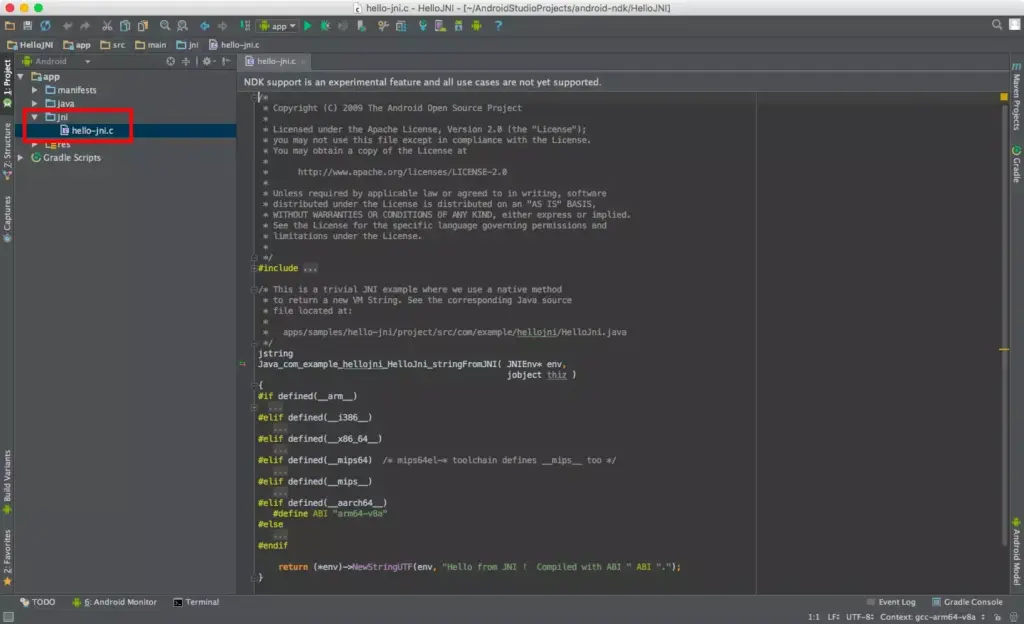
C++ — Android Studio also supports C++ with the use of the Java NDK. This allows for native coding applications, which can be handy for things like games. C++ is more complicated though, and this option is mostly only going to appeal to large, professional teams. C++ is also supported by Unreal Engine.
C# — C# is a more beginner-friendly alternative to C or C++ that obfuscates more code. It is also a little less difficult than Java, though the two languages are extremely similar. It’s supported by some very handy tools like Unity and Xamarin, which are great for game development and cross-platform development. C# with Unity is the best option for many mobile game developers.
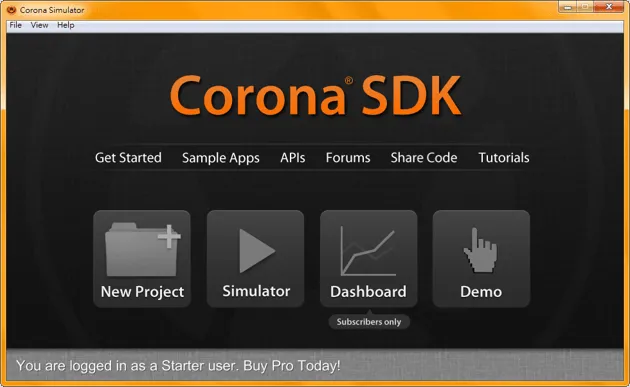
LUA (Corona) – Another cross-platform tool built on LUA. It massively simplifies the app-building process while stilling allowing you to call native libraries.
JavaScript (PhoneGap) – If you already know how to build interactive web pages, then you can use this knowledge with PhoneGap to build a more basic cross-platform app.
Java
Java is still one of the two authorized platforms for creating Android apps. This indicates that Google is quite supportive of it. Kotlin or Java were probably used to create the majority of non-game apps.
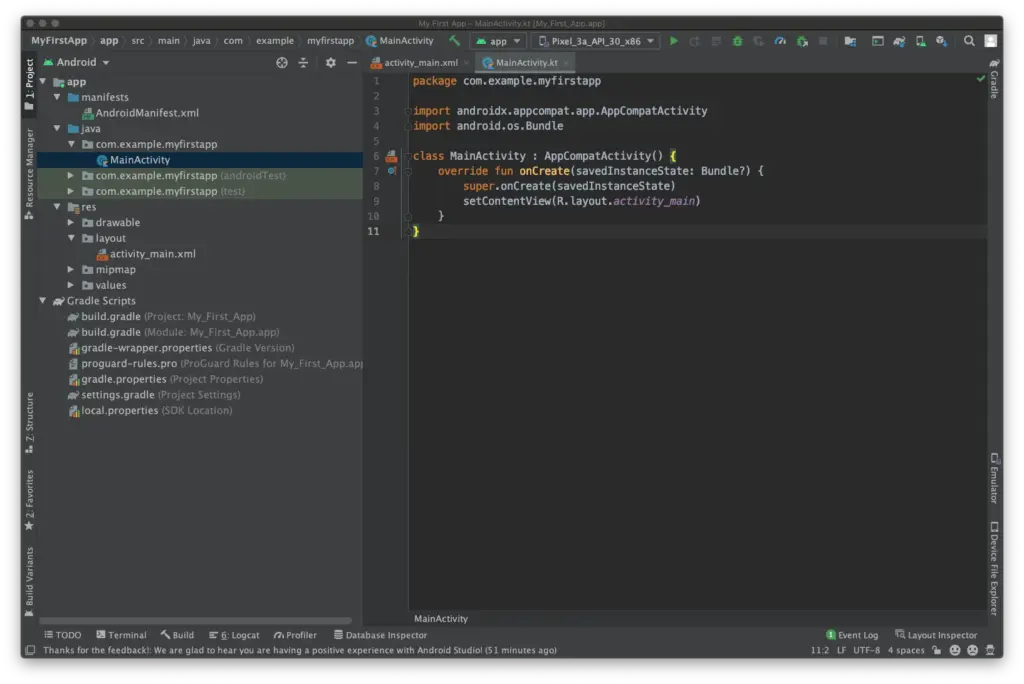
Downloading Android Studio is the best approach to start creating Android apps. Integrated Development Environment, or IDE, is the name of the piece of software in question. You will have everything you need in one location to get started thanks to the Android SDK that is supplied with it (a collection of tools designed expressly to make Android development easier).
Official documentation from Google will refer to Android Studio and Java (or Kotlin), and you’ll be able to find a lot of support online.
Sun Microsystems first introduced Java in 1995, and it is now utilized for a variety of programming applications. Even though Google has made it clear that it prefers Kotlin, many development teams have decided to continue with Java since it is so well-established and well-known.
Java is really difficult as well and not a fantastic “first language.” Once the Android SDK is included, things become much more challenging; a novice programmer may find it difficult to distinguish between Java and Android! Constructors, null pointer exceptions, checked exceptions, and other baffling concepts are all part of the object-oriented programming language known as Java.
You’ll use a lot of “boilerplate” code to do simple tasks, and it’s not very understandable. A rudimentary familiarity of ideas like Gradle, the Android Manifest, and the markup language XML is also necessary for development using this approach.
This is not meant to imply that Java is a terrible language; just the contrary. It is incorrect to label any language as “evil,” since the majority of Java’s drawbacks exist to promote clean code and serve our own interests.
Java is one of the most popular and versatile programming languages because of this, and many people adore it. Java is the programming language that employers are most interested in using, according to the PYPL (Popularity of Programming Languages) table.
Android Studio, has also been going from strength to strength over the last few years. Features like a visual designer and suggestions make the process a fair bit smoother, while advanced, powerful features are being added all the time to give developers access to things like cloud storage with easy implementation.
It’s worth getting aboard, even if this rapid progress does make it hard to keep up sometimes (especially if you’re some poor guy who writes about this stuff for a living!).
Kotlin
Kotlin has been an official language for Android development for a while now, and Google has even gone so far as to make it the preferred option for Android development. That said, with many development teams already deeply invested in Java, there are many who have chosen not to make the switch.
Kotlin utilizes the Java Virtual Machine much like Java does. Additionally, it fully integrates with Java and doesn’t result in any file size or performance issues. The distinction is that Kotlin is a more streamlined and simple-to-read system since it doesn’t require as much “boilerplate” code.
Additionally, it eliminates mistakes like null point exceptions and exempts you from using semicolons at the end of each line. In summary, it’s ideal if you’re just starting to learn how to design Android apps.
So, Kotlin is definitely an easier starting point for beginners, and the fact that you can still use Android Studio is a big plus. That said, it’s still a complex language in its own right, and you’ll still need to figure out an awful lot of extra “stuff” to build an Android app this way. There’s also the slight drawback of Kotlin being less widely used outside of Android development.
It’s safe to assume that the majority of readers shouldn’t choose this method of Android app development. The Android NDK’s C/C++ code can be supported by Android Studio (Native Development Kit). As a result, you’ll be creating code that runs natively on the device rather than on the Java Virtual Machine, giving you more control over processes like memory allocation. This can help you get more performance out of your Android device for demanding applications like 3D games. Also, it means you’ll be able to use C or C++ libraries.
However, it also tends to be much harder to set up, it introduces more bugs and it is less flexible. And if you did want to create a computer game, you’d probably be better off using a ready-made game engine such as Unity.
C#
Microsoft created C# with the intention of fusing the strength of C++ with the simplicity of Visual Basic. If you are familiar with one of these languages, such as Java, switching to the other should be rather easy. C# is garbage collected, just like Java, so you don’t have to worry about problems like memory leaks and manually freeing up memory. If this might simply be my own bias showing through, C# has a better syntax and is more current than Java. The best language for creating Android apps is frequently a matter of personal preference!
If you want a particularly easy and welcoming introduction to Android app development, I recommend the combination of C# and Unity. Unity is a game engine (meaning it provides things like physics calculations and 3D graphics rendering) and an IDE (like Android Studio). This is a free tool that makes it incredibly easy to create your own games – with just a few lines of code you can have a basic platform game set up in less than an hour. No exaggeration! And it’s perfectly powerful too, being the tool used by most game studios on the Google Play Store.
As a cross-platform solution, Unity will also let you port your games to other operating systems such as iOS and Windows. You can even make console games! On top of all that, developing in this way provides a very practical way to learn Object-Oriented coding (because the objects in this case actually are objects most of the time!). For those hoping to start a career in game development, learning Unity is an excellent first step.
The limitation? Unity is useful for creating games but sub-par for creating standard Android Apps, especially if you want to conform to Google’s Material Design language.
Not keen on Unity? Then you could consider Unreal instead (better graphics, less suited to mobile) or simplified game-makers like GameMaker Studio.
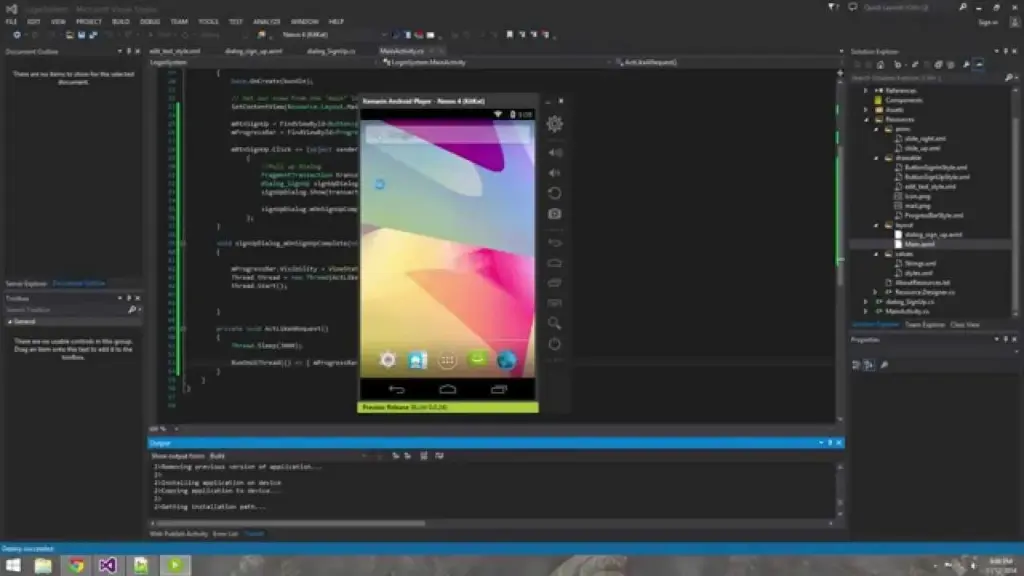
C# can also be used with Xamarin through Visual Studio. This is more akin to traditional Android development with the advantage of being cross-platform (one codebase for Android and iOS). For a complete beginner, this route is again a slightly obtuse entry point to Android development. But for a small company wanting to create an app for iOS and Android, it makes sense, and there’s plenty of support and information out there to help you out.
LUA (Corona)
Corona provides a different, far easier alternative for creating Android apps while still offering you a good deal of authority and control. It will be lot easier for you to code in LUA than in Java. Moreover, the Software Development Kit for Corona will make things much simpler. You can publish to several platforms and it supports all native libraries. It is mostly used for making games but can be used in a variety of other ways too. To enter your code, use a text editor like Notepad++; you don’t even need to build it before running it on an emulator. When the time comes, you’ll be able to use an online tool to develop and distribute an APK.
This does require basic coding skills, but it offers a nice and gentle introduction to the world of code. At the same time though, it is definitely limited in what it can accomplish and is only a few steps removed from getting into “app builder” territory. This is more useful for someone who wants to create something relatively simple and isn’t as concerned about developing their coding skills or becoming a pro. If you want to use features such as in-app purchasing, then you’ll need to pay a fee. The same goes for using native Android APIs.
HTML/CSS/JavaScript (PhoneGap)
PhoneGap is powered by Apache Cordova and essentially allows you to create apps using the same code you’d normally use to create a website: HTML, CSS and JavaScript. This is then shown through a “WebView” — a widget that displays a website within an app. PhoneGap acts like a bridge, allowing developers to access some basic native features of the phone or tablet such as the accelerometer or the camera.
This isn’t really “true” Android development though, and the only real programming will be JavaScript. For many basic tasks, it will do the job, but if you want to be able to claim true “Android app developerhood” (that’s a thing), then you should brave one of the other choices on this list.
Conclusion
So take your pick! Tere are plenty of options there for developing Android apps: from Java and Kotlin, to C, C#, and JavaScript!
Whatever you chose, you’ll find that learning to code is a tremendously satisfying experience and one that opens up a lot of options for you. The best choice will rely on your sensibility and your goals. And the best way to get started is by learning to code for Android. We hope that you now at least have a basic understanding of how to create Android apps, but if you still have any questions, feel free to post them in the comments below and our team and readers will try our best to respond.
How about starting things off with some brand-new software on your smartphone as we head into yet another weekend?
Here, you will be able to find exclusive deals for paid apps that are now available for free for a limited time only. Don’t miss out on huge savings and download these apps today on your Android.
Please keep in mind that although these apps are currently free, by the time you read this page or attempt to download them, they may have changed to a paid status. Because there is no predetermined duration for app promotions on the Google Play Store or the Apple App Store, bargains may be pulled just as quickly as they were published, which is terrible.
Here’s a helpful recommendation: If you come across an app or game on our list that piques your interest but you don’t need it right now, consider installing it and then deleting it from your device. This will save it to your app library, allowing you to install it again in the future when you need it. It’s a great way to take full advantage of short-lived promotions.
Android apps for productivity and lifestyle
Internet Optimizer PRO[4.3-stars / $0.49]: Use this app to try to get the fastest DNS connection possible with minimal changes to your settings.
Painteresque[4.5-stars / $2.00]: Want to spruce things up a bit? Let AI make modifications to your photos.
SnagBricks—Site Auditing[4.3-stars / $4.99]: This app simplifies site auditing, allowing you to manage all your work, including safety inspections, defect finding, punch lists, and more, into different projects.
Game Booster Pro[4.4-stars / $0.49]: Make your smartphone run games faster through software optimization.
Reminder Pro[4.3-stars / $2.99]: Do you keep forgetting tasks that you need to do? Perhaps this app can help.
Android games
Infinite Launch[3.6-stars / $1.49]: Help mankind colonize the planets by launching rockets to outer space.
Jeff the Killer REborn[3.7-stars / $0.99]: Jeff the killer is on the loose. You must beat the level by evading Jeff. Your life is at stake!
Becker’s Cat Adventures[4.1-stars / $0.99]: Becker is a cat who has a cub and mate, and is out on the streets scouring for tuna to keep his family well-fed.
Kingdom War TD[4.1-stars / $0.99]: A cute little tower defense game where you have to fend off hordes of enemies with carefully placed characters.
Shuriken Jump[4.0-stars / $0.99]: Make your shuriken travel as high as possible!
Please share your opinions on this week’s choice with us! Have you found any more amusing games or apps in the Apple App Store or Google Play Store? Join the discussion by adding your recommendations in the comments section below.
Larger batteries are included in the Samsung Galaxy Watch 5 Pro for extended battery life, however incorrect settings can result in problems including quicker battery loss. We’ll give you some cutting-edge advice today to help you fix these issues and increase the battery life of your watch.
Ah, the good old battery life of a smartwatch. You’re left with a pointless wrist adornment if it expires too quickly. Oh, sweetheart, if it goes on for too long! The options are limitless! You won’t need to charge it as frequently, which means you’ll spend less time shackled to a wall socket like a sap. Don’t forget the comfort it will bring you to know that your watch won’t stop working mid-run or mid-call with the boss.
You’ll also have more time to explore all the cool functions your watch has to offer, like monitoring your steps, checking the weather, and even ordering pizza, thanks to an increased battery life (yes, some smartwatches can do that). Don’t choose for a disposable smartwatch, then. Increase that battery life to open up a host of additional wrist-related opportunities!
In our evaluation of the Galaxy Watch 5 Pro, we highlight some of the lineup’s practical features, such as 24/7 health tracking and interchangeable watch faces. Notably, the Pro edition has improved battery life over the standard version. Nevertheless, because they weren’t designed for continuous usage, several default settings could damage the battery. Use our handy instructions to change or disable these options to extend the battery life of your watch.
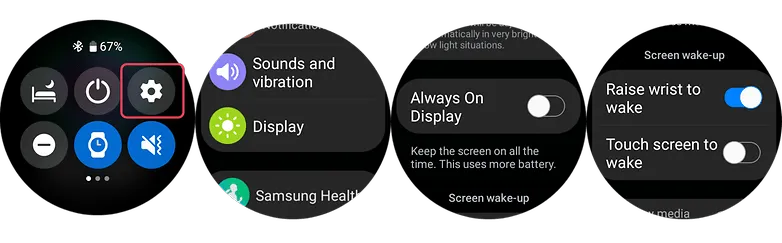
1. Turn off the always-on display and opt for raise to wake
OLED screens on the Samsung Galaxy Watch 5 series allow for AOD (Always-On Display) feature. However, by enabling this all the time can greatly hurt your battery run time. And since you will always not be looking at your screen, it’s best practice to disable this and instead opt for the raise-to-wake gesture.
To check if the always-on display is enabled or disabled, you can use your watch’s settings or alternatively use the Galaxy Watch mobile app on your Android or Samsung phone.
Swipe down from your watch’s screen and open the Settings.
Scroll down to find the Display and then tap on Always-On.
Turn off the AOD.
Look for Raise to Wake below the Always-On toggle.
Enable Raise-to-Wake.
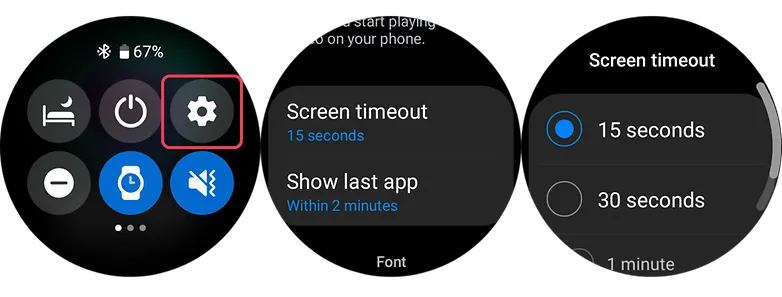
2. Shorter screen timeout
Screen timeout is yet another display-related suggestion. Reducing the amount of time your screen is on can increase the watch’s battery life. By setting the screen timeout to the shortest duration possible, which is 15 seconds, you can extend the life of your battery. This may be located immediately below the raise-to-wake toggle in the same settings as display.
3. Choose darker watch faces
Using watch faces that are black or dark is more in keeping with customisation. The watches come with OLED panels, which means that when projected into the display, black pixels don’t need light, unlike other colors that do.
Choose watch faces with darker layouts to extend the battery life of your device. But, you should stay away from colorful designs, especially those that take up the majority of the screen.
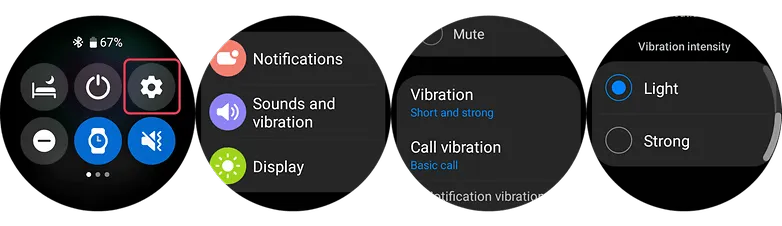
4. Set vibration level to low
Your watch vibrates in addition to sounding an alert whenever it receives one. It is advised that you set the vibration on the lower side because the vibration motor inside the watch normally consumes a significant amount of battery power. This is how to modify the Galaxy Watch 5’s vibration intensity using the toggle that can be found in the main settings.
Go to the Watch’s Settings and look for Sound & Vibration.
Select Vibration.
Choose Short in vibration duration option.
Choose Light vibration intensity.
5. Turn off NFC
Turning off NFC on your Galaxy Watch 5 or Watch 5 Pro could extend the life of your wearable’s battery if you don’t use it for payments or if you primarily use your phone for that purpose. Simply go to your watch’s main settings, select connections, and turn off NFC there to access NFC options.
Swipe down to access the Watch’s Settings.
Select Connections.
Choose NFC option.
Turn it off.
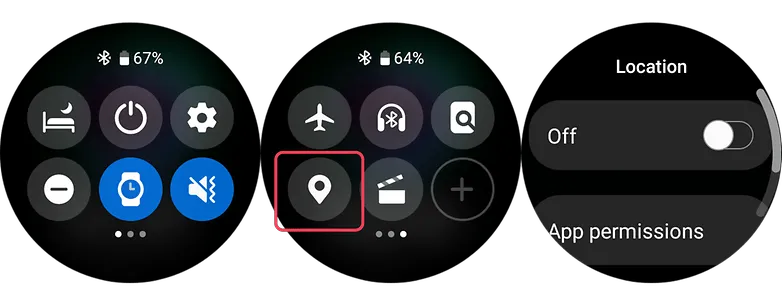
6. Turn off location
Turning off the location tracker on the Galaxy Watch 5 Pro can help to save battery because the location tracker constantly uses the watch’s GPS sensor to track your location, which can consume a lot of battery power. By turning off this feature, you prevent the watch from using its GPS sensor unnecessarily and therefore extend its battery life.
Swipe down to access the Watch’s Quick Settings.
Browse the quick setting until you find the Location icon.
Turn it off.
7. Close background and recent apps
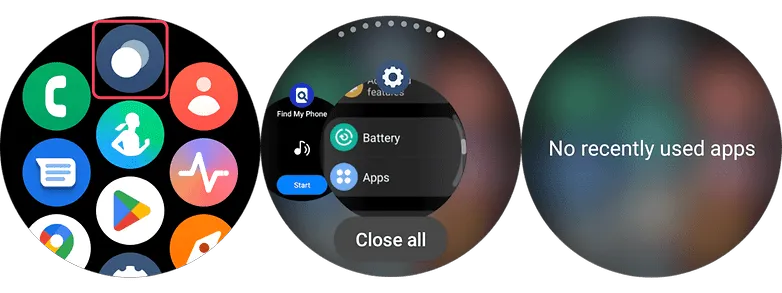
Like in smartphones, your watch uses memory and processor resources as well. While Wear OS 3 has evolved to become an efficient and fast operating system, running numerous apps in the background can still affect the day-to-day battery life of your watch. There will be two options to do this on your Galaxy Watch 5.
Clearing background apps via on-screen gesture
Swipe from the bottom to the top to open the App menu of your Watch.
Select the Overlapping circles icon at the top center to open recent apps.
Select the option Close All.
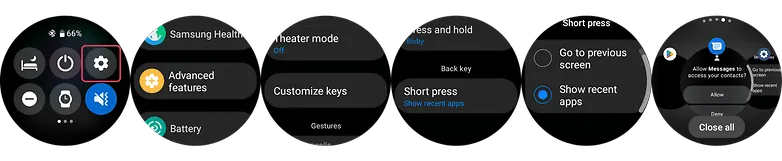
Using the physical key of your smartwatch to close all apps
Go to your Watch’s settings and scroll down until you see Advanced features.
Select this and choose Customize keys.
At the bottom, set short press to Show recent apps.
Press this back key every time you open recent apps.
Tap Close All button to close all apps at once.
8. Filter notification settings (on the phone app)
You’ll be able to get more screen time by limiting the apps that can send notifications to your watch. Just allow alerts that are essential as you will still be checking your mobile device frequently. On your Galaxy or Android phone, use the Galaxy Watch app to change this.
Go to your Watch’s Dashboard on your Galaxy phone.
Choose Watch Settings.
Tap notifications and select App notifications.
Filter which apps are essential and are allowed on watch.
9. Charging and battery tips that may fix your Galaxy Watch 5’s battery problems
Using safe and conventional watch care techniques may help to resolve some battery difficulties in addition to adjusting the settings to prolong battery life. Of course, if any issues continue, it is still advised to get your Galaxy Watch 5 examined by a certified Samsung repair facility. Nonetheless, the fundamental steps are listed below.
Avoid charging your Galaxy Watch 5 too much.
Overcharging your Samsung Watch 5 or Watch 5 Pro could reduce its battery life, just like it can with other electronic gadgets. This will result in the watch’s battery life being reduced. It is advised to charge the battery frequently between 80 and 90% rather than 100% all the time.
Clean the charging contacts on your charger or Galaxy Watch
You can make sure that you’re charging the device effectively by keeping the charging contacts clean on the watch and the charger. Debris and dirt can be prevented from being lodged in the contacts by giving them a brief wipe with a clean cloth.
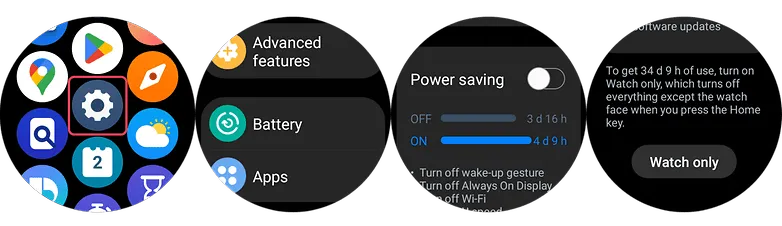
#10. Golden tip: Get extra days of battery with Power saving and Watch-only modes
Using the Power Saving or Watch-only Mode can extend your usage by days or even weeks if your battery is already running low. The connectivity, notifications, processor for battery saving mode, and other functionality other than the time for the Watch-only mode will all be restricted by these on your Galaxy Watch 5 (Pro). With the watch functionality, this last feature can provide you with up to 30 days.
Swipe up on your Watch to open the App Menu.
Go to the Settings and scroll down and tap Battery.
Toggle on Power saving or Watch-only mode.
Please be advised that to turn off the Watch only mode, you can either press and hold the Home key or charge your watch.