Tag: samsung

  • Samsung Galaxy S21 FE may make a comeback

    Samsung Galaxy S21 FE may make a comeback

    Galaxy s21 fe

    Last year, Samsung’s Galaxy S20 FE struck the sweet spot for a low price and great features, and it appears that a speculated Samsung Galaxy S21 FE will try to replicate that success. The smartphone could make its debut at Samsung’s forthcoming Unpacked presentation on August 11. More costly foldable phones, such as sequels to the Galaxy Z Fold 2 and the Galaxy Z Flip 5G, are anticipated to be the main attractions, but a more inexpensive phone could also steal the show.

    Ever since the indications that the Samsung Galaxy S21 FE might make a comeback, numerous rumors and speculations circulating the digital world have circulated. This article will shed some light on some of the credible rumors.

    Further Details

    The specifications for the Galaxy S21 FE have been published on China’s TENAA certification website. According to the listing, the phone will have a 6.4-inch screen with a resolution of 2,340×1,080p, a 4,370mAh battery, three cameras with a 32-megapixel main lens, 12-megapixel and 8-megapixel secondary lenses, a 12-megapixel front-facing camera, an in-display fingerprint sensor, and 45W fast charging support. The device will be available in two storage options. Overall, the device is perfect for carrying out tasks such as file switch.

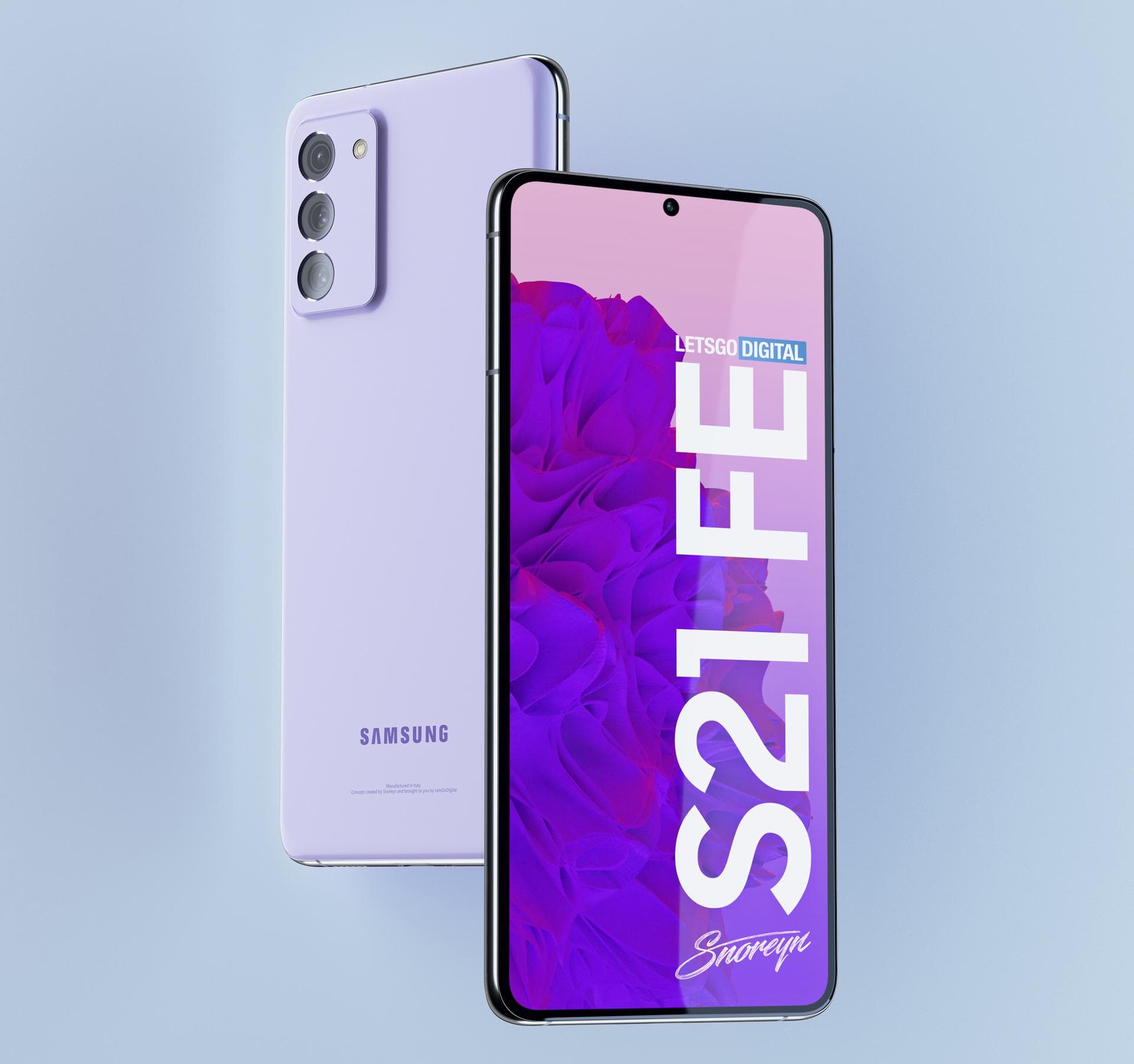
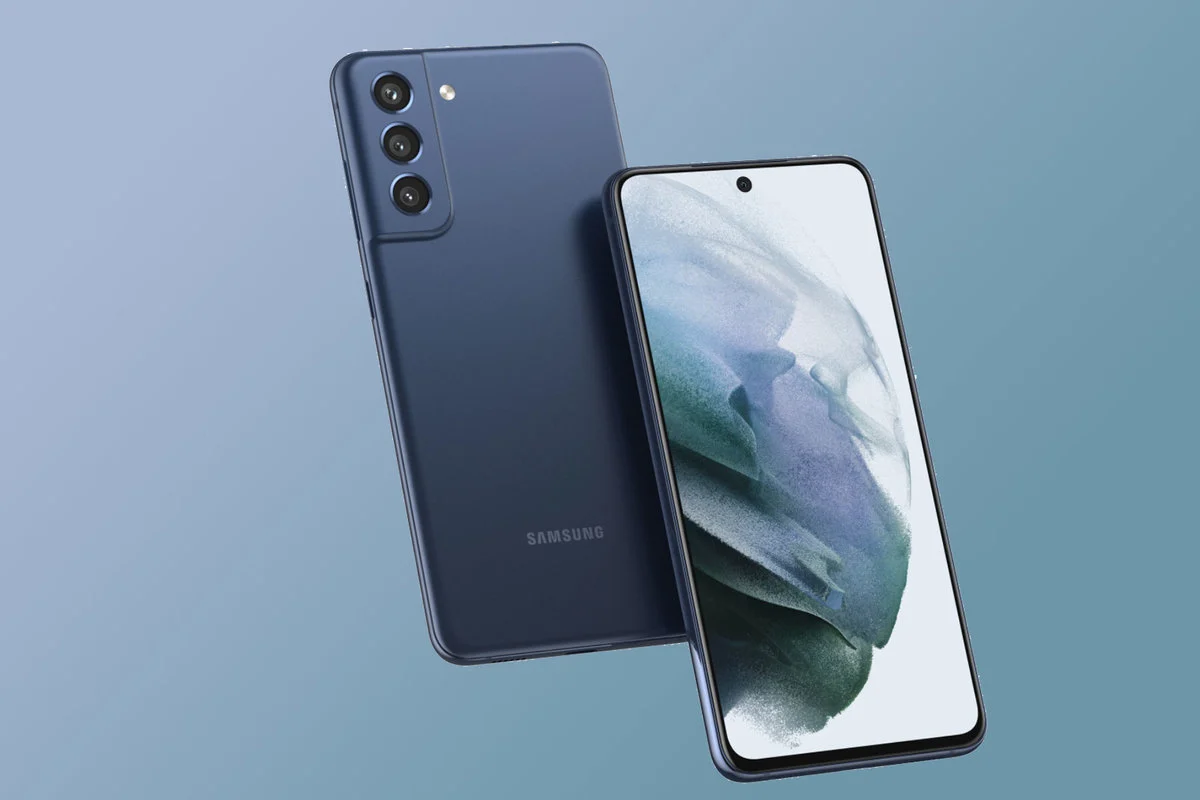
    According to renders from a credible source, the phone could look similar to the Galaxy S21, with a punchout for the front-facing camera and three cameras on the back. The resemblance to the S21 is understandable: the Galaxy S20 FE preserved much of the S20’s design language while lowering the price by reducing the screen resolution and cameras. The S21 FE will be available in at least five colors, according to a leak posted by SamMobile.

    Expected Price

    In the United States, the Samsung Galaxy S20 FE started at $699, a significant decrease from the Galaxy S20’s $999 beginning price. While we don’t have any firm pricing information, sources suggest that the S21 FE line will begin at $699, which is the same starting price as the Galaxy S20 FE. It would be roughly $100 cheaper than the Galaxy S21, making it a higher-end value alternative even at that price.

    Release Date

    It’s possible that the Galaxy S21 FE could be unveiled at the August foldable event, it’s also feasible that it may be announced separately like it was last year. In September 2020, the Galaxy S20 FE had its Unpacked event, which was billed as a “tribute to its Galaxy devotees.”

    However, the announcement and release of that phone coincided with the release of the Z Fold 2, which also occurred in September. Maybe they’ll be blended or given the same amount of space.

    Summing Up The Samsung Galaxy S21 FE is sure to be a big hit among, “Galaxy Devotees”. It provides consumers with a much cheaper and affordable model hence budget buyers will surely be pleased. It seems we will have to wait a bit longer for concrete details to be released. However, according to multiple reliable sources, we won’t have to wait that long and may catch the first official glimpse in August.
  • Samsung Galaxy S22 vs Galaxy S21: Rumors & Speculations

    Samsung Galaxy S22 vs Galaxy S21: Rumors & Speculations

    Samsung GALAXY S22
    Samsung Galaxy S22

    Samsung is one of the biggest smartphone manufacturers worldwide. The South Korean tech giant is known for its mid-range and premium products with innovative features. The Samsung Galaxy S21 was released last year and has gotten rave reviews. The next device, Samsung Galaxy S22, is scheduled to be released sometime in 2022.

    If reports about the phones’ screen sizes are to be believed, the Galaxy S22 series will be a three-phone lineup featuring a regular, Plus, and Ultra variant.

    Expected Price

    No reliable reports about the pricing of the Galaxy S22 range have been reported, but we expect Samsung to maintain prices comparable with last year’s flagship. Samsung cut the price of its Galaxy S21 device by $200 compared to the previous year’s flagship, the Galaxy S20, and we’d be shocked if the company raised the price significantly this year. Depending on the model, the Galaxy S21 costs anywhere from $799 to $1379 dollars.

    Design

    galaxy s22 ultra 2

    The Galaxy S22 range could be a tad smaller and lighter than the S21. The Samsung Galaxy S22 is expected to be available in three different sizes: 6.06, 6.55, and 6.81 inches. The regular Galaxy S21 is 6.2 inches, the S21 Plus measures 6.7 inches, and the S21 Ultra measures 6.8 inches.

    The Galaxy S22’s battery may be smaller because to the slimmer design, according to rumors. A 4,000 to 4,500 mAh battery powers the Galaxy S21. When compared to Samsung’s prior phone models, the Galaxy S22’s expected shrinking is unusual.

    Camera

    galaxy s22 ultra

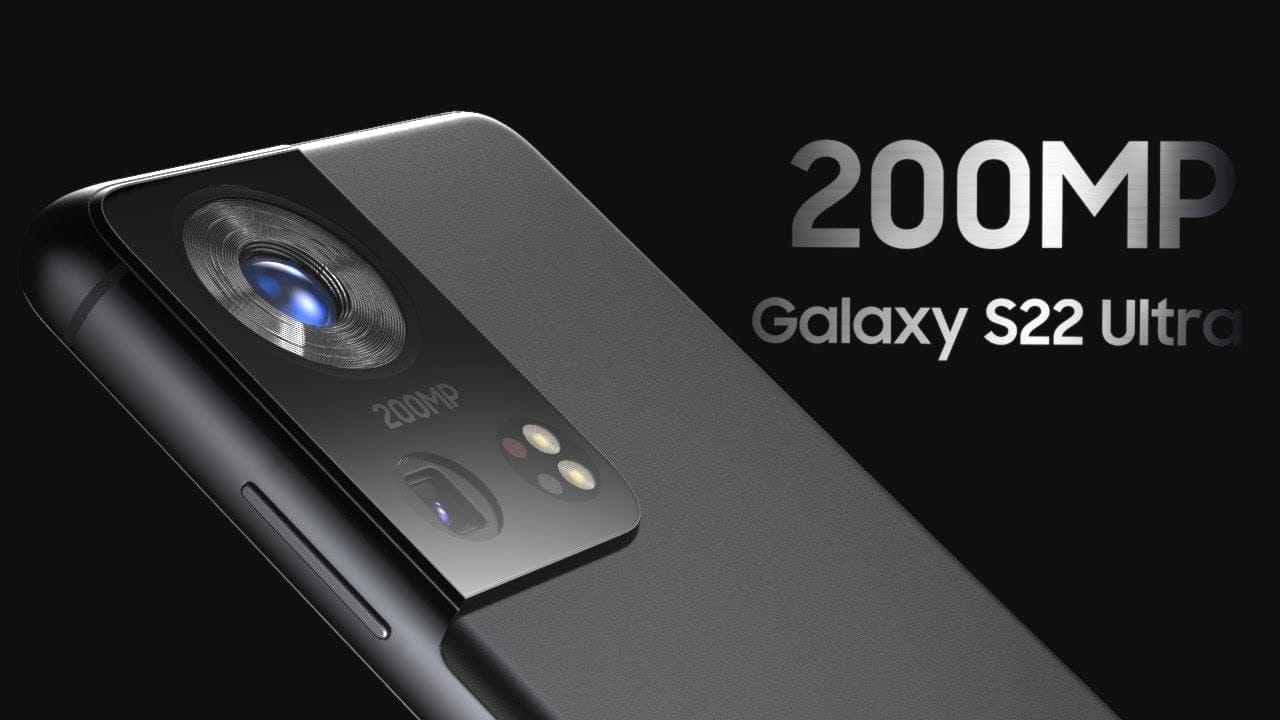
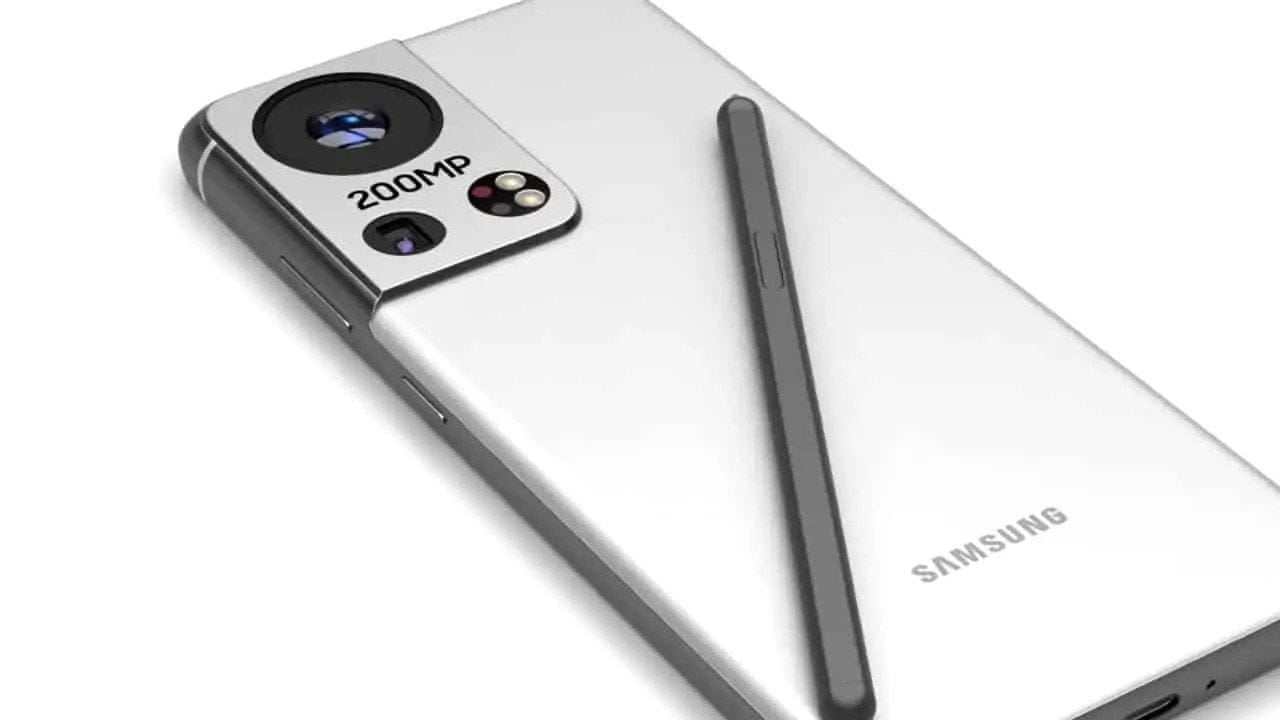
    Samsung may improve the Galaxy S22’s camera options. The primary camera of the Galaxy S22 Ultra is expected to be 200MP. This would be the greatest pixel count possible for a Samsung phone if the rumors are accurate. In comparison, the Galaxy S21 Ultra features a 108MP wide-angle camera.

    The news about the camera comes after a teaser tweet from Samsung Exynos, the company’s chipmaking subsidiary, in March that showed a 200MP phone camera. The update might be the outcome of a possible collaboration with Olympus.

    Samsung’s reported 200MP primary camera would surpass Apple’s iPhone 12, which has a 12MP wide-angle and ultrawide camera. With a 12.2MP standard and 16MP ultrawide camera, Google’s Pixel 5 outperforms Apple slightly, but it still falls short of Samsung’s rumored 200MPs.

    The Galaxy S22 Ultra might possibly include an under-display selfie camera, however, speculations about this feature are presently contradictory. Some think that Samsung has submitted a patent for a punch-hole camera with a sub-display, while others suggest that the Galaxy S22 won’t have a concealed front camera since the camera quality isn’t good enough.

    Specifications

    It’s possible that the Galaxy S22 may get a speed increase. According to CNET, the new flagship phone could be powered by Qualcomm’s Snapdragon 895 processor. The Galaxy S21, on the other hand, has a Snapdragon 888 processor. The increase in processing power is expected to be accompanied by an improvement in graphics. As a consequence of cooperation between Samsung and AMD, the Galaxy S22 might include an AMD GPU.

    According to Dutch site LetsGoDigital, the Galaxy S22 may also include an active fan mode to keep the phone cool while gaming or during other periods of high usage.

    The Charger Controversy

    Although the battery life of the forthcoming Galaxy S22 line is unknown, Samsung announced earlier this year that future smartphones will not include chargers or headphones in the package, beginning with the Galaxy S21 line.

    Verdict Samsung smartphones rarely disappoint and carry out tasks such as phone share with ease. The Samsung Galaxy S22 seems quite promising, we’ll have to wait for a bit longer to see if this device surpasses its predecessor in design and overall performance or if it is just another monotonous hyped-up smartphone.

  • This Galaxy S22 Ultra idea is breathtaking.

    This Galaxy S22 Ultra idea is breathtaking.

    Although the Galaxy S22 may not be released for another eight months, various features and rumors about the forthcoming flagship devices have already begun to circulate online. The Galaxy S22 Ultra has now been rendered by fans, revealing a gorgeous design and a large camera sensor on the back.

    galaxy s22 ultra

    Leaks & Rumors

    LetsGoDigital’s renders of the Galaxy S22 Ultra demonstrate how Samsung could use a larger quad-camera array on the back and slim down the bezels surrounding the screen even more. Since speculations of an under-display selfie camera for the Galaxy S22 Ultra have been debunked, these renders depict a Super AMOLED Infinity-O display with ultra-thin bezels and rounded edges. There’s also support for the S Pen, but no special silo for it.

    Another noteworthy feature visible in these Galaxy S22 Ultra mockups is an active cooling fan to keep the Exynos 2200’s temperature under control even during intensive workloads like gaming. Having said that, I believe Samsung’s flagship phones will use more passive cooling solutions. After all, when things get hot and heavy, no one wants to hear that internal fan whirling away. However, we do not believe that feature will be included in the Galaxy S22 Ultra. On the bottom, there is a USB Type-C port but no 3.5mm headphone jack. The overall design appears to be based on the Galaxy S21 Ultra, but with a larger camera and thinner bezels. The phone’s renders reveal five different colors: black, blue, green, red, and white.

    Potential Camera

    There have been reports that Samsung may collaborate with Olympus on the camera for its upcoming Galaxy flagships, and this render reflects that. A large 200MP Olympus camera sensor, an ultrawide camera, a telephoto camera, a continuous zoom periscope camera, and laser autofocus appear to be on the back.

    galaxy s22 ultra

    Unlike the Galaxy S21 Ultra, which has three identical-looking camera lenses and two smaller sensors, this prototype goes all-in with a single large camera lens in the center. This lens is 200MP and contains Olympus branding, which has been speculated for the S22 Ultra.

    This concept, like the Galaxy S21 Ultra, has four additional sensors. Our best guess is that they’re the dual telephoto lenses, as well as an ultrawide camera lens and a laser autofocus sensor, that we’re hoping to see return. It’s unclear why these four sensors are all the same size, especially since this wasn’t the case on the S21 Ultra.

    The continuous use of the big camera bump is obvious here. While having extra space for camera components is understandable, the fact that these bumps appear to be getting larger and larger is not a trend we’d like to see continue.

    Hit or Miss? While these renders claim to be based on leaks and rumors, they aren’t official photos, so they don’t reveal anything about the Galaxy S22 Ultra or how it will seem when it releases next year. However, we can be sure of one thing that this premium device will be able to carry out complex tasks such as SMS transfer with ease. We still have a long way to go until we see some official-looking photos of the phone, so we’ll have to wait and see what Samsung has planned for early next year.

  • Week 25’s top ten trending phones

    Week 25’s top ten trending phones

    The Redmi Note 10 Pro is back on top of our trending chart at the conclusion of week 25, but the second-placed phone is sure to raise a few eyebrows.

    The newly released Tecno Phantom X has reached levels of popularity that the company has never seen before, indicating that it could be a big winner. The Redmi Note 10 is still in third place, ahead of the Poco X3 Pro, while the Mi 11 Lite has climbed four spots to fifth place.

    We have listed down the top 10 devices trending and provided a brief review of each. Read on to find out more.

    1. Xiaomi Redmi Note 10 Pro (Max)

     Xiaomi Redmi Note 10 Pro trending phone

    The Redmi Note 10 Pro is the first of the next generation of inexpensive mid-rangers, and it includes one of the most popular features among fans: a 120Hz OLED display. It has a superior HRR OLED screen but is powered by the less powerful Snapdragon 732G CPU rather than the more expensive Snapdragon 750G 5G. The rest of the phone is almost unchanged from its predecessors: camera, speakers, battery, and rapid charging.

    2. Tecno Phantom X

      Tecno Phantom X

    To be reviewed.

    3. Xiaomi Redmi Note 10

    Xiaomi Redmi Note 10

    The Super AMOLED screen with high peak brightness, the decent camera system, the large, fast-charging battery, and the dual loudspeakers are the key attractions of the non-5G version of the Redmi Note 10. The Redmi Note 10 5G, on the other hand, makes do with an IPS display and foregoes quick charging and stereo speakers.

    4. Xiaomi Poco X3 Pro

    poco x3

    The Poco X3 Pro is based on the Poco X3 NFC, and they both have the same design. The Pro version, on the other hand, has far superior hardware: it’s the first phone to operate on the Snapdragon 860 SoC, which is a repackaged version of Qualcomm’s once-flagship Snapdragon 855+ CPU.

    5. Xiaomi Mi 11 Lite

     Xiaomi Mi 11 Lite

    The Mi 11 Lite, like the Mi 11 Lite 5G, is based on the Mi 11 flagship and emphasizes similar features such as an HRR OLED screen, good camera quality, extended battery life, quick charging, and a smooth UI experience.

    6. Samsung Galaxy S21 Ultra 5G

    Samsung Galaxy S21 Ultra 5G

    It has a big 1440p screen with 120Hz native support, which is adaptive. It also includes two dedicated telephoto cameras, one with a 3x optical zoom and the other with a 10x optical zoom. It does include focusing on its ultrawide camera, which is useful for macro photographs. The new Ultra also includes compatibility for ultrawide-band and, surprise, surprise, S-Pen.

    7. Samsung Galaxy A52

     Samsung Galaxy A52

    The Galaxy A32, as well as the recently released Galaxy A72 and A52 duo, all provide excellent value, they are able to carry put complex tasks such as SMS backup. This year, though, it’s the plain Galaxy A52 model that shines the brightest and goes above and above.

    8. Poco F3

    Poco F3

    Starting with its stunning glass shell with a robust plastic frame, the Poco F3 is jam-packed with top-notch features. The F3 features a 6.67-inch AMOLED screen with 120Hz refresh, one of today’s fastest platforms – the Snapdragon 870 5G chip, loud stereo speakers with Dolby Atmos, a configurable triple-camera configuration, and a huge battery with quick charging.

    9. OnePlus Nord CE 5G

    OnePlus Nord CE 5G

    The OnePlus Nord CE 5G is the next mid-range killer, at least according to OnePlus’ marketing. And it’s probably quite close to the truth. The Nord CE isn’t a replacement for the original Nord, but rather a toned-down version of it, hence the CE moniker. The phone retains elements of the original Nord’s fundamental specifications, notably the design.

    10. Samsung Galaxy A32

    Samsung Galaxy A32

    For starters, the displays are completely different between the variants, and the 4G’s is far superior – a 90Hz 1080p AMOLED vs. the 5G’s 60Hz 720p LCD. With high-resolution main and selfie cameras, the LTE variant also takes a couple of points in the camera category. The A32 5G counters with a chipset that is capable of 5G but also more powerful because to its latest cores.

  • Samsung Galaxy S21 FE: All we know so far

    Samsung Galaxy S21 FE: All we know so far

    Galaxy S21 FE

    Last year, Samsung reintroduced the FE emblem to the market with the Galaxy S20 FE. The Galaxy S20 FE was praised for its excellent value, and Samsung will expand on that success this year with the Galaxy S21 FE, which will be released in a few months. Over the last two weeks, details about the S21 FE have progressively surfaced, along with renders.

    Specifications and Details

    According to the mockups, the Galaxy S21 FE will resemble the Galaxy S21 and S21+. It was a pleasant surprise. The S20 FE from last year was also pretty comparable to the S20 and S20+. This entails a triple camera configuration placed within a module identical to the S21’s, as well as a front-centered hole punch. The phone’s body will almost certainly be made of plastic, since Samsung looks to be saving glass for its most expensive smartphones.

    Depending on the model, a Snapdragon 888 or an Exynos 2100 will be installed. The S21 FE’s RAM capacity is yet to be determined. There have been leaked benchmark listings with 6 GB and 8 GB versions, indicating that there may be an 8 GB model.

    A 4500 mAh battery, 25 W charging, and a 1080p 120 Hz AMOLED display should all return. There have been rumors that the S21 FE will employ a 64 MP sensor as its main camera, rather than the 12 MP device seen on the S20 FE. The most likely sensor is the GW2, which is worse than the IMX555 on last year’s phone, so we predict a downgrade. Although, we can safely assume that the device will be able to carry out everyday tasks such as data transfer with ease.

    Release Date

    The Galaxy S21 FE was expected to be released in August, but recent speculations suggested that the launch could be postponed owing to a global chip shortage. However, those rumors do not appear to be true, so an August release could still be in the works. The S20 FE was released in October, thus that should be the S21 FE’s worst-case debut date. The S20 FE had an MSRP of US$699, and the S21 FE will either have the same or a little lower pricing.

  • Download stock firmware for Samsung Galaxy A80 SM-A8050/F/N Android 11

    Download stock firmware for Samsung Galaxy A80 SM-A8050/F/N Android 11

    As Full-Screen Display becomes popular, Samsung must release a product to compete with other companies. As a result, they launched the A80 with a Pop-Up camera. The A80 was released with Android Pie 9.0 and later upgraded to Android 10. Samsung has already released One UI 3.0, which is based on Android 11. In certain countries, the Samsung Galaxy A80 now runs Android 11. The update will be rolled out to all regions soon. When you’re on stock firmware, you can experiment with OTA. If you are using custom ROMs or are having problems with the standard software update process, you can use the manual method described below.

    Since Samsung uses a custom skin OS, they have to work much harder than stock Android models. In comparison to the initial release of One UI, Successor versions had a plethora of useful features. You can keep your phone up to date by using the OTA Software update feature in settings. However, if you are unable to do so, you can use this ODIN-based manual form.

    This method can also be used to unbrick your phone. Android 11 has a plethora of new functionality. Some notable features of the Android 11 version include direct Google Play Store security patch updates, enhanced privacy, and improved gestures.

    When you have root access on your mobile, You should follow a unique method to flash the firmware. If you follow below ODIN method, you will lose root access.

    How to update

    Official OTA Method

    If you want to update a security patch to the current month, don’t go for the manual method. Try this Automatic method.

    The process is straightforward and simple:

    • Go to your device setting menu and scroll down to the bottom.
    • Tap on “Software Update”
    • You may have to refresh the page to start the OTA upgrade process.

    Manual Method (SM-A8050, SM-A805F, SM-A805N)

    • Check Your Device Mobile No. If you flash a Different model number, you will lose some features based on your region.
    • Battery Percentage Above 50.
    • Backup Your Device.

    Using ODIN Method

    • Enable USB Debugging Mode and OEM Unlock; you’ll find these options at Settings >>> Developer options. If you didn’t see the developer options on your settings menu, then go to about >>> build number; click on the “Build Number” row about ten times regularly to activate “Developer Option” on your device.
    • Download the Samsung USB driver and install it on your PC.
    • We are using third-party software flashing. Download ODIN and install this also on your PC. In the version, select the latest version ODIN.
    • Download Firmware From the below links, For Samsung Galaxy A80 Official Firmware.
    • SM-A8050
    • SM-A805F
    • SM-A805N
    • Select recent firmware. When selecting firmware, refer- How to choose the correct firmware.
    • If the above mirror is not working, try the secondary mirror.
    • Switch off your Mobile. Enter into Download mode->Volume Down+ Volume Up Button and Connect Your Mobile To PC via USB Cable; after Samsung Logo Appear, Release all keys.
    • After entering into Download Mode, it will say Warning; press the Volume Up button to continue.
    • Launch Odin Application.
    • It Will Show the message added.
    • If you did not get this message, Repeat the above steps.
    • After Getting Added Message Select, AP/PDA Button, Browse for the Firmware file selects it. Tick the Auto-Reboot.
    • Press Start wait for the tasks to complete. It will automatically reboot after the process ends.

    Check Firmware

    You can Check the Firmware Details->Settings->About->Version.

    samsung firmware

    Samsung Galaxy A80 Android 11 One UI 3.0 Features

    samsung one ui 3

    One UI 3.0 is created based on Android 11. Samsung Always Add extra features to the OS. I listed Both Regular Android 11 Features and Some Exclusive One UI Features. We already covered Exclusive One UI 2.0 features that only available in Samsung Devices.

    Customization

    • With new image categories, we can setup up 5 different types in the Dynamic Lock Screen.
    • With newly added features, Now you can Pin or Reorder Samsung Internet tabs.
    • Enhanced Bixby Routines features are available.
    • Based on our routines, We can arrange the New icons and Lock screen widgets.
    • Now you can add some limited widgets like usage time in the Lock screen.
    • Interactive preview available when setting a wallpaper.
    • You can adjust the Always On Display, and Lock screen easier compares with the Android 10 slide.
    • We can add a call background to see a picture or video when we make or receive a call.
    • We can use two different Digital Wellbeing for personal and work profiles.

    Home screen and Lock screen

    • Like Tap on, You can Turn off the screen by double-tapping on a Home or Lock screen space. To enable this feature go to Settings > Advanced features > Motions and gestures.
    • Now you don’t have to search the available widget in Home Screen. You can create widgets by long-press the app and move the widget to the home screen.
    • On the Lock screen, tap the clock area to see additional widgets like calendar, weather, and music.

    Calls and chats

    • With the recent update, we can see individual contact conversations separately in the notification panel. Currently, it works with Messages and your favorite chat apps.
    • The identification and Remove duplicate contacts stored in the same account in Contacts. The storage period for deleted contacts has been extended from 15 days to 30 days.
    • Now you can edit multiple linked contacts from a single screen.
    • Trash folder is added in Messages so that recently deleted messages are stored for 30 days.

    Pictures and videos

    • With improved autofocus and auto exposure, you can take pictures quicker.
    • The Basic Edit feature is added within Gallery. Now, You can view, edit, and share pictures and videos more easily from the Gallery.
    • With new search features and categories in the Gallery, You can find pictures and videos quicker.
    • Now you can reverse the editing of photos even if you save the current settings.

    One UI 3 Settings

    one ui settings
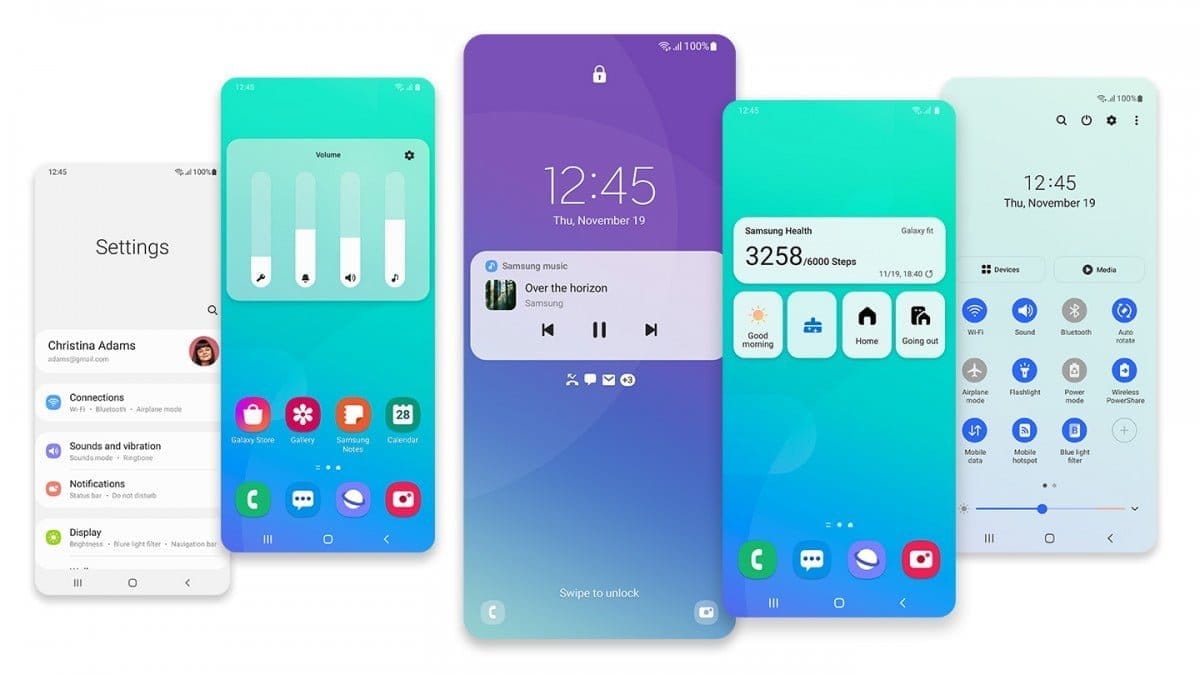
    • Settings are optimized as per the user’s feedback. It has a new, more straightforward look and feels. Your Samsung account is shown at the top, and Home screen settings are now easier to access.
    • With the enhanced Search feature in the settings, you can find more easily with new Search features. You’ll get better results for synonyms and common misspellings, and you can tap on tags to see groups of related settings.
    • With Quick settings, buttons have been reduced to provide only the most commonly used features. You can also add buttons to create your own customized quick panel.

    Samsung Keyboard

    • I Improved the keyboard layout with identified input to provide a larger space bar when entering web and email addresses.
    • You can reorganize Keyboard settings so it’s easier to access frequently used settings.
    • Now Samsung Keyboard can support up to 370 input languages.
    • Samsung Keyboard can now detect where to paste the copied images and texts based on the cursor position.
    • Now when you use a text-based emoticon, Your mobile will suggest the correct Emojis.

    Productivity

    • Based on your daily life and usage patterns, Bixby will recommend new routines. When you don’t like new habits, Bixby Routines provide a setting to return everything to the way it was before the routine ran.
    • We can hide the status and navigation bars for a more immersive experience during webpages translation in the Internet apps and quickly translate webpages.
    • When your mobile finds you are dealing with too many pop-ups or notifications, It will prompt you to block websites.
    • Now you don’t have to separate cloud storage apps to access your file. You can browse and select cloud drive files from the file selection screen in My Files.
    • You can now delete cache files in My Files without a separate app to quickly free up storage space.
    • Instead of showing separate tab or box for the same Events with the same start time are displayed together in the month and list views in Calendar.
    • You can use your phone or tablet app icon layout in Samsung DeX, so you know where everything is.
    • You can open the touchpad from the navigation bar on your phone or tablet, along with the navigation keys.

    Media and device control

    one ui 3 media control
    • Now you can see the full media controls and change the playback device from the Notification bar.
    • Identify and improve your digital habits.
    • Along with Improved Digital Well-being features, you can get weekly reports based on your activity.

    Accessibility for everyone

    • The enhanced Accessibility feature can give you loud feedback for your inputs even if Talkback is turned off. So, You can get feedback for pre-installed settings; You can get the dynamic response for your keyboard inputs.

    Stronger privacy protection

    • When the app doesn’t use the particular permission for a long time, Your mobile will revoke it.

    Additional improvements

    • Like ancient times, In Clock, you can hear the alarm’s time and preset name read aloud when an alarm rings.
    • Some apps will need to be updated separately after the One UI 3.0 update to get the latest features.
    • To adequately share the SD storage permission, select the Gallery or My Files, tap Share, and then select the app copy.
    • Wi-Fi Direct is no longer available. You can use Nearby Share instead. You can still receive files using Wi-Fi Direct.
    • We can’t use Chromecast using Smart View. We have to use Google Home instead.

    Summing up all

    The most important step in this process is to choose the right firmware. Select the firmware based on your country or territory. It is an ODIN manual process; you can flash the most recent edition. However, if you use the sideload form, you must flash the latest version of your mobile firmware or risk bricking your computer. There are several new features. One of the best aspects of this edition is the improved movements.

    If you can’t find your region, you can flash the Samsung Galaxy A80 Android 11 firmware from a nearby region. However, it should be within the same model number range. Following the light, you should contact your mobile operator to customize your network settings. There is an explanation why Custom skin OS manufacturers do not perform routine patch updates. According to company statistics, only a small number of people are concerned with software upgrades. In comparison to One UI 2.5, Samsung only introduced a few new features. If you already have a Custom ROM, try this new OS for a few weeks. It will undoubtedly provide you with a one-of-a-kind experience.

  • Custom ROMs for Samsung Galaxy S8, S8+, and Note 8

    Custom ROMs for Samsung Galaxy S8, S8+, and Note 8

    Samsung offers 2 years of software support for their smartphones, which includes two big Android OS updates. The Samsung Galaxy S8, S8 Plus, and Note 8 have been on the market for well over two years and will never see Android 10. The same is true for the Galaxy S9 and Note 9 series, which have received the latest Android 10 update. Although the devices will continue to receive security patch updates for another year, this is unjust to the most successful Samsung flagship to date. So, here are some of the best custom ROMs based on Android 10 for the Samsung Galaxy S8, S8+, and Note 8.

    We’ve compiled a list of the most recent and reliable custom ROMs for the Galaxy S8 and Note 8 series right now. Lineage OS 17.1 and other common ROMs such as Havoc OS, Pixel Experience, and Corvus OS 10 have just been made official with Android 10. However, because of the design of Samsung Galaxy phones, official support for custom ROMs is difficult to come by. As a result, some custom ROMs based on Android 10 for the Samsung Galaxy S8, S8+, and Note 8 are still unofficial beta ports.

    Furthermore, the majority of custom ROMs are only for Exynos models. This is due to the fact that the Snapdragon Galaxy S8, S8+, and Note 8 variants’ bootloaders cannot be unlocked. So you cant install TWRP recovery, and hence, can’t flash a custom ROM.

    1. Havoc OS

    Havoc OS is currently one of the most stable Android 10 custom ROMs for Samsung Galaxy smartphones. In comparison to the other choices, users of the Galaxy S8 and Note 8 series strongly suggest the Havoc OS custom ROM. Most notably, it has recently been updated to Havoc OS 3.7, which means that it is based on Android 10 and incorporates some Android 11 features such as Material design 2.0, Dark Theme Support for AOSP apps, Android R Style screen record dialog, Rounded UI, Face Unlock support, built-in Gapps, Font Customisation, Pixel Lockscreen weather, and many more.

    Moreover, it also supports Face Unlock, HD/VoLTE toggle, 4G/LTE Icon toggle, 90 Hz refresh rate toggle, Themes styles and wallpapers support from the Pixel 4, and much more. Checkout the images from below and also see the complete screenshot repository from below.

    Download Havoc OS for Galaxy S8, S8+, and Note 8

    Source and Support

    Here is a list of all the sources you can get support from for the Havoc OS for Samsung Galaxy S8, S8 Plus, and Note 8.

    2. Pixel Experience Plus

    When it comes to having stock Google experience on your Android phone, Pixel Experience is everyone’s choice. It includes all of the Pixel 4’s functionality, the most recent Google UI, the most recent Google Assistant app, Digital Wellbeing, and support for the most recent Google products and services. As a result, you can receive the most recent Pixel Launcher, themes and style apps, wallpapers app, ringtones, icons, and everything else that is currently available on the Google Pixel 4 (XL) with Android 10.

    Wifi, RIL, Mobile data, GPS, Camera, Flashlight, Camcorder, Bluetooth, Fingerprint reader, NFC, Lights, Sound / vibration all work with Pixel Experience. However, some features, such as Volte, cast, and, according to some sources, even the face unlock feature, may not work.

    Pixel Experience Plus is an AOSP based ROM, included with Google apps and all the Google Pixel goodies like launcher, wallpapers, icons, fonts, bootanimation.

    pixel experience plus Samsung rom

    Download Pixel Experience for Galaxy S8, S8+, and Note 8

    Source and Support

    Here is a list of all the sources you can get support for the Pixel Experience on Samsung Galaxy S8, S8 Plus, and Note 8.

    3. Corvus OS

    Corvus OS is getting very popular lately among custom ROM flashers. The developers have also been very active in the development and supporting a large number of Android devices. Many have recommended Corvus OS over the past months as it is quite stable for its initial release. Covrus OS also brings Android 10 to the plate for Galaxy S8 series and Note 8.

    Corvus OS is inspired by Dirty Unicorn ROM and has many of its features. The ROM is full of customization options and has a dedicated section for each section including Themes, Notifications, Display, Lock Screen, and more. Stability is great with this one. It also gives stock AOSP experience making it light weight and fast. The ROM also includes some Google features like latest Pixel Launcher, Accent picker, Theme backup, Theme styles, wallpapers app, ringtones, icons, and more.

    Screenshots

    Download Corvus OS for Galaxy S8, S8+, and Note 8

    Source and Support

    Here is a list of all the sources you can get support for the Corvus OS for Samsung Galaxy S8, S8 Plus, and Note 8.

    4. Lineage OS 17.1

    lineage os custom rom for Samsung galaxy S8

    Lineage OS is one of the most popular custom ROMS out there. It supports a wide range of Android devices. Right from the obsolete phones from years ago to the most recent flagships. Lineage OS 17.1 is based on Android 10 and now supports Samsung Galaxy S8, S8+, and Note 8 unofficially.

    Download Lineage OS 17.1 for Galaxy S8, S8+, and Note 8

    Source and Support

    Here is a list of all the sources you can get support for the Lineage OS 17.1 OS on Samsung Galaxy S8, S8 Plus, and Note 8.

    How to update Samsung Galaxy S8, S8+, and Note 8 to Android 10?

    That’s it enjoy Android 10 on your Samsung Galaxy S8, S8+, or Note 8.

  • Samsung Galaxy Z Fold 2: All You Need to Know

    The era of folding devices has begun and who better to execute this latest trend than Samsung. Just last year Samsung impressed consumers worldwide with the release of the Samsung Galaxy Z Fold and announced an impressive follow-up device, Samsung Galaxy Z Fold 2 in August of 2020.

    The Galaxy Z Fold devices are ideal for those people who are looking for something innovative and have money to spare. The Samsung Galaxy Z Fold 2 is a step up from its predecessors and has all the positives of the original device but with certain tweaks to fix the bug issues. As of now, this is the finest foldable device in the market.

    A Brief Description

    Samsung Galaxy Z Fold 2 is the next-generation foldable phone from the South Korean tech giant. Since then multiple foldable devices have been released by companies such as Microsoft, Motorola, Huawei, Royale, Xiaomi, and TCL. While all of them are commendable competition, they do not come close to the Samsung Galaxy Z Fold 2. It is by far the best foldable phone in the market.

    When the device is closed it has a 6.2-inch screen on one side and a robust camera bump on the other. However, when you unfold the device it opens up to reveal a 7.6-inch AMOLED display with an aspect ratio that’s similar to a square. A major upgrade that can be observed is that Samsung did not keep the slightly awkward notch found on the first Galaxy Fold for a smaller hole punch. The device’s refresh rate is up to 120Hz, it varies to give an optimized performance while conserving battery.

    Additionally, Samsung is still aggressively marketing the multi-tasking feature. This particular feature allows users to use an app on the outside display and then continue that app experience on the interior display immediately. Users can even run multiple apps side by side. The phone itself is powered by Snapdragon 865 Plus processor. While the five camera lenses produce amazing photos.

    The major downside is the price tag. It is quite a costly phone that it even surpasses some of the laptops available. A $2,000 device is not something everyone can afford but it is worth noting that you are getting a phone and a tablet rolled into one. The insurgence of foldable devices may make tablets obsolete.

    How is it different from Samsung Galaxy Z Fold?

    The original foldable phone was received quite well hence what does this new variant offer? One of the obvious upgrades is that the size of the outside display is much bigger; it takes over almost the entire closed front of the device. Another pleasant change is that there is a new rear camera module that looks similar to the module on the back of the Samsung Galaxy Note 20.

    The cameras get revamped as well; consequently, the quality of images is improved. There are multiple finer tweaks made to the inner mechanisms. Furthermore, this variant is more durable as well thanks to its ultra-thin glass covers the interior, and Samsung’s “sweeper” technology prevents dust particles from settling in the hinge or making their way under the display. The Samsung Galaxy Z Fold 2 is a more polished version of the original fold.

    Camera

    Rear: Standard: 12MP ƒ/1.8, 1.8μm, 83-deg. FOV Dual-pixel AF, OISUltra-wide: 12MP ƒ/2.2, 1.12μm, 123-deg. FOVTelephoto: 12MP ƒ/2.4, 1.0μm, 45-deg. FOV PDAF, OIS  Front:10MP sensor ƒ/2.2, 1.22μm, 80-deg. FOVInternal:10MP sensor ƒ/2.2, 1.22μm, 80-deg. FOVVideo: 4K at 60FP  

    Aforementioned, the cameras have been revamped to improve the quality of images. There are five total cameras on the Galaxy Z Fold 2: three on the back, one on the front, and one on the inside. The one on the inside is a hole-punch camera, so it doesn’t take up as much of the screen as it did on the previous model. The overall experience has improved mainly due to the larger front screen.

    Users get the same control settings on both the external and internal cameras. While the pictures are quite remarkable. Although colors can be a bit over-saturated it is still a major step up. The photos are detailed and sharp. The only puzzling factor is that in this device Samsung opted for three 12MP shooters instead of its latest 108MP sensor, considering the price the tech mogul could have sprung for the latest sensors.

    Battery

    The Samsung Galaxy Z Fold 2 packs a 4,500mAh battery, which may seem inadequate considering the size of the device but it is sufficient for full-day use even for heavy users. According to testing reports users got six to seven hours of battery life on a single charge. Regardless, it has fast charging so you won’t have to wait long for the phone to be fully charged. A major positive is that the charger comes with the phone and you won’t have to buy it separately.

    An additional power share feature is available with this device. If you own a pair of Galaxy Buds Live, you can share a bit of your battery with the Buds.

    Durability and Everyday Usage

    It has been reported in, “The Guardian”, that the screen has survived four months of use without a scratch, despite being made of softer, potentially scratch-prone material. The overall performance is remarkable but there are issues with the fingerprint sensor. It often has to be cleaned to unlock. Moreover, Apart from Samsung’s and a few third-party apps, not many have a full tablet-sized interface on the internal screen when held in portrait. However, many more websites and apps do resize properly to the big screen when the device is held in landscape.

    Users can efficiently carry out everyday tasks such as texting and checking emails or data sharing on the device plus the multi-tasking features works flawlessly. Although, users may have to get a stronger car mount since the phone weighs a lot due to which it will take some time to adjust to carrying the device.

    Updates

    It is a norm for security updates to arrive on Samsung phones before Google’s own devices. Samsung assures users that its devices will keep receiving updates for three years including the Galaxy Z Fold 2. This means the phone will get upgraded to Android 11, 12, and 13. As of now, the phone has gotten the Android 11 update.

    Is the Samsung Galaxy Z Fold 2 worth it?

    If you can manage the price tag and are looking for something innovative then this device is the one for you. It is a mind-blowing phone with amazing features, making it the best foldable phone on the market right now. The most appealing feature about this device is its interior screen which Samsung has executed with perfection. The 120Hz display is vibrant and flawless plus it switched to a lower refresh rate to extend battery life.

    The device’s cost is a major issue since most consumers are reluctant to spend this much for a phone despite its premium features and elegant design. There is also no headphone jack and it’s not water-resistant.

  • TWRP on Samsung Galaxy M31 (SM-M315F) – Android 10

    TWRP on Samsung Galaxy M31 (SM-M315F) – Android 10

    After the Magisk method is published, the root process is simple to compare with conventional methods. Yet it’s got its limits. We can’t use custom ROMs unless we have some custom recovery enabled. So, even after users have access to root, they prefer the TWRP method when it is released. Samsung Galaxy M31 comes with upper mid-range specs and can handle all of the apps. But if you need root access, you can use the following method to root your Samsung Galaxy M31 Android 10. Since we use custom recovery in this phase, you can install any necessary custom ROMs on your mobile device.

    Compare with standard other root methods, this method has additional steps. So, You should care a little bit when you do the process. Since it doesn’t use a custom recovery, You can’t install custom ROMs. But, It is enough to run most of the root apps.

    After root, you lose the official alerts. You need to update your smartphone manually. So, you should know why you need to do this before continuing with the process. If you are a frequent user, you can try some alternatives that do not require root for your function. If you are a frequent user and developer of root apps, you can follow the guide below to get root on your smartphone.

    Root and Install TWRP on Samsung Galaxy M31 Android 10 One UI 2.0, 2.5 (SM-M315F)

    Thanks to the developer- afaneh92 for the Root method and topjohnwu – this genius is the one who discovered and maintained Magisk. Samsung Galaxy M31 variants come with a flexible bootloader in some regions. It means that the smartphone can be easily rooted. The device can also accept installing TWRP recovery or any other custom recovery file/app. Don’t try with Snapdragon US Variants like Verizon devices. They come with a locked Bootloader.

    But In the below method, we are going to Root this device by using Magisk. You can install Official TWRP using the official app when it is released. TWRP recovery is a custom recovery file that must be installed on your devices because you can root them successfully. This article explained the easiest method to follow and install Magisk on Samsung Galaxy M31. However, the tool required for rooting this device is the Magisk App.

    Once available, you can flash TWRP. With the support of TWRP Recovery, you can easily flash Custom ROMs to your Samsung Galaxy M31. Before sharing a tutorial, you may want to know that you can easily install any root apps with Magisk on your computer. Does that sound complicated? Relax; everything will be briefly explained in the bullets.

    Things to check out for;

    • Check your device model number.
    • You should Backup your current files and data- Full Data Loss Process (save them on external storage).
    • Install Latest Magisk Manager.
    • Make sure your device battery is above 50%
    • You cannot use Samsung Pay, Secured folder, and some official apps from Samsung.
    • You can’t update your firmware; to get new firmware, you must follow the below steps with the latest firmware.
    • Read the full tutorial before the process.

    Unlock Bootloader

    Enable USB Debugging Mode and OEM Unlock on your mobile. To do this, go to settings >>> about >>> Tap on the “Build Number” 7-10 times consistently to enable “Developer Options,” then go to the “Developer Options” and enable USB Debugging Mode and OEM Unlock. There is no complicated process in the Samsung Galaxy M31.

    Switch off your device. Enter into Download Mode-> Volume Down+ Volume Up and Connect your mobile with PC using USB Cable. When the Download mode warning screen Appears, Press the Volume Up button to unlock Bootloader.

    The above process will wipe your user data. After Setup your device, Please recheck the OEM Unlock in the settings. Sometimes It Will Lock Again.

    Download Files

    Prepare patched boot image file

    Galaxy M31

    Download 7Zip-ZSLZ4, and Install both on your PC. Extract the files in downloaded firmware using 7Zip-ZS. You will get four files. Click on the AP File and Extract again. You will get some data along with the boot.img.lz4.

    Copy the boot.img.lz4 and Vbmeta.img.lz4 to LZ4 Installed folder. Convert the lz4 file to a .img file by dragging the .img file to the lz4 application file. You have to drag the file to that application. The script will automatically convert the file to .img format. After the conversion, Copy the boot — img file to your mobile. Leave Vbmeta in the PC folder.

    Download Magisk Manager (Download Latest version) or Magisk canary and Install it on your mobile. Open Installed Magisk and Select Install in Magisk; it will ask For a zip file and Patch Boot Image File. Select the Boot Image file.

    Magisk Boot Image File

    Navigate to your copied boot image file and patch the file.

    Wait for the process to complete, in the end, you will get a magisk patched .img file. Rename this file into the boot.img.

    Now copy boot. img and Vbmeta. img files to your PC. We already leave the Vbmeta. img file on PC. Drag those files into the downloaded TWRP.tar file. Now you can see there are three files within the TWRP.tar file. Don’t extract the data. The three files contain a single .tar file that should be flashed using ODIN.

    Flash TWRP.tar with ODIN

    samsung odin
    • Connect your USB cable with your PC. Switch off your device. Then, enter into Download mode. To do this, press and hold Volume Down+ Volume Up Buttons and Connect Your Mobile To PC via USB Cable; after Samsung Logo Appear, Release all keys.
    • Press the Volume Up button to continue when you see the warning message.
    • Now, connect the Samsung Galaxy M31 mobile to the computer via USB cable.
    • Launch the Odin app on your computer. If the device is detected by this app (Odin), it will show you a message that reads – added!!!
    • However, if the device is not correctly connected to the PC, you won’t see this message. So, you have to check the USB cable if it is reasonable and reconnect the device.
    • After connecting the Samsung device, click on the PDA/PA/AP button to browse/search and get the TWRP from where you saved it on your PC. Also, navigate to “options” and Un-tick the Auto-Reboot.
    odin untick re-partition
    • Click on “Start”
    • Once the file is loaded into the device, reboot your device.

    Now you have just Installed the TWRP on your Samsung Galaxy M31. We installed TWRP. Don’t turn on your mobile.

    Immediately, move to Magisk Installation steps.

    Press the Volume Down+Power button to exit Download mode and quickly press Volume Up+ Volume Down+ Power Button to boot into Recovery mode.

    Install Magisk on your Samsung Galaxy M31 with TWRP

    • Now you are in TWRP Recovery Mode.
    • Select Wipe->Advance Wipe->Select Cache Data. You can also take complete backup using TWRP. It will help you when something goes wrong.
    • Return to Home of TWRP select Install.
    • Select Multi disabler.zip.
    • Return to Home of TWRP select Install.
    • Select Magisk.zip.
    • You should Install them One by One. Don’t add more zips feature in TWRP. After the Installation, Reboot Your Mobile.
    twrp install magisk
    • You can also install Magisk.apk in your Mobile Applications. Multi disabler avoids the Encryption issue after rooting. You can check your root status using Root Checker.
    • If you didn’t find Magisk in App Drawer, you should Install the Magisk app again.
  • 4 free tools to get latest updates on your Samsung Galaxy devices

    4 free tools to get latest updates on your Samsung Galaxy devices

    If you’ve ever tried looking for firmware to install on your Samsung Galaxy smartphone or tablet, it might be pretty annoying. While companies like Google, OnePlus, and Xiaomi provide download links on their websites, Samsung has yet to provide an official firmware download portal. That’s one of the reasons why there are so many Samsung firmware download sites out there. These sites scrap Samsung’s FUS (Firmware Update Server) for the latest firmware releases and categorize them by model number, carrier/region, and OS version. However, many of these services use a “freemium” model that throttles the base-tier download speed.

    Fortunately, there is no shortage of community-developed tools to directly download a new software update for a compatible Galaxy device. We’ve talked about two such tools — SamFirm and Frija — many times in the past. Samloader is another open-source, cross-platform alternative. While I personally think that downloading Samsung firmware using one of these utilities is simple enough, some may still find them inadequate to meet their needs. If you do, then here are a few more solutions that make it even easier to grab official Samsung firmware packages for your device.

    1. SamFirm_Reborn

    samsung update tool

    Created by XDA Recognized Developer Ivan_Meler, SamFirm_Reborn is a reincarnation of the original SamFirm tool. The developer decompiled the legacy application and patched the codebase to make it compatible with Samsung’s server-side changes. SamFirm_Reborn is open source and it does offer a handy command-line interface besides the familiar GUI.

    Download SamFirm_Reborn

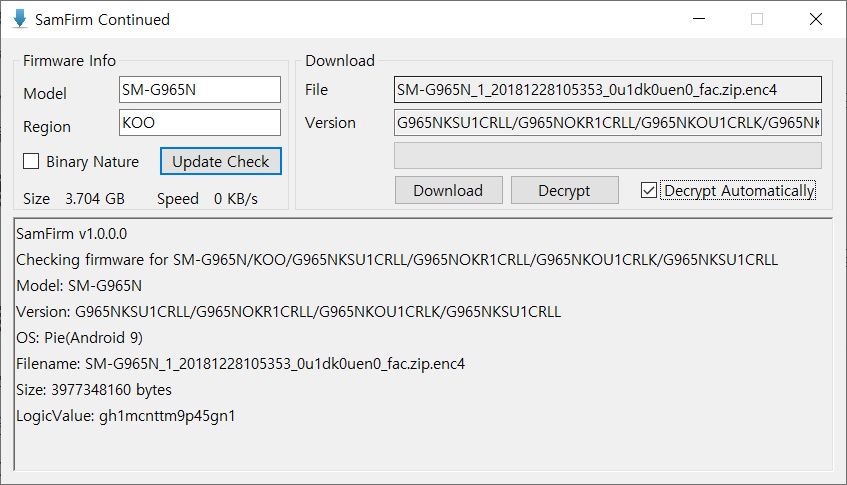
    2. SamFirm-continued and SamFwTool

    SamFirm Continued
    SamFwTool

    SamFirm-continued started its journey as yet another open-source fork of the legacy SamFirm, but the maintainer abandoned the project a few months ago. Later on, XDA Member Tungtata picked up the baton and created SamFwTool. One of the highlights of SamFwTool is the auto-detection feature. Just connect your phone in MTP mode and press “Auto detect” to identify your device model and region code.

    Download SamFwTool

    3. SamFirm.js

    The whole Samsung firmware downloading saga is now on a different level, as XDA Recognized Developer jesec has presented SamFirm.js, a streaming downloader, decryptor, and extractor coded in JavaScript. With SamFirm.js as the backend, you should be able to construct a web app to fetch stock Samsung firmware packages. The project is a collaboration between developers jesec and LuK1337.

    Download SamFirm.js

    4. SamFetch

    In case you’re looking for a web API variant of the Samloader project, you should try out SamFetch. XDA Member YusufCihan reimplemented the functions from Samloader’s code as web routes in order to expose a simplified REST API to download Samsung firmware.

    Download SamFetch