Tag: samsung

  • OneUI 5.1 full features list – #leak

    OneUI 5.1 full features list – #leak

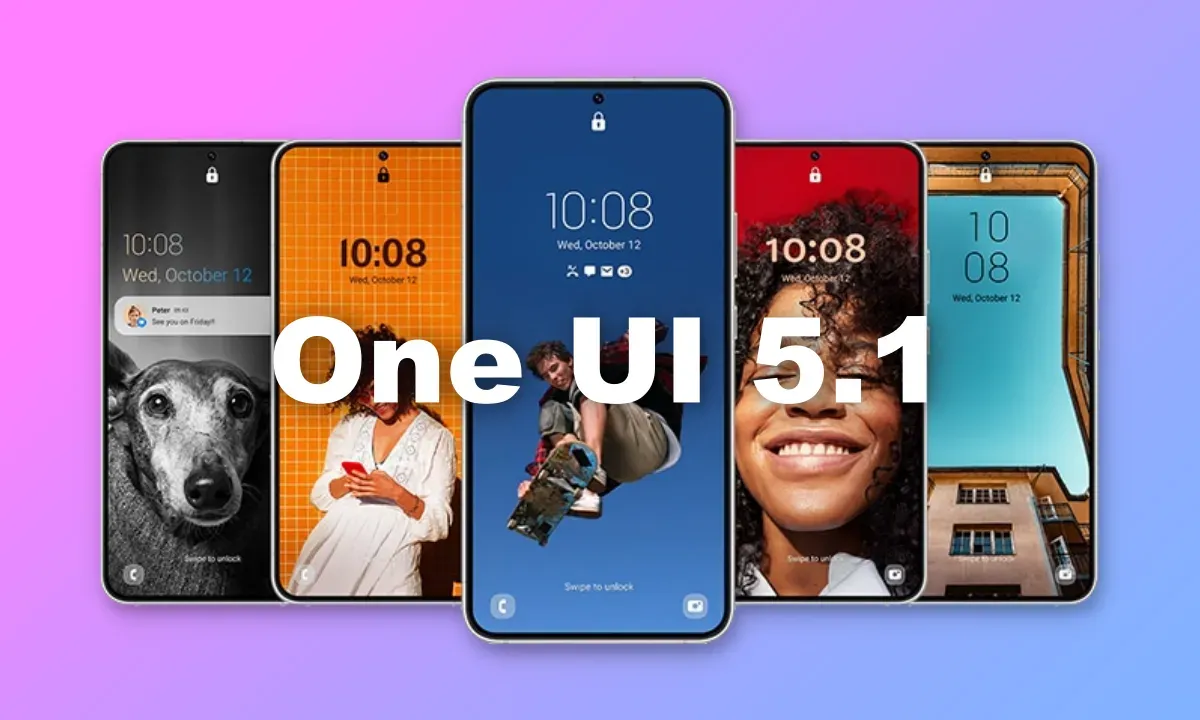
    Snoopy Tech, a Twitter tipster, has published a number of documents that appear to be original Samsung docs. The sites add to the previously disclosed material we revealed in the original post below by listing the complete One UI 5.1 changelog.

    The information in the tweets below also includes some existing OneUI 5 features, but the new ones are marked with “5.1” next to their description. Features market with the number “1” are those that’ll be exclusive to the Galaxy S23 series, S21 Ultra, Note 20 Ultra, S20 Ultra, Z Fold 4, Z Fold 3, and Z Fold 2.

    https://twitter.com/_snoopytech_/status/1619654367543701504

    Samsung’s flagship Galaxy S23 devices with OneUI 5.1 will go on sale. Older Galaxy flagships are also anticipated to receive the new software, although initially, it appears that the Galaxy S23 series will get some special features.

    The new OneUI 5.1 features and updates are now clear to us thanks to a thorough leak from WinFuture. Instead of making substantial design modifications, the program will introduce a variety of functional enhancements. The entire OneUI 5.1 changelog has been placed at the end of this article. Let’s discuss some of the most noticeable modifications that the new software is expected to make for the time being.

    What’s new?

    With OneUI 5.1, the Gallery app is expected to receive the most new features. Now, you may share albums with your loved ones. By utilizing AI to recognize family members’ faces, the app will suggest images to add to your family albums. For what it’s worth, this function is already available in Google Photos. Up to six family members will each receive 5GB of free media storage from Samsung.

    Additionally, the Gallery app’s search function is getting more practical. Now, you can look up multiple people at once. Instead of utilizing their tagged names, you may also search for people by looking up their faces.

    With the Effects button on the side of the screen in the Camera app, OneUI 5.1 will make it simple to alter the color of selfies. The Advanced menu now makes it simple to use the Expert RAW app as well.
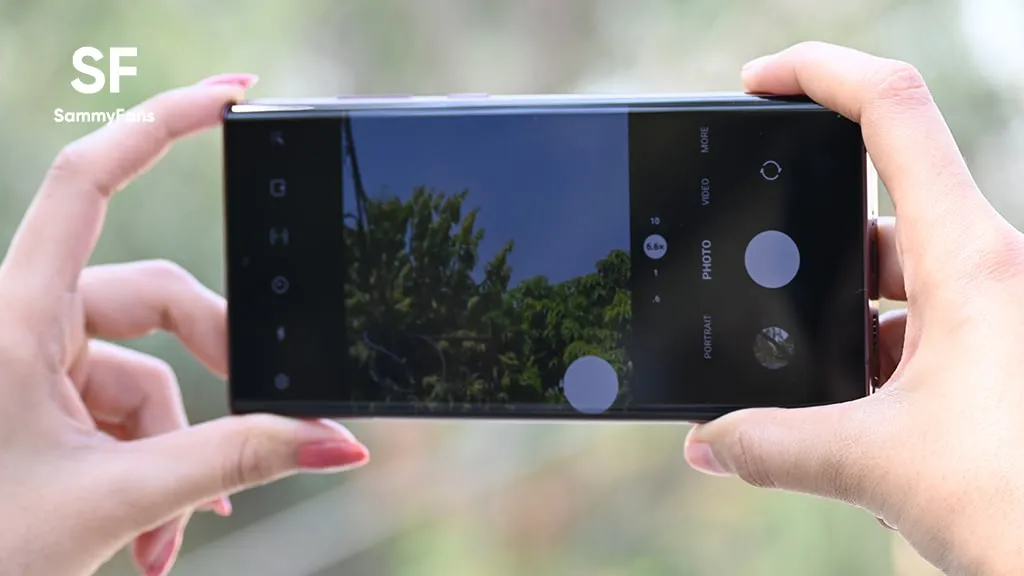
    oneui camera raw

    With OneUI 5.1, the AR Emoji Camera also gains greater functionality. Now, you can use Mask mode to take pictures of up to three people and swap out their faces for emojis.

    OneUI 5.1 also has a new battery widget. From your home screen, you can check the battery life of your phone and any Galaxy devices that are connected to it, including your Galaxy Watch, Galaxy Buds, and more.

    Depending on the phone mode you’ve selected, you can also set alternative backgrounds for the lock screen and home screen. As a result, by selecting several modes, you can have various backdrops for business, sports, and more.

    If you’re migrating from an earlier Galaxy or another Android phone, one Galaxy S23-only feature will make it simpler to set up your new phone. By scanning a QR code on your previous device, it uses Bluetooth Low energy to assist you in moving your Wi-Fi networks, Samsung account, and Google account to the new device. According to the source, the Galaxy S23 series will have “AI Restoration,” another new OneUI 5.1 feature. It isn’t specifically mentioned in the changelog, though.

    One UI 5.1 features
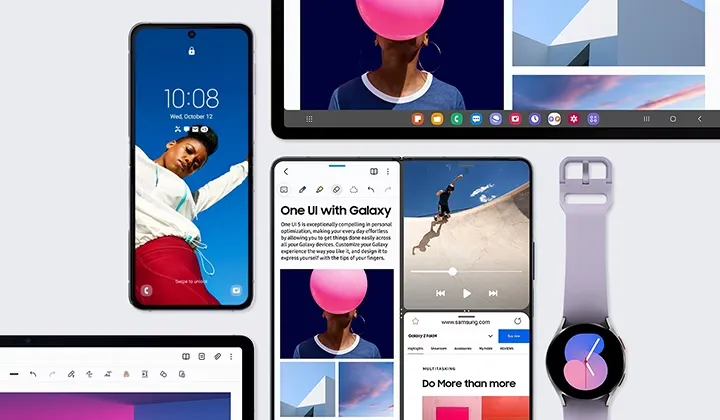
    oneui features

    Camera

    • Changing the hue for a selfie just got easier: Easily change the hue of your selfies with the Effects button on the side of the screen.
    • Quick access to Expert RAW: The Expert RAW app allows you to capture high-quality images without any processing or compression, perfect for those who want to edit their photos later. Accessing Expert RAW is now easier from the Advanced menu.

    Gallery

    • Common family album: With Shared Family Album, sharing photos with your family is easier than ever. Gallery recommends photos to add to your shared family album by recognizing your family members’ faces. You also get 5GB of storage per family member (up to 6 people).
    • Improved handling: Processing automatically removes shadows and reflections to make your photos look great. You can also recreate GIFs for better resolution and clarity.
    • Convenient information display: If you swipe up when viewing a picture or video in your gallery, you can see at a glance when and where the picture was taken, on which device, where it’s stored, and more.
    • Search has become more powerful: You can now search for more than one person or item at a time. You can even search for people without tagging their names, just by clicking on their faces.
    • Choose a location to save screenshots: Now you can save screenshots and screen recordings in a folder of your choice by setting it up in the advanced features.

    AR Zone and AR Emoji

    • Use 3 Emojis in AR Emoji Camera: Take fun photos and videos with friends (up to 3 people) in mask mode. You can replace your friends’ faces with other characters by clicking the emoji.
    • Layout and editing improvements in AR Doodles: The brushes are now available on the main AR Doodle screen for quicker access. You can also resize and move drawings after you create them, and the new eraser tool lets you erase just a portion of your drawings without completely erasing them.

    Widgets

    • New battery widget: With the new battery widget you can check the battery level of your Galaxy devices. Right from the home screen, you can see how much battery your smartphone, Galaxy Buds, Galaxy Watch and other supported devices have left.
    • Intuitive weather widget: The new illustration style and a summary of the current weather conditions make it easy to know the weather information, whether it’s sunny, cloudy, raining or snowing.

    Modes and Scenarios

    • Different wallpapers depending on the mode: Set different wallpapers on the lock screen and the home screen depending on your current activities. Choose a background for work, one for sport and more by setting different modes.
    • More conditions and actions for scenarios: Run scripts automatically when you turn on airplane mode or mobile hotspot. Scripts can now open some apps, adjust left/right audio balance, and more. New actions now let you control Quick Share and touch sensitivity, as well as change the ringtone and font style.

    Connectivity

    • Collaboration in Samsung Notes: Create a shared note that multiple people can edit at the same time. Write a report with colleagues, take notes for a study group, or draw a picture with a friend. The possibilities are endless.
    • Inviting to shared apps made easy: Now you can easily invite people to shared albums, notes, and calendars using a link that can be shared across apps like messenger, email, and social networks.
    • Advanced multiple controls between Galaxy Book and smartphone: Now you can use your Galaxy Book’s mouse, keyboard, or trackpad not only with your Galaxy tablet, but also with your Galaxy smartphone. You can easily copy and paste text and drag and drop images from one device to another as if it were the same device.
    • Media output for WiFi speakers: If you want to continue listening to music on Wi-Fi speakers via Spotify Connect and the built-in Chromecast™, simply open the media output from the quick access toolbar, not the music apps.
    • Continue surfing on the PC: If you surf the Internet on your smartphone with Samsung Internet and then continue browsing on your PC, you can find the websites you opened on your smartphone and continue browsing them with the PC browser.

    Samsung Dex

    • Improved multitasking in DeX: In split screen mode, you can now drag the splitter in the middle of the screen to resize both windows. You can also snap a window to one of its corners so that it takes up a quarter of the screen.

    Settings

    • Settings suggestions: Suggestions are now displayed at the top of the settings screen, letting you know about useful features to try or settings that need your attention so you can enable or try them right away.

    Samsung Internet

    • Improved search: You can now search by folder name in bookmarks or by group name in tabs. Improved search logic allows you to find what you’re looking for, even if something is misspelled.

    Setup Wizard

    • Faster and easier initial setup of your new Galaxy: If you’re switching to a new Galaxy from a Galaxy or other Android device, simply scan the QR code on your old device to automatically migrate your Wi-Fi networks, Samsung account, and Google account to the new one Device to transfer without typing anything.

    Weather

    • Detailed weather information at a glance: Useful weather information is now displayed on the main screen of the Weather app. You can check severe weather alerts, daily weather reports, hourly precipitation and color temperature charts.

    Calls

    • Bixby text calls: Use Bixby text calls to automatically answer calls and find out the purpose of the call. You’ll see what the caller is saying in a text chat, and you can tap or type replies to have them read aloud to the caller. Bixby text calls are only available in English and Korean.

    OneUI 5.1 availability

    According to information accidentally put out by Samsung itself, One UI 5.1 would be coming to “flagship models released after Galaxy S20 and Galaxy Z Flip.” This means the update should be headed to the Galaxy S21 series, Galaxy S22 series, and nearly all of Samsung’s foldables, including the Galaxy Z Fold 2, Galaxy Z Fold 3, Galaxy Z Fold 4, Galaxy Z Flip 5G, Galaxy Z Flip 3, and Galaxy Z Flip 4.

    Since the software will debut with the Galaxy S23 series in February, it should start showing up on older Galaxy phones by March.
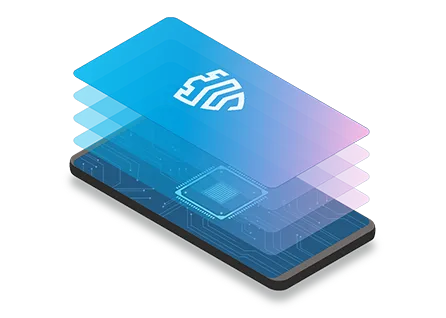

  • How does Samsung Knox Vault works

    How does Samsung Knox Vault works

    Almost all Samsung Galaxy smartphones come with Samsung Knox pre-installed, and it serves as a security solution for device owners to make sure that both their smartphones and their data are protected. It goes beyond what TrustZone, a Trusted Execution Environment (TEE) that Samsung uses on its smartphones, previously provided by combining hardware-backed security with software. On more recent Samsung flagship smartphones, Knox Vault is an option that runs completely independently of the main processor.

    Like TrustZone, Knox Vault safeguards your biometrics, cryptographic keys, and passwords. The distinction is that Android asks a TrustZone applet to validate the fingerprint or password on your behalf when you unlock your phone, even though TrustZone runs in parallel with Android on the same core application processor. Your biometric data and passwords cannot be stolen, even if your Android installation has been compromised. Knox Vault goes a step farther and serves as a beefed-up substitute for TrustZone.

    knox social X3lp

    TrustZone vs Knox Vault, difference?

    On the SoC, a TEE is a secure area that manages sensitive data. Any modern smartphone has TEE because it is required for devices launched with Android 8 Oreo and higher. Anything outside of the TEE is regarded as “untrusted” and is limited to viewing encrypted content. For instance, content that is DRM-protected is encrypted using keys that are only accessible by software operating on the TEE. The content can be decrypted by the TEE and then shown to the user, while the main CPU can only see a stream of the encrypted content. Another TEE is Knox Vault.

    In the case of Knox Vault, Samsung says that it “extends” upon the protection offered by TrustZone. Knox Vault is a replacement for TrustZone according to Samsung, and the company describes the difference in the following way in a blog post:

    The way I think of it, TrustZone was a great safe in the middle of your bank’s branch office. There are a lot of people you don’t necessarily trust walking by the safe, doing day-to-day work that doesn’t require physical access to the safe. The secure processor in Samsung Knox Vault is more like Fort Knox: a safe securely placed far away from the bank, isolated from whoever walks into the branch.

    How Samsung’s Knox Vault works

    knox vault

    Knox Vault extends the security that TrustZone already offers, and Samsung phones from the Galaxy S21 and above have it. Knox Vault can:

    • Store sensitive data such as hardware-backed Android Keystore keys, the Samsung Attestation Key (SAK), biometric data, and blockchain credentials.
    • Run security-critical code that authenticates users with increasing timeouts between failures and controls access to keys depending on authentication.

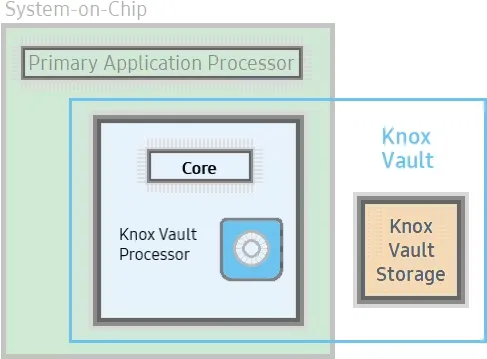
    Knox Vault isn’t just a software isolation, it’s a physical isolation from the chipset on your smartphone. It’s an independent processor on the SoC with storage physically separate from the rest of the SoC. Because of this physical isolation, Knox Vault is even protected from side-channel attacks that target other software running on the primary processor.

    Knox Vault’s architecture

    knox vault architecture

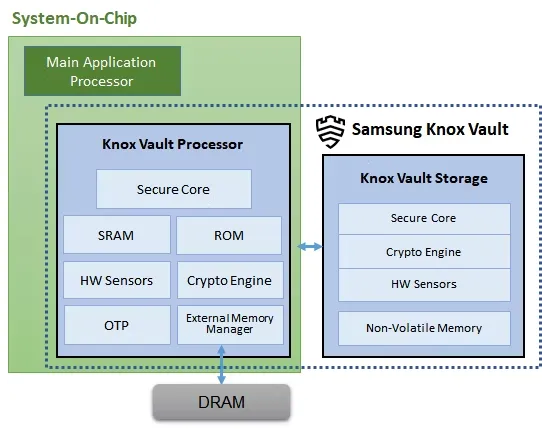
    Knox Vault is made up of the following:

    • Knox Vault Subsystem: implemented as part of the SoC
    • Knox Vault Storage: an integrated circuit physically outside the SoC

    How Knox Vault protects itself from attacks

    If someone has physical access to your device, you should act and prepare as if it’s only a matter of time before they gain access to the protected data stored on it. Samsung says that with Knox Vault, that may not necessarily be the case. It’s resistant to hardware attacks such as the following:

    • Physical probing to disclose data
    • Physical manipulation of the circuitry to deactivate security mechanisms
    • Forced information leakage
    • Hardware side-channel attacks such as differential power analysis to disclose data
    • Fault injection to bypass security mechanisms.

    As well, the Knox Vault Processor communicates with Knox Vault Storage via a dedicated I2C (Inter-Integrated Circuit) bus. Traffic on this bus is encrypted and transmitted with an authentication code to prevent eavesdropping on communications, and those communications are also protected against replay attacks.

    Knox Vault Subsystem

    It is intended for the Knox Vault Subsystem to function independently of other SoC components. The Knox Vault Processor, SRAM, and ROM make up its own safe processing environment. Additionally, it offers improved security and data protection from a variety of hardware-based threats by monitoring the environment and hardware state using a number of security sensors or detectors, such as:

    • High and low temperature detectors
    • High and low supply voltage detectors
    • Supply voltage glitch detector
    • Laser detector

    When the Knox Vault Processor starts, the ROM code is loaded into SRAM. While the ROM code loads the Knox Vault Processor firmware, with the help of the modules running on the SoC’s main processor. The software stack of the Knox Vault Processor has its own secure boot chain.

    The Knox Vault Subsystem also includes a dedicated random number generator and its own Crypto Engine. The Knox Vault Processor can access system DRAM through the External Memory Manager. This monitoring cannot be affected or bypassed by any application on the Knox Vault Processor, and physical intrusion will initiate a device lockdown sequence.

    The crypto engine provides the following cryptographic functions:

    • AES encryption/decryption
    • DRBG random number generation
    • SHA hashing
    • HMAC keyed-hashing for message authentication code
    • RSA and ECC key generation and services

    Knox Vault Storage

    The Knox Vault Storage is a dedicated non-volatile memory device that stores sensitive data such as the following:

    • Cryptographic keys such as Blockchain keys and Device keys
    • Biometric data
    • Hashed authentication credentials

    Just like the Knox Vault Processor, the storage is also safeguarded against physical and side-channel attacks. It has a secure core to do the following:

    • Execute the ROM code
    • Provide cryptographic operations for public key algorithms (RSA, ECC) and SHA algorithm with software libraries
    • Safely store data in dedicated SRAM and ROM

    Samsung phones that support Knox Vault

    knox security platform

    Certain Samsung Galaxy tablets and smartphones, including the Samsung Galaxy S21 and later models in both the S series and the Fold series, feature Knox vault. Particularly for users who may rely on their smartphones for sensitive data storage or other enterprise usage, the level of security offered is intended to give you entire trust in your smartphone’s ability to house personal data.

  • No CPU throttling for Galaxy S23 – improved cooling system

    No CPU throttling for Galaxy S23 – improved cooling system

    You may or may not remember Samsung tipster Ice Universe pointing out that the low Geekbench results for the Galaxy S23 line suggested that the overclocked Snapdragon 8 Gen 2 chip powering the Galaxy S23 devices was not functioning properly. A benchmark test called Geekbench is used to evaluate and compare the central processing unit CPU of chipsets used in smartphones (it works with processors on other types of devices, but we are focused on handsets for this story).

    The Galaxy S23‘s single-core Geekbench score was comparable to other smartphones powered by the same SoC, as we noted approximately a week and a half ago. However, the multi-core scores fell short of expectations, which is strange given that the overclocked Snapdragon 8 Gen 2’s X-3 high-performance core should result in higher Geekbench scores than other models using the chip’s stock configuration.

    galaxy s23 snapdragon

    Previous Geekbench tests hinted that Samsung was throttling the CPU of the Snapdragon 8 Gen 2 for the S23 line

    And since none of the multi-core Geekbench tests for the Galaxy S23 line topped a score of 5,000 (something that other phones running the latest Snapdragon application processor (AP) did, it led to concerns that Samsung must be throttling the processor on the Galaxy S23 series which is something that would be done if the chipset was overheating.

    galaxy s23 geekbench

    Let’s explore the Snapdragon 8 Gen 2 chipset that powers the Galaxy S23 range in more detail. There are two variations; the Motorola X40 and OnePlus 11 will use the 4nm process node and the X-3 high-performance core, which has a 3.2 GHz clock speed. Samsung Foundry will produce the version for the Galaxy S23 range utilizing its 4nm production node and an X-3 high-performance processor clocked at 3.32GHz.

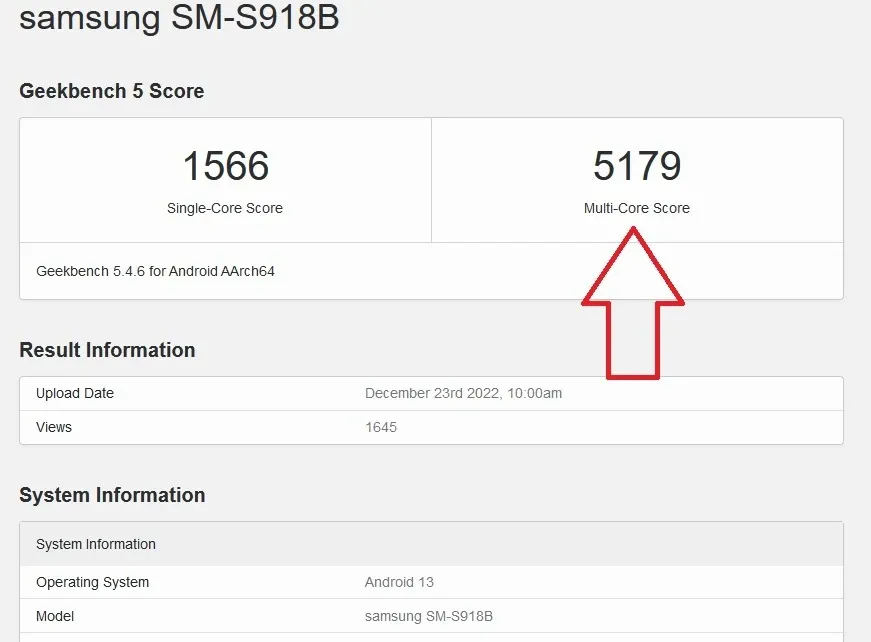
    However, a recent Geekbench test on the Galaxy S23 Ultra resulted in a multi-core score of 5,179, finally crossing the 5,000 threshold, according to Android Headlines. This suggests that any thermal issues that would have compelled Samsung to reduce the processor’s speed may have been resolved.

    The cooling system on the Galaxy S23 model will reportedly be enhanced and 1.6 times more effective than the cooling system on the Galaxy S22, according to a Twitter tipper by the name of Ahmed Qwaider (@AhmedQwaider888). The cooling system on the Galaxy S23+ will be 2.8 times more effective than the one on the Galaxy S22+, while the cooling system on the Galaxy S23 Ultra will be 2.3 times more effective than the one on the Galaxy S22 Ultra.

    The new chipset and cooling systems should keep the Galaxy S23 line from overheating

    The upgraded cooling systems will be able to prevent the Galaxy S23 series from overheating during periods of high usage without the need to throttle the processor, which is the bottom line. Furthermore, if your flagship phones’ overclocked Snapdragon 8 Gen 2 chipsets are going to be throttled in any case, what would be the point?

    The tipper notes that the Galaxy S23 models’ battery life would increase and less heat will be produced as a result of the upgraded Snapdragon 8 Gen 2 SoC and better cooling system. Additionally, he claims that the performance of the Neural Processing Unity (NPU) would increase by 60% due to the enhanced usage of artificial intelligence (AI) features, and that the performance of the CPU will increase by 36% compared to the Snapdragon 8 Gen 1 chip used in the Galaxy S22 series.

    The Samsung Galaxy S23 series is rumored to be pre-installed with the One UI 5.1 interface which includes newer Android 13 features that were released by Google with the Android 13 Quarterly Platform Release 1 that was dropped early last month. The One UI interface is designed to make it easier for users to reach on-screen elements that are usually placed out of reach of users sporting a large-screened phone. This is done by keeping most of the elements near the bottom of the display.

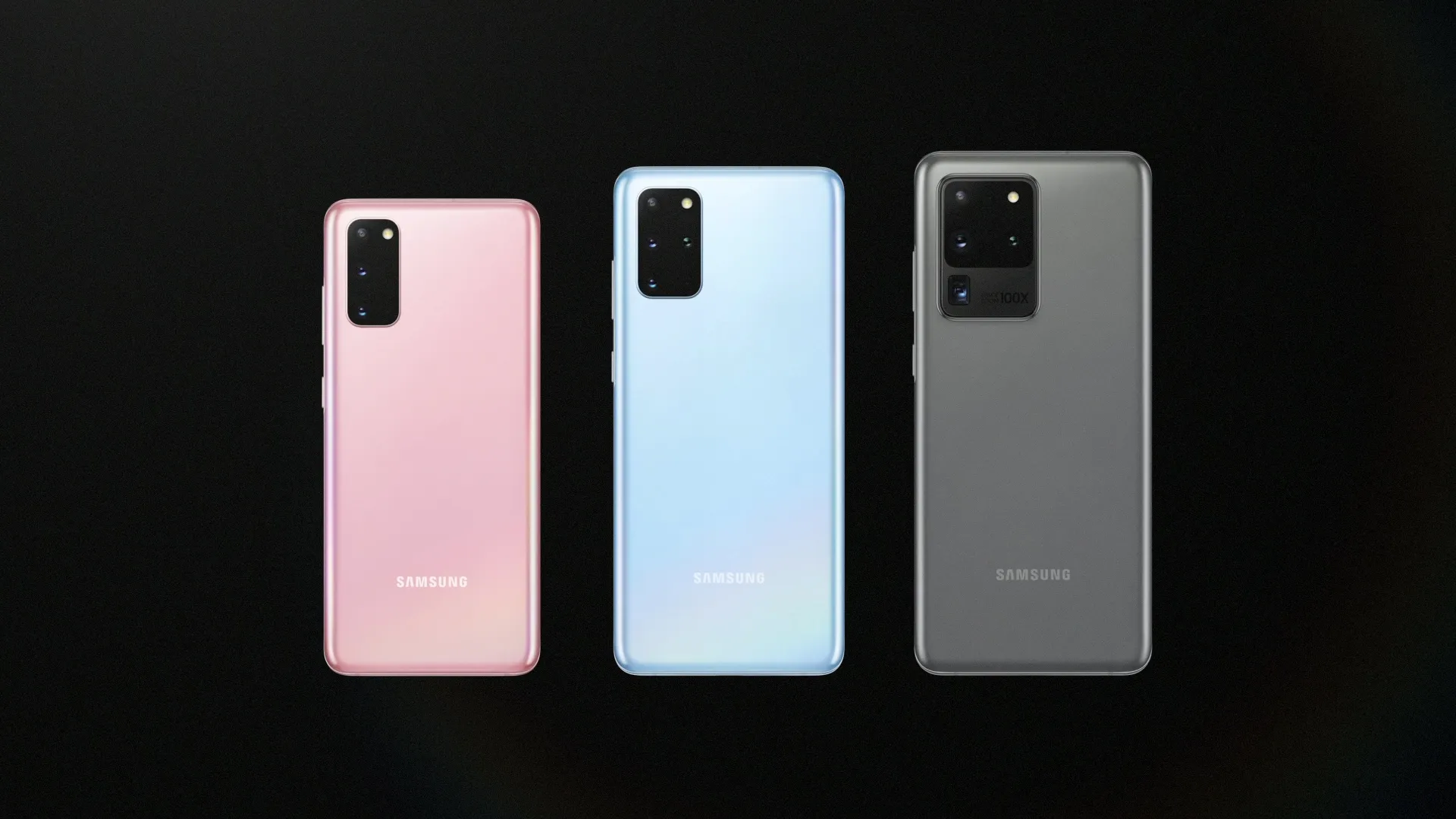
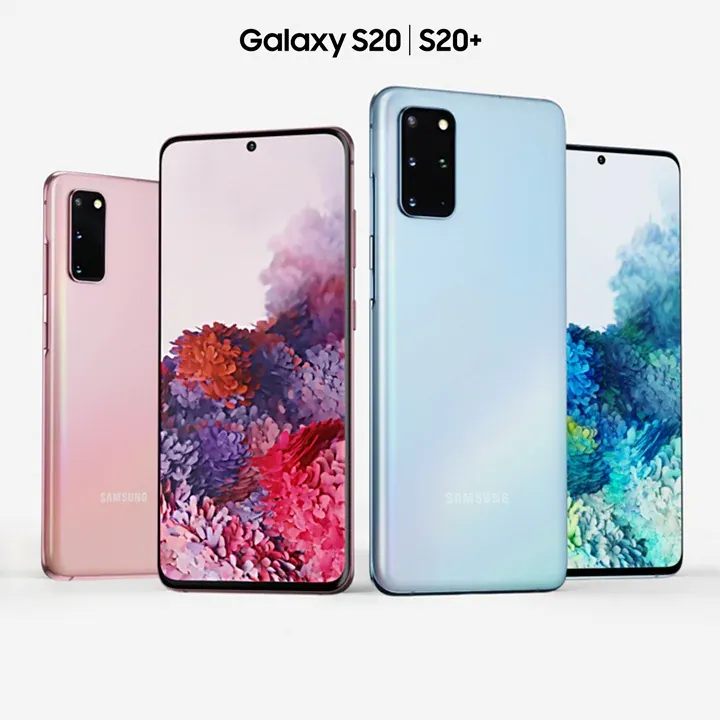
  • December security update rollout for Samsung Galaxy S20 series

    December security update rollout for Samsung Galaxy S20 series

    Samsung Galaxy S20, S20 Plus, and S20 Ultra updates

    Starting with devices in Europe, Samsung has started distributing the December security update to the Galaxy S20 series. SamMobile claims that certain countries, including Austria, Bulgaria, Croatia, Czech Republic, France, Germany, Greece, Hungary, Italy, Luxembourg, Poland, Portugal, Romania, Slovakia, Slovenia, Southeast Europe, Spain, Switzerland, the Baltic states, the Netherlands, and the UK, have access to the update. Firmware version G98xBXXSFGVK7 will be installed on all devices in the series. The patch from December will address 67 security flaws.

    galaxy s20 series

    Previous Samsung Galaxy S20 series updates

    • November 7, 2022: The Galaxy S20, Galaxy S20 Plus, and Galaxy S20 Ultra are receiving the stable version of One UI 5. At the time of writing, the major OS update is only available in Switzerland and Germany. Other markets should follow soon.
    • November 1, 2022: The latest security update for unlocked versions of the Galaxy S20 and Galaxy S20 Ultra is rolling out for users in the US. According to SamMobile, this is the October 2022 security update and comes with firmware version G98xU1UES3FVI6. The new update will fix a variety of privacy and security issues and may also provide stability and bug fixes.
    • September 15, 2022: Samsung has rolled out its September security update for the Galaxy S20 series. According to SamMobile, the LTE versions will receive firmware version G985FXXSFFVHA. As for the 5G variants, they will get firmware version G986BXXSFFVHA.
    • July 28, 2022: The August 2022 security update is arriving for the Galaxy S20 series in Germany (via SamMobile). As usual, the update is expected to hit other countries in Europe before coming to other parts of the world. Firmware version G98xBXXUEFVG5 will be coming to the Galaxy S20 5G, Galaxy S20 Plus 5G, and Galaxy S20 Ultra 5G. The LTE versions will instead be getting firmware version G980FXXUEFVG5.
    • July 11, 2022: Samsung has started rolling out the July 2022 security update to Galaxy S20 series devices in Europe (via SamMobile). The update is firmware version G98xxXXSEFVF4 and appears to only contain the security patch with no other new features.
    • May 12, 2022: Samsung has started rolling out the May 2022 security update to carrier-unlocked Galaxy S20 series devices in the US (via SamMobile).
    • March 28, 2022: Samsung has started pushing out the One UI 4.1 update to the Galaxy S20 series in some parts of the world.In the US, the update is going out to carrier-locked models with firmware version G98xUSQU2FVC5 (h/t SamMobile). It also adds the March security patch to the phones.
    • January 31, 2022: Samsung pushed the February update to the Galaxy S20 series ahead of time. Firmware versions G98xFXXUDEVA9 and G98xBXXUDEVA9 came to 4G and 5G devices, respectively (h/t SamMobile).
    • January 13, 2022: Samsung rolled out the January 2022 security patch to Galaxy S20 devices in the US. Per SamMobile, the update included firmware G98xU1UES2DUL2 and ten fixes from Samsung, with an additional 52 from Google.
    • December 28, 2021: Samsung kicked off the stable Android 12-based One UI 4 rollout to the S20 family starting in Switzerland (h/t XDA-Developers).
    • November 10, 2021: According to Droid-Life, the Galaxy S20 series is now receiving the November Android security patch through the Verizon network. Usually, a Verizon rollout means most other countries/variants are getting it at the same time. Unfortunately, the security patch appears to be the only thing that’s new in this rollout.
    • September 30, 2021: Next month’s security update is rolling out now to the Galaxy S20 lineup in South Korea. Per SamMobile, the update carries firmware version G98xNKSU1EUI3 and should have some other fixes included aside from just the October 2021 patch. However, we won’t know what’s included until the rollout comes to other countries.
    • September 17, 2021: The Galaxy S20 trio gained the September 2021 Android security patch across the world, including unlocked and carrier-locked models. According to SamMobile, the update brought firmware version G98xxXXSADUH5.
  • The 200MP camera from Galaxy S23 Ultra will make some exceptional low-light shots

    The 200MP camera from Galaxy S23 Ultra will make some exceptional low-light shots

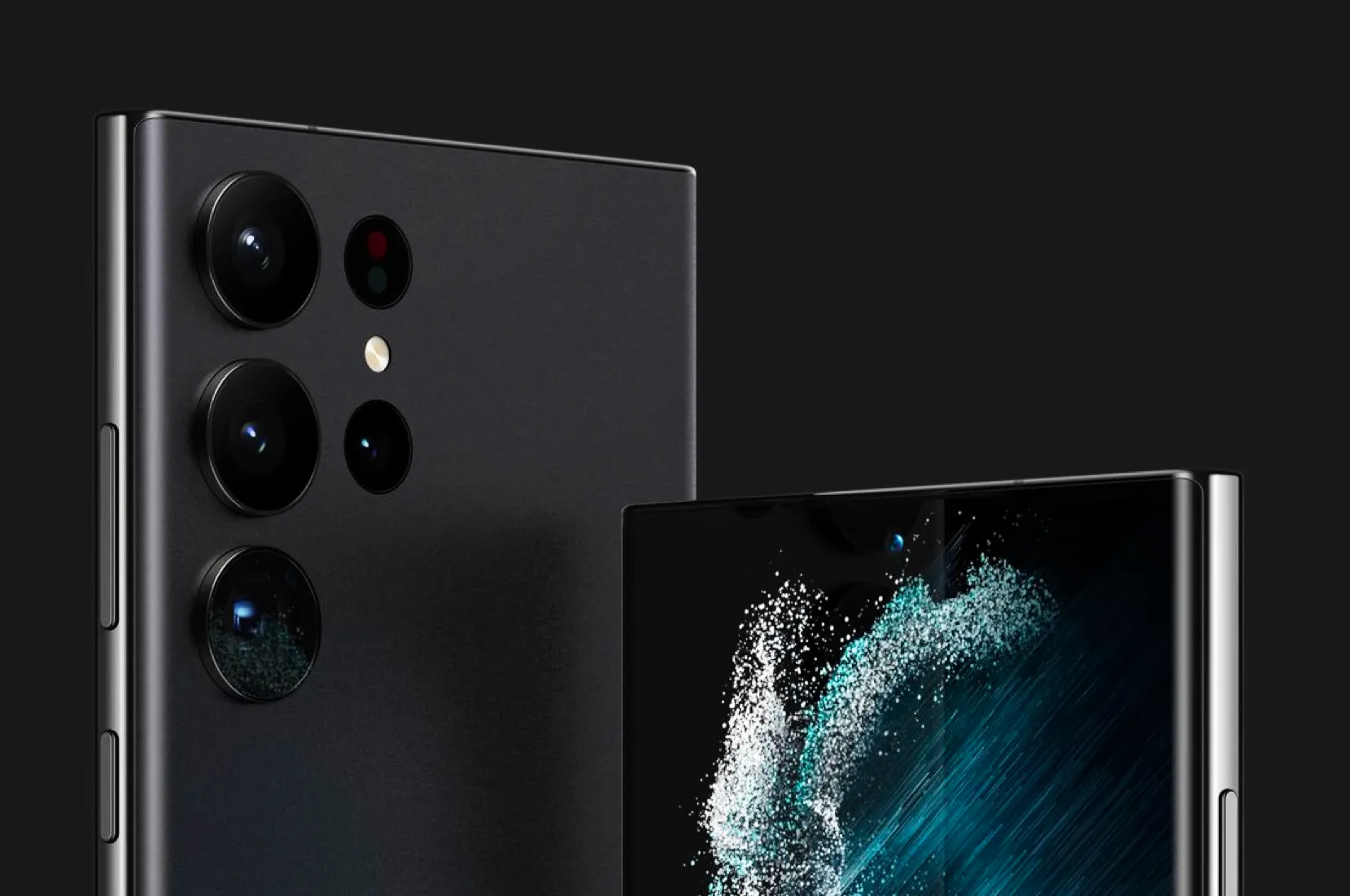
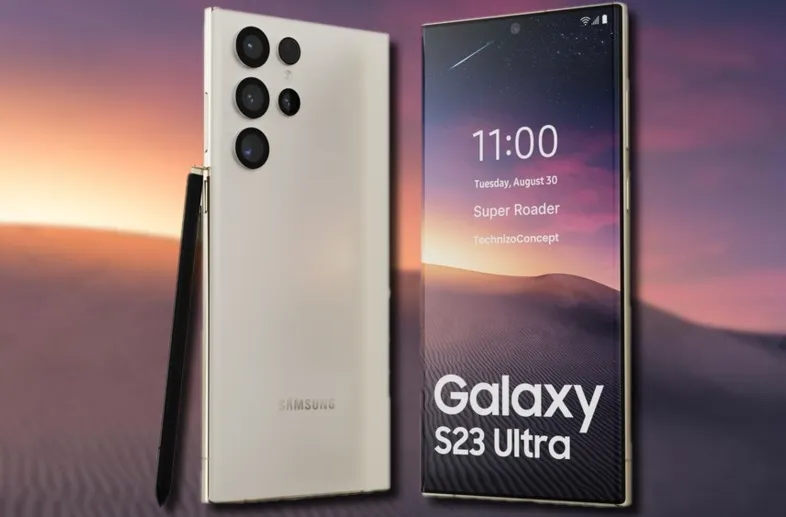
    Aside from its opulent folding phones, Samsung produces some of the greatest Android phones money can now buy, and its Galaxy S22 models from this year are possibly the most attractive of them all. The Galaxy S23 series, which includes the S23 Ultra, S23 Plus, and regular S23 models, is now something we’re anticipating. The most recent hardware rumor is currently aiming to raise our expectations for the 200MP primary camera on the flagship Galaxy S23 Ultra.

    Galaxy S23

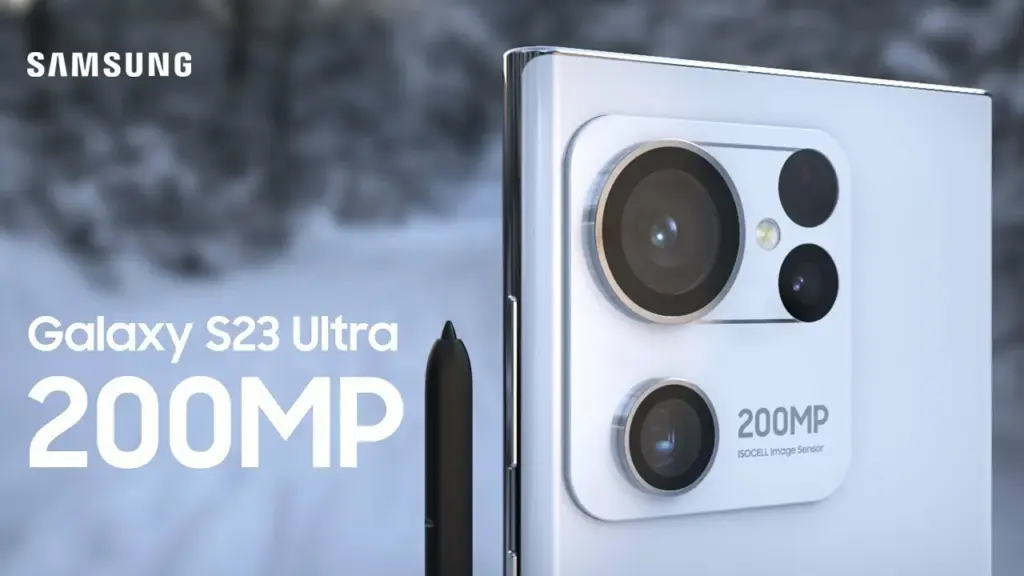
    The Galaxy S23 Ultra’s behemoth of a sensor, according to leaker Ice universe on Twitter, will not only be absurdly high-res but will also have better performance in some key areas, bringing about the “biggest improvement” in Samsung flagships in years. We have already heard a lot about the likelihood that a 200MP sensor will serve as the primary lens on the device. In particular, the advancements might lead to greater low-light photography and videography outcomes.

    The latest Expert RAW update improved the astrophotography capabilities of the current-generation Galaxy S22 series, and this rumor says that the 200MP low-light photos of the Galaxy S23 Ultra should be something to look forward to. It is unclear, though, if the sensor’s advancements would take the shape of bigger individual pixels or some other type of hardware improvement.

    However, we are yet unsure of how well this will actually function and whether we can expect a smartphone’s camera to produce 200MP full-resolution photographs that are acceptable in low light. The tiny individual pixels in high-resolution smartphone sensors would struggle to collect enough information to recreate colors naturally, therefore pixel binning is likely here to stay for low-light performance.

    Besides the 200MP primary, we can expect the Galaxy S23 Ultra to have a 12MP ultrawide and dual 10MP telephoto cameras. Under the hood, Samsung is likely to toss in the Qualcomm Snapdragon 8 Gen 2 SoC along with up to 12GB of RAM and 1TB of onboard storage.

  • August 2022 security patch from Samsung makes a late appearance on the Verizon Galaxy Tab S7 series

    August 2022 security patch from Samsung makes a late appearance on the Verizon Galaxy Tab S7 series

    When it comes to upgrades, carrier-locked phones typically lag behind their unlocked counterparts since carriers enjoy taking the time to customize stock firmware. While this is true for many phones in the US, Samsung’s experience is unique. US carrier-locked variants of the Galaxy S22 series are now receiving the same treatment as the unlocked ones, following the August security patch’s international rollout to the company’s newest flagships late last month.

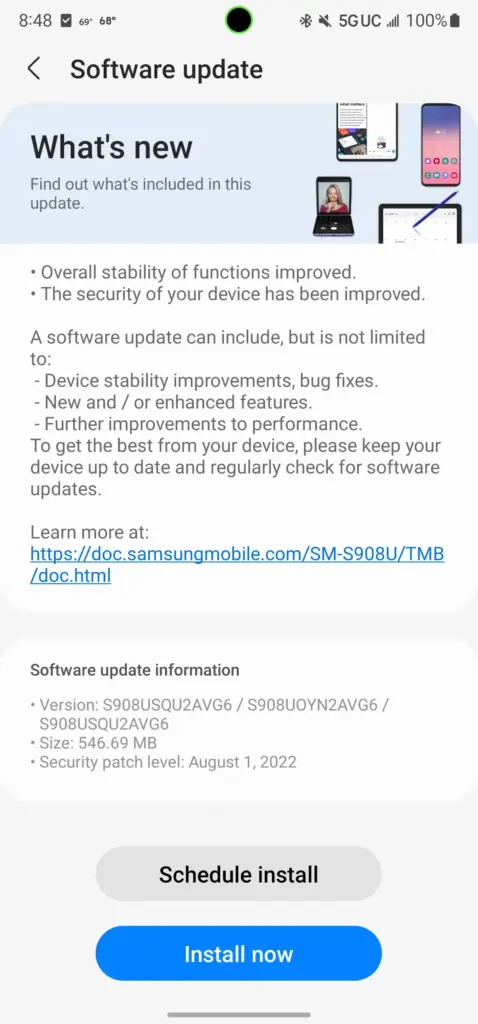
    With this month’s security patch, Samsung began distributing software version S908USQU2AVG6 to carrier-locked models of the Galaxy S22, S22+, and S22 Ultra in the US yesterday. According to SamMobile, the three have joined their Russian, Korean, and Latin American counterparts in utilizing the August security patch, leaving only the unlocked variations in the US and Asian regional models.

    samsung update

    The firmware for the carrier-locked models appears to be a simple security patch, similar to the last update that went out to these devices globally. However, Samsung claims in the changelog that the “overall stability of functions” has been improved, so expect updates to the system apps or other undocumented changes along with it.

    As always, we’ll keep this article updated as more Samsung devices get the August 2022 security patch in the US.

    Galaxy S10 series

    • Verizon
      • Galaxy S10e: SP1A.210812.016.G970USQU6IVH2, released August 31st
      • Galaxy S10: SP1A.210812.016.G973USQU6IVH2, released September 2nd
      • Galaxy S10+: SP1A.210812.016.G975USQU6IVH2, released September 2nd
      • Galaxy S10 5G: SP1A.210812.016.G977UVRU8HVH1, released August 31st

    Galaxy S20 series

    Galaxy S21 series

    Galaxy S22 series

    Galaxy Note 10 series

    Galaxy Note 20 series

    Galaxy Z series

    Galaxy A series

    • AT&T
      • Galaxy A53: A536U1UEU3AVH2, released August 25th
    • Comcast
      • Galaxy A53: A536U1UEU3AVH2, released August 25th
    • T-Mobile
      • Galaxy A53: A536U1UEU3AVH2, released August 25th
    • Verizon
      • Galaxy A01: RP1A.200720.012.A015VVRS8BVH1, released August 23rd
      • Galaxy A11: RP1A.200720.012.A115USQS7BVG4, released August 23rd
      • Galaxy A42 5G: SP1A.210812.016.A426USQU4CVH1, released September 13th
      • Galaxy A53: A536U1UEU3AVH2, released August 25th
      • Galaxy A71 5G: SP1A.210812.016.A716VSQS5EVI2, released October 7th
    • Xfinity
      • Galaxy A53: A536U1UEU3AVH2, released August 25th

    Galaxy Tablets

  • Android 13 beta for the Galaxy Z Fold 2 rolls out

    Android 13 beta for the Galaxy Z Fold 2 rolls out

    Yesterday, Samsung updated the Galaxy Z Fold 4 and Galaxy Z Flip 4 with its One UI 5 beta upgrade, which is based on Android 13. Owners of the Galaxy Z Fold 2 can now enroll in the beta program.

    The Samsung Galaxy Z Fold 2 was promised three significant OS updates and shipped with Android 10 out of the box. Owners of the Fold 2 can anticipate receiving Android 13 as the last significant OS upgrade. Even for Galaxy S22 devices, the stable version of One UI 5 is still not ready for release, but the beta version is currently accessible for download in South Korea. Other locations should soon receive the update.

    All you have to do to try out the beta is go to the Samsung Members app. You’ll have the option to sign up for Samsung’s beta program there. Simply launch the app and select the banner for the beta announcement. You can register by entering your information on the registration page that is linked by the banner. After that is finished, you ought to see an update notification.

    Galaxy Z Fold 2

    If you choose to install it, as with any beta, you can encounter issues. Always make a backup of your data before updating to the One UI 5 beta.

    The Galaxy Z Fold 2 will receive Android 13 as its final major operating system, but it won’t be the last upgrade. the object

    Although Android 13 will be the Galaxy Z Fold 2’s last major operating system, it won’t be the last upgrade. More security updates for the gadget are still planned, although they should stop in late 2024.

  • Turn On or Off autocorrect for Android and Samsung Devices

    Turn On or Off autocorrect for Android and Samsung Devices

    Autocorrect on Android devices may be both a benefit and a burden. It will spare you an embarrassing typo in a communication to your boss by a minute. Then, you’ll be embarrassed as you text a family member something utterly improper.

    It’s time you regained initiative. Continue reading to find out how to enable autocorrect on your Android device as well as how to disable it once more. In order to assist you get the autocorrect feature working the way you want it to, we’ll also touch on a few other settings.

    How to Turn Off Autocorrect on Android

    Gboard, Google’s proprietary keyboard program, comes preinstalled on the majority of Android smartphones by default. You can disable autocorrect by following our instructions if you’re using Gboard.

    However, if you prefer a different keyboard, you can quickly switch to an alternative with one of the numerous third-party apps offered in the app store. However, the directions for disabling autocorrect may vary significantly. For more details, go to the official material produced by the keyboard’s creator. Additionally, this process could differ slightly depending on your device.

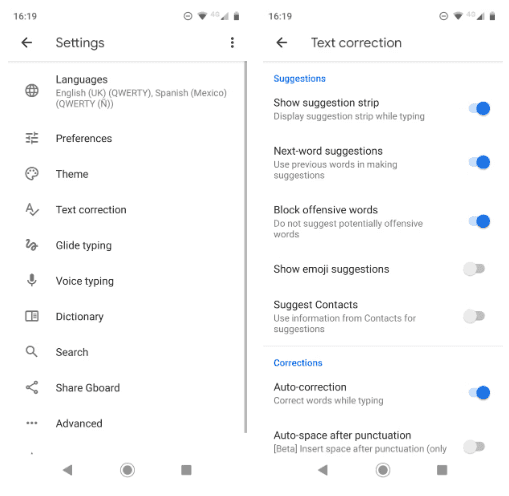
    Gboard’s autocorrect toggle is tucked away in the Settings menu of your phone.

    You must access it by opening the Gboard settings. You can do this by navigating to Settings > System & updates > Languages and input > Keyboards > Gboard in the Settings app. On Android smartphones, you may access the autocorrect section more quickly by opening your keyboard, holding down the comma key for a long time, and then tapping the gear symbol that appears.

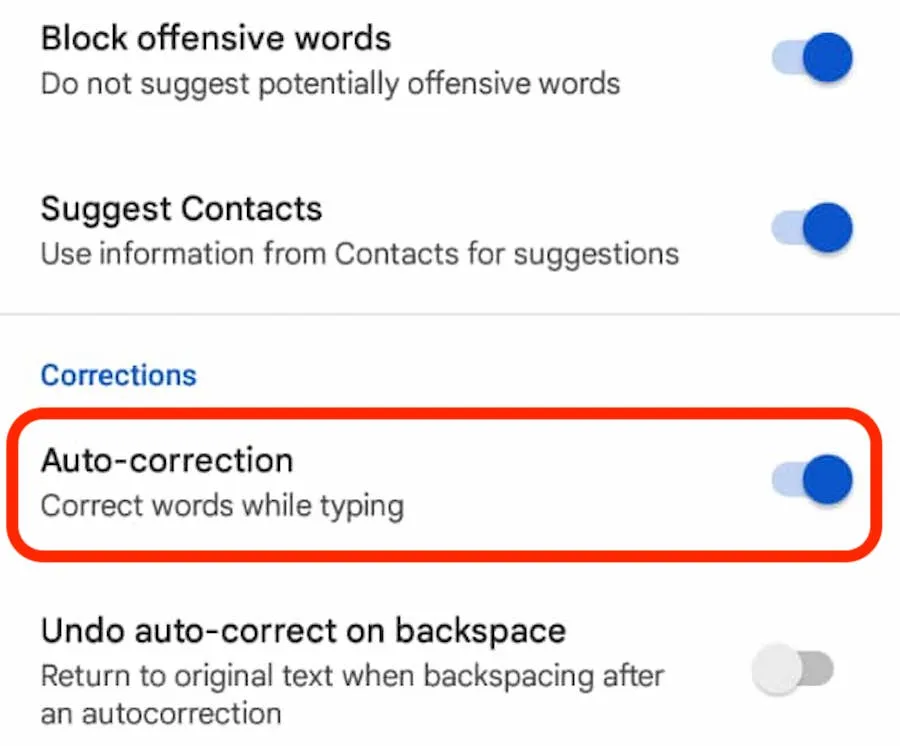
    Once you reach Gboard’s settings with either method, select Text correction. Next, under the Corrections heading, slide the toggle for Auto-correction into the Off position.

    Autocorrect on Android

    Turn On Autocorrect on Android

    If you change your mind later, you can re-enable the autocorrect feature at any time. Simply perform the same instructions as above, tweaking the final step:

    1. Open the Settings app and go to System & updates > Languages and input > Keyboards > Gboard. Alternatively, you can also open the keyboard, hold the comma key, and tap the gear icon to reach the settings area.
    2. Choose Text correction and scroll down to the Corrections section.
    3. Locate the toggle labeled Auto-correction and slide it into the On position.

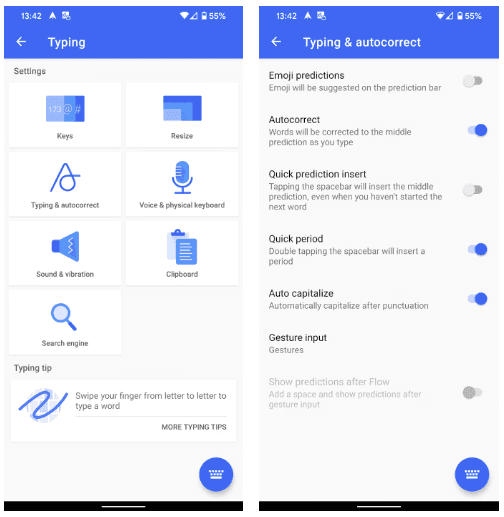
    Again, if you’re using a different Android keyboard, you might find that the instructions vary. Any keyboard you have installed should appear under the Keyboards section of the Settings app. Open it from there, and then you’ll need to look for the appropriate setting.

    SwiftKey, for example, has the autocorrect feature stored under Typing > Autocorrect. You can easily toggle the feature anytime you want.

    image 2

    Turn Off Autocorrect on Samsung Devices

    You are aware that Samsung does not use the original Android operating system if you have ever acquired a Samsung smartphone or tablet. Samsung smartphones instead use a specialized Android skin called One UI.

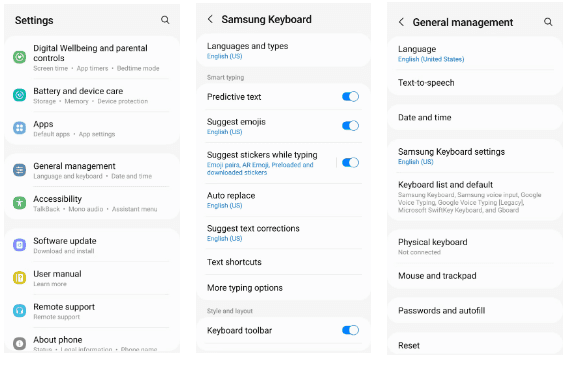
    Stock Android and Samsung’s skin differ in a lot of ways, one of which is how to turn autocorrect on and off. Below are instructions on how to turn off autocorrect on Samsung devices running Android 11 and up:

    1. Open the Settings app.
    2. Go to General management and select Samsung Keyboard Settings assuming that you’re using the built-in solution.
    3. Turn Predictive text off under Smart typing.
    oneui autocorrect

    If you want to know how to turn off autocorrect on Samsung phones and tablets that are from older generations, you’ll need to follow these instructions:

    1. Open the Settings app by heading to Apps > Settings.
    2. Scroll down to the System section.
    3. Tap on the icon labeled Language and input.
    4. Select Default from the list of options available. This may have a different name if you have a different keyboard installed.
    5. Scroll down until you find the Auto replace menu item and select it.
    6. Flick the toggle in the upper right-hand corner into the Off position.

    As you can see, disabling autocorrect on Samsung devices isn’t a particularly difficult process. Of course, you may use the same steps but modify the final step if you’re curious about how to enable autocorrect on your Samsung device.

    Improve Autocorrect on Android

    Everyone has seen those hilarious screenshots of autocorrect. It makes sense why you might feel the sudden need to turn off autocorrect on your Android device after reading some of these.

    But in reality, such extreme steps are rarely necessary. There are a ton of choices available on Android keyboards that let you adjust, hone, and enhance the autocorrect feature to better suit your needs.

    Auto-Capitalization

    As you type, Android can automatically correct capitalization of proper nouns and the beginning of phrases.

    It is a valuable feature in most situations. But it might not be the best option for everyone. Many words function as both proper nouns and common nouns (for example, “Turkey” the country, and “turkey” the bird). If you frequently use words like these, you may want to disable the auto-capitalization option.

    You can do so by heading to Settings > System > Language and input > Keyboards > Gboard > Text correction > Auto-capitalization. Slide the toggle into the Off position to disable it.

    Spell Check

    Instead of relying on autocorrect to correct your mistakes, you could just turn on spell checking for Android. It will use those recognizable red squiggly lines under the text to highlight typos and other misspelled words for you.

    To turn spell check on or off on Android, you need to go to Settings > System > Language and input > Keyboards > Gboard > Text correction > Spelling > Spell check and flick the toggle into the desired position. In order for this feature to work, you’ll need to ensure you’ve selected a default language for your keyboard.

    Customize the Android Dictionary

    There are always going to be some real terms that aren’t in the dictionary that comes with Android. Common offenders include obscure place names, brand names, and specialized lingo connected to your line of work.

    When Android consistently tries to autocorrect words like “Sonos” or “Logitech,” it quickly becomes tiresome. You should include the words into your own personal vocabulary to avoid this from occurring and relieve some of your stress in the process.

    You can access the dictionary by heading to Settings > System > Language and input > Keyboards > Gboard > Dictionary > Personal Dictionary. Tap the language you’d like to edit the dictionary for, even if you only have one installed. Then you can use the Plus button to add new words.

    Voice Typing

    You may find several functions on some keyboards, like Gboard, to help you become a better typist. As an alternative, you can begin speaking instead of utilizing the touch-screen keyboard.

    When speaking as opposed to typing, you’re less likely to make a mistake in autocorrect. However, if you have any kind of accent, you run the risk of your remarks being misinterpreted. You can always use our advice for quick Android typing if you desire both speed and accuracy.

    If you would like to try voice typing, go to Settings > System > Language and input > Keyboards > Gboard > Voice typing and turn the toggle on. Then you can tap the Microphone icon at the top-right of the keyboard to speak.

    Learn More About Typing on Android

    Your typing experience on an Android device can be enhanced by using autocorrect and understanding how to turn it on and off. For instance, you can install third-party features, alter the keyboard’s style, or even select a different keyboard layout than the QWERTY.

    If you do decide to switch to a new keyboard, you should always make sure to go with a reputable manufacturer.

  • Setup fall detection on Galaxy Watch5 and Galaxy Watch5 Pro

    Setup fall detection on Galaxy Watch5 and Galaxy Watch5 Pro

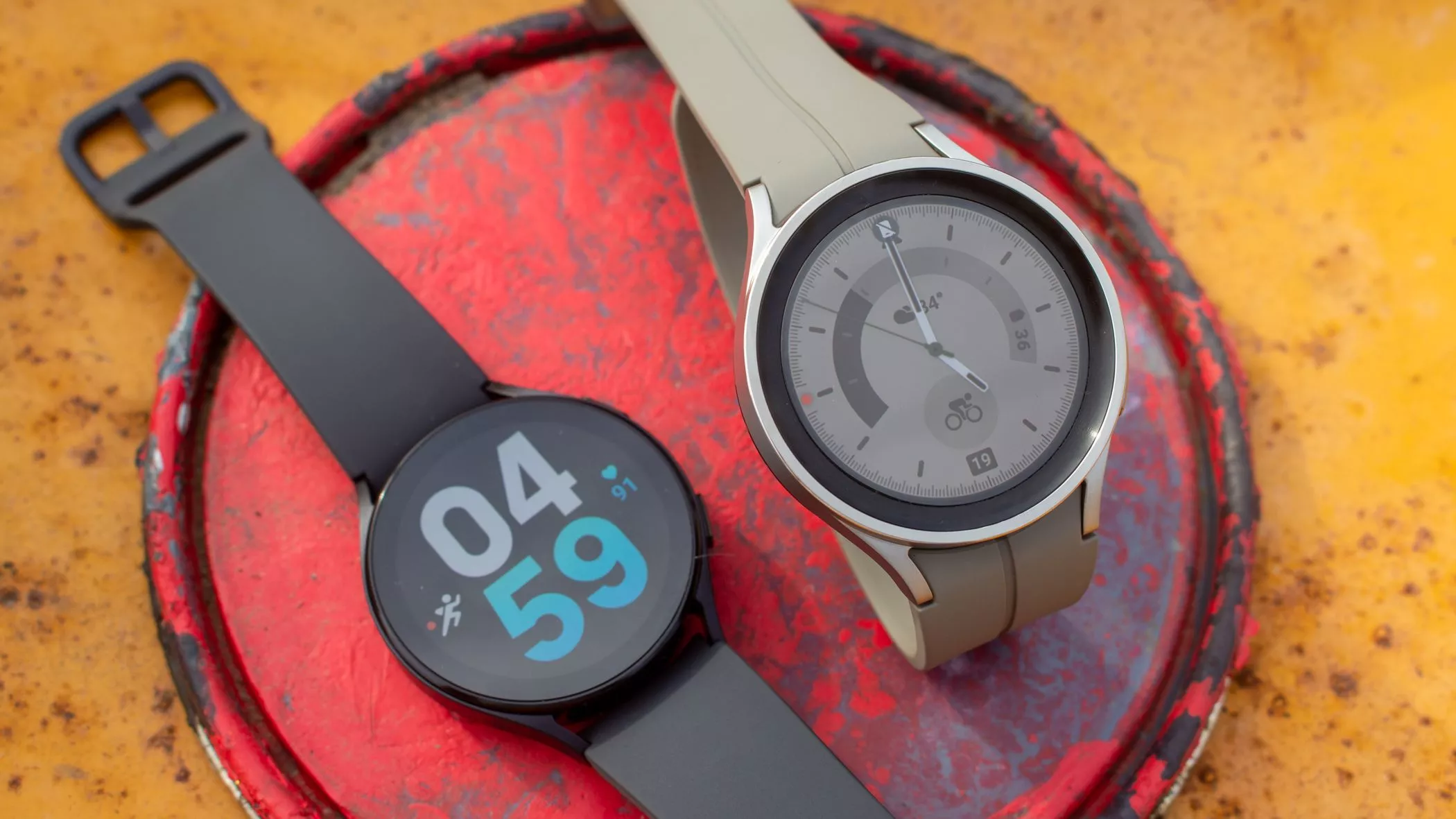
    In response to the popularity of the previous Samsung Galaxy Watch, Samsung recently introduced the Galaxy Watch5 and Watch5 Pro. The most recent Samsung Galaxy Watch uses the same cutting-edge technologies but drastically alters the Battery Life rather than reinventing the wheel. The Samsung Galaxy Watch5 series offers a surplus of health and wellness features, in contrast to its older predecessor. Additionally, the most recent Samsung Galaxy Watch now has a fall detection feature and emergency help.

    You might be wondering what is fall detection feature. It’s a completely life-saving feature that monitors the random or hard falls. It’s equipped with an accelerometer that helps to detect all your body movements. During a hard fall, it will feature emergency assistance. And in case, if you didn’t reply in a design within 60 seconds of time-frame, it will instantly and automatically deliver the SOS alert to the emergency contacts and services. 

    Setup fall detection on Galaxy Watch5 and Galaxy Watch5 Pro

    Can The Samsung Galaxy Watch5 Series Detect A Fall?

    As of now, the Galaxy Watch5 series is craved with a feature known as the Fall detection feature. Here in this guide, we have mentioned step-by-step to set up the fall detection feature on Galaxy Watch5 Pro and Galaxy Watch5

    Steps To Set up Fall Detection On Galaxy Watch5 Series 

    First of all, to use the SOS feature, your watch must be connected to a phone. At the same point, you should keep the Emergency Contact on the list through an application. 

    • Step 1 → Navigate to the Galaxy Wearable App on your device.
    • Step 2 → Choose Watch Settings > Advanced Features.
    • Step 3 → Tap SOS. On the next screen, turn on the When Hard Fall Detected > Continue.
    • Step 4 → Tap Agree > Emergency Contacts.
    • Step 5 → Here you can setup up to 4 Contacts > Done.

    Right after that, click on any contact to create an SOS call right after the messages are sent > Save.

    Samsung Watch That Supports Fall Detection

    • Galaxy Watch Active 2
    • Galaxy Watch3 
    • Galaxy Watch4 
    • Galaxy Watch5 

    Keep Yourself Safe!

    I’m damn sure you are now updated with what is fall detection and how to setup it up on the Galaxy Watch5 series. In case, if your loved one, parent, toddler, or grandmother has Samsung Watch, prompt them to enable the feature as it’s completely life-saving. 

    How Do You Use Fall Detection On Galaxy Watch?

    If you have fall detection compatible Galaxy Watch, you can easily activate “Hard Fall Detection” from the phone settings: Navigate to the Galaxy Wearable App > Watch Settings > SOS > tap on the toggle next Detects Falls.

    Does Samsung Have Hard Fall Detection?

    Thanks to it’s advanced Accelerometer will help alert you when your device attempts random falls.

  • Easy way to record calls on Samsung Galaxy Android devices

    Easy way to record calls on Samsung Galaxy Android devices

    Do you want to use your Samsung smartphone to record calls? All Galaxy devices come with the call recording feature out of the box, which streamlines the process. This implies that you can record calls on your Galaxy smartphone without using a third-party program.

    Are You Allowed to Record Phone Calls?

    Before you begin recording calls on your Samsung Galaxy phone, you should be aware that certain local laws and regulations may prevent you from using the feature in your nation or neighborhood.

    • In some countries, it is illegal to record calls without the other party’s consent. So don’t be surprised if the call recording feature is missing from your Samsung Galaxy device. In such cases, you are out of luck as there’s nothing that can be done to enable this functionality.
      • In a few locations, even when recording is legal, Samsung may still not have implemented it. This could help explain why the call recording option is not showing up on your Samsung phone.
    • It is not possible to record VoWiFi calls, i.e., voice calls that happen over Wi-Fi.
    • Also, note that you cannot record calls on Android using a third-party app. Due to privacy reasons, these apps don’t work on Android 9 or a newer version of the OS. Any app that claims to work will require you to root your Android device, which could void its warranty.

    Therefore, you cannot just download an app from the Play Store to add call recording capabilities to your device if it lacks it. You can follow our instructions for recording calls using the Google Phone app if it is the default dialer on your Android smartphone.

    The pre-recorded message warning the parties that the call is being recorded is not played by Samsung’s call recorder. It has a significant advantage over devices that use the Google Phone app as the default dialer as a result of this. It is impossible to record a call on such devices without the other side being aware of it. All callers will hear a “This call is being recorded” announcement whenever you begin or end a call recording.

    Automatically record calls on a Samsung Device

    You may set your Samsung Galaxy device to automatically record all calls.

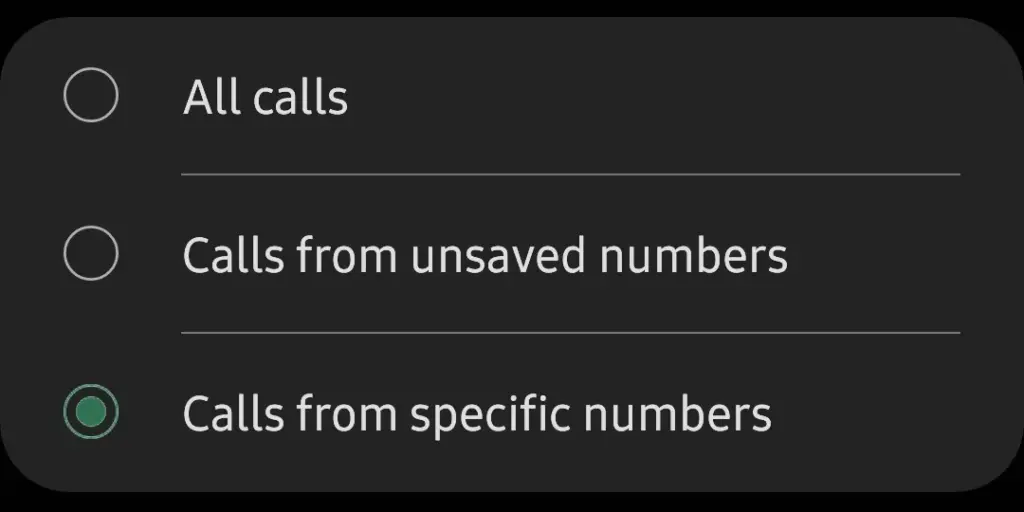
    You can choose to record calls from all contacts in your phone book, solely from selected contacts, or only from unknown numbers, depending on your preferences.

    enable auto record calls
    enable-auto-record-calls
    1. Open the Phone app on your Samsung Galaxy device.
    2. Tap the 3-dot overflow menu button in the top-right corner, followed by Settings > Record calls.
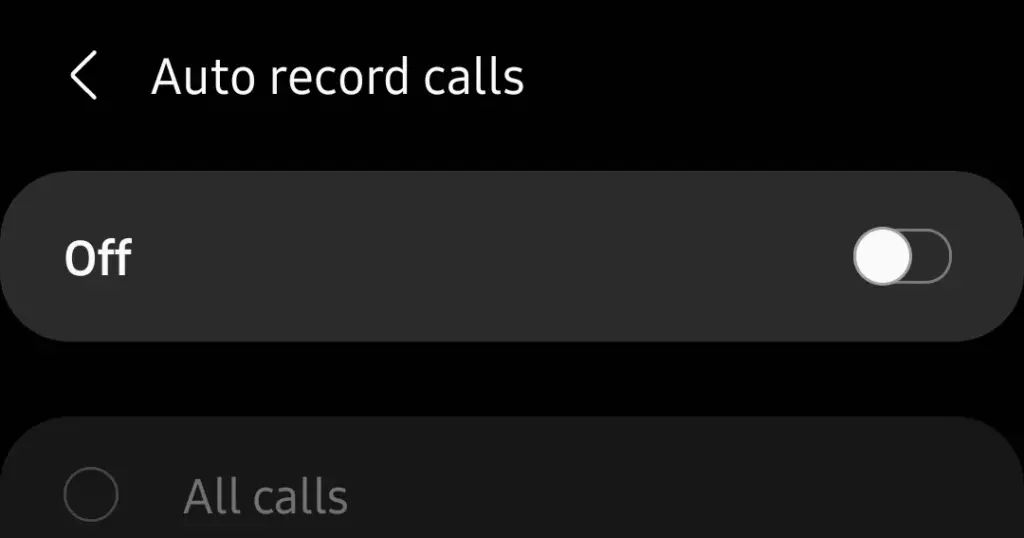
    3. Jump into the Auto record calls menu and enable the feature.
    4. Proceed to select whether you want to record All callsCalls from unsaved numbers, or Calls from specific numbers.
    auto record calls

    How to Manually Record Calls on a Galaxy Phone

    You can also manually record single calls on phones like the Samsung Galaxy S22, Note, or Galaxy Fold series. Here’s how:

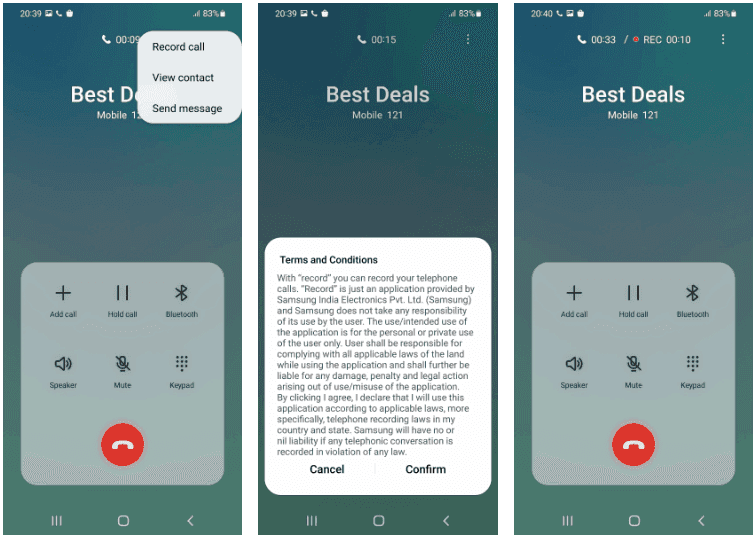
    1. Open the Phone app on your Samsung device and call the contact whose call you’d like to record. Alternatively, accept the incoming call that you want to record.
    2. On the call screen, tap the Record call button to start recording. If the option does not show up on the call screen, tap the 3-dot menu button on the top-right and then select the Record call option.
    3. The first time you use the call recording feature, you’ll be prompted to accept the terms and conditions.
    samsung record calls
    Manually record calls on Samsung Android Devices

    Contrary to several other phones, you can record calls without alerting the other party. Only Android phones that have the Google Phone app set as their default dialer app experience this.

    On One UI 4 and One UI 5, the method to record a phone call is the same.

    How to View Recorded Calls

    You can view recorded calls on your Samsung Galaxy device from the Phone app.

    1. Open the Phone app on your Samsung Galaxy device.
    2. Tap the 3-dot overflow menu button in the top-right corner.
    3. Navigate to Settings > Record calls > Recorded calls. All the recorded calls will show up here. The file name will show the contact name or the phone number to easily identify the recorded calls.

    You can select any recorded audio file and then tap the Share option to share the recorded call on WhatsApp, Gmail, Drive, etc.

    Call Recording on Samsung Galaxy Devices

    As we’ve seen, it’s rather simple to record calls on a Samsung Galaxy smartphone, assuming local regulations don’t restrict the firm from providing the feature there.

    And always keep in mind that when you have power, you also have duty, thus you should never record a call without first telling the other person on the line.

    One of the many features you’ll only find on Samsung smartphones and not on other Android phones is call recording. It’s highly recommended to check out some of the additional features offered by the Galaxy One UI software.