Tag: fix

  • Battery life myths vs facts: how to make your phone last all day

    Battery life myths vs facts: how to make your phone last all day

    Battery Life is the one Android topic where everyone has an opinion—and somehow, half of those opinions are stuck in 2011. You’ve probably heard “drain it to zero,” “never charge overnight,” or “close every app or your battery will melt.” Meanwhile, your phone still hits 18% before dinner.

    This guide is here to cleanly separate Battery Life myths from the real fixes that make a difference. Not miracle tricks. Not “turn off everything until your phone is basically a calculator.” Practical stuff you can do today, plus a few habits that keep your battery healthier over time.​

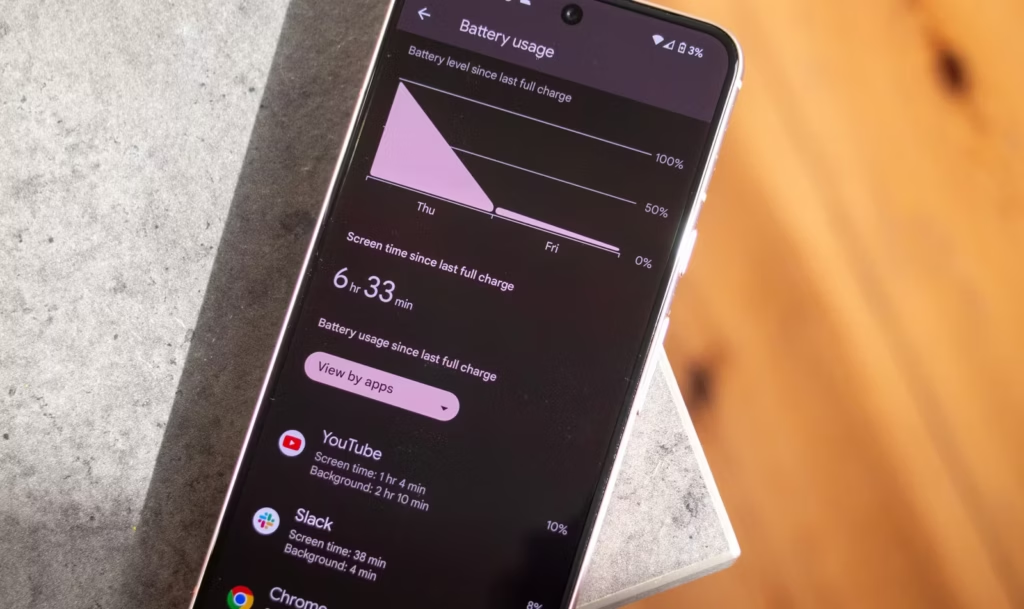
    Battery Life tips for Android users checking settings

    Why Battery Life Feels Random (But Usually Isn’t)

    Battery Life can feel unpredictable because it’s influenced by things you don’t notice in the moment—signal strength, background syncing, location services, screen brightness, and heat. Sometimes you change one setting, your phone lasts longer, and you assume you found “the secret.” Other times you do everything right and it still drains fast.

    On the one hand, modern Android is genuinely good at managing power in the background. But here’s the catch: one badly-behaved app, a weak 5G signal, or a hot charging session can undo all that smart optimization. So the goal isn’t perfection. It’s control.

    Before we fix anything, let’s kill the myths that waste your time.

    Myth #1: “You Must Drain Your Phone to 0% to Keep the Battery Healthy”

    This one is everywhere, and it sounds logical… until you remember: modern phones use lithium-ion batteries, not the older battery types that suffered from “memory effect.” Deep discharges can stress lithium-ion batteries over time, which is why many guides recommend avoiding constant 0% runs.​

    What to do instead (realistic version):

    • Try not to make 0% a daily habit.​
    • If your day usually ends around 20–30%, that’s a pretty comfortable routine for both Battery Life and battery longevity.

    Small nuance: letting your phone hit 0% occasionally isn’t a crime. It’s the repeated “red zone lifestyle” that tends to age batteries faster.

    Myth #2: “Charging Overnight Overcharges and Ruins Your Battery”

    Modern phones are designed to stop charging at 100%, so the old-school “overcharging” fear is mostly outdated. Overnight charging, by itself, isn’t automatically destructive.

    But—and this is where people get it half-right—keeping a battery sitting at 100% for hours can add stress over the long term, especially if the phone is warm while charging. That’s why features like adaptive/optimized charging and charge limits exist.​

    Real fix:

    • Turn on “Adaptive Charging” / “Optimized Charging” if your phone offers it.
    • If there’s a “Protect Battery” or “Charge to 80–85%” option, use it when you can (especially if you keep phones for 2+ years).​

    Myth #3: “Closing All Apps Saves a Ton of Battery”

    This is the classic “swipe everything away” habit.

    Sometimes it feels like it helps, because your phone looks “clean.” But Android often manages background apps efficiently on its own, and constantly force-closing apps can even add overhead because apps need to reload again and again. (It’s like turning your car off at every red light to save fuel—technically it changes consumption, but not in the way you want.)

    When it actually helps: when a specific app is misbehaving—running in the background, looping, overheating, or abusing location. In that case, the fix isn’t “close everything.” It’s “find the one problem app and deal with it.”​

    Myth #4: “Fast Charging Always Kills Batteries”

    Fast charging is not automatically a battery death sentence. Real-world testing and good charging management have improved a lot. But here’s the catch: heat is the enemy.

    Fast charging can create more heat depending on the charger, phone design, and environment. Heat accelerates battery wear, so it’s not the speed itself you fear—it’s the temperature that sometimes comes with it.​

    Practical approach:

    • Use fast charging when you need it (workdays, travel).
    • Use slower charging when you don’t (overnight, desk time), especially if your phone tends to run warm.​

    Myth #5: “Wi‑Fi and Bluetooth Should Always Be Off”

    This used to be decent advice years ago. Today it’s more “it depends.”

    Wi‑Fi can actually be more power-efficient than mobile data in many situations, and modern Bluetooth is generally low energy. The bigger issue is constant scanning, weak signals, and background activity triggered by connectivity.

    Real fix:

    • Keep Wi‑Fi on if you’re in stable coverage; it can help Battery Life compared to a phone fighting for cellular signal.
    • Turn off unnecessary scanning settings if you don’t need them (varies by Android version/brand).
    Battery Life myth busting with a phone on charger

    The Real Fixes: What Actually Improves Battery Life (Without Making Life Miserable)

    Now the part that matters. These are the changes that most people can feel within 24–72 hours.

    Fix #1: Control the Screen (Brightness and Sleep Timer)

    For many users, the display is the biggest Battery Life drain. Not because your phone is “bad,” but because modern screens are bright and we keep them on longer than we realize.​

    Try this:

    • Enable Adaptive Brightness (so you’re not blasting 100% indoors).
    • Lower brightness one notch more than you think you need.
    • Reduce screen timeout (sleep) to something sensible (30 seconds to 1 minute).
    • Use Dark Mode if you like it—especially helpful on OLED screens.​

    Fix #2: Find Your “Battery Vampire” App

    Guessing wastes time. Checking takes two minutes.

    Go to:

    • Settings → Battery → Battery usage (wording varies)

    Look for:

    • One app with unusually high background use
    • An app you barely use but that’s always near the top

    Then do one of these:

    • Update it (bad versions happen).
    • Restrict background activity (if Android offers it).
    • Remove it if it’s not essential.

    This is not anti-app paranoia. It’s basic hygiene. Even reputable apps can bug out after updates.

    Fix #3: Fix Location Permissions (Quiet Drain, Big Impact)

    Location is one of the easiest Battery Life drains to miss, because it doesn’t always “look active.”

    Set most apps to:

    • “While in use”

    Only keep “Always” for apps that truly need it:

    • navigation while driving (if you want alerts)
    • family safety apps (if you use them intentionally)

    Also consider turning off “precise location” for apps that don’t need it. Your weather app doesn’t need to know which side of the couch you’re on.

    Fix #4: Signal Strength Matters More Than People Think

    Here’s a sneaky Battery Life killer: poor signal.

    When your phone struggles to maintain connection, it works harder—especially on unstable 5G. If you’re in a weak coverage area, your battery can drop faster even if you’re barely using the phone.

    Try:

    • Use Wi‑Fi calling (if available).
    • Prefer Wi‑Fi when you’re home/work instead of letting mobile data do everything.
    • If 5G is unreliable in your area, test LTE for a day and compare Battery Life.

    Fix #5: Use Battery Saver Earlier (Not Only at 10%)

    Battery Saver isn’t only for emergencies. It’s a tool for predictable long days.

    Try:

    • Turn Battery Saver on at 30–40% if you know you’ll be away from a charger.
    • Use “Extreme Battery Saver” only when you truly need survival mode.

    This doesn’t mean living in Battery Saver forever. It means using it strategically—like carrying an umbrella when the sky looks suspicious.

    What Most People Get Wrong About Battery Life (A Quick Reality Check)

    Let’s call it out plainly:

    • People optimize the wrong things (closing apps constantly) and ignore the big drains (screen and signal).
    • People chase magic numbers (“always 80%”) but ignore heat, which often matters more.​
    • People think “new phone = perfect Battery Life,” but a single app or a bad network environment can wreck it.
    • People don’t verify backups/updates and blame “Android” when it’s actually one app misbehaving.

    And yes—sometimes the battery is simply aging. No setting can reverse chemistry.

    Battery Life Checklist (Do This Today)

    Quick checklist, no nesting, no drama:

    • Turn on Adaptive Brightness and reduce screen timeout.​
    • Check Battery usage and identify the top 3 apps.
    • Restrict or remove the top “background drain” app you don’t trust.
    • Review Location permissions and switch most apps to “While in use.”
    • Enable Adaptive/Optimized Charging or an 80–85% limit if available.​
    • Keep the phone cool while charging (no blankets, no hot car).
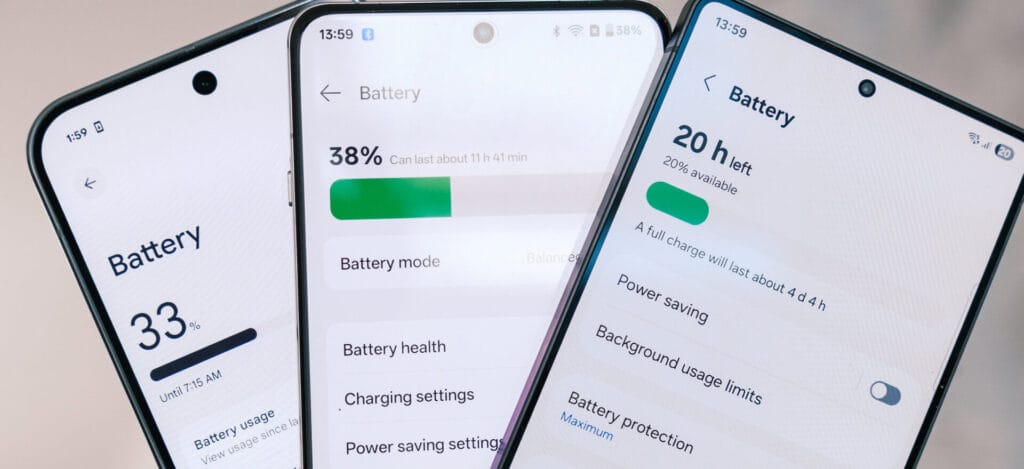
    Battery Life improvement checklist on an Android phone

    Charging Habits That Protect Battery Life Long-Term

    Battery Life today is one thing. Battery health over two years is another.

    A few habits that help longevity without making you obsessive:

    Keep heat low (the boring but true advice)

    Heat accelerates battery wear, so avoid:

    • charging under a pillow
    • gaming while charging
    • leaving the phone in direct sun while charging

    This isn’t fear-mongering. It’s just how batteries age.​

    Use the “80% rule” as a tool, not a prison

    Many sources recommend a “20–80%” or “30–80%” range for slower battery aging, but the exact number isn’t magical. The point is reducing time spent at very high charge levels, especially with heat.​

    If you’re traveling or need maximum Battery Life that day, charge to 100%. No guilt. Just don’t keep it sitting at 100% hot for hours every single day.​

    When It’s Not Settings: Signs Your Battery Is Actually Worn Out

    Sometimes your Battery Life issues aren’t fixable with tweaks because the battery has aged.

    Common signs:

    • Sudden drops from 30% to 10%
    • Random shutdowns at 15–20%
    • Noticeable heat during light tasks
    • Battery percentage behaving “jumpy”

    At that point, consider:

    • battery replacement (often worth it on mid/high-end phones)
    • or upgrading if the phone is old and already struggling with performance

    No shame either way. Batteries are consumables.

    FAQs

    1) Is it bad to charge my phone overnight?

    Modern phones prevent classic “overcharging,” but staying at 100% for hours—especially with heat—can contribute to wear over time, so adaptive charging or charge limits are helpful.​

    2) Should I always charge only to 80% for better Battery Life?

    Charging to 80–85% can reduce stress for long-term battery health, but it’s not mandatory. Use it when convenient, and charge to 100% when you need full-day Battery Life.​

    3) Does closing apps improve Battery Life?

    Not usually in a big way. It helps mainly when an app is misbehaving and draining battery in the background.​

    4) Does Dark Mode improve Battery Life?

    It can help, especially on OLED screens, because darker pixels can use less power. The impact varies by device and brightness.​

    5) Why does my Battery Life get worse in places with poor signal?

    Your phone works harder to maintain a connection when coverage is weak, which increases power use—even if you’re not actively using the phone.
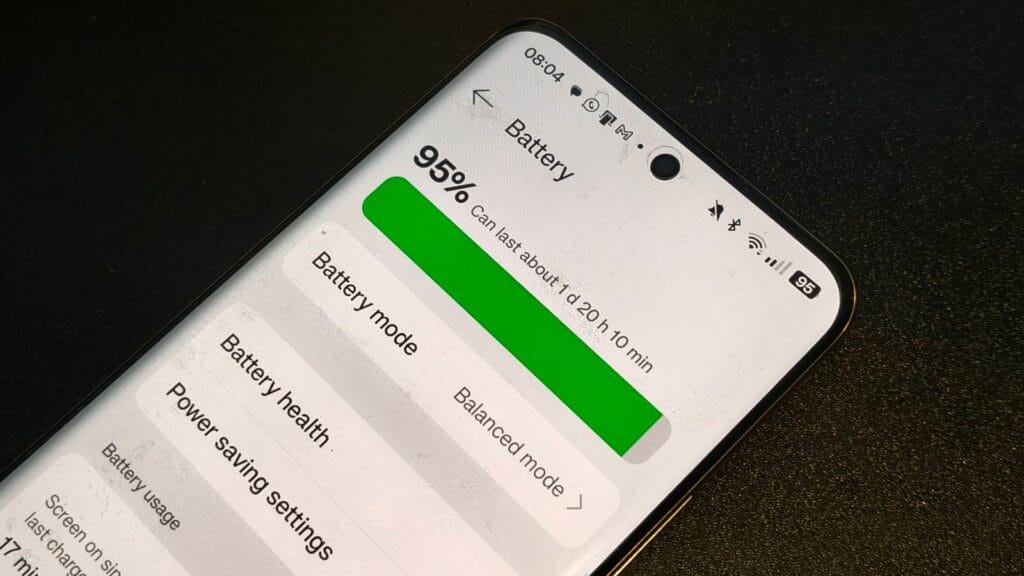
    battery life on an android phone

    What to Do Next

    If Battery Life has been frustrating lately, don’t try to fix everything at once. Do this in order:

    1. Check Battery usage and identify the top drainers.
    2. Reduce screen drain (brightness + timeout).
    3. Fix location permissions and notifications.
    4. Watch heat while charging for a week.
    5. If nothing improves, consider battery wear and replacement.

    Give it 2–3 days after changes and compare. Battery Life improvements are often “quiet,” not dramatic—but they’re real when you focus on the big levers.
  • The hidden Xiaomi battery setting you should enable right now

    The hidden Xiaomi battery setting you should enable right now

    From background controls to looks, Xiaomi’s HyperOS offers consumers a great deal of customization options for their phones. Nevertheless, one tiny switch among all of these choices could stealthily drain battery life without your knowledge. Owners have recently complained of unexpected power consumption in user forums and on Reddit, even while their phones are just sitting on a desk.

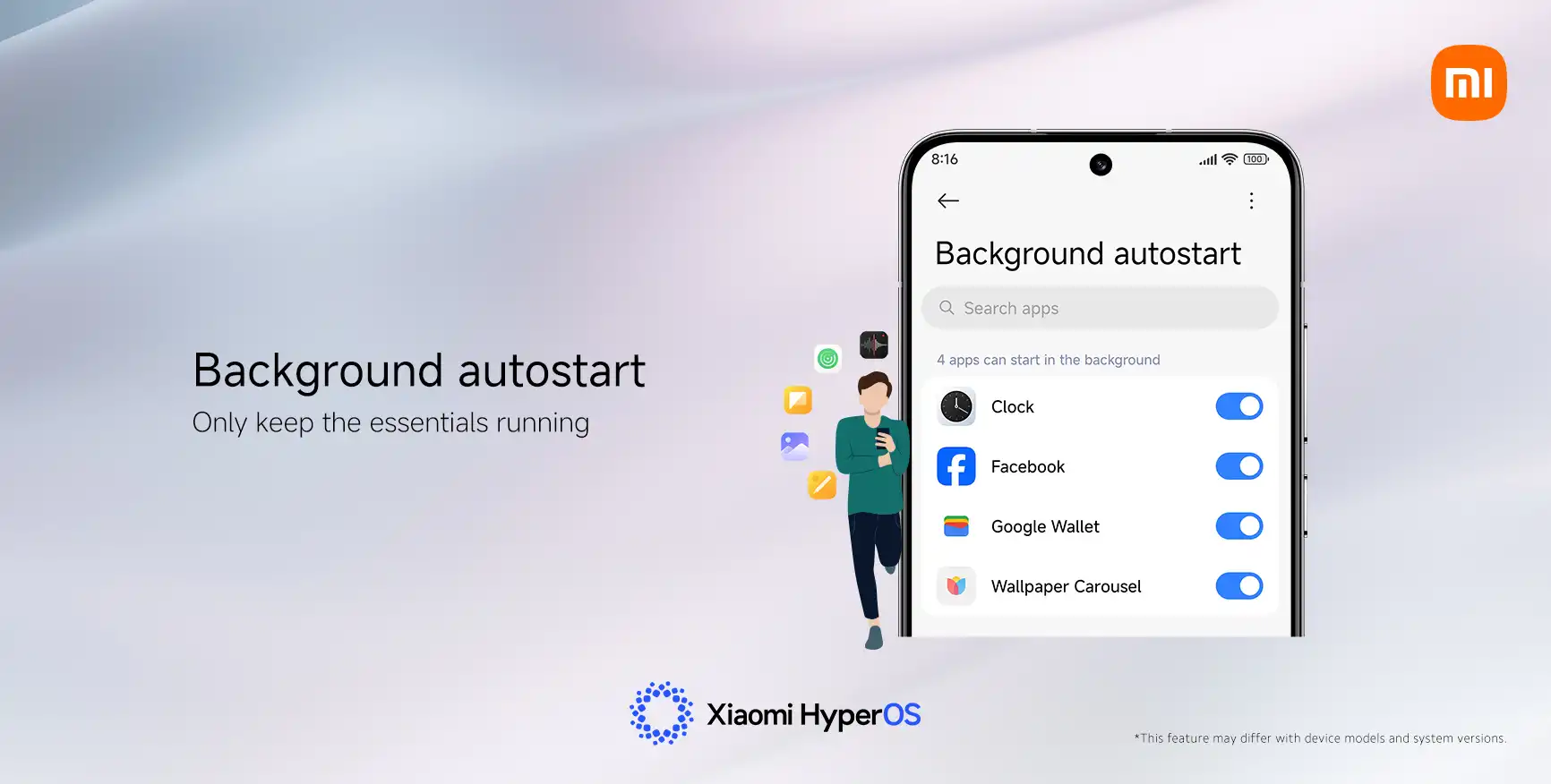
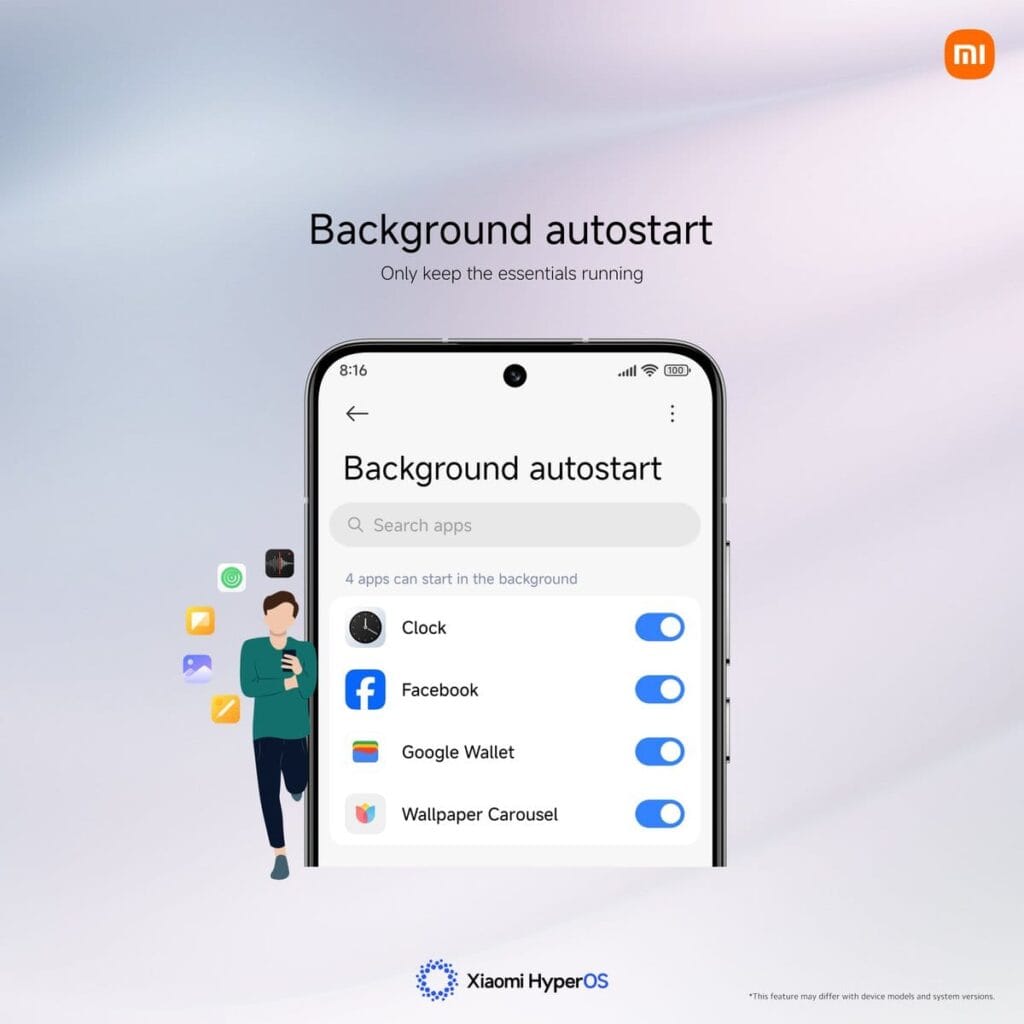
    “App Autostart” is one feature that frequently appears. Its original purpose was to speed up the delivery of notifications in older MIUI systems. However, Xiaomi has already made improvements to HyperOS‘s notification system, so this choice is no longer as important.

    Apps can operate automatically in the background when Autostart is enabled. Those apps continue to use memory and power even while you are not accessing your device. According to several users, turning off unnecessary autostart permissions can extend the standby duration of their phones by up to ten times.

    How to Fix It in a Few Steps

    You don’t need to be a tech expert to save battery life. Here’s the simple way to manage it:

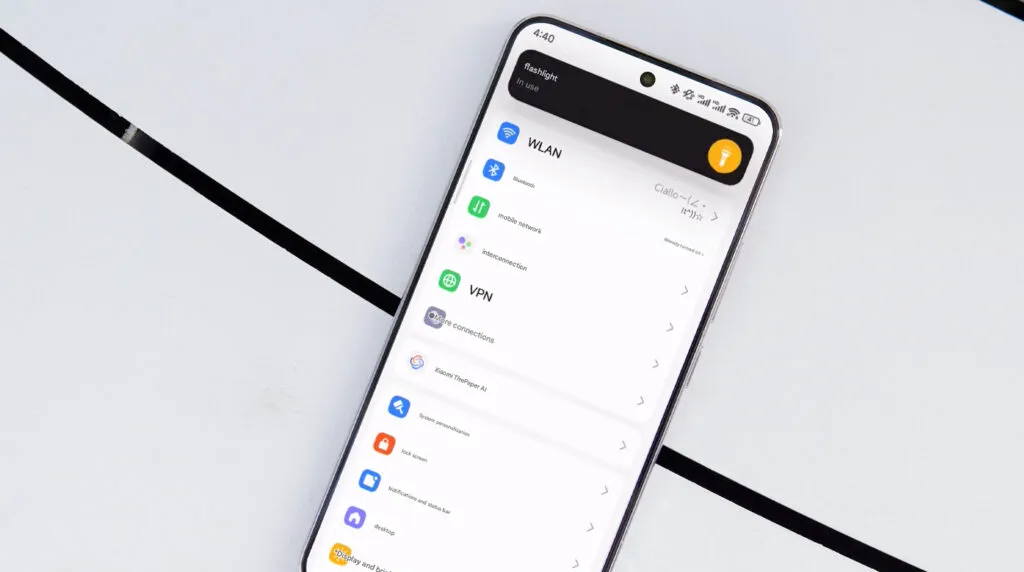
    1. Open Settings on your Xiaomi phone.
    2. Tap Apps, then Permissions.
    3. Select Background Autostart.
    4. Check which apps are allowed to start automatically.
    5. Turn off Autostart for any that aren’t essential.
    xiaomi hyperos battery autostart apps

    It makes sense to limit the use of this feature to essential messaging apps like Telegram and WhatsApp. You can safely leave off tools you don’t use often, games, and shopping apps.

    Other Easy Ways to Get More Battery Life

    Turning off Autostart is a big help, but you can stretch your power even further by combining a few other habits:

    • Limit or disable Always-On Display to cut screen power use.
    • Use Dark Mode, especially on AMOLED screens.
    • Review notification permissions and mute apps that alert too often.
    • Shorten screen timeout so the display turns off faster.
    • Activate Battery Saver mode for less important apps.

    A HyperOS developer recently explained on Xiaomi’s forum that small tweaks like these often have the biggest effect: “You don’t need deep settings knowledge—just consistency. Tiny adjustments add up to big savings.”

    Key Points

    1. “App Autostart” can drain battery silently in HyperOS.
    2. Turning it off saves power and improves standby time.
    3. Only key messaging apps should keep it active.
    4. Combine small changes for longer daily use.
    5. Xiaomi keeps battery controls simple but powerful.

    Ultimately, practical flexibility is what Xiaomi strives for. Deep control is available when you want it, but the default settings are still user-friendly enough for everyone. A phone that drains quickly can be made to last from morning to night with a few well-considered adjustments.

  • Update Now! the fix for critical WhatsApp bug that allows hackers to spy on iPhones is live

    Update Now! the fix for critical WhatsApp bug that allows hackers to spy on iPhones is live

    You should be aware that not everyone using WhatsApp is safe. Meta has alerted users to a significant security vulnerability that hackers used to launch a sophisticated, focused malware campaign that compromised dozens of WhatsApp accounts. This is why it’s important and why you should upgrade the app right now.

    In order to fix a vulnerability that was exploited in conjunction with another weakness in Apple devices, WhatsApp declared on Friday that it has released an emergency patch for its messaging program on iOS and Mac. According to reports, a week before WhatsApp’s upgrade, Apple resolved the security flaw in its devices.

    whatsapp bug fix

    Why is this so dangerous?

    Hackers reportedly used a well-known zero-click attack—a technique that compromises a device without requiring user interaction—to successfully exploit both vulnerabilities. In certain situations, a victim might get a link or image from an attacker, who might then take control of the device and run malicious code to spy on or steal private data without the victim having to click.

    Meta acknowledged notifying dozens of people it thought were the campaign’s target. A copy of the alert message, which detailed the reason for the warning and the next steps, was posted on X by the head of the security company Amnesty Tech. The notification suggested that victims reset their device to factory defaults.

    We’ve made changes to prevent this specific attack from occurring through WhatsApp. However, your device’s operating system could remain compromised by the malware or targeted in other ways.
    To best protect yourself, we recommend a full device factory reset. We also strongly urge you to keep your devices updated to the latest version of the operating system, and ensure that your WhatsApp app is up to date.

    Meta

    These kinds of advertisements have already targeted WhatsApp users. Similar zero-day exploits have been connected in the past to monitoring operations targeting prominent people, such as journalists and politicians.

    What should you do to be safe?

    Even though only a small percentage of WhatsApp users were impacted, others should still be concerned about this attack. Installing the most recent security update for your Apple device and updating WhatsApp on your Mac and iPhone are highly advised.

    Even while Android users aren’t being targeted by this operation, they could still be at risk due to the same WhatsApp flaws. They should also install the most recent Android security patch and update to the most recent version of WhatsApp. Users who believe they may be in danger can manually activate new features like Advanced Device Protection, which provide an additional layer of security.

  • Xiaomi fixes 9 critical issues with an update

    Xiaomi fixes 9 critical issues with an update

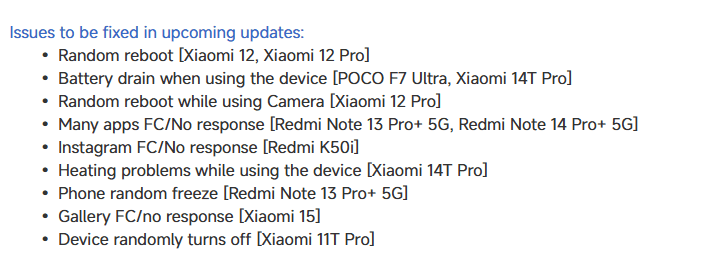
    In its most recent bug report, Xiaomi describes how nine major vulnerabilities affecting flagship and mid-range smartphones have been fixed. This continuous openness strengthens trust in Xiaomi’s technical procedures and quality control by highlighting the company’s dedication to software stability and proactive customer assistance.

    Addressing Critical Device Stability

    Engineering teams are prioritizing random device reboots, especially on the Xiaomi 12 and 12 Pro. In order to guarantee a flawless shooting experience, the Xiaomi 12 Pro’s camera application crashes are also being actively reviewed.

    Xiaomi hyperos bug fix update

    Battery and performance

    Additionally, they are releasing updates to address battery depletion that affects users of the 14T Pro and POCO F7 Ultra. Additionally, enhancements to thermal management and power efficiency measures are being implemented to solve the 14T Pro’s overheating problems.

    Multiple application-specific problems are in the process of being resolved:

    • Redmi Note 13 Pro+ 5G / Redmi Note 14 Pro+ 5G: Intermittent app crashes
    • Redmi K50i: Instagram force close issues
    • Xiaomi 15: Gallery app responsiveness concerns
    • Redmi Note 13 Pro+ 5G: Occasional system freezing
    • Xiaomi 11T Pro: Unexpected shutdown incidents

    These updates cover the whole ecosystem, guaranteeing consistent software optimization for premium and low-cost models alike. The company’s strategy ensures that users in every sector get the same level of assistance and attention.

    Stay connected with the latest from Droid Tools—follow us on X @droid_tools, like our page on Facebook, check out our updates on Instagram, and follow us on Google News for real-time news, device tips, and mobile tech insights.

  • There is a solution for Instagram’s battery drain on Android devices

    There is a solution for Instagram’s battery drain on Android devices

    Have you noticed that the battery life of your Android smartphone has been declining more quickly than usual lately? The offender might have been found.

    Reddit users on Android have been claiming that the Instagram app is to blame for the significant power drain they have been observing in recent weeks. When compared to other apps, Meta’s social media app seemed to be using a lot more battery life than it should given how frequently it is used.

    Using a Samsung Galaxy A53, one Redditor observed that 49 minutes of WhatsApp screen time utilized just 2.4% of their battery capacity, compared to 12.4% for 54 minutes of Instagram screen time.

    instagram abttery drain on samsung

    Now, Google has reportedly intervened to validate the suspicions of many. A Google community manager named Instagram as the source of battery drain on Android devices in an advisory article titled “Battery drain on Android devices” that was posted on the Android support website. The manager advised Android users to update their Instagram app right away.

    How to fix the Instagram battery drain

    As of this writing, the most recent version of the app (build 382.0.0.49.84) seems to fix the problem, so it’s definitely worth making sure you’ve downloaded it if you’ve been seeing your smartphone draining its battery more quickly than usual.

    There are, of course, several additional methods to prolong the life of your battery. These include using Dark Mode or Power Saving, as well as putting unwanted apps to sleep (click to Settings > Battery > Background Usage Limits).

    Check out our instructions below to keep your Android phone running as long as possible if you’re still experiencing power issues after the update (or if you don’t even use Instagram).

    Stay connected with the latest from Droid Tools—follow us on X @droid_tools, like our page on Facebook, check out our updates on Instagram, and follow us on Google News for real-time news, device tips, and mobile tech insights.

  • 7 things that Xiaomi needs to fix on HyperOS to make it better

    7 things that Xiaomi needs to fix on HyperOS to make it better

    In October 2023, Xiaomi unveiled their new Android-based operating system, or Android skin as some of you could refer to it. It was the successor of MIUI and is called HyperOS. Sincerely, HyperOS ended up looking a lot like MIUI, and although it did provide some nice modifications, it also brought about some unfavorable ones. HyperOS is undoubtedly a highly powerful piece of software, but there is still a lot of space for improvement. Although Xiaomi’s HyperOS has a lot of promise, a few things must alter if it is to advance.

    So far, I have been running HyperOS on several Xiaomi and Redmi devices. I have discovered a number of things that I would alter during my time with it. To be clear, you might not have an issue with some or all of these things. Nevertheless, I think HyperOS has a lot of promise and can reach that point with just a few smart actions from Xiaomi. Keep in mind that, as is typical with these kinds of pieces or editorials, personal opinion does come through. Views vary. So, let us examine HyperOS’ shortcomings, shall we? I will not do it in any specific order.

    Home screen customization

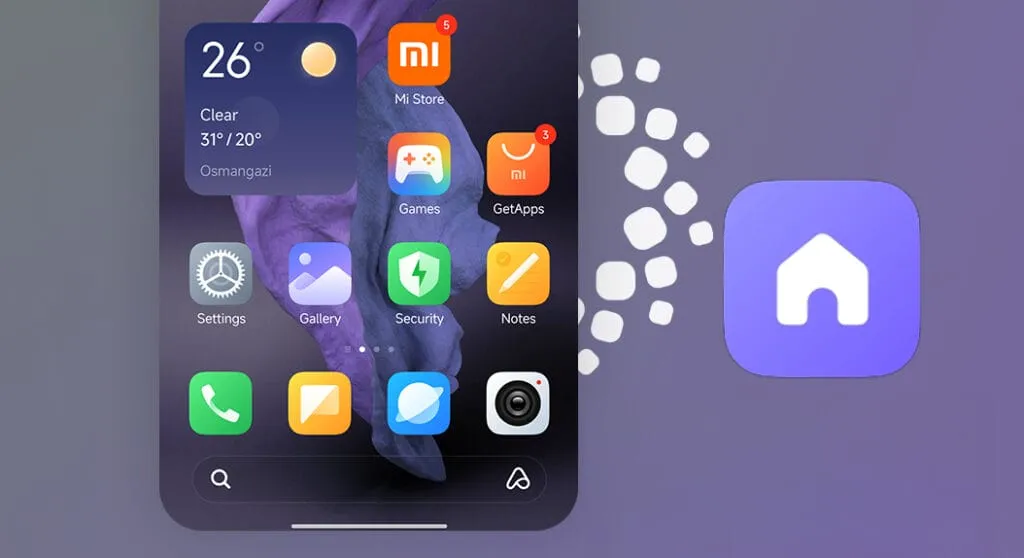
    HyperOS home screen

    There is a lot of flexibility available with HyperOS. Still, there is potential for improvement. I made the decision to pay close attention to the home screen. Why? Xiaomi can improve this in a number of ways that will help consumers. First and foremost, using icon packs from the Google Play Store would be great. Setting up icon packs is practically impossible since we are unable to use third-party launchers. Xiaomi has no reason not to implement this change in their stock launchers, as many other Android OEMs do.

    Plus, it would be fantastic to give customers additional grid size options. There are very few options available presently. However, there is a problem with nearly all other Android OEMs. The home screen’s app dock row comes next. It would be great if we could eliminate it completely and have a single, consistent canvas on the home screen because some users choose not to use it at all.

    Unblock third-party launchers

    HyperOS homescreen

    One of my main complaints with HyperOS is this. The only significant Android skin that totally prevents third-party launchers from working is this one. Although it is likely that you will have problems with gesture navigation, other OEMs let you set them. Actually, Google is to blame for this, as it restricts access to certain APIs for third-party developers. It has been a persistent problem. To change that, they even petitioned Google.

    However, for some reason, Xiaomi chose to restrict third-party launchers entirely. Actually, it was not the case with MIUI in the past. In actuality, third-party launchers performed best on Xiaomi smartphones in terms of animations and other features. It was a significant shift when Xiaomi blocked them. Since many fans use Xiaomi phones, it should be possible to enable third-party launchers and let them function properly.

    Toggles

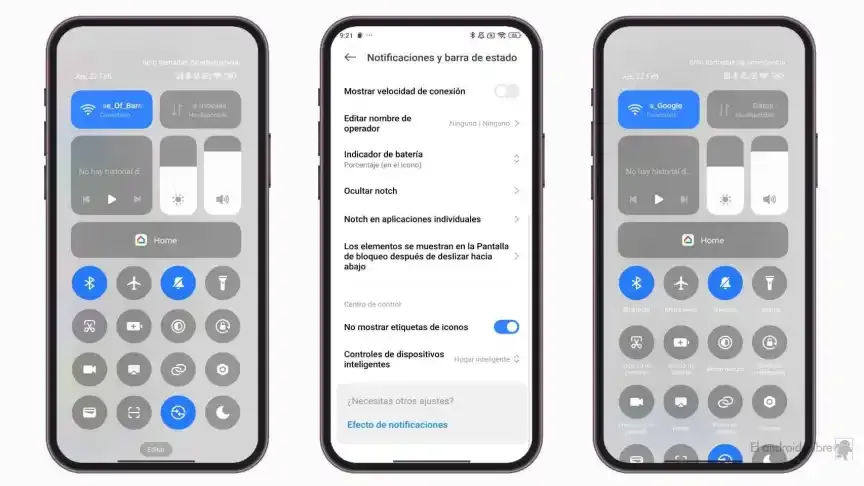
    The Quick Toggles screen might be enhanced by Xiaomi as well. Although it makes us think of iOS, it is not an issue in this case. This Android skin lacks a dedicated Settings toggle, in contrast to the majority of others. Although there is a toggle, it is a component of every other toggle. Although you can move it around and position it wherever you choose, it is not independent and lacks sufficient intuitiveness. It would be convenient if it were distinct because many users are accustomed to opening Settings from there.

    In addition, there are just two sizable toggles there, and regrettably, you are unable to alter that. The WiFi and mobile data toggles are the only sizable toggles you receive. For example, the Bluetooth toggle and the screen rotation toggle cannot be made huge. If Xiaomi made this possible and let users fully design the Quick Toggles interface, it would be great.

    Push notifications

    HyperOS 2.1 Beta

    Unbelievably, HyperOS still has problems with push notifications. At least the way it is configured right out of the box. I have been experiencing problems with the majority of apps. By default, apps are set to “Battery Saver,” which is the suggested setting. You will not have these problems, though, if you unblock them from their limitations in the settings (each program independently). It will be possible for notifications to reach their destination on schedule.

    The problem is that ordinary consumers will not be aware of that. They will not consider changing that function by going into the settings. Of course, that is problematic. Many of them will find it annoying because they will not be receiving notifications right away. As a result, they become irritated with the business—in this example, Xiaomi—and develop a bad opinion of their goods. To be honest, Xiaomi should make changing this a high priority. Push alerts need to function normally right out of the box.

    The 10-second countdown

    Another noticeable issue when it comes to HyperOS has to do with the timeout Xiaomi is placing on its consumers. Essentially, a warning pop-up will appear each time you attempt to modify a more complex setting, such as an accessibility setting. That is typical, is not it? Yes, it is; all OEMs carry it out. The 10-second countdown, however, is unusual. You cannot approve or reject anything on Xiaomi until ten seconds have elapsed. This is most likely in place to allow you sufficient time to read the warning.

    You truly do not need to read it again after you have seen it for the first time. That countdown is incredibly annoying since you know exactly what you want to do. It makes sense if Xiaomi only did it once after you had configured your device. However, in HyperOS, you receive it each time a more complex configuration is altered.

    Notifications

    hyperos notification

    I wanted to draw attention to a few more notifications-related problems besides push notifications. For other people, lock screen notifications are an additional problem. They work similarly to what you get on iOS the way they are currently configured. It goes without saying that many individuals will find that offensive. What is wrong? You will notice your new notifications when you get to the lock screen. However, they will not be there the next time you get to the lock screen, even if you do not read or open them and then lock the device.

    Yes, they will still remain in the notification shade, however this is a problem if you use your lock screen a lot. That is not what the great majority of other Android OEMs do. Similar to the notification shade, notifications will remain on your lock screen unless you choose to dismiss or open them. This distinction between the lock screen and notification shade is completely superfluous, and I sincerely hope Xiaomi will eliminate it soon.

    Status bar icons

    hyperos status bar incons

    Xiaomi can also make the HyperOS status bar better. When it comes to it, there are a number of various irritations. Notification icons are the subject of the first one. Xiaomi restricts you to a single app notification icon in the upper-left area by default. However, you have the option to enable up to three app notification icons to show. Only the three most recent alerts from various applications will show up if you have more than three.

    Almost all other Android OEMs permit as many app notification icons as they can fit on the screen. It does not restrict you in that manner, which is the proper approach. The fact that Xiaomi only allows one icon by default and that you are unable to enable more than three icons is not the only issue. Simply put, HyperOS introduced a totally needless modification that was not a problem on MIUI.

    Additionally, if HyperOS allowed users to remove some of the status bar icons, that would be great. For instance, it is superfluous that the Bluetooth indicator is always up there. Many individuals always have Bluetooth turned on for their headphones, smart watches, or other accessories. That icon does not really need to be up there all the time if it is always on. If we could take it off and forget about it, that would be great.

  • Fix “This device isn’t Play Protect Certified” error on custom ROMs

    Fix “This device isn’t Play Protect Certified” error on custom ROMs

    An Android phone stands apart in the market thanks to customization and the freedom to do anything with it. You can replace the phone’s stock UI with a custom ROM if you don’t like it. Once more, if your manufacturer has stopped providing updates for your phone, you can try out custom ROMs that are powered by the newest version of Android. You therefore have significant customization options and control over your smartphone in both situations.

    However, a developer of a modified ROM must register the ROM with Google. The device will not be able to use any Google services, including Google apps and services, if it is not registered with Google.

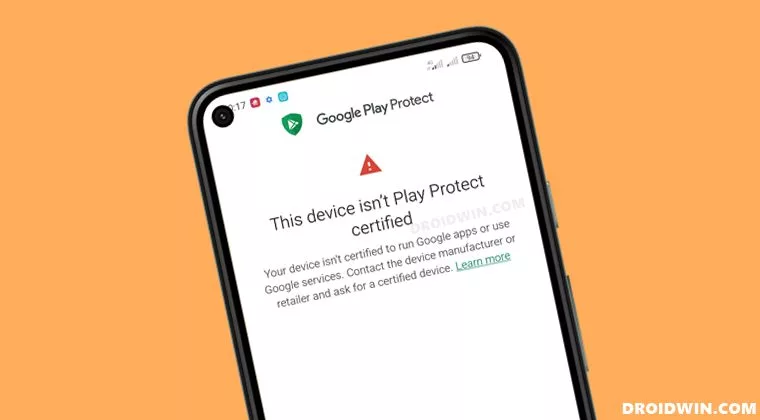
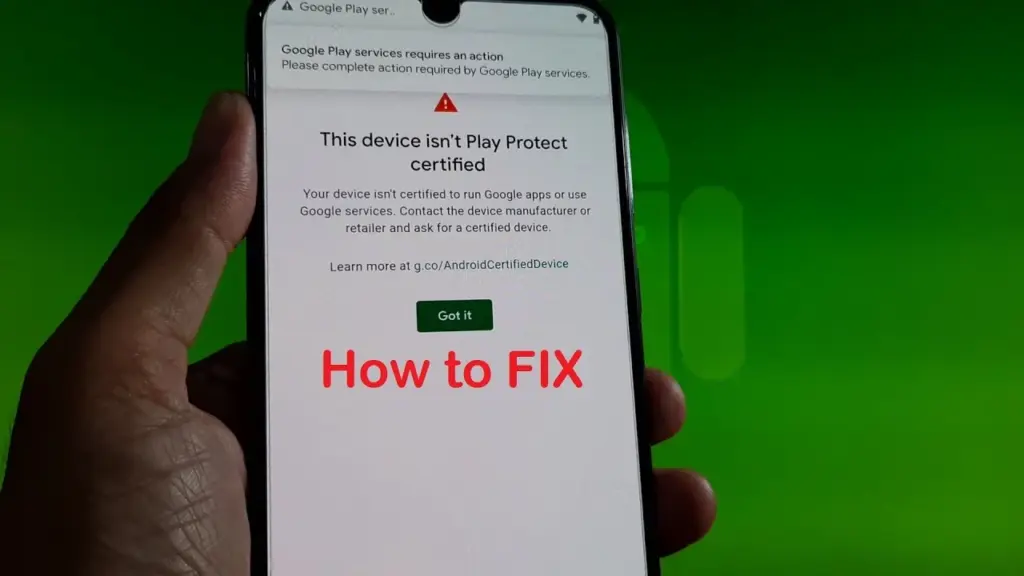
    When a device has an unregistered custom ROM installed, they get the “This Device Isn’t Play Protect Certified” error. Now, if you are one of those struggling with such an error message, this article will help you. Here, we have listed how you can fix this. So without any further ado, let’s get into this.

    You need to follow the steps for this in a systematic manner. It is exactly as we have mentioned below here. Do not skip any of these steps, and ensure one step is complete before moving to the next one.

    How to fix This Device Isn’t Play Protect Certified Error On Custom ROMs?

    This device isn’t Play Protect Certified

    Install Android SDK:

    Download and extract the Android SDK Platform Tools on your PC. Depending on your PC’s OS, download it for WindowsMac, or Linux. It will be a zip file. Once you have it, extract it in any preferred location. Now, you need to enable USB debugging on your smartphone for that.

    Enable USB Debugging:

    This step is essential if you want your PC to recognize your device when connecting it via USB in ADB mode.

    • Open up the settings menu on your phone.
    • Navigate to About Phone > Build Number. You need to tap on the Build number 7 times. You will see a pop-up on your screen that reads, “You are now a developer.”
    • Now go back to Settings and Open up System.
    • Navigate to Advanced > Developer Options > Enable USB Debugging.

    And that’s it. Your smartphone is now ready to take in ADB shell commands.

    Find Device ID:

    Obtaining the device ID used to be a challenging task; users would frequently need to root their phones in order to obtain this data. But that is no longer the case. The Google Play Store offers a program called Device ID that you can download. When you launch it after installation, the device ID details will be visible. After noting the device ID, proceed on to the following action.

    Register Your Custom ROM:

    You must visit the Google Device registration page for the final registration process.

    • Click on this link to go to Google’s Device registration page.
    • Sign in to your account here.
    • Now type in the device ID under the “Google Service Framework Android ID” section.
    • Verify the captcha and then click on the Register button below it.
    • Wait for an hour, and your device should be registered successfully.

    Once the registration is complete, your Custom ROM will also be registered, and you won’t see the “This Device Isn’t Play Protect Certified” error on your screen anymore. If you have any questions or queries about this article, comment below, and we will get back to you.