Popular apps have been pulled from the Google Play store, and users of Android devices are being asked to do so right away.
Millions of users have downloaded the harmful apps, which pose as questionnaire, fitness, or gaming apps and lure users into accepting bogus incentives or clicking on links that take them to dubious websites.
The most recent apps that were banned offered prizes to users for remaining active by giving them points for walking and working out. However, when individuals attempted to pay out, they were either prevented from doing so or have to watch interminable commercials for no reason.
Cybersecurity experts at Dr.Web flagged these apps, some of which already had millions of downloads before being booted from the Play store.
As reported by the Express, the apps that have recently flagged by the IT cybersecurity firm are:
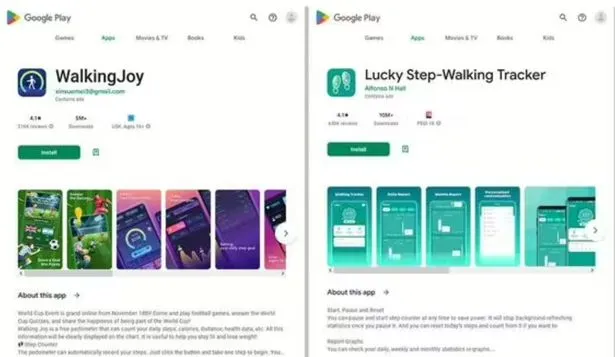
Lucky Step: Walking Tracker – 10 million downloads
WalkingJoy: walking tracker – 5 million downloads
Lucky Habit: health tracker – 5 million downloads
Despite being flagged for using the same tactics as the other two, Lucky Habit has not been removed from the app store at this time.
It comes after 10 more apps were also axed for the Google store, in this instance due to bad links that downloaded malware, or direct users to dodgy websites.
According to Dr.Web, these fake applications presented themselves as investing software, directories, questionnaires and addictive games. They are as follows:
Golden Hunt – 100K downloads
Reflector – 100K downloads
Seven Golden Wolf blackjack – 100K downloads
Unlimited Score – 50K downloads
Big Decisions – 50K downloads
Jewel Sea – 10K downloads
Lux Fruits Game – 10K downloads
Lucky Clover – 10K downloads
King Blitz – 5K downloads
Lucky Hammer – 1Kdownloads
All of these apps have already been removed from the Play Store, but if you have one of them on your device it should be deleted right away.
According to Dr.Web for Android’s detection statistics, the activity of spyware, trojans, and adware surged in December 2022.
Hundreds of bogus apps and trojans that sign their victims up for premium services were among the several new risks they discovered at the same time on Google Play.
Hell has turned to ice. Finally, you can use the same WhatsApp account on two different phones. It takes a little getting used to at first, but the important thing is that it works.
The ability to link your existing account to an Android tablet has just been available on WhatsApp (in beta). When setting up the app on your Android tablet if you have version 2.22.25.8 beta installed on both your Android phone and tablet, you should have the option to scan the QR code. This is essentially the same as using WhatsApp on Windows or Mac right now; while your phone continues to be the primary device, your secondary devices are somewhat independent and can continue to function even if your primary phone is offline.
This new Android tablet process works on phones too, but you have to briefly trick WhatsApp into thinking your second phone is a tablet.
1: Ensure your primary phone has WhatsApp v2.22.25.8 beta installed, signed in, and working. If you’re running an older version of the app, you can grab the APK file from APKMirror. (It’s a trusted source, don’t worry about malware.)
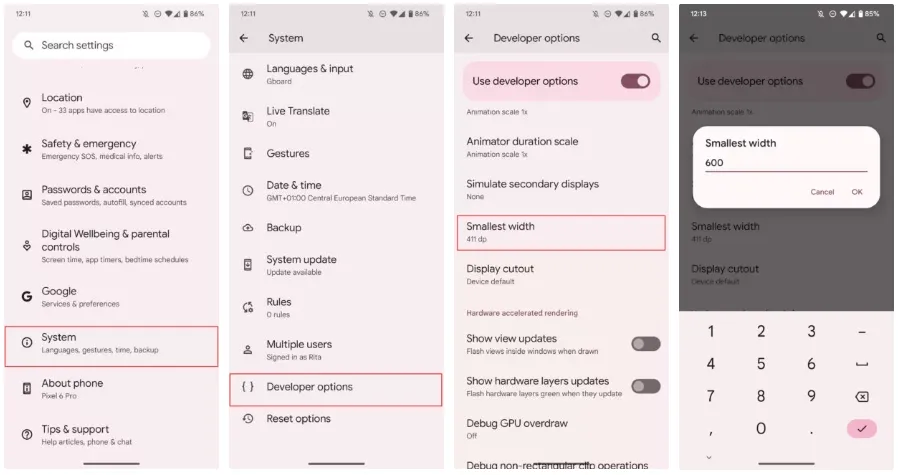
2: On your second phone, you start by enabling Developer Options in Android’s main settings. (Go to Settings > About phone and tap multiple times on Build number until you see a pop-up that says You are now a developer.)
3: Stay on the second phone. Go to Settings > System > Developer options > Smallest width. You can use the search option if you don’t find it. Note down the current number (you’ll need it to revert later), then change it to 600. This will transform your phone’s interface into a tablet interface. Fonts and icons will be smaller, but we’ll return to the regular sizes, don’t worry. On my Pixel 6 Pro, which runs Android 13, I get the taskbar at the bottom for example. Fun stuff.
4: Now install WhatsApp v2.22.25.8 on this second phone. Again, you can do this from the Play Store if you’re enrolled in the beta or you can manually grab the same APK from APKMirror.
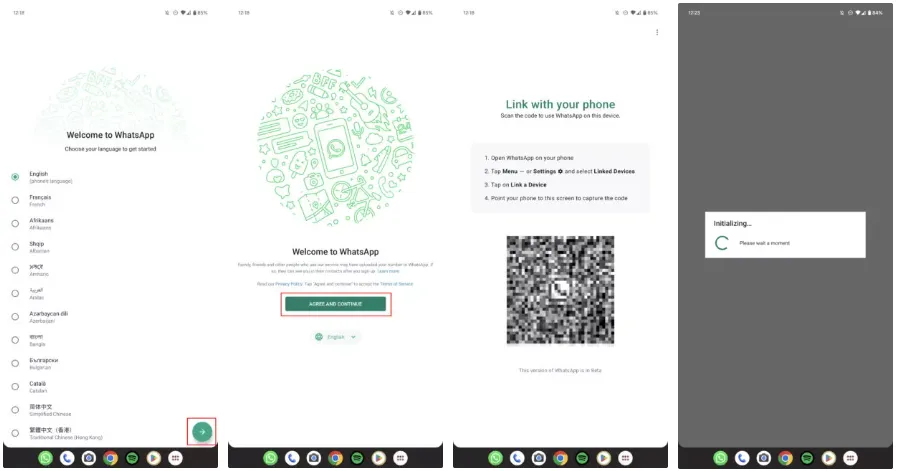
5: Open WhatsApp, choose the language, tap Agree and continue, and you should see the Link with your phone screen with your unique QR code. (If you see the page where you’re asked to sign in with a phone number, it means your phone wasn’t tricked into “becoming” a tablet. Try a higher number for the Smallest width setting. But 600 should do it, in theory.)
6: Go back to your main phone now. Open WhatsApp, tap the overflow ⋮ button on the top right, then Linked devices > Link a device. This will bring up the QR code scanner, so scan the code that was displayed on the second phone. And ta-da. Your second phone should reload WhatsApp with the same account as your primary device.
7: If you don’t like the tablet interface and small fonts on your second phone, you can repeat Step 3 and go back to the original Smallest width setting. WhatsApp will remain linked to your account.
There it is, then. Messages, calls, and pretty much everything else will be delivered to both smartphones. Both allow you to start calls and chats. A message is marked as read on one if you read it, and vice versa.
Your primary phone is still in charge and the one that has the ability to delink the second device if necessary. The desktop version of this needs to refresh every so often if you haven’t used it in a while, and I haven’t used it long enough to notice if there is any slowness or delay in grabbing messages like in that version. But it appears that’s not a problem right now.
Don’t worry if you and your friends can’t decide whether iOS or Android is better for mobile gaming. Actually, there’s no need to pick one over the other since both operating systems support cross-platform gaming.
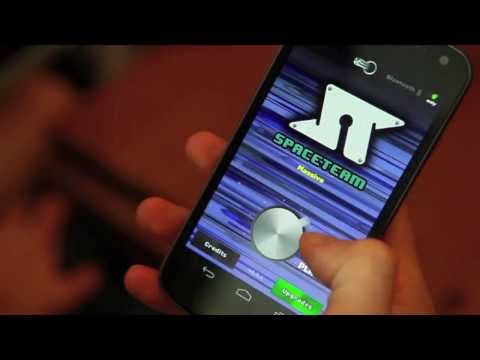
Spaceteam
The only game on this list that necessitates having all of your buddies in one location is Spaceteam.
You and your friends are the crew of a spaceship in the game Spaceteam, and everything is going wrong. You’ll need to communicate with one another by shouting various fictitious space commands in order to stay on course. As the speed and chaos increase, you all inevitably crash and perish while still receiving posthumous medals. But while it lasts, it’s enjoyable.
Download: Spaceteam for iOS | Android (Free, in-app purchases available)
The highly regarded Words With Friends sequel is more of an update.
There is also the standard Words With Friends experience, where you and a friend or online stranger take turns trying to score points on a board by spelling out words in the Scrabble style.
Words With Friends 2 does, however, add a few new modes for a different challenge while retaining everything you loved about the original game.
In the Lightning Round, two teams of five compete to determine who can reach a given score in the shortest amount of time. You can compete in Solo Challenge to compete against testing bots and win a virtual prize. Finally, Words With Friends Live interrupts your game with HQ Trivia-style questions.
Download: Words With Friends 2 for iOS | Android (Free, in-app purchases available)
Vainglory
Vainglory is a MOBA (Multiplayer Online Battle Arena) that is comparable to League of Legends and allows you to team up in 5v5 or 3v3 modes against real players or computer opponents.
To compete against another team and destroy their Vain crystal before they destroy yours, pick a hero from the more than 40 available. Destroy enemy turrets and minions as you move through the jungle using your special abilities and your team’s cooperation.
Teamfight Tactics
The auto chess game from Riot Games offers a competitive experience with well-known League of Legends heroes. With the goal of assembling the best squad, you draft and play champions.
Play normal or ranked matches with your friends while you discover the greatest item combinations and synergies thanks to complete cross-platform support. It’s also among the top PC games for multiplayer PvP!
The mobile version of Minecraft, which was first known as the Pocket Edition, is nearly identical to the PC version. The inability to use third-party servers or connect to third-party modifications is the only notable difference. Every time a new update for Minecraft is released, the mobile versions often follow later.
Having saying that, playing Minecraft on a mobile device is a great experience.
But playing Minecraft by yourself is boring. Any platform can play Minecraft, and because it is cross-platform compatible, you can play with your pals. Try out these tranquil gaming apps to help lower feelings of anxiety and stress if Minecraft doesn’t satisfy your need for exploration or provide enough space for calming world-building.
While playing trading card games in person is enjoyable, playing them online allows you to do actions like summoning demons and detonating booster packs.
The strategy game Hearthstone, created by Blizzard and set in the Warcraft universe, allows you to design decks, gather cards, and play matches with your friends. Although the game is free to play, you can purchase new card packs to offer yourself a benefit.
There are constantly reasons to play Hearthstone because of the game’s recurring expansions, competitions, and challenges. To raise your Rank, you can compete against strangers or your friends in the Arena.
Download: Hearthstone for iOS | Android (Free, in-app purchases available)
Pokémon Go
When it first came out, Pokémon Go broke the barrier between gaming and augmented reality by bringing virtual creatures into the real world. You and your buddies can go outside and explore with your smartphones, whether they are Android or iOS.
Download: Pokémon Go for iOS | Android (Free, in-app purchases available)
PUBG Mobile
The most well-known battle royale game in the world is playable on pretty about every platform imaginable, including iOS and Android.
Although Fortnite’s mobile app also satisfies this need, playing the game on Android and iOS calls for further procedures to enable cross-platform teaming. In contrast, PUBG Mobile provides an easy download for both Android and iOS smartphones. But PUBG Mobile unquestionably delivers this if you’re searching for an equally capable, event-ready rival.
Additionally, it’s one of the simpler phone games to play with your pals online because to its normal match times of around thirty minutes.
Download: PUBG Mobile for iOS | Android (Free, in-app purchases available)
Super Stickman Golf 3
Enjoy a short nine holes of golf before lunch with this easy-to-play but entertaining game.
Stickman Golf features two distinct multiplayer modes in addition to a fun Single Player option. In the Turn-Based mode, you can either take turns or compete to see who can play each hole the fastest in Race Mode. You can play offline or online as well.
Super Stickman Golf 3 can be downloaded from the developer’s APK file rather than straight from the Google Play store. Check out our description of what an APK file is and does if you’re not familiar.
Download: Super Stickman Golf 3 for iOS | Android – APK File (Free, in-app purchases available)
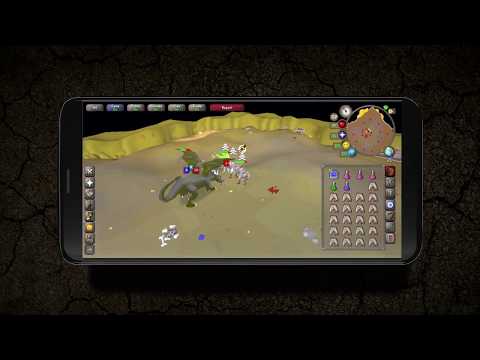
Old School RuneScape
Are you prepared to share your nostalgia with friends? Many players will have warm memories of RuneScape because it was one of the first widely available MMORPGs. You may continue your travels with all of your buddies in true crossplay fashion, whether you’re ready to mine, mine, or battle.
Download: Old School RuneScape for iOS | Android (Free, in-app purchases available)
League of Legends: Wild Rift
If you’re a fan of Riot Games’ League of Legends series, you couldn’t previously play with friends on a mobile device on the Rift. Despite the fact that League of Legends: Wild Rift does not support crossplay with PC players, Android and iOS users can queue up in pairs, trios, or a full five-person party as you aim for the enemy’s nexus. Now that Riot’s MOBA has launched on mobile devices, you can play a complete phone game with your friends.
Download: League of Legends: Wild Rift for iOS | Android (Free, in-app purchases available)
More games
So there you have it, a list of the top mobile cross-platform multiplayer games. With these tried-and-true games, you may download one that you and your friends can enjoy for a very long time. So, it’s just a quick install away if you want more entertaining mobile games to play with friends.
The “App Tracking Protection” feature of DuckDuckGo for Android has entered open beta and now enables all Android users to prevent third-party trackers across all of their installed apps.
The DuckDuckGo for Android app is a privacy-focused web browser, search engine, and data protection utility, downloaded over 10 million times from Google Play. It includes numerous privacy features, including search term anonymity, hidden tracker blocking, email tracker protection, auto-HTTPS, and one-tap browsing history clearing.
By preventing third-party tracking scripts in other Android apps that have been installed on the device, the “App Tracking Protection” attempts to increase privacy throughout the entire operating system.
‘It’s a free feature in the DuckDuckGo Android app that helps block 3rd party trackers in the apps on your phone (like Google spying in your weather app),’ stated DuckDuckGo today. ‘This means more comprehensive privacy and less invasive targeting.
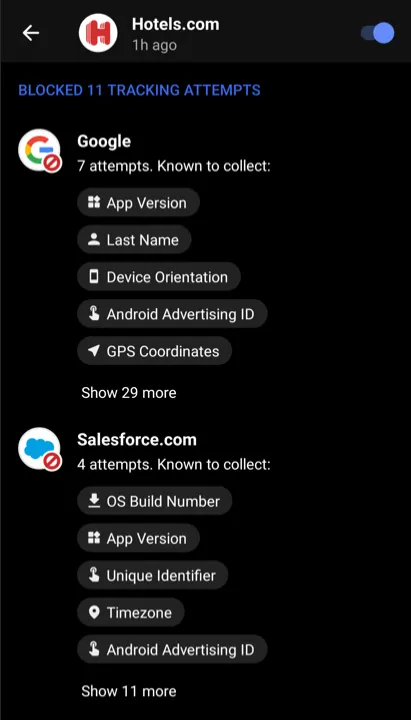
The new version of App Tracking Protection allows Android users to see precisely which trackers are blocked and what kind of data they are seeking, in contrast to the prior close beta version of the service.
The feature is somewhat similar to Apple’s ‘App Tracking Transparency,’ but unlike the Apple feature, DuckDuckGo’s system does not depend on the app developers’ compliance with user choice.
Blocking all known trackers
According to DuckDuckGo, Android users have 35 apps installed on their smartphones on average, which results in 1,000–2,000 daily tracking attempts for more than 70 tracking organizations.
While consumers frequently use their devices to browse the web, play games, or check the weather, the App Tracking Protection guarantees to thwart all these attempts in the background.
Additionally, this blocking occurs with no discernible impact on device performance, which was enhanced in the most recent version of the app.
The blocking is based on a constantly updated and growing list of known trackers and is independent of the user’s choice in the associated tracking request dialogs usually served within apps.
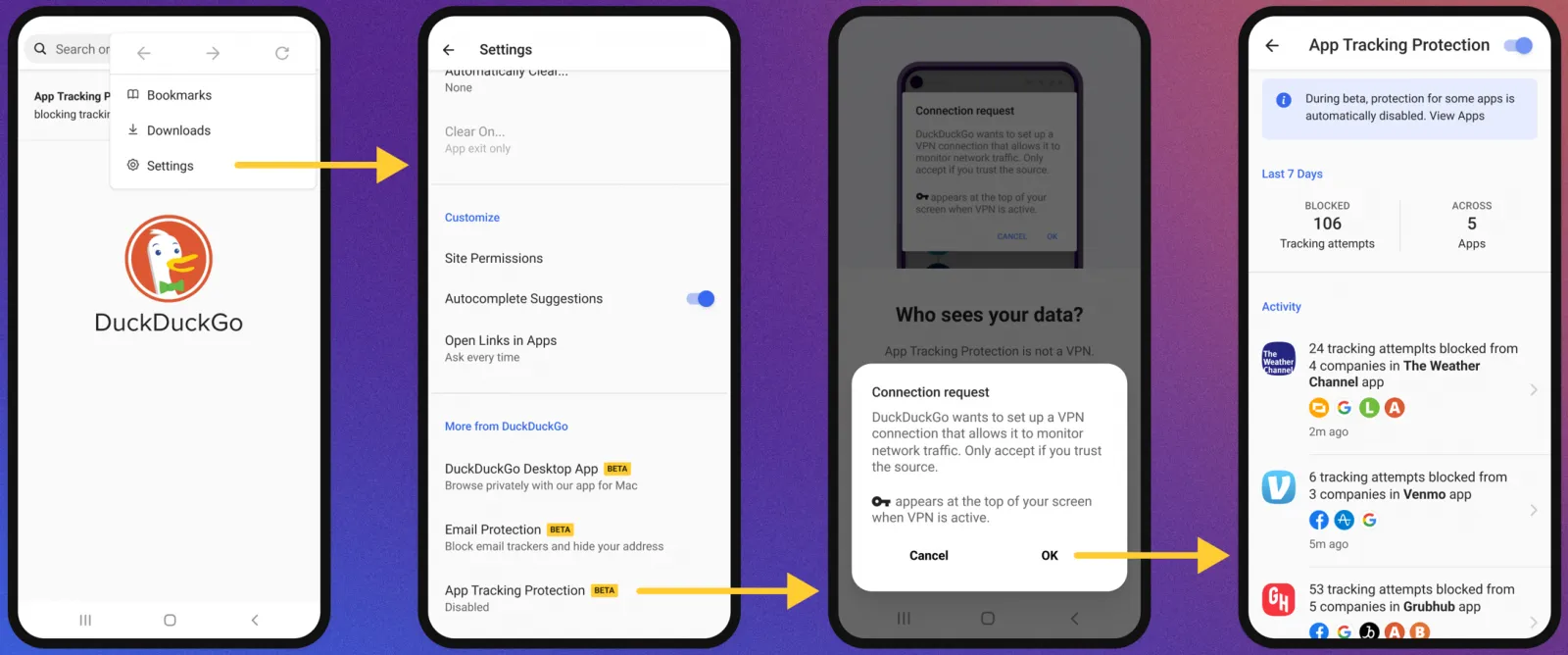
To activate the new feature, the user has to open the DuckDuckGo app on Android, navigate to Settings → More from DuckDuckGo, and then enable App Tracking Protection, as shown below.
Activating App Tracking Protection
The function operates by setting up the DuckDuckGo for Android app on the device as a VPN, enabling the app to filter app traffic and block trackers.
However, unlike a conventional VPN, this is only used locally and does not offer anonymity when using the internet or connecting to other remote devices.
“App Tracking Protection uses a local “VPN connection,” which means that it works its magic right on your smartphone and without sending app data to DuckDuckGo or other remote servers,” explains DuckDuckGo.
Therefore, to enable the feature, DuckDuckGo will request the user allow the VPN connection to be created, which is required for the blocker to function as expected.
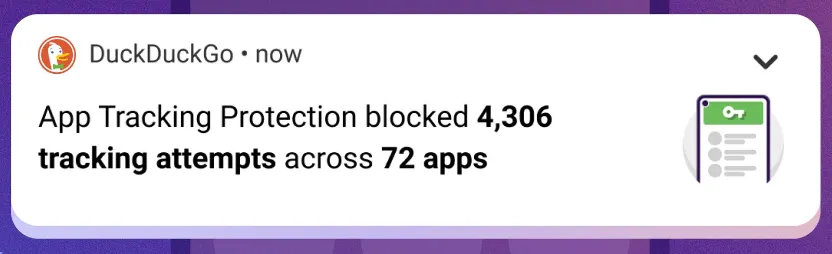
From then on, the app will regularly update the user with automatically generated summaries of blocked app trackers to give them an idea of what is happening behind the scenes.
Those who want to evaluate how threatening each app is to their privacy can use App Tracking Protection’s real-time view to see what trackers are loaded and blocked.
Although App Tracking Protection is a strong tool, users should be aware that it is still in the beta testing phase of development.
As a result, it could result in performance issues, incorrect operation of websites or apps, or the evasion of some trackers. You can turn off the feature if you experience any of these problems.
The freedom to do whatever you want is one of the key reasons why many tech enthusiasts prefer Android to other mobile operating systems. You may install anything and alter almost every aspect of your phone using Android.
Despite all of this, there are still some things you are unable to perform. For instance, some apps decide to prohibit you from taking screenshots of the app for a variety of reasons. Then again, you might still want to grab a screenshot for a variety of reasons. Continue reading to see how to get around this limitation.
Why these restriction?
Despite how annoying it is, developers don’t prevent screenshots without a good cause. There is always some justification, whether it be for security or privacy.
For security concerns, the majority of banking and payment apps prohibit screenshots. For privacy reasons, Chrome disables screenshots in Incognito tabs and windows. Another example would be the non-screenshottable self-destructing images on Telegram.
You are still permitted to capture screenshots wherever you wish, despite the developers’ decision to limit them. Simply get your hands a little bit messy.
There are various methods for taking screenshots in apps that don’t let you. Some methods work in most apps though not all. Here we take a look at two of these methods: One easy method which works in some cases, and an advanced method that should work every time.
1. Google assistant can helps you
Some Android apps that prevent screenshots only prevent your phone’s screenshot button combination from working. This indicates that if you take a screenshot using a technique other than tapping the button combination, you can get around the restriction.
Google Assistant is a built-in app in most Android phones that lets you capture screenshots without using the button combination.
Open the app that you want to screenshot.
Activate Google Assistant. You can do this by saying Hey Google! or holding the home key depending on your settings.
Say or type Take a screenshot. Google Assistant will now capture a screenshot.
This approach, despite being straightforward, has little chance of working because it has been anticipated by the majority of apps that take screenshot blocking seriously. For instance, if you ask Google Assistant to take a screenshot of a Chrome Incognito tab, all that will appear on the screen is a black screen.
Continue reading the following section where we’ll explain a method that allows you to take a screenshot of any app on your phone if this one didn’t work for you.
2. scrcpy
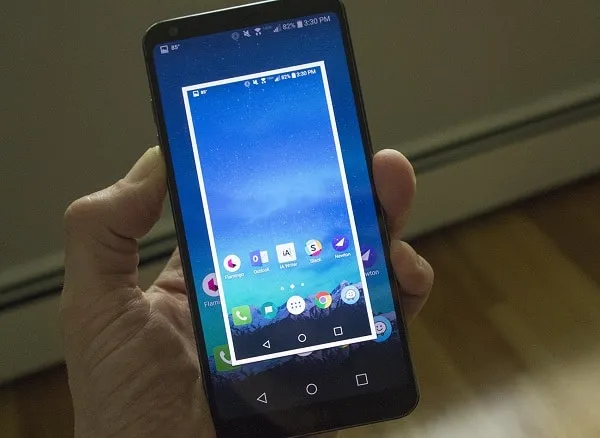
This is the ultimate method as it can bypass virtually any sort of screenshot restriction in Android apps. scrcpy is a lightweight screen mirroring program that lets you view and control your Android phone’s display on your PC. Once you mirror your Android phone’s screen on your computer, you can simply use print screen or Snipping Tool to take screenshots.
scrcpy is available on Windows, macOS, and Linux. You can install scrcpy with Homebrew on macOS. Check the download link below for more details on installing scrcpy on Mac and Linux.
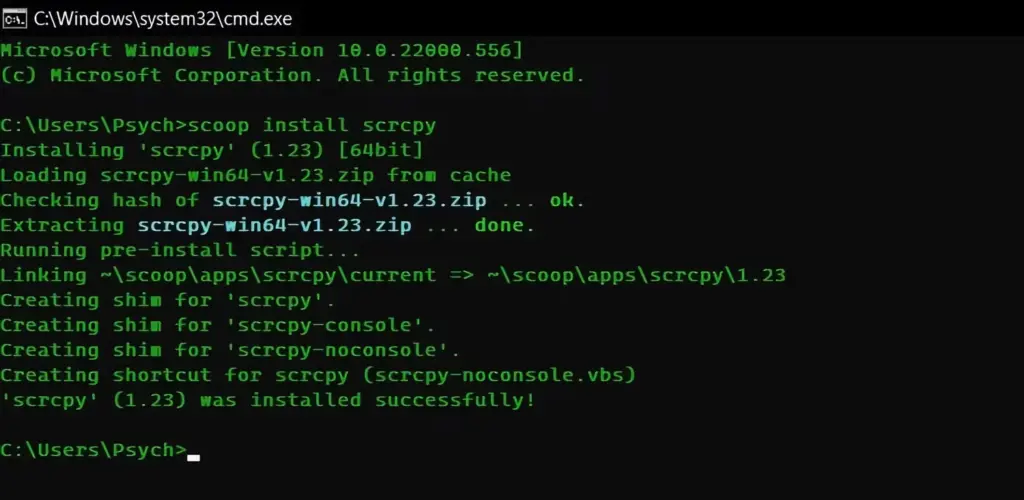
As for this article, we’re going to install scrcpy on Windows, which you can do using Scoop. Read our article on how to install Scoop to get started.
Scroll down to the bottom and select Developer options.
Tap the switch next to USB Debugging to change it to On.
Now both your phone and your computer are ready. Connect your phone to your computer’s USB and let’s get to the final steps.
Open Command Prompt.
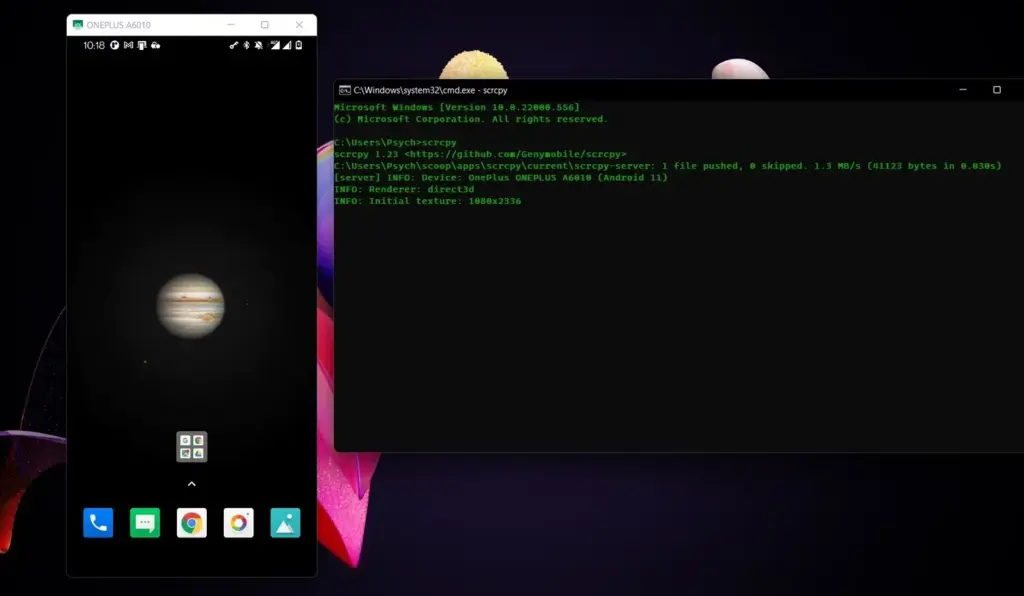
Type in the command scrcpy and press Enter.
Your phone’s screen will be visible in an emerging window. Through this window, you may even navigate and type on your phone using the mouse and keyboard from your computer. You can freely take screenshots using print screen and other screen capture techniques now that the screen of your phone is mirrored onto your computer.
Anything and Everything
Even while some apps try to prevent you from taking screenshots within the program, if you’re determined to capture your screenshots, they will ultimately fail. Now that you’ve read this post, you know how to screenshot any program, despite any limitations. After all, it’s your phone, so you should be able to use it anyway you like.
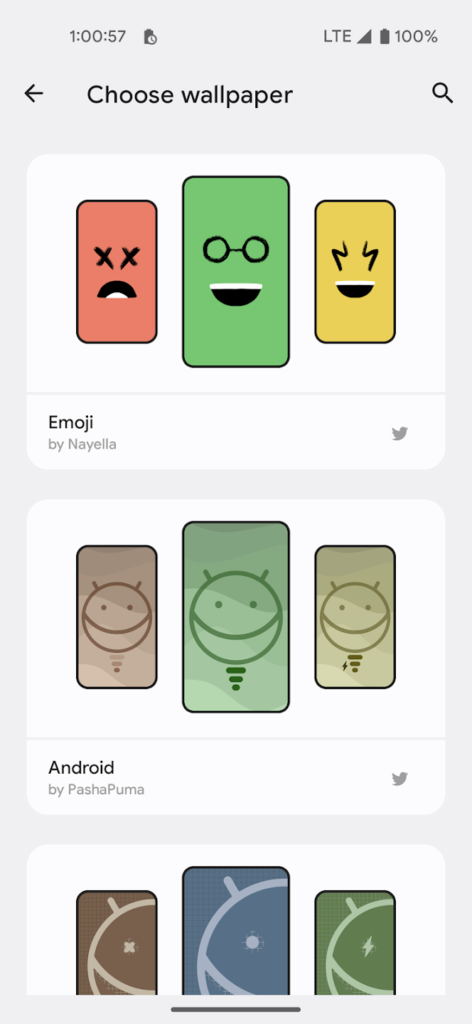
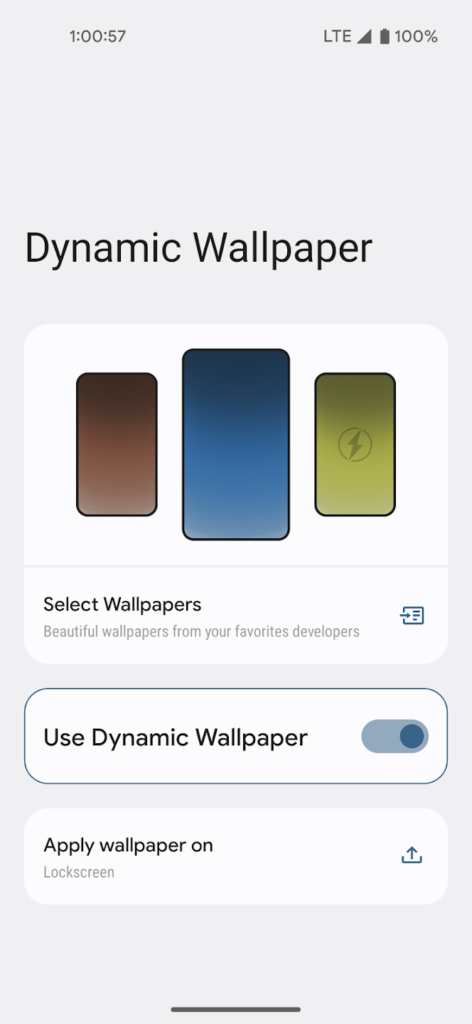
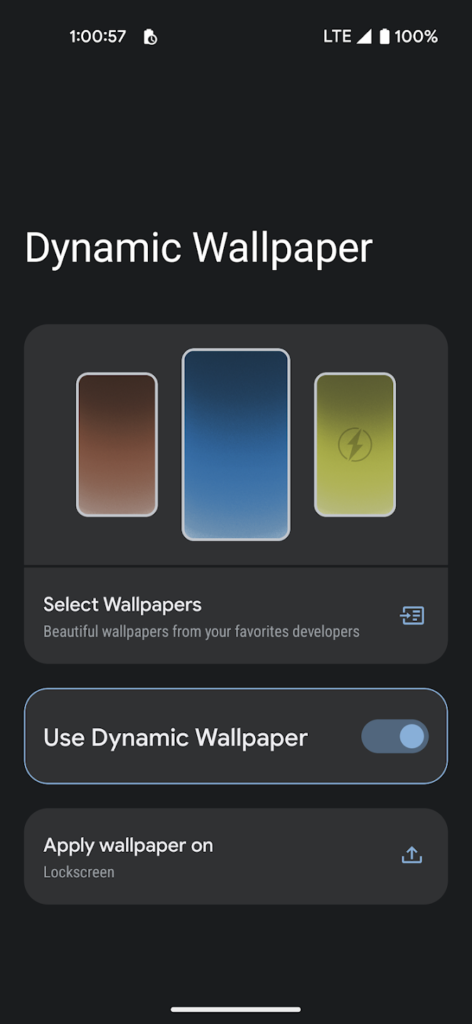
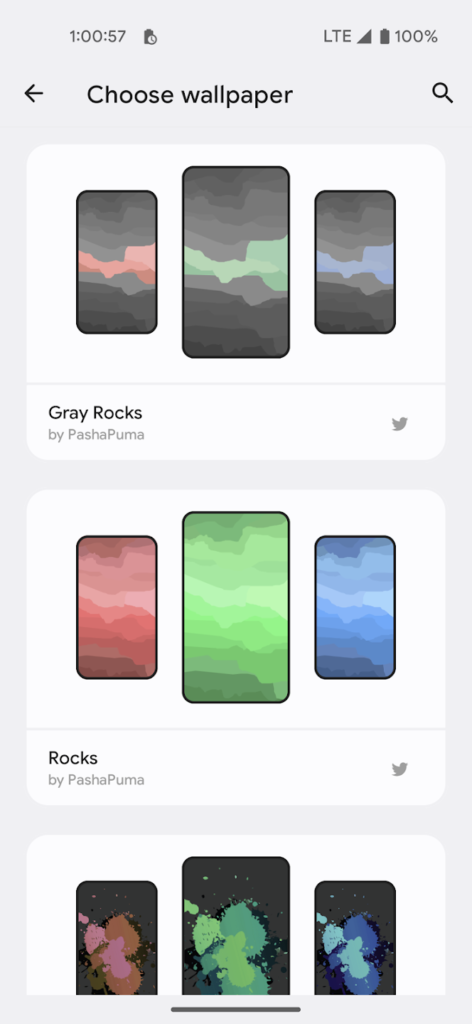
At Android Police, we generally like apps, but we actually prefer the ones that are straightforward, attractive, and cost nothing. Consider the newest software from designer Rushikesh Kamewar, Dynamic Wallpaper.
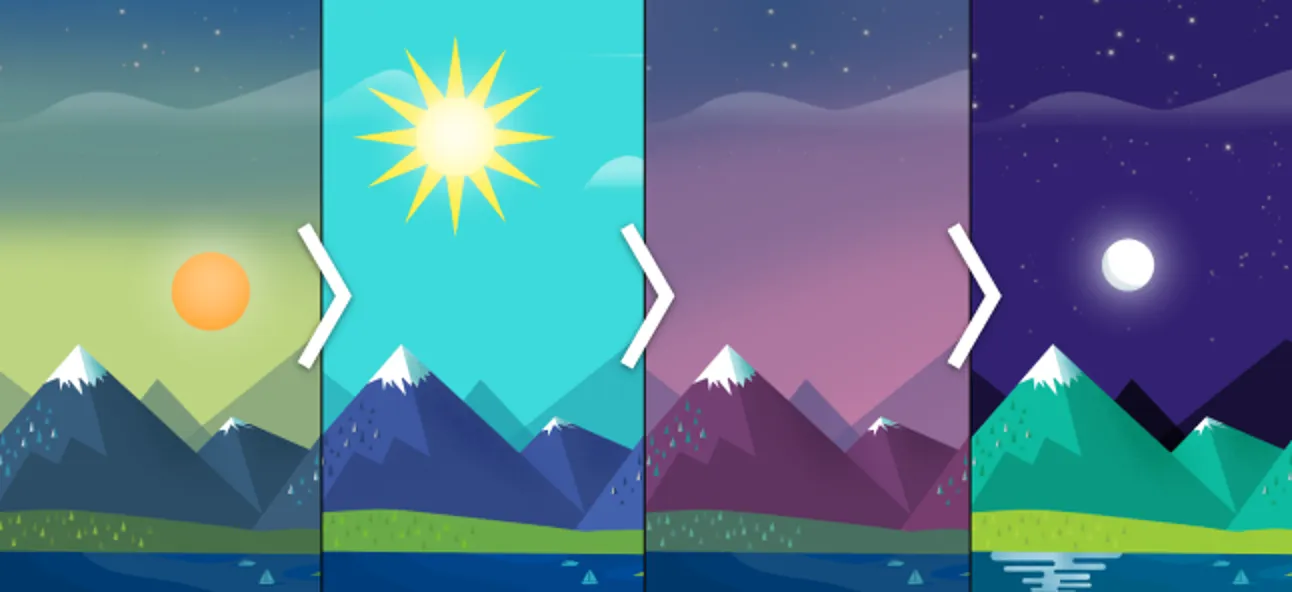
Users of this free, ad-free software can choose among 17 endearing trios of wallpapers made by designers Pashapuma Design, Nayella, and Sai Naveen. When the battery is charged or when it is getting low, the wallpapers alternate between each other. Make sure you take that into account because the main page of the program features a menu item that will take you directly to your system power settings. The first condition is typically related to when your device enters battery saver mode.
The program doesn’t consume a lot of power because it only initiates a brief background operation when the power requirements are met. The transition between wallpapers isn’t elegant; it’s a rapid cut to black and then to the next wallpaper.
Although it’s very early, Kamewar says he plans to give users the option to select three of their own wallpapers in a future release. There will undoubtedly be more wallpapers from various designers in those upgrades. The creator is aware that include all the wallpapers in the app will make it larger. Its 38MB size is a bit excessive for such a basic program.
The program doesn’t consume a lot of power because it only initiates a brief background operation when the power requirements are met. The transition between wallpapers isn’t elegant; it’s a rapid cut to black and then to the next wallpaper.
Although it’s very early, Kamewar says he plans to give users the option to select three of their own wallpapers in a future release. There will undoubtedly be more wallpapers from various designers in those upgrades. The creator is aware that include all the wallpapers in the app will make it larger. Its 38MB size is a bit excessive for such a basic program.
Right now, it’s difficult to talk about Pixels without the topic eventually turning to the brand-new Pixel 7 and Pixel 7 Pro. And it’s understandable why: both inside and out, Google’s most recent Pixel smartphones are just incredible. They have a ton of power and exciting new tricks that just ooze out of them.
But what’s this? To reward yourself to new and exciting phone features, you don’t need to be the owner of a Pixel 7. Because your device’s software is always being updated, there are tons of valuable jewels hiding beneath the surface, which is the beauty of the Pixel world. The majority of Pixel owners simply don’t notice them, or perhaps they do but quickly forget afterward.
In order to give several noteworthy Pixel features the attention they merit, today we’re going to take a step back. They should function for you regardless of whether you’re holding a Pixel 7 or an older model—even, in most circumstances, if your Pixel is too old to have received the most recent Android 13 update.
Discover some extraordinary Pixel gems by reading on, then continue the celebration by enrolling in my Pixel Academy e-course. For my favorite Android Police friends, it’s a seven-day email trip that teaches you a ton of time-saving Pixel information and is totally free.
Smarter storage
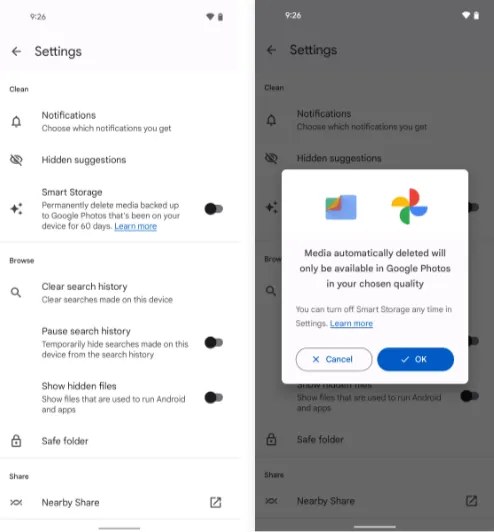
The following is a further automation-focused intellect built into your Pixel and ready to be cuddled: The technology automatically deletes duplicates of the photos and movies you’ve already backed up to Google Photos when your phone’s local storage starts to run out of room.
Of course, you can always do it on your own, but doing so requires (a) actually remembering to do it frequently and (b) spending the time to complete the process’s several manual phases. And while I don’t know about you, my brain is now made up of about 97% oatmeal, so everything I can automate to reduce the load on myself is a win in my book.
If you’ve got a current Pixel with the snazzy new Android 12 software on it, open up the Files by Google app (or go download it, if it isn’t already on your phone).
Then:
Tap the three-line menu icon in the app’s upper-left corner.
Select “Settings” in the menu that comes up.
Flip the switch next to “Smart Storage” into the on position and confirm that you want to activate the feature.
With Android 11 or earlier
If your Pixel is on an older version of Android (howdy, Pixel 2 partners!), you’ll find the same option within your phone’s system settings:
Open up your settings and tap “Storage.”
Look for the line labeled “Smart Storage.” Tap it — tap it with gusto, damn it!
Choose whether you want your already-backed-up items to be deleted when they’re 30, 60, or 90 days old.
Activate the toggle at the top of the screen.
Either way, you’ll just need to make sure you’re set to sync your photos and videos to Google Photos — by tapping your profile picture in the Google Photos app and then looking for the “Backup” line in the menu that comes up — and you’ll never have to think about your storage running low again.
Image extracting
Save yourself some time and let your Pixel make it simple the next time you need to grab a picture from someplace, whether it’s a website, a text message, a forum for earwig aficionados, or whatever the situation may be.
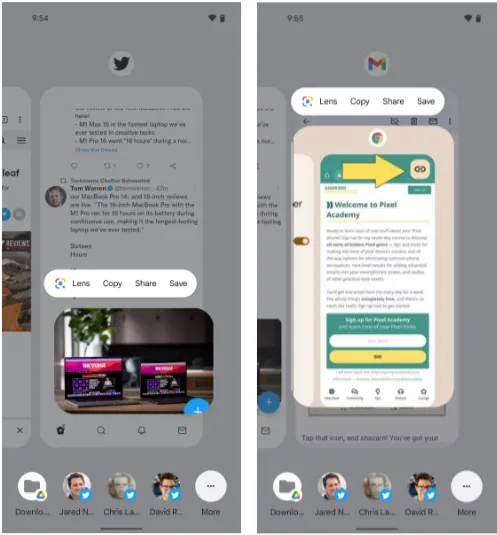
The Overview screen on your Pixel phone includes a secret feature that lets you take pictures almost anywhere. And all it takes to access its magic is a simple swipe and a few fast taps:\
While you’re viewing any app with a visible image, open up the Overview interface — by swiping up about an inch from the bottom of your screen and then stopping, if you’re using the current Android gestures system, or by tapping the square-shaped icon along your screen’s lower edge, if you’re still using the old legacy button-nav setup.
Touch and hold your finger onto the image within the app’s preview.
Select the option to copy, share, or save the image — or use Google Lens to analyze it, if you really want to get wild.
This will work in most any app where an image is present — even if it’s an app where you couldn’t typically save an image in any easy way (Gmail, Twitter, Earwiggalicious, etc).
Let’s all say it together now: Pixel features can be incredibly beneficial once you remind yourself of their possibilities and then learn to properly take advantage of them! (Okay, so that rallying cry might need a little work.)
Text extraction
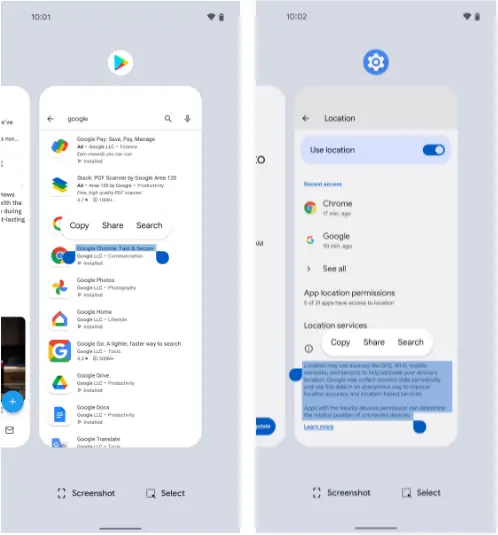
Following up on our previous Pixel feature, your fancy Google phone can help you pull text out of practically anywhere imaginable and then copy it, share it, and search for it to your heart’s content.
What’s especially useful here is that just like with the last item, this feature works even in places where you couldn’t typically copy text — your feed in social media apps, parts of the Play Store, or even sections of your system settings.
And it’s right in the same place as the image extractor we just finished exploring:
Head back into your Pixel’s Overview area.
Touch and hold your finger onto any text in the current app’s preview — or, if you’d rather (and if your Pixel is recent enough to be running Android 10 or higher), tap the “Select” text at the bottom of the screen and then highlight the specific text you want from there.
Choose “Copy,” “Share,” or “Search” from the menu that comes up.
Smirk knowingly at any iPhone users in the vicinity.
Simple screenshots
One of the most frequent complaints I get from my fellow Android-loving primates is how difficult it may be to take a screenshot on a Pixel. ‘ See, back then, the system power-button menu on Pixels included a straightforward option to take a screenshot of the screen. But after that, Google, well, Googled. It changed that menu, and then, um, it changed it again a year later, and the choice vanished.
Hold the phone, though: If you aren’t a fan of the old-fashioned physical button mechanism for capturing a screenshot, there is still another way.
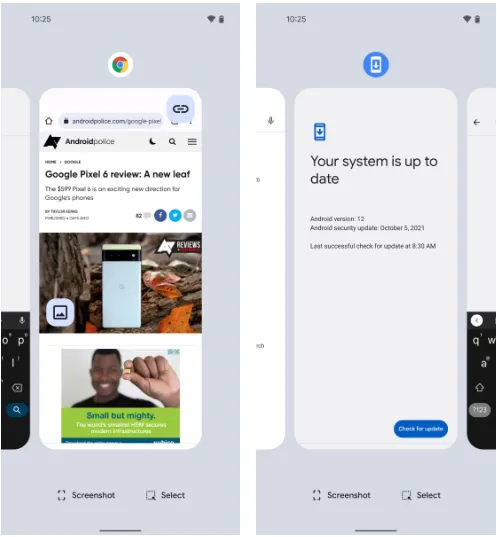
It’s right there in plain sight on that same Overview screen we were just gawking at, in fact, and yet hardly anyone seems to notice it.
Yes, that’s it; it’s down there on the screen. As long as you have Android 11 or higher, your Pixel will always offer up a “Screenshot” option directly inside its Overview interface, regardless of the program or area of Android you’re looking at. And selecting that will record whatever is visible on the screen of the active process.
The system status bar, the bottom-of-screen navigation area, and any other extraneous items won’t appear in screenshots you take in this fashion as a bonus; this is a notable and occasionally useful departure from Android’s customary physical-button screenshot-capturing method.
Tap to wake
Pixels have plenty of options for easy screen activation. Maybe you like using the always-on time and info system, for instance. Or maybe you’re more of a lift-to-check kind of Pixel owner.
Whether you’re using any of those features or not, though, your Googley phone has another useful system for waking up its display in a jiff. It harkens back to an earlier Android era, and it’s one of the Pixel’s most overlooked possibilities.
Ready? Simply press the display twice to turn on the screen of your Pixel whenever you want. Just two quick taps are all it takes to wake up your phone. The unknown!
The “Tap to check phone” option should be present on your lock screen by default, but if it isn’t, check your system settings, go to “Display,” then “Lock screen,” and see whether the option is present. If it is, you can verify that it is on and enabled. (On Pixels running previous versions of Android, you’ll need to touch “Advanced” before you can access that option, which is labeled “Double-tap to check phone.”)
Automation
Although there are many chances for advanced automation on Android, your Pixel comes with its own native rules system that can significantly increase the intelligence of your phone with hardly any work.
It’s called, rather fittingly, Rules — and with about 30 seconds of setup, it can allow your phone to change its ringing and notification behavior based on where you are or what Wi-Fi network you’re connected to at any given moment.
Here’s how to get it up and running:
Head into your Pixel’s system settings (by swiping down twice from the top of the screen and then tapping the gear-shaped icon in the lower-right corner of the panel that pops up).
Tap “System” followed by “Rules.”
Make sure the toggle at the top of the screen that says “Always allow location for Rules” is in the on position.
Look for a line that prompts you to allow the feature to run in the background. If you see that, tap it and then tap “Allow” on the confirmation that appears.
Pause to take a sip of the nearest fizzy beverage.
Tap “Add rule” and then consider your options.
Then what? That’s really up to you. For a few ideas, you could instruct your Pixel to vibrate for incoming alerts when you’re at work, make it to go into Do Not Disturb mode whenever you’re at the movies, or configure it to ring whenever you’re connected to your home network.
Smart screens
The last item in our list of overlooked Pixel characteristics is a two-parter that your eyes will like.
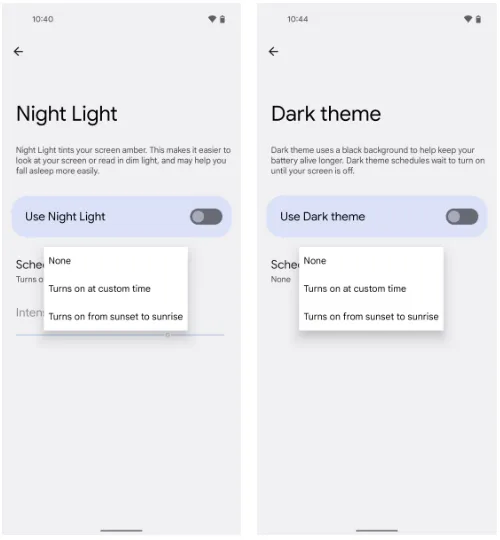
The screen-tinting Night Light option can be automatically activated on your Pixel based on the sunrise and sunset times in your current location or a schedule you create. In this manner, your phone’s screen will adopt a softer, less harsh type of coloring that will be easier on your eyes when night falls and the lights get faint. And as soon as morning comes around, it will switch back to the regular daytime mode.
Return to your Pixel’s system settings, select “Display,” then press “Night Light,” then “Schedule,” to configure your automated Night Light activation routine. The options to select the sunset-to-sunrise setup or to enter your own unique hours for dim-environment optimization are displayed there.
While we’re on the subject of screen intelligence, think about if your phone’s theme changing from a lighter theme during the day to a darker one at night might be a good addition to your new Night Light intelligence. For me, the two patterns—standard screen colors and a light theme during the day and Night Light and Android’s dark mode during the night—are a lovely and extremely natural pairing.
If you want to give that double-display whammy a whirl, back out to the main “Display” menu and look for the “Dark theme” line. Tap it, then tap “Schedule,” and you’ll see a selection that’s identical to the one you just configured for the Night Light.
Users can use WhatsApp on numerous devices without their primary smartphone’s primary smartphone needing to have an active internet connection thanks to WhatsApp’s multi-device capability. WhatsApp is still in the early stages of multi-device compatibility; the firm releases new functionality every other week. You may now use WhatsApp on both expensive and low-cost Android tablets thanks to a recent beta release from WhatsApp. Here’s how to set up and use WhatsApp on several devices if you haven’t already used this function.
Using WhatsApp on multiple devices: What you need to know
End-to-end encryption for WhatsApp is supported by its support for multiple devices. This implies that the implementation has certain constraints, though. Your primary phone is one of the five connected devices that WhatsApp supports. You cannot link the service to several phones because your WhatsApp account can only be connected to one phone number.
The WhatsApp upgrade makes it simpler to communicate with others because you may send messages from your computer or browser without your phone being connected to the internet. However, if your main phone does not go online at least once every 14 days, you are immediately logged out from all devices. In order to connect any new device to your account, you also need the phone.
On desktops, the multi-device capability is functional, while on tablets, it is currently in beta. Additionally, only Android tablets are compatible with WhatsApp’s multi-device capability in the current beta. You can access your chats on your tablet using the WhatsApp Web client if you use an iPad or are not a beta tester. For more information, see our guide on using WhatsApp on tablets.
Also, certain WhatsApp features can only be used on your smartphone:
Clearing or deleting chats on linked devices if your primary device is an iPhone.
Messaging or calling someone who uses an older version of WhatsApp on their phone.
Viewing live location on linked devices.
Creating and viewing broadcast lists on linked devices.
Sending messages with link previews from WhatsApp Web.
How to link a device to your WhatsApp account
Follow these steps to connect your phone or tablet to your WhatsApp account:
Open the Google Play Store and make sure the latest version of WhatsApp is installed on your phone.
Open WhatsApp.
Tap the three-dot menu button in the upper-right corner, and then tap Linked devices.
Select Link a Device option.
Verify your identity using your fingerprint or the device pattern/pin unlock.
Give WhatsApp access to your phone’s camera if you have not done so.
Scan the QR code shown on the page using your phone.
On your iPhone, open WhatsApp, go to Settings > Linked Devices > Link a Device, and scan the QR code.
WhatsApp loads your chats and group conversations.
How to unlink a device from your WhatsApp account
The process to unlink a device from your WhatsApp account is relatively simple. Follow these steps:
Open WhatsApp.
Tap the three-dot menu button in the upper-right corner, and then tap Linked devices.
The devices linked to your WhatsApp account appear here.
Tap any device name to unlink it.
Confirm your selection by selecting Log Out from the dialog box that appears.
To unlink a device on your iPhone, go to Settings > Linked Devices, and tap the device you want to unlink. Use the Log Out button to unlink the device. You can re-link any removed device again without any issues.
On Friday, Meta Platforms announced that it had discovered over 400 malicious apps on Android and iOS that it claimed were aimed at online users in order to steal their Facebook login credentials.
According to a study provided with Droid Tools by the social media giant, “These programs were placed on the Google Play Store and Apple’s App Store and disguised as photo editors, games, VPN services, business apps, and other utilities to deceive consumers into downloading them.”
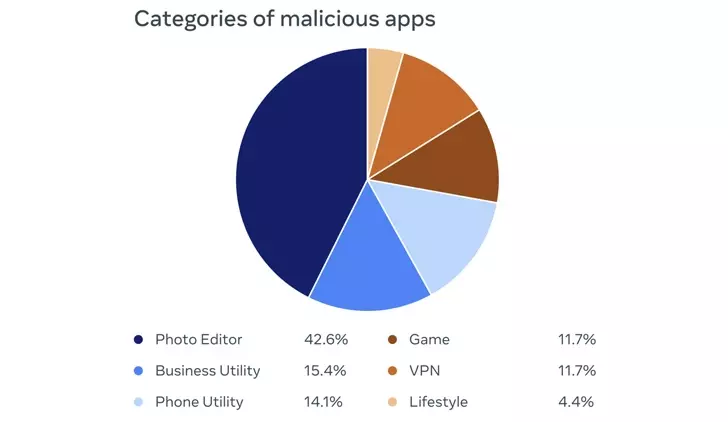
42.6% of the rogue apps were photo editors, followed by business utilities (15.4%), phone utilities (14.1%), games (11.7%), VPNs (11.7%), and lifestyle apps (4.4%). Interestingly, a majority of the iOS apps posed as ads manager tools for Meta and its Facebook subsidiary.
The owners of the plan not only disguised its nefarious nature as a collection of seemingly innocent apps, but they also posted fictitious reviews in an effort to counteract any unfavorable comments made by users who may have previously downloaded the apps.
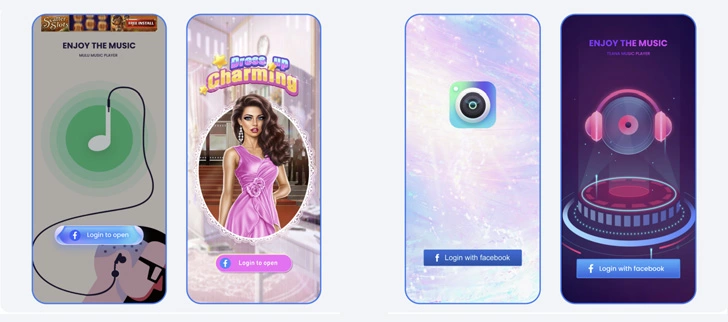
By presenting a “Login With Facebook” prompt, the apps ultimately served as a way to steal the user login information.
“If the login information is stolen, attackers could potentially gain full access to a person’s account and do things like message their friends or access private information,” the company said.
Both app stores have removed all of the disputed apps. You may view the list of 402 apps, which includes 355 Android apps and 47 iOS apps.
It is crucial to use caution while downloading apps and providing access to Facebook in order to get the claimed functionality, as it is with all programs of this nature. This entails carefully examining app permissions and user evaluations as well as confirming the legitimacy of the app creators.
The disclosure was made at the same time that three Chinese and Taiwanese businesses were sued by Meta-owned WhatsApp for allegedly deceiving over a million users into compromising their own accounts by disseminating fake versions of the messaging software.
The greatest Android game and software bargains for Monday afternoon are now available below the fold. Along with the software discounts, there are also price reductions for the OnePlus 10 Pro 5G, Samsung’s most recent Galaxy Z Fold 4 foldable, and the Chromecast with Google TV 4K. However, the focus of today’s bargains is on apps, with titles like Pavilion: Touch Edition, ProCam X, Evoland 2, YoWindow Weather, Hack, Slash, Loot, Crystalline, and others among the highlights. For a detailed look at today’s top Android app bargains, courtesy of Google Play, continue reading below.