People are eagerly waiting for the Android 12 update especially since the release of a plethora of promising rumors and leaks. Most of what we know has been leaked but some of the information is gathered from the public source code which appeared before the Developer Preview. In light of the upcoming release, we have gathered every detail we could find regarding the Android 12 update and compiled them for you in this article.
The Desert Name
Since 2009, a trend can be observed in the naming of each software update. Every major release ever since has been named after a dessert that starts with a successive letter of the alphabet. In 2009 it was Cupcake then Donut then Froyo then Gingerbread and so on. However, this was not the case with Android 10, it seems that publicly Google had abandoned the practice of naming its software updates after deserts but internally the tradition still carried on. Hence Android 11 was “Red Velvet Cake” and Android 12 is reported as “Snow Cone”.
Design Mockups
The leaked mockups reveal a comprehensive design, it is worth noting that the actual design could be quite different since the mockups are just providing a visual aid to the leaks. The following images are not screenshots but render from artists of what the design could be.
Themes
After looking at the mockups, it can be observed that Google is going in a different direction with the themes. You can’t find the usually black and white colorways instead a primary color described as “Sand” can be observed. This change in color schemes could be due to an in-depth theming system that is set to debut. This feature will allow you to customize your theme by choosing from a selected number of primary colors.
Material NEXT
The following sets of features are referred to as, “Material NEXT”. It was reported by XDA that there will be various smaller tweaks to the overall interface including notification cards with much rounder corners, new shapes and spacing for quick settings tiles, and more. There may be more features that are under the Material NEXT tag or this could simply point towards the updates to the use of Material Design by Android’s built-in apps and UI.
New Widgets
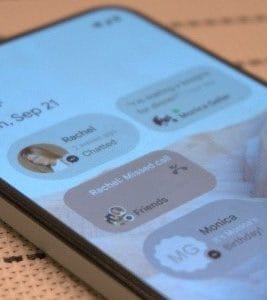
The release of Android 12 could bring, “Conversations Widgets”, which will appear on the home screen. These widgets seem to display missed calls or messages by someone who you haven’t talked to in your while. There are no further details on its functionality but this feature aligns with Google’s aim which is making users more involved in the operating systems.
One-handed mode
This feature is directly aimed at those owners who use a foldable device or taller devices. Android 12 will be introducing a native one-handed mode that will decrease your phone’s screen vertically. This will make it easier to use the device with one hand, however, only the height will decrease not the width.
Privacy developments
It seems Google is ready to follow Apple’s stance on privacy, with Android 12 there might be a variety of movements to aid in privacy protection. Reportedly, a feature is in development that will allow users to know if an app is using or has used your camera or microphone recently. Additionally, it has been leaked that Android 12’s Settings app will get a revamped Privacy page where you can outright disable your phone’s camera, microphone, and location sensors.
Scrolling Screenshots
This feature is neither a rumor nor a leak, Google confirmed in 2019 that it was working on Scrolling Screenshots. Basically, your phone takes a screenshot, scrolls down, takes another, and stitches the two (or more) together.
Picture-in-picture upgrades
When Android 11 was introduced users could resize their floating picture-in-picture window by simply grabbing onto the corner and dragging. According to recent reports, users will now be able to resize with precision or double-tapped to quickly jump to maximum size. There might even be a way for users to “hide” the window so they can see more of their currently active app.
App Pairs
App Pairs is another feature that is being introduced due to the usage of foldable phones. This is a split-screen that allows users to operate two different tasks as one in recent apps view hence you will be able to switch from a pair of apps to another single app.
Game Mode
This feature will be a massive hit among gamers. There is a rumor that Android 12 may introduce a “game mode” option. As of now, it is called, “GameManager”, which is listed as a “service to manage game-related features.” No specific details have been released hence we are pretty much in the dark about this one.
Brightness Control
Android 12 will bring a “Reduce Brightness” tile in the quick settings. This seems to be an accessibility feature aimed at those with visual impairments.
Apps Hibernation
Premium flagship phones rarely have a storage issue but not everyone can afford the pricey devices with massive storage. To save storage space, Android 12 could introduce a way for apps to be “hibernated” when they aren’t being actively used. Again, the details on this are a bit vague.
Third-party app store
Last year Google assured Android app developers that it was considering their feedbacks and would make it easier to use a third-party app store. This is one of the features that Goggle has been hush-hush about but it is a fair compromise between Google and developers. This will also protect the user’s from malicious malware.
What’s next?
There is no definite release date by Google as of now but it is expected sooner rather than later. This set of features indicate that Google is trying to make its operating system more user-friendly. It is allowing the user to customize and personalize their devices. Additionally, it seems Google agrees with Apple’s privacy policies, to limit data sharing, which have been the center of controversy ever since its announcement. Many details reading these features are unknown and most of them are just sheer speculation. We’ll have to wait for the build and see how accurate our guesses were based upon the leaks.
After the Magisk method is published, the root process is simple to compare with conventional methods. Yet it’s got its limits. We can’t use custom ROMs unless we have some custom recovery enabled. So, even after users have access to root, they prefer the TWRP method when it is released. Samsung Galaxy M31 comes with upper mid-range specs and can handle all of the apps. But if you need root access, you can use the following method to root your Samsung Galaxy M31 Android 10. Since we use custom recovery in this phase, you can install any necessary custom ROMs on your mobile device.
Compare with standard other root methods, this method has additional steps. So, You should care a little bit when you do the process. Since it doesn’t use a custom recovery, You can’t install custom ROMs. But, It is enough to run most of the root apps.
After root, you lose the official alerts. You need to update your smartphone manually. So, you should know why you need to do this before continuing with the process. If you are a frequent user, you can try some alternatives that do not require root for your function. If you are a frequent user and developer of root apps, you can follow the guide below to get root on your smartphone.
Root and Install TWRP on Samsung Galaxy M31 Android 10 One UI 2.0, 2.5 (SM-M315F)
Thanks to the developer- afaneh92 for the Root method and topjohnwu – this genius is the one who discovered and maintained Magisk. Samsung Galaxy M31 variants come with a flexible bootloader in some regions. It means that the smartphone can be easily rooted. The device can also accept installing TWRP recovery or any other custom recovery file/app. Don’t try with Snapdragon US Variants like Verizon devices. They come with a locked Bootloader.
But In the below method, we are going to Root this device by using Magisk. You can install Official TWRP using the official app when it is released. TWRP recovery is a custom recovery file that must be installed on your devices because you can root them successfully. This article explained the easiest method to follow and install Magisk on Samsung Galaxy M31. However, the tool required for rooting this device is the Magisk App.
Once available, you can flash TWRP. With the support of TWRP Recovery, you can easily flash Custom ROMs to your Samsung Galaxy M31. Before sharing a tutorial, you may want to know that you can easily install any root apps with Magisk on your computer. Does that sound complicated? Relax; everything will be briefly explained in the bullets.
Things to check out for;
Check your device model number.
You should Backup your current files and data- Full Data Loss Process (save them on external storage).
Install Latest Magisk Manager.
Make sure your device battery is above 50%
You cannot use Samsung Pay, Secured folder, and some official apps from Samsung.
You can’t update your firmware; to get new firmware, you must follow the below steps with the latest firmware.
Read the full tutorial before the process.
Unlock Bootloader
Enable USB Debugging Mode and OEM Unlock on your mobile. To do this, go to settings >>> about >>> Tap on the “Build Number” 7-10 times consistently to enable “Developer Options,” then go to the “Developer Options” and enable USB Debugging Mode and OEM Unlock. There is no complicated process in the Samsung Galaxy M31.
Switch off your device. Enter into Download Mode-> Volume Down+ Volume Up and Connect your mobile with PC using USB Cable. When the Download mode warning screen Appears, Press the Volume Up button to unlock Bootloader.
The above process will wipe your user data. After Setup your device, Please recheck the OEM Unlock in the settings. Sometimes It Will Lock Again.
Download Multi disabler.zip and Magisk.zip files (Don’t download .apk file) copy them on your Pendrive With OTG Cable. You can refer to the uses of OTG. (Or, you can prefer an external SD Card).
You can use Phone Info to know your firmware version.
Prepare patched boot image file
Download 7Zip-ZS, LZ4, and Install both on your PC. Extract the files in downloaded firmware using 7Zip-ZS. You will get four files. Click on the AP File and Extract again. You will get some data along with the boot.img.lz4.
Copy the boot.img.lz4 and Vbmeta.img.lz4 to LZ4 Installed folder. Convert the lz4 file to a .img file by dragging the .img file to the lz4 application file. You have to drag the file to that application. The script will automatically convert the file to .img format. After the conversion, Copy the boot — img file to your mobile. Leave Vbmeta in the PC folder.
Download Magisk Manager (Download Latest version) or Magisk canary and Install it on your mobile. Open Installed Magisk and Select Install in Magisk; it will ask For a zip file and Patch Boot Image File. Select the Boot Image file.
Navigate to your copied boot image file and patch the file.
Wait for the process to complete, in the end, you will get a magisk patched .img file. Rename this file into the boot.img.
Now copy boot. img and Vbmeta. img files to your PC. We already leave the Vbmeta. img file on PC. Drag those files into the downloaded TWRP.tar file. Now you can see there are three files within the TWRP.tar file. Don’t extract the data. The three files contain a single .tar file that should be flashed using ODIN.
Flash TWRP.tar with ODIN
Connect your USB cable with your PC. Switch off your device. Then, enter into Download mode. To do this, press and hold Volume Down+ Volume Up Buttons and Connect Your Mobile To PC via USB Cable; after Samsung Logo Appear, Release all keys.
Press the Volume Up button to continue when you see the warning message.
Now, connect the Samsung Galaxy M31 mobile to the computer via USB cable.
Launch the Odin app on your computer. If the device is detected by this app (Odin), it will show you a message that reads – added!!!
However, if the device is not correctly connected to the PC, you won’t see this message. So, you have to check the USB cable if it is reasonable and reconnect the device.
After connecting the Samsung device, click on the PDA/PA/AP button to browse/search and get the TWRP from where you saved it on your PC. Also, navigate to “options” and Un-tick the Auto-Reboot.
Click on “Start”
Once the file is loaded into the device, reboot your device.
Now you have just Installed the TWRP on your Samsung Galaxy M31. We installed TWRP. Don’t turn on your mobile.
Immediately, move to Magisk Installation steps.
Press the Volume Down+Power button to exit Download mode and quickly press Volume Up+ Volume Down+ Power Button to boot into Recovery mode.
Install Magisk on your Samsung Galaxy M31 with TWRP
Now you are in TWRP Recovery Mode.
Select Wipe->Advance Wipe->Select Cache Data. You can also take complete backup using TWRP. It will help you when something goes wrong.
Return to Home of TWRP select Install.
Select Multi disabler.zip.
Return to Home of TWRP select Install.
Select Magisk.zip.
You should Install them One by One. Don’t add more zips feature in TWRP. After the Installation, Reboot Your Mobile.
You can also install Magisk.apk in your Mobile Applications. Multi disabler avoids the Encryption issue after rooting. You can check your root status using Root Checker.
If you didn’t find Magisk in App Drawer, you should Install the Magisk app again.
While Google’s latest Pixel devices are typically the first to be launched with Android’s latest flavor, Chinese OEM Vivo hit Google with its Vivo V20 last year. The device was the first new smartphone to launch Android 11 out of the box, hitting the new Pixel 5 and Pixel 4a 5G by just a few hours. Since then, Vivo has launched a few other devices running the latest Funtouch OS-based Android 11 flavor, but the company has yet to release updates to older devices.
Although Vivo has previously released a Funtouch OS 11 beta for the Nex 3S 5G and the iQOO 3 4G/5G, the company hasn’t shared an update timeline for other devices in its portfolio. That changes today, as Vivo has now shared a Funtouch OS beta roll-out plan on Twitter. According to the tweet, Vivo has already started rolling out the Funtouch OS 11 beta to the X50 Pro last month. The Vivo V19 and X50 should start receiving their first beta releases by the end of this month.
Older devices, like the Vivo V17, V17 Pro, V15 Pro, and S1, will start receiving the first Funtouch OS 11 beta by the end of March 2021. The Vivo S1 Pro, Z1x, and Z1 Pro will follow soon thereafter by the end of April 2021. And finally, the Vivo V15 will receive its first Android 11 beta by the end of June 2021. The beta releases for all the aforementioned devices will roll out in a staggered fashion, with users receiving the update in small batches. Once Vivo ensures that the beta release doesn’t have any critical bugs, the devices should receive the stable version of Funtouch OS 11 based on Android 11. As of now, the company hasn’t shared a release timeline for the stable update.
It’s worth noting that Vivo has already launched a new Android skin called OriginOS, which is expected to replace Funtouch OS in the future. But, for the time being, the company hasn’t clarified exactly when the new Android skin will land on its devices. Currently, Vivo X60 and X60 Pro are the only devices in its portfolio to run OriginOS 1.0 based on Android 11.
Android Antivirus apps remain one of Android’s most common of apps. Generally, if you’re playing it safe, you don’t need an antivirus app, just download apps from the Play Store, and keep your security settings available. There are many, though, who want to take a walk on the wild side and not do those things. A lot of extremely bad antivirus software are out there. Even if these apps aren’t needed, knowing the safe ones that don’t suck is helpful. Here are Android’s best antivirus software and anti-malware apps. As of January 2021, all rates are present.
Avira is one of the newer antivirus apps comparatively speaking. It grew rather quickly over the last year. The app comes with the basics, including device scans, real-time protection, external SD card scans, and a lot more. This one also comes with a VPN for added layer of security. Some other features include anti-theft support, privacy scanning, blacklisting, and even device admin features. It’s much lighter than apps like Norton and others.
The free version is functional for basic things. The premium versions include three tiered prices that add things like the aforementioned VPN, password generation, more frequent virus database updates, and more.
One of the most common antivirus applications on any platform is Avast Mobile Security. It boasts over 100 million features and millions of downloads. Classical antivirus scanning, an applock, call blocker, anti-theft protection, a picture vault, and even a rooted Android device firewall are some of the features. Even if you don’t need the antivirus part very much, that makes it an excellent instrument. There are also some booster characteristics, but you should avoid those as well.
The free edition comes with most features and is advertising-supported. The premium models come with more security features, no ads, and a VPN is also included in the most costly version.
Another major name in the field of antivirus software is AVG. It’s basically the same as AVAST, in fact. In 2016, AVAST actually bought AVG back. Thus, in both antivirus applications, the experience is identical. In much the same way, you can search your phone and find possible vulnerabilities.
This one has Google Maps anti-theft monitoring, but it does not have the availability of rooted firewalls as AVAST does. Thus, they are sufficiently different to be distinct products. Just make sure that the garbage features such as the phone boost are avoided because they don’t really work. Identical to AVAST are the price ranges and premium characteristics.
One of the few antivirus applications that are currently free is Bitdefender Antivirus. Over the years, it has not altered much. It provides a basic scanning feature, a simple interface, fast quality, and no configuration. For super simple needs, this is a perfect one. All it really does is scan items and then sit there and wait again for things to be scanned. A bigger, more in-depth Bitdefender app exists. However, for those who just want something easy, we think this one is better. With no in-app purchases or subscriptions, it’s also actually free. Advertising is there, however.
In the antivirus and anti-malware environment, ESET is another major name. It has a good range of features, including scans, support for anti-theft, a safety inspector feature, scheduling for scans, and more. A bit intrusive is the setup process. It’s one of the few to have an email address required. It works pretty well otherwise. Upon download, you get a free trial for one month. It goes for $1.99 a month from there, or $14.99 per year. It’s not quite as heavy as AVAST or AVG, but it’s heavier than Bitdefender or CM Protection Lite. For what it’s worth, take that info.
One of the most common antivirus apps is Kaspersky. It has a free version as well as a pro version. SMS and call blocking, scans, malware updates, and anti-theft are provided in both versions. The premium edition adds stuff like security in real time, an applock, and more. Of course, both models have malware scanning for computers and items like that.
It’s not about as heavy as the biggest antivirus software. Plus, it hardly has any hideous booster features that don’t work. Instead of trying to stretch to things that don’t make sense, it’s good to see an antivirus app double down on its intent. If you only need support for one computer, the subscription price is reasonably low.
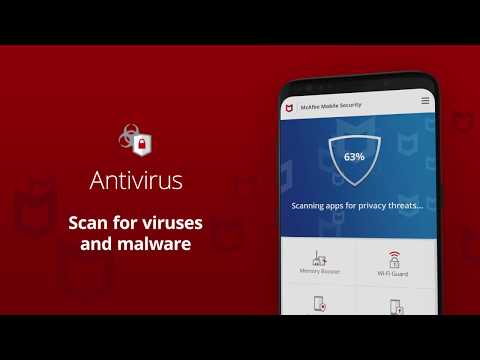
McAfee is one of the biggest names in antivirus apps. It’s also one of the heaviest. The app includes scanning, anti-theft, anti-spyware, and security locking features. Additionally, it can take photos of your potential phone thief, record locations to the cloud before the phone shuts down, and more useful stuff. McAfee also has a variety of standalone apps for other things. The UI is old and it doesn’t look very good.
Additionally, it has phone booster features that don’t work and it requires an account creation to go pro. The antivirus portion of the app does work rather well and some of the tertiary features are nice. The lower tier subscription adds photo and video backup, an app locker, and Internet protection. The more expensive one adds additional protection for things like online banking.
Malwarebytes is one of the most popular antivirus apps on Windows. The mobile version is pretty good too. It features an aggressively updated virus database, support for malware and ransomware, a permission tracker, and more.
It can even scan messages in WhatsApp, Facebook, SMS, etc for potentially dangerous links. Of course, it does the usual stuff like scanning as well. The app looks nice, works well, and it’s not too heavy like others. It’s also reasonably priced at $1.49 per month or $11.99 per year.
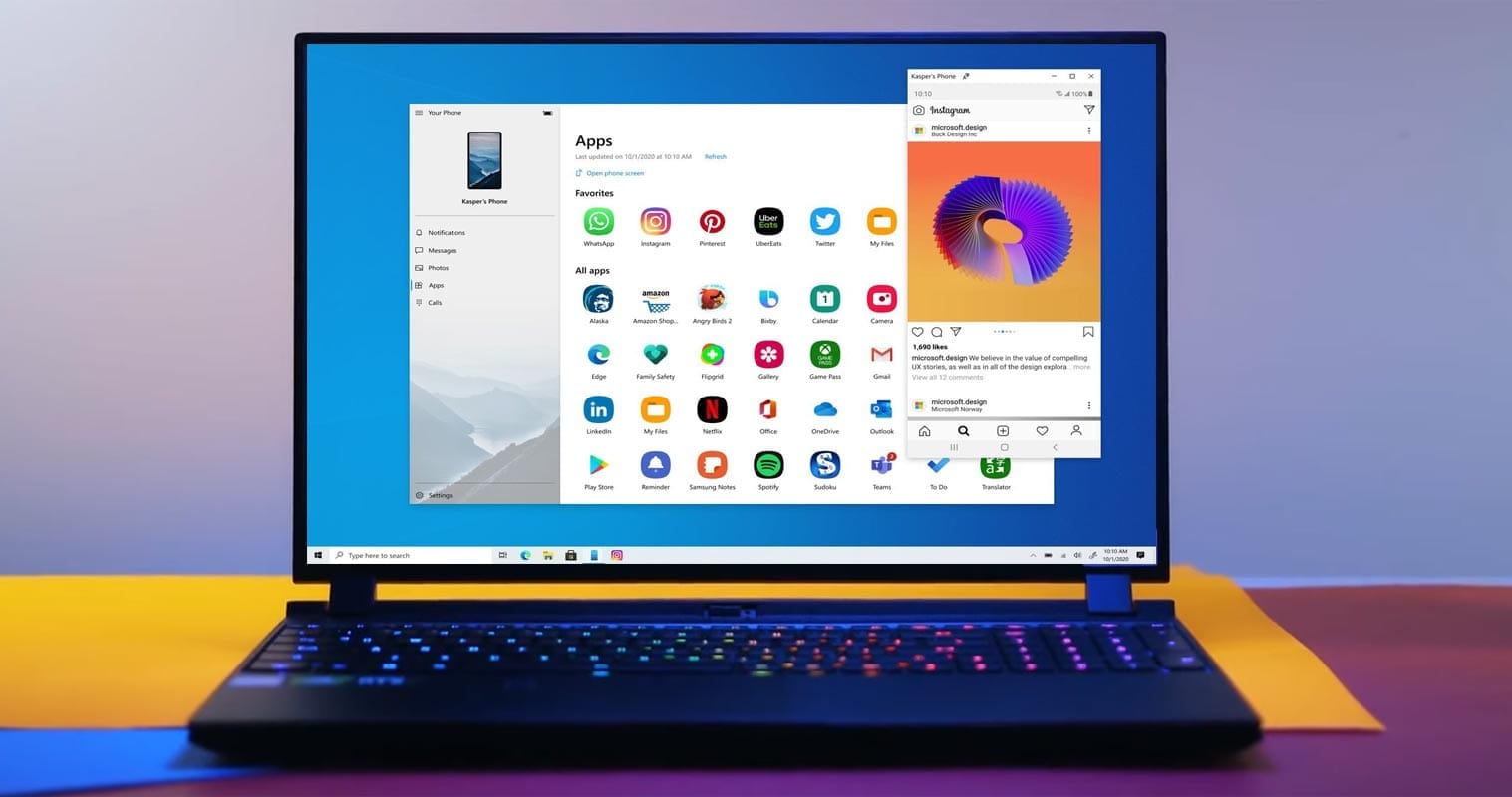
With the recent release of Apple Macs and MacBooks powered by M1 that are capable of running iOS apps, it seems as if we will soon see something similar happen on the PC side of the fence. Microsoft’s “Project Latte” could see Android apps running on Windows, according to Windows Central.
So some of your reading would probably convince you that you can do this already. Yes, thanks to the Connect to Windows feature with the Your Phone app available on some Samsung Galaxy hardware, you can sort of do it. This execution is not always the most effective, with disconnections and problems that mean that the experience can be a little temperamental.
With very little extra work needed, Project Latte will effectively allow developers to port their Android apps to Windows 10. Plus, for developers looking to expand their installation base, this might also open up an expanded marketplace.
The use of the Windows Subsystem for Linux plus an added Android subsystem would require Android apps on Windows so that apps may actually run. Unfortunately, Project Latte is unlikely to support applications that require Google Play Services to run, if this comes to fruition. This limits the pool of applications that will be available immediately, at least before developers eliminate their dependency on Play Services to run.
Android apps are now running Chrome OS, although it took a long time to actually be introduced. So, with that in mind, it may take just as long for Android apps on Windows with Project Latte. Throw in the added space for problems and the implementation of Your Phone and Connection to Windows sounds a lot more appealing.
This also isn’t the first time that Microsoft has tried to bring Android apps to Windows, as the failed Astoria project is over 5-years-old at this stage. We’re not holding our breath for Project Latte, but according to Windows Central, a touted launch timeframe is “fall 2021” alongside the Windows 10 release around that period.
The bigger question is would you even want to run standalone Android apps on your Windows PC? Let us know down in the comments section below.
Is Monday, everyone. Today we have more than a few noteworthy titles worth to mention, and we’d like to highlight the these, such as the current discount on Romancing SaGa 2, a quality RPG that usually costs twice as much. Also Botanicula is on sale, an enjoyable adventure game from Amanita Design, and last up is 911 Operator, an enjoyable simulation game that also has a sequel on sale today. As always, I’ve highlighted all of the interesting titles in bold green text in order to make discovery easier.
In the smartphone industry now many smartphones have a large battery capacity of about 5000 mAh. With regular use, they can last up to 10 hours of full battery life, such as surfing, normal games, etc. Instead of a larger battery, modern smartphone companies are investing more in making fast chargers. In this guide, even if you don’t have easy charger help, we’ll show you how to charge a phone faster. These are 7 tips and tricks that have been tested and followed by users who operate perfectly with every smartphone in the world.
To check your current charging speed, use the Ampere app. Simply install Ampere on Android or iPhone and Plug-in the charger cable and wait for a second to measure the current input. At a normal 5V/2A charger, it would be approximately less than 2000mA showing in the app.
Tips and Tricks To Charge a Phone Faster
1. Turn ON Flight Mode
The first thing you should try is to turn on flight mode on your smartphone. Flight mode disables all incoming outgoing radio signals through the smartphone and significantly improves the charging speed. Alternatively, turn off other connectivities such as WiFi, Internet Data set to be off, Bluetooth, Hotspot, etc. Still, flight mode is more effective.
2. Do not charge your phone with Laptop
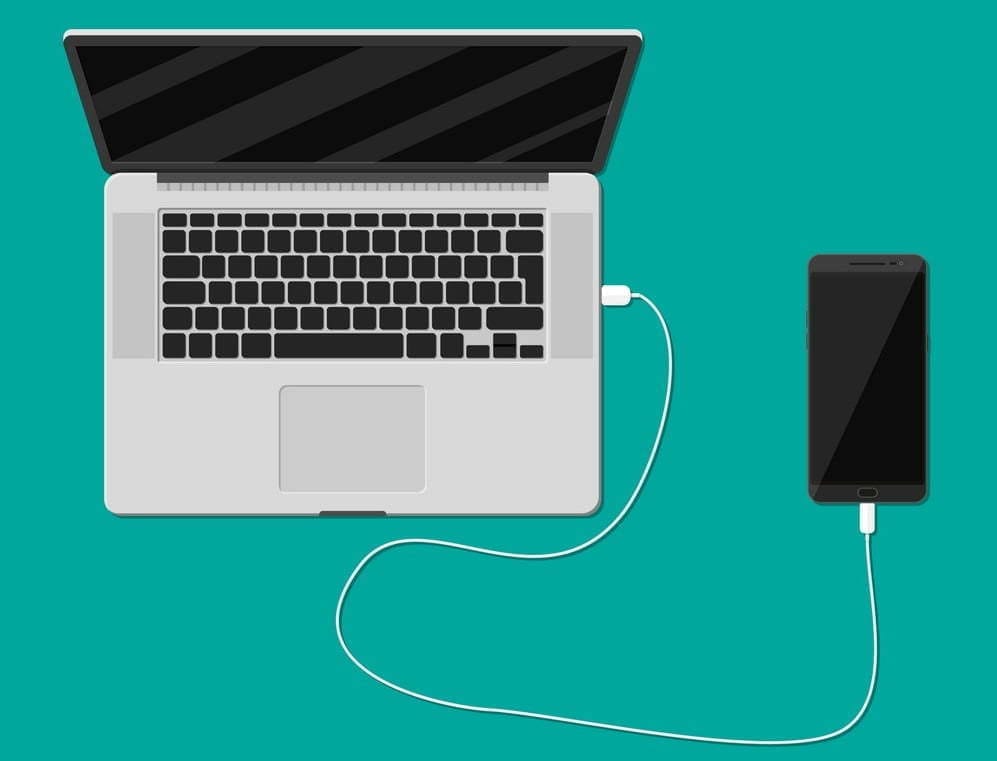
Charging your phone with a laptop could be a bad idea. When you charge your phone with an adapter, the charging speed mostly depends upon the power output of the adapter. A fast charger adapter produces from 20 to 55-watt output. Whereas, when you charge your phone using a laptop, the USB port is the current output source. And, mostly laptop’s USB ports produces 1 to 5-watt output. That’s why it would be a bad idea to charge a phone with a laptop. Instead, use a better fast charging cable and adapter.
3. Stop Background Running Apps
The reason why your battery percentage drops so quickly is running apps. There might be a few apps running in the background on the phone that result low in performance as well as slow charging speed. To prevent it, clear the recent apps from the menu and uninstall unused apps from your phone.
One more tip, do not install battery saver apps or similar apps. Those are useless apps and cut your charging speed and battery life along with smartphone performance.
4. Buy A Fast Charger
Generally, smartphone brands provide a normal 10-watt slow charge out of the box. However, if your phone supports fast charging, you should look for a quick charger with maximum output. Quick Charger 3.0 charges the battery pretty fast from 0 to 100%.
There are some hardcore gamers who like to play games all the time. Even when the smartphone is plugged-in to the charger. Doing this, you’re not only charging your phone at a very slow speed but also overheating can damager your phone or its battery. I highly recommend to not use your phone while charging, you better leave it idle.
6. Turn On Power Saving Mode
Batter saver or power saver mode is an inbuilt feature in Android and iPhones both. By turning on power save, you can expand your smartphone battery life as well as charge your phone faster. However, this mode turns off background running applications and background data usage in some cases.
To turn on Power saver in Android, go to Settings > Battery > Battery Saver > Tap to Enable. Power saver mode for iPhones, go to Settings > Battery > Turn Power Mode on.
7. Turn Off Your Phone to Charge Faster
Lastly, turn off your smartphone and plug-in to the charger. Switching off your smartphone disables almost every functionality and disconnects every connection. Hence, this is the most effective way to charge your smartphone’s battery at peak speed.
However, this wouldn’t be possible for users who receive important phone calls frequently
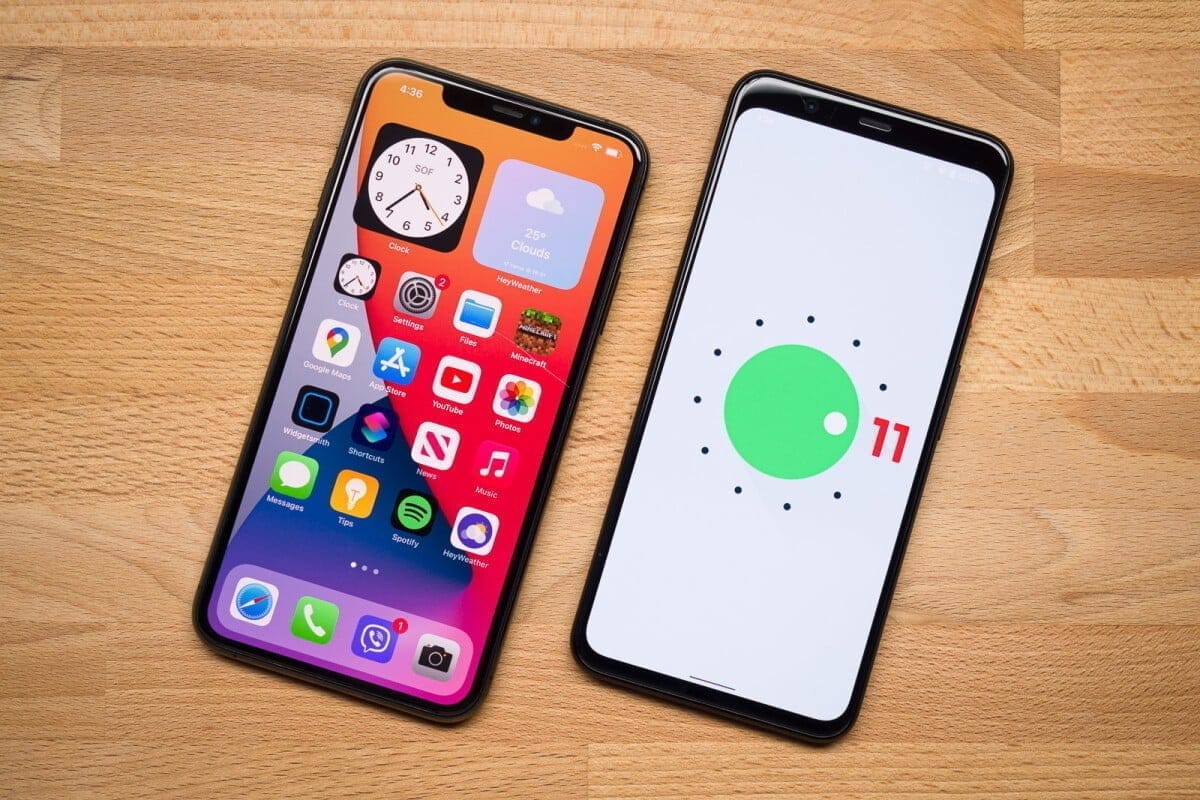
One of the most fiercely fought fights in the entire mobile tech room is Android vs. iOS, and chances are, that will not change any time soon. There are some individuals that love Android completely, others who can’t use anything but iOS, and that causes a lot of back-and-forth.
We’re certainly not here to suggest that Android is objectively better than iOS in any way, but we do want to take a closer look at the new Android 11 and iOS 14 updates. On top of a familiar base, the former provides small enhancements here and there, while the latter presents a full makeover that makes iOS more close to Android than it has ever been before.
iOS 14 is an impressive bit of software that does a lot of things really well, but if you ask us, there are certain things that Android 11 continues to be better at. To explain what we’re talking about, here are five reasons why Android 11 is the better operating system compared to iOS 14.
Better notifications
How it manages alerts is one of the strongest points people make in favor of Android. For a while now, updates on iOS have been really mediocre, and Google took an even bigger lead with Android 11 than it already had.
Android 11 separates your notification tray into three different parts, ranging from Conversations, Updates, and Silent as a priority. In Android 10, Alerts and Silent already existed, and with the introduction of Conversations, compared to anything else that pings your phone, it’s now much easier to see stuff like texts and telegram messages. Stuff labeled as conversation messages are moved to the top of your notification tray and show the profile picture of the person who sent you the message (along with an indicator of which messaging app the message came from).
It’s a small change, but I still feel like I’m doing a great job of keeping on top of updates with the Android phone as someone who carries two phones everyday, one with Android 11 and one with iOS 14. Things are clearly ordered, I can see easily if a new message is waiting for me and I usually feel like I have control of what’s happening.
There aren’t things I can say about the notification management of iOS 14, which all these years later appears to be a jumbled mess.
Chat bubbles – multiple conversation organizer
Speaking of conversations, chat bubbles are another major addition to Android 11. There’s an icon on the notification when you look at a contact notification that expands it out of the notification tray and into a floating bubble on your home screen, aka a chat bubble.
A glimpse of the ongoing conversation is shown by clicking on the chat bubble, enabling you to scroll through previous messages, type a new one, etc. Tapping it again reduces it back to the bubble button, which can be moved on either side of your screen anywhere.
Chat bubbles work with a number of messaging tools, including things such as Facebook Messenger, Google Messages, Telegram, and others. You can have several conversations packed in one chat bubble from various applications, making it easy to hop back and forth between conversations no matter where they take place.
At first, chat bubbles may seem a little gimmicky, but if you’re someone who does a lot of texting on your phone, even if you have a ton of other alerts pouring in during the day, they’re a genuinely nice way to keep things organized and within control. IOS 14 does not deliver anything comparable to chat bubbles, and for the near future, that will probably be the case.
Powerful permissions
It’s still something we’re going to recommend to take care of your digital privacy, and one of the easiest ways to start doing this is by taking control of device permissions on your devices. When downloading a new app, it’s just too easy to just grant all permissions, but the fact is that most applications do not require access to anything they ask for.
To its credit, iOS 14 has very strong controls on permissions. For any app installed from your Settings, you can look at permissions, with toggles to easily activate and disable permissions as you please. When you open a new app that asks for anything like your place, you will also be asked whether you only want to allow access once or anytime you use the app.
For Google with Android 11, permissions were a major priority, with them seeing a few main changes. The first takes Android up to iOS feature parity, with Android 11 now enabling an app to only give position authorization once. However, Android goes a step further by providing this one-time feature for requests for microphones and cameras, too.
Auto-resetting permissions are something else only found in Android 11. If you have granted permissions for an app that has not been used in a couple of months, those permissions will be revoked automatically. Next time you open the app, you can re-grant them, so it’s a way to guarantee that forgotten users don’t have access to things they don’t need.
Quick controls
Chances are that you have some smart home devices in your house/apartment, whether it’s light bulbs, your thermostat, or a wall socket. It is extremely nice to be able to monitor your lights when you are on holiday or kick on the heater on your way home from work, but juggling a bunch of different applications to do all that is anything but.
Google and Apple have already done a decent job by putting all these controls between the Google Home and Apple Home apps into one central location, but Android 11 makes it even better by making you incorporate your most-used controls right into your power menu.
No matter what you do on your screen, the redesigned power menu will be exposed by keeping the power button down. You still have the normal power controls, but this location is now used by Android 11 to also showcase your favorite Google Pay card and any smart home controls you want. Now it is possible to switch on the kitchen lights or change the temperature by simply keeping your power button and pressing the shortcut you have added.
Thanks to how many items I have related, my Google Home app is kind of a cluttered mess, so it is so much easier to have easy access to my most-used controls this way. With the latest shortcuts in your easy settings, iOS 14 also provides fast access to smart home toggles, but that still includes turning on the device and then swiping down. Being able to click the power button at any moment, regardless of whether the screen of my phone is on or off, is a much easier day-to-day experience.
Customizations
Without a doubt, the highlight feature of iOS 14 is its expanded customization. You can hide home screens you don’t want to see, there’s an app drawer to view everything installed on your phone, you can set default apps, and we finally have widgets that can be placed on home pages next to app icons. It’s one of the biggest changes we’ve ever seen for how iOS operates, and the execution is pretty darn great.
Apple deserves a lot of credit for everything it changed in this regard, but even with everything that’s new, Android 11 continues to offer more customization options — and by a long shot.
For instance take default apps. You can update your default web browser and email app with iOS 14 now, but that’s it. That’s not possible right now if you want to change stuff like your default navigation or camera app. In addition, if you ever turn your phone off/restart as Apple resets it all back to its own things, you will need to re-enable those default apps. It’s a much poorer experience compared to the default app setup we’ve had on Android for years.
In iOS 14, custom icons are kind of a thing, but for every single app you want to change the icon for, you need to build a Siri Shortcut. And when you build a Siri Shortcut and don’t directly alter the app icon, you won’t see your custom icon in the app drawer or outside the home screen anywhere on the device. Compare that with Android 11 or any previous edition, where it is as easy to change an app icon as downloading a custom icon pack and diving into the settings of your launcher.
On that note, on iOS 14 you still can’t use a different launcher. You can switch about and add widgets to your applications, but that is it. Android has seemingly infinite third-party launchers that in the blink of an eye can turn your entire home screen, enabling you to really make your phone the way you want it. Everybody on Android gets these comprehensive customization choices, no matter whether you have the best Android phone or not.
Android is one of the most preferred operating systems out there, simply because of the customizability it offers.
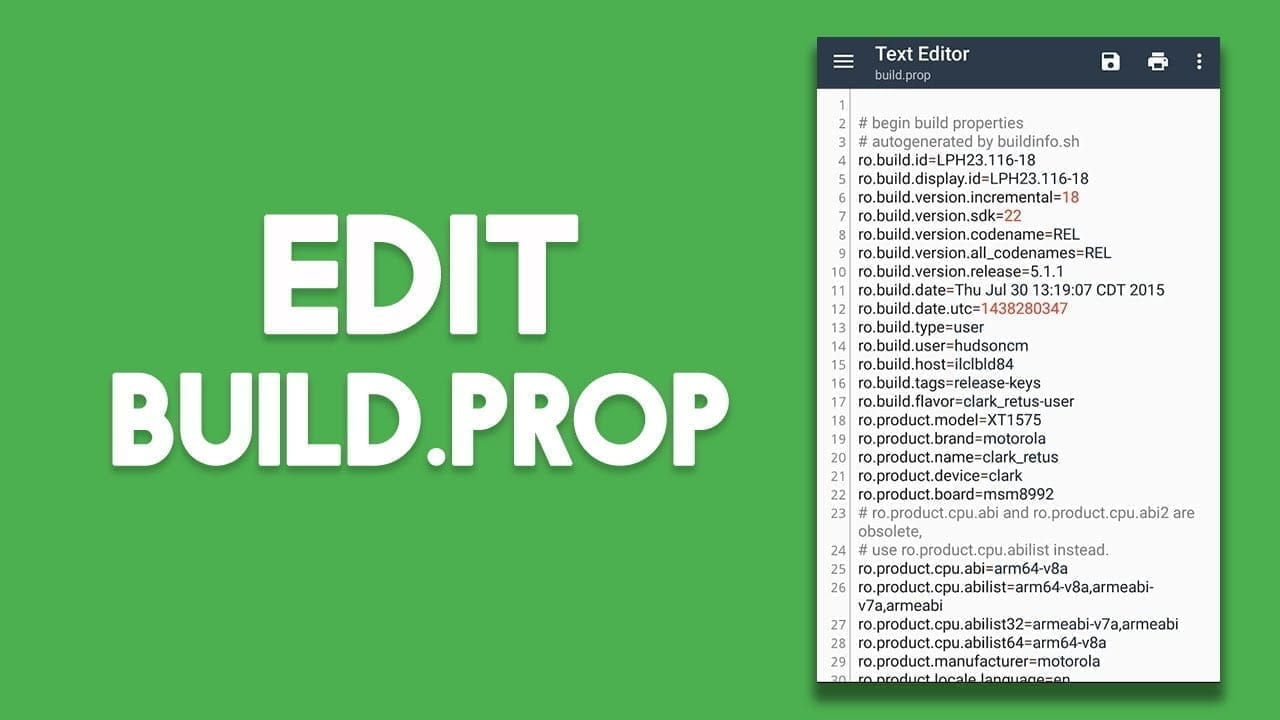
Almost every element of one’s computer can be modified by the consumer, and even tweaked in some ways to make sure their devices work better. All of this depends primarily on the config file of your computer, that is, the file build.prop. This file contains all of your device’s configuration data as well as the Android framework built on it. Many power users alter this file in order to further tweak their computer. We have recently done an article for your Android device on some of the coolest build.prop tweaks. Unfortunately, though, because this is a system file, the general principle is that a rooted computer is required. Ok don’t worry, because there’s still a way around that.
So, if you’re an Android user looking to the build.prop file on their Android device but don’t have root access, read on, as we share with you our guide on how to edit build.prop without root access:
Edit Build.prop without root access
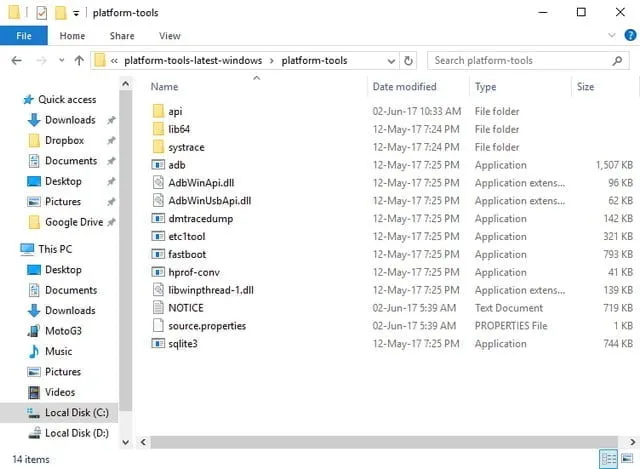
To begin with, download and install ADB and Fastboot drivers onto your system, as shown here.
Install an advanced text editor like Notepad++ or Sublime Text on your system. This is will be used later on to edit the build.prop file.
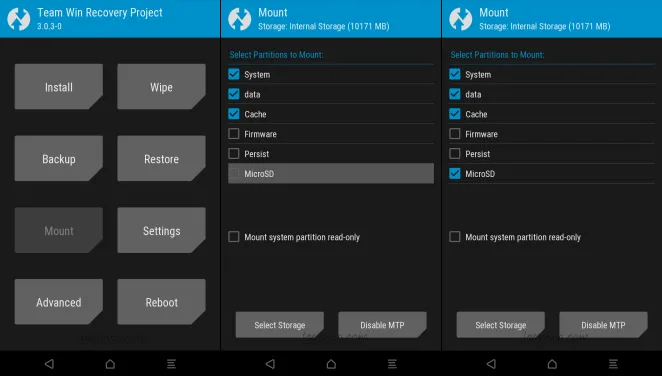
Next up, switch off your device and head over to the recovery mode. Once there, tap on “Mount”. A list of all the partitions on your device will open up. Make sure the checkbox next to ‘System’ is checked, and the checkbox next to “Mount system partition read-only” is unchecked.
Once you’ve mounted the /system partition, connect your device to your PC and open the ADB window. Once there, type in the following command to transfer the build.prop file onto your system:
adb pull /system/build.prop <path to save file>
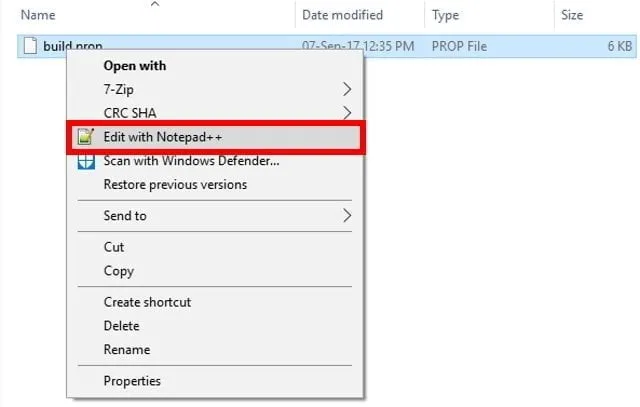
Now that your build.prop file has been transferred to your system, you can edit it easily using the text editor you downloaded previously. To do so, simply right-click on the build.prop file and select “Edit with Notepad++” or any other text editor that you may have downloaded.
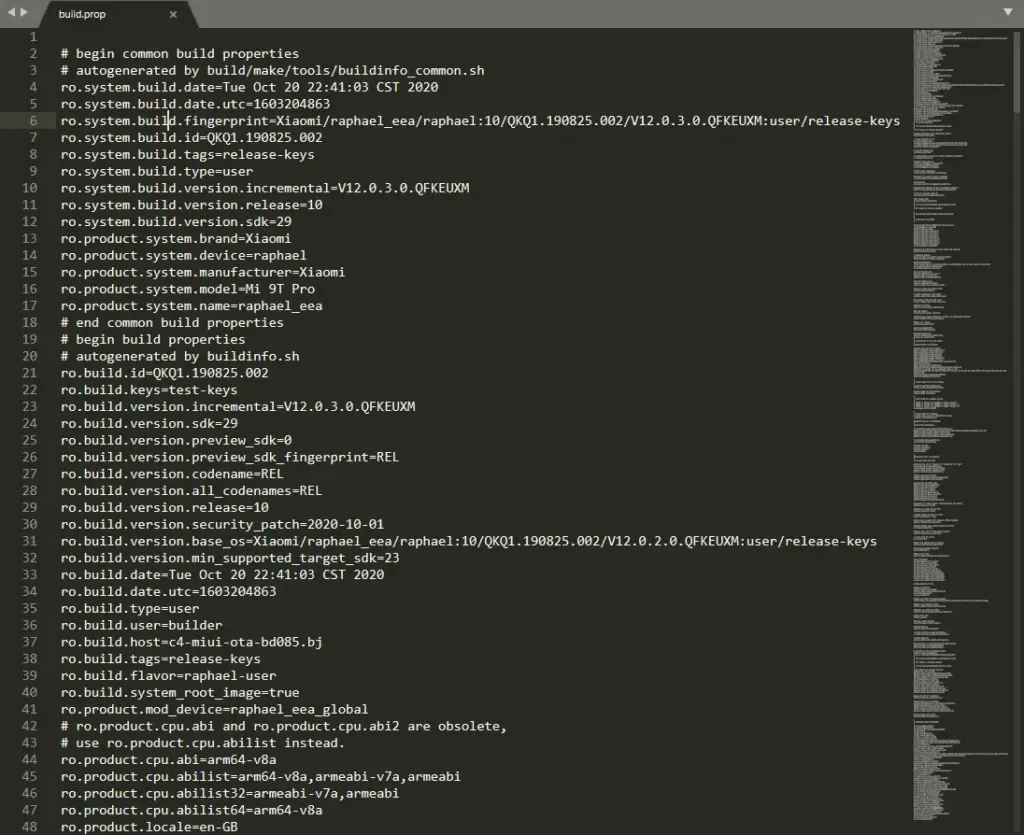
A new Notepad++ window should now open and you should easily be able to modify the build.prop file. Once you’re done with your edits, simply save the changes.
Now that you’ve edited the build.prop file, we need to transfer it back to your device. To do so, run the following command in the ADB window:
adb push <path to your file>/system/build.prop
Now that you’ve transferred the modified build.prop file, you need to set its permissions as well. To do so, open up the ADB shell by typing in the following command:
adb shell
Once you’re inside the ADB shell mode, type in the following command to set the right permissions:
chmod 644 /system/build.prop
And that’s it. You can now close the ADB window. Your build.prop file has now been modified as per your preferences.
It will help you get something out of your Android device by changing your build.prop file. Android’s greatest advantage over other operating systems is its level of customizability, which relies largely on the build.prop file. And while not everyone has root access, using the above form, one can still change their build files. Note that whatever you are doing with your build.prop file, just in case, always and always have a backup available. Well, this is all from my hand, but in the comments section below, I’d love to hear the various tweaks you tried to implement on your computer.