Since the end of 2020, PayPal has allowed users in the United States to buy and sell Bitcoin and other cryptocurrencies. The payment service even added the “Checkout With Crypto” option, so that users can pay with cryptocurrencies.
And now, the platform wants to provide more tools for managing these virtual currencies, so it promises that Bitcoin and other cryptocurrencies will soon be transferable to third-party digital wallets.
The future novelty was announced by PayPal’s vice president and general manager of Blockchain, Crypto, and Digital Currencies, Jose Fernandez da Ponte.
During CoinDesk’s Consensus 2021 conference, Ponte told event moderator Jeff John Roberts that the cryptocurrency withdrawal function is in progress — which will also be available on PayPal and Venmo, a subsidiary of PayPal. Anyway, the details about the implementation are still scarce.
“We want to make it as open as possible, and we want to give a choice to our consumers, something that will let them pay in any way they want to pay. They want to bring their crypto to us so they can use it in commerce, and we want them to be able to take the crypto they acquired with us and take it to the destination of their choice,” said Ponte.
PayPal understands that cryptocurrencies are much more useful when they can be moved, according to the executive. So the company is exploring how it could allow people to transfer cryptocurrencies to their wallets. He also pointed out that the company sends new developments every two months, on average. However, he did not specify when the function would be made available to users.
He also gave no further details on how PayPal intends to handle the blockchain transactions that will be created when users send and receive cryptocurrencies.
Back at Google I/O, Google revealed that Bluetooth pairing for Google Home was on the way, paving the way for more flexible music control. Rather than relying on Google’s built-in Chromecast support or waiting for your favorite apps to catch up, you could simply connect your phone to Home via Bluetooth and play like you would with any other Bluetooth unit. It’s a feature that should have been available from the start. Aside from that debate, Bluetooth pairing is now available on Google Home.
We figured we’d guide you through the very boring method of setting up Bluetooth connections because it’s not the easiest thing to do right now (we can’t find a voice command to get this going). It entails using the app to locate a semi-hidden setting, pairing your Home, and connecting through your phone’s Bluetooth settings.
2. Tap the Devices button in the top right corner of the app’s main screen.
3. Find the Google Home you want to pair over Bluetooth.
4. Tap its menu button and choose “Settings.”
5. Under “Device info” choose “Paired Bluetooth devices.”
6. Tap “Enable Pairing Mode” in the bottom right corner.
7. After that, you’ll go into your phone’s Bluetooth settings and look for your Google Home device. It should be there available as a Bluetooth connection option.
8. Tap on it to connect and allow whichever permissions it asks that you are comfortable with.
9. And that’s it! You are connected over Bluetooth.
10. To remove a connected device, you’ll head back into Google Home “Paired Bluetooth devices” and tap the “X” next to devices you want unpaired.
11. Going forward, as you disconnect and want to reconnect, just look for your Google Home in your Bluetooth settings. It should always be there for connection once you have previously connected.
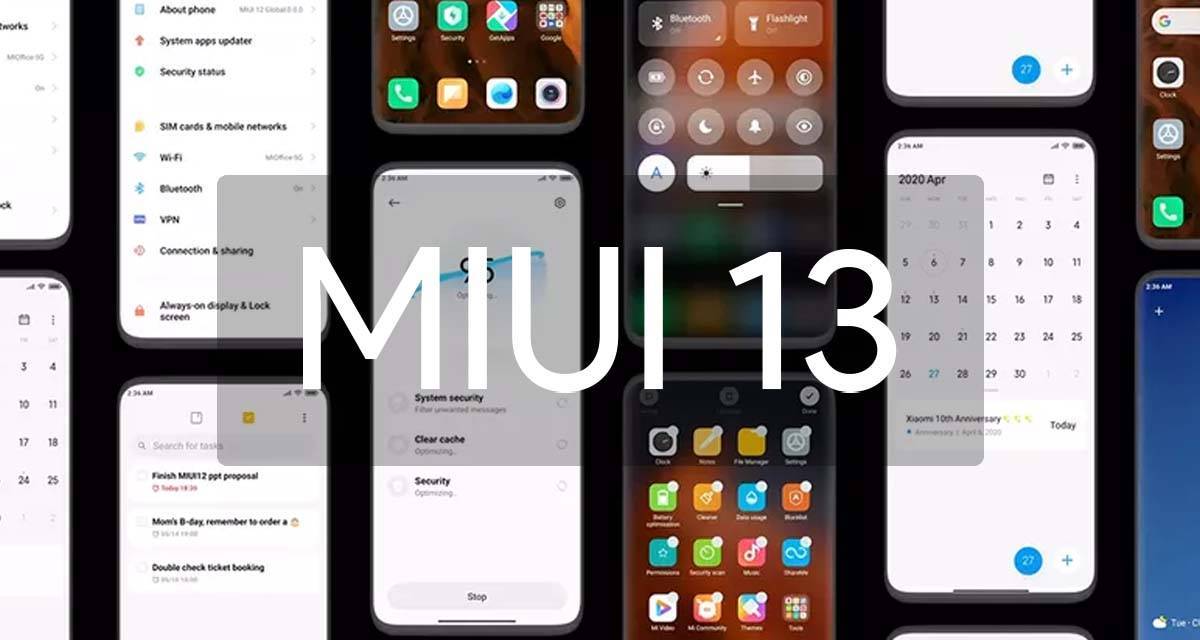
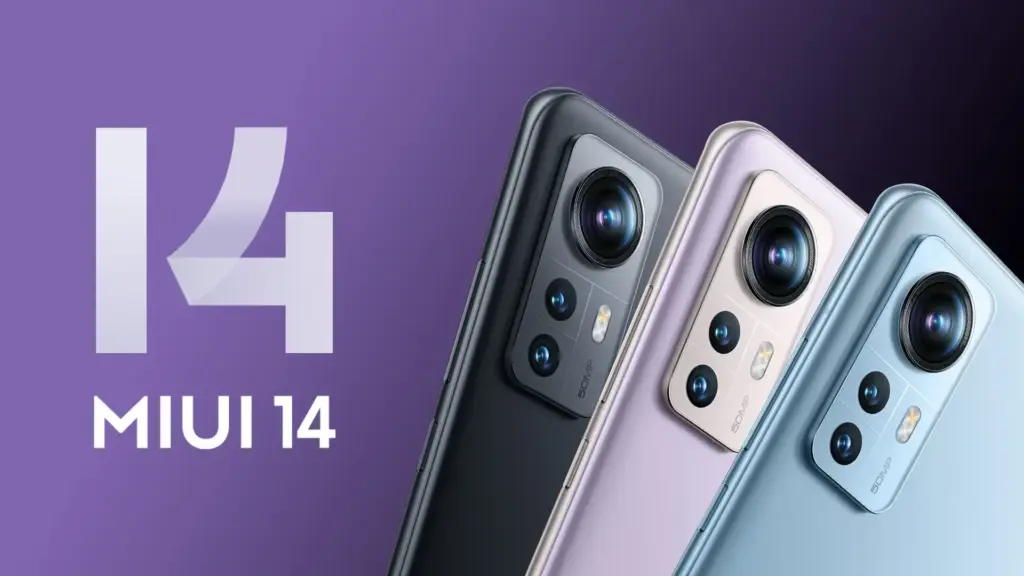
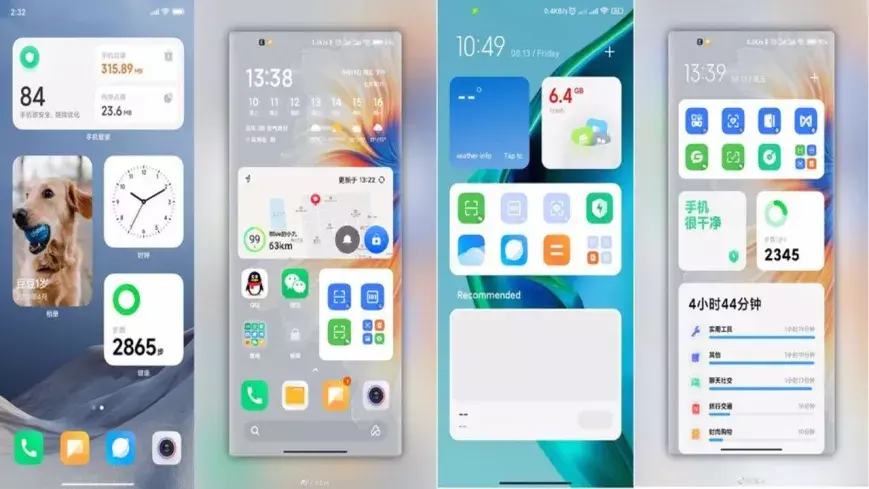
If you own a Xiaomi phone, you likely use MIUI – it’s the company’s Android overlay that changes the software’s appearance and adds a few new features. MIUI 13 is the next version, and rumors abound that it’s coming pretty soon.
Currently, the company’s newest phones like the Xiaomi Mi 11 and Mi 11 Ultra use MIUI 12; launched in May 2020, its new features included an app drawer, improved dark mode and an Ultra Battery Saver Mode, amongst other things, so it was a fairly big improvement.
Even though MIUI 12.5 is still being pushed to Xiaomi smartphones, the MIUI 13 features, release date, download, and qualifying devices list have begun to circulate the internet. The upcoming custom Android skin, which will replace last year’s MIUI 12.5, is currently in the works. The Xiaomi MIUI 13 update is scheduled to be released in the second quarter, as have previous versions, and will be compatible with phones manufactured in 2019 or later. In terms of MIUI 13 functionality, it is expected to include optimized animations, new themes, wallpapers, and a slew of security enhancements, among other items.
HIGHLIGHTS
Release date is tipped to be June 25th
The new custom skin is expected to come with a handful of improvements over last year’s MIUI 12.5
Features may include optimised animations, new themes, wallpapers, and plenty of security improvements
MIUI 13 release date
The MIUI 13 release date is apparently set for June 25th, according to reports. The update is likely to be announced in China first, followed by other regions including India. There is no word on MIUI 13 release date in India yet, obviously. However, looking at Xiaomi’s past track record, the update could take around 2-3 months to reach India. MIUI 12, to recall, was originally announced in May but was only made available in the country in August.
MIUI 13 update and download
The MIUI 13 update will be released in stages, as is customary. The brand will initially distribute the beta version of the update to a small number of consumers, followed by the stable version for all compatible devices. The timetable for the MIUI 13 update release is currently unknown.
Features
Features list is too short at the moment to tell whether the update be a major upgrade or just an iterative of last year’s custom skin. Among the few that are rumoured so far include optimised animations to improve the overall experience of the new custom Android skin from Xiaomi. The update is also expected to come with design changes, enhanced touch sensitivity, advanced privacy options, native screen recording support, improved battery performance, new gestures, and enhanced notifications panel, among other things.
MIUI 13 features (rumoured)
Improved in User Interface
Optimised Animations
Enhanced Touch sensitivity
Improved Scrolling screenshot
Native screen recording support
New Theme designs and improved gestures
Enhanced Always on Display
Scheduling option for Airplane mode
Improved Notification panel for Social media apps for faster Reply and enhanced experience
More flexible storage experience
Fast charging improvements
New power saving mode to improve battery performance
Enhanced Notification system for managing older and newer notifications
MIUI 13 could also bring Android 12 features such as Media Transcoding, new unified API, and wallpaper-based theming, to compatible Xiaomi mobile phones. Click here to know about the upcoming Android 12 features.
MIUI 13: eligible devices
The rumoured MIUI 13 eligible device list so far includes:
Mi 11 series
Mi 10 series
Mi Fold
Redmi Note 10 series
Redmi Note 9 series
Mi MIX Alpha
Redmi K40 series
Redmi K30 series
Redmi K20 series
Redmi 9 series
Redmi 10X series
POCO X3 series
POCO X2
POCO M2 series
POCO X2 Pro/ POCO X2 Pro
Black Shark 3 series
Black Shark 2 series
While Xiaomi is known to roll out a new software update to devices as old as four years, rumours are rife that it has decided to skip MIUI 13 for its 2019’s flagships Mi 9 and Mi MIX 3, as well as last year’s mid-rangers like the Redmi Note 8 series and the Redmi 8 lineup.
If you’re perplexed by Nokia’s phone lineup and its penchant for decimal points, there’s some good news. HMD Global has redesigned the Nokia phone lineup for 2021, and it’s significantly simpler and more oriented — if not exactly what you were hoping.
The Nokia phone lineup for 2021 is divided into just three categories, all of which are based on longevity. The X-series is the flagship model, with more advanced features, a two-day battery life, three years of OS updates (including regular security updates), and an extended warranty. The mid-range G-series shown above is intended to be more affordable, with three days of battery life, two years of OS updates, and three years of monthly security fixes. The C-series targets newcomers with a “all-day” battery and two years of quarterly security updates, but no OS enhancements are promised.
The Nokia X10 and X20 (pictured at middle) headline the 2021 models, although they’re low-to-mid-range phones. Both use 5G-capable Snapdragon 480 chips and sport 6.67-inch 1,080 x 2,400 displays. The X10 starts things off with a 48MP main camera, a 5MP ultra-wide cam, a 2MP macro cam, a 2MP depth sensor, and an 8MP hole-punch selfie shooter. You’ll also get between 4GB and 6GB of RAM, with 64GB to 128GB of expandable storage. Spring for the X20 and you’ll upgrade to a 64MP main camera, a 32MP front cam, and configurations that scale up to 8GB of RAM and 128GB of storage.
The Nokia G10 and G20, meanwhile, are decidedly more modest entries to the 2021 line. Both use MediaTek processors (G25 in the G10, G35 in the G20) and revolve around 6.5-inch “HD+” screens. The G20 boasts a camera setup similar to the one in the X10, albeit in a teardrop notch for the front cam, while the G10 makes do with a 13MP primary camera and drops the ultra-wide sensor. You’ll get 4GB of RAM and up to 128GB of expandable space on the G20, but the G10 starts with 3GB of RAM and 32GB of storage.
The C10 and C20 (below) run Android 11 Go edition and are clearly designed to occupy the no-frills places in Nokia’s 2021 selection. The displays are largely similar to what you’ll find in the G-series, but you’ll get basic Unisoc quad- (C10) and octa-core (C20) chips, 1GB to 2GB of RAM, 16GB or 32GB of expandable storage, and single front and rear 5MP cameras.
You won’t have to wait long to get your hands on any of the Nokia 2021 smartphones, at least in some parts of the world. The G10 will be the first to arrive in the UK, with a late April delivery date and a price of £109.99. The G20 will be available in May for £129.99. The X20 will be available at the same time, with a starting price of £299.99. The £249.99 X10 (plus a lower-priced version from Three) won’t be available until early June, but the C20 will be available for only £79. There are no plans to ship the C10 to the United Kingdom.
Nokia availability in US.
As you might have noticed, none of the 2021 Nokia phones announced so far are high-end devices. Unfortunately, there’s no equivalent to the 9 PureView or other models that would compete with rival flagships. That’s not necessarily an issue if you’re more interested in raw value than speed. However, we’d add that phones like the Realme 7 5G offer 120Hz displays and other perks for similar money. While Nokia’s battery life and lengthier support are important considerations, they’re not the only factors in your purchase.
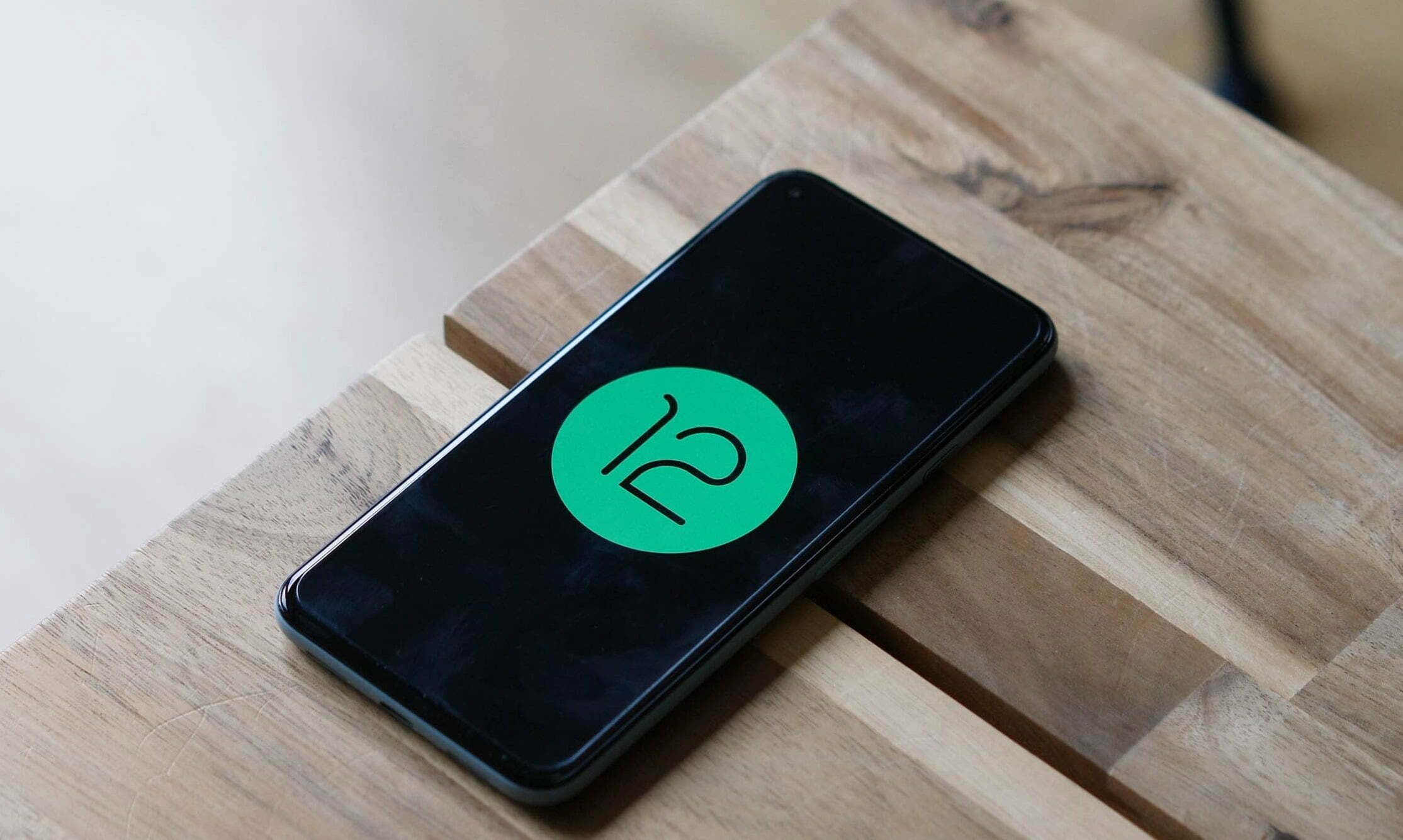
Android 12 Developer Preview 1 is here, but it’s not exactly easy to get. Because this first Android 12 version is meant for developers, Google isn’t just making it an opt-in process like later beta versions will be. But, if you’re willing to take the risk (and not get upset if and when things go wrong), here’s where to get it.
Google’s developer site has been updated today with a whole host of Android 12-related details, and among them are a pair of download pages for full factory images and sideloadable OTA files. In the future, installing Android 12 will be a snap: Just register for the Android Beta Program. But right now, that program is closed, so the only way to install this preview is manually by using those files.
Although you can unlock your bootloader and flash the complete factory picture, we don’t recommend it because it’s a hassle, potentially dangerous, can break SafetyNet attestation, and needs wiping your phone. Consider sideloading the OTA file for your computer instead, which does not require an unlocked bootloader and does not necessitate a scrub. However, if you aren’t prepared, you may need to do some preliminary work.
Google’s stock OTA images site has instructions for the process, and the same details apply to these preview releases.
If you are unfamiliar with the method, you can study a comprehensive walkthrough for your computer platform before attempting it on your own. Installing the required software and drivers is a simpler process on some operating systems than on others.
Prerequisites:
A computer (PC, macOS, or Linux). Or, if you’re exceptionally adventurous: Another phone with USB OTG functionality.
A supported phone to install Android 12 on: Pixel 3 series, Pixel 3a series, Pixel 4 series, Pixel 4a series, or Pixel 5.
A known good cable to connect #1 to #2.
The easy way
Google has made DP1 available with the Android Flash Tool, which makes the process pretty simple and linear, with no tools to install. Just fire up the site at the link below, plug in, and follow the instructions:
Reboot into recovery (via ADB/USB debugging or the key combination) and enter sideloading mode. Power+volume up opens the Recovery menu, scroll via the volume keys to “apply update from ADB,” and select it with a tap of the power button.
Check that and prior steps worked by entering “adb devices” (no quotes) in a shell or command prompt. If ADB is installed and your phone is in the correct mode, you should see an identifier for your phone and a “sideload” state reported.
Flash the OTA via a shell or command prompt, using “adb sideload your_file_name_here.zip” with no quotes, where the filename is the name of the OTA image you downloaded earlier. On some platforms, you’ll need to precede adb commands with “./” for them to work correctly.
Stare anxiously at your phone while it slowly installs.
Reboot when done.
Once you have the preview installed, future Android 12 updates and releases will be delivered like any other normal system update, without requiring that you hit all these steps again, and your phone will automatically end up in the beta track later.
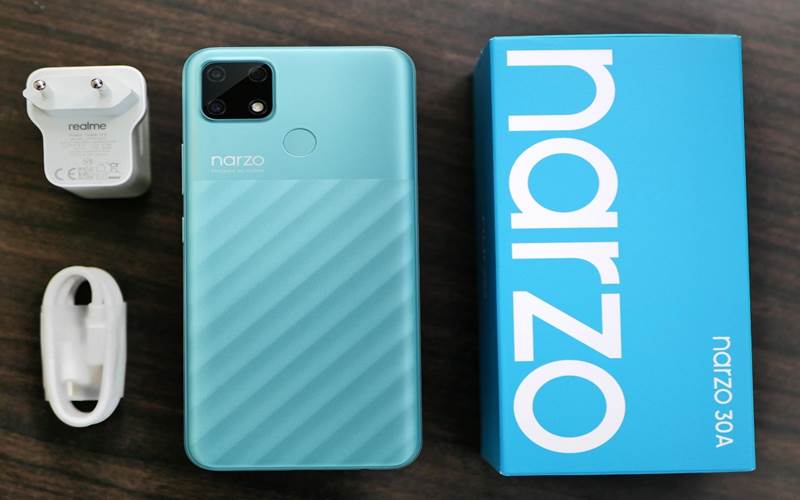
Realme launched the latest addition to its series of flagship phones on February 24. The Realme Narzo 30A is a mid-range device for those consumers that want a premium flagship device on a tight budget. This device joins the plethora of mid-range devices under $137.74.
Consumers will find smartphones with robust batteries, above-average cameras, and even some devices that run on Android in this price range. A device that has all of these features is quite hard to come by however some smartphones come close. The Realme Narzo 30A is one of those devices; it offers a perfect equilibrium of features and performance under a reasonable price.
Design
Realme Narzo 30A does not have a hefty price tag hence the design is not something out o this world but t is impressive. It has a vibrant look and looks quite different than its predecessors. The back of the device has some sort of pattern with the bottom two-thirds having diagonal lines, while the upper section is plain. The pattern aids in gripping the phone easily.
This time around Realme has opted for a square-shaped camera module which is similar to Realme Narzo 20. The device even has a rear-mounted fingerprint scanner that is easy to access. The side-mounted power and volume buttons are conveniently placed as well. Whereas, the Realme Narzo 30A has a large 6.5-inch display with a 20.9 aspect ratio. The large display does make single-hand usage difficult. The SIM tray is on the left side of the frame and has two Nano-SIM slots and a devoted slot for storage expansion.
It is worth noting that this device is no lightweight, it weighs around 207g but Realme has rounded the sides to hide the thickness of the device and help in holding the phone. One pro of such a robust device is that it packs a 6,000mAh battery which provides amazing battery life. Additionally, the Realme Narzo 30A has a USB Type-C port, a 3.5mm headphone jack, and a loudspeaker at the bottom. It also comes with a bundled 18W charger in the box. This particular device is available in two color options: Lazer Black and Lazer Blue.
Software and Specifications
The smartphone company has leveled up with this device. The Realme Narzo 30A gets major upgrades as compared to the Realme Narzo 20A. It has a more potent MediaTek Helio G85 SoC that’s paired with either 3GB or 4GB of LPDDR4X RAM, this depends on which variant you opt for. The variants support 32GB and 64GB of storage respectively. The storage can be furthered expanded to 256GB by a microSD card.
If we look at the price tags, Realme has priced the normal variant quite harshly while the higher variant still has a reasonable price. The device supports dual-band Wi-Fi ac, Bluetooth 5, and three satellite navigation systems. Moreover, the phone is shipped with UI v1.0, based on Android 10. The company assures its, users, that the UI v2.0 update is coming soon. The interface is quite easy to use since the Realme Narzo30A runs on the older Android skin. There are a few preinstalled applications on the device but they can be easily uninstalled or disabled.
Performance
The Realme Narzo 30A‘s performance was quite impressive during our testing. It is an excellent device for daily usage such as getting rid of duplicate photos. It is capable of handling occasional gaming as well. The rear-mounted fingerprint scanner was quick at authentication, and face recognition too did not need more than a single attempt to unlock the smartphone. It even has an HD+ resolution display.
The display looks almost flawless indoors but once exposed under direct light it becomes extremely average. While the battery life is quite impressive, the phone lasted two days before needing charging. This is the ideal phone if you binge-watch videos on your device. The 18W charger in the box can charge the Narzo 30A to 15 percent in half an hour, and up to 33 percent in an hour. However, even with the fast charging, the device takes two and a half hours to fully charge the battery.
Cameras
The device sports a 13-megapixel primary camera and a monochrome portrait camera with an undetermined resolution. Whereas, there is an 8-megapixel camera at the front for selfies. The camera app was not that difficult to navigate through since it was more or less the same. There are multiple shooting modes available, along with a camera AI that can automatically tune the color settings based on the scene or object you’re pointing at.
During our testing we discovered, the photos taken in daylight looked good on the phone’s display but they are not that impressive upon closer investigation. Text in the photos from a long distance was visible bur the picture overall lost its sharpness. There is a ‘Chroma Boost’ toggle that increases the contrast slightly and improves details in the shadows. The close-ups were good as well but the camera struggled to focus on smaller objects.
Additionally, Portrait shots turned out quite well with good edge detection. Whereas the low-light camera performance is a bit underwhelming, there are delays between the shot and the result is quite blurry. There is even a Night Mode but it is not one of the standout features of the device but it does get the job done.
Video recording tops out at 1080p for the primary camera and lacks stabilization, resulting in unsteady footage. Overall, a major letdown in some aspects.
Verdict
The Realme Narzo 30A is an impressive mid-range device. The overall performance is good even with the occasional bit of gaming. The battery is a major selling point, however, the camera is a letdown. It is one of the better devices in this price range and is ideal for those who have a tight budget and have moderate usage.
Gaming phones are becoming increasingly common, and Xiaomi is keeping up with its Black Shark series. The Black Shark 4 and 4 Pro, the most recent version, have appeared on the Chinese market. You can pre-order one today, and the phones will be available in China on Thursday, November 25th. An international release date has yet to be determined.
Black Shark 4 Pro
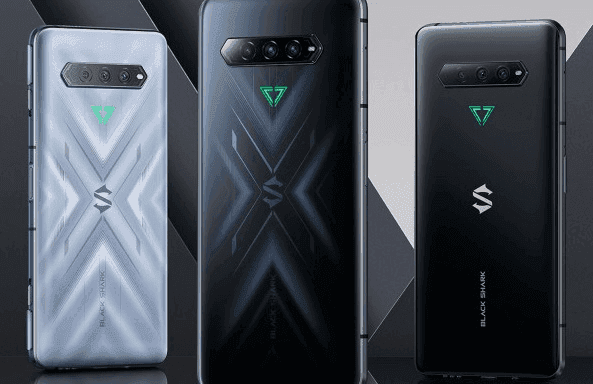
The no-holds-barred Black Shark 4 Pro is operated by Qualcomm’s largest and baddest processor, the Snapdragon 888. It’s paired with either 8GB or 12GB of ultra-fast LPDDR5 RAM, and both versions have 256GB of storage. But those aren’t exactly difficult to come by these days. The dedicated mechanical shoulder buttons on the side are the more obvious giveaway that this is a gaming phone: slide the locks away to allow them to pop-up. They, like the Black Shark 3’s shoulder buttons, can be bound to touch areas on the screen for incorporation with virtually any game.
The 4 Pro has a 6.67-inch AMOLED 1080p screen with a maximum refresh rate of 144Hz, which outperforms most gaming phones. It also has two pressure response zones (as in the amount of pressure applied, not just touch sensitivity), allowing for more integration into games that can accommodate it. Its battery capacity is 4500mAh, which is fairly standard for a phone of this size, but it supports quick charging at a totally insane 120 watts (with the charger included in the box). Xiaomi claims that it can charge the battery to 90% in just over 30 minutes.
Cameras on the Pro are respectable: 64MP main shooter, 8MP ultrawide, and 5MP macro, with a 20MP centered front camera. In terms of style, the flat black version actually looks fairly button-down—if you don’t notice the side buttons (and the LED triangle logo on the back stays unlit), you’d have a hard time telling it’s a gaming phone. Of course that goes out the window if you get the “So Empty Black” version (that’s auto-translated, so we’re unsure if that’s the official name). Its layered, semi-transparent glass shifts around as you look at it, in a much more flashy but not unappealing way.
The phone is 9.9mm thick, which is enough to accommodate a headphone jack and a side-mounted fingerprint reader. The dual-SIM radio supports 5G, and for the most intense sessions, you can attach the sold-separately cooling module. The Black Shark 4 Pro starts at $4000 for the base edition, which is only available in black, and goes up to $4500 for the 12GB RAM version. That works out to $615 and $690, respectively.
Black Shark 4
What about the non-Pro? The standard Black Shark 4 ditches the pricey Snapdragon 888 for an 870, basically a refreshed version of last year’s go-to flagship chip. It has an identical body, screen, and battery with 120 watt fast charging, but the base model goes down to just 6GB/128GB. Upgrades all the way to 12GB/256GB are available.
You lose that dual-zone pressure sensitive screen and drop the main camera down to “just” 48 megapixels, but the Black Shark 4 keeps those signature shoulder buttons and most of the rest of the hardware. It costs between ¥2500 and ¥3000, depending on your RAM and storage choices.
Both phones are running JoyUI, based on Xiaomi’s MIUI, which has been generally well-received. The phones are launching in China only for the moment, but previous models were made available globally as unlocked devices. With a current boom in gaming phones, it seems likely that the 4 will follow.
Realme’s new flagship smartphone was publicly previewed at the Shanghai 2021 Mobile World Congress (MWC). The Realme GT 5G will be officially unveiled on 4 March, but today the company has given us a glimpse of what to expect from a smartphone. The business also revealed its latest “Dual-Platform Dual-Flagship Strategy” which means that two flagship series will be introduced.
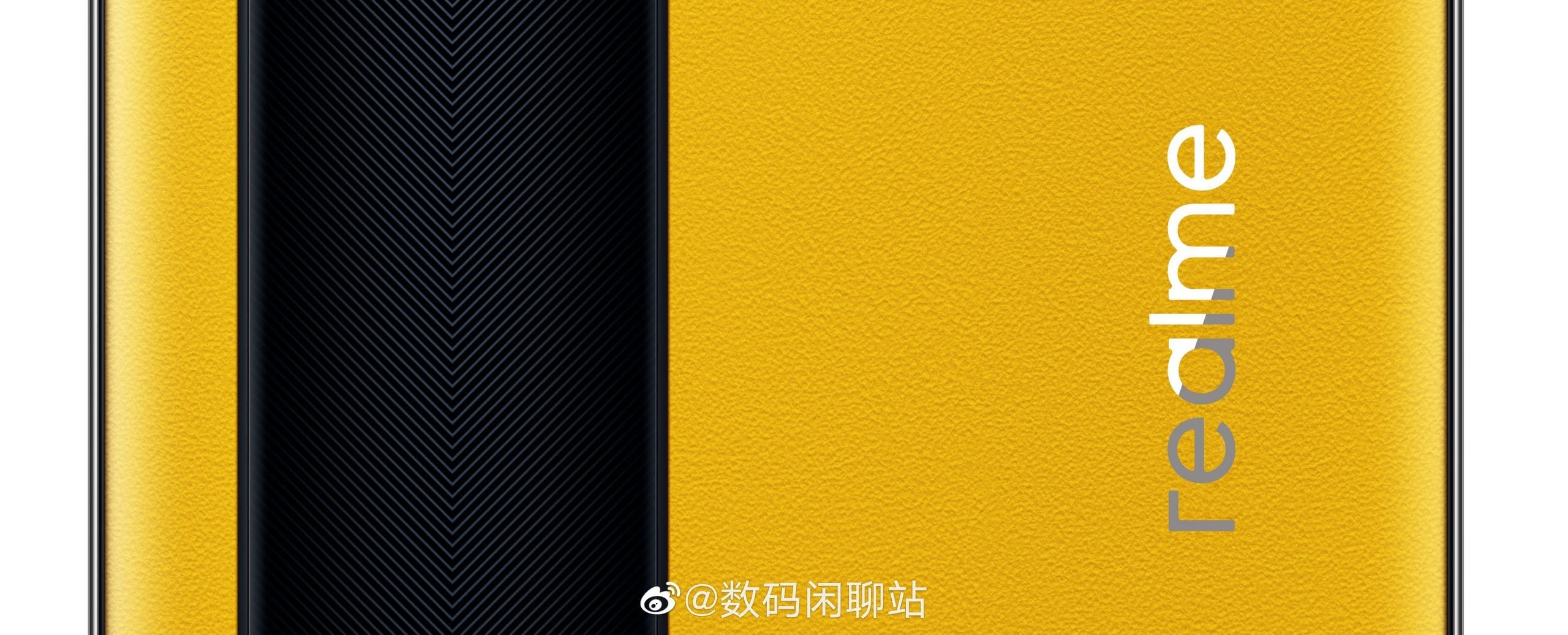
The Realme GT 5G will run on Qualcomm’s new Snapdragon 888 mobile chipset, which will be cooled by a stainless steel steam chamber cooling device. The cooling system is said to provide enhanced heat dissipation for sustained efficiency. The smartphone architecture is influenced by the idea of GT sports cars. A special dual-tone leather version of the handset will have a glossy black stripe on the back panel that represents a race track. The rest of the area will have a vegan leather finish that, according to the brand, offers “a more delicate texture, a softer touch and a better color effect.”
As for Realme’s new strategy for its flagship phones, the company plans to launch two separate series where one will be powered by Qualcomm’s Snapdragon 8xx series flagship processors to basically focus on the performance aspect while the other series will be powered by MediaTek’s Dimensity series having a focus on camera technology.
The era of folding devices has begun and who better to execute this latest trend than Samsung. Just last year Samsung impressed consumers worldwide with the release of the Samsung Galaxy Z Fold and announced an impressive follow-up device, Samsung Galaxy Z Fold 2 in August of 2020.
The Galaxy Z Fold devices are ideal for those people who are looking for something innovative and have money to spare. The Samsung Galaxy Z Fold 2 is a step up from its predecessors and has all the positives of the original device but with certain tweaks to fix the bug issues. As of now, this is the finest foldable device in the market.
A Brief Description
Samsung Galaxy Z Fold 2 is the next-generation foldable phone from the South Korean tech giant. Since then multiple foldable devices have been released by companies such as Microsoft, Motorola, Huawei, Royale, Xiaomi, and TCL. While all of them are commendable competition, they do not come close to the Samsung Galaxy Z Fold 2. It is by far the best foldable phone in the market.
When the device is closed it has a 6.2-inch screen on one side and a robust camera bump on the other. However, when you unfold the device it opens up to reveal a 7.6-inch AMOLED display with an aspect ratio that’s similar to a square. A major upgrade that can be observed is that Samsung did not keep the slightly awkward notch found on the first Galaxy Fold for a smaller hole punch. The device’s refresh rate is up to 120Hz, it varies to give an optimized performance while conserving battery.
Additionally, Samsung is still aggressively marketing the multi-tasking feature. This particular feature allows users to use an app on the outside display and then continue that app experience on the interior display immediately. Users can even run multiple apps side by side. The phone itself is powered by Snapdragon 865 Plus processor. While the five camera lenses produce amazing photos.
The major downside is the price tag. It is quite a costly phone that it even surpasses some of the laptops available. A $2,000 device is not something everyone can afford but it is worth noting that you are getting a phone and a tablet rolled into one. The insurgence of foldable devices may make tablets obsolete.
How is it different from Samsung Galaxy Z Fold?
The original foldable phone was received quite well hence what does this new variant offer? One of the obvious upgrades is that the size of the outside display is much bigger; it takes over almost the entire closed front of the device. Another pleasant change is that there is a new rear camera module that looks similar to the module on the back of the Samsung Galaxy Note 20.
The cameras get revamped as well; consequently, the quality of images is improved. There are multiple finer tweaks made to the inner mechanisms. Furthermore, this variant is more durable as well thanks to its ultra-thin glass covers the interior, and Samsung’s “sweeper” technology prevents dust particles from settling in the hinge or making their way under the display. The Samsung Galaxy Z Fold 2 is a more polished version of the original fold.
Aforementioned, the cameras have been revamped to improve the quality of images. There are five total cameras on the Galaxy Z Fold 2: three on the back, one on the front, and one on the inside. The one on the inside is a hole-punch camera, so it doesn’t take up as much of the screen as it did on the previous model. The overall experience has improved mainly due to the larger front screen.
Users get the same control settings on both the external and internal cameras. While the pictures are quite remarkable. Although colors can be a bit over-saturated it is still a major step up. The photos are detailed and sharp. The only puzzling factor is that in this device Samsung opted for three 12MP shooters instead of its latest 108MP sensor, considering the price the tech mogul could have sprung for the latest sensors.
Battery
The Samsung Galaxy Z Fold 2 packs a 4,500mAh battery, which may seem inadequate considering the size of the device but it is sufficient for full-day use even for heavy users. According to testing reports users got six to seven hours of battery life on a single charge. Regardless, it has fast charging so you won’t have to wait long for the phone to be fully charged. A major positive is that the charger comes with the phone and you won’t have to buy it separately.
An additional power share feature is available with this device. If you own a pair of Galaxy Buds Live, you can share a bit of your battery with the Buds.
Durability and Everyday Usage
It has been reported in, “The Guardian”, that the screen has survived four months of use without a scratch, despite being made of softer, potentially scratch-prone material. The overall performance is remarkable but there are issues with the fingerprint sensor. It often has to be cleaned to unlock. Moreover, Apart from Samsung’s and a few third-party apps, not many have a full tablet-sized interface on the internal screen when held in portrait. However, many more websites and apps do resize properly to the big screen when the device is held in landscape.
Users can efficiently carry out everyday tasks such as texting and checking emails ordata sharing on the device plus the multi-tasking features works flawlessly. Although, users may have to get a stronger car mount since the phone weighs a lot due to which it will take some time to adjust to carrying the device.
Updates
It is a norm for security updates to arrive on Samsung phones before Google’s own devices. Samsung assures users that its devices will keep receiving updates for three years including the Galaxy Z Fold 2. This means the phone will get upgraded to Android 11, 12, and 13. As of now, the phone has gotten the Android 11 update.
Is the Samsung Galaxy Z Fold 2 worth it?
If you can manage the price tag and are looking for something innovative then this device is the one for you. It is a mind-blowing phone with amazing features, making it the best foldable phone on the market right now. The most appealing feature about this device is its interior screen which Samsung has executed with perfection. The 120Hz display is vibrant and flawless plus it switched to a lower refresh rate to extend battery life.
The device’s cost is a major issue since most consumers are reluctant to spend this much for a phone despite its premium features and elegant design. There is also no headphone jack and it’s not water-resistant.
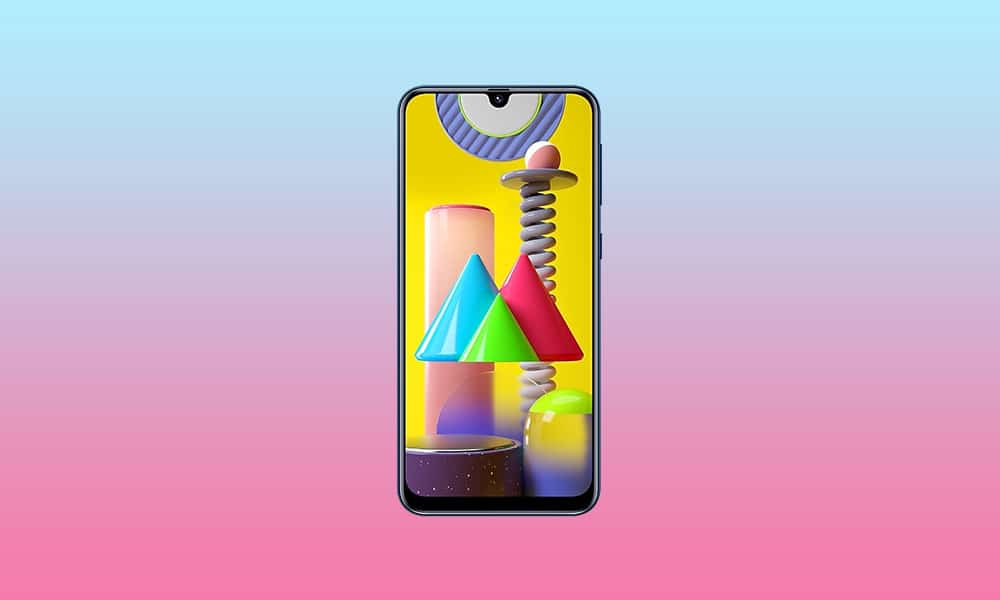
After the Magisk method is published, the root process is simple to compare with conventional methods. Yet it’s got its limits. We can’t use custom ROMs unless we have some custom recovery enabled. So, even after users have access to root, they prefer the TWRP method when it is released. Samsung Galaxy M31 comes with upper mid-range specs and can handle all of the apps. But if you need root access, you can use the following method to root your Samsung Galaxy M31 Android 10. Since we use custom recovery in this phase, you can install any necessary custom ROMs on your mobile device.
Compare with standard other root methods, this method has additional steps. So, You should care a little bit when you do the process. Since it doesn’t use a custom recovery, You can’t install custom ROMs. But, It is enough to run most of the root apps.
After root, you lose the official alerts. You need to update your smartphone manually. So, you should know why you need to do this before continuing with the process. If you are a frequent user, you can try some alternatives that do not require root for your function. If you are a frequent user and developer of root apps, you can follow the guide below to get root on your smartphone.
Root and Install TWRP on Samsung Galaxy M31 Android 10 One UI 2.0, 2.5 (SM-M315F)
Thanks to the developer- afaneh92 for the Root method and topjohnwu – this genius is the one who discovered and maintained Magisk. Samsung Galaxy M31 variants come with a flexible bootloader in some regions. It means that the smartphone can be easily rooted. The device can also accept installing TWRP recovery or any other custom recovery file/app. Don’t try with Snapdragon US Variants like Verizon devices. They come with a locked Bootloader.
But In the below method, we are going to Root this device by using Magisk. You can install Official TWRP using the official app when it is released. TWRP recovery is a custom recovery file that must be installed on your devices because you can root them successfully. This article explained the easiest method to follow and install Magisk on Samsung Galaxy M31. However, the tool required for rooting this device is the Magisk App.
Once available, you can flash TWRP. With the support of TWRP Recovery, you can easily flash Custom ROMs to your Samsung Galaxy M31. Before sharing a tutorial, you may want to know that you can easily install any root apps with Magisk on your computer. Does that sound complicated? Relax; everything will be briefly explained in the bullets.
Things to check out for;
Check your device model number.
You should Backup your current files and data- Full Data Loss Process (save them on external storage).
Install Latest Magisk Manager.
Make sure your device battery is above 50%
You cannot use Samsung Pay, Secured folder, and some official apps from Samsung.
You can’t update your firmware; to get new firmware, you must follow the below steps with the latest firmware.
Read the full tutorial before the process.
Unlock Bootloader
Enable USB Debugging Mode and OEM Unlock on your mobile. To do this, go to settings >>> about >>> Tap on the “Build Number” 7-10 times consistently to enable “Developer Options,” then go to the “Developer Options” and enable USB Debugging Mode and OEM Unlock. There is no complicated process in the Samsung Galaxy M31.
Switch off your device. Enter into Download Mode-> Volume Down+ Volume Up and Connect your mobile with PC using USB Cable. When the Download mode warning screen Appears, Press the Volume Up button to unlock Bootloader.
The above process will wipe your user data. After Setup your device, Please recheck the OEM Unlock in the settings. Sometimes It Will Lock Again.
Download Multi disabler.zip and Magisk.zip files (Don’t download .apk file) copy them on your Pendrive With OTG Cable. You can refer to the uses of OTG. (Or, you can prefer an external SD Card).
You can use Phone Info to know your firmware version.
Prepare patched boot image file
Download 7Zip-ZS, LZ4, and Install both on your PC. Extract the files in downloaded firmware using 7Zip-ZS. You will get four files. Click on the AP File and Extract again. You will get some data along with the boot.img.lz4.
Copy the boot.img.lz4 and Vbmeta.img.lz4 to LZ4 Installed folder. Convert the lz4 file to a .img file by dragging the .img file to the lz4 application file. You have to drag the file to that application. The script will automatically convert the file to .img format. After the conversion, Copy the boot — img file to your mobile. Leave Vbmeta in the PC folder.
Download Magisk Manager (Download Latest version) or Magisk canary and Install it on your mobile. Open Installed Magisk and Select Install in Magisk; it will ask For a zip file and Patch Boot Image File. Select the Boot Image file.
Navigate to your copied boot image file and patch the file.
Wait for the process to complete, in the end, you will get a magisk patched .img file. Rename this file into the boot.img.
Now copy boot. img and Vbmeta. img files to your PC. We already leave the Vbmeta. img file on PC. Drag those files into the downloaded TWRP.tar file. Now you can see there are three files within the TWRP.tar file. Don’t extract the data. The three files contain a single .tar file that should be flashed using ODIN.
Flash TWRP.tar with ODIN
Connect your USB cable with your PC. Switch off your device. Then, enter into Download mode. To do this, press and hold Volume Down+ Volume Up Buttons and Connect Your Mobile To PC via USB Cable; after Samsung Logo Appear, Release all keys.
Press the Volume Up button to continue when you see the warning message.
Now, connect the Samsung Galaxy M31 mobile to the computer via USB cable.
Launch the Odin app on your computer. If the device is detected by this app (Odin), it will show you a message that reads – added!!!
However, if the device is not correctly connected to the PC, you won’t see this message. So, you have to check the USB cable if it is reasonable and reconnect the device.
After connecting the Samsung device, click on the PDA/PA/AP button to browse/search and get the TWRP from where you saved it on your PC. Also, navigate to “options” and Un-tick the Auto-Reboot.
Click on “Start”
Once the file is loaded into the device, reboot your device.
Now you have just Installed the TWRP on your Samsung Galaxy M31. We installed TWRP. Don’t turn on your mobile.
Immediately, move to Magisk Installation steps.
Press the Volume Down+Power button to exit Download mode and quickly press Volume Up+ Volume Down+ Power Button to boot into Recovery mode.
Install Magisk on your Samsung Galaxy M31 with TWRP
Now you are in TWRP Recovery Mode.
Select Wipe->Advance Wipe->Select Cache Data. You can also take complete backup using TWRP. It will help you when something goes wrong.
Return to Home of TWRP select Install.
Select Multi disabler.zip.
Return to Home of TWRP select Install.
Select Magisk.zip.
You should Install them One by One. Don’t add more zips feature in TWRP. After the Installation, Reboot Your Mobile.
You can also install Magisk.apk in your Mobile Applications. Multi disabler avoids the Encryption issue after rooting. You can check your root status using Root Checker.
If you didn’t find Magisk in App Drawer, you should Install the Magisk app again.