Huawei’s misfortunes began back in 2019, when the Trump administration placed him on the Entity List, prohibiting him from doing business with US firms. With the recent change of guard in the country, there was hope that the government of Biden would show some leniency to Huawei. That possibility seems bleak now that the President’s appointment as Secretary of Commerce, Gina Raimondo, has said (h/t Bloomberg) that she sees “no reason” why Huawei and other Chinese companies should not remain subject to the trade embargo.
“I understand that parties are placed on the Entity List and the Military End-User List generally because they pose a risk to US national security or foreign policy interests. I currently have no reason to believe that entities on those lists should not be there. If confirmed, I look forward to a briefing on these entities and others of concern,” said Raimondo, responding to written questions from Senate Republicans about her stance on Huawei and Hikvision.
In response to Raimondo’s remarks, the Chinese Foreign Ministry spokesperson said that the eastern country remains opposed to sanctions imposed by the US on its companies. “We urge you to stop this wilful oppression of Chinese companies,” said Wang Wenbin at a press briefing held in Beijing on Thursday.
Meanwhile, Huawei is witnessing a significant decline in its global market share of smartphones. The company has lost its position in the top five smartphone vendors’ list, with a 35 percent drop in shipments in the fourth quarter of 2020.
With these latest developments, it looks unlikely that Huawei will get any reprieve from the stringent US sanctions anytime soon. It’s developing its own operating system to offset the loss of Google Mobile Services (GMS). However, that might not be enough to regain lost user interest.
Whether you want to install a custom ROM, turn on some hidden Android features, or take screenshots from apps that prevent you from doing so, you’ll need the Android Debug Bridge (ADB) and fastboot. They’re part of the Google SDK platform tools and give you some lower-level access to your phone. You’ve got to prepare a few things before you can start, so here’s a comprehensive guide showing you how to get the platform tools up and running on any platform.
Setup your phone
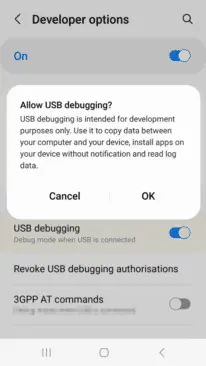
You need to set up your Android device first. If you haven’t already activated the developer options in your system settings, you will have to do so by going to the About section and taping the Build number entry seven times. You will be congratulated on becoming a developer, and a new entry called Developer Options will appear in your system settings. Enter them, look for the USB debugging toggle, and turn it on.
Installing ADB
Windows, macOS, Linux, and Chrome OS with Android Studio
If you’re a developer or looking to get into Android app development, you should install the Android Studio. It’s Google’s official IDE (Integrated Development Environment) for Android applications and has all the tools on board you need for creating your projects, including ADB and fastboot. The software will also ensure that your tools are always up to date. You can download Android Studio on the Android Developers website. The installation process is straight-forward — just follow the on-screen instructions from the installer.
Since Android Studio is quite huge when installed, the standalone SDK platform tools could be a better option if you want to save some precious space on your computer’s storage, especially if you don’t want to get into app development. The tools are comprised of the same interfaces you get when you install the Android Studio: ADB, fastboot, and systrace. They’re available on the Android Developers website. You’ll have to extract them and add them to your system’s path, but there are some scripts that simplify the process:
Nexus Tools
If you ask me, Nexus Tools is the fastest way to get ADB and the other platform tools up and running on your computer. It’s an open-source tool created by our own Corbin Davenport. Nexus Tools automatically downloads the latest platform tools from the Google website mentioned above, extracts them, and adds them to your system’s path for ease of use. You just need to paste the following command into a macOS or Linux terminal and hit enter:
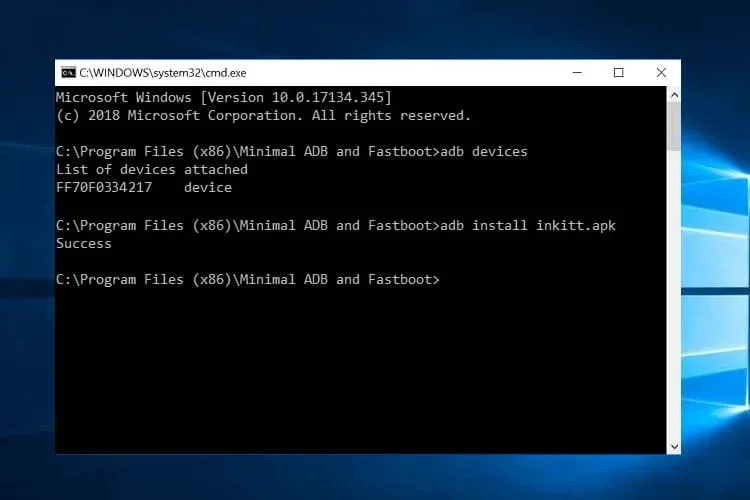
Once it’s finished installing, open a new terminal window and confirm that ADB works with the ADB devices command. If your phone is connected with USB debugging enabled, you should then be able to see its ID.
The script also works for the latest Macs with the M1 chip, Linux on Chromebooks (here’s how to enable Linux on Chrome OS), and Bash for Windows. However, the Windows subsystem for Linux doesn’t support USB, so you’ll have to rely on a wireless connection. That’s only really feasible if you have Android 11 or a rooted phone, and even then, there are some limitations.
You can find more information on Nexus Tools on Github, including uninstall and update instructions.
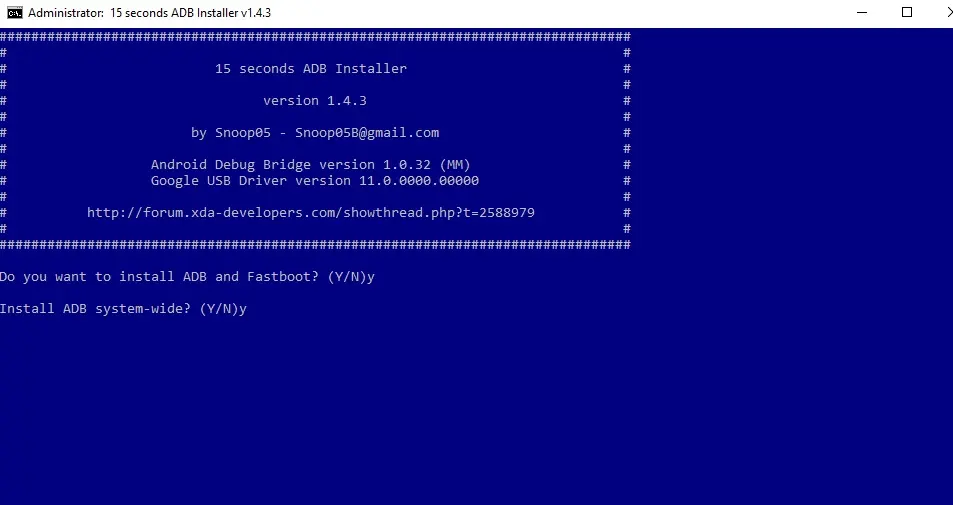
15 seconds ADB installer
For Windows, you can rely on another automatic tool from an XDA Developers Forum member, the 15 seconds ADB installer. However, some users report that the script doesn’t properly work for them, and it hasn’t been updated by the original maintainer for a long time. You can try using some of the recent revisions from another forum member or set up the platform tools manually:
Extract the ZIP file into a folder you can easily remember (like C:/platform-tools)
Open a command window in the folder by holding shift and right-clicking in an empty spot in the folder and selecting “Open command prompt/PowerShell here” in the menu. Then you can start using ADB — connect your phone and try .\ADB devices to see if it’s working. A list with attached devices should show up.
If you computer doesn’t recognize your phone, you may need to install its respective Windows USB driver additionally. Alternatively, there’s an open-source universal driver if you don’t want to go through the hassle of finding the correct one for your device.
If you want to be able to just open a command window and start using ADB without navigating to your platform-tools folder first, you’ll need to add the folder to your Windows path:
Search for “system environment” in the Windows 10 Start search and select “Edit the system environment variables” from the results.
Click “Environment Variables…” towards the bottom of the window that just opened.
In the lower section of the next window under “System variables,” look for the “Path” row. Select it and click “Edit…”
In the “Edit environment variable” window, you can hit the “New” button and add the path with the platform tools. In our example, that’s “C:/platform-tools.”
Exit all windows and save the changes you’ve made by selecting “OK.”
Open a new command prompt or PowerShell and see if ADB devices now works without navigating to your platform-tools folder first. You also won’t have to add .\ in front of it anymore. You might have to restart your computer before the change takes effect.
On your phone
If you don’t want to root your phone or install a custom ROM and just need access to the ADB shell, you don’t even need to connect your handset to a computer. The open-source LADB app allows you to run a shell locally, utilizing the wireless ADB protocol. However, setting it up is a little convoluted, and you’ll need to be on Android 11 to be truly free from a computer. We’ve got a tutorial that walks you through the process.
If you don’t have the Android 11 yet, or prefer to work with a larger screen, the WebADB might be for you. It’s an open-source web app that you can use to run the ADB shell, but it also comes with a file manager and supports SCRCPY for screenshots and screencasts in apps that don’t allow you to run them on a regular basis. The biggest caveat: being a web tool, you have to trust that developers don’t do anything fishy with your phone—you’re giving an unknown party low-level access, after all. Here’s our tool hands-on.
Depending on which install method you opted for, you may have to add a .\ in front of ADB commands to make them work. If you haven’t added your SDK tools installation to your path on Windows, keep in mind that you always have to run a terminal from the SDK tools folder.
There are tons of advanced features and tweaks you can enable or disable via ADB and the ADB shell. Here are just a few of the things we covered, but there are plenty of other things you can find all around the internet. Some of our favorites include SCRCPY, APK installation, stock-ifying Amazon Fire tablets, and more.
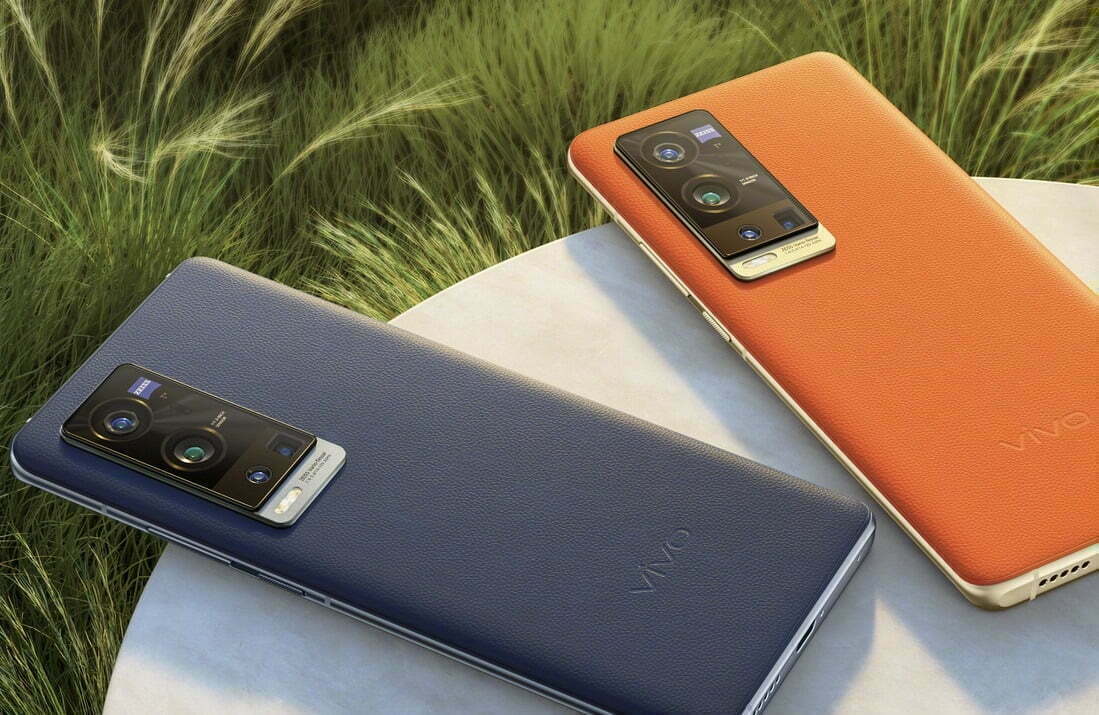
Vivo recently confirmed that it’ll unveil the X60 Pro+ on January 21 in China at 7:30 PM local time. The announcement came a few weeks following the launch of the X60 and X60 Pro.
It is also confirmed that the phone will come with a 6.5-inch AMOLED screen with a center-aligned punch-hole, 120Hz refresh rate, and 128GB/256G storage options. The device might also come in vegan leather color options ala Mate 30 of Huawei.
Geekbench and 3C recently showed a device with a V2056A model number that could be the X60 Pro+. It has 12GB RAM, 55W charging, and Android 11 OS.
But a new rumor from known leakers suggests that the handset might be powered by the unreleased Snapdragon 875 processor, a higher clocked version of the SD865 Plus last year.
Known leaker Digital Chat Station noted that the chip with SDM8250 UHF codename might be called Snapdragon 870 3.19GHz clock speed and a higher GPU frequency.
One thing is for sure, this will be vivo’s top-end offering of the year with interesting cameras and performance.
If you’ve ever tried looking for firmware to install on your Samsung Galaxy smartphone or tablet, it might be pretty annoying. While companies like Google, OnePlus, and Xiaomi provide download links on their websites, Samsung has yet to provide an official firmware download portal. That’s one of the reasons why there are so many Samsung firmware download sites out there. These sites scrap Samsung’s FUS (Firmware Update Server) for the latest firmware releases and categorize them by model number, carrier/region, and OS version. However, many of these services use a “freemium” model that throttles the base-tier download speed.
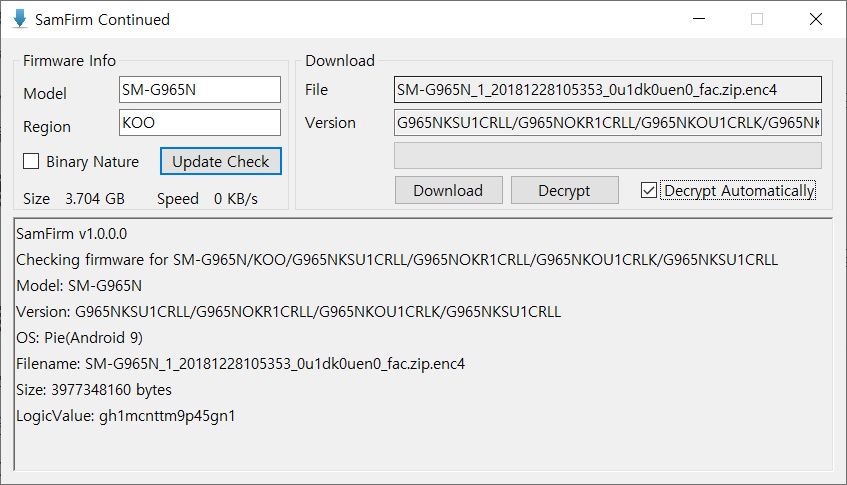
Fortunately, there is no shortage of community-developed tools to directly download a new software update for a compatible Galaxy device. We’ve talked about two such tools — SamFirm and Frija — many times in the past. Samloader is another open-source, cross-platform alternative. While I personally think that downloading Samsung firmware using one of these utilities is simple enough, some may still find them inadequate to meet their needs. If you do, then here are a few more solutions that make it even easier to grab official Samsung firmware packages for your device.
1. SamFirm_Reborn
Created by XDA Recognized Developer Ivan_Meler, SamFirm_Reborn is a reincarnation of the original SamFirm tool. The developer decompiled the legacy application and patched the codebase to make it compatible with Samsung’s server-side changes. SamFirm_Reborn is open source and it does offer a handy command-line interface besides the familiar GUI.
SamFirm-continued started its journey as yet another open-source fork of the legacy SamFirm, but the maintainer abandoned the project a few months ago. Later on, XDA Member Tungtata picked up the baton and created SamFwTool. One of the highlights of SamFwTool is the auto-detection feature. Just connect your phone in MTP mode and press “Auto detect” to identify your device model and region code.
The whole Samsung firmware downloading saga is now on a different level, as XDA Recognized Developer jesec has presented SamFirm.js, a streaming downloader, decryptor, and extractor coded in JavaScript. With SamFirm.js as the backend, you should be able to construct a web app to fetch stock Samsung firmware packages. The project is a collaboration between developers jesec and LuK1337.
In case you’re looking for a web API variant of the Samloader project, you should try out SamFetch. XDA Member YusufCihan reimplemented the functions from Samloader’s code as web routes in order to expose a simplified REST API to download Samsung firmware.
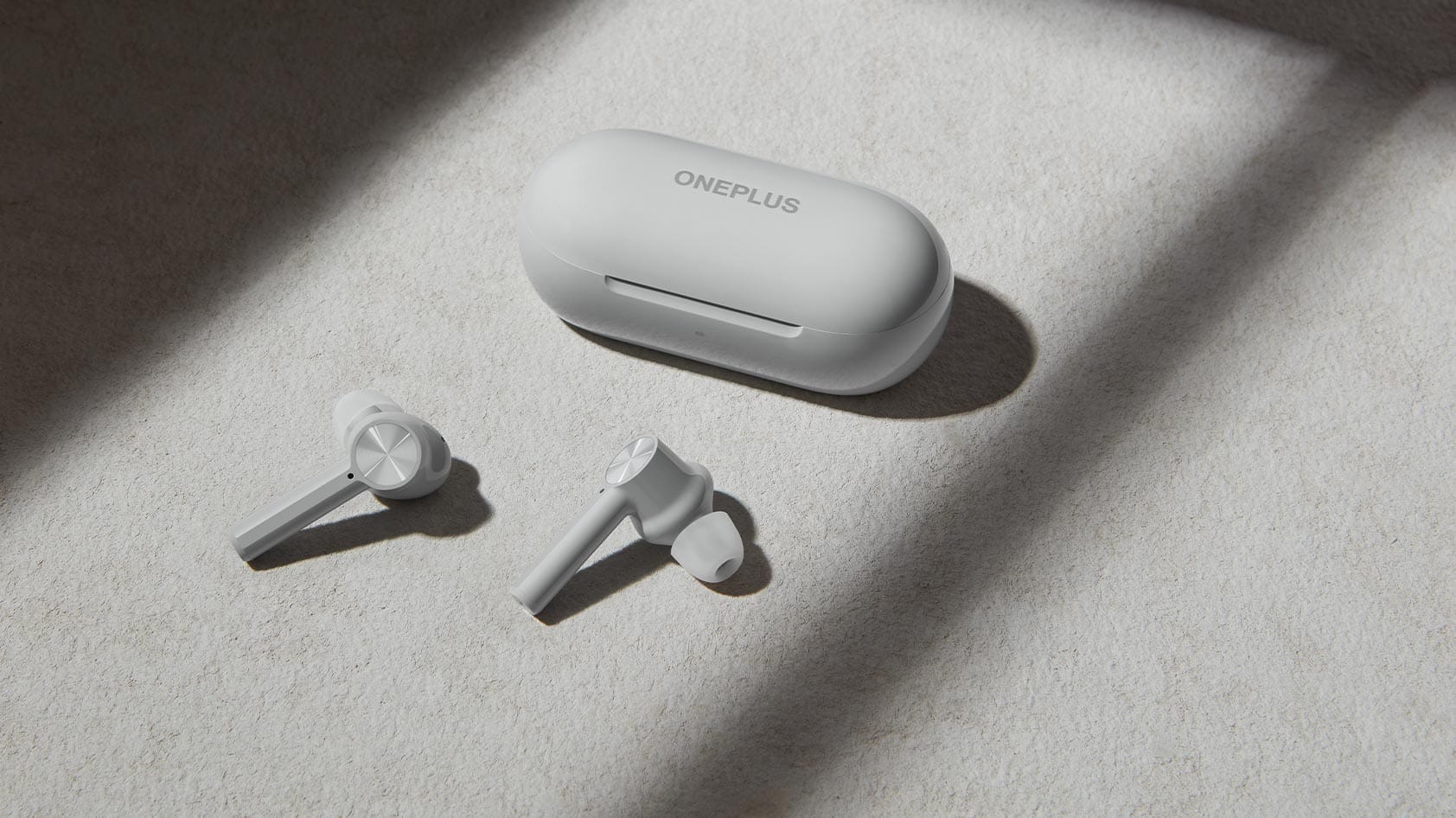
The latest phones in the OnePlus range are coming to the US next week, and you can pre-order them as of today. Not only that, both the OnePlus Nord N10 and Nord N100 come with free OnePlus-branded earbuds thrown in as a sweetener.
The buds you get depend on which device you go for, but they are much cheaper than the premium OnePlus flagships for both phones. The OnePlus Nord N10 is available for $299.99 and you’ll also get a free pair of OnePlus Buds Z when you pre-order it before January 15.
The Nord N10 has 6 GB of RAM and 128 GB of storage and is a solid mid-ranger. It is not, by any means, a world-beating smartphone, but it is a capable phone and an inexpensive way of entering the 5G revolution.
The OnePlus Nord N100 retails for just $179.99 if you’re on a tighter budget. It is aimed at offering value for money. As standard, with a large battery, a 90Hz screen, and Oxygen OS. There are trade-offs at this price point, as you would imagine, though, with both the camera and output left a little wanting.
On the plus side, when you pre-order the Nord N100, the free gift you get is a pair of OnePlus Bullets Wireless Z earbuds. Both these earbuds and the Buds Z are worth about $50, so if you already had your eye on one of these cheap phones, they’re a good extra incentive.
Free Oneplus earbuds
Oh and one more thing — all you need to do to get an extra 10% off your order is subscribe to the OnePlus newsletter. It’s a pretty small step for the extra savings. Follow the links below to find out more.
Earlier this year, MIUI 12 made its debut, and Xiaomi has completed rolling out the stable update to most devices in its portfolio. The new skin of Xiaomi offers a variety of new features, including an enhanced dark device-wide mode, AI-assisted calling features, Interactive Always-on Display, new visual interface, system animation tweaks, and much-needed privacy updates.
Xiaomi is shifting its focus to the update to Android 11 now. MIUI 12 based on Android 11 is beginning to roll out, with the stable upgrade now rolling out to the Redmi Note 9 Pro and Mi 10. Some of the best cheap Android phones are produced by Xiaomi, and it is good to see the manufacturer carrying out the update to Android 11 earlier than normal.
Android 11 on MIUI 12 update: rolling out to Redmi Note 9 and Mi 10
The stable MIUI 12-based Android 11 update is now rolling out in India for the Mi 10 and Redmi Note 9. Once we have more info on an update timeline, we’ll update the story, but now with the stable build for the Redmi Note 9 series, it shouldn’t be too long before Xiaomi starts delivering Android 11 to its older smartphones.
Xiaomi has finished rolling out the MIUI 12 update to most of the phones in the list below. So if you are using any of the devices in the list, head to your phone’s settings to manually download MIUI 12:
Xiaomi Mi 10 Pro
Xiaomi Mi 10
Xiaomi Mi Note 10 Lite
Xiaomi Mi 9
Xiaomi Mi 9 Pro 5G
Xiaomi Mi 9T
Xiaomi Mi 9T Pro
Redmi K30
Redmi K30 5G
Redmi K30 Pro
Redmi K20
Redmi K20 Pro
Redmi Note 9
Redmi Note 8 Pro
POCO F2 Pro
POCO X2
Xiaomi Mi Mix 3
Xiaomi Mi Mix 2S
Xiaomi Mi 9 SE
Xiaomi Mi 8 Explorer Edition
Xiaomi Mi 8
Xiaomi Mi 8 UD
Xiaomi Mi CC9
Xiaomi Mi CC9 Pro
Xiaomi Mi CC9 Meitu Edition
Redmi Note 8 Pro
Redmi Note 7 Pro
Redmi Note 7
Redmi 10X Pro 5G
Redmi 10X 5G
Redmi 10X 4G
MIUI 12 global update: Full list of eligible phones
For devices sold outside of China or India, Xiaomi has a standalone ROM, and these global units have their own release timetable. As of now there is no indication of when these phones will begin receiving the Android 11 update, but Xiaomi has finished rolling out the Android 10-based MIUI 12 release to all of these devices:
Xiaomi Mi 9
Xiaomi Mi 9T
Xiaomi Mi 9T Pro
Redmi K20
Redmi K20 Pro
Xiaomi Mi 10 Pro
Xiaomi Mi 10
Xiaomi Mi 10 Lite
Xiaomi Mi Note 10
Xiaomi Mi Note 10 Lite
Xiaomi Mi Note 3
Xiaomi Mi 8
Xiaomi Mi 8 Pro
Xiaomi Mi 9 SE
Xiaomi Mi 9 Lite
Xiaomi Mi 8 Lite
Xiaomi Mi Mix 3
Xiaomi Mi Mix 2S
Xiaomi Mi Mix 2
Xiaomi Mi Max 3
POCO F1
POCO X2
POCO F2 Pro
Redmi Note 9 Pro
Redmi Note 9 Pro Max
Redmi Note 9
Redmi Note 9s
Redmi Note 8 Pro
Redmi Note 8
Redmi Note 8T
Redmi Note 7
Redmi Note 7 Pro
Redmi Note 7S
Redmi Note 6 Pro
Redmi Note 5
Redmi Note 5 Pro
Redmi 8
Redmi 8A
Redmi 8A Dual
Redmi 7
Redmi 7A
Redmi 6 Pro
Redmi 6A
Redmi 6
Redmi Y3
Redmi Y2
Redmi S2
MIUI 12 comes with a lot of interesting features, so while you’re waiting for the OTA to download on your phone, be sure to take a look at all the new additions in our feature breakdown.
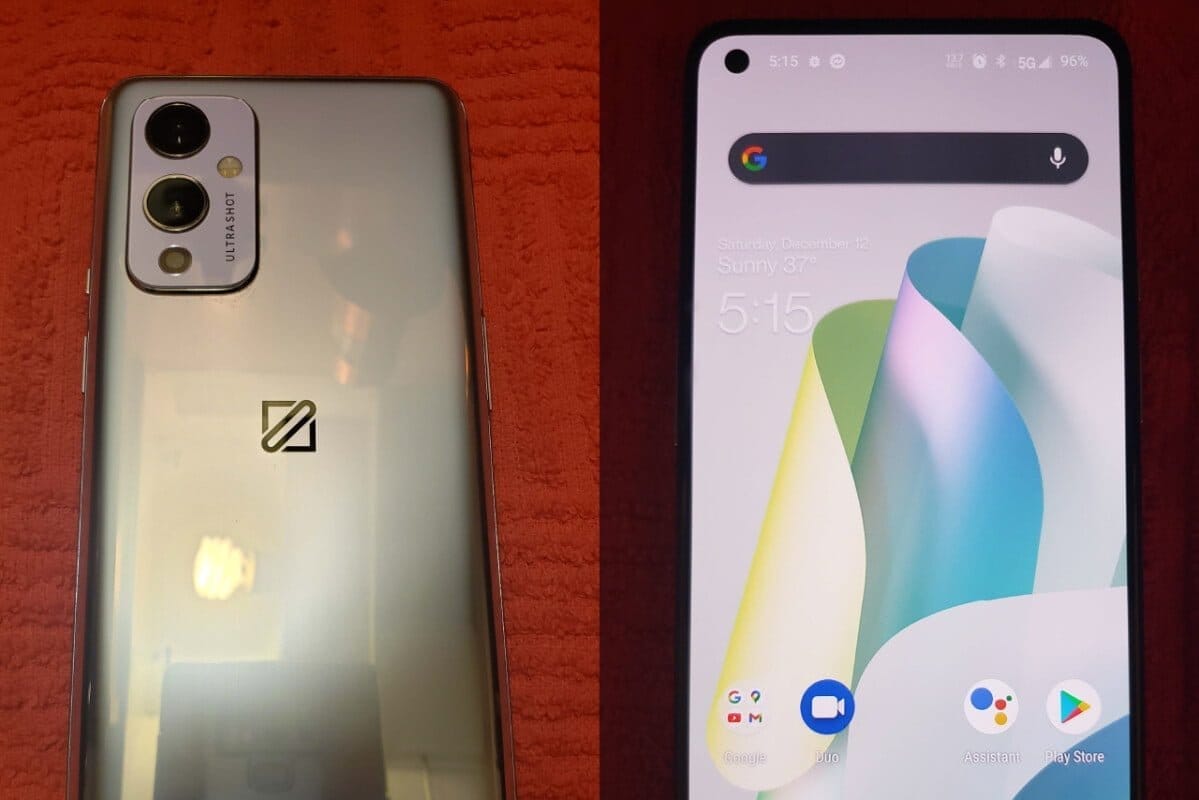
We’re only a few months away from the next launch of the OnePlus flagship, but that definitely hasn’t dissuaded a sea of leaks from pouring out and giving away almost all the OnePlus 9 needs to know. PhoneArena recently released a bunch of pictures of the regular OnePlus 9, entering the leak spree, giving us a better idea of what the final version would look like.
The OnePlus 9 does not look all that distinct from the 8T in these purported images of a prototype unit from the front and sides. You get the same hole-punch positioned to the top-left corner of the monitor and no headphone jack is found again. The display seems to have slightly more rounded corners, but given the low quality of these pictures, it’s hard to be certain.
What’s really changed is the phone’s back. The camera lenses further stick out of the already protruding housing and have a metal ring encircling them, possibly just for aesthetics and to mimic recent iPhones. However, the arrangement looks closer to the Oppo Reno4 Pro, including the ‘Ultra Shot’ branding, which seems like the OnePlus take on Oppo’s ‘Ultra Steady.’ This is likely since both sister companies often share their underlying device development platforms.
The OnePlus 9 5G is also expected to have a 16MP camera on the front, while the main camera will have a 48MP sensor on the front (even though the on-device specs tell a different tale). Some phone screenshots point to the new Qualcomm Snapdragon 888 chip and an 8/128GB memory/storage setup, with likely more options on the cards. With the newly redesigned OxygenOS 11 running on top, the phone will run Android 11. In both the resolution and refresh rate, the display will continue to measure 6.55-inches, matching its predecessor.
These images are closely associated with the CAD renders we saw as part of a separate leak earlier. At this point, we expect OnePlus to add another phone, the OnePlus 9E, which sounds like a step down from the regular 9, to its main flagship lineup.
A previous report suggested that OnePlus could opt for an early release, moving up to March from its usual timeframe of May, which would probably be a move intended to counter Samsung’s earlier Galaxy S21 launch.
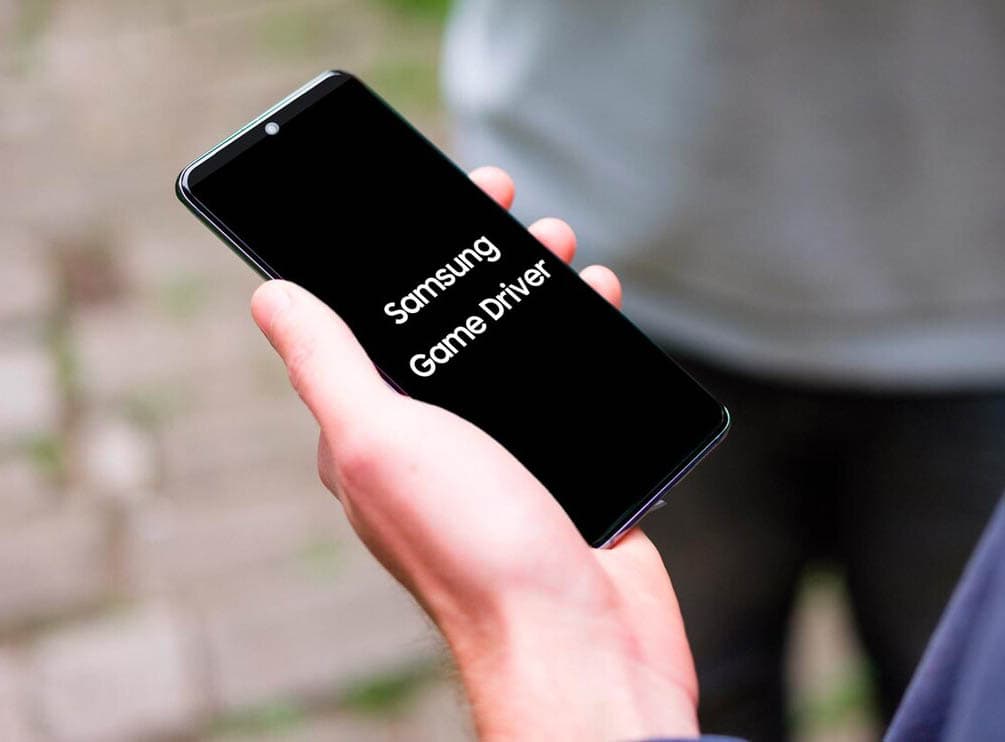
Samsung revealed today the launch of a new app for Android: GameDriver. By clicking here (Adreno/Qualcomm models) or here (Mali/Exynos models), you can find it on the Google Play Store.
The software doesn’t seem that noteworthy at the start. On a select few Samsung Android phones, it claims to deliver better gaming results. However at the moment, it supports just a handful of games and you have to play those games on a Galaxy S20 or Note 20 computer.
Samsung hopes that on more of its phones, the new software will eventually work and be compatible with more games. It only operates with two smartphone families and three games right now: Call of Duty: Mobile, Black Desert, and Fortnite. There are some enormous names, but they are still a very small choice.
However the big deal about GameDriver is that it will allow Samsung to issue hardware driver updates without a system-wide update having to be released. That means that the Play Store will come with GPU tweaks and upgrades. As slow operating system updates are typically partly the responsibility of carriers, who need to test and accept updates before pushing them to consumers, this knocks down a major barrier.
However, Play Store updates are much less stringent. Samsung could, potentially push an update in a matter of days or even hours to all of its GameDriver users. That is terrific news.
The leaks are coming thick and fast, with Samsung expected to launch the Galaxy S21 in about a month. A new leak comes along as soon as we think we know everything about these phones, providing us with even more information. But while we’ve seen a lot of renders, it’s been much harder to come across imagery of real hardware. With the release of a hands-on first experience video featuring the Galaxy S21+, now that’s changing in a major way, and we’re all losing our minds.
Although the bottom corners of the phone are hidden behind some tape, this is still our best look yet at the front of the S21+. Samsung has somehow managed to shrink the bezels even further than the S20, and it looks as though they are almost completely symmetrical.
The ending on the back panel is something else to remember. Samsung has been making phones with ultra-glossy backs that gather fingerprints like there’s no tomorrow for years now. The Note20 Ultra changed things, but it was unclear whether the S21 would suit. The system with a matte finish seemed to display previous renders, but it was difficult to tell with any certainty. Thanks to this video, we can now be confident that for this color at least, the S21 leaves the glossy finish behind.
Samsung Galaxy S21+ #leak
The filmmaker talks briefly about the images taken by the phone, reporting that colors such as blue and green do not look very normal. As Samsung is notorious for over-saturating images, that’s no surprise, but anyone hoping to change that here will be disappointed.
Although no numbers are given, the reviewer says he is more than happy with battery life, stating that the phone easily lasts a full day even with heavy video calling. This is likely helped by the S21+ getting a 4,800mAh battery, 300mAh larger than its predecessor.
Finally, a Geekbench test was passed on the handset, and this is where we were able to confirm that this is the S21+. Although the video refers to this phone as an S21, model number SM-G996U refers directly to the S21+, and the Snapdragon 888 is possibly a T-Mobile model.
The S21+ scored 1115 for single-core performance and 3326 for multi-core. The S20+ only scored 830 and 3087, respectively, for comparison. That’s a good upgrade, especially when you think that this is probably unfinished software that needs to be optimized before release. Let’s hope that the Exynos 2100 will equal its counterpart from Qualcomm.
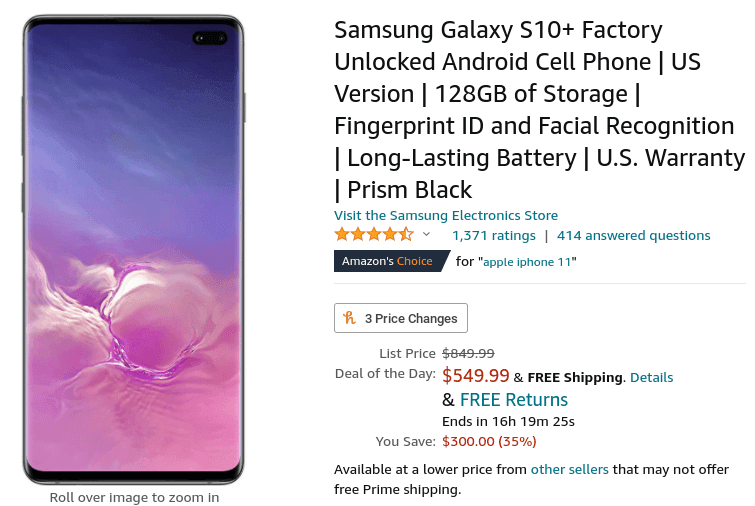
The Samsung Galaxy S10+ may have been replaced by the Galaxy S20+, but it’s still far from outdated-still it’s competitive with the upper midrange phones of this year and doesn’t come with a 5G modem for battery-hogging and space-wasting. Samsung continues to sell its old flagship, and for just $549.99 on Amazon, which is $300 off, you can get the 128GB version right now. The 512GB model is also $300 off and costs $799.99.
It might not have had the best camera or the best fingerprint sensor, but it delivered the best overall experience. He named it the best smartphone to buy at the time, and although it was almost two years ago, relative to the new mid-rangers at the same price, it’s still affordable. The S10+ comes with 8 GB of RAM paired with a Snapdragon 855 and a 6.4-inch curved Quad HD display. Three rear cameras are available, consisting of a wide, ultra-wide, telephoto lens, and two front cameras. It still still has a headphone port, in comparison to many new phones.
$550 is the lowest we’ve seen yet, and we’ve seen the S10+ for as much as $600 before. The offer is the deal of the day for Amazon, so you just had to catch it before midnight, if the inventory even lasted that long. And with the S21 (or S30?) practically around the corner, the company might soon fully stop selling the phone.