If you paid a lot of money for your Android phone, it can be really annoying when it lags or performs poorly.
There are three secret options on your device that you may adjust to improve performance if you are experiencing slow app loading times or a slow device overall.
Limit background processes
Numerous background-running apps are one of the main causes of slow phone performance. Even when you are not using them, these apps are continuously using resources, which can cause your phone to slow down. Fortunately, Android comes with a built-in feature to limit background activity.
You can experiment with different values to find the one that works best for your device.
By reducing background activity for apps that are not used frequently, you can free up resources for the apps that you do use, which will make your experience faster and smoother.
To test this feature, go to Settings and then select Developer Options. From there, tap on Background Process Limit and set a process limit between 0 and 4.
Remove old files
One of the best ways to make your device feel brand new is to remove all of your old apps and files.
These take up valuable space and no longer serve any purpose for you.
The easiest way to manage the storage on your phone is to use the Files app, which you can access by swiping up from the bottom of the screen to open the Android app drawer, then tap My Files (also known as File Manager).
From there, you can access your downloads, documents, images, audio, and other files.
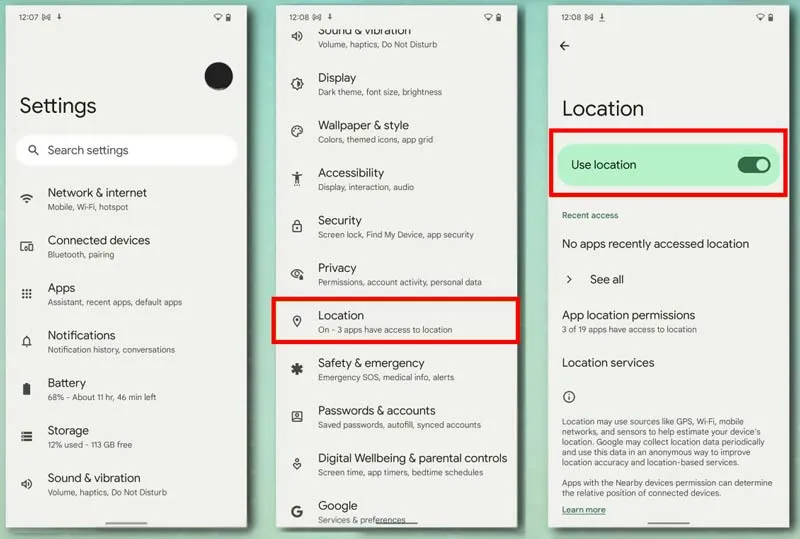
Disable location services for better performance.
You can see which apps are using location on your iPhone by going to Settings > Privacy > Location Services.
Many smartphone apps use your location to improve your experience while using them.
You are not alone if you have ever found yourself tethered to a charger, watching the battery bar slowly but surely creep towards a usable level. But fear not, fellow Android users – this guide is your road map to victory, filled with useful tips and tricks to turn your phone into a charging champion!
Gone are the days of excruciatingly slow refills and battery anxiety—we are about to unlock the secrets to lightning-fast boosts that get you back online, streaming, and snapping in no time at all! Say hello to a world of stress-free power-ups!
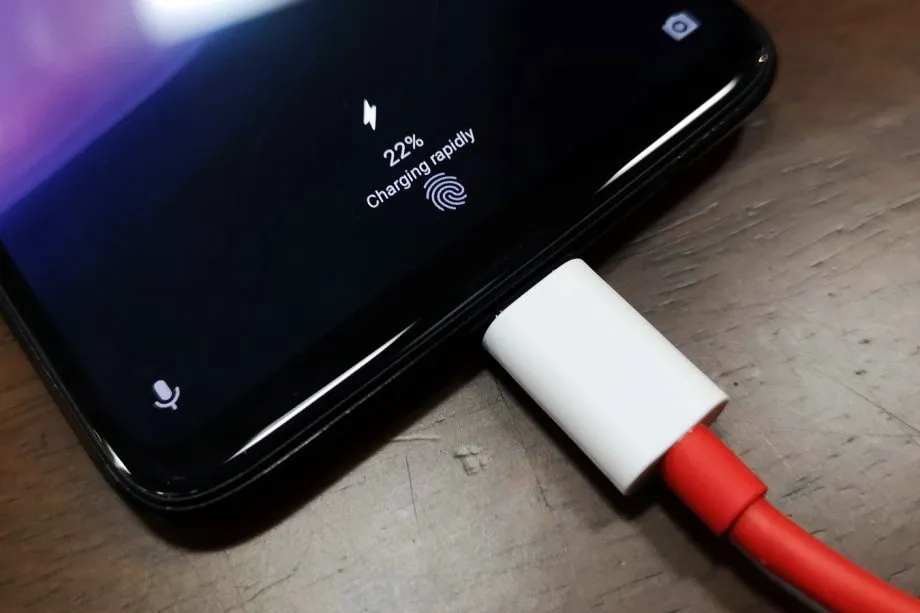
Wire will charge you faster.
The Realme GT 3 boosts an impressive 240W charging speed, theoretically allowing a 0 to 100% charge in less than 10 minutes. Some Samsung phones can reach 45W with USB charging. Wired charging is normally faster than wireless charging. Android phones typically reach their highest charging speeds through USB-C, often reaching speeds of over 20W. In contrast, wireless charging is usually limited to 10 to 15W.
Additionally, USB-C is generally regarded as more dependable than wireless charging. While technologies like Qi2 with magnetic locking aim to address these issues, USB-C remains the more robust and dependable option. Wireless chargers rely on precise coil alignment for efficiency, and there is always a chance that a slight bump will displace your phone or knock it off the charger completely.
If at all possible, turn off your smartphone to expedite the charging process.
The best way to reduce battery life is to completely shut down your phone. Even in this case, it should continue to charge as fast as possible, so when it is connected to a compatible charger (which we cover in the next section), this provides the fastest possible charging scenario. The disadvantage is that you can not keep track of how fast your phone is charging, and you can not use apps or check notifications, so some people may decide not to use this option. If you are worried about receiving important messages from family or work, we strongly advise against using this method.
Use a direct power brick instead of a power bank or computer.
1. Only dedicated chargers guarantee fast wired charging:
While newer USB 3.x and 4.x ports can support super-fast charging (up to 240W) using a technology called USB-PD, they rarely reach that speed.
Most computer USB ports and portable power banks, even fancy ones, usually offer much slower charging than your phone’s dedicated charger. This is because they often lack the necessary power output capabilities.
2. Dedicated chargers are the safest and most reliable option:
While exceptions like the Anker Prime exist, relying on non-dedicated chargers for fast charging introduces risk and uncertainty.
Your phone’s original charger or a high-quality replacement designed for your specific model are the safest and most reliable way to ensure optimal charging speed without damaging your phone’s battery.
So, for the best, fastest, and most reliable wired charging experience, stick with your phone’s dedicated charger whenever possible.
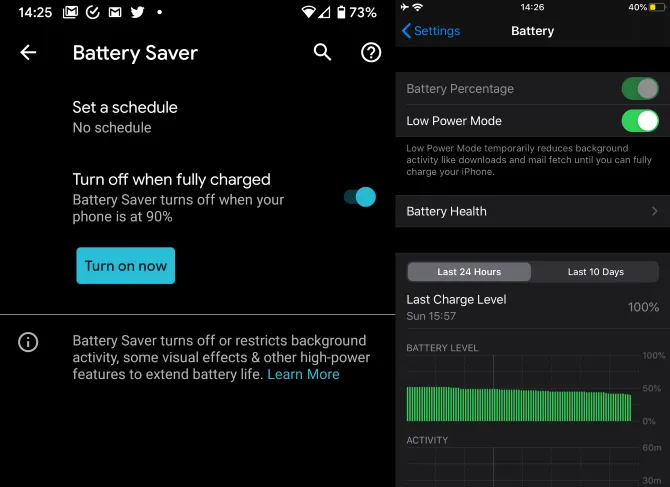
Low power mode (also known as Battery Saver on most Android devices, though the name may differ on your phone) is the best option if you do not want to or are unable to turn off your phone. It helps save battery life by turning off certain functions and background activities, extending the time between charges.
The low power mode on your phone can do a number of things, like accelerating the screen’s shut-off time, decreasing background sync activity, downgrading from 5G to 4G, and restricting the use of power-hungry apps. Pixel phones also have an Extreme Battery Saver mode that goes one step further, decreasing CPU speed and disabling notifications for apps that are paused. You may not use it constantly, but it is a way to concentrate on charging while maintaining access to critical features.
Disable unused features
While a phone’s screen and processor use up a lot of energy, wireless technology can also consume a significant amount, especially if your phone is frequently downloading files or searching for available networks.
Using Airplane Mode is the easiest way to turn off wireless radios, but it is not always the best option because it usually disables Bluetooth and Wi-Fi in addition to cellular data, which can be problematic if you need to use wireless earbuds or have an internet connection. You may need to adjust the Airplane Mode settings or use Quick Settings to turn off individual radios that are not in use. For example, if you are going to be away from home, you can probably disable Wi-Fi unless you need it for hotspots or Android Auto.
To increase the charging speed, do not use your smartphone while it is charging.
Playing 3D games like Fortnite or PUBG Mobile can severely deplete your phone’s battery. It is important to emphasize that the more tasks your phone completes, the more power it will use. If at all possible, find something else to do with your time until you need to respond to important calls and messages.
Keep your phone cool while charging
The ideal temperature range for charging a phone is between 50 and 86°F (10 and 30°C). To make sure your phone stays in this range, try moving it out of direct sunlight, putting it near a fan, or taking it out of its case—especially if the case is insulating, like a leather wallet case. Keep in mind that your phone naturally warms up during charging, so if it is already close to the upper limit, charging could push it out of the ideal zone.
In other cases, you might need to warm up your phone; for instance, a case that might be problematic in a Texas summer could be ideal for a cold winter in Ontario.
Blue light is a type of high-energy visible (HEV) light with a short wavelength in the visible light spectrum. It is part of the light emitted by the sun and various artificial light sources. Blue light is known for its stimulating and alertness-inducing properties, which can be both beneficial and potentially harmful.
The primary source of blue light on Android devices is the screen display. Android smartphones and tablets emit this light from their screens to produce vibrant and colorful visuals.
Most Android devices use LED (Light Emitting Diode) backlights for their screens. These backlights emit the light to create the white light that illuminates the screen. The intensity of blue light emitted by LEDs can vary depending on the device’s settings and brightness.
The content displayed on Android devices, such as apps, websites, and videos, can contain varying degrees of blue light. For example, websites with bright backgrounds and certain apps may have a higher concentration of this light.
Android operating systems often include features like adaptive brightness and night mode settings. These features can adjust the amount of blue light emitted by the screen based on the time of day and user preferences.
The importance of addressing blue light exposure for eye health
In our increasingly digital and screen-centric world, the exposure to blue light, especially from smartphones, tablets, and computers, has become a major concern for eye health. Here’s why it’s crucial to address this light exposure:
Digital Eye Strain: Prolonged exposure to digital screens, which emit blue light, can lead to digital eye strain or computer vision syndrome. This condition includes symptoms like eye fatigue, dryness, redness, and blurry vision. It can cause discomfort and reduce productivity.
Sleep Disruption: Blue light, particularly in the evening, can interfere with our natural sleep-wake cycle. It suppresses the production of melatonin, a hormone that regulates sleep. Exposure to blue light before bedtime can make it harder to fall asleep and negatively impact the quality of sleep.
Potential for Long-Term Damage: Some studies suggest that prolonged exposure to blue light, especially from screens held close to the eyes, might contribute to long-term eye health issues. This includes concerns about the development of age-related macular degeneration (AMD), a leading cause of vision loss.
Children and adolescents are increasingly using digital devices, and their eyes are more susceptible to damage from the light due to their clearer lenses. Addressing blue light exposure is particularly important for this age group to protect their developing eyes.
Reducing the light exposure can enhance overall eye comfort, especially for individuals who spend extended periods in front of screens. This is crucial for professionals, students, and anyone who relies on digital devices for work or entertainment.
To safeguard eye health, it’s essential to take measures to reduce the light exposure, especially during the evening and night time hours. This can be achieved through software settings, apps, screen protectors, and adopting healthy screen usage habits. Prioritizing eye health in the digital age is a proactive step toward maintaining comfortable vision and preventing potential long-term eye problems.
With an Android device, there are essentially two ways to turn on Night mode or the blue light filter. You can either utilize some third-party apps or the OEM’s standard built-in blue light filter. If there isn’t a built-in filter, the latter is your only practical choice. Let’s examine both of these choices closely and discover how to use them.
If your device doesn`t support any of the option above there is another way to block the blue light with blue light glasses.
Let’s dive into our options:
Enable native blue light filter in Android Devices
The majority of Android smartphone manufacturers have developed unique user interfaces. The user interface has been altered and customized even though they are based on stock Android. The filter may therefore be available in Night mode, Read mode, etc.
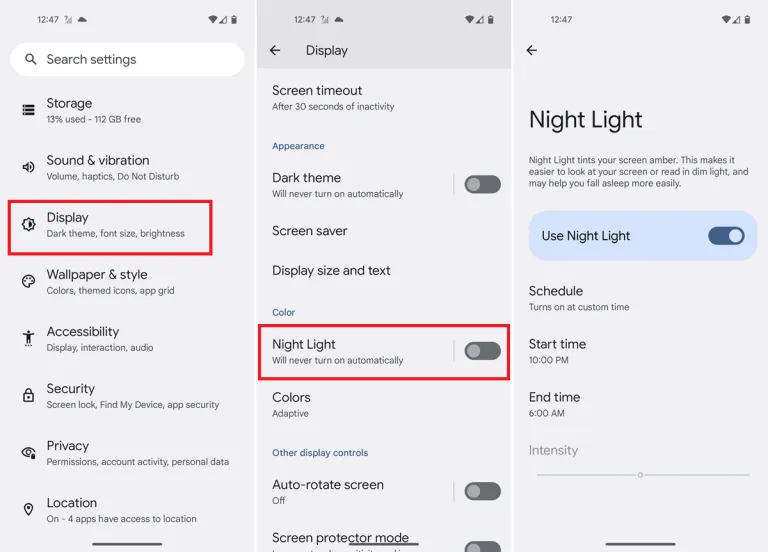
A step-by-step tutorial for turning on the blue light filter on your device is provided below.
You should typically be able to schedule the feature and change the color temperature to your preference. You can modify the color temperature with the Intensity or Opacity options, while the Schedule option lets you schedule when it turns on and off.
Go into your phone settings and open your Display settings.
From here, you should be able to see a section labeled Blue light filter, Night shift, or Eye comfort shield, among others. The name changes depending on what phone you’ve got.
Here, you can adjust the color temperature of your screen, turn the blue light filter permanently on, or set a schedule.
When setting a blue light schedule, you can choose between an automatic sunset-to-sunrise schedule or a custom schedule.
If using the sunset-to-sunrise schedule, then your location service will need to be on for your phone to know at which time the sun rises and sets in your local area.
If setting a custom schedule, then you will be able to manually select at what time you would like the blue light filter to turn on and turn off each day.
Use third-party apps
If a built-in blue light filter is not available, you can easily get an app for it from the Play Store. There are thousands of free third-party apps available that will turn on your phone’s blue light filter. A shortcut can be added to the home screen or quick access settings, the filter’s color can be selected, the strength can be changed, and other functions are available in some of these programs. We will go over some of the top third-party apps in this section that are offered on the Google Play Store.
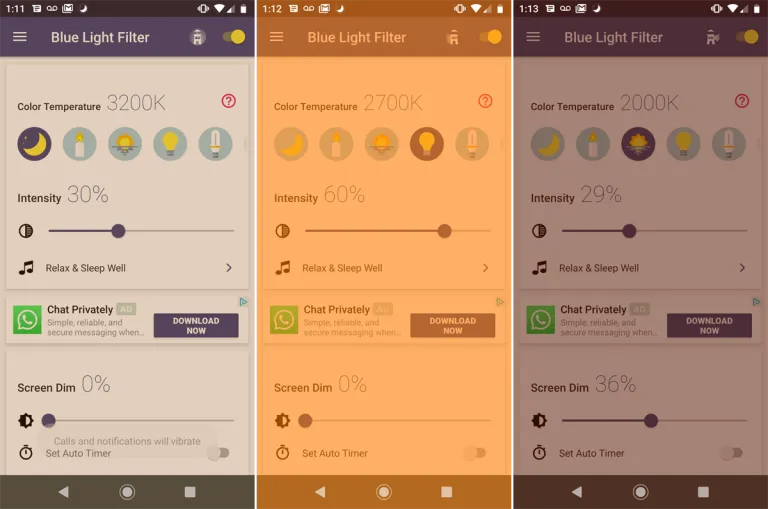
An outstanding program that provides far more than your default blue light filter is called Bluelight Filter. To use as a filter, you can pick from a variety of hues and hue combinations. Many people find the default green filter to be more calming than the normal yellow filter. The filter’s strength is another option. Also, it enables you to add a one-tap button to the Quick access settings and a toggle switch widget to the home screen. We advise everyone to check out this simple and lightweight program once.
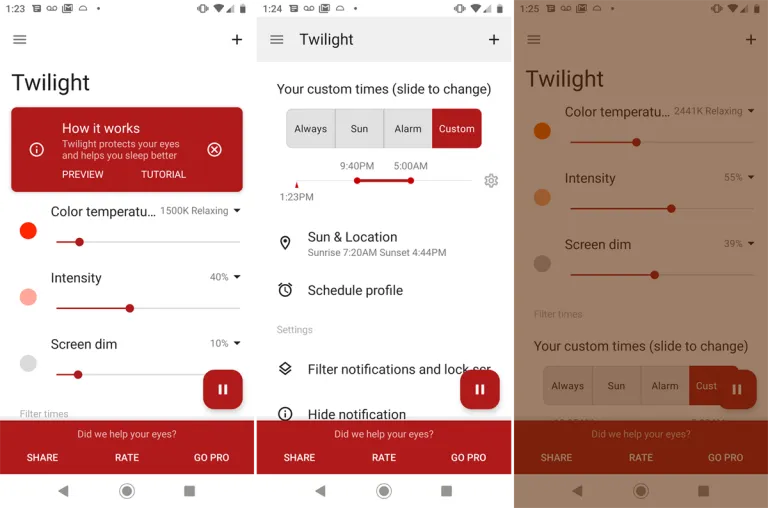
Another widely regarded free blue light filter software is Twilight. Both PCs and smartphones can use it. Instead of the conventional yellow light filter, it has a red one. Sliders can be used to change the screen dim, color temperature, and intensity. The app makes the claim that it would enhance melatonin secretion and the sleep cycle.
Using this app, you may manually activate a blue light filter or schedule it to activate and deactivate at predetermined periods during the day or night. The filter’s hue, opacity, and brightness are all adjustable. To enable the filter without opening the program, you may even build a shortcut icon or widget.
Blue light glasses
Using blue light glasses on all devices offers a multitude of benefits for both short-term comfort and long-term eye health. These specialized glasses effectively reduce eye strain caused by prolonged screen exposure, making it more comfortable to work, study, or enjoy entertainment on digital devices.
By filtering out a portion of the potentially harmful light emitted by screens, they contribute to improved visual comfort, reducing symptoms like eye fatigue and headaches. Additionally, wearing blue light glasses in the evening can promote better sleep quality by minimizing disruptions to the body’s natural sleep-wake cycle.
These glasses are particularly advantageous for children and adolescents, whose developing eyes are more susceptible to the effects of this light. Overall, blue light glasses are a practical and proactive solution to address the challenges posed by our modern screen-centric lifestyles, enhancing both immediate well-being and the long-term health of our eyes.
Conclusion
The advantages of preventing blue light from electronics are apparent, and they include both short-term comfort and long-term wellbeing. Digital eye strain can be considerably reduced by taking proactive steps to decrease its exposure, such as utilizing filters, blue light-blocking eyewear, or changing device settings. In turn, this improves our comfort and productivity while using screens for extended periods of time.
Also, limiting exposure to nighttime helps to maintain a balanced sleep cycle, encouraging improved slumber and general wellness. Safeguarding our eyes against the potential long-term consequences of blue light is a critical investment in our future vision and eye health, especially for children and teenagers. In a time when digital gadgets play a significant role in our lives, reducing the negative effects is a sensible and proactive move that will make using digital devices more comfortable and healthy.
Are you planning to purchase the newest Samsung phone, or are you a bigger Pixel fan? You’ll want to reset your old Android phone to factory settings in order to remove all of your data before selling it on eBay, giving it away to a friend, discarding it, or trading it in for a discount on your new phone. Fortunately, doing that is fairly simple.
Before you begin, keep in mind that while the process for the most of recent Android phones should essentially be the same, these instructions were tested on a Pixel 3 running Android 12. It goes without saying that you should first confirm that all of your data has been moved to your new phone, backed up, or both. No turning back after your previous phone has reset.
Go to Settings
Select System > Reset options
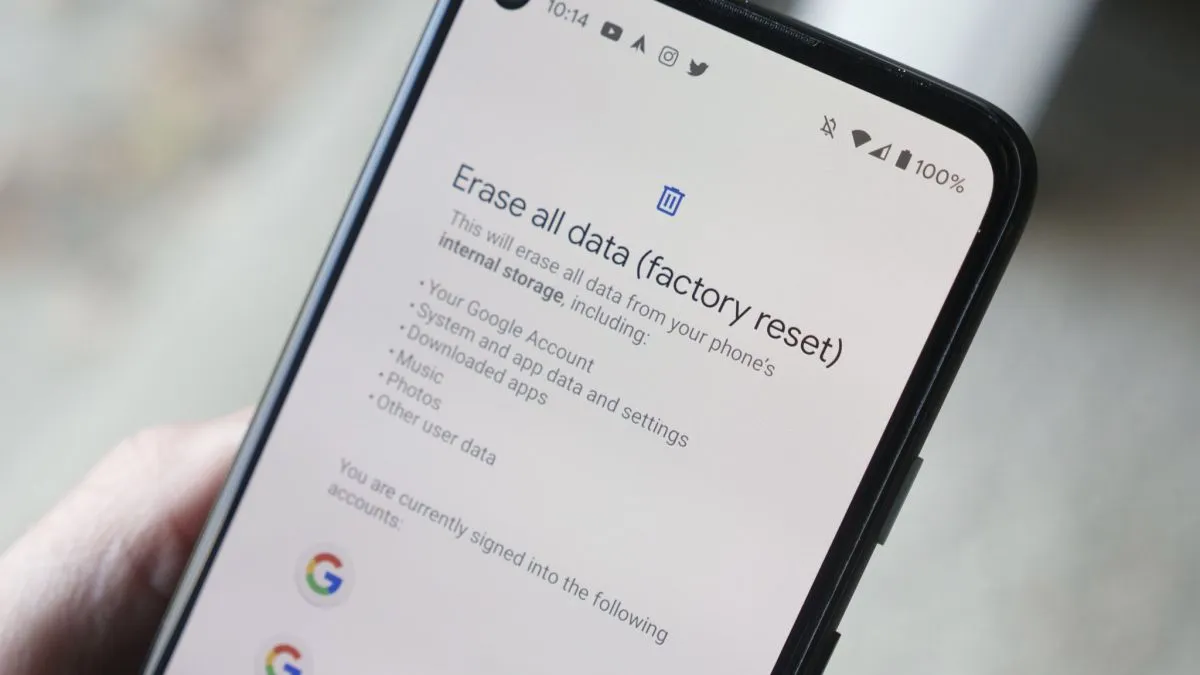
You will be presented with four choices. Reset Wi-Fi, mobile & Bluetooth is sometimes useful if you’re having trouble with connectivity. Reset app preferences will restore all of your app and notification defaults, among other things. Erase downloaded SIMs will help you delete any digital SIMs you no longer need. However, none of these will delete the data on your phone. That’s the job of the last choice, Erase all data (factory reset), and that’s the one you’re going to select.
The next screen will tell you what is going to be erased, and which accounts you’re signed into. Select Erase all data.
If you have a PIN or some other security setup, you’ll be asked to enter it
You’ll get another screen asking if you’re sure this is what you want to do. Are you sure? Then hit the Erase all data button.
I’m done now! Typically, the procedure takes two to three minutes. After rebooting, your phone will ask you the customary questions about language, account, network, etc. When you see those, you’ll understand that it was successful.
There are several things to keep in mind. Before you can reset your Samsung phone, you could first be prompted for your Samsung account password (provided you’ve made one and connected it to the device).
If you’ve got an Android phone that is using an earlier version of the OS (say, before version 8), the reset may, after it reboots, ask for your login. This could be awkward if you’ve already sent the phone to someone else. As a result, if you’ve got an older phone, it’s a good idea to turn off your screen lock (by going to Security > Screen lock and selecting None) and deleting your Google account (which you’ll find at Settings > Account > Google) before you start the reset. (In fact, that may be a good idea in any case.)
There is evidence that some data may remain on a phone even after it’s been reset. To be extra careful, you can encrypt the phone before resetting it:
Go to Settings > Security > Encryption & credentials and select Encrypt phone
Go back to your settings and start the reset process
To ensure optimal usability, smartphone makers tune the default touch sensitivity. However you might think it’s too low and have trouble with simple navigation. Poor calibration, low refresh rate settings, a thick screen protector, dampness, and other factors may all contribute to it. For your top budget phone, the majority of Android OEMs (original equipment manufacturers) provide pertinent alternatives to improve touch sensitivity.
When the touch screen on your Android phone doesn’t respond to your touches correctly, you may expect a below-average experience. Such delays in touch annoy and perplex you. Use the tips below to increase the sensitivity of your Android phone before you trade it in for an iPhone.
Increase touch sensitivity on Android
A screen protector is one of the must-have accessories to protect your Android phone’s expensive display. However, many have noticed a degraded touchscreen sensitivity after applying tempered glass on their Android devices. If you are among them, make a tweak from Settings.
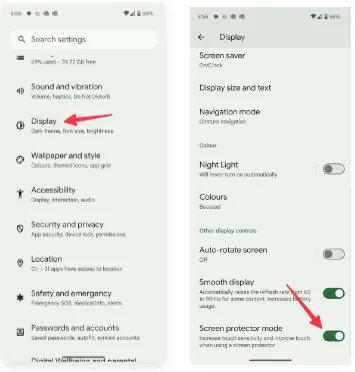
Open Settings on your Android phone.
Scroll to Display.
Turn on the Screen protector mode toggle to increase the sensitivity level.
Increase touch sensitivity on Samsung Galaxy phones
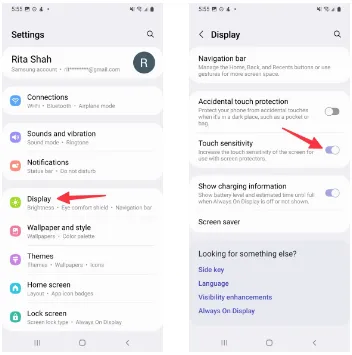
We talked about the default Settings menu that’s preinstalled on most Android phones, including the Google Pixel. Samsung uses a different Settings menu on One UI software. If you have one of the top Galaxy phones, use the steps below to change touch sensitivity.
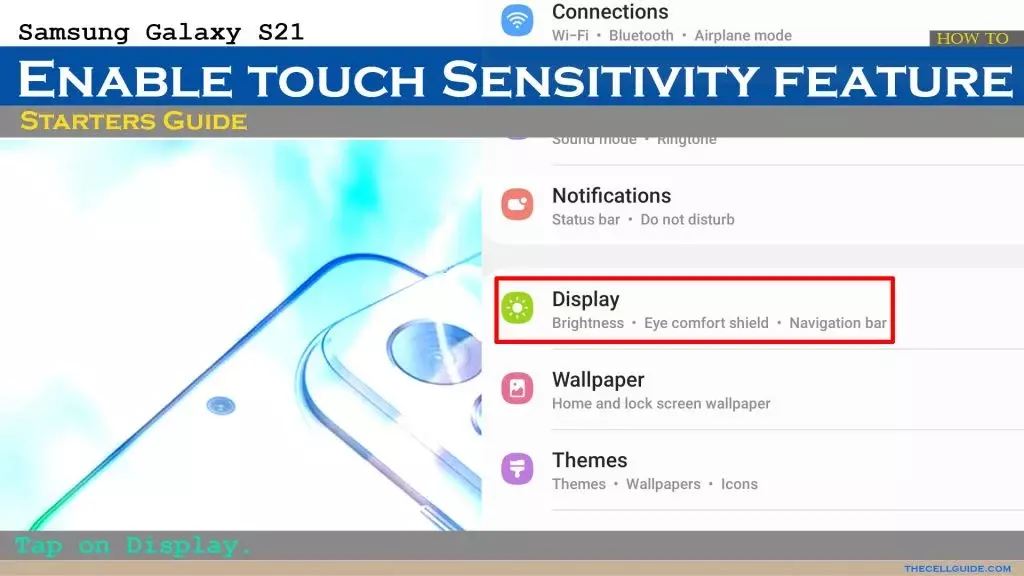
Open Settings on your Samsung phone.
Select Display and turn on the Touch sensitivity toggle.
Increase display refresh rate
Did you set your mobile device’s refresh rate to 60 Hz instead of 120 Hz? To increase the battery life of their phones, many people lower the panel refresh rate. Nevertheless, switching back to 60 Hz after being accustomed to a refresh rate of 120 Hz or greater can impair your experience with touch sensitivity. It’s time to switch your Android phone to a high refresh rate.
Open Settings and go to Display.
Turn on the Smooth display toggle.
Samsung phones
Samsung users can go through the steps below to increase the refresh rate.
Launch Settings and scroll to Display.
Select Motion smoothness.
Tap the radio button beside Adaptive.
If your LTPO (low-temperature polycrystalline oxide) display automatically adjusts the refresh rate, you can adjust the Developer settings to force the peak refresh rate, which will enhance the quality of your animations and touch responsiveness.
Increase pointer speed on Android
Do you notice lag while using a Bluetooth mouse on your Android phone or tablet? You can change the pointer speed and wheel scrolling speed from Settings.
Launch the Settings app and scroll to General management.
Select Mouse and trackpad.
Use the slider to increase the pointer speed and wheel scrolling speed.
We used screenshots from a Samsung phone. The steps may change on your Android, OnePlus, or Google Pixel phone. On some phones, it’s often a part of the accessibility menu.
Use a high-quality screen protector
Did you buy a screen protector from a sketchy Amazon listing? These below-average screen protectors often cause issues with touch sensitivity even when you increase the touch sensitivity from Settings.
You should stick to reputed names or opt for the official tempered glass from the OEM for your Android phone.
Use phone-compatible gloves
Traditional gloves don’t often play nice with modern smartphones. If your region has snowfalls during the winter, get a pair of gloves that are compatible with your smartphone.
Let your phone cool down
If you use your phone after a long gaming session or recording a lengthy 4K clip, the device temperatures go abnormally high, and you may face issues with touch sensitivity for a while. You may also notice lag with basic scrolling on the homescreen or the web page. Let your phone cool down and use it after some time has passed. The issue is more apparent on phones with poor cooling systems.
Can you use third-party apps to improve touchscreen response speed?
The Google Play Store is packed with third-party apps that claim to improve the touchscreen response speed and sensitivity of your screen during gaming. You should always take such apps with a pinch of salt. They also advertise calibrating the touchscreen to factory settings. Most of these apps are paid and may not work as expected. If you face this issue, get a refund from the Google Play Store.
Do you want to get creative with videos and crop them to share online? If so, you’ve come to the right place.
Let us show you how to edit a video on iPhone with just a few taps. And since this task only takes a few minutes to complete, you can create fun and exciting videos in no time!
All you need to do is follow our brief guide, and you’ll have the perfect cropped video in no time at all. So keep reading!
Navigating the Video Cropping Feature on iPhone
To crop a video on an iPhone, start by opening the Photos app. Select the video you wish to crop, and tap on it to open.
Next, click on ‘Edit’ found in the top right corner. Once you have entered the editing mode, you can select from the available editing features near the bottom of the screen.
Select ‘Crop’ and adjust the video framing to the desired size. After making your desired changes, click Done in the top right corner and save the changes.
Your cropped video is ready to be watched, shared, and more! To save the modified video, tap’ Done’ in the upper right corner, and the cropped video will be saved in your Camera Roll.
Tips on Adjusting Cropping Parameters
If you want to crop a video on an iPhone, these tips on adjusting cropping parameters can help you do so quickly and hassle-free.
To zoom in and out, use a two-finger pinch gesture on the video until it is framed as desired, then tap Done. If you want to adjust the size of the crop, tap the crop icon found in the upper-right corner of your iPhone’s screen and enter specific dimensions.
After you make your desired adjustment, tap Done.
Adding Text and Other Elements to Your Cropped Video
To add text and other elements to your cropped video, launch the iMovie or Clips app, select the video, and tap the ‘Text’ button.
Choose the desired type of text, enter the desired words, and tap ‘Done.’ You can also add image or video clips, stickers, background colors, and other elements. To move elements around, use the ‘Edit’ button.
When you’re happy with the look of your video, tap ‘Done’ to save your work.
Best Practices for Sharing Your Cropped Video
The best practices for sharing your cropped video include making sure the size of your frame corresponds to the platform where you want to share the video. For example, if you plan to upload to YouTube, your frame should be 16:9.
Additionally, pay attention to any guidelines for the length specified by the platform, and consider your audience. For example, it’s a good idea to include closed captions or subtitles if you plan to share your cropped video with a global audience.
You must also ensure the video file types are in the correct format. Usually, mp4 is the desired type. So be sure to use the best MP4 converter offerings for awesome results.
Finally, review the video one last time before sharing it to ensure you are happy with the final product.
Learn How to Crop a Video on iPhone Today
Cropping a video on an iPhone is incredibly easy to do just open your editing app, select the video you’d like to crop, and make your adjustments. Now that you know how to crop a video on iPhone, go ahead and give it a try!
Experiment with the different effects and get creative with your video projects!
With our very own, always-on virtual assistants in our pockets, a futuristic utopia where Google Assistant was created was meant to be a reality for everyone. But even the best technology occasionally fails to function in the real world. In this post, we’ve outlined a number of actions you can do if your phone’s “OK Google” or “Hey Google” voice command isn’t functioning. To learn more, scroll down!
Identify the problem
Sometimes a bothersome problem can be resolved without the need for extensive, laborious, complicated debugging efforts. Something extremely simple might be the answer. And that’s precisely what we’re aiming for here. Let’s start with a few simple ways to fix your “OK Google not working” problem before moving on to some of the more challenging ones.
Is Google Assistant is turned on?
You might be astonished to learn just how many individuals may have just disabled the Google Assistant feature and then wondered why it wasn’t working, despite how simple it may seem. If you frequently give your phone to your children, they may occasionally tinker with the settings and mistakenly disable Google Assistant (including the “OK Google” command). Make sure Google Assistant is turned on before even reading about basic troubleshooting procedures.
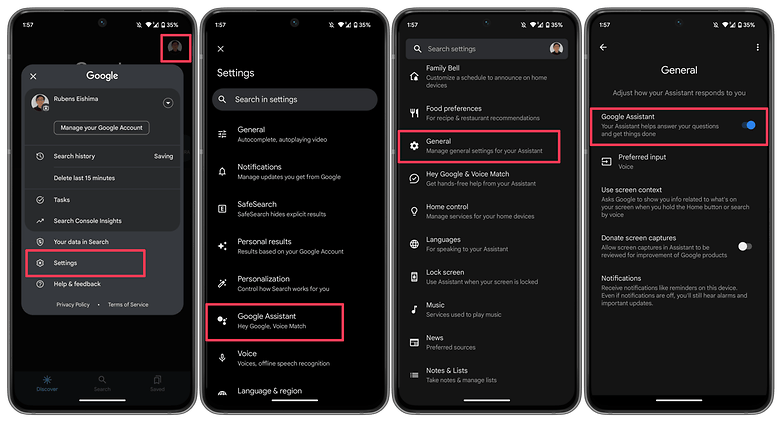
How to:
Launch the Google app on your phone.
Tap on your profile picture.
Select Settings.
Choose Google Assistant.
Tap on the General option.
Make sure that Google Assistant is enabled.
As an additional step, you may also want to check the following:
Follow steps 1 to 4 as mentioned above.
Select Hey Google & Voice Match.
Make sure the Hey Google option is enabled.
Make sure you’re connected to the Internet
Even though it may seem obvious, Google Assistant often requires a Wi-Fi or mobile data connection to work, so be sure your phone is connected before starting a search. Additionally, and this is arguably the oldest piece of wisdom in the book, it never hurts to run a quick reboot because magic can happen there from time to time!
Check if you’re not alone
It’s always good to know if the problem you’re facing is affecting just you and nobody else. There have been occasions when people noticed that the problem is on Google’s side rather than theirs. Check Twitter, Reddit, and Google’s support forums to see if other users are complaining about ‘OK Google’ not working or that ‘Google Voice’ is not working as it should. You can also try searching for a solution using the term ‘Google assistant not working.’
Check your language settings
Checking your phone’s language settings has proven to be a reliable solution for many people who experience the dreaded “Ok Google not working” problem. What if it transpires that the only reason Google Assistant isn’t responding to you is that you’re using the incorrect language when you speak to it?
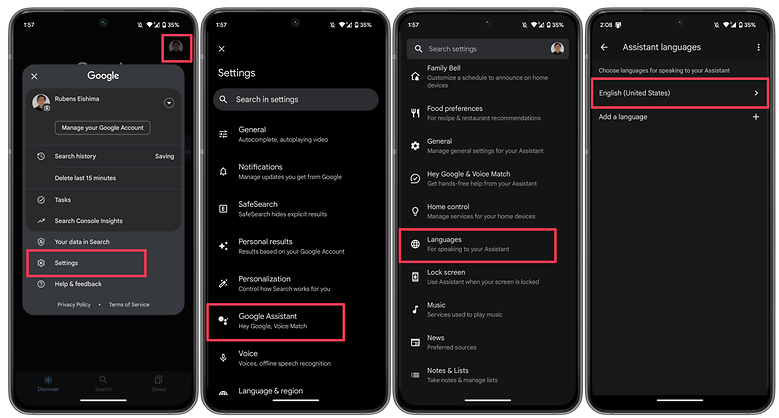
Note that US English will be the default language for many users, but it’s still worth checking in the Settings menu and making the necessary changes as required. To do this, perform the following steps:
Launch the Google app on your phone.
Tap on your profile picture.
Select Settings.
Choose Google Assistant.
Tap on Languages.
Select the first option to change the main language, or add a new language.
This same menu can show you dozens of language options, each one with a checkbox, allowing you to set primary and secondary languages if desired. Google will automatically detect which language you’re speaking and automatically switch between them. If you’re multilingual, be warned that voice recognition for languages other than English can sometimes be subpar.
Check microphone
Google Assistant depends on constant access to your smartphone’s microphone because it is a voice-based technology. The microphone symbol on the right side of the search bar should be bold and have well-defined lines when you first open the Google app. If there is a dotted line, your microphone might be malfunctioning.
If you carefully dig about with a safety pin or something similar to clear the debris in the tiny microphone hole, which is frequently located near to the charging port, you should be able to resolve the issue. Check the Google app’s microphone settings if that doesn’t work.
Occasionally, apps running in the background generate audio that may interfere with the microphone’s ability to pick up your voice, so check these too, and kill any apps that you think can be generating audio.
Turn off battery saver mode
To ensure you get the most life out of the battery, Android smartphones have a specific power-saving mode that shuts off background processes. Your Google Assistant (and the OK Google command) ceasing to function as a result is an unforeseen effect of this. Before you point the finger at anything else for OK Google not working, it is a good idea to make sure that the battery-saving mode on your phone is turned on.
On stock Android, you can check if the Battery saver option is enabled by taking these steps.
Launch the Settings app.
Scroll down and select Battery.
Choose the Battery Saver option.
Disable the UseBattery Saver option.
On other Android skins, the same option may appear under a different name, i.e. Adaptive Battery.
Update the Google app to the latest version
One possible fix to your OK Google problem is to ensure that your smartphone is running the latest version of the Google App. Here’s how you can make sure you’re on the newest version of the app.
On your smartphone, launch the Google Play Store.
Search for the Google app.
On the Google app page, check whether there is an option to Update instead of Uninstall.
Update the app by selecting Update to see whether the issue is resolved.
6. Retrain the “Ok Google” voice model
Sometimes, for reasons unknown, Google Assistant doesn’t retain the commands you have given it. If all else fails, it might be time to retrain your digital companion. Here’s how you can do so.
Launch the Google app.
Tap on your profile picture.
Select Settings.
Choose Hey Google & Voice Match.
Select Voice Model.
Tap on Retrain voice model and follow the on-screen instructions.
Now that you have reached the end of this article, do let us know if these steps helped you resolve the issue. Additionally, do let us know if we have missed any useful fixes.
ADB is a command-line tool that makes it easier for your Android smartphone and a PC to communicate. The tool has many more applications besides only rooting and updating Android ROMs (more on this later).
The traditional method for using ADB entails connecting your Android device to the Desktop through USB. But there is an alternative. Let’s examine at some wireless ADB usage options.
Set up ADB
You can skip this step if ADB has previously been configured on your Android and PC. If you haven’t, remember that everything is new to you!
You must first download and unzip the Android SDK Platform Tools from the Android developer website before you can use ADB on your machine.
By executing the command: brew install homebrew/cask/android-platform-tools, Mac users can use Homebrew to install ADB.
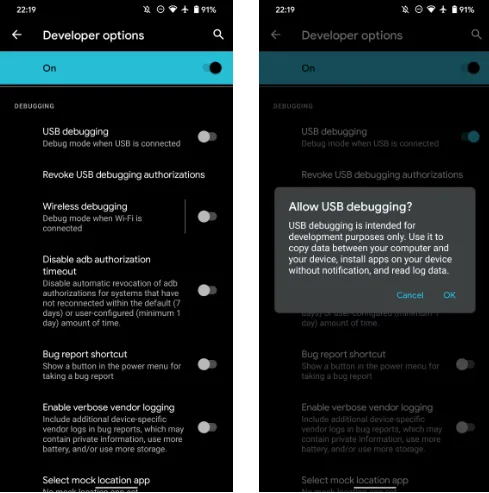
Before you may connect your Android smartphone using ADB, you must first enable USB debugging in the developer settings.
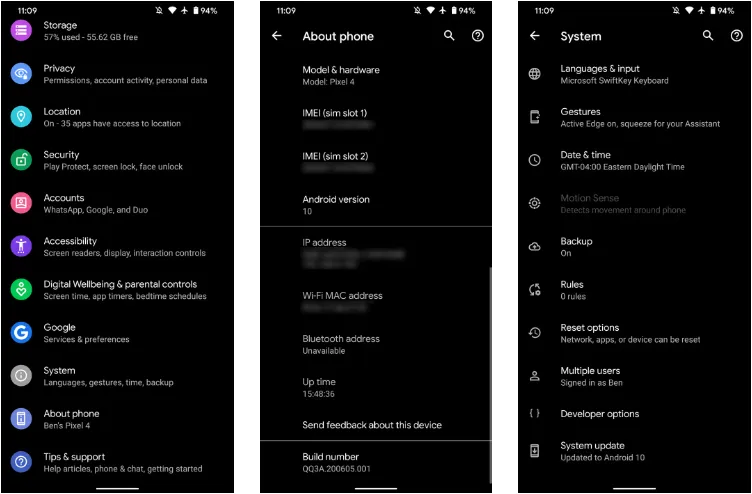
Go to Settings > About phone then tap on the Build number several times. Once again, go to Settings > Developer options, then toggle on USB debugging.
Once that is finished, use a USB cord to connect the Android device to your Desktop. You must utilize a cable initially even though we’re going to set up a wireless connection. The USB debugging prompt that will display on your Android device should always be accepted.
Open the command line or Terminal and navigate to the Platform Tools folder.
If you’re on Windows, you can head to the downloaded Platform Tools folder and open the PowerShell window by pressing Shift and right-clicking anywhere in the folder, and selecting Open PowerShell Window here. On a Mac, open the Platform Tools folder and go to Finder > Services > New Terminal at Folder.
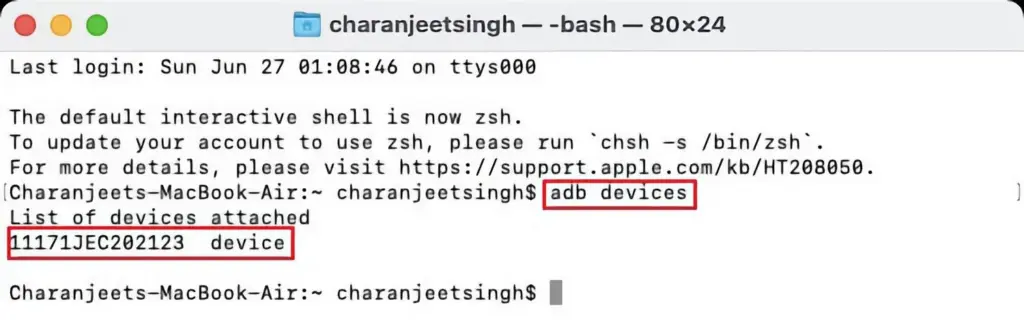
If you’re using Windows, use the command adb devices into the command prompt. All instructions should be prefixed by a dot-slash on Linux and Mac, so it would be./adb devices.
You should be able to find your device’s serial number in the list of attached devices if everything functions as it should.
How to use Android wireless ADB
The main topic at hand right now is how to connect your Android smartphone wirelessly to an ADB server. To use ADB wirelessly after configuring it and connecting your Android device to your PC, follow the instructions below.
Type adb tcpip 5555 in the command line or Terminal and press Enter.
Find your phone’s IP address in Settings > About Phone > Status > IP Address.
Back in the command line or Terminal, type adb connect [your Android device’s IP address].
Finally, press Enter again.
The Android device should now be connected to ADB over a wireless connection. You can safely remove the USB cable.
Is wireless ADB not working?
Try installing Minimal ADB and Fastboot from the XDA Forums if your Android device won’t connect to Windows using ADB (you are getting errors in the command line). The required Android drivers are installed by this package, which may also assist you in fixing any command line issues.
You can also utilize WebADB, which transfers all of ADB’s capabilities to your web browser. You can use the online tool to use ADB via Wi-Fi. In other words, you can completely forego installing ADB.
What is ADB used for?
The idea that Android ADB is solely helpful when rooting Android is a common one. It, however, is merely one of the several uses for the Android Debug Bridge.
For example, you can use an ADB command to delete pre-installed apps from your Android device that is not rooted. Unwanted apps may be tough to remove from some Android cellphones, but ADB can assist.
Without needing to root your device, you may also mirror your Android screen to a Desktop using the command line utility. This can be done using the free program Scrcpy. The tool’s wireless ADB connection results in extremely fantastic performance.
Is safe to use?
Using the utility won’t be a problem if you are familiar with ADB commands. There are risks involved with using ADB, especially if you are new to this field. If you are trying to root your device, using the incorrect commands could result in problems or, at worse, brick your phone.
Although your Android smartphone won’t have any problems once you set up wireless ADB, you should always keep a backup of your data in the cloud or on an external storage device as a safety measure.
No cables anymore
Although though you first require a USB cord to set up ADB, the ability to utilize it wirelessly is incredibly useful. It allows you to walk around more freely while you work, allows you to simultaneously charge your phone at full speed, and is just much more practical in general. It’s definitely worth a go if you use ADB.
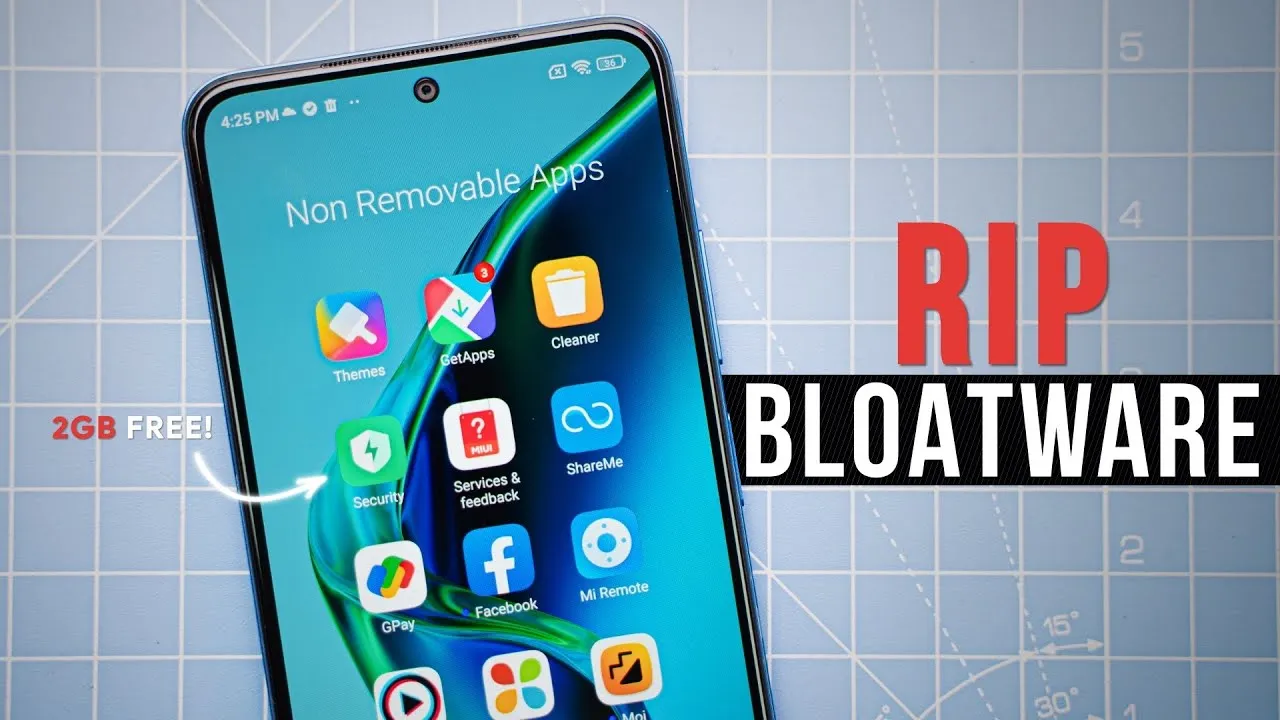
Bloatware is an awful phenomenon that millions of consumers encounter in the broad world of Android smartphones. The term “Android bloatware” describes the pre-installed applications that come with a new device and take up important storage space and system resources.
This article discusses the idea of “bloatware,” considers its ramifications, and investigates solutions to lessen its negative effects on the Android experience.
What is bloatware?
Bloatware is a term used to describe a variety of unwanted apps that customers may find redundant or superfluous and is frequently installed by device manufacturers or carriers. These apps could include demo versions of purchased software, carrier brand apps, and utilities tailored to particular manufacturers.
While some of the pre-installed apps may be beneficial, a large number are rarely used, clutter the device, and suck up resources. Bloatware installation is frequently motivated primarily by financial gain because app developers may pay device makers and carriers to include their programs.
Implications and Challenges
Bloatware’s presence can affect Android users in a variety of ways. First of all, it limits the amount of storage space that is available on a device, making it harder for users to install and save their favourite media and programs. Second, these undesirable programs might operate in the background, using up system resources, drained battery life, and possibly impairing device performance. Bloatware can also compromise user security and privacy since some pre-installed apps may gather private information or have security flaws that could be used by hackers. Last but not least, bloatware frequently can’t be removed, which frustrates consumers and prevents them from taking back control of their devices.
Bloatware impact
While completely eradicating bloatware without rooting the device is difficult (doing so can violate warranties and present security issues), there are a few tactics that can be used to lessen its negative effects. The first option is for users to disable or conceal unneeded apps in their device settings. This operation saves system resources by preventing the programs from running in the background and clogging up the app drawer. Second, using third-party app managers or cleaners can help with bloatware identification and removal, but caution must be used to prevent mistakenly uninstalling crucial system components.
Consider buying unlocked gadgets straight from manufacturers as an alternative strategy. These gadgets frequently have a cleaner Android experience and are devoid of carrier-specific software. Additionally, bloatware-free experiences can be had with custom ROMs and alternative firmware, like LineageOS, but these options call for technical know-how and may not be acceptable for all users.
Android debloater
he main goal is to improve battery performance and privacy by removing unnecessary and obscure system apps. This can also contribute to improve security by reducing the attack surface.
Packages are as well documented as possible in order to provide a better understanding of what you can delete or not. The worst thing which could happen is removing an essential system package needed during boot causing then an unfortunate bootloop. After about 5 failed system boots, the phone will automatically reboot in recovery mode and you’ll have to perform a FACTORY RESET. So make a backup first!
In any case, you can NOT brick your device with this script ! That’s the main thing, right ?
Features
Uninstall/Disable and Restore/Enable system packages
Multi-user support (e.g apps in work profiles)
Export/Import your selection in uad_exported_selection.txt
Multi-device support: you can connect multiple phones at the same time
All your actions are logged so you never forget what you’ve done
NB : System apps cannot really be uninstalled without root (see the FAQ)
Universal debloat lists
GFAM (Google/Facebook/Amazon/Microsoft)
AOSP
Manufacturers (OEM)
Mobile carriers
Qualcomm / Mediatek / Miscellaneous
Manufacturers debloat lists
Asus
LG
Google
Fairphone
Huawei
Motorola
Nokia
OnePlus
Oppo
Samsung
Sony
Xiaomi
Mobile carriers debloat lists
French carriers: SFR / Orange / Free / Bouygues
US carriers: T-mobile / Verizon / AT&T / Sprint
German carriers: Telekom
UK: EE
How to use
Enable Developer Options on your smartphone.
Turn on USB Debugging from the developer panel.
From the settings, disconnect from any OEM accounts (when you delete an OEM account package it could lock you on the lockscreen because the phone can’t associate your identity anymore)
Download the latest release of UAD GUI for your Operating System here. Take the opengl version only if the default version (with a Vulkan backend) doesn’t launch.
NOTE: Chinese phones users may need to use the AOSP list for removing some stock apps because those Chinese manufacturers (especially Xiaomi and Huawei) have been using the name of AOSP packages for their own (modified & closed-source) apps.
IMPORTANT NOTE: You will have to run this software whenever your OEM pushes an update to your phone as some uninstalled system apps could be reinstalled.
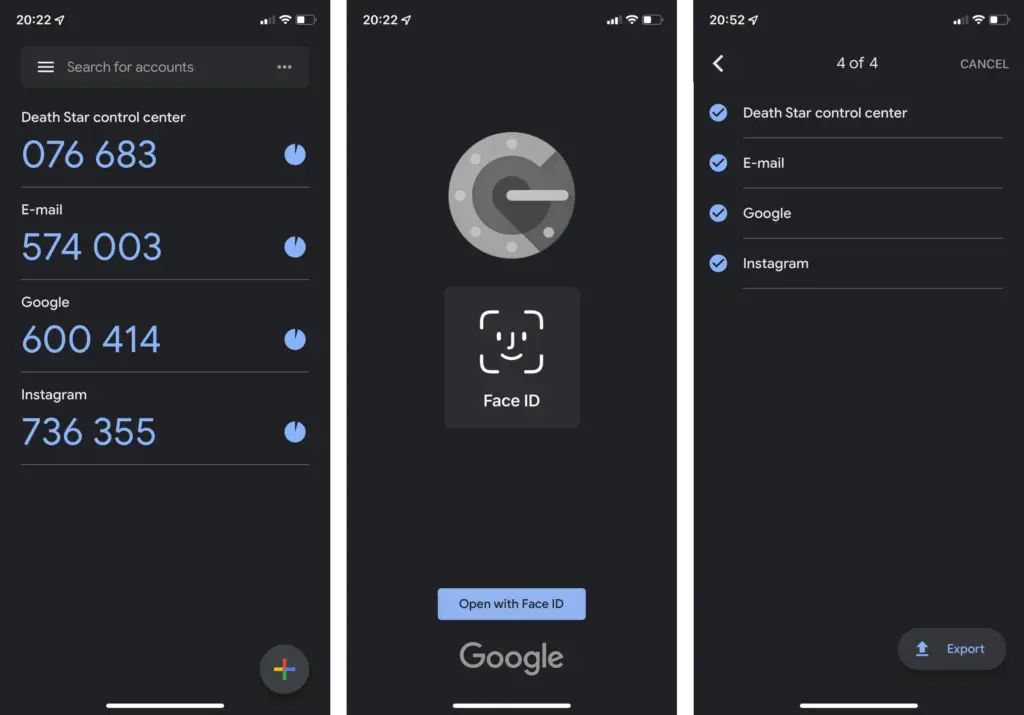
One of the easiest methods to increase the security of your user accounts is by using Google Authenticator. The ability to synchronize the 2FA generation between phones using the Google Account was recently enabled. Find out how to do it in the following stages.
Up until recently, it was not able to automatically synchronize the token creation between devices, which was one of the biggest drawbacks of utilizing Google Authenticator. Accounts in the app could be manually exported and imported, but users could momentarily lose access to their accounts if their phone was stolen or misplaced.
Synchronize 2FA codes between phones on Google Authenticator
The new automatic syncing relies on the Google Account associated with the device but is optional in case you don’t want to have your security codes synced on Google’s servers—especially since Google doesn’t enforce another type of confirmation before syncing as Authy does. Having said that here is how you start syncing 2FA tokens using Google Authenticator:
Update or install Google Authenticator (Android | iOS).
On the “Welcome” screen, select the Google account used to synchronize 2FAs.
If you skipped the account selection during the first run, activating syncing is as simple as switching an account on any other Google app:
Tap on the profile logo in the top right corner.
Select the Google Account to synchronize 2FA.
When the 2FA codes are synced with the Google Account, it is indicated in both instances by the green cloud icon in the top right corner. Simply choose the same Google account the next time you open Google Authenticator on a new phone to enable the 2FA generators.
How to stop syncing 2FA online on Google Authenticator
If you want to stop syncing code generation in the Google Authenticator, the steps are similar:
Tap on the profile picture in the top right corner.
Select Use without an account.
Confirm the action by tapping on the Continue button.
Tech companies are slowly starting to implement Passkeys to replace passwords and 2FAs, but two-factor authentication is not going away anytime soon apparently, with even fewer services supporting the new security standard.