Category: Guides

Expert Android guides that help you master phones, apps, operating systems and wearables with clear, step‑by‑step advice for real‑life use.

  • Download and install Magisk v25.2

    Download and install Magisk v25.2

    One of the most popular ways to root an Android device is with Magisk. SuperSU was formerly the go-to exploit for rooting Android devices, stock firmware, and customized ROMS.

    Magisk, on the other hand, is a much more sophisticated and experienced rooting tool now than it was in the past. Along with enabling systemless root access on Android, some of the features include compatibility for third-party modules, Google’s SafetyNet bypass, and MagiskHide for avoiding root detection.

    There are modules for theming, ad blocking, activating Camera2API, and many other system-level changes you can’t make otherwise. Try out this tool if you’re a power user who wants to increase the usefulness of your phone and push it to its limits. If all of this sounds like fun to you, we’ll explain how to install on your Android device so you can personalize it and perform tasks you never imagined you could perform on your phone.

    magisk app root

    Download version 25.2

    Following are the direct download links right from the Github repository of the project.

    Full downloads repository:

    Use either the stable or beta and flash it via TWRP recovery to root Android devices.

    Installation

    If you already have it installed, it is strongly recommended to upgrade directly via the app using its “Direct Install” method. The following tutorial is only for the initial installation.

    Getting Started

    Before you start:

    • This tutorial assumes you understand how to use adb and fastboot
    • If you plan to also install custom kernels, install it after Magisk
    • Your device’s bootloader has to be unlocked

    Download and install the latest Magisk app. In the home screen, you should see:
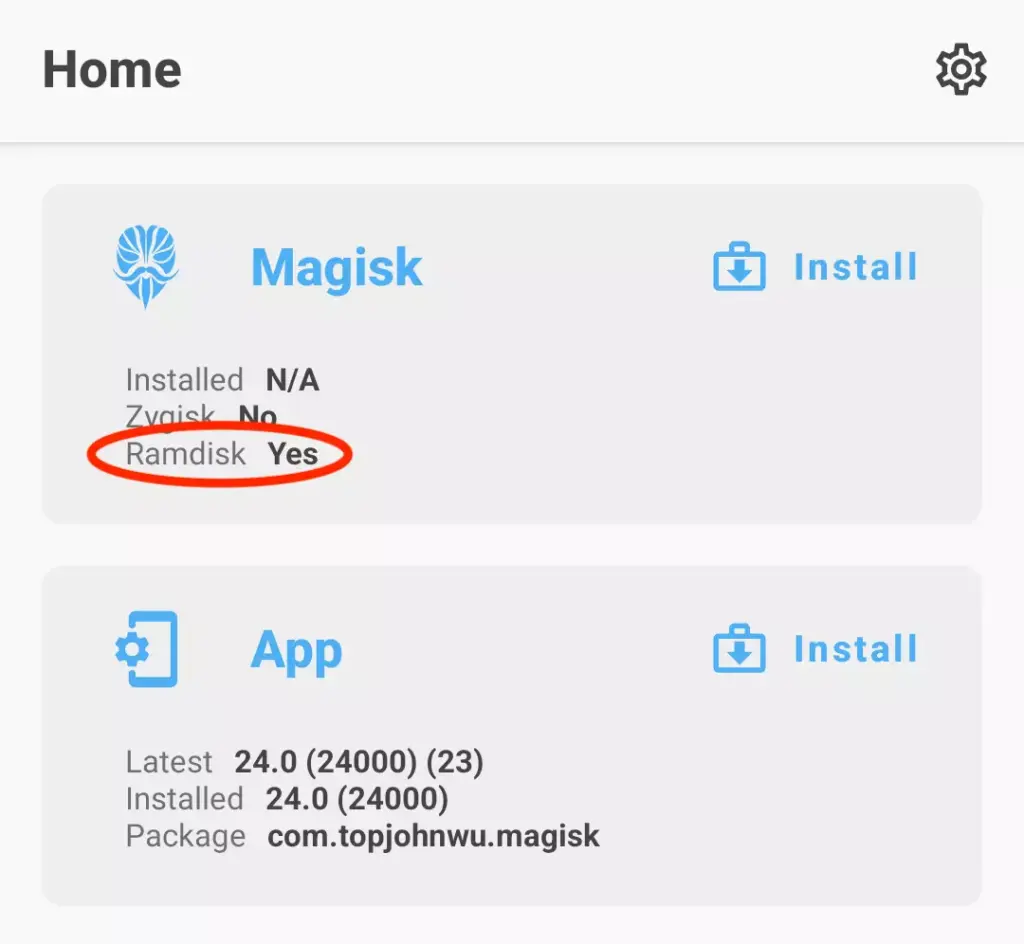
    install magisk

    The result of Ramdisk determines whether your device has ramdisk in the boot partition. If your device does not have boot ramdisk, read the Magisk in Recovery section before continuing.

    (Unfortunately, there are exceptions as some devices’ bootloader accepts ramdisk even if it shouldn’t. In this case, you will have to follow the instructions as if your device’s boot partition does include ramdisk. There is no way to detect this, so the only way to know for sure is to actually try. Fortunately, as far as we know, only some Xiaomi devices are known to have this property, so most people can simply ignore this piece of information.)

    If you are using a Samsung device that is launched with Android 9.0 or higher, you can now jump to its own section.

    If your device has boot ramdisk, get a copy of the boot.img.
    If your device does NOT have boot ramdisk, get a copy of the recovery.img.
    You should be able to extract the file you need from official firmware packages or your custom ROM zip.

    Next, we need to know whether your device has a separate vbmeta partition.

    • If your official firmware package contains vbmeta.img, then yes, your device has a separate vbmeta partition
    • You can also check by connecting your device to a PC and run the command:
      adb shell ls -l /dev/block/by-name
    • If you find vbmetavbmeta_a, or vbmeta_b, then yes, your device has a separate vbmeta partition
    • Otherwise, your device does not have a separate vbmeta partition.

    Quick recap, at this point, you should have known and prepared:

    1. Whether your device has boot ramdisk
    2. Whether your device has a separate vbmeta partition
    3. boot.img or recovery.img based on (1)

    Let’s continue to Patching Images.

    Patching Images

    • Copy the boot/recovery image to your device
    • Press the Install button in the Magisk card
    • If you are patching a recovery image, check the “Recovery Mode” option
    • If your device does NOT have a separate vbmeta partition, check the “Patch vbmeta in boot image” option
    • Choose “Select and Patch a File” in method, and select the boot/recovery image
    • Start the installation, and copy the patched image to your PC using ADB:
      adb pull /sdcard/Download/magisk_patched_[random_strings].img
    • Flash the patched boot/recovery image to your device.
      For most devices, reboot into fastboot mode and flash with command:
      fastboot flash boot /path/to/magisk_patched.img or
      fastboot flash recovery /path/to/magisk_patched.img
    • (Optional) If your device has a separate vbmeta partition, you can patch the vbmeta partition with command:
      fastboot flash vbmeta --disable-verity --disable-verification vbmeta.img
    • Reboot and voila!

    Uninstallation

    The easiest way to uninstall it is directly through the app. If you insist on using custom recoveries, rename the Magisk APK to uninstall.zip and flash it like any other ordinary flashable zip.

    Magisk in Recovery

    In the case when your device does not have ramdisk in boot images, it has no choice but to hijack the recovery partition. For these devices, you will have to reboot to recovery every time you want root enabled.

    When it hijacks the recovery, there is a special mechanism to allow you to actually boot into recovery mode. Each device model has its own key combo to boot into recovery, as an example for Galaxy S10 it is (Power + Bixby + Volume Up). A quick search online should easily get you this info. As soon as you press the key combo and the device vibrates with a splash screen, release all buttons to boot into recovery. If you decide to boot into the actual recovery mode, long press volume up until you see the recovery screen.

    As a summary, after installing it in recovery (starting from power off):

    • (Power up normally) → (System with NO Magisk)
    • (Recovery Key Combo) → (Splash screen) → (Release all buttons) → (System with Magisk)
    • (Recovery Key Combo) → (Splash screen) → (Long press volume up) → (Recovery Mode)

    (Note: You CANNOT use custom recoveries to install or upgrade in this case!!)

    Samsung (System-as-root)

    If your Samsung device is NOT launched with Android 9.0 or higher, you are reading the wrong section.

    Before Installing

    • Installing Magisk WILL trip KNOX
    • Installing Magisk for the first time REQUIRES a full data wipe (this is NOT counting the data wipe when unlocking bootloader). Backup your data before continue.
    • Download Odin (only runs on Windows) that supports your device.

    Unlocking Bootloader

    Unlocking the bootloader on modern Samsung devices have some caveats. The newly introduced VaultKeeper service will make the bootloader reject any unofficial partitions in some circumstances.

    • Allow bootloader unlocking in Developer options → OEM unlocking
    • Reboot to download mode: power off your device and press the download mode key combo for your device
    • Long press volume up to unlock the bootloader. This will wipe your data and automatically reboot.
    • Go through the initial setup. Skip through all the steps since data will be wiped again in later steps. Connect the device to Internet during the setup.
    • Enable developer options, and confirm that the OEM unlocking option exists and is grayed out. This means the VaultKeeper service has unleashed the bootloader.
    • Your bootloader now accepts unofficial images in download mode

    Instructions

    • Use either samfirm.jsFrija, or Samloader to download the latest firmware zip of your device directly from Samsung servers.
    • Unzip the firmware and copy the AP tar file to your device. It is normally named as AP_[device_model_sw_ver].tar.md5
    • Press the Install button in the Magisk card
    • If your device does NOT have boot ramdisk, check the “Recovery Mode” option
    • Choose “Select and Patch a File” in method, and select the AP tar file
    • Start the installation, and copy the patched tar file to your PC using ADB:
      adb pull /sdcard/Download/magisk_patched_[random_strings].tar
      DO NOT USE MTP as it is known to corrupt large files.
    • Reboot to download mode. Open Odin on your PC, and flash magisk_patched.tar as AP, together with BLCP, and CSC (NOT HOME_CSC because we want to wipe data) from the original firmware.
    • Your device should reboot automatically once Odin finished flashing. Agree to do a factory reset if asked.
    • If your device does NOT have boot ramdisk, reboot to recovery now to enable it.
    • Install the app you’ve already downloaded and launch the app. It should show a dialog asking for additional setup.
    • Let the app do its job and automatically reboot the device. Voila!

    Upgrading the OS

    Once you have rooted your Samsung device, you can no longer upgrade your Android OS through OTA. To upgrade your device’s OS, you have to manually download the new firmware zip file and go through the same AP patching process written in the previous section. The only difference here is in the Odin flashing step: do NOT use the CSC tar, but instead use the HOME_CSC tar as we are performing an upgrade, not the initial install.

    Important Notes

    • Never, ever try to restore either bootrecovery, or vbmeta partitions back to stock! You can brick your device by doing so, and the only way to recover from this is to do a full Odin restore with data wipe.
    • To upgrade your device with a new firmware, NEVER directly use the stock AP tar file with reasons mentioned above. Always patch AP in the app and use that instead.
    • Never just flash only AP, or else Odin may shrink your /data filesystem size. Flash AP + BL + CP + HOME_CSC when upgrading.

    Custom Recovery

    This installation method is deprecated and is maintained with minimum effort. YOU HAVE BEEN WARNED!

    Installing using custom recoveries is only possible if your device has boot ramdisk. Installing through custom recoveries on modern devices is no longer recommended. If you face any issues, please use the proper Patch Image method.

    • Download the the APK
    • Rename the .apk file extension to .zip, for example: Magisk-v24.0.apk → Magisk-v24.0.zip. If you have trouble renaming the file extension (like on Windows), use a file manager on Android or the one included in TWRP to rename the file.
    • Flash the zip just like any other ordinary flashable zip.
    • Reboot and check whether the Magisk app is installed. If it isn’t installed automatically, manually install the APK.

    Warning: the sepolicy.rule file of modules may be stored in the cache partition. DO NOT WIPE THE CACHE PARTITION.

    Changelog

    v25.2

    • [MagiskInit] Fix a potential issue when stub cpio is used
    • [MagiskInit] Fix reboot to recovery when stub cpio is used
    • [MagiskInit] Fix sepolicy.rules symlink for rootfs devices
    • [General] Better data encryption detection
    • [General] Move the whole logging infrastructure into Rust

    v25.1

    • [MagiskBoot] Fix ramdisk backup being incorrectly skipped
    • [MagiskBoot] Add new feature to detect unsupported dtb and abort during installation
    • [Zygisk] Change binary hijack paths
    • [App] Fix incorrect recovery mode detection and installation
    • [MagiskInit] Fix config not properly exported in legacy SAR devices
    • [General] Enforce the Magisk app to always match or be newer than magiskd

  • How to level up fast in Diablo Immortal – August, 2022

    How to level up fast in Diablo Immortal – August, 2022

    Despite its incredibly aggressive microtransaction strategies, Diablo Immortal is a pleasant free-to-play game that allows for speedy leveling without spending any money. This tutorial seeks to put out in front of you how you can level up quickly if you’re considering about playing the game or have already begun playing.

    After playing Diablo Immortal for a long time, we have discovered several incredibly simple methods for fast leveling up your character. However, keep in mind that in order to see benefits, you will probably need to play consistently. If you don’t want to spend any money, that is. Alternatively, you don’t want to spend anything more than the battle pass (which we do recommend you pick up).

    In Diablo Immortal, you have plenty of content in the campaign to get you through those early levels. But there are lots of other ways to earn xp. And we’re going to break it all down for you.

    Battle pass

    We’re going to start out by advising grinding the fight pass. You can acquire the xp without purchasing the $5 pass. Nevertheless, it will bring about additional benefits.

    You must carry out specific duties in order to grind the battle pass, whether it is the enhanced version or the free version. Additionally, you must first proceed through the game to acquire the battle pass.

    You should reach level 15-20 after completing the game’s campaign, at which point you’ll need to complete the Ashwold Cemetery and Ashwold Manor questlines. After that, you ought to receive a notification stating that the battle pass is now available.

    Tap on the codex to find the combat pass and the associated tasks or activities. Additionally, we advise you to save your battle pass achievements after battle pass rank 10 for use in later levels. These can yield a significant amount of experience points, and between 35 and 45, you’ll experience some slowdowns. For the campaign to continue, having battle pass tasks to do can close the level disparity.

    Naturally, leveling up by merely completing the campaign is fantastic and will initially be the simplest method. at least throughout the game’s earliest stages. Leveling through the campaign will slow significantly as you reach levels 30-35. At this moment, we advise you to

    Join a faction

    diablo join faction

    There are two primary factions in Diablo Immortal. The Immortals and the Shadows. After reaching level 30, you should be able to access the introduction to these factions, at which point you can follow a questline to join one of them. We’re going to utilize Shadows as the example in this case since we chose them.

    You can engage in Shadow Contracts and a variety of other activities for the Shadow faction once you join. Initially, you have access to three Shadow Contracts, but you will soon only be allowed to use one per day. Make sure you perform these as frequently as you can because they provide a lot of experience points.

    Daily bounties

    diablo dayli bounties

    The daily bounties in Diablo Immortal are another option to level up quickly. These unlock shortly after landing in Westmarch and are accessible before the faction opportunities. In reality, exploring Westmarch and being familiar with the various items you can interact with there will be a component of the primary questline.

    The bounty board will be one of these. Once you locate it, return there each time you log in to complete the rewards that are at your disposal. If a day is missed, there will be four more bounties for you to complete the next time. These may stack in an aggregate of 24. Therefore, even if you miss a whole work week of gaming, you may easily complete all 24 in a single day the following time you log on.

    Bounties not only award you with experience points but also frequently contain legendary items that you can disassemble for raw materials. You can get gold as a reward through bounties. There are several reasons to carry out these activities beyond xp for leveling.

    Dungeons and raids

    diablo immortal update adds new raid boss fixes a ton of bugs main

    Some of the tasks in the battle pass section of the codex require you to finish dungeons or raids. Additionally, a brand-new activity that offers double experience points will be added each day. These might occasionally be dungeons, but they won’t always be. You can run dungeons endlessly on those days to earn double experience points.

    Additionally, you have a chance to receive some quality item drops. However, we do advise going in in a group because the opponents will be tougher and you’ll get more experience points from killing them and finishing the dungeons. Fortunately, Diablo Immortal’s dungeons contain a party finder mechanic that makes it simple to locate other players that share your goals.

    Beastiary pages

    diablo immortal bestiary 1024x712 1

    The Beastiary pages are our final suggestion for fantastic xp rewards. You need to gather monster essence to finish a Beastiary page. which you will at random acquire as you eliminate adversaries throughout the world, including demons.

    Since you’ll be killing adversaries while performing bounties and contracts, this is a wonderful way to gain experience points. In addition, you are slaying opponents in rifts, dungeons, and pretty much all other stuff. Consequently, be sure to seize the monster essence as soon as you see it. Once you have collected ten of them, you can exchange them at the Beastiary, which is located in each zone’s central hub.

    The Beastiary is also one of the best chances to earn legendary gear drops. So there’s another bonus on top of earning xp. And the better your gear, the faster you can complete the game’s various activities. If you haven’t checked out Diablo Immortal yet, you can grab it on Google Play, iOS, or on PC through the Battle.net launcher.

    Run Elder Rifts

    elder rift UI

    Elder Rifts are yet another fantastic opportunity to level up and acquire some experience points. You won’t have to spend a lot of time on each one because they are all quite short and easy to finish. Additionally, as you acquire uncommon crests and the admittedly meager number of legendary crests that don’t cost any money, you can use these to upgrade your rewards in addition to the experience you receive from eliminating all those monsters.

  • How to store your Covid-19 pass in Samsung Wallet

    How to store your Covid-19 pass in Samsung Wallet

    For Galaxy devices, the Samsung Wallet is the ideal way to save all of your credit cards, loyalty cards, and other cards in one location. However, did you know that you may save your immunization record here as well? You can see how it functions in this brief tutorial from Droid Tools.

    If you frequently travel, you are aware of the problem: Each nation on the planet, and even certain states, has its own method for showing the status of vaccinations on mobile devices. Particularly if you currently use wallet apps to store credit card information and the like, practical solutions for keeping immunization passes include Samsung Wallet. Let me quickly go over everything you need to do.

    samsung wallet covid pass
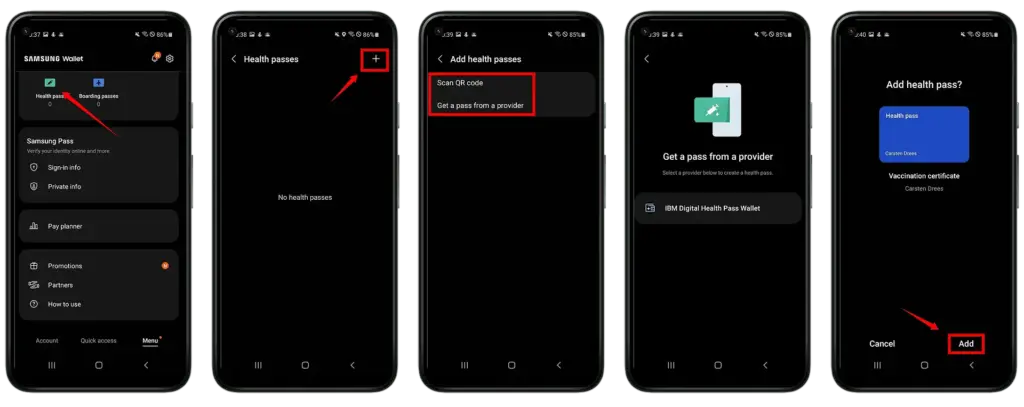
    1. Open Samsung Wallet.
    2. Tap on Health Pass.
    3. Tap the plus sign in the upper right corner.
    4. Then select whether you want to scan a QR code or receive a pass from a provider. (The latter currently only works with the IBM Digital Health Pass Wallet).
    5. Scan the QR code of your proof of vaccination, or select a screenshot of the code.
    6. Confirm the process at the bottom right by clicking Add.

    That’s it! From now on, all you need is the Samsung Wallet app to prove your vaccination status. If you open the Health Passport there, the QR code is displayed together with your name, date of birth and vaccination history.

  • Debloat any Huawei device using ADB

    Debloat any Huawei device using ADB

    Bloatware consumes storage on your smartphone. The worst part is that you can’t immediately uninstall them from your Huawei smartphone; they go by the name of tools. This bloatware typically comes preinstalled on your device. However, occasionally they do originate from different places, such as downloading dangerous links or third-party apps. Here is a simple tutorial on how to use ADB commands to debloat or remove bloatware from Huawei.

    You must be sick and tired of the bloatware that comes pre-installed on your Huawei smartphones. And as you would have guessed, the majority of them serve no purpose other than to promote Huawei and occasionally steal your data.

    debloat huawei devices

    Why You Should Remove Bloatware Apps

    Bloatware is generally in your device to consume a lot of valuable resources, including battery juice. While it is running in the background of your device, it affects your device’s performance. It could fill your lock screen with Ads, or even your internet browser.

    How To Debloat Or Remove Bloatware From Huawei Using ADB

    Below mentioned steps are there to help you in removing the bloatware from the device. You need to follow these steps very thoroughly and successfully remove the bloatware from the device.

    Step 1: Download and install Android SDK

    The baby step toward this guide is to download the Android SDK tool from this link. This is the official tool provided by Google. The Android SDK tool is a software development kit used to develop Android applications.

    Here is how you can install the Android SDK platform Packages and tool

    • Start the Android Studio
    • Select Configure>SDK Manager
    • In the default setting dialog box, click these tabs to install Android SDK platform packages.
    • Click apply and then click OK.

    Or you can just download it directly from this link.

    Step 2: Enable USB debugging

    The next step is making your device readable by the ADB software to make changes in the ADB mode. Head on to the settings>about and enable developer mode by tapping on the build number seven times.

    Your smartphone’s developer option will be turned on.

    Now go to Settings > System > Advanced > Developer Option, scroll down and look for the USB debugging and turn it on.

    Step 3: Make sure to establish the ADB shell Connection

    The ADB command does a variety of device actions, such as installing and debugging an App and when you are about to debloat your smartphone from all the bloatware preset, Establishing an ADB shell connection is a must; here is how you can do it.

    Advertisements

    • Connect your smartphone with the PC using the USB cable.
    • Now look for the platform tool folder in the Android Studio SDK manager, in the path android_sdk/platform-tools
    • In the platform tool folder, launch the Command Prompt, by typing the CMD in the address bar
    • Now type “adb devices” in the command window to verify the ADB connection.
    • You will get the device ID (If not, try again with correct spellings). Now type “adb shell” to establish the shell environment.
    • Your device codename will be listed, which means the shell connection is established.

    Step 4: Type in the ADB commands to remove bloatware from Huawei phone

    Now you can start removing bloatware apps from your device follow the below commands.

    Type “pm list packages” in the command line. This will give the list of all the available packages and apps on your Huawei device.

    Type “pm uninstall – –user 0 PackagenName” command for removing the bloatware from the Huawei device, the command is generic.

    Advertisement

    You can replace the PackageName with the actual package name. If you want to uninstall the Huawei stock app market, just type in “pm uninstall – –user 0 com.Huawei.appmarket” to uninstall the app market application.

    List of Huawei Bloatware Packages

    Below is the list of all the packages in your Huawei phone in the form of bloatware. You can remove all these applications and packages by just typing the package name.

    Huawei Built in Application Package

    com.huawei.android.tips | Huawei Tips/Tricks
    com.huawei.android.totemweather | Huawei Weather
    com.huawei.arengine.service | Augmented reality service
    com.huawei.browser | Huawei Browser
    com.huawei.contactscamcard | Business card reader
    com.huawei.compass | Huawei Compass
    com.huawei.desktop.explorer | Desktop Service
    com.huawei.fido.uafclient | Fast ID Online function
    com.huawei.gameassistant | Huawei Game Suite (HiGame)
    com.huawei.geofence | Geofence service
    com.baidu.input_huawei | Built in keyboard
    com.huawei.appmarket | Huawei Market
    com.huawei.android.chr | HwChrService
    com.huawei.android.FloatTasks | Floating dock
    com.huawei.android.hsf | Huawei own Services Framework
    com.huawei.android.hwpay | Huawei Payement app
    com.huawei.android.karaoke | karaoke entertainment app
    com.huawei.android.mirrorshare | MirrorShare from Huawei
    com.huawei.android.remotecontroller | Huawei Smart Controller
    com.huawei.search | HiSearch app
    com.huawei.stylus.floatmenu | Floating menu
    com.huawei.hdiw | Huawei ID app
    com.huawei.hifolder | Huawei Online Cloud folder service
    com.huawei.himovie.overseas | Huawei Videos App
    com.huawei.hitouch | Floating dock by Huawei
    com.huawei.hwdetectrepair | Huawei Smart diagnosis app
    com.huawei.iaware | Huawei info app
    com.huawei.livewallpaper.paradise | Live wallpaper service
    com.huawei.parentcontrol | Parental controls functions
    com.huawei.pcassistant | HiSuite service
    com.huawei.phoneservice | HiCare app
    com.huawei.mirror  | Huawei Mirror app
    com.huawei.screenrecorder | Huawei Screen recorder feature
    com.huawei.vassistant | Huawei Voice Assistant
    com.huawei.videoeditor | Video editor function
    com.huawei.wallet | Huawei Wallet
    com.huawei.watch.sync | Huawei Watch sync function
    com.iflytek.speechsuite | Default voice input method

    Bloatware Package  List

    com.android.bips | Print Service
    com.android.calculator2 | Calculator app
    com.android.calendar | Calendar app
    com.android.carrierconfig | Carrier-specific configuration
    com.android.cellbroadcastreceiver | Cell Broadcast
    com.android.dreams.basic | Screensaver mode
    com.android.dreams.phototable | Photo screensaver
    com.android.egg |Android build’s easter egg feature
    com.android.email | Stock email app
    com.android.emergency | Emergency Contacts
    com.android.exchange | Non-Gmail email support
    com.android.gallery3d | Gallery
    com.android.htmlviewer | In-built HTML viewer
    com.android.hotwordenrollment.okgoogle | OK Google detection service
    com.android.magicsmoke | Live wallpaper
    com.android.managedprovisioning | Managing App
    com.android.mediacenter | Huawei Music app
    com.android.mms | SMS app
    com.android.mms.service | MMS app
    com.android.noisefield | Live wallpaper
    com.android.phasebeam | Wallpaper
    com.android.printservice.reccomendation | Mobile Printing service
    com.android.pacprocessor | Proxy auto-configuration
    com.android.phone.recorder | Call recorder
    com.android.providers.blockednumber | Storage of blocked numbers
    com.android.providers.calendar | Calendar sync
    com.android.providers.partnerbookmarks | bookmarking service
    com.android.providers.userdictionary | Dictionary
    com.android.quicksearchbox | Quick Search box
    com.android.soundrecorder | Sound recorder
    com.android.stk | SIM Toolkit
    com.android.vending | Google Play Store
    com.android.voicedialer | Voice search
    com.android.vpndialogs | VPN system
    com.android.wallpaper.holospiral | Live wallpaper
    com.android.wallpaper.livepicker | Wallpaper picker
    com.android.wallpapercropper | Wallpaper cropper
    com.example.android.notepad | Notepad

    Apps from Google in Huawei smartphone

    com.google.android.apps.books | Google Books
    com.google.android.apps.cloudprint | Cloud print
    com.google.android.apps.currents | Currents
    com.google.android.apps.docs | Google Drive
    com.google.android.apps.fitness | Google Fit
    com.google.android.apps.mapps | Google Maps
    com.google.android.apps.photos | Google Photos
    com.google.android.apps.tachyon | Google Duo
    com.google.android.apps.wallpaper | Google Wallpapers
    com.google.android.apps.wellbeing | Digital Wellbeing
    com.google.android.feedback | Google Feedback
    com.google.android.googlequicksearchbox | Google Search
    com.google.android.gm | Gmail
    com.google.ar.core | Google ARCore
    com.google.marvin.talkback | Talkback
    com.google.android.play.games | Google Play Games
    com.google.android.street | Google Street View
    com.google.android.videos | Google Play Movies
    com.google.android.youtube | YouTube
    com.google.tango.measure | Google Measure

    Unwanted 3rd Party app bloatware

    com.amazon.aa | Amazon
    com.amazon.aa.attribution | Amazon Attribution
    com.booking – Booking.com | Booking App
    com.ebay.mobile – eBay | Ebay SHopping
    com.facebook.appmanager |Facebook manager
    com.facebook.system |
    com.facebook.orca |Facebook
    com.facebook.katana |
    com.facebook.services |
    com.instagram.android |Instagram
    com.netflix.mediaclient | Netflix App
    com.netflix.partner.activation |
    com.microsoft.translator | Tarnslator from Microsoft
    com.snapchat.android | Snapchat
    com.swiftkey.swiftkeyconfigurator | SwiftKey Keyboard
    com.touchtype.swiftkey |Swiftkey Keayboard
    com.twitter.android |Twitter
    org.smsalliance.openmobileapi.service | SmartcardService

    Summing up all

    These days, bloatware is a common feature on Huawei devices, thus you should debloat or uninstall bloatware apps from your cellphone to free up space or simply to safeguard your privacy. You may quickly remove the bloatware from your Huawei smartphone if you complete all of these procedures and type all of the commands.

  • Fix Google Pixel 6/6 Pro network standby battery draining issue

    Fix Google Pixel 6/6 Pro network standby battery draining issue

    Devices from the Google Pixel 6 series are featured in the news for their performance and design as well as for their problems and flaws. Google’s Pixel device segment doesn’t seem to be evolving all that much even after years on the market. A large number of Google Pixel 6/6 Pro users have recently reported that, in addition to other defects or issues, they commonly experience the Network Standby Battery Draining Issue. It now accumulates problems.

    For a quicker switch between connections, the Mobile Network Standby (MTS) feature keeps the device’s data connection active in the background even when utilizing Wi-Fi. In essence, it enables users to seamlessly use their mobile data and Wi-Fi connections to access the internet while one of the networks is down. Through the Settings menu’s Developer Options, it is simple to disable. Now, if you’re having the same problem, you may fix it by using this approach.

    ezgif.com gif maker 3

    Google Pixel 6/6 Pro Network Standby Battery Draining Issue

    Multiple Google Pixel 6 and Pixel 6 Pro users are reporting on Reddit that their devices are experiencing excessive battery drain even in the standby mode which is unexpected. Whereas the ‘mobile network’ option in the battery details settings is nearly consuming 30%-40% of juice every day. Some affected users are also facing the Google Pixel 6 series sudden losing all network coverage for a couple of seconds automatically and then regaining it soon.

    This particular issue is happening to a lot of users randomly every 2-3 minutes which becomes frustrating. As the losing and regaining of the network signal put additional pressure on the Pixel 6/6 Pro device modem consistently, it leads to an excessive battery drain unexpectedly. Luckily, there are a couple of possible workarounds mentioned below that should gonna help a lot. So, without wasting any more time, let’s jump into it.

    Also Read

    Fix: Pixel 6 Pro Sound Not Working/ Audio Cutting Out, Delay or Lag

    1. Turn OFF Adaptive Connectivity

    Some reports are claiming that turning off the ‘Adaptive Connectivity’ option on your Google Pixel 6/6 Pro device can easily fix the network standby battery draining issue in most scenarios. The Adaptive Connectivity feature automatically switches between Wi-Fi and mobile data networks whenever any of the networks don’t have internet access. You can also try turning off the adaptive connectivity option on your handset. To do so:

    • Open your phone’s Settings app.
    • Tap on Network & internet > Select Adaptive connectivity.
    • Turn OFF the toggle to disable Adaptive connectivity.

    2. Turn On Adaptive Battery

    You should also turn on the adaptive battery feature on your Pixel 6/6 Pro device to maintain the battery level by eliminating unnecessary background running tasks and connectivity options like GPS, Bluetooth, etc. You’ll be able to reduce battery draining with the help of system optimization. To do that:

    • Open your phone’s Settings app.
    • Tap on Battery > Tap on Adaptive Battery.
    • Make sure to Turn ON the Adaptive Battery toggle to enable it.

    3. Change Screen Display Settings

    It’s highly recommended to change the screen display brightness settings on the device by following the steps below. A couple of unnecessary options may consume a lot of battery juice in a full day no matter whether you’re using them or not.

    • Make sure to reduce the screen brightness to an optimal level as per your requirement.
    • You can also turn on Dark Mode on the device to reduce battery strain.
    • If in case, you’re using any live wallpapers on the lock screen or home screen, make sure to turn it off, and use a static wallpaper.
    • Turn off the screen when you’re not using it by simply short pressing the power button to lock the screen.
    • Adjust the screen timeout option from the Settings > Display > Screen Timeout > Set it to 15/30 seconds which is more than enough. However, if you want the screen to have a higher timeout ratio then you can set it to higher.
    • Make sure to turn off screen attention mode too. Head over to the Settings app > Tap on Display and then Advanced > Screen attention > Turn ON the Screen attention feature.
    • You should also turn off the smooth display option. Open your phone’s Settings app > Tap on Display > Tap on Smooth Display > Turn OFF the Smooth Display feature.

    4. Restric Battery Hungry Apps

    Try restricting the battery-consuming apps on the device which may run always in the background and drain a lot of battery juice. To do so:

    • Open your phone’s Settings app > Tap on Battery.
    • Tap on Battery usage > You can see a list of apps with the percentage of your battery used for the past 24 hours. Or you can also see system usage by tapping System usage for the past 24 hr.
    • To see or change how a listed app uses the battery, tap on it.​
      • For some apps, you can turn on Background Restriction.
      • For all apps, we recommend keeping Battery optimization on.

    5. Delete Unused Apps and Games

    Whatever apps or games you’ve already installed or come preinstalled on the device and you’re not using them regularly, make sure to delete those unused apps & games.

    • Just head over to the installed app or game > Tap and hold on the specific app/game icon.
    • Select Uninstall and confirm the task to delete it.
    • Do the same steps for each unnecessary or unused program.

    6. Use the Stock Charger

    Ensure to use the stock charger or adapter that comes with your phone. Don’t use any local non-branded charging cables and adapters to charge your expensive Pixel 6 series as they’re not certified to work properly. You can easily avoid battery chemical damage or overheating.

    7. Keep Ambient Temperature Cool

    You should avoid such situations where your Pixel 4 XL smartphone can overheat. Your device battery will drain much faster when the temperature is hot enough. Even using the device extensively while charging can also cause overheating issues and it’ll eventually lead to battery draining. Try not using the device or not plugging in the device for longer while charging it.

    8. Stop Charging Overnight

    Advertisement

    Either you should use adaptive charging on the device or try charging the device before you go to sleep or even just after waking up from sleep in the morning to avoid overcharging. Most users prefer overnight charging which may lead to battery health issues or overheating issues over a period of time.

    9. Use Battery Saver

    Try using the battery saver option on the handset to precisely using the battery juice whatever and whenever required. To do so:

    • Go to the device Settings app.
    • Tap on Battery > Go to Battery Saver > Set a schedule.
    • Pick a setting when Battery Saver should turn on. Select according to your preference.
      • No schedule: Only when you turn on Battery Saver manually.
      • Based on your routine: If your battery is likely to run out before your next typical charge.
      • Based on percentage: When your battery reaches a certain percentage charge.

    10. Update Device Software

    Make sure to check for software updates on your device and install the latest version (if available) to reduce multiple bugs or issues.

    • Open the device Settings menu.
    • Head over to the bottom of the page and tap on System.
    • Go to System update > Your update status will appear whether there is a new version available or not.
    • Just follow the on-screen steps to update it > Once done, you’ll need to reboot the device to apply changes.

    11. Install Pending App Updates

    The chances are high that some of the installed apps or games are basically conflicting with the current software version on your device. It’s always a better idea to update apps and games on the device. To do that:

    • Open the Google Play Store app.
    • At the top right side, tap on the profile icon.
    • Now, tap on Manage apps & devices.
    • Here you can see the ‘Updates available’ option > Choose to ‘Update all apps’. [You can just select a specific app update to install]
    • Once done, close the Play Store, and reboot the device to apply changes.

    12. Perform a Factory Reset

    Sometimes performing a factory reset on the device can fix plenty of issues related to software, crashes, app issues, battery issues, networking issues, etc. You should also try resetting the device to the factory default.

    • Open the device Settings app.
    • Select Google > Tap on Backup.
    • If you’re one of the Google One users then you can turn on Backup by Google One and follow the on-screen instructions. [Optional]
    • Tap on Back up now.

    Note: Your Google One backup can take up to 24 hours. When your data is saved, “On” will be below the data types you selected. Also, keep in mind that you’ll require a Google account credential to sign back into the service after reset.

    • Head over to the Settings app.
    • Tap on System > Tap on Reset options.
    • Select Erase all data (factory reset).
    • To erase all data from your phone’s internal storage, tap on Erase all data.
      • If required, your phone asks for your PIN. Enter your PIN > Select Erase all data.
    • It may take a couple of minutes depending on the device storage and performance. So, have some patience until the process completes.
    • When your phone finishes the factory reset, select the restart option.
    • Now, you can easily set up your phone and restore your backed-up data.

    13. Replace the Battery

    If none of the methods worked for you then it’s better to ask for a battery replacement by visiting the nearest Google Pixel authorized service center (if the warranty is still there). Otherwise, simply visit the nearest local mobile repairing shop and ask for a battery replacement. You should also ask the repair guy to cross-check the internal board whether it has any issues or not.

  • Fix “This device isn’t Play Protect Certified” error on custom ROMs

    Fix “This device isn’t Play Protect Certified” error on custom ROMs

    An Android phone stands apart in the market thanks to customization and the freedom to do anything with it. You can replace the phone’s stock UI with a custom ROM if you don’t like it. Once more, if your manufacturer has stopped providing updates for your phone, you can try out custom ROMs that are powered by the newest version of Android. You therefore have significant customization options and control over your smartphone in both situations.

    However, a developer of a modified ROM must register the ROM with Google. The device will not be able to use any Google services, including Google apps and services, if it is not registered with Google.

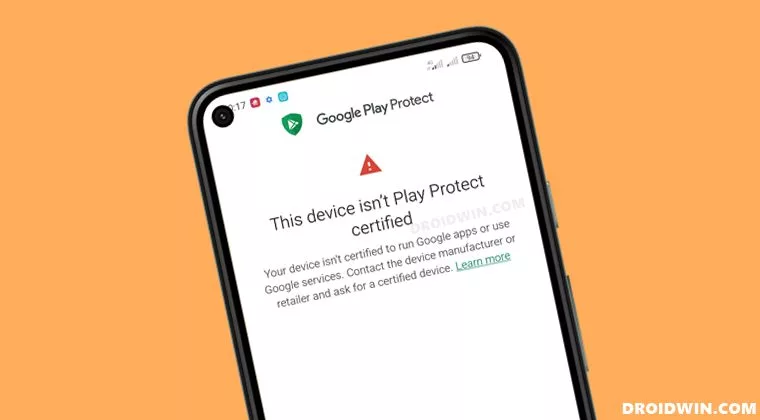
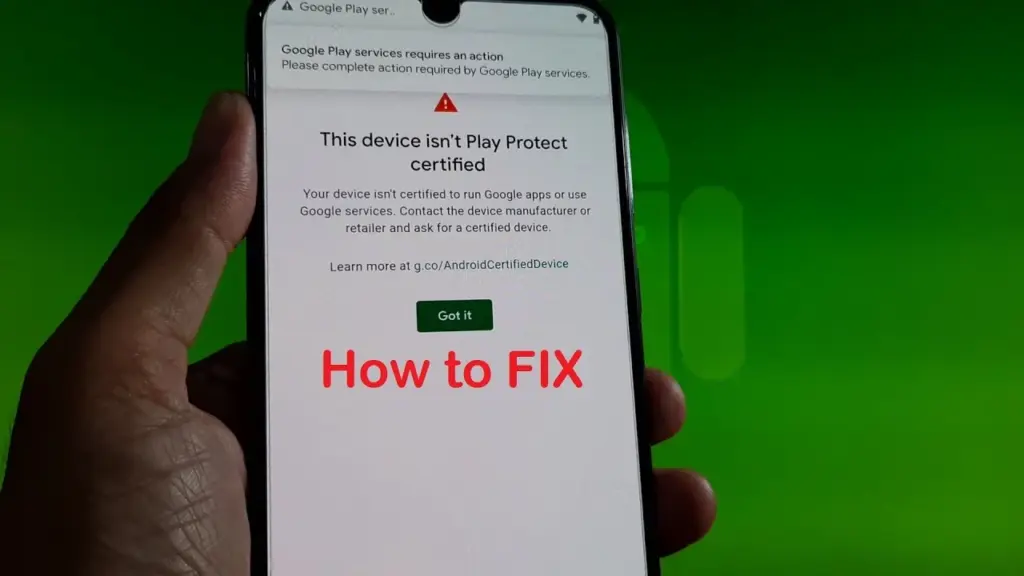
    When a device has an unregistered custom ROM installed, they get the “This Device Isn’t Play Protect Certified” error. Now, if you are one of those struggling with such an error message, this article will help you. Here, we have listed how you can fix this. So without any further ado, let’s get into this.

    You need to follow the steps for this in a systematic manner. It is exactly as we have mentioned below here. Do not skip any of these steps, and ensure one step is complete before moving to the next one.

    How to fix This Device Isn’t Play Protect Certified Error On Custom ROMs?

    This device isn’t Play Protect Certified

    Install Android SDK:

    Download and extract the Android SDK Platform Tools on your PC. Depending on your PC’s OS, download it for WindowsMac, or Linux. It will be a zip file. Once you have it, extract it in any preferred location. Now, you need to enable USB debugging on your smartphone for that.

    Enable USB Debugging:

    This step is essential if you want your PC to recognize your device when connecting it via USB in ADB mode.

    • Open up the settings menu on your phone.
    • Navigate to About Phone > Build Number. You need to tap on the Build number 7 times. You will see a pop-up on your screen that reads, “You are now a developer.”
    • Now go back to Settings and Open up System.
    • Navigate to Advanced > Developer Options > Enable USB Debugging.

    And that’s it. Your smartphone is now ready to take in ADB shell commands.

    Find Device ID:

    Obtaining the device ID used to be a challenging task; users would frequently need to root their phones in order to obtain this data. But that is no longer the case. The Google Play Store offers a program called Device ID that you can download. When you launch it after installation, the device ID details will be visible. After noting the device ID, proceed on to the following action.

    Register Your Custom ROM:

    You must visit the Google Device registration page for the final registration process.

    • Click on this link to go to Google’s Device registration page.
    • Sign in to your account here.
    • Now type in the device ID under the “Google Service Framework Android ID” section.
    • Verify the captcha and then click on the Register button below it.
    • Wait for an hour, and your device should be registered successfully.

    Once the registration is complete, your Custom ROM will also be registered, and you won’t see the “This Device Isn’t Play Protect Certified” error on your screen anymore. If you have any questions or queries about this article, comment below, and we will get back to you.

  • Speed up Xiaomi devices – make cheap devices fast

    Speed up Xiaomi devices – make cheap devices fast

    There are much more entry-level cellphones than flagships on the market. Because of the low-end specifications of these cellphones, it is highly typical for them to have poor speeds. Even tiny apps can cause the smartphone to hang on low-end hardware. Furthermore, many web pages may take a long time to load. If you have a Xiaomi entry-level smartphone, though, you’re in luck. There are a few basic things you can do to boost the speed of your smartphone. Xiaomi’s most popular smartphones are entry-level models. As a result, they come with insufficient hardware, which may cause them to slow while under strain. You can make the MIUI UI run faster and prevent these smartphones from hanging or freezing.

    Boost MIUI speed

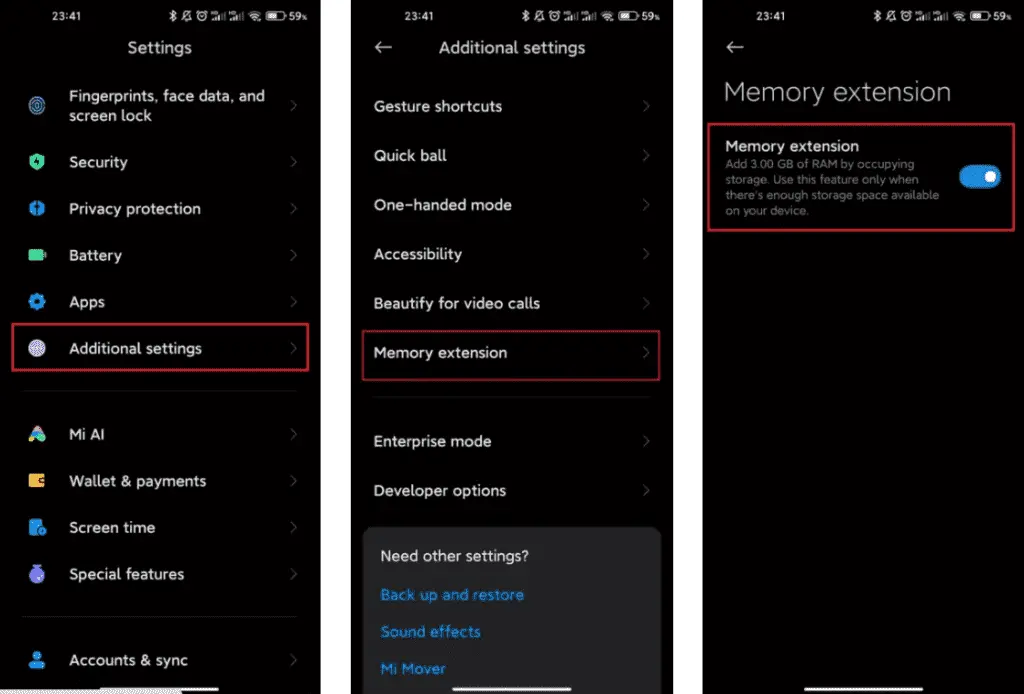
    1. Extend your memory

    Xiaomi, a Chinese company, has added a feature to its devices that may be of assistance. This is where the RAM expansion feature comes in. This capability has been available for the company’s smartphones since last year. This feature frees up RAM by using internal storage to create SWAP storage space. If you can activate this option, you’ll be able to boost the MIUI system’s speed. Although it is not as fast as physical RAM, it is a significant improvement.

    xiaomi extend memory

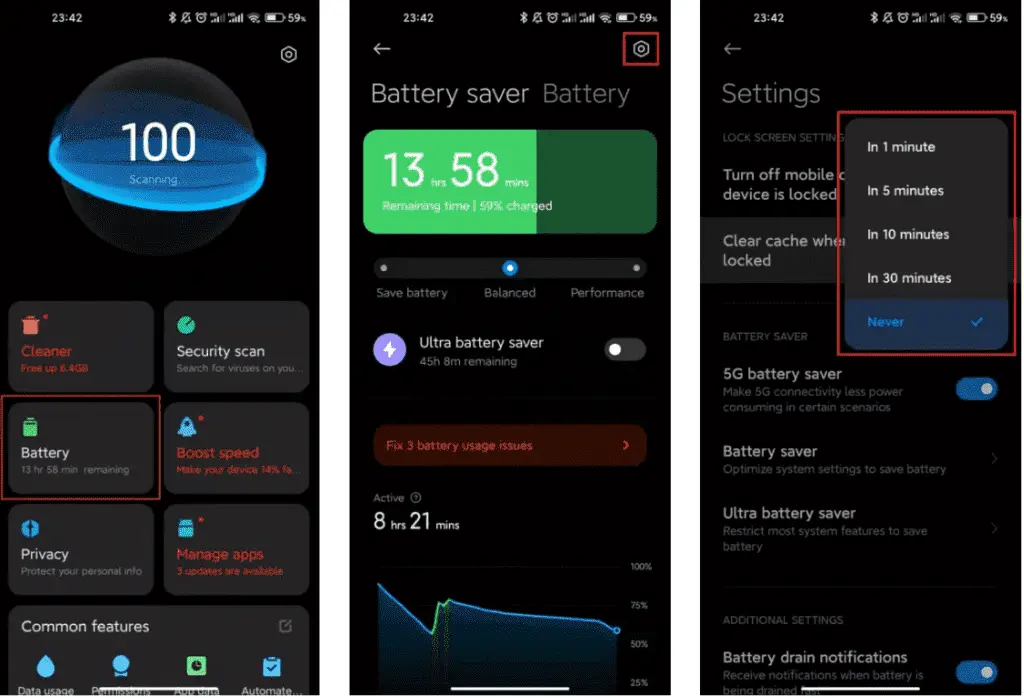
    2. Clean cache

    Whethere its a smartphone, tablet or even a desktop, clearing cache is very good for operation. When the cache storage is too heavy, it could cause the device to lag. The rate at which your cache storage fills up depends on how you use your device. With the automatic cache clearing feature, it is now very easy to clear cache. You no longer need to clear the cache via recovery mode.

    MIUI Memory a 1024x698 1

    Xiaomi MIUI automatic cache cleaning feature ensures that your cache is always clear. Whenever you lock your smartphone screen, this feature clears the cache. Furthermore, you can manually set this feature to clear the cache at intervals. Thus, whether your hardware is insufficient, clearing the cache will ensure that all its limited resources are spent on relevant operations.

    3. Disable system apps and ads

    You may have noticed that the MIUI system app has in-built advertisements when you run it. It’s vital to realize that these adverts consume some hardware resources. This means that it has the potential to slow down the smartphone. They can create delays in the opening of some functionalities since they require system resources. Xiaomi makes it optional to see these advertising because they might be quite unpleasant.

    MIUI Memory b 1024x697 1

    You may quickly disable advertising that you don’t want to see, and they won’t appear again. All you need to do is set up a private DNS server. In the private DNS provider, type “dns.adguard.com.” Then, just to be sure, look to see if these adverts are still visible. This will free up some hardware resources while also speeding up the MIUI system.

    4. Disable system animations

    This solution is compatible with any smartphone operating system. For entry-level cellphones, some functions are a great luxury. One of these features is system animation. Deactivating this feature is a common technique for making the operating system run faster. Make certain that the animation scales are set to 0 or 0.5. These animations will be faster than before, and MIUI itself will speed up.

    MIUI Memory c 1024x699 1

    5. Keep the storage clean

    Obviously, filling your storage with “crap” is a recipe for disaster. This is because the storage capacity of your smartphone has a big impact on its use. This is also not unique to MIUI devices, but rather to all gadgets.

    MIUI Memory d 473x1024 1

    The pace of the smartphone slows down when the internal storage is full. You may notice minor latency and the device freezing at this stage. This can be avoided by keeping storage as basic as possible.

  • Pass SafetyNet on Android after rooting or installing a custom ROM

    Pass SafetyNet on Android after rooting or installing a custom ROM

    Google and the community have been playing a cat and mouse game for a long time over evading SafetyNet. The community enjoys tinkering with the software on their phones, which usually starts with bootloader unlocking. However, this trips SafetyNet, causing a number of popular apps to cease working on the phone, some of which are justifiably so because they rely on a tamper-proof environment for execution.

    SafetyNet is aimed at app creators, but they can choose whether or not to use it. However, as an ordinary end user, you have two options: give up on Android’s modding potential and pass the SafetyNet compatibility tests, or risk being blacklisted by software publishers. This guide should let you pass SafetyNet even if you’ve rooted or installed a custom ROM on your smartphone.

    safetynet

    What is SafetyNet?

    Android is built to run without granting the end user any privileged access to the underlying subsystems. If a person with administrative (a.k.a. “superuser”) capabilities on an Android device has similar access to administrative (a.k.a. “root”) permissions on a Linux machine, they can virtually change or replace Android system applications and settings. From the standpoint of an app developer, this means that the device on which their program is operating may be compromised. Some form of abuse detection mechanism should be in place to check the device’s software and hardware surroundings and reassure app developers that everything is fine. This is when SafetyNet enters the picture.

    safetynet

    While modding is an important component of the Android ecosystem, security standards sometimes necessitate a high level of rigor in the operating system. The Google Play Services include a set of abuse-detection APIs called SafetyNet. Third-party applications can use the SafetyNet Attestation API to see if the device’s software environment has been tampered with in any way. The API compares the current state of the target Android device and verifies the integrity of the environment against a known’safe’ value on the server-side by checking for things like bootloader unlock status, signs of superuser binaries, and more.

    SafetyNet tripping and its consequences

    SafetyNet tripping is caused by a series of events that differ from the factory setup of an Android device. Even if you simply unlock your phone’s bootloader and leave the factory-installed OS alone, the SafetyNet check may fail due to a “CTS profile mismatch” (where CTS stands for the Compatibility Test Suite) issue. You’ll almost certainly wind up with a SafetyNet failed status if you root your Android device or replace the base firmware with a custom ROM. As a result, you won’t be able to utilize apps or games on the device that use SafetyNet validation. This is particularly true for banking and other financial apps like Google Pay, which rely solely on the SafetyNet Attestation result and will not accept anything else.

    When it comes to games, developers use SafetyNet for assessing the device’s integrity so that they can prevent rogue players from cheating or modifying in-game variables for unfair advantages. Last but not least, you can also come across examples where publishers are simply misusing Google’s tamper detection mechanism for no practical reason, which is why power users want to evade the detection routines.

    In a nutshell, the modding community will have to choose between having access to root/custom ROMs/kernels/etc. or their preferred apps and games. This might sound like the end of aftermarket development on Android, but there is hope.

    Pass SafetyNet attestation

    There is no true universal solution to avoid the inspections because Google modifies the backbone of the SafetyNet Attestation API on a regular basis. Because the limits are based on a variety of criteria, you may be able to get around SafetyNet in a modified environment by faking the most important characteristics on legacy devices, but the same approach may not work on later phones. Because of the ever-changing nature of the anti-abuse API, the aftermarket development community has come up with a number of approaches for passing the SafetyNet tests. However, keep in mind that a general implementation isn’t viable. This is a cat-and-mouse game; one day you’ll be ahead, the next day you won’t.

    Google is depending on the security of the phone’s Trusted Execution Environment (TEE) or dedicated hardware security module (HSM) for tamper detection as it moves toward a hardware attestation method. Finding a serious security flaw in a device’s isolated secure environment and exploiting it to spoof SafetyNet’s client-side response isn’t a viable strategy, but there are alternative options.

    1. Restoring the original firmware and relocking the bootloader

    This is perhaps the simplest way to pass SafetyNet, but it has its own merits and demerits. All you need to do is find the correct firmware for your Android device, flash it, and finally re-lock the bootloader. Of course, you’ll lose most of the bells and whistles of Android modding, but it actually makes sense when you need to use your device in a managed environment with strict security policies or you’re trying to sell your device.

    2. Using Magisk

    If you own a legacy Android smartphone, Magisk is your best bet to pass SafetyNet without much hassle. Even though the current Canary channel of Magisk doesn’t feature MagiskHide anymore, you can still stick to last stable release (v23.0) and utilize MagiskHide to hide root status from apps. Furthermore, you can install Magisk modules like MagiskHide Props Config to change the device fingerprint in order to pass SafetyNet.

    Talking about the Canary channel, the new “DenyList” feature of  Magisk is an interesting development, which allows users to assign a list of processes where Magisk denies further modifications and reverts all changes it had done. With an appropriate configuration, it can also be used to pass SafetyNet in some scenarios.

    Magisk XDA Forums

    Lastly, there’s Shamiko — a work-in-progress module written on top of Zygisk (Magisk in the zygote process). It reads the list of apps to hide from Magisk’s denylist to hide Magisk root, Zygisk itself, and Zygisk modules to circumvent SafetyNet. However, Shamiko can only work after disabling the DenyList feature.

    3. Using Universal SafetyNet Fix

    Bypassing Google’s hardware-backed SafetyNet attestation technique is a tad bit difficult, but it’s not entirely impossible. The Universal SafetyNet Fix project by XDA Senior Member kdrag0n cleverly accomplishes this feat by forcing the basic attestation over the hardware-backed checks.

    Notably, Universal SafetyNet Fix has a dependency on Magisk when it comes to passing the basic attestation part. The developer offers two different builds of the fix: The Zygisk variant for Magisk Canary and the Riru variant for stable Magisk.

    Universal SafetyNet Fix: GitHub Repo |||  XDA Discussion Thread

    4. ih8sn

    In case you don’t want to rely on Magisk to pass SafetyNet attestation, you can try out an experimental add-on named ih8sn. After applying, it can spoof a plethora of prop values in order to circumvent SafetyNet checks like the MagiskHide Props Config module, but there’s no dependency on Magisk in the first place.

    The ih8sn tool is maintained by several LineageOS developers, but the LineageOS project doesn’t officially endorse it yet. To know more, take a look at its codebase by following the link below.

    ih8sn GitHub Repo


    Verification

    After applying one of the aforementioned SafetyNet passing methods, you may wish to verify the result. The Magisk app comes with an option to initiate the SafetyNet checking routine right from its main menu, which is really handy. You can also opt for an open source app named YASNAC (short for Yet Another SafetyNet Attestation Checker) to check the status and (optionally) examine the JSON response.

    That’s how you can use your phone to pass SafetyNet. With a little effort and care, you can restore Android’s true modding capability without having to worry about SafetyNet Attestation failures. We’ll be adding more SafetyNet passing ways to this guide in the future, so check back!

  • 6 Useful Tips to Secure Your Android Device

    6 Useful Tips to Secure Your Android Device

    Russia has been invading Ukraine for over a month, and concerns about cybersecurity are growing. Even before the invasion, US officials blamed Russia for cyberattacks on Ukraine’s Ministry of Defense and two banks.

    While the US Cybersecurity and Infrastructure Security Agency has stated that there are no particular or credible cyberthreats aimed at the US, it has also stated that hypothetical cyberattacks are more likely to target infrastructure. CISA advises that everyone be ready in case something goes wrong. When it comes to cyberdefense, safeguarding your mobile device is a smart place to start. Here are six things Android users may do to keep their data safe.

    android secutiry 1

    Always update you OS

    Updating your operating system can resolve issues and repair known security risks. If you don’t update to the current version, you and your device are vulnerable to security weaknesses that could expose sensitive information to unscrupulous actors. Some individuals put off updating their operating system to avoid dealing with early glitches, but waiting too long can destroy your PC. Here’s all you need to know about Android 12.

    Use two-factor authentication

    In the event that your password is compromised, two-factor authentication, or 2FA, adds a second layer of security to your Android account. When you use 2FA, a second message is sent to another device after you enter your password, requesting you to confirm that you are trying to log in. It takes a little longer to log in, but the added degree of protection is well worth it. Here’s how to enable two-factor authentication.

    Password manager

    A password manager can assist you if you’re having problems remembering several passwords and creating unique passwords for each account. These tools can be used in conjunction with 2FA to securely store passwords and fill login pages automatically. They can also protect you from phishing schemes, which ask you to input your password on a phony website. Check out CNET’s reviews of password managers Bitwarden, LastPass, and 1Password for additional information.

    Encrypt your device

    Beginning in 2015, Google mandated that all Android smartphones be encrypted out of the box. After your device has been encrypted, every data saved on it is protected by a PIN number, fingerprint, pattern, or password that only the owner knows. Even Google won’t be able to unlock your device without the key. You may learn how to encrypt your phone here.

    Remove data from Google

    Because Android is a Google product, unencrypted device data may end up on a Google server. You can check with Google to see what data it has about you and request that it be deleted. It’ll take some time, but it’ll be worth it because your information can’t be stolen if it’s not in the system to begin with. Here’s how you ask Google to remove your data, but keep in mind that Google does not guarantee that it will comply with your request.

    Last option – reset/delete your phone

    You can remotely wipe your phone if you lose it or it is stolen. If you need to do this, our Android settings guide includes a walkthrough. Because this deletes all data from your phone, you should make a habit of backing it up on a second device if you have anything important on it.


    For more information on securing your phone, check out these eight apps to protect your phone’s privacy, what information digital security experts wish you knew and how to stop your phone from tracking you.

  • Themes are coming to MIUI 13

    Themes are coming to MIUI 13

    Many of us have wanted the customization layers to merge with Android 12 since it was announced and the new mechanism for customizing mobiles with that version was released. The first to add it to One UI 4 in its own unique way was Samsung, and the next to do so will be Xiaomi, according to a leak shared on Twitter by user Mishaal Rahman.

    This has discovered within the Android internal code that the so-called Monet themes, which are hallmark of the purest version of Android, will also be in the Chinese manufacturer’s popular layer.

    A very important change, which gives more personality to Xiaomi brand mobiles, which with the themes already gave us a thousand and one possible style configurations. The colors are based on the wallpaper, but we can also choose our favorite combination of tones.

    The color arrives at Xiaomi

    Because of the photographs supplied by Xiaomi ui, we currently know how they operate and how they will behave on the Xiaomi’s smartphones, but it shouldn’t be long before we see additional circumstances where the adaptive colors of Android 12 reach Xiaomi smartphones. The feature is included in MIUI 13 version 22.1.17, which is currently only available in China.

    This option will be available to everyone in the future, albeit we will have to wait because it will not be included in the first global editions of MIUI 13. The program will be released later, allowing us to customize the appearance of our Android phone as if it were a Google Pixel.

    colores temas android 12 xiaomi miui 12 1

    The images show how the new Android 12 widgets, as well as Google Chrome tabs and even system components, adapt to the selected hue. All Google applications are expected to accept this shift, and we will gradually learn how other areas of the Xiaomi, Redmi, and Poco terminals will follow suit.

    For the time being, devices running Android 12 in its stock form can apply Monet themes to the icons and control panel, which is not possible with MIUI 13. However, we do not give up hope that they will arrive following this first application.

    What will happen to the themes?

    Until now, the best way to change the look of our Xiaomi device was to use MIUI’s themes app. We may find many other style combinations there, which we can customize to our liking on the smartphone by changing the icons, colors, and shapes. The incorporation of this new Android function raises a lot of questions about what will happen with this benefit.

    In recent months, the app has stopped integrating as many options in Europe, and some notable themes have been left alone in China.

    This could be the first step for Xiaomi to become more pure, at least for Spain and other countries, where stock Android is preferred and other systems that are visually much more complex are less popular.