Chromebooks haven’t had any cross-device synergy with Android devices for nearly a decade. With its Better Together features, Google attempted to bridge the gap between its devices, but it felt like an afterthought when compared to Apple’s Mac-to-iPhone connection. That all changed with the introduction of Phone Hub in Chrome OS 89, and with OS 91, Google finally made it possible to exchange family memories, documents, and files between Chromebooks and Android devices with Nearby Share. Here’s how to utilize it to transfer data between your Google devices without a hitch.
The Setup
First impressions are key, and Google continues to amaze with its onboarding process. The setup UI for Nearby Share makes it easy to get started by providing a fun experience. Open the settings on your Chrome OS device to get started with Nearby Share. Nearby Share can be found on the first page, under Connected devices. Select Set up from the drop-down menu.
Nearby Share is no exception to Google’s love of integrating its simple UI everywhere. The onboarding UI functions as a compass to guide you through the process of installing Nearby Share on your Chromebook. It’s quite easy to use, and the Google-style illustrations keep you entertained while you’re setting it up.
You can modify your privacy so that all or some of your contacts can view your Chrome OS device after you’ve given it a name. If you choose “hidden,” your gadget will remain hidden until you enable it from the shelf. When the setup is finished, you’ll be taken to Nearby Share’s settings to review. Before you transmit data, make sure both of your devices are nearby and have Bluetooth and location turned on.
Transfer files to Chromebook
It can be difficult to send files to your Chromebook. Nearby Share streamlines the process and reduces the amount of time spent attempting to share a file. We’ll use Google Photos to share an image using my Chromebook in this tutorial.
To send a photo, tap on the share button at the bottom left of your phone’s screen, and select Nearby Share in the share sheet. Your phone should recognize your Chromebook — tapping “Accept” will begin transferring the photo. You can also share an assortment of documents and files with your Chromebook, too.
Transfer files to your smartphone
You can transfer a document or a photo from your Chromebook to your phone if you want to take it with you. Sharing files from your Chromebook to your Android smartphone is a breeze. In the Chrome OS file manager, right-click any file and choose “Share” from the menu. Select your phone from the list by clicking Nearby Share.
It may take a few tries for it to detect your device; launching Nearby Share from Android’s quick settings can help.
When the transfer is complete, your file should appear in your phone’s download directory.
Nearby Share can also be used to transfer files from one Chrome OS device to another. You can access Nearby Share by right-clicking a file in the Chrome OS files app and selecting “share.” After the receiving party accepts the file from the system tray, the file transfer will begin. My gadgets required a few tries to connect, but once they did, the data transferred quickly. Nearby Share will be available to PWAs that implement the Web Share API, such as PhotoStack.
With over 2 billion monthly users, Meta’s WhatsApp is one of the most popular messaging platforms on the planet. We occasionally need to send messages on WhatsApp, but in order for our contacts to appear in the list, we must first sync them.
Despite the fact that WhatsApp does not have this capability, there is a way to message any number without saving it to your device’s contact list. Please bear with us. Follow the simple actions outlined here.
We’ll go over the best methods for sending a messages without preserving your phone number in your contacts.
You won’t have to install or do anything additional with this, and it’s the best method to have a brief chat with anyone who has an active WhatsApp account. Let’s have a look at it now, without further ado.
Open your internet browser on your device.
Then, in the browser’s address bar, type wa.me/phone number (phone number includes mobile number beginning with country/region code).
E.g., wa.me/+91xxxxxxxxx (+91 is a country/region code for India. (Use your code before entering the contact number.) | Find your country code here...
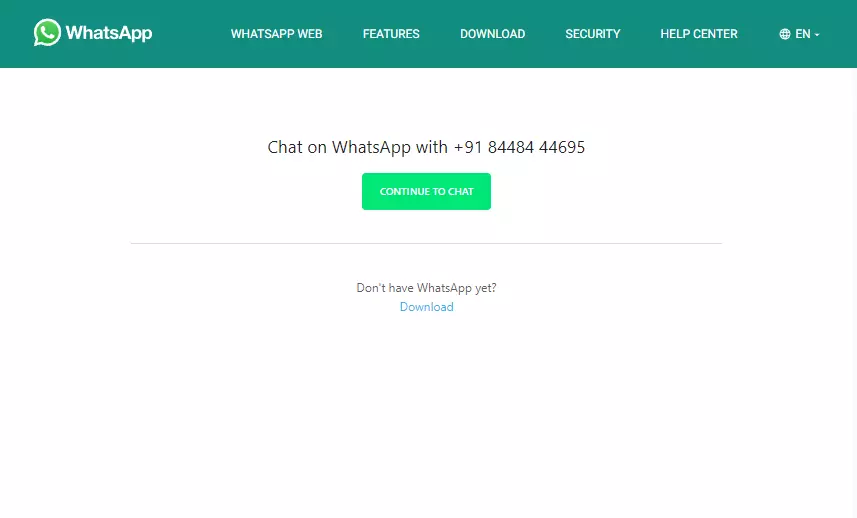
Hit enter, and it will show Continue the chat with the number.
Click on the green button, and from there you can chat, call, or check the details.
You can perform this on any platform. It doesn’t matter if it’s on Android, iOS, Windows, or Linux. All you need for this is to have the app installed on your device and active internet connectivity. The recipient should have an active WhatsApp Mobile number.
How is this possible, and is there any thread while using this method?
No, there isn’t a problem because wa.me is a short-link that the app API uses to start a WhatsApp conversation. The same API is used to integrate WhatsApp Direct Messages, and you may find that this isn’t always the case. To talk or contact someone on WhatsApp, click here. It’s one of the references in the book.
There are no threads to be concerned about. They’re perfectly safe and have always been wa.me. This is a short WhatsApp link. G.co for Google, youtu.be for YouTube, and fb.com for Facebook are examples of short links.
Hopefully, this instruction was useful to you and you were able to send WhatsApp messages successfully. Thank you for joining us. We’d like to hear your thoughts and suggestions. If you have any questions, please leave them in the comments area below.
A smartphone makes it easy to snap photos in your daily life. However, some of those moments are fleeting. We’ll show you the fastest way to launch the camera on your Android phone. Never miss a shot again.
Most people put the camera app shortcut in an easy spot for quick launching from the home screen. This is a good practice, but your Android phone probably has two methods for launching the camera even faster.
Launch from the Lock Screen
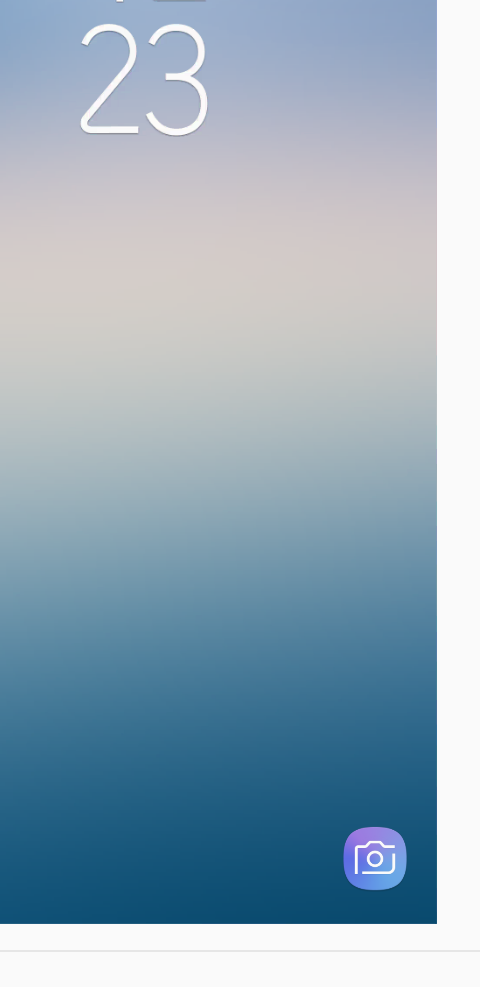
We’ll start with the slightly faster method. A lot of Android devices have a shortcut to the camera directly on the lock screen. You can launch straight to the camera without fully unlocking the device.
For example, here’s what it looks like on a Samsung Galaxy smartphone. The camera shortcut is in the bottom-right corner.
Simply slide the camera icon to the left, and the camera app will fly in from the right side.
That’s it! You can skip the step of unlocking and get to the camera a little faster.
Launch with the Power Button
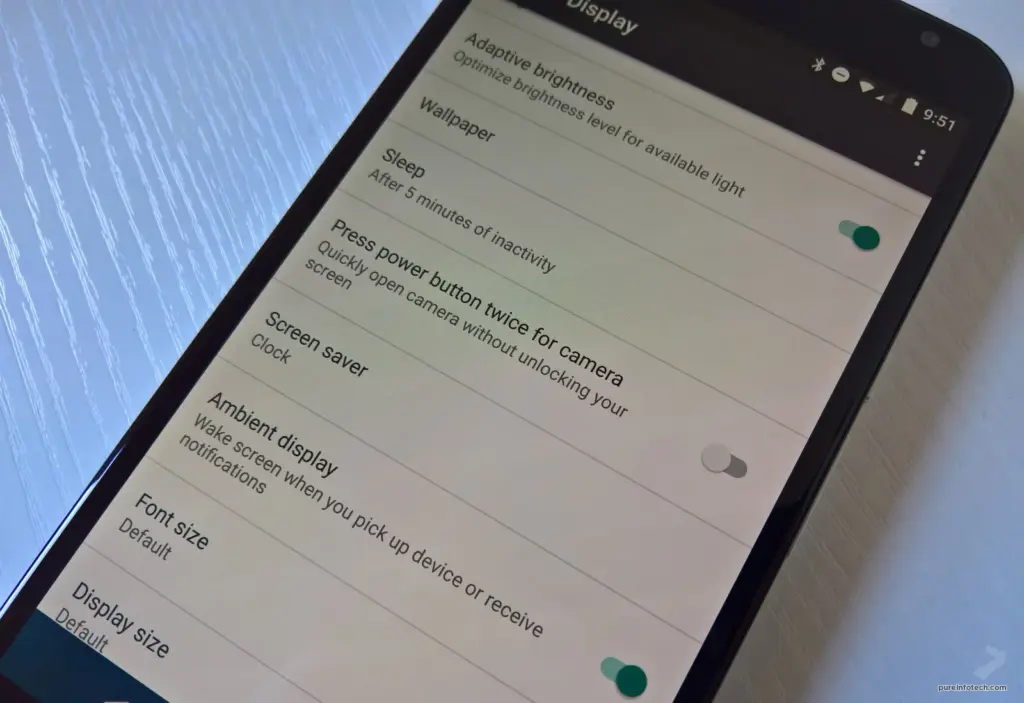
This works from anywhere. You can be using a different app, or it can be locked in your pocket. Just double-press the power button and the camera will launch. Simple as that.
There’s nothing worse than missing a moment because you couldn’t get your camera out fast enough. Hopefully, these tips can help you be faster and never miss capturing a special shot again.
It’s no secret that for many Pixel 6 and 6 Pro owners the fingerprint reading experience is not one to be savored, if the sensor isn’t ignoring your input it could disable itself if the phone’s battery goes flat. It isn’t helped that some screen protectors cause further issues in the accuracy stakes, so much so that Google has taken the step to announce a list of “Made for Google-certified” products for the Pixel 6 series.
“If your fingerprint won’t scan, it might be because of your screen protector. Make sure you’re using a screen protector that is Made for Google certified. “
Google
Google’s help website for unlocking the Pixel phone with a fingerprint, as uncovered by 9to5Google, offers a number of screen protectors that are now “Made for Google-certified.” The following accessory manufacturers offer these certified products:
Zagg
Otterbox
Panzerglass
There are a few well-known screen protector businesses that aren’t on the approved list; it’s unclear whether this is because they refuse to pay the license price to Google in order to be included or because Google hasn’t had time to evaluate their goods yet.
If you’re having trouble getting the fingerprint sensor to read your finger, keep in mind that Google claims it requires more direct contact than other companies’ sensors.
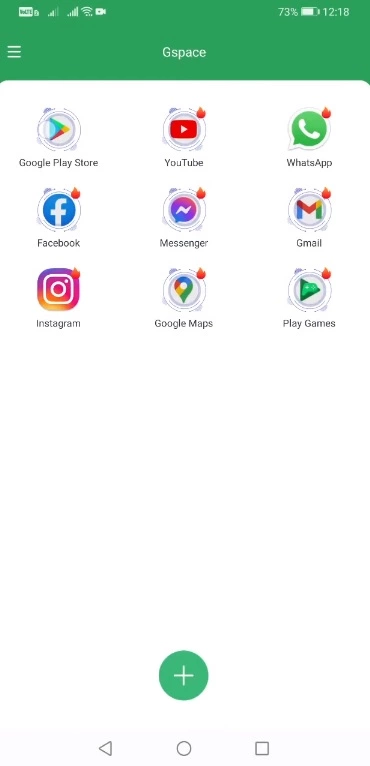
A new way to get Google Play on Huawei HMS phones has just been released. This new solution makes use of the Google Space app. Fortunately, this solution appears to work on all Huawei phones launched to date. This contains Huawei’s newest Mate 40 smartphone, as well as a few forthcoming Huawei devices. So, in this method, I’ll show you how to download Google Play on Huawei HMS phones right now using Google Space. Before I show you the processes, let me give you a brief history of Google’s love-hate relationship with Huawei.
Google Play Store and Huawei phones
Huawei was blacklisted by the US a few years ago for having ties to the Chinese government. Since then, Huawei has encountered numerous roadblocks, including the termination of Google’s services on Huawei’s devices, US penalties on Huawei’s network equipment, multiple platforms that had to say goodbye to Huawei, and the famed chipmaker ARM being barred from working with Huawei. Huawei is not authorized to make any new chips with support manufacturers from the United States or the United Kingdom as of January 2021.
Huawei has long abandoned Google’s architecture, but the App Gallery, Huawei’s own version of the Play Store, is still in its infancy. In fact, the App Gallery still has millions of typical programs that aren’t available. App installation through the App Gallery is also a little challenging. It even includes APKs from untrustworthy third-party sources, which has piqued the interest of many Huawei users. Despite Huawei’s best attempts to eliminate its reliance on Google Apps, a large percentage of Huawei smartphone owners still desire the Google Play Store to run on their handsets.
In the last 2 years, there have been over a dozen methods allowing the installation of Google Apps on Huawei phones, but these methods keep getting patched. We have had the solutions like the GMS Installer, the GMSanzhuangqi App, the backup-restore method, and many other such tricks. The only problem with these tricks is that sooner or later, they come to an end leaving Huawei consumers in a street with a dead end.
If you’ve been looking for a new method and have found yourself on this website, first and foremost, I’d want to congratulate you on your discovery of a new method. Let’s look at how to download Google Play Store on Huawei phones in 2021 in the simplest, fastest, and quickest way possible.
Download and install Google Play on Huawei HMS devices
On your Huawei handset, open the App Gallery.
In the App Gallery’s search, type “Google Space”.
As you find the Google Space App, install it.
Once installed, click on “Open” at the bottom of Google Space
Now click on “Google Play” and launch it.
Log into Google Play using your Google Account.
All done, install any app you want and enjoy the Play Store!
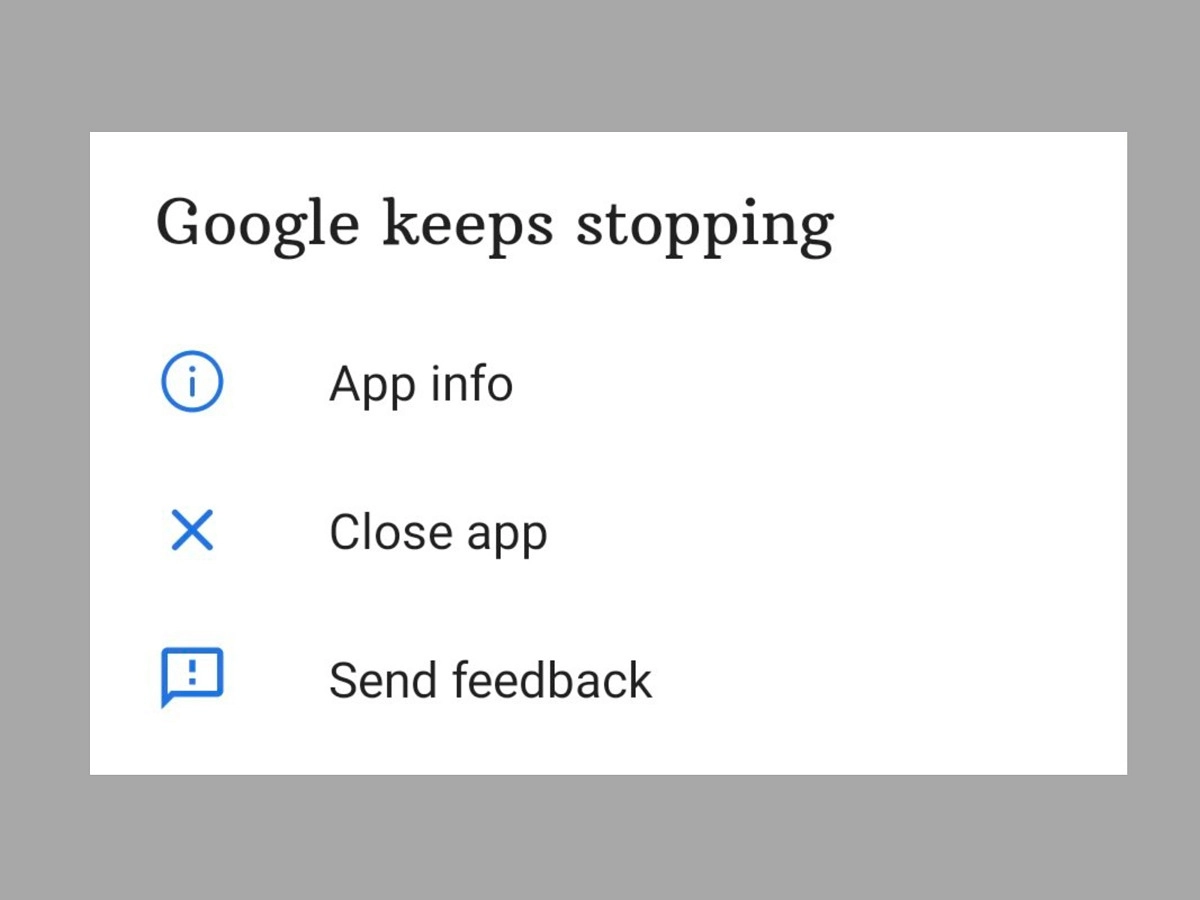
We’ll teach you how to fix the Android 12 app crashing issue in this post. Android 12 is currently accessible in the market, albeit it is not available to all users. Pixel users have had the opportunity to test Android 12 in both developer preview and public beta versions.
However, even after the stable build for the new Android iteration was released, there were several reports of glitches, freezing, lagging, and crashing.
The new features and improvements may be significant, but the Android 12 app crashing issue is now more prominent and has become an issue that many users are facing.
This tutorial is for individuals who are experiencing the same problem on their Android 12 phone and want to know how to repair the Android 12 app crashing issue. In this article, we’ll go through some troubleshooting options for this problem.
A Pixel device has the advantage of allowing users to try out development builds and public betas for the latest Android releases. However, because these builds are fresh, they are not without flaws and have a number of issues. This is the reason why users have so many problems and bugs. This includes regular app crashes as well.
Another issue that arose was that the Android WebView application was not working properly. For those who do not know, Android WebView is a tool that allows applications such as Gmail to display content from web pages through Chrome without having to leave the app’s own interface. But fortunately, the solution to this problem is now available on Google Issue Tracker.
If you also face frequent app crashes on Android 12 and want to know how to fix Android 12 App crashing issue, then try one of the two methods given below:
Tip1: Re-Enable Android System WebView
First of all, head over to the Settings app on your device and then go to the Apps section.
Then go to All Apps and then tap on Android System WebView
Now tap on Disable, confirm when the pop-up asks you to.
Now reset it by tapping on Enable.
This was the first method to fix Android 12 App crashing issue. If the issue is still not resolved, then you should try the above steps a few more times. If you still keep facing the issue, then try the second method below.
Tip 2: Uninstall Android System WebView
First up, open up the Settings app on your device.
After that, head over to the Apps section and then tap on All apps.
Find Android System WebView and tap on it.
Find the link to the App store page there.
Now tap on uninstall and after that, tap on Enable.
After that, your issue should be resolved. If you’re still having problems, your only choice is to wait until the developers address the problem with a new update.
So that was our take on how to resolve the Android 12 app crashing issue. We hope you find this information to be useful. Leave your thoughts in the comments section below.
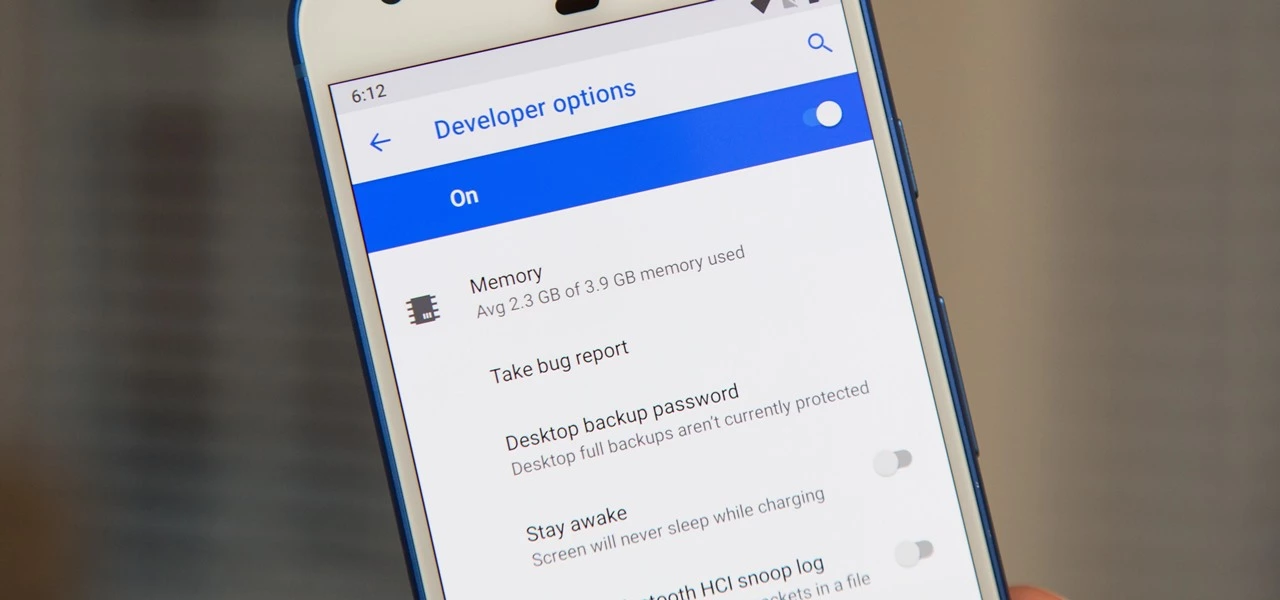
One of the first things you should do when you get your new Google Pixel 6 or 6 Pro is open the hidden “Developer options” menu. Don’t be put off by the word “developer” because this hidden Android 12 menu contains functionality that any Android user can use.
If you don’t have a Pixel 6 or 6 Pro, you can still access the “Developer options” menu on any other Pixel model, as well as devices from other OEMs such as Samsung. If you haven’t updated your system or purchased a Pixel 6 or 6 Pro, I’ll teach you how to accomplish it on Android 12. If you haven’t updated your system or purchased a Pixel 6 or 6 Pro, the process is basically the same on older Android versions.
Enable developer options in Android 12
Open up your Settings app and tap “About phone” from the list. To get to this menu even faster, use the new search tool in Android 12 from your app library (swipe up on the home screen), search for “about,” and select “About phone” from the results.
After that, scroll down to “Build number.” This is the backdoor to revealing the “Developer options” menu. Simply tap “Build number” at least seven times in a row, then confirm you want to unlock the menu by entering your PIN. (The PIN interface is concealed in screenshots, as shown below.)
For a few moment, you should see “You are now a developer!” appear to let you know it worked. You’ve already unlocked the menu if it reads, “No need, you’re already a developer.”
Newly unlocked developer options
Return to your Settings app’s main menu, hit “System,” and then select “Developer options” from the bottom of the list. Unlike “About phone,” you can’t search for “developer” in your app library’s search bar to get there right away, but you can locate it in Settings’ search bar.
In “Developer options,” there are plenty of things to explore. While there are plenty of reasons to unlock “Developer options” on your Pixel in Android 12, some quick ones to note include keeping your screen awake while charging, starting the process for unlocking your bootloader, making software updates install themselves when your device restarts, and showing a dot on the screen for each tap you make.
USB debugging is another popular setting that lets you use ADB to talk to and issue commands to your Android device from your computer.
Reset the developer options
Let’s say you suspect that something you enabled in “Developer settings” is causing your Pixel to malfunction or produce unexpected results, but you have no idea what the issue is. In that situation, you may quickly restore the developer menu to its previous state.
To do so, open the menu and untick the “Developer options” checkbox at the top. Then, on the “Allow development settings” prompt, toggle it back on and tap “OK.” Everything you changed in the menu earlier will be reset to their settings on Android.
Hide the developer options
You can hide the “Developer options” menu if you no longer want to utilize it. Toggle off the “Developer options” switch at the top of the menu by opening it. You won’t be able to get back into the menu unless you repeat Step 1 above. If you later re-enable “Developer options,” it will revert to its default settings, so any tools and preferences you specified before will have to be redone.
Narrow AI is preferable to doing specific tasks. It has many limitations. Weak AI does not preserve memory or experience. But, it is widely used. Out of 7 different types of AI, narrow AI is used everywhere. Find out the best 20 examples of narrow AI.
Weak (narrow) AI refers to an AI system that is created for and focuses on one dedicated purpose, as opposed to a strong AI that could be applied to a host of problems or tasks.
In the future, artificial intelligence will be able to carry out human tasks more efficiently and with fewer errors. However, until scientists discover a way for machines to learn on their own and mimic biology more closely, we will always need humans in our society.
These tasks are performed single-handedly by the computer, and it does it well. They can, however, display behavioral weakness too. This happens when a description of a material does not register, explain, or predict anything. They are pretty in the form of a programmed response.
1. Face ID to unlock your cell phone
The average individual with a personal device encounters narrow AI every single day. For example, if you use Face ID to unlock your cell phone, you use narrow AI! If you attempted to google something and recommended other options for your search, that is an example of narrow AI.
2. GPS tracking
Narrow AI is any technology that provides a specific, narrow solution to the user. Many companies use narrow AI in that it offers a SaaS revolving around GPS tracking for fleets across the nation, without the development of narrow AI.
3. Bot or software application
Narrow AI is the program designed to do a specific task, i.e., handle a narrow task set. A bot or software application that uses AI to do a particular task can be categorized as ‘Narrow AI’.
4. Driverless car’s AI system
The work of a driverless car’s AI system is to comprehend a road’s situation, maps, traffic rules, and drive. So, it won’t understand your commands like ‘Dance’ if it is not programmed for that. It is narrow AI.
5. X-ray machine
An AI-enabled X-ray machine will only detect X-rays and won’t alert you on temperature changes in the room, as it is not working.
6. Siri
Siri – the famous AI-enabled person assistant – will respond to any of your queries, even if it is inaccurate or does not understand your query.
7. Vitalize human cognition
Narrow AI (Artificial Intelligence) performs a single task in a programmed way. It is known to vitalize human cognition and into a limited specific area. It works beyond human expectations, or how do you explain playing a chess game with your device, that is an example of weak AI. The weak AI collects big data and transforms them into usable information by making predictions.
8. AI simulates human cognition
Weak artificial intelligence (AI)—also called narrow AI—is a type of artificial intelligence limited to a specific or limited area. Weak AI simulates human cognition. It can benefit society by automating time-consuming tasks and analyzing data in ways that humans sometimes can’t. Weak AI can be contrasted to strong AI, a theoretical form of machine intelligence equal to human intelligence.
9. Image and facial recognition systems
Weak AI systems, such as those used by Facebook and Google to automatically identify persons in images, are examples of these systems.
10. Chatbots and conversational assistants
Google Assistant, Siri, and Alexa are examples of prominent virtual assistants. Simpler customer-service chatbots, such as one that aids clients in returning an item to a retail store, are also featured.
11. Self-driving vehicles
Narrow AI applications include autonomous or semi autonomous cars, such as some Tesla models and autonomous drones, boats, and factory robots.
Narrow AI is often used to refer to machines that can perform specific tasks, such as playing chess or driving cars. These systems are very good at these particular tasks, but they don’t exhibit many other abilities typically associated with human-level intelligence. Critics have argued that narrow AI might perform precise actions, but they are not intelligent.
Autonomous vehicles and drones;- are designed solely for self-driving locomotion
12. Human-like decisions
Artificial intelligence (AI) designs systems that can make human-like decisions and perform tasks that people otherwise have to do themselves. The concept of AI has been around since the dawn of science fiction, but it has only been in recent years that AI has been realized in hardware systems for specific tasks. Weak AI is one of the many terms used to characterize this type of AI and machine learning systems and automated tasks.
13. Recommendation algorithms
Recommendation algorithms on social media and streaming platforms such as Twitter, TikTok, YouTube, and Netflix are the best examples. Their sole purpose is to monitor user behavior and interaction on-site and use the data collected to predict and display content that the user might like.
14. Image and facial recognition systems
Image and facial recognition systems identify people and images based on numerous data points collected. It is a weak AI because it serves no other purpose than identification.
15. Medical field
In the medical field, AI systems speed up the pharmacovigilance process by automating adverse report analysis, collecting medical evidence, and compiling final reports.
16. AI exam proctoring
AI exam proctoring systems stand as an excellent example of weak AI in the education field. The AI bots that answer your customer queries in the domain of business are also weak AI. When it comes to the transportation industry, weak AI exists in the form of digital receipt systems.
17. Sensor and automated manufacturing machines
Sensor and automated manufacturing machines in the manufacturing industry work as per the encoded functionalities. The banking domain has included weak AI in the form of automated customer dashboards.
18. grammar correction systems
AI-based grammar correction systems, AI resume analysis systems, and automated management systems are examples of narrow AI.
19. Contextual recommendation engines
Contextual recommendation engines are also weak AI systems. They utilize deep learning concepts to recognize things such as language recognition and behavioral patterns and frequently searched-for or talked-about topics to provide users with recommendations tailored specifically for them. They are, however, unable to do anything further than that and are therefore weak AI.
20. Google’s search engine
Google‘s search engine is another example of weak AI. It isn’t designed to understand what you are asking but only to find relevant documents according to some set of criteria.
Final Words
Narrow AI, sometimes known as weak AI, uses artificial intelligence technology to create a high-functioning system that mimics — and possibly exceeds — human intelligence for a specific purpose.
While smartphones and tablets are excellent temporary digital nannies for keeping children entertained, they also pose a risk of children spending their parents’ money on in-app purchases and the Google Play Store itself. This article will teach you how to avoid making unintentional or unwanted purchases on your Android smartphone or tablet.
Anyone with young children has most likely placed a smartphone or tablet in the hands of their child, assuming the child does not already have their own device. However, with so many games offering in-app purchases, how do you keep them from exceeding your credit card limit?
With the popularity of the one-click purchase feature, such convenience creates a risk for poorly secured devices in children’s hands. Securing your device will also assist you in avoiding impulse or even accidental purchases.
Both Google and Apple offer tools to control or prevent such unwanted or accidental purchases on Android or iOS/iPadOS. In this article, we’ll show you how to do that in Google’s ecosystem.
Avoid unwanted purchases on your smartphone by your child
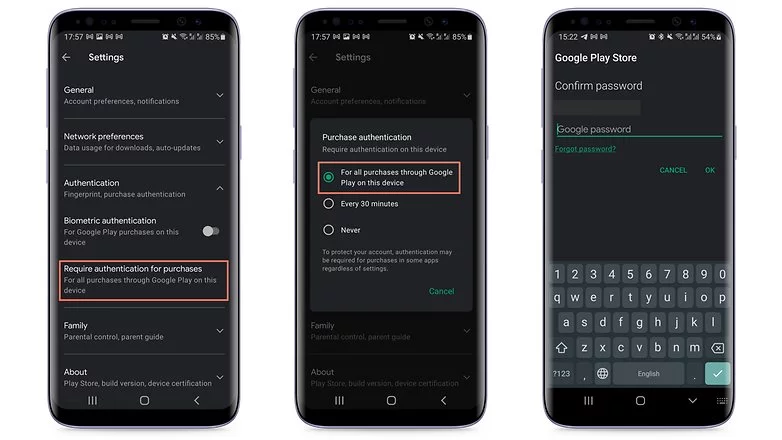
If your child uses your smartphone or tablet while logged in to your Google account, the simplest solution is to make all purchases require approval via account password confirmation. Simply follow these steps to accomplish this:
Tap the profile picture in the top corner of the screen in the Play Store.
Choose Settings.
Tap the Authentication field to launch the available options.
Select Require authentication for purchases.
Choose For all purchases through Google Play purchases on this device.
As the option itself already mentioned, you will need to repeat the steps on all tablets and smartphones used by the child.
Otherwise, the child may authorize purchases using his or her fingerprint or other biometric systems registered on the device if the Biometric authentication option is enabled.
Needless to say, the password to your Google account is private and should never be shared with your child. Disable biometric authentication as well if necessary.
After following the above steps, every time you or anyone else using the device would like to make a purchase, you/they will need to authorize it by entering your Google account password, including in-game and in-app purchases that rely on the Google Play Services payment system.
Another important point is to remember to repeat the steps for all user accounts that have been registered on the smartphone or tablet. Doing so will help avoid unwanted scares on devices used, for instance, covering both personal and professional areas.
After you’ve completed the preceding steps, every time you or anyone else using the device wants to make a purchase, you’ll need to authorize it by entering your Google account password, including in-game and in-app purchases that use the Google Play Services payment system.
Another important point to remember is to repeat the steps for all user accounts registered on the smartphone or tablet. This will help to avoid unwanted scares on devices used, for example, in both personal and professional settings.
Use parental Control to prevent unwanted purchases
If your child has his or her own tablet or smartphone, we recommend using parental controls to force purchase authorization. Google provides the Family Link app for just this purpose. This app allows you to create a user account just for your child or teen, as well as other admin options for YouTube, web search, and other services.
After installing the app on your smartphone or the smartphone of the child’s guardian, launch Family Link and follow the steps shown below:
After the app is launched, choose the user account of the parent or guardian.
In the next screen, select the Parent option.
Choose Next and then I’m ready.
On the next screen, we will choose to create a new account for the child by tapping No.
If she already has a Google account, just go to Settings on the other device, then Google > Parental Controls, and set up the device to be managed from your smartphone.
Tap Next to begin the account creation process, which will require more information and can take around 10 minutes.
During this step, you will need to agree to additional terms of use and confirm your user password, as well as accept the privacy rules for the new account.
At the end of the creation process tap the Next button.
After creating the Family Link account, use the login as the primary Google account on the child’s device. Return to your smartphone and launch the Family Link app to configure the following restrictions on the child’s account:
Tap the View button under the profile that will have restricted purchases.
Select the Manage settings option.
Choose Google Play.
Tap Require approval for.
Select the All content option just to be safe!
After that, each time the child attempts to purchase content, they must authorize the transaction on the parent or guardian’s device.
Depending on how the secondary account is set up, make sure there is no form of payment registered in the account. If there are any, simply follow the steps in the next section.
Remove associated credit or debit cards on the Google account
This is a more extreme option, and it is not recommended if you also buy a lot of apps, have subscriptions or recurring payments associated with your Google account, or use the Google Pay service. Removing all payment methods from your Google account affects all devices associated with the login, so think twice before wiping your account clean.
To remove a credit card, debit card, or other payment methods from your account, follow these steps:
Launch the Play Store app and tap your profile photo.
Select the Payments and subscriptions option.
Choose Payment methods.
Scroll down the screen and launch the More payment settings option.
The browser will open a list of all available payment methods registered on the account. Tap Remove.
Confirm the removal of the credit/debit card from the account by tapping Remove again.
You will need to repeat these steps for each registered payment method, as well as all for all user accounts associated with the device.
These codes can be divided into two categories: USSD codes and MMI codes. While these hidden codes are rarely useful to the average smartphone owner, they can be used to pique your interest once in a while. As a result, the goal of this article is to compile a comprehensive list of these secret codes for Android devices.
What is the USSD and MMI code?
While the average user may not need to know the distinction between these two, it is always useful to be aware of them. Both USSD and MMI codes are typically preceded by an asterisk or a pound symbol/hashtag. These codes are regularly updated as new versions of Android software are released, and some manufacturers have their own special codes as well.
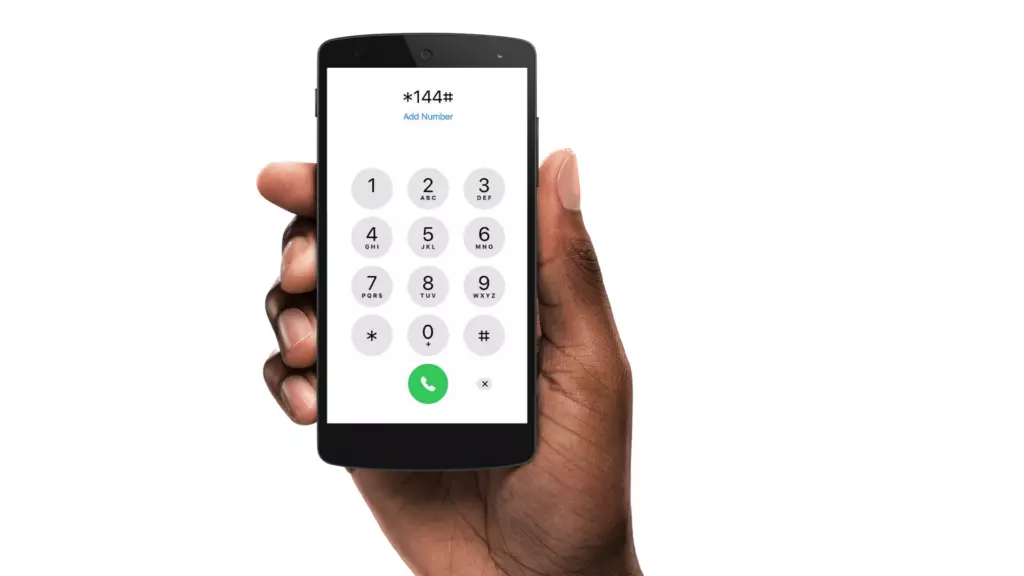
The code entry procedure is straightforward, requiring only that you bring up your dialer keypad and enter the appropriate number sequence. It’s worth noting that some codes are carrier-specific, which means they won’t work on all devices. So, if your phone doesn’t respond to a code, don’t dwell on it; instead, move on and try again.
USSD code
USSD is an abbreviation for Unstructured Supplementary Service Data, and these codes are commonly used to communicate between your smartphone and your mobile network operator. This also means that in order for USSD codes to work, you must almost always be connected to your carrier.
Previously, USSD codes were used to initiate and terminate specific value-added services. They were also helpful in informing you of your data usage and prepaid balance, as well as providing access to a wealth of carrier-specific information.
fWhile smartphone enthusiasts continue to use them, USSD codes have largely fallen out of favor with general users because most carriers have their own app/website where most of this information can be easily accessed. USSD codes are typically carrier-specific and vary from one carrier to the next. You will need to contact your carrier to find out which ones apply to you.
MMI Codes
MMI codes, on the other hand, are part of the Man Machine Interface schema and are typically unique to a smartphone brand or model. MMI codes provide access to a variety of interesting features on your smartphone, ranging from your IMEI number and SAR values to hidden menus commonly used by smartphone engineers and repair services.
Several smartphones, for example, allow users to enter an MMI code to access a ‘test’ menu. This menu allows users to quickly perform various tests on their smartphone, such as camera and vibration motor tests, as well as speaker and display tests.
Note that there are only a few MMI codes that typically work on all Android smartphones. We have listed the most popular ones in the generic list of codes below.
Info Codes
Generic secret codes for Android phones (Info codes)
CODE
FUNCTION
*#06#
Show phone’s IMEI
*#07#
Displays the Specific Absorption Rate (SAR) value of the device
*#*#225#*#*
Displays calendar storage info
*#*#426#*#*
Google Play Services info or Firebase Cloud Messaging diagnostics (Select devices only)
*#*#759#*#*
Access Rlz Debug UI (Select devices only)
*#0*#
Info menu (Select devices only)
*#*#4636#*#*
Info menu (Select devices only)
*#*#34971539#*#*
Camera info (Select devices only)
*#*#1111#*#*
FTA software version (Select devices only)
*#*#1234#*#*
PDA software version
*#12580*369#
Software and hardware info
*#7465625#
Device lock status
*#*#232338#*#*
MAC address
*#*#2663#*#*
Touchscreen version
*#*#3264#*#*
RAM version
*#*#232337#*#
Bluetooth address
*#*#2222#*#*
Hardware version
*#*#44336#*#*
Software version and update info
*#*#273282*255*663282*#*#*
Backup all media
Testing codes
CODE
FUNCTION
*#*#197328640#*#*
Test mode
*#*#232339#*#*
Wi-Fi test
*#*#0842#*#*
Brightness and vibration test
*#*#2664#*#*
Touchscreen test
*#*#232331#*#*
Bluetooth test
*#*#7262626#*#*
Field test
*#*#1472365#*#*
GPS quick test
*#*#1575#*#*
Full GPS test
*#*#0283#*#*
Packet loopback test
*#*#0*#*#*
LCD display test
*#*#0289#*#*
Audio test
*#*#0588#*#*
Proximity sensor test
Configuration codes
CODE
FUNCTION
*#9090#
Diagnostics settings
*#301279#
HSDPA/HSUPA settings
*#872564#
USB logging settings
Developer codes
CODE
FUNCTION
*#9900#
System dump mode
##778 (+green/call button)
EPST menu
Manufacturer-specific codes
Samsung codes
CODE
FUNCTION
*#0*#
Access diagnostics
*#011#
Network details and serving cell information
*#0228#
Battery status
*#0283#
Loopback Test menu
*#0808#
USB Settings
*#1234#
Software version/ Model details
*#2663#
Firmware details (Advanced)
*#7353#
Quick test menu
*#9090#
Advanced debugging tools
*#9900#
SysDump
*#2683662#
Service mode (Advanced)
*#34971539#
Camera firmware details
Xiaomi Codes
CODE
FUNCTION
*#*#64663#*#*
Access test menu
Realme codes
CODE
FUNCTION
*#800#
Feedback menu
*#888#
Engineer mode – displays PCB number
*#6776#
Software version
OnePlus codes
CODE
FUNCTION
*#66#
Encrypted IMEI
*#888#
Engineer mode – displays PCB number
*#1234#
Software version
1+= (In stock calculator app)
Displays ‘NEVER SETTLE’ on the calculator app
*#*#2947322243#*#*
Wipes internal memory
Asus codes
CODE
FUNCTION
*#07#
Regulatory labels
.12345+= (In calculator)
Open engineering mode
Motorola
CODE
FUNCTION
*#*#2486#*#*
Opens engineering mode
*#07#
Shows regulatory information
##7764726
Hidden Motorola Droid menu
HTC
CODE
FUNCTION
*#*#3424#*#*
HTC test program
##786#
(Caution!) Phone reset menu
##3282#
EPST menu
##3424#
Diagnostic mode
##33284#
Field test
##8626337#
Launch Vocoder
*#*#4636#*#*
HTC info menu
Sony codes
CODE
FUNCTION
*#*#73788423#*#*
Access service menu
*#07#
Certification details
Nokia codes
CODE
FUNCTION
*#*#372733#*#*
Open service menu (FQC Menu)
Other codes
CODE
FUNCTION
*#7780#
(Caution!) Factory reset
*2767*3855#
(Caution!) Full factory reset
*#*#7594#*#*
Power off the phone
*#*#8351#*#*
Activate dialer log mode
#*#8350#*#*
Deactivate dialer log mode
Stay away from these codes! Think before using!
CODE
FUNCTION
*#*#7780#*#*
(Caution! Risk of data loss and rendering phone useless) Factory data partition reset
*2767*3855#
(Caution! Risk of data loss and rendering phone useless) Format device
USSD codes for US carriers
These aren’t exactly hidden, but they’re not widely known either. Once dialed, USSD, or Unstructured Supplementary Service Data, codes connect to the phone’s network to perform specific functions, such as determining how much credit is left on your prepaid phone or how much data you’ve used this month. They change frequently, and the codes differ from carrier to carrier. Here are some examples for some of the major US carriers, along with links to more carrier-specific codes:
AT&T
Check your data and SMS usage: *3282#
Verizon
Check your data and SMS usage: #3282
T-Mobile
Check your data usage: #932#
Sprint
Check minutes, messages, and other usage stats: *4
There’s a good chance you’ll never need to use most of these codes, but if you do, then now you know where to find them.