In recent months, Google Assistant has grown a lot and is one of the most innovative online voice assistants available today. These days, it is also built into all Android smartphones, so it is very popular.
Voice assistants are often not ideal or not ideal for all, it would be best to disable certain features in some cases to provide a better user experience and protection.
By disabling some Google Assistant settings, not only for better protection for our privacy but also we will be able to make the use of the big G-assistant more comfortably, compared to the basic configuration.
These changes are very simple. In short, the use of Google Assistant can (and should) be customized according to our needs to derive real benefit from it without giving Google complete access to our data.
To protect your privacy when using Google Assistant, you need to follow these five tips:
The new Google privacy settings updates do not automatically record what we are asking the Assistant to do. In the past, these recordings were sent to research teams composed of actual people who listened to our words to see whether the algorithm had reacted effectively.
If we want to manually disable (or enable) these recordings, we need to open Google Assistant by pressing the home button for a long time (or you can also install the Google Home app, but it’s easier to disable it via Google Assistant).
Open Google Assistant, tap on the profile picture at the top right of your computer to go to the settings. Then go to the “You” tab and “Your data in the assistant.“
Scrolling down, you will find “Audio recordings.”
From there, you will be able to see what Google Assistant has recorded, delete the audio clips, and choose whether to turn off the recordings entirely or pause it, etc.
After the Assistant replies, the phone’s microphone is reactivated while Continued Conversation is active, to hear any other questions. We would not have to say the activation expression “Hey Google” again this way.
To disable this Google Assistant feature, after opening the Google Assistant settings, go to the ‘Assistant’ tab. Then tap on “Continued Conversation,” and you can disable or activate it there.
In certain smart devices, such as speakers, the Google Assistant often activates for no reason, or it often takes too long to activate. This is due to an incorrect configuration of the activation phrase sensitivity.
You can adjust this sensitivity by going to ‘Assistant settings > Assistant tab’ and then selecting the computer that the Assistant is active on (if you have more than one linked to the same Google account).
Then tap the Settings button, and you can find and change “Hey Google Sensitivity.” This function may be restricted or absent depending on the language you are using the Assistant. For smartphones, this option is not open. It is primarily for other devices that are smart.
Video Camera
If we use a smart display with a camera, then this hardware part can be accessed by Google Assistant to, for example, start a video call.
Even if we do not call anyone, some smart displays hold the camera running, and this might become a privacy problem. The management of this part is therefore important, but unfortunately, it differs from model to smart display model.
Therefore, after the purchase, you can automatically search for a way to set the camera so that it does not work until it is really necessary.
Via the Google Home app, you will know exactly what Google tracks, just open it and tap the profile picture first and then the menu.
You’ll find “Google Activity Controls” here and pick the “Manage Activity” option after opening it, and you’ll see an interface displaying all the things you’ve done online: websites, games, etc.
So, yeah, Google knows what you do, but by trying the options listed above, you can cover those things. So next time, in order to protect your privacy, better disable these Google Assistant settings.
MIUI advertisements are commonplace. They are pervasive, invasive, and the user experience is labelled. For this exact cause, some folks walk away from Xiaomi phones. Still, since it is the key source of Xiaomi ‘s income, MIUI is married to advertising.
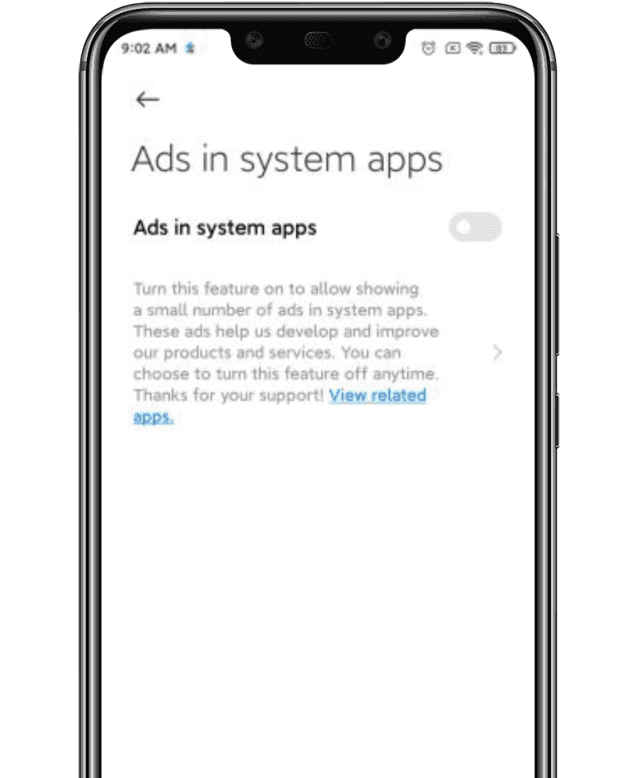
Lei Jun, the company’s CEO, announced last year that MIUI would clamp down on advertising , especially lewd ones. Well, we finally have a function for getting rid of the ads in the new MIUI 12. Today , the new version is being released internationally. In a swarm of functionality, the one that many of us are excited about is the latest ad treatment.
Now, you just have to follow these three simple steps to get the same thing done:
Open the Settings page and click on the account option, followed by Privacy Policy.
2. Within Privacy Policy, you’ll see an option called “System Ads”.
3. Toggle off that option to disable the ads.
Disable Ads
You had to opt-out of the User Interface Program in earlier MIUI models, reject automated diagnostic data transfer, and turn off recommended / personalized content settings on all Mi apps. The measures are now truncated to just three.
Are you struggling to save battery life on Android devices?
Both of us hate being fined regularly. When we intend to purchase our latest smartphone, battery backup still matters now.
There are plenty of Android smartphones on the market with decent battery backup, but they don’t have an unlimited battery life, unfortunately. So here are some easy hacks on your Android devices to save battery life.
Over the past few years, a variety of factors have conspired to decrease gadget stamina. Thinner designs have less battery space, larger and brighter displays, faster quad-core processors, more background applications, and all share responsibility for power-hungry GPS radios. The move from 3G to 4G networks a few years ago—particularly of the LTE variety—has also taken its toll.
Why black wallpaper? — Because most smartphones in the market AMOLED screen which only illuminate the colored pixels. And black pixels are unlit, so the more black pixels you have, or the darker pixels, the less power is needed to light them up.
Who drains your battery
It is necessary to find this strategy, just find the culprit who is responsible for draining your battery.
You can do it by going to “Settings > Battery“.
This choice breaks down what your phone’s battery absorbs. Applications and features will be seen in a chart of battery hogs below. You’ll want to uninstall the software or turn off the feature if you find an application that you rarely use or a feature you never use.
Widgets and live wallpaper
It is necessary to find this strategy, just find the culprit who is responsible for draining your battery.
This choice breaks down what your phone’s battery absorbs. Applications and features will be seen in a chart of battery hogs below. You’ll want to uninstall the software or turn off the feature if you find an application that you rarely use or a feature you never use.
Turn off automatic brightness
Automatic Brightness — sounds useful feature, but don’t go for it.
Automatic brightness is actually typically much brighter than you really need. It’s easier to set the brightness to a low yet comfortable level manually, and bump it up when appropriate. This is one of the easiest ways to conserve battery life, since one of the main battery suckers is the screens.
Apps refresh frequency
The next method is controlling refresh frequency of some apps. Apps checking for new emails and other data in the background updates frequently to fetch new information. This frequent background fetching of data will drain your battery fast.
So to disable this just go to “Settings > Accounts” and uncheck Auto-sync data to prevent your Android device from automatically syncing with your Google accounts (and other accounts) in the background. Uncheck Auto-sync data to prevent your Android device from automatically syncing with your Google accounts (and other accounts) in the background. And also force off apps that work on background.
Shorter sacreen timeout setting saves battery life
Set the screen timeout of your monitor to as short a time as is feasible for you.
Just imagine, if your screen timeout is set to a minute, four times more power will be used than if your screen timeout was set to 15 seconds. The average smartphone user turns their smartphone on 150 times a day, studies say, so the difference between a long screen timeout and a brief one easily adds up. This reduction would help keep the battery going for longer.
Switch Off Vibrate
Turn Vibrate off. Switch off vibration warnings for incoming calls unless you really need the added sensitivity. To vibrate your phone, it actually takes more power than it does to ring it.
Use lock screen notifications or widgets
Battery life can also be protected by locking screen alerts or locking screen widgets. This is because without having to turn the entire computer on, you can display the updates at a glance. This is particularly useful if you get loads of updates that are not immediately worth following up on.
Stay offline
You don’t have to be wired 24/7 to the internet, which enhances the use of data and drains the battery as well. So use the internet when you need to, including shutting it off during your hours of sleep and office hours.
Original batteries
Use only original batteries directly from the manufacturer. This one is significant. It is indeed a poor option to save a few bucks on a battery that could harm your beloved smartphone, which may also offer sub-standard battery efficiency.
Apps lite version
Opting lite versions of Android apps over the main edition there would certainly help you reduce the battery usage. Since lightweight Android apps are slipped versions of the main app, but to save your Android device battery life, you can have to sacrifice certain features for the greater good.
Turn off animations
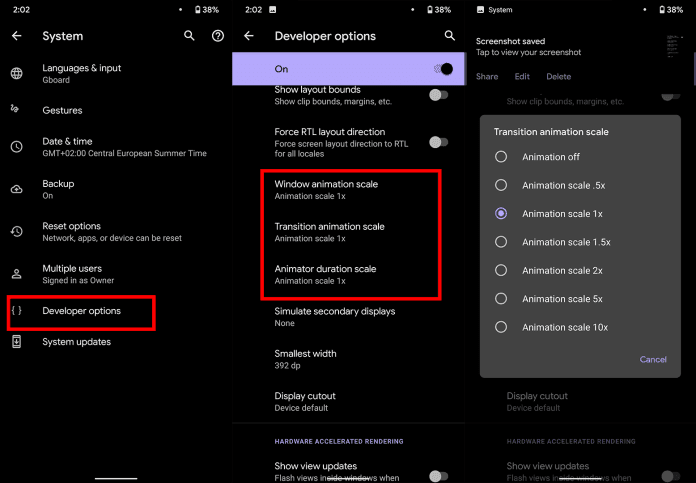
Another ideal way to maximize battery usage on Android devices is to adjust animation settings. But you have to access “Developer Choices” to change the animation settings, a choice that is concealed within your Android settings.
To enter into Developer mode, go to “Settings>>About phone” and tap on “Build number” a few times and then go back to the main settings page to find the activated “Developer Options”. Now go to enabled Developer Options, and scroll down to find three options namely “Window animation scale“, “Transition animation scale” and “Animator duration scale” and turn them off.
Turn off unwanted services
After their use, we often forget to disable such services such as WiFi, GPS, NFC, Bluetooth without understanding their negative effect on the battery life of your Android device. Most of these services are constantly surveying routers for your knowledge, to find nearby Bluetooth devices or WiFi connections or GPS satellites, even if they are not accessible at that time.
So swipe down your notification bar and disable all these services after their use to save your device battery life.
Greenify
Unlike any other third-party apps which claim to save battery life on Android — Greenify is the trusted one. Greenify saves your battery life by pushing apps into a kinda hibernation mode and stop them from running background until you reopen them again. Since some of the advanced features of Greenify work only on the rooted device — though still works well on non-rooted devices too.
What are the most commonly asked questions from Android users? Like, how is Android getting faster? How can I make my Android phone faster? Well, it is the hope of every Android user that their phone defies all the boundaries of fluidity and rapidity.
But do you believe this is true? Can you make your Android phone faster than it can? At most, what we want is to make the Android system function as if it’s new, because our smartphone is slowed down by downloading apps and using them everyday. These apps run in real-time and consume the device’s memory, energy , and other resources.
So, what could be the many ways to use our Android devices efficiently, in such a way that we could reduce the lags and freezes as much as possible if not completely?
Keep the apps you use
Nearly every guide to Android tips and tricks you could read will suggest that you keep only those apps you use on a daily basis. Doesn’t that sound apparent? Will you store your house with unnecessary items only because they are free? Yeah, our homes are always loaded with items like that, but do we have to do the same with our smartphones?
In order to keep running, numerous apps that live inside our smartphones run all the time and need to connect to the Internet. Even if we don’t benefit from these applications, they will just place a burden on the hardware even raise our data bills. It would be a smart step in the direction of speeding up Android to get rid of such software.
Clear the cache
On a daily basis, there are some applications that you don’t need, but they are relevant enough to have a place on your computer. Like, you book flights, hotels, and order food with the apps you use. Try to delete the cached data for such apps in the Settings to make Android quicker, to ensure that they do not take much space when they are not in use. Often learning the cached data helps to make the app faster as it eliminates old data that might make it slow and cause freezes and crashes. The application will maintain newer versions of the same stuff when the data is removed.
Clear the memory several times during the day
Android has exceptional abilities for task management. It can, whenever needed, close unwanted processes on its own. But I can tell you this old-school thing would be of great help if your system had a RAM shortage.
Nearly every launcher nowadays provides the option of freeing up system memory. If there is no memory cleaning application, you should consider downloading any. And I am not talking about the apps here that claim to make your Android phone faster by running cleaning operations in real-time. And all they do is make it even slower on the computer.
Check if there are lighter versions of apps
Many of the popular apps like Facebook, Twitter, Messenger, and Opera also have versions of their ‘lite’. These lightweight applications are also designed for smartphones at the entry-level and for consumers needing to keep things simple.
The efficiency of your Android phone can be enhanced by using Lite versions for applications. And they also decrease your data bills, and it’s one of the reasons that there are such games.
Update your device
Each newer version of Android comes with different performance enhancements. So, updating your computer will do wonders and accelerate Android if your vendor is good enough to release one.
Alternatively, you can head over towards custom ROMs for your Android device if you think the device maker built the phone and just forgot the fact that it exists anymore. That is the case of the Mi Pad my friend brought more than a year ago. Even though the device has capable hardware, it still runs Android KitKat. Please note that using customs ROMs usually comes in the category of Android performance tips for experienced users.
Before you install an app
It’s almost a decade since Android came into existence and the number of apps for the platform has now grown into millions. But out of these uncountable number of apps and games, not all of them are designed by developers with good intentions.
Many Android apps are fake and want to take control of your device, steal valuable data and send it to their masters. For instance, the System Update malware lived in the Play Store for three years, undetected.
Google has recently rolled out Play Protect tool for scanning such apps. Indirectly, you can make your Android device faster by this option. However, you should check the authenticity of an unknown app before you install it, even if you’re downloading it from the Play Store.
Format your SD Card to improve Android performance
If you experience frequent crashes on your Android phones, one of the explanations might be a corrupt SD. Formatting the SD card would not only delete the unnecessary junk of files generated by the Android framework and various apps, but could ultimately lead to a boost in performance.
Update only over WiFi
In order to keep the information fresh all the time or do other things such as uploading files, images , videos, several apps need to update themselves in the background. Disabling background data can thus render an Android computer, to an extent, faster.
That’s because it bars apps from linking to the internet and from using device tools. Turning off background data for mobile networks will also be helpful in saving your internet bills.
Alternatively, you can turn off auto-sync on your Android device if you want to keep your device from being synced by Google.
And turn-off auto update in Google Play by visiting Settings > Auto-update apps > Select Auto-update apps over WiFi only.
Restart is what your Android phone needs sometimes
For our computers, this applies; restarting the machines will help them find their way through tough times. Similarly, Android devices may be the case too. It deletes temporary files to speed up Android when you reboot your computer and also cleans up the memory of the device.
Use the cloud, free your storage
Files are being transferred to the cloud in the latest 2017 storage fashion. Not only does this make our data available across devices, it also frees up precious internal storage on the Android phone that applications installed on the device can use. Keep in mind that internal storage plays a significant role in your Android phone’s output.
Keep your home screen clean
It sounds good to fill your Android home screen with live wallpapers and loads of widgets. However, all these things put additional load on the hardware under the hood and affect the output of the system.
Often, when you use a heavy app or play games, you may see your Android device struggling to load the contents of the home screen.
One of the many ways you can make your Android phone quicker is to keep your home screen as clean as possible. Every time you return to the home screen or wake the computer from sleep, it doesn’t have to load all the content.
Try other launchers made for Android
android launchers
Custom launcher is a perfect way to turn your Android computer into a whole new version of itself. It might not be feasible for a custom launcher to have a major performance boost related to hardware, but some of them suck much less memory and Processor than others. Installing a lightweight custom launcher will thus make your Android phone functionally faster.
In addition, the variety of shortcuts, customizations, and other options will help to make your Android device run faster, if not faster. These applications will reduce the time that people would possibly spend in searching different apps and settings on their devices.
What to do when your Android phone freezes?
It’s hard to digest, but some evil apps and processes make our device experience the temperatures of hell. But repeatedly tapping the screen or pressing buttons would only make things worse when your Android freezes due to an app crash or when all RAM gets consumed.
Under such cases, strive to show some calmness and maturity. Most of the time, it’s just the app, and pressing the home button will take you to home screen. After that you can destroy the affected app from the Recent apps section to make Android faster.
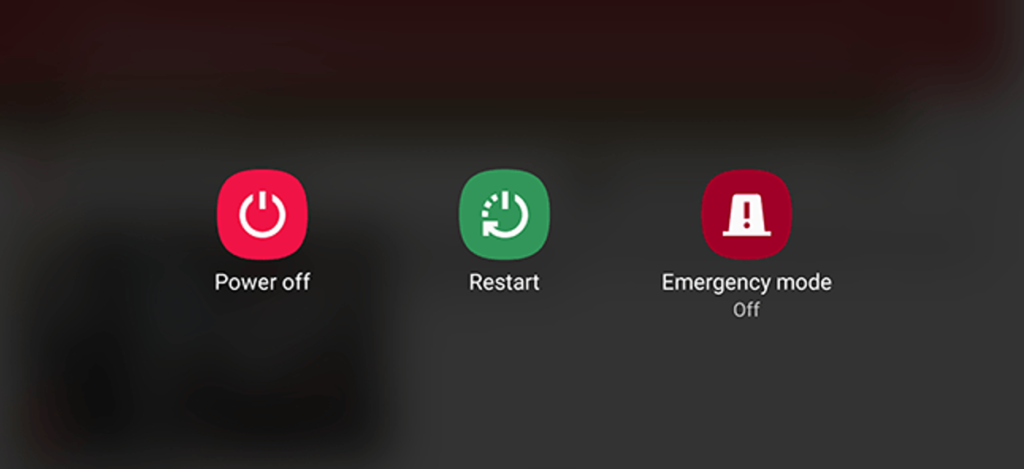
When you press the home button, if nothing happens, press the power button gently and try to ‘reboot’ or ‘turn off’ the system. If the system is stubborn enough to resist a restart you may remove the battery. If your mobile has a non-removable battery, you can have all the time, but you may have to wait until the battery is discharged.
Developer options
There is a much popular way to make an Android device faster by tweaking some settings in the Developer Options. However, I personally don’t like this suggestion as it leaves the device without any special effects.
You can enable Developer Options on Android by going to the About section and tapping the build number five times consecutively. Then, you’ll be able to see Developer Options in the Settings. You can disable animations on the device. Set Window animation scale, Transition animation scale, and Animator duration scale to off.
This change reduces the time wasted on rendering various visual effects on the screen when you operate, making it work quicker in some sense. Go ahead if you’re fine that your device appears to be running a decade old software when it’s not.
Reset your device
Last and but not least, the ultimate option to make your Android phone faster is to perform a factory reset. You can consider it if your device has slowed down to the level that can’t do basic things.
There are two ways to reset on your Android device. First is to visit Settings and use the factory reset option present there. This would perform a soft reset of your device which involves resetting device settings and wiping all the data like your photos, videos, apps, cache, etc.
For deeper cleaning, you’ll have to boot into recovery mode and hard reset the device. After you turn off the phone, on most Android devices, recovery mode can be accessed by pressing Power and Volume Down button for around 5 to 10 seconds.
You will need to boot into recovery mode for deeper cleaning, and hard reset the computer. On most Android devices, after you turn off the handset, you can access the recovery mode by pressing the Power and Volume Down buttons for around 5 to 10 seconds.
In most situations, though, you should stick with the first process, as it will fix problems for you. And, try to back up the data before you do something.
So, these were some of the Android tips and tricks for your phone with a hope that you’d be able to give it some adrenaline rush.
On our Android smartphones, the list of settings and features is very comprehensive and most of them either just pass by unnoticed when we see them, or we happily ignore them. One of those was Wi-Fi Direct, but we will clarify to you what it is and why you should use it. Click here to set it up.
What is Wi-Fi Direct?
When anyone discusses Wi-Fi most people would think about browsing the internet instantly, but there is more to it than just that. Wi-Fi Direct is a certificate issued by the Wi-Fi Alliance of more than 600 members, including Apple, LG, Intel , Microsoft and Dell. These days a range of devices are compliant with Wi-Fi Direct – most notably smartphones , laptops and digital cameras. One of the first smartphones to have this feature was the Samsung Galaxy S (launched in 2010), and as for Android 4.0 Ice Cream Sandwich, all Android smartphones have this feature included native.
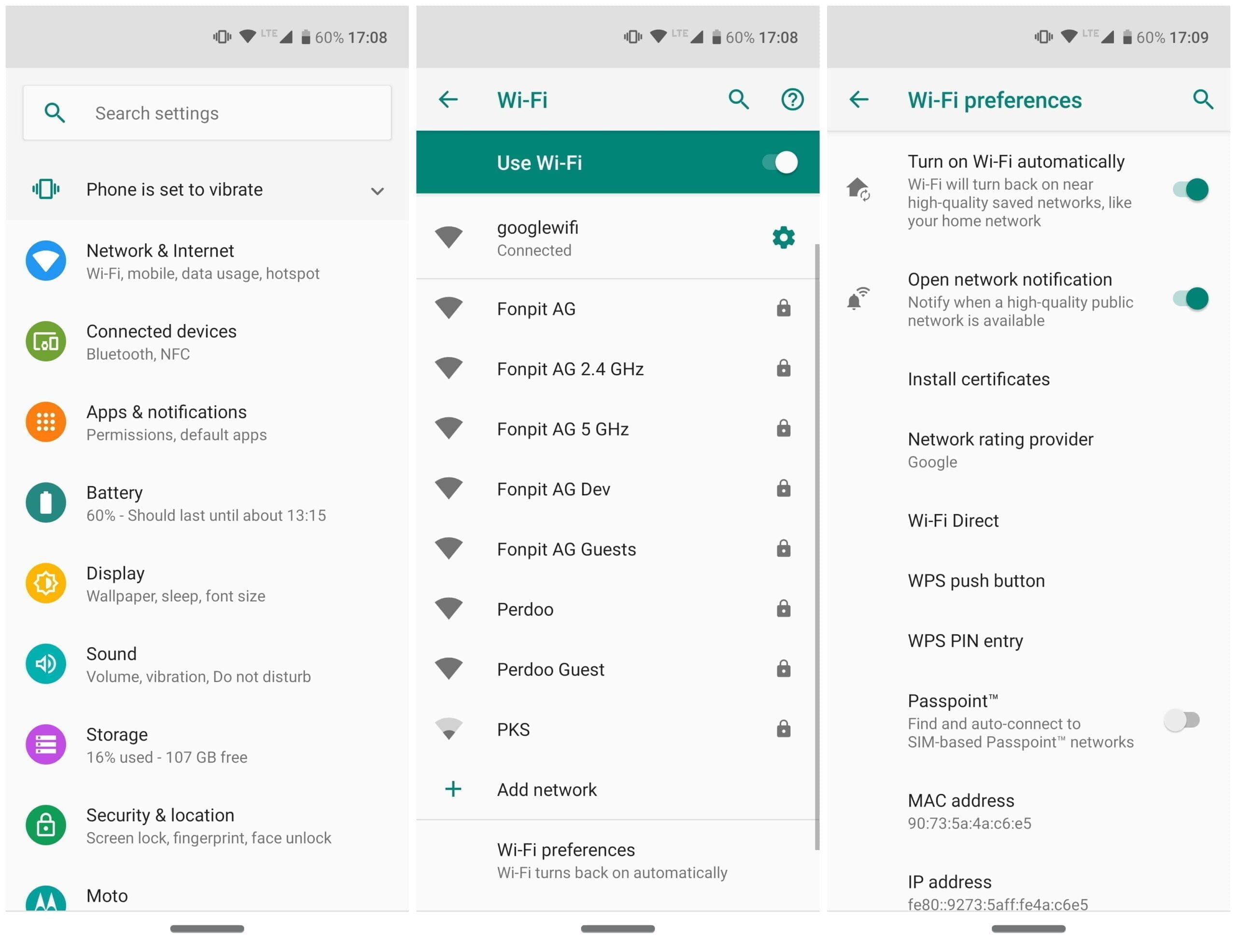
Wi-Fi Direct can be regarded as a kind of second-generation Wi-Fi, as it allows compatible devices that do not have their own internet connection to create a connection between them (hotspots, modems or routers). You can create a wireless network between multiple devices, thanks to Wi-Fi Direct. Additionally, in conjunction with Miracast, you can use Wi-Fi Direct to screen on another device with a monitor. Wi-Fi Direct’s newest generation is also compliant with NFC.
Wi-Fi Direct settings
Why should you use Wi-Fi Direct?
As already mentioned, Wi-Fi direct allows devices to connect to one that does without their own internet connection. In the case of Android smartphones and tablets, you can connect them and pass files easily without the cable hassle. So, is Wi-Fi Direct just a glorified Bluetooth version? Oh , yeah, yes and no. The benefit of using Wi-Fi Direct over Bluetooth is that the range and upload rates of Wi-Fi are considerably greater than those of Bluetooth. So in short-use Wi-Fi Direct to send files from one device to another, if you want a better way.
Set up Wi-Fi Direct
Each Android smartphone that uses Android 4.0 and above has Wi-Fi Direct features (some very rare exceptions are available). Although the user interfaces of the systems can differ, setting up this functionality for all devices is relatively easy and standardized. At the moment, Wi-Fi Direct does not allow file transfers natively, so you will need to install a third-party plugin. We suggest “Send Wherever”
Unlike with Bluetooth, there is no button or anything that you need to tap to turn Wi-Fi Direct on. Wi-Fi Direct is enabled the moment you have a stable internet connection. This doesn’t mean that Wi-Fi Direct is on all the time. Your smartphone only starts scanning for nearby devices to connect to when you tap on the Wi-Fi Direct tab.
Important: You also need to turn on Wi-Fi direct on your laptop, television, printer, or whichever device you are connecting to as well as having activated it on your smartphone using the steps above.
Unless we’re talking about an entry-level smartphone, all of the latest mid- and high-range Android devices have a fingerprint sensor as the most significant unlocking process. Realme mobiles also use this technology, either on the back or by sensors on the phone. The fingerprint reader can fail at any time though.
Any piece of hardware at any given time is vulnerable to failure. We also tell you about various issues on our site several times, but thankfully in most cases the solutions are at our fingertips. The same is true of Realme mobiles and the fingerprint sensor, which can fail without warning and without having an obvious trigger for us.
Realme cell phones modified or released with RealmeUI have a security center to identify potential hardware or software issues. The application can be found with the other apps of the device and can measure several aspects, including the fingerprint sensor. In order to be able to test this section, we have to uncheck all the others (or leave them in case we take advantage of a full test)
We will click on the “Start search” button until completed. The device will take a few minutes and we’ll be able to see if there is a fingerprint sensor problem at the moment. If it does, the device will provide us with the necessary rabbits to solve them.
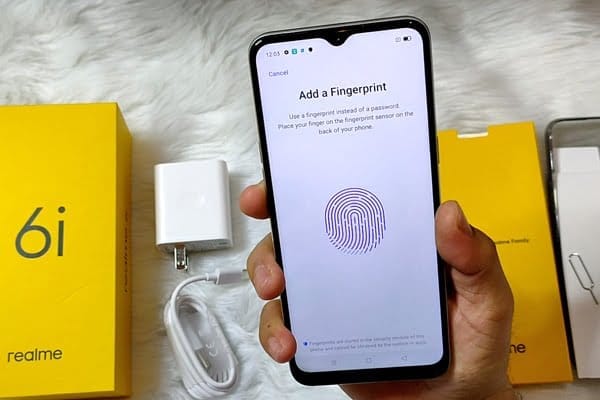
This is the easiest way to troubleshoot or spot unusual fingerprints. The goal is to delete all the tracks we’ve captured and start anew. Click on the trash can icon in the registered fingerprints to do this, and click on “Add a fingerprint” and re-register our fingerprint until done.
Register a finger more times
This is a trick to offer maximum precision in finger unlocking. It involves registering the same finger at least twice. In this way the system will detect our fingerprint more times, being able to register parts that it did not do in the first pass and thus being more precise.
Clean the sensor
Dirt is one of the key explanations for sensor failures on fingerprints. Over time and after using the mobile with dirty hands, a thin film of fat between the sensor and our finger can be produced which prevents correct reading. This can cause problems, and lead us to believe it is a malfunction of the sensor. While our Realme has a fingerprint sensor on the screen or on the back, it is enough from time to time to wipe with a dry cloth to remove dirt and restore its efficacy to what it was before.
Factory reset
If any of the above does not work, it is best to return the system to factory settings so that all settings and downloaded data can be removed and then try to get the fingerprint sensor to work again. To do this, click on Settings / Backup and then click on “Delete Factory Files.” This choice may be under Storage / Backup and Restore, depending on the version of ColorOS or RealmeUI. The process will last a couple of minutes and the mobile will turn on again and the fingerprint sensor will respond again.
Hardware problem
If even with those, the fingerprint sensor works again, it is possible that we are facing a hardware problem caused by a blow or internal failure , which requires the assistance of a professional technician.
Xiaomi and Redmi phones have a secret GPU Overclock mode using MIUI software to boost gaming performance. You can get more FPS in games, better score for Antutu, if you allow this mode. Allowing this mode however will cause the system to overheat. Long-term usage it can turn into a dangerous situation.
Android users installing apps from third-party app stores are at risk of the BlackRock malware. How can this malware be stopped?
BlackRock malware is yet another threat worrying Android users. This newly-discovered malware can target a variety of different applications, thereby stealing your information.
Make sure you know what BlackRock malware is, and how you can protect yourself, before installing another file.
Security firm, ThreatFabric, discovered a digital danger that affects Android devices in May 2020: BlackRock malware.
Analysts however quickly discovered that BlackRock malware is not really a new threat. BlackRock malware is the product of leaked source code for Xeres malware, which is a form of trojan LokiBot banking.
Despite the fact that BlackRock malware is based on a banking trojan, it does not just affect banking apps. It also targets applications for shopping, leisure, social relations, entertainment and even dating. This extensive publicity makes it extremely risky.
It currently has 337 apps on its goal list, some of which you might be using on a regular basis. Its target applications aren’t limited to one country either — it targets applications across Europe, North America , and Australia.
ThreatFabric presents the full list of targets in its article. Some of the applications on the list include Gmail, Netflix, Snapchat, eBay, Twitter, TikTok, PayPal and more.
BlackRock malware has not been detected on the Google Play Store until now. Currently it targets downloaded apps from third-party sites, but that does not mean that BlackRock malware will never appear on the Google Play Store. Aggressive hackers also can find ways to break Google’s protection protocols.
How BlackRock Malware Steals Your Information
When BlackRock malware appears on your computer it can never be noticed by an unknowing user. It uses a technique known as a “overlay,” a fake window which pops up over a legitimate app. The overlay mixes with the software so it’s hard to say whether the pop-up is part of the app or not.
The window will ask you to enter your credit card number and login code, before you can even start using the legal app. This helps it to get the details right off the bat.
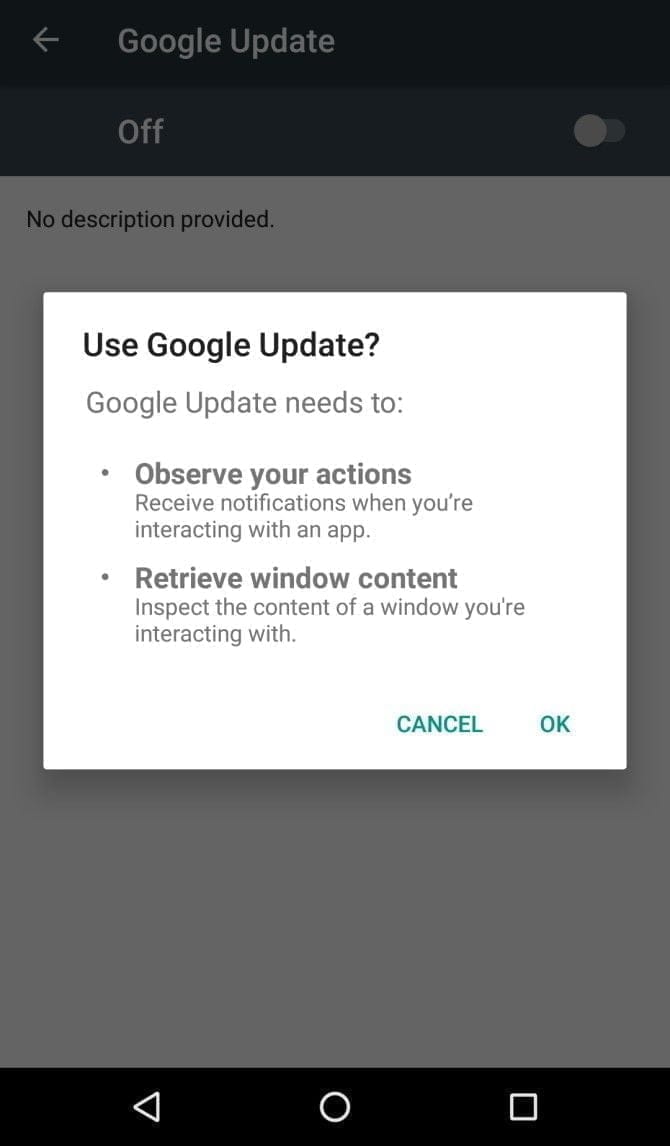
It infiltrates your device in the first place by getting Accessibility Services permissions. When you install an infected app, it’ll prompt you to enable a fake Google Update. Accepting the “Google Update” allows it to intervene with your device.
If you aren’t familiar with an Android’s Accessibility feature, you should know that it’s one of the most powerful functions on your device. It’s meant to help Android owners with disabilities, but Accessibility Services can be used to hack your phone as well. This feature can automate a variety of tasks for the user, including tapping the screen, reading text aloud, and even creating captions.
Giving BlackRock permission to use Accessibility Services lets you build the overlay that you can see when you open the target app. It also gives additional functionality to the malware, as it can then use an Android DPC (device policy controller) to grant administrator privileges to itself.
In other words, it not only steals the confidential details you type into its overlay — it can actually do a lot more than that. BlackRock does not only intercept SMS messages, mask alerts and lock your computer, it can also engage in keylogging. That said, this malware is certainly not what you want on your computer.
Protect yourself from BlackRock malware
As mentioned earlier, the Google Play Store still hasn’t found BlackRock. But just because apps from third-party app stores are currently being targeted, that doesn’t mean it’ll never make its way to Google Play.
ThreatFabric notes that it “can not yet predict how long BlackRock will be active on the threat landscape.” Meanwhile, it’s necessary to bear in mind some precautions before installing apps.
Why an anti-virus app won’t cut it
It’s not a bad idea to have an antivirus app on your smartphone, but unfortunately, an antivirus app won’t stop the BlackRock malware. When BlackRock infiltrates your phone, it has a feature that blocks you from using an antivirus app.
As soon as you open an antivirus or an Android cleaner app, such as Avast, Kaspersky, McAfee, BitDefender, or Superb Cleaner, BlackRock will immediately redirect you to your Home screen. This prevents you from removing the malware using an antivirus app.
So, if you download a sketchy app from a third-party store, and think that an antivirus app will keep you safe from all threats, think again.
Check app permissions
No matter how legit an app may seem, you should keep an eye on the app permissions. Some apps request permissions that have nothing to do with the App’s core function.
For example, your SMS messages obviously don’t need access to a flashlight app. This is a sign that you should immediately uninstall the App.
As BlackRock malware asks for permissions from Accessibility Services, you’ll want to look for any apps that require that particular privilege. If an app is legitimately for users with disabilities, has good reviews, and is from the Google Play Store, you are likely to have confidence in granting permission to the accessibility services. If not, avoid giving that privilege to any applications that don’t need it.
Download apps from Google Play Store only
Google Play Protect was put in place to scan your installed apps for malware as soon as you download them, as well as scan them periodically once installed. Third-party app stores don’t have this safety feature, so you’re pretty much on your own in terms of security.
The lack of security protocols on third-party stores has allowed BlackRock malware to thrive. To lower your risk of encountering BlackRock malware, try to avoid third-party apps stores, and refrain from downloading APKs.
Stay safe!
BlackRock malware will hopefully never hit the Google Play Store. There really isn’t any telling if the actors behind BlackRock malware can find a loophole in Google’s security policies, but if they succeed, BlackRock malware could accumulate a significant number of victims.
If BlackRock ever reaches the Google Play Store, it’s not too surprising. After all, despite Google’s strict security protocols, several apps that contain Joker malware still managed to make their way onto the Google Play Store.
Your phone’s capacity is limited and can fill up quickly. Regularly, the apps you use to build new files to store information.
These temporary data files are known as a cache, and cache files take up a reasonable chunk of your Android phone’s storage space. Let’s look at the cache’s purpose, how to clear it out and more.
What are cache files
When you open an app, your phone uses the temporary data stored in cache files to recall the associated information more quickly. For example, Spotify might cache your most frequently accessed playlists so they don’t have to load their list of songs every time you open them.
A cache file is useful to the associated program only, so for instance, Spotify has no use for Instagram’s cache. In most cases it discards the accompanying cache files once an app decides that the stored temporary information is no longer useful. Websites, applications, and games all use cache files to provide you with a faster browsing experience.
Clearing cache benefits
Cache files are critical and you don’t usually have to screw them up. Deleting cache files from your phone manually, however, is often useful.
This can help in a few ways:
In the short term, clearing cache helps you save storage space on your phone. But this is a temporary solution, since new cache files are created every time you use apps.
Sometimes, old cache files can become corrupted. When this happens, apps can start experiencing problems. Deleting the corrupted cache files can solve these issues.
Old cache files can potentially pose security and privacy threats. Web pages cached in your browser may contain sensitive information. If an unauthorized person accessed these files, they could steal personal details.
If a browser or other app refuses to fetch the latest version of a page, clearing cache can force it to update.
Should You do it regularly?
Now that you know the advantages of clearing cache, you might think on a schedule that you should clear the cache manually. But in reality this is counter-productive. Keep in mind that cache files have the useful function of speeding access to the content you currently use.
That is why deleting old cache files by hand is not a good idea. Android also has a built-in feature to delete unused files, which usually works very well. The key occasions to remove cache files manually occur when:
An app’s cache files are corrupted, causing the app to misbehave.
You want to delete files containing personal information to protect your privacy.
You’re running out of storage space on your phone and don’t want to delete your videos, pictures, and apps.
For new versions of Android, the cache files for each device need to be removed individually. Notice that all of the cache is seldom removed. Clearing the cache from a few problematic apps can in most cases solve storage or performance problems.
Open Settings and select Storage.
In the resulting list, tap the Other Apps entry. This will take you to a list of all the apps installed on your phone.
Choose an app that holds a lot of cache files. You can tap the three-dot menu in the top-right and choose Sort by size to see which apps take up the most space. We’ll use Chrome as an example.
On the app’s info page, tap the Clear Cache option.
That’s all you need to do to clear the cache files for any app on your phone. If you tap Clear Storage instead, you’ll remove all data from the app. This essentially resets it to a fresh state.Advertisement
Older Android versions gave you the option to delete all cached files at once by going to Settings > Storage > Cached Data. From there, simply tap OK when you see the option to delete all cache files.
What happens after clearing cache?
After you clear the cache files, you’ll regain some storage space and the app will continue to work as normal. However, all the data it used to smooth out performance is gone, so it may take some extra time to browse around at first. Over time, the app will build up cache again based on your usage.
Clearing cache files will not force you to log into apps again. You won’t lose data like game progress, browser bookmarks, or similar.
Your Android phone’s storage space is a precious commodity. Clearing unused cache files is a decent way to free up space temporarily or troubleshoot app issues. But it’s not something you should do often, or through unreliable third-party apps.
Unlocking your Android phone’s bootloader is the first step to rooting and flashing custom ROMs. And, contrary to popular belief, it’s actually fully supported on many phones. Here’s how to unlock your bootloader the official way.