Blog

  • Is a silicon-carbon battery device a good buy?

    Is a silicon-carbon battery device a good buy?

    We can never have enough battery life. The older generation still longs for the days when a single charge was sufficient to power your feature phone through a hectic week, even if the majority of smartphones from the last few years will easily last you a day or perhaps even two.

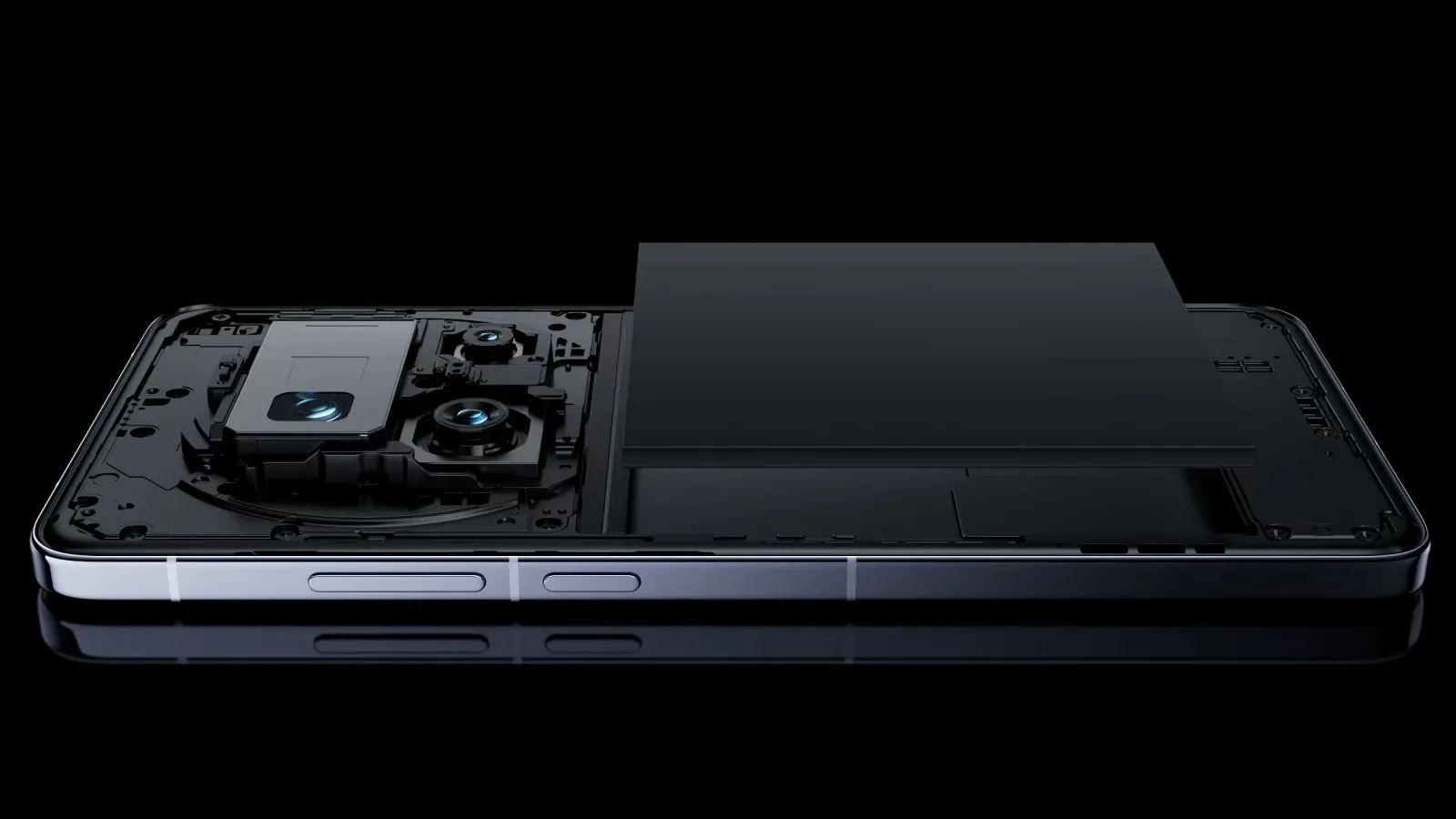
    Many of the top flagship smartphones of today come with innovative silicon-carbon batteries thanks to the efforts of battery engineers. Because of this, they may promise even greater battery capacities without having a larger or thicker chassis. What a huge victory.

    For instance, the OnePlus 13 has a 6,000mAh silicon-carbon battery, which is more than the 5,400mAh cell from the previous year. In China, the Xiaomi 15 Ultra has a massive 6,000mAh battery capacity, up from 5,400mAh the year before (and a still respectable 5,400mAh for worldwide markets, up from 5,000mAh). The smaller variants also enjoy comparable improvements. The vivo X200 series, OPPO Find X8, and Honor Magic 7 Pro are all brand-new flagship devices with silicon power cells. The technology has here in full force already.

    Unfortunately, silicon-carbon battery technology has not yet been included into the newest devices from Apple, Google, or Samsung. Maybe by 2026, we will see these brands go on board. However, is it better to remain with the more recognizable Lithium-ion models or to jump right in and purchase a phone with a silicon carbon battery?
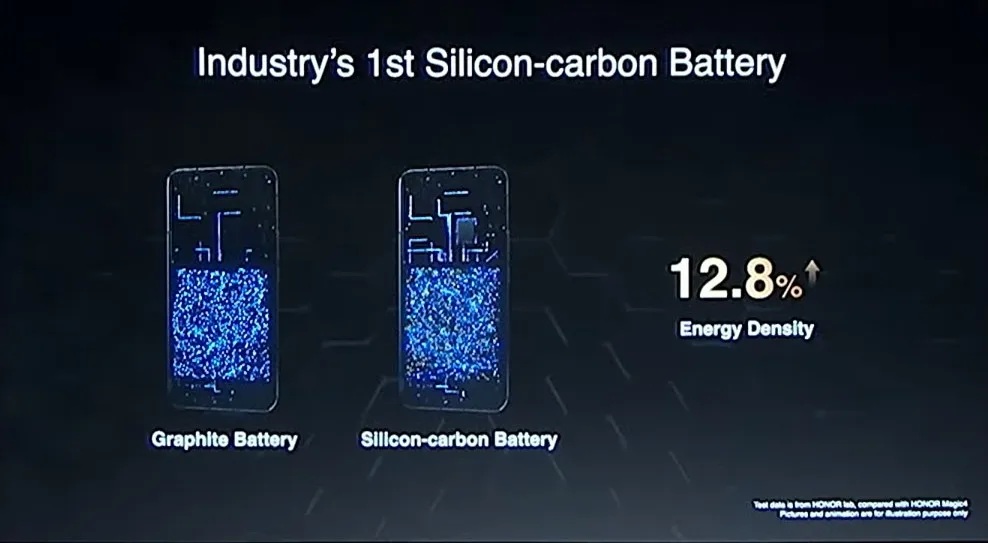
    silicon-carbon battery has increased capacity

    The difference between silicon-carbon and Li-ion batteries

    Rather of being a completely novel idea, today’s silicon-carbon (Si/C) Li-Ion batteries are essentially an advancement of conventional lithium-ion technology. By adding silicon, which has a substantially higher energy storage capacity than graphite (372 mAh/g compared to about 4200 mAh/g for pure silicon), they alter the traditional graphite anode. Because of this, silicon has long been a promising material for increasing battery capacity.

    Pure silicon anodes, however, face many difficulties. Extreme expansion is the most troublesome; when fully charged, the structure can inflate by up to 300%. The battery experiences extreme mechanical stress as a result, shortening its lifespan and leading to structural breakdown.

    Over time, lithium loss and decreased capacity result from silicon’s strong reaction with the electrolyte, which breaks and reforms the Solid Electrolyte Interphase (SEI) layer with each cycle. The aggressive expansion exacerbates this. Another drawback for battery longevity is that silicon has lesser electrical conductivity than graphite, which can reduce charge and discharge rates and increase losses from internal resistance. This can lead to increased heat.

    To address these problems, a silicon-carbon (Si/C) composite is utilized rather than pure silicon. The SEI layer is stabilized and its expansion is lessened by the structural support that carbon offers. Depending on its silicon concentration, a well-designed Si/C battery may restrict swelling to just 10–20% during charge cycles, whereas conventional graphite anodes only increase by about 10%. Additionally, carbon increases electrical conductivity, which guarantees better lithium-ion flow and higher efficiency.

    The trade-off is that Si/C anodes are unable to fully realize the 10x capacity improvement of pure silicon. Rather, depending on the silicon percentage, they provide a very modest energy density increase of 10–20%. Si/C batteries are an engineering problem since higher Si content enhances capacity but also causes swelling and complicates manufacture. There are restrictions and trade-offs associated with Si/C batteries, but there is no such thing as a free lunch.

    The pros and cons for silicon carbon batteries

    silicon carbon battery

    Any increase in smartphone battery capacity is obviously beneficial, and Si/C batteries are a godsend for power users who want devices that can endure much longer than a single day of intensive usage. It should come as no surprise that so many of the most potent flagship phones available this year have the technology.

    After more than a month of everyday use, I can vouch for the OPPO Find X8 Pro’s 5,910mAh Si/C Li-ion battery’s exceptional longevity. I frequently get two days of moderate use out of a single charge, have enough of fuel left over after a day of chasing the kids, and in lighter weeks, I have occasionally gone well into 48 hours without needing a charger.

    On the other hand, Si/C is advantageous for thinner gadgets, such lightweight and foldable phones. Thin or small smartphones could surely benefit from this new battery type to maintain decent capacities in more constrained form factors, even though the Galaxy S25 Edge might not be Samsung’s first Si/C smartphone.

    The technology has already been used to fit a sizable 5,700mAh battery into a 5.2mm folding design in the Vivo X Fold 3 Pro. Despite being 5.6 mm thick, Samsung’s Z Fold 6 only contains a standard 4,400mA battery. This trend toward higher capacities has also been embraced by the latest Chinese clamshell phones.

    Whether silicon-carbon batteries will outlast their more conventional lithium equivalents is the main question that remains. It is evident from the foregoing trade-offs that Si/C will not outlast the most robust graphite-based Li-ion cells now available on the market. Lower silicon concentration can nonetheless provide batteries with a marginally larger capacity that have a comparable lifespan to conventional Li-ion cells. With only a slight but welcome increase in capacity to control the silicon content, this appears to be what we are seeing in today’s most advanced smartphones.

    Because Si/C batteries are pushing the limits of energy density and charge rates, smartphone manufacturers may also be becoming more cautious when it comes to fast-charging temperatures in an effort to prolong battery lifespans. In other words, manufacturers are merely attempting to make sure their phones can withstand the promised updates for the next five or more years. But because of its increased capacity, stronger diffusivity of lithium, and decreased chance of plating the anode, Si/C is actually a godsend for faster charging. Additionally, bigger capacities make it easier to follow the 80% charge guideline without worrying about running out of juice in the middle of the day. If you want to keep your phone for many years to come, silicon need not be a negative thing.

    Why a silicon-carbon battery device is a good choice?

    The newest smartphones will undoubtedly benefit from Si/C Li-ion batteries, which will also likely extend the battery life of your wearables, tablets, laptops, and even electric cars. The most cutting-edge phones of today already heavily rely on silicon cells, which allow for even greater capacities or slimmer form factors without sacrificing battery life.

    But at the moment, you will need to look around at Chinese companies to find one, like the OnePlus 13, which is very amazing. Apple, Google, and Samsung, three US giants, have not yet embraced this new battery technology. We may have to wait until their 2026 flagships or even later before they join the celebration, as they might not even get around to it this year.

    However, if you intend to retain your smartphone for more than five years, it might be wise to wait and see how the longevity issue develops. Any long-term purchase will eventually require battery replacements, but Si/C Li-ion cells may require more frequent replacements, particularly when fast charging is used. This can turn out to be an unwanted extra expense for early adopters because they are more costly to make. We will need to wait and find out.
  • Temporarily free Apps for Android and iOS

    Temporarily free Apps for Android and iOS

    This week, we are excited to present our carefully curated selection of essential free apps that you will not want to miss! Our hardworking staff has searched the Google Play Store and the Apple App Store for some hidden gems that are normally available for purchase but are now free for users on both iOS and Android devices.

    If you find an app that piques your interest, even if you don’t need it right away, go ahead and download it. Doing so will mark it as “purchased,” ensuring it remains in your app library indefinitely—regardless of whether you remove it from your device soon after.

    android and Ios apps

    Android Apps and Games Available for Free–Limited Time Offer

    Top Free Android Apps for Productivity and Lifestyle

    • AppLock Pro ($4.49): Choose different styles to lock your apps without being limited to what the app offers itself for a greater amount of flexibility.
    • Sound Meter & Noise Detector ($2.99): An app that claims to be able to detect the sound and noise level in the vicinity.
    • Fake Call Screen ($0.99): Ever been in a tight spot socially and need to be bailed out? This app simulates a fake call for you to get out of a tough situation.
    • Dark Screen Filter ($0.99): If you use your phone late into the night, perhaps dark mode is not enough, but having this dark screen filter might help ease the strain on your eyes.
    • PhotoApp ($6.49): An AI photo app that allows you to edit and modify images at your whims and fancy.

    Free Android Games

    • Non Stop Balloons Shooter ($3.99): Shoot down balloons as they continue to keep on coming at you!
    • Puzzle Words Pro ($1.49): A word search game with three modes to choose from to keep things happening.
    • Theme Park Simulator ($0.99): Enjoy running a theme park wherever you go with this cute little app. 
    • Live or Die Survival Pro ($0.49): The end of the world is coming, and you need to do your very best to remain alive with your wits.
    • Defense Zone 3 Ultra HD ($2.99): A tower defense game with amazing graphics that is set in a futuristic war setting.

    iOS Apps and Games Available for Free–Limited Time Offer

    Top Free iOS Apps for Productivity and Lifestyle

    • weather+ ($0.99): Want to know what the weather is like outside? Find out in this app before you head out.
    • Outfit Outdoor Fitness ($2.99): Let the app inform you on what you need to wear before you head out for your exercise.
    • Light Filter ($3.99): Want to take the perfect photo? Make sure the surrounding lighting is right with this app.
    • Feelly ($1.99): A personal mood tracker that helps you keep tabs on how you are feeling, perfect fro those who want to figure themselves out.
    • Bookends ($10.99): Do you do a lot of writing and research that needs referencing? Guess this reference management app will come in handy.

    Free Games for the iPhone and iPad

    • Cooking Game for Kids ($5.99): Think your kid will be the next Gordon Ramsay? Why not let them have a go at a cooking game and see if they have the chops to do so?
    • Catennacio Football Manager ($2.99): If you think you are able to do better than the real-life football managers, then give this game a go!
    • My City: Star Horse Stable ($3.99): Learn the ropes of taking care of a pony without incurring actual cost on a virtual platform.
    • Pirate Drops 2 ($4.99): A Match-3 game that takes on a pirate theme which will surely offer a refreshing experience.
    • Cuppy Ball ($0.99): Hopefully you’ll be able to place the cup at the right place for the ball to fall into.

    We advise you to review the app’s details in the Play Store or App Store before downloading any of the aforementioned apps. This is crucial as some of these free apps can have unique features or drawbacks of their own.

    While making sure your data is safe and secure, you are free to browse the wide range of free apps available for both iOS and Android smartphones.

  • Xiaomi devices that could receive HyperOS 2.2 first

    Xiaomi devices that could receive HyperOS 2.2 first

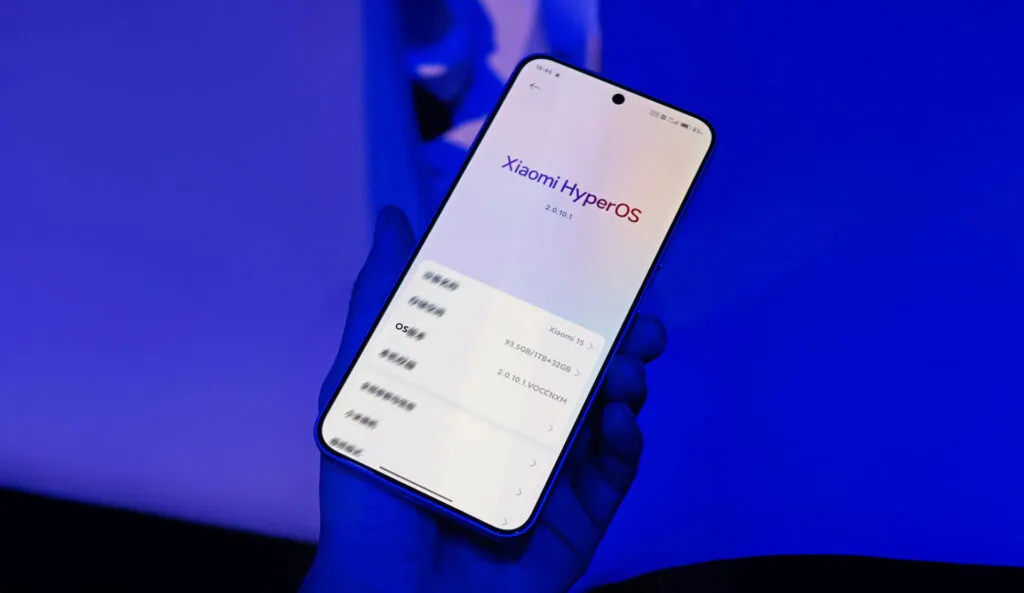
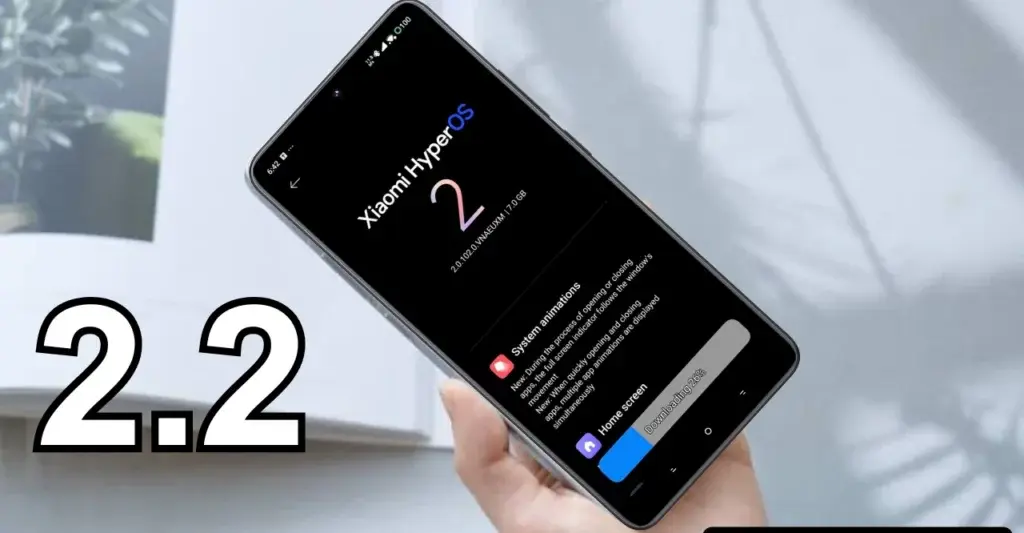
    Internal testing of the HyperOS 2.2 software version for Xiaomi’s smartphones has begun. The company is working on another big update that could provide some more intriguing features to phone holders once the 2.1 build was released.

    November 2024 saw the launch of HyperOS 2.0. Numerous UI adjustments, new security features, enhanced privacy, and greater device performance are all provided by the AI-powered software.

    Later, the company released the HyperOS 2.1 os package, which included yet more unexpected capabilities. Its primary focus was on the user experience and camera section. Xiaomi launched to the flagship devices in international market.

    The Xiaomi HyperOS 2.2 software update is currently being developed by the tech giant, and these devices may be the first to receive it. The list includes flagship models that were just introduced in China and are already becoming well-known worldwide.

    HyperOS 2.2 installing

    Devices that will recieve HyperOS 2.2

    Xiaomi

    • Xiaomi 15
    • Xiaomi 15 Pro
    • Xiaomi 15 Ultra
    • Xiaomi 14
    • Xiaomi 14 Pro
    • Xiaomi 14 Ultra

    Redmi

    • Redmi K70 Ultra
    • Redmi K80
    • Redmi K80 Pro
    • Redmi Turbo 4
    • Redmi K70 Pro
    • Redmi K70

    Tablets and Foldable Phones

    • Xiaomi Pad 7
    • Xiaomi Pad 7 Pro
    • Xiaomi MIX Fold 4
    • Xiaomi MIX Fold 3
    • Xiaomi MIX Flip

    HyperOS 2.2 is currently in the testing phase but may roll out in late March or early April. The version will be based on Android 15, but will likely bring only a few enhancements as the company has already released two major builds.

  • Here are 3 reasons why you should enable ADB on your Android device

    Here are 3 reasons why you should enable ADB on your Android device

    You have heard about ADB and that you ought to turn it on for your Android phone. But why?

    Here are three reasons to enable ADB on your smartphone right now.

    Wirelessly mirroring phone to PC

    The most recent versions of macOS and iOS allow you to mirror the screen of your iPhone to your Mac. In certain situations, this can be really helpful. However, what about Android? Unfortunately, there is not a built-in method for mirroring the screen of your Android handset to a Windows computer—or any computer, really.

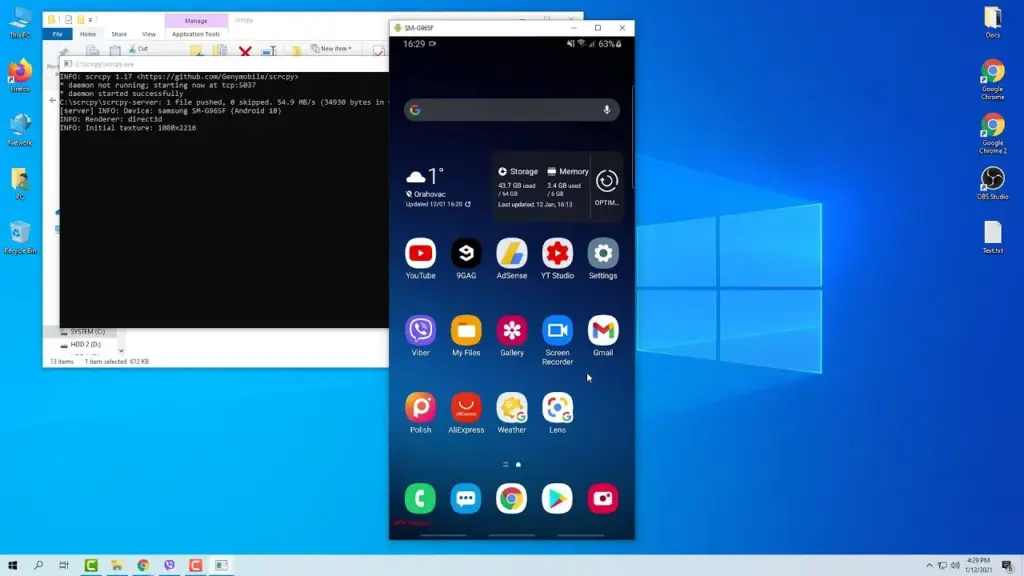
    But that is where scrcpy is useful. “Screen copy” is represented by the unusual name, and the application’s name is bolded. I was able to utilize scrcpy with ADB over my home network on my OnePlus 13R, and it was great, despite the strange name.

    The mirrored display functions just as it would if you were physically touching it, and there was hardly any lag when using Scrcpy. Everything worked as I had anticipated, and I could utilize gestures just like I could with the OnePlus 13R.

    scrcpy mirror android via adb

    You can use the command scrcpy in the terminal to remotely connect to your phone and display (and interact with) its screen on your computer after it has been installed on macOS, Windows, or Linux.

    I have two devices linked to my PC: a Wi-Fi device and a USB device. To force the connection over Wi-Fi, I used the command scrcpy -e, and it worked perfectly. Using scrcpy -d would force the connection over USB, but unless you do not have a reliable Wi-Fi network, I do not see why you should do this.

    In any case, utilize scrcpy to keep your phone’s screen shown on your computer. Just be aware that the program will only function if your phone is unlocked and the screen is turned on. You will also need to input any passcodes on your phone’s screen, not your computer’s.

    Sync files between your computer and phone

    Even though ADB comes with the adb push and adb pull commands built in, I much like use the program better-adb-sync than the built-in options. It is more akin to an rsync tool that allows you to synchronize files between your phone and computer.

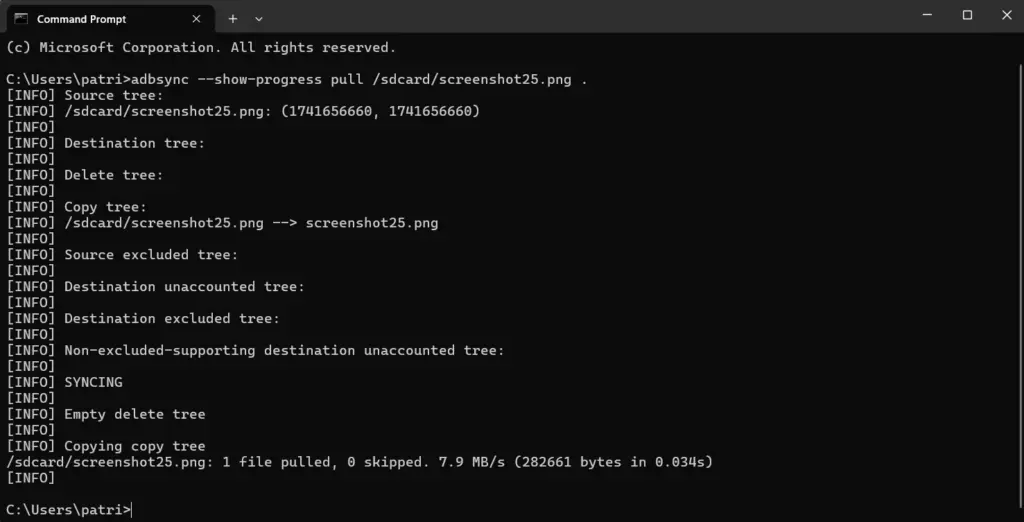
    The –show-progress parameter is one feature that sets it apart from the built-in commands, even if the core operation is fairly similar to that of adb push and adb pull. This will display the status of the file transmission between your computer and phone. After installation, the better-adb-sync command is simply adbsync. If you want to transfer a video file from your phone’s storage to your computer while displaying the progress, you would use a command like adbsync –show-progress pull /sdcard/video.mp4.

    screenshot 2025 03 10 203417

    Personally, I think it is essential to know the status of a transfer. Sending a command and then waiting for a blank response till it fails or succeeds is something I detest. Does it still function? Does the transfer continue? Was it stalling? Is it moving slowly? Is it taking so long because of that? I frequently ask all of these questions when transferring files in the terminal.

    I think it is essential to be able to use the –show-progress flag with better-adb-sync, and I am sure you will find it useful as well.

    Move files to your computer wirelessly

    ADB is the answer if you have ever wished to quickly take a screenshot of your phone and transfer the image to your computer.

    To take a screenshot of your phone’s screen, just type the command adb shell screencap /sdcard/screen.png. After that, the file will be pulled to your computer using a program like adbsync pull /sdcard/screen.png. If you are also wirelessly connected to your phone, you may accomplish all of this over Wi-Fi without the need for wires.

    When you require the information from your phone but are attempting to send anything from your computer, this can be helpful. If you have multiple phones and are unable to recall which button shortcut to use to capture a screenshot, you could also just utilize it.

    There are several justifications for using this command, and I believe each one is sound. Additionally, it works well with better-adb-sync, which makes it simple to transfer the file to your computer after taking a screenshot.

    Do you want to know additional ADB commands for your Android phone? Every Android user should be familiar with these nine of the greatest ADB commands.

  • Rumors about a custom camera for Tensor G5 in Pixel 10

    Rumors about a custom camera for Tensor G5 in Pixel 10

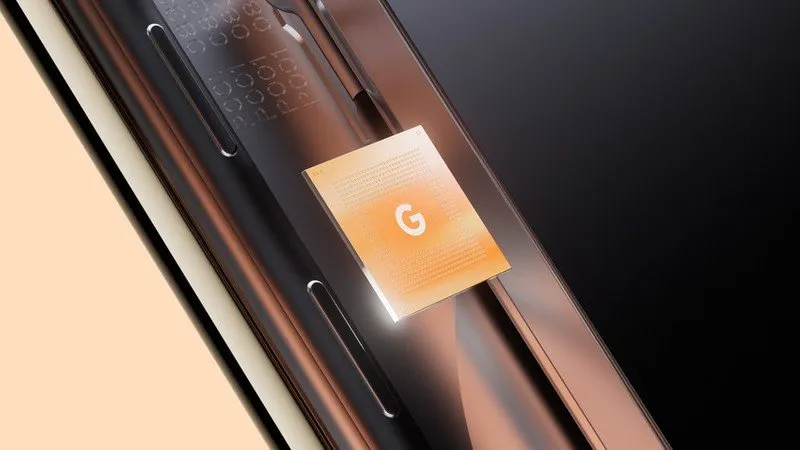
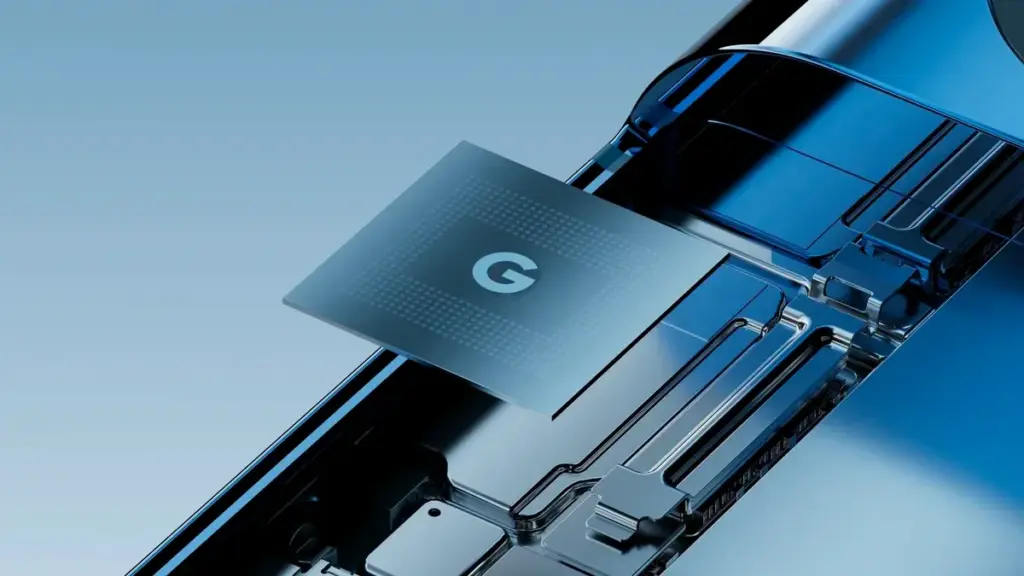
    Tensor G5 is expected to include a number of off-the-shelf components to replace Samsung-made parts of previous chips, including the use of a totally bespoke ISP, as part of Google’s decision to move its Tensor production to TSMC for this upcoming generation.

    Since the beginning, Tensor chips have mostly been a combination of components created or built by Google and those made by Samsung. This is because Google has used Samsung’s foundry and Exynos chips to help make Tensor a reality. However, as has long been known, Tensor G5 in the Pixel 10 will use TSMC instead of Samsung, creating certain gaps in Google’s chip manufacturing process.

    According to a new report from Android Authority, there are a handful of off-the-shelf components that Google will be switching to.

    tensor g5 camera on google pixel 10

    According to reports, Tensor G5 will keep using a number of Google’s current designs (with improvements) that were included in Tensor G4 and other earlier Samsung-made chips, such as the TPU, DSP, memory compressor, and audio processor. However, it will have to swap out a few parts to make room for the switch to TSMC, including:

    • GPU: Arm Mali > Imagination Technologies DXT
    • Video codec: Google “BigWave” & Samsung MFC > Chips&Media WAVE677DV
    • Display controller/2D GPU: Samsung DPU > VeriSilicon DC9000
    • Image Signal Processor: Google-customized Samsung ISP > Fully custom Google ISP
    • Physical layer controllers: Samsung > Synopsys DesignWare IP cores
    • SPMI controller: Samsung > SmartDV SPMI
    • PWM controller: Samsung > Faraday Technologies FTPWMTMR010
    • UFS controller: Samsung > Unknown third-party

    The ISP is the most noticeable change here, since Google is reportedly developing a completely unique approach. Beginning with the 2017 “Pixel Visual Core” in the Pixel 2 series, Google has utilized its own ISP in a number of Snapdragon-powered Pixel phones. Prior to Google releasing the proprietary chip before Tensor’s 2021 launch, that developed into the “Pixel Neural Core” with the Pixel 4.

    The end user will not likely notice many of the component changes Google is making, but it will be fascinating to observe if the different swaps have any positive or negative effects. The replacement of the current Samsung choices with a MediaTek modem is another noteworthy change that was previously publicized.

  • How to add you ID to Google Wallet

    How to add you ID to Google Wallet

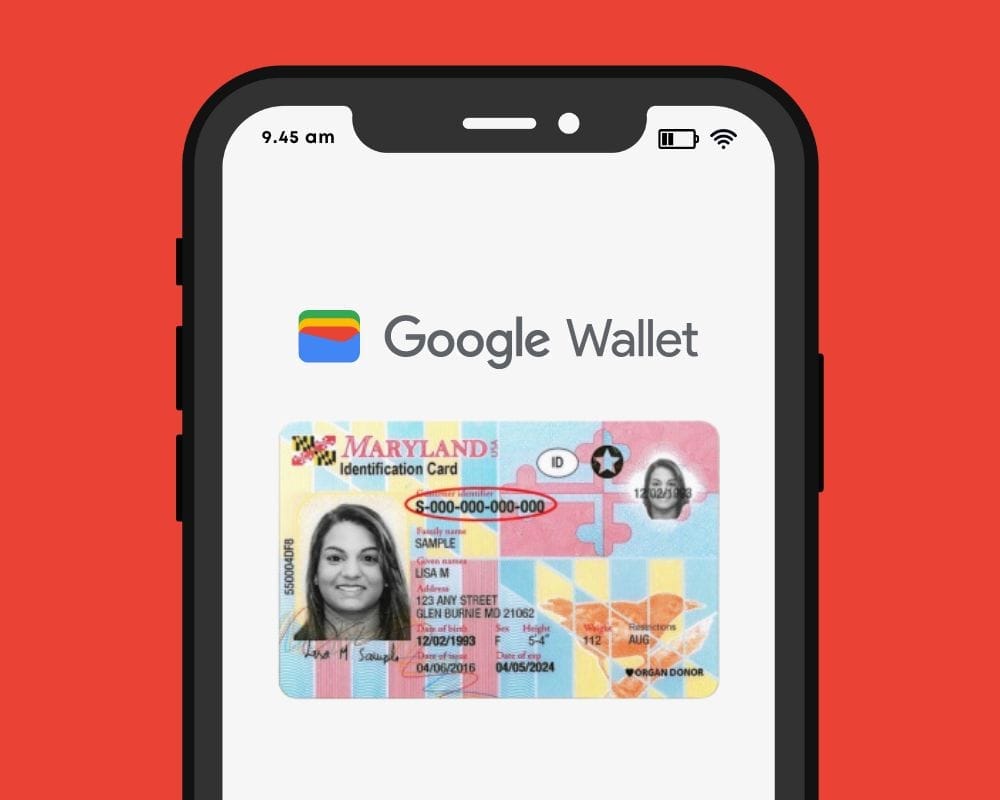
    You can link your driver’s license or state ID to your Google Wallet in certain US states. It is a practical way to carry and show your ID, however there are some restrictions. Google has caught up to Apple, which was the first to introduce this feature in 2021.

    You can add your driver’s license to Google Wallet if you know how to add your credit card. We let you know if you can add your driver’s license or state ID to Google Wallet and walk you through the process of adding and removing it. Google Wallet works with devices other than smartphones. With any of our favorite smartwatches, you can show your ID right from your wrist.

    Where you can use your ID from Google Wallet

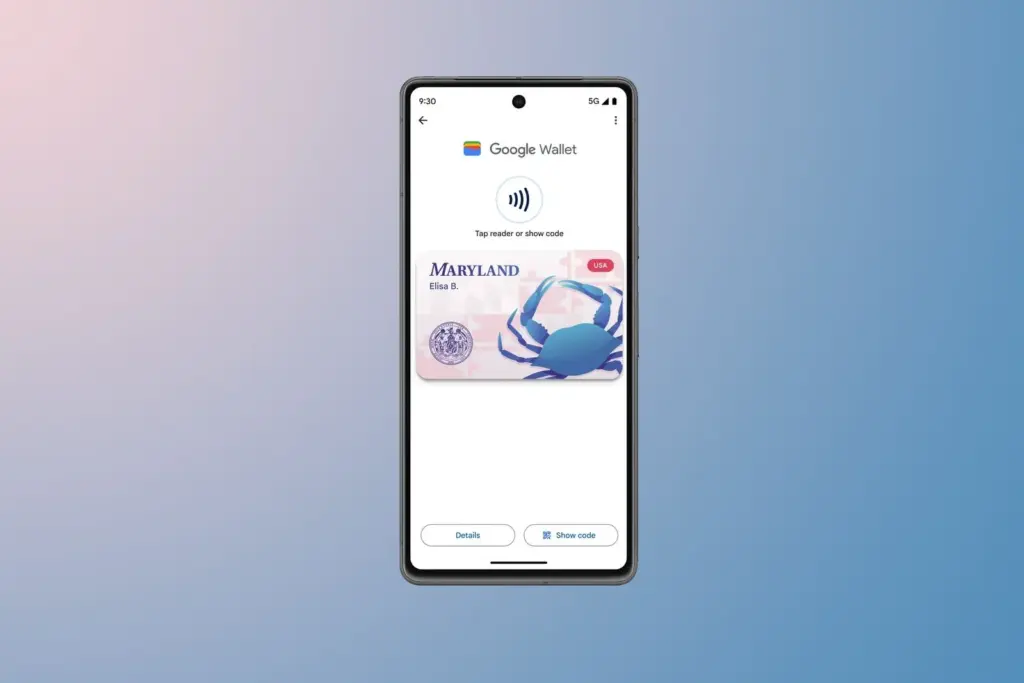
    The only US states that permit IDs to be kept in the Google Wallet app are Arizona, Colorado, Georgia, and Maryland. Additionally, several states permit the storage of their IDs in Apple Wallet.

    Since Google must collaborate with each state to integrate its IDs into Google Wallet, the rollout to more states is sluggish. The process is slowed substantially by the fact that every state handles IDs differently. Since Arizona and Georgia partnered with Apple in 2021, just six states have implemented digital ID systems.

    The driver license can be added to Google Wallet too

    Georgian and Maryland digital IDs saved in Google Wallet are accepted at a few participating airports nationwide. Colorado and Utah IDs are accepted in more contexts, such as when demonstrating your age at a restaurant. However, in any circumstance where your digital ID is approved, you must always carry your physical ID with you.

    California and Utah, if you reside there, have their own digital ID applications and regulations regarding where you can use your ID. Whether Google Wallet will be supported in these states is unknown.

    Is safe to store your ID in Google Wallet?

    Although a digital copy of your driver’s license or state ID may appear less secure, there are steps in the process that ensure the security of your personal information. These components guarantee that only you have access to your personal information, however part of this is because of the setup procedure (which we will take you through soon).

    • Your digital ID is encrypted on your phone.
    • It can only be accessed with biometric authentication.
    • You choose what data is shared each time you show your ID.
    • Your digital ID can be deleted remotely.

    How to add the ID or driver’s license to Google Wallet

    You will know how to begin if you have added credit cards, transport passes, or rewards cards to Google Wallet before. But adding your driver’s license or state ID requires a more extensive procedure.

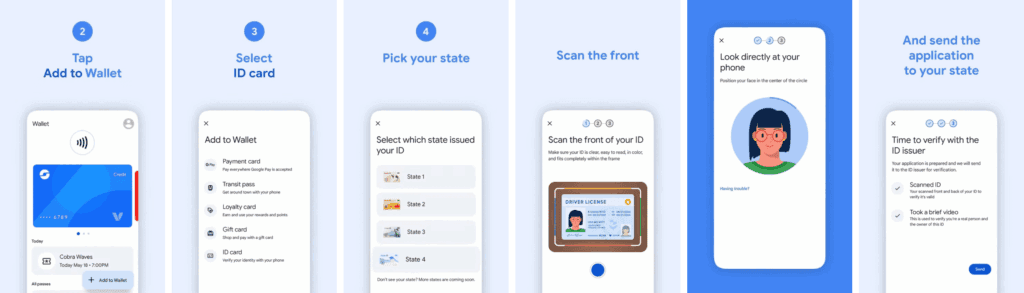
    1. Open the Google Wallet app.
    2. Tap Add to Wallet in the lower-right corner of your screen.
    3. Tap ID card. This option only appears if you live in the US.
    4. Tap your state ID.
    5. Scan the front and back of your ID.
    6. Record a short video where you’ll turn to show the front, sides, and bottom of your face.
    7. Submit your application to the state.
    add id to google wallet 1

    Your application takes a few minutes to process. Your driver’s license is ready to view in Google Wallet when you receive the confirmation notification.

    How to remove your state ID or driver’s license from Google Wallet

    It only takes a few touches to delete your driver’s license or state ID if you are worried about its security. You can delete it remotely using the same technique as taking any digital card out of your wallet.

    Remove your digital ID from the Google Wallet app

    1. Open Google Wallet
    2. Tap your ID card.
    3. Tap the three-dot button in the upper-right corner of the screen.
    4. Tap Remove.

    Remove your digital ID remotely

    1. Login to your Google Account page on any browser.
    2. Click Personal info from the top of your screen.
    3. Scroll down and click Manage digital ID.
    4. Click Delete next to your ID.

    How to provide your electronic identification at TSA PreCheck

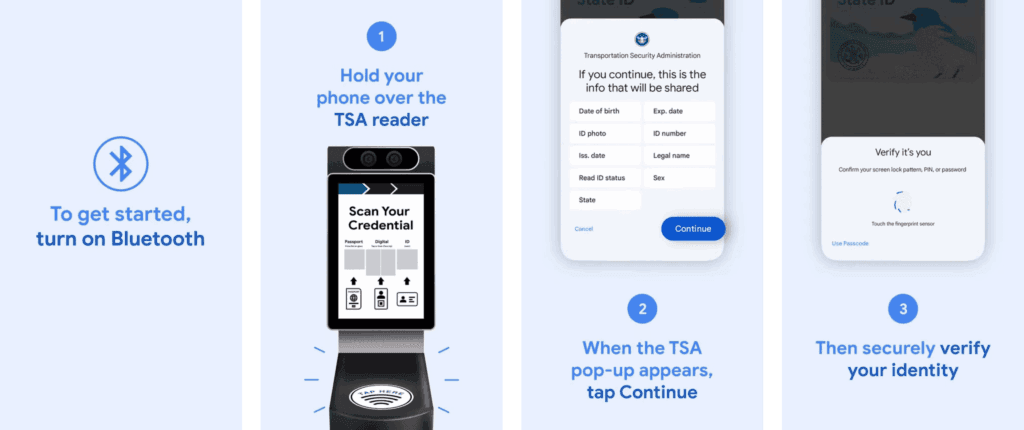
    You can display a QR code or utilize NFC with tap-to-pay to use your digital ID card. First, you must schedule an in-person visit at an enrollment location to register for TSA PreCheck. To utilize your digital ID after registering, take the following actions:

    1. Turn on Bluetooth on your phone.
    2. Hold your phone over the TSA reader terminal. The reader automatically pulls up your ID.
    3. Confirm the data you are sharing by tapping Continue in the lower-right corner of your phone screen.
    4. Verify your identity using biometric identification.
    provide your electronic identification at TSA PreCheck

    Display your ID safely and conveniently

    There are numerous benefits to carrying your driver’s license on your phone as opposed to a physical card. It eliminates the need to carry your wallet to bars, though employees may refuse to serve you if they think it is inappropriate. You can only present the necessary documentation.

    NFC communication is the backbone behind sharing your digital ID.

  • The Rise of AI Testing Tools & How They Are Revolutionizing Software Testing

    The Rise of AI Testing Tools & How They Are Revolutionizing Software Testing

    AI-driven testing software tools are now emerging as essential assets in the development process, offering solutions that traditional testing methods simply can’t match. But what exactly makes AI testing tools so powerful, and how are they reshaping the future of software testing? Let’s dive into the key advantages of these cutting-edge technologies and why they are quickly becoming the go-to choice for developers and testers alike.

    ai testing tools

    AI Testing Tools: A New Era of Efficiency

    1. Speed and Automation: Traditional testing can be time-consuming and repetitive. Manual testing, in particular, requires testers to run through a series of steps multiple times, often missing small bugs or inconsistencies. AI testing tools eliminate much of the time-consuming manual effort by automating test processes. AI tools are able to conduct tests at a faster rate, enabling more frequent testing cycles and freeing up time for developers to focus on other critical areas of the project.
    2. Smarter Testing: AI testing software isn’t just about automating tasks—it’s also about improving the intelligence of testing. AI-powered tools can learn from past tests and data patterns, enabling them to identify potential defects that might be missed by traditional testing methods. These tools can predict where bugs are most likely to appear, adapt testing approaches based on historical data, and even detect inconsistencies in user behavior that might lead to issues down the line.
    3. Enhanced Test Coverage: One of the biggest challenges in software testing is ensuring comprehensive test coverage. With the increased complexity of modern software, it’s easy for testers to overlook certain areas of the system. An AI-powered testing software tool can run thousands of tests across multiple scenarios in a fraction of the time it would take for human testers. This comprehensive coverage ensures that even the most intricate bugs are found and fixed before the software reaches users.
    4. Regression Testing Efficiency: One area where AI testing tools truly shine is in regression testing. When developers make updates to software, there’s always the risk of introducing new bugs in existing features. AI tools can continuously test the application after each update to ensure no new issues are introduced. Because AI tools learn over time, they can identify patterns and detect regressions with greater accuracy, preventing costly errors from slipping through the cracks.

    AI vs Traditional Testing Software Tools

    While traditional testing software tools have been the backbone of software development for decades, they face certain limitations when dealing with the increasing complexity of modern applications. Let’s take a look at how AI testing tools compare with traditional testing methods:

    1. Manual vs Automated: Traditional testing often relies on manual labor, where testers run scripts, check functionality, and identify bugs. While manual testing has its place, it’s prone to human error and limited by the tester’s capacity. AI testing tools, on the other hand, are automated and can run continuously without tiring or missing crucial details. These tools offer greater speed, efficiency, and accuracy—especially when dealing with large-scale applications.
    2. Adaptability: Traditional testing methods are often rigid, following predefined scripts and processes. This can be effective for smaller, simpler applications but can become cumbersome for complex or frequently updated software. AI testing tools, however, are highly adaptable. They can modify their testing strategies based on ongoing results and adapt to new features or changes in the software, making them much more agile in fast-moving development environments.
    3. Error Detection: Traditional testing relies heavily on predefined test cases, which means certain types of issues—especially edge cases—can go unnoticed. AI-driven testing tools can predict potential problem areas based on historical data, uncovering hidden issues that might not be caught using traditional methods. AI tools are capable of simulating real-world usage patterns, identifying inconsistencies, and spotting vulnerabilities that could have been overlooked in a static testing process.
    4. Cost-Effectiveness: While AI testing tools may require an initial investment in terms of setup and training, they can lead to significant savings over time. The speed and efficiency of AI testing tools allow development teams to complete more tests in less time, reducing the need for extensive manual work. This can cut down on the cost of software development by finding issues early and preventing bugs from escalating into expensive problems later on.

    The Future of Software Testing: AI and Beyond

    The integration of AI testing tools into the software development lifecycle is not just a passing trend—it’s a significant shift that is reshaping the industry. As machine learning and artificial intelligence continue to evolve, these tools will only become smarter, faster, and more capable of handling complex testing scenarios. In the future, AI-powered testing could even become fully autonomous, with the ability to independently monitor, test, and troubleshoot software without the need for human intervention.

    Moreover, AI is helping bridge the gap between developers and testers. AI-powered tools can provide real-time insights and analytics, enabling teams to make informed decisions faster. By incorporating AI testing into the development pipeline, organizations can ensure higher-quality products, faster releases, and improved user experiences.

    Choosing the Right Testing Tool

    As AI testing tools continue to gain traction, it’s important to choose the right testing tool for your specific needs. Here are a few things to keep in mind when evaluating testing tools for your project:

    1. Tool Integration: Ensure that the testing tool integrates smoothly with your existing development environment. The right tool should seamlessly fit into your workflows and collaborate with your development tools.
    2. Scalability: Choose testing software tools that can scale as your project grows. As software becomes more complex, your testing needs will likely evolve, and a scalable tool will save you time and hassle in the long run.
    3. Ease of Use: The best AI testing tools are intuitive and easy to set up. Choose a tool with clear documentation and strong customer support to ensure smooth implementation.
    4. Cost: While AI tools offer tremendous value, it’s important to balance cost against functionality. Make sure you are investing in tools that deliver a clear return on investment by improving speed, accuracy, and overall test coverage.

    AI testing tools are revolutionizing the software development landscape. By automating tests, improving test coverage, and adapting to changing needs, these tools offer unprecedented efficiency, accuracy, and reliability. While traditional testing methods still play a vital role, AI is quickly becoming an indispensable asset in the development process.

    As AI-driven tools continue to evolve, they’ll only enhance their ability to predict, detect, and resolve issues faster than ever before. For developers and testers looking to stay ahead of the curve, embracing AI testing tools is not just an option—it’s the future of software quality assurance.

  • 11 things to add to Google Wallet that aren’t your credit card

    11 things to add to Google Wallet that aren’t your credit card

    Digital wallets are becoming a more common option to pay on the go. The concept is simple: why carry a wallet when you can store your credit card on your Android phone? It makes logical and decreases the amount of items to keep track of. Google Wallet goes a step further, allowing you to add goods other than credit cards to your digital wallet. What products exactly?

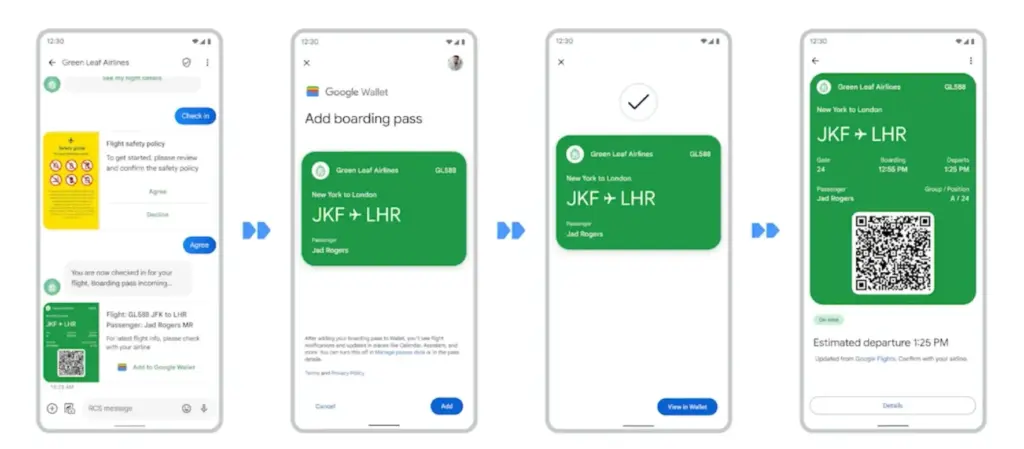
    Boarding passes

    Google Wallet boarding pass

    Boarding cards are required for airline travel. You need these to get past security, confirm the flight’s departure time, and find your gate. Traditionally, they were paper, but they have recently gone digital, via the airline’s app or a digital wallet. Google Wallet can save boarding passes, eliminating the need for physical boarding tickets. It also refreshes the gate or flight time on the boarding card as soon as it changes, keeping you informed of any changes.

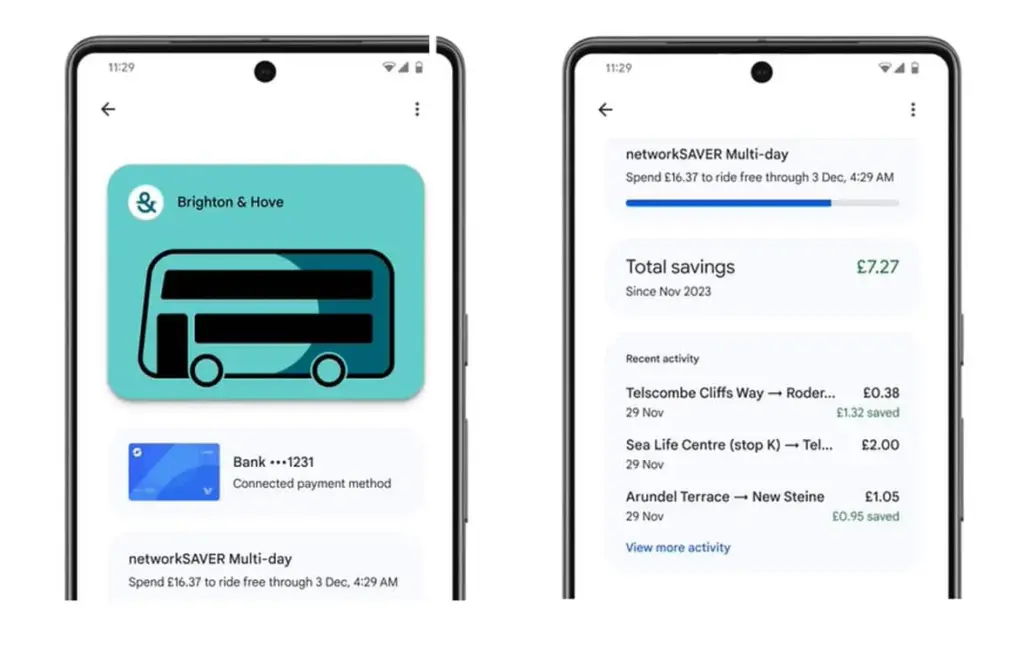
    Public transportaion tickets

    google wallet transit history

    Public transportation is useful for traveling around, regardless of whatever major city you are in. Each system has its own type of passes, such as monthly passes or reloadable cards. Normally, catching a trip requires a specific app or physical pass, but Google Wallet allows you to store and utilize passes from several major transportation agencies around the United States. Then, you can utilize Google Wallet to travel whenever necessary.

    Gift cards

    present cards are a popular option to offer someone a flexible present that does not require a specific item. It allows the receiver to select an item that is ideal for them, and gift cards can be pooled to purchase a more expensive item. During holidays or birthdays, you may receive multiple gift cards that are difficult to keep track of. Google Wallet allows you to save all of your gift cards in one location and redeem them later.

    Loyalty cards

    Loyalty cards on google wallets

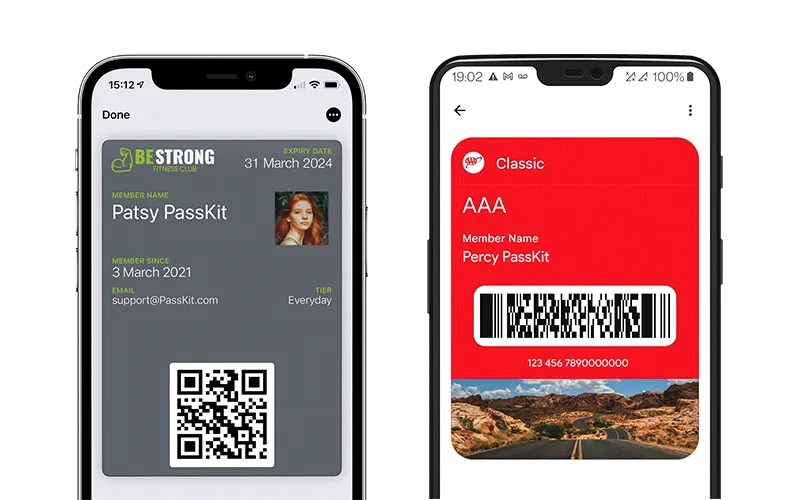
    Most businesses have a loyalty or rewards program in place to provide perks to consumers who return frequently. Sometimes this takes the form of a physical card that is utilized at the checkout. If you have rewards cards from multiple businesses, they might fill up your wallet. Google Wallet can also hold loyalty cards. Google Wallet identifies common cards, adds them, and provides you with an easily readable barcode to scan at checkout.

    Driver’s licenses

    Driver’s licenses in google wallet

    To be able to drive, you must have a driver’s license, which is the most frequent form of identification used to prove your identity and age. Keeping your license with you at all times is a good idea and occasionally necessary, but it can be difficult to keep track of if you do not want to carry a wallet. If you lose it, finding a replacement can be tough. In several states in the United States, you can keep your license in Google Wallet. It is not available in every state. It will only be offered in Arizona, California, Colorado, Georgia, Maryland, and New Mexico as of March 2025. Hopefully, its availability will increase with time.

    Health insurance card

    Health insurance card on google wallet

    Health insurance cards are another vital piece of information to keep with you at all times in case you want medical assistance. While you can keep the physical card, you can also save it to Google Wallet. While it is not as straightforward as adding a credit card or other comparable item to Google Wallet, you can scan or save it through your healthcare provider. Then you will have all of the critical medical information you need at your fingertips whenever you need it.

    Passport

    google wallet hero rev NBBUzpE.w

    Passports are required for travel and as a means of identification. With Google Wallet, you may use your phone to augment your passport with an ID pass. An ID pass enables Google Wallet to save your passport for use in specific instances. An ID pass cannot substitute a passport in all circumstances, however it can be used in some cases. An ID pass can be used at TSA checkpoints for domestic flights in some US airports. It can also be used as a form of identification in some instances, but keep your actual passport with you in case you need it.

    Student IDs

    Students need IDs for a variety of reasons, including building access, dining hall meals, and student discounts at specific establishments. If they lose their ID, they may be unable to obtain necessary services. Google allowed the ability to save student IDs to Google Wallet in 64 countries and territories, making them harder to lose and easier to use. Because students are likely to carry their phones with them at all times, having their student ID on the phone is more convenient.

    Event tickets

    You may attend a variety of enjoyable activities, including concerts, festivals, sports tournaments, and more. You must have a ticket to attend, and most are no longer printed on paper. However, depending on the venue or type of event, you may require multiple applications, which can be difficult to keep track of. Make it simple by adding them to Google Wallet. Google Wallet can store any sort of ticket or event pass, providing you with a convenient, centralized location to find everything you need. When the event is ended, Google Wallet makes it simple to remove the pass, so your app is not crowded with used tickets.

    Hotel keys

    Picture2 1

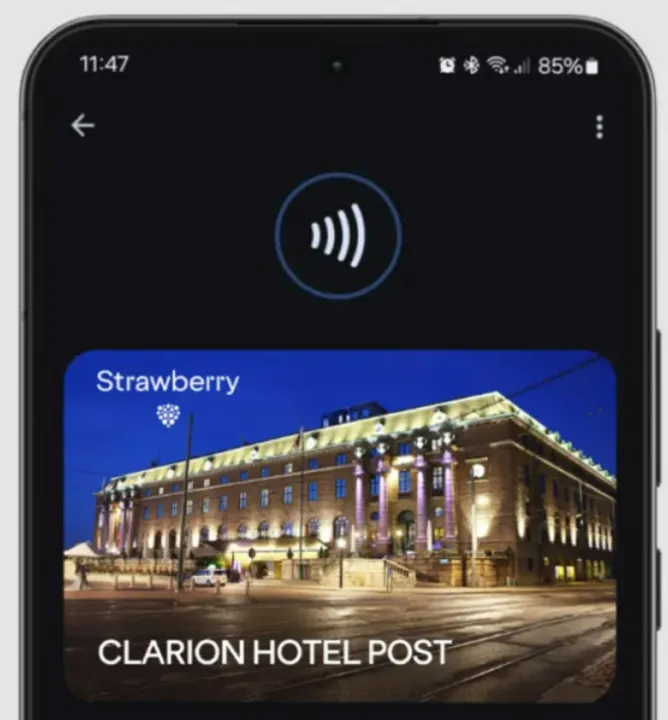
    To get access to your hotel room, most hotels use key cards rather than physical keys. In increasingly modern hotels, however, you can enter your room by tapping your key card. Some hotels let visitors use Google Wallet to store hotel keys instead of a physical key card. It is now limited to Club Quarter Hotels and other random individual hotels, but we want to expand it shortly.

    Corporate badges

    Many company buildings require badges to enter, which increases security. You must have your badge to enter, and if you forget it, you may be permitted to use a government-issued ID or a company ID instead. To circumvent this, some buildings allow customers to save their pass to Google Wallet on their phone, either eliminating physical badges or providing a backup option. Then simply tap your phone to enter, nothing more.

    One app for everything.

    Google Wallet is useful for storing and using credit and debit cards, but it can do a lot more. It can also hold other goods like IDs, transport passes, gift cards, and so on.

  • Finally, new status bar customizations are available in Xiaomi HyperOS 2.2.

    Finally, new status bar customizations are available in Xiaomi HyperOS 2.2.

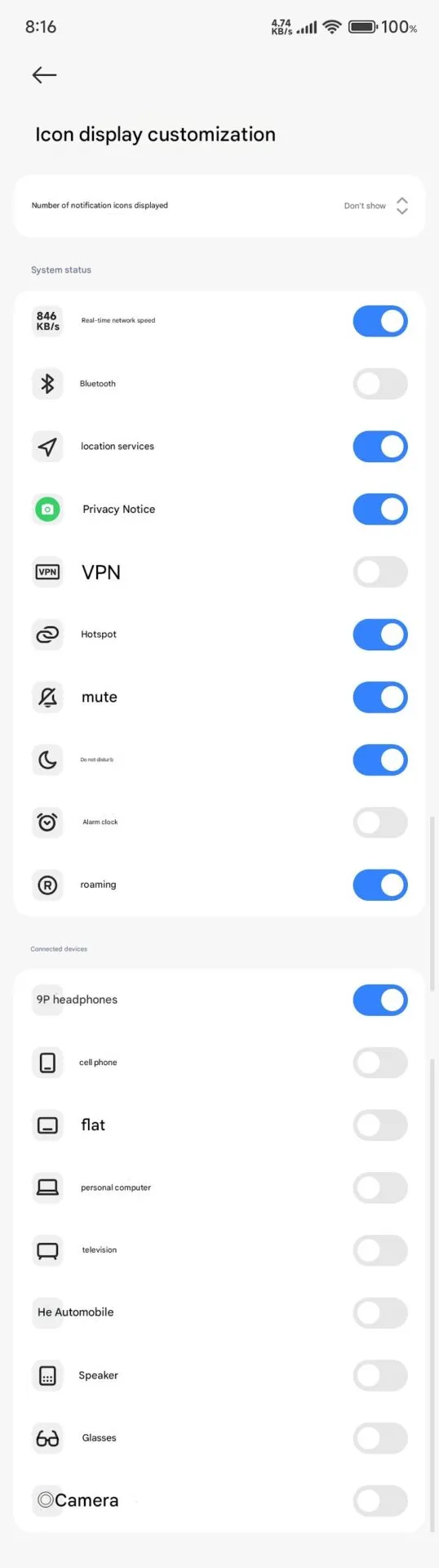
    Full status bar customisation is a groundbreaking feature that has been on wish lists for years, and Xiaomi has finally released the eagerly anticipated HyperOS 2.2. As demonstrated by our previous coverage of HyperOS features, customers now have total control over their notification system thanks to this much anticipated upgrade that was released overnight.

    The new “Status Bar Icon Display Customization” is a tip of the hat to customization options that debuted with AOSP Android 6, but with Xiaomi polish and attention to detail that we’ve come to expect with their software updates and UI improvements.

    Customization of status bar: what is new

    Xiaomi HyperOS 2.2 status bar customization

    The latest update brings unprecedented freedom to personalize your status bar on your device:

    • Control of Notification Icons: Select precisely how many notification icons are displayed
    • System Status Toggles: Toggle system status indicators on and off individually
    • Connected Device Display: Select which connected device icons are to be displayed
    • Cleaner Interface: Keep it clean by hiding unnecessary icons

    The downside is that it can’t be personalized and will be shown each time that you activate NFC.

    Additional improvements

    The customization of the status bar is not isolated in this update. HyperOS 2.2 OS2.0.200 Beta release includes a series of other enhancements:

    1. Enhanced System Animations: Smooth transition through the interface
    2. Blurred Wallpaper Enhancements: Improved visual quality for background objects
    3. Signal HD Icon Fix: HD icon no longer remains in the status bar

    Currently, Xiaomi 15 series phones running HyperOS 2.2 OS2.0.200 Beta support the feature. Although there are no set dates, more phones in their lineup will gain this feature in the upcoming weeks. Xiaomi’s ongoing dedication to enabling customers to customize their devices is reflected in this much-anticipated feature.

  • How to add your driving license on Google Wallet

    How to add your driving license on Google Wallet

    Bank cards, tickets, passes, keys, identity cards, passports, and driver’s licenses may all be securely stored in the Google Wallet app, an advanced digital wallet.

    This service, which has just been established in a couple of countries allows users to carry their critical credentials digitally on their smartphones.

    Once you download the Google Wallet app, you can easily add your driving license details, ensuring quick and secure access wherever you are.

    Google Wallet protects users’ ID passes, driver’s licenses, and state IDs with strong encryption and personal authentication. If your phone is lost or stolen, Google says your digital ID can be wiped remotely to prevent illegal access.

    driving license on Google Wallet

    Steps to add your driving license to Google Wallet 

    Driving licenses are required for all drivers. Follow these steps to add it to Google Wallet:

    1. Open the Google Wallet app on your Android device.
    2. Navigate to the bottom and tap “Add to Google Wallet.”
    3. Select “ID” and then “Driver’s License.”
    4. Tap “Get Started” and agree to the terms.
    5. Scan both sides of your license.
    6. For verification, upload your photos, including front and side poses.
    7. Tap “Continue,” then “Done.”
    8. Await the notification confirming the completion of verification.

    This function is now only available in the United States, but it is planned to be expanded to other nations shortly. Notably, Google Wallet just launched in Pakistan, providing further ease to customers in the region.

    Digital integration via systems such as Google Wallet provides a streamlined experience for keeping important papers, integrating technology with ease of use.

    Android users can now add payment cards from major banks and experience features like tap-and-pay in stores, seamless online checkouts, and quick access to boarding tickets for trips.