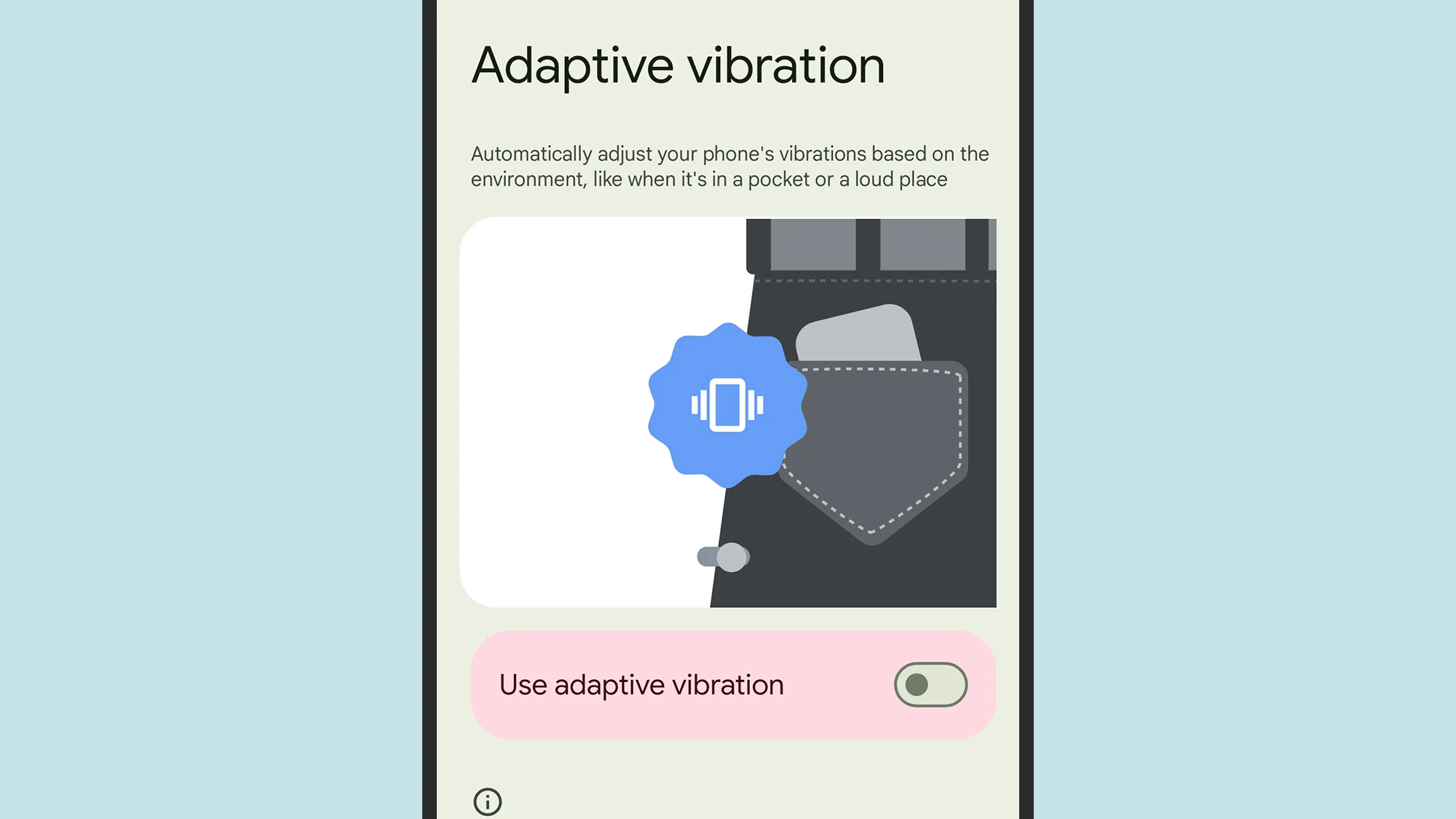
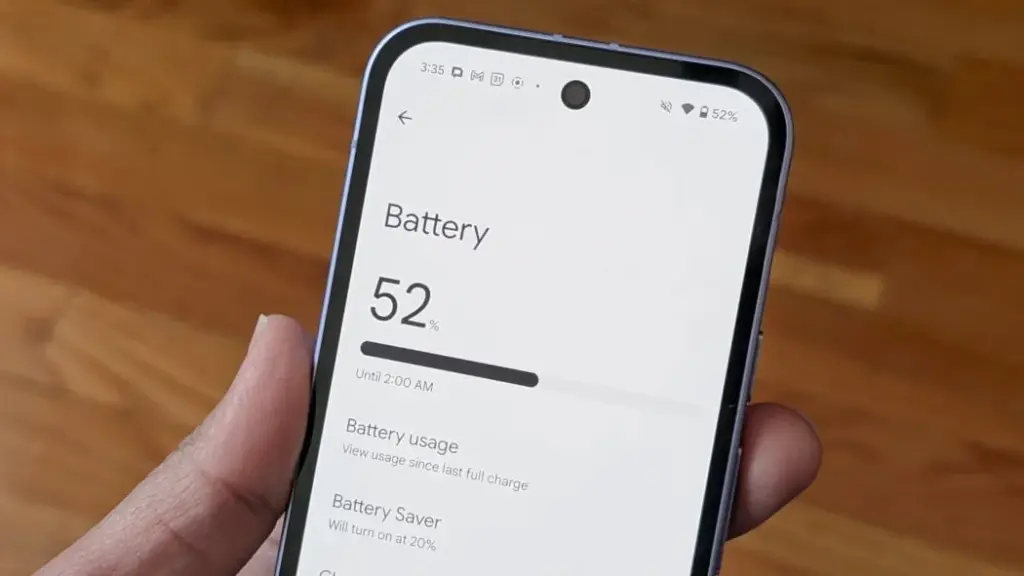
When your phone is vibrating, do you miss any calls or messages? It is easy, and you are not alone. Google has an answer. The most recent Android 15 version for Google Pixel smartphones has an Adaptive Vibration feature to help you avoid missing notifications. This function determines the degree of movement, location, and environment the device is in using the microphones and sensors on your phone. It modifies the vibration motor’s strength based on the contextual information.
You will notice when your phone buzzes thanks to Adaptive Vibration, even whether it is in your backpack, pocket, or lying away from you on your bed. It prevents loud vibrations when the gadget is put on a hard surface, such as a table. Adaptive Vibration takes only a few seconds to set up.
How to turn on Adaptive Vibration
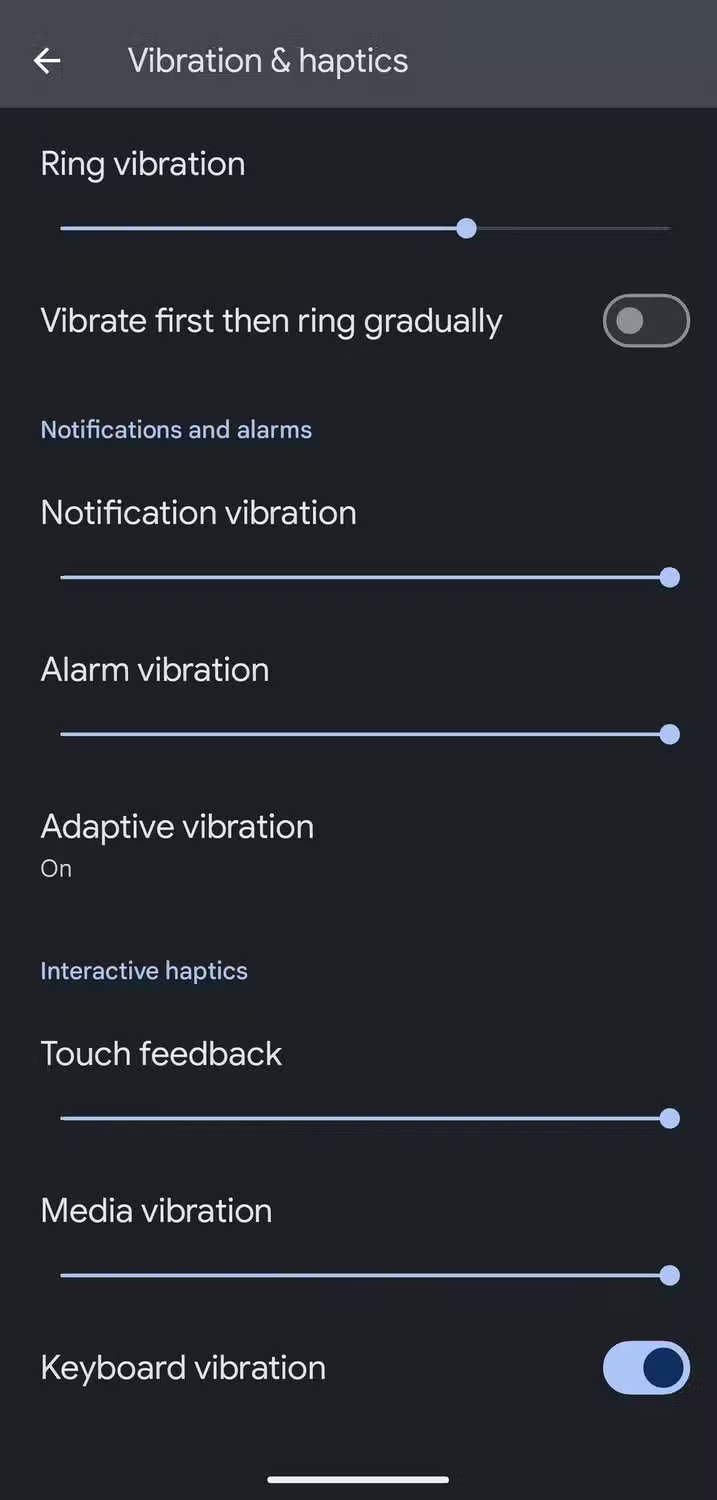
To enable Android 15’s Adaptive Vibration function, launch the Pixel Settings app, navigate to the Sound & Vibration section, scroll down, and select Vibration & Haptics. Then select Adaptive Vibration and tap the toggle to enable it.
When turned on, it begins operating on incoming notifications like as calls and messages. The haptics of the keyboard are unaffected. Adaptive Vibration is useful in a variety of contexts, particularly in noisy surroundings where incoming notifications are difficult to detect. It also works the opposite way around, dampening the vibration in quiet environments where it could cause a stir, such as when resting the handset on a table in a library or at a movie theater.
The feature is accessible on Google Pixel 7 phones and higher. You will need Android 15. If you have a compatible smartphone but can not discover the function, make sure it is up to date by accessing the device Settings, navigating to the System section, hitting Software Updates, and ensuring you are running Android 15.
Other vibration features do Google Pixel phones
Adaptive Vibration is the most recent vibration feature, however it is not the only one worth knowing about. For example, you can select several vibrating ringtones. Open the device’s Settings app, navigate to the Sound & Vibration section, and select an audible ringtone from the Phone Ringtone menu. When you flip between them, the vibration pattern adjusts to match the sound.
The Vibration & Haptics option allows you to customize the strength of the vibration for each sort of alert, such as calls, notifications, and alarms. For phone calls, you can begin with a vibration before gradually turning on the out loud ring. On the same page, you may change the amount of haptic feedback you get when you touch the screen or keyboard, as well as when media plays.
Another interesting way Pixel phones employ vibration is in the Weather app. If it is raining, the vibration motor simulates the sense of raindrops on the phone when you start the app, accompanied with an animation of rain falling. It is not the most useful feature, but it is a pleasant addition.
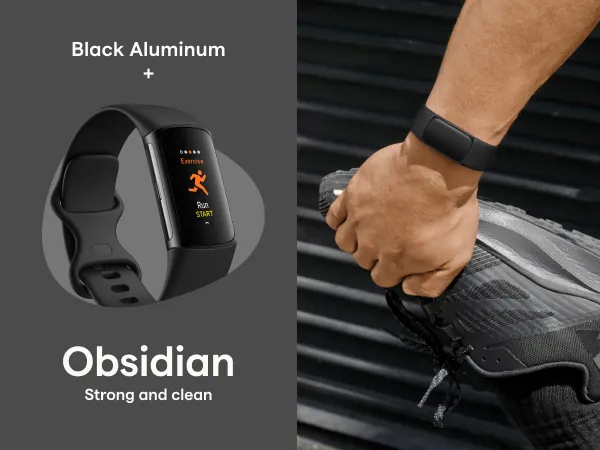
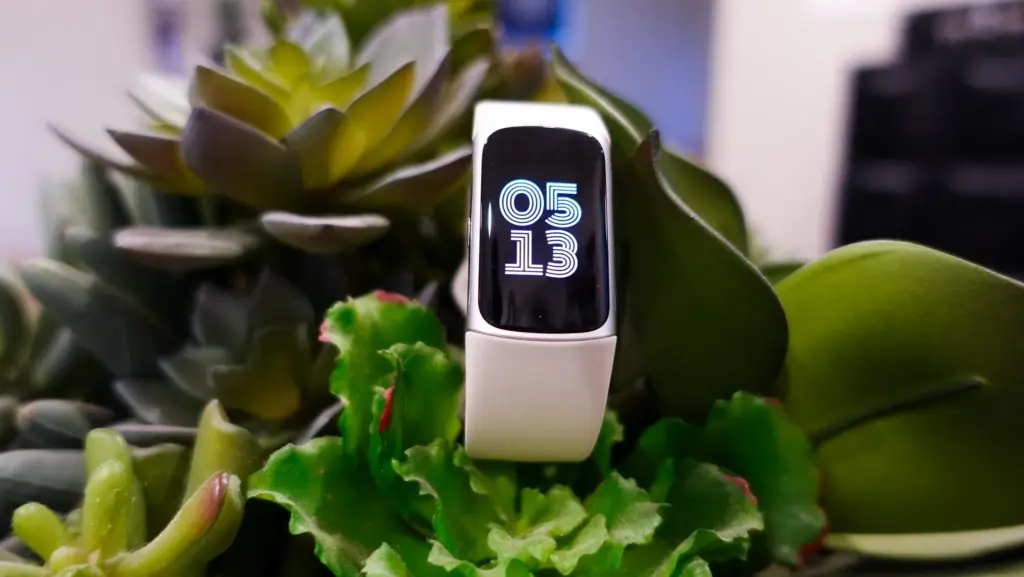
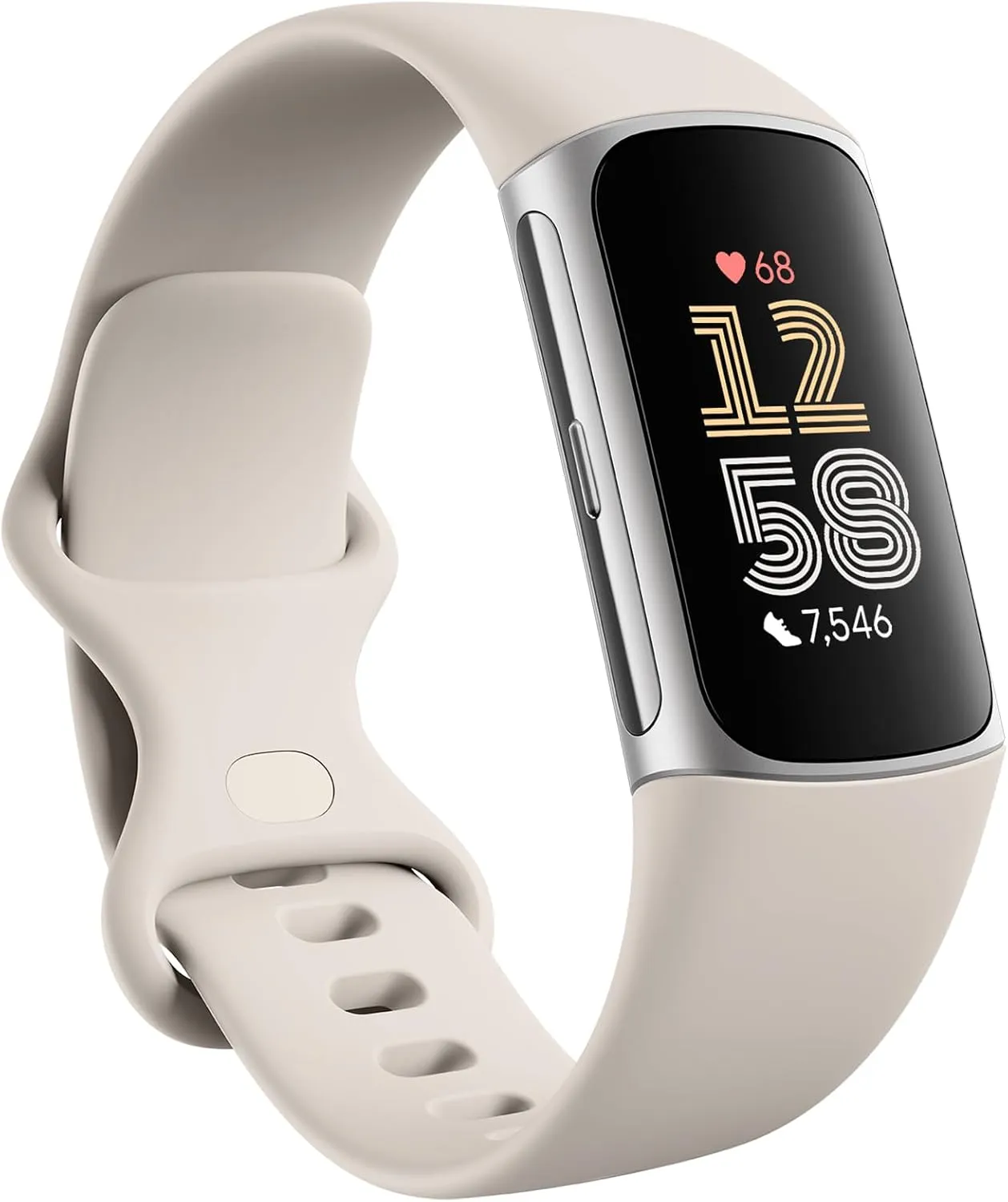
Whether you are a runner, rock climber, or a frequent gym goer, a fitness tracker can help you stay motivated to maintain your good habits. For a limited time, you can save 25% on the Fitbit Charge 6 fitness smartwatch. Normally, the watch costs $160, but with the discount, you can get it for $120 on Amazon. This saves you $40.
Fitbit Charge 6 Fitness Tracker
Turn little habits into healthier routines with Fitbit Charge 6 and Google Pixel Buds Pro 2; get advanced health and fitness insights from Fitbit and power through your workouts with the most comfortable, secure earbuds
The Fitbit Charge 6 is your fitness companion and coach, whether you are running or working out at the gym. There are over 40 distinct activity modes to choose from, and the watch immediately starts tracking when it detects a workout. You can view your numbers while lifting weights at the gym, kayaking, or doing anything else. It even boasts built-in GPS for tracking mileage and running pace during outdoor workouts, eliminating the need to utilize your smartphone.
To determine the intensity of your workouts, monitor your heart rate at all times. It will notify you when you reach fat burn, cardio, or peak zones, allowing you to modify your effort to match your goals. Monitoring your heart rate might also help you stay healthy. The ECG app and sensor can help you detect indicators of irregular heart rhythm, which could be caused by atrial fibrillation (AFib). Other health variables it will look at include your blood oxygen levels, skin temperature, and more.
The Charge 6 has the ability to transmit metrics such as heart rate to your screen when using a compatible treadmill, elliptical, rower, or workout cycle. This way, you do not have to look down at your wrist and can concentrate on your form while doing exercise.
Have more restful sleep and feel reenergized when you wake up in the morning. The watch may be programmed to vibrate at the best sleep cycle, leaving you refreshed when you open your eyes. You will be assigned a sleep score and will be able to track your light, deep, and REM sleep, as well as your sleeping heart rate, to see how consistent your sleep is.
Fitbit Charge 6 Fitness Tracker
Turn little habits into healthier routines with Fitbit Charge 6 and Google Pixel Buds Pro 2; get advanced health and fitness insights from Fitbit and power through your workouts with the most comfortable, secure earbuds
You will also have access to a few stress management tools. The Fitbit Charge 6 may provide you with a detailed explanation of your stress management score based on heart rate and other characteristics, as well as guided breathing exercises to help you develop healthier coping strategies.
The Snapdragon 8 Elite and Snapdragon 8s Gen 4 share a name but target completely distinct segments of the mobile industry. On paper, the 8 Elite is a standout. It is Qualcomm’s most sophisticated SoC, delivering maximum raw performance, AI intelligence, and multimedia capability.
The 8s Gen 4 is a leaner, more economical processor that inherits features from its more powerful sister while making a few smart compromises.
Whether you are attempting to decide whether the 8s Gen 4 will be “good enough” or whether you should stick with the full-fat 8 Elite, it is useful to consider how these two chipsets compare beyond the marketing headlines.
Performance
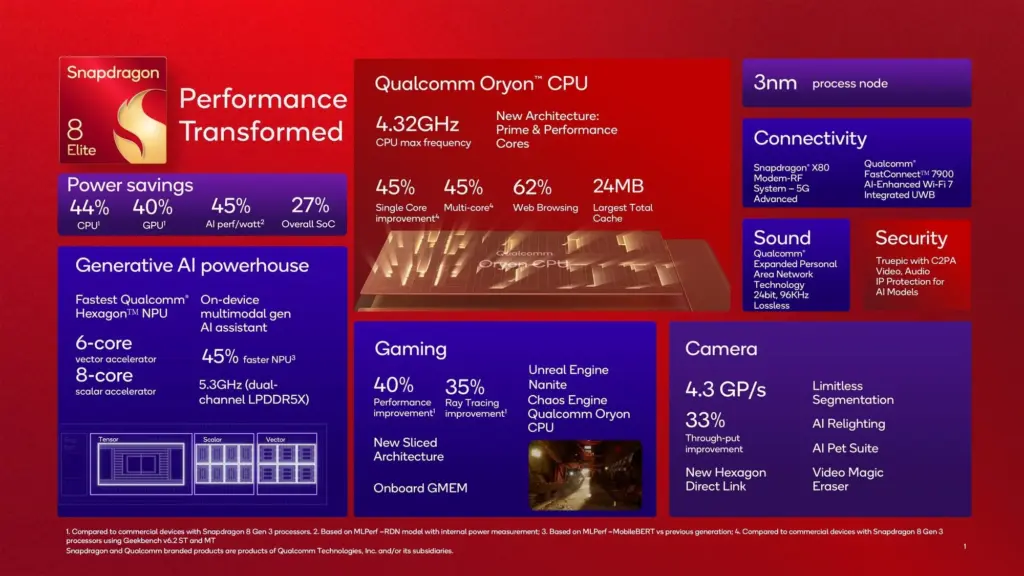
Custom silicon is at the center of this comparison, and the 8 Elite outperforms the competition. Qualcomm’s decision to use its own Oryon CPU cores in the 8 Elite is a significant move. These are not merely modifications to off-the-shelf ARM architectures; they are purpose-built, high-frequency (up to 4.47 GHz) powerhouses that provide up to 45% higher CPU performance and 44% better efficiency than the previous generation.
The 8s Gen 4, on the other hand, employs the well-known Kryo cores, which are effectively optimized ARM cores. It has a Cortex-X4 prime core clocked at 3.2GHz and seven Cortex-A720 cores—three at 3.0GHz, two at 2.80GHz, and two at 2.02GHz.
Qualcomm claims that this arrangement performs 31% better than its predecessor while consuming 39% less power. However, it should come as no surprise that it is not in the same category as the 8 Elite.
AI and on chip capatibilities
Both systems are designed with AI in mind, but there is a difference in scale. The Snapdragon 8 Elite employs a Hexagon NPU that provides higher performance per watt and supports a broader range of functions (INT4 to FP16). It also offers on-device personalization, multimodal AI processing, and the Sensing Hub, which provides improved context-aware features.
The 8s Gen 4 also features a Hexagon NPU, which is no slouch. It gets a 2x memory boost, which improves memory bandwidth and efficiency. However, it lacks some of the Elite’s more advanced AI processing functions, such as higher-precision data support and Gen AI connectors for on-device assistants and real-time personalization.
Graphics and gaming performance
The 8 Elite is designed for high-performance mobile gaming. Its Adreno GPU boasts up to 40% faster performance and 40% greater power efficiency, according to a new “sliced architecture” that balances heat and battery depletion.
Many of these capabilities, including as ray tracing, Game Super Resolution, and the Adaptive Performance Engine, are also supported by the 8s Gen 4. However, it does not include complete support for Unreal 5.3 or the Frame Motion Engine.
The GPU in the 8s Gen 4 shares the same sliced architecture as the 8 Elite. It is merely that the former has two slices whereas the Elite chip has three, which creates a difference in performance.
Connectivity
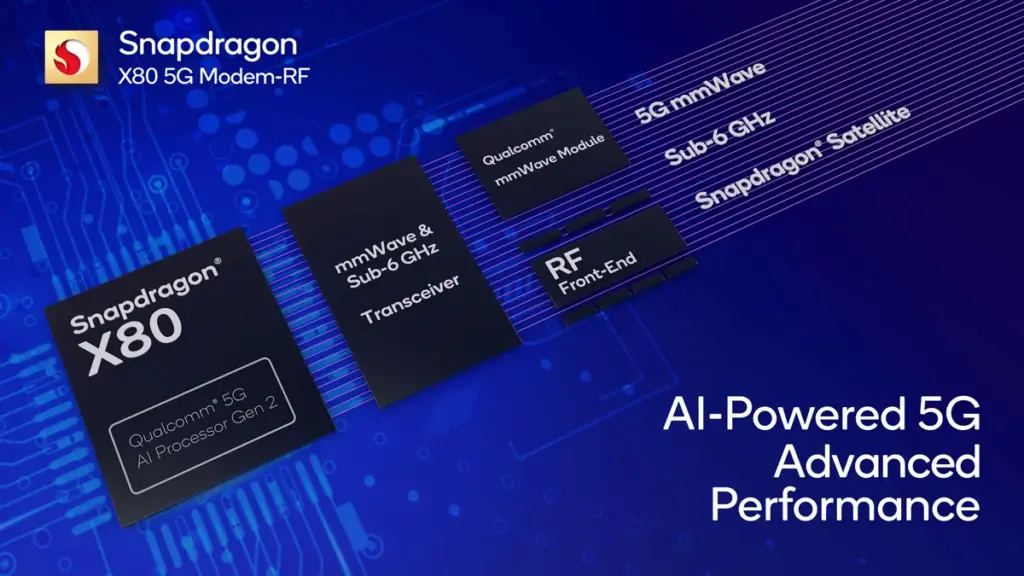
The 8 Elite includes Qualcomm’s top-tier Snapdragon X80 modem, which has peak download rates of 10Gbps and supports 6x carrier aggregation, dual SIM, and even UWB and Wi-Fi 7 with FastConnect 7900. It is also powered by Qualcomm’s 5G AI Suite Gen 3, which dynamically modifies connection parameters to save power and reduce latency.
The 8s Gen 4 makes do with a lower-end Snapdragon 5G Modem-RF System. The top download speed is 4.2 Gbps, with a restricted 4×4 MIMO arrangement. Nonetheless, it offers Wi-Fi 7 and Bluetooth 6.0 via Qualcomm FastConnect, as well as support for Snapdragon Seamless for cross-device networking.
Media and power
The 8 Elite supports QHD+ screens at 240Hz, 8K external monitors, and the HDR10+, Dolby Vision, and HDR Vivid formats. It also has Snapdragon Sound, aptX Lossless, and Quick Charge 5 for faster charging.
The 8s Gen 4 supports the majority of these features, including Snapdragon Sound, HDR video formats, Wi-Fi audio (XPAN), and Quick Charge 5, but does not support external 8K screens.
Specs comparison
Spec
Snapdragon 8 Elite
Snapdragon 8s Gen 4
Architecture
3nm
4nm
CPU Core Configuration
– Custom Oryon CPU @ up to 4.47GHz – 64-bit architecture
– Kryo CPU – 64-bit architecture– Clock speed up to 3.2GHz
– Up to 320MP single camera – 48+48+48 MP triple (ZSL) – 8K video capture @ 30fps – Video Super Resolution
– Up to 320MP single camera – 36 MP triple (ZSL) – 4K video capture @ 60fps – Motion Compensated Temporal Filtering
Charging
Quick Charge 5
Quick Charge 5
Security
– Qualcomm SPU – 3D Sonic Sensor Max – Face, Fingerprint, Iris, Voice – Type-1 Hypervisor
– Qualcomm TEE – 3D Sonic Sensor Max – Face & Fingerprint – Type-1 Hypervisor
Storage
UFS 4.0
UFS 4.0
USB
USB 3.1 Gen2 (USB-C)
USB 3.1 Gen2 (USB-C)
At the end of the day, the Snapdragon 8 Elite is a no-compromise SoC designed for devices that want to be the best in everything. Whether it is gaming, camera, connection, or AI functionality.
In contrast, the 8s Gen 4 streamlines many of those premium experiences. It will power more cheap high-end devices (such as $500-$800 phones) while maintaining competitive gaming, AI, and photography capabilities for the majority of customers.
In short, the 8 Elite is the chip for those who want it all. The 8s Gen 4 is the model to choose if you want just enough.
League of Legends has captivated gamers for over a decade, yet as 2025 unfolds, you might wonder: Is it worth starting fresh with a new account, or should I keep playing on my initial account? Whether you’re an experienced player considering a smurf account or a newcomer eager to dive into the game, there are compelling reasons and challenges to weigh before hitting that “Play for Free” button.
Testing New Strategies: A fresh account lets players experiment with different champion pools, roles, and off-meta builds without affecting their main account’s stats or rank. Imagine dedicating yourself entirely to mastering jungle or ADC without distractions or compromises.
Escaping Penalties: Whether it’s chat restrictions or ranked bans, some players opt for a clean slate rather than waiting for penalties to expire. Starting anew can be a shortcut to bypassing those frustrations.
Smurfing: For seasoned players, smurf accounts offer the thrill of climbing ranks from scratch or playing in lower-tier games for less competitive stress. However, smurfing remains controversial in the community due to its impact on matchmaking balance.
Region-Specific Play: League accounts are region-locked. If you’ve moved to another country or want to play with friends on a different server, creating a new account may be more practical than paying for a server transfer.
The Grind: What You’re Signing Up For
Starting fresh isn’t all fun and games; it’s also a grind, and Riot Games imposes several restrictions on new accounts that make the journey to competitiveness an uphill battle:
Feature
Limitation on New Accounts
Champions
Only a handful available at first
Ranked Mode
Locked until level 30
Rune Pages & Masteries
Limited customization
Summoner Spells
Key spells unlock gradually
Reaching level 30 in League of Legends is a prerequisite for ranked play and takes dozens of games. Even with XP boosts, this process can feel like an endurance test. Add the slow accumulation of Blue Essence (BE) needed to unlock champions, and you’re looking at weeks (or months) of grinding before your account becomes competitive.
What’s New in 2025?
League of Legends has introduced significant updates this season that could influence your decision to start anew:
Feats of Strength System: This innovative mechanic rewards players for completing early-game objectives, offering buffs like the “Blessing of Noxus” that enhance gameplay dynamics. It’s perfect for those who enjoy strategic depth.
Noxus-Themed Visuals: The game’s map now reflects darker, metallic aesthetics tied to Noxian lore. If you’re drawn to immersive storytelling and thematic updates, this might make starting fresh more enticing.
Revamped Ranked Structure: The competitive ladder now resets annually, making it easier for new and old players to climb ranks without feeling overwhelmed by legacy placements.
However, not all changes have been warmly received. Riot Games has faced criticism for monetization strategies that push in-game purchases over organic progression. If you’re starting fresh in 2025, be prepared for potential frustrations tied to these updates.
Alternatives to Starting Fresh
If the grind sounds daunting, but you’re still craving a new start, consider these options:
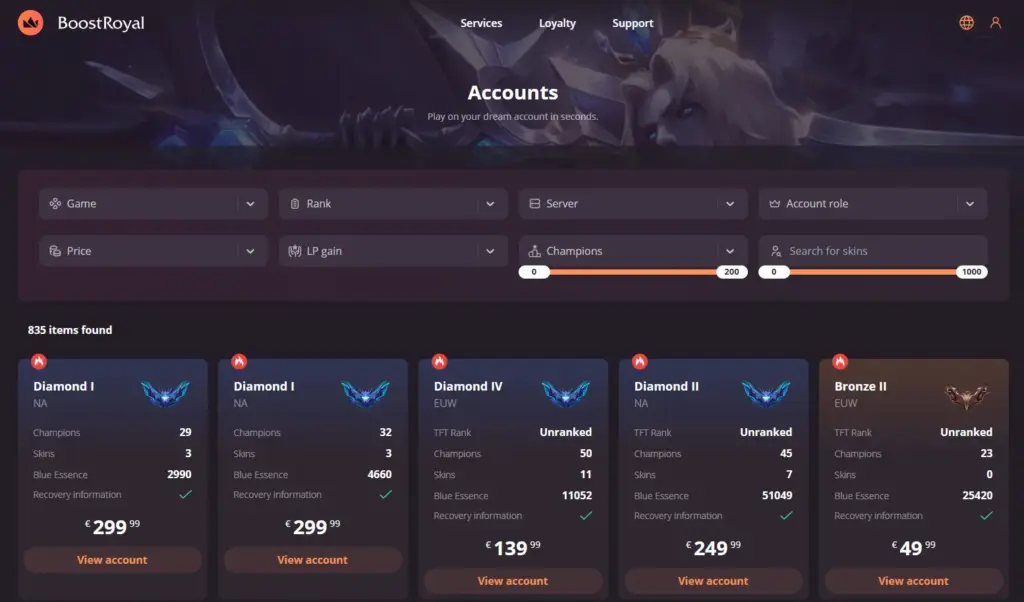
Buy an Unlocked Account: Services likeBoostRoyal offer fully unlocked accounts with pre-selected champions and skins. While this skips the grind entirely, it comes with risks—Riot Games doesn’t officially endorse these third-party sellers.
Server Transfers: If your goal is simply to play in another region, paying for a server transfer might be more practical than creating a new account.
Should You Do It?
Ultimately, whether you should start a new League of Legends account depends on your goals:
Yes, if:
You enjoy the challenge of building an account from scratch.
You want to experiment with new strategies or roles.
You need access to another region or server.
No, if:
You’re deterred by the grind required to unlock champions and reach ranked play.
You already have an established account with significant progress.
You’re frustrated by Riot Games’ monetization strategies.
Final Thoughts
Starting fresh in League of Legends in 2025 is both an opportunity and a commitment. While the game’s updates add exciting layers of strategy and lore, they highlight the challenges of building a competitive account from scratch. If you’re ready to embrace the grind—or willing to explore faster alternatives- perhaps it’s time to hit reset and rediscover what makes League so addictive.
What are your thoughts? Are you ready for the grind or leaning toward alternative options? Let us know in the comments below! And if you’re looking for tips on leveling up fast or unlocking champions efficiently, check out our League guides.
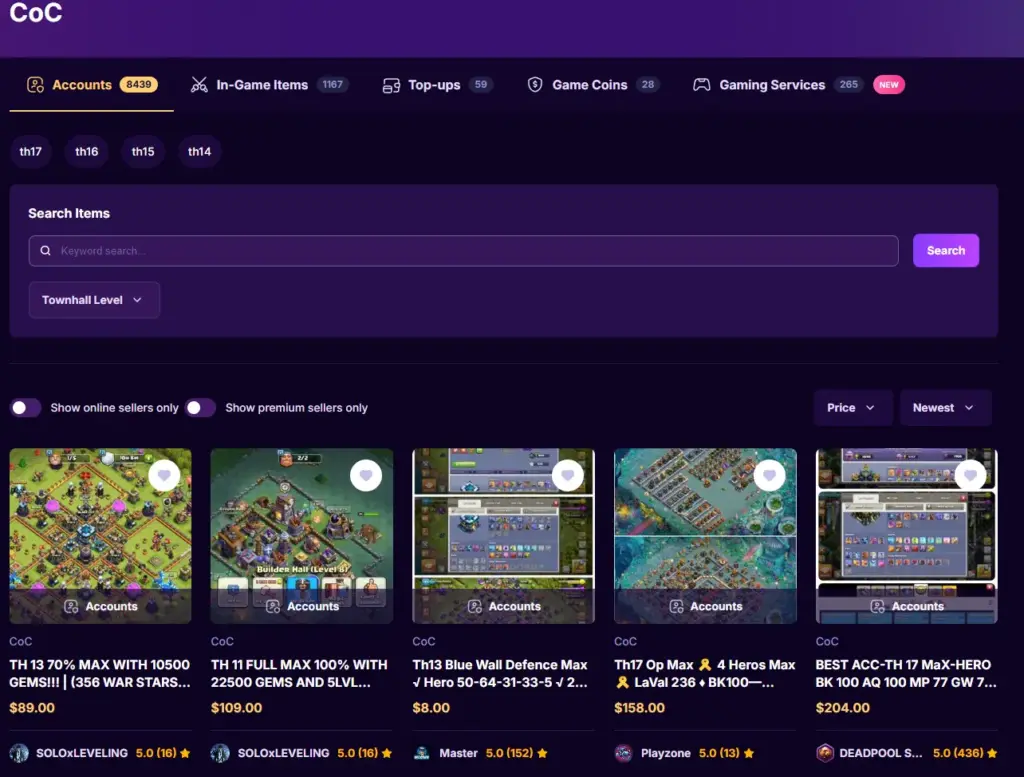
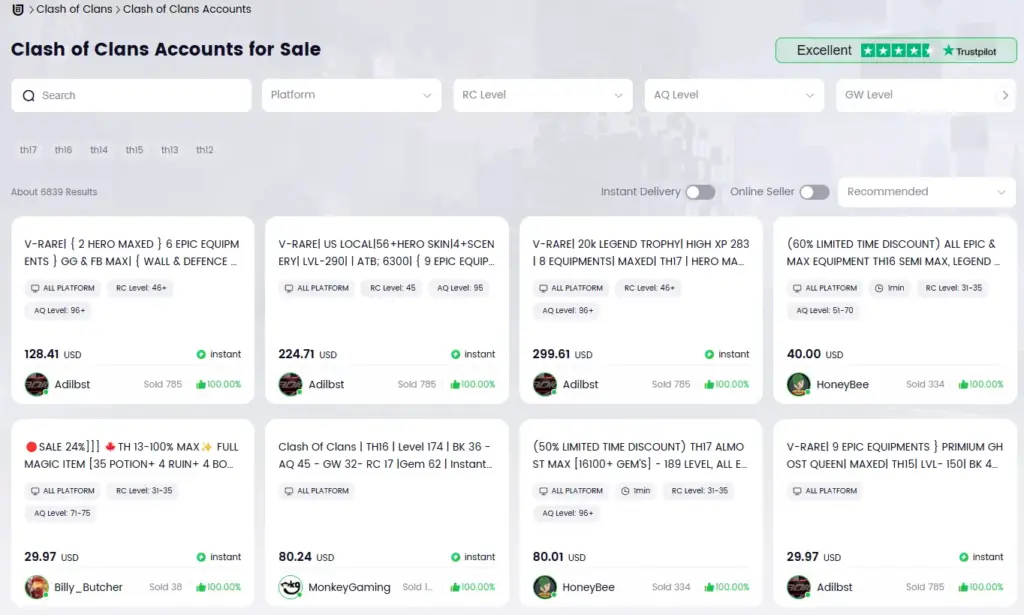
The thought of skipping the grind and jumping straight into advanced gameplay in Clash of Clans is undeniable. Whether you’re looking to sell an account you’ve outgrown or purchase one already developed, you’re entering a marketplace in a gray area. This guide walks you through the realities of CoC account trading, offering practical advice on minimizing risks while navigating the ecosystem.
The Official Stance vs. Reality
Let’s address the elephant in the room: According to the Clash of Clans terms, buying or selling Clash of Clans accounts isn’t allowed, and if detected, your account could face a permanent ban. However, account trading happens constantly, and the market for high-level Clash of Clans accounts remains active, particularly among players unwilling to invest months or years to reach advanced Town Hall levels.
Trusted Marketplaces for Account Trading
Choosing the right platform can make all the difference if you’re venturing into this territory, and several marketplaces have great reputations for facilitating safer transactions:
igitems stands out with its low commission fees and trusty escrow payment system, which holds funds until both parties confirm the transaction is complete. The platform connects sellers with verified Clash of Clans buyers while offering built-in safety features that protect both parties through their trading protections, making igitems our number one pick.
ZeusX
ZeusX requires sellers to verify their IDs before listing accounts, creating an additional security layer against fraud. They allow players to set their prices, creating a more dynamic marketplace. Their security systems are designed to protect against account recovery scams, a common issue in gaming account transactions.
U7BUY
This platform advertises a limited-time promotion with no transaction fees for sellers (normally 5%), U7 supports various payment methods, including Payoneer, PayPal, Bank Transfer, and cryptocurrencies, making it accessible to global users.
Traditional Options
Platforms like eBay and PlayerAuctions also maintain solid reputations in the gaming marketplace ecosystem. These sites typically offer various payment methods and have established processes for account verification.
Valuing a Clash of Clans Account
Understanding an account’s worth requires looking at several key factors:
Town Hall level: The single most important value factor
Hero levels: Maxed heroes significantly increase value
Troop and spell upgrades: Fully upgraded armies command premium prices
Defensive structures: Maxed defenses add substantial value
Special items and achievements: Limited edition items and rare accomplishments boost worth
Account history: Clean accounts with no previous bans sell better
The best approach to pricing involves checking similar listings on marketplaces to understand current market rates. Accounts with clean histories linked to Supercell ID typically sell faster and command higher prices.
Minimizing Ban Risks: The Smart Approach
While no method guarantees safety from the Clash of Clans detection system, these practices can reduce risks:
Transfer via Supercell ID: Change the registered email to one the buyer controls
Advise waiting period: Recommend that the buyer wait at least 12 hours before logging in, especially if their location differs significantly from yours.
Remove personal identifiers: Disconnect any personal information from the account
For Buyers:
Use platforms like igitems with escrow systems to prevent payment fraud
Keep all communications on the trading platform to maintain evidence if disputes arise
Verify account details thoroughly before finalizing payment
Change all recovery information immediately after gaining access
Wait before playing to avoid triggering location-based security alerts
The Final Verdict
Can you build your Clash of Clans experience with a new account? Only you can answer that question, but now you can at least make that decision with a clear understanding of the landscape. Have you had experiences buying or selling gaming accounts? What precautions worked best for you? Share your insights and continue the conversation.
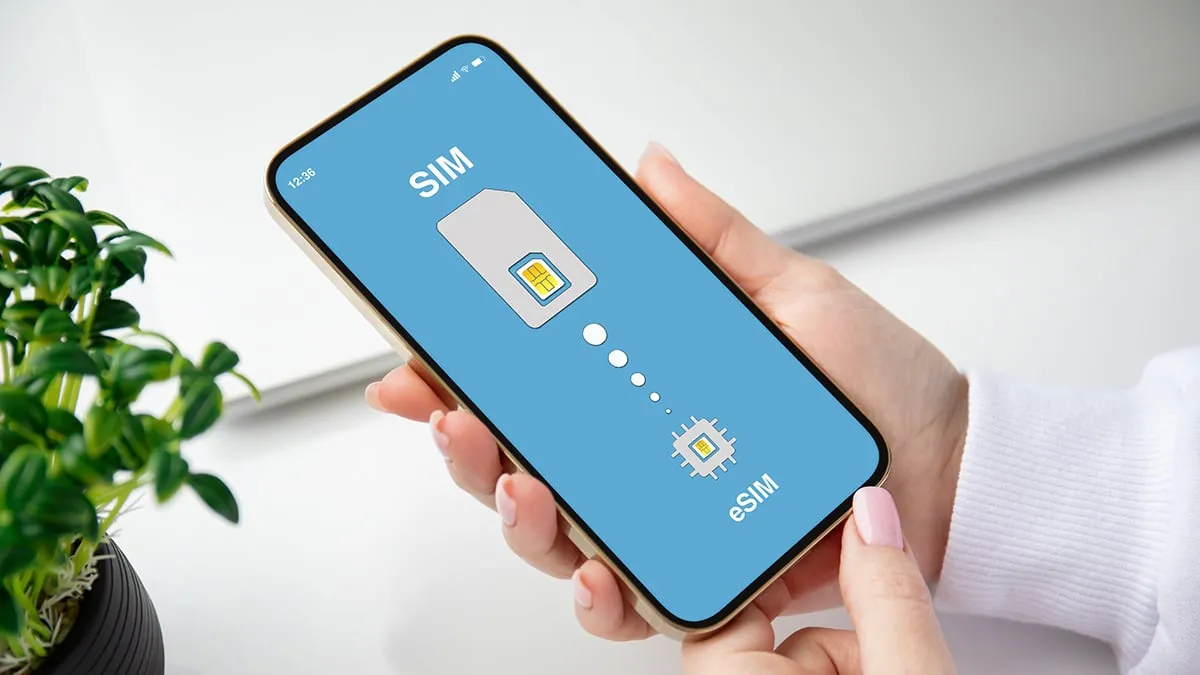
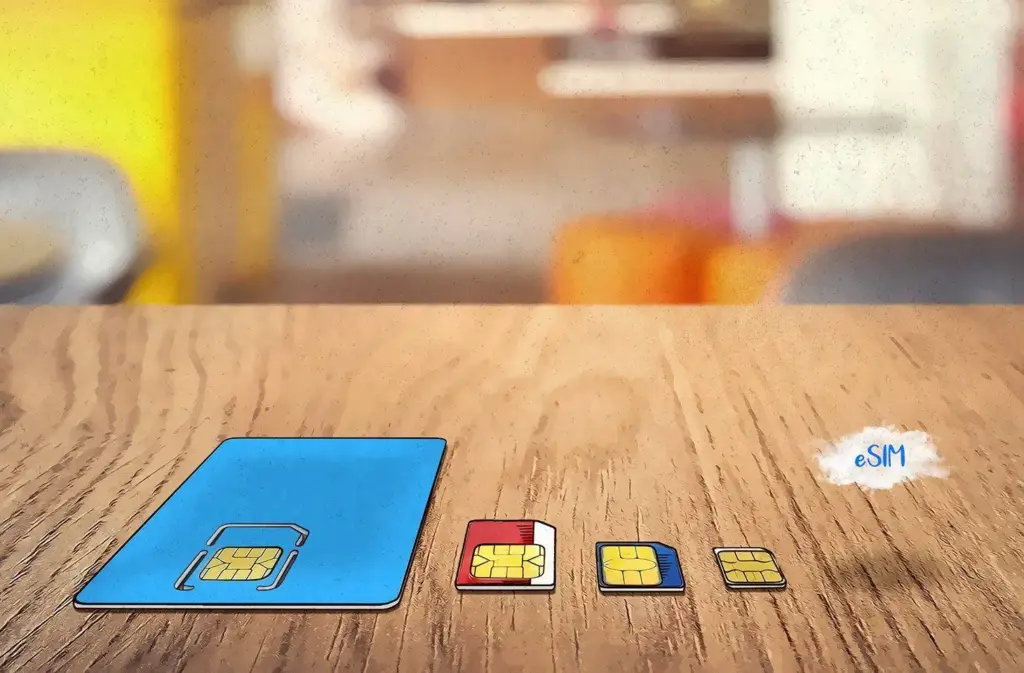
The SIM card, a small chip in your phone that links it to your chosen cell phone provider, is probably already obvious to you. For many years, this chip was located on a physical card that you could replace by removing your phone’s SIM card tray. However, the majority of contemporary phones also support eSIMs. eSIMs are integrated into the phone’s hardware in place of a physical card, and software is used to remotely program the carrier information.
A few conveniences are made possible by this, like the ability to test out service on a different carrier without having to pick up an actual SIM card in person or over the mail.
Converting an existing physical SIM card to an eSIM presents a challenge. If you want to load many eSIMs into a single device or if a new phone is eSIM-only, you might want to do this. Or maybe you simply do not want to go through the trouble of constantly changing actual cards between machines. Thankfully, the process of switching a physical SIM to an eSIM is not too difficult.
Make sure your new phone is compatible with eSIMs before you begin. The majority of contemporary phones do, as we already stated. In the US, the iPhone 14 and later are eSIM-only, however all iPhones since the iPhone XS and XR support eSIM. The majority of Android phones—including the Google Pixel 6 and later, as well as the Samsung Galaxy S21 and later—also support eSIM.
eSIM on an Android phone
Depending on the manufacturer, there may be differences in how to convert a physical SIM to an eSIM on Android. Telling your carrier that you are moving to an eSIM is the most reliable method to accomplish this. After that, they will either send you a QR code or manually lead you through the procedure. Here’s how to add a QR code to your phone if they do send one.
Go to Settings. Then tap either Connections or Network &Internet.
Select Sim Manager or SIMS.
Tap Add mobile plan or Download SIM card or Add SIM.
Then follow the on-screen instructions and scan the QR code when prompted.
However, the procedure is a bit simpler if you own a Samsung handset. To do it on a Samsung, follow these steps.
Launch Settings. Then tap Connections.
Select SIM card manager.
Choose your SIM (If you only have a physical SIM, it’ll just be the only one listed).
Tap Convert to eSIM.
Follow the on-screen instructions and then you’re done.
eSIM on an iPhone
Converting a physical SIM to an eSIM on an iPhone can be done in a few different ways.
If you want to change a physical SIM to an eSIM on the same iPhone (which requires the phone to support both), here’s how to accomplish it.
Open Settings, then select Cellular.
Then, if your carrier allows it, you’ll see an option that says Convert to eSIM. If you don’t see it, then your carrier likely does not support this action.
Tap Convert Cellular Plan.
Tap Convert to eSIM. Your eSIM will now activate.
If, on the other hand, your transferring a physical SIM to an eSIM on a completely different iPhone, here’s how to do it.
On your new iPhone, go to Settings, then choose Cellular.
Scroll down until you see Add eSIM. Select it.
Then you have two choices. One is Transfer From a Nearby Phone, which requires both handsets to have iOS 16 or newer. If you select that, you’ll follow the instructions on your previous iPhone. You can then select Transfer to confirm and then enter a verification code. Obviously this only works if both phones are iPhones.
Another option is to Use a QR Code. This is what you would use if a QR Code is provided by your carrier, or if your previous phone was a non-Apple handset. To scan the code, you open up the Camera app and point it at the QR Code. Tap the Cellular Plan Detected notification. If using an iPhone with iOS 17.4 or later, you can touch and hold the QR code and then tap Add eSIM.
Go ahead and follow the on-screen instructions, hit Continue and tap Add Cellular Plan.
If your carrier supplied the eSIM information, you may also opt to manually enter it. You can choose Settings, Cellular, Add Cellular Plan, and then Enter Details Manually if you wish to accomplish so.
It should be understood that inserting a new eSIM to your device may be done differently by different carriers. Please get in touch with them directly if you have any issues. Additionally, you will need to receive help from your carrier to make the switch if you are switching from an iPhone to an Android phone or vice versa.
Take a look to our eSIM guide, which goes into greater detail on the benefits and drawbacks of each, if you would like to understand more about eSIMs and if they are superior than physical cards.
So far, this month has been somewhat turbulent for the tech sector. In addition to a standard 10% tariff on all nations, US President Donald Trump placed sweeping tariffs on the majority of significant production hubs. Samsung may have to drastically increase the cost of its Galaxy phones and other items in the US as a result of this.
With his announcement of tariff exclusions for important consumer electronics products including laptops, smartphones, memory products, and more, the president seems to have changed his mind before the weekend.
For the moment, Samsung is not compelled to increase pricing.
Samsung phones are manufactured in Vietnam and shipped to the US. Samsung would have to pay a 46% surcharge over the import value when it brought such phones into the US because the nation was slammed with a 46% tax.
Samsung’s alternative was to ship phones to the US via its manufacturing plants in India. Despite being high, India’s 26% tariff rate was still much lower than Vietnam’s. In any case, Samsung would have to lower its profit margins or increase consumer prices.
In talks with the administration, a number of significant tech companies have pointed out that if the tariff structure remained the same, consumer electronics prices would increase to unaffordable levels.
Given that the US is its largest market and that 90% of all iPhones are made in China, which has the highest tariff rate at 145%, Apple was most likely the driving force behind this. According to some estimations, this might have caused the iPhone 16 Pro Max’s price to go from $1,199 to $2,937.
As long as the government does not alter the tariff system again, Samsung and other companies can continue operating as usual because smartphones, computers, memory chips, and other storage products are now exempt from the 10% global baseline tariff.
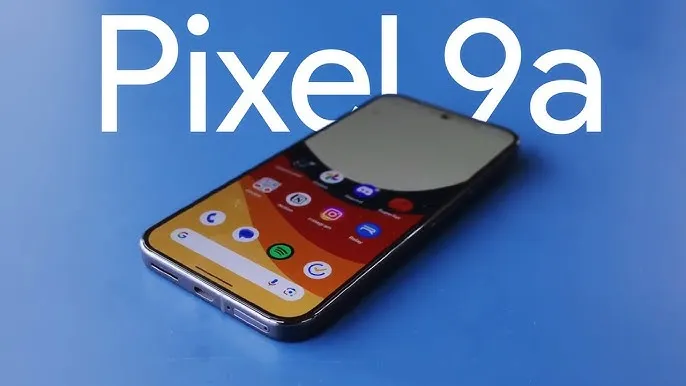
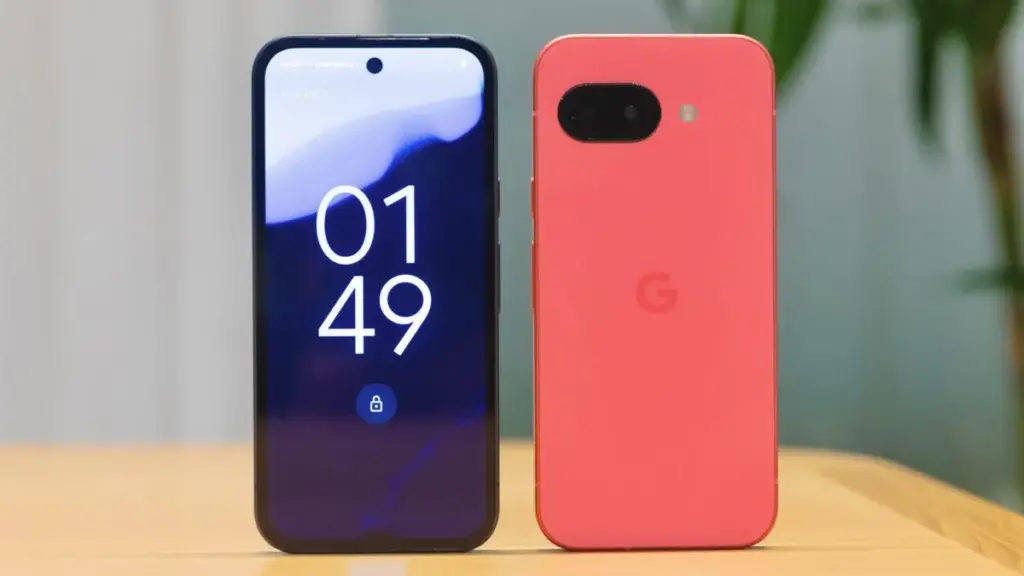
Google’s Pixel 9a will hit shop shelves in the United States this week. Google’s new midranger appears to be yet another reasonably priced flagship alternative in a long series of such options. To achieve a lower price point, it makes some changes to the Pixel 9 formula, such as less RAM and inferior cameras. However, on paper, the $500 Pixel 9a has several significant advantages over the $800 Pixel 9. Here’s five.
Google Pixel 9a with Gemini – 256GB
Google Pixel 9a is engineered by Google with more than you expect, for less than you think; like Gemini, your built-in AI assistant, the incredible Pixel Camera, and an all-day battery and durable design.
Speaking of bigger batteries, the Pixel 9a has the largest battery ever utilized in a Pixel phone, with a rated capacity of 5,100 mAh. That just slightly edges out the Pixel 9 Pro XL’s 5,060 mAh battery.
Given that the Pixel 9a is a relatively small phone with a 6.3-inch display, the large battery will deliver long battery life. The Google Store listing for the 9a boasts “30+ hour battery life,” whereas the Pixel 9’s battery life is “24+ hours.” If Google’s estimations are correct, the 9a’s battery will last 25% longer.
A good price
Let us start with the obvious: the $500 Pixel 9a costs significantly less than the $800 Pixel 9. Google has managed to keep its A-series phones at $500 for three years in a row as its flagships have become more costly, making the 9a an even better value than previous generations.
A solid construction
The basic Pixel 9 and Pixel 9 Pro feature normal flagship phone build, with scratch-resistant glass back panels and stainless steel side rails. It creates a high-end look and feel, but the usage of glass has a significant drawback: it is prone to cracking if your phone is dropped.
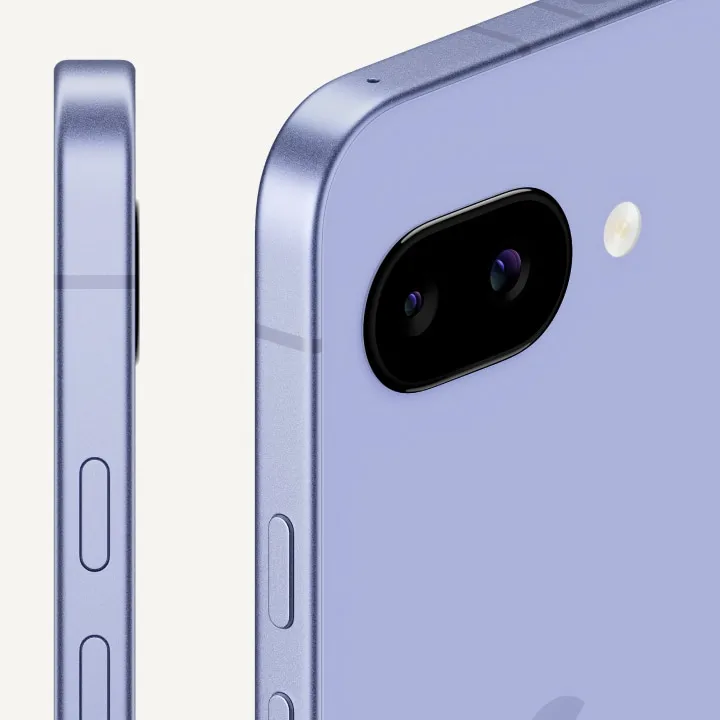
The Pixel 9a, on the other hand, has a polycarbonate back panel with aluminum side rails. That makes the phone more resistant to shattering than its more expensive counterparts. Plastic and aluminum are also less dense than glass and stainless steel, so the Pixel 9a is slightly lighter than the Pixel 9 — though only by a fraction of an ounce.
Pixel 9A has no camera bump
The Pixel 9 and Pixel 9 Pro feature some of the best cameras available in a smartphone today, but this image brilliance is accompanied by positively massive camera bumps. Based on Pixel 10 leaks, the pill-shaped protrusions appear to have become part of the Pixel’s brand identity. However, there is no getting around the bulk: the Pixel 9 and 9 Pro cameras protrude 3.5 mm from the back panel.
The Pixel 9a, on the other hand, has almost no camera hump at all, with a pill-shaped glass cutout for the primary and ultrawide cameras that is nearly flat with the rest of the rear panel. Again, this will make little difference to those that use cases. However, given that a strong contingent of smartphone customers has been calling for thicker phones with larger batteries and fewer camera bumps for some time, the 9a is a clear winner.
Matte finish
There is no objectively proper finish for a smartphone, and most smartphone users will put a case on whatever they buy regardless. But personally, I prefer the all-matte appearance. Glossy surfaces are more likely to gather up fingerprints than matte surfaces, and nicks and scratches are more visible on shiny surfaces.
The standard Pixel 9 has a glossy glass back and matte side rails; the Pixel 9 Pro reverses this, with matte glass on the back and matte steel side rails. The Pixel 9a has a matte finish all around. Glossy metal accents may seem elegant, but I hope future Pixel generations follow Google’s A-series phone’s lead and adopt the same all-matte appearance.
However, based on our early hands-on observations, Google’s experience with midrange products, and the information Google has released about the 9a thus far, it appears to be a solid device—and in some respects, even better than the more expensive Pixel 9.
Google is now implementing Loss of Pulse Detection in the US after yesterday’s April 2025 OTA update and Scam Detection.
Google is officially launching Loss of Pulse Detection in the US after receiving FDA approval, which was initially anticipated at the end of March. Last year, it became available throughout Europe.
Make sure your Pixel Watch 3’s Personal Safety Wear OS software is up to date before turning it on. 2025.03.19.x is the most recent version that is available on the Play Store.
Afterwards, go to the Pixel Watch companion app on your phone (version 3.4+) > Safety & emergency > Loss of Pulse Detection to start the set-up process.
Google tells us that it’s beginning to roll out today and will be fully available over the coming weeks.
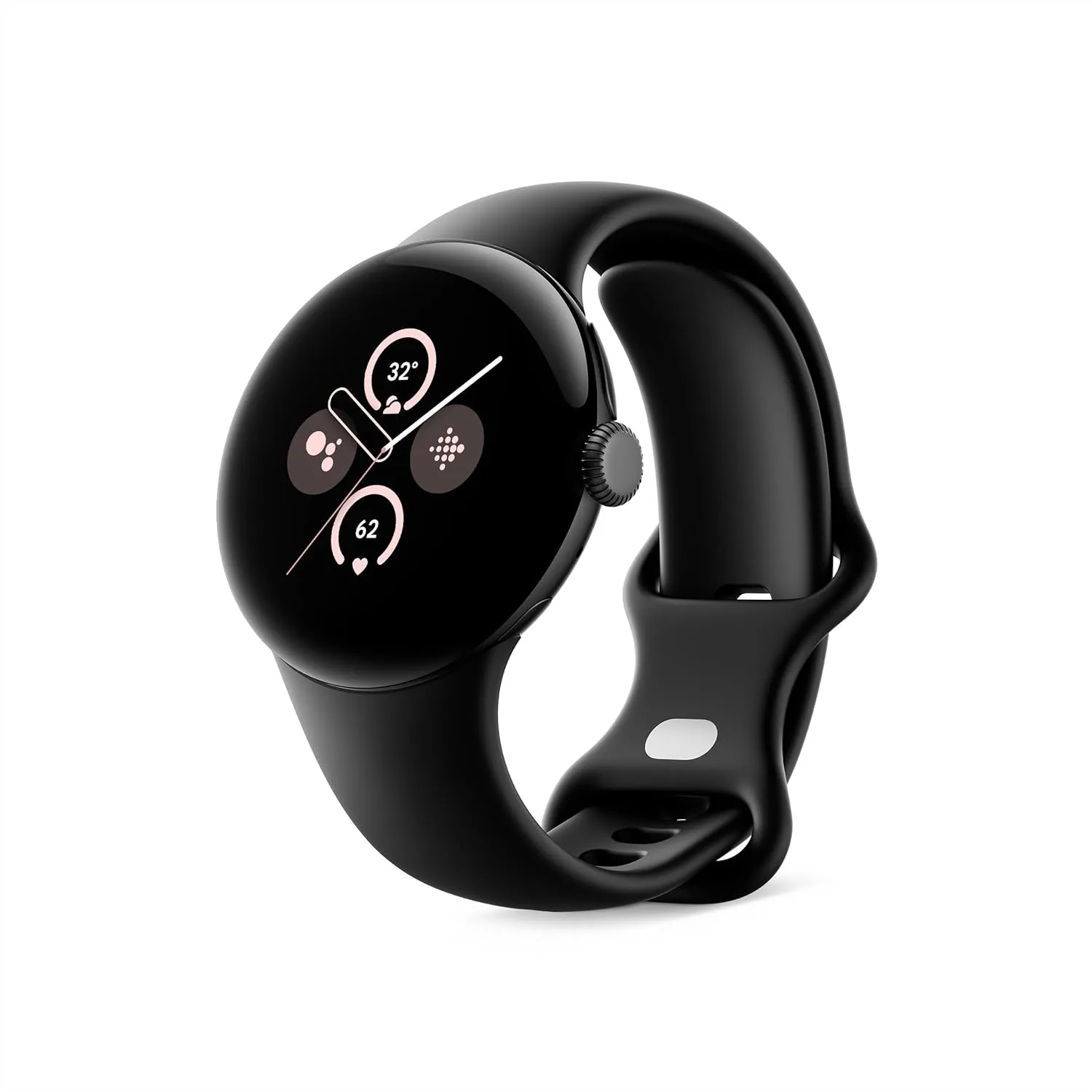
Google Pixel Watch 3 (45mm)
The Google Pixel Watch 3 is designed for performance, with advanced fitness from Fitbit; the 41mm screen is twice as bright and 10% larger than before, making it easier to see your stats and info[
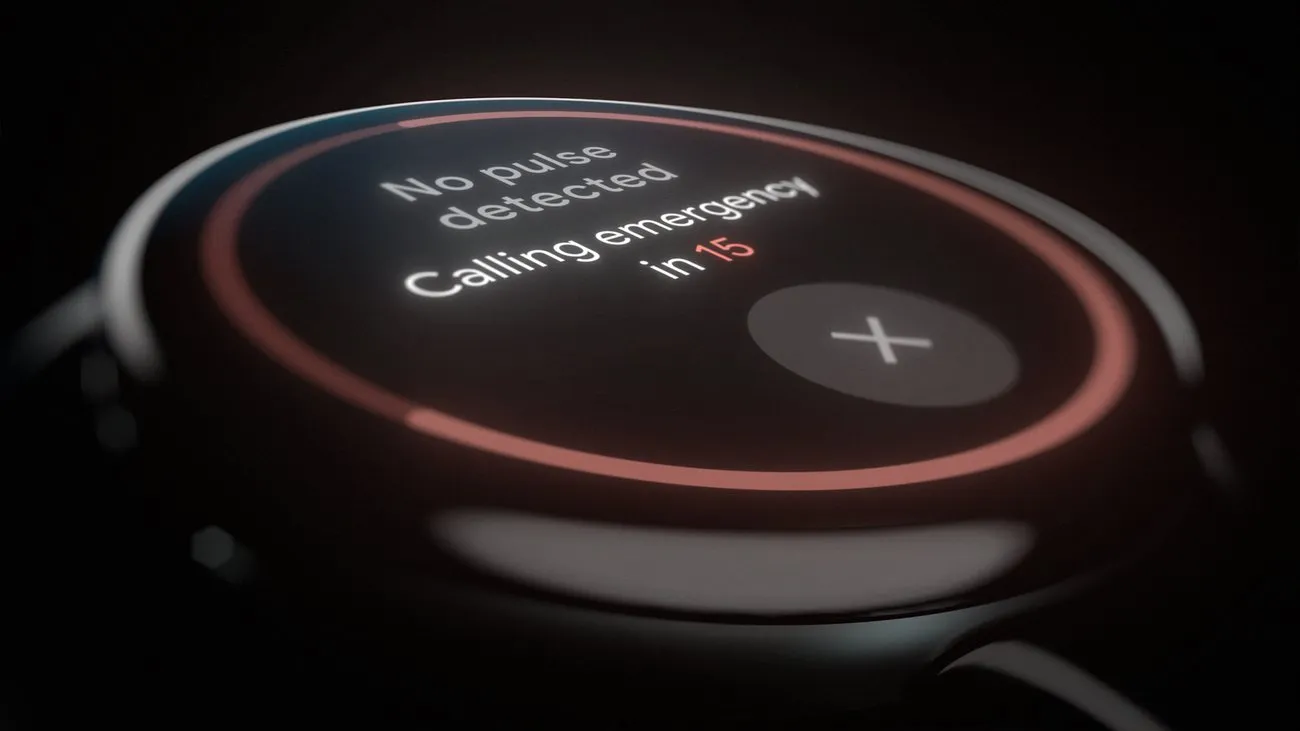
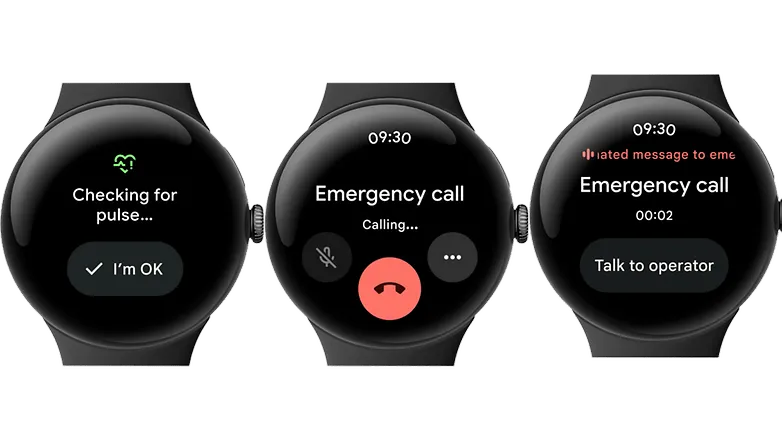
A loss-of-pulse event is when your heart stops beating, which can happen during a cardiac arrest, respiratory or circulatory failure, overdose, or poisoning. Similar to Fall and Car Crash Detection, the Pixel Watch 3 will ask users to certify their safety when it detects something.
In the event that there is no reaction (or movement), the wearable will notify emergency personnel, give your location, and provide information about what is going on. The Pixel Watch 3‘s multipath heart rate monitor, additional sensors, and a “multi-check, AI-based algorithm” are all used by Loss of Pulse Detection.
According to the official statement, “Loss of Pulse Detection may not detect every instance of a loss of pulse and is not intended for users who require cardiac monitoring or who have pre-existing heart conditions.” It does not offer follow-up care or diagnose or treat any medical conditions.
Google Pixel Watch 3 (45mm)
The Google Pixel Watch 3 is designed for performance, with advanced fitness from Fitbit; the 41mm screen is twice as bright and 10% larger than before, making it easier to see your stats and info[
Want to lock apps without downloading extra software? Learn how to use built-in tools on Samsung, Xiaomi, OnePlus, and other Android phones to secure your apps with passwords or biometrics – no third-party apps required.
Why Lock Apps on Android?
Your smartphone contains plenty of personal information, including images, bank accounts, social network profiles, and private messages. Locking specific apps provides an additional layer of security, particularly when sharing your device or preventing unintentional snooping.
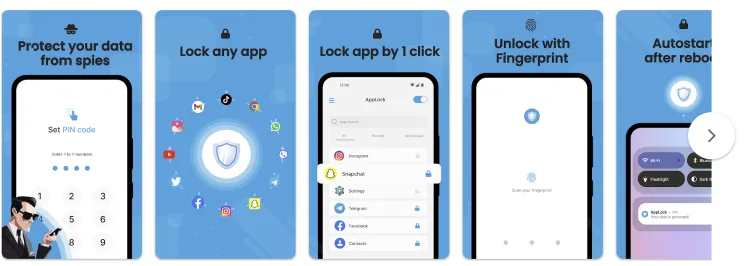
Most people jump straight to third-party app lockers. But these:
May ask for invasive permissions
Show ads or collect data
Drain battery and storage
That’s why using built-in features is often the smarter, safer move.
Samsung Devices (One UI) – Use Secure Folder
Samsung includes a powerful privacy tool called Secure Folder, protected by Samsung Knox.
How to use:
Open Settings
Tap Biometrics and security
Select Secure Folder and sign in with your Samsung account
Set up a lock type (PIN, password, fingerprint, etc.)
Add apps or files to your Secure Folder
Bonus Tip: You can also hide the Secure Folder icon from the app drawer to keep it totally invisible.
Xiaomi / Redmi / POCO Devices (MIUI) – Use App Lock
MIUI has a built-in App Lock feature that is super easy to set up.
Steps:
Open Settings
Go to Apps > App Lock
Set a privacy password (or use your existing phone lock)
Choose which apps to lock
Optionally enable fingerprint unlock for convenience
This works for apps like WhatsApp, Facebook, Instagram, Gmail, and more.
OnePlus Devices (OxygenOS) – Use App Locker
OnePlus provides App Locker, a native feature that locks your apps and hides their notifications.
How to enable:
Open Settings
Scroll to Utilities > App Locker
Tap Add Apps and select the apps you want to lock
Enable Fingerprint Unlock for fast access
Toggle Hide Notification Content to prevent preview leaks
App Locker can even keep apps locked in the background, offering persistent protection.
Realme / Oppo Devices (ColorOS) – Use App Lock
These brands offer similar features under the Privacy menu.
Steps:
Go to Settings > Privacy > App Lock
Set a privacy password (separate from your phone unlock)
Select apps you want to lock
Enable Face or Fingerprint Unlock
You’ll be asked for verification each time the app is opened.
Huawei / Honor Devices (EMUI) – Use App Lock
Huawei’s App Lock is baked into the EMUI interface.
To set it up:
Open Settings
Tap Security & Privacy > App Lock
Set a password
Select apps to protect
This feature integrates well with fingerprint unlock, so you won’t have to type the password every time.
Your phone does not have App Lock?
If your phone’s Android version or manufacturer doesn’t include app locking, here are a few alternatives:
Screen Pinning: Locks your phone to one app.
Settings > Security > Screen Pinning
Useful for letting kids watch YouTube without leaving the app
Multiple Users / Guest Mode:
Settings > System > Multiple Users
Create a guest profile for others using your phone
✅ Be cautious about sharing your device or leaving it unlocked
Locking apps without third-party apps is easier, more effective, and safer than you might expect. Whether you utilize Samsung’s Secure Folder, Xiaomi’s App Lock, or OnePlus’ App Locker, you can protect your important data with a few touches.
So, before you download another app, check your phone’s settings as you may already have all you need to keep your digital life private and secure.