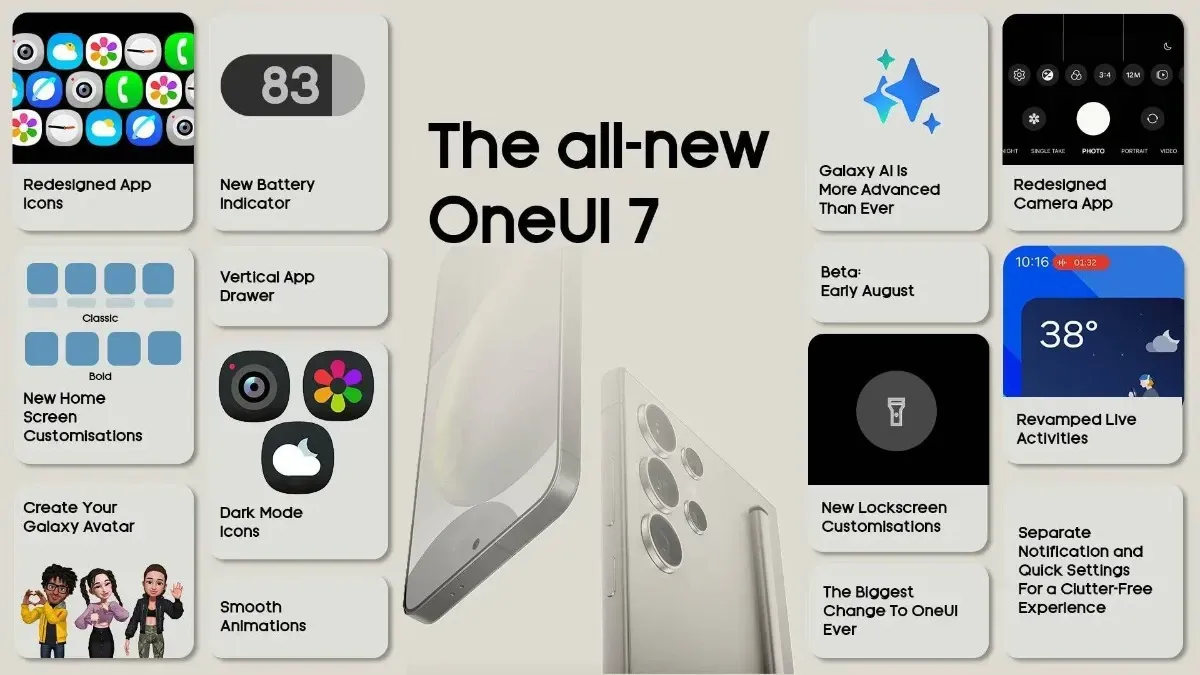
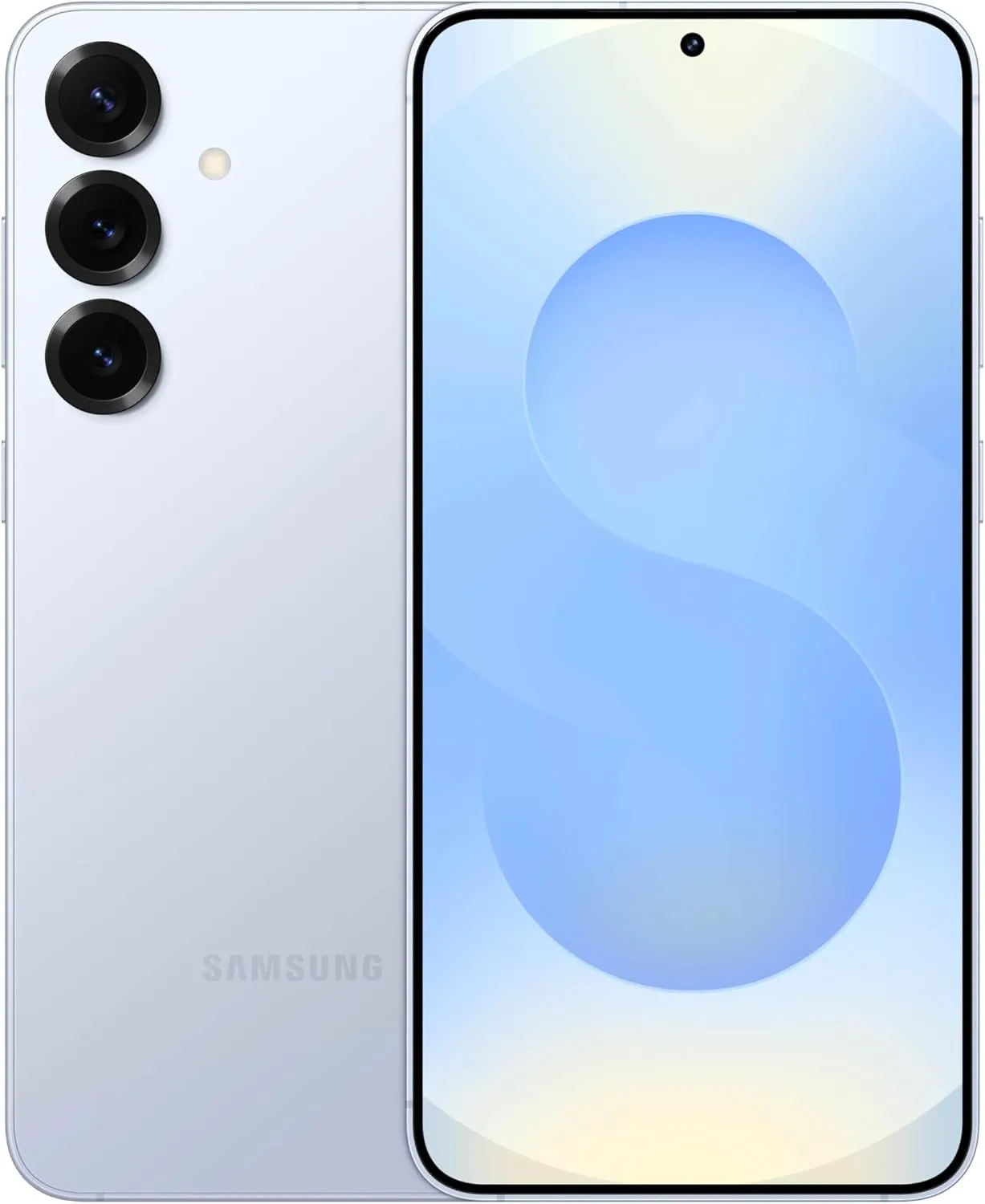
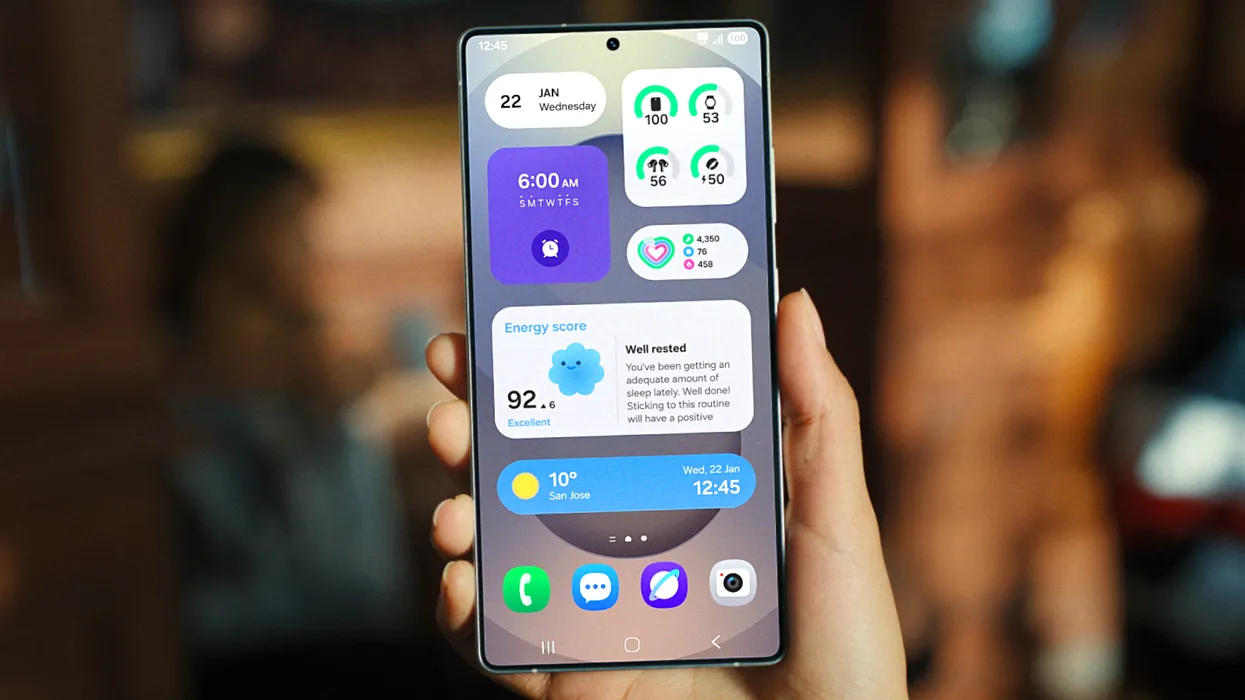
Samsung released the release schedule (via Tarun) for numerous other devices that qualify for the upgrade shortly after beginning the deployment of the official One UI 7 update for the Galaxy S24 series, the Galaxy Z Fold 6, the Fold SE, and the Flip 6.
Our dread has been realized: the April update will only be available for flagship devices released within the last two years. In May and June, the update will be released for other devices.
The complete list of devices and the month they will get the update is as follows:
April: Galaxy S24/S24+/S24 Ultra, Z Fold 6, Z Flip 6, Z Fold Special Edition, Galaxy Z Fold 5, Z Flip 5, Tab S10+/S10 Ultra, S23/S23+/S23 Ultra, S24 FE
May: Galaxy Z Fold 4, Z Flip 4, Tab S9/S9+/S9 Ultra, S23 FE, Z Fold 3, Z Flip 3, A34, A35, S22/S22+/S22 Ultra, Tab S8/S8+/S8 Ultra, S21/S21+/S21 Ultra, Galaxy A16, Galaxy Quantum 5, Galaxy Quantum 4
Although the Korean market was the focus of this plan, most smartphones in other countries should receive the update at roughly the same time. Notably, some devices, such as the Galaxy S21 FE and the Galaxy A73, are not on the list because they were not released in Korea, and we are unable to predict when they will receive the update until Samsung releases the release timetable for other nations.
Although we will have to wait and see if the firm can truly do that, we are crossing our fingers that Samsung will finish the rollout for all eligible devices by the end of June. Working on One UI 8, which will be preloaded on the Galaxy Z Fold 7 and Galaxy Z Flip 7, may be Samsung’s only option.
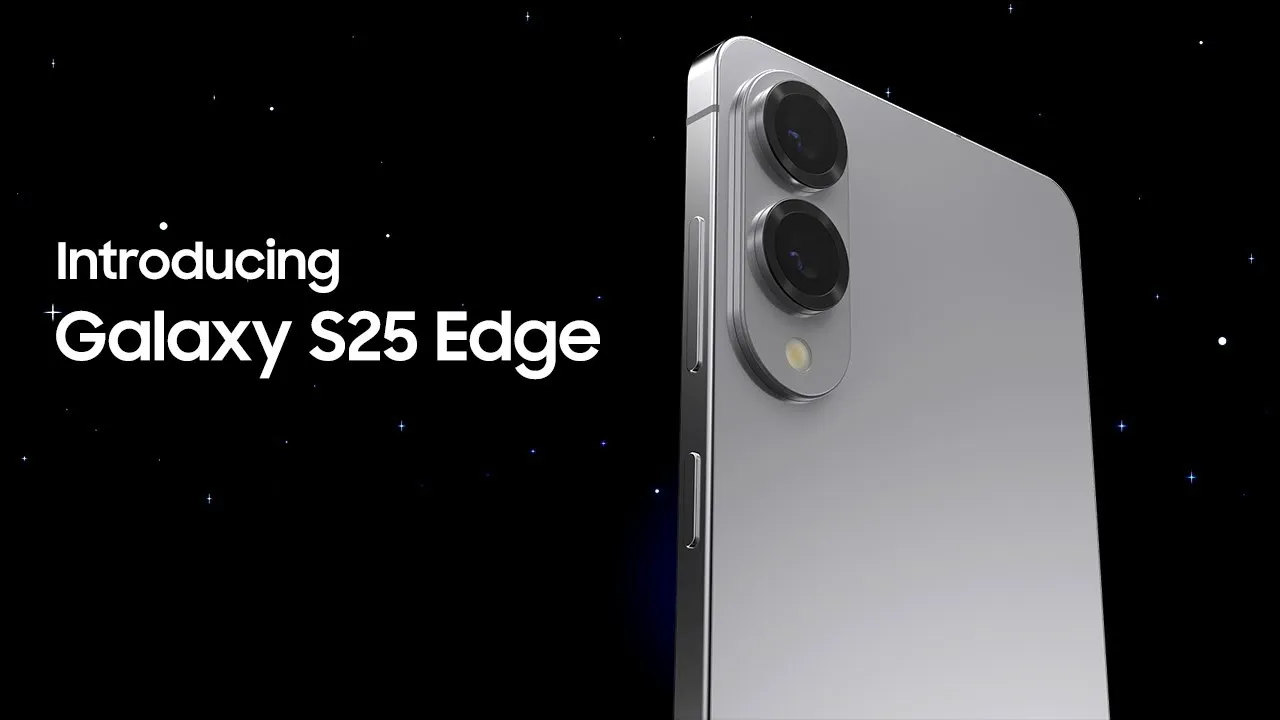
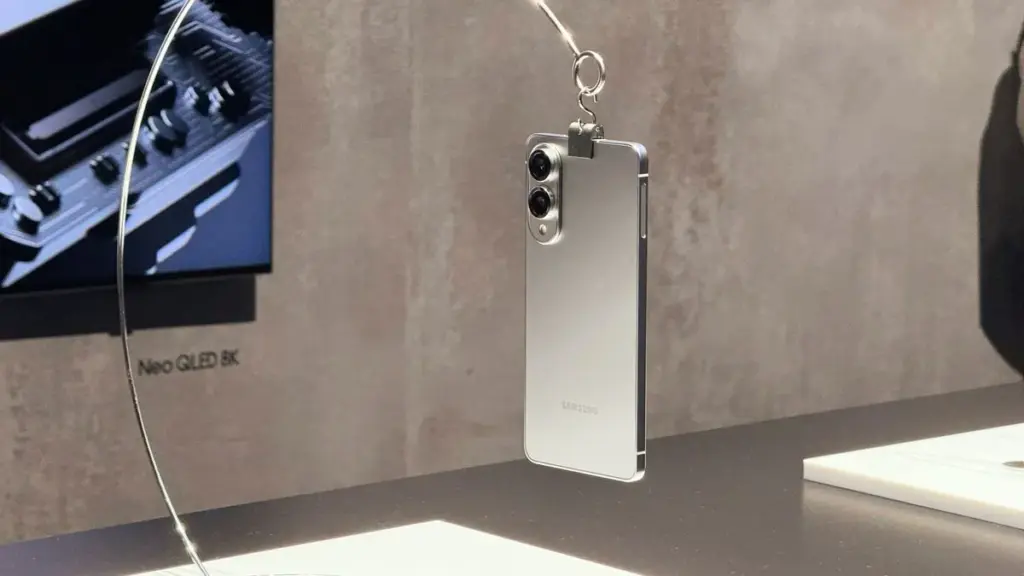
The Galaxy S25 Edge, Samsung’s most anticipated smartphone in the new S series, has been making headlines practically daily in recent days. Following earlier rumors pointing to an April 15 debut date, new information has emerged claiming that the business has postponed its ultra-thin flagship smartphone.
The reasons for the delayed release of the Samsung Galaxy S25 Edge remain undisclosed. According to reports, it could be the result of recent leadership changes following the death of Samsung DX head Jong-Hee Han, rather than any quality difficulties with the handset.
The Samsung Galaxy S25 Edge will be launched in May.
Meanwhile, according to our sources, Samsung has set a new date for the announcement of the Galaxy S25 Edge. According to our sources, the smartphone will now be released on Tuesday, May 13, 2025. This would indicate that Samsung has simply delayed the gadget by one month.
Rather than staging a large Unpacked event in January with the regular S25 lineup, the South Korean business will introduce the S25 Edge in a smaller online-only presentation, though this may vary by country. It is unknown whether the phone would be available in stores during the same month.
The Samsung Galaxy S25 Edge is said to have a 6.7-inch display, identical to the Galaxy S25+. The Qualcomm Snapdragon 8 Elite will power the handset. It will have 12 GB of RAM and either 256 or 512 GB of storage. Recent leaks indicate that the smartphone will be available in at least three colors: Titanium Silver, Titanium Jetblack, and Titanium Icyblue.
Though we do not know the exact availability specifics, the S25 Edge could cost around 1,249 euros. That is a modest rise over the similarly sized Galaxy S25+, which costs 1,149 euros. It remains to be seen how well the Galaxy S25 Edge sells. Samsung is apparently intending to produce up to 3 million devices.
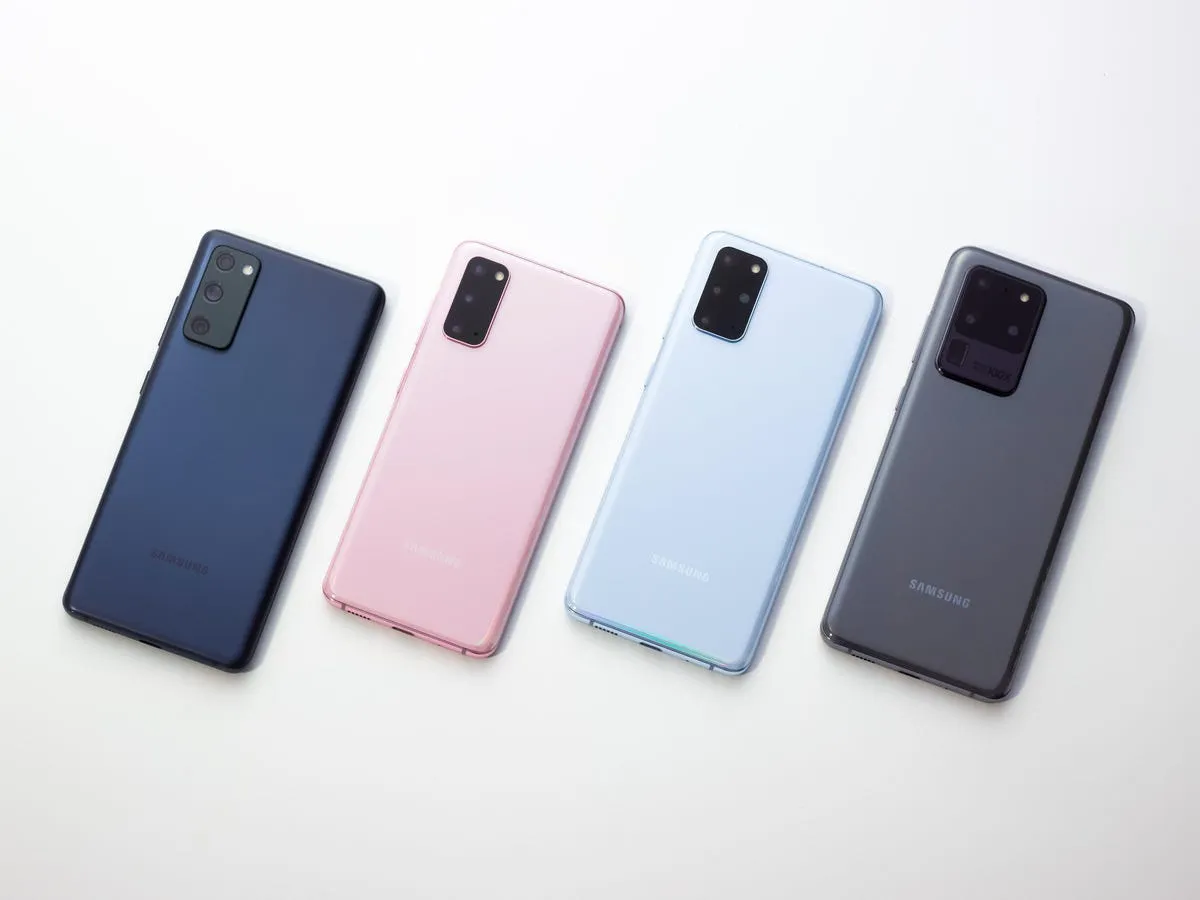
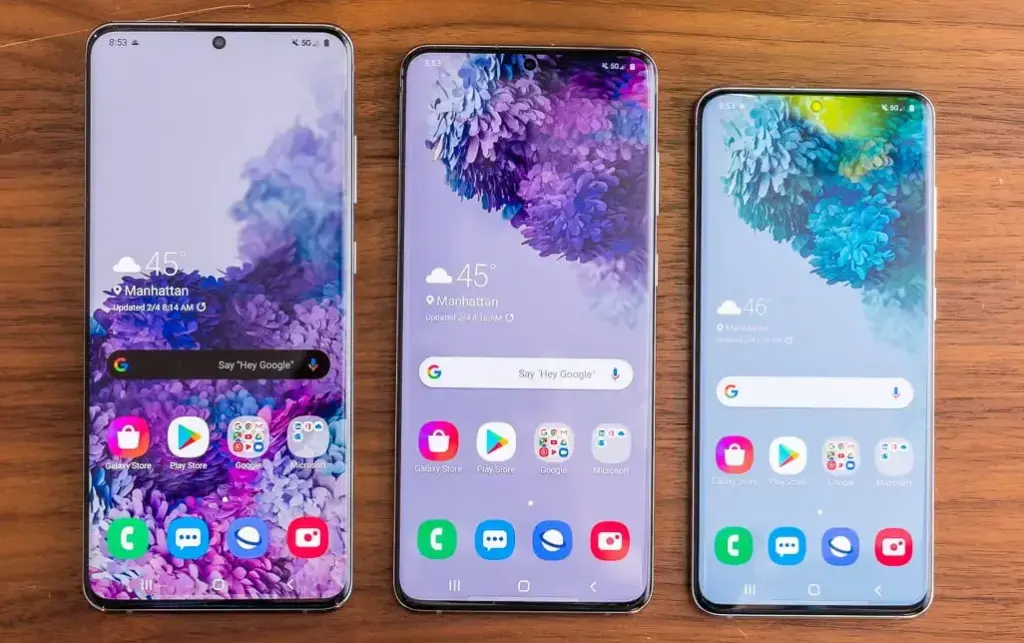
This month delivers bad news to the owners of various vintage Galaxy cellphones. The Galaxy S20, Galaxy S20+, and Galaxy S20 Ultra, Samsung’s first game-changing flagships, will no longer receive software updates going forward.
The Galaxy A52 5G and Galaxy A72, two additional game-changing Galaxy smartphones, will also no longer receive software updates. These were among the first mid-range devices to provide flagship-level features such as high refresh rate displays, dual speakers, 5G connectivity, and faster charging at a lower cost.
Samsung has discontinued support for the Galaxy A52 5G Enterprise Edition. The normal edition, as well as the Galaxy A52 and Galaxy A52s, stopped receiving updates quite some time ago. The Galaxy A52 and A52s enterprise variants will still receive upgrades.
In addition to the Galaxy S20, S20+, S20 Ultra, A52 5G, and A72, Samsung will no longer provide updates for the Galaxy A32. Support for the S20 series will terminate after five years, and for mid-range devices after four years.
Samsung may provide an update that was already in the works for these devices before support ended, but if you possess one of them, you should upgrade if you want to continue receiving software updates.
Upgrade now
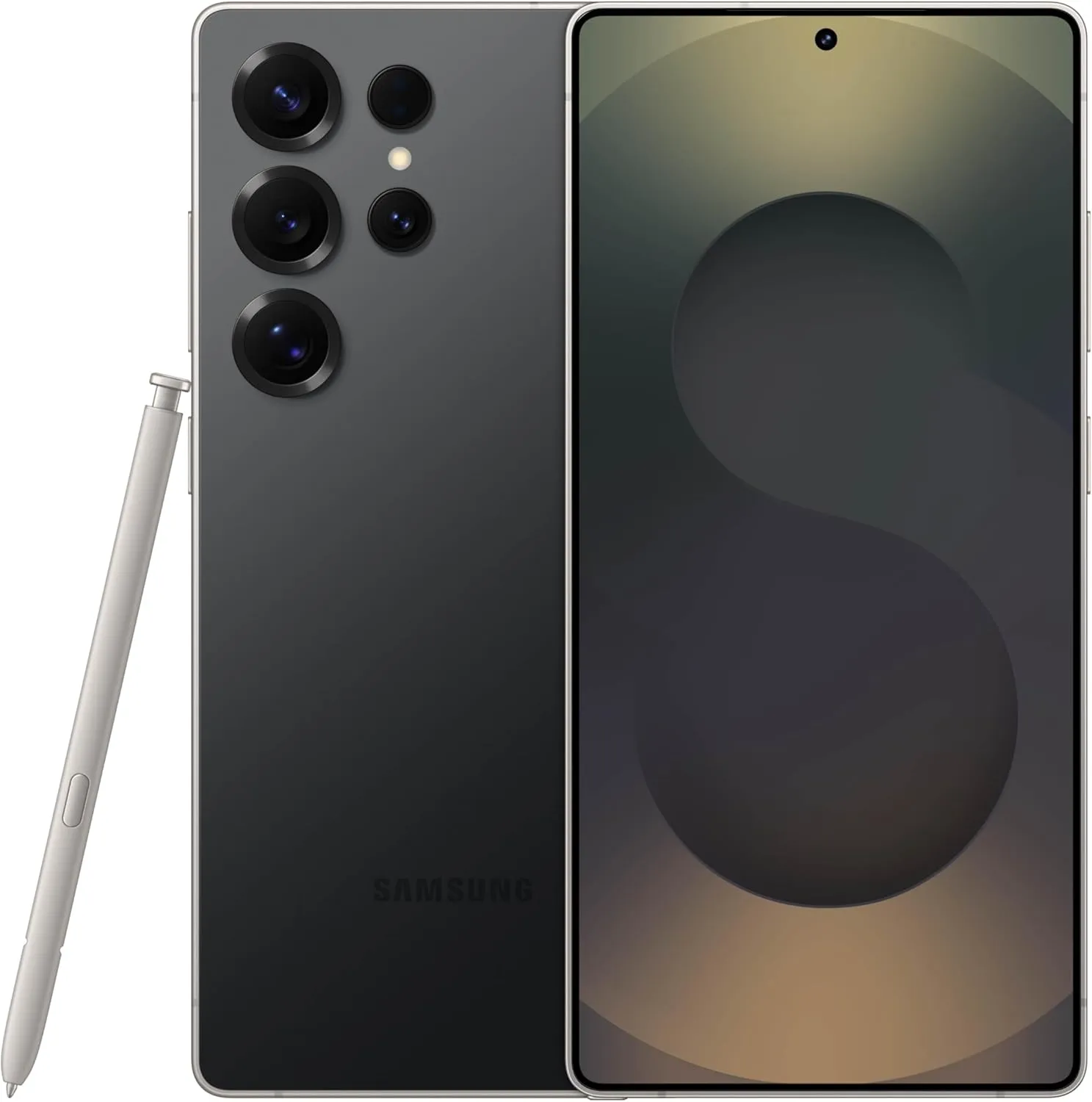
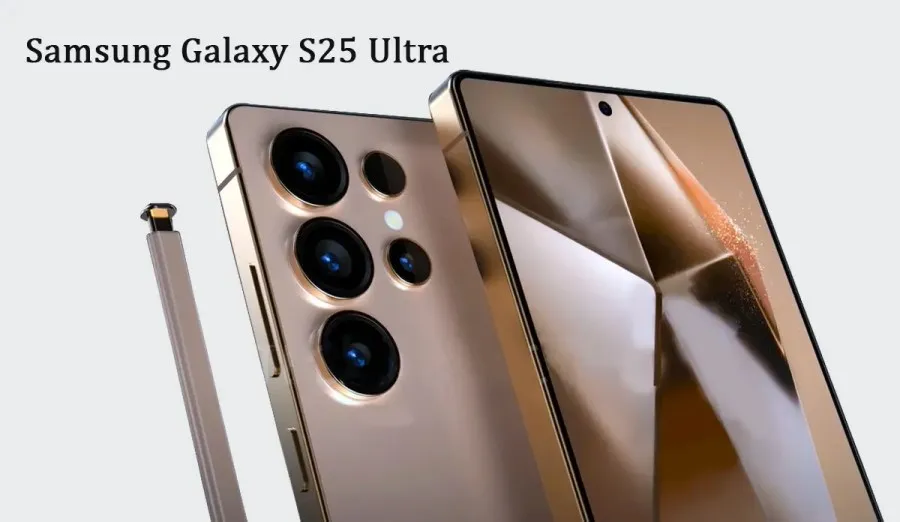
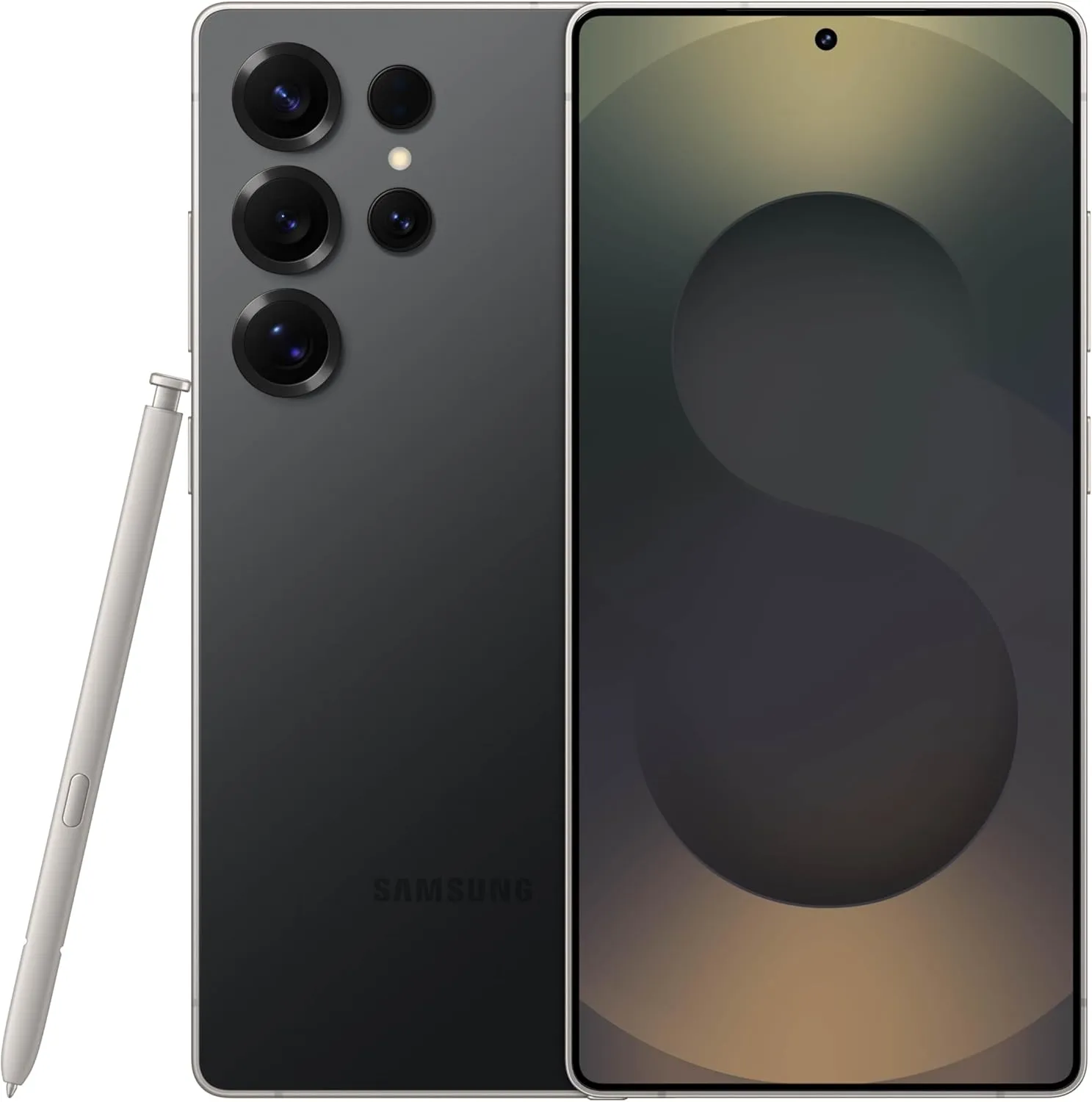
SAMSUNG Galaxy S25 Ultra
Streamline your day with an assistant that gets you. Ask it to Google search for a pet-friendly vegan restaurant nearby and text it to your friend— your Galaxy S25 Ultra handles multiple tasks with a single ask.
Please note that we have not done our customary in-depth assessments of every app this time around as you get ready to explore our fantastic selections.
Just a quick reminder that although some applications are free to download, they can have optional in-app purchases or ads. Have fun with what you find!
Even if you do not immediately require an app, download it if you find one that interests you. If you do this, it will be marked as “purchased,” thus even if you take it off your smartphone shortly after, it will be in your app library forever.
Android Apps and Games Available for Free–Limited Time Offer
Top Free Android Apps for Productivity and Lifestyle
Volume Scheduler ($0.99): Want to silent your phone at different times? Why not let this app get the job done for you?
Bright LED Flashlight Pro ($2.99): Not happy with your default flashlight app? This should help you get sorted out.
Shuriken Jump ($0.99): See how far you can travel with your shuriken!
iOS Apps and Games Available for Free–Limited Time Offer
Top Free iOS Apps for Productivity and Lifestyle
Step Out! Smart Alarm Clock ($1.99): Can’t find enough motivation to get out of bed even when the alarm rings? This app will irritate you enough to wake up.
Mavis Camera ($5.99): A camera app that offers more flexibility when it comes to shooting photos and recording videos.
Attendance ($9.99): Are you a stickler for attendance for all your classes? This app is perfect for you then.
Eyka ($0.99): A relaxing puzzle game that requires you to harmonize all colors.
Egyptian Senet ($2.99): See how life in the Egyptian afterlife will be in this game!
As of the date of publication, the deals were active. Please share any expired deals you come across in the comments section below. We advise you to review the app’s details in the Play Store or App Store before downloading any of the aforementioned apps. This is crucial as some of these free apps can have unique features or drawbacks of their own.
In 2025, the budget smartphone market is more competitive than ever, offering impressive features, solid performance, and sleek designs at wallet-friendly prices. Whether you’re a student, a casual user, or just someone who loves getting the best value for money, there’s a perfect device out there for you. In this guide, we’ve rounded up the best budget smartphones you can buy in 2025 — all under $400 — that deliver big on performance without the premium price tag.
This is a thorough guide to the top smartphones under $400, which include features like outstanding cameras, slick 120 Hz screens, and potent gaming-ready SoCs with 5G.
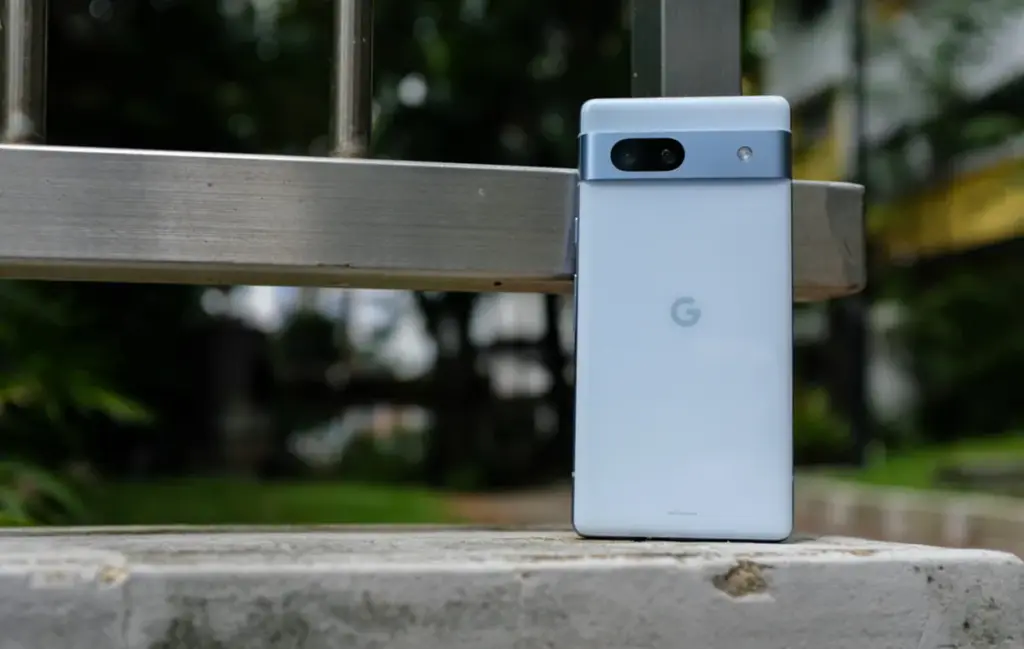
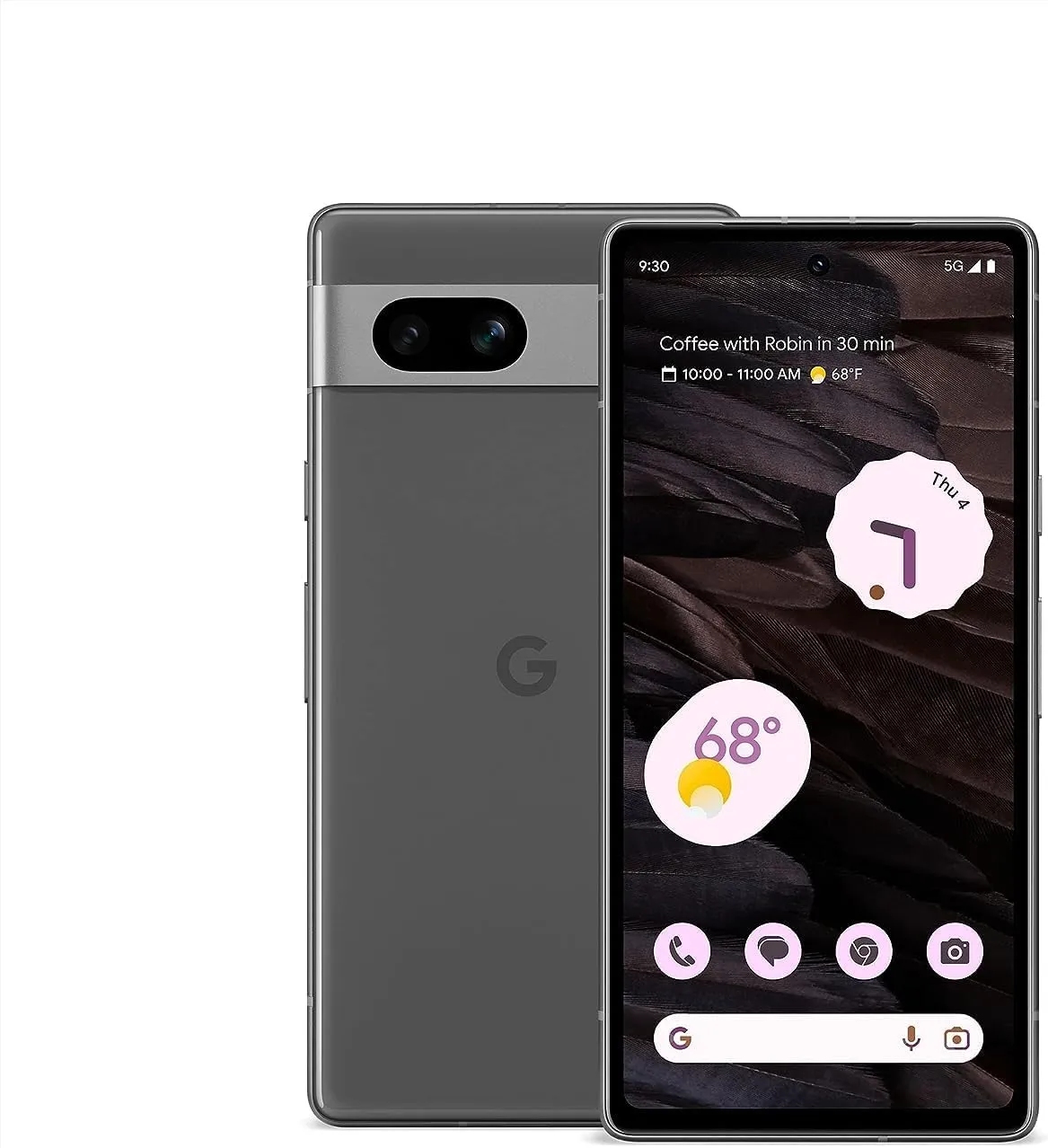
Google Pixel 7a – great camera, good battery life and updates
With 128 GB of storage, the Google Pixel 7a, which was released on May 10, 2023, costs less than $400 on Amazon. Its Tensor G2 processor, which Google has included, improves the performance of machine learning-based features, making it a great option for anyone looking for a small Google phone in 2025.
Among smartphones under $400, the Pixel 7a stood out with a 5-star rating in our assessment. It is the most affordable model in the Pixel 7 series, with features including wireless charging, 8 GB of RAM, and a refresh rate of 90 Hz.
With a 64 MP primary camera, a 13 MP ultra-wide lens, and a 13 MP selfie camera, the camera system has been much improved over its predecessor. Google’s sophisticated camera software guarantees that images captured with the Pixel 7a uphold the Pixel series’ excellent quality standards.
Google Pixel 7a
Pixel 7a has a 24-hour battery life and supports fast charging up to 72 hours with Extreme Battery Saver turned on.
Apple iPhone SE (2022) – if you are in the Apple ecosystem
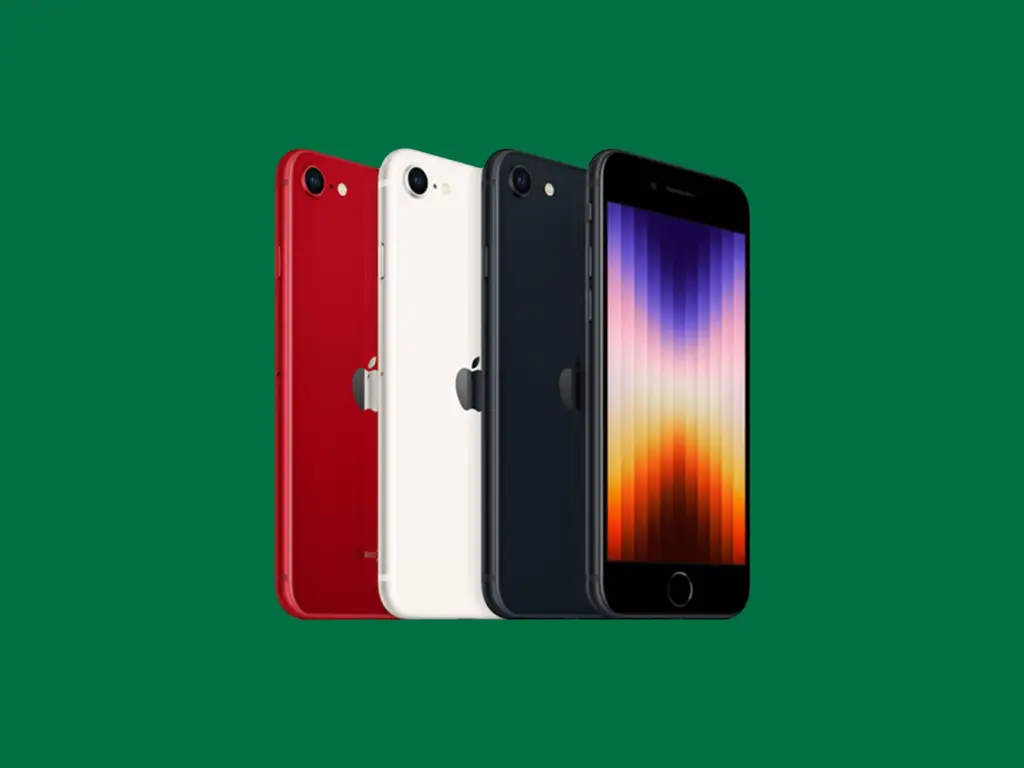
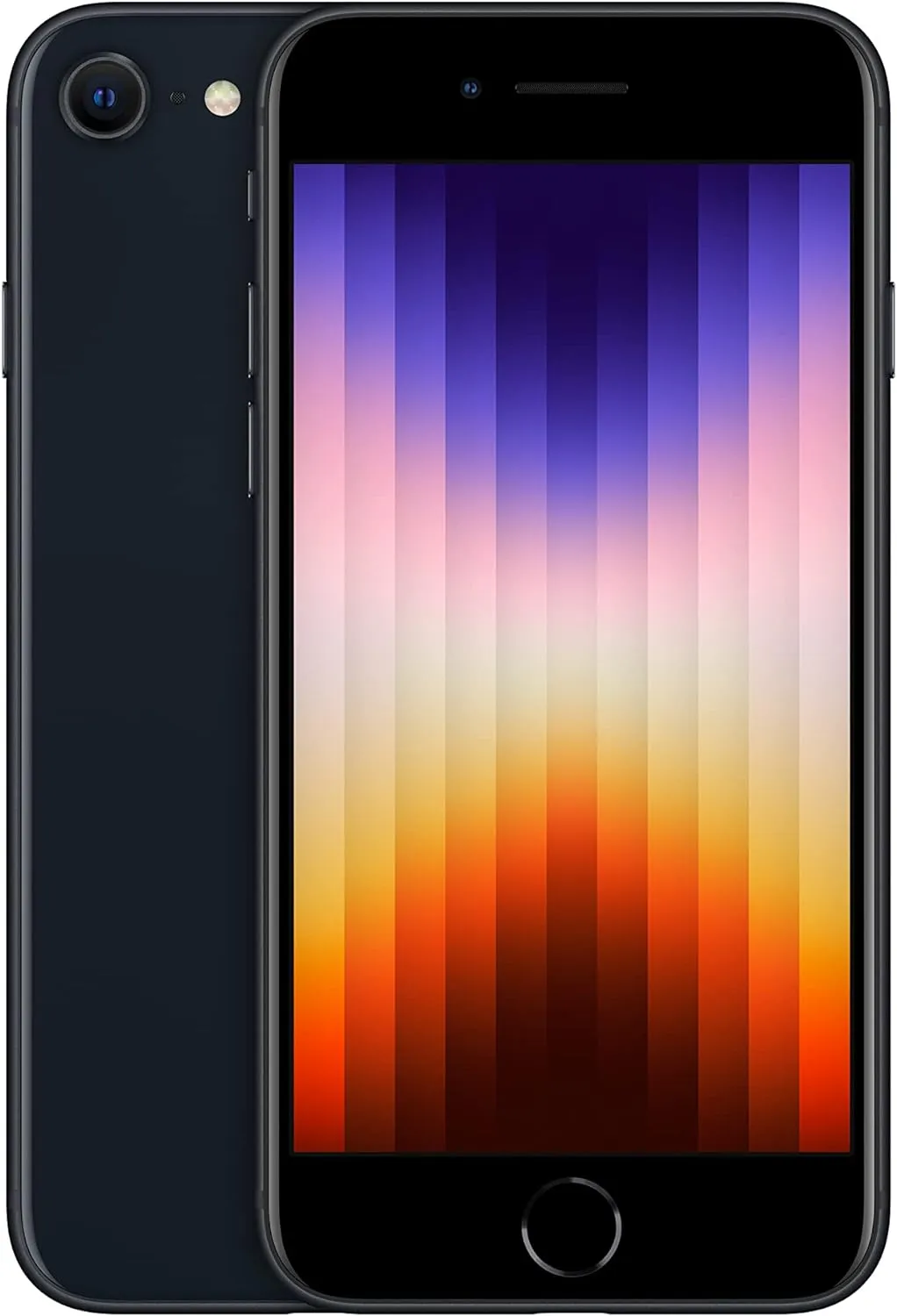
It is difficult to choose an Apple product under $400, but we firmly believe that the iPhone SE (2022) is the best option. Apple essentially discontinued the SE range in 2025 with the release of the iPhone 16e (review). Apple’s entry-level model is now the 16e, the company’s first new name since the 2020 “mini.”
Currently, the iPhone SE (2022) is only available through online retailers like Amazon. This budget iPhone features the powerful A15 Bionic chip, although it brings minimal upgrades compared to its predecessor. It offers a 12MP camera within a casing nearly identical to the iPhone SE (2020)—which itself resembles older models like the iPhone 8, 7, and 6s—and includes IP67 water resistance.
The most notable enhancement is 5G connectivity, which puts the iPhone SE (2022) on par with other smartphones under $400 on this list, aside from the improved SoC and more RAM (4 GB). After testing, we discovered that, despite certain issues, the gadget is still a great option for iPhone purchasers on a tight price.
Software support for the iPhone SE (2022), including complete iOS updates and security fixes, should last until roughly 2027 or 2028, according to Apple’s past trends. However, based on Apple’s future choices, precise timetables might change.
2022 Apple iPhone SE
Advanced single-camera system with 12MP Wide camera; Smart HDR 4, Photographic Styles, Portrait mode, and 4K video up to 60 fps
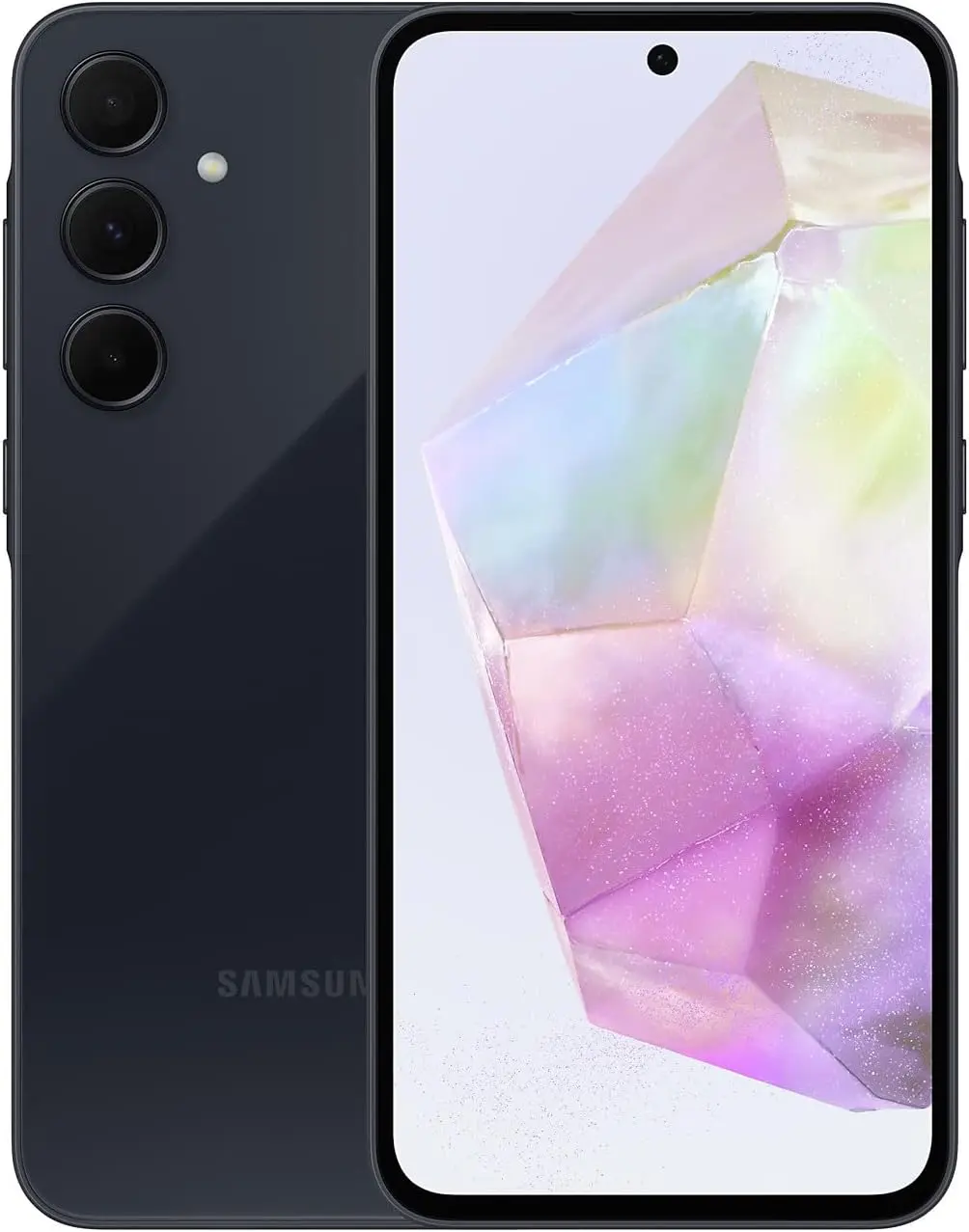
Surprisingly, Samsung chose not to distribute its well-liked Galaxy A55 in the US in 2024. As a mid-range substitute, the company instead unveiled the less expensive Galaxy A35.
In actuality, both models offer balanced camera capabilities, dependable battery life, and comprehensive software support, making them very comparable in terms of performance and specifications. The Exynos 1380 processor, which was used in the previous Galaxy A54 model, ensures seamless performance for daily use and light gaming on the A35.
Samsung has committed to providing software upgrades for the Galaxy A35 through 2029, making it the phone with the longest security support on this list. Although some more recent models provide even longer support, none of them now live up to this promise at this price point.
Samsung Galaxy A35 5G
6.6” FHD+ Super AMOLED w/Corning Gorilla Glass Victus+ – Resolution 1080 x 2340 pixels 256GB 8GB RAM – MicroSD up to 1TB
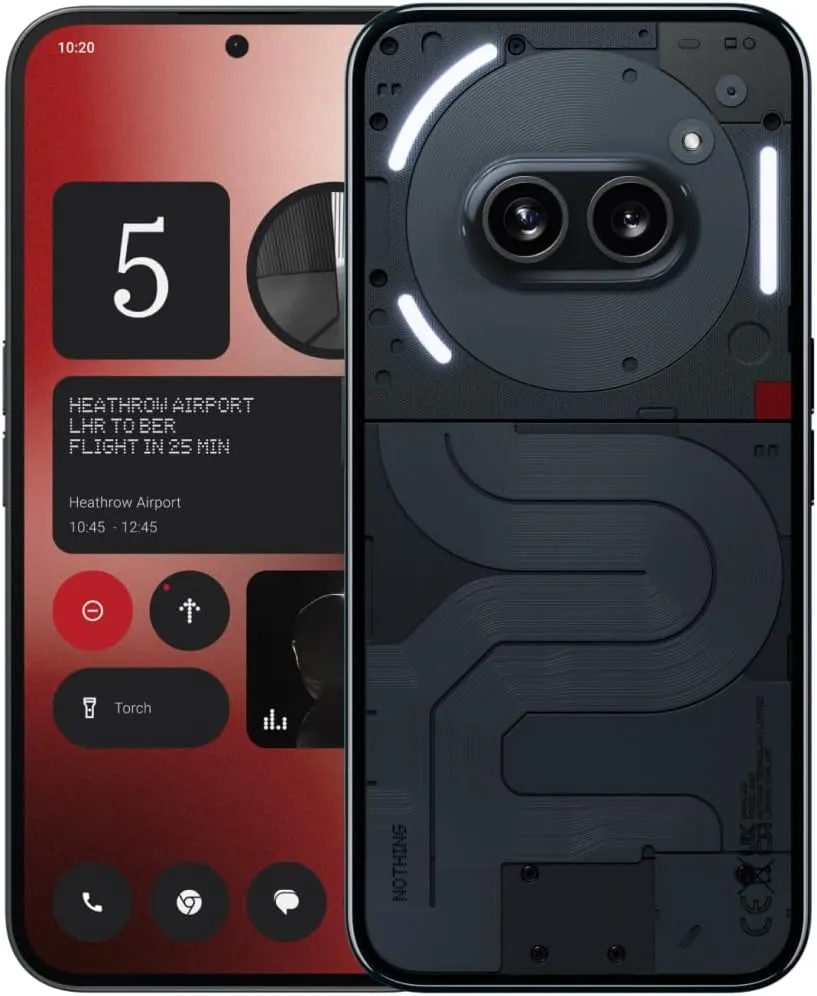
Nothing’s newest low-cost smartphone, the Phone (2a), has a great design and well-balanced specs, making it one of the most attractive mid-range phones.
It delivers endurance with four years of security patches and three guaranteed Android updates, together with a positive user experience with Nothing OS. Although the most recent Snapdragon chipset is not included, performance remains dependable.
The Phone (2a) has the longest battery life in its pricing range thanks to its large 5000 mAh battery that supports 45W rapid charging. The remarkable 17 hours and 2 minutes of runtime that our battery testing revealed allowed for comfortable two days of use between charges and comparatively quick recharging.
The primary compromise is the camera’s poor quality, especially in dimly lit areas. With its appealing screen, reliable performance, and very long battery life, the Nothing Phone (2a) is a well-rounded mid-range choice.
Nothing Phone (2a)
Nothing phone (2a) boasts Co-engineered with MediaTek,the custom Dimensity 7200 Pro processor delivers the best performance with optimal power consumption. NOTE:Only these carriers’ 5G network bands are supported,please check the bands before buying: T-Mobile n41,n66; AT&T n5,n66; Google Fi n41; Verizon Wireless n5,n38,n66; Cricket Wireless n5.
Our crew has carefully tested the top picks for our list of the best smartphones under $400, and we have added extra mentions to help you make an informed choice. Although this guide focuses on key aspects, I strongly advise reading our in-depth reviews before making a purchase.
We mainly took into account regular consumers looking for a balance between cost and usefulness while making this budget-friendly choice. To make sure you are selecting the greatest smartphone, I advise you to look over our larger list of top smartphones if flagship-level features or cutting-edge performance are important to you.
User Experience (UX). Smartphones priced around $400 often provide reliable performance for daily work, multimedia consumption, and casual gaming. Expect CPUs from the Qualcomm Snapdragon 7 series or MediaTek Dimensity range, which offer outstanding value even though they are not the most recent generation.
Battery life and display quality are also important. We selected smartphones with batteries ranging from 4,500 to 5,000 mAh, which can last a full day. While charging speeds in this price range are moderate, often between 10W and 15W in the United States, these devices provide adequate endurance. Display technology is constantly advancing, with many devices offering Full HD+ resolutions and refresh rates of up to 120 Hz, including the increasingly popular OLED screens.
Although the camera’s performance is suitable for most daily uses, there are certain limits to consider. Higher-megapixel sensors are common, although their quality differs greatly from flagship models. We suggest care when using multi-camera systems, as extra lenses such as macro or depth sensors may have limited practical applications.
Software and carrier compatibility are other important issues. Smartphones in this category often receive fewer software updates—one to two major Android versions after launch—so double-check the device’s update policy before purchase. Additionally, check compatibility with your carrier, especially if purchasing unlocked smartphones.
The home screen of your smartphone serves as the entryway to your digital life, and you may personalize it to improve its usability, functionality, and aesthetic appeal. This article explains how to customize your home screen for a genuinely one-of-a-kind experience, from altering the background to adding widgets and arranging apps.
Change wallpaper
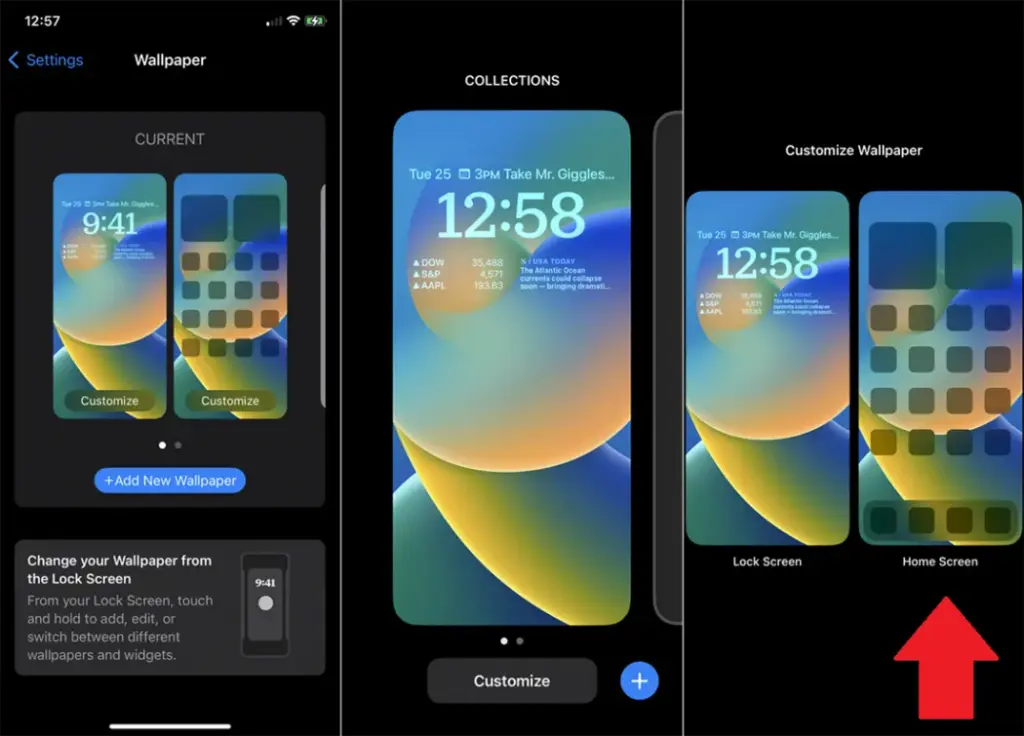
The aesthetic tone of your smartphone is established by your wallpaper. Changing your wallpaper is easy, regardless of your preference for abstract art, beautiful landscapes, or intimate portraits.
On Android:
Long-press an empty space on the home screen.
Select Wallpaper or Wallpaper & style from the pop-up menu.
Choose a pre-installed wallpaper or select an image from your gallery.
Decide whether to apply it to the Home screen, Lock screen, or both
On iOS:
Open Settings > Wallpaper > Choose a New Wallpaper.
Select an image from Apple’s preloaded options or your photo library.
Adjust and tap Set to apply it to the Home screen, Lock screen, or both9
Add widgets for quick access
Without opening apps, widgets offer functionality and information at a glance.
On Android:
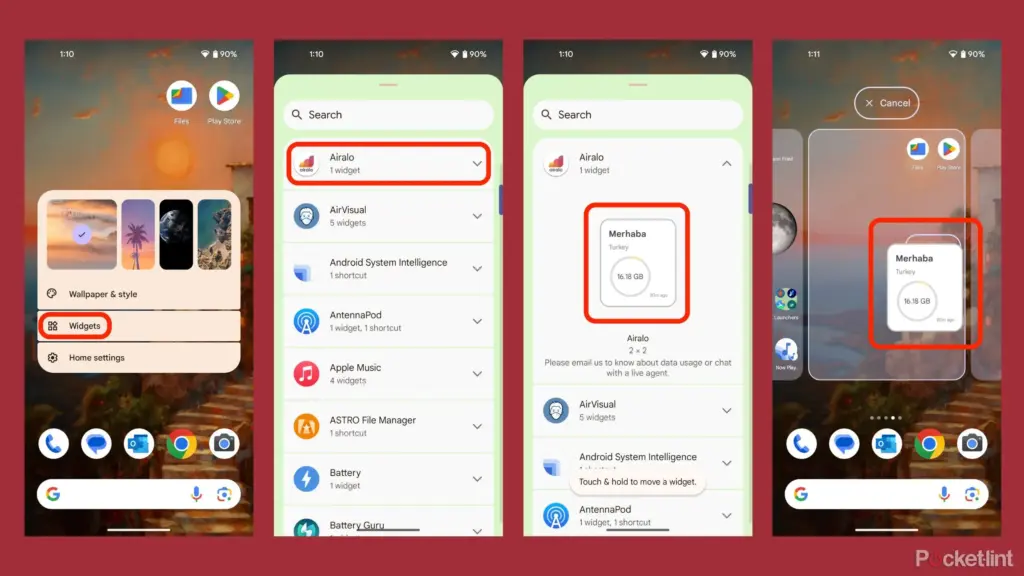
Long-press an empty area on the home screen and tap Widgets.
Browse through available widgets (e.g., clock, weather, calendar).
Select a widget and drag it to your desired location on the screen.
On iOS:
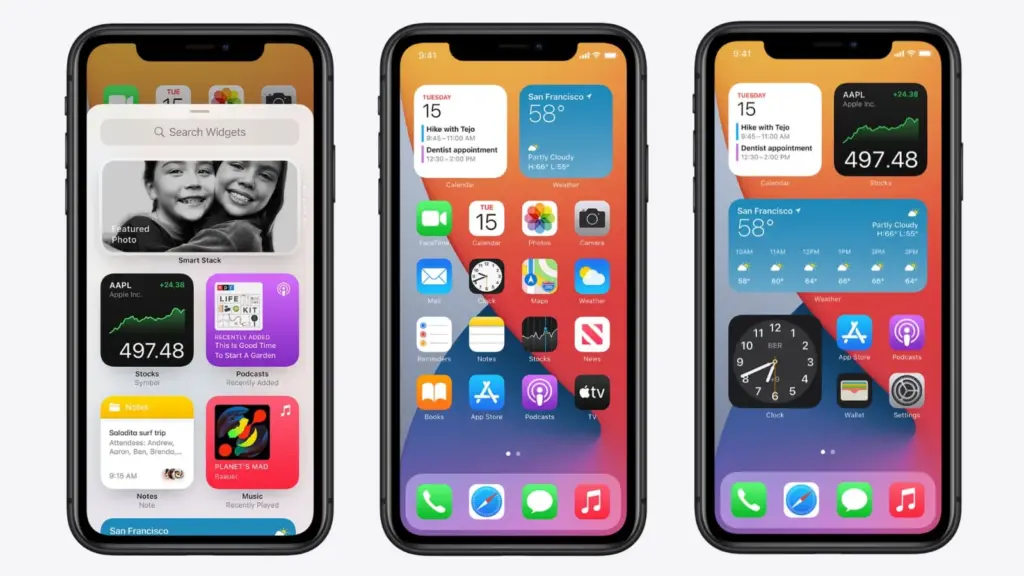
Touch and hold the Home Screen background until apps jiggle.
Tap the “+” icon in the upper-left corner.
Choose a widget from the list and select its size (small, medium, large).
Tap Add Widget, then drag it into place
Organize apps
A clutter-free home screen improves usability and makes navigation faster.
Create Folders:
Drag one app icon onto another to create a folder.
Add more apps by dragging them into the folder.
Rename folders by tapping on them and selecting the name field.
Arrange Apps:
Move frequently used apps to the first page of your home screen for quick access.
Drag icons to different pages or positions by holding and moving them.
Advanced Organization Tips:
Use themed rows (e.g., “Work,” “Social,” “Entertainment”).
Sort apps by frequency of use or color coding for visual appeal.
Use customization apps
Download specialized home screen customization programs like WidgetClub or Nova Launcher for more sophisticated customization choices including unique icons, fonts, and themes.
Benefits:
Access all-in-one themes that include wallpapers, widgets, and icons.
Customize grid layouts for app placement flexibility
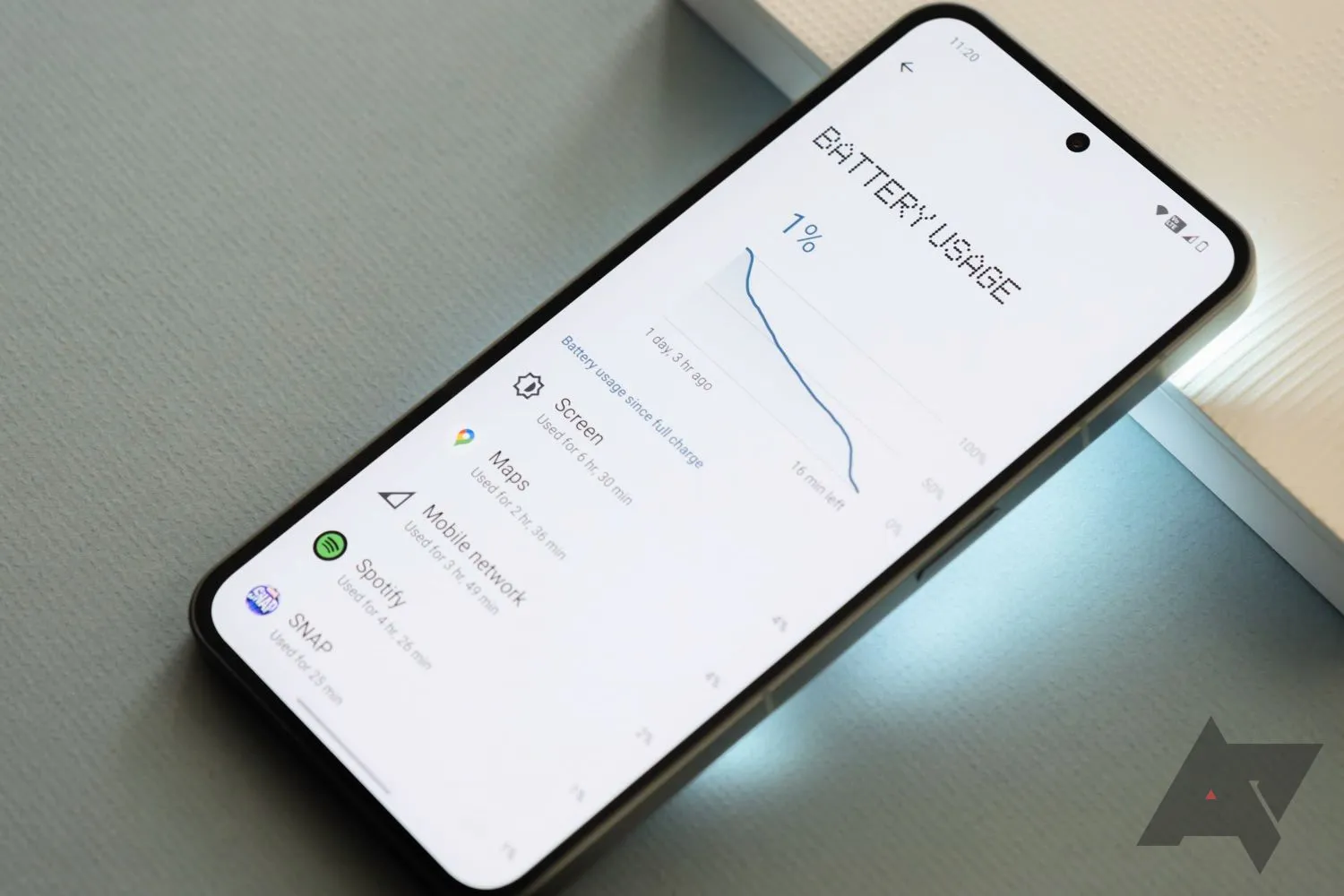
I have spent a significant chunk of my life looking for ways to extend the battery life of my Android phones. That may sound dramatic, but growing up with only inexpensive models meant I was constantly modifying device settings to get the most out of their batteries. Thanks to this micromanaging, I was able to drive the batteries on all of my previous devices to their utmost limits. I do not want to keep this knowledge for myself, so I chose to share it with everyone.
There are numerous strategies for extending battery life. However, there are 12 important options that can be changed right now to see immediate results. The following list highlights the most effective, simple, and quick modifications to boost device longevity regardless of the Android phone you are using, whether it is the latest Samsung model, a luxury Google Pixel, or a cutting-edge OnePlus 13. Furthermore, you will not have to compromise the high-quality experience of using your phone.
Although the power settings are nearly identical on every Android phone available, the procedure of changing them varies by device. Keep this in mind when following the procedures I have outlined, as the technique may alter slightly based on the model you are using.
Turn off the always-on display
The always-on display is one of the largest battery drainers on any smartphone. Companies frequently claim that this display setting only consumes 1% to 2% per hour, but let us be honest: it is always far more. It may be convenient to check the time on your phone while it is sitting on a table, but it is unlikely to be worth the sacrifice of battery life.
Open the Settings app and navigate to the Lock Screen section. This section will most likely be found in the main Settings list or under “Display.” From there, look for the option to “always show info” or a simple toggle to enable the Always On Display. In any case, disable the option and ensure that when you lock your device, it turns absolutely blank.
Switch to dark mode
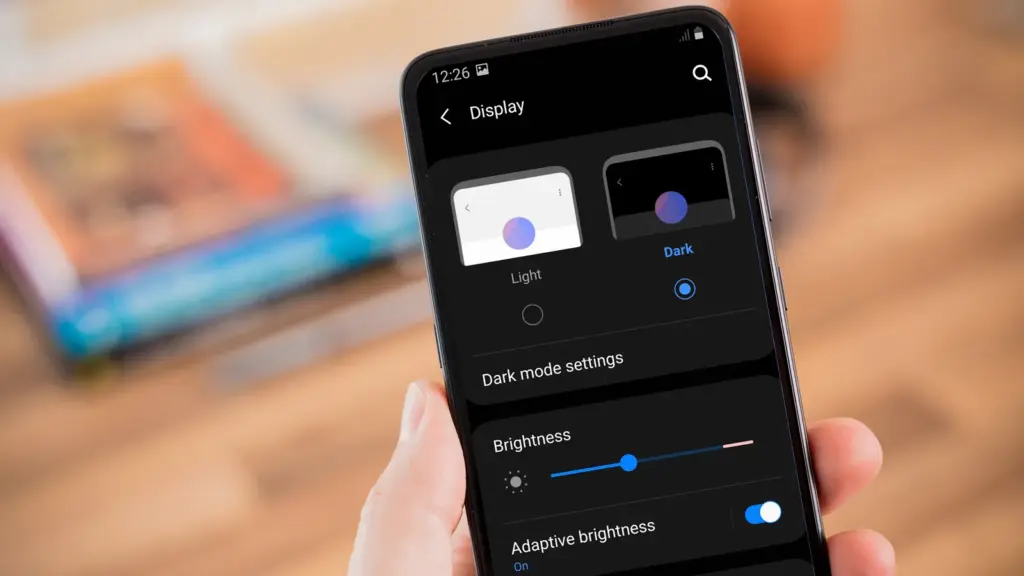
Over the last few years, many midrange and inexpensive Android phones have followed in the footsteps of their flagship counterparts, adopting OLED displays. When not in use, the technology allows individual pixels to fade or turn entirely off. This feature is considerably more efficient for battery life than typical LCD screens with a single large backlight. By switching to your phone’s dark theme, those pixels will get dimmer much more frequently, saving some battery life.
Go to Settings > Display on your Android device. There are options to choose between a light and dark theme, as well as to have dark mode turn on automatically at specific times of day. To get the most out of your battery, I recommend having dark mode on constantly.
Remove unused accounts
We have all done it: you open a new account for a social networking app or email service (which you subsequently forget about) and then create another account to serve as your primary account for that service or platform. I have been through this process several times. If you create accounts on your phone, all previous accounts stay, constantly refreshing and depleting your battery life in the background. I strongly advocate uninstalling some outdated accounts from your smartphone as soon as possible.
Go to the Settings app and find the accounts section (on Samsung phones, it’s called “Accounts and backup” while Pixel phones use “Passwords & accounts“). You’ll find a list of all the accounts synced to your phone. Tap on one of them and scroll down to the “Remove account” button. Tap it, and the account will disappear.
Reduce the screen’s refresh rate.
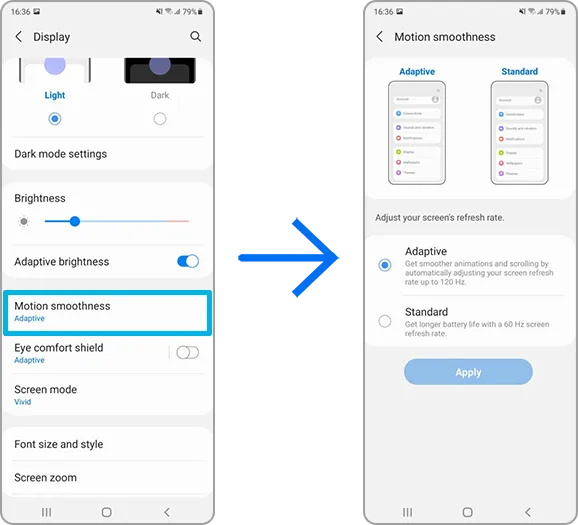
Phone screens have improved dramatically in recent years, thanks in part to quicker refresh rates implemented by manufacturers. Increasing the frequency with which a screen refreshes, whether at 90Hz, 120Hz, or even faster, makes animations, scrolling social media, and everyday activities feel smoother and more responsive. Unfortunately, a fast refresh rate consumes more battery power; you may be better off removing the option in some cases.
Open the Settings app and go to the Display section. Here you will find the options for configuring your refresh rate. Most smartphones refer to the function differently; for example, Google refers to it as “Smooth Display” whereas Samsung refers to it as “Motion Smoothness” Find the refresh rate setting and reset it to the regular rate. Your screen will most certainly appear choppier as a result, but this is totally normal. It simply means that it operates at 60Hz, which was the pace at which even the greatest phones ran a few years ago.
Turn off “Hey Google”
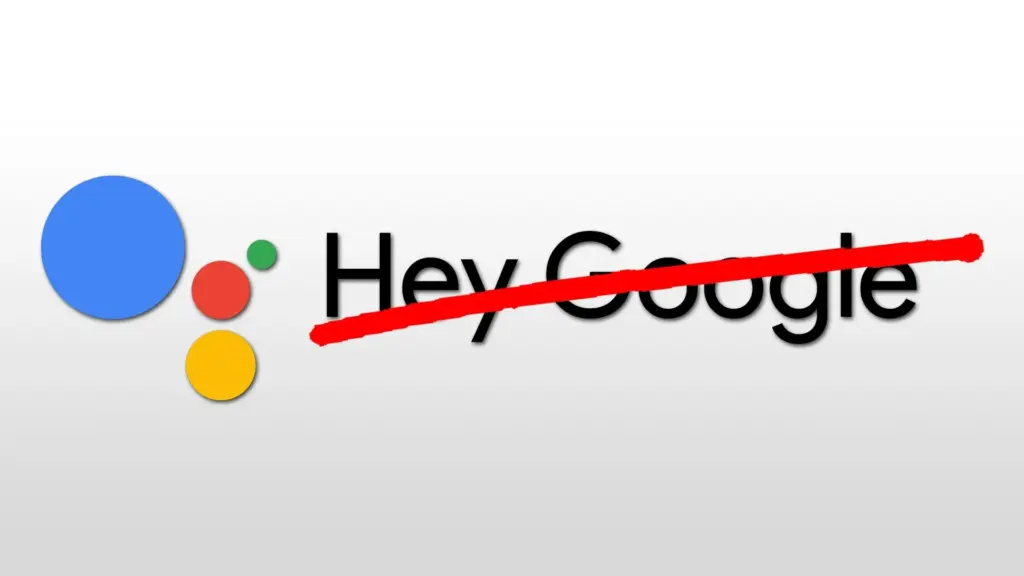
If your phone is always listening for you to say, “Hey, Google,” your battery is probably running low. Your microphone is engaged, waiting to hear you utter the two magic phrases that activate the digital assistant, and running that procedure all day consumes a significant amount of energy. Anyone who does not utilize the Assistant on a daily basis should disable the feature without hesitation. And let us be honest: how many of us use the assistance every day?
Open the Google app on your phone and select your profile photo from the top-right corner. Then, go to Settings > Google Assistant > Hey Google & Voice Match, and turn off “Hey Google” Now, your phone will only activate the Assistant if you hold down the power button or use another method.
Block apps to send notifications
You may not realize it, but notifications can be one of the most significant drains on your phone’s battery life. Not only does your phone buzz and ding all day, but the applications themselves are continually refreshing in the background, looking for new notifications to transmit to you. Most apps provide options for reducing the number of alerts you receive, but the simplest way to turn them off is through your phone’s Settings app.
Go to Settings > Notifications > App notifications to see a list of all the apps installed on your phone. Next to each entry are toggles that, when flipped, will disable all notifications for that particular app.
Keyboard sounds and haptics
If you are using your phone, you are probably typing on the keyboard a lot, whether it is to post on social media or answer to messages from friends. If you activate sound and haptic feedback, your phone’s battery life may suffer since it must produce a succession of vibrations and noises each time you tap a letter. Hearing and feeling the keyboard as you type is a pleasant experience, but it is not ideal for getting the most out of a fully charged battery.
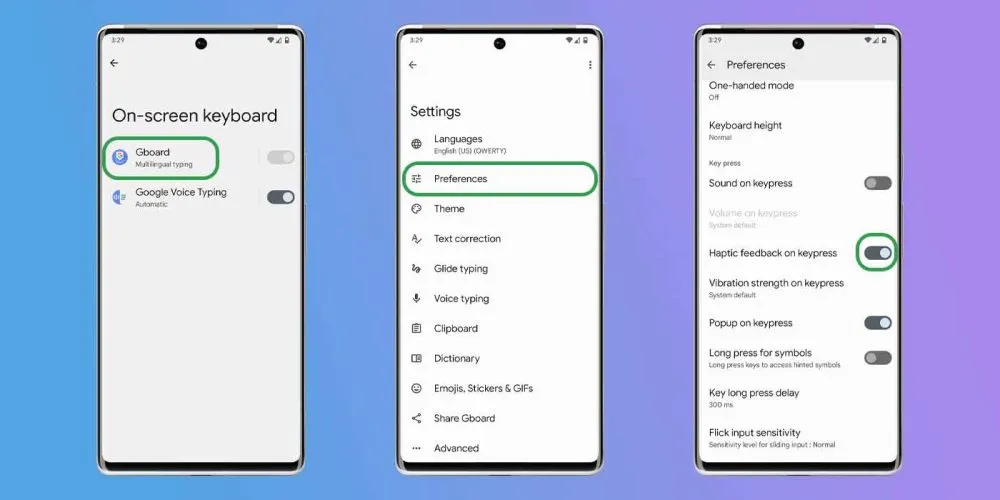
Open the Settings app and navigate to “Language and input” This section contains your keyboard settings. Find the place where you may select your default keyboard and hit the gear icon next to it to modify settings. If you use Gboard (like most people), go to Preferences > Keypress and turn off “Sound on Keypress” and “Haptic feedback on Keypress“
Enable Adaptive Battery
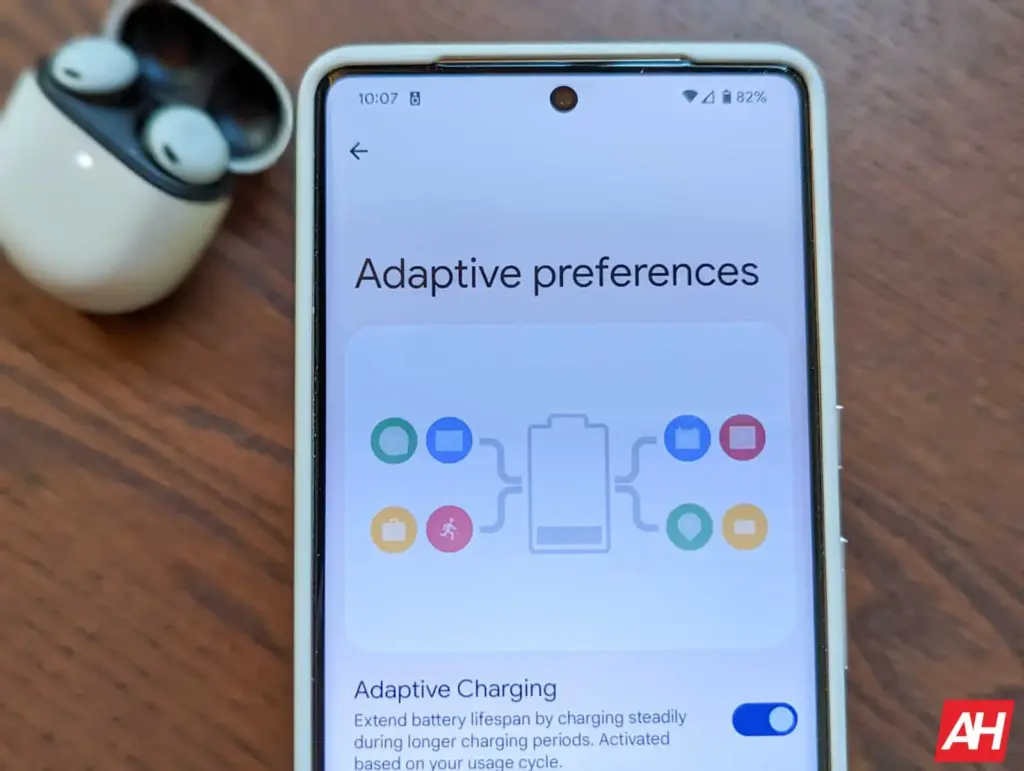
Android include a useful function called Adaptive Battery, which is available on most handsets. Adaptive Battery may automatically control your phone’s performance and efficiency in the background, extending battery life through specific methods. For example, when you do not need maximum speed for something as basic as browsing through your inbox, the setting will slow things down and save you some battery life.
Go to Settings > Battery > Adaptive preferences and check to ensure “Adaptive battery” is enabled. If it’s not, flick it on.
Use battery saver to increase battery life
Battery Saver mode, like Adaptive Battery, is a useful function that helps increase the life of your smartphone between charges. The function makes significant modifications to your device’s firmware, including as limiting visual effects, restricting background apps, and putting on dark mode if it is not already enabled.
Most, if not all, Android phones have a Battery Saver feature, albeit it may have a different name. On Galaxy phones, for example, it is known as Power Saving Mode. Some may refer to it as low-power mode. For assistance with your specific model, check your phone manufacturer’s support website.
On Pixel phones, go to Settings > Battery > Battery Saver. You can also choose a schedule for when the feature will activate or turn off automatically. On Galaxy phones, go to Settings > Battery and Device Care > Battery. Flip the toggle switch next to Power Saving to activate the feature.
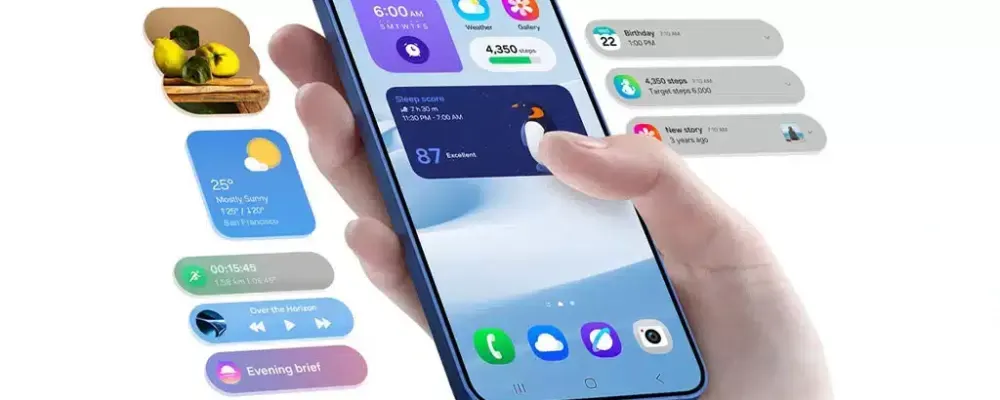
Samsung’s One UI 7 is now my favorite Android skin. It is quick, responsive, and simple. However, nothing is pre-programmed for your specific experience. You should personalize your smartphone to make it more appealing. I modify about a dozen settings on each Samsung Galaxy phone to better fit my needs, and I believe these will improve your user experience as well.
Here are some OneUI settings that I recommend adjusting to improve your Galaxy phone experience, ranging from selecting the highest attainable screen resolution to adding extra privacy-focused features. Please be aware that some settings may be phone-specific.
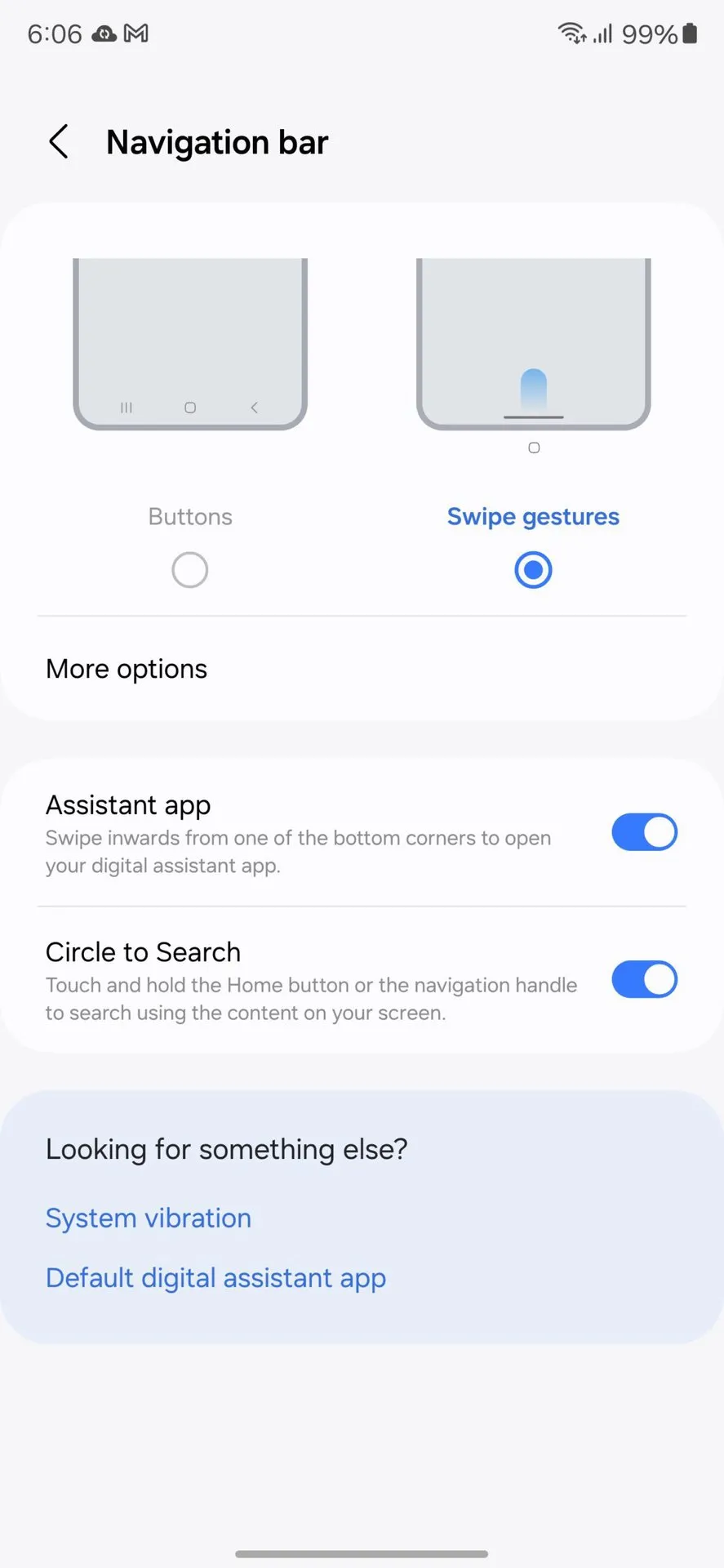
Switch to gesture navigation
Unless you are setting up your new Samsung Galaxy phone from an older model, it will use the outdated three-button navigation mechanism. If you enjoy it, that is OK. However, I find Android’s gesture navigation more intuitive—everything is a swipe away rather than an on-screen button.
If you want that, you can change the system navigation to gestures by going to Settings > Display > Navigation bar > Swipe gestures.
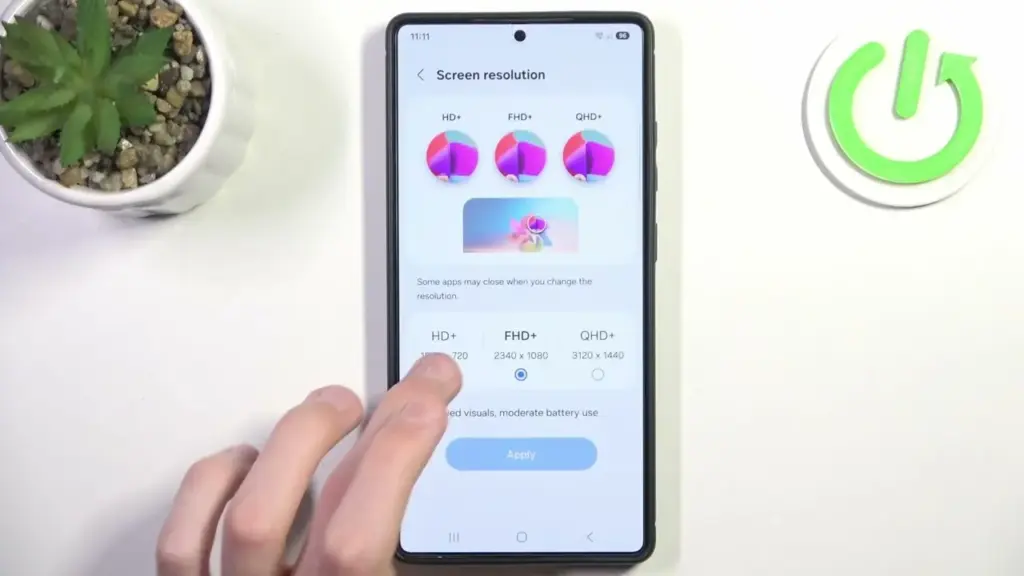
Set screen resolution to high – QHD+
The Samsung Galaxy S25 Ultra boasts the finest smartphone display available right now. It is less reflective and has better color display than its predecessor, thanks to second-generation Gorilla Armour. You have a great QHD+ screen, but it is not set to that resolution by default.
To have the best possible viewing experience, navigate to Settings > viewing > Screen resolution. The Ultra will consume more battery, but it is an efficient smartphone. Even after maxing out the screen resolution, I still have an all-day battery life.
Adjust the lock screen notifications.
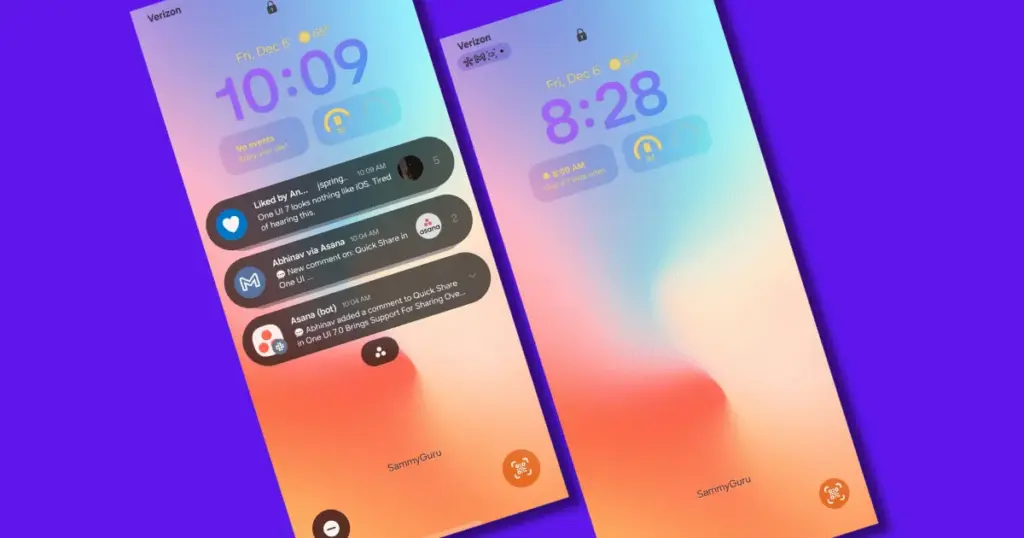
One UI 7 has modified the way notifications appear on your lock screen. It is set to display icons in the top left corner by default, which is a significant departure from the prior card view. I prefer that apps display notifications in the latter way. To modify this, navigate to Settings > Notifications > Lock screen notifications > Cards.
I also hide important notification content on the lock screen since I do not want anyone walking up to my phone and reading my personal communications. To modify this setting, select Hide content from the same Lock screen notifications menu.
Uninstall the bloatware
Samsung Galaxy phones provide numerous apps that you may not utilize. Unlike prior years, you may now remove or disable them to conserve memory. For example, I do not own a Samsung TV and do not want the Microsoft CoPilot app on my phone, so I uninstall both TV and CoPilot. Other programs that I disable or uninstall include Facebook, Samsung Tutor, and OneDrive.
Always-on display
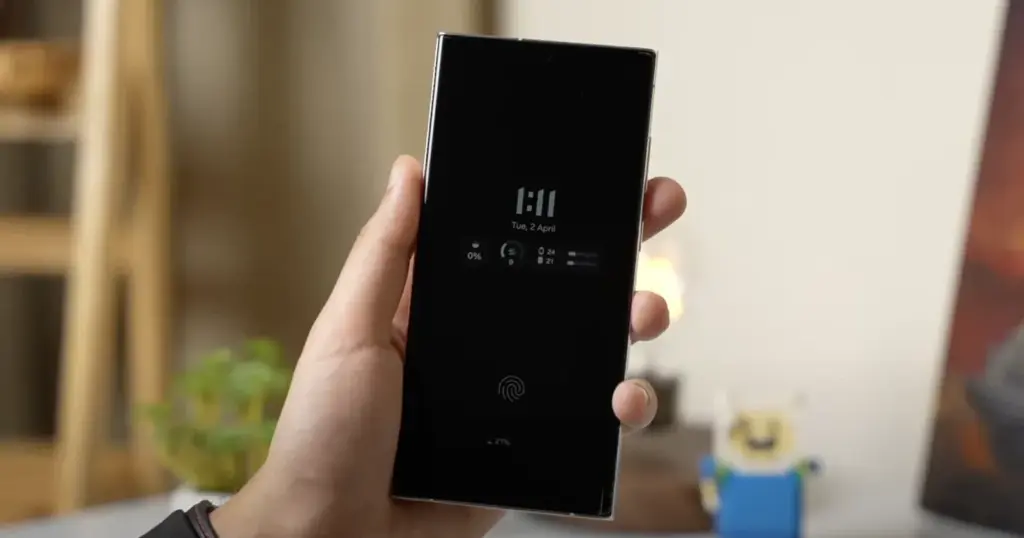
Samsung phones have efficient screens; make the most of them by enabling everything, including the Always On display. I enjoy having the time, day, and date information there on the screen, accessible at a look. Samsung defaults to the Tap to see setting, which requires you to tap on the screen to access information.
I recommend altering that to Always to make it more useful. Navigate to Settings > Lock Screen and AOD > Always-On Display > Always. You may select whether or not to display the wallpaper; I have set it to only display a black screen to save battery life.
Homescreen customization
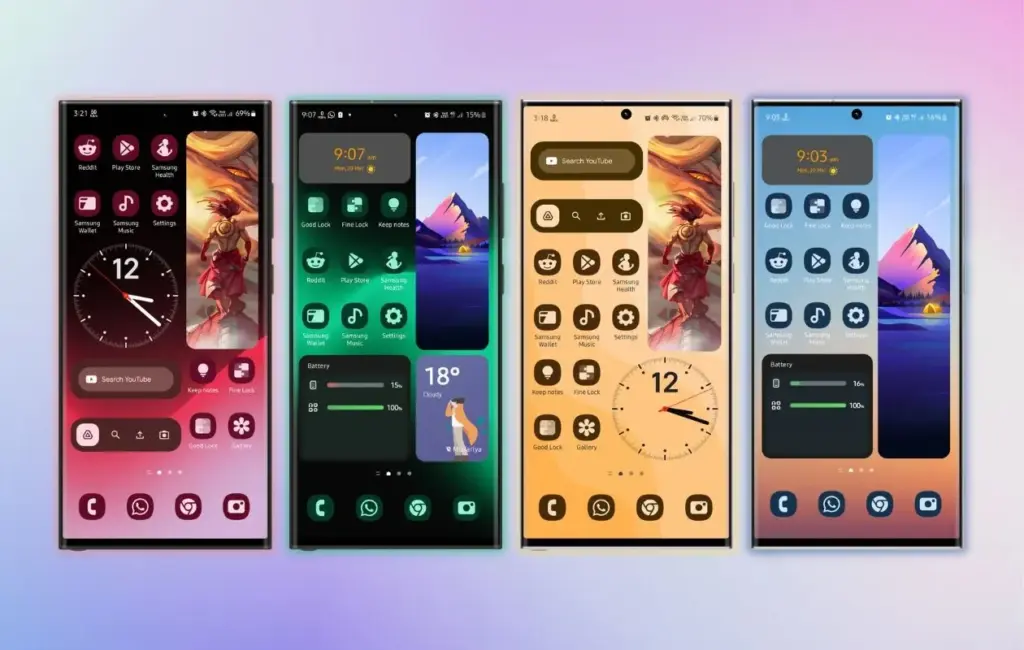
Samsung’s phone widgets are among the best available. I enjoy the Calendar widget since I can change the transparency. As a consequence, it looks nicer and retains functionality while preserving the structure of my home screen. I set it at the top so that everything is just a glance away, but it never asks for attention, unlike other opaque Calendar widgets.
Also, change the icon grid to a 5×5 layout to permit more icons in the bottom row. They are only a thumb tap away. In addition, I apply my wallpaper color tones to the program icons for a more appealing appearance. To apply wallpaper colors to the entire system, navigate to Wallpaper and Style > Color Palette and turn it on. It is not flawless, and some icons may still be unsupported. However, it appears better than the standard colors.
SAMSUNG Galaxy S25 Ultra
Streamline your day with an assistant that gets you. Ask it to Google search for a pet-friendly vegan restaurant nearby and text it to your friend— your Galaxy S25 Ultra handles multiple tasks with a single ask.
Other things I do on my Galaxy phones include switching to Google Keyboard and organizing the home drawer icons alphabetically for easier navigation. Samsung phones are among the best on the market. While they do not promise groundbreaking features, they are dependable and provide the most refined user interface with One UI. Simply modify these few options, and you will be all set.
Xiaomi supporters have waited patiently during the Qing Ming Festival vacation, but their wait will soon be over. Previously, the tech titan declared that it would halt update releases due to Chinese tradition. With Qing Ming concluding on Sunday, Xiaomi will resume software releases on Monday, much to the delight of Mi enthusiasts worldwide.
The temporary delay in updates is in accordance with Chinese tradition on Qing Ming, also known as Tomb Sweeping Day, which honors ancestors and fallen heroes. Many Chinese enterprises, including Xiaomi, pause operations during this important cultural holiday to allow employees to partake in traditional observances.
Significant updates expected early next week.
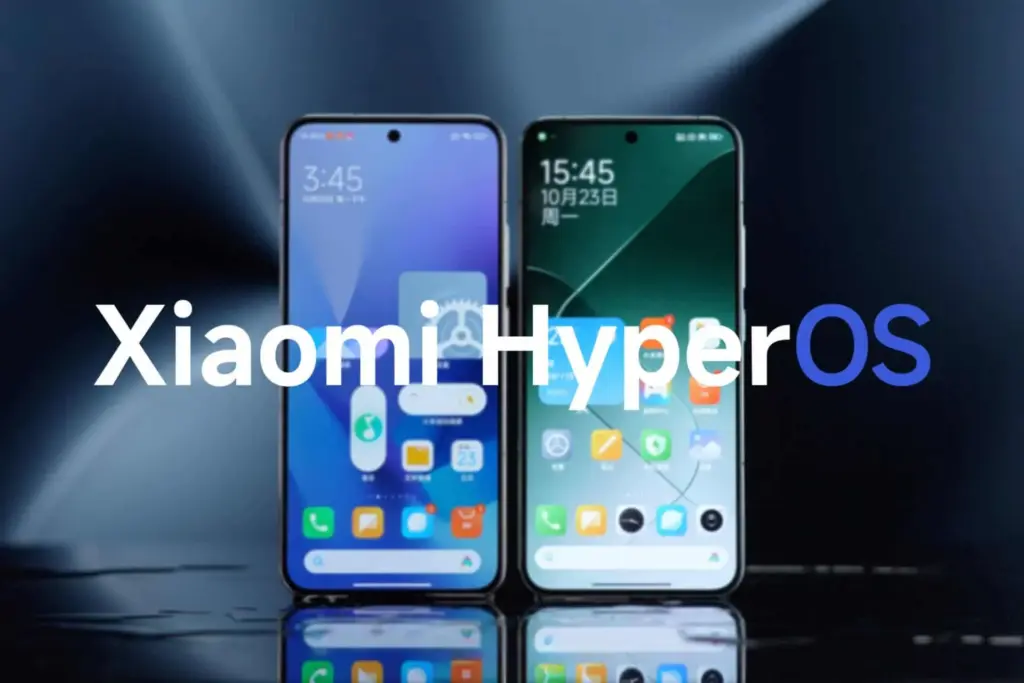
Monday will be a thrilling day for the proprietors of Xiaomi devices. Multiple important updates are expected after Monday, including:
HyperOS 2.2 for the Xiaomi 15 Ultra
Final beta releases of HyperOS 2.2 for other devices
Security updates for different models in the series
These releases are especially welcomed as they come after the lengthy festival break, potentially providing significant upgrades the development team had more time to polish.
What’s Coming in HyperOS 2.2
The forthcoming HyperOS 2.2 update will introduce a variety of upgrades on Xiaomi devices:
Enhanced system performance and stability
Improved AI features for camera and productivity
Refined user interface elements
Better battery optimization
New customization possibilities
Xiaomi has always maintained an open update policy, alerting consumers of both scheduled releases and temporary holdups. It has created belief in their consumers while also being sensitive to key cultural events such as Qing Ming.
For all users who have been waiting for these upgrades, the company recommends that devices have enough power and storage capacity when they begin rolling out on Monday.
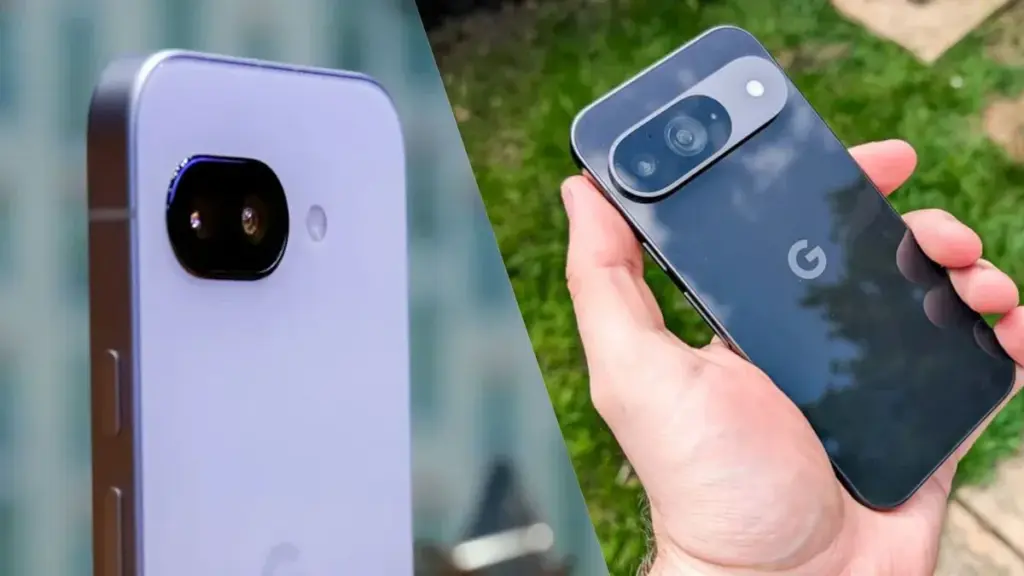
Google’s upcoming midrange smartphone, the Pixel 9a, has finally been shown. It seems like a great deal on paper: you get a Tensor G4 chipset, a sizable 5,100 mAh battery, and a high-quality aluminum and plastic construction for $500.
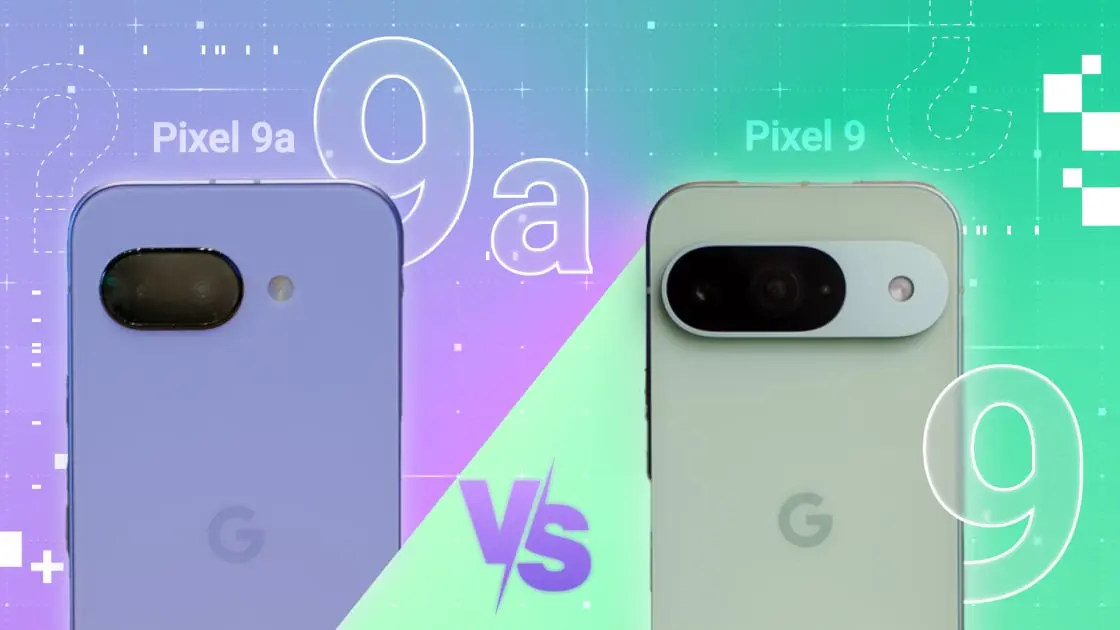
You may be asking why you would pay $300 more for the basic Pixel 9 when the 9a has so many advantages. However, a lot of capabilities that are unavailable on the 9a are still available on Google’s 2024 flagships. The Pixel 9 has the following five features, while the 9a does not.
Quality build materials
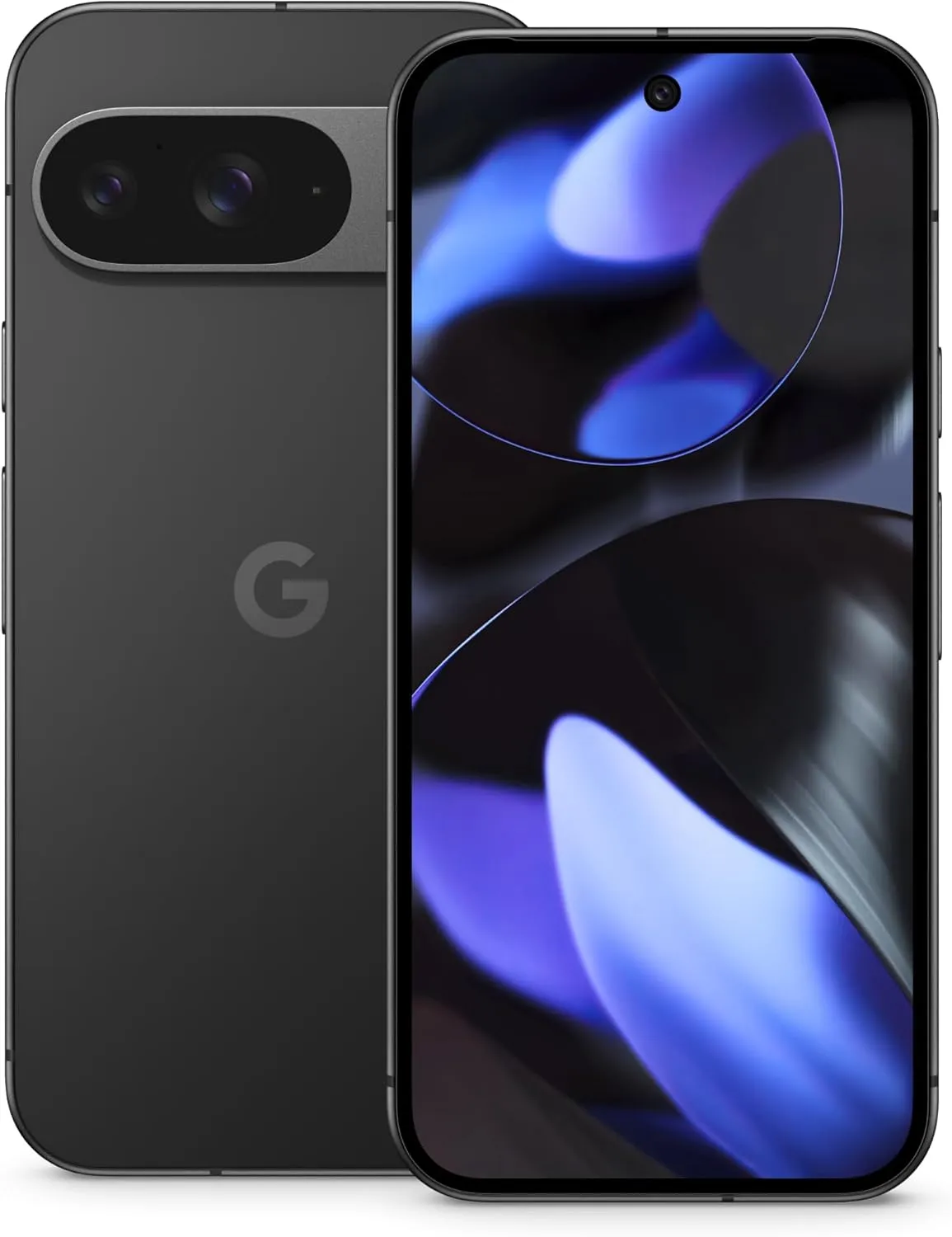
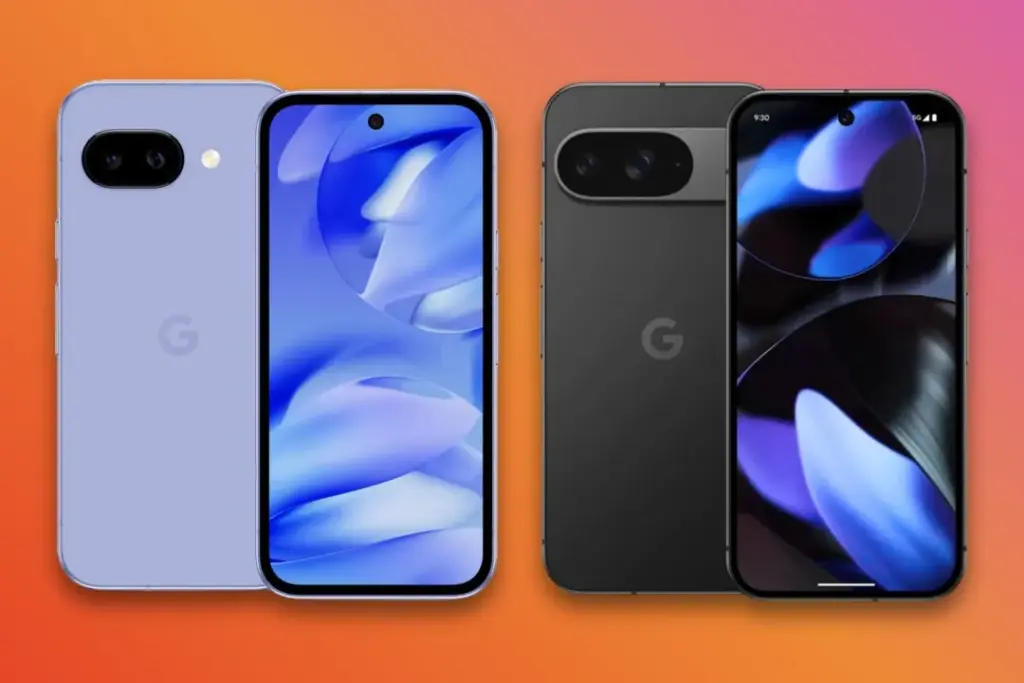
With the Pixel 9a, Google is continuing its tradition of using plastic for its midrange Pixel phones. While the standard Pixel 9 has a glossy glass back and stainless steel side rails, the 9a has a plastic back panel with aluminum side rails.
However, that is not necessarily a bad thing for the 9a. Google’s new midranger feels good, according to AP’s Stephen Radochia, who also noted that the phone has a frosted texture on the plastic rear, giving it “a premium look and feel.”
Nevertheless, the standard Pixel 9 has a more upscale structure than the new Pixel 9a, thanks to its glass and stainless steel construction. The standard Pixel 9 has a little more personality than the 9a because it also has the recognizable pill-shaped camera bump.
Better cameras
The cameras are the primary visible distinction between the Pixel 9 and Pixel 9a. Whereas the cameras on the Pixel 9a are nearly flat with the phone’s rear, the Pixel 9 boasts a large, thick, pill-shaped camera bar. Better cameras are housed in the 9’s large camera bar than in the 9a.
The Pixel 9 features a 48 MP f/1.7 ultrawide camera in addition to a 50 MP f/1.7 primary camera. The new Pixel 9a features a 13 MP f/2.2 ultrawide and a 48 MP f/1.7 primary camera. The standard Pixel 9 will undoubtedly have the advantage, but those figures do not fully capture the situation. We will have to wait to test the 9a’s cameras to see how they perform.
More RAM
After four generations of Pixel phones with eight gigabytes of RAM, the Pixel 9 features 12 gigabytes. In contrast, the Pixel 9a continues to use 8 GB. For most users, that will still be more than enough, although the ordinary Pixel 9 has far more RAM than the 9a.
This memory disparity also affects on-device AI capabilities. Instead of using the Gemini Nano XS model seen on the regular Pixel 9, the Pixel 9a will use the Gemini Nano XXS variant. While the 9a’s Gemini Nano XXS model can only interpret text input, the Pixel 9’s more powerful on-device AI can handle multimodal inputs.
Faster charging
In comparison to other Android flagships, none of Google’s phones charge very quickly; nevertheless, the ordinary Pixel 9 outperforms the Pixel 9a in this regard. Depending on the charger you are using, the Pixel 9 can be charged wirelessly up to 15 watts and tethered up to 27 watts. In contrast, the Pixel 9a has a maximum wired charging capacity of 23 watts and a maximum wireless charging rate of 7.5 watts.
Ultrasonic fingerprint reader
Ultrasonic fingerprint scanners on the Pixel 9 and Pixel 9 Pro use sound waves to detect the surface of your fingertip. The Pixel 9a has an optical fingerprint sensor that uses light to optically scan the surface of your fingertip. Ultrasonic sensors are quicker and more precise than optical ones, but pixel phones’ optical sensors have always been fine. Even though it is a minor benefit, the basic Pixel 9’s ultrasonic sensor nonetheless gives it an edge over the Pixel 9a.
Buy Google Pixel 9
Google Pixel 9 with Gemini gets the best of Google AI first, so you can take amazing photos, make edits like magic, and get things done even easier
In many important aspects, the Pixel 9 and Pixel 9a appear to be fairly similar on paper, and the 9a even has several advantages over the standard 9. Naturally, there are a few features that the more costly 9 has that the 9a does not. It is too early to tell how much these improvements will matter to most users because we have not had a chance to test the 9a. In the coming weeks, we will have more to say on the comparison between the 9 and 9a.