Tag: rom

  • Evolution X 7.9 for the Google Pixel 6, 6 Pro & 6a – oriole – raven – bluejay

    Evolution X 7.9 for the Google Pixel 6, 6 Pro & 6a – oriole – raven – bluejay

    Modified versions of the Android operating system known as “custom ROMs” are produced by independent developers or communities. Beyond what is offered by the software from the original manufacturer, these ROMs provide a distinctive and personalized user experience.

    What is a custom ROM

    Custom ROMs are frequently used by users to enhance performance, unlock new features, or prolong the life of their devices.

    The ability to alter a device’s design and functionality is one of the main reasons people prefer custom ROMs. Themes, user interfaces, and the installation of custom kernels and changes to improve performance and battery life are all examples of customization possibilities. These ROMs frequently provide more device control, enabling users to customize their experiences to suit their preferences.

    The flexibility custom ROMs offer in terms of software upgrades is another important benefit. Official updates for older or less well-liked devices are occasionally delayed or completely abandoned by manufacturers and carriers.

    On the other side, custom ROM developers keep supporting these devices, giving customers the most recent versions of Android long after the official support stops. Users can now take advantage of new features and security updates that they wouldn’t otherwise have access to.
    evolution x

    Evolution X

    Popular custom ROM Evolution X, which is based on the Android operating system, strives to offer a distinctive and feature-rich user experience. Evolution X, created by a passionate community of enthusiasts, offers a wide range of customization options, performance upgrades, and an easy-to-use interface, all while adhering to the fundamental values of stability and dependability.

    Evolution X is fundamentally based on the most recent Android releases, featuring Google’s most recent features and security updates. By doing this, customers are guaranteed access to the most recent features and security measures provided by the Android ecosystem. Even if official manufacturer updates are no longer available, customers can still benefit from a new operating system on their compatible devices with Evolution X.

    Another trait of Evolution X is performance optimizations. The ROM includes a number of adjustments and improvements meant to increase the device’s responsiveness, speed, and battery life. Users can fine-tune the performance of their device to suit their preferences by using sophisticated performance settings like undervolting or overclocking. Additionally, Evolution X makes the most of system resources to guarantee fluid animations and seamless multitasking.

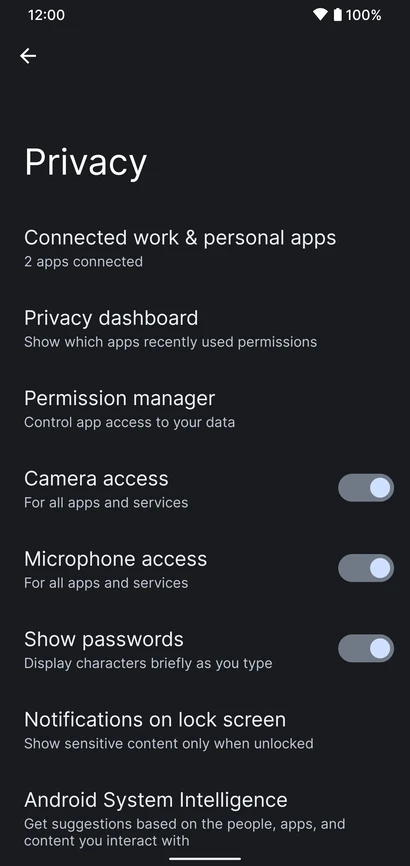
    Evolution X also places a strong emphasis on privacy and security. The ROM includes built-in privacy features, such as advanced permission controls and privacy settings, to give users more control over their data and app permissions. Furthermore, Evolution X incorporates the latest security patches and updates to protect users from potential vulnerabilities and ensure a secure browsing and app experience.

    Features lists

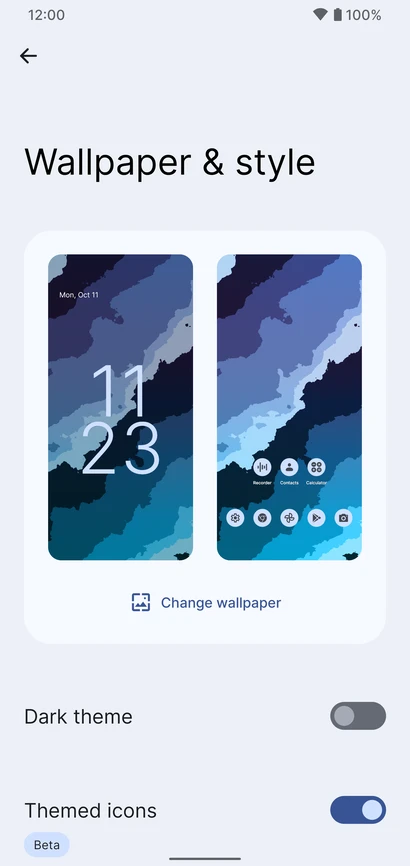
    Themes
    
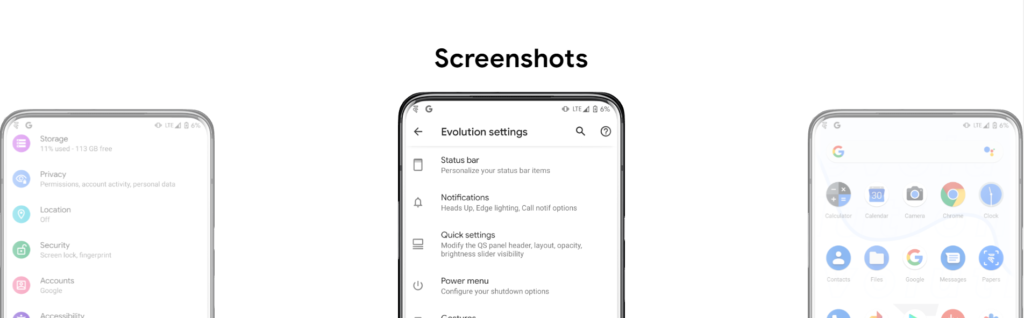
    - Theming Settings (Style, Color Source, Accent Color, Accent Background, Background Color, Luminance, Chroma, Tint Background)
    - Custom Themes (Black, Clear, Vivid, Paint In The Snow, Espresso)
    - Dark Theme Schedules
    - Lock screen Clock Fonts (16 Fonts)
    - Headline/Body Fonts (53 Fonts)
    - SB Icon Packs (10 Styles)
    - SB Signal Icon Packs (14 Styles)
    - SB WiFi Icon Packs (10 Styles)
    - System Icon Shape Packs (16 Styles)
    - 3 Button Navbar Styles (10 Styles)
    
    Status bar
    
    - Status Bar Lyrics
    - Clock Styles (Right, Center, Left)
    - Clock & Date Configs (Auto Hide, Hide Duration, Show Duration, Seconds, AM/PM, Font Size, Date Position/Case/Format)
    - SB Logo Pack (20 Styles, Right/Left)
    - Network Traffic Indicators
    - Battery Icon Styles (19 Styles)
    - Battery Percent (Hidden, Inside Icon, Next To Icon)
    - Battery Bar (Thickness, Alignment, Blend Colors, Reverse Direction, Colors, Animation)
    - System SB UI Tuner
    - Data Disabled Icon (On/Off)
    - Old Style Mobile Data
    - 4G Instead Of LTE
    - Roaming Indicator
    - WiFi Type Icon
    - Colored Icons
    - Notification Count
    - Bluetooth Battery Status
    - Mic/Camera Privacy Indicator
    - Location Privacy Indicator
    - Media Projection Privacy Indicator
    
    Notifications
    
    - ReTicker
    - App Colored Background For Reticker
    - Heads Up (Time Out, Importance Threshold, Less Boring, Stoplist/BlockList)
    - Force Expand Notifications
    - Notification Sound If Active
    - Kill App Button
    - Blink Flashlight For Incoming Call (When Ringing, When Silent, When Entierly Silent, Always)
    - Blink Flashlight For Notifications
    - In-Call-Vibrations (Connect, Waiting, Disconnect)
    
    Quick Settings
    
    - Clock
    - Clock Font Size
    - Date
    - Battery Style (15 Styles)
    - Battery Percent Location (Hidden, Inside Icon, Next To Icon)
    - Battery Estimates
    - Secure QS Tiles Requires Unlocking
    - Quick QS Pulldown (Disabled, Right, Left, Always)
    - Brightness Slider (Never, Expanded, Always)
    - Brightness Slider Position (Top, Bottom)
    - Auto Brightness Icon
    - Hide Labels
    - Label Text Size
    - Smart Pulldown
    - Vertical Layout
    - Columns In Portrait (2-5)
    - Columns In Landscape (2-6)
    - QS Tile Animation Style (3 Styles)
    - QS Tile Animation Druations (3 Speeds)
    - QS Tile Animation Interpolator (8 Styles)
    - Vibration On Touch
    - Vibration On Touch Duration
    - QS Footer Warnings
    - Show Data Usage
    - User Account Icon
    - Edit Icon
    - Power Menu Shortcut
    - Running Services Shortcut
    - Settings Shortcut
    - Clear All Button (10 Styles, 5 Backgrounds)
    
    Power Menu
    
    - System Settings (Hold PWR Assistant + Hold Duration)
    - Disable Power Menu On LS
    - Power
    - Restart
    - Advanced Reboot Options
    - Screenshot
    - On-The-Go Mode
    - Settings
    - Lock Down
    - Emergency
    - Device Controls
    - Users
    - Logout
    - Bug Report
    
    Gestures
    
    - System Settings
    - Quick Tap
    - Volume Button Playback Control
    - Swipe To Screenshot
    - Brightness Control
    - PWR Button Torch
    - Double Tap To Sleep Status Bar
    - Double Tap To Sleep Lock screen
    - AOSP Gestures
    - Pill Length
    - Pill Radius
    - Hide IME Button Space
    - Back Gesture Animation
    
    Lock screen
    
    - Edge Light
    - Always On Fingerprint
    - UDFPS Icon Picker (55 Styles)
    - UDFPS Animation Picker (38 Styles)
    - Lock screen Charging Info
    - Hide Status Bar
    - Hide QS During Secure Lock screen
    - Media Cover Art (5 Filters)
    - Ripple Effect
    - Fingerprint Authentication Vibration
    - Fingerprint Error Vibration
    
    Buttons
    
    - Navigation Bar
    - Compact Layout
    - Invert Layout
    - Show Vol Panel On Left
    - Per App Vol Control
    - On-Screen NavBar
    - Reorient Volume
    - Volume Rocker Wake
    - Keyboard Cursor Control
    - Alert Slider Notifications
    - Alert Slider Pulse
    - Block Alert Slider In Pocket Mode
    - Click To Partial Screenshot
    
    Animations
    
    - Screen Off Animation (3 Styles)
    - Power Menu Animations (11 Styles)
    - Android P Animation Style
    
    Miscellaneous
    
    - AOD Display Schedule
    - Google Services
    - Game Space
    - Smart Pixels
    - App Lock
    - Launch Music App On Headset Connection
    - Unlimited Photos Storage
    - Unlock Higher FPS In Games
    - Netflix Spoof
    - Pulse Music Visualizer (Navbar, LS, Ambient)
    - Volume Panel Timeout
    - Jitter Test
    - Ignore Secure Window Flags
    - Show CPU Info
    - Toast App Icon
    - Sensor Block Per Package
    - Wakelock Blocker
    - Alarm Blocker
    - Default USB Configuration
    - Radio Info

    First Time Install

    • 1. Download vendor_boot & rom for your device from here
    • 2. Reboot to bootloader
    • 3. fastboot flash vendor_boot vendor_boot.img fastboot reboot recovery
    • 4. While in recovery navigate to Factory reset -> Format data/factory reset and confim to format the device.
    • 5. When done formatting, go back to the main menu and then navigate to Apply update -> Apply from ADB
    • 6. adb sideload rom.zip (replace “rom” with actual filename)
    • 7 (optional). Reboot to recovery to sideload any add-ons (e.g magisk)
    • 8. Reboot to system & #KeepEvolving

    Update

    • 1. Reboot to recovery
    • 2. While in recovery, navigate to Apply update -> Apply from ADB
    • 3. adb sideload rom.zip (replace “rom” with actual filename)
    • 4 (optional). Reboot to recovery to sideload any add-ons (e.g magisk)
    • 5. Reboot to system & #KeepEvolving

    OTA

    • 1. Check for update. If available, select “Download and install” (approx 10-15 min)
    • 2. Reboot & #KeepEvolving

  • Samsung drops support for S series

    Samsung drops support for S series

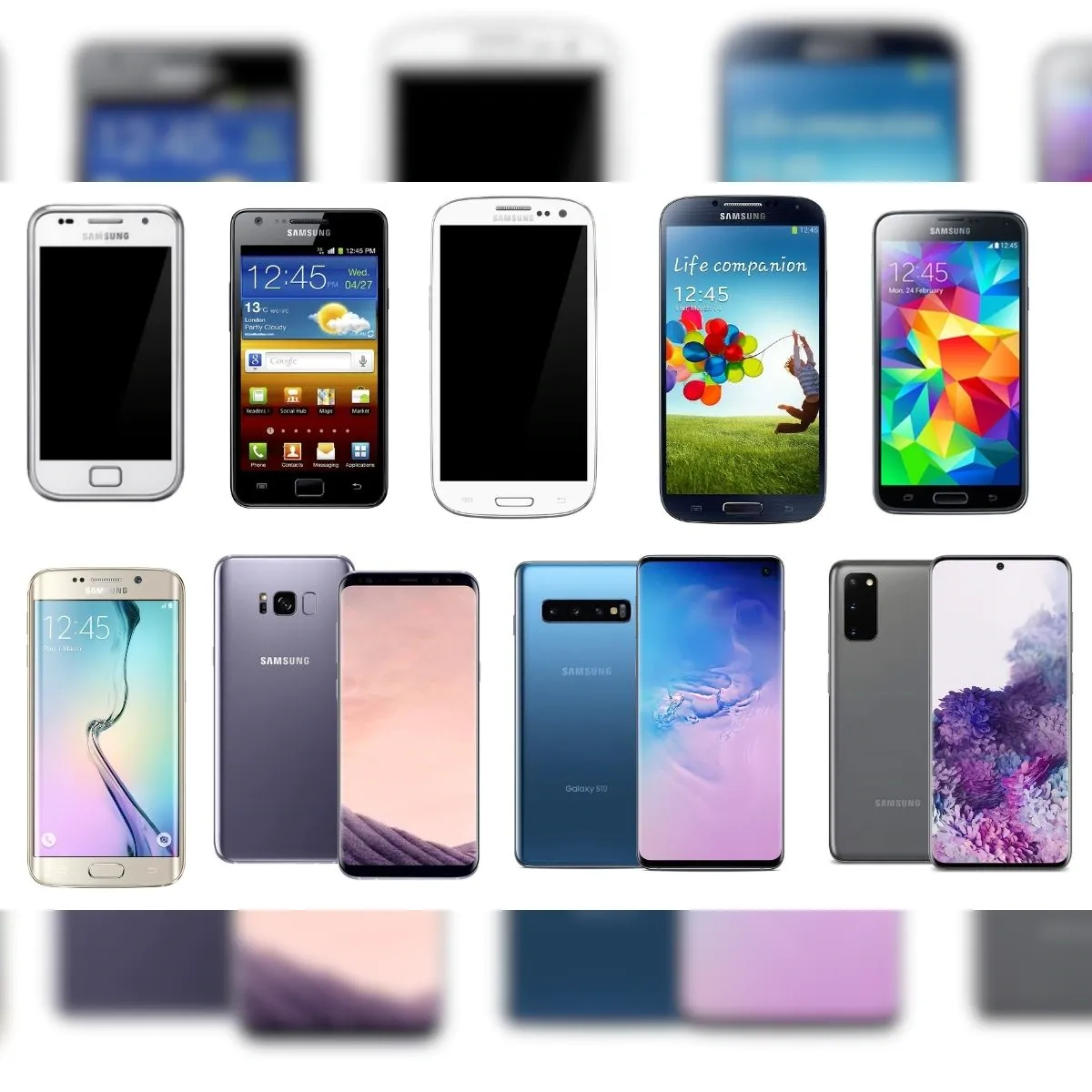
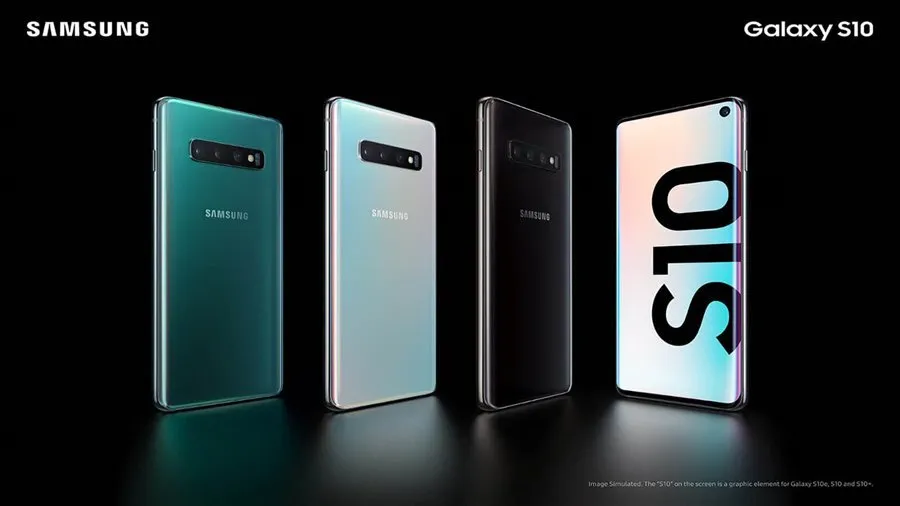
    The Samsung S10 series has run out of options. Together with a few other 2019 products, Samsung has discontinued the S10 series.

    Samsung has removed several of its older handsets from its public security update page, as 9to5Google has discovered. The Galaxy S10 series, Galaxy A30, and Galaxy A50 were among the gadgets taken out. The Galaxy S10 5G and Galaxy S10 Lite, on the other hand, have not been dropped. They haven’t been discontinued because those devices came out later, which is why.

    This development happens as Samsung starts to put its new update strategy into practice. The business declared last year that it would extend its policy by a year, offering its phones five years of security upgrades and four years of significant OS changes. Nevertheless, the Galaxy S21 series and later were the only models covered by this regulation, leaving older models out.

    samsung s series

    The security update from March 2023 was the last one that the Galaxy S10 and other discontinued phones were supposed to receive. This update just recently went live. This upgrade is crucial following the disclosure of a serious vulnerability in Samsung’s Exynos chip by Google’s Project Zero team. The Galaxy S10 series was not, however, mentioned as being impacted by this issue.

    Along with this information, it appears that the Galaxy Z Flip is no longer receiving monthly upgrades. It now only receives updates once every three months.

  • Pixel phones get Android 13 QPR2 Beta 3 – whats new?

    Pixel phones get Android 13 QPR2 Beta 3 – whats new?

    Today brings the release of Android 13 QPR2 Beta 3, which is anticipated to be the last significant preview before the stable rollout in March.

    It is notable that it still includes the January 2023 security patch, which might be fixed in a later version (perhaps a Beta 3.1). The problems with Beta 3 (T2B3.230109.002) have been fixed.

    android 13 beta 3

    Developer-reported and user-reported issues

    • Fixed an issue where notifications in a notification group were sometimes displayed with straight corners instead of rounded corners. (Issue #264287776Issue #265529116)
    • Fixed an issue where the message in the notification shade that indicates an active VPN connection overlapped with the message about apps with active foreground services. (Issue #266075977)
    • Fixed an issue where the overflow menu couldn’t be accessed when editing Quick Settings tiles. (Issue #263484657)
    • Fixed an issue that sometimes caused a device with vibration enabled to vibrate for too long after it received a notification. (Issue #239676913)

    Other resolved issues

    • Fixed an issue that sometimes caused messaging apps to crash or fail to send notifications.
    • Fixed a GPU issue that prevented apps from using certain visual effects.
    • Fixed an issue where Quick Settings tiles for a work profile were not added after setting up a new device.
    • Fixed an issue that sometimes caused the Pixel launcher to crash when using the Search bar in the app drawer.
    • Fixed an issue that sometimes prevented a device from being unlocked using a pattern after the Google Assistant was activated.
    • Fixed an issue in the com.android.qns system process that sometimes caused crashes.
    • Fixed an issue with the Pixel launcher that prevented Chinese text input from being recognized when typing in the Search bar in the app drawer.
    • Fixed an issue where when entering and exiting Picture-in-picture (PiP) mode from an app after changing the screen orientation, the system Settings app crashed with a “Settings keeps stopping” message and then the system Settings app couldn’t be opened.
    • Fixed an issue with the System UI that sometimes caused it to crash from a null pointer exception.
    • Fixed an issue where the connection status of a Bluetooth device sometimes did not match the actual device state.
    • Fixed an issue where the Pixel launcher crashed when a user tapped a web search suggestion for a query term.
    • Fixed an issue that caused status bar icons to overlap with the date text when font and display settings were set to their maximum level on a device.

    The “list of Recent apps sometimes becomes sluggish if the screen orientation is changed while the list is open” has one more problem, though.

    As Google typically publishes betas after the most recent monthly Android security patch has issued, Android 13 QPR2 Beta 3 lingering on the January 2023 security patch level is extremely peculiar. That is not anticipated until February 6th, Monday.

    If you have installed the QPR2 Beta, leaving the program will result in a wipe and your next opportunity to exit without losing data will be in March after the stable launch.

    Android 13 QPR2 Beta 3 system images are available for the Pixel 4a, Pixel 4a 5G, Pixel 5, Pixel 5a, Pixel 6, Pixel 6 Pro, Pixel 6a, Pixel 7, and Pixel 7 Pro. as well as in the Android Emulator.

    Androdi 13 beta 3 downloads

    Most users will be installing Beta 3 from the Android Beta Program website. You can expect an OTA update in the coming hours. If you need help, here’s our full guide on installing Android 13.

  • 4 methods to unbrick your Android device

    4 methods to unbrick your Android device

    So your phone is bricked. Your phone won’t boot because you flashed a ROM, installed a mod, modified a system file, or did something else.

    Not to worry! It can probably be fixed. Unbricking an Android device is explained here.

    What ‘Bricking’ or a ‘Bricked Phone’ mean?

    ‘Bricking’ your phone essentially means that your once useful device is now only as useful as a brick. A ‘bricked phone’ is usually unresponsive, won’t power on, and doesn’t function normally.

    How is your phone bricked?

    Depending on how a phone was bricked in the first place, different steps are required to unbrick it. Bricked phones fall into one of two categories:

    • The soft brick. The phone freezes on the Android boot screen, gets stuck in a boot loop, or just goes straight to recovery. So long as something happens when you press the power button, it’s soft bricked. The good news is these are pretty easy to fix.
    • The hard brick. You push the power button, and nothing happens. Hard bricks can be caused by issues like attempting to flash an incompatible ROM or kernel, and there’s normally no software solution for them. Hard bricks are terrible news, but fortunately, they’re quite rare.

    You’re probably soft bricked, and you’ll see something similar to the picture above. Although it’s challenging to develop a one-size-fits-all method to unbrick Android due to the variations in how various devices operate, there are four typical techniques you can try to get things back on track:

    • Wipe the data, then re-flash a custom ROM
    • Disable Xposed mods through recovery
    • Restore a Nandroid backup
    • Flash a factory image

    Before you get started, make sure your phone and computer are set up and ready with the proper tools.

    What you need to unbrick a Android device?

    Most of the equipment you need to repair your phone probably already exist in your possession. Since you already know how to use them because you used them to root your device and flash ROMs, they shouldn’t be a problem. However, make sure before you start.

    Custom recovery is most crucial. This was probably installed when you rooted your phone, however it could occasionally be completely erased or rewritten by the default recovery. We advise using TWRP if you do need to reinstall it. It is a completely functional custom recovery with builds for the majority of common devices but is also far too simple to use.

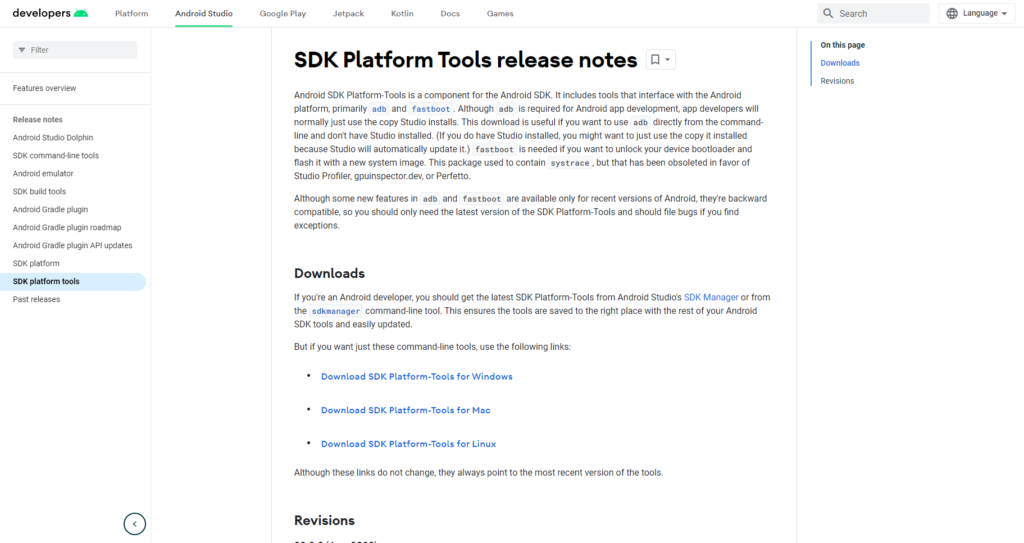
    Then, you might require ADB and Fastboot. You can obtain both of them from the website for Android Developers, and they are frequently used for rooting and flashing system mods. If you are unfamiliar with Fastboot and ADB, see our introduction to them.

    android sdk tools for unbrick Android

    And finally, some manufacturers use special software to flash factory images. Hopefully, you can avoid doing this, but if you need to, you can use Odin for Samsung, the LG Flash Tool for LG devices, or the ZTE Unbrick Tool if you’ve got a ZTE device. Just make sure that they support your specific model of device.

    Most of these tools will let you fix a bricked Android phone using a PC. However, you can often do the job directly on the phone itself.

    Wipe data and ee-flash a custom ROM

    If you flashed a ROM and Android won’t boot, try this method.

    When you have issues while flashing a fresh custom ROM, it’s one of the most likely scenarios that your phone will soft brick. Your failure to first erase your data is frequently to blame in this situation.

    When you decide to flash a new ROM over top of your old one instead of having to restore your applications and data, this is known as a “dirty flash” and takes place. Generally speaking, if you’re flashing a newer version of your current ROM, you can get away with it, but you must always delete your data anytime you flash a different ROM.

    Fortunately, it’s easy to fix—as long as you’ve backed up your phone properly. If you haven’t, well, you’ve learned an important lesson the hard way. Follow these steps:

    1. Boot into your custom recovery.
    2. Navigate to the Wipe option and choose Advanced Wipe.
    3. Check the box marked Data (you can wipe the system, ART cache, and cache again, too), then hit Confirm.
    4. Re-flash your custom ROM.

    A factory reset is effectively accomplished by wiping your data, although your internal storage or SD card shouldn’t be erased by this process (although, again, you should back it up just to be safe). Your phone will display the Android setup screen after restarting. Your programs ought to start reinstalling themselves immediately after inputting your Google account details.

    You can use your Nandroid backup to recover your data if necessary.

    Disable Xposed Modules in Recovery

    Try this method if: You get boot loops after installing a new Xposed module.

    The Xposed Framework isn’t as common as it once was, but it’s still a simple way to mod your phone, and also one of the most dangerous.

    The best Xposed modules are so easy to install—many of them are available in the Play Store—that they lull you into a false sense of security. It’s unlikely anyone makes a Nandroid backup before installing a new Xposed module, even though they can brick your phone.

    Use ADB Push to Install the Xposed Uninstaller

    The best way to deal with these problems is with the Xposed Uninstaller, if it’s available for your version of Android. This is a small flashable ZIP that you can install through the recovery to remove Xposed from your device.

    If you don’t already have it on your phone, you can put it on an SD card, or you might be able to copy it over using the ADB push method:

    1. Download the Xposed Uninstaller to your desktop.
    2. Connect your phone to your computer via USB and boot into recovery.
    3. Launch the command prompt (Windows) or Terminal (Mac) and use the cd command to change the directory to where you have adb installed.
    4. Type adb push [full path to xposed uninstaller.zip] [full path to destination]. On Mac and Linux, precede the command with ./ (such as ./adb).
    5. When the file finishes copying, flash it through the recovery.

    How to Disable Xposed Modules in Recovery

    If you can’t use ADB push and the Xposed Uninstaller, try either of these solutions.

    This method lets you disable Xposed through recovery:

    1. Boot into recovery, then navigate to Advanced > Terminal command.
    2. Create a file called /data/data/de.robv.android.xposed.installer/conf/disabled
    3. Reboot your phone.

    This method prevents Xposed modules from starting:

    1. Boot into recovery and select File Manager.
    2. Navigate to the folder /data/data/de.robv.android.xposed.installer/conf/ then delete the file modules.list
    3. Reboot your phone.

    None of these fixes will reverse the modifications that the modules have made to your system. You will need to restore your Nandroid backup if these changes bricked your phone.

    Restore a Nandroid Backup

    Try this method if: You need to remove other system mods, replace a tweaked system file, or if the methods above didn’t work.

    The safety net for Android mods and customizations is the Nandroid backup. It’s a full snapshot of your phone, including the operating system as well as your data and applications. You can restore your soft-bricked device to working order as long as you have access to your custom recovery and a Nandroid backup.

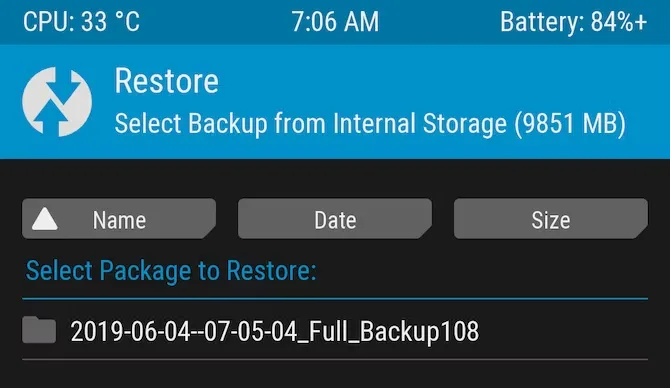
    twrp restore bricked device
    1. Boot into recovery and navigate to Restore.
    2. Select your backup from the list, confirm, and wait while it’s restored.
    3. Reboot your phone.

    Nandroid backups are a bit of a pain to make. They take a while and cannot be done in the background. But they’re worth it: they’re the simplest way to unbrick your phone.

    Recover Data From a Nandroid Backup

    A Nandroid backup can also save the day if you had to wipe your data and didn’t back it up in an easily restorable form. It’s possible to extract specific parts of a Nandroid, so you can restore your apps and data without needing to restore the operating system as well.

    Here are the instructions for this:

    1. Boot into Android and install Titanium Backup from the Play Store. While this app hasn’t been updated for a while, it’s still one of the best options for this task.
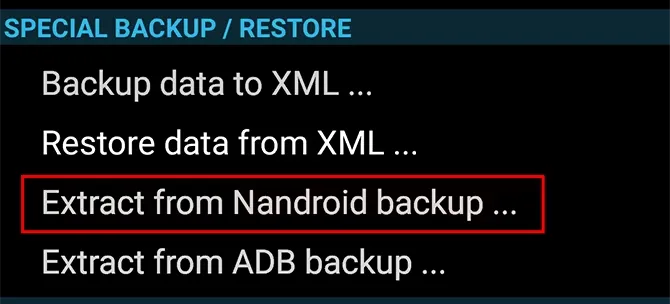
    2. Tap the menu button and navigate to Special Backup/Restore > Extract from Nandroid Backup.
    3. Select your backup from the list.
    4. Choose whether to restore apps, data, or both, and select them (or hit Select All).
    5. Tap the green tick icon to start the restore process.
    nanddroid backup restore unbrick

    Flash the factory image

    Try this method if: None of the other options work.

    Re-flashing a factory image is your only remaining choice if your attempts to unbrick Android have so far failed. This erases everything on your internal storage and returns the phone to its factory settings. Your phone will be unrooted as well.

    You might be better off trying to flash a stock ROM first because it removes everything. Instead of factory images, OnePlus offers flashable ROMs for recovery. You can find similar files for almost every device at xda-developers.com. For added convenience, you can often flash a stock ROM that has already been root access.

    Flashing a factory image varies from flashing a ROM in that it occurs via a desktop computer connection as opposed to recovery. Other devices make use of customized software while some use the Fastboot utility from the Android SDK. For instance, Samsung makes use of the Odin tool.

    The instructions for flashing a factory image vary for each device due to the various techniques used. Additionally, not all manufacturers make their firmware accessible to the general public, so you must find them from unofficial sources.

    Here’s where to find factory images for some popular Android brands:

    Hard brick?

    Hard bricked phones are notoriously more difficult to fix, but thankfully they’re also much rarer.

    How to unbrick a hard bricked Android device

    Make sure the phone is truly bricked by plugging it in and letting it charge for some time. Try to reset it by depressing the power button for 10 to 15 seconds (or removing the battery if your gadget is older). You might also want to try putting it into your computer; if your PC does not recognize it, you can be very sure that your phone has been severely bricked.

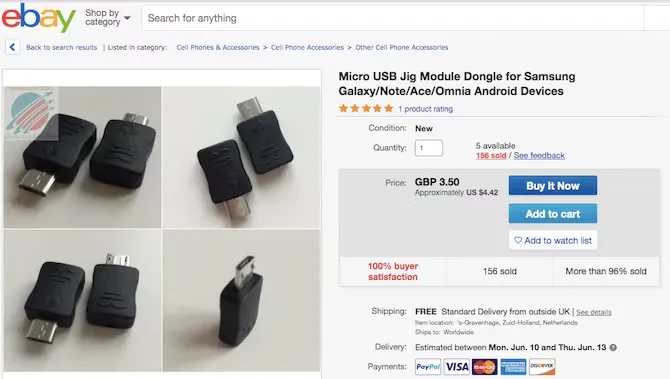
    If it is unquestionably hard bricked, your options may be limited. A USB Jig, a little gadget that fits into the USB port and puts the phone into Download Mode to reload the default software, can resurrect a few phones.

    usb jig

    On eBay, you can find cheap USB Jigs for hard-bricked phones, but only for a very limited selection of outdated gadgets. Even then, there is no assurance that they will be successful.

    Beyond that, you might need to either find a local phone repairman or send your phone in for repair (though rooting it might have void your warranty). However, you’ll probably end up having to buy a new gadget.

    Stay safe

    Hopefully, this guide has helped you to unbrick your Android phone. And hopefully, your experience hasn’t put you off rooting and hacking Android altogether.

    But if you’d rather play it safe in future, you can still have a lot of fun with your phone. Take a look at our guide to the best Android tweaks you can make without rooting for some amazing ideas.

  • Rooting – custom ROMs –  Android language

    Rooting – custom ROMs – Android language

    Every profession or pastime creates its own own particular jargon for explaining complex concepts in an understandable manner, and the Android world is no exception.

    This article is for you if you’ve googled a problem with your Android smartphone or tablet and came across terms like “rooting,” “flashing a custom ROM,” “unlocking the SIM,” or anything similar that you didn’t understand.

    This article is a reference for the novice who wants to learn about all the terminology behind our Android nerdiness because Android experts presumably already know what these phrases represent.

    custom rom

    What Is Rooting?

    Getting access to the system files on your Android device is what it means to root your phone. No Android device comes pre-rooted by default. Therefore, it is probably not rooted if you recently purchased an Android device and did nothing to it. 

    Manufacturers take this action because allowing everyone root access would cause several issues. You can access files on your device that, if deleted or altered improperly, could damage it if you have root access. 

    But many people still decide to root their devices because it enables them to make a lot of pretty fascinating adjustments if they know what they’re doing. It should be noted that rooting an Android device would void the warranty. 

    Youtube video

    How you root your device is different for every single model. For some devices, this can prove to be a difficult process involving circumventing the manufacturer’s safety precautions. For others, it can be as simple as plugging your phone into your computer and pressing a button. You can always check out the XDA forums for instructions for your specific device. 

    You won’t instantly notice any significant changes after your device has been rooted. The excitement is in what you can do with a rooted device. Then, you may utilize root-required apps, flash custom ROMs, modify specific features of your phone, and more—which we’ll go over in more detail later. 

    For instance, when unrooted, you can remove some bloatware, but rooting your device and using Titanium Backup or a root uninstaller are required to completely remove it. 

    What Is Unlocking?

    Unlocking is a confusing term because there are different things you could unlock. 

    Unlocking the Network/SIM

    A device that has been network/SIM locked was typically purchased through a carrier or for a certain carrier at a discounted price. That phone is then locked by the carrier so that you can only use it with them. 

    However, if you pay off the phone and decide to switch carriers, the carrier is obligated by law to provide you with the unlock code (at least in the US and the EU). To obtain the code, simply get in touch with your current carrier. 

    Sometimes, unlocking your device gets more complicated than that, so we have a guide to SIM unlocking. Other times, you buy your phone unsubsidized and unlocked, meaning you can already use it with any carrier. 

    Unlocking the Bootloader

    The bootloader is a piece of software that runs every time you switch on your Android phone, and it is usually locked by the manufacturers. With a locked bootloader, you can’t root your device. Instructions for unlocking your bootloader are found within the instructions for rooting your device.

    What Are Custom ROMs?

    Read-Only Memory is referred to as ROM, however the term is somewhat misleading today because it has nothing to do with it. A ROM is essentially the software that runs on your device, at least in the Android universe. 

    Therefore, a Xiaomi smartphone looks and operates differently than a Samsung smartphone when you pick it up. This is so that Xiaomi and Samsung could each create their own ROMs by altering the original Android code. Even though they both run Android, Xiaomi’s ROM and Samsung’s ROM are distinct from one another. 

    A custom ROM, then, is a ROM that was built not by the manufacturer but by someone else. Sometimes it’s just a lone programmer with some time on their hands and a passion for making ROMs—other times, it’s a bigger group like LineageOS that has a team and intentionally makes a certain type of ROM. 

    Once you’re rooted, you can flash a custom ROM. Flash, in this case, basically means to load or install. Flashing a custom ROM means you are installing a new ROM on your device and completely wiping the old ROM. 

    When looking for custom ROMs for your device, there are some names you’re likely to run into:

    • Pixel Experience: As the name suggests, features a ROM similar to that of Google’s Pixel phones. This ROM is currently one of the most commonly used custom ROMs out there, and for good reasons. 
    • LineageOS: LineageOS, formerly known as CyanogenMod, is one of the most popular custom ROMs you’ll come across. It offers a great feature set and has even featured as the stock ROM for some manufacturers in the past. 
    • AOSP: Android Open Source Project is the version of Android that Google gives to the world, often called stock or stock Android. You might see people say that their ROMs are “AOSP-based” or “based on stock Android,” which just means they took the AOSP code and altered it to their liking. 
    • AOSIP: Android Open Source Illusion Project integrates features from various popular custom ROMs into AOSP ROMs. 

    However, don’t be hesitant to try ROMs with different names from less well-known people. There are other reliable ones besides these. They’re simply the most well-known in general.

    Other Android Terms

    Custom recovery

    If you enjoy playing around with your Android device, the recovery process could take a while. It’s where you can perform the necessary heavy lifting, create backups, and flash ROMs. 

    You need a custom recovery because the stock recovery on your device is unable to perform any of those tasks. For installing custom ROMs, TWRP is the preferred custom recovery. Team Win Recovery Project is referred to as TWRP. 

    Nandroid backup

    There are, of course, ways to backup your Android device without rooting it, but a Nandroid backup is a complete backup. It essentially makes a full copy of everything on your device and saves it. That way, if you screw up anything (since you have root access and that is possible), you can always just flash your Nandroid backup and return to where you were. 

    The name is just NAND (a type of flash memory) and Android mashed together. 

    Kernel

    The kernel is like the engine of your operating system—you don’t really see it, but it’s in the background doing all the hard work. 

    If you want, you can flash a custom kernel. Sometimes these kernels are optimized for performance or battery life—sometimes, they’re just necessary to get some feature to work right. Either way, you can be okay just sticking with your stock kernel unless you really want to change it. 

    Brick

    Bricking your phone is essentially breaking it. If your phone isn’t working anymore, you’ve bricked it. This is generally not a phrase you’re going to be happy to run into. 

    • A soft brick usually means it’s fixable. Maybe you’re stuck in a bootloop (your phone just continually reboots), or you boot it up, but it only displays half the screen properly. That’s generally something you can get out of quite easily. 
    • A hard brick is when the device is toast. You messed with something at a system level that can’t be fixed, and your device is out of commission. Sorry. This is a rare thing to happen, but it can happen—and you’ll see warnings everywhere that no one but yourself is responsible for your device being bricked. 

    If you end up bricking your Android phone, try these steps to try and unbrick it

  • Fix “This device isn’t Play Protect Certified” error on custom ROMs

    Fix “This device isn’t Play Protect Certified” error on custom ROMs

    An Android phone stands apart in the market thanks to customization and the freedom to do anything with it. You can replace the phone’s stock UI with a custom ROM if you don’t like it. Once more, if your manufacturer has stopped providing updates for your phone, you can try out custom ROMs that are powered by the newest version of Android. You therefore have significant customization options and control over your smartphone in both situations.

    However, a developer of a modified ROM must register the ROM with Google. The device will not be able to use any Google services, including Google apps and services, if it is not registered with Google.

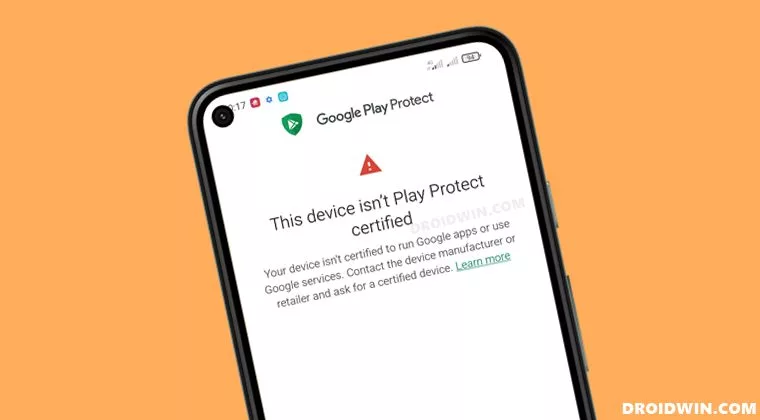
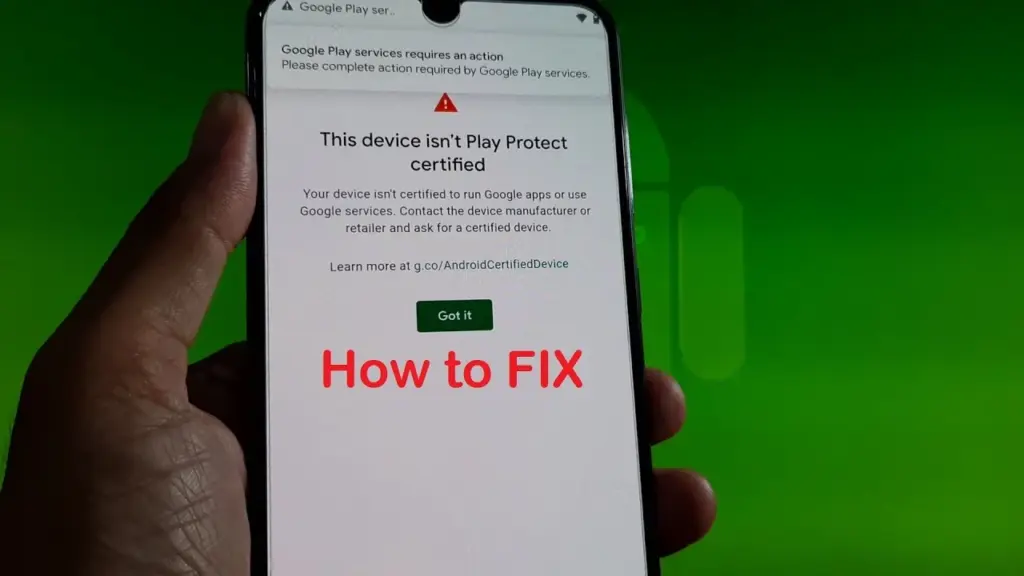
    When a device has an unregistered custom ROM installed, they get the “This Device Isn’t Play Protect Certified” error. Now, if you are one of those struggling with such an error message, this article will help you. Here, we have listed how you can fix this. So without any further ado, let’s get into this.

    You need to follow the steps for this in a systematic manner. It is exactly as we have mentioned below here. Do not skip any of these steps, and ensure one step is complete before moving to the next one.

    How to fix This Device Isn’t Play Protect Certified Error On Custom ROMs?

    This device isn’t Play Protect Certified

    Install Android SDK:

    Download and extract the Android SDK Platform Tools on your PC. Depending on your PC’s OS, download it for WindowsMac, or Linux. It will be a zip file. Once you have it, extract it in any preferred location. Now, you need to enable USB debugging on your smartphone for that.

    Enable USB Debugging:

    This step is essential if you want your PC to recognize your device when connecting it via USB in ADB mode.

    • Open up the settings menu on your phone.
    • Navigate to About Phone > Build Number. You need to tap on the Build number 7 times. You will see a pop-up on your screen that reads, “You are now a developer.”
    • Now go back to Settings and Open up System.
    • Navigate to Advanced > Developer Options > Enable USB Debugging.

    And that’s it. Your smartphone is now ready to take in ADB shell commands.

    Find Device ID:

    Obtaining the device ID used to be a challenging task; users would frequently need to root their phones in order to obtain this data. But that is no longer the case. The Google Play Store offers a program called Device ID that you can download. When you launch it after installation, the device ID details will be visible. After noting the device ID, proceed on to the following action.

    Register Your Custom ROM:

    You must visit the Google Device registration page for the final registration process.

    • Click on this link to go to Google’s Device registration page.
    • Sign in to your account here.
    • Now type in the device ID under the “Google Service Framework Android ID” section.
    • Verify the captcha and then click on the Register button below it.
    • Wait for an hour, and your device should be registered successfully.

    Once the registration is complete, your Custom ROM will also be registered, and you won’t see the “This Device Isn’t Play Protect Certified” error on your screen anymore. If you have any questions or queries about this article, comment below, and we will get back to you.

  • One UI 5 Smoother and Faster

    One UI 5 Smoother and Faster

    The launch of Samsung’s One UI in 2018 was undeniably a watershed moment for phone user interfaces. While the initial iPhone had shortcomings, it was clear that it had won the hearts and minds of the globe when everyone from OnePlus to Google copied much of its design. We’ve been fans since the beginning, but there’s one area where it’s always been difficult to look at, and that’s animations.

    Samsung’s One UI is a mix of openness and closeness. Things are continually speeding, flowing, expanding, and contracting to an extreme degree. In fact, the animation bloat was so awful that Samsung included a feature named “Reduce Animations” at one time, almost as if they realized it was excessive.

    samsung one ui 5.0

    It’s difficult to quantify how much that feature lowered everything, but we always advised you to enable it. Then Samsung took it down one day! If you wish to lessen animations, you must first activate developer options and alter the phone’s animation scales. That’s not tough, but we don’t like the fact that Samsung removed our earlier straightforward option.

    Anyway, SamMobile believes that Samsung is set to dramatically increase the UI speed in One UI 5.0, which is positive and relevant news. One of the primary issues on the One UI 5 agenda, according to their sources, will be to improve UI navigation speeds and animations so that they are smoother.

    We don’t have an official debut date for One UI 5, however Samsung usually releases new One UI updates alongside the latest Android version. For example, we were able to test One UI 4 with Android 12 before it was rolled out to all of Samsung’s finest phones by the end of 2021. If Samsung holds another developer conference in the fall, it could be a nice opportunity to preview the new One UI.

    Finally, while we have someone in Samsung’s orbit’s attention, can we get a vertical app drawer already? For us, Samsung, it’s long past time to make the switch.

  • Pass SafetyNet on Android after rooting or installing a custom ROM

    Pass SafetyNet on Android after rooting or installing a custom ROM

    Google and the community have been playing a cat and mouse game for a long time over evading SafetyNet. The community enjoys tinkering with the software on their phones, which usually starts with bootloader unlocking. However, this trips SafetyNet, causing a number of popular apps to cease working on the phone, some of which are justifiably so because they rely on a tamper-proof environment for execution.

    SafetyNet is aimed at app creators, but they can choose whether or not to use it. However, as an ordinary end user, you have two options: give up on Android’s modding potential and pass the SafetyNet compatibility tests, or risk being blacklisted by software publishers. This guide should let you pass SafetyNet even if you’ve rooted or installed a custom ROM on your smartphone.

    safetynet

    What is SafetyNet?

    Android is built to run without granting the end user any privileged access to the underlying subsystems. If a person with administrative (a.k.a. “superuser”) capabilities on an Android device has similar access to administrative (a.k.a. “root”) permissions on a Linux machine, they can virtually change or replace Android system applications and settings. From the standpoint of an app developer, this means that the device on which their program is operating may be compromised. Some form of abuse detection mechanism should be in place to check the device’s software and hardware surroundings and reassure app developers that everything is fine. This is when SafetyNet enters the picture.

    safetynet

    While modding is an important component of the Android ecosystem, security standards sometimes necessitate a high level of rigor in the operating system. The Google Play Services include a set of abuse-detection APIs called SafetyNet. Third-party applications can use the SafetyNet Attestation API to see if the device’s software environment has been tampered with in any way. The API compares the current state of the target Android device and verifies the integrity of the environment against a known’safe’ value on the server-side by checking for things like bootloader unlock status, signs of superuser binaries, and more.

    SafetyNet tripping and its consequences

    SafetyNet tripping is caused by a series of events that differ from the factory setup of an Android device. Even if you simply unlock your phone’s bootloader and leave the factory-installed OS alone, the SafetyNet check may fail due to a “CTS profile mismatch” (where CTS stands for the Compatibility Test Suite) issue. You’ll almost certainly wind up with a SafetyNet failed status if you root your Android device or replace the base firmware with a custom ROM. As a result, you won’t be able to utilize apps or games on the device that use SafetyNet validation. This is particularly true for banking and other financial apps like Google Pay, which rely solely on the SafetyNet Attestation result and will not accept anything else.

    When it comes to games, developers use SafetyNet for assessing the device’s integrity so that they can prevent rogue players from cheating or modifying in-game variables for unfair advantages. Last but not least, you can also come across examples where publishers are simply misusing Google’s tamper detection mechanism for no practical reason, which is why power users want to evade the detection routines.

    In a nutshell, the modding community will have to choose between having access to root/custom ROMs/kernels/etc. or their preferred apps and games. This might sound like the end of aftermarket development on Android, but there is hope.

    Pass SafetyNet attestation

    There is no true universal solution to avoid the inspections because Google modifies the backbone of the SafetyNet Attestation API on a regular basis. Because the limits are based on a variety of criteria, you may be able to get around SafetyNet in a modified environment by faking the most important characteristics on legacy devices, but the same approach may not work on later phones. Because of the ever-changing nature of the anti-abuse API, the aftermarket development community has come up with a number of approaches for passing the SafetyNet tests. However, keep in mind that a general implementation isn’t viable. This is a cat-and-mouse game; one day you’ll be ahead, the next day you won’t.

    Google is depending on the security of the phone’s Trusted Execution Environment (TEE) or dedicated hardware security module (HSM) for tamper detection as it moves toward a hardware attestation method. Finding a serious security flaw in a device’s isolated secure environment and exploiting it to spoof SafetyNet’s client-side response isn’t a viable strategy, but there are alternative options.

    1. Restoring the original firmware and relocking the bootloader

    This is perhaps the simplest way to pass SafetyNet, but it has its own merits and demerits. All you need to do is find the correct firmware for your Android device, flash it, and finally re-lock the bootloader. Of course, you’ll lose most of the bells and whistles of Android modding, but it actually makes sense when you need to use your device in a managed environment with strict security policies or you’re trying to sell your device.

    2. Using Magisk

    If you own a legacy Android smartphone, Magisk is your best bet to pass SafetyNet without much hassle. Even though the current Canary channel of Magisk doesn’t feature MagiskHide anymore, you can still stick to last stable release (v23.0) and utilize MagiskHide to hide root status from apps. Furthermore, you can install Magisk modules like MagiskHide Props Config to change the device fingerprint in order to pass SafetyNet.

    Talking about the Canary channel, the new “DenyList” feature of  Magisk is an interesting development, which allows users to assign a list of processes where Magisk denies further modifications and reverts all changes it had done. With an appropriate configuration, it can also be used to pass SafetyNet in some scenarios.

    Magisk XDA Forums

    Lastly, there’s Shamiko — a work-in-progress module written on top of Zygisk (Magisk in the zygote process). It reads the list of apps to hide from Magisk’s denylist to hide Magisk root, Zygisk itself, and Zygisk modules to circumvent SafetyNet. However, Shamiko can only work after disabling the DenyList feature.

    3. Using Universal SafetyNet Fix

    Bypassing Google’s hardware-backed SafetyNet attestation technique is a tad bit difficult, but it’s not entirely impossible. The Universal SafetyNet Fix project by XDA Senior Member kdrag0n cleverly accomplishes this feat by forcing the basic attestation over the hardware-backed checks.

    Notably, Universal SafetyNet Fix has a dependency on Magisk when it comes to passing the basic attestation part. The developer offers two different builds of the fix: The Zygisk variant for Magisk Canary and the Riru variant for stable Magisk.

    Universal SafetyNet Fix: GitHub Repo |||  XDA Discussion Thread

    4. ih8sn

    In case you don’t want to rely on Magisk to pass SafetyNet attestation, you can try out an experimental add-on named ih8sn. After applying, it can spoof a plethora of prop values in order to circumvent SafetyNet checks like the MagiskHide Props Config module, but there’s no dependency on Magisk in the first place.

    The ih8sn tool is maintained by several LineageOS developers, but the LineageOS project doesn’t officially endorse it yet. To know more, take a look at its codebase by following the link below.

    ih8sn GitHub Repo


    Verification

    After applying one of the aforementioned SafetyNet passing methods, you may wish to verify the result. The Magisk app comes with an option to initiate the SafetyNet checking routine right from its main menu, which is really handy. You can also opt for an open source app named YASNAC (short for Yet Another SafetyNet Attestation Checker) to check the status and (optionally) examine the JSON response.

    That’s how you can use your phone to pass SafetyNet. With a little effort and care, you can restore Android’s true modding capability without having to worry about SafetyNet Attestation failures. We’ll be adding more SafetyNet passing ways to this guide in the future, so check back!

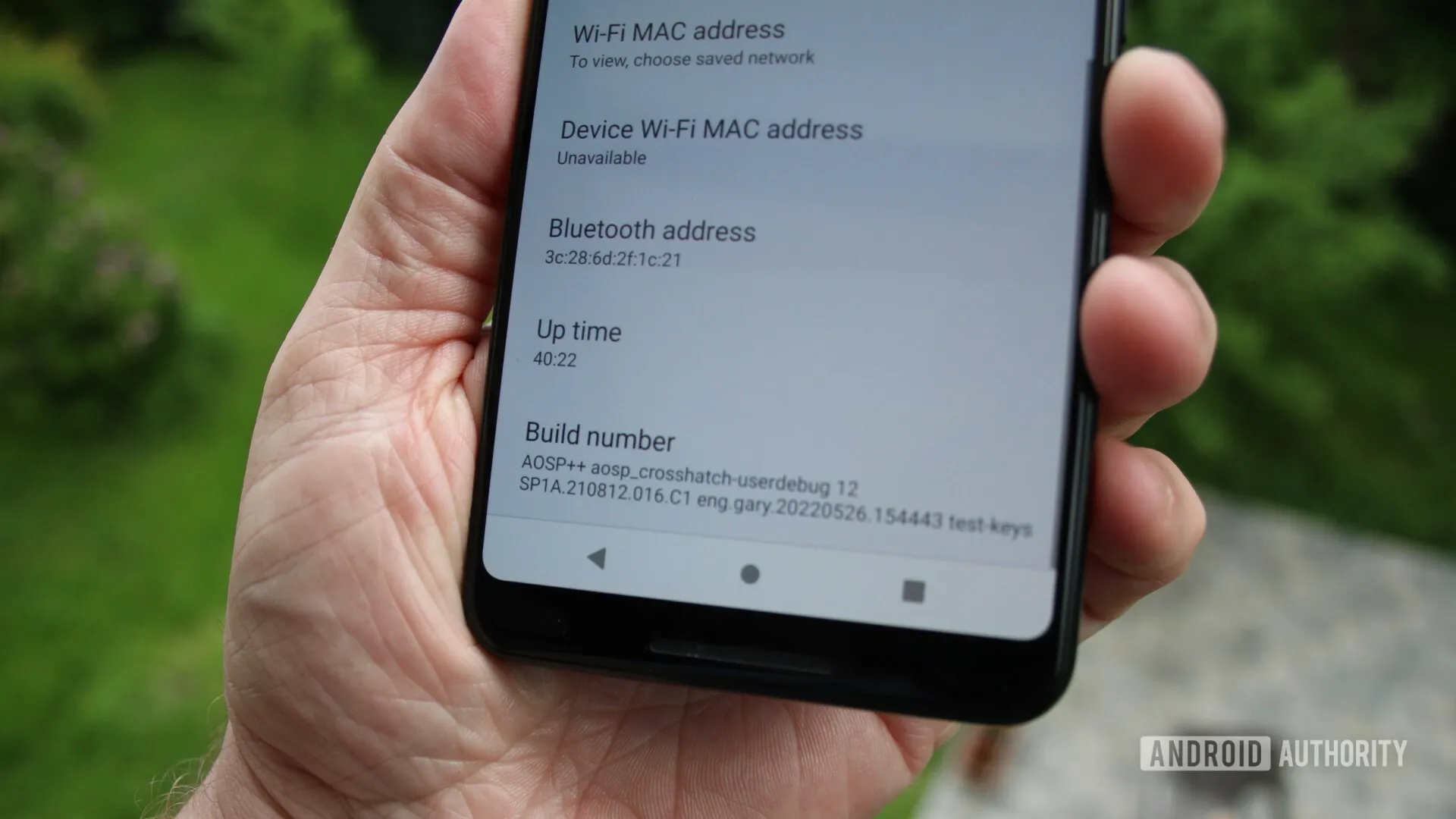
  • First custom rom running Android 12 for Google Pixel 2 XL -ProtonAOSP

    First custom rom running Android 12 for Google Pixel 2 XL -ProtonAOSP

    The 2 XL’s update end-of-life date was in December of last year, just a few months after Google introduced Android 11. Even though they’re getting on in years, these phones are still adequate for basic day-to-day use. If you have a Pixel 2 XL and want to try Android 12 out, you can do so right now if you’re ready to take matters into your own hands. The first Android 12-based custom ROM for the Pixel has been launched, and it includes all of the important new features such as Material You, a redesigned Quick Settings panel, new system animations, and privacy improvements.

    While you can always install the GSI build of Android 12 on your Pixel, the experience isn’t stable enough for everyday use because it’s designed for developers. This is where ProtonAOSP comes in, since it provides a relatively stable option for Pixel 2 XL owners to try out the latest Android update on their aging hardware. The ProtonAOSP Android 12 ROM is currently only available for the Pixel 2 XL, but a build for the smaller Pixel 2 is on the way.

    Installing the ProtonAOSP’s Android 12 release is different from other ROMs as it is available as a factory image (see how over at XDA Developers). You’ll need to unlock the bootloader on your Pixel 2 and use the bundled flash-all script to install the ROM. If the installation fails, you may need to repartition and allocate more storage to various system partitions.

    If you do install the ProtonAOSP ROM on your Pixel 2 XL, be prepared to run into some bugs and occasional performance issues. The major ones are non-functional Wi-Fi and Permissive SELinux permission in the current build. There are likely other issues as well that haven’t been reported yet. Nonetheless, if you want to try out Android 12 on your Pixel 2 XL, this is your best bet right now.

    Manual install ProtonAOSP

    This is a guide for installing ProtonAOSP manually, using the command line. The web installer is recommended if you don’t have a specific need for this. Check the list of common misconceptions if you’re not sure.

    You can only use a Windows, macOS, or Linux computer for this manual installation; use the web installer if you want to install from a Chromebook or another phone.

    Download a build

    Download the build you want to install in factory images format.

    Prepare your phone

    Put your device into bootloader mode by restarting it and holding the volume down button until you see a red warning sign or green Android robot.

    Once your device is in bootloader mode, plug it into the computer or device you’re installing from. Make sure you use a high-quality USB cable, as many cables will cause issues. Avoid USB hubs if possible.

    Your USB cable needs to be able to copy files. Charging-only cables won’t work.

    If you’re switching from the stock OS or another ROM, make sure all your important data is backed up. You’ll need to wipe all your data in order to use ProtonAOSP.

    Prepare your system

    First, open the “Command Prompt” app from the Start menu.

    Next, download the Android SDK Platform Tools and extract them. Navigate to the extracted platform-tools folder in the terminal by typing cd  (with the space at the end) and dragging the folder into Command Prompt. Then run the following command:

    set PATH=%CD%;%PATH%

    If it’s your first time installing from this computer, you also need to install drivers:

    1. Open Settings → Windows Update
    2. Click “Check for updates” and wait
    3. Click “View optional updates”
    4. Select the “Android Bootloader Interface” update (ignore the brand name; it doesn’t matter)
    5. Click “Download and install” and wait for it to finish
    6. Unplug your device and plug it back in

    Wipe data#

    If you’re switching from the stock OS or another ROM, you need to wipe all data before installing ProtonAOSP:

    fastboot -w

    Otherwise, ProtonAOSP won’t boot and your phone will get stuck on the boot animation after the installation.

    DANGER

    All data on your phone will be lost, so make sure your important files are backed up before doing this.

    Install the build

    Factory images

    Extract factory images

    Extract the downloaded factory images package (e.g. proton-aosp_redfin-factory_11.5.0.zip). Navigate to the new folder (e.g. redfin-rq2a.210505.003) by typing cd  (with the space at the end) and dragging the folder into your terminal.

    Flash factory images

    Run the following command to flash the factory images:

    • Windows
    • macOS
    • Linux
    ./flash-all.sh

    Copy

    Don’t touch, unplug, or press any buttons on your device during the install. Your phone will restart several times, but don’t touch it. It will automatically boot into ProtonAOSP once the installation process completes.

    Finish

    You can now delete the factory images package, but don’t delete the platform tools — you’ll need them for updating in the future.

    See First Steps for what to do next.

    For security, you may also wish to re-lock the bootloader to enforce verified boot, which improves physical security and resistance against persistent attacks.

  • Download LineageOS 18.1 for Pixel 5

    Download LineageOS 18.1 for Pixel 5

    LineageOS is a free, community built, aftermarket firmware distribution of Android 11, which is designed to increase performance and reliability over stock Android for your device.

    LineageOS is based on the Android Open Source Project with extra contributions from many people within the Android community. It can be used without any need to have any Google application installed. LineageOS does still include various proprietary hardware-specific code.

    All the source code for LineageOS is available in the LineageOS Github repo. And if you would like to contribute to LineageOS, please visit out Gerrit Code Review. You can also view the Changelog for a full list of changes & features.

    LineageOS private ROM 1 1

    Informations :

    • This ROM uses source built kernel, kernel modules, boot kernel modules (vendor_boot) and vendor image.
    • This ROM bundles the latest firmware so you don’t have to worry about updating firmware beforehand.
    • To use the eSIM you need to install GApps

    Instructions :

    1. Download the latest recovery image and rom zip
    2. Boot to bootloader
    3. fastboot flash boot lineage-recovery.img
    4. Boot to recovery
    5. Format data
    6. Sideload LineageOS zip
    7. Optionally flash any addons:
      • Advanced > Reboot to recovery
      • Sideload the addons
    8. Reboot

    See https://wiki.lineageos.org/devices/redfin/install for more detailed instructions​

    Downloads :

    Remember to provide as much info as possible. The more info you provide, the more likely that the bug will be solved.

    Known Issues

    Stock Google Camera app crashes in Night Mode or Astrophotography. As a workaround, install this magisk module.

    Source Code:https://github.com/LineageOS

    ROM OS Version: Android 11

    Source: XDA Developers