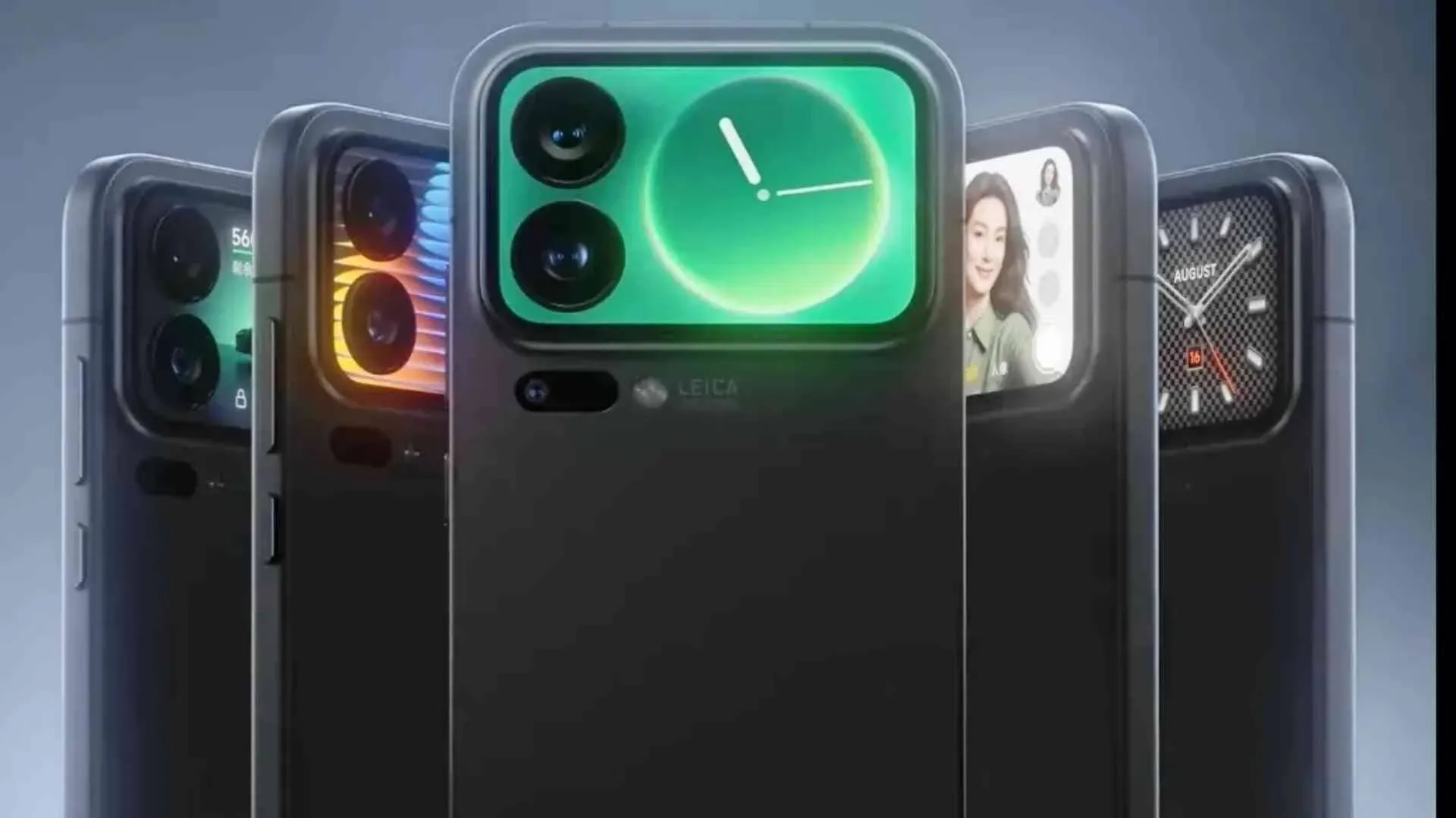
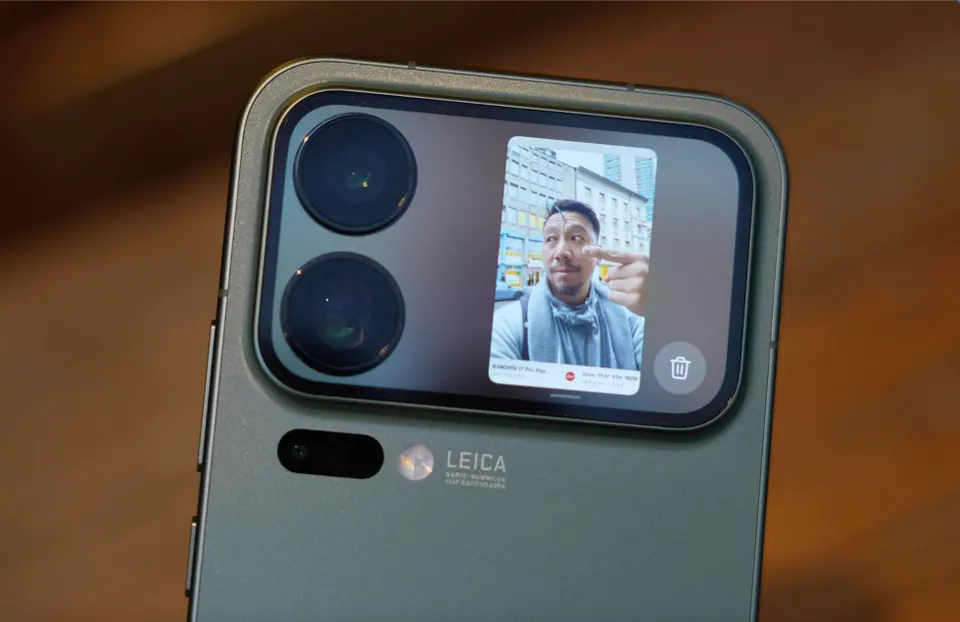
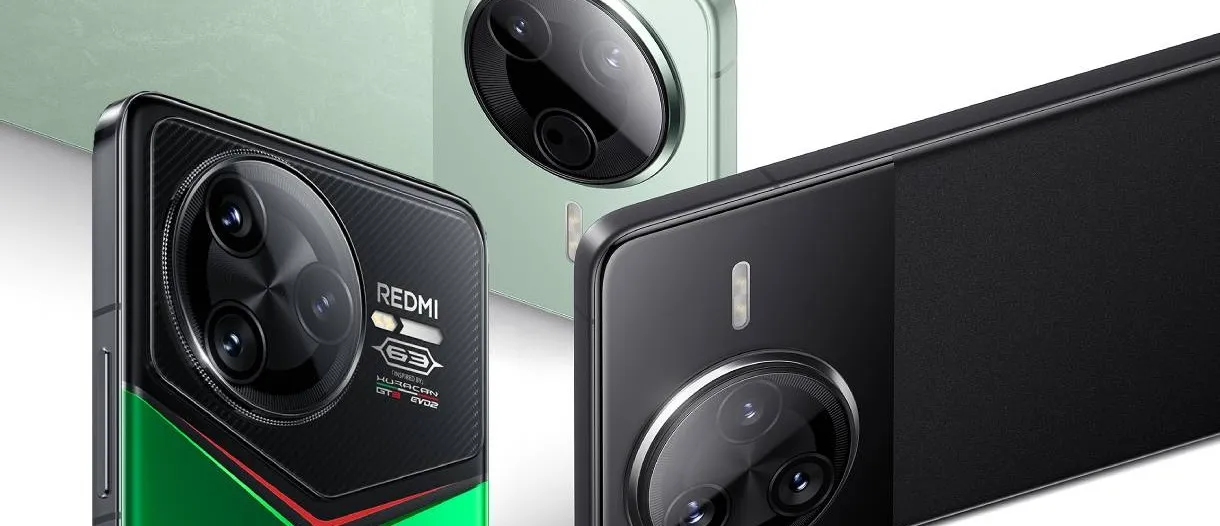
It’s difficult to release a genuinely unique smartphone in 2025, but Xiaomi succeeded. The Xiaomi 17 Pro and 17 Pro Max, which have extra screens on the back, were released by the firm, and it seems that this decision was successful.
Lu Weibing, the president of Xiaomi, stated during a livestream (source in Chinese) on Weibo that the business will keep using Dynamic Back Displays in its upcoming flagship devices. According to him, the business already has plans to boost its R&D expenditures in order to guarantee higher-quality displays for Xiaomi’s upcoming smartphones.
The choice was made in light of the Xiaomi 17 series’ success, which the company says was enormous and witnessed a 20% rise in sales over the previous year. The Xiaomi 17 Pro Max, which broke the first-day domestic sales record, is the biggest hit.
What is the secondary display used for?
The Xiaomi 17 Pro and Xiaomi 17 Pro Max, in contrast to Apple’s iPhone 17 and 17 Pro Max, make use of the so-called camera plateau and have secondary displays atop it. It is a 2.66-inch OLED screen with a resolution of 904 x 572 pixels, a refresh rate of up to 120 Hz, and a brightness of up to 3,500 nits. It has a selfie viewfinder, a few widgets, customizable wallpapers, and other features like the cover screen of contemporary flip phones.
It wouldn’t be shocking to see a larger screen with more features on what might be the Xiaomi 18 series, especially in light of Xiaomi’s most recent announcement. According to Lu Weibing, the business is updating the displays from the current generation. One of them ought to equip the gadget with a real-time translating function.
The days of rooting your device or looking for third-party apps to record your screen on Android devices are long gone. The majority of modern smartphones with Android 11 and later have an integrated screen recorder.
Convenience, more privacy, and enhanced performance are provided by this native feature. Whether you are recording a livestream, creating a tutorial, or recording a game session, this guide will show you how to make the most of Android’s built-in screen recorder.
Why screen recording matters
For many Android users, the ability to record screen has become indispensable. Content producers frequently have to capture mobile gaming, app evaluations, and walkthroughs. Professionals might have to show colleagues how to use bugs or make quick educational videos. When recording video chats, social media stories, or instructions for assisting friends in troubleshooting a phone problem, this tool might be useful even for novice users.
Users had to rely on apps from the Play Store prior to Android having this feature built in; many of these apps had restricted functionality, data tracking, advertisements, or required a subscription. Native tools now provide a smoother, safer, and ad-free experience.
Check if your device supports native screen recording
Android 11 and later versions support the built-in screen recording feature. Open the Settings app, navigate to “About phone,” and locate the Android version section to verify your Android version. You can move forward if your device is running version 11 or later.
It is also important to note that almost every major brand has this capability in their operating systems, including Google, Samsung, OnePlus, Xiaomi, Realme, and Motorola. However, each manufacturer may have somewhat different interfaces and extra options.
How to start screen recording on Android
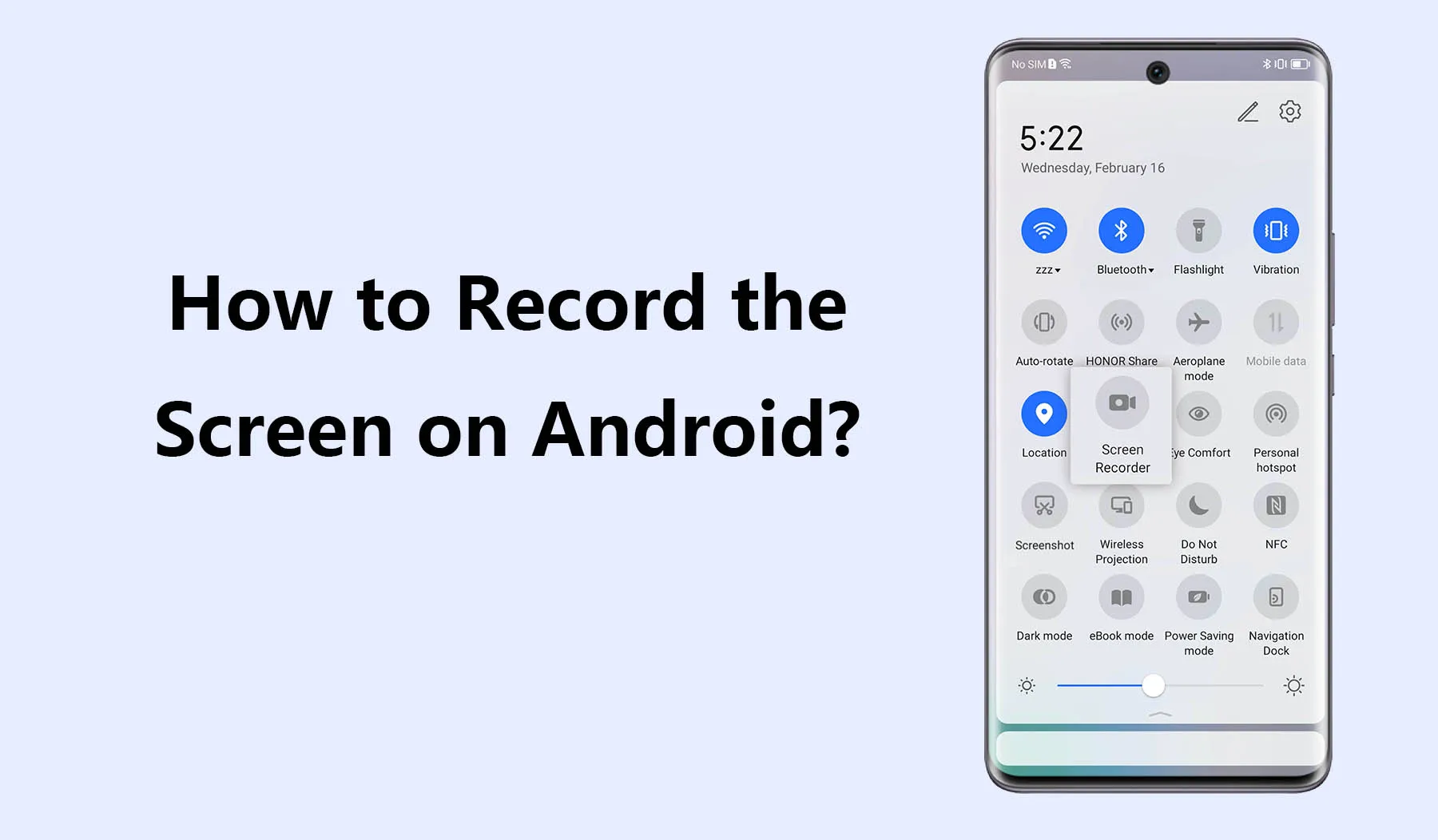
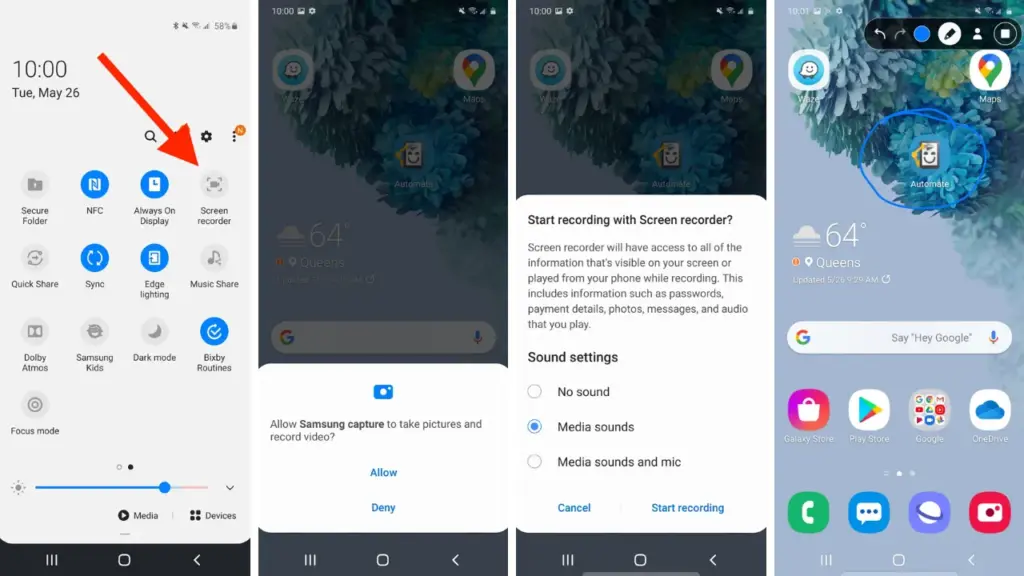
Swipe down from the top of your screen to see the Quick Settings panel, then activate the screen recorder. To fully enlarge the panel, swipe down once more. Next, search for a tile that says “Screen record” or “Screen recorder” If it does not appear right away, you can add the screen recording option and reorder your Quick Settings tiles by tapping the pencil or “Edit” symbol.
When you tap the tile, a dialog will pop up offering a few choices before recording begins. You can choose whether to:
Record audio from the microphone, internal device audio, or both
Show visual touches on the screen during the recording
Depending on your recording requirements, these choices can be helpful. For example, you could want to use the microphone when narrating a tutorial. Internal sound may be better suitable if you are recording gaming or app audio. Once your choices have been set, press “Start” and watch for the three-second countdown. After that, your recording will start.
A tiny toolbar or red symbol will show that the screen is being recorded during the recording. Pull down the notification shade and press the stop button when you are done. Your device’s storage will automatically store your video.
How screen recording differs by device brand
Each Android manufacturer may offer a slightly different version of the screen recorder:
Samsung (One UI): One of the most feature-rich native recorders is offered by Samsung. You can record your face with the front camera, record internal audio, and choose from a variety of video quality options. During the recording, you can even draw on the screen, which is a terrific way to graphically explain topics.
Google Pixel: Pixel phones running Android 11+ have a clean, minimal screen recorder built into Quick Settings. It’s simple to use but doesn’t offer the same advanced features as Samsung’s version.
Xiaomi and Redmi (MIUI): These devices often include a standalone “Screen Recorder” app, which can be found in the Tools folder. It allows you to configure video resolution, frame rate, sound source, and orientation. Recordings are saved in an organized, dedicated folder.
OnePlus (OxygenOS): Native screen recording is available from OnePlus as early as Android 10. It has settings to set bit rates and frame rates, record system sounds, and display touches. The user interface is clear and simple to use.
Realme and Oppo: These brands also offer native recording tools similar to Xiaomi, with a balance of customizability and ease of use.
These slight differences can impact your experience, so it’s useful to explore your device’s specific implementation for the best results.
Where screen recordings are saved
Once you finish recording, the saved video can typically be found in your phone’s internal storage under:
Internal Storage > Movies > Screen recordings
Internal Storage > DCIM > Screen recordings
Also, screen recordings are typically shown in a distinct folder or album called “Screen recordings” in your normal gallery software (like Google Photos or Samsung Gallery). Use a file manager tool and search for recently edited MP4 files if you are having problems finding your file.
This consistent file structure helps you quickly retrieve, share, or edit your recordings.
Tips for better screen recording results
Here are some suggestions to improve the quality and usability of your recordings:
Use Do Not Disturb mode: This prevents interruptions from calls, texts, or notifications while recording.
Close unnecessary apps: Reducing background processes ensures smoother performance and fewer lags during recording.
Enable touch indicators: If you’re creating tutorials, visual touches help viewers understand where you’re interacting on the screen.
Choose appropriate resolution and frame rate: Higher settings give better quality but consume more storage space. For gameplay, use 1080p at 60fps if available.
Record with adequate lighting and contrast: If you’re recording apps or system settings, avoid dark themes that make the video harder to see.
Limitations and common issues
While native screen recorders are generally reliable, there are a few caveats:
DRM-protected content: Apps like Netflix or some banking services block screen recording to protect sensitive or copyrighted material. In such cases, you’ll see a black screen or an error message.
Lack of internal audio on some devices: Not all Android phones allow internal audio recording due to manufacturer restrictions or legal considerations. Some devices default to microphone-only input.
Storage limitations: Long screen recordings take up a lot of space. Ensure you have enough free storage to avoid failed recordings or low-quality output.
In rare cases, the screen recorder might not appear in the Quick Settings panel. This can usually be fixed by updating your software or resetting the tile arrangement in settings.
The screen recording feature built into Android is a game-changer for productivity, communication, and content creation. Whether you’re capturing a quick how-to for a family member, recording an epic moment in a mobile game, or documenting a tech issue for support, the ability to do it all without third-party apps makes the process simple and secure.
As long as your device runs Android 11 or higher, you already have this powerful tool at your fingertips. With a few simple settings and some creative uses, you’ll be able to record anything on your screen with clarity and ease – no installations required.
It has already been announced that the Redmi K80 series will debut on November 27. The business has revealed how well the Redmi K80 Pro can function in AnTuTu in order to create expectation.
On November 27, Xiaomi will formally launch the Redmi K80 series in China. According to reports, the regular model will launch as the F7 Pro and the K80 Pro as the F7 Ultra. The lineup is also anticipated to make its global premiere under the Poco brand sometime in December or early 2025.
Xiaomi has revealed that the Redmi K80 Pro may score close to 3.2 million in AnTuTu before its Chinese launch. The business claims that it can reach 3,194,766 points in particular. The Snapdragon 8 Elite flagship phone has the greatest score to date, and it is far higher than the Asus ROG Phone 9’s record-breaking benchmark run.
Perhaps the Redmi K80 Pro’s enhanced 3D cooling technology made this record-breaking score feasible. This cooling method probably comprises a sizable vapor chamber, though the company has not disclosed any other setup information yet. It is currently unknown, though, if it will be sufficient to provide strong, long-term performance under high loads.
In addition to the AnTuTu score, the company said that the Snapdragon 8 Elite and D1 chip will be paired with the Redmi K80 Pro. Its purpose is to regulate the screen and improve game resolution and frame rates. In order to improve battery life, the chipset also seeks to provide excellent gaming performance without using a lot of power.
Overall, based on the company’s teasers, it appears that the K80 Pro will be a fantastic choice for anyone searching for a smartphone with a performance focus. Next month, it may even take the top spot in AnTuTu’s flagship smartphone list.
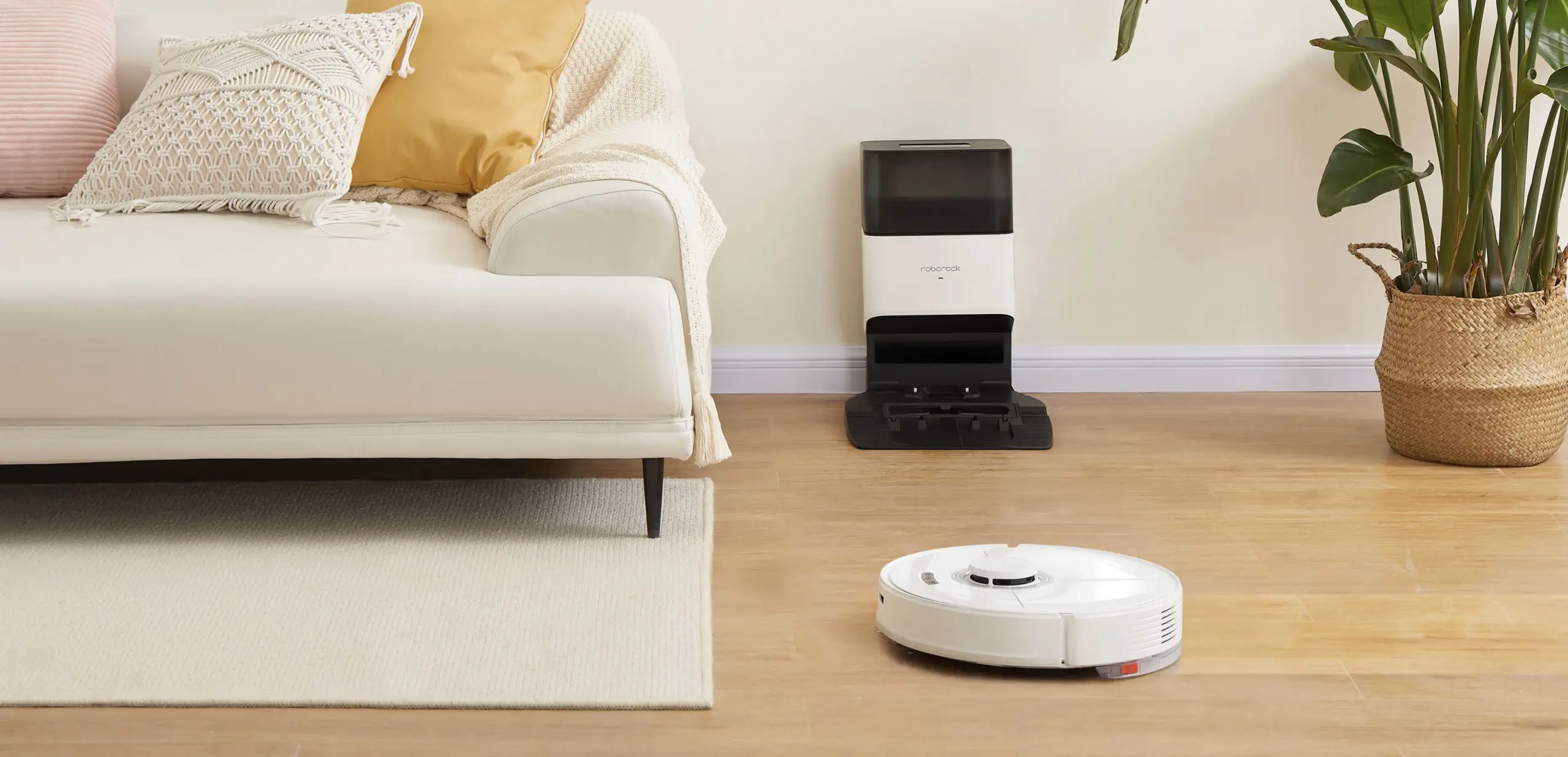
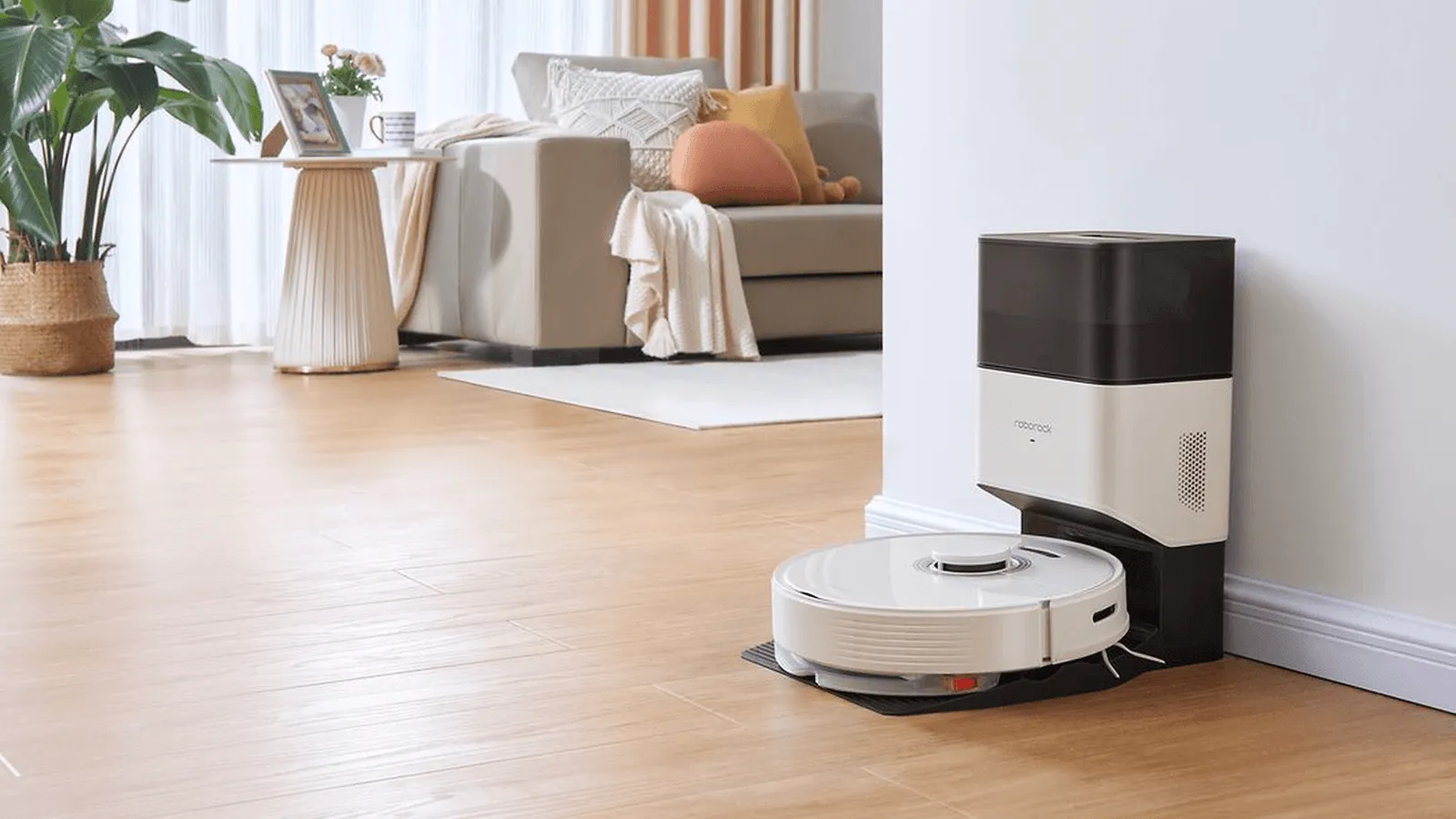
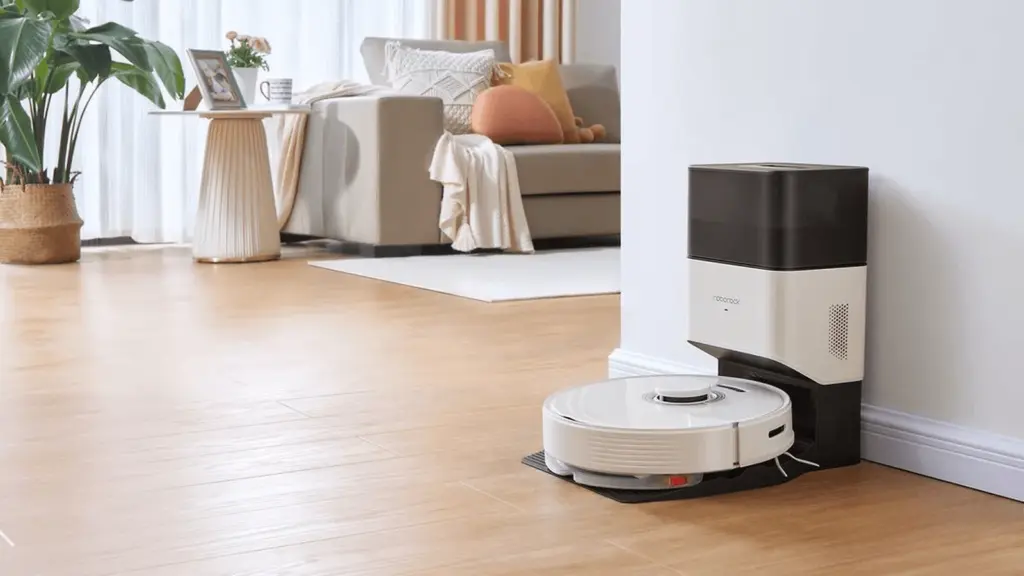
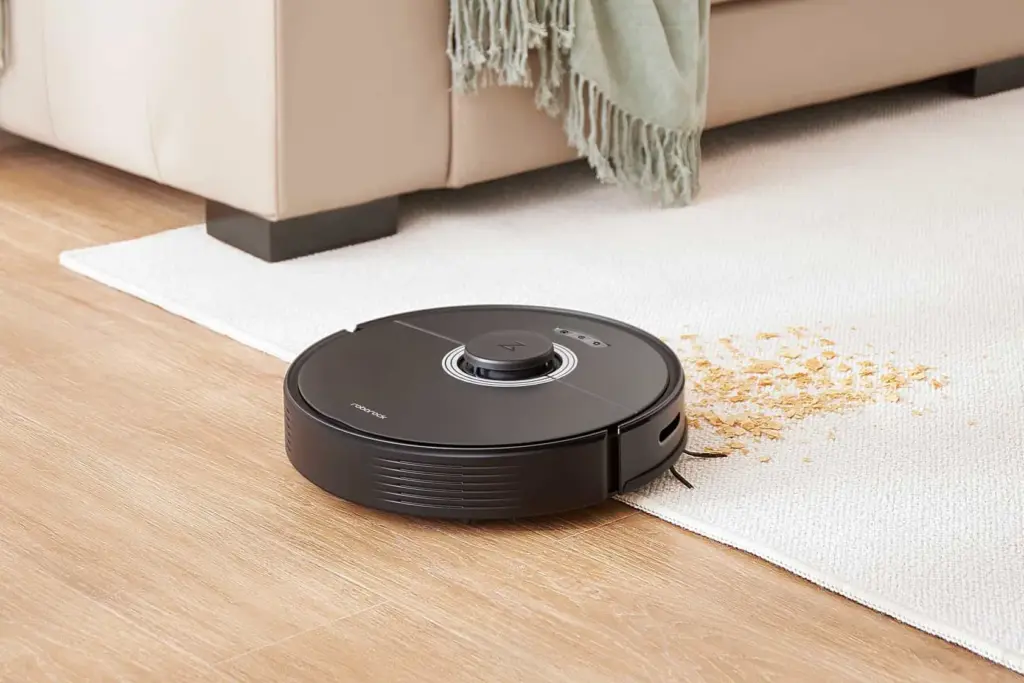
Waiting for a discount makes sense because robot cleaners with all-in-one cleaning solutions are typically more expensive. The Roborock Q7 Max+ with vacuum and mop functions, which was formerly priced at $869, has now fallen to an all-time low of $359, a $510 (59%) reduction.
This matches the discount offered during the 2-day Prime Day sale. However, this current offer doesn’t require you a premium subscription, so anyone can take advantage of this.
Our evaluation gave the Roborock Q7 Max+ (review) a 4.5 out of 5, highlighting its easy setup and vacuuming capabilities. The loud noise it makes when emptying the robovac’s built-in dust canister is its sole small drawback. Even if it is becoming outdated, we still think it is an excellent cleaner, especially at this rate.
From unpacking to installing the base station and connecting the cleaning demon to your Wi-Fi network, using the Roborock Q7 Max+, which is compatible with iOS and Android, takes very little labor.A sizable 2.5-liter bin at the automatic station allows for seven weeks of hands-free cleaning.
It has a 4,200 Pa suction power rating and works well on carpets and parquet floors when cleaning. Users can choose from four different cleaning modes: quiet, balanced, turbo, and max, which guarantees a flexible cleaning experience. The majority of liquid stains are removed by its vibrating mop. In order to keep it away from carpets and rugs when mopping, it also supports the no-mop and no-go zones.
For those who value privacy, it does not have a camera and uses LiDAR to navigate precisely and avoid obstacles. It also includes a 3D mapping, just like the more expensive models. Another positive aspect of it is its battery life, which lasts 180 minutes between charges. Are you hoping to get it at this cost? In your opinion, which of its features is most helpful for maintaining clean floors? Tell us in the comments section.
Do you want to use your Samsung smartphone to record calls? All Galaxy devices come with the call recording feature out of the box, which streamlines the process. This implies that you can record calls on your Galaxy smartphone without using a third-party program.
Are You Allowed to Record Phone Calls?
Before you begin recording calls on your Samsung Galaxy phone, you should be aware that certain local laws and regulations may prevent you from using the feature in your nation or neighborhood.
In some countries, it is illegal to record calls without the other party’s consent. So don’t be surprised if the call recording feature is missing from your Samsung Galaxy device. In such cases, you are out of luck as there’s nothing that can be done to enable this functionality.
In a few locations, even when recording is legal, Samsung may still not have implemented it. This could help explain why the call recording option is not showing up on your Samsung phone.
It is not possible to record VoWiFi calls, i.e., voice calls that happen over Wi-Fi.
Also, note that you cannot record calls on Android using a third-party app. Due to privacy reasons, these apps don’t work on Android 9 or a newer version of the OS. Any app that claims to work will require you to root your Android device, which could void its warranty.
Therefore, you cannot just download an app from the Play Store to add call recording capabilities to your device if it lacks it. You can follow our instructions for recording calls using the Google Phone app if it is the default dialer on your Android smartphone.
The pre-recorded message warning the parties that the call is being recorded is not played by Samsung’s call recorder. It has a significant advantage over devices that use the Google Phone app as the default dialer as a result of this. It is impossible to record a call on such devices without the other side being aware of it. All callers will hear a “This call is being recorded” announcement whenever you begin or end a call recording.
Automatically record calls on a Samsung Device
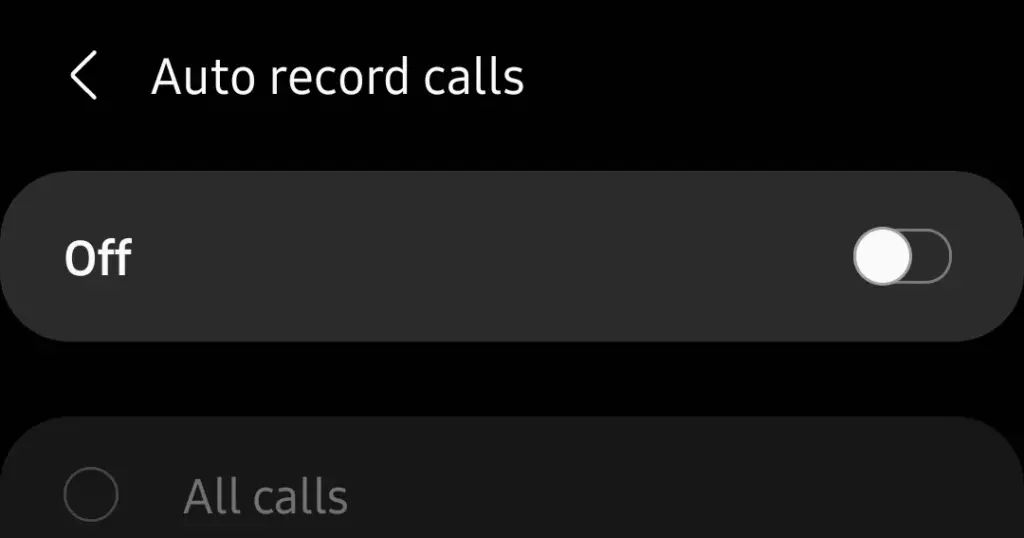
You may set your Samsung Galaxy device to automatically record all calls.
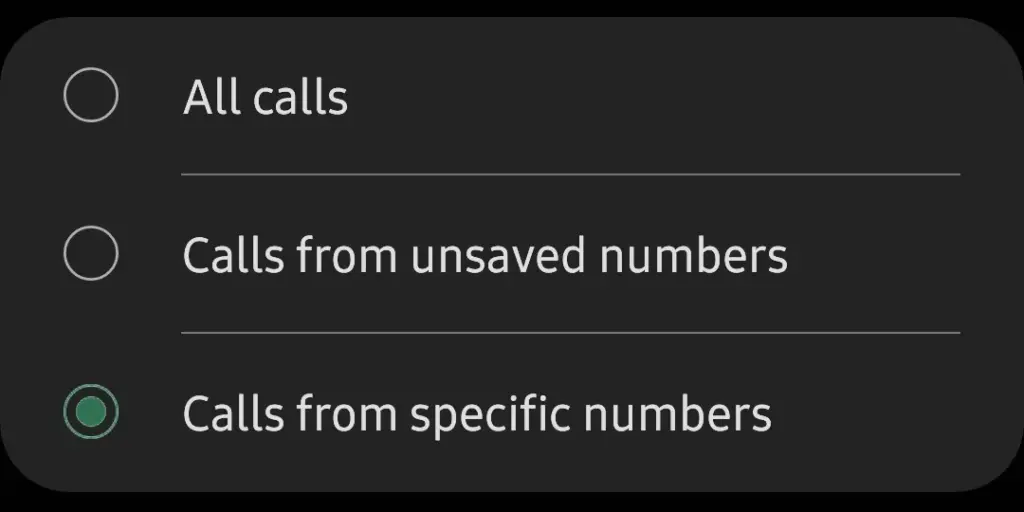
You can choose to record calls from all contacts in your phone book, solely from selected contacts, or only from unknown numbers, depending on your preferences.
Tap the 3-dot overflow menu button in the top-right corner, followed by Settings > Record calls.
Jump into the Auto record calls menu and enable the feature.
Proceed to select whether you want to record All calls, Calls from unsaved numbers, or Calls from specific numbers.
How to Manually Record Calls on a Galaxy Phone
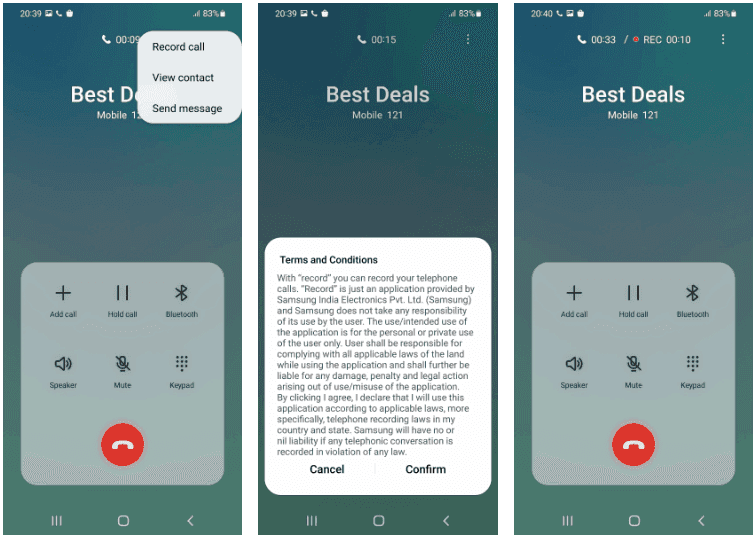
You can also manually record single calls on phones like the Samsung Galaxy S22, Note, or Galaxy Fold series. Here’s how:
Open the Phone app on your Samsung device and call the contact whose call you’d like to record. Alternatively, accept the incoming call that you want to record.
On the call screen, tap the Record call button to start recording. If the option does not show up on the call screen, tap the 3-dot menu button on the top-right and then select the Record call option.
The first time you use the call recording feature, you’ll be prompted to accept the terms and conditions.
Manually record calls on Samsung Android Devices
Contrary to several other phones, you can record calls without alerting the other party. Only Android phones that have the Google Phone app set as their default dialer app experience this.
On One UI 4 and One UI 5, the method to record a phone call is the same.
How to View Recorded Calls
You can view recorded calls on your Samsung Galaxy device from the Phone app.
Open the Phone app on your Samsung Galaxy device.
Tap the 3-dot overflow menu button in the top-right corner.
Navigate to Settings > Record calls > Recorded calls. All the recorded calls will show up here. The file name will show the contact name or the phone number to easily identify the recorded calls.
You can select any recorded audio file and then tap the Share option to share the recorded call on WhatsApp, Gmail, Drive, etc.
Call Recording on Samsung Galaxy Devices
As we’ve seen, it’s rather simple to record calls on a Samsung Galaxy smartphone, assuming local regulations don’t restrict the firm from providing the feature there.
And always keep in mind that when you have power, you also have duty, thus you should never record a call without first telling the other person on the line.
One of the many features you’ll only find on Samsung smartphones and not on other Android phones is call recording. It’s highly recommended to check out some of the additional features offered by the Galaxy One UI software.