Tag: oneui

  • 5 One UI 7 features that you should now + sweet deals

    5 One UI 7 features that you should now + sweet deals

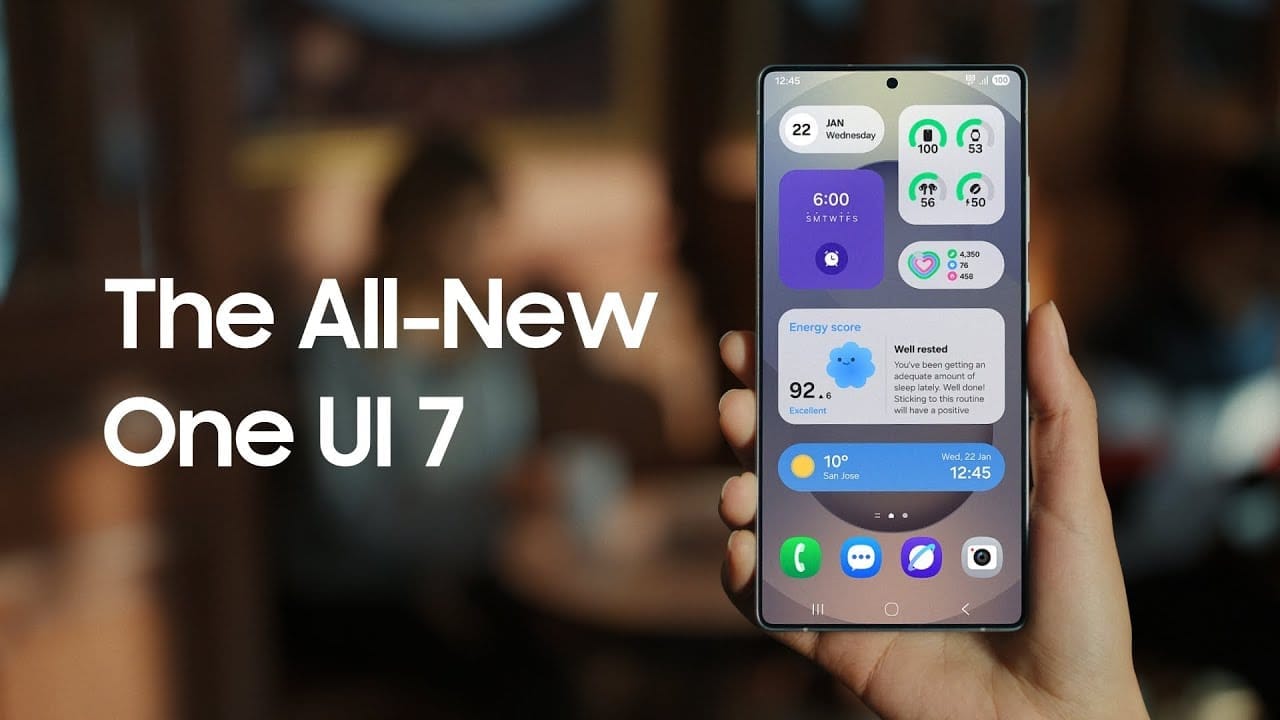
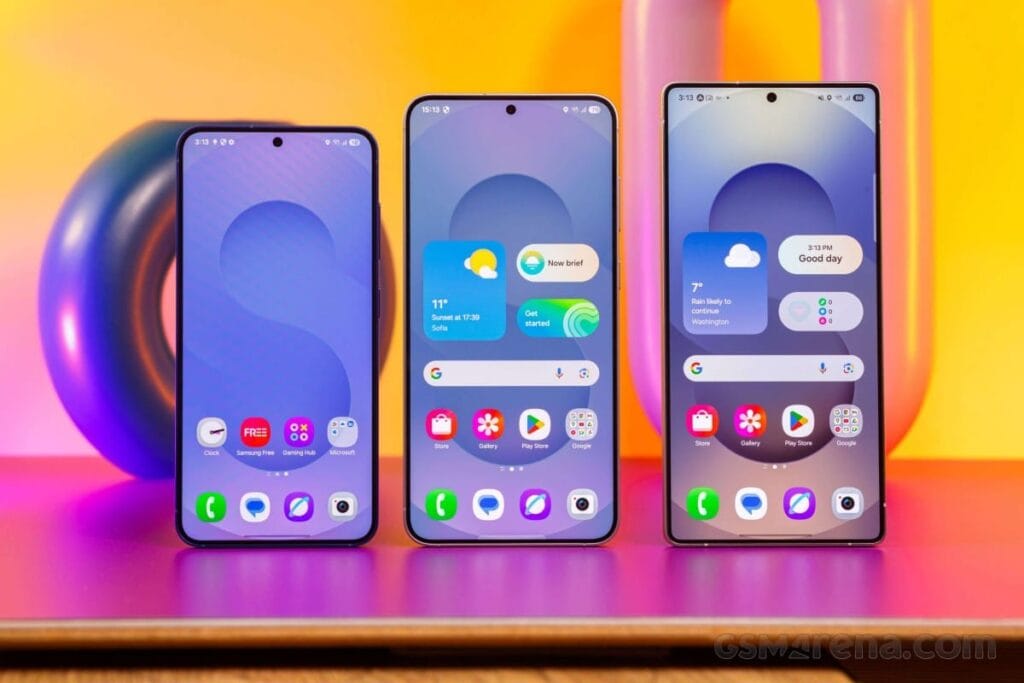
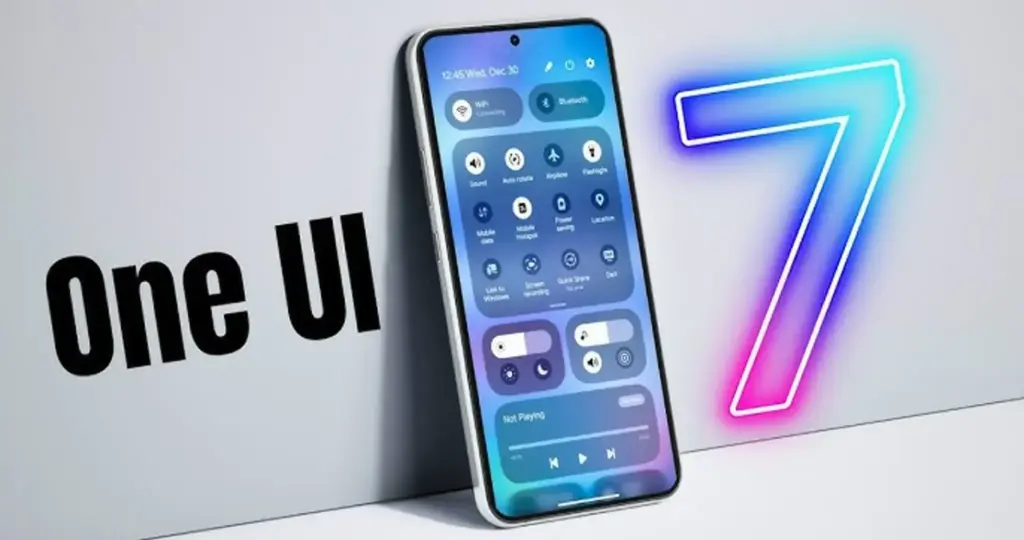
    There is no sugarcoating it. Samsung botched the deployment of One UI 7 on the top Galaxy phones. Still, it is one of the most significant redesigns in One UI history, adding an unmatched level of polish to the company’s appearance. You have surely heard about the Now Bar and the huge Galaxy AI improvements in One UI 7, but here are several tiny, underappreciated updates you might have overlooked.

    Double-tap playback controls in AOD

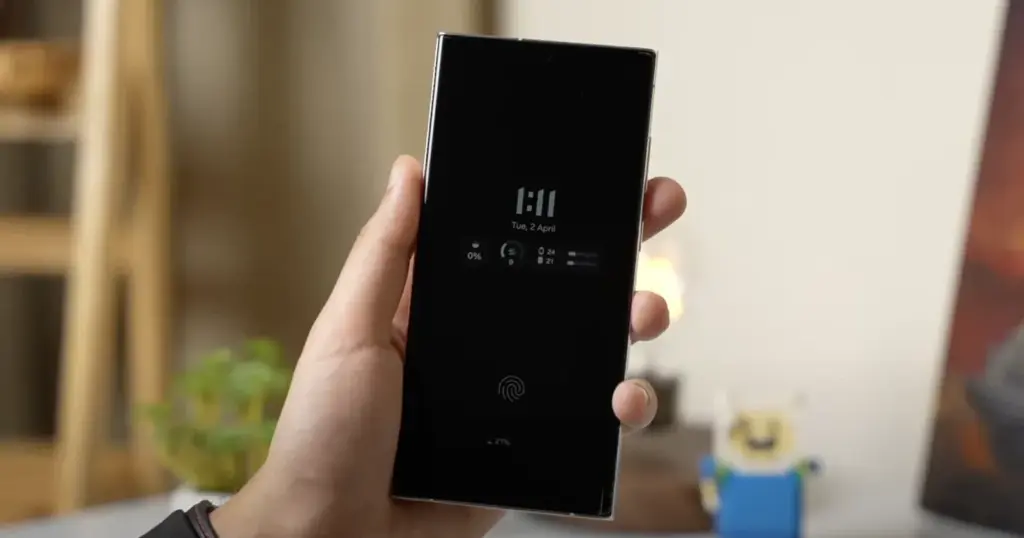
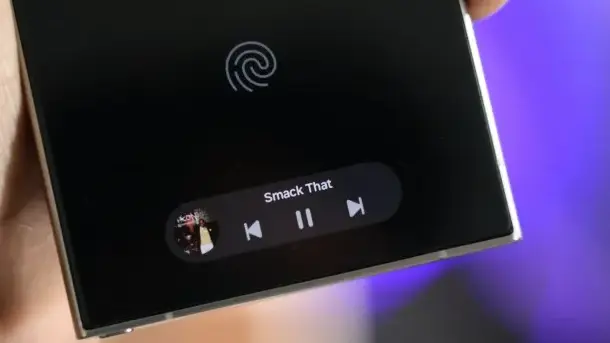
    Now Bar is one of the significant new features in One UI 7, promising to provide relevant information at the right time. It also works with Always-on Display, displaying softly at the bottom. This is not the only way Samsung enhanced the Always-on Display with One UI 7. You may now control media playback via the Always On Display (AOD).
    Double-tap playback controls in AOD one ui7

    If you lock your Galaxy phone running One UI 7 while media is playing, the playback controls show at the bottom of the Now Bar. A single tap does nothing, but double tapping the playback controls will play, pause, or skip the current song or movie.

    When you double-tap the album art, an expanded view of the media player appears, complete with larger controls and the ability to adjust media output.

    Vertical app drawer

    One UI 7 introduces a vertical app drawer to the One UI launcher. The option was included in One UI 5 and earlier releases, however it was deleted with Samsung’s Android 14-based One UI 5 update. The business promised to bring back the vertical app drawer with One UI 6.1.1, however this never happened.

    If you have hundreds of apps installed on your Galaxy phone, a vertical app drawer will help you to easily swipe through them. In true Samsung form, there is an anomaly in how the feature was implemented.

    one ui 7 Vertical app drawer

    Samsung does not specifically refer to it as a vertical app drawer. Instead, open the app drawer, hit the overflow menu button in the lower-left corner of the search bar, and choose Sort, then Alphabetical order. This converts the app drawer to a vertical style and organizes apps by name. You cannot move apps in this view, but you may position them within folders. Folders are located at the top, followed by applications and games.

    A useful feature of the vertical app drawer is the addition of a fast-scroll bar on the right, which allows you to swiftly skim through and jump to any portion of your app list. The Home Up Good Lock module, which was updated with One UI 7, allows for more customisation of the home screen and app drawer.

    Quick switch between the notification panel and Quick Settings

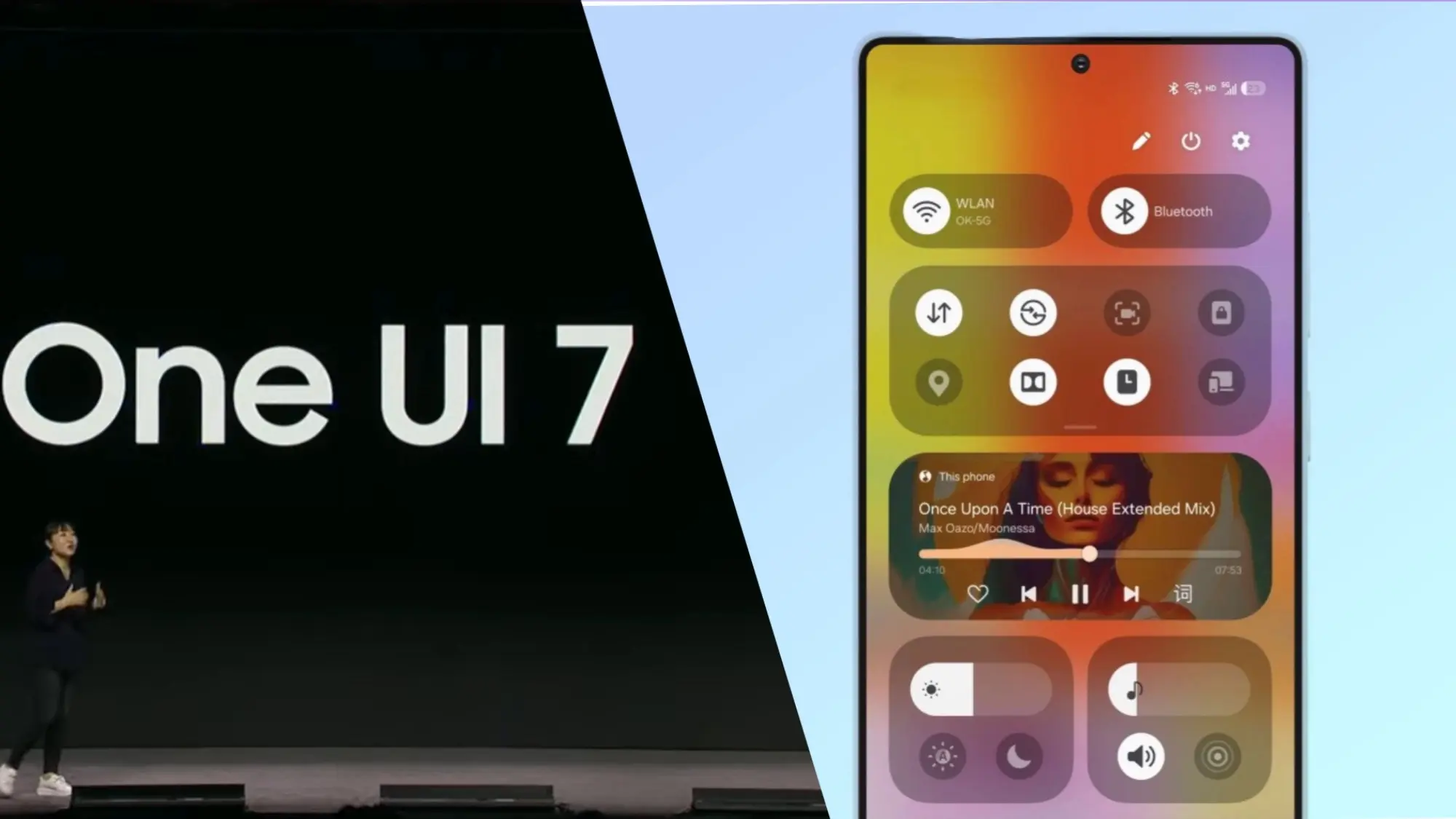
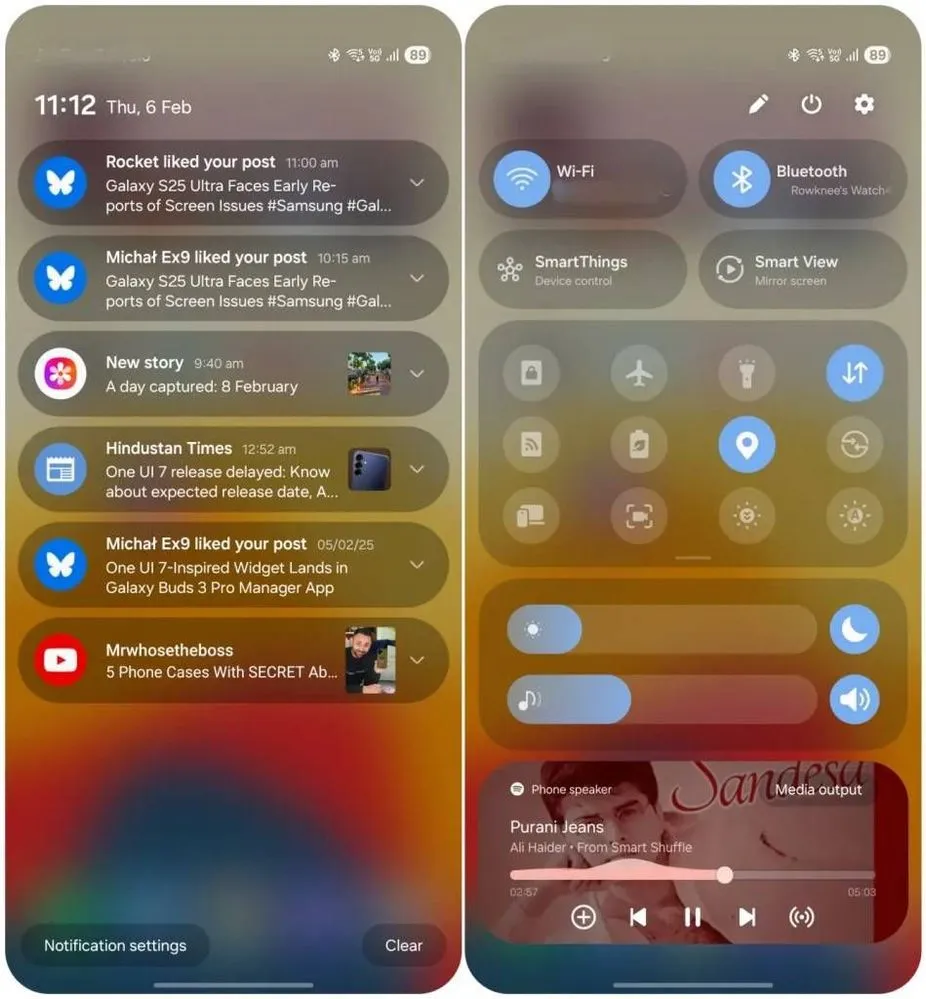
    Samsung used an iOS-like approach with One UI 7, separating the notification panel and Quick Settings into two sections. You can return to the former One UI 6-like layout, but sample this adjustment for a few days before making a decision.
    Quick switch between the notification panel and Quick Settings

    Compared to Apple’s distinct Quick Settings and notification panel design, Samsung’s method has one significant advantage. Swiping between the Quick Settings panel and the notification shade allows you to rapidly move between them. The same is true for phones from Xiaomi, Oppo, and OnePlus, all of which have long used separate Quick Settings and notification panels.

    Although Samsung was not the first to market with the idea, it made care to include a helpful change in One UI 7.

    Minimized pop-up apps group together
    Minimized pop-up apps group together one ui7

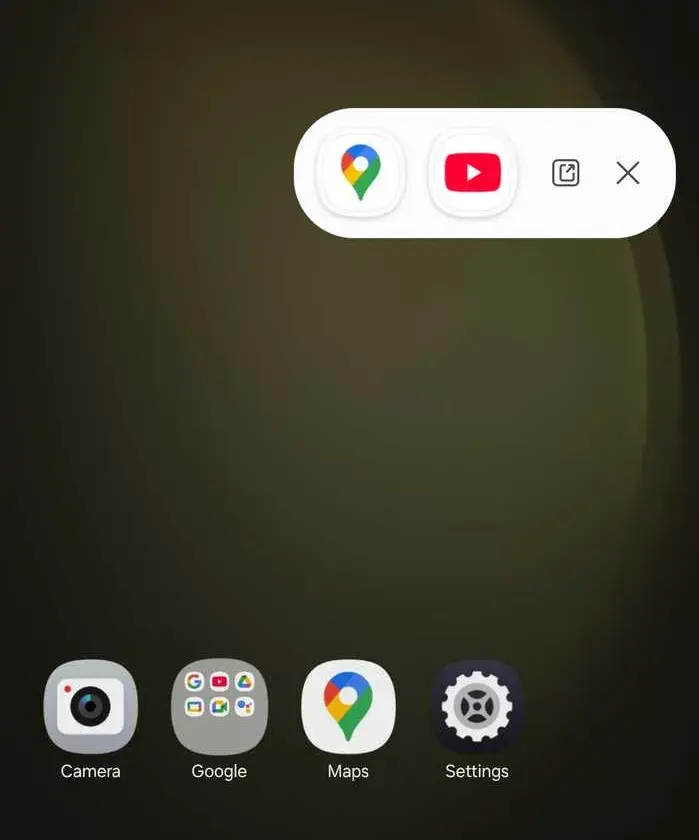
    Samsung’s Android skin includes a variety of useful multitasking capabilities, including the option to run programs in a pop-up view. This allows you to run many programs simultaneously and minimize them into a floating shortcut. When you minimize numerous apps in pop-up mode, your Galaxy phone’s display may appear cluttered.

    One UI 7 solves this problem by grouping the floating shortcuts of all minimized programs. Even better, there is a shortcut for launching all minimized apps at once. If you do not frequently utilize pop-up view multitasking on your Galaxy phone, you may disregard this as a minor modification. If you rely significantly on it, you will benefit from this modification.

    New charging animation

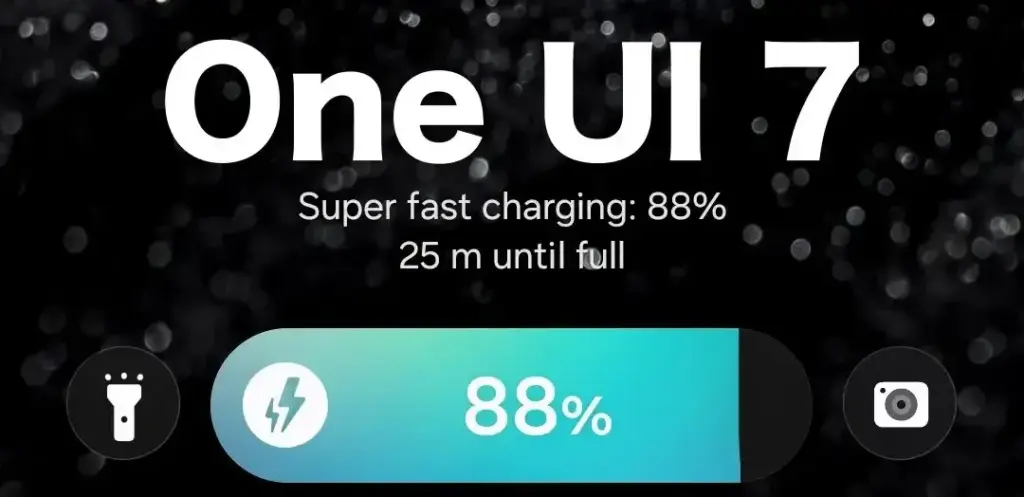
    Samsung’s work with One UI 7 is evident, from the smooth system animations to the general fluidity. The experience rivals iOS in polish and feels substantially better than other Android skins. You will not encounter sporadic lags or stutters. The new charging animation demonstrates Samsung’s attention to detail in One UI 7.
    One UI 7 Charging animation

    If you put in your Galaxy phone to charge when the display is turned off, a charging pill with a slick animation appears at the bottom, where the Now Bar resides. It does not appear in extreme brightness, but rather in a dimmed state. When you are in a dark room, the phone automatically adjusts the brightness to make it even darker. The charging information can be displayed even when the screen is turned off.

    One UI 7 is really improved

    Samsung’s Android skin offers a feature-rich experience, including useful multitasking options. Still, it felt like One UI lacked the polish and attention to detail that Pixel UI and iOS possessed.

    With One UI 7, Samsung steps up, demonstrating that when it wants to, it can create a professional and well-rounded Android experience while correcting some of its long-standing faults. So it is sad that the focus on One UI 7 is primarily on its rollout delays, rather than the polish and enhancements it delivers.
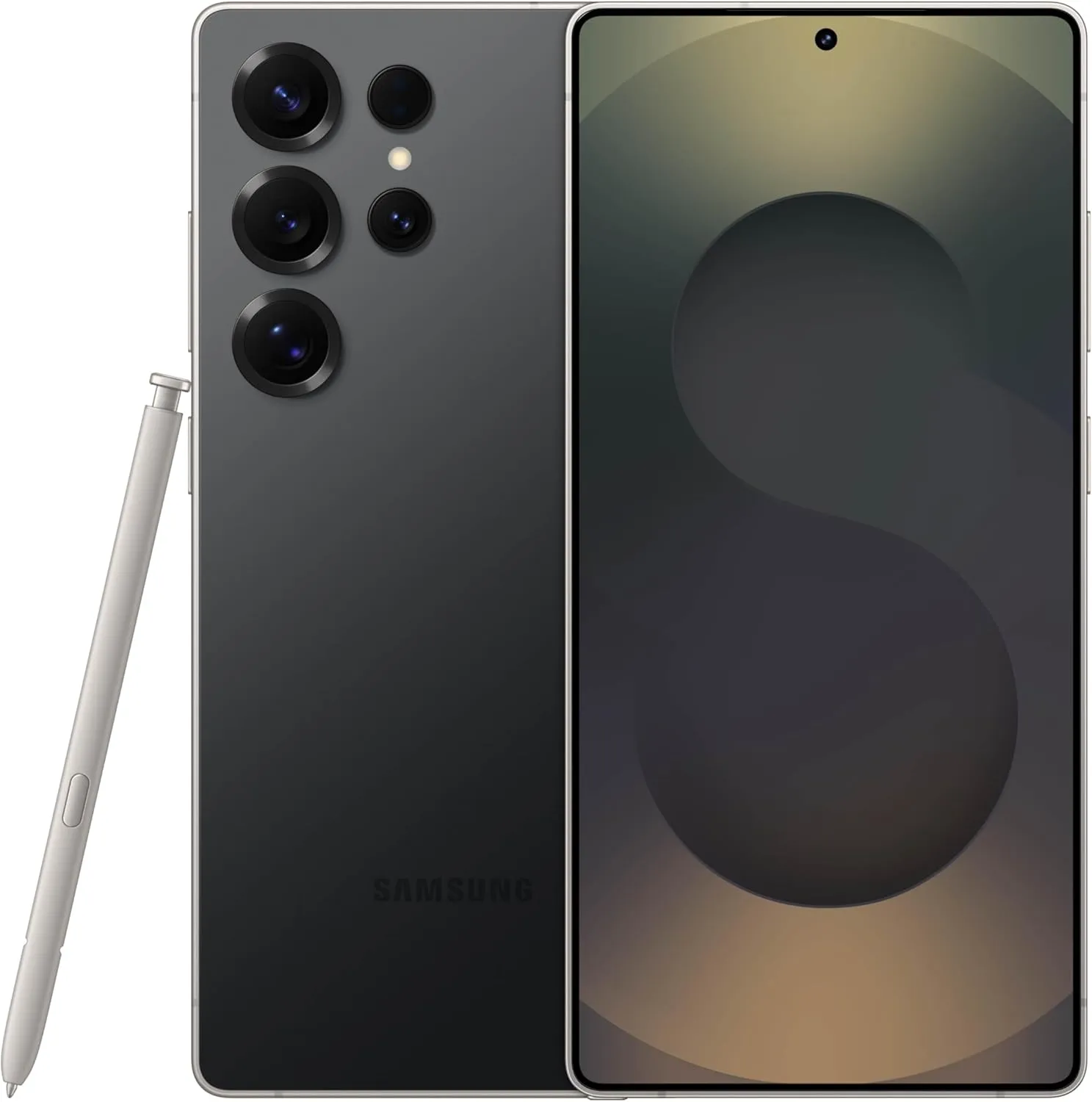
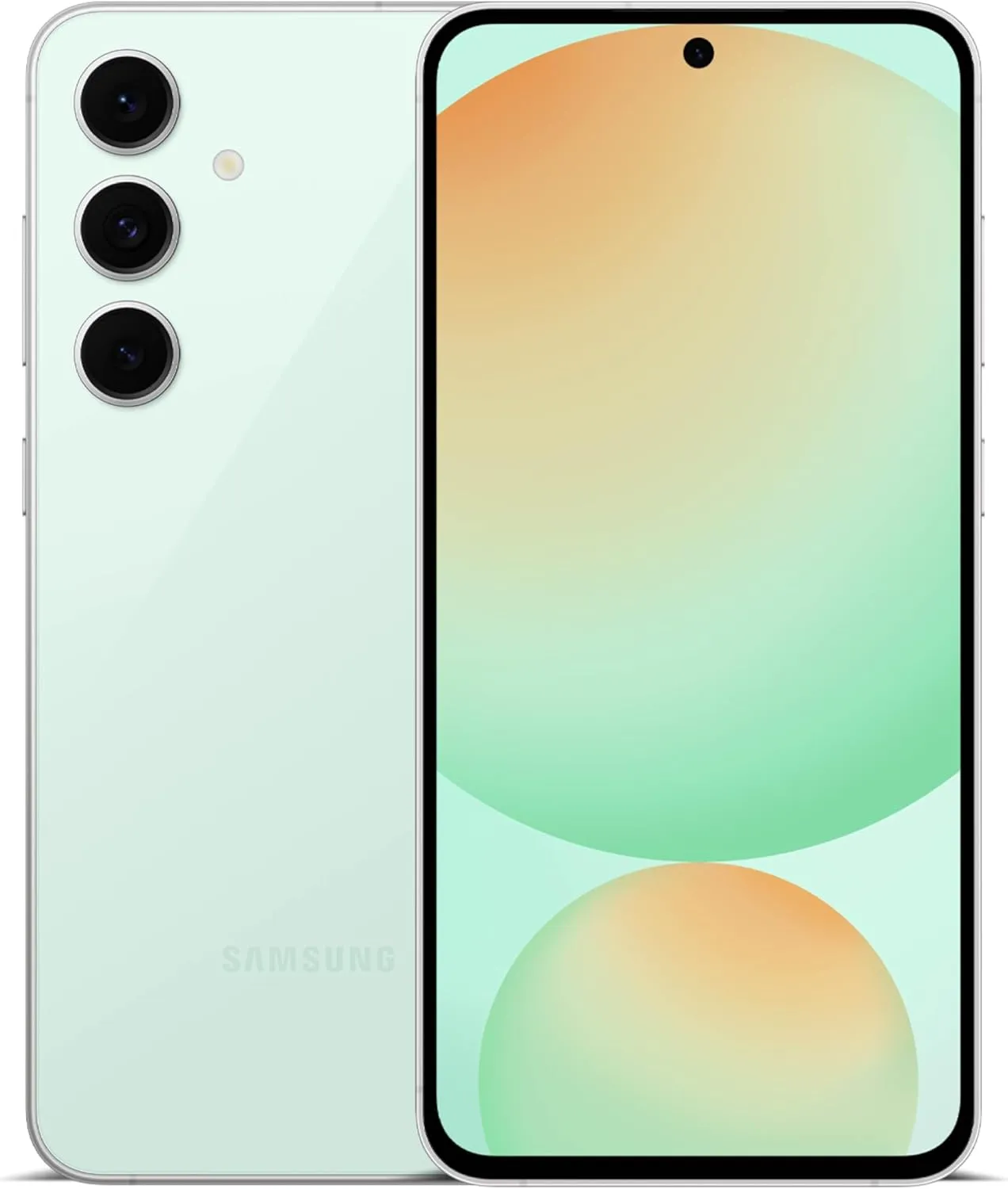
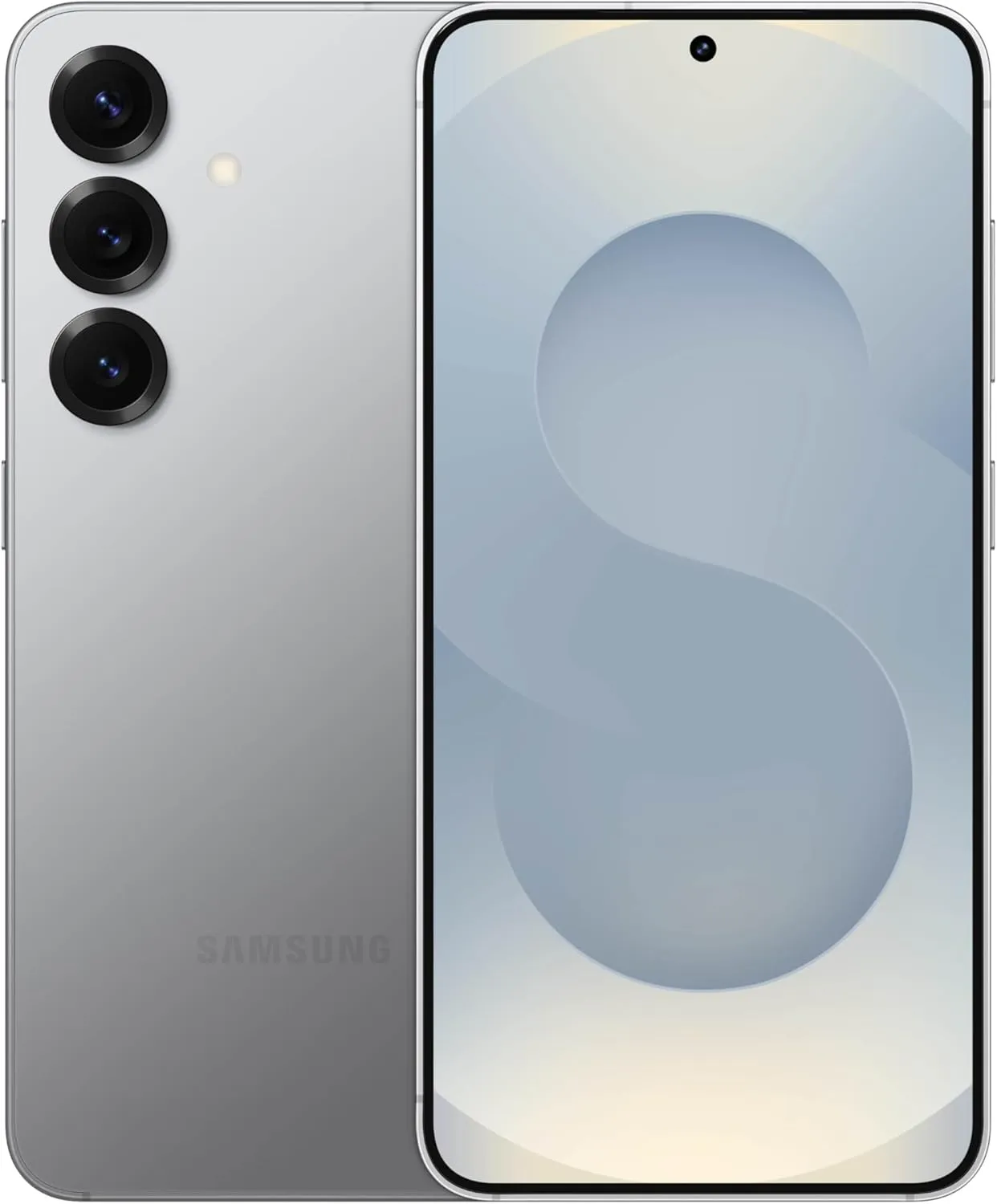
    SAMSUNG Galaxy S25 Ultra
    $1,299.99$1,067.99Amazon
    SAMSUNG Galaxy S24 FE
    $709.99$559.99Amazon
    SAMSUNG Galaxy S25
    $799.99$717.99Amazon
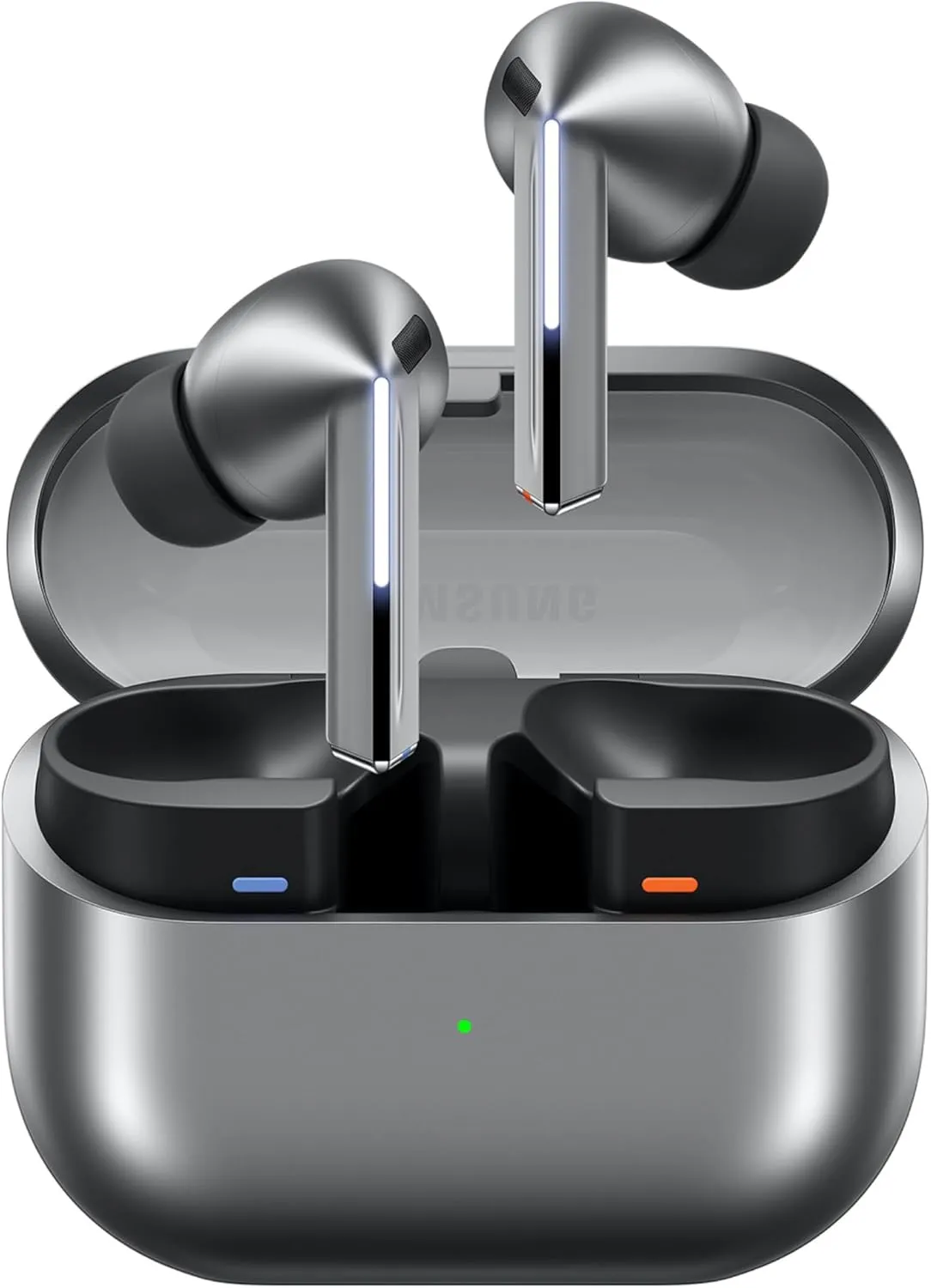
    SAMSUNG Galaxy Buds 3 Pro AI
    $249.99 $199.99Amazon
  • Samsung announced One UI 7 release schedule

    Samsung announced One UI 7 release schedule

    Samsung released the release schedule (via Tarun) for numerous other devices that qualify for the upgrade shortly after beginning the deployment of the official One UI 7 update for the Galaxy S24 series, the Galaxy Z Fold 6, the Fold SE, and the Flip 6.

    Our dread has been realized: the April update will only be available for flagship devices released within the last two years. In May and June, the update will be released for other devices.

    samsung reveals one ui 7 release

    The complete list of devices and the month they will get the update is as follows:

    • April: Galaxy S24/S24+/S24 Ultra, Z Fold 6, Z Flip 6, Z Fold Special Edition, Galaxy Z Fold 5, Z Flip 5, Tab S10+/S10 Ultra, S23/S23+/S23 Ultra, S24 FE
    • May: Galaxy Z Fold 4, Z Flip 4, Tab S9/S9+/S9 Ultra, S23 FE, Z Fold 3, Z Flip 3, A34, A35, S22/S22+/S22 Ultra, Tab S8/S8+/S8 Ultra, S21/S21+/S21 Ultra, Galaxy A16, Galaxy Quantum 5, Galaxy Quantum 4
    • June: Galaxy Tab S9 FE/S9 FE+, Galaxy A53, A33, A25, A24, A15, Quantum 3, Jump 3, Jump 2, Buddy 3, Galaxy Tab A9/A9+, Tab Active 5, Tab Active 4 Pro, Wide 7

    Although the Korean market was the focus of this plan, most smartphones in other countries should receive the update at roughly the same time. Notably, some devices, such as the Galaxy S21 FE and the Galaxy A73, are not on the list because they were not released in Korea, and we are unable to predict when they will receive the update until Samsung releases the release timetable for other nations.

    Although we will have to wait and see if the firm can truly do that, we are crossing our fingers that Samsung will finish the rollout for all eligible devices by the end of June. Working on One UI 8, which will be preloaded on the Galaxy Z Fold 7 and Galaxy Z Flip 7, may be Samsung’s only option.

  • Drastically improve the user experience on any Samsung with OneUI

    Drastically improve the user experience on any Samsung with OneUI

    Samsung’s One UI 7 is now my favorite Android skin. It is quick, responsive, and simple. However, nothing is pre-programmed for your specific experience. You should personalize your smartphone to make it more appealing. I modify about a dozen settings on each Samsung Galaxy phone to better fit my needs, and I believe these will improve your user experience as well.

    Here are some OneUI settings that I recommend adjusting to improve your Galaxy phone experience, ranging from selecting the highest attainable screen resolution to adding extra privacy-focused features. Please be aware that some settings may be phone-specific.

    Switch to gesture navigation

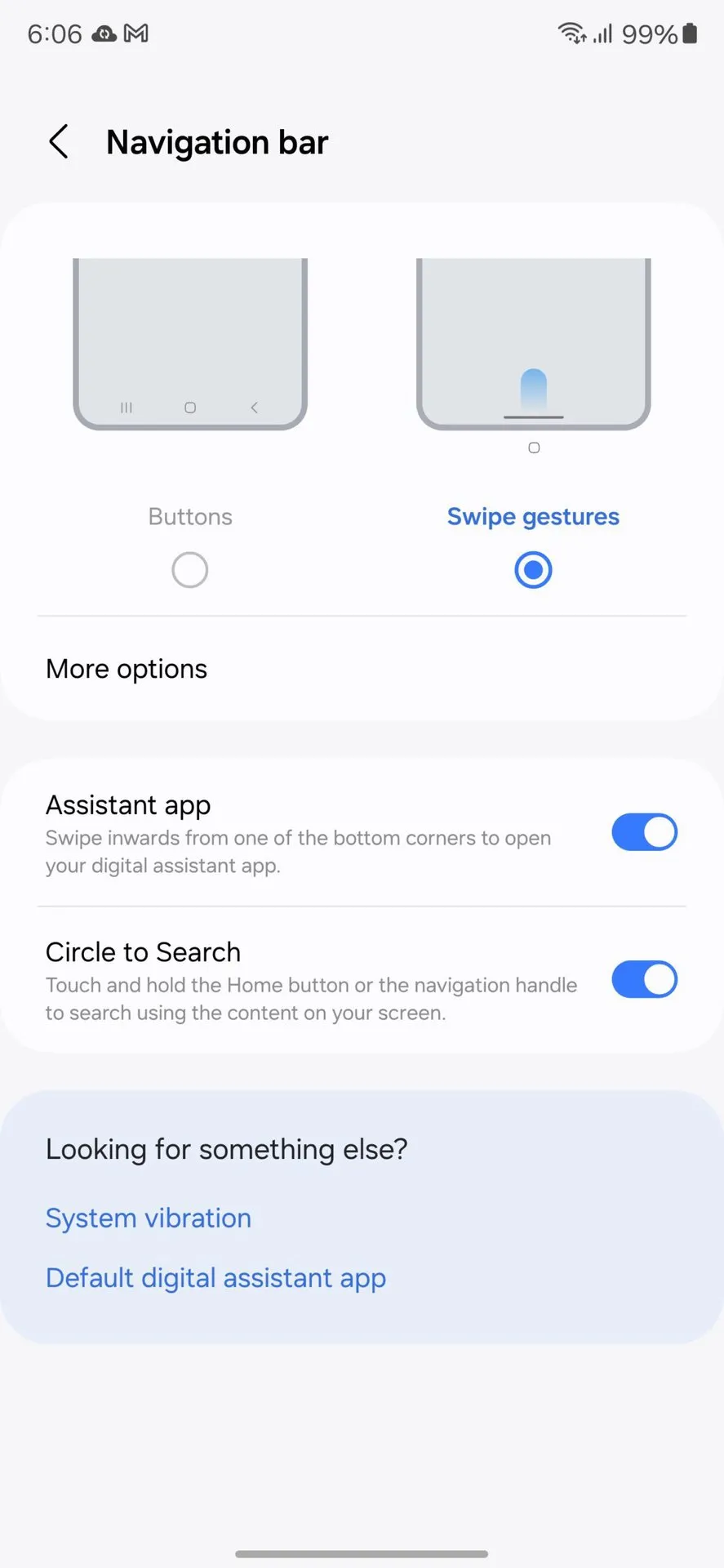
    Unless you are setting up your new Samsung Galaxy phone from an older model, it will use the outdated three-button navigation mechanism. If you enjoy it, that is OK. However, I find Android’s gesture navigation more intuitive—everything is a swipe away rather than an on-screen button.

    If you want that, you can change the system navigation to gestures by going to Settings > Display > Navigation bar > Swipe gestures.

    OneUI Navigation gestures

    Set screen resolution to high – QHD+

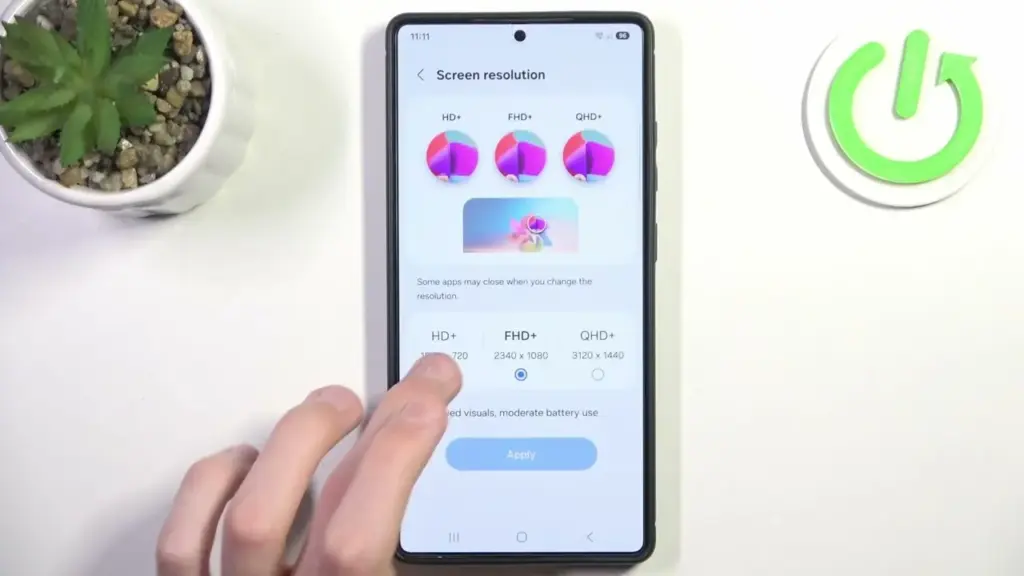
    The Samsung Galaxy S25 Ultra boasts the finest smartphone display available right now. It is less reflective and has better color display than its predecessor, thanks to second-generation Gorilla Armour. You have a great QHD+ screen, but it is not set to that resolution by default.

    To have the best possible viewing experience, navigate to Settings > viewing > Screen resolution. The Ultra will consume more battery, but it is an efficient smartphone. Even after maxing out the screen resolution, I still have an all-day battery life.

    samsung oneui change screen resoltuion to QHD+

    Adjust the lock screen notifications.

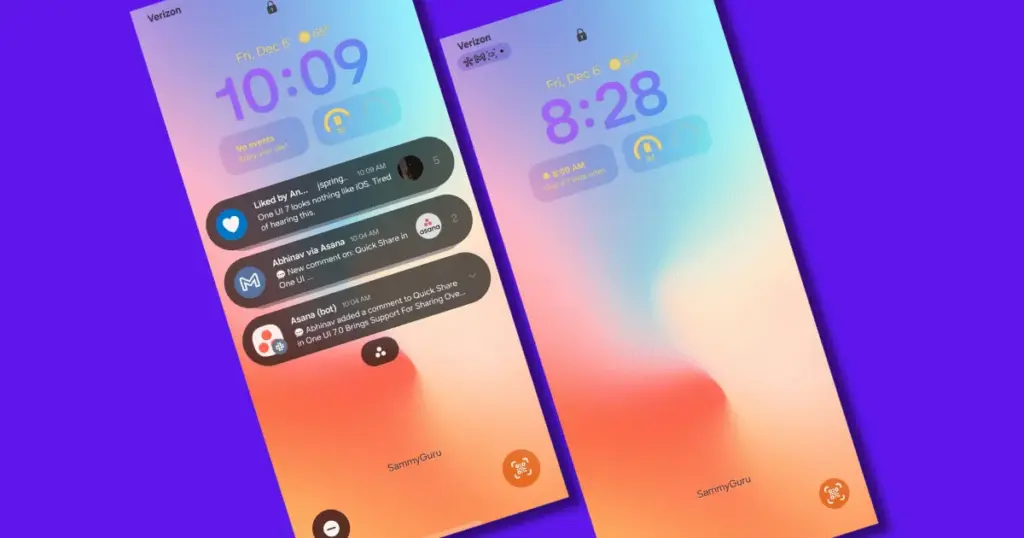
    One UI 7 has modified the way notifications appear on your lock screen. It is set to display icons in the top left corner by default, which is a significant departure from the prior card view. I prefer that apps display notifications in the latter way. To modify this, navigate to Settings > Notifications > Lock screen notifications > Cards.

    I also hide important notification content on the lock screen since I do not want anyone walking up to my phone and reading my personal communications. To modify this setting, select Hide content from the same Lock screen notifications menu.

    Adjust the lock screen notifications. oneui Samsung galaxy

    Uninstall the bloatware

    Samsung Galaxy phones provide numerous apps that you may not utilize. Unlike prior years, you may now remove or disable them to conserve memory. For example, I do not own a Samsung TV and do not want the Microsoft CoPilot app on my phone, so I uninstall both TV and CoPilot. Other programs that I disable or uninstall include Facebook, Samsung Tutor, and OneDrive.

    Always-on display

    Samsung phones have efficient screens; make the most of them by enabling everything, including the Always On display. I enjoy having the time, day, and date information there on the screen, accessible at a look. Samsung defaults to the Tap to see setting, which requires you to tap on the screen to access information.

    I recommend altering that to Always to make it more useful. Navigate to Settings > Lock Screen and AOD > Always-On Display > Always. You may select whether or not to display the wallpaper; I have set it to only display a black screen to save battery life.

    Always-on display on Samsung and oneui7

    Homescreen customization

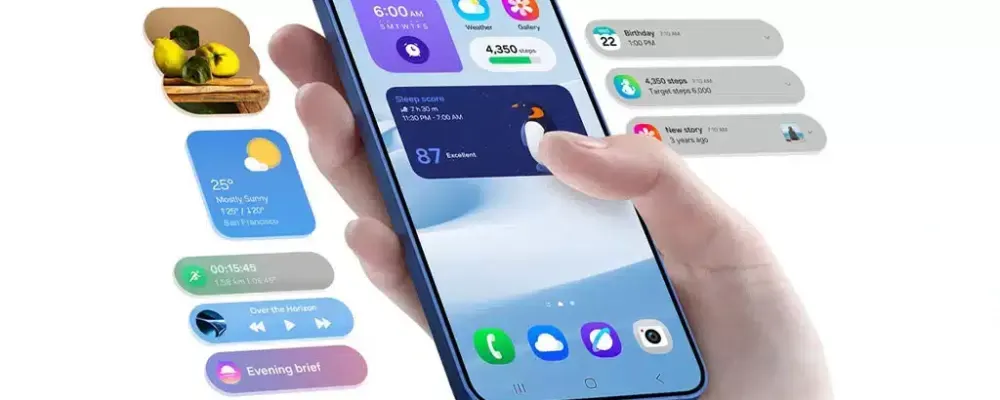
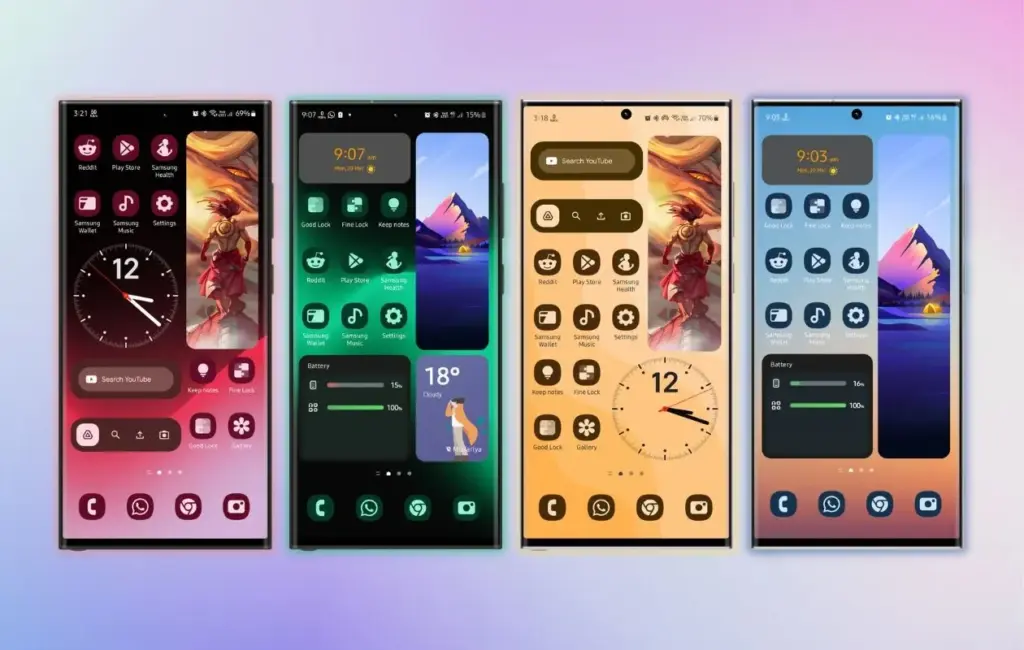
    Samsung’s phone widgets are among the best available. I enjoy the Calendar widget since I can change the transparency. As a consequence, it looks nicer and retains functionality while preserving the structure of my home screen. I set it at the top so that everything is just a glance away, but it never asks for attention, unlike other opaque Calendar widgets.

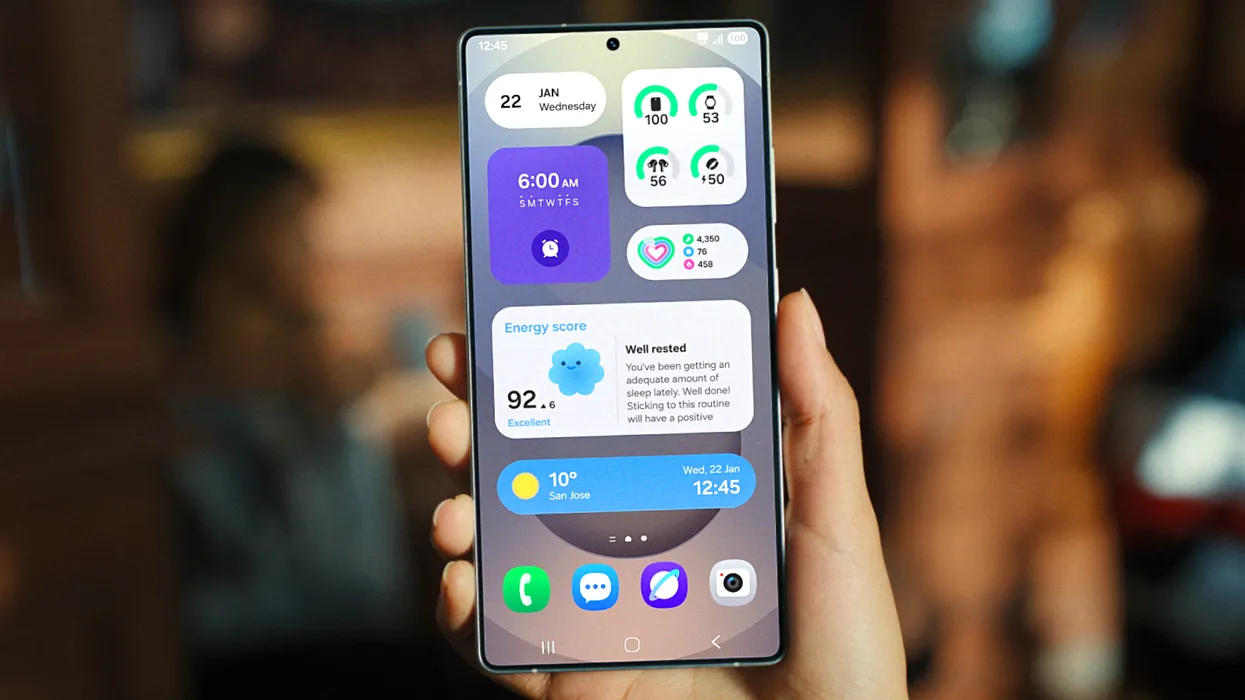
    Also, change the icon grid to a 5×5 layout to permit more icons in the bottom row. They are only a thumb tap away. In addition, I apply my wallpaper color tones to the program icons for a more appealing appearance. To apply wallpaper colors to the entire system, navigate to Wallpaper and Style > Color Palette and turn it on. It is not flawless, and some icons may still be unsupported. However, it appears better than the standard colors.

    Homescreen customization on Samsung galaxy phone with OneUI
    samsung galaxy s25 ultra

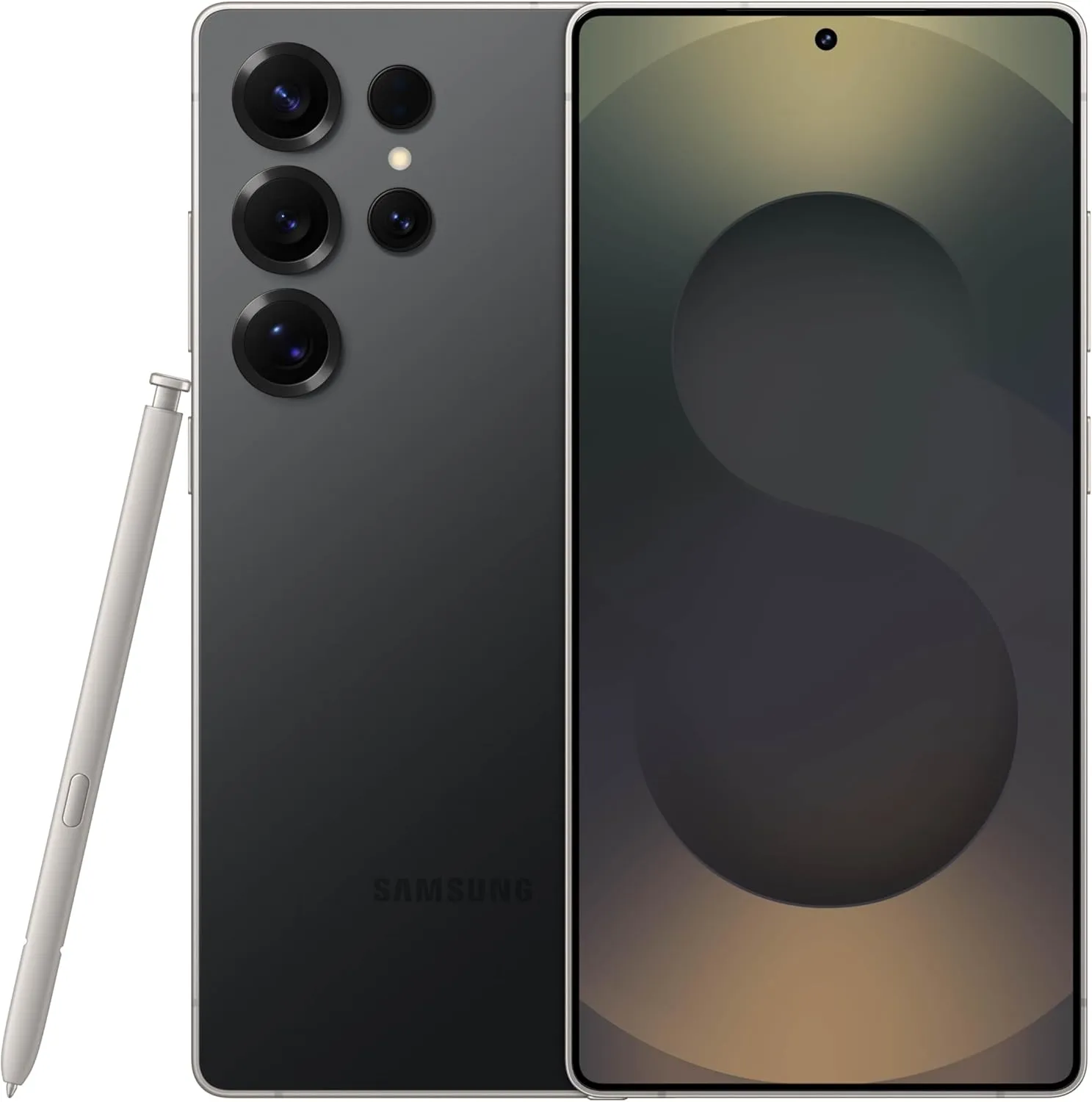
    SAMSUNG Galaxy S25 Ultra

     Streamline your day with an assistant that gets you. Ask it to Google search for a pet-friendly vegan restaurant nearby and text it to your friend— your Galaxy S25 Ultra handles multiple tasks with a single ask.

    Best choice
    $1,299.99$1,141.75See It

    Other things I do on my Galaxy phones include switching to Google Keyboard and organizing the home drawer icons alphabetically for easier navigation. Samsung phones are among the best on the market. While they do not promise groundbreaking features, they are dependable and provide the most refined user interface with One UI. Simply modify these few options, and you will be all set.

  • One UI 7 adopts Vulkan support boosting performance like never before

    One UI 7 adopts Vulkan support boosting performance like never before

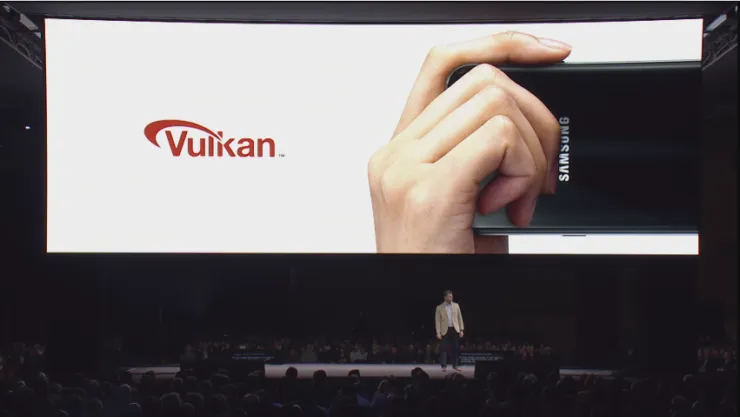
    The largest update in years is One UI 7, which is based on Android 15. Samsung has made numerous optimizations, performance enhancements, and UI changes. Vulkan system-wide integration is another feature of One UI 7 that offers numerous advantages.

    The API is now supported across the board in Samsung’s One UI 7 update for Android 15. This important connection allows more programs to default to Vulkan rendering, including UI components. Users of the Galaxy with One UI 7 can anticipate:

    • Smoother animations and transitions
    • Better gaming performance
    • More efficient battery usage
    • Potentially better visual effects with lower power consumption

    Compared to more antiquated APIs like OpenGL and DirectX, Vulkan is intended to offer more efficiency and control over GPU resources. Lower CPU overhead, improved multi-core CPU usage, more direct GPU control, and cross-platform compatibility are some of its salient characteristics.

    vulkan on mobile games

    How was the One UI 7 x Vulkan update made public?

    A perceptive A UI 7 Beta tester observed that the Galaxy S24’s graphics API varies. The system was using the new API in the initial beta version, but in the subsequent beta releases, it reverted to OpenGL.

    One of Samsung’s Beta employees arrived to verify the update after the disclosure generated discussion in the community. Vulkan is now more widely supported as a system-level graphics API for applications and user interface components with the new One UI 7.

    Yes, Android 15 (and by extension, One UI 7) has broader support for Vulkan as a system-level graphics API, and in some cases, apps and UI elements may default to Vulkan where supported.

    Samsung (US Community Moderator)

    The moderator also disclosed that during continuous testing, the graphics API fluctuates based on compatibility or stability issues. Additionally, the rendering behavior may change based on performance optimization, app compatibility, or device.

  • Samsung One UI 7 sneak peek – a beautiful new look

    Samsung One UI 7 sneak peek – a beautiful new look

    Samsung basically teased their major One UI 7 update with a two-minute video that was just released. They are all getting ready and showcasing some of the exciting things that are on the horizon. In addition to letting us know that One UI 7 will soon be available for the Galaxy S24 and older phones, they are also using it to sort of encourage people to buy the new Galaxy S25. At last! Up until now, we had only seen it in beta.

    According to Samsung, One UI 7 will be far more “you” than it has ever been. Like, more natural, more user-friendly, and more intimate. They are showcasing Google’s Gemini, “Now Brief,” “Now Bar,” “Sketch to Image,” and various AI-powered search tools.

    Samsung One UI 7 sneak peek -

    The teaser video from Samsung hints at a few UI 7 features.

    This video now? It is only a preview. We are not seeing everything. However, the timing is intriguing. It is obvious that they are preparing for a big release.The strange aspect is that last week, they announced that the S24, Z Flip 6, and Z Fold 6 updates would be available in certain locations beginning on April 7, 10, and 14. However, they later retracted the April 10th date for the US, which gave them a somewhat uncertain appearance.

    https://www.youtube.com/watch?v=P4AEIu3V6F4

    In essence, Samsung is building anticipation for One UI 7, but they are being a little reticent about when it will be released. The only thing we can do is wait and see when it lands. However, before that, you may see if your Samsung Galaxy phone is compatible with the company’s recently announced seamless updates function, which installs updates while you are still using your phone, saving you time waiting for it to restart.

    The business claims that if your Galaxy phone was released prior than 2025, it probably does not enable seamless updates. The Galaxy A55 is an odd outlier. But anything starting in 2025? It ought to have it.

  • Samsung One UI 7 officially rolling up in April

    Samsung One UI 7 officially rolling up in April

    The release date of Samsung’s upcoming major software upgrade, One UI 7.0, for Galaxy customers has finally been revealed. Early April 2025 is when the Android 15-based update is expected to launch, most likely with the Galaxy S24 series before moving on to previous flagships and a few mid-range devices.

    You are not the only one who has been anticipating this update; Samsung has been testing One UI 7.0 through its beta program for months in order to improve the user experience prior to its official release. What specifically does this upgrade offer, though? Let us dissect it.

    Rollout Plan for One UI 7.0

    Multiple beta updates have been released since Samsung launched its One UI 7.0 beta program with the Galaxy S24 series in December 2024. Samsung is now anticipated to deliver a few more beta upgrades prior to the final deployment, with the stable version approaching.

    The Galaxy S24 series should be the first to get the update, followed by: Galaxy S23 series Galaxy Z Flip 6 Galaxy Z Fold 6 Galaxy A55

    Galaxy S23 series

    Galaxy Z Flip 6

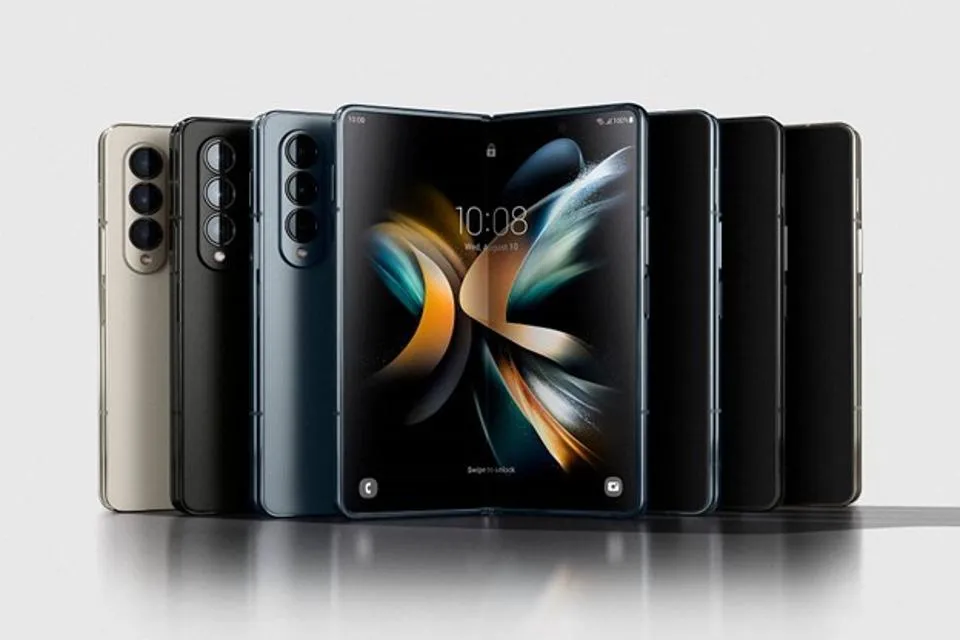
    Galaxy Z Fold 6

    Galaxy A55

    In order to provide tablets a preview of the new software prior to its official release, Samsung is also extending the One UI 7.0 Beta Program to additional devices, such as the Galaxy Tab S10 series.

    What’s New in One UI 7.0?

    New in One UI 7.0

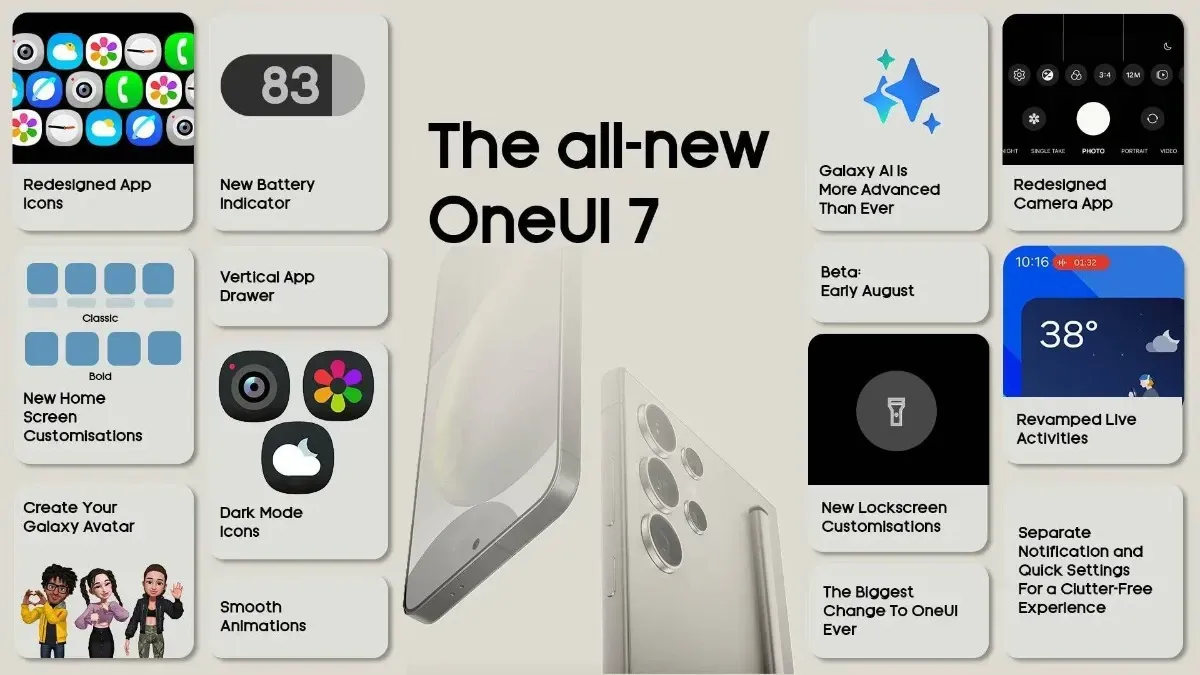
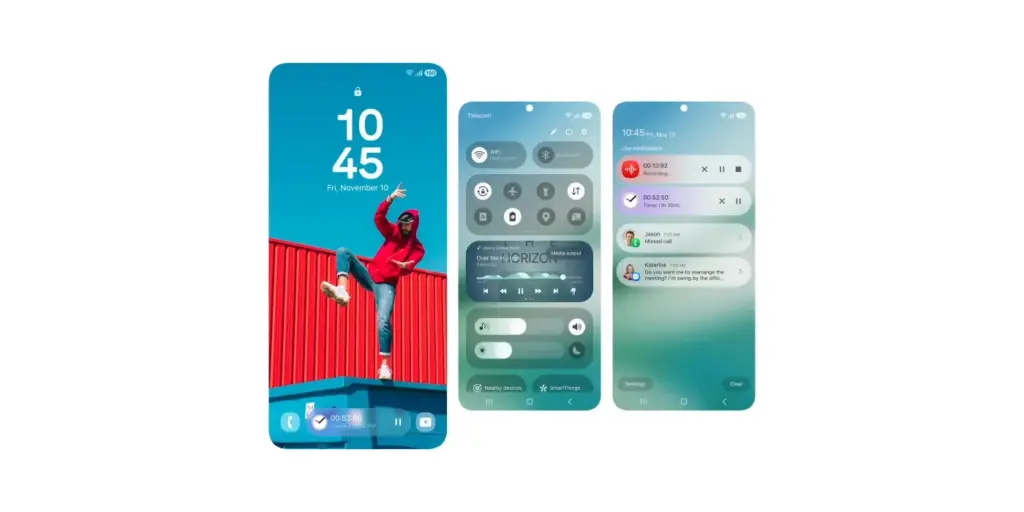
    One UI 7.0 is not just another small update; it also brings a new look and a number of usability and performance enhancements. What is noteworthy is this:

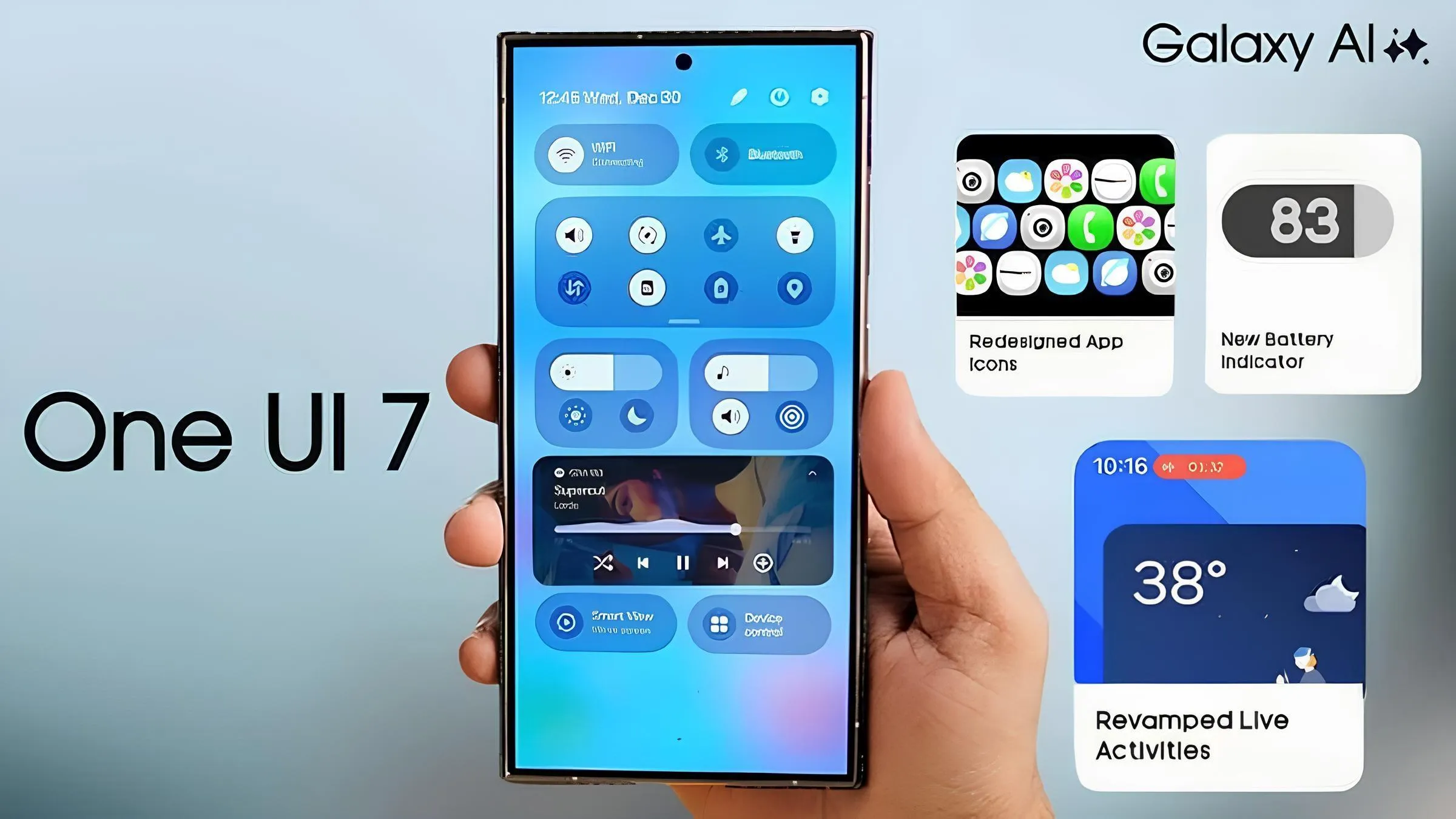
    Redesigned Quick Panel – A cleaner, more intuitive way to access essential settings.

    Smoother Animations & Transitions – Lighter, faster, and designed to improve the overall experience.

    Updated Iconography – A new look for system icons to match the refreshed design language.

    Now Bar – A persistent status bar that shows ongoing activities at a glance.

    Revamped Camera App – Controls are now easier to reach for one-handed use.

    New Battery Icon & Charging Animations – A subtle but noticeable visual upgrade.

    AI Features & Performance Optimizations

    The software’s AI-powered capabilities may be one of the reasons Samsung has taken its time with One UI 7.0. Samsung is probably striving to make sure its infrastructure can support these AI features across its wide range of devices, as some of them may need cloud processing.

    You will not have to wait long for One UI 7.0 if you are using a high-end mid-range mobile or a recent Samsung flagship. This version aims to provide a more sophisticated user experience than a mere refresh thanks to a revamped UI, smoother animations, and AI-driven optimizations.

    Samsung still has a few beta updates to go, but by April, Galaxy users should finally get the stable version.

  • One UI 7 Beta 4 could be the final beta release

    One UI 7 Beta 4 could be the final beta release

    Samsung has not yet finished the Galaxy S24 beta phase, but it promised a stable One UI 7 update, based on Android 15, for qualified Galaxy S models by Q1. One UI 7 Beta 4 has now been made available; it is a more compact upgrade than earlier iterations, but it includes a crucial camera function from the Galaxy S25.

    Beta testers started posting on Reddit and other social media platforms that One UI 7 Beta 4 had begun to arrive on their devices a little more than a day ago. The United States, India, South Korea, and a few European nations are now implementing the update. The firmware is marginally smaller than earlier betas, with an average size of 1.4 GB, depending on the carrier and area.

    Log Video is available on Galaxy S24 on One UI 7 Beta 4

    Although the main focus of Beta 4 is bug repairs and speed enhancements, the Galaxy S24 trio now supports log (logarithmic) video recording, a capability that was formerly available with the Galaxy S25 and Galaxy S25 Ultra.

    Photographers and videographers can benefit from log video recording in a number of ways. It has a flat color profile, which gives post-production color grading and editing more freedom, and a higher dynamic range, which preserves more details in highlights and shadows.

    However, when compared to regular video recording, this format uses more storage space. Users must activate log video from the advanced video options in order to use it. Both pro mode and regular video mode are available for activation.

    getting one ui 7 beta 4 on my unlocked s24 ultra in us sc v0 12r9h8h0abke1

    One UI 7 Beta 4 Changes

    AI-powered camera filters are yet another noteworthy inclusion in Beta 4. These comprise pre-built filters like Shiver, Crystal, Breeze, Pulse, and Chill, to name a few. Additionally, users can use pre-existing photos to create custom filters.

    In addition to these enhancements, the firmware fixes a number of problems and improves performance. Notably, it improves performance in other areas while resolving some difficulties with the quick panel and home screen.

    Will this be final beta release?

    Whether One UI 7 Beta 4 is the last beta release or how many more Samsung intends to issue before the Galaxy S24 series’ stable release is still unknown. Samsung has reaffirmed its goal to provide the stable One UI 7 version by the first quarter of 2025. The distribution schedule is yet unknown for other devices, including as the Galaxy S23 series, Galaxy Z Fold 6, and Galaxy Z Flip 6. Whether these devices would go straight to the stable release or undergo a beta period has not been verified by the South Koreans.

    Some speculation suggests that One UI 7 could be skipped entirely, with Samsung instead opting to launch One UI 7.1 or even One UI 8.0 based on Android 16.

  • One UI 7 rollout – will your Galaxy device get Android 15?

    One UI 7 rollout – will your Galaxy device get Android 15?

    Based on Android 15, Samsung’s One UI 7 represents a significant shift from their usual release timetable. The beta program ended after just one month, having been launched in December of last year. Samsung has now released further details about the One UI 7 rollout for Galaxy smartphones and tablets ahead of the release of the Galaxy S25. Find out which models will receive the update initially.

    One UI 7 will come to S series

    One Ui 7 1

    Samsung is trailing behind in the implementation of Android 15, which is bad for a company that generally sets the pace. Xiaomi and OnePlus have already released their updates, while Samsung appears to be taking its time. After launching last month, the One UI 7 beta ended last week, but what about the stable version?

    According to Samsung’s most recent press release, on January 22, 2025, the new Galaxy S models will receive the stable One UI 7 update. Translated, earlier flagships, such as the Galaxy S24, S23, S22, and S21, will have to wait their time, while the Galaxy S25 series is expected to come pre-installed with One UI 7. And those who own Galaxy S20s? I apologize, but Android 14 was the end of your life.

    Devices like as the Galaxy Z Fold 6, Galaxy Z Flip 6, and Galaxy Tab S10 Ultra are noticeably absent from the roadmap. With Samsung’s history, we will likely learn more after the Galaxy S25’s release, which is expected to come pre-installed with One UI 7. However, for the time being, there is a significant silence, which disappoints those who anticipate more frequent updates from Samsung.

    Other samsung Galaxy series?

    Although Samsung has not yet released an official list of Galaxy devices that will receive Android 15, we can speculate. Although the deployment for these smartphones is probably going to lag behind the flagship updates, One UI 7 should ultimately make its way to mid-range and budget models based on their software strategy.

    For now, we have put together a list of Galaxy tablets and smartphones that should get the upgrade, with an emphasis on models whose software support lasts until 2025 and beyond. Naturally, this list is merely conjectural and will be revised as soon as Samsung officially announces the lineup.

    Galaxy A series

    A Series 2024 Hero Image V02 e17

    With Android 15, Samsung’s versatile Galaxy A series is about to receive a major update that will bring the newest features to these well-liked mid-range phones. This significant update is anticipated for many recent A series models as Samsung continues to fortify its software support policy. From better photography capabilities to more effective battery management, the new Android version promises to improve the well-balanced blend of features that fans of the A series adore. Android 15 will deliver a new wave of enhancements to keep your Galaxy A handset feeling powerful and up to date when combined with Samsung’s One UI 7 interface.

    • Galaxy A05s
    • Galaxy A06
    • Galaxy A14 4G
    • Galaxy A14 5G
    • Galaxy A15 4G
    • Galaxy A15 5G
    • Galaxy A16
    • Galaxy A24
    • Galaxy A25
    • Galaxy A33
    • Galaxy A34
    • Galaxy A35
    • Galaxy A53
    • Galaxy A54
    • Galaxy A55
    • Galaxy A73

    Galaxy S series

    Samsung’s flagship Galaxy S series is set to take the lead in getting the much awaited Android 15 and One UI 7 upgrade, carrying on the company’s custom of giving priority to its high-end smartphone portfolio. Owners of newer Galaxy S models can anticipate using Samsung’s improved One UI interface in conjunction with the newest Android improvements. It is anticipated that this update would further enhance the premium experience of the Galaxy S series by introducing cutting-edge security measures, improved performance optimizations, and enhanced AI capabilities.

    • Galaxy S21
    • Galaxy S21+
    • Galaxy S21 FE
    • Galaxy S21 Ultra
    • Galaxy S22
    • Galaxy S22+
    • Galaxy S22 Ultra
    • Galaxy S23
    • Galaxy S23+
    • Galaxy S23 FE
    • Galaxy S23 Ultra
    • Galaxy S24 FE
    • Galaxy S24
    • Galaxy S24+
    • Galaxy S24 Ultra

    Galaxy Z series

    • Galaxy Z Flip 3
    • Galaxy Z Flip 4
    • Galaxy Z Flip 5
    • Galaxy Z Flip 6
    • Galaxy Z Fold 3
    • Galaxy Z Fold 4
    • Galaxy Z Fold 5
    • Galaxy Z Fold 6

    Galaxy M series

    With Android 15, Samsung’s well-liked mid-range Galaxy M series is expected to get a significant update that will provide new features and enhancements to these reasonably priced gadgets. Samsung has remained committed to offering prolonged software support for the M series family, even though the precise rollout schedule may differ depending on the model. With improved energy management, enhanced speed, and new customization choices, this update promises to improve the user experience and revitalize your Galaxy M device.

    • Galaxy M14 / F14
    • Galaxy M15 / F15
    • Galaxy M34 5G
    • Galaxy M35
    • Galaxy M54 / F54
    • Galaxy M55 / F55 / C55

    Galaxy XCover series

    • Galaxy XCover 6 Pro
    • Galaxy XCover 7

    Galaxy Tab series

    With the next Android 15 upgrade, Samsung’s Galaxy Tab portfolio is poised to embrace the next evolution of Android and promises to revolutionize the tablet experience for users across all Tab models. It is anticipated that this upgrade will include tablet-optimized features that will improve productivity tools and multitasking abilities as tablets continue to gain significance for both work and play. Many current Galaxy Tab models, ranging from the high-end S series tablets to the more reasonably priced A series tablets, will get this important update as part of Samsung’s dedication to expanding software support for its tablet lineup. The goal is to provide an even more sophisticated and powerful tablet experience by combining the improvements of Android 15 with Samsung’s tablet-focused One UI 7 enhancements.

    • Galaxy Tab A9 / A9+
    • Galaxy Tab Active 4 Pro
    • Galaxy Tab Active 5
    • Galaxy Tab S6 Lite 2024
    • Galaxy Tab S8
    • Galaxy Tab S8+
    • Galaxy Tab S8 Ultra
    • Galaxy Tab S9
    • Galaxy Tab S9+
    • Galaxy Tab S9 Ultra
    • Galaxy Tab S9 FE / S9 FE+
    • Galaxy Tab S10+
    • Galaxy Tab S10 Ultra
    samsung one ui7 feature leak 6

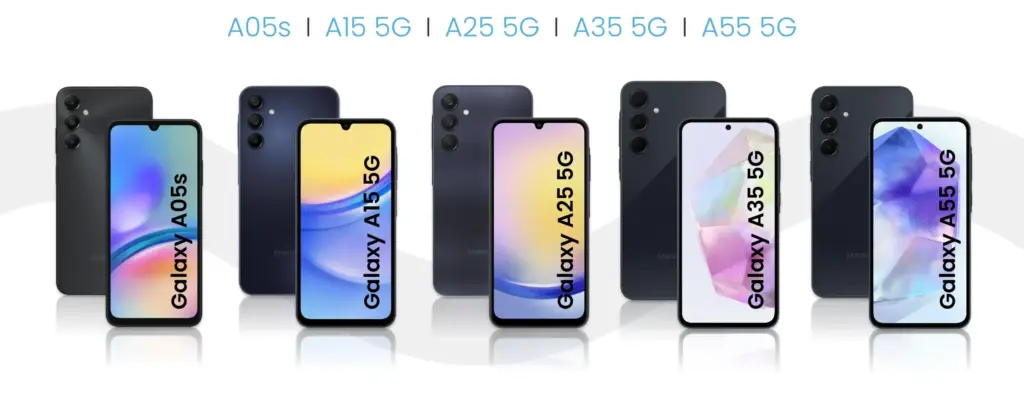
    Besides the models listed above, all models released throughout 2024 should also be eligible for the Android 15 upgrade. This includes the entry-level models announced in the first week of the year, such as the Galaxy A05s, A15, and A25, and the recently unveiled Galaxy A06 and Galaxy A16.

    As in the past few years, we expect to see Samsung confirm its list of Galaxy phones and tablets eligible for the Android 15 update as soon as it starts updating the first model. The list is traditionally shared on the Samsung Members app with the expected timeframe for the update on the phone’s market. When that happens, we will update this list to follow the rollout, so be sure to bookmark this page and follow us on social media.

    As in previous years, as soon as Samsung begins upgrading the first model, we anticipate seeing the confirmation of its list of Galaxy phones and tablets that are eligible for the Android 15 upgrade. Traditionally, the list is made available on the Samsung Members app along with the anticipated release date for the phone. Make sure you bookmark this page and follow us on social media as we will update this list to reflect the launch.

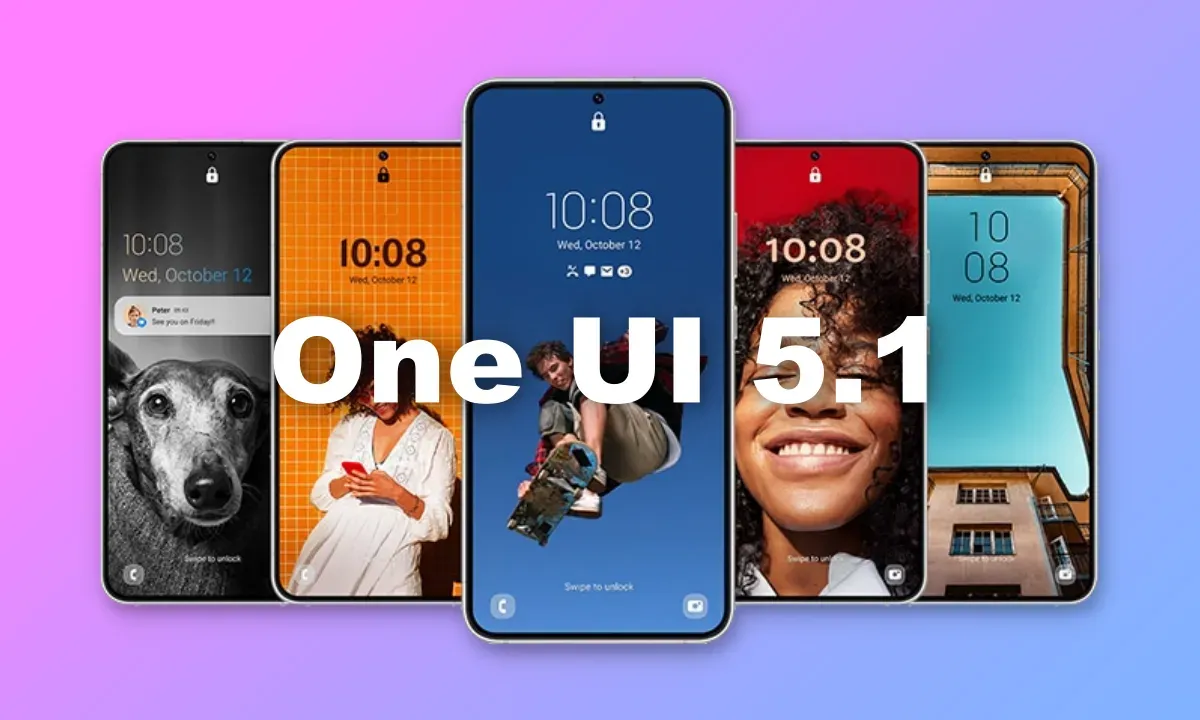
  • OneUI 5.1 full features list – #leak

    OneUI 5.1 full features list – #leak

    Snoopy Tech, a Twitter tipster, has published a number of documents that appear to be original Samsung docs. The sites add to the previously disclosed material we revealed in the original post below by listing the complete One UI 5.1 changelog.

    The information in the tweets below also includes some existing OneUI 5 features, but the new ones are marked with “5.1” next to their description. Features market with the number “1” are those that’ll be exclusive to the Galaxy S23 series, S21 Ultra, Note 20 Ultra, S20 Ultra, Z Fold 4, Z Fold 3, and Z Fold 2.

    https://twitter.com/_snoopytech_/status/1619654367543701504

    Samsung’s flagship Galaxy S23 devices with OneUI 5.1 will go on sale. Older Galaxy flagships are also anticipated to receive the new software, although initially, it appears that the Galaxy S23 series will get some special features.

    The new OneUI 5.1 features and updates are now clear to us thanks to a thorough leak from WinFuture. Instead of making substantial design modifications, the program will introduce a variety of functional enhancements. The entire OneUI 5.1 changelog has been placed at the end of this article. Let’s discuss some of the most noticeable modifications that the new software is expected to make for the time being.

    What’s new?

    With OneUI 5.1, the Gallery app is expected to receive the most new features. Now, you may share albums with your loved ones. By utilizing AI to recognize family members’ faces, the app will suggest images to add to your family albums. For what it’s worth, this function is already available in Google Photos. Up to six family members will each receive 5GB of free media storage from Samsung.

    Additionally, the Gallery app’s search function is getting more practical. Now, you can look up multiple people at once. Instead of utilizing their tagged names, you may also search for people by looking up their faces.

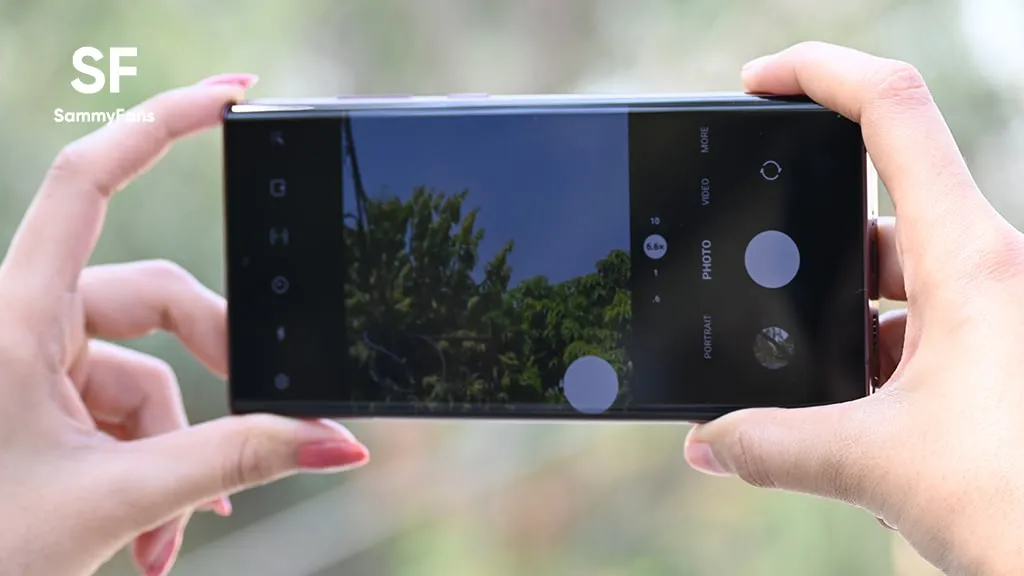
    With the Effects button on the side of the screen in the Camera app, OneUI 5.1 will make it simple to alter the color of selfies. The Advanced menu now makes it simple to use the Expert RAW app as well.

    oneui camera raw

    With OneUI 5.1, the AR Emoji Camera also gains greater functionality. Now, you can use Mask mode to take pictures of up to three people and swap out their faces for emojis.

    OneUI 5.1 also has a new battery widget. From your home screen, you can check the battery life of your phone and any Galaxy devices that are connected to it, including your Galaxy Watch, Galaxy Buds, and more.

    Depending on the phone mode you’ve selected, you can also set alternative backgrounds for the lock screen and home screen. As a result, by selecting several modes, you can have various backdrops for business, sports, and more.

    If you’re migrating from an earlier Galaxy or another Android phone, one Galaxy S23-only feature will make it simpler to set up your new phone. By scanning a QR code on your previous device, it uses Bluetooth Low energy to assist you in moving your Wi-Fi networks, Samsung account, and Google account to the new device. According to the source, the Galaxy S23 series will have “AI Restoration,” another new OneUI 5.1 feature. It isn’t specifically mentioned in the changelog, though.

    One UI 5.1 features

    oneui features

    Camera

    • Changing the hue for a selfie just got easier: Easily change the hue of your selfies with the Effects button on the side of the screen.
    • Quick access to Expert RAW: The Expert RAW app allows you to capture high-quality images without any processing or compression, perfect for those who want to edit their photos later. Accessing Expert RAW is now easier from the Advanced menu.

    Gallery

    • Common family album: With Shared Family Album, sharing photos with your family is easier than ever. Gallery recommends photos to add to your shared family album by recognizing your family members’ faces. You also get 5GB of storage per family member (up to 6 people).
    • Improved handling: Processing automatically removes shadows and reflections to make your photos look great. You can also recreate GIFs for better resolution and clarity.
    • Convenient information display: If you swipe up when viewing a picture or video in your gallery, you can see at a glance when and where the picture was taken, on which device, where it’s stored, and more.
    • Search has become more powerful: You can now search for more than one person or item at a time. You can even search for people without tagging their names, just by clicking on their faces.
    • Choose a location to save screenshots: Now you can save screenshots and screen recordings in a folder of your choice by setting it up in the advanced features.

    AR Zone and AR Emoji

    • Use 3 Emojis in AR Emoji Camera: Take fun photos and videos with friends (up to 3 people) in mask mode. You can replace your friends’ faces with other characters by clicking the emoji.
    • Layout and editing improvements in AR Doodles: The brushes are now available on the main AR Doodle screen for quicker access. You can also resize and move drawings after you create them, and the new eraser tool lets you erase just a portion of your drawings without completely erasing them.

    Widgets

    • New battery widget: With the new battery widget you can check the battery level of your Galaxy devices. Right from the home screen, you can see how much battery your smartphone, Galaxy Buds, Galaxy Watch and other supported devices have left.
    • Intuitive weather widget: The new illustration style and a summary of the current weather conditions make it easy to know the weather information, whether it’s sunny, cloudy, raining or snowing.

    Modes and Scenarios

    • Different wallpapers depending on the mode: Set different wallpapers on the lock screen and the home screen depending on your current activities. Choose a background for work, one for sport and more by setting different modes.
    • More conditions and actions for scenarios: Run scripts automatically when you turn on airplane mode or mobile hotspot. Scripts can now open some apps, adjust left/right audio balance, and more. New actions now let you control Quick Share and touch sensitivity, as well as change the ringtone and font style.

    Connectivity

    • Collaboration in Samsung Notes: Create a shared note that multiple people can edit at the same time. Write a report with colleagues, take notes for a study group, or draw a picture with a friend. The possibilities are endless.
    • Inviting to shared apps made easy: Now you can easily invite people to shared albums, notes, and calendars using a link that can be shared across apps like messenger, email, and social networks.
    • Advanced multiple controls between Galaxy Book and smartphone: Now you can use your Galaxy Book’s mouse, keyboard, or trackpad not only with your Galaxy tablet, but also with your Galaxy smartphone. You can easily copy and paste text and drag and drop images from one device to another as if it were the same device.
    • Media output for WiFi speakers: If you want to continue listening to music on Wi-Fi speakers via Spotify Connect and the built-in Chromecast™, simply open the media output from the quick access toolbar, not the music apps.
    • Continue surfing on the PC: If you surf the Internet on your smartphone with Samsung Internet and then continue browsing on your PC, you can find the websites you opened on your smartphone and continue browsing them with the PC browser.

    Samsung Dex

    • Improved multitasking in DeX: In split screen mode, you can now drag the splitter in the middle of the screen to resize both windows. You can also snap a window to one of its corners so that it takes up a quarter of the screen.

    Settings

    • Settings suggestions: Suggestions are now displayed at the top of the settings screen, letting you know about useful features to try or settings that need your attention so you can enable or try them right away.

    Samsung Internet

    • Improved search: You can now search by folder name in bookmarks or by group name in tabs. Improved search logic allows you to find what you’re looking for, even if something is misspelled.

    Setup Wizard

    • Faster and easier initial setup of your new Galaxy: If you’re switching to a new Galaxy from a Galaxy or other Android device, simply scan the QR code on your old device to automatically migrate your Wi-Fi networks, Samsung account, and Google account to the new one Device to transfer without typing anything.

    Weather

    • Detailed weather information at a glance: Useful weather information is now displayed on the main screen of the Weather app. You can check severe weather alerts, daily weather reports, hourly precipitation and color temperature charts.

    Calls

    • Bixby text calls: Use Bixby text calls to automatically answer calls and find out the purpose of the call. You’ll see what the caller is saying in a text chat, and you can tap or type replies to have them read aloud to the caller. Bixby text calls are only available in English and Korean.

    OneUI 5.1 availability

    According to information accidentally put out by Samsung itself, One UI 5.1 would be coming to “flagship models released after Galaxy S20 and Galaxy Z Flip.” This means the update should be headed to the Galaxy S21 series, Galaxy S22 series, and nearly all of Samsung’s foldables, including the Galaxy Z Fold 2, Galaxy Z Fold 3, Galaxy Z Fold 4, Galaxy Z Flip 5G, Galaxy Z Flip 3, and Galaxy Z Flip 4.

    Since the software will debut with the Galaxy S23 series in February, it should start showing up on older Galaxy phones by March.

  • Easy way to record calls on Samsung Galaxy Android devices

    Easy way to record calls on Samsung Galaxy Android devices

    Do you want to use your Samsung smartphone to record calls? All Galaxy devices come with the call recording feature out of the box, which streamlines the process. This implies that you can record calls on your Galaxy smartphone without using a third-party program.

    Are You Allowed to Record Phone Calls?

    Before you begin recording calls on your Samsung Galaxy phone, you should be aware that certain local laws and regulations may prevent you from using the feature in your nation or neighborhood.

    • In some countries, it is illegal to record calls without the other party’s consent. So don’t be surprised if the call recording feature is missing from your Samsung Galaxy device. In such cases, you are out of luck as there’s nothing that can be done to enable this functionality.
      • In a few locations, even when recording is legal, Samsung may still not have implemented it. This could help explain why the call recording option is not showing up on your Samsung phone.
    • It is not possible to record VoWiFi calls, i.e., voice calls that happen over Wi-Fi.
    • Also, note that you cannot record calls on Android using a third-party app. Due to privacy reasons, these apps don’t work on Android 9 or a newer version of the OS. Any app that claims to work will require you to root your Android device, which could void its warranty.

    Therefore, you cannot just download an app from the Play Store to add call recording capabilities to your device if it lacks it. You can follow our instructions for recording calls using the Google Phone app if it is the default dialer on your Android smartphone.

    The pre-recorded message warning the parties that the call is being recorded is not played by Samsung’s call recorder. It has a significant advantage over devices that use the Google Phone app as the default dialer as a result of this. It is impossible to record a call on such devices without the other side being aware of it. All callers will hear a “This call is being recorded” announcement whenever you begin or end a call recording.

    Automatically record calls on a Samsung Device

    You may set your Samsung Galaxy device to automatically record all calls.

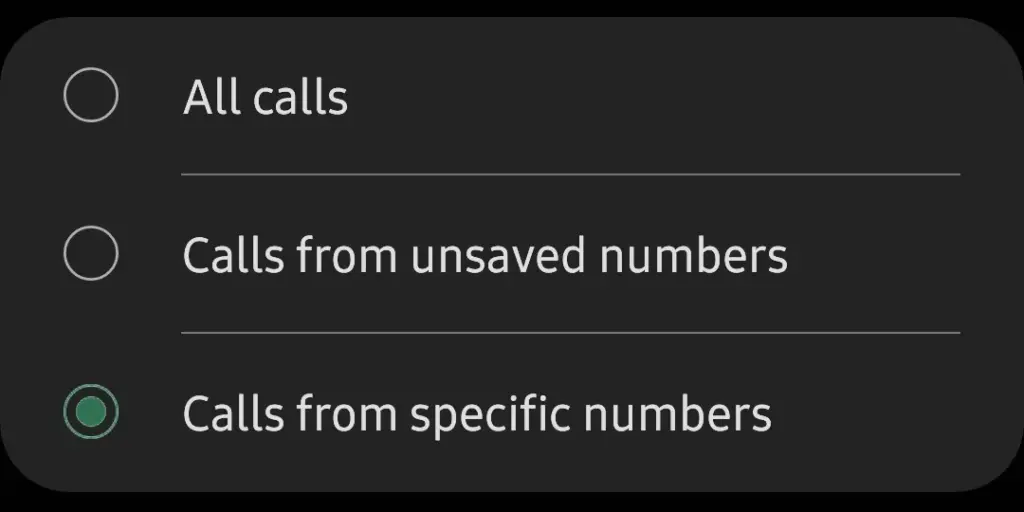
    You can choose to record calls from all contacts in your phone book, solely from selected contacts, or only from unknown numbers, depending on your preferences.

    enable auto record calls
    enable-auto-record-calls
    1. Open the Phone app on your Samsung Galaxy device.
    2. Tap the 3-dot overflow menu button in the top-right corner, followed by Settings > Record calls.
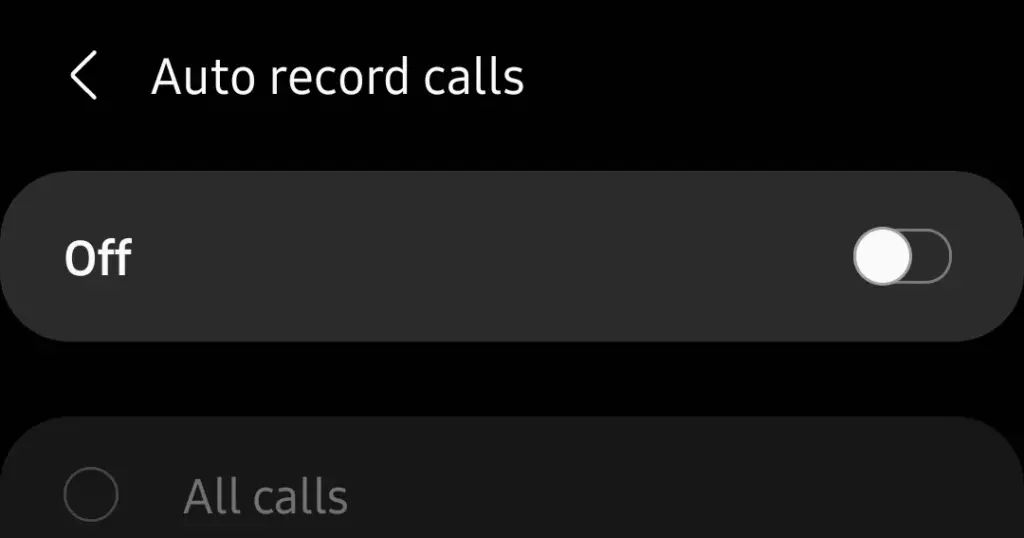
    3. Jump into the Auto record calls menu and enable the feature.
    4. Proceed to select whether you want to record All callsCalls from unsaved numbers, or Calls from specific numbers.
    auto record calls

    How to Manually Record Calls on a Galaxy Phone

    You can also manually record single calls on phones like the Samsung Galaxy S22, Note, or Galaxy Fold series. Here’s how:

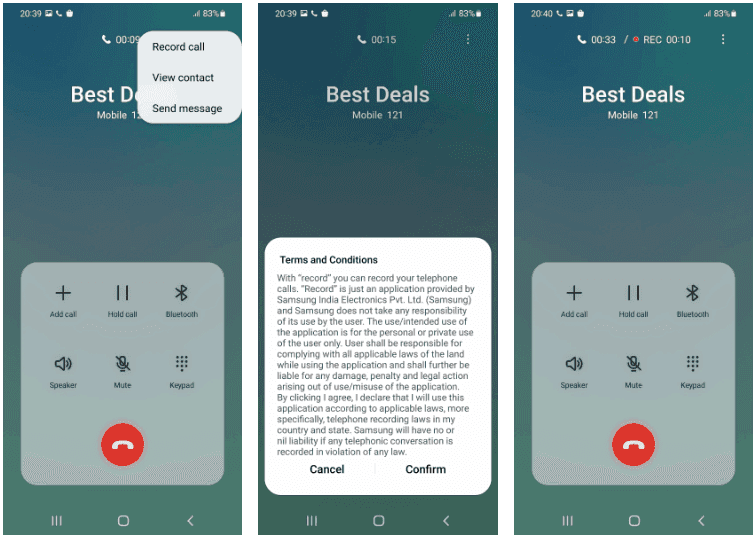
    1. Open the Phone app on your Samsung device and call the contact whose call you’d like to record. Alternatively, accept the incoming call that you want to record.
    2. On the call screen, tap the Record call button to start recording. If the option does not show up on the call screen, tap the 3-dot menu button on the top-right and then select the Record call option.
    3. The first time you use the call recording feature, you’ll be prompted to accept the terms and conditions.
    samsung record calls
    Manually record calls on Samsung Android Devices

    Contrary to several other phones, you can record calls without alerting the other party. Only Android phones that have the Google Phone app set as their default dialer app experience this.

    On One UI 4 and One UI 5, the method to record a phone call is the same.

    How to View Recorded Calls

    You can view recorded calls on your Samsung Galaxy device from the Phone app.

    1. Open the Phone app on your Samsung Galaxy device.
    2. Tap the 3-dot overflow menu button in the top-right corner.
    3. Navigate to Settings > Record calls > Recorded calls. All the recorded calls will show up here. The file name will show the contact name or the phone number to easily identify the recorded calls.

    You can select any recorded audio file and then tap the Share option to share the recorded call on WhatsApp, Gmail, Drive, etc.

    Call Recording on Samsung Galaxy Devices

    As we’ve seen, it’s rather simple to record calls on a Samsung Galaxy smartphone, assuming local regulations don’t restrict the firm from providing the feature there.

    And always keep in mind that when you have power, you also have duty, thus you should never record a call without first telling the other person on the line.

    One of the many features you’ll only find on Samsung smartphones and not on other Android phones is call recording. It’s highly recommended to check out some of the additional features offered by the Galaxy One UI software.