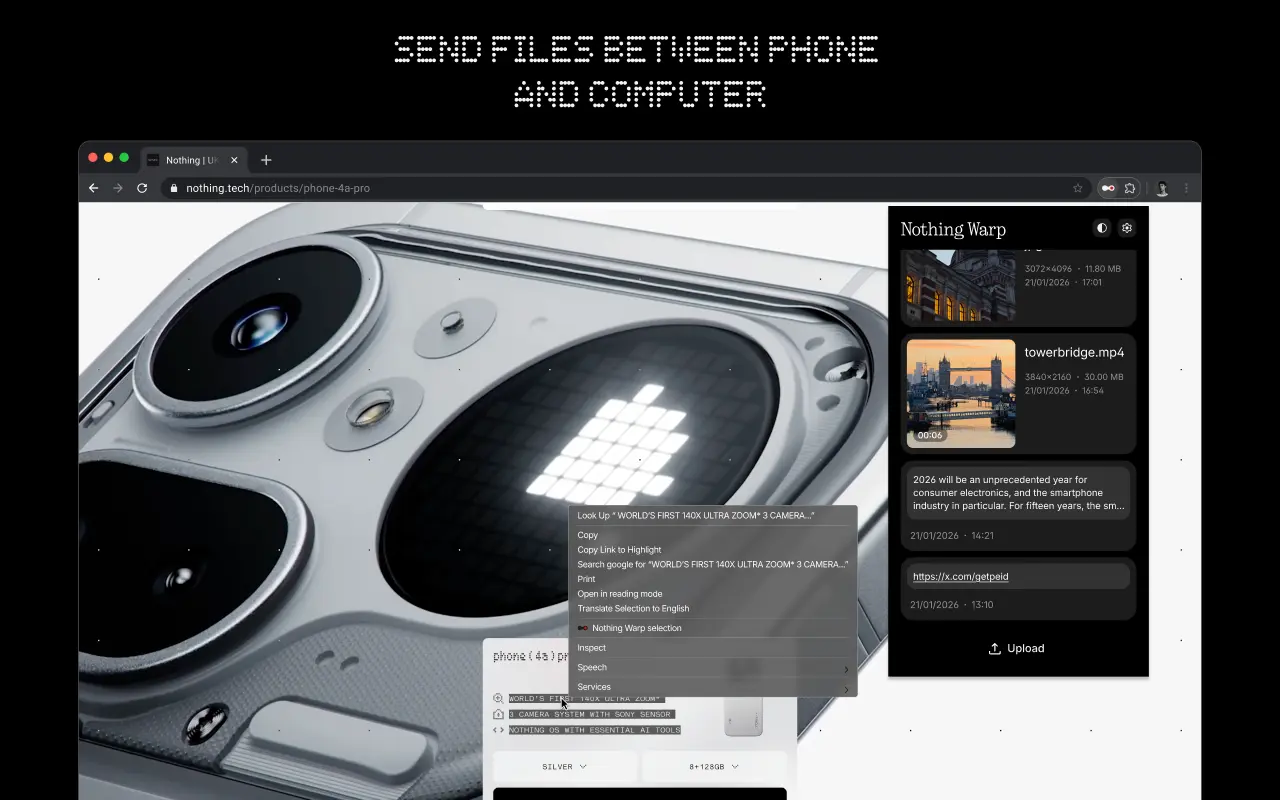
Moving data between an Android phone and a Mac has not been easy for users. Users are frequently forced to rely on third-party products or cloud services due to the absence of a native, dependable bridge. With the goal of making this process much more convenient, Nothing is now stepping in with a new solution called Warp.
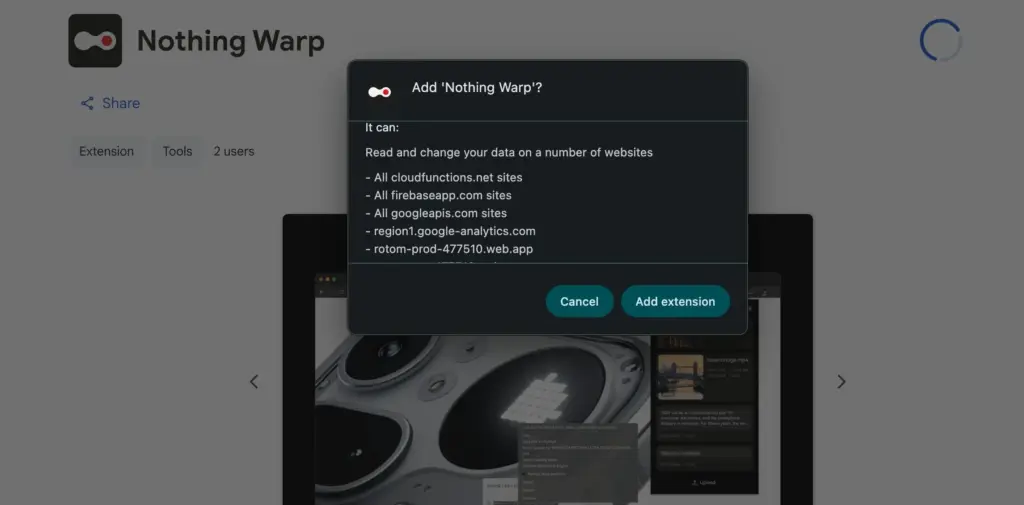
Warp is designed as a two-part solution, consisting of a browser extension and an Android app. Because it operates via a browser, it may be used on Windows and Linux computers as well as macOS, so long as users are using a browser that is based on Chromium. It has an advantage over ecosystem-specific tools due to its broader interoperability.
After installation, Warp appears in Android devices’ default sharing menu. Photos, movies, documents, links, and even plain text can be sent with ease. Similar versatility is available on the computer side thanks to the extension; you can push images from a webpage, email files, and copy text straight to your phone. Nevertheless, it isn’t always effective. Warp could not show up as an option if certain online apps override the browser’s built-in right-click feature.
The ability to handle many devices is a noteworthy feature. It is not necessary for the recipient device to be active at that precise moment in order to deliver material across several devices. Because Warp does not require a direct connection between devices, this is feasible. Rather, it sends files via a download prompt on the other device after briefly uploading them online.
For daily use, this approach is effective, particularly for smaller files. Images and text excerpts move smoothly and swiftly. For larger files, however, this is not the case. For instance, it can take a considerable length of time to upload large videos before they are ready to be seen elsewhere.
Nothing claims that it does not directly handle user files in terms of privacy. Because Google Drive is used to route transfers, customers must link their Google account in order to utilize the service. Although specifics regarding storage consumption and file management are still unclear, the business also asserts that these files do not clog the user’s Drive storage.
Warp is presently free to use and in beta. It provides a useful and more universal approach to exchange content across Android smartphones and Macs without depending on brand-specific capabilities, even though it might not be able to substitute quicker, direct transfer methods for large files.
I have six computers of different sizes and specs, but lately I’ve noticed that I use my Chromebook more frequently. It has one amazing feature that I can’t live without, despite its obviously poor performance and small 11-inch footprint: full-fledged Android app support. I’m not just saying this because I write for Android Authority; having access to smartphone apps that don’t have a true PC equivalent is revolutionary.
Unfortunately, earlier this year Microsoft ended the Windows Subsystem for Android (WSA) experiment, which enabled the use of Android apps on Windows 11. Additionally, Phone Link is still in use, although it just lets you mirror the screen of your smartphone. Furthermore, the Pixel and the great majority of other devices still do not have screen sharing enabled by Microsoft. Therefore, I have to decide between using an emulator or a Chrome OS device if I want the finest Android experience on my PC.
The sole issue? At best, Android emulators on PC provide a mediocre experience. Performance is lost due to emulation costs, and even the best Android emulators, such as BlueStacks, have crowded interfaces and advertisements designed for particular applications, like gaming. On Chrome OS, however, the experience is far more seamless: you may open individual Android apps, and they coexist peacefully with native apps.
Waydroid
Waydroid brings all the apps you love, right to your desktop, working side by side your Linux applications.
Is it possible to accomplish this Android-PC harmony without installing Chrome OS and forfeiting the ability to use a conventional desktop environment? Yes, but the only catch is that Linux is needed. Nevertheless, I believe it’s totally worth it, and Microsoft’s growing hostility against Windows privacy is just one more reason to think about switching.
Why running Android apps on PC matters more than ever
I enjoy having access to Android’s extensive app store on my PC for a number of reasons, including my investing portfolio tracker and other smart home apps. I frequently think that Android services are simply superior to their web or PC versions. For instance, WhatsApp for PC keeps me from scaling the window to my preferred size. In particular, it feels like a needless waste of screen space because it won’t shrink any smaller than a quarter of my screen.
Apps for smartphones, on the other hand, are made to fit on almost any screen size. Therefore, the window size should be much more adjustable if you can figure out how to run them on a computer. Additionally, you may already understand the appeal if you have ever tried multitasking on a computer with a single display.
Try using a web browser to launch Google Maps and minimizing the window size (see below). As soon as you click on a business, the sidebar will occupy all of the available space, leaving you with nothing except the search box. Without ignoring this sidebar, you are unable to move about the map.
You can see how much smaller the windows for the Android versions of WhatsApp and Google Maps can get on the right. This discrepancy is not the fault of Meta or any other developer; desktop applications are made to work on reasonable screen sizes, and my smaller windows don’t precisely meet that requirement.
Nevertheless, the difference is clearly noticeable on a 24-inch screen, such as the monitor on my gaming PC. I’ve considered purchasing a second monitor, but my desk isn’t large enough to fit one. I must therefore use every available inch of screen real estate for the time being. Aside from density considerations, I occasionally like mobile apps because of their simple user interfaces. For instance, AI mobile apps respond far more quickly than the web version, which is useful when I only need a brief response to a small query.
Because of my propensity for multitasking, I usually find myself using two chat apps (WhatsApp and Telegram) in addition to a full-featured web browser and possibly one other program, such as Maps or a social media app like X/Twitter. Normally, switching between the different full-screen windows would require a lot of Alt+Tab. However, with top-notch Android app support, I can use many windows simultaneously.
Android apps on PC without emulation
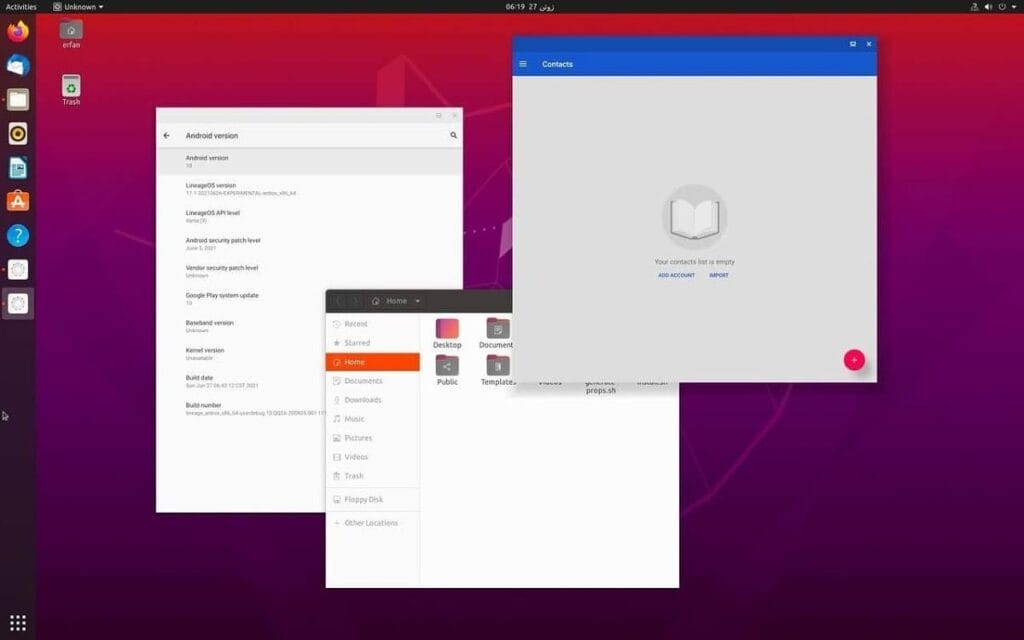
I came found Waydroid, an open source project that lets you run Android apps on a PC. Waydroid doesn’t simulate a whole Android device in a virtual machine, in contrast to Android emulators like BlueStacks or Genymotion, which you may already be familiar with. Rather, it shares the host OS’s kernel and makes use of Linux namespaces. In summary, it runs an entire Android system directly on Linux using a container-based methodology. This results in near-native performance with no overhead or performance penalty associated with virtualization.
Admittedly, installing Waydroid is more complicated than just downloading the installer for an emulator and repeatedly selecting Next, as is the case with Windows. However, it merely required entering two simple commands into the terminal, and Waydroid is available in the app stores of many distributions. It wasn’t a problem for me because I already use Linux on a daily basis, but I would advise you to give the operating system a try if you haven’t used it recently. Stable versions, such as Ubuntu, are largely similar to Windows and require no tweaking.
Returning to the topic of Waydroid, there are two builds available: one with Google apps (GApps) and one without. I chose the former, which included a minimum build of Android 13 based on LineageOS along with the Play Store and Google Play Services framework.
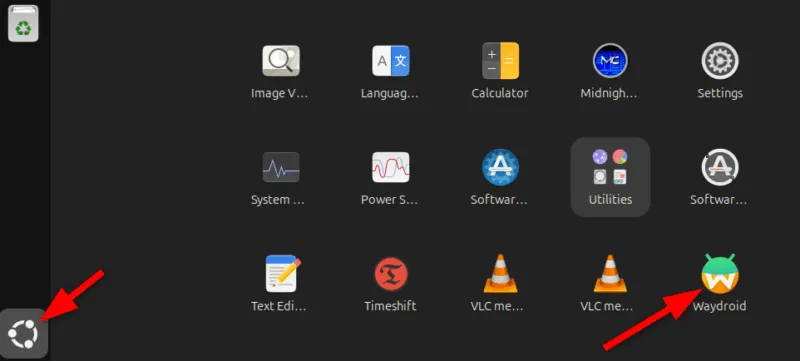
After installation, Waydroid displays installed Android apps in the application menu of your computer, complete with taskbar entries and unique icons, just like native programs. Additionally, you may enable multi-window mode, which lets each program open in a separate window, by changing one setting.
Is using Waydroid pleasant?
Waydroid
Waydroid brings all the apps you love, right to your desktop, working side by side your Linux applications.
Despite being an open-source, community-built program, Waydroid feels quite well-designed. With the exception of a few configurable configuration changes (such as turning off the on-screen keyboard), the main experience is identical to that of an Android tablet. I can use my monitor without even using my keyboard and mouse because it allows touch input.
I was pleasantly happy to discover that practically every software I wanted to run on Waydroid worked without any issues, despite my initial concerns about compatibility. You must first take a moment to register your Waydroid installation with Google Play Protect, but I could download everything from the Play Store. Of course, you may also utilize other app stores like F-Droid or sideload apps. Compared to Windows Subsystem for Android, which was formally restricted to the Amazon App Store, this is already a significant improvement.
We tested all of my favorite apps, including Telegram, YouTube, and Google Maps, and they all functioned perfectly without a single frame loss. Even my Chromebook, which runs Android apps less effectively, stands in sharp contrast to this. You see, with the release of Chrome OS 109 in 2023, Google shifted to a virtualization-based strategy for running Android. Since then, a lot of Chromebooks with lower specs have had trouble running Android apps.
The term “way” alludes to Waydroid, a crucial part of the graphics infrastructure of contemporary Linux that enables even hardware acceleration and fluid input. Even though I have AMD hardware, as the project suggests, I tested a few simple games and they ran perfectly. Allowing Waydroid to utilize your PC’s built-in graphics or switching to software rendering are two workarounds for NVIDIA’s lack of official support.
That’s not to imply that Waydroid doesn’t have drawbacks. You’ll soon discover that you can’t view incoming notifications when you run programs in multi-window mode. Apps lack the ability to send notifications outside of the container they reside in, in contrast to Chrome OS. If you install the appropriate desktop application and use a forwarding app, such as KDE Connect, you can easily get around this.
Additionally, Waydroid shields a large portion of your device’s hardware from Android apps. For example, the camera input is broken, which is really important if you care about video calls. Similarly, apps are inherently unable to directly access Bluetooth or GPS. However, this only truly matters in ancillary use scenarios, such as when attempting to configure a smart home device straight from Waydroid.
Overall, Waydroid fills the void better than anything else available at the moment, although it doesn’t completely replace my Pixel or even my detachable Chromebook. I can highly recommend Waydroid if you’re among the numerous folks who either use an emulator or wish that Windows Subsystem for Android would come back.
Waydroid
Waydroid brings all the apps you love, right to your desktop, working side by side your Linux applications.
Gone are the days when a USB cable was the only way to move files between your Android phone and computer. Whether you’re transferring photos, documents, or videos, there are now several wireless methods that make the process faster and more convenient — no cables, no drivers, and no hassle.
In this article, you’ll discover how to transfer files from Android to your PC wirelessly utilizing free built-in utilities and reliable third-party apps. All ways are easy, secure, and don’t need rooting your smartphone.
Why Go Wireless?
Here’s why transferring files without a cable is the smarter choice:
No need to carry cables or adapters
Works on all modern Windows, macOS, and Linux PCs
Faster for frequent transfers
No risk of physical damage to USB ports
1. Use Google Drive (Cloud Sync)
If you have a Google account, you already have access to Google Drive — one of the easiest ways to transfer files wirelessly.
Files are stored in the cloud, so they’re safe even if your phone is lost
Works across devices and operating systems
Cons:
Requires an internet connection
File size limits apply (15GB free storage per Google account)
2. Send via Nearby Share (Best for Windows)
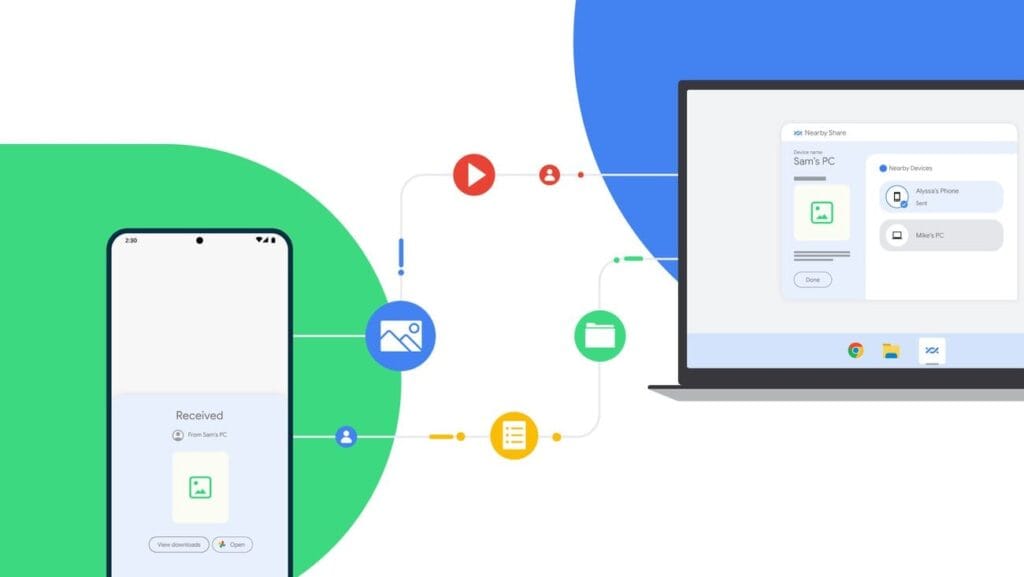
Currently fully supported on Windows 10/11, Nearby Share is Google’s AirDrop-style solution for sharing files instantly between Android and Windows devices.
Set It Up:
On your Android, go to Settings > Google > Devices & sharing > Nearby Share and turn it on.
On your PC, install the official Nearby Share for Windows app from Google’s website.
Connect both devices to the same Wi-Fi network and ensure Bluetooth is on.
Send Files:
Select a file on your Android device.
Tap the Share icon and choose Nearby Share.
Your PC should appear in the list — tap it to send the file.
Accept the transfer on your computer.
Pros:
Fast and secure
Works offline (local Wi-Fi or Bluetooth)
No cloud storage needed
Cons:
Not available on older PCs or operating systems
Some routers may block discovery if firewall settings are strict
Method 3: Transfer with File Sharing Apps (like Send Anywhere)
Direct wireless transfers between your computer and phone are possible through Wi-Fi thanks to apps like Xender, Feem, and Send Anywhere.
Using Send Anywhere:
Install Send Anywhere on your Android from the Play Store.
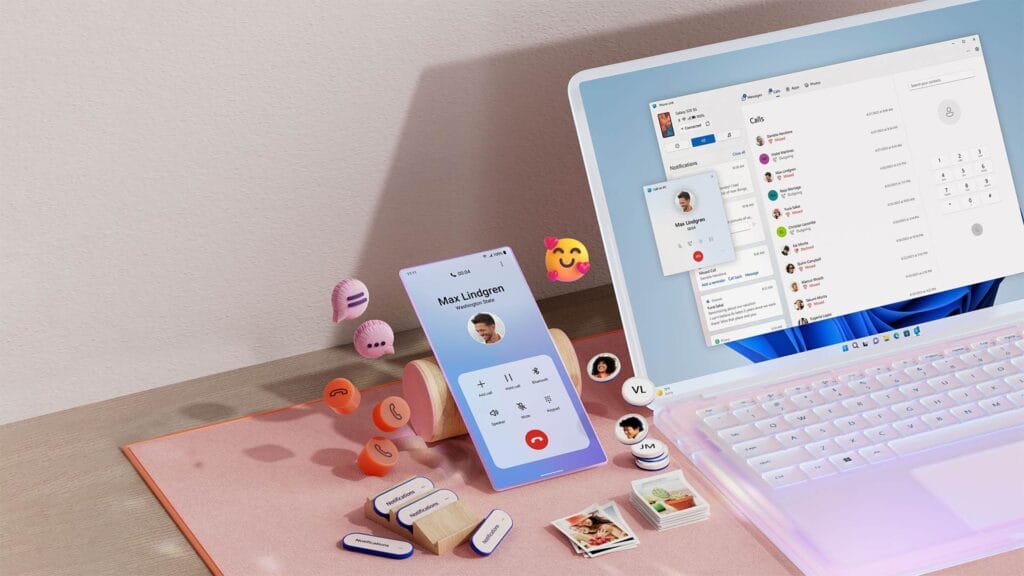
On your PC, open the Phone Link app (pre-installed on Windows 10/11).
Follow on-screen instructions to link the two devices.
Features:
Access photos, messages, notifications, and files
Drag-and-drop files directly between phone and PC
Pros:
Seamless experience for Samsung and Surface users
Files transfer instantly without cables
Cons:
Requires Microsoft account
Full feature set limited to specific models (Samsung, Honor)
Bonus: Email, Telegram, or WhatsApp (for Small Files)
For documents or images under 100MB, you can simply email them to yourself or use Telegram’s Saved Messages to transfer between devices.
Email: Attach files and send them to your own address.
Telegram: Send the file to yourself from your Android and download it on your PC.
WhatsApp Web: Share with a trusted contact and download via WhatsApp Web on PC.
What’s the Best Option?
Method
Speed
Internet Required
Setup Complexity
Best For
Google Drive
Medium
✅ Yes
Low
Backups & multi-device use
Nearby Share
High
❌ No
Medium
Windows 10/11 users
Send Anywhere
High
✅/❌ Optional
Medium
Fast wireless transfers
FTP via File Manager
Very High
❌ No
High
Tech-savvy users
Microsoft Phone Link
High
✅ Yes
Medium
Windows users w/ Samsung
You no longer require a USB cable to transfer data between your Android phone and computer. Whether you want to backup your gallery, transfer work documents, or send huge films, wireless solutions make the process simple and effective.
Nearby Share and Google Drive are the most user-friendly solutions. If you desire speed and complete control, FTP or Send Anywhere would suffice, as they do not require cloud storage.
Experiment with the way that best suits your workflow; once you go wireless, you will not want to plug in again.
If Android were a car engine, and you popped the hood and poked around a bit, you’d find the label “Linux” etched on the engine block. The open-source operating system provides the starting point that Android’s built on top of, but sharing code also means sharing vulnerabilities. Now a newly discovered Linux kernel bug is raising concerns for the security of Android devices, as it leaves a door open for malware intrusion.
The glitch in question has been dubbed “Dirty Pipe” by software engineer Max Kellerman, who provides a detailed writeup about the bug’s discovery. He first spotted some mysteriously corrupted log files last year, and his analysis of the problem revealed a kernel-level flaw that’s existed since 2020. The vulnerability lets software overwrite the system page cache, even for files where apps shouldn’t otherwise have permission. He determined that in the wrong hands the issue had potential for exploitation and alerted the team behind Linux kernel security. Properly coded malware could use this method to obtain full control of a vulnerable system by overwriting files as vital as the system’s root password.
Kellerman was also able to reproduce the bug on a Pixel 6, and reached out to let Google know. The company similarly prepared a fix, and merged it into the Android kernel. Right now, it’s just a matter of OEMs needing to incorporate that fixed kernel in future device updates.
For what it’s worth, Google confirmed to Android Police that Dirty Pipe did not play a role in delaying the release of Android 12L for the Pixel 6. Linux users, meanwhile, need to install their distro’s most recent security updates ASAP.
Whether you want to install a custom ROM, turn on some hidden Android features, or take screenshots from apps that prevent you from doing so, you’ll need the Android Debug Bridge (ADB) and fastboot. They’re part of the Google SDK platform tools and give you some lower-level access to your phone. You’ve got to prepare a few things before you can start, so here’s a comprehensive guide showing you how to get the platform tools up and running on any platform.
Setup your phone
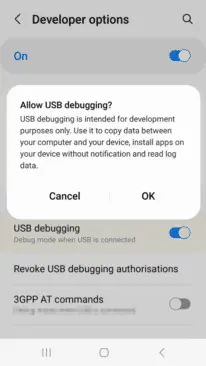
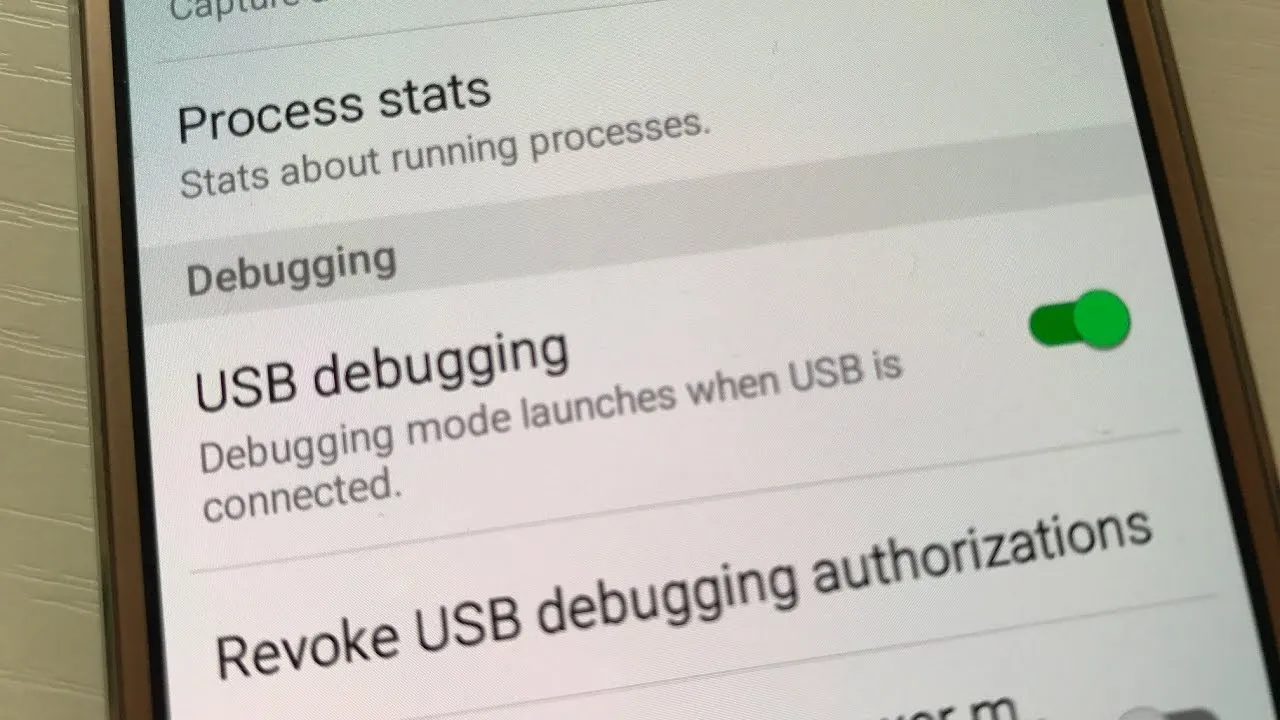
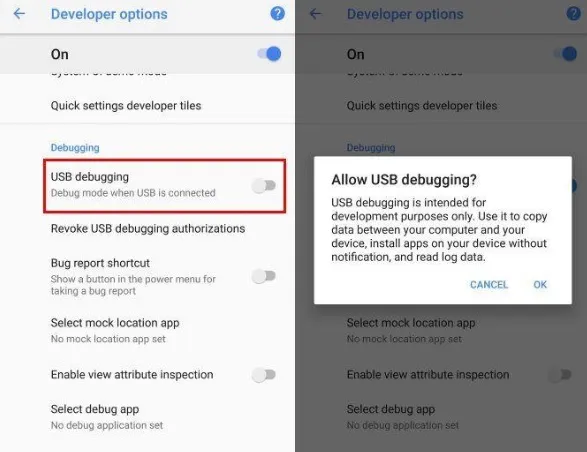
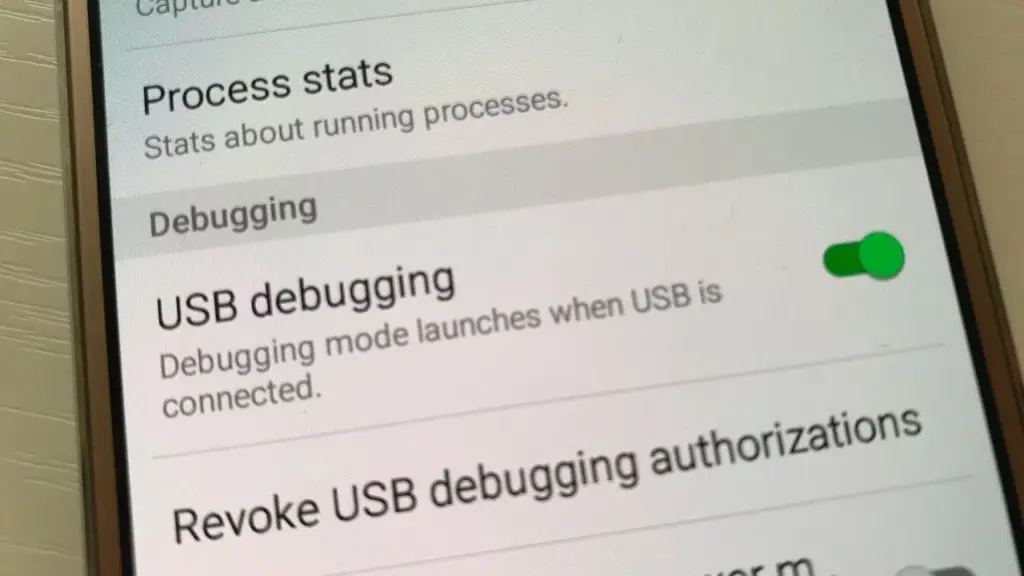
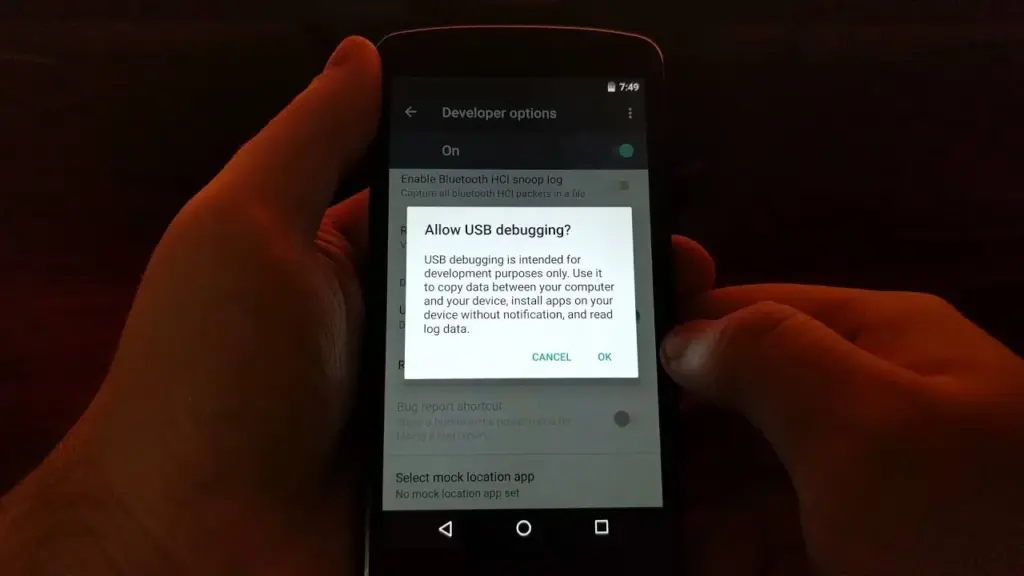
You need to set up your Android device first. If you haven’t already activated the developer options in your system settings, you will have to do so by going to the About section and taping the Build number entry seven times. You will be congratulated on becoming a developer, and a new entry called Developer Options will appear in your system settings. Enter them, look for the USB debugging toggle, and turn it on.
Installing ADB
Windows, macOS, Linux, and Chrome OS with Android Studio
If you’re a developer or looking to get into Android app development, you should install the Android Studio. It’s Google’s official IDE (Integrated Development Environment) for Android applications and has all the tools on board you need for creating your projects, including ADB and fastboot. The software will also ensure that your tools are always up to date. You can download Android Studio on the Android Developers website. The installation process is straight-forward — just follow the on-screen instructions from the installer.
Since Android Studio is quite huge when installed, the standalone SDK platform tools could be a better option if you want to save some precious space on your computer’s storage, especially if you don’t want to get into app development. The tools are comprised of the same interfaces you get when you install the Android Studio: ADB, fastboot, and systrace. They’re available on the Android Developers website. You’ll have to extract them and add them to your system’s path, but there are some scripts that simplify the process:
Nexus Tools
If you ask me, Nexus Tools is the fastest way to get ADB and the other platform tools up and running on your computer. It’s an open-source tool created by our own Corbin Davenport. Nexus Tools automatically downloads the latest platform tools from the Google website mentioned above, extracts them, and adds them to your system’s path for ease of use. You just need to paste the following command into a macOS or Linux terminal and hit enter:
Once it’s finished installing, open a new terminal window and confirm that ADB works with the ADB devices command. If your phone is connected with USB debugging enabled, you should then be able to see its ID.
The script also works for the latest Macs with the M1 chip, Linux on Chromebooks (here’s how to enable Linux on Chrome OS), and Bash for Windows. However, the Windows subsystem for Linux doesn’t support USB, so you’ll have to rely on a wireless connection. That’s only really feasible if you have Android 11 or a rooted phone, and even then, there are some limitations.
You can find more information on Nexus Tools on Github, including uninstall and update instructions.
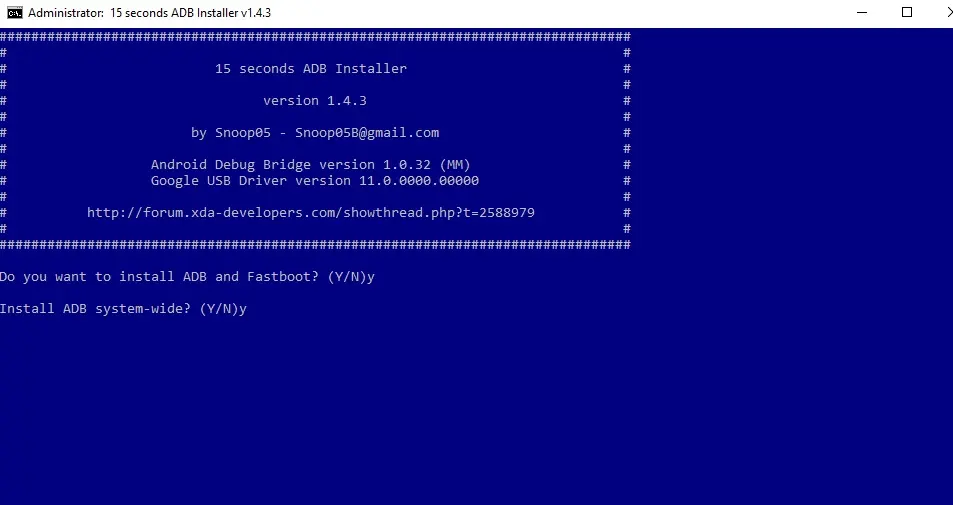
15 seconds ADB installer
For Windows, you can rely on another automatic tool from an XDA Developers Forum member, the 15 seconds ADB installer. However, some users report that the script doesn’t properly work for them, and it hasn’t been updated by the original maintainer for a long time. You can try using some of the recent revisions from another forum member or set up the platform tools manually:
Extract the ZIP file into a folder you can easily remember (like C:/platform-tools)
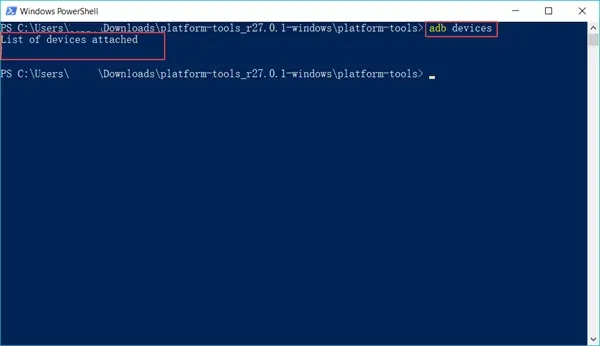
Open a command window in the folder by holding shift and right-clicking in an empty spot in the folder and selecting “Open command prompt/PowerShell here” in the menu. Then you can start using ADB — connect your phone and try .\ADB devices to see if it’s working. A list with attached devices should show up.
If you computer doesn’t recognize your phone, you may need to install its respective Windows USB driver additionally. Alternatively, there’s an open-source universal driver if you don’t want to go through the hassle of finding the correct one for your device.
If you want to be able to just open a command window and start using ADB without navigating to your platform-tools folder first, you’ll need to add the folder to your Windows path:
Search for “system environment” in the Windows 10 Start search and select “Edit the system environment variables” from the results.
Click “Environment Variables…” towards the bottom of the window that just opened.
In the lower section of the next window under “System variables,” look for the “Path” row. Select it and click “Edit…”
In the “Edit environment variable” window, you can hit the “New” button and add the path with the platform tools. In our example, that’s “C:/platform-tools.”
Exit all windows and save the changes you’ve made by selecting “OK.”
Open a new command prompt or PowerShell and see if ADB devices now works without navigating to your platform-tools folder first. You also won’t have to add .\ in front of it anymore. You might have to restart your computer before the change takes effect.
On your phone
If you don’t want to root your phone or install a custom ROM and just need access to the ADB shell, you don’t even need to connect your handset to a computer. The open-source LADB app allows you to run a shell locally, utilizing the wireless ADB protocol. However, setting it up is a little convoluted, and you’ll need to be on Android 11 to be truly free from a computer. We’ve got a tutorial that walks you through the process.
If you don’t have the Android 11 yet, or prefer to work with a larger screen, the WebADB might be for you. It’s an open-source web app that you can use to run the ADB shell, but it also comes with a file manager and supports SCRCPY for screenshots and screencasts in apps that don’t allow you to run them on a regular basis. The biggest caveat: being a web tool, you have to trust that developers don’t do anything fishy with your phone—you’re giving an unknown party low-level access, after all. Here’s our tool hands-on.
Depending on which install method you opted for, you may have to add a .\ in front of ADB commands to make them work. If you haven’t added your SDK tools installation to your path on Windows, keep in mind that you always have to run a terminal from the SDK tools folder.
There are tons of advanced features and tweaks you can enable or disable via ADB and the ADB shell. Here are just a few of the things we covered, but there are plenty of other things you can find all around the internet. Some of our favorites include SCRCPY, APK installation, stock-ifying Amazon Fire tablets, and more.
There will be a lot of guides on Droid Tools about how to access certain features of the Android platform that simply are not visible to the user.
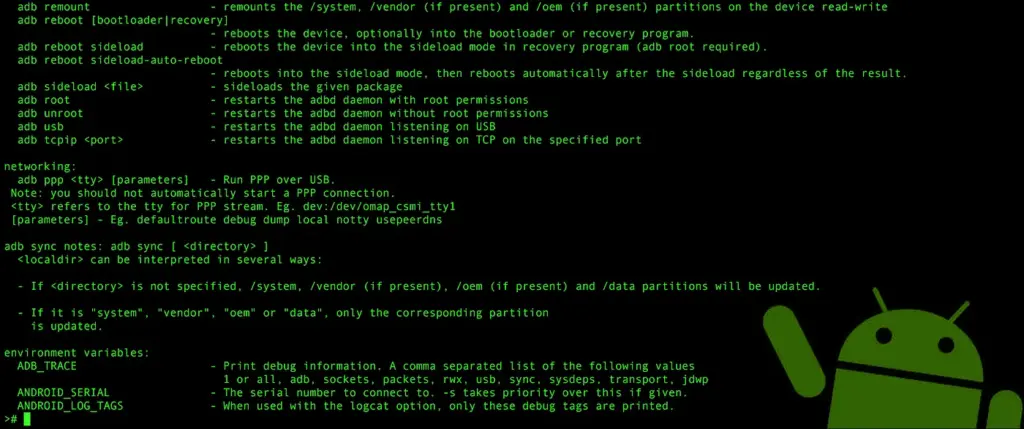
Theese will be done generally with the help of some command line Android Debug Bridge (ADB) commands, a tool that Google offers for developers to debug various parts of their applications or the system, but which we can use for all kinds of neat and hidden tricks. Using the command line isn’t something that everyone is comfortable with, though, so in an attempt to teach everyone how to do these tweaks (no matter what skill level you’re at), we have been including some basic steps about how to install ADB in each of our tutorials where necessary.
Setup the Android Debug Bridge (ADB)
Phone Setup
Launch the Settings application on your phone.
Tap the About Phone option generally near the bottom of the list (this is hidden behind the “System” option in Google’s latest Android Oreo version).
Then tap the Build Number option 7 times to enable Developer Mode. You will see a toast message when it is done.
Now go back to the main Settings screen and you should see a new Developer Options menu you can access.
Go in there and enable the USB Debugging mode option.
Next up, you will need to scroll below and follow the rest of the instructions for your operating system.
Extract the contents of this ZIP file into an easily accessible folder (such as C:\adb)
Open Windows explorer and browse to where you extracted the contents of this ZIP file
Then open up a Command Prompt from the same directory as this ADB binary. This can be done by holding Shift and Right-clicking within the folder then click the “open command prompt here” option. (Some Windows 10 users may see “PowerShell” instead of “command prompt”.)
Windows ADB folder
Connect your smartphone or tablet to your computer with a USB cable. Change the USB mode to “file transfer (MTP)” mode. Some OEMs may or may not require this, but it’s best to just leave it in this mode for general compatibility.
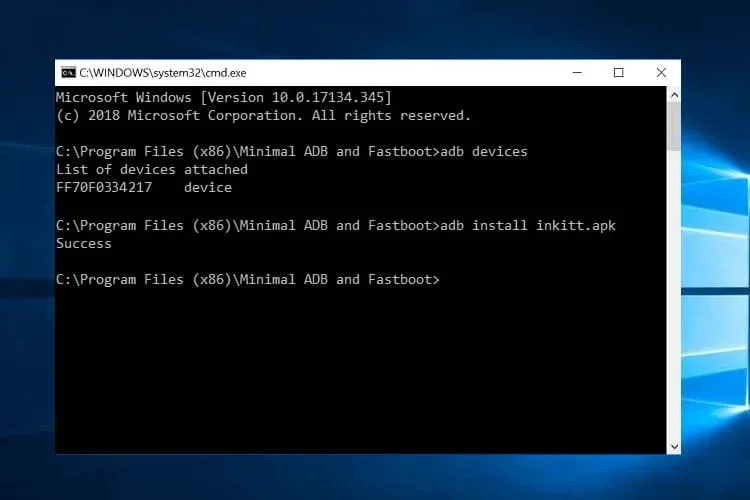
In the Command Prompt window, enter the following command to launch the ADB daemon: adb devices
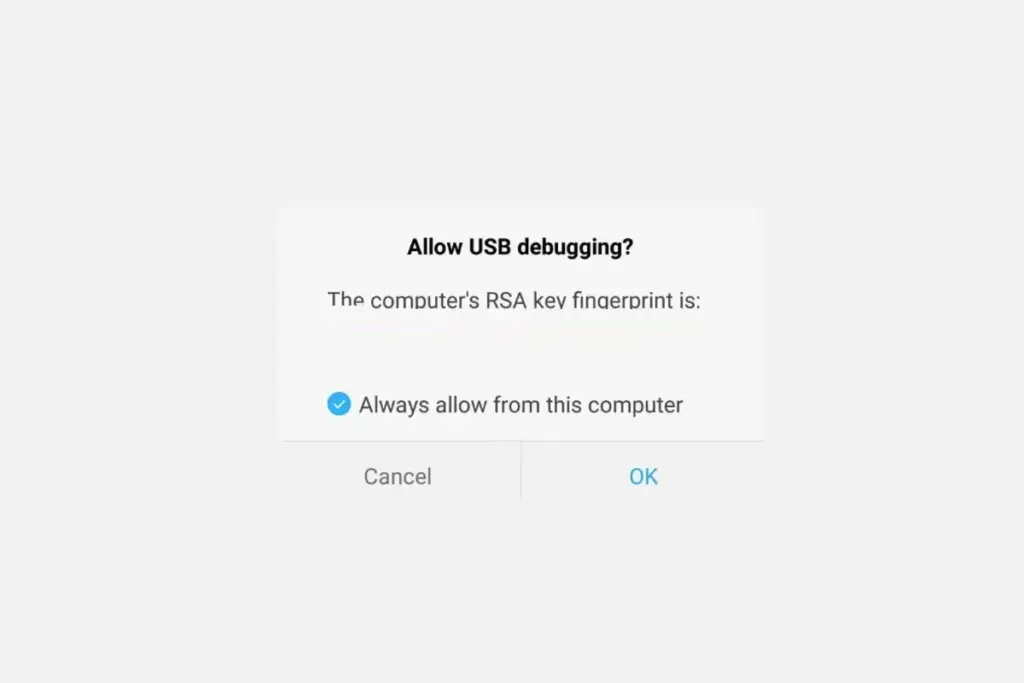
On your phone’s screen, you should see a prompt to allow or deny USB Debugging access. Naturally, you will want to grant USB Debugging access when prompted (and tap the always allow check box if you never want to see that prompt again).
Finally, re-enter the command adb devices. If everything was successful, you should now see your device’s serial number in the command prompt.
Extract the ZIP to an easily-accessible location (like the Desktop for example).
Open Terminal.
To browse to the folder you extracted ADB into, enter the following command: cd /path/to/extracted/folder/
For example, on my Mac it was this:cd /Users/Doug/Desktop/platform-tools/
Connect your device to your Mac with a compatible USB cable. Change the USB connection mode to “file transfer (MTP)” mode. This is not always required for every device, but it’s best to just leave it in this mode so you don’t run into any issues.
Once the Terminal is in the same folder your ADB tools are in, you can execute the following command to launch the ADB daemon: adb devices
On your device, you’ll see an “Allow USB debugging” prompt. Allow the connection.
Finally, re-enter the command adb devices. If everything was successful, you should now see your device’s serial number in macOS’s Terminal window. Congratulations! You can now run any ADB command on your device! Now go forth and start modding your phone by following our extensive list of tutorials!
Extract the ZIP to an easily-accessible location (like the Desktop for example).
Open a Terminal window.
Enter the following command: cd /path/to/extracted/folder/
This will change the directory to where you extracted the ADB files.
So for example:cd /Users/USER/Desktop/platform-tools/
Connect your device to your Linux machine with your USB cable. Change the connection mode to “file transfer (MTP)” mode. This is not always necessary for every device, but it’s recommended so you don’t run into any issues.
Once the Terminal is in the same folder your ADB tools are in, you can execute the following command to launch the ADB daemon: adb devices
Back on your smartphone or tablet device, you’ll see a prompt asking you to allow USB debugging. Go ahead and grant it.
Finally, re-enter the command adb devices. If everything was successful, you should now see your device’s serial number in the Terminal window output. Congrats! You can now run any ADB command on your device! Now go forth and start modding your phone by following our extensive list of tutorials!
Some Linux users should be aware that there can be an easier way to install ADB on their computer. The guide above will certainly work for you, but those own a Debian or Fedora/SUSE-based distro of Linux can skip steps 1 and 2 of the guide above and use one of the following commands. . .
Debian-based Linux users can type the following command to install ADB: sudo apt-get install adb
Fedora/SUSE-based Linux users can type the following command to install ADB: sudo yum install android-tools