At some point, there’s a good chance you’ll need to create and send a PDF from your Android phone. The instinct is usually to head straight to the Google Play Store — but with ongoing reports of malicious apps turning up on both Android and iOS, that search can quickly become a security minefield. Before downloading anything unfamiliar, it’s worth checking what’s already on the device.
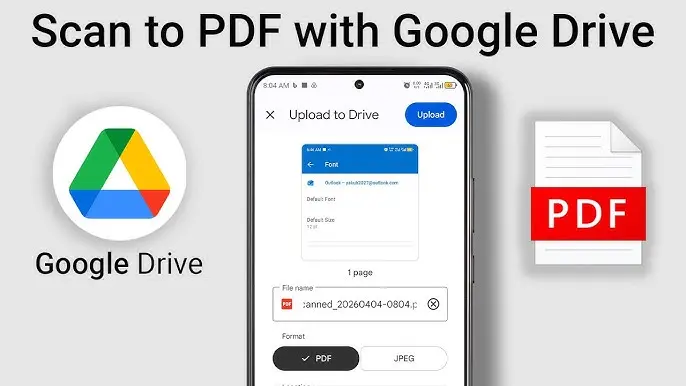
As it turns out, scanning paper documents and saving them as PDFs on Android requires no third-party software at all. The feature is built directly into the Google Drive app, which comes preinstalled on most Android devices. Here’s how to use it.
How to turn scanned documents into PDFs on Android
What you’ll need: The Google Drive app on your Android phone — which should already be there out of the box.
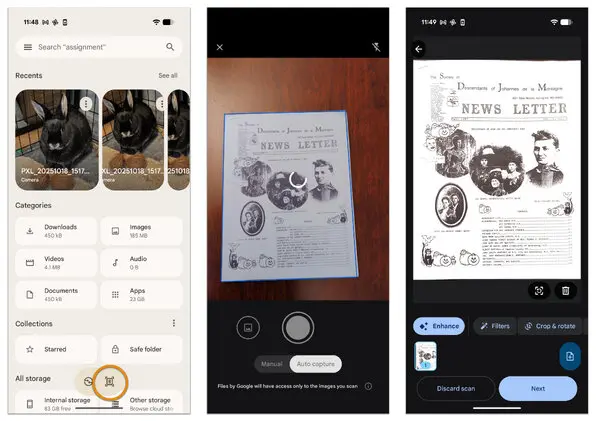
1. Open Google Drive Launch the Google Drive app from the home screen or the App Drawer.
2. Select Scan Tap the + button in the bottom-right corner, then select Scan from the menu that appears.
3. Scan your documents Point the camera at the first page of the document. After scanning it, repeat the process for each additional page. Once all pages have been captured, tap the right-pointing arrow button at the bottom right of the screen.
4. Enhance if necessary The next screen offers basic editing tools — filters, crop/rotate controls, and a cleaning tool to tidy up the scan. Make any adjustments needed, then tap Next.
5. Name and upload Give the file a name, make sure PDF is selected as the format, and upload it. To save directly to a specific folder, tap the drop-down and choose the destination within Google Drive.
The scan will now be available in the selected Google Drive folder, ready to share from within the app. The clarity of the results tends to be better than expected.
One important thing
Google Drive doesn’t offer the option to encrypt or password-protect scanned files, which is worth keeping in mind for anything sensitive. The PDF will also sit in the Google Drive account until manually removed. A sensible practice: delete the file from Drive once it’s been shared, rather than leaving sensitive documents sitting in cloud storage indefinitely.
On the upside, scanned PDFs aren’t saved locally to the device, so there’s no storage impact to worry about. It’s a straightforward, no-cost solution that works well for everyday document scanning needs.
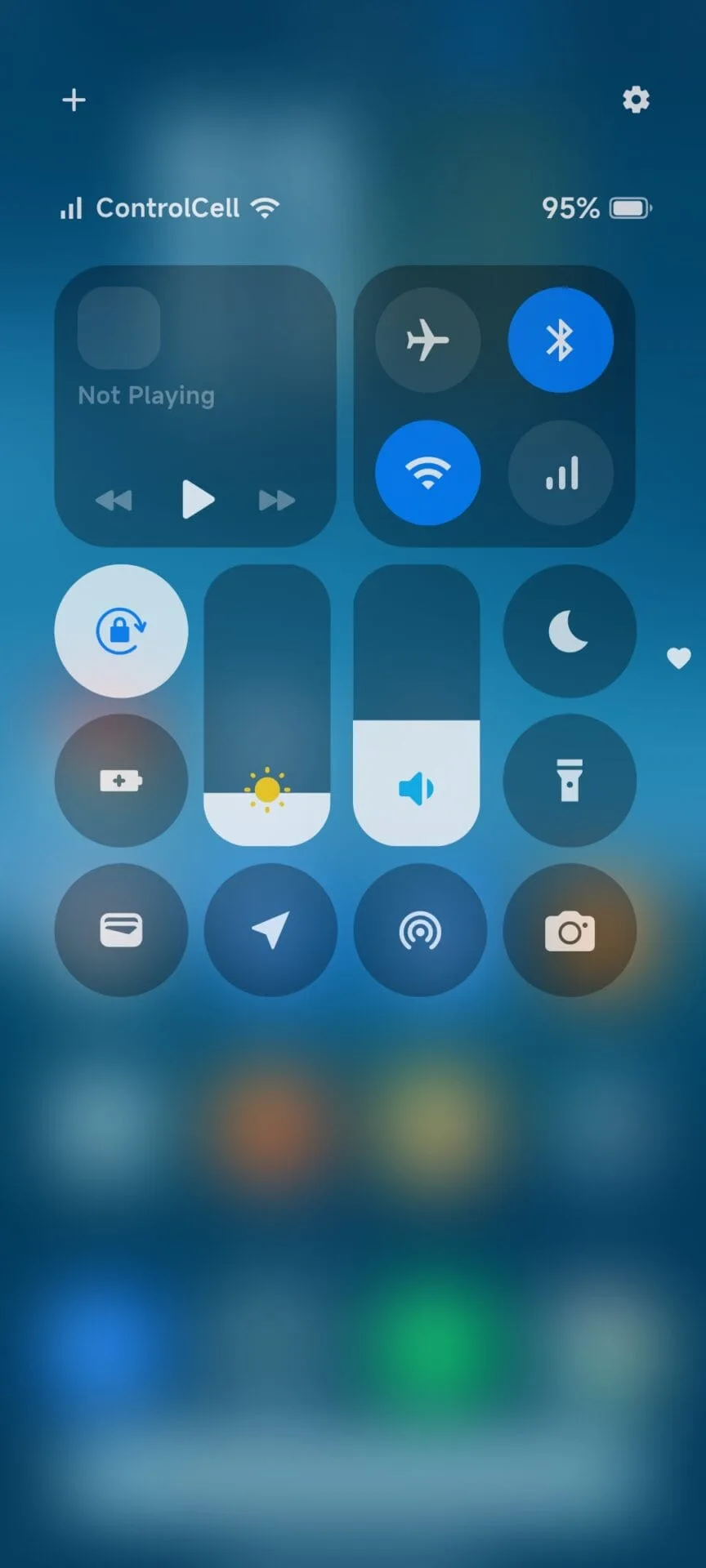
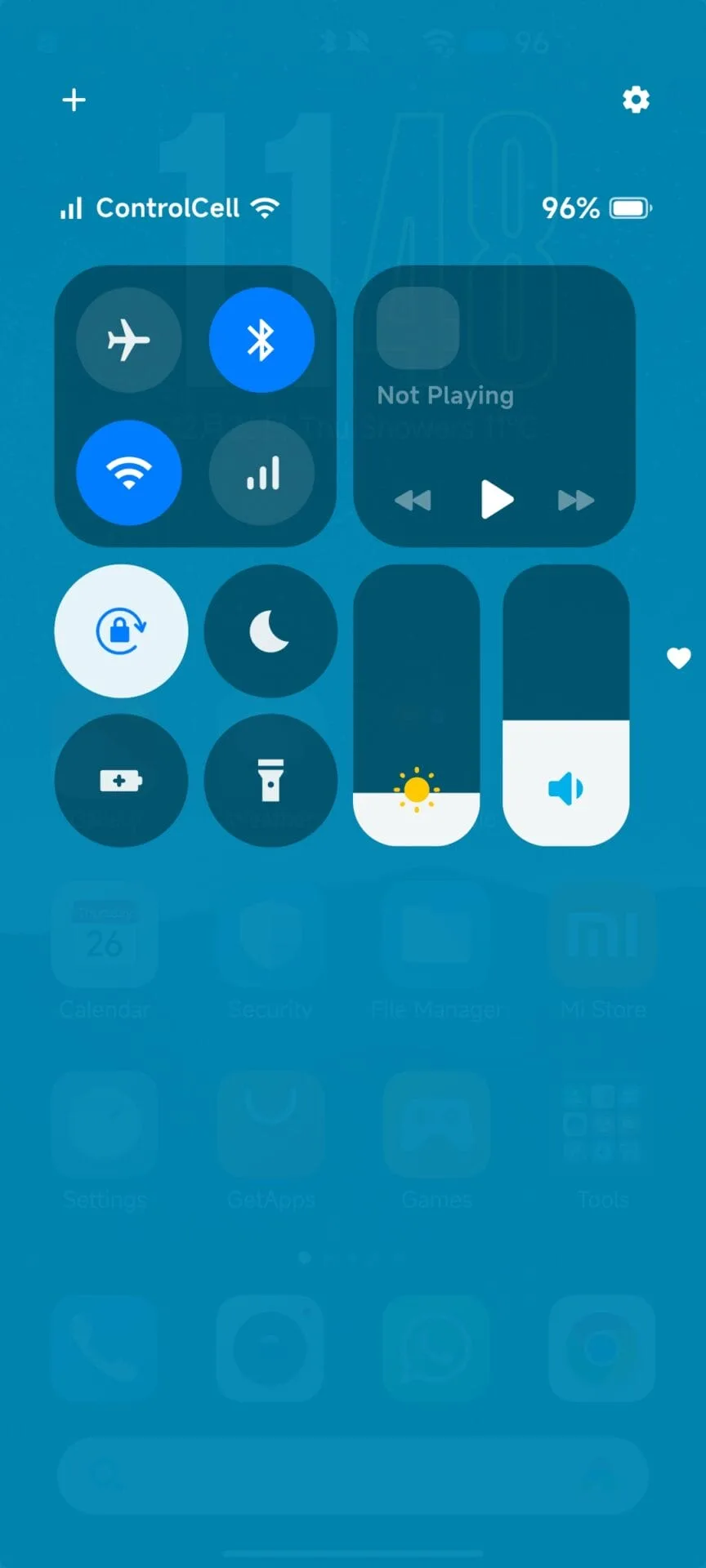
Many affordable Xiaomi phones, such the Redmi 15, Redmi 14C, and Redmi 13X, continue to use the conventional Android-style control panel rather than the contemporary iOS-inspired Control Center found on high-end phones running HyperOS. The main cause of this limitation is hardware and performance issues, which make it difficult to execute sophisticated animations and transitions smoothly.
Users of Xiaomi do not have to give up the new features and design in spite of this. It can be set up to mimic the new Control Center appearance on the majority of Redmi and POCO phones with the aid of third-party modification applications like Control Center 18.
Announced alongside HyperOS 1.0, Xiaomi’s new Control Center features an iOS 18-like interface, smoother animations, and adjustable brightness adjustments. But not every gadget satisfies the necessary performance requirements. Xiaomi limits the new UI to mid-range and flagship smartphones since entry-level handsets with low GPU and memory capacity can encounter lag or frame drops.
Xiaomi’s software framework is still adaptable, though. You may still improve the visual experience using third-party solutions like Control Center 18, which essentially replicates the look and functionality of the HyperOS Control Center, even if your phone doesn’t support the most recent control center natively.
Get the New Control Center with Control Center 18
You can simply duplicate the new Control Center with Control Center 18 app if your Redmi or Xiaomi phone does not have it natively loaded. With smooth animations, toggleable toggles, and quick access to your most commonly used options, this layout is almost exact.
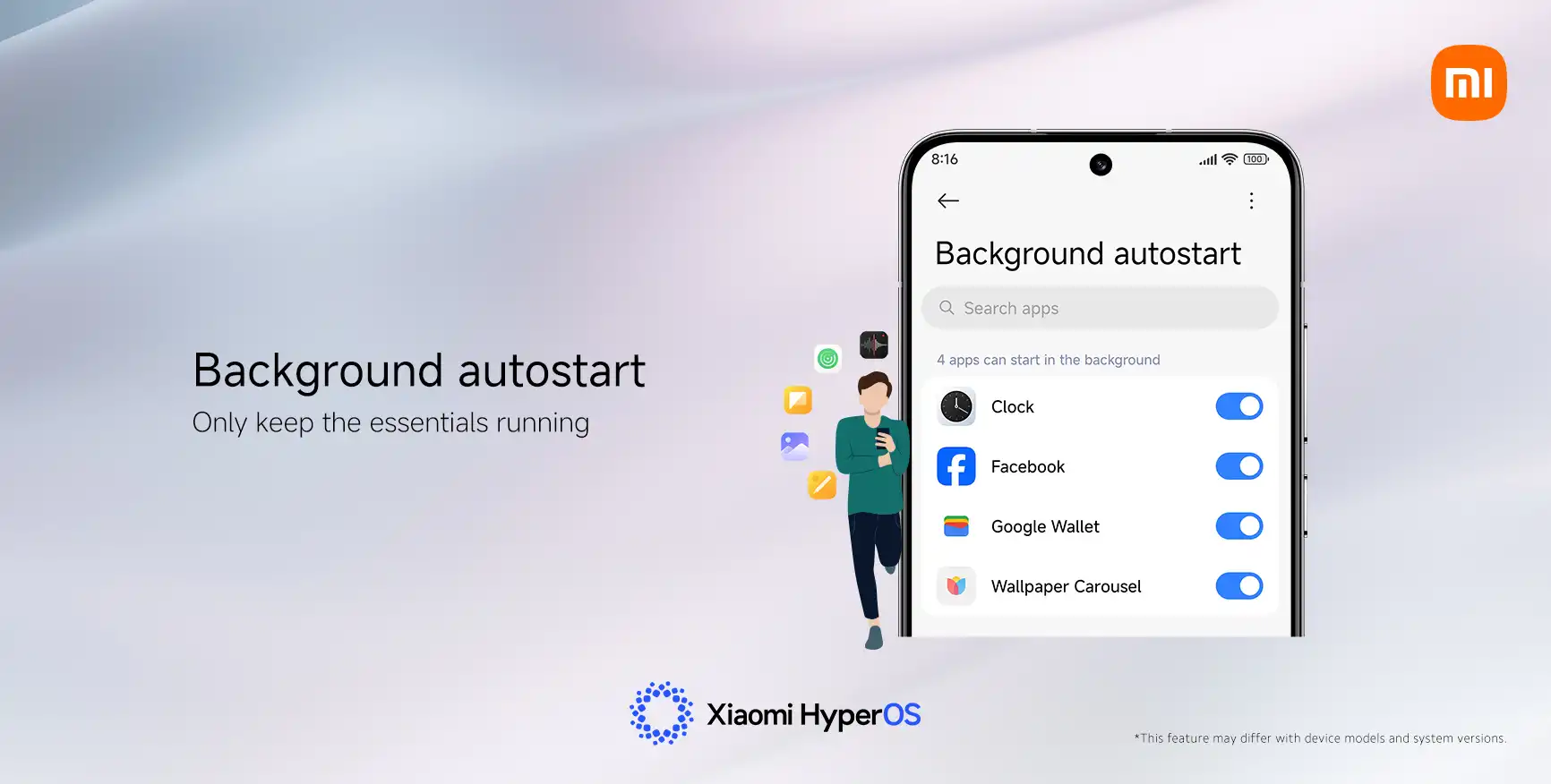
From background controls to looks, Xiaomi’s HyperOS offers consumers a great deal of customization options for their phones. Nevertheless, one tiny switch among all of these choices could stealthily drain battery life without your knowledge. Owners have recently complained of unexpected power consumption in user forums and on Reddit, even while their phones are just sitting on a desk.
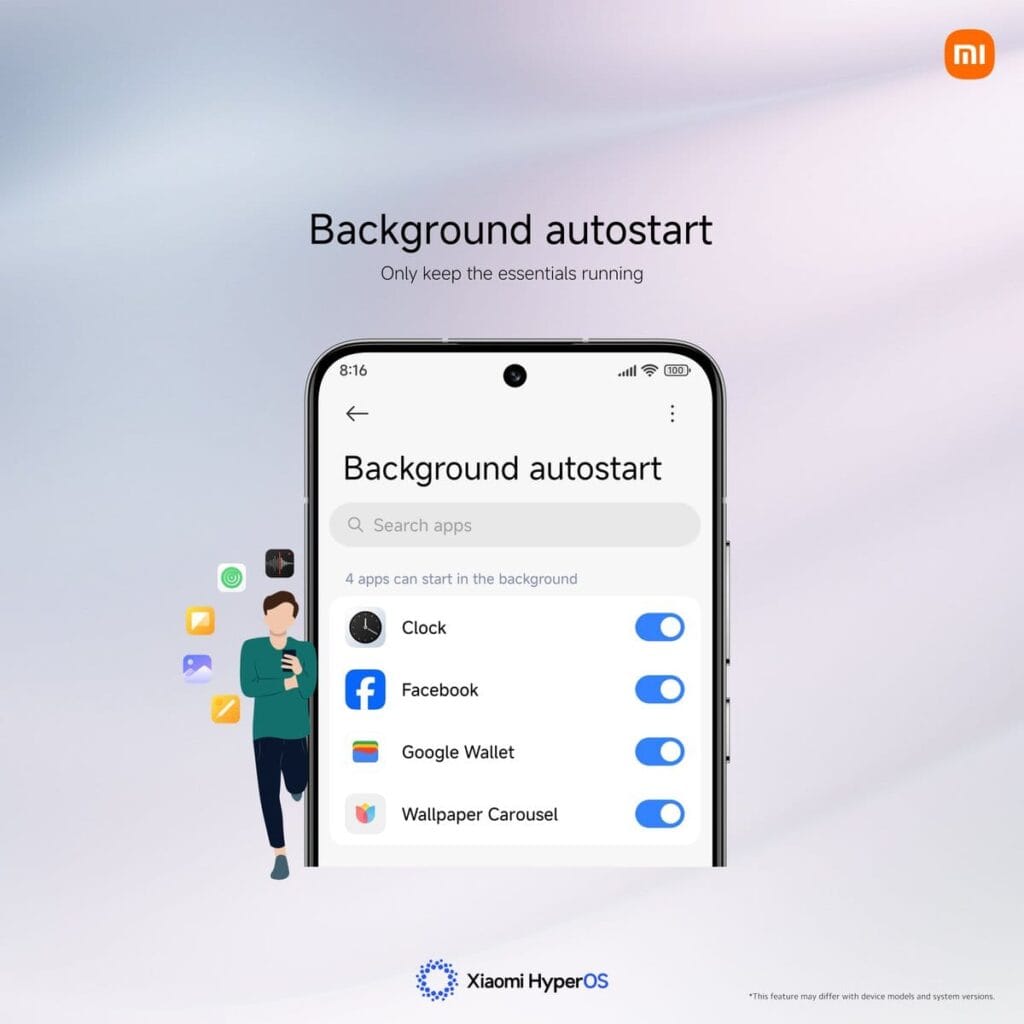
“App Autostart” is one feature that frequently appears. Its original purpose was to speed up the delivery of notifications in older MIUI systems. However, Xiaomi has already made improvements to HyperOS‘s notification system, so this choice is no longer as important.
Apps can operate automatically in the background when Autostart is enabled. Those apps continue to use memory and power even while you are not accessing your device. According to several users, turning off unnecessary autostart permissions can extend the standby duration of their phones by up to ten times.
How to Fix It in a Few Steps
You don’t need to be a tech expert to save battery life. Here’s the simple way to manage it:
Open Settings on your Xiaomi phone.
Tap Apps, then Permissions.
Select Background Autostart.
Check which apps are allowed to start automatically.
Turn off Autostart for any that aren’t essential.
It makes sense to limit the use of this feature to essential messaging apps like Telegram and WhatsApp. You can safely leave off tools you don’t use often, games, and shopping apps.
Other Easy Ways to Get More Battery Life
Turning off Autostart is a big help, but you can stretch your power even further by combining a few other habits:
Limit or disable Always-On Display to cut screen power use.
Use Dark Mode, especially on AMOLED screens.
Review notification permissions and mute apps that alert too often.
Shorten screen timeout so the display turns off faster.
Activate Battery Saver mode for less important apps.
A HyperOS developer recently explained on Xiaomi’s forum that small tweaks like these often have the biggest effect: “You don’t need deep settings knowledge—just consistency. Tiny adjustments add up to big savings.”
Key Points
“App Autostart” can drain battery silently in HyperOS.
Turning it off saves power and improves standby time.
Only key messaging apps should keep it active.
Combine small changes for longer daily use.
Xiaomi keeps battery controls simple but powerful.
Ultimately, practical flexibility is what Xiaomi strives for. Deep control is available when you want it, but the default settings are still user-friendly enough for everyone. A phone that drains quickly can be made to last from morning to night with a few well-considered adjustments.
This OneUI feature is perfect for fans of Samsung’s everything-but-the-kitchen-sink software strategy. Was one of the Samsung Galaxy phones’ best-kept secrets just revealed by a Reddit user? The most well-known aspect of OneUI, the software launcher that runs Samsung phones, is how many functions it has. Some of them are so buried or too many that you won’t utilize them at all.
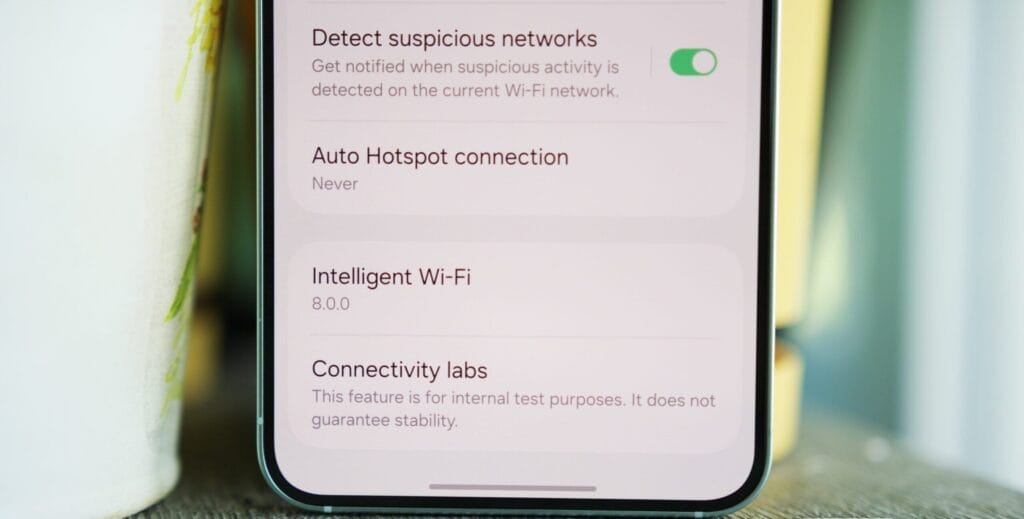
The best hidden feature award can go to a new discovery. The function, known as “Connectivity Labs,” can only be accessed by a hidden gesture in the Wi-Fi settings on your phone. That’s cool, isn’t it?
Even more amazing are the features offered by Connectivity Labs, which include developer options, AI-powered mobile data switching, a home Wi-Fi assessment tool, and more. Here are some of the greatest features you should start utilizing, how to access them, and which Samsung models are compatible.
Opening Intelligent Wi-Fi settings
In order to access your Intelligent Wi-Fi settings, you must first launch the Settings app, hit the Connections tab, select Wi-Fi, then tap the three dots in the upper-right corner (to expand options), and then select Intelligent Wi-Fi.
You will then get a list of Wi-Fi alternatives that are adaptable.
Turning on Connectivity Labs
Scroll to the bottom of the Intelligent Wi-Fi page, then tap the software version (now known as Intelligent Wi-Fi 7.0.0) seven times to enable Connectivity Labs.
You should see a pop-up message indicating the number of taps required to activate Connectivity Labs as you continue to tap. The secret menu will then show up at the bottom of the site after that.
Connectivity Labs
A column of graphs showing the different bands, types, and networks your phone is linked to appears when you first launch Connectivity Labs. Additionally, there is a “Daily Average” ticker that shows how long your phone spends on Wi-Fi each day.
But the bottom half of this page has the main content. A list of helpful internet connection toggles, such as Wi-Fi 7 mode, Wi-Fi handover, network quality information, and more, can be found as you read down.
Although the most of the alternatives are specialized, I’ve been trying with all of them, and three are generally helpful:
Home Wi-Fi inspection: This feature tests your Wi-Fi signal in real time, displaying connection strength fluctuations as you move around your house. I needed a convenient location for the monitoring hub after I recently placed new video security cameras across my property. After using the Wi-Fi inspection tool, I located a strong signal spot in my office and configured it.
Switching to mobile data faster: Have you ever had slow internet because your phone was switching between Wi-Fi and mobile data while you were outside of a cafe or office building, for example, and you were on the edge of a public connection? If you select this option, the phone will immediately switch to mobile data if it senses that your Wi-Fi signal is waning. If you have an unlimited data plan, this is a fantastic alternative.
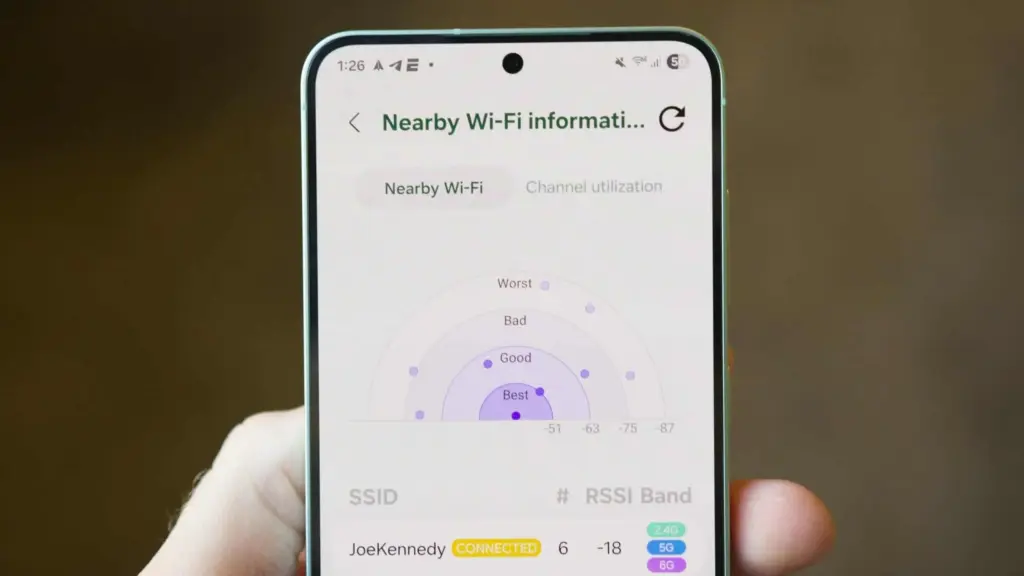
Wi-Fi Developer Options: One of the most useful settings on this menu is “Nearby Wi-Fi information,” which provides a list of the signal strengths of your nearby networks. When there are several public Wi-Fi networks available, such as at an airport, and you want to know which one will provide the quickest surfing speeds, this can be helpful.
Although I have only touched the surface of Connectivity Labs’ potential, it is evident that there are many helpful tools available to make more exploration worthwhile. I strongly advise spending some time looking into these settings, experimenting with them, and figuring out which ones best suit your unique need for internet connectivity. The amount of control and optimization you may attain without spending any money may surprise you.
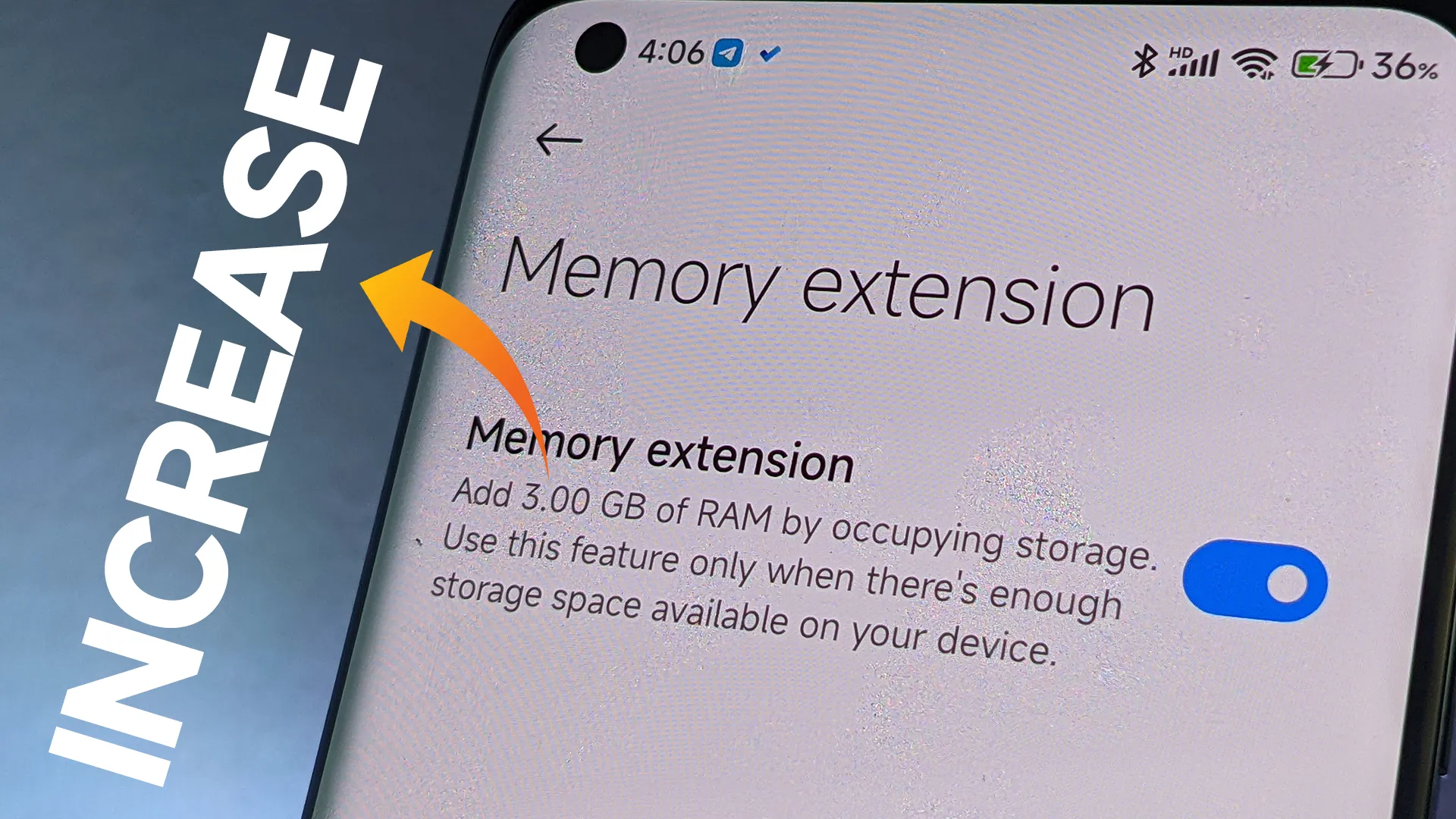
One of the most frequent complaints from smartphone users is slowdowns brought on by insufficient RAM, which Xiaomi has subtly added. By designating a piece of internal storage as virtual RAM, the Dynamic RAM Expansion function allows Xiaomi, Redmi, and POCO handsets running MIUI or HyperOS to augment their physical RAM. This method is especially cost-effective for both premium and budget-conscious customers since it enables users to improve device performance without spending money on expert services or hardware changes.
About RAM expansion
RAM serves as every smartphone’s working memory, facilitating seamless multitasking and quick access to open apps. The increasing sophistication of mobile operating systems and applications puts even more strain on limited memory. Users encounter slowness, slower app transitions, and occasionally even unplanned system restarts when a device’s RAM is low—all of which are unacceptable in a fast-paced work setting.
By setting aside a piece of internal storage and using it as virtual RAM, dynamic RAM expansion helps to overcome these limitations. For instance, a device having 8GB of physical RAM can be set up to add an additional 4GB from storage, giving users “8+4GB” as shown by system settings. This approach is especially beneficial for companies wishing to prolong the lives of their hardware assets because it doesn’t need any physical intervention or additional costs.
Throughout the Xiaomi ecosystem, this capability is generally accessible. Dynamic RAM Expansion is available to a wide spectrum of customers, from the top POCO models to affordable Redmi handsets, including mid-tier choices like the Redmi Note 13 Pro 5G. The individual device and available storage determine how much expandable RAM (4GB, 6GB, or 8GB) is needed, providing flexibility for a range of business requirements.
How to enable Ram expansion
Enabling the feature is designed to be user-friendly:
Open the Settings application
Navigate to “Additional Settings”
Locate and select “Memory Extension” (or “Memory Expansion”)
Choose the desired amount of expansion (4GB, 6GB, or 8GB)
Confirm and restart the device to activate
Users can experience quantifiable increases in device responsiveness in a matter of steps, which is advantageous in settings where productivity is a top priority.
Even though dynamic RAM expansion has several advantages, it needs enough free storage to work properly. To activate the feature, users might need to make room. It’s also crucial to remember that virtual RAM functions more slowly than real RAM, but for everyday business applications like email, productivity suites, and communication, the difference is usually noticeable.
Stay connected with the latest from Droid Tools—follow us on X @droid_tools, like our page on Facebook, check out our updates on Instagram, and follow us on Google News for real-time news, device tips, and mobile tech insights.
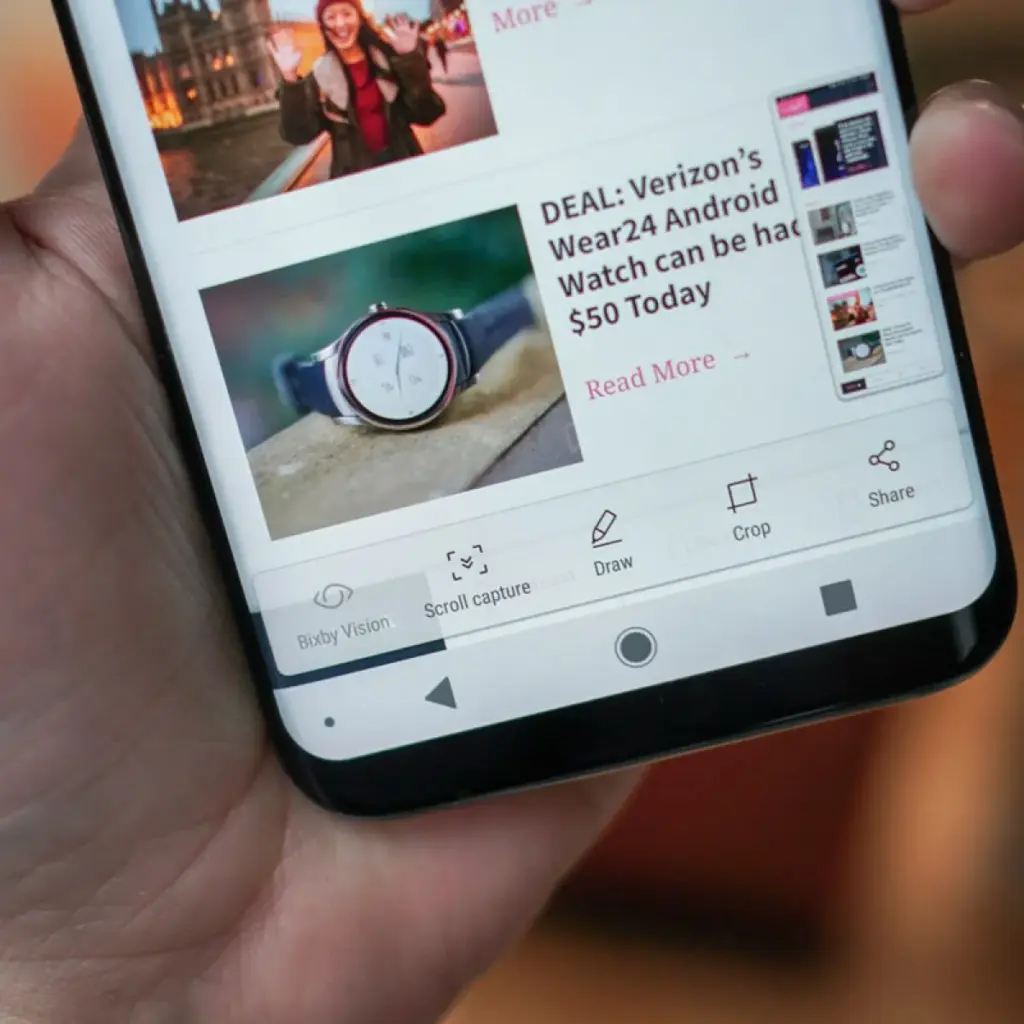
With just a few button presses, you can quickly take a screemshot of your Android device screen.
What occurs, though, if the material you are attempting to store is too large for a single screen? It could be an app settings page, a lengthy web page, or a conversation thread. Scrolling screenshots can help with that.
This tutorial describes how to take scrolling screenshots on Android without the use of third-party apps, how to handle the situation where the choice is not available, and how it functions on various devices.
What is a scrolling screenshot?
You can record vertically scrollable content in a single lengthy image by taking a scrolling screenshot, sometimes referred to as an extended screenshot. Your phone does it automatically, saving you the trouble of painstakingly piecing together many screenshots and providing you with a clear, comprehensive representation of the full page or discussion.
Although some manufacturers had already included this capability through custom Android skins prior to the official distribution, Android 12 marked the wide availability of this feature. After taking a standard screenshot, you can continue taking screenshots as you scroll by selecting the scrolling screenshot option.
Why scrolling screenshots are useful
When you need to record a lot of information without dividing it into many photos, scrolling screenshots come in handy. Typical use scenarios include the following:
Capturing an entire article from a website for offline reading
Saving long chats or SMS conversations
Recording step-by-step settings in apps or system menus
Documenting online orders, receipts, or bank statements
Archiving long social media posts or comments
Instead of managing and sending five or six individual screenshots, you get a single, clean image that’s easier to share, store, or annotate.
How to take a scrolling screenshot on stock Android
Take a screenshot using Power + Volume Down or the three-finger swipe.
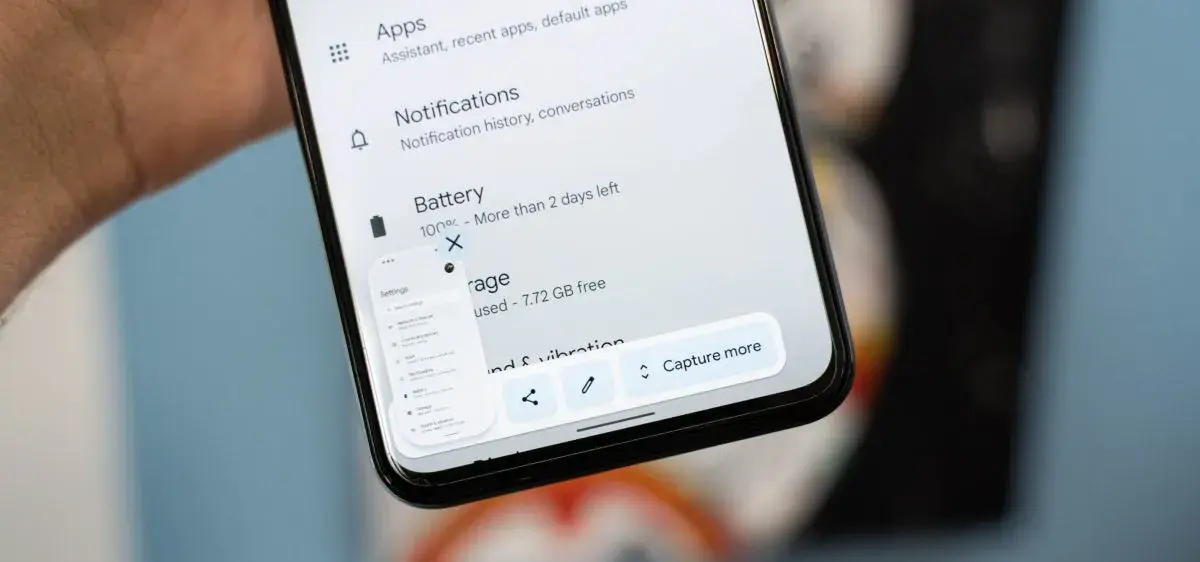
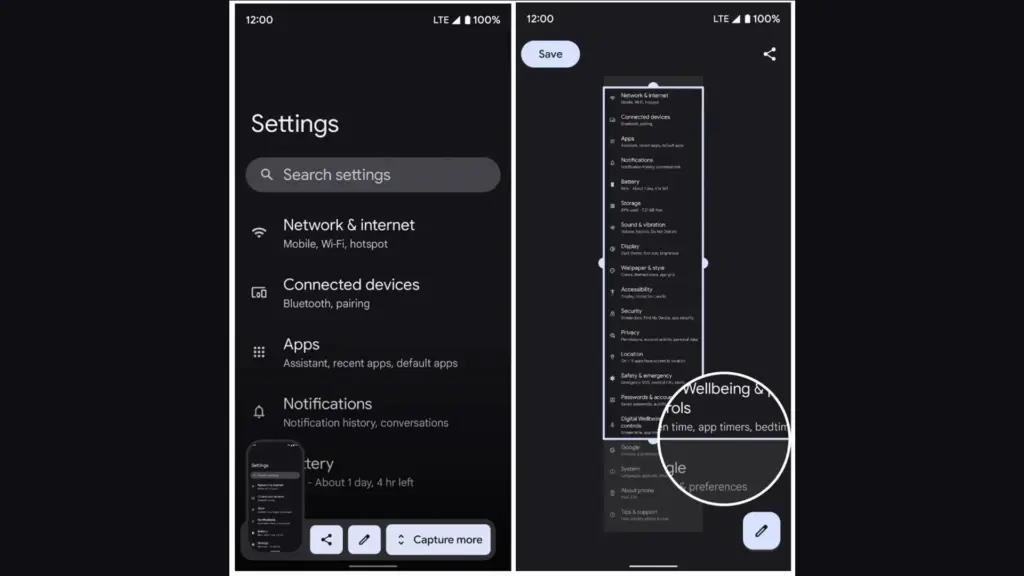
A preview appears with a button called Expanded screenshot or Scroll.
Tap the button, and the phone will begin scrolling down and capturing content.
You can tap to stop the scroll when you’ve captured everything you need.
The final result is a seamless long image.
OnePlus makes the process easy and generally reliable in apps like Chrome, WhatsApp, and system menus.
What to do if scrolling screenshot is not working
If you don’t see the scrolling option after taking a screenshot, here are a few reasons and possible solutions:
1. Your Android version is outdated
With Android 12, scrolling screenshot functionality was formally introduced. The native option might not be available if you are using Android 11 or earlier and the manufacturer of your phone has not included the functionality in its unique user interface.
Solution: Check for software updates under Settings > System > System update and update to the latest available Android version.
2. The app you’re using doesn’t support it
Certain applications may completely disable screen capture capabilities, particularly those with security limitations (such as banking or media streaming apps). In other situations, the scrolling capture feature will not be activated for static content that does not scroll vertically, such as games or films.
Solution: Try taking the screenshot in another app to confirm the feature works elsewhere.
3. The screenshot method didn’t trigger the right menu
If you take screenshots using Google Assistant or a third-party button remapper, the scroll option may not appear.
Solution: Stick with the hardware button method or built-in gesture support for consistent results.
4. Your device brand disables it
Rarely, the feature might be removed from select low-cost or carrier-locked devices. Check your device’s manual or a help website relevant to your brand if your Android version allows it but you are unable to see the choice.
Solution: As a last resort, third-party apps like LongShot or Stitch & Share can be used, though they won’t integrate as seamlessly.
Where scrolling screenshots are saved
Your scrolling screenshots are typically saved in the same folder as regular screenshots. The default locations include:
Internal Storage > DCIM > Screenshots
Internal Storage > Pictures > Screenshots
You can also find them in gallery apps like Google Photos under the “Screenshots” album. The long image format will usually be saved as a standard PNG or JPEG file, depending on your phone.
Scrolling screenshots make it significantly easier to capture and share large amounts of vertical content in one image. Whether you’re preserving a full article, archiving a conversation, or saving a list of settings for future reference, this feature streamlines the process and saves time.
Most modern Android phones with Android 12 or later support scrolling screenshots natively, with even better integration in custom skins from brands like Samsung, Xiaomi, and OnePlus. If the feature isn’t available on your phone, checking for updates or exploring brand-specific gestures may help you unlock it.
Scrolling screenshots are one of those tiny but useful features that you will find yourself utilizing regularly once you get used to it, particularly if you share content or document information from your phone on a regular basis.
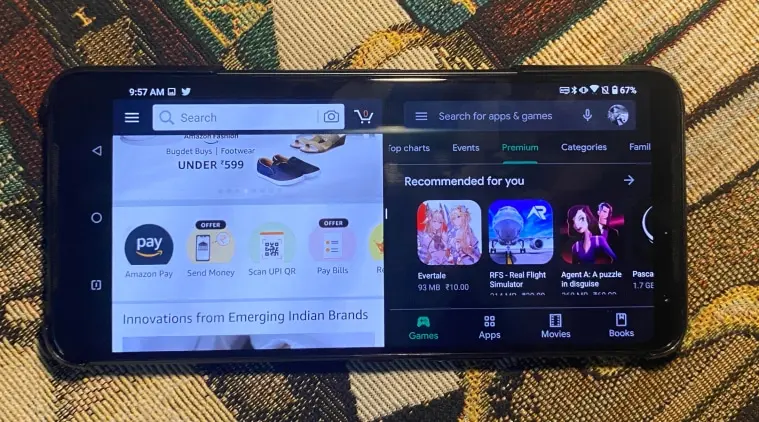
Android’s split-screen mode is a potent productivity tool that lets you utilize two apps at once, whether you are browsing the web while taking notes or watching YouTube while responding to emails. The finest aspect? Root access and third-party apps are not required. The majority of Android devices running Android 7.0 (Nougat) or later come pre-installed with this feature.
We will go over how to use split screen on well-known Android devices including Samsung, Google Pixel, Xiaomi, OnePlus, and more in this post. We will also go over restrictions, troubleshooting techniques, and ideas to help you multitask seamlessly.
What Is Split Screen Mode?
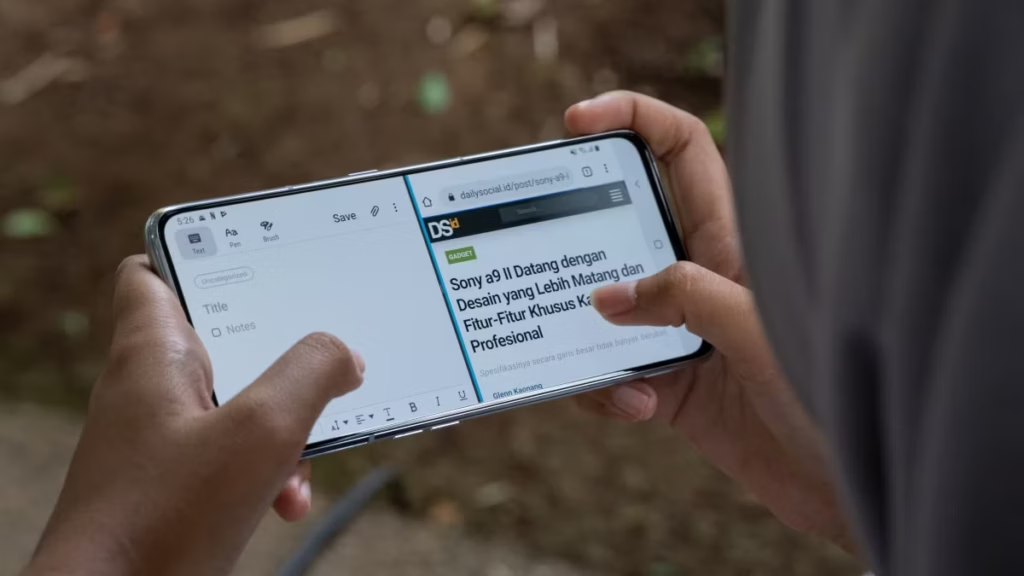
Two apps can be opened and used side by side in split screen mode (or top and bottom in portrait orientation). You may use two apps simultaneously, using up half of the screen. You can scroll, type, watch, or even copy and paste text between them.
When you can use use split screen?
Split screen is a truly strong feature that may completely change the way you use your Android device; it is not simply a gimmick. Here are some typical and astute methods to fully benefit from it:
Multitasking with messaging and media
Do you want to view a YouTube video while responding to messages on Telegram or WhatsApp? You can do both without missing a beat thanks to split screen. It is ideal for catching up on material and remaining sociable at the same time because you can keep viewing your video and participating in your conversations.
Working while referencing other apps
Do you need to draft an email while reviewing data from a notes app or spreadsheet? For productivity tasks like replying to work emails, producing content, or organizing chores while consulting other resources, split screens are perfect. It keeps you productive and engaged without requiring you to switch between programs.
Comparing products and prices
You can explore Amazon using one app and check pricing on eBay or another store using another. You may save time and money by using split screen to evaluate features, costs, and offers in real time.
Reading and translating content
You can use a translation app (like Google Translate) in conjunction with a browser or reading app if you are learning a new language or reading articles written in a foreign language. Instantaneous phrase translation without app switching enhances convenience and comprehension.
Planning trips or events
Put your calendar or itinerary app on one half of your screen and Google Maps on the other. Travelers who need to check locations while managing their schedules, booking confirmations, and to-do lists will find it ideal.
Organizing your day
Having a time-blocking calendar open in one app and your to-do list open in another is a way to employ split screens for personal efficiency. Planning your day, setting priorities, and scheduling tasks are all made much easier with this arrangement.
Following tutorials while performing tasks
When learning anything new, such as how to set up a feature, edit a photo, or follow tech instructions, you can try the steps in one app while a YouTube or browser instructional is open on the other. It is very helpful for experiential learning.
How to use split screen on different devices
The exact method can vary slightly depending on your device’s manufacturer and software version. Here’s how to activate it on most devices:
You can combine split screen with floating apps for 3-window multitasking.
For example, split screen for YouTube + Chrome, while Messenger floats in a bubble.
Productivity Tips
Use clipboard managers to quickly paste between apps.
Pin your favorite apps in the Recents menu for quicker access.
On Samsung, save split-screen pairs to the Edge Panel.
Combine with voice-to-text for ultra-productive workflows.
Despite being one of Android’s most potent features, split screen is one of its most underutilized. It can significantly enhance your experience without requiring additional setup, whether your goal is to multitask more effectively or do more tasks.
You can turn your phone into a little workstation with a few touches.
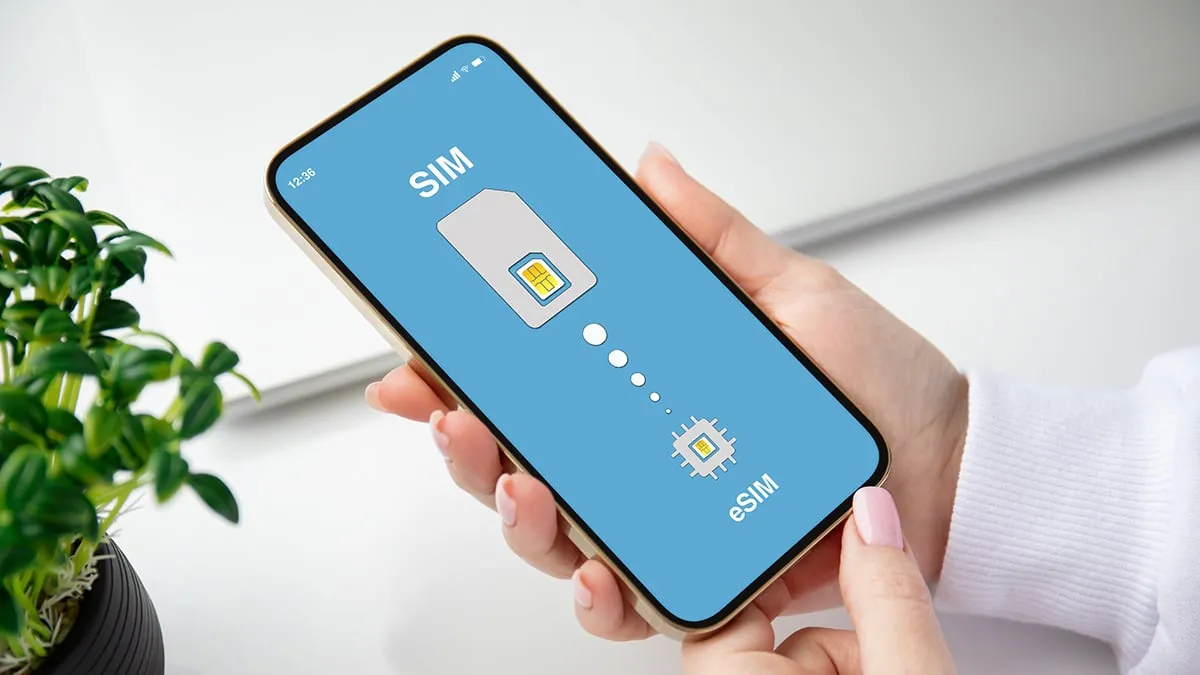
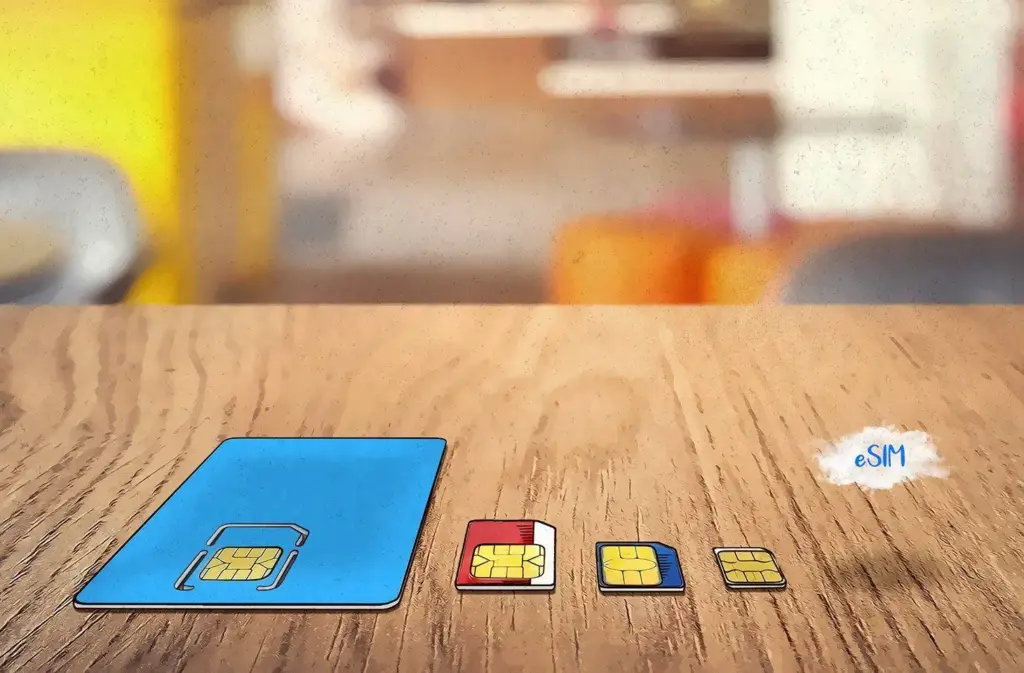
The SIM card, a small chip in your phone that links it to your chosen cell phone provider, is probably already obvious to you. For many years, this chip was located on a physical card that you could replace by removing your phone’s SIM card tray. However, the majority of contemporary phones also support eSIMs. eSIMs are integrated into the phone’s hardware in place of a physical card, and software is used to remotely program the carrier information.
A few conveniences are made possible by this, like the ability to test out service on a different carrier without having to pick up an actual SIM card in person or over the mail.
Converting an existing physical SIM card to an eSIM presents a challenge. If you want to load many eSIMs into a single device or if a new phone is eSIM-only, you might want to do this. Or maybe you simply do not want to go through the trouble of constantly changing actual cards between machines. Thankfully, the process of switching a physical SIM to an eSIM is not too difficult.
Make sure your new phone is compatible with eSIMs before you begin. The majority of contemporary phones do, as we already stated. In the US, the iPhone 14 and later are eSIM-only, however all iPhones since the iPhone XS and XR support eSIM. The majority of Android phones—including the Google Pixel 6 and later, as well as the Samsung Galaxy S21 and later—also support eSIM.
eSIM on an Android phone
Depending on the manufacturer, there may be differences in how to convert a physical SIM to an eSIM on Android. Telling your carrier that you are moving to an eSIM is the most reliable method to accomplish this. After that, they will either send you a QR code or manually lead you through the procedure. Here’s how to add a QR code to your phone if they do send one.
Go to Settings. Then tap either Connections or Network &Internet.
Select Sim Manager or SIMS.
Tap Add mobile plan or Download SIM card or Add SIM.
Then follow the on-screen instructions and scan the QR code when prompted.
However, the procedure is a bit simpler if you own a Samsung handset. To do it on a Samsung, follow these steps.
Launch Settings. Then tap Connections.
Select SIM card manager.
Choose your SIM (If you only have a physical SIM, it’ll just be the only one listed).
Tap Convert to eSIM.
Follow the on-screen instructions and then you’re done.
eSIM on an iPhone
Converting a physical SIM to an eSIM on an iPhone can be done in a few different ways.
If you want to change a physical SIM to an eSIM on the same iPhone (which requires the phone to support both), here’s how to accomplish it.
Open Settings, then select Cellular.
Then, if your carrier allows it, you’ll see an option that says Convert to eSIM. If you don’t see it, then your carrier likely does not support this action.
Tap Convert Cellular Plan.
Tap Convert to eSIM. Your eSIM will now activate.
If, on the other hand, your transferring a physical SIM to an eSIM on a completely different iPhone, here’s how to do it.
On your new iPhone, go to Settings, then choose Cellular.
Scroll down until you see Add eSIM. Select it.
Then you have two choices. One is Transfer From a Nearby Phone, which requires both handsets to have iOS 16 or newer. If you select that, you’ll follow the instructions on your previous iPhone. You can then select Transfer to confirm and then enter a verification code. Obviously this only works if both phones are iPhones.
Another option is to Use a QR Code. This is what you would use if a QR Code is provided by your carrier, or if your previous phone was a non-Apple handset. To scan the code, you open up the Camera app and point it at the QR Code. Tap the Cellular Plan Detected notification. If using an iPhone with iOS 17.4 or later, you can touch and hold the QR code and then tap Add eSIM.
Go ahead and follow the on-screen instructions, hit Continue and tap Add Cellular Plan.
If your carrier supplied the eSIM information, you may also opt to manually enter it. You can choose Settings, Cellular, Add Cellular Plan, and then Enter Details Manually if you wish to accomplish so.
It should be understood that inserting a new eSIM to your device may be done differently by different carriers. Please get in touch with them directly if you have any issues. Additionally, you will need to receive help from your carrier to make the switch if you are switching from an iPhone to an Android phone or vice versa.
Take a look to our eSIM guide, which goes into greater detail on the benefits and drawbacks of each, if you would like to understand more about eSIMs and if they are superior than physical cards.
With Android 15 Beta 2, Google introduced a brilliant new “Adaptive Vibration” setting that lets Pixel phones use their microphones to change the intensity of vibration. Almost everyone has experienced a circumstance when their phone’s vibration was louder than the ringing it was supposed to replace. The ability to manually change the vibration intensity has existed for a while, but Google is now expanding on it.
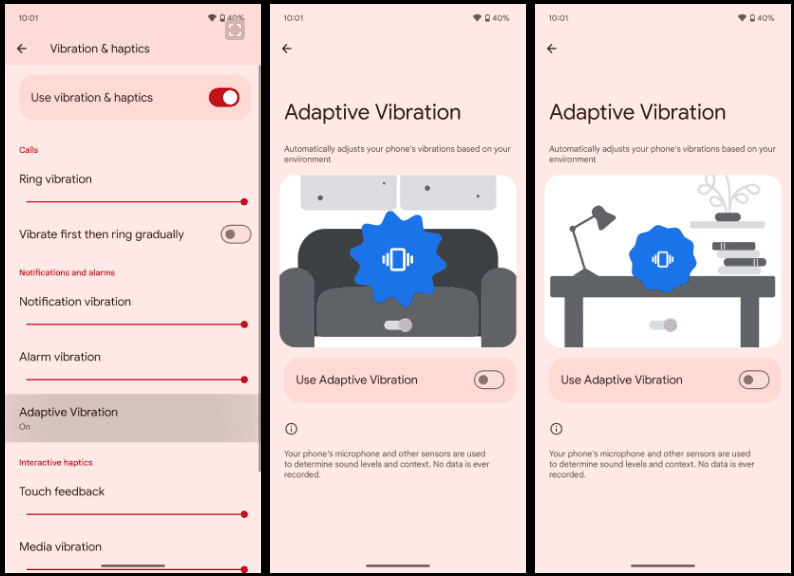
Google introduced “Adaptive Vibration” to Pixel Phones in Android 15 Beta 2. This new setting, located in Settings under the “Vibration & haptics” menu, is set to off by default. According to Google, the setting uses sensors to automatically modify the vibration intensity based on your environment.
According to the animation on the new Adaptive Vibration website, when the device is placed on a table, the vibration intensity decreases, which is what Pixel phones will do when the feature is enabled. The “Adaptive alert vibration” setting, which can reduce vibration intensity while the phone is face up with the screen on, is distinct from this.
The Pixel 7a introduced that capability. This feature appears to be helpful, but we will have to wait and see how it functions in practice. Although it is still disabled by default, the functionality was being developed in earlier beta editions, according to Android Authority. It is difficult to predict when these things will become live.
If Google’s various other “Adaptive” settings shown anything, it’s that this new option could prove invaluable to the experience in the long run.
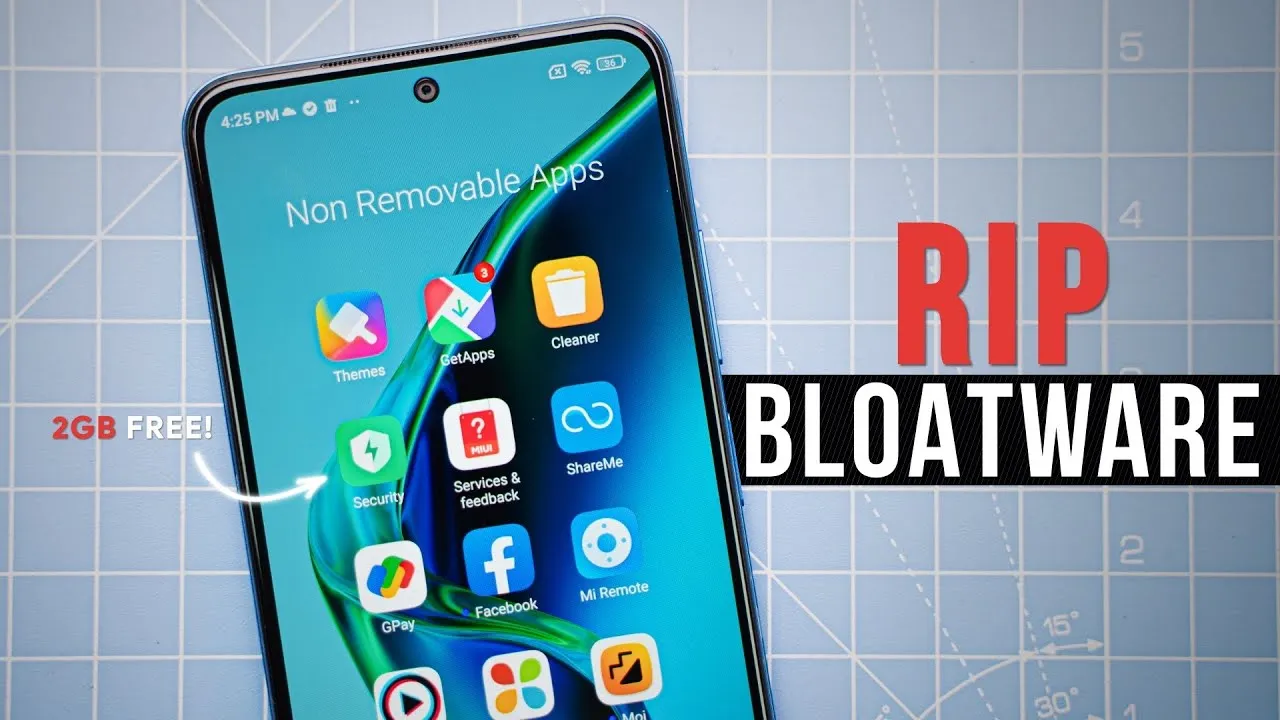
Bloatware is an awful phenomenon that millions of consumers encounter in the broad world of Android smartphones. The term “Android bloatware” describes the pre-installed applications that come with a new device and take up important storage space and system resources.
This article discusses the idea of “bloatware,” considers its ramifications, and investigates solutions to lessen its negative effects on the Android experience.
What is bloatware?
Bloatware is a term used to describe a variety of unwanted apps that customers may find redundant or superfluous and is frequently installed by device manufacturers or carriers. These apps could include demo versions of purchased software, carrier brand apps, and utilities tailored to particular manufacturers.
While some of the pre-installed apps may be beneficial, a large number are rarely used, clutter the device, and suck up resources. Bloatware installation is frequently motivated primarily by financial gain because app developers may pay device makers and carriers to include their programs.
Implications and Challenges
Bloatware’s presence can affect Android users in a variety of ways. First of all, it limits the amount of storage space that is available on a device, making it harder for users to install and save their favourite media and programs. Second, these undesirable programs might operate in the background, using up system resources, drained battery life, and possibly impairing device performance. Bloatware can also compromise user security and privacy since some pre-installed apps may gather private information or have security flaws that could be used by hackers. Last but not least, bloatware frequently can’t be removed, which frustrates consumers and prevents them from taking back control of their devices.
Bloatware impact
While completely eradicating bloatware without rooting the device is difficult (doing so can violate warranties and present security issues), there are a few tactics that can be used to lessen its negative effects. The first option is for users to disable or conceal unneeded apps in their device settings. This operation saves system resources by preventing the programs from running in the background and clogging up the app drawer. Second, using third-party app managers or cleaners can help with bloatware identification and removal, but caution must be used to prevent mistakenly uninstalling crucial system components.
Consider buying unlocked gadgets straight from manufacturers as an alternative strategy. These gadgets frequently have a cleaner Android experience and are devoid of carrier-specific software. Additionally, bloatware-free experiences can be had with custom ROMs and alternative firmware, like LineageOS, but these options call for technical know-how and may not be acceptable for all users.
Android debloater
he main goal is to improve battery performance and privacy by removing unnecessary and obscure system apps. This can also contribute to improve security by reducing the attack surface.
Packages are as well documented as possible in order to provide a better understanding of what you can delete or not. The worst thing which could happen is removing an essential system package needed during boot causing then an unfortunate bootloop. After about 5 failed system boots, the phone will automatically reboot in recovery mode and you’ll have to perform a FACTORY RESET. So make a backup first!
In any case, you can NOT brick your device with this script ! That’s the main thing, right ?
Features
Uninstall/Disable and Restore/Enable system packages
Multi-user support (e.g apps in work profiles)
Export/Import your selection in uad_exported_selection.txt
Multi-device support: you can connect multiple phones at the same time
All your actions are logged so you never forget what you’ve done
NB : System apps cannot really be uninstalled without root (see the FAQ)
Universal debloat lists
GFAM (Google/Facebook/Amazon/Microsoft)
AOSP
Manufacturers (OEM)
Mobile carriers
Qualcomm / Mediatek / Miscellaneous
Manufacturers debloat lists
Asus
LG
Google
Fairphone
Huawei
Motorola
Nokia
OnePlus
Oppo
Samsung
Sony
Xiaomi
Mobile carriers debloat lists
French carriers: SFR / Orange / Free / Bouygues
US carriers: T-mobile / Verizon / AT&T / Sprint
German carriers: Telekom
UK: EE
How to use
Enable Developer Options on your smartphone.
Turn on USB Debugging from the developer panel.
From the settings, disconnect from any OEM accounts (when you delete an OEM account package it could lock you on the lockscreen because the phone can’t associate your identity anymore)
Download the latest release of UAD GUI for your Operating System here. Take the opengl version only if the default version (with a Vulkan backend) doesn’t launch.
NOTE: Chinese phones users may need to use the AOSP list for removing some stock apps because those Chinese manufacturers (especially Xiaomi and Huawei) have been using the name of AOSP packages for their own (modified & closed-source) apps.
IMPORTANT NOTE: You will have to run this software whenever your OEM pushes an update to your phone as some uninstalled system apps could be reinstalled.