Tag: drive

  • How to scan documents using your Android phone

    How to scan documents using your Android phone

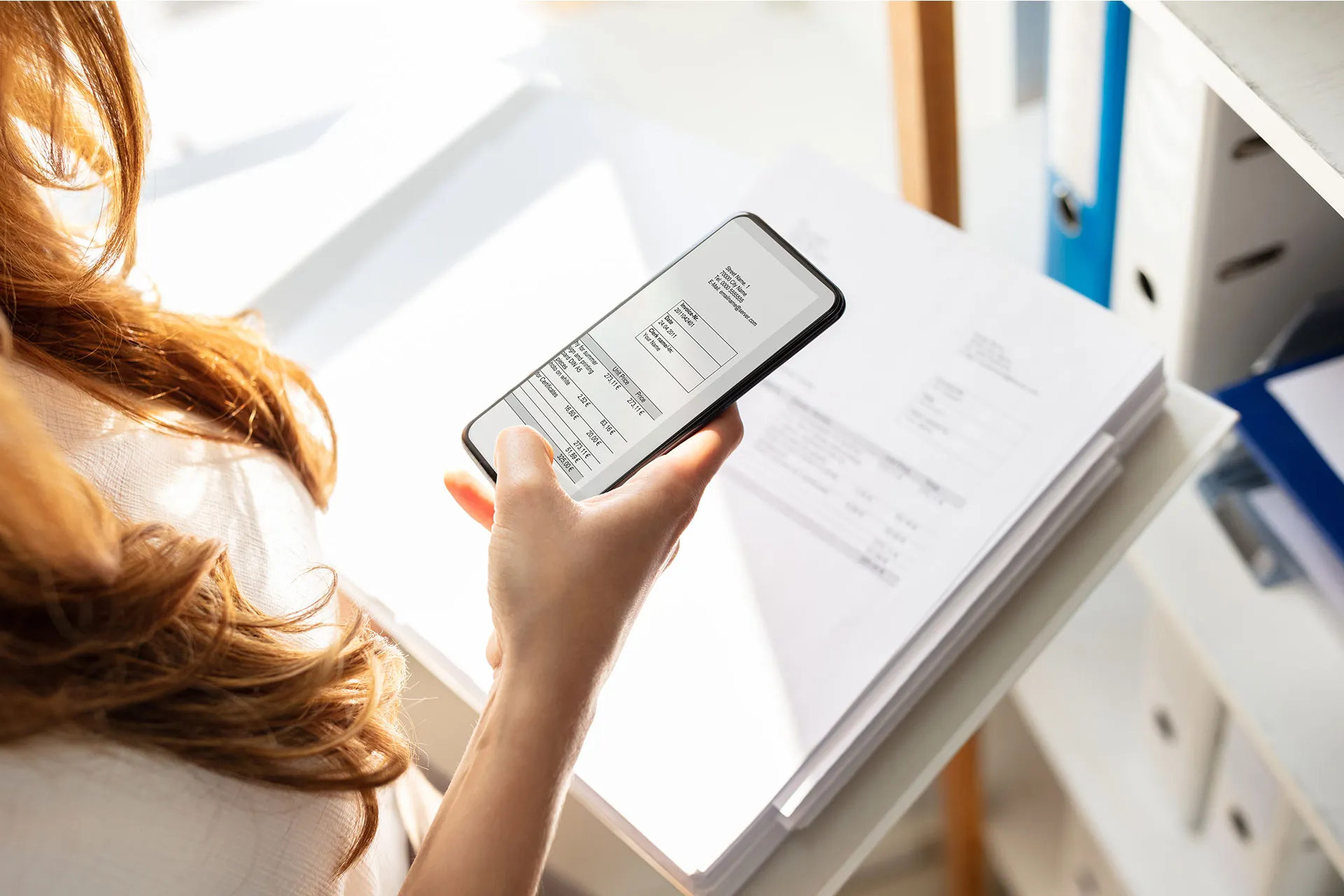
    A large flatbed scanner is no longer necessary for document scanning. You already have everything you need in your pocket if you own an Android phone. Android makes it simple to scan and digitize your papers with just your camera, whether they are signed contracts, handwritten notes, or invoices.

    We’ll walk you through the best ways to scan documents on Android with Google Drive, Google Photos, and other apps in this post. All you need is a decent camera and a few taps; no further gear is required.

    Why scan documents with your phone?

    There are many reasons to scan documents using your Android device:

    • You don’t have access to a physical scanner.
    • You want to save time by instantly digitizing documents.
    • You need to share signed papers, IDs, or receipts on the go.
    • You want to organize your paper clutter and go paperless.

    Thanks to apps like Google Drive and Microsoft Lens, the scanning process is fast, accurate, and easy to use.

    Scan documents using Google Drive
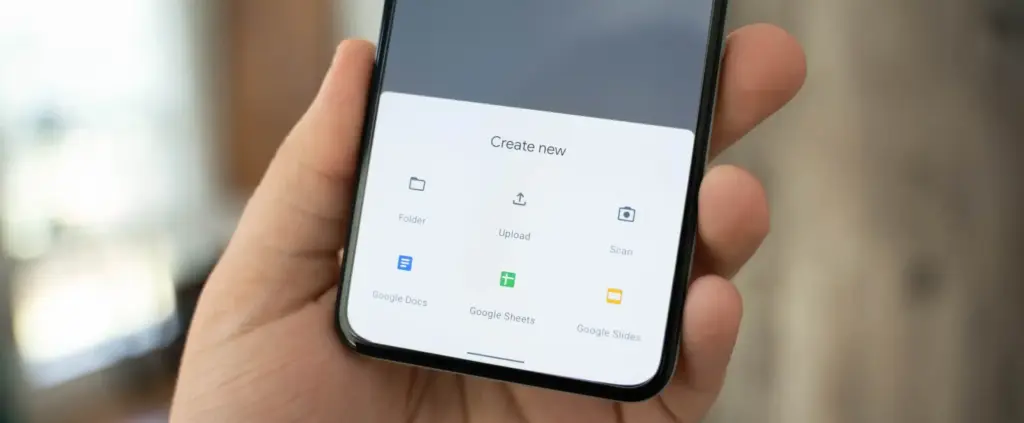
    scan documents with google drive

    Google Drive comes pre-installed on most Android phones and includes a powerful built-in document scanner.

    Step-by-step instructions:

    1. Open the Google Drive app
      Launch Google Drive from your app drawer.
    2. Tap the “+” (plus) button
      It’s located at the bottom-right corner of the screen.
    3. Select “Scan”
      This opens your camera with a scanning interface.
    4. Take a photo of the document
      Frame the document clearly in good lighting. Tap the shutter button.
    5. Adjust the crop area
      You can move the corners to fit the document if the scan is uneven.
    6. Tap “Done” or scan more pages
      You can continue adding pages or finish the scan.
    7. Save the file
      Choose a name and folder to save the scan as a PDF in your Drive account.

    Pros:

    • No need to install anything
    • Saves directly to cloud
    • Easy to share scanned files

    Cons:

    • Limited editing tools
    • Requires Google account

    Scan documents using Google Photos (via Lens)

    Google Photos includes Google Lens, which can recognize text and scan documents quickly.

    How to do it:

    1. Open the Google Photos app
      Find the photo of your document or take a new one.
    2. Tap the “Lens” icon
      It’s at the bottom of the screen and activates text recognition.
    3. Select the document area
      Google Lens will highlight the text areas.
    4. Choose “Copy text” or “Search” or “Save as PDF”
      You can extract text or save it, depending on your needs.

    This method works best for typed text and single pages rather than full multi-page scans.

    Scan documents using Microsoft Lens
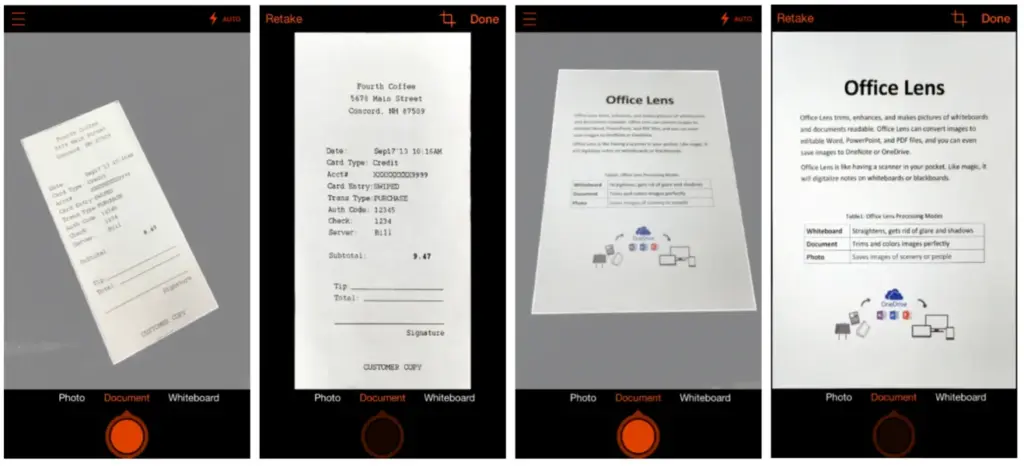
    scan documents

    Microsoft Lens is a dedicated scanning app with powerful enhancement tools.

    Steps:

    1. Install Microsoft Lens from the Play Store
    2. Open the app and choose “Document” mode
    3. Capture your document
      It automatically detects edges and adjusts perspective.
    4. Edit the scan
      You can crop, rotate, or enhance the scan quality.
    5. Save or share the file
      Export to PDF, Word, OneNote, or save to your gallery.

    This app is ideal for professional-quality scans and editing.

    Tips for best scanning results

    • Use natural lighting to avoid glare or shadows.
    • Place the document on a flat, contrasting background.
    • Keep the phone steady while capturing the image.
    • Make sure the document fills the frame but doesn’t crop edges.
    • Clean your camera lens for sharper results.

    Organizing your scanned documents

    After scanning, keep your files organized by:

    • Creating folders in Google Drive (e.g., Receipts, IDs, Legal Docs)
    • Using consistent file naming (e.g., “Invoice_June_2025.pdf”)
    • Backing up to cloud storage or an external drive

    Security and privacy concerns

    If you’re scanning sensitive documents (like IDs, contracts, or financial info):

    • Use apps that encrypt your files
    • Avoid scanning on public Wi-Fi
    • Use a secure cloud service (Google Drive, OneDrive, etc.)
    • Consider locking folders or using file protection apps

    Scanning is excellent for common documents, but dedicated hardware scanners may still provide superior results for specific applications, such as high-resolution archiving, submitting legal papers, or intricate artwork. However, your Android phone is more than capable of meeting 95% of your daily demands.

    You can increase your freedom and convenience by learning how to scan documents with your Android phone. Whether you use a third-party tool, Google Drive, or Photos, digitizing documents and maintaining organization is simple. It only takes a few taps and eliminates the need for large scanners or additional procedures.

    Stay connected with the latest from Droid Tools—follow us on X @droid_tools, like our page on Facebook, check out our updates on Instagram, and follow us on Google News for real-time news, device tips, and mobile tech insights.
  • How to back up your Android phone

    How to back up your Android phone

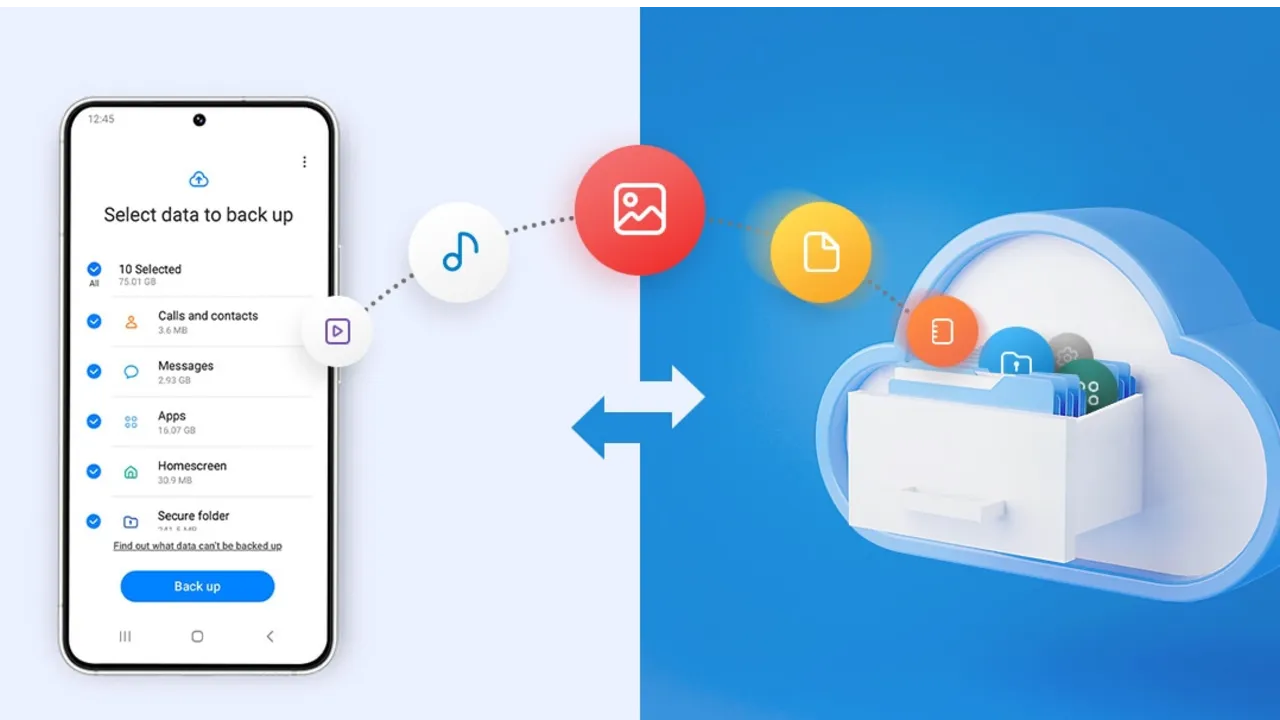
    Backing up your Android phone ensures that your data is safe in case of loss, damage, or switching to a new Android device. Thankfully, Android has a number of built-in security features that secure your contacts, media, apps, and settings without the need for third-party programs.

    Establishing a suitable backup plan is crucial, regardless of whether you’re upgrading your device or getting ready for a factory reset.

    Why it’s important to back up your Android phone

    It’s not just techies who should back up. You run the danger of losing private images, critical messages, app data, and even saved Wi-Fi passwords if your phone is misplaced or broken. Regular backup creation allows you to:

    Use Google backup (cloud-based method)

    google backup data

    Google offers a dependable, integrated backup system that connects to your Google account and stores your important data in the cloud. For the majority of Android users, it is the most practical approach.

    What Google backup saves:

    • App data and preferences
    • Call history
    • Contacts
    • SMS text messages
    • Device settings (Wi-Fi, wallpapers, display preferences)
    • Photos and videos (via Google Photos if enabled)

    How to enable Google backup:

    1. Open Settings on your Android device
    2. Scroll down and tap Google
    3. Tap Backup
    4. Ensure Backup by Google One or Back up to Google Drive is turned on
    5. You’ll see a summary of what’s being backed up. Tap Back up now to trigger an immediate backup

    Once enabled, your phone will automatically back up daily when connected to Wi-Fi and charging.

    Back up photos and videos using Google Photos

    Your videos and pictures frequently include priceless memories. To make sure your media files are securely backed up and available on multiple devices, Google Photos offers a quick and safe solution. It’s among the most dependable ways to preserve your graphic information without requiring complicated instruments or extra hardware.

    Google Photos is a robust cloud-based platform that automatically stores and arranges your images and videos, making it more than simply a gallery app. Once activated, it will sync your media to your Google Account continually, so your memories will be preserved even if your device is lost or damaged.

    Steps to back up media:

    1. Open the Google Photos app
    2. Tap your profile icon in the top right
    3. Choose Photos settings > Backup
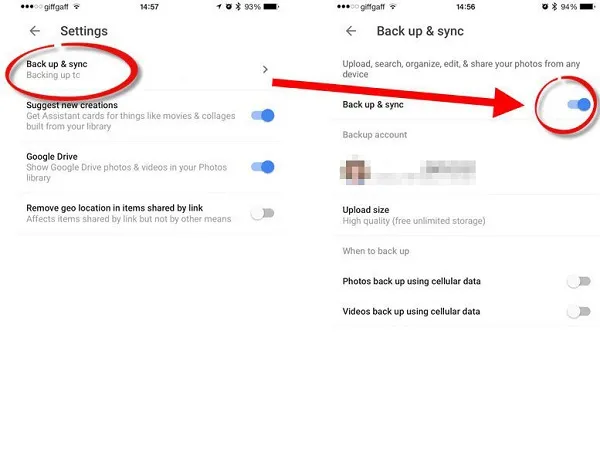
    4. Toggle Backup to on
    5. Choose your preferred upload size (Storage saver or Original quality)
    google photos enable back upyour Android devices photos and videos

    All your photos and videos will sync to the cloud, and you can access them on any device logged into your Google account.

    Back up files manually to a PC

    Although cloud storage services like Google Drive and Google Photos are convenient, backing up your Android files to a PC by hand offers you more control, privacy, and independence from internet connectivity. It’s a simple process that guarantees you have a hard copy of all of your vital information, including documents, films, images, and more, safely saved on your computer.

    Here’s how:

    1. Connect your Android phone to your PC using a USB cable
    2. On your phone, choose File Transfer / MTP mode when prompted
    3. Open File Explorer on your computer
    4. Locate your device, open it, and navigate to folders like DCIM, Downloads, Pictures, or Documents
    5. Copy and paste the desired files to a safe folder on your PC

    This method is ideal for archiving large files or performing a one-time back up your Android without an internet connection.

    Use Samsung Cloud or manufacturer tools (for Samsung, Xiaomi, etc.)

    Some manufacturers offer their own back up your Android device solutions in addition to Google’s.

    For Samsung users:

    1. Go to Settings > Accounts and backup
    2. Tap Samsung Cloud
    3. Choose what to back up (contacts, calendar, settings, etc.)
    4. Tap Back up now

    You can restore this data to any Samsung device later using the same Samsung account.

    Xiaomi users:

    Use Mi Cloud by going to Settings > Mi Account > Mi Cloud and enabling the backup options available for your account.

    Always ensure you’re connected to Wi-Fi and have enough cloud storage before initiating the process.

    Backup apps like SMS and call logs (optional)

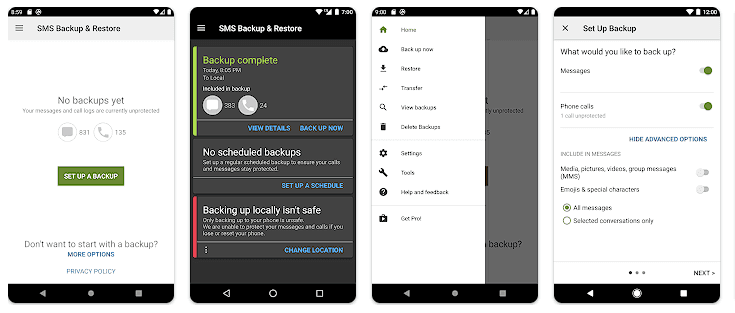
    Most devices now have SMS and call history included in Google’s backup system, but if you have an older phone or want more redundancy, apps like SMS Backup & Restore can give you more flexibility.

    back up your Android

    How to restore your data

    When setting up a new Android phone:

    1. Log in with the same Google account used for backup
    2. During the setup process, Android will detect the backup
    3. Choose what you want to restore—apps, settings, contacts, etc.
    4. Wait for the process to complete; some data may take time to sync

    For manufacturer backups, you’ll need to use the brand-specific restore method (Samsung Cloud, Mi Cloud, etc.).

    Tips for reliable Android backups

    • Always use a stable Wi-Fi connection before backing up
    • Keep automatic backups turned on for peace of mind
    • Occasionally perform a manual backup if you’re making major changes
    • Regularly check if Google Photos is syncing properly
    • For local backups, organize files by folders and label your backups by date

    Back up your Android device is easy and doesn’t require technical expertise. The majority of your crucial data is handled by Google’s reliable, automated solution, but you also have more flexibility with local and manufacturer-specific solutions. Having a backup guarantees that your data is never completely lost, whether you’re changing phones or simply staying secure.