Android 17 Beta 4 is now rolling out to Pixel devices, and Google says it is the “last scheduled beta of this release cycle.” After the larger Beta 3 update brought new features and platform stability, this release appears focused on final refinements ahead of a stable launch later this quarter.
To install Android 17 Beta 4, Pixel users can enroll through the Android Beta program and wait for the over-the-air update. Those who prefer the manual route can also flash a factory image or OTA file.
The latest build details are below:
Release date: April 16, 2026 Build: CP21.260330.008 Emulator support: x86 (64-bit), ARM (v8-A) Security patch level: 2026-04-05 Google Play services: 26.11.36
Android 17 Beta 4 supports Pixel devices back to the Pixel 6 lineup.
Developer changes
One of the main additions in Android 17 Beta 4 is conservative app memory limits, which are meant to improve system stability. If an app is killed because of these limits, ApplicationExitInfo.getDescription will return “MemoryLimiter.” Developers can also use trigger-based profiling with TRIGGER_TYPE_ANOMALY to capture heap dumps when the limits are reached.
Google has also tightened background audio rules. Starting in Android 17, the audio framework restricts background interactions such as audio playback, audio focus requests, and volume change APIs. Some changes were made after feedback from beta 2, including targetSDK gating for while-in-use FGS enforcement and exemptions for alarm audio.
Bug fixes
Android 17 Beta 4 also includes a long list of bug fixes:
An issue where webpage URLs were automatically included when sharing screenshots from the capture preview, causing unwanted links to be shared with image files. (Issue #444631269)
An accessibility issue caused the device to become completely unresponsive and unusable. (Issue #484755628)
An issue where the media control widget could disappear or fail to navigate between multiple active media sessions. (Issue #457008153, Issue #466760800, Issue #497131275, Issue #499041878)
An issue where dream services failed to correctly process key events, trigger keyguard bouncer prompts, or execute service lifecycle callbacks. (Issue #485661973)
An issue that prevented users from successfully downloading and applying cinematic or local weather wallpaper effects. (Issue #475924636)
An issue where the device would freeze and spontaneously restart while typing in messaging applications. (Issue #478417840)
A critical system instability issue that causes the device to hang and crash during normal usage. (Issue #427436873, Issue #428838049)
An issue causing devices to experience significantly reduced charging speeds when approaching the 80% battery limit, resulting in long delays before the device reaches its target charge and enters bypass mode. (Issue #485148344, Issue #490178498)
A rendering issue that caused multicolored horizontal lines to randomly obscure the device display. (Issue #478953060, Issue #478177624, Issue #483765859, Issue #487263076)
Pulling down the notification drawer while a feedback report is in progress can cause a System UI crash and device freeze. (Issue #488920581)
Critical system components including Pixel Launcher and navigation may crash or become unresponsive for several minutes after a device reboot. (Issue #317282987, Issue #316689583, Issue #316188779)
An accessibility issue that prevents users from properly interacting with apps after minimizing and returning to a split-screen view. (Issue #490735259)
An issue that prevented Bluetooth from being re-enabled after it was turned off via the system settings or quick settings panel. (Issue #498320401)
Notifications marked with setSilent(true) may unexpectedly play alert sounds on Android 16 when multiple notifications are present in the shade. (Issue #467164528)
Wi-Fi analyzer applications fail to detect any available Wi-Fi signals, preventing network scanning and signal monitoring.
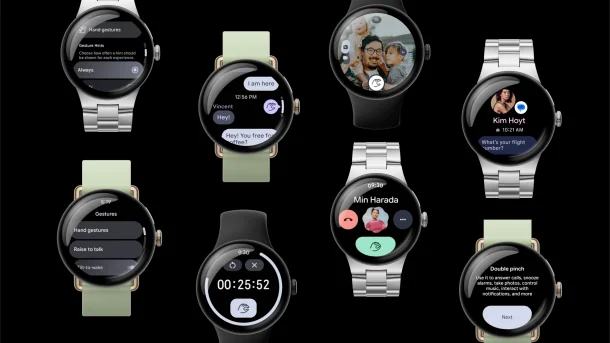
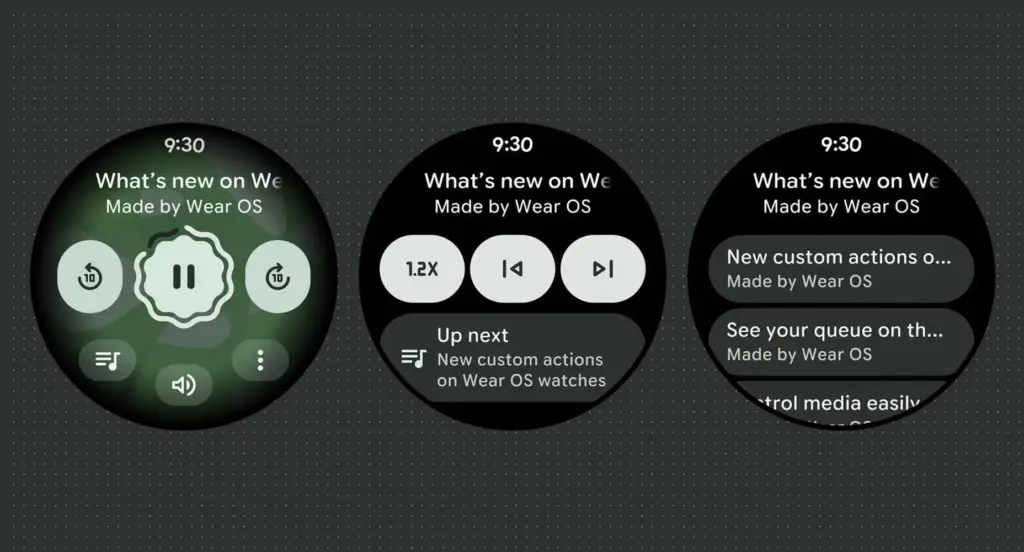
Google has launched Wear OS 6.1, based on Android 16’s second Quarterly Platform Release (QPR2) — specifically API level 36.1 — which first dropped in December as a minor SDK update. The last comparable release was Wear OS 5.1 in November 2024, which brought a significant jump from Android 14 to 15.
Google has confirmed that this update introduces no behavior changes for app developers, making it a relatively smooth transition on the development side.
What’s new for users in the new Wear OS
The headline addition is automatic time zone adjustment based on physical location. The feature keeps device time accurate as users move between regions, and it works even without a network connection. Users can manage the setting under Settings > Date & Time > Use Location (or on Pixel Watch: Settings > System > Date & Time > Use Location).
Improvements for kids and supervised accounts
Wear OS 6.1 also brings a handful of refinements aimed at younger users and family setups:
Kids graduation: When a supervised user reaches the age of consent, they can transition their device to a standard Wear OS experience. This removes parental controls and unlocks full access to device settings — no factory reset required.
Improved reauthentication: If a user’s credentials are invalidated — say, after a password change — they can now re-verify their Google Account directly on the watch or via the companion app, again without needing a factory reset.
Developer availability
Build BP4A.250916.026.E2 is now available through the Android Studio emulator.
The first thing you should do if your Android phone has become sluggish is to wipe off its storage. Here are some tips for speeding up your outdated Android phone if you’re not sure where to start.
Delete unused apps
Phones can accumulate a large number of unused apps over time, leaving your device looking crowded. You may have used an outdated photo editing app or a QR scanner app from a restaurant on your previous trip. Uninstalling these apps is the best way to free up space on your Android phone.
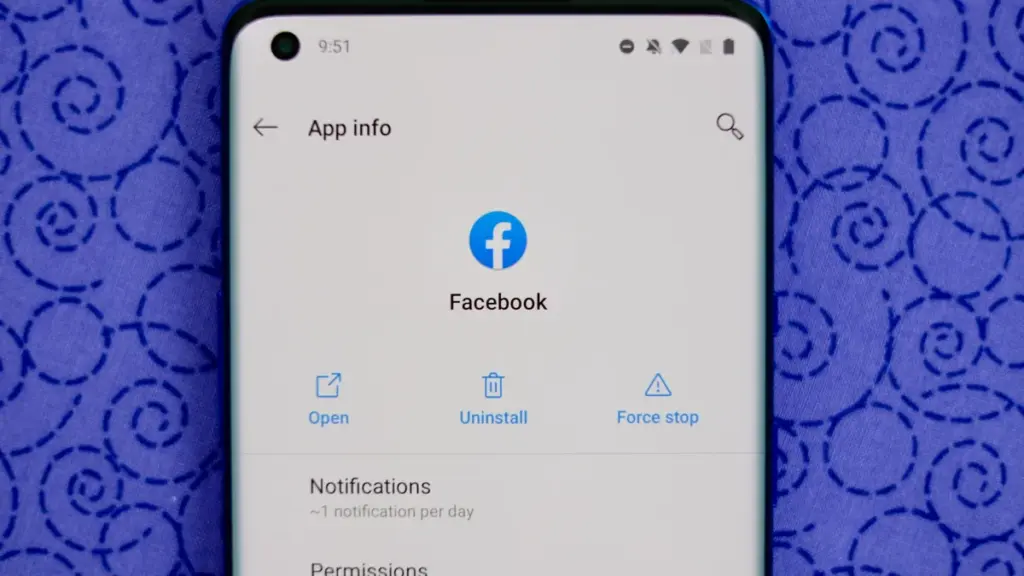
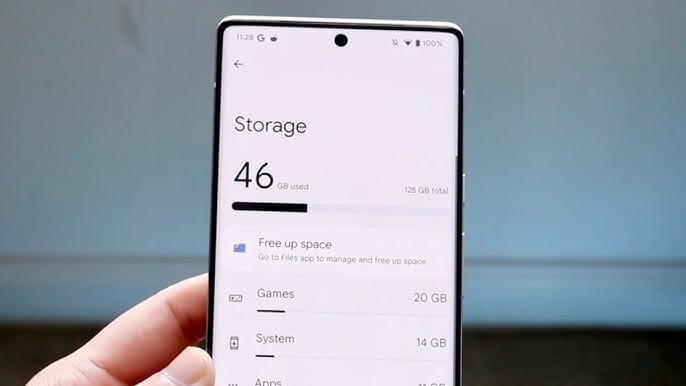
Because your Android phone won’t have to spend resources on apps that aren’t being used, decluttering it can speed it up. Removing these APKs will improve resource management and make your phone quicker. To view the list of installed apps and remove those you no longer require, navigate to Settings > Storage > Apps. You may also long-press on these forgotten apps on the app screen to get App Info > Uninstall.
Clear storage
Files and long-forgotten pictures of school notes are just two examples of the trash that accumulates on old Android phones. Following the removal of unnecessary apps, you should try to free up space on your Android phone by browsing through the stored files and images.
To see what’s saved, open the File app on your phone. The majority of garbage, including long-forgotten PDF files, images, etc., is frequently found in the Downloads folder. You should check two more areas to make sure the storage is clear.
Offload photos from your phone and save them to an external drive or the cloud. This helps create a backup of your memories and clear space on your old Android phone.
Clear the app cache. For the unaware, cache is bits of data that an app saves so it is quicker to operate the next time you open it. I recommend clearing the cache for less-used apps with no saved login information. You can go to Settings > Storage > App > Clear Cache to save more space.
Check for updates
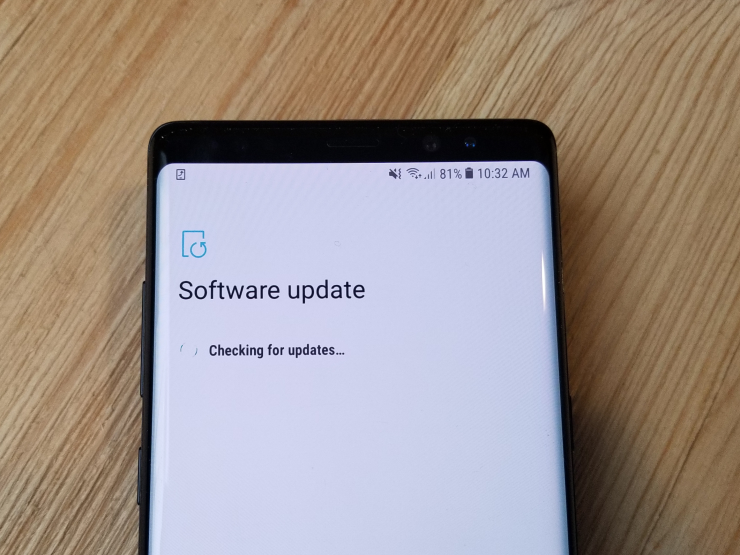
Verify that the operating system on your Android phone is up to date. Updating it will install the most recent security procedures and make it snappier. To verify and install the most recent software version, navigate to Settings > General > System Update.
After updating your old Android phone to the most recent OS version and removing the uninstalled apps, you should update the remaining apps from the Google Play Store. To get the newest features, enhanced security, and faster performance, it’s critical to utilize the most recent versions of these programs.
Adjust the animation speed
A few features, such as Developer options to alter the animation speed, can be enabled or disabled to make your phone feel faster. This can make your phone feel much faster, but it’s a little trickier than the other settings discussed above.
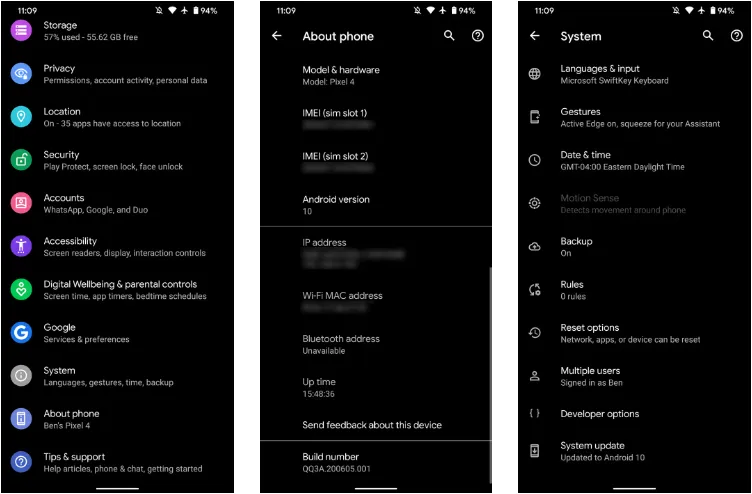
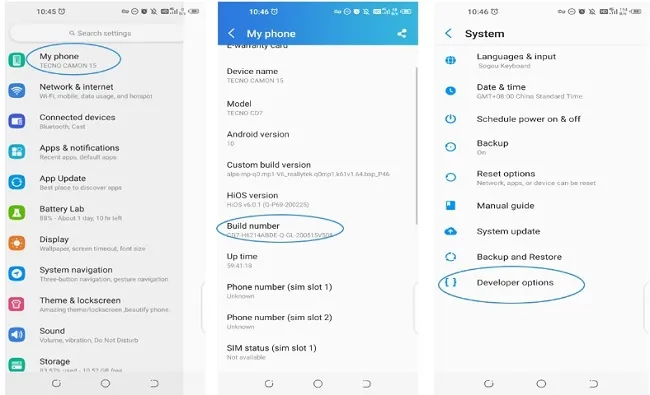
Go to Settings > About phone > Tap on Software details >, then tap your Build number seven times to enable Developer options. You should now be able to access various animation scale parameters as this should activate the Developer options.
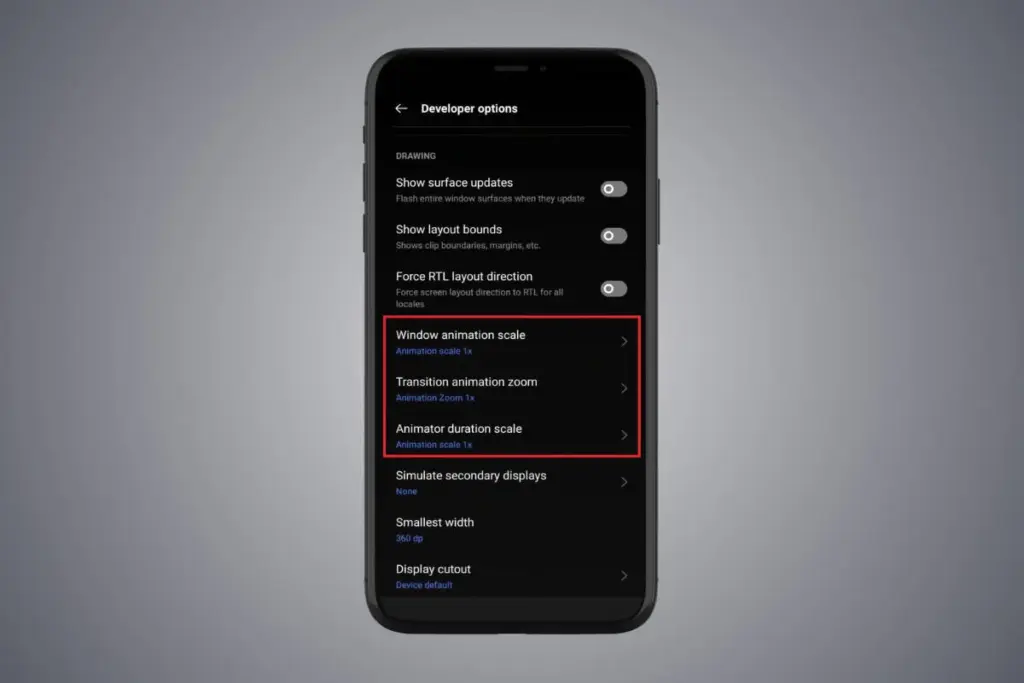
Next, locate the Window animation scale by scrolling down in the Drawing section of the Developer settings. To make apps and window pop-ups run faster, tap on it and adjust the animation to 0.5x.
To reduce the speed at which you move between home screen panels and within apps, you may also change the Transition animation scale. Additionally, reduce the Animator duration scale to speed up typical UI motions like unlocking the phone and opening and closing apps.
You may breathe fresh life into your aging Android phone by adjusting these settings. After adjusting, it ought to feel quicker and have more zip when performing daily tasks. If you want to give it a refresh, I recommend tinkering around with your home screen, changing the wallpaper, and modifying extra settings to help it stay longer.
Enabling Developer Options and USB debugging is crucial if you want to test apps, get more control over your Android device, or connect your phone to a computer for development. This built-in Android function provides you with the ability to delve deeper, regardless of whether you’re a power user or simply attempting to troubleshoot a persistent issue.
Without requiring root access, we’ll show you exactly how to activate USB debugging and Developer Options on any Android device in this tutorial. We’ll also go over the functions of each feature and when you might require them.
What are Developer Options on Android?
Android’s Developer Options is a secret menu with advanced settings designed mainly for developers. But regular users might also benefit from many of these choices. For instance, you can:
Speed up animations to make the phone feel faster
View CPU usage on screen
Simulate different display sizes
Force apps into split screen
Enable USB debugging for data transfers or app testing
By default, Developer Options are hidden, but you can enable them with just a few taps.
What is USB debugging and why use it?
USB debugging allows your Android device to communicate with a computer using Android Debug Bridge (ADB). This is critical for:
Transferring files and installing apps manually
Using development tools like Android Studio
Running shell commands via ADB
Taking full device backups
Recovering devices stuck in boot loops or soft bricks
Unless you’re developing apps or using advanced tools, USB debugging isn’t needed all the time. But turning it on gives you more flexibility when needed.
How to enable Developer Options
The Developer Options menu can be accessed by following these steps:
Open the Settings app on your Android phone.
Scroll down and tap “About phone.”
Find the “Build number” entry (you may need to tap “Software information” first on some devices).
Tap the Build number 7 times. You’ll be asked to confirm your device lock (PIN, pattern, or fingerprint).
You’ll see a message saying “You are now a developer!”
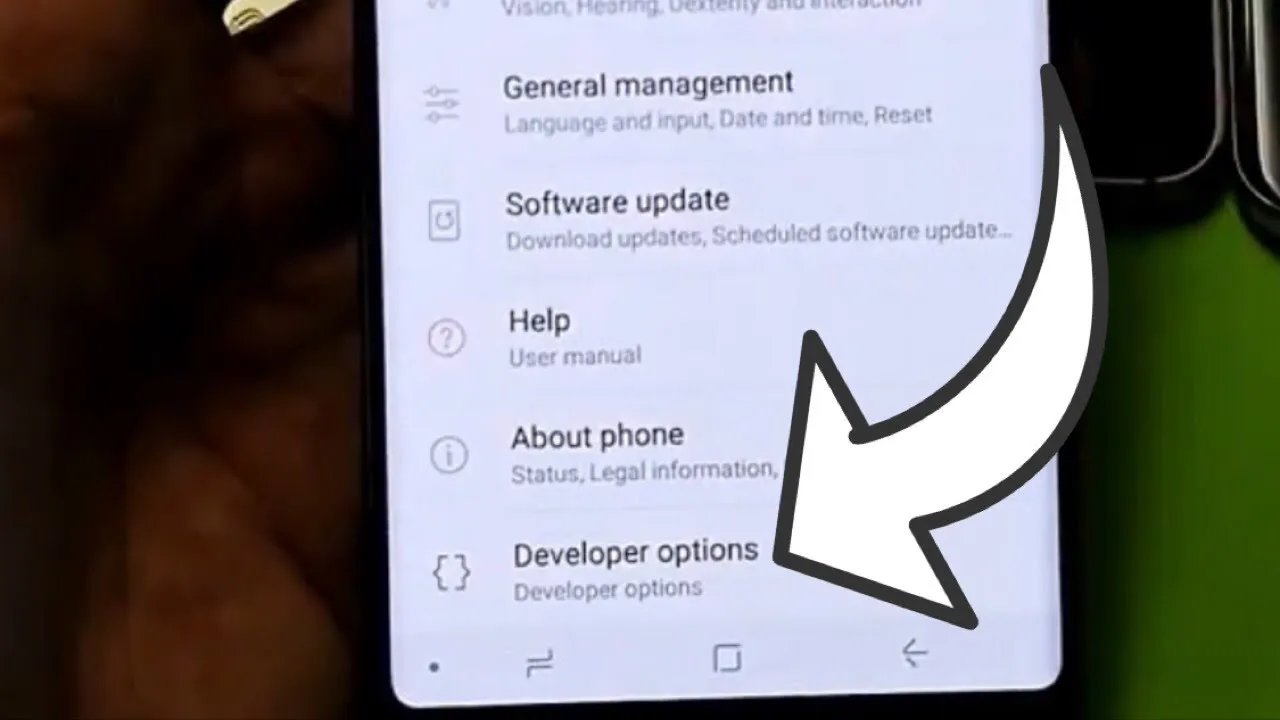
Once this is done, Developer Options will be available in your Settings.
Location of Developer Options by brand:
Samsung: Settings → Developer options (at the bottom of the main settings menu)
Google Pixel: Settings → System → Developer options
Now that Developer Options are turned on, you can enable USB debugging:
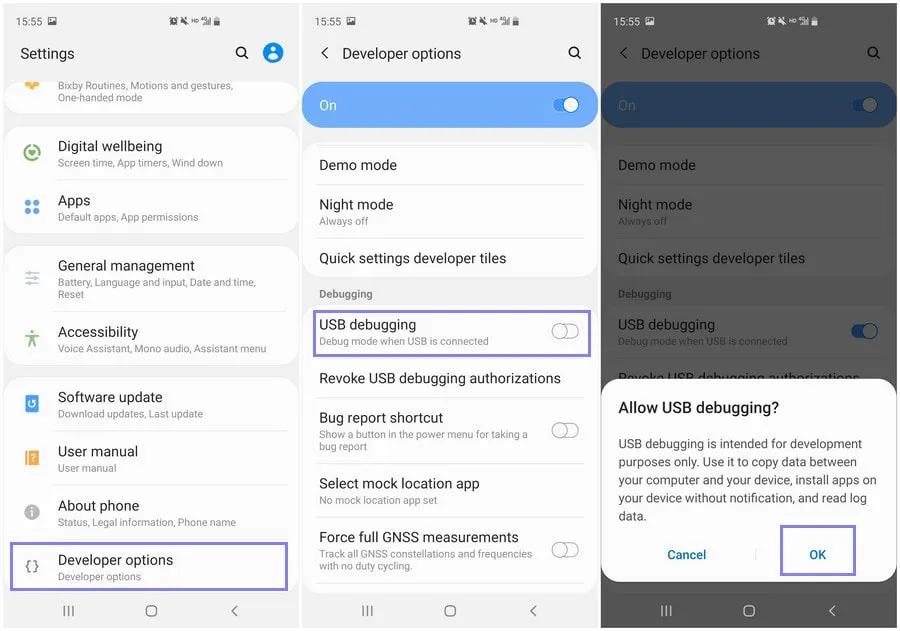
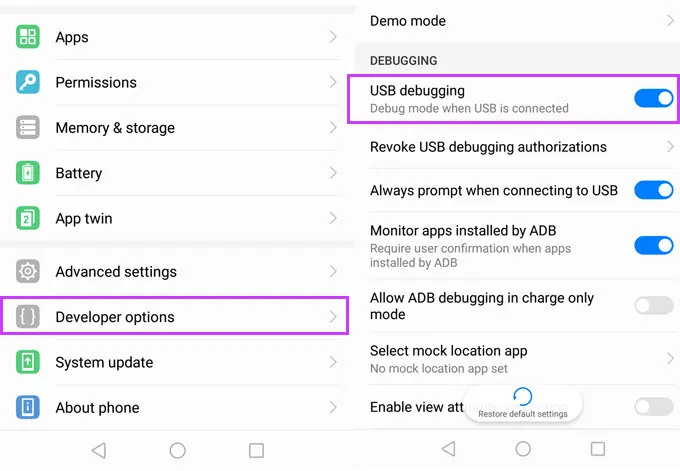
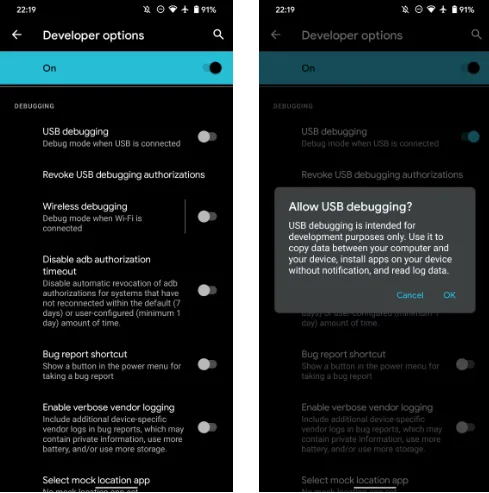
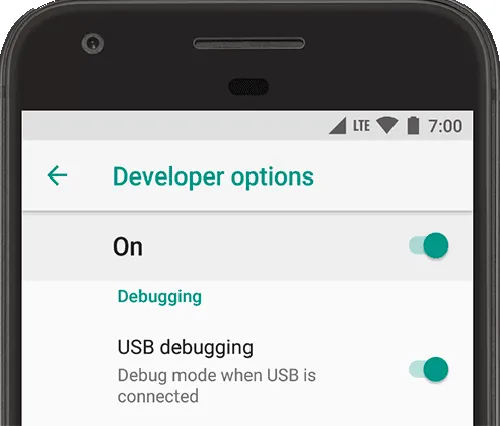
Go to Settings → Developer Options
Scroll down to the “Debugging” section
Toggle on “USB debugging”
Confirm the prompt asking if you’re sure
That’s it! You can now use your phone with development tools or perform more advanced actions from your PC.
When should you turn off USB debugging?
If you’re not actively using USB debugging, it’s best to leave it off. Here’s why:
USB debugging can be a security risk if your device falls into the wrong hands while unlocked.
Some apps or company policies block access if USB debugging is enabled.
To disable it, just return to Developer Options and toggle it off.
Other useful Developer Options settings
Besides USB debugging, some other features you may want to explore include:
Window animation scale / Transition animation scale: Set to 0.5x for faster UI response
Force activities to be resizable: Useful for multitasking and split screen
Stay awake while charging: Keeps the screen on during testing
Limit background processes: Improve performance by reducing multitasking
Show taps / Pointer location: Great for app demos or screen recording
Be cautious while experimenting—many of these options affect system behavior.
Troubleshooting Developer Options or USB debugging
Developer Options not appearing?
Double-check that you tapped “Build number” exactly 7 times
Some devices require a reboot afterward
USB debugging not working?
Try a different USB cable or port
Make sure “File Transfer” mode is selected via USB preferences
Check that your computer has proper ADB drivers installed
You may access a robust collection of tools on your Android phone by turning on USB debugging and Developer Options. Although developers are their main target audience, tech-savvy consumers who desire greater control over their gadget might also benefit from them.
These options can improve your Android experience, whether you’re using ADB to transfer files, debug apps, or simply wish to adjust animation speeds. Just use caution when navigating the options, since some settings may have unexpected consequences.
Stay connected with the latest from Droid Tools—follow us on X @droid_tools, like our page on Facebook, check out our updates on Instagram, and follow us on Google News for real-time news, device tips, and mobile tech insights.
ADB is a command-line tool that makes it easier for your Android smartphone and a PC to communicate. The tool has many more applications besides only rooting and updating Android ROMs (more on this later).
The traditional method for using ADB entails connecting your Android device to the Desktop through USB. But there is an alternative. Let’s examine at some wireless ADB usage options.
Set up ADB
You can skip this step if ADB has previously been configured on your Android and PC. If you haven’t, remember that everything is new to you!
You must first download and unzip the Android SDK Platform Tools from the Android developer website before you can use ADB on your machine.
By executing the command: brew install homebrew/cask/android-platform-tools, Mac users can use Homebrew to install ADB.
Before you may connect your Android smartphone using ADB, you must first enable USB debugging in the developer settings.
Go to Settings > About phone then tap on the Build number several times. Once again, go to Settings > Developer options, then toggle on USB debugging.
Once that is finished, use a USB cord to connect the Android device to your Desktop. You must utilize a cable initially even though we’re going to set up a wireless connection. The USB debugging prompt that will display on your Android device should always be accepted.
Open the command line or Terminal and navigate to the Platform Tools folder.
If you’re on Windows, you can head to the downloaded Platform Tools folder and open the PowerShell window by pressing Shift and right-clicking anywhere in the folder, and selecting Open PowerShell Window here. On a Mac, open the Platform Tools folder and go to Finder > Services > New Terminal at Folder.
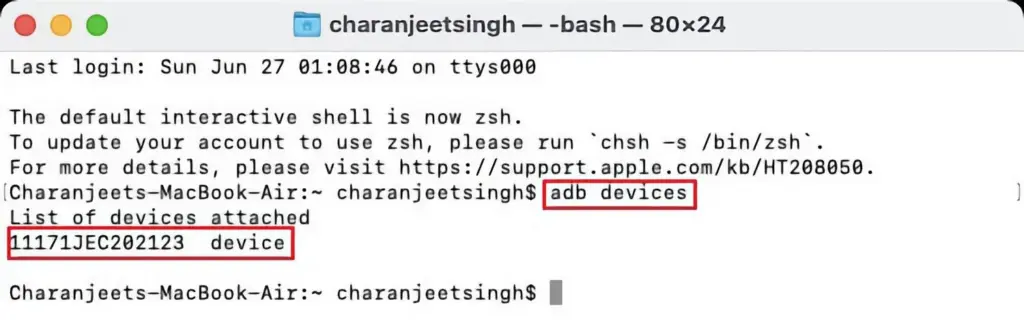
If you’re using Windows, use the command adb devices into the command prompt. All instructions should be prefixed by a dot-slash on Linux and Mac, so it would be./adb devices.
You should be able to find your device’s serial number in the list of attached devices if everything functions as it should.
How to use Android wireless ADB
The main topic at hand right now is how to connect your Android smartphone wirelessly to an ADB server. To use ADB wirelessly after configuring it and connecting your Android device to your PC, follow the instructions below.
Type adb tcpip 5555 in the command line or Terminal and press Enter.
Find your phone’s IP address in Settings > About Phone > Status > IP Address.
Back in the command line or Terminal, type adb connect [your Android device’s IP address].
Finally, press Enter again.
The Android device should now be connected to ADB over a wireless connection. You can safely remove the USB cable.
Is wireless ADB not working?
Try installing Minimal ADB and Fastboot from the XDA Forums if your Android device won’t connect to Windows using ADB (you are getting errors in the command line). The required Android drivers are installed by this package, which may also assist you in fixing any command line issues.
You can also utilize WebADB, which transfers all of ADB’s capabilities to your web browser. You can use the online tool to use ADB via Wi-Fi. In other words, you can completely forego installing ADB.
What is ADB used for?
The idea that Android ADB is solely helpful when rooting Android is a common one. It, however, is merely one of the several uses for the Android Debug Bridge.
For example, you can use an ADB command to delete pre-installed apps from your Android device that is not rooted. Unwanted apps may be tough to remove from some Android cellphones, but ADB can assist.
Without needing to root your device, you may also mirror your Android screen to a Desktop using the command line utility. This can be done using the free program Scrcpy. The tool’s wireless ADB connection results in extremely fantastic performance.
Is safe to use?
Using the utility won’t be a problem if you are familiar with ADB commands. There are risks involved with using ADB, especially if you are new to this field. If you are trying to root your device, using the incorrect commands could result in problems or, at worse, brick your phone.
Although your Android smartphone won’t have any problems once you set up wireless ADB, you should always keep a backup of your data in the cloud or on an external storage device as a safety measure.
No cables anymore
Although though you first require a USB cord to set up ADB, the ability to utilize it wirelessly is incredibly useful. It allows you to walk around more freely while you work, allows you to simultaneously charge your phone at full speed, and is just much more practical in general. It’s definitely worth a go if you use ADB.
All apps on Google’s platform will be impacted by a new requirement that is being added to the Play Store. The goal of this new requirement is to provide people more control and privacy over their data.
All Google Play Store applications that currently support account creation will soon be required to support account deletion as well. The tech behemoth blogged about the new rule modification.
For apps that enable app account creation, developers will soon need to provide an option to initiate account and data deletion from within the app and online. This web requirement, which you will link in your Data safety form, is especially important so that a user can request account and data deletion without having to reinstall an app.
As the company mentions, the Data safety section in the Play Store already lets developers provide data deletion options. However, this move is meant to give users “an easier and more consistent way to request them.”
The developer will now have to remove the data connected to that account if you ask for your data to be erased. Hence, temporary account deactivation or deactivating will not be sufficient to comply with the new guideline. Developers must “clearly disclose those data retention procedures” if they need to retain data for justifiable purposes like fraud prevention or legal compliance.
It appears that the rule change won’t go into effect immediately, however. To give developers enough time to comply with the order, Google is rolling out the policy slowly.
As a first step, we’re asking developers to submit answers to new Data deletion questions in your app’s Data Safety form by December 7. Early next year, Google Play users will begin to see reflected changes in your app’s store listing, including the refreshed data deletion badge in the Data safety section and the new Data deletion area.
The company also notes that developers who need more time can file for an extension in Play Console until May 31, 2024.
Please note that rooting your Android phone can be a complex and potentially risky process. Before proceeding, it’s important to research thoroughly, understand the risks and potential consequences, and proceed at your own risk. Also, the information I provide in this article may not apply to all Android devices, as different manufacturers may have different procedures and requirements for rooting. With that in mind, let’s dive in:
What is rooting and why would you want to do it?
Rooting is the process of gaining access to the root directory of an Android device. This allows you to have administrative privileges on your phone, which can give you more control over your device and the ability to customize it to your liking. For example, you can install custom ROMs, remove pre-installed apps, tweak settings that are not available in the default user interface, and much more.
However, rooting also comes with some risks. It can void your warranty, make your phone less secure, and even brick your device if you don’t follow the instructions carefully. Therefore, it’s important to proceed with caution and do your research before attempting to root your Android phone.
Before you start rooting, make sure your Android device is compatible with the rooting method you want to use. Different phones have different hardware and software configurations, so not all rooting methods work on all devices. To check compatibility, you can search online for your phone’s model number and the specific rooting method you want to use.
Backup your data
Rooting can potentially erase all the data on your phone, so it’s important to back up your data first. You can use your phone’s built-in backup feature, or use a third-party backup app to backup your data to an external device or cloud storage.
Enable developer options
To root your phone, you need to enable developer options on your Android device. To do this, go to “Settings”, then “About phone”, then tap “Build number” seven times. This will enable developer options on your phone.
Enable USB debugging
Once you’ve enabled developer options, you need to enable USB debugging on your Android device. To do this, go to “Settings”, then “Developer options”, then toggle on “USB debugging”.
Download and install the rooting software
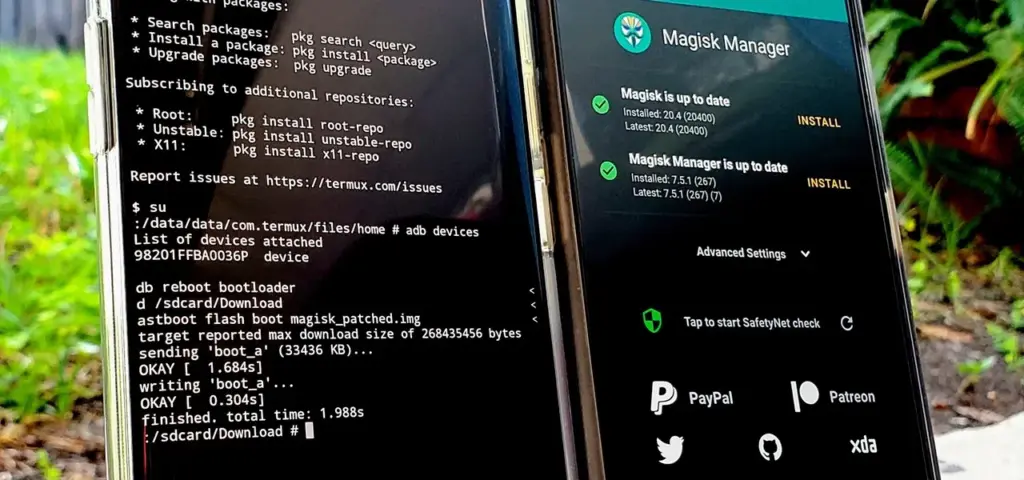
There are many rooting software options available online, such as KingRoot, Magisk, and SuperSU. Choose the one that’s compatible with your phone and download it from a trusted source. Once you’ve downloaded the software, install it on your computer.
Connect your phone to your computer
Connect your Android device to your computer using a USB cable. Make sure your phone is in “USB debugging” mode.
Root your phone
Launch the rooting software on your computer and follow the instructions carefully. The rooting process may take a few minutes, and your phone may restart several times during the process. Be patient and don’t disconnect your phone from your computer until the process is complete.
Verify root access
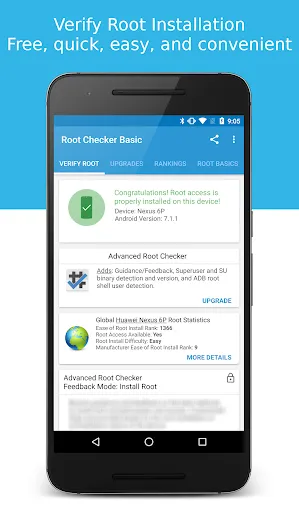
Once the rooting process is complete, you can verify that your phone is rooted by installing a root checker app from the Google Play Store. If the app confirms that your phone is rooted, congratulations! You now have administrative privileges on your Android device.
Conclusion
In conclusion, rooting your Android phone in 2023 can give you more control over your device and the ability to customize it to your liking. However, it’s important to proceed with caution and do your research before attempting to root your phone. By following the step-by-step guide above, you can root your Android phone safely and enjoy the benefits of administrative privileges on your device.
You’ve therefore chosen that you want to learn how to create Android apps. Great! Sadly, good intentions can only go you so far. It can be challenging to learn how to code. Sometimes even where to begin is a mystery! So, before you even begin, you undoubtedly have a ton of questions to address.
What programming language should you learn?
Where can you learn about your chosen language?
Once you’ve grasped the basics, where do you even start typing the code?
Lot of options
Selecting a language is the first step in developing Android apps. The distinctions among the various programming languages for Android can be somewhat subtle and complex.
But the primary characteristics and objectives of the tool to which the language is tied matter more than the language itself.
The languages you might consider learning for Android development include:
Java – Java is an official language of Android development and is supported by Android Studio. It has been an official language longer than Kotlin, and it is also popular outside of Kotlin development for many other purposes. Java and Android Studio have a steep learning curve, however.
Kotlin – Kotlin is another official Android language. It is similar to Java in many ways but is a little easier to get your head around. It is also now Google’s preferred language of choice, though it is not as widely used outside of Android Studio. This may make it slightly less appealing for those hoping to work as developers across numerous projects.
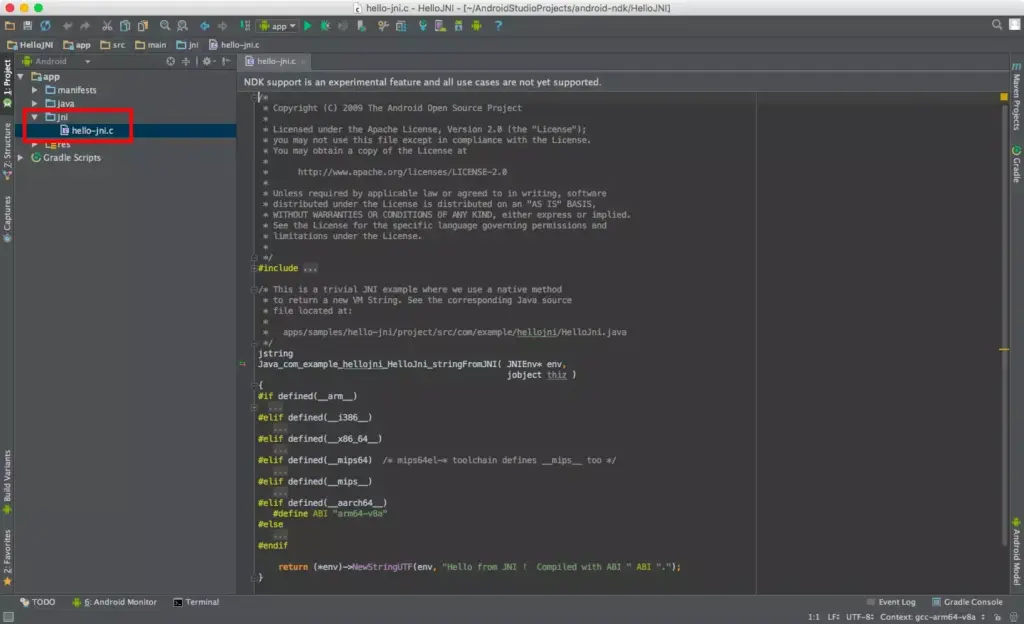
C++ — Android Studio also supports C++ with the use of the Java NDK. This allows for native coding applications, which can be handy for things like games. C++ is more complicated though, and this option is mostly only going to appeal to large, professional teams. C++ is also supported by Unreal Engine.
C# — C# is a more beginner-friendly alternative to C or C++ that obfuscates more code. It is also a little less difficult than Java, though the two languages are extremely similar. It’s supported by some very handy tools like Unity and Xamarin, which are great for game development and cross-platform development. C# with Unity is the best option for many mobile game developers.
LUA (Corona) – Another cross-platform tool built on LUA. It massively simplifies the app-building process while stilling allowing you to call native libraries.
JavaScript (PhoneGap) – If you already know how to build interactive web pages, then you can use this knowledge with PhoneGap to build a more basic cross-platform app.
Java
Java is still one of the two authorized platforms for creating Android apps. This indicates that Google is quite supportive of it. Kotlin or Java were probably used to create the majority of non-game apps.
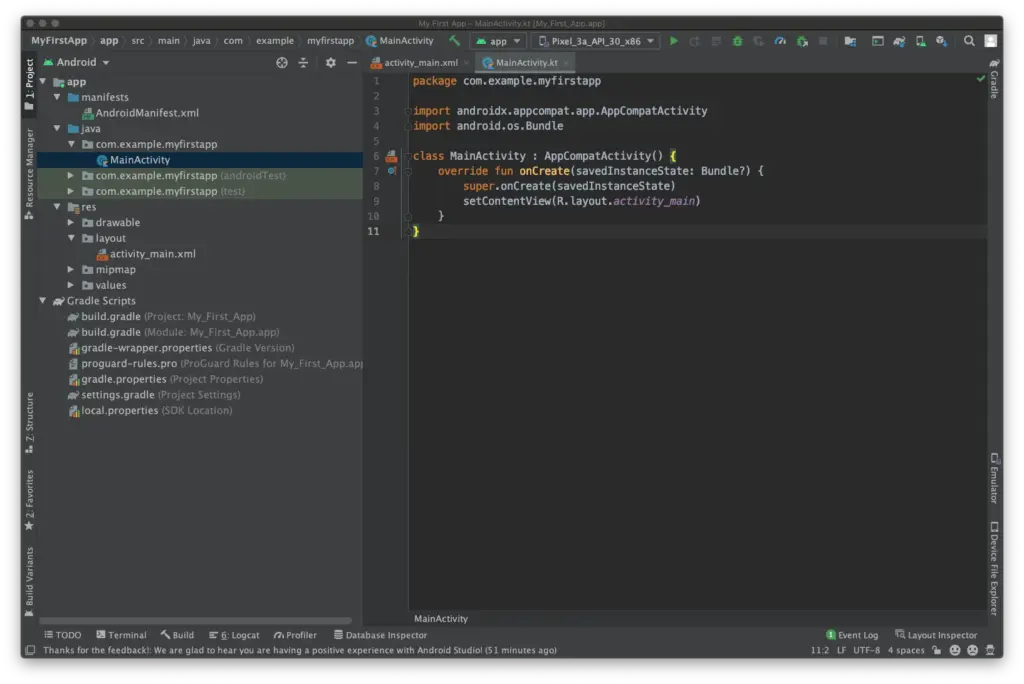
Downloading Android Studio is the best approach to start creating Android apps. Integrated Development Environment, or IDE, is the name of the piece of software in question. You will have everything you need in one location to get started thanks to the Android SDK that is supplied with it (a collection of tools designed expressly to make Android development easier).
Official documentation from Google will refer to Android Studio and Java (or Kotlin), and you’ll be able to find a lot of support online.
Sun Microsystems first introduced Java in 1995, and it is now utilized for a variety of programming applications. Even though Google has made it clear that it prefers Kotlin, many development teams have decided to continue with Java since it is so well-established and well-known.
Java is really difficult as well and not a fantastic “first language.” Once the Android SDK is included, things become much more challenging; a novice programmer may find it difficult to distinguish between Java and Android! Constructors, null pointer exceptions, checked exceptions, and other baffling concepts are all part of the object-oriented programming language known as Java.
You’ll use a lot of “boilerplate” code to do simple tasks, and it’s not very understandable. A rudimentary familiarity of ideas like Gradle, the Android Manifest, and the markup language XML is also necessary for development using this approach.
This is not meant to imply that Java is a terrible language; just the contrary. It is incorrect to label any language as “evil,” since the majority of Java’s drawbacks exist to promote clean code and serve our own interests.
Java is one of the most popular and versatile programming languages because of this, and many people adore it. Java is the programming language that employers are most interested in using, according to the PYPL (Popularity of Programming Languages) table.
Android Studio, has also been going from strength to strength over the last few years. Features like a visual designer and suggestions make the process a fair bit smoother, while advanced, powerful features are being added all the time to give developers access to things like cloud storage with easy implementation.
It’s worth getting aboard, even if this rapid progress does make it hard to keep up sometimes (especially if you’re some poor guy who writes about this stuff for a living!).
Kotlin
Kotlin has been an official language for Android development for a while now, and Google has even gone so far as to make it the preferred option for Android development. That said, with many development teams already deeply invested in Java, there are many who have chosen not to make the switch.
Kotlin utilizes the Java Virtual Machine much like Java does. Additionally, it fully integrates with Java and doesn’t result in any file size or performance issues. The distinction is that Kotlin is a more streamlined and simple-to-read system since it doesn’t require as much “boilerplate” code.
Additionally, it eliminates mistakes like null point exceptions and exempts you from using semicolons at the end of each line. In summary, it’s ideal if you’re just starting to learn how to design Android apps.
So, Kotlin is definitely an easier starting point for beginners, and the fact that you can still use Android Studio is a big plus. That said, it’s still a complex language in its own right, and you’ll still need to figure out an awful lot of extra “stuff” to build an Android app this way. There’s also the slight drawback of Kotlin being less widely used outside of Android development.
It’s safe to assume that the majority of readers shouldn’t choose this method of Android app development. The Android NDK’s C/C++ code can be supported by Android Studio (Native Development Kit). As a result, you’ll be creating code that runs natively on the device rather than on the Java Virtual Machine, giving you more control over processes like memory allocation. This can help you get more performance out of your Android device for demanding applications like 3D games. Also, it means you’ll be able to use C or C++ libraries.
However, it also tends to be much harder to set up, it introduces more bugs and it is less flexible. And if you did want to create a computer game, you’d probably be better off using a ready-made game engine such as Unity.
C#
Microsoft created C# with the intention of fusing the strength of C++ with the simplicity of Visual Basic. If you are familiar with one of these languages, such as Java, switching to the other should be rather easy. C# is garbage collected, just like Java, so you don’t have to worry about problems like memory leaks and manually freeing up memory. If this might simply be my own bias showing through, C# has a better syntax and is more current than Java. The best language for creating Android apps is frequently a matter of personal preference!
If you want a particularly easy and welcoming introduction to Android app development, I recommend the combination of C# and Unity. Unity is a game engine (meaning it provides things like physics calculations and 3D graphics rendering) and an IDE (like Android Studio). This is a free tool that makes it incredibly easy to create your own games – with just a few lines of code you can have a basic platform game set up in less than an hour. No exaggeration! And it’s perfectly powerful too, being the tool used by most game studios on the Google Play Store.
As a cross-platform solution, Unity will also let you port your games to other operating systems such as iOS and Windows. You can even make console games! On top of all that, developing in this way provides a very practical way to learn Object-Oriented coding (because the objects in this case actually are objects most of the time!). For those hoping to start a career in game development, learning Unity is an excellent first step.
The limitation? Unity is useful for creating games but sub-par for creating standard Android Apps, especially if you want to conform to Google’s Material Design language.
Not keen on Unity? Then you could consider Unreal instead (better graphics, less suited to mobile) or simplified game-makers like GameMaker Studio.
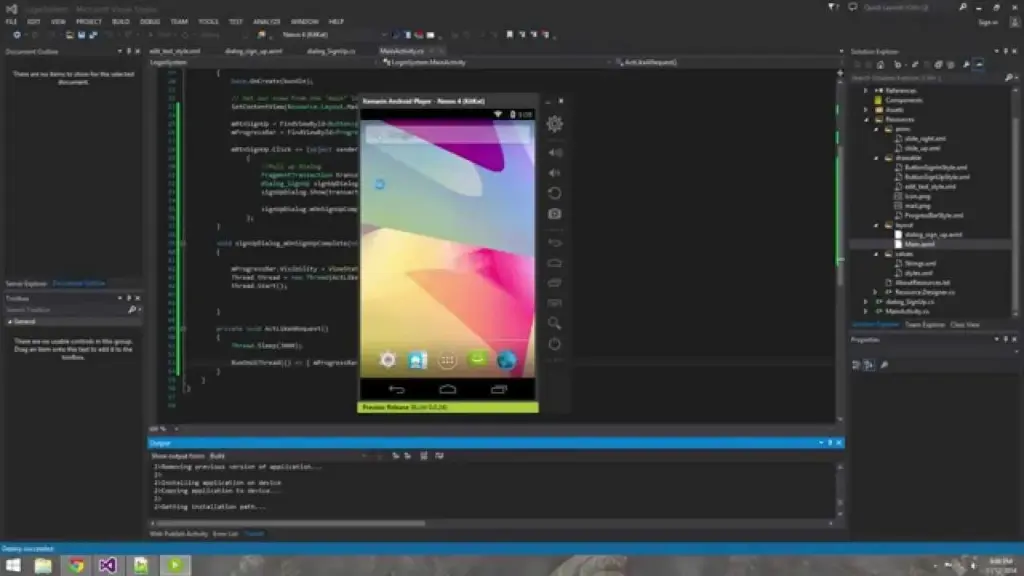
C# can also be used with Xamarin through Visual Studio. This is more akin to traditional Android development with the advantage of being cross-platform (one codebase for Android and iOS). For a complete beginner, this route is again a slightly obtuse entry point to Android development. But for a small company wanting to create an app for iOS and Android, it makes sense, and there’s plenty of support and information out there to help you out.
LUA (Corona)
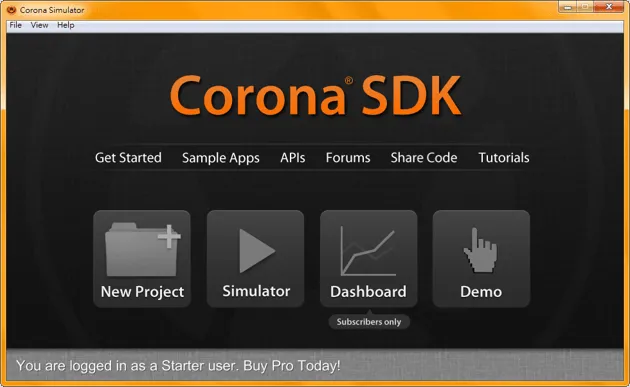
Corona provides a different, far easier alternative for creating Android apps while still offering you a good deal of authority and control. It will be lot easier for you to code in LUA than in Java. Moreover, the Software Development Kit for Corona will make things much simpler. You can publish to several platforms and it supports all native libraries. It is mostly used for making games but can be used in a variety of other ways too. To enter your code, use a text editor like Notepad++; you don’t even need to build it before running it on an emulator. When the time comes, you’ll be able to use an online tool to develop and distribute an APK.
This does require basic coding skills, but it offers a nice and gentle introduction to the world of code. At the same time though, it is definitely limited in what it can accomplish and is only a few steps removed from getting into “app builder” territory. This is more useful for someone who wants to create something relatively simple and isn’t as concerned about developing their coding skills or becoming a pro. If you want to use features such as in-app purchasing, then you’ll need to pay a fee. The same goes for using native Android APIs.
HTML/CSS/JavaScript (PhoneGap)
PhoneGap is powered by Apache Cordova and essentially allows you to create apps using the same code you’d normally use to create a website: HTML, CSS and JavaScript. This is then shown through a “WebView” — a widget that displays a website within an app. PhoneGap acts like a bridge, allowing developers to access some basic native features of the phone or tablet such as the accelerometer or the camera.
This isn’t really “true” Android development though, and the only real programming will be JavaScript. For many basic tasks, it will do the job, but if you want to be able to claim true “Android app developerhood” (that’s a thing), then you should brave one of the other choices on this list.
Conclusion
So take your pick! Tere are plenty of options there for developing Android apps: from Java and Kotlin, to C, C#, and JavaScript!
Whatever you chose, you’ll find that learning to code is a tremendously satisfying experience and one that opens up a lot of options for you. The best choice will rely on your sensibility and your goals. And the best way to get started is by learning to code for Android. We hope that you now at least have a basic understanding of how to create Android apps, but if you still have any questions, feel free to post them in the comments below and our team and readers will try our best to respond.
The Android 13 October update is releasing now and contains nine fixes in front of upcoming Pixel phones.
This second update boasts nine enhancements across Audio, Connectivity, User Interface, and Wi-Fi after only five changes were made last month.
The Android 13 UI is the focus of this month’s updates, which also address empty Quick Settings tiles and widget compatibility issues. As well as fixing a device crash when playing audio from local storage, there is a fix for several programs that don’t display an icon in the media player.
Use the following device key to interpret the Android 13 Pixel changelog:
*[1] Included on Pixel 4, Pixel 4 XL, Pixel 4a, Pixel 4a (5G), Pixel 5 and Pixel 5a (5G)
(This only applies to the first issue under Audio, with everything else in the October update benefiting all Android 13 Pixel devices.)
Audio
Fix for issue occasionally causing audible humming or noise artifacts during calls while using wired headsets *[1]
Fix for issue preventing device volume controls in media player notification to work under certain conditions
Connectivity
Fix for issue causing launcher crash when connecting to VPN in certain conditions
Kotlin 1.7.0, an update to the JVM, web, and mobile programming language from JetBrains, includes an alpha version of the ground-breaking K2 compiler.
K2 is designed to accelerate the creation of new language features, unify the platforms that Kotlin supports, and offer an API for compiler modifications in addition to enhancing performance. However, the alpha version is restricted to JVM projects. And only the kept plugin for annotation processors currently works with it.
Kotlin 1.7.0, an update to the JVM, web, and mobile programming language from JetBrains, includes an alpha version of the ground-breaking K2 compiler.
K2 is designed to accelerate the creation of new language features, unify the platforms that Kotlin supports, and offer an API for compiler modifications in addition to enhancing performance. However, the alpha version is restricted to JVM projects. And only the kept plugin for annotation processors currently works with it.
Definitely non-nullable types have been promoted to stable. These provide better interoperability when extending generic Java classes and interfaces.
Builder inference, a type inference that is useful when calling generic builder functions, is automatically activated if a regular type inference cannot get enough information about a type without specifying the -Xenable-builder-inference compiler option introduced in Kotlin 1.6.0 last November.
Opt-in requirements are now stable and do not require additional compiler configuration.
An underscore operator for type args can be used to automatically infer a type of argument when other types are specified.
Implementation by delegation to an inlined value of an inline class is enabled. Developers now can create lightweight wrappers that do not allocate memory in most cases.