During the annual Firebase Summit, Google revealed more simple extensions and improved support for macOS and Flutter apps, as well as the beta launch of Firebase Personalization.
If you’re unfamiliar with Firebase, it’s a set of cloud-based app development tools from Google that provide developers access to things like a database, storage, hosting, crash analytics, and more.
Google launched “Extensions” for Firebase in 2019, allowing developers to simplify common use cases and potentially connect their Firebase project to other services. Building on the previously implemented Algolia extension, an Elastic App Search extension has been created to make your database searchable. There are also new extensions for adding Google Pay and/or Stripe payments to your app.
Flutter developers can start experimenting with Firebase APIs right now without having to install anything. You can now test Firebase code in Flutter Web projects directly from your web browser using the DartPad web app, and the same code will work in Flutter Android and iOS applications as well.
Firebase is also increasing its reach into Apple’s ecosystem today, with support for macOS and tvOS coming in Beta, the stage Google considers ready for production apps. The ability to use several of Firebase’s C++ libraries in Apple TV apps is also part of the new tvOS beta support, with Google recommending it for usage with Apple Arcade games.
Developers can alter how certain aspects of their apps function without having to push a new update to the Play Store or App Store using the long-standing Firebase Remote Config. The options of Remote Config can now be picked automatically in a fashion that’s personalized to each individual user, thanks to “Personalization,” which is available in Beta today. While Firebase Personalization can be used in a variety of ways, Fruit Ninja creator Halfbrick found it to be effective in increasing ad revenue from one of their games without increasing negative ratings.
For Android developers, Firebase is also releasing new documentation about the privacy disclosures necessary for each of Firebase’s tools. These are going to be especially helpful for the new “Data safety” section coming to the Play Store, which is set to become a requirement by April of next year. To get more details about what’s new in Firebase, like real-time alerts from Firebase Performance Monitoring, be sure to check out the Firebase Blog or watch the full Firebase Summit stream.
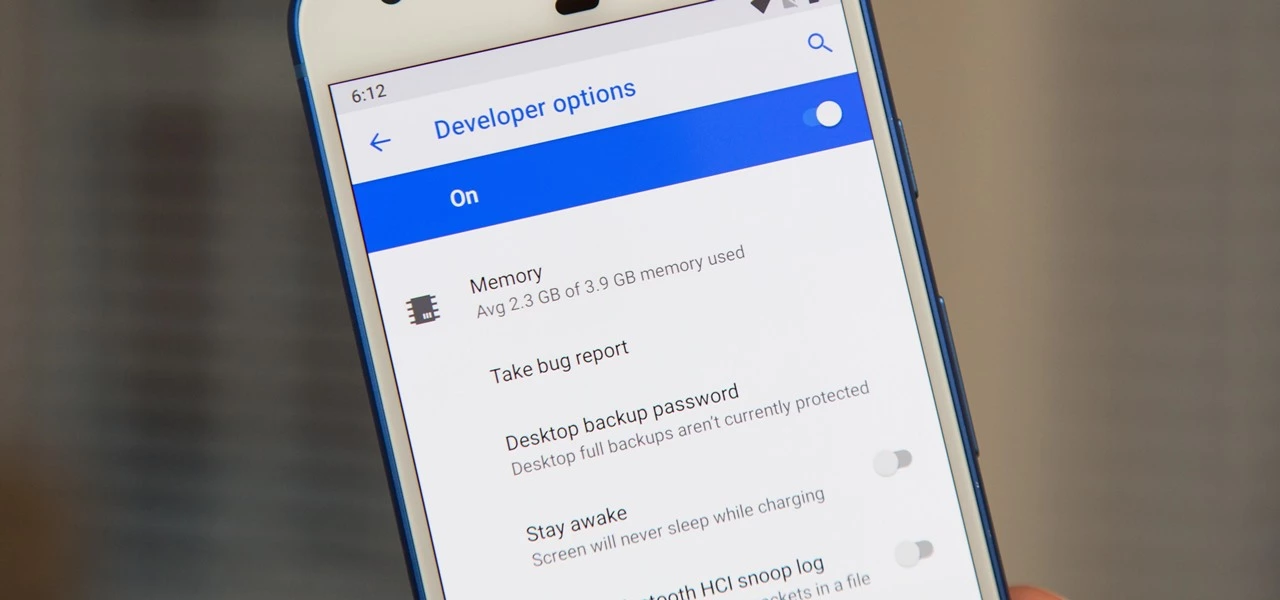
One of the first things you should do when you get your new Google Pixel 6 or 6 Pro is open the hidden “Developer options” menu. Don’t be put off by the word “developer” because this hidden Android 12 menu contains functionality that any Android user can use.
If you don’t have a Pixel 6 or 6 Pro, you can still access the “Developer options” menu on any other Pixel model, as well as devices from other OEMs such as Samsung. If you haven’t updated your system or purchased a Pixel 6 or 6 Pro, I’ll teach you how to accomplish it on Android 12. If you haven’t updated your system or purchased a Pixel 6 or 6 Pro, the process is basically the same on older Android versions.
Enable developer options in Android 12
Open up your Settings app and tap “About phone” from the list. To get to this menu even faster, use the new search tool in Android 12 from your app library (swipe up on the home screen), search for “about,” and select “About phone” from the results.
After that, scroll down to “Build number.” This is the backdoor to revealing the “Developer options” menu. Simply tap “Build number” at least seven times in a row, then confirm you want to unlock the menu by entering your PIN. (The PIN interface is concealed in screenshots, as shown below.)
For a few moment, you should see “You are now a developer!” appear to let you know it worked. You’ve already unlocked the menu if it reads, “No need, you’re already a developer.”
Newly unlocked developer options
Return to your Settings app’s main menu, hit “System,” and then select “Developer options” from the bottom of the list. Unlike “About phone,” you can’t search for “developer” in your app library’s search bar to get there right away, but you can locate it in Settings’ search bar.
In “Developer options,” there are plenty of things to explore. While there are plenty of reasons to unlock “Developer options” on your Pixel in Android 12, some quick ones to note include keeping your screen awake while charging, starting the process for unlocking your bootloader, making software updates install themselves when your device restarts, and showing a dot on the screen for each tap you make.
USB debugging is another popular setting that lets you use ADB to talk to and issue commands to your Android device from your computer.
Reset the developer options
Let’s say you suspect that something you enabled in “Developer settings” is causing your Pixel to malfunction or produce unexpected results, but you have no idea what the issue is. In that situation, you may quickly restore the developer menu to its previous state.
To do so, open the menu and untick the “Developer options” checkbox at the top. Then, on the “Allow development settings” prompt, toggle it back on and tap “OK.” Everything you changed in the menu earlier will be reset to their settings on Android.
Hide the developer options
You can hide the “Developer options” menu if you no longer want to utilize it. Toggle off the “Developer options” switch at the top of the menu by opening it. You won’t be able to get back into the menu unless you repeat Step 1 above. If you later re-enable “Developer options,” it will revert to its default settings, so any tools and preferences you specified before will have to be redone.
Android 12 Developer Preview 1 is here, but it’s not exactly easy to get. Because this first Android 12 version is meant for developers, Google isn’t just making it an opt-in process like later beta versions will be. But, if you’re willing to take the risk (and not get upset if and when things go wrong), here’s where to get it.
Google’s developer site has been updated today with a whole host of Android 12-related details, and among them are a pair of download pages for full factory images and sideloadable OTA files. In the future, installing Android 12 will be a snap: Just register for the Android Beta Program. But right now, that program is closed, so the only way to install this preview is manually by using those files.
Although you can unlock your bootloader and flash the complete factory picture, we don’t recommend it because it’s a hassle, potentially dangerous, can break SafetyNet attestation, and needs wiping your phone. Consider sideloading the OTA file for your computer instead, which does not require an unlocked bootloader and does not necessitate a scrub. However, if you aren’t prepared, you may need to do some preliminary work.
Google’s stock OTA images site has instructions for the process, and the same details apply to these preview releases.
If you are unfamiliar with the method, you can study a comprehensive walkthrough for your computer platform before attempting it on your own. Installing the required software and drivers is a simpler process on some operating systems than on others.
Prerequisites:
A computer (PC, macOS, or Linux). Or, if you’re exceptionally adventurous: Another phone with USB OTG functionality.
A supported phone to install Android 12 on: Pixel 3 series, Pixel 3a series, Pixel 4 series, Pixel 4a series, or Pixel 5.
A known good cable to connect #1 to #2.
The easy way
Google has made DP1 available with the Android Flash Tool, which makes the process pretty simple and linear, with no tools to install. Just fire up the site at the link below, plug in, and follow the instructions:
Reboot into recovery (via ADB/USB debugging or the key combination) and enter sideloading mode. Power+volume up opens the Recovery menu, scroll via the volume keys to “apply update from ADB,” and select it with a tap of the power button.
Check that and prior steps worked by entering “adb devices” (no quotes) in a shell or command prompt. If ADB is installed and your phone is in the correct mode, you should see an identifier for your phone and a “sideload” state reported.
Flash the OTA via a shell or command prompt, using “adb sideload your_file_name_here.zip” with no quotes, where the filename is the name of the OTA image you downloaded earlier. On some platforms, you’ll need to precede adb commands with “./” for them to work correctly.
Stare anxiously at your phone while it slowly installs.
Reboot when done.
Once you have the preview installed, future Android 12 updates and releases will be delivered like any other normal system update, without requiring that you hit all these steps again, and your phone will automatically end up in the beta track later.
Android 12 DP2 just picked up its second bug-fixing update, bumping things numerically to DP2.2. This latest release includes a lot more fixes than DP2.1 did, including a fix for video encoding issues that I ran into, a crash tied to the Bluetooth section of Settings, disappearing widgets, and a failure to save Wi-Fi passwords, among others.
Android 12 Developer Preview 2.2 (April 2021)

If you’re already running a Developer Preview build, you will automatically receive an over-the-air (OTA) update to Developer Preview 2.2.

This minor update to Android 12 Developer Preview 2 includes the following fixes:

-Fixed an issue that sometimes caused the Settings app to crash when a user tried to access Bluetooth settings. (Issue #180962266)
-Fixed an issue that caused widgets to be removed from the home screen after a user installed an OTA update.
-Fixed an issue that caused notifications to be sent about low Bluetooth call quality even when call quality was currently unaffected.
-Fixed an issue that caused WiFi network passwords to not be saved in some cases.
-Fixed an issue that caused the notification shade to be activated when typing on the on-screen keyboard.
-Fixed an issue with Codec 2.0 that could cause apps to crash on some devices.
-Fixed an issue that could cause videos to be encoded incorrectly when shared.
-Android 12 Developer Preview 2.1 (March 2021)

This minor update to Android 12 Developer Preview 2 updates WebView to fix an issue that caused some apps to crash.-
Some say that a problem with gesture navigation that was supposed to be resolved in a previous release remains in DP2.1, but no note was made of whether or not another patch for that issue is included in this release. It’s also likely that some unnamed changes slipped into this update — that happens from time to time, so we’ll keep an eye out.
The update is already rolling out via the traditional means for those that have installed a prior Android 12 Developer Preview. Compatible phones remain the same: The Pixel 3 series, 3a series, 4 series, 4a series, and Pixel 5. OTA images are also available for manual sideloading/deconstruction if you prefer to install it yourself.
If you’re doing it for the first time, we still recommend you wait until the Android Beta Program starts, but we have instructions here if you’re willing to assume the risks.
Whether you want to install a custom ROM, turn on some hidden Android features, or take screenshots from apps that prevent you from doing so, you’ll need the Android Debug Bridge (ADB) and fastboot. They’re part of the Google SDK platform tools and give you some lower-level access to your phone. You’ve got to prepare a few things before you can start, so here’s a comprehensive guide showing you how to get the platform tools up and running on any platform.
Setup your phone
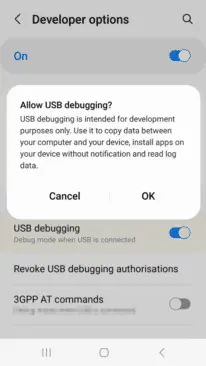
You need to set up your Android device first. If you haven’t already activated the developer options in your system settings, you will have to do so by going to the About section and taping the Build number entry seven times. You will be congratulated on becoming a developer, and a new entry called Developer Options will appear in your system settings. Enter them, look for the USB debugging toggle, and turn it on.
Installing ADB
Windows, macOS, Linux, and Chrome OS with Android Studio
If you’re a developer or looking to get into Android app development, you should install the Android Studio. It’s Google’s official IDE (Integrated Development Environment) for Android applications and has all the tools on board you need for creating your projects, including ADB and fastboot. The software will also ensure that your tools are always up to date. You can download Android Studio on the Android Developers website. The installation process is straight-forward — just follow the on-screen instructions from the installer.
Since Android Studio is quite huge when installed, the standalone SDK platform tools could be a better option if you want to save some precious space on your computer’s storage, especially if you don’t want to get into app development. The tools are comprised of the same interfaces you get when you install the Android Studio: ADB, fastboot, and systrace. They’re available on the Android Developers website. You’ll have to extract them and add them to your system’s path, but there are some scripts that simplify the process:
Nexus Tools
If you ask me, Nexus Tools is the fastest way to get ADB and the other platform tools up and running on your computer. It’s an open-source tool created by our own Corbin Davenport. Nexus Tools automatically downloads the latest platform tools from the Google website mentioned above, extracts them, and adds them to your system’s path for ease of use. You just need to paste the following command into a macOS or Linux terminal and hit enter:
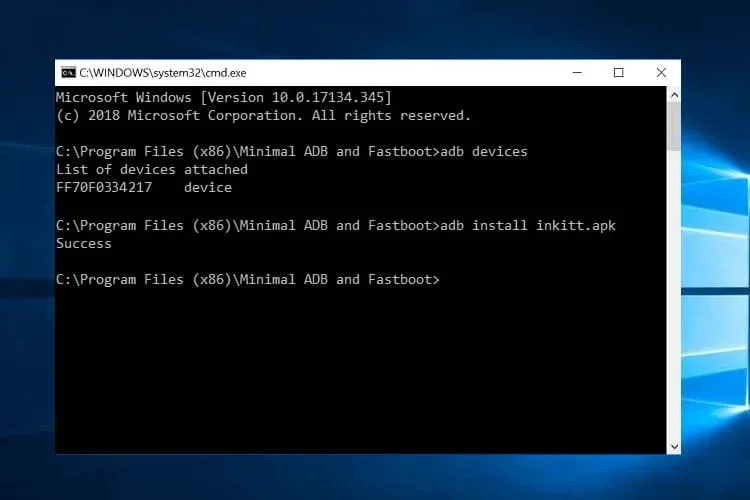
Once it’s finished installing, open a new terminal window and confirm that ADB works with the ADB devices command. If your phone is connected with USB debugging enabled, you should then be able to see its ID.
The script also works for the latest Macs with the M1 chip, Linux on Chromebooks (here’s how to enable Linux on Chrome OS), and Bash for Windows. However, the Windows subsystem for Linux doesn’t support USB, so you’ll have to rely on a wireless connection. That’s only really feasible if you have Android 11 or a rooted phone, and even then, there are some limitations.
You can find more information on Nexus Tools on Github, including uninstall and update instructions.
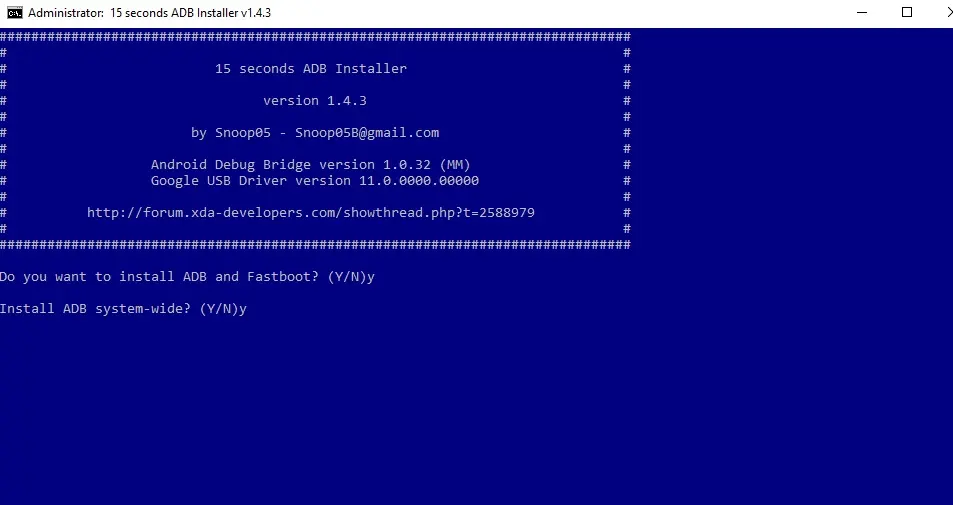
15 seconds ADB installer
For Windows, you can rely on another automatic tool from an XDA Developers Forum member, the 15 seconds ADB installer. However, some users report that the script doesn’t properly work for them, and it hasn’t been updated by the original maintainer for a long time. You can try using some of the recent revisions from another forum member or set up the platform tools manually:
Extract the ZIP file into a folder you can easily remember (like C:/platform-tools)
Open a command window in the folder by holding shift and right-clicking in an empty spot in the folder and selecting “Open command prompt/PowerShell here” in the menu. Then you can start using ADB — connect your phone and try .\ADB devices to see if it’s working. A list with attached devices should show up.
If you computer doesn’t recognize your phone, you may need to install its respective Windows USB driver additionally. Alternatively, there’s an open-source universal driver if you don’t want to go through the hassle of finding the correct one for your device.
If you want to be able to just open a command window and start using ADB without navigating to your platform-tools folder first, you’ll need to add the folder to your Windows path:
Search for “system environment” in the Windows 10 Start search and select “Edit the system environment variables” from the results.
Click “Environment Variables…” towards the bottom of the window that just opened.
In the lower section of the next window under “System variables,” look for the “Path” row. Select it and click “Edit…”
In the “Edit environment variable” window, you can hit the “New” button and add the path with the platform tools. In our example, that’s “C:/platform-tools.”
Exit all windows and save the changes you’ve made by selecting “OK.”
Open a new command prompt or PowerShell and see if ADB devices now works without navigating to your platform-tools folder first. You also won’t have to add .\ in front of it anymore. You might have to restart your computer before the change takes effect.
On your phone
If you don’t want to root your phone or install a custom ROM and just need access to the ADB shell, you don’t even need to connect your handset to a computer. The open-source LADB app allows you to run a shell locally, utilizing the wireless ADB protocol. However, setting it up is a little convoluted, and you’ll need to be on Android 11 to be truly free from a computer. We’ve got a tutorial that walks you through the process.
If you don’t have the Android 11 yet, or prefer to work with a larger screen, the WebADB might be for you. It’s an open-source web app that you can use to run the ADB shell, but it also comes with a file manager and supports SCRCPY for screenshots and screencasts in apps that don’t allow you to run them on a regular basis. The biggest caveat: being a web tool, you have to trust that developers don’t do anything fishy with your phone—you’re giving an unknown party low-level access, after all. Here’s our tool hands-on.
Depending on which install method you opted for, you may have to add a .\ in front of ADB commands to make them work. If you haven’t added your SDK tools installation to your path on Windows, keep in mind that you always have to run a terminal from the SDK tools folder.
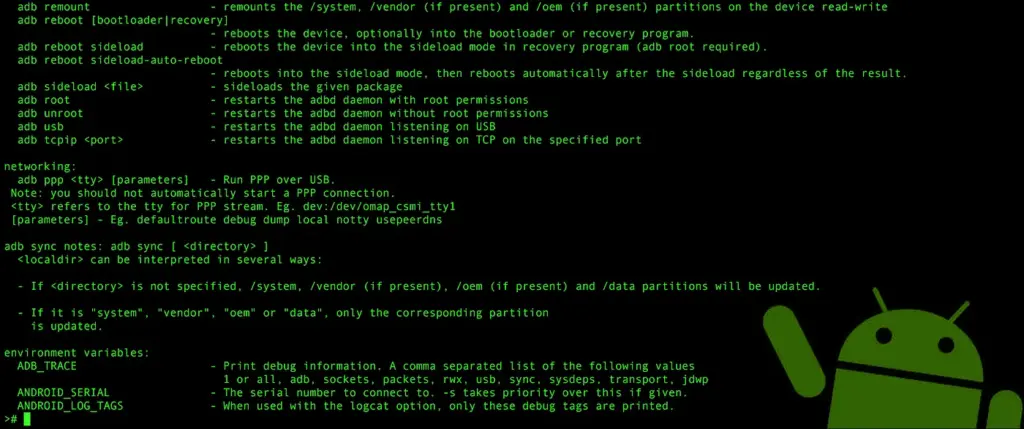
There are tons of advanced features and tweaks you can enable or disable via ADB and the ADB shell. Here are just a few of the things we covered, but there are plenty of other things you can find all around the internet. Some of our favorites include SCRCPY, APK installation, stock-ifying Amazon Fire tablets, and more.