The first beta build of the Paranoid Android Sapphire ROM for the OnePlus 9 and OnePlus 9 Pro has just been released by the Paranoid Android team. For quite some time, an Alpha version of the Android 12 based ROM has been available for both phones. The new beta version, on the other hand, offers a more stable software experience.
The Paranoid Android Sapphire Beta is now available for the OnePlus 9 and OnePlus 9 Pro, as announced by XDA Recognized Developer arter97. Several device-specific enhancements are included in the latest build, including redesigned blobs, improved sleep mode, fingerprint scanner improvements, and a transition to arter97’s kernel. Repainter integration, improvements from ProtonAOSP, a burn-in protection feature for devices with OLED panels, the latest f2fs tools, and more have all been added to the Paranoid Android platform.
The beta release still has a few known faults. These include delayed mobile data activation after reboot, Wi-Fi not working after a few reboots, and less-than-ideal pocket recognition, which can wake up the smartphone or activate gestures by accident.
If you wish to try out the Paranoid Android Sapphire Beta on your OnePlus 9/Pro, head over to the forum mentioned below. It includes a download link for the ROM as well as step-by-step instructions for flashing it. Although the beta build can be flashed onto a current Sapphire Alpha system, the developer recommends “a clean flash.”
Prebuilt blobs are revamped to fix various issues (audio, video, NFC, etc)
Sleep mode is changed to fix excessive idle battery drain
VRR implementation is now working, which will improve battery life a lot
Corner masks are now done properly
Fingerprint improvements
Kernel switched to a customized version of arter97 kernel
Here are platform-wise highlights:
Latest CAF tag merged
kdrag0n’s Repainter service integrated
Optimized bionic, memory routines (ported by xboxfanj)
Latest f2fs-tools
Few optimizations merged from kdrag0n’s ProtonAOSP
Burn-in protection feature added
Device issues
Mobile network will initialize a bit slowly after boot
Wi-Fi may not work on a few reboots. You may have to reboot multiple times for Wi-Fi to work
Pocket-detection is less than ideal, it may result in accidental wake-ups or ignored gestures
Bootanimation will pause for a split second. This is a known issue from the kernel
There are likely many other issues, these are just the most prominent to me. Don’t come into this with the expectation any issue you come across will be fixed in a timely manner.
Requirements
Make sure you are coming from any Android 11 based OxygenOS build, stable is recommended.
Downloads
You can always get our Alpha builds from ourTelegram Group or directly download them from here: OnePlus 9 Pro – Beta 1 (Note, OP9 & Pro builds are no longer unified)
Note: Custom kernels are not supported unless the kernel says it supports AOSPA and GMS is included!
How to install
Download the latest fastboot zip we released (hint: it has an -img appended to zip name)
Reboot to bootloader.
Wipe userdata with the command “fastboot -w”
Flash the fastboot zip with “fastboot update aospa-*-image.zip”
Reboot.
Changelog
Prebuilt blobs are revamped to fix various issues (audio, video, NFC, etc)
Sleep mode is changed to fix excessive idle battery drain
VRR implementation is now working, which will improve battery life a lot
Corner masks are now done properly
Fingerprint improvements
Kernel switched to a customized version of arter97 kernel
Here are platform-wise highlights:
Latest CAF tag merged
kdrag0n’s Repainter service integrated
Optimized bionic, memory routines (ported by xboxfanj)
Latest f2fs-tools
Few optimizations merged from kdrag0n’s ProtonAOSP
Burn-in protection feature added
Starting with Beta 1, you must clean flash due to recent commits related to userdata.
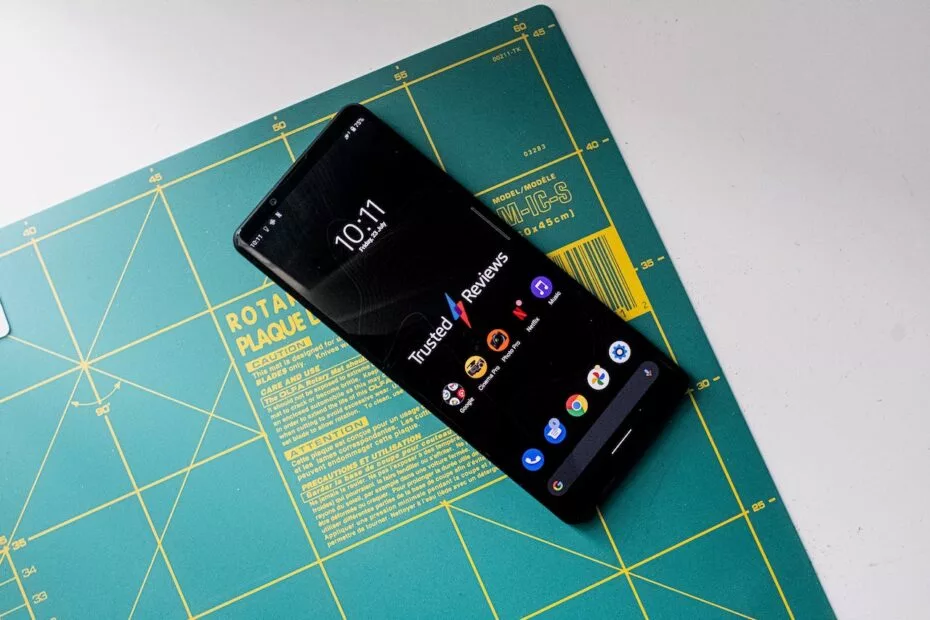
Samsung, Xiaomi, Oppo, OnePlus, and Motorola, among others, have already revealed their Android 12 rollout plans, with Samsung in particular updating its massive smartphone array across geographies at a breakneck speed. Sony has entered the party with their own schedule (if you can call it that), albeit without any precise device timelines. Regardless, the stable Android 12 release for the Xperia 1 III and Xperia 5 III flagships is now available.
The Sony Xperia 1 III and Xperia 5 III are among the most recent devices to receive Android 12, with build version 61.1.A.1.149 and the December 2021 security patch instead of the one for this month (per XDA-Developers). According to reports, the update is presently being given out in Russia, but only to Asian dual-SIM editions of the Xperia 1 III and Xperia 5 III with version numbers XQ-BC72 and XQ-BQ72, respectively.
We’ll have to wait and watch when other regions get the upgraded firmware because Sony failed to release a thorough global distribution strategy. The update does not yet have a device-specific changelog, but you can reasonably assume that it includes all of the new features listed on the company’s rather generic Android 12 support page.
For those unfamiliar, Sony’s version of Android is minimal and only makes a few tweaks to the AOSP build Google distributes to Android OEMs. The company does, however, improve the experience by using a unique 21:9 aspect ratio.
If you have an Xperia 1 III or Xperia 5 III and haven’t received the OTA update yet, go to Settings > Software update to manually check for it. Long screenshots, one-hand mode, increased privacy and security, and, of course, Material You should all be available after you upgrade your handset to Android 12.
The 2 XL’s update end-of-life date was in December of last year, just a few months after Google introduced Android 11. Even though they’re getting on in years, these phones are still adequate for basic day-to-day use. If you have a Pixel 2 XL and want to try Android 12 out, you can do so right now if you’re ready to take matters into your own hands. The first Android 12-based custom ROM for the Pixel has been launched, and it includes all of the important new features such as Material You, a redesigned Quick Settings panel, new system animations, and privacy improvements.
While you can always install the GSI build of Android 12 on your Pixel, the experience isn’t stable enough for everyday use because it’s designed for developers. This is where ProtonAOSP comes in, since it provides a relatively stable option for Pixel 2 XL owners to try out the latest Android update on their aging hardware. The ProtonAOSP Android 12 ROM is currently only available for the Pixel 2 XL, but a build for the smaller Pixel 2 is on the way.
Installing the ProtonAOSP’s Android 12 release is different from other ROMs as it is available as a factory image (see how over at XDA Developers). You’ll need to unlock the bootloader on your Pixel 2 and use the bundled flash-all script to install the ROM. If the installation fails, you may need to repartition and allocate more storage to various system partitions.
If you do install the ProtonAOSP ROM on your Pixel 2 XL, be prepared to run into some bugs and occasional performance issues. The major ones are non-functional Wi-Fi and Permissive SELinux permission in the current build. There are likely other issues as well that haven’t been reported yet. Nonetheless, if you want to try out Android 12 on your Pixel 2 XL, this is your best bet right now.
Manual install ProtonAOSP
This is a guide for installing ProtonAOSP manually, using the command line. The web installer is recommended if you don’t have a specific need for this. Check the list of common misconceptions if you’re not sure.
You can only use a Windows, macOS, or Linux computer for this manual installation; use the web installer if you want to install from a Chromebook or another phone.
Download a build
Download the build you want to install in factory images format.
Prepare your phone
Put your device into bootloader mode by restarting it and holding the volume down button until you see a red warning sign or green Android robot.
Once your device is in bootloader mode, plug it into the computer or device you’re installing from. Make sure you use a high-quality USB cable, as many cables will cause issues. Avoid USB hubs if possible.
Your USB cable needs to be able to copy files. Charging-only cables won’t work.
If you’re switching from the stock OS or another ROM, make sure all your important data is backed up. You’ll need to wipe all your data in order to use ProtonAOSP.
Prepare your system
First, open the “Command Prompt” app from the Start menu.
Next, download the Android SDK Platform Tools and extract them. Navigate to the extracted platform-tools folder in the terminal by typing cd (with the space at the end) and dragging the folder into Command Prompt. Then run the following command:
set PATH=%CD%;%PATH%
If it’s your first time installing from this computer, you also need to install drivers:
Open Settings → Windows Update
Click “Check for updates” and wait
Click “View optional updates”
Select the “Android Bootloader Interface” update (ignore the brand name; it doesn’t matter)
Click “Download and install” and wait for it to finish
If you’re switching from the stock OS or another ROM, you need to wipe all data before installing ProtonAOSP:
fastboot -w
Otherwise, ProtonAOSP won’t boot and your phone will get stuck on the boot animation after the installation.
DANGER
All data on your phone will be lost, so make sure your important files are backed up before doing this.
Install the build
Factory images
Extract factory images
Extract the downloaded factory images package (e.g. proton-aosp_redfin-factory_11.5.0.zip). Navigate to the new folder (e.g. redfin-rq2a.210505.003) by typing cd (with the space at the end) and dragging the folder into your terminal.
Flash factory images
Run the following command to flash the factory images:
Windows
macOS
Linux
./flash-all.sh
Copy
Don’t touch, unplug, or press any buttons on your device during the install. Your phone will restart several times, but don’t touch it. It will automatically boot into ProtonAOSP once the installation process completes.
Finish
You can now delete the factory images package, but don’t delete the platform tools — you’ll need them for updating in the future.
For security, you may also wish to re-lock the bootloader to enforce verified boot, which improves physical security and resistance against persistent attacks.
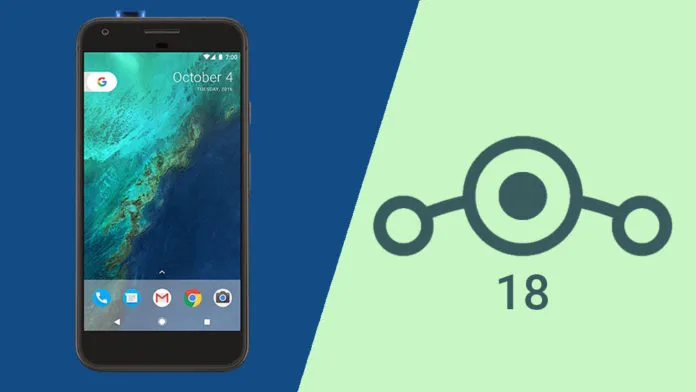
LineageOS is a free, community built, aftermarket firmware distribution of Android 11, which is designed to increase performance and reliability over stock Android for your device.
LineageOS is based on the Android Open Source Project with extra contributions from many people within the Android community. It can be used without any need to have any Google application installed. LineageOS does still include various proprietary hardware-specific code.
All the source code for LineageOS is available in the LineageOS Github repo. And if you would like to contribute to LineageOS, please visit out Gerrit Code Review. You can also view the Changelog for a full list of changes & features.
Informations :
This ROM uses source built kernel, kernel modules, boot kernel modules (vendor_boot) and vendor image.
This ROM bundles the latest firmware so you don’t have to worry about updating firmware beforehand.
Lineage OS is the premier custom Android ROM, and one of its best features is that it is constantly evolving. The distributed team has added sixteen new phones and tablets from a few vendors in the last few weeks.
Here are the phones that have been added to the list, or jumped from Lineage 17.1 to 18.1, based on Android 11. Some :
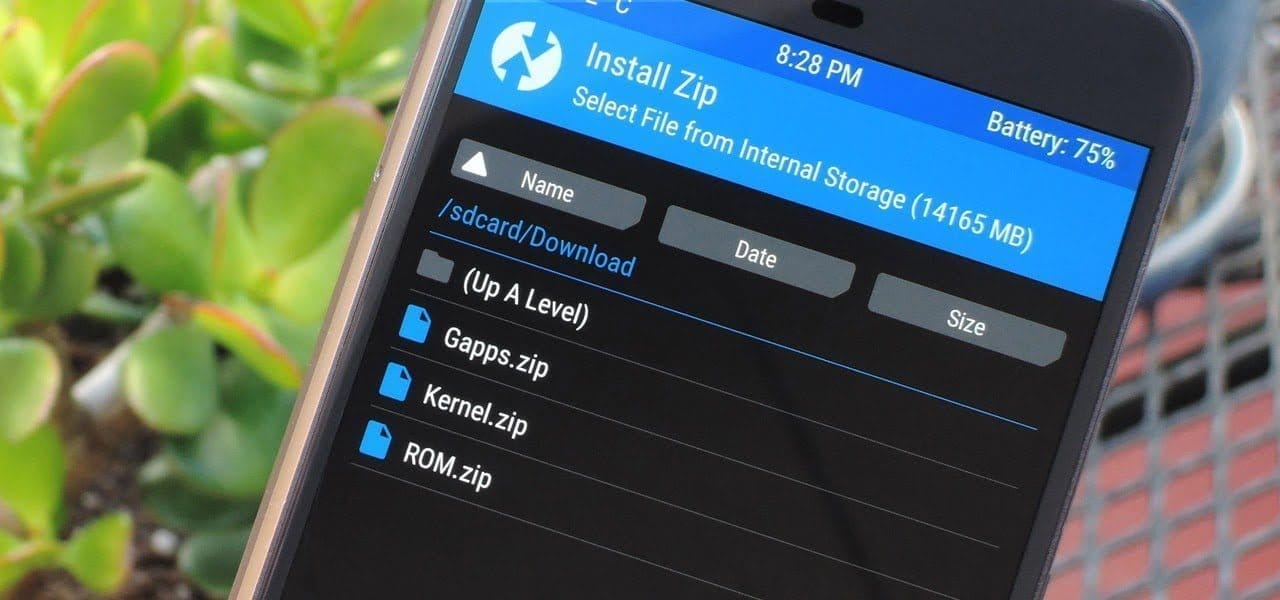
To install Lineage, you’ll need to unlock the bootloader on your phone, install a custom recovery like TWRP, then load up the custom ROM file. Most users will also want to flash Gapps at the same time to get access to the Play Store and other Google services. Take note, while Lineage is great and its interface is fast and smooth, almost all builds are classified as “nightlies,” so a few bugs are to be expected.
As Full-Screen Display becomes popular, Samsung must release a product to compete with other companies. As a result, they launched the A80 with a Pop-Up camera. The A80 was released with Android Pie 9.0 and later upgraded to Android 10. Samsung has already released One UI 3.0, which is based on Android 11. In certain countries, the Samsung Galaxy A80 now runs Android 11. The update will be rolled out to all regions soon. When you’re on stock firmware, you can experiment with OTA. If you are using custom ROMs or are having problems with the standard software update process, you can use the manual method described below.
Since Samsung uses a custom skin OS, they have to work much harder than stock Android models. In comparison to the initial release of One UI, Successor versions had a plethora of useful features. You can keep your phone up to date by using the OTA Software update feature in settings. However, if you are unable to do so, you can use this ODIN-based manual form.
This method can also be used to unbrick your phone. Android 11 has a plethora of new functionality. Some notable features of the Android 11 version include direct Google Play Store security patch updates, enhanced privacy, and improved gestures.
When you have root access on your mobile, You should follow a unique method to flash the firmware. If you follow below ODIN method, you will lose root access.
How to update
Official OTA Method
If you want to update a security patch to the current month, don’t go for the manual method. Try this Automatic method.
The process is straightforward and simple:
Go to your device setting menu and scroll down to the bottom.
Tap on “Software Update”
You may have to refresh the page to start the OTA upgrade process.
Manual Method (SM-A8050, SM-A805F, SM-A805N)
Check Your Device Mobile No. If you flash a Different model number, you will lose some features based on your region.
Battery Percentage Above 50.
Backup Your Device.
Using ODIN Method
Enable USB Debugging Mode and OEM Unlock; you’ll find these options at Settings >>> Developer options. If you didn’t see the developer options on your settings menu, then go to about >>> build number; click on the “Build Number” row about ten times regularly to activate “Developer Option” on your device.
Switch off your Mobile. Enter into Download mode->Volume Down+ Volume Up Button and Connect Your Mobile To PC via USB Cable; after Samsung Logo Appear, Release all keys.
After entering into Download Mode, it will say Warning; press the Volume Up button to continue.
Launch Odin Application.
It Will Show the message added.
If you did not get this message, Repeat the above steps.
After Getting Added Message Select, AP/PDA Button, Browse for the Firmware file selects it. Tick the Auto-Reboot.
Press Start wait for the tasks to complete. It will automatically reboot after the process ends.
Check Firmware
You can Check the Firmware Details->Settings->About->Version.
Samsung Galaxy A80 Android 11 One UI 3.0 Features
One UI 3.0 is created based on Android 11. Samsung Always Add extra features to the OS. I listed Both Regular Android 11 Features and Some Exclusive One UI Features. We already covered Exclusive One UI 2.0 features that only available in Samsung Devices.
Customization
With new image categories, we can setup up 5 different types in the Dynamic Lock Screen.
With newly added features, Now you can Pin or Reorder Samsung Internet tabs.
Based on our routines, We can arrange the New icons and Lock screen widgets.
Now you can add some limited widgets like usage time in the Lock screen.
Interactive preview available when setting a wallpaper.
You can adjust the Always On Display, and Lock screen easier compares with the Android 10 slide.
We can add a call background to see a picture or video when we make or receive a call.
We can use two different Digital Wellbeing for personal and work profiles.
Home screen and Lock screen
Like Tap on, You can Turn off the screen by double-tapping on a Home or Lock screen space. To enable this feature go to Settings > Advanced features > Motions and gestures.
Now you don’t have to search the available widget in Home Screen. You can create widgets by long-press the app and move the widget to the home screen.
On the Lock screen, tap the clock area to see additional widgets like calendar, weather, and music.
Calls and chats
With the recent update, we can see individual contact conversations separately in the notification panel. Currently, it works with Messages and your favorite chat apps.
The identification and Remove duplicate contacts stored in the same account in Contacts. The storage period for deleted contacts has been extended from 15 days to 30 days.
Now you can edit multiple linked contacts from a single screen.
Trash folder is added in Messages so that recently deleted messages are stored for 30 days.
Pictures and videos
With improved autofocus and auto exposure, you can take pictures quicker.
The Basic Edit feature is added within Gallery. Now, You can view, edit, and share pictures and videos more easily from the Gallery.
With new search features and categories in the Gallery, You can find pictures and videos quicker.
Now you can reverse the editing of photos even if you save the current settings.
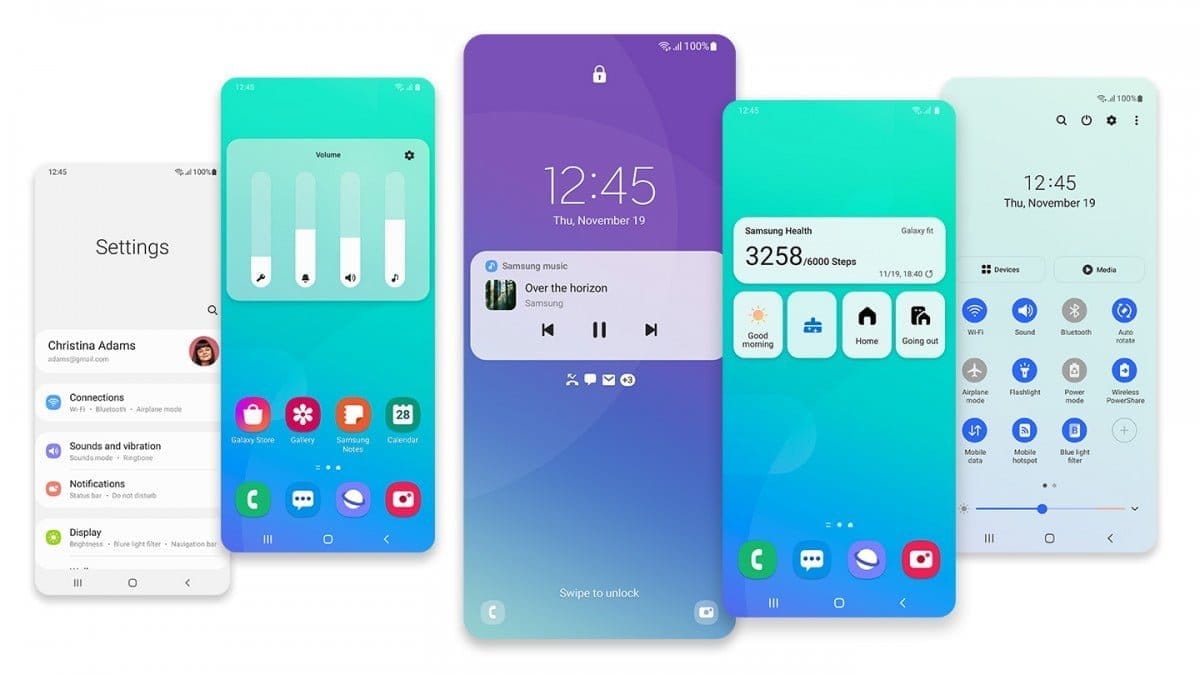
One UI 3 Settings
Settings are optimized as per the user’s feedback. It has a new, more straightforward look and feels. Your Samsung account is shown at the top, and Home screen settings are now easier to access.
With the enhanced Search feature in the settings, you can find more easily with new Search features. You’ll get better results for synonyms and common misspellings, and you can tap on tags to see groups of related settings.
With Quick settings, buttons have been reduced to provide only the most commonly used features. You can also add buttons to create your own customized quick panel.
Samsung Keyboard
I Improved the keyboard layout with identified input to provide a larger space bar when entering web and email addresses.
You can reorganize Keyboard settings so it’s easier to access frequently used settings.
Now Samsung Keyboard can support up to 370 input languages.
Samsung Keyboard can now detect where to paste the copied images and texts based on the cursor position.
Now when you use a text-based emoticon, Your mobile will suggest the correct Emojis.
Productivity
Based on your daily life and usage patterns, Bixby will recommend new routines. When you don’t like new habits, Bixby Routines provide a setting to return everything to the way it was before the routine ran.
We can hide the status and navigation bars for a more immersive experience during webpages translation in the Internet apps and quickly translate webpages.
When your mobile finds you are dealing with too many pop-ups or notifications, It will prompt you to block websites.
Now you don’t have to separate cloud storage apps to access your file. You can browse and select cloud drive files from the file selection screen in My Files.
You can now delete cache files in My Files without a separate app to quickly free up storage space.
Instead of showing separate tab or box for the same Events with the same start time are displayed together in the month and list views in Calendar.
You can use your phone or tablet app icon layout in Samsung DeX, so you know where everything is.
You can open the touchpad from the navigation bar on your phone or tablet, along with the navigation keys.
Media and device control
Now you can see the full media controls and change the playback device from the Notification bar.
Identify and improve your digital habits.
Along with Improved Digital Well-being features, you can get weekly reports based on your activity.
Accessibility for everyone
The enhanced Accessibility feature can give you loud feedback for your inputs even if Talkback is turned off. So, You can get feedback for pre-installed settings; You can get the dynamic response for your keyboard inputs.
Stronger privacy protection
When the app doesn’t use the particular permission for a long time, Your mobile will revoke it.
Additional improvements
Like ancient times, In Clock, you can hear the alarm’s time and preset name read aloud when an alarm rings.
Some apps will need to be updated separately after the One UI 3.0 update to get the latest features.
To adequately share the SD storage permission, select the Gallery or My Files, tap Share, and then select the app copy.
Wi-Fi Direct is no longer available. You can use Nearby Share instead. You can still receive files using Wi-Fi Direct.
We can’t use Chromecast using Smart View. We have to use Google Home instead.
Summing up all
The most important step in this process is to choose the right firmware. Select the firmware based on your country or territory. It is an ODIN manual process; you can flash the most recent edition. However, if you use the sideload form, you must flash the latest version of your mobile firmware or risk bricking your computer. There are several new features. One of the best aspects of this edition is the improved movements.
If you can’t find your region, you can flash the Samsung Galaxy A80 Android 11 firmware from a nearby region. However, it should be within the same model number range. Following the light, you should contact your mobile operator to customize your network settings. There is an explanation why Custom skin OS manufacturers do not perform routine patch updates. According to company statistics, only a small number of people are concerned with software upgrades. In comparison to One UI 2.5, Samsung only introduced a few new features. If you already have a Custom ROM, try this new OS for a few weeks. It will undoubtedly provide you with a one-of-a-kind experience.
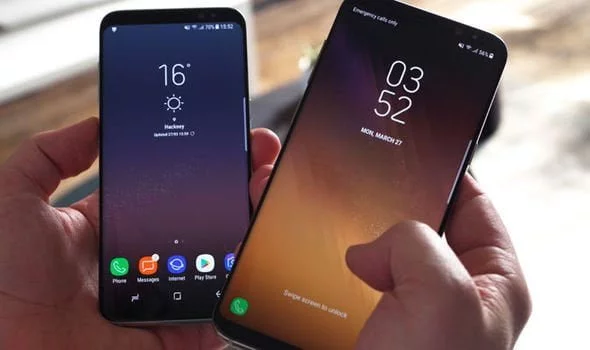
Samsung offers 2 years of software support for their smartphones, which includes two big Android OS updates. The Samsung Galaxy S8, S8 Plus, and Note 8 have been on the market for well over two years and will never see Android 10. The same is true for the Galaxy S9 and Note 9 series, which have received the latest Android 10 update. Although the devices will continue to receive security patch updates for another year, this is unjust to the most successful Samsung flagship to date. So, here are some of the best custom ROMs based on Android 10 for the Samsung Galaxy S8, S8+, and Note 8.
We’ve compiled a list of the most recent and reliable custom ROMs for the Galaxy S8 and Note 8 series right now. Lineage OS 17.1 and other common ROMs such as Havoc OS, Pixel Experience, and Corvus OS 10 have just been made official with Android 10. However, because of the design of Samsung Galaxy phones, official support for custom ROMs is difficult to come by. As a result, some custom ROMs based on Android 10 for the Samsung Galaxy S8, S8+, and Note 8 are still unofficial beta ports.
Furthermore, the majority of custom ROMs are only for Exynos models. This is due to the fact that the Snapdragon Galaxy S8, S8+, and Note 8 variants’ bootloaders cannot be unlocked. So you cant install TWRP recovery, and hence, can’t flash a custom ROM.
1. Havoc OS
Havoc OS is currently one of the most stable Android 10 custom ROMs for Samsung Galaxy smartphones. In comparison to the other choices, users of the Galaxy S8 and Note 8 series strongly suggest the Havoc OS custom ROM. Most notably, it has recently been updated to Havoc OS 3.7, which means that it is based on Android 10 and incorporates some Android 11 features such as Material design 2.0, Dark Theme Support for AOSP apps, Android R Style screen record dialog, Rounded UI, Face Unlock support, built-in Gapps, Font Customisation, Pixel Lockscreen weather, and many more.
Moreover, it also supports Face Unlock, HD/VoLTE toggle, 4G/LTE Icon toggle, 90 Hz refresh rate toggle, Themes styles and wallpapers support from the Pixel 4, and much more. Checkout the images from below and also see the complete screenshot repository from below.
When it comes to having stock Google experience on your Android phone, Pixel Experience is everyone’s choice. It includes all of the Pixel 4’s functionality, the most recent Google UI, the most recent Google Assistant app, Digital Wellbeing, and support for the most recent Google products and services. As a result, you can receive the most recent Pixel Launcher, themes and style apps, wallpapers app, ringtones, icons, and everything else that is currently available on the Google Pixel 4 (XL) with Android 10.
Wifi, RIL, Mobile data, GPS, Camera, Flashlight, Camcorder, Bluetooth, Fingerprint reader, NFC, Lights, Sound / vibration all work with Pixel Experience. However, some features, such as Volte, cast, and, according to some sources, even the face unlock feature, may not work.
Pixel Experience Plus is an AOSP based ROM, included with Google apps and all the Google Pixel goodies like launcher, wallpapers, icons, fonts, bootanimation.
Download Pixel Experience for Galaxy S8, S8+, and Note 8
Corvus OS is getting very popular lately among custom ROM flashers. The developers have also been very active in the development and supporting a large number of Android devices. Many have recommended Corvus OS over the past months as it is quite stable for its initial release. Covrus OS also brings Android 10 to the plate for Galaxy S8 series and Note 8.
Corvus OS is inspired by Dirty Unicorn ROM and has many of its features. The ROM is full of customization options and has a dedicated section for each section including Themes, Notifications, Display, Lock Screen, and more. Stability is great with this one. It also gives stock AOSP experience making it light weight and fast. The ROM also includes some Google features like latest Pixel Launcher, Accent picker, Theme backup, Theme styles, wallpapers app, ringtones, icons, and more.
Lineage OS is one of the most popular custom ROMS out there. It supports a wide range of Android devices. Right from the obsolete phones from years ago to the most recent flagships. Lineage OS 17.1 is based on Android 10 and now supports Samsung Galaxy S8, S8+, and Note 8 unofficially.
Download Lineage OS 17.1 for Galaxy S8, S8+, and Note 8
Lineage OS 17.1 for Galaxy S8 dreamlte (s8) (mega link)
So, you have an Android smartphone, and the same old UI has begun to bore you. So, it’s time to dive into the world of custom ROMs. Installing Custom ROMs is one of the easiest ways to deal with overdue OEM updates and introduce a plethora of new features to your Android smartphone. Let’s take a look at the best Android Custom ROMs for 2021 that you can try.
Since Android OS is open-source, the overly enthusiastic community-at-large is constantly working on their own versions of the OS, which is why Android is so popular. However, flashing a custom ROM necessitates unlocking the bootloader and installing a custom recovery, so be sure to read our article on the topic.
Custom ROMs:
1. LineageOS 18.1 (LOS ROM)
You’ll not find a custom ROM list on the internet that doesn’t include LineagOS. LineageOS is the new age successor of the CyanogenMod ROM. Following CyanogenMod discontinuation in 2016, LineageOS took center stage and has not looked back since. This most popular custom ROM for Android cements its reputation purely on the sheer number of users and downloads that it has gotten over the years.
Above all, LineageOS is the base of most of the other custom ROMs in the community (Example: Resurrection Remix). Stability is a stronghold, with the UI presenting itself as akin to Google’s very own Stock Android.
It doesn’t provide a lot of customization options but, in the Android community, personalization isn’t everything. Nevertheless, it does play a huge role when it comes to the Android Custom ROM world and still remains one of the best Android custom ROMs for 2021.Download LineageOS Custom ROM
2. Paranoid Android (PA ROM)
Paranoid Android ROM is one of everyone’s personal favorites when it comes to Custom Firmware. Being one of the oldest ROMs available, AOSPA has come a long way. While being one of the few ROMs based on CAF, PA packs a punch in terms of stability, security, and performance.
Additionally, Ambient Display first made an appearance as part of PA Custom ROM with a feature name called Peek and was later ported into an APK. Certainly, the fact that even tech giants have looked up to this project to inspire innovation speaks for itself. Download Paranoid Android Custom ROM
3. crDroid
Based on LineageOs, crDroid is one of the very few feature-rich yet stable custom ROMs that you’ll find today. The ROM gains new features with every update and the security patches and main updates are also rolled out pretty quick
The latest crDroid release (7) is supported on more than 63 devices from 12 manufacturers. Out of all the OEMs, Xiaomi/Redmi and OnePlus devices are the most loved devices in the crDroid community. The last time I installed crDroid was on my OG OnePlus 3T and I quite liked the stability and customizations that it bought to the table. Download crDroid Custom ROM
4. Havoc OS
Havoc OS has been pretty popular since the release of Android Oreo. This custom ROM is known for its all-around performance but, one area where it stands out is in the battery performance. Havoc OS is no slouch when it comes to customization options. Unlike other OSes that compromise one thing for the other, Havoc OS is a no-compromise ROM best suited for everyday usage.
Initially, the Havoc team concentrated on providing the best of all worlds, tailoring a pleasant experience for the user. Now, things are very much different as the Havoc OS project is bringing new features that are attracting other developers in the Custom ROM realm.Download Havoc OS Custom ROM
5. Pixel Extended
As the name suggests, Pixel Extended ROM is a derivative of Pixel Experience ROM which you’ll read about later in the article. It aims at solving the lack of customizations in the Pixel Experience ROM and, it does that very well with fewer caveats/compromises in areas like stability.
While it doesn’t offer a lot of customizations compared to other contenders on this list like MSM-Xtended, it does strike a great balance of providing Pixel-exclusive features and significant customizations than the stock Pixel Experience ROM.Download Pixel Extended Custom ROM
6. Corvus OS
Corvus is yet another AOSP-based custom ROM that takes heavy inspiration from the OG Dirty Unicorns ROM. It comes with a lot of customization options and is best suited for people who value customizations more than anything else. As of writing this article, more than 42 devices are officially supported. The ROM has been downloaded over 300000 times.
It is also one of the best ROMs when it comes to performance. Hence, if you’re looking for a Custom ROM for gaming, flash CorvusOS without any second thoughts.
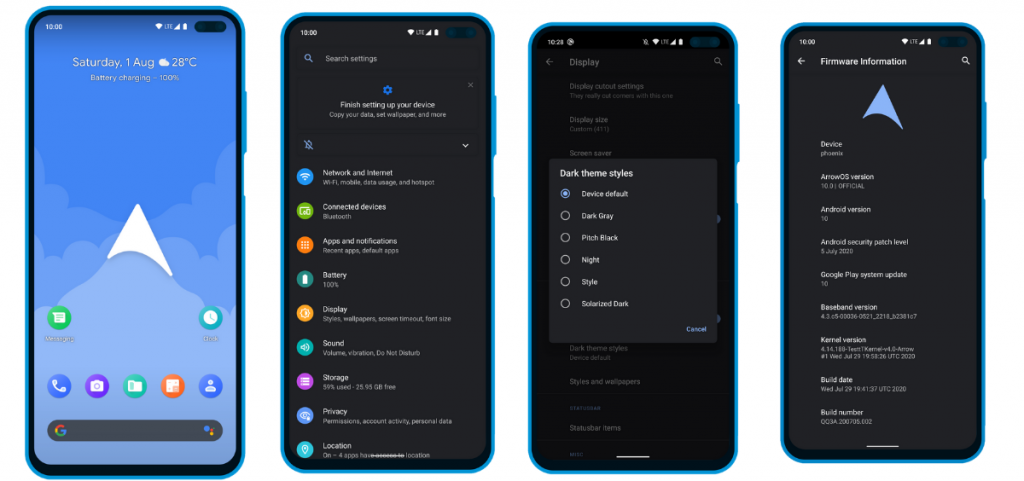
7. ArrowOS
In contrast to all the Custom ROMs mentioned in the list, Arrow OS provides less customization. As a result, this AOSP-based ROM is heavily oriented towards stability and battery life while offering a buttery smooth experience as a whole. Still, less doesn’t necessarily mean it’s bad. This ROM targets users that prefer better battery life and stability than overwhelming customization options.
Apart from that, this ROM also gets timely security updates and OS updates. The device support is also pretty broad.Download ArrowOS Custom ROM
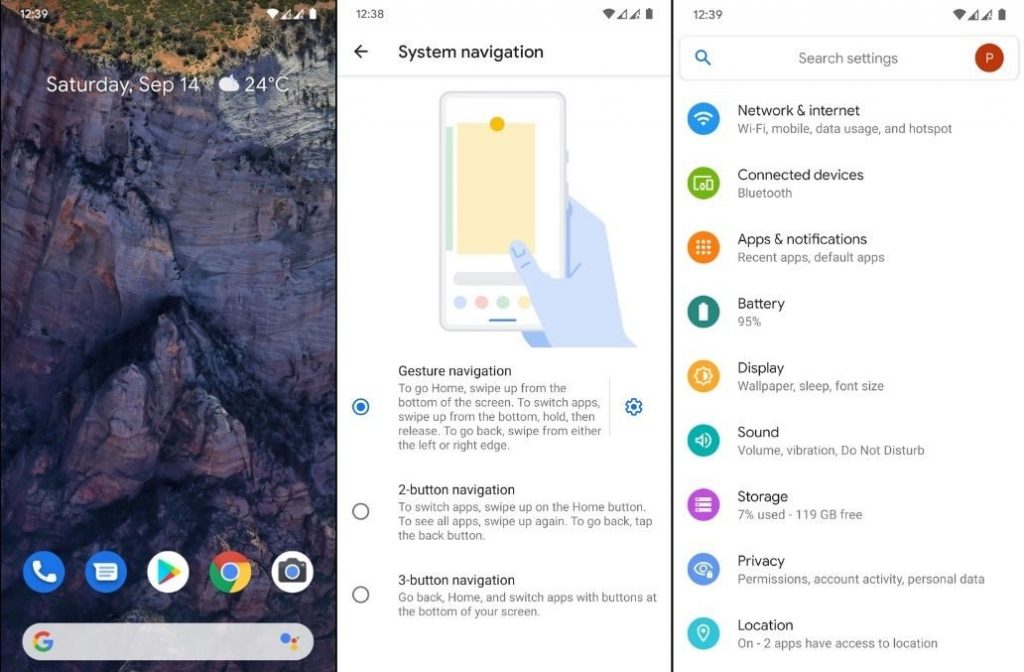
8. Pixel Experience
Say hello to one of the most simple and cleanest ROMs in the community, the Pixel Experience ROM. Derived from Google’s stock ROM on its Pixel devices, it delivers Pixel features right out of the box. Unlike the other ROMs in the list and precisely as the name suggests, the main purpose of the inception of this fantastic ROM is to provide a stable and secure Pixel-like experience rather than focusing on the area of customizability.
Although the Pixel Experience ROM holds some of the basic tweaks you would expect, tailoring every aspect of your device is not its goal. Another unique feature of the ROM is that it is CAF-based. For starters, a CAF-based ROM is an AOSP-based ROM that the chipset manufacturer Qualcomm uses to test their particular chipsets. CAF ROMs are tailored to offer incredible stability.Download POSP Custom ROM
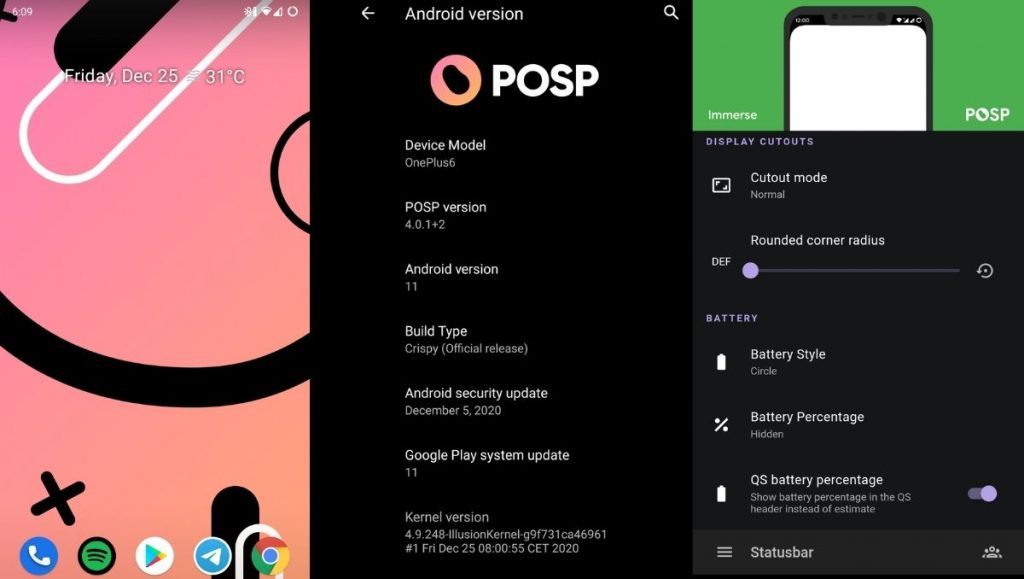
9. POSP (Potato Open Sauce Project)
Yup. You read that right. Certainly, Custom ROM developers can’t go wrong with crunchy names, right? Well, that holds true, at least in the case of POSP as many of the users might agree. Serving up a delicious-looking website with a cheerful undertone, this brilliant Custom Rom serves its purpose quite well.
This Popular Custom ROM provides ample choices for tweaking your device in the manner of your choice. Furthermore, the POSP Custom ROM now supports a wide variety of devices. Recently, the developers launched v4 adding several new features to the custom ROM. Finally, like it or hate it, these potatoes rock!Download POSP Custom ROM
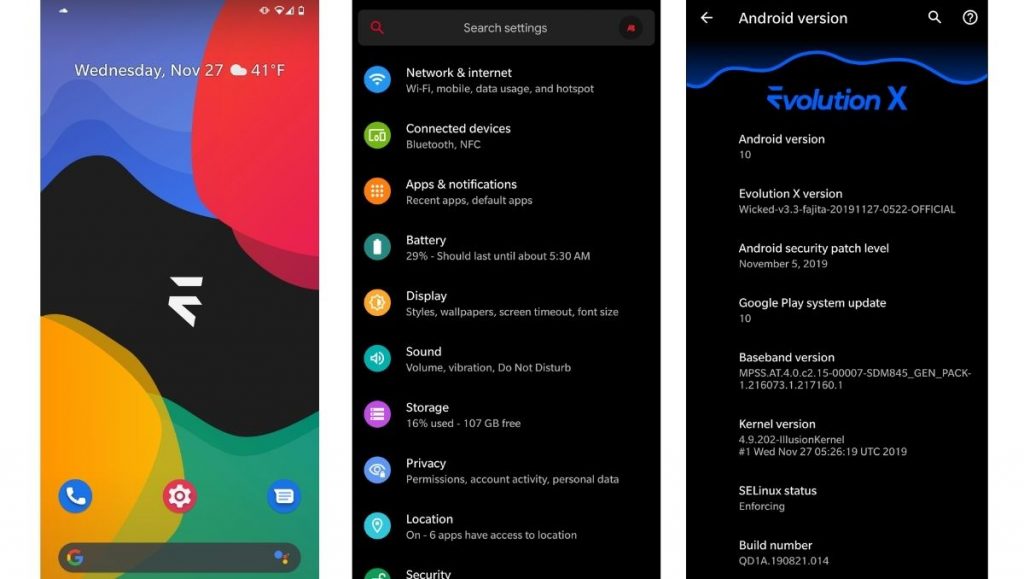
10. EvolutionX
EvolutionX is yet another custom ROM based on vanilla AOSP, similar to Pixel Experience. It is one of the most customizable custom ROMs in the Android community.
Developers rolled out EvolutionX ROM based on Android 11 as soon as the official Android 11 came out. The custom ROM is especially popular due to its performance and stability and is preferred by users who don’t often hop custom ROMs. Be it CPU-intensive tasks or GPU-intensive, EvolutionX nails it in every aspect.
Sure the customizations are less than other custom ROMs like HavocOS but, it strikes a perfect balance between performance and simplicity via stock Android experience.
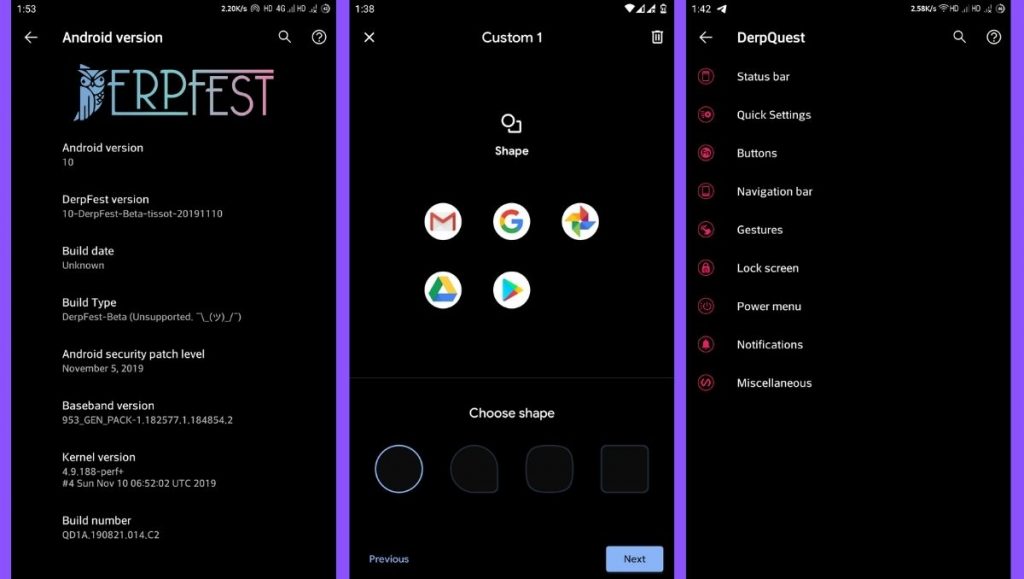
AOSIP (Android Open-Source Illusion Project) is hands down one of my favorite custom ROMs when it comes to delivering a Pixel-like experience and a lot of miscellaneous features. Based on AOSP with Pixel Experience as a base, it delivers a lot of features and, at the same time, keeps the experience simple.
Derpfest is an unofficial, community ROM based on AOSIP. Apart from a few added features here and there, there’s not much of a difference between the two. Everything from the monthly security patches to receiving new version updates is also quick on AOSIP.Download AOSIPDownload Derpfest Custom ROMs
12. Syberia Project
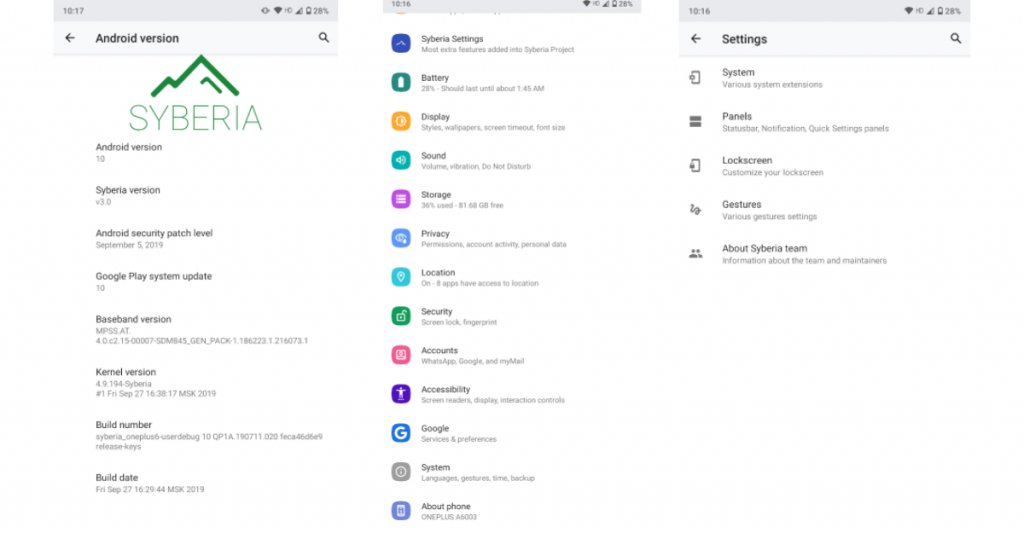
Syberia ROM is yet another AOSP and CAF-based custom ROM known for its stability, customization features, and timely updates. A week that I spent with this ROM (Android 10.0) on my OnePlus 6, felt pretty great for daily usage.
Apart from the Pixel experience and customization, what blew me away was how stable the ROM was. The Syberia OS community loves Xiaomi devices so, there’s a high chance that your Xiaomi device is/will be supported.Download Syberia Custom ROM
13. MSM-Xtended
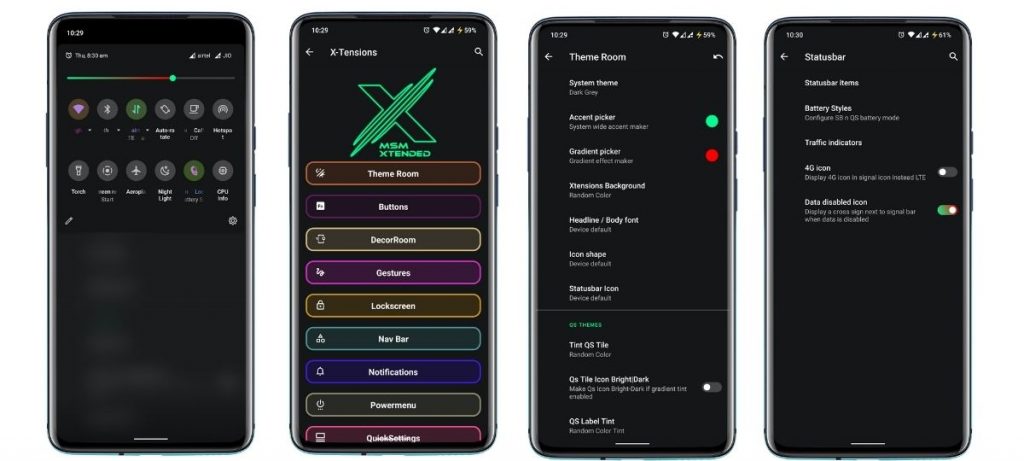
Are you searching for a custom ROM that helps tweak every last bit of your Android experience? Meet MSM-Xtended – A highly customizable, yet another AOSP-based custom ROM whose tweaking abilities are off the charts.
I tried it on my older Xiaomi Mi A1 and honestly, I think the customizations are a serious overkill here. Nonetheless, I know there are a lot of people who want just that. Apart from that, it was pretty stable and always stayed up-to-date. Hence, it is one of the best android custom ROMs for 2021 for customizations.Download MSM-Xtended Custom ROM
Wich one is the best?
Before you start yelling at me for not having your favorite custom ROM on this list, please understand that this is a very subjective list. These custom ROMs are just the tip of the proverbial proverbial iceberg.
Finally, it is strongly advised to peruse the XDA Forums to keep track of what works and user input. Certainly, the developers and maintainers of ROMs for your particular devices play a significant role. Get some fun blinking.
Android 12 DP2 just picked up its second bug-fixing update, bumping things numerically to DP2.2. This latest release includes a lot more fixes than DP2.1 did, including a fix for video encoding issues that I ran into, a crash tied to the Bluetooth section of Settings, disappearing widgets, and a failure to save Wi-Fi passwords, among others.
Android 12 Developer Preview 2.2 (April 2021)

If you’re already running a Developer Preview build, you will automatically receive an over-the-air (OTA) update to Developer Preview 2.2.

This minor update to Android 12 Developer Preview 2 includes the following fixes:

-Fixed an issue that sometimes caused the Settings app to crash when a user tried to access Bluetooth settings. (Issue #180962266)
-Fixed an issue that caused widgets to be removed from the home screen after a user installed an OTA update.
-Fixed an issue that caused notifications to be sent about low Bluetooth call quality even when call quality was currently unaffected.
-Fixed an issue that caused WiFi network passwords to not be saved in some cases.
-Fixed an issue that caused the notification shade to be activated when typing on the on-screen keyboard.
-Fixed an issue with Codec 2.0 that could cause apps to crash on some devices.
-Fixed an issue that could cause videos to be encoded incorrectly when shared.
-Android 12 Developer Preview 2.1 (March 2021)

This minor update to Android 12 Developer Preview 2 updates WebView to fix an issue that caused some apps to crash.-
Some say that a problem with gesture navigation that was supposed to be resolved in a previous release remains in DP2.1, but no note was made of whether or not another patch for that issue is included in this release. It’s also likely that some unnamed changes slipped into this update — that happens from time to time, so we’ll keep an eye out.
The update is already rolling out via the traditional means for those that have installed a prior Android 12 Developer Preview. Compatible phones remain the same: The Pixel 3 series, 3a series, 4 series, 4a series, and Pixel 5. OTA images are also available for manual sideloading/deconstruction if you prefer to install it yourself.
If you’re doing it for the first time, we still recommend you wait until the Android Beta Program starts, but we have instructions here if you’re willing to assume the risks.
People are eagerly waiting for the Android 12 update especially since the release of a plethora of promising rumors and leaks. Most of what we know has been leaked but some of the information is gathered from the public source code which appeared before the Developer Preview. In light of the upcoming release, we have gathered every detail we could find regarding the Android 12 update and compiled them for you in this article.
The Desert Name
Since 2009, a trend can be observed in the naming of each software update. Every major release ever since has been named after a dessert that starts with a successive letter of the alphabet. In 2009 it was Cupcake then Donut then Froyo then Gingerbread and so on. However, this was not the case with Android 10, it seems that publicly Google had abandoned the practice of naming its software updates after deserts but internally the tradition still carried on. Hence Android 11 was “Red Velvet Cake” and Android 12 is reported as “Snow Cone”.
Design Mockups
The leaked mockups reveal a comprehensive design, it is worth noting that the actual design could be quite different since the mockups are just providing a visual aid to the leaks. The following images are not screenshots but render from artists of what the design could be.
Themes
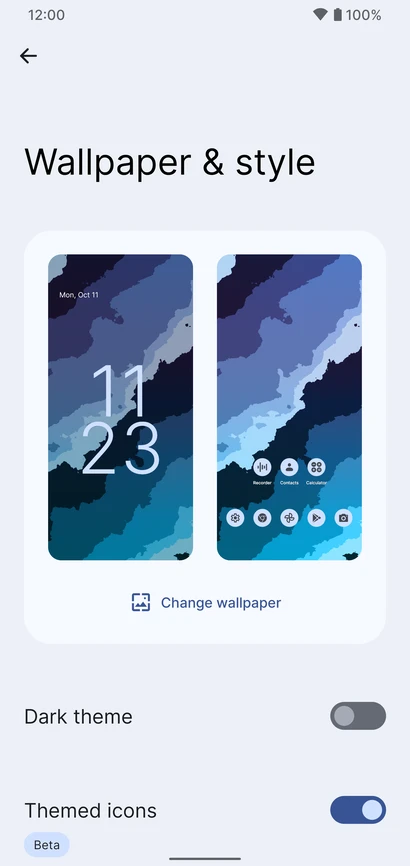
After looking at the mockups, it can be observed that Google is going in a different direction with the themes. You can’t find the usually black and white colorways instead a primary color described as “Sand” can be observed. This change in color schemes could be due to an in-depth theming system that is set to debut. This feature will allow you to customize your theme by choosing from a selected number of primary colors.
Material NEXT
The following sets of features are referred to as, “Material NEXT”. It was reported by XDA that there will be various smaller tweaks to the overall interface including notification cards with much rounder corners, new shapes and spacing for quick settings tiles, and more. There may be more features that are under the Material NEXT tag or this could simply point towards the updates to the use of Material Design by Android’s built-in apps and UI.
New Widgets
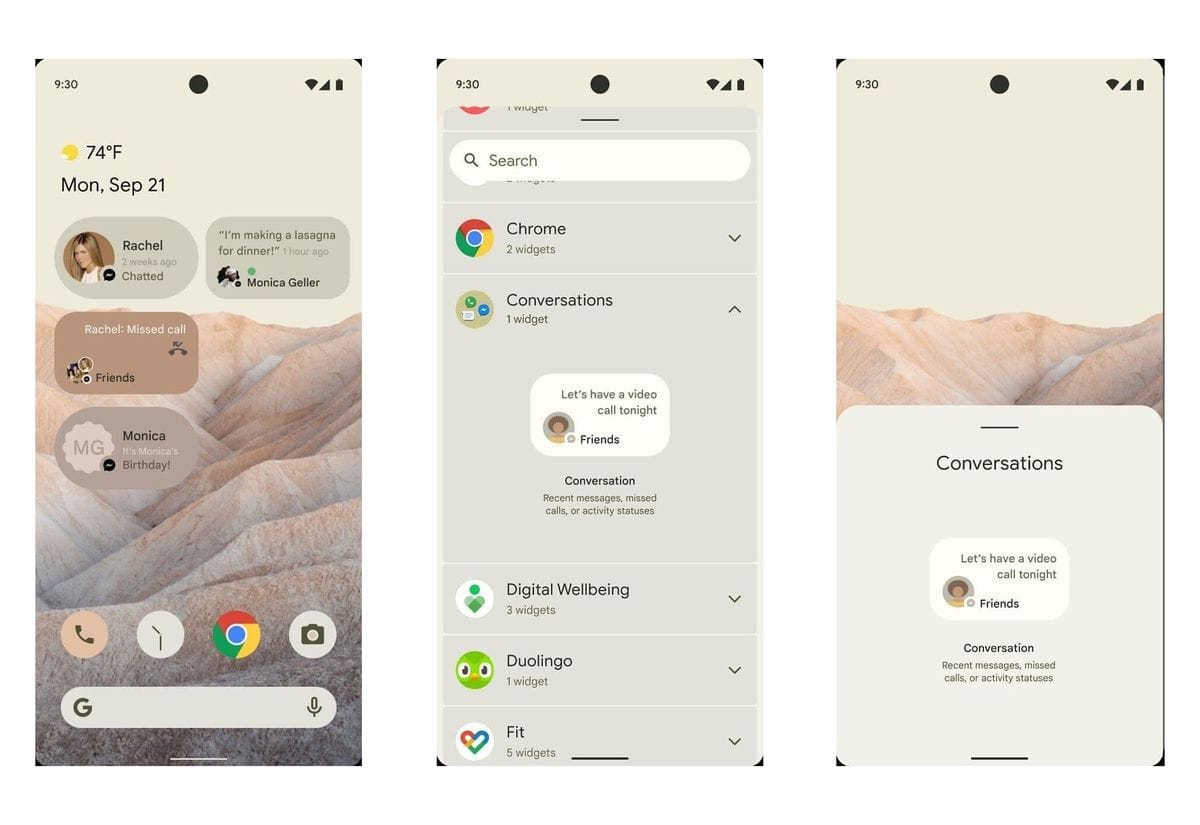
The release of Android 12 could bring, “Conversations Widgets”, which will appear on the home screen. These widgets seem to display missed calls or messages by someone who you haven’t talked to in your while. There are no further details on its functionality but this feature aligns with Google’s aim which is making users more involved in the operating systems.
One-handed mode
This feature is directly aimed at those owners who use a foldable device or taller devices. Android 12 will be introducing a native one-handed mode that will decrease your phone’s screen vertically. This will make it easier to use the device with one hand, however, only the height will decrease not the width.
Privacy developments
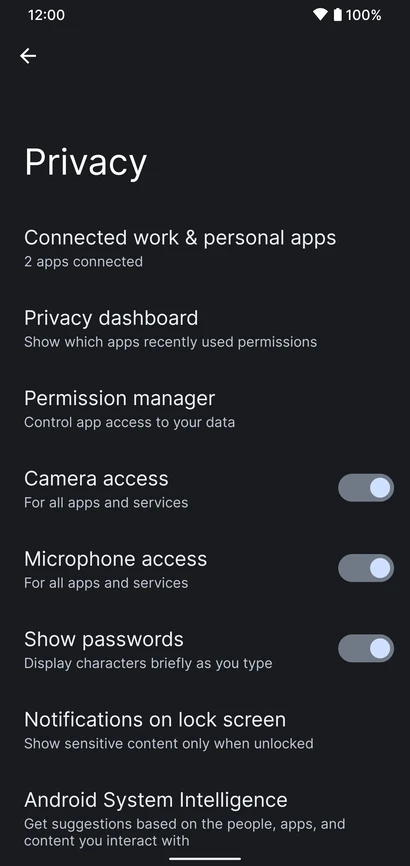
It seems Google is ready to follow Apple’s stance on privacy, with Android 12 there might be a variety of movements to aid in privacy protection. Reportedly, a feature is in development that will allow users to know if an app is using or has used your camera or microphone recently. Additionally, it has been leaked that Android 12’s Settings app will get a revamped Privacy page where you can outright disable your phone’s camera, microphone, and location sensors.
Scrolling Screenshots
This feature is neither a rumor nor a leak, Google confirmed in 2019 that it was working on Scrolling Screenshots. Basically, your phone takes a screenshot, scrolls down, takes another, and stitches the two (or more) together.
Picture-in-picture upgrades
When Android 11 was introduced users could resize their floating picture-in-picture window by simply grabbing onto the corner and dragging. According to recent reports, users will now be able to resize with precision or double-tapped to quickly jump to maximum size. There might even be a way for users to “hide” the window so they can see more of their currently active app.
App Pairs
App Pairs is another feature that is being introduced due to the usage of foldable phones. This is a split-screen that allows users to operate two different tasks as one in recent apps view hence you will be able to switch from a pair of apps to another single app.
Game Mode
This feature will be a massive hit among gamers. There is a rumor that Android 12 may introduce a “game mode” option. As of now, it is called, “GameManager”, which is listed as a “service to manage game-related features.” No specific details have been released hence we are pretty much in the dark about this one.
Brightness Control
Android 12 will bring a “Reduce Brightness” tile in the quick settings. This seems to be an accessibility feature aimed at those with visual impairments.
Apps Hibernation
Premium flagship phones rarely have a storage issue but not everyone can afford the pricey devices with massive storage. To save storage space, Android 12 could introduce a way for apps to be “hibernated” when they aren’t being actively used. Again, the details on this are a bit vague.
Third-party app store
Last year Google assured Android app developers that it was considering their feedbacks and would make it easier to use a third-party app store. This is one of the features that Goggle has been hush-hush about but it is a fair compromise between Google and developers. This will also protect the user’s from malicious malware.
What’s next?
There is no definite release date by Google as of now but it is expected sooner rather than later. This set of features indicate that Google is trying to make its operating system more user-friendly. It is allowing the user to customize and personalize their devices. Additionally, it seems Google agrees with Apple’s privacy policies, to limit data sharing, which have been the center of controversy ever since its announcement. Many details reading these features are unknown and most of them are just sheer speculation. We’ll have to wait for the build and see how accurate our guesses were based upon the leaks.