Blog

  • Fix Google Pixel 6/6 Pro network standby battery draining issue

    Fix Google Pixel 6/6 Pro network standby battery draining issue

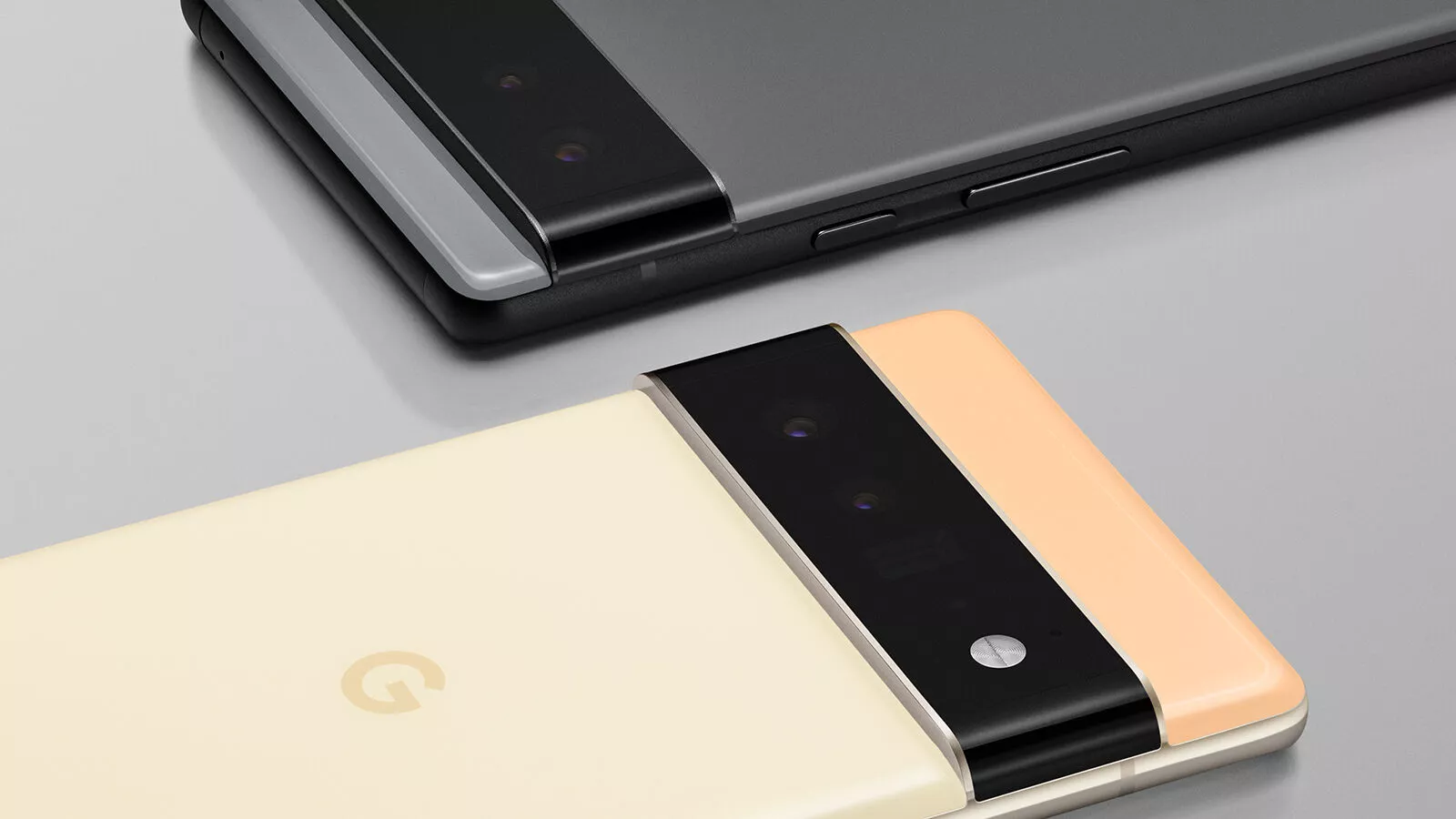
    Devices from the Google Pixel 6 series are featured in the news for their performance and design as well as for their problems and flaws. Google’s Pixel device segment doesn’t seem to be evolving all that much even after years on the market. A large number of Google Pixel 6/6 Pro users have recently reported that, in addition to other defects or issues, they commonly experience the Network Standby Battery Draining Issue. It now accumulates problems.

    For a quicker switch between connections, the Mobile Network Standby (MTS) feature keeps the device’s data connection active in the background even when utilizing Wi-Fi. In essence, it enables users to seamlessly use their mobile data and Wi-Fi connections to access the internet while one of the networks is down. Through the Settings menu’s Developer Options, it is simple to disable. Now, if you’re having the same problem, you may fix it by using this approach.
    ezgif.com gif maker 3

    Google Pixel 6/6 Pro Network Standby Battery Draining Issue

    Multiple Google Pixel 6 and Pixel 6 Pro users are reporting on Reddit that their devices are experiencing excessive battery drain even in the standby mode which is unexpected. Whereas the ‘mobile network’ option in the battery details settings is nearly consuming 30%-40% of juice every day. Some affected users are also facing the Google Pixel 6 series sudden losing all network coverage for a couple of seconds automatically and then regaining it soon.

    This particular issue is happening to a lot of users randomly every 2-3 minutes which becomes frustrating. As the losing and regaining of the network signal put additional pressure on the Pixel 6/6 Pro device modem consistently, it leads to an excessive battery drain unexpectedly. Luckily, there are a couple of possible workarounds mentioned below that should gonna help a lot. So, without wasting any more time, let’s jump into it.

    Also Read

    Fix: Pixel 6 Pro Sound Not Working/ Audio Cutting Out, Delay or Lag

    1. Turn OFF Adaptive Connectivity

    Some reports are claiming that turning off the ‘Adaptive Connectivity’ option on your Google Pixel 6/6 Pro device can easily fix the network standby battery draining issue in most scenarios. The Adaptive Connectivity feature automatically switches between Wi-Fi and mobile data networks whenever any of the networks don’t have internet access. You can also try turning off the adaptive connectivity option on your handset. To do so:

    • Open your phone’s Settings app.
    • Tap on Network & internet > Select Adaptive connectivity.
    • Turn OFF the toggle to disable Adaptive connectivity.

    2. Turn On Adaptive Battery

    You should also turn on the adaptive battery feature on your Pixel 6/6 Pro device to maintain the battery level by eliminating unnecessary background running tasks and connectivity options like GPS, Bluetooth, etc. You’ll be able to reduce battery draining with the help of system optimization. To do that:

    • Open your phone’s Settings app.
    • Tap on Battery > Tap on Adaptive Battery.
    • Make sure to Turn ON the Adaptive Battery toggle to enable it.

    3. Change Screen Display Settings

    It’s highly recommended to change the screen display brightness settings on the device by following the steps below. A couple of unnecessary options may consume a lot of battery juice in a full day no matter whether you’re using them or not.

    • Make sure to reduce the screen brightness to an optimal level as per your requirement.
    • You can also turn on Dark Mode on the device to reduce battery strain.
    • If in case, you’re using any live wallpapers on the lock screen or home screen, make sure to turn it off, and use a static wallpaper.
    • Turn off the screen when you’re not using it by simply short pressing the power button to lock the screen.
    • Adjust the screen timeout option from the Settings > Display > Screen Timeout > Set it to 15/30 seconds which is more than enough. However, if you want the screen to have a higher timeout ratio then you can set it to higher.
    • Make sure to turn off screen attention mode too. Head over to the Settings app > Tap on Display and then Advanced > Screen attention > Turn ON the Screen attention feature.
    • You should also turn off the smooth display option. Open your phone’s Settings app > Tap on Display > Tap on Smooth Display > Turn OFF the Smooth Display feature.

    4. Restric Battery Hungry Apps

    Try restricting the battery-consuming apps on the device which may run always in the background and drain a lot of battery juice. To do so:

    • Open your phone’s Settings app > Tap on Battery.
    • Tap on Battery usage > You can see a list of apps with the percentage of your battery used for the past 24 hours. Or you can also see system usage by tapping System usage for the past 24 hr.
    • To see or change how a listed app uses the battery, tap on it.​
      • For some apps, you can turn on Background Restriction.
      • For all apps, we recommend keeping Battery optimization on.

    5. Delete Unused Apps and Games

    Whatever apps or games you’ve already installed or come preinstalled on the device and you’re not using them regularly, make sure to delete those unused apps & games.

    • Just head over to the installed app or game > Tap and hold on the specific app/game icon.
    • Select Uninstall and confirm the task to delete it.
    • Do the same steps for each unnecessary or unused program.

    6. Use the Stock Charger

    Ensure to use the stock charger or adapter that comes with your phone. Don’t use any local non-branded charging cables and adapters to charge your expensive Pixel 6 series as they’re not certified to work properly. You can easily avoid battery chemical damage or overheating.

    7. Keep Ambient Temperature Cool

    You should avoid such situations where your Pixel 4 XL smartphone can overheat. Your device battery will drain much faster when the temperature is hot enough. Even using the device extensively while charging can also cause overheating issues and it’ll eventually lead to battery draining. Try not using the device or not plugging in the device for longer while charging it.

    8. Stop Charging Overnight

    Advertisement

    Either you should use adaptive charging on the device or try charging the device before you go to sleep or even just after waking up from sleep in the morning to avoid overcharging. Most users prefer overnight charging which may lead to battery health issues or overheating issues over a period of time.

    9. Use Battery Saver

    Try using the battery saver option on the handset to precisely using the battery juice whatever and whenever required. To do so:

    • Go to the device Settings app.
    • Tap on Battery > Go to Battery Saver > Set a schedule.
    • Pick a setting when Battery Saver should turn on. Select according to your preference.
      • No schedule: Only when you turn on Battery Saver manually.
      • Based on your routine: If your battery is likely to run out before your next typical charge.
      • Based on percentage: When your battery reaches a certain percentage charge.

    10. Update Device Software

    Make sure to check for software updates on your device and install the latest version (if available) to reduce multiple bugs or issues.

    • Open the device Settings menu.
    • Head over to the bottom of the page and tap on System.
    • Go to System update > Your update status will appear whether there is a new version available or not.
    • Just follow the on-screen steps to update it > Once done, you’ll need to reboot the device to apply changes.

    11. Install Pending App Updates

    The chances are high that some of the installed apps or games are basically conflicting with the current software version on your device. It’s always a better idea to update apps and games on the device. To do that:

    • Open the Google Play Store app.
    • At the top right side, tap on the profile icon.
    • Now, tap on Manage apps & devices.
    • Here you can see the ‘Updates available’ option > Choose to ‘Update all apps’. [You can just select a specific app update to install]
    • Once done, close the Play Store, and reboot the device to apply changes.

    12. Perform a Factory Reset

    Sometimes performing a factory reset on the device can fix plenty of issues related to software, crashes, app issues, battery issues, networking issues, etc. You should also try resetting the device to the factory default.

    • Open the device Settings app.
    • Select Google > Tap on Backup.
    • If you’re one of the Google One users then you can turn on Backup by Google One and follow the on-screen instructions. [Optional]
    • Tap on Back up now.

    Note: Your Google One backup can take up to 24 hours. When your data is saved, “On” will be below the data types you selected. Also, keep in mind that you’ll require a Google account credential to sign back into the service after reset.

    • Head over to the Settings app.
    • Tap on System > Tap on Reset options.
    • Select Erase all data (factory reset).
    • To erase all data from your phone’s internal storage, tap on Erase all data.
      • If required, your phone asks for your PIN. Enter your PIN > Select Erase all data.
    • It may take a couple of minutes depending on the device storage and performance. So, have some patience until the process completes.
    • When your phone finishes the factory reset, select the restart option.
    • Now, you can easily set up your phone and restore your backed-up data.

    13. Replace the Battery

    If none of the methods worked for you then it’s better to ask for a battery replacement by visiting the nearest Google Pixel authorized service center (if the warranty is still there). Otherwise, simply visit the nearest local mobile repairing shop and ask for a battery replacement. You should also ask the repair guy to cross-check the internal board whether it has any issues or not.
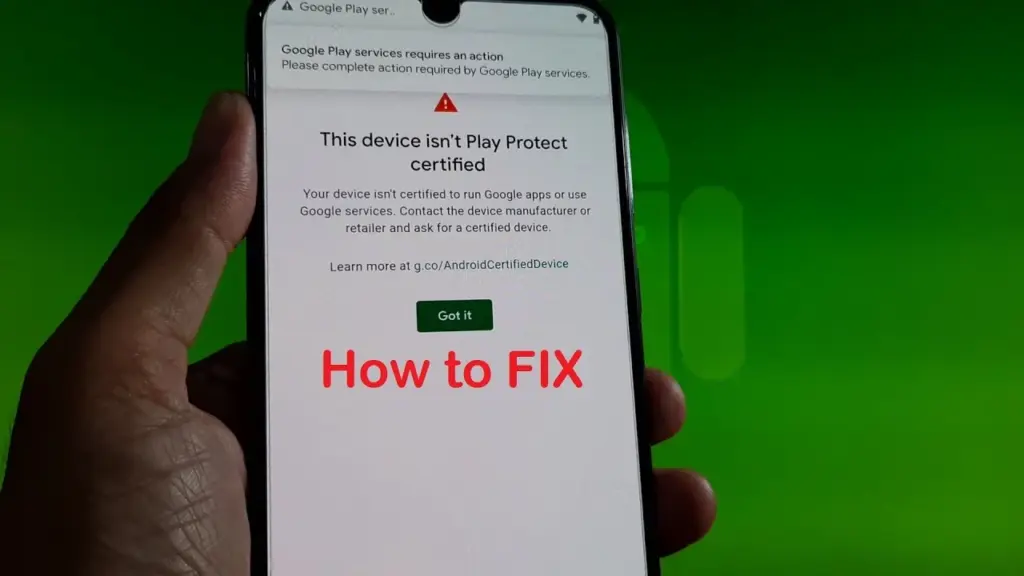
  • Fix “This device isn’t Play Protect Certified” error on custom ROMs

    Fix “This device isn’t Play Protect Certified” error on custom ROMs

    An Android phone stands apart in the market thanks to customization and the freedom to do anything with it. You can replace the phone’s stock UI with a custom ROM if you don’t like it. Once more, if your manufacturer has stopped providing updates for your phone, you can try out custom ROMs that are powered by the newest version of Android. You therefore have significant customization options and control over your smartphone in both situations.

    However, a developer of a modified ROM must register the ROM with Google. The device will not be able to use any Google services, including Google apps and services, if it is not registered with Google.

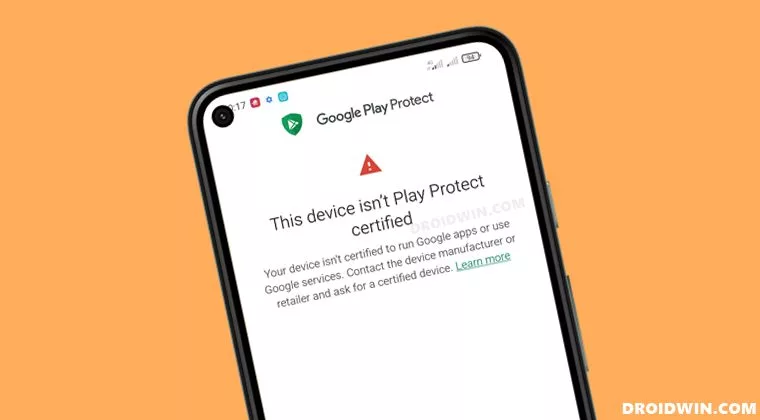
    When a device has an unregistered custom ROM installed, they get the “This Device Isn’t Play Protect Certified” error. Now, if you are one of those struggling with such an error message, this article will help you. Here, we have listed how you can fix this. So without any further ado, let’s get into this.

    You need to follow the steps for this in a systematic manner. It is exactly as we have mentioned below here. Do not skip any of these steps, and ensure one step is complete before moving to the next one.

    How to fix This Device Isn’t Play Protect Certified Error On Custom ROMs?

    This device isn’t Play Protect Certified

    Install Android SDK:

    Download and extract the Android SDK Platform Tools on your PC. Depending on your PC’s OS, download it for WindowsMac, or Linux. It will be a zip file. Once you have it, extract it in any preferred location. Now, you need to enable USB debugging on your smartphone for that.

    Enable USB Debugging:

    This step is essential if you want your PC to recognize your device when connecting it via USB in ADB mode.

    • Open up the settings menu on your phone.
    • Navigate to About Phone > Build Number. You need to tap on the Build number 7 times. You will see a pop-up on your screen that reads, “You are now a developer.”
    • Now go back to Settings and Open up System.
    • Navigate to Advanced > Developer Options > Enable USB Debugging.

    And that’s it. Your smartphone is now ready to take in ADB shell commands.

    Find Device ID:

    Obtaining the device ID used to be a challenging task; users would frequently need to root their phones in order to obtain this data. But that is no longer the case. The Google Play Store offers a program called Device ID that you can download. When you launch it after installation, the device ID details will be visible. After noting the device ID, proceed on to the following action.

    Register Your Custom ROM:

    You must visit the Google Device registration page for the final registration process.

    • Click on this link to go to Google’s Device registration page.
    • Sign in to your account here.
    • Now type in the device ID under the “Google Service Framework Android ID” section.
    • Verify the captcha and then click on the Register button below it.
    • Wait for an hour, and your device should be registered successfully.

    Once the registration is complete, your Custom ROM will also be registered, and you won’t see the “This Device Isn’t Play Protect Certified” error on your screen anymore. If you have any questions or queries about this article, comment below, and we will get back to you.

  • Free apps for Android, these Pro versions are currently free

    Free apps for Android, these Pro versions are currently free

    Every week, Droid Tools provides you with a selection of excellent deals for Android games and applications that are often purchased but are currently on sale for free on Google Play Store.

    This list of free apps is updated weekly with at least two weekly editions, on Tuesday and Saturday. Between the publication and the moment you consult this article, it is possible that some applications have become paid again. Google Play Store promos on apps are fairly easy to predict, but it’s more complicated with App Store promos since Apple doesn’t specify how long the discount is valid.

    Quick tip: When you find an interesting app, but you can’t really use it yet, install the app anyway, then delete it from your device. This way, the app will become part of your app library and you can install it again for free when you need it. It’s a good way not to miss a short-lived promotion.

    google play apps free

    Temporarily free Android apps on the Google Play Store

    Android productivity/lifestyle apps temporarily free on the Google Play Store

    • Task Destroyer ($1.99): Create tasks by entering the title (or image), health, color-coding, size and type of task. You can then place them anywhere in the space to better organize your to-do list.
    • Los tiempos verbales en inglés ($1.19): A useful tool when learning Spanish or English, using this application you will be able to learn all the active and passive tenses of English with useful tables in English, translations in Russian and Spanish and with zero advertising.
    • Ringtone Scheduler ($.69): Ringtone scheduler allows you to change your ringtone automatically depending on the time and your mood. It also has a nice explorer that helps you quickly create lists of ringtones.
    • Quick Volume Control ($.79 ): A simple tool that allows you to control volume via the notification bar.
    • Memorize: Learn TOEFL Vocabulary ($4.99): Same as the previous one, this application allows you to learn and memorize TOEFL vocabulary.
    • Number to word converter offline ($.69): Have you ever needed to convert numbers into English words, i.e. “929” into “nine hundred and twenty-nine”? This application was designed for that.

    Android mobile games temporarily free on the Google Play Store

    • Dead Bunker 2 HD ($.59): A 3D shooting game in which you have to fight zombies.
    • Kamikazee Dice Score Card ($1,19): A strange dice game.
    • Coin Princess ($.99)A game with a retro look and sound where your goal is to help the kidnapped princess escape from the monsters.
    • Everybody’s RPG ($.99): PvP and single player battles in a traditional 16-bit style RPG.
    • Live or Die: Survival Pro ($1.19): Dive into the heart of this apocalyptic world, complete quests and get fantastic rewards.
    • Pirate Defender Premium ($.59): A tower defense game where you play as a pirate captain and must defend your ship from waves of other… pirates.
  • Unlock the bootloader on Nothing Phone 1 and root it with Magisk

    Unlock the bootloader on Nothing Phone 1 and root it with Magisk

    Many Android enthusiasts make it a point to root and unlock the bootloader of new smartphones after they are released. Following this, there is often a flood of development in the form of modified kernels, custom ROMs, and other modifications. One may argue that until the shackle (read: “locked bootloader”) has been completely removed, a device’s existence at XDA hasn’t really started. That journey can begin right away for the Nothing Phone 1 community!

    You’ll be happy to learn that the Nothing Phone 1’s bootloader can be unlocked in a matter of seconds, and rooting your smartphone only takes a few minutes. If you’ve ever rooted and unlocked the bootloader of a non-carrier Google Pixel or OnePlus handset, you shouldn’t have any trouble doing so on your elegant Nothing Phone 1. Here is a tutorial to help those of you who need a refresher on the procedure.

    Since the Nothing Phone 1’s kernel sources and device tree are already available for download, it was inevitable that aftermarket development activity and custom customizations would begin to increase for the gadget. However, in order to boot any third-party software, you must first unlock the bootloader. How to begin going is as follows:

    Unlock the Nothing Phone 1’s bootloader

    1. Open the Settings app on your Nothing Phone 1.
    2. Tap on About phone.
    3. Locate the section named Software info and tap on it.
    4. On the next screen, tap on the Build number 7 times until it says you’re now a developer.
    5. Go back to the main Settings page, tap on System, and near the bottom of the list, you should see Developer options. Tap on it.
    6. You should see an OEM unlocking option. Enable it. For security purposes, it may ask you to input your lock screen PIN/password if you have one set.
    7. Scroll down a bit until you see USB debugging. Enable it as well.
    8. Plug in your Nothing Phone 1 into your PC/Mac/Chromebook. Make sure you have the latest version of ADB and Fastboot binaries installed.
    9. Now open up a terminal window/Command Prompt instance and enter the following command:adb devices
    10. If you see your device’s serial number and it says “authorized,” then you’re good to go. If this is your first time setting up ADB for this device, then you may see a prompt on your phone to enable USB Debugging for your PC. Grant it permission.
      • If you’re having trouble getting your Windows PC to recognize your device, try installing the latest Android USB Drivers.
    11. Now, reboot to the bootloader menu. You can either do this by holding the power and volume down buttons while booting up, or by entering the following ADB command:adb reboot bootloader
    12. Once you’re on the bootloader menu, you’ll now have to switch to using fastboot command to communicate with your device. To unlock the Nothing Phone 1’s bootloader, enter the following command:fastboot flashing unlock
      • In case you need to flash low-level firmware partitions like the bootloader images, you will have to execute another command afterwards:fastboot flashing unlock_critical
    13. You should now see text on screen warning you about the potential risks of unlocking the bootloader. On the screen next to the power and volume buttons, you should see some text. Press the volume up key until it says “unlock the bootloader.” Once it says this, press the power button.
    14. The phone will unlock the bootloader and reboot back to the bootloader menu. This time, the bootloader will show a red warning icon and “unlocked” text.
    15. Now, reboot your phone back to the Android OS. You can do this by sending the following fastboot command:fastboot reboot
    16. Congratulations, your Nothing Phone 1 now has an unlocked bootloader! You’ll see a warning message that your phone’s bootloader is unlocked on every boot, but don’t worry about that as it doesn’t affect your day-to-day use.

    Rooting the Nothing Phone 1 with Magisk

    With an unlocked bootloader, you can now boot modified boot images. For Magisk to work, you’ll need to patch the Nothing Phone 1’s stock boot image.

    1. Since your device has been wiped earlier, you’ll need to go back and re-enable Developer Options and then re-enable USB Debugging. Make sure your Nothing Phone 1 is still recognized by your PC.
    2. Download the full OTA package corresponding to the installed software version on the Nothing Phone 1.
      • At the time of writing this tutorial, the latest available software for the Nothing Phone 1 is Nothing OS 1.0.2. The full OTA ZIP for this build can be downloaded from here.
    3. Extract the stock boot image from the OTA package. For more information, take a look the “You have access to the recovery-flashable ZIP file” section our “How to Install Magisk on your Android Phone” tutorial.
      • In case you don’t want to download the whole OTA file, you can separately download the boot image from XDA forums. However, to avoid version mismatch and other unforeseen errors, it is always advised to extract the boot image yourself.
    4. Now that we have the stock boot image to patch, push it to your device with this command: adb push <path_to_file> /sdcard/Download
    5. Download and install the Magisk app on the Nothing Phone 1.
    6. Open the Magisk app and tap on the Install button.
    7. Choose Select and Patch a File. A file manager will pop up.
    8. Select the boot image that you pushed earlier and let Magisk patch it.
    9. Pull it off your phone with this command:adb pull /sdcard/Download/magisk_patched_[random_strings].img
    10. Reboot the Phone 1 into the bootloader:adb reboot bootloader
    11. Flash the patched boot image:fastboot flash boot /path/to/magisk_patched_boot.img
    12. Reboot the phone:fastboot reboot
    13. Open the Magisk app and your Nothing Phone 1 should be rooted.
    Nothing Phone 1 rooted with Magisk
  • Download latest GCam port for your device

    Download latest GCam port for your device

    The software power in image and video processing is one of Google and its products’ most intriguing potentials. The ports of the Google Camera are therefore much sought after by other Android smartphone manufacturers. In actuality, a lot of customers like installing and utilizing the Google Camera ports over the Stock Camera applications developed by other manufacturers.

    Google Camera (Gcam), often known as Pixel Camera, is an Android camera phone application. It is evident that GCAM creates images that are more faithful to the source and have a wider dynamic range than the typical camera. It is renowned primarily for its incredible features that enable users to generate “Photo Spheres,” 360-degree panorama photos, etc.

    gcam google camera port

    How to download GCam 8.5.3 on your device

    The latest version of the GCam, 8.5.300, is available thanks to the developer BSG one of the most active since the beginning in the attempts to make the software available for non-Pixel devices; given that you meet the aforementioned requirements. In reality, for the attempted series it does not harm, the application could be functional even with devices equipped with previous Android versions.

    You only need two requirements: run Android 10 or higher and have the Camera2 API. The main requirement for using the mod is that the device supports the Camera2 API. You can check this using a special application.

    Download GCam 8.5.300 APK

    Disclaimer: This application provided by BSG. If the application is not installed on your mobile or there is any problem with your mobile being installed then we will not be responsible for it. [Install own your risk]

    Changelog:

    • First release 8.5.300
    • General settings are added: “Interface”, “Hardware Level”, “Activate HDRNET”, google AWB and DEV settings.
    • Added settings divided into modules: “model”, “preview format”.

    If you meet both requirements, you have almost everything done. Installing the GCam 8.5.3 is something extremely easy that you can do in a few steps:

    1. Enter the BSG repository and click on ‘Download
    2. Once the APK has been downloaded, you can install it.
    3. Open the GCam app installed on your smartphone and you’re done

    The process is as simple as downloading the APK and installing it. You shouldn’t do anything else. Of course, depending on the device you have, you will be able to access some functions or others of the GCam. Not all sections are compatible with all smartphones.

  • Autolycos installed 3 million times from Google Play Store

    Autolycos installed 3 million times from Google Play Store

    Over 3,000,000 people downloaded a new Android malware family from the Google Play Store that discreetly subscribes users to premium services.

    Maxime Ingrao, an Evina security researcher, found the malware, known as “Autolycos,” in at least eight Android applications, of which two are still downloadable from the Google Play Store as of this writing.

    The two apps still available are named ‘Funny Camera’ by KellyTech, which has over 500,000 installations, and ‘Razer Keyboard & Theme’ by rxcheldiolola, which counts over 50,000 installs on the Play Store.

    Autolycos android malware

    The remaining six applications have been removed from the Google Play Store, but those who still have them installed risk being charged with costly subscriptions by the malware’s activities.

    • Vlog Star Video Editor (com.vlog.star.video.editor) – 1 million downloads
    • Creative 3D Launcher (app.launcher.creative3d) – 1 million downloads
    • Wow Beauty Camera (com.wowbeauty.camera) – 100,000 downloads
    • Gif Emoji Keyboard (com.gif.emoji.keyboard) – 100,000 downloads
    • Freeglow Camera 1.0.0 (com.glow.camera.open) – 5,000 downloads
    • Coco Camera v1.1 (com.toomore.cool.camera) –1,000 downloads

    During a discussion with Ingrao, the researcher told Droid Tools that he discovered the apps in June 2021 and reported his findings to Google at the time.

    Although Google acknowledged receiving the report, it took the company six months to remove the set of six, while two malicious apps remain on the Play Store to this day.

    After so much time had passed since the initial reporting, the researcher disclosed his findings publicly.

    In place of using Webview, Autolycos uses stealthy malicious behavior to execute URLs on remote browsers and then include the results in HTTP requests.

    This behavior is intended to hide its actions from users of infected devices so that they won’t be noticed.

    When malicious apps were installed on a smartphone, they frequently asked for authorization to view SMS content, which gave them access to a victim’s SMS text messages.

    The Autolycos owners launched various social media advertising campaigns to draw in new users to the apps. Ingrao discovered 74 Facebook ad campaigns for the Razer Keyboard & Theme alone.

    Additionally, while some fraudulent apps on the Play Store received unavoidably bad reviews, some with less downloads continue to have positive user ratings thanks to fake reviews.

    Android users should have Play Protect activated, monitor background internet data and battery usage, and attempt to install the fewest number of apps possible on their handsets in order to protect themselves against these attacks.

  • When will it launch? Android 13

    When will it launch? Android 13

    So far, Google has launched two developer previews and eight betas for Android 13, with the eighth beta landing on July 13. These were early versions of the operating system. However, the latest beta is a release candidate, which means it is very nearly complete.

    Given how far along the program has progressed, you could feel eager for the remainder of the Android 13 timetable and the release date of the stable version.

    We’ve put all the information we currently know about Android 13’s release timetable below.

    The approximate Android 13 schedule you see above was provided to us by Google. Overall, it’s a far quicker schedule than what we observed for Android 12 the previous year. Google has so far adhered closely to the plan, accomplishing each milestone. Therefore, unless there are any small point enhancements that might be released, this month’s beta should be the final.

    If there are no significant setbacks, Android 13’s stable release should occur around August 2022.

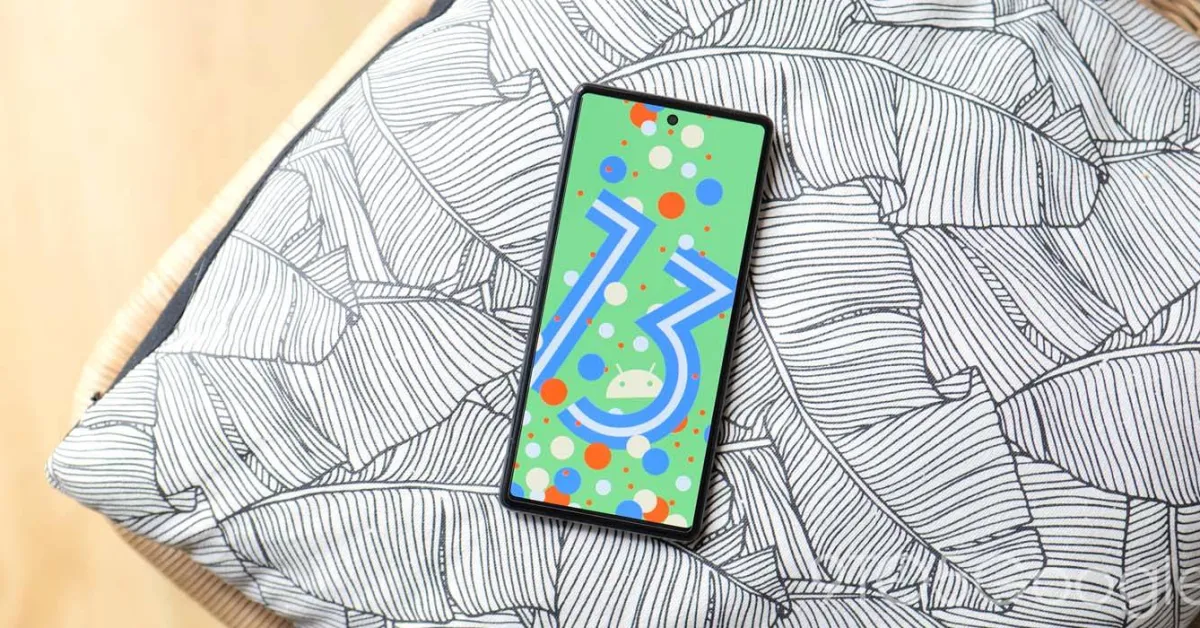
    Android 13 schedule

    The stable release of Android 12 took place on October 19, 2021, for comparison’s sake. But there was a big change from Android 11 to Android 12. Given that the transition from Android 12 to Android 13 doesn’t seem to be as severe, it’s extremely likely that Google will move.

    In the meantime, here are the significant Android 13 schedule milestones we’ve seen so far:

    • February 10, 2022
    • March 17, 2022 
    • April 26, 2022
    • May 11, 2022
    • May 26, 2022
    • June 8, 2022
    • June 10, 2022
    • June 16, 2022
    • June 27, 2022
    • July 13, 2022
  • Review – Asus ROG Phone 6 Pro – best gaming phone of the year (most expensive too)

    Review – Asus ROG Phone 6 Pro – best gaming phone of the year (most expensive too)

    Every year it appears as though Asus has regained its position as the ruler of gaming smartphones, and this year is no different. The flagship ROG Phone 6 Pro for gamers offers the best mobile gaming experience, but it also costs €1,299 (about $1,300 with taxes in the States). Is this astronomical price justified? In this comprehensive examination of the Asus ROG Phone 6 Pro, I offer you my assessment.

    On July 5, 2022, the Asus ROG Phone 6 Pro was introduced in France, and pre-orders for the device began on August 1. It is available in a single 18/512 GB version that costs about $1,300 (plus taxes, of course).

    We concur that your wallet will suffer as a result. With the same storage, it is less expensive than the Samsung Galaxy S22 Ultra ($1,400) and the iPhone 13 Pro Max ($1,690).

    I don’t think it’s wise to get a smartphone that pricey and specialized. On the other hand, the ROG Phone 6 Pro unquestionably provides the industry’s greatest gaming experience in 2022. And when you take into account that many of its features and advantages are present on the entry-level ROG Phone 6, which begins at

    Design

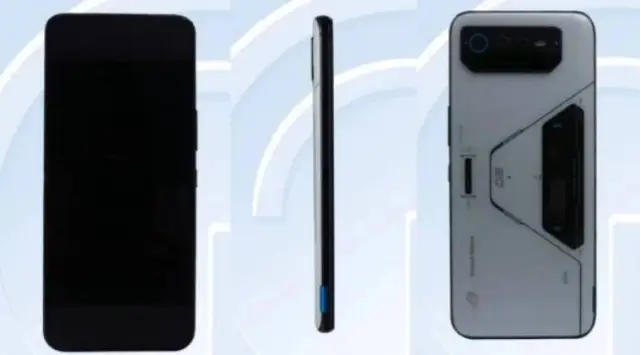
    Asus ROG phone 6 pro back

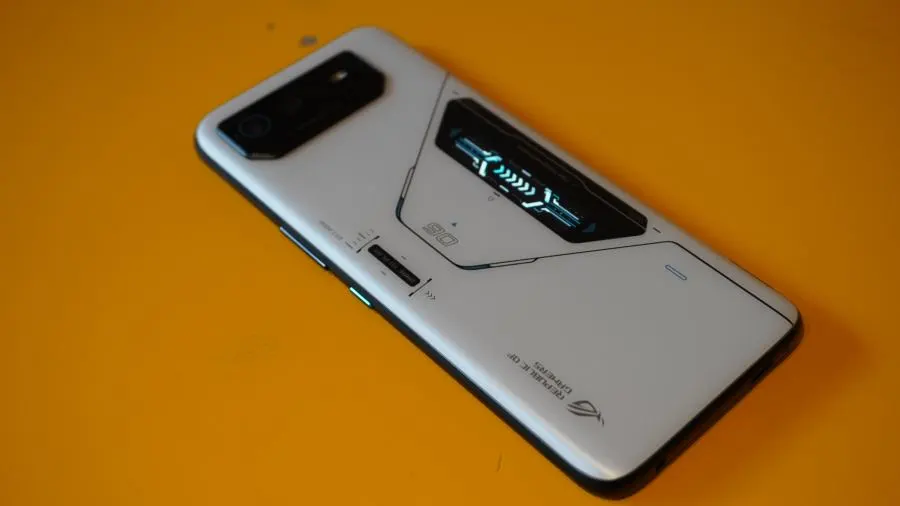
    The Asus ROG Phone 6 Pro has a futuristic design evoking the fuselage of a spaceship. It features backlit LEDs as well as a small PMOLED add-on display on the back.

    Pro:

    • Great Storm White color scheme with matte finish.
    • The small screen ROG Vision is a nice gimmick.
    • 3.5 mm jack and finally an IPX4 rating.
    • The haptic triggers are always so responsive.

    Cons:

    • Massive form factor and bulky weight.
    • No microSD port.

    Storm White is the only shade of white available for the Asus ROG Phone 6 Pro. Black and light blue metallic screen prints contrast with the matte glass surface, which is very pleasant to the touch. The words “Dare to play” are written on a small backlit LED that is located on the rear. The tiny ROG Vision PMOLED display, which is located directly beneath, shows 60 contextual animations (time, notifications, etc). It’s gimmicky, but cool nonetheless, and that’s all that counts.

    You can of course disable all of this to preserve your battery. The camera module is slightly off-center on the left but remains centered enough while not sticking out too much to prevent the smartphone from feeling wobbly when laid flat. The screen of the ROG Phone 6 Pro is quite flat with 2.5D edges and the grip is frankly good despite its massive dimensions of 173 x 77 x 10.3 mm and its weight of 239 g.

    asus rog pro side

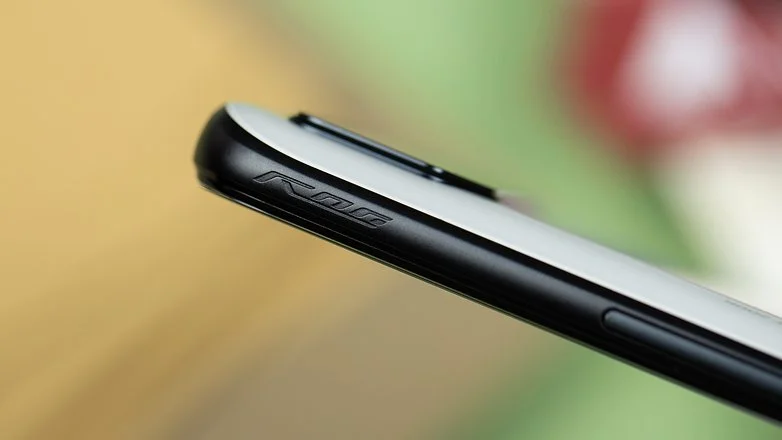
    The ROG Phone 6 Pro boasts an IPX4 grade for water and dust protection for the first time. A 3.5 mm jack is also included, which is always a delight. To increase the storage, however, there is no microSD connector. The Corning Gorilla Glass Victus on the front and Gorilla Glass 3 on the rear of the ROG Phone 6 Pro provide protection.

    Asus is also one of the few manufacturers that understands that a USB-C cable is the enemy of mobile gamers because it hinders the grip when holding the smartphone in landscape mode. That’s why the manufacturer offers two USB-C ports, one on the bottom cross slice (USB 2.0) and one on the left side slice, at the bottom in landscape mode (USB 3.1).

    Finally, we find the classic haptic triggers (called Air Triggers) that are still as responsive and offer more possibilities for your touch controls.

    Screen

    he Asus ROG Phone 6 Pro packs a 6.78-inch Amoled display with a Full HD+ resolution of 2400 x 1080p with a variable refresh rate of up to 165 Hz, a touch sampling rate of 720 Hz and a maximum brightness of 1200 nits.

    rog screen

    Pro:

    • The refresh rate goes up to 165 Hz.
    • Colorimetry well calibrated by default.
    • Response time of 1 ms and touch latency of 23 ms.

    Cons:

    • The refresh rate not adaptive enough.
    • The 720 Hz touch sampling rate is a bit weak compared to some competitors.

    The ROG Phone 6 Pro’s Amoled screen is ideal for gaming and multimedia use. To the unaided eye, the standard colorimetry is extremely accurate. The display has a 1ms response time (the time it takes for a pixel to change color) and a very low touch latency of 23ms. It is also HDR 10+ certified. This delay, when coupled with the 720Hz touch sampling rate, enables extremely responsive touch controls.

    image

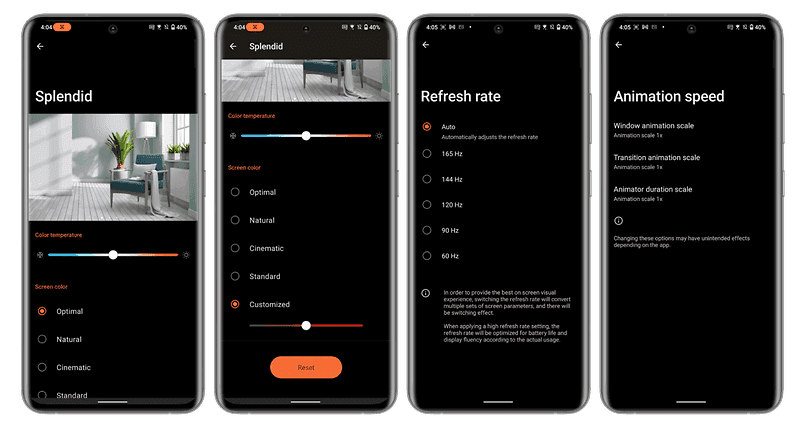
    The refresh rate is adaptive, but Asus has not integrated the LTPO 2.0 technology. So it doesn’t vary much according to the different usage scenarios you can subject it to. By default, I was stuck at 120 Hz in the interface, even when I wasn’t touching the screen. On YouTube, I never went above 60 Hz, no matter what the framerate of the video in question was. And in games, I had to activate the X mode to go from 120 to 144 Hz.

    By the way, oddly enough, I could only force the settings to 165 Hz by turning off auto refresh rate. Stranger still, when I turned on the X mode, which is supposed to improve performance, I automatically dropped back to 144 Hz.

    In fact, Asus seems to voluntarily block the refresh rate at 144 Hz with the X mode. Maybe the manufacturer thinks that 165 Hz is not very useful since no game runs at 165 FPS and it is better to keep performance to allocate to other tasks. But this is quite counterintuitive.

    UI – based on Android 12 and X mode

    The Asus ROG Phone 6 Pro runs on the ROG UI overlay, a gaming version of ZenUI, Asus’ Android 12-based interface, and the manufacturer promises a fairly limited update policy.

    Pro:

    • ZenUI and ROG UI are lightweight Android interfaces.
    • Android 12 features are well implemented.
    • The Armoury Crate menu is as complete as ever.
    • The ability to switch between ROG UI (gaming design) and ZenUI (more sober design) very easily.

    Cons:

    • The too limited update policy.
    • Some bloatware (Facebook, Instagram, Messenger, Netflix).
    Asus ROG UI android 12

    The ROG UI is a customized and gaming-oriented version of ZenUI, Asus’ overlay based on Android 12. This interface is basically very light and close to stock Android. Asus has implemented the dynamic themes of Android 12 as well as the Privacy Dashboard.

    And, apart from a few typically gaming stylistic effects on the icons and wallpapers, ROG UI does not push the envelope too far and remains quite sober.

    Asus also offers a very basic update policy, guaranteeing only two major Android versions and at least two years of security updates.

    The highlight of ROG UI is still the Armoury Crate menu, which allows you to manage the different performance modes: X mode, balanced mode and ultra durable mode. The X mode is the one that allows you to boost all the performance to concentrate the computing power of the CPU and GPU, the allocation of RAM, and your network to the game.

    Asus ROG 6 pro armoury crate menu

    The Game Genie pop-up pane lets you control the refresh rate, enable haptics, control the strength of the external fan, and display specific information like the phone’s temperature or framerate in real time. It also lets you rapidly access many in-game settings.

    Nothing very groundbreaking, but this menu is still pretty comprehensive. And the ability to separately create presets for each of your games is really nice. Additionally, you may turn on several filters and features to enhance graphics and, in particular, alter the thermal throttling threshold to push the smartphone as far as you want.

    Asus really wants to give the user a level of control and performance customization that comes close, admittedly, to what you can do on a PC. And I think that’s great.

    Performance

    The Qualcomm Snapdragon 8+ Gen 1 SoC and Adreno 730 GPU, along with 512GB of UFS 3.1 storage and 18GB of LPDDR5 RAM, power the Asus ROG Phone 6 Pro. Additionally, Asus updated its GameCool cooling system.

    Pro:

    • X mode really works and really boosts performance.
    • Zero overheating in real use.
    • The hyperefficient external fan.

    Cons:

    • Overheating on a 20-minute benchmark with X mode enabled.

    Since the ROG Phone 6 Pro is among the first smartphones to be released in Europe with the premium Snapdragon 8+ Gen 1 SoC, some benchmarks will naturally take some time to adjust. Because of this, 3D Mark’s results on the Wild Life benchmark, which simulates one minute of intensive use, weren’t very informative. The ROG Phone 6 Pro was merely flagged as being overly powerful by 3D Mark at the end of the test, despite the fact that the smartphone did not at all overheat.

    However, what is intriguing are the outcomes with the well-known X mode, which improves performance. On the 3D Mark Wild Life Stress Test benchmark, this was accurate (simulating intense gaming use for 20 minutes). A considerable improvement in raw performance is visible. However, the smartphone was actually on fire.

    However, the smartphone maintained its steadiness, hovering about 70%. To put it another way, the X mode only lowers the point at which the smartphone will begin thermal throttling. There is little to no throttling present if the smartphone heats up yet the framerate stays constant.

    In real-world use, you will be able to run your games without any graphic concession. Even Apex Legends Mobile, a game that is not 100% optimized, runs full speed at 60 FPS with graphics and framerate at maximum. I didn’t experience any slowdowns and above all, no overheating in real conditions, even when I left the X mode on for several hours.

    I’ve put a short excerpt of gameplay for you to see. This demonstration of my talent was recorded in 1080p at 120 FPS (the screen recorder settings do not allow more).

    Camera

    The Asus ROG Phone 6 Pro features a triple camera module on the back, with the well-known Sony IMX766 sensor for the main 50 MP lens, a 13 MP ultra-wide angle lens and a 5 MP macro lens. As for the selfie camera, it offers a 12 MP resolution.

    ASUS ROG Phone 6 Pro 2 Cleaned Watermarked 1024x768 1

    Pro:

    • The Sony IMX766 which has proven itself both day and night.
    • The light photo processing and the natural colorimetry.

    Cons:

    • Exactly the same ultrawide angle and macro lenses as the ROG Phone 5.
    • No dedicated telephoto lens, digital zoom too limited.
    • Average selfies.

    I’m really going to skim over the photo part because Asus has absolutely not messed around this year. It’s exactly the same photo module as on last year’s ROG Phone 5.

    It has proven itself and offers a very good level of detail overall, with shots rich in sharpness—a good dynamic range in short—I feel like I wrote the same thing in 5 other different tests.

    The ultrawide angle images are a little underwhelming because they lack detail and are quite bland. It should come as no surprise that the digital zoom is constrained after the magnification multiplier reaches x2. The macro sensor, too? It is a macro sensor, I suppose. I don’t really care if I have 2 or 5 MP.

    Overall, I think Asus’ software processing is pretty minimal, which results in a colorimetry that feels quite natural. However, occasionally, when there isn’t enough light, the images can be a little too plain for my tastes. Simply said, I have zero enthusiasm for this photo module. And I recognize that a gamer may not necessarily be searching for an advanced photo smartphone.

    But the photo remains one, or maybe THE, essential purchase criteria for many users. It’s a shame to see Asus neglect this part when you know that with the computing power of the ROG Phone 6 Pro, there would be plenty to do.

    In video, the ROG Phone 6 Pro can record up to 8K at 24 FPS with its main rear lens. The ultrawide angle is limited to 4K at 30 FPS maximum. As for the selfie camera, it can produce videos in 1080p at 60 FPS. I’ll leave you the clips below to get an idea.

    Battery

    A 6000 mAh battery on the ROG Phone 6 Pro enables 67 watts of wireless charging. There you have it, and it is more than enough.

    The dual-cell battery in the ROG Phone 6 Pro charges utilizing the MMT (mid-mid-top) protocol. In essence, the cells don’t charge linearly from one end to the other; instead, they charge from the centre to the ends. Most manufacturers have perfected this technique.

    Pro:

    • Big ass 6000 mAh double cell
    • 67W fast charging does the job
    • Excellent battery life
    • USB-C charger included in the box

    Cons:

    On our PC Mark benchmark with the display set to an auto refresh rate and brightness set to 200 nits, the ROG Phone 6 Pro took 19:17 to drop below 20% remaining battery life. That’s an excellent score. Personally, I consider that a battery life is very good from 15 to 16 hours minimum. Here, the ROG Phone 6 Pro does very well when you consider that it powers a very greedy SoC, a large 6.78-inch AMOLED screen and all the LEDs as well as its auxiliary screen.

    With a wattage of 67 watts, quick charging is more conventional. The bundled USB-C charger has the advantage of working with Qualcomm’s Quick Charge 5 standard as well as USB PD 3.0 and PPS. It works with the majority of your gadgets.

    The ROG Phone 6 Pro, on the other hand, does not support wireless or reverse wireless charging. I was able to charge this large 6000 mAh battery completely in less than 45 minutes overall. And in any case, the ROG Phone 6 Pro’s edge-mounted USB-C connector enables you to play peacefully by connecting it to the power source without being bothered by the


    So if the ROG Phone 6 Pro seduced you after this test but, like me, you are not ready to drop $1,300 dollars, then go for the ROG Phone 6. And if you can afford it, if you’re blowing your nose in 100’s of dollars, then PLEASE buy the ROG Phone 6 Pro, the best gaming smartphone of the year.

  • Snapdragon on future Samsung’s S series

    Snapdragon on future Samsung’s S series

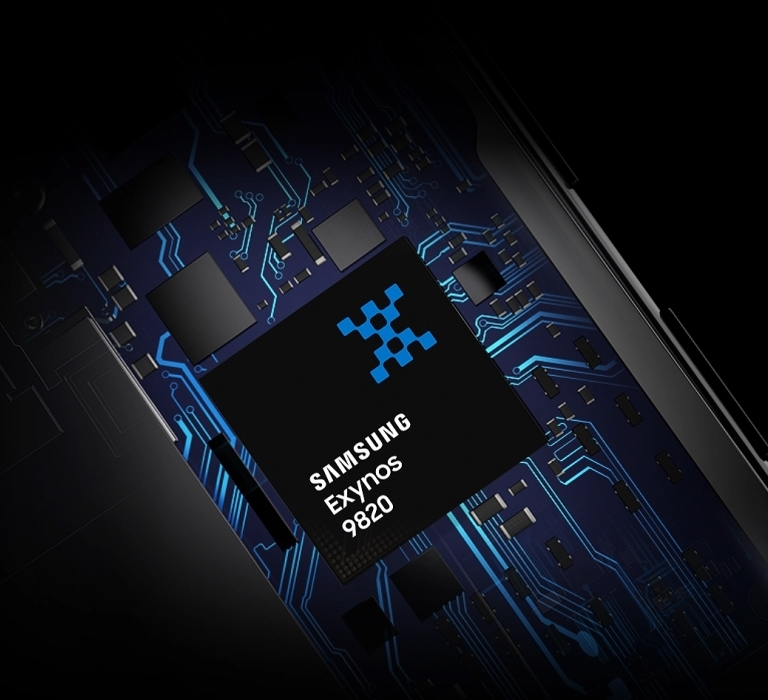
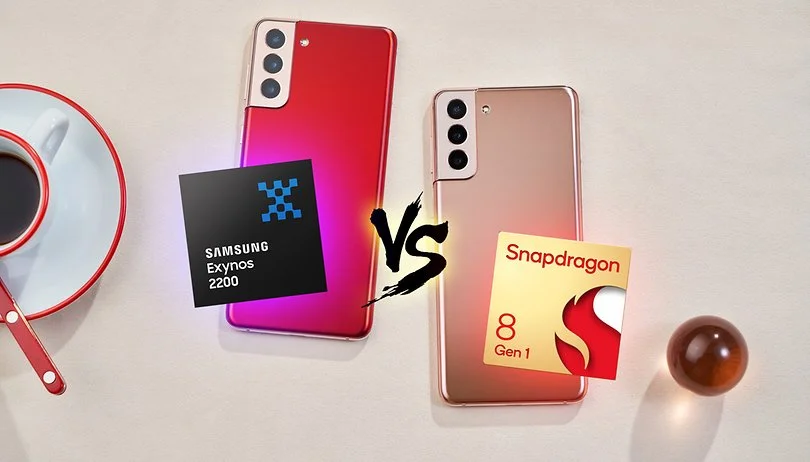
    Which of the various Samsung flagship phones you receive depends on where you reside. While Exynos chips produced in-house are available in some markets, Qualcomm’s Snapdragon CPUs are available in others. And this has been the case for years, with a few extremely rare exceptions like the Galaxy S6 in 2015, which was Exynos-only. Despite having on paper comparable or even superior specifications than their Snapdragon counterparts, Exynos chips are generally thought to be inferior. You’ll be relieved to learn what Samsung might accomplish in the coming year if you reside in Europe and have been envious of those in North America and China who have Snapdragon phones.

    Famous supply chain expert Ming-Chi Kuo claims that the Samsung Galaxy S23 may completely exclude Exynos CPUs in favor of Snapdragon processors in all markets next year (via 9to5Google). Even for users in Europe, Qualcomm would end up being the exclusive source of chips for Galaxy S23 smartphones.

    samsung snapdragon

    Samsung has been experimenting with Snapdragon a lot more recently, most notably by introducing the Galaxy S22 with the Snapdragon 8 Gen 1 in India, a country that has historically favored Exynos. If this change is real, everyone in the world will receive a Galaxy S23 with a Snapdragon processor.

    What justifies this? It appears like Samsung is simply coming clean to avoid more embarrassment in 2019. Exynos 2300, which is expected to launch as the Snapdragon 8 Gen 2, will not be able to compete with the SM8550 chip because Qualcomm built it to conform to TSMC’s design specifications. Although embarrassing would be a strong word, the Exynos 2200 launch was a bit of a disaster, and this year’s Exynos-powered Galaxy S22 phones received a ton of unfavorable press. Samsung appears to be trying to avoid that happening again.

    Does this indicate that Samsung has finished producing chips? Most likely not. A custom, Galaxy-only SoC is allegedly being created by the firm, but that won’t be available until the Galaxy S25 in 2025, according to rumors. While Samsung Semiconductor refocuses its efforts on that unique chip, it’s possible that we’ll see a few generations of Samsung phones that only use the Snapdragon processor over the course of the next couple of years. But as of right now, all of this is just conjecture. We’ll have to hold off and see.

    One thing, however, is certain — many will be thankful if Samsung actually ditches Exynos on the Galaxy S23 entirely next year.

  • Improved incremental builds in Gradle 7.0

    Improved incremental builds in Gradle 7.0

    The most recent version of the well-known software build tool used in Android development and other areas, Gradle 7.0, provides support for Java 16 and faster incremental builds.

    To speed up incremental builds, file system watching is now enabled by default in the Gradle 7.0 version, which was released on April 9. Gradle 6.5 offered the functionality as an opt-in feature, and Gradle 6.7 declared it production-ready.

    When file system watching is enabled, Gradle keeps its knowledge of the file system in memory between builds instead of reading it during each build. The input and output files are examined during an incremental build to determine what needs to be rebuilt. The I/O overhead added by this capability, which typically saves a significant amount of time but also adds some, can be felt in large projects when little has changed since the previous build.

    gradle 7.0

    To upgrade to Gradle 7.0, developers can update their wrapper:

    ./gradlew wrapper --gradle-version=7.0

    Developers can access the Gradle upgrade guide and compatibility notes to learn about breaking changes, deprecations, and other considerations.

    Also in Gradle 7.0:

    • For Android, performance has been improved for incremental changes in projects, especially those using the Jetifer tool to migrate libraries.
    • Gradle now supports running on and building with Java 16, or Java Development Kit (JDK) 16, which was released on March 16. To support JDK 16, Gradle has been upgraded to use the Groovy 3 language in Groovy DSL build scripts.
    • Native support is offered for Apple Silicon systems, with every feature now supported using a native Arm JDK. Previous Gradle versions could run on Apple Silicon Macs but there were disadvantages, such as some Arm JDK features had to be disabled while an Intel JDK would run at about half speed through the Rosetta2 compatibility layer.
    • Version catalogs are introduced as an experimental capability, enabling build authors to centralize dependency coordinates (group, artifact, versions) of their third-party dependencies in a conventional configuration file and declare dependencies in a type-safe way.
    • An experimental feature for project assessors provides type safety and enables code completion in IDEs.
    • Build reliability improvements have been made, such as now executing a task without the benefit of parallel execution if a task is failing input/output validation.
    • Dependency locking, a mechanism to ensure reproducible builds when using dynamic dependency versions, has been improved. The release defaults to the improved dependency locking file format that results in fewer lock files in most projects.