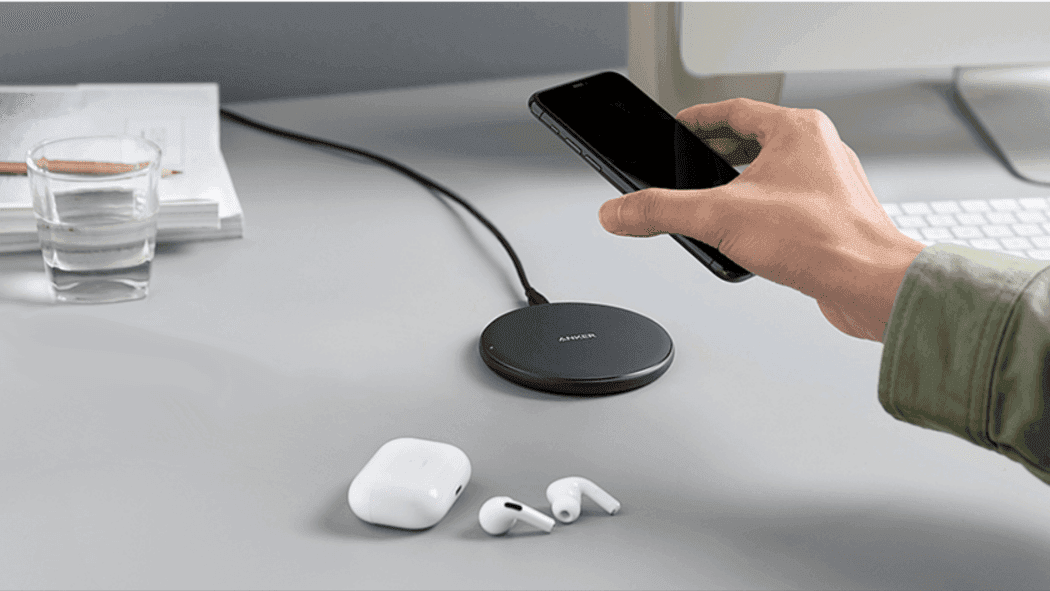
Tag: wireless

  • Pixel 10 comes with better finger print tech and upgraded wireless charging

    Pixel 10 comes with better finger print tech and upgraded wireless charging

    According to a recent leak, the Pixel 10 is expected to come with two major upgrades this year: a better ultrasonic fingerprint sensor and support for Qi2 wireless charging.

    Faster fingerprint recognition

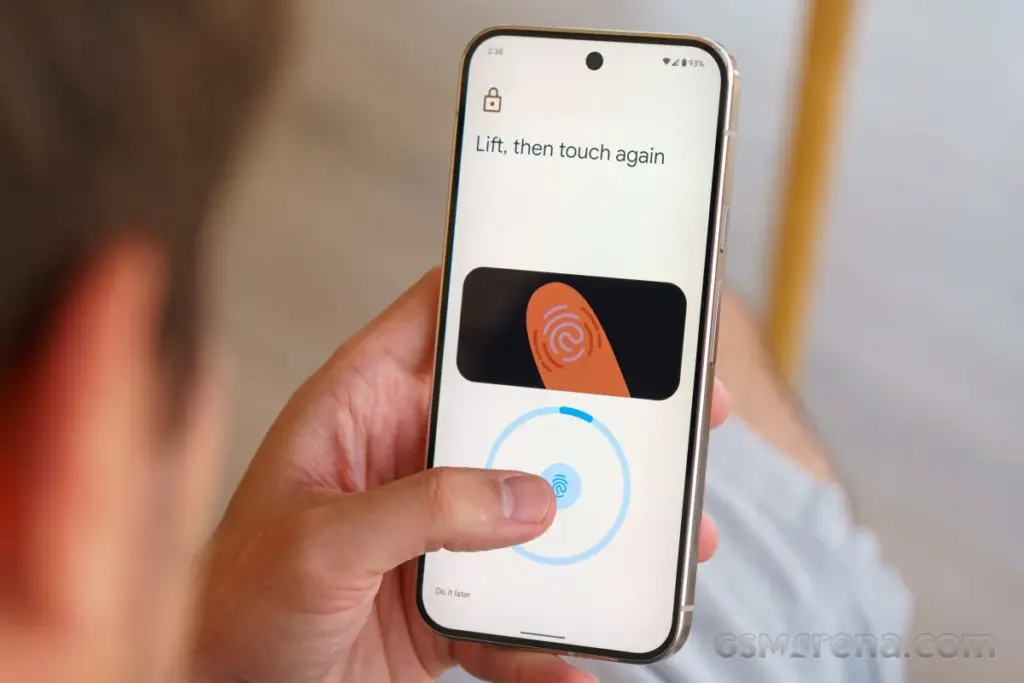
    When Google eventually abandoned the sluggish and unreliable optical fingerprint sensors of earlier generations in favor of ultrasonic ones with the Pixel, it made a significant shift. However, it appears that the fingerprint experience will be much better with the incoming Pixel.

    Pixel 10 fingerprint tech

    According to the research, when working with damp or dirty fingers, the ultrasonic fingerprint sensor will provide superior speed and responsiveness.

    It’s good to note that Google isn’t discontinuing the fingerprint sensor even though their face unlock system has supported Class 3 biometric verification since the Pixel 8, which makes it safe enough for delicate operations like digital payments and banking.

    Pixel devices provide consumers with more flexibility and convenience based on their requirements and surroundings by providing both fingerprint and face unlock. Google frequently teases Apple with humorous advertisements, and I anticipate one involving these biometric technologies after the release of the Pixel 10 and Pixel 10 Pro.

    Qi2 wireless charging

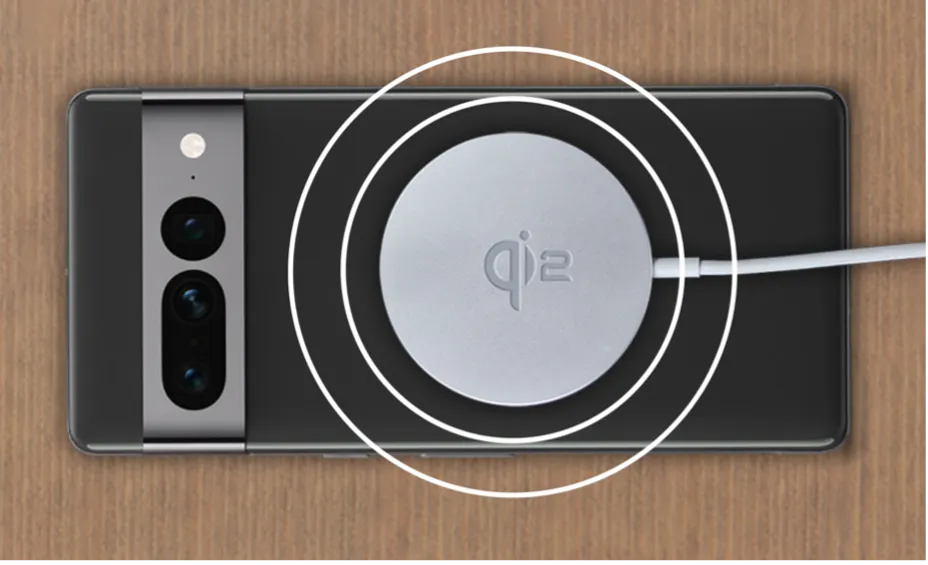
    The Pixel 10’s support for Qi2 is another noteworthy improvement. Sadly, even though the Pixel 10 will be Qi2-ready, customers will still require a magnetic case that works with it in order to fully benefit from it.

    qi article 2 image 1

    Companies like Samsung and OnePlus, who have also introduced Qi2 support this year, have used a similar strategy. Fun fact: Although the Apple iPhone 16e does not fully support Qi2 fast charging, it is technically compatible with MagSafe.

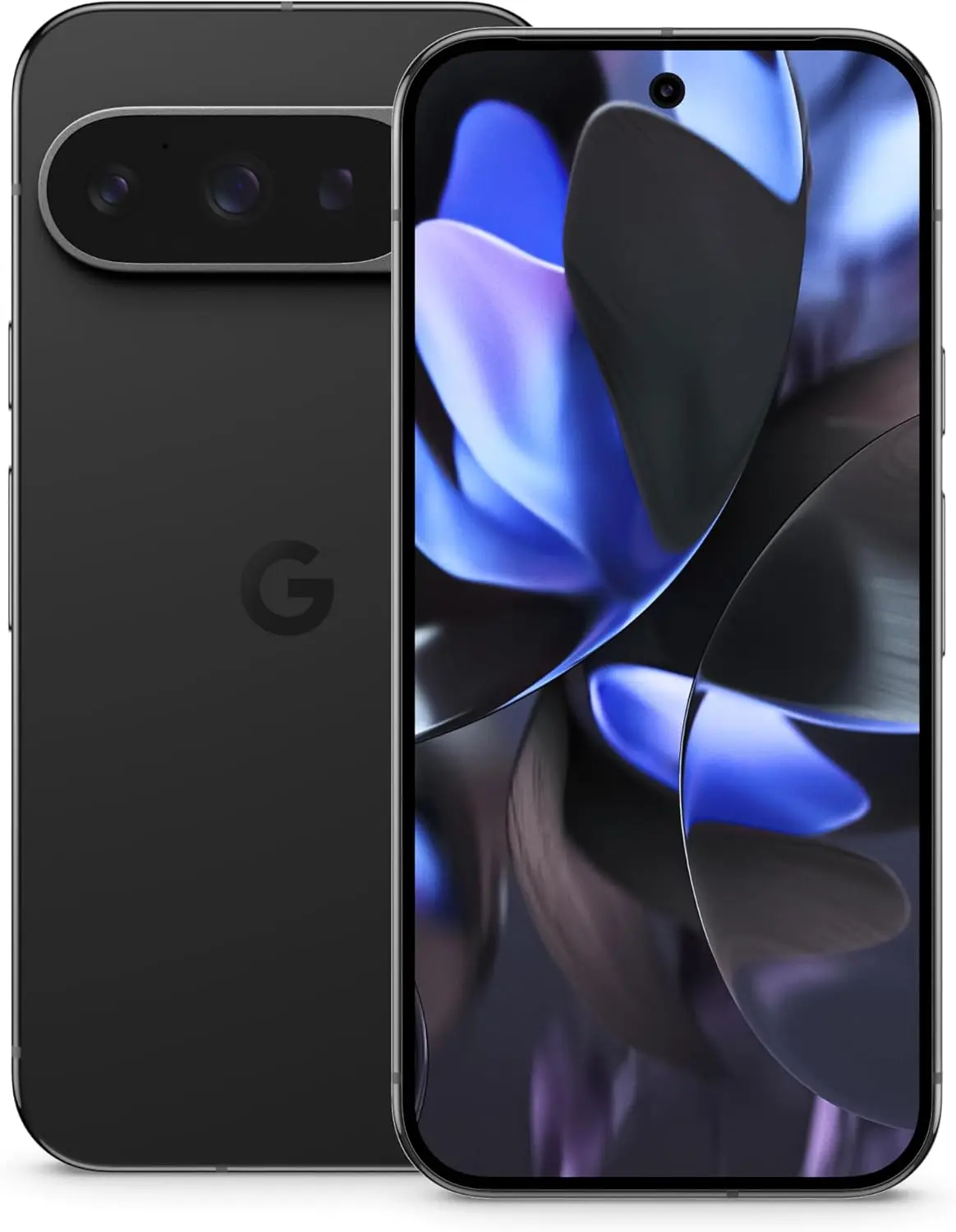
    A new look is also being applied to the Pixel 10 series. The Pro models will, as usual, keep to more subdued colors like Sterling Gray and Smoky Green, while the base Pixel 10 will be offered in Ultra Blue, Limoncello, Iris, and Midnight. The colors of the foldable Pixel 10 Pro Fold will match those of the standard Pro variants.

    google pixel 9 pro amazon deal

    Google Pixel 9 Pro

    Pixel 9 Pro with Gemini is the most powerful Pixel yet, and now comes in two sizes; it has a pro-level camera and it’s engineered by Google, so it gets the best of Google AI first

    $998.23Amazon

    The Pixel 10 series will reportedly be unveiled by Google on August 20. Pre-orders will begin that same day. Beginning on August 28, the phones will be on sale.

    In addition to Qi2 and an improved fingerprint sensor, the Pixel 10 series is anticipated to use Google’s first entirely proprietary processor (Tensor G5), which offers significant improvements in terms of performance, faster biometric systems, and next-generation charging technology.

  • How to transfer files from Android to PC (no cable needed)

    How to transfer files from Android to PC (no cable needed)

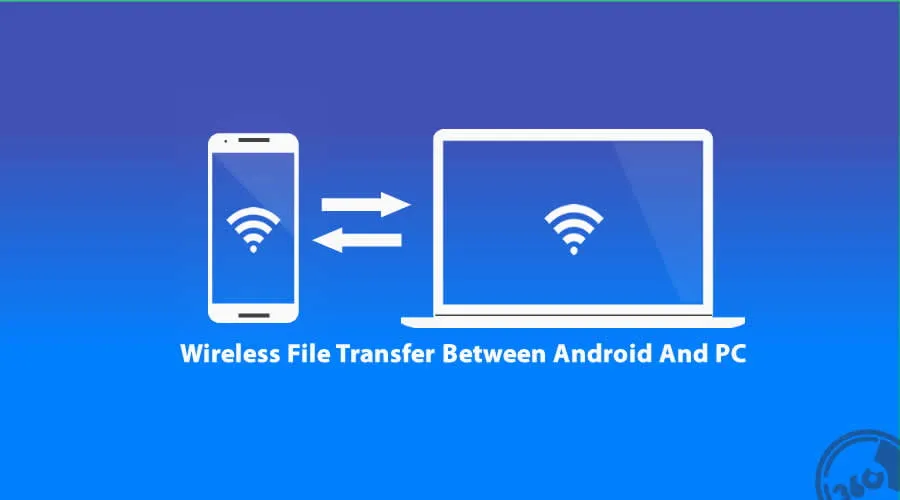
    Gone are the days when a USB cable was the only way to move files between your Android phone and computer. Whether you’re transferring photos, documents, or videos, there are now several wireless methods that make the process faster and more convenient — no cables, no drivers, and no hassle.

    In this article, you’ll discover how to transfer files from Android to your PC wirelessly utilizing free built-in utilities and reliable third-party apps. All ways are easy, secure, and don’t need rooting your smartphone.

    Why Go Wireless?

    Here’s why transferring files without a cable is the smarter choice:

    • No need to carry cables or adapters
    • Works on all modern Windows, macOS, and Linux PCs
    • Faster for frequent transfers
    • No risk of physical damage to USB ports

    1. Use Google Drive (Cloud Sync)

    If you have a Google account, you already have access to Google Drive — one of the easiest ways to transfer files wirelessly.

    Steps:

    1. Open the Google Drive app on your Android device.
    2. Tap the “+” icon, then select Upload.
    3. Choose the file(s) you want to send.
    4. Wait for the upload to complete.
    5. On your PC, go to https://drive.google.com and log in.
    6. Download the files to your computer.

    Pros:

    • Seamless for documents and photos
    • Files are stored in the cloud, so they’re safe even if your phone is lost
    • Works across devices and operating systems

    Cons:

    • Requires an internet connection
    • File size limits apply (15GB free storage per Google account)

    2. Send via Nearby Share (Best for Windows)

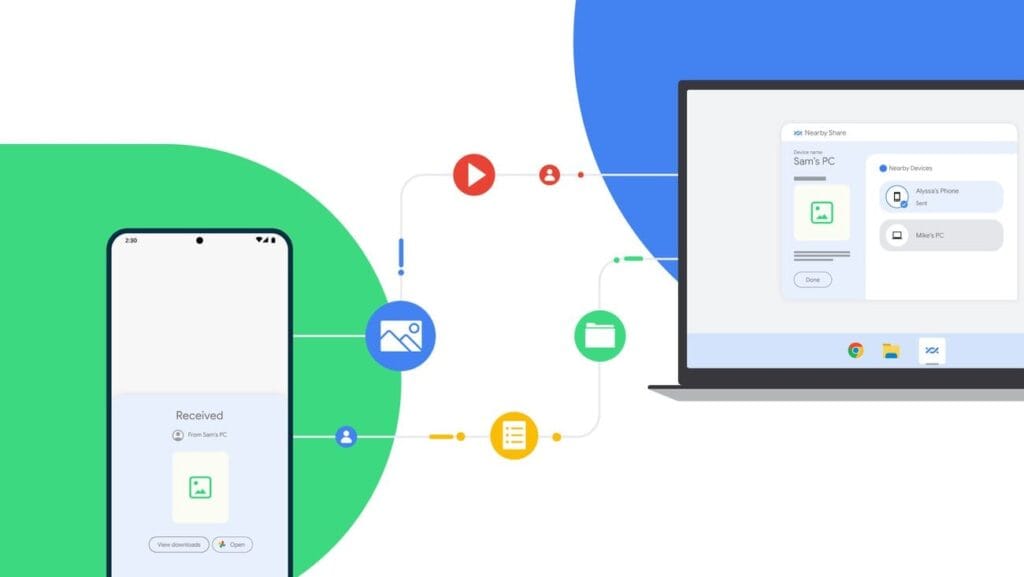
    Nearby Share for transfer files

    Currently fully supported on Windows 10/11, Nearby Share is Google’s AirDrop-style solution for sharing files instantly between Android and Windows devices.

    Set It Up:

    1. On your Android, go to Settings > Google > Devices & sharing > Nearby Share and turn it on.
    2. On your PC, install the official Nearby Share for Windows app from Google’s website.
    3. Connect both devices to the same Wi-Fi network and ensure Bluetooth is on.

    Send Files:

    1. Select a file on your Android device.
    2. Tap the Share icon and choose Nearby Share.
    3. Your PC should appear in the list — tap it to send the file.
    4. Accept the transfer on your computer.

    Pros:

    • Fast and secure
    • Works offline (local Wi-Fi or Bluetooth)
    • No cloud storage needed

    Cons:

    • Not available on older PCs or operating systems
    • Some routers may block discovery if firewall settings are strict

    Method 3: Transfer with File Sharing Apps (like Send Anywhere)

    Direct wireless transfers between your computer and phone are possible through Wi-Fi thanks to apps like Xender, Feem, and Send Anywhere.

    Using Send Anywhere:

    1. Install Send Anywhere on your Android from the Play Store.
    2. Visit https://send-anywhere.com on your PC.
    3. On your phone, select the files you want to send.
    4. You’ll get a 6-digit code — enter this on your PC to receive the files.

    Pros:

    • Works on any OS and browser
    • No account required
    • Fast local transfer via Wi-Fi Direct (not over the internet)

    Cons:

    • Ads in the free version
    • Interface might be confusing for first-time users

    Method 4: FTP File Transfer via File Manager Apps

    If you prefer full control over file navigation, FTP (File Transfer Protocol) is a powerful option — no internet needed.

    Using Solid Explorer or ES File Explorer:

    1. Install a file manager that supports FTP (e.g., Solid Explorer).
    2. Open the app and go to Network > FTP Server.
    3. Start the server — the app will display an IP address like ftp://192.168.1.10:1234.
    4. On your PC, open a browser or FTP client (like FileZilla) and enter the address.
    5. Browse your phone’s storage and download files directly.

    Pros:

    • Full control over folders and files
    • High-speed transfers over local network
    • No cloud or apps required on the PC

    Cons:

    • Not user-friendly for beginners
    • Must stay on the same Wi-Fi network

    Method 5: Microsoft Phone Link (Windows 10/11)

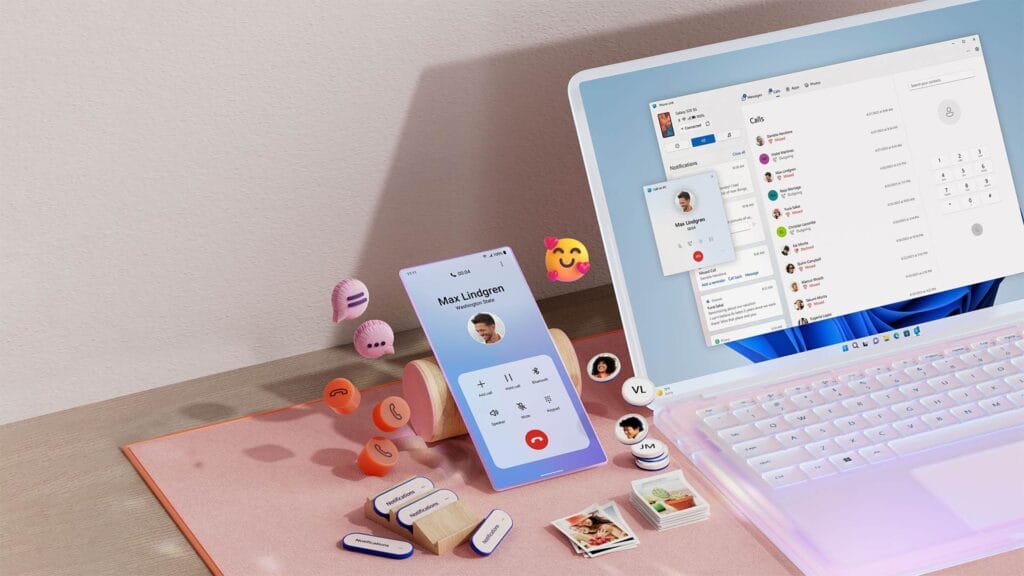
    msft open laptop with mobile phone floating emojis RW10WBx

    Microsoft’s Phone Link app (previously “Your Phone”) enables seamless connectivity between Android and Windows.

    Setup:

    1. On your Android, install the Link to Windows app.
    2. On your PC, open the Phone Link app (pre-installed on Windows 10/11).
    3. Follow on-screen instructions to link the two devices.

    Features:

    • Access photos, messages, notifications, and files
    • Drag-and-drop files directly between phone and PC

    Pros:

    • Seamless experience for Samsung and Surface users
    • Files transfer instantly without cables

    Cons:

    • Requires Microsoft account
    • Full feature set limited to specific models (Samsung, Honor)

    Bonus: Email, Telegram, or WhatsApp (for Small Files)

    For documents or images under 100MB, you can simply email them to yourself or use Telegram’s Saved Messages to transfer between devices.

    • Email: Attach files and send them to your own address.
    • Telegram: Send the file to yourself from your Android and download it on your PC.
    • WhatsApp Web: Share with a trusted contact and download via WhatsApp Web on PC.

    What’s the Best Option?

    MethodSpeedInternet RequiredSetup ComplexityBest For
    Google DriveMedium✅ YesLowBackups & multi-device use
    Nearby ShareHigh❌ NoMediumWindows 10/11 users
    Send AnywhereHigh✅/❌ OptionalMediumFast wireless transfers
    FTP via File ManagerVery High❌ NoHighTech-savvy users
    Microsoft Phone LinkHigh✅ YesMediumWindows users w/ Samsung

    You no longer require a USB cable to transfer data between your Android phone and computer. Whether you want to backup your gallery, transfer work documents, or send huge films, wireless solutions make the process simple and effective.

    Nearby Share and Google Drive are the most user-friendly solutions. If you desire speed and complete control, FTP or Send Anywhere would suffice, as they do not require cloud storage.

    Experiment with the way that best suits your workflow; once you go wireless, you will not want to plug in again.

  • Need a Bluetooth Adapter? Discover the Best Bluetooth Adapters of 2025 Now!

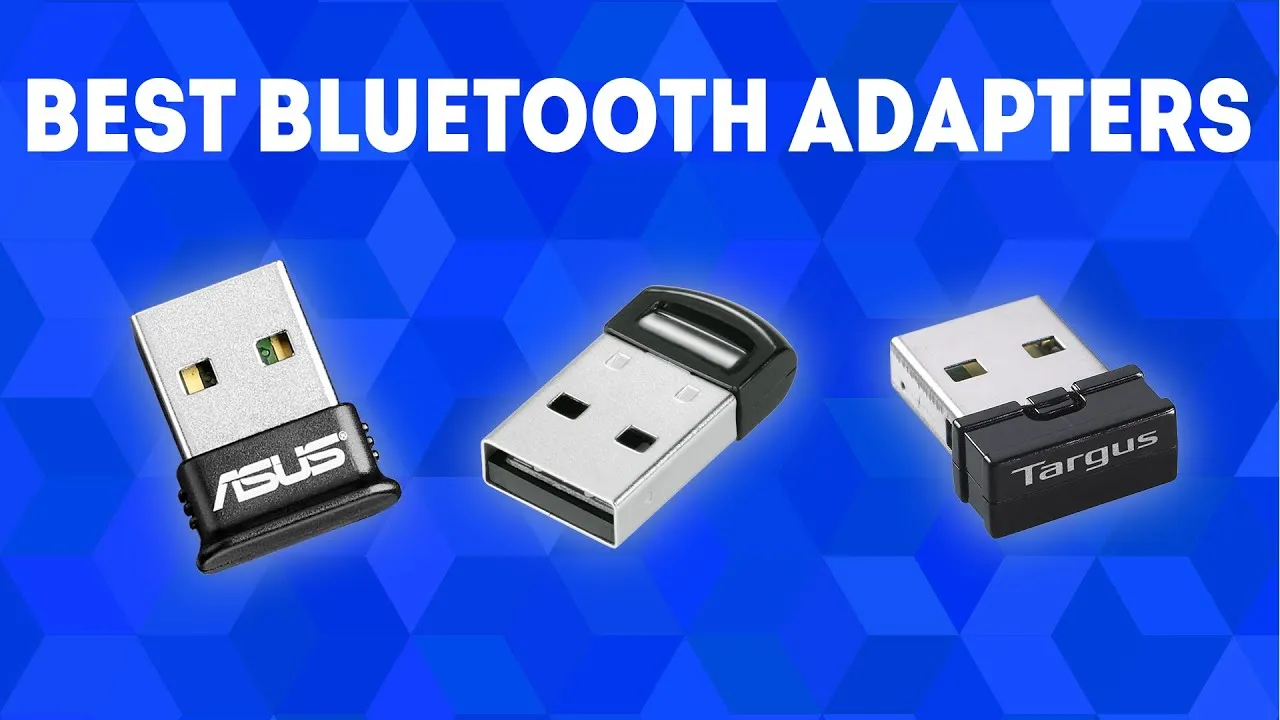
    Need a Bluetooth Adapter? Discover the Best Bluetooth Adapters of 2025 Now!

    Bluetooth adapters are portable devices that enable non-Bluetooth devices to communicate wirelessly. They are also referred to as Bluetooth dongles or transceivers and are ideal for improving your technology setup.

    What to look for in a Bluetooth adapter

    Bluetooth adapters exist in a variety of shapes and sizes, each serving a different purpose. Whether you need one for your TV, PC, Bluetooth keyboard, automobile, or Nintendo Switch, knowing the purpose will help you select the appropriate size and kind, even though they are all quite portable.

    Bluetooth version is also significant. Our recommended adapters vary from Bluetooth 5.3 to the most recent Bluetooth 5.4 specification. A Bluetooth 5.4 adapter can function with older versions, such as Bluetooth 5.3 and lower, although it will be limited to the lower version’s features.

    Check for OS compatibility, as not all adapters work with every operating system or device. For example, the UGREEN Bluetooth 5.4 Adapter is compatible with Windows 7, 8.1, 10, and 11, but not Mac OS or Linux.

    UGREEN Bluetooth 5.4 Adapter

    The UGREEN Bluetooth 5.4 Adapter is the best Bluetooth adapter for most of people.

    $9.99$9.99
    UGREEN Bluetooth 5.4 Adapter
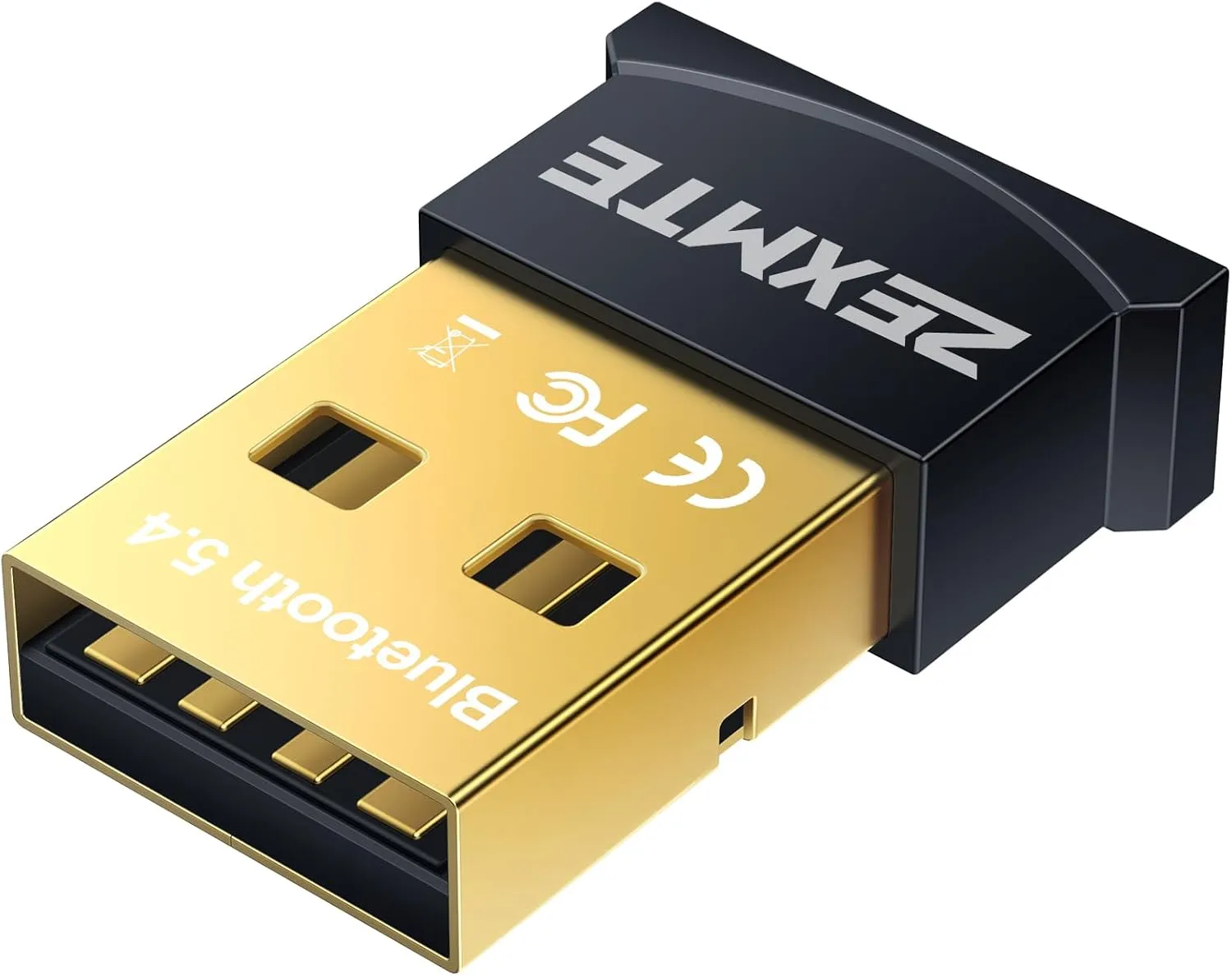
    ZEMTXE Bluetooth 5.4 Adapter
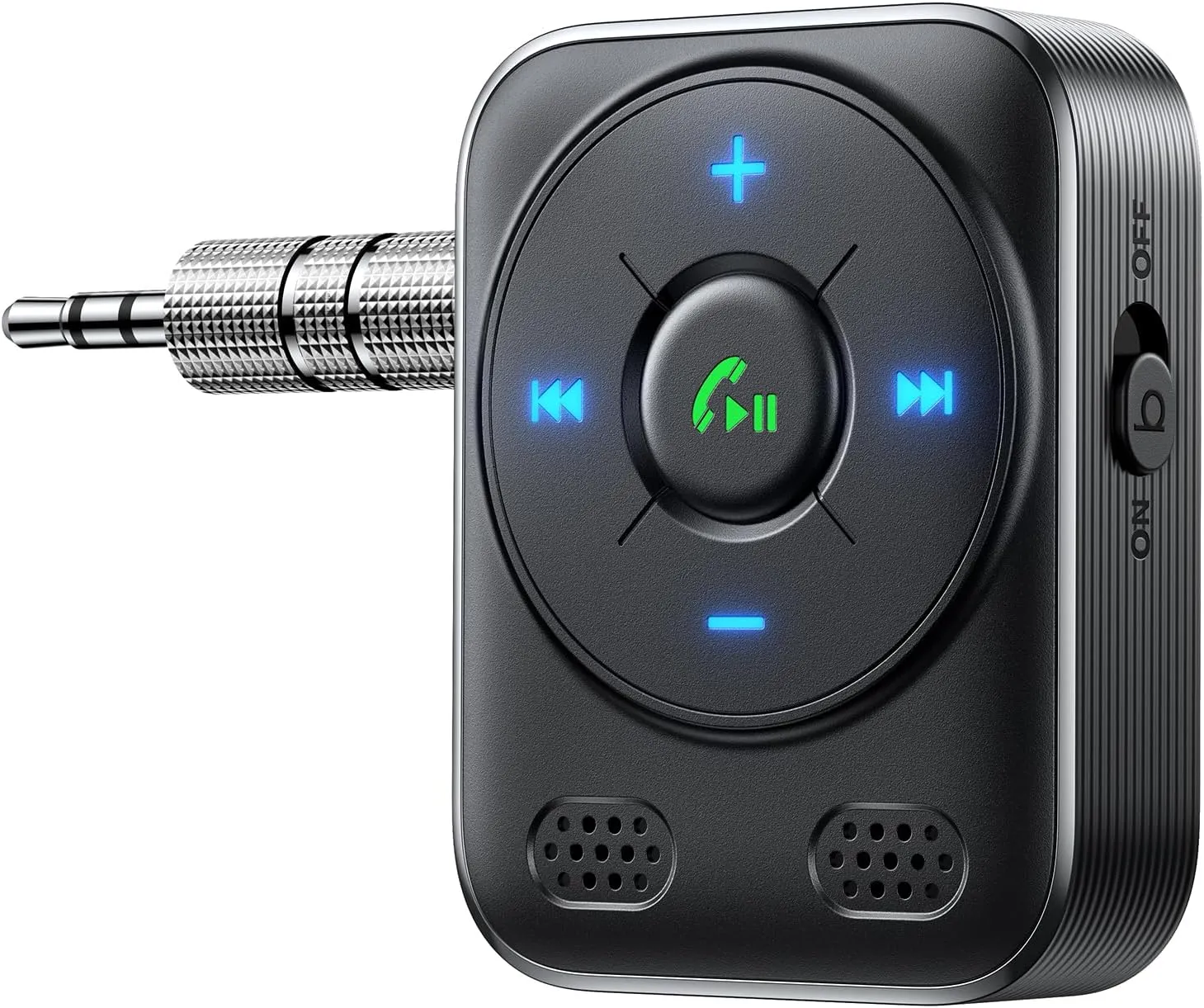
    JOYROOM Aux Bluetooth 5.4 Adapter
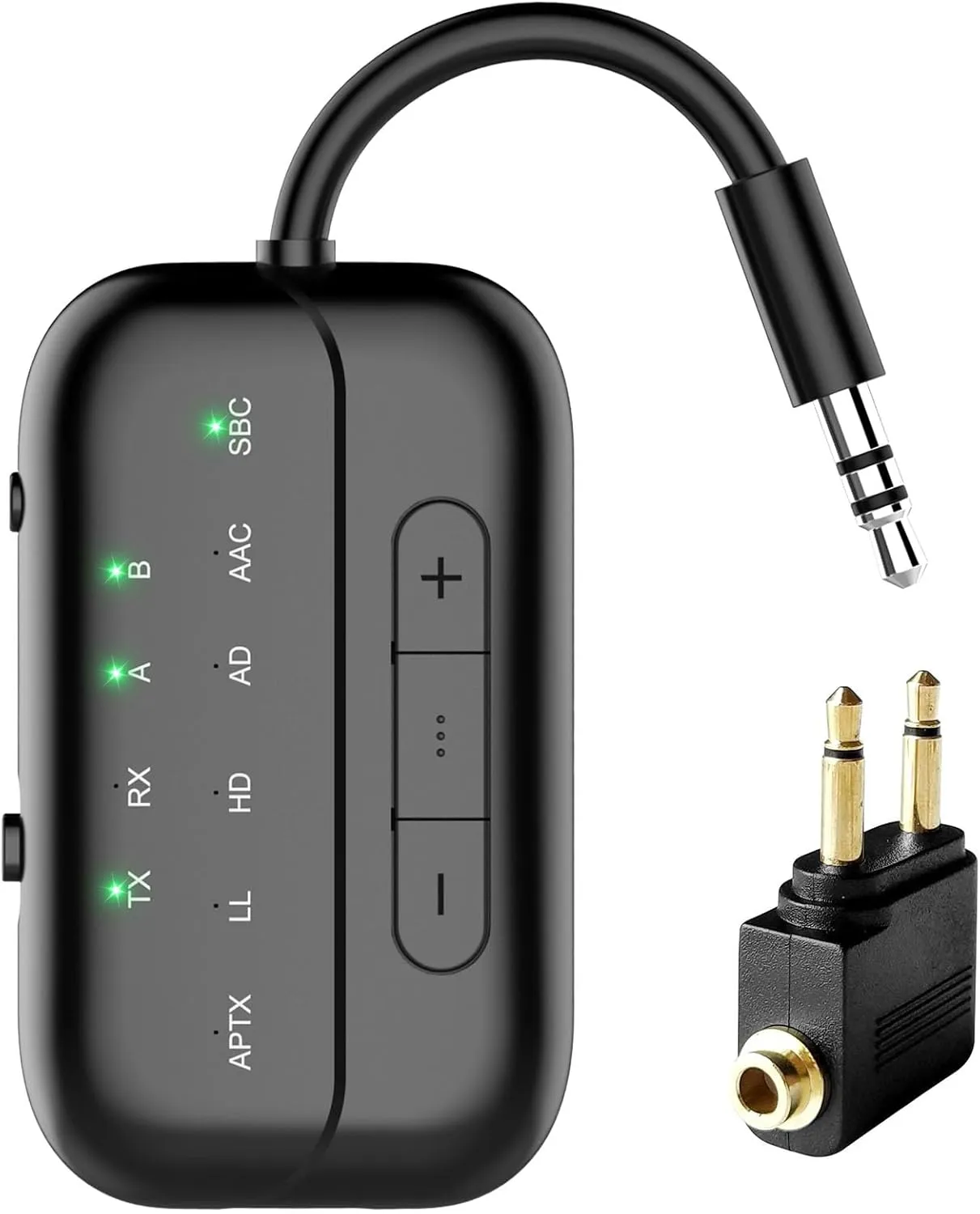
    Beeitzie 5.4 Bluetooth Adapter

    Should I get a 4.0 or 5.0 Bluetooth adapter?

    Your needs are what will ultimately determine whether you choose a Bluetooth 4.0 or 5.0 adapter. Although Bluetooth 5.0 is more sophisticated and performs better, older devices may still use both versions. A Bluetooth 4.0 device will function at the capability of the lower version if you use a Bluetooth 5.0 adapter with it.

    The 5.0 adaptor can be a wise choice if you intend to upgrade your technology soon. It will be compatible with your existing gadgets and prepared for any future technological advancements.

    Will a Bluetooth adapter reduce sound quality?

    The codecs a Bluetooth adapter uses and its data transmission speeds determine how it affects sound quality. Compared to Bluetooth 4.0 adapters, those using Bluetooth 5.0 or 5.3 technology often provide better sound, connectivity, range, and lower latency. Therefore, a higher version adapter can actually improve sound quality, while a lower version one may have an impact.

    Best Bluetooth adapter overall

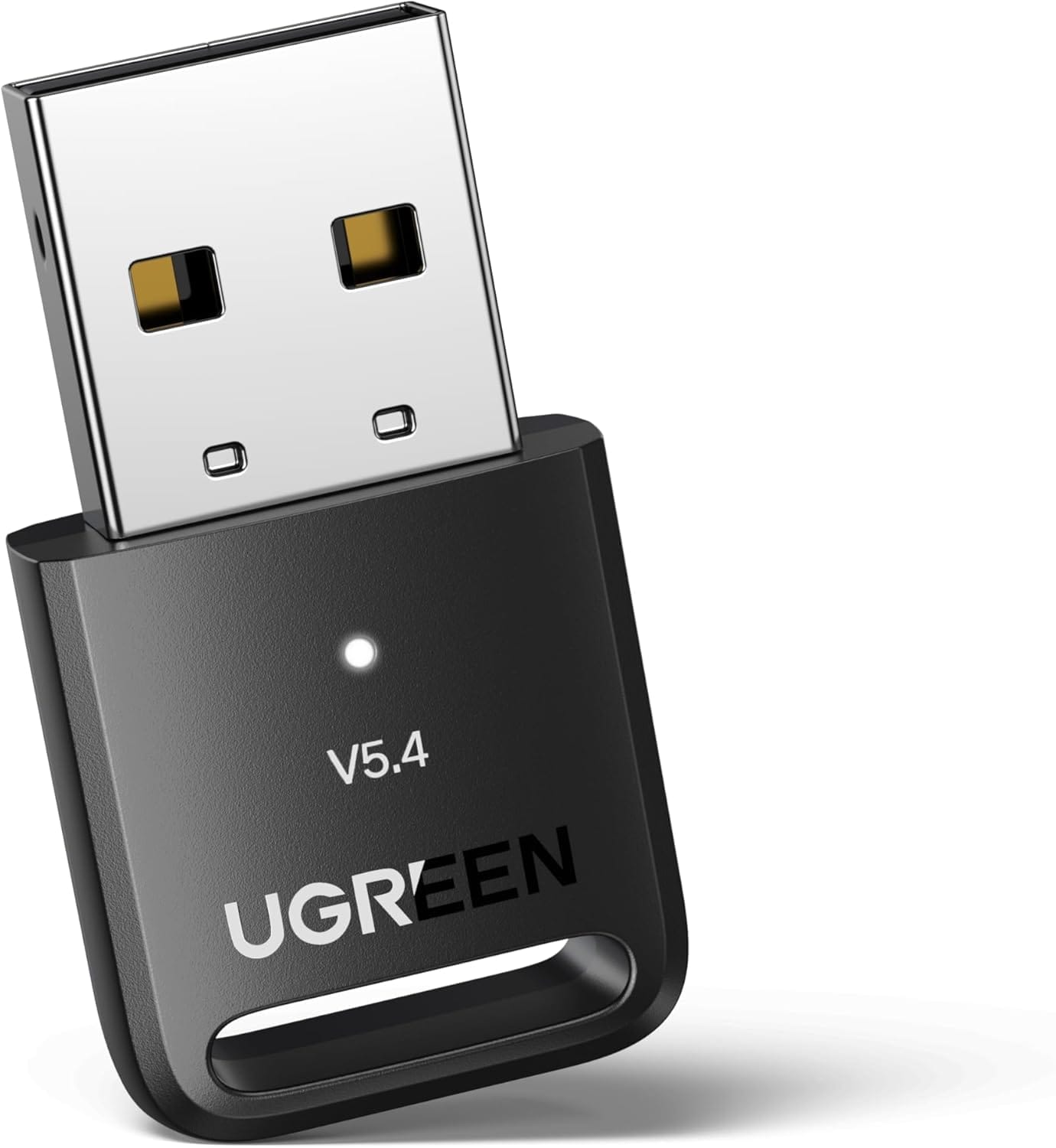
    UGREEN Bluetooth 5.4 Adapter

    UGREEN Bluetooth 5.4 Adapter

    Using the UGREEN Bluetooth 5.4 is quite simple, plug it into a USB port on your computer, and you are ready.

    Best choice

    If you want the best Bluetooth adapter for most individuals, we recommend the UGREEN Bluetooth 5.4 Adapter. It is small, portable, and inexpensive. It also features Bluetooth 5.4 technology, which ensures fast and dependable connections as well as outstanding data transmission speeds.

    Using the UGREEN Bluetooth 5.4 is quite simple. Simply plug it into a USB port on your computer, and you are ready. It smoothly integrates with Windows 8.1, 10, and 11. If you have Windows 7, you will need to get the appropriate driver.

    This adapter is not just for computers; it also works with PS5/PS4 and Xbox controllers when connected to a PC. While it is not compatible with Windows 8, XP, Mac, Linux, or televisions, it is ideal for connecting Bluetooth devices such as printers, phones, keyboards, mouse, and headsets. In fact, you can connect up to five devices at one time.

    With a range of up to 66 feet (20 meters), you may stay connected when moving around your home or space, as long as there are no big obstructions in the way. This makes it ideal for usage in houses or offices where numerous individuals need to connect to Bluetooth devices at once.

    Best Budget Bluetooth Adapter

    ZEXMTE USB Bluetooth Adapter for PC

    ZEMTXE Bluetooth 5.4 Adapter

    It costs less than $10 but provides high-quality performance comparable to the UGREEN 5.4.

    Our recommendation for the best Bluetooth adaptor is already reasonably priced at less than $16. However, if you want to save money while still enjoying Bluetooth 5.4 connectivity, we offer the ZEXMTE Bluetooth 5.4 Adapter. It costs less than $10 but provides high-quality performance comparable to the UGREEN 5.4.

    The ZEXMTE’s plug-and-play architecture makes installation and setup a breeze; simply plug it into your PC and you are ready to go. It supports Windows 8, 8.1, 10, and 11. You will need to manually install the driver on Windows 7.

    We also admire its remarkable range. Unlike lower-version Bluetooth adapters, which keep you connected to your PC, the ZEXMTE provides up to 98 feet (30 meters) of coverage in open space. Simply disable any built-in Bluetooth on your PC for the optimum experience.

    While it is primarily intended for PCs, it also supports PS4 and Xbox controllers linked to a PC. Although it is incompatible with Mac, Linux, and TVs, it is compatible with a wide range of Bluetooth devices such as printers, phones, keyboards, mice, and headsets, and it can connect up to seven devices at once.

    Best Bluetooth Adapter for ports

    JOYROOM Aux Bluetooth 5.4 Adapter

    JOYROOM Aux Bluetooth 5.4 Adapter

    We strongly suggest the JOYROOM Aux Bluetooth 5.4 Adapter as a good option

    Are you looking to upgrade your house or vehicle’s audio system to Bluetooth? We strongly suggest the JOYROOM Aux Bluetooth 5.4 Adapter as a good option. This compact, useful gadget contains a bass boost button that significantly enhances sound quality and allows wireless streaming of music, podcasts, or audio.

    The JOYROOM adapter’s Bluetooth 5.4 chip guarantees a strong, reliable connection with quick transmission and extensive coverage. Although it was designed for automobile audio systems, it also works well with wired headphones, speakers, and home stereos. It is easy to set up; just turn it on, connect it, couple your device, and begin listening to your favorite music.

    Mounting it to your car’s air vent allows you to view or interact with it at eye level without taking your eyes off the road. It was designed with safety in mind. Additionally, it includes a cigarette lighter charger with three USB charging connections, one of which is a PD 30W port for quick device charging. You can easily find the controls at night thanks to the LED lighting.

    We also appreciate that the JOYROOM adaptor supports hands-free calling. Your calls will sound clearer and be free of background noise from crowds, traffic, and wind thanks to advanced noise cancellation. In addition to supporting voice assistants like Siri and Google Assistant, it broadcasts navigation alerts so you can focus on the road rather than your device.

    It provides a smooth, hassle-free listening experience by instantly reconnecting with associated devices as soon as they are within range and starting playback where you left off. It is strong, long-lasting, and capable of withstanding years of continuous use.

    Best Bluetooth adapter for TV

    Beeitzie 5.4 Bluetooth Adapter

    Beeitzie 5.4 Bluetooth Adapter

    For anyone using Bluetooth headphones to stream TV audio

    For anyone using Bluetooth headphones to stream TV audio, the Beeitzie Bluetooth Adapter is the ideal option. Whether at home or on a plane, you may use this adaptor to watch your favorite shows without bothering other people or straining to read or hear the speech on screen.

    This adapter functions as both a transmitter (TX Mode) and a receiver (RX Mode) and supports the most recent version of Bluetooth, 5.4. With TX Mode, you can transmit audio across a remarkable range from your PC, TV, or even airplane entertainment systems to your Bluetooth speakers or headphones. When in RX Mode, you can use Bluetooth to pair your smartphone with wired speakers or headphones within a reasonable range.

    The Beeitzie Bluetooth Adapter is easy to set up. Whether in TX or RX mode, it can connect to two devices at once and maintain a reliable, effective connection. Its robust battery can be fully charged in roughly two hours and provides up to 24 hours of continuous operation.

    Your audio latency will be reduced thanks to support for aptX Adaptive and aptX Low-Latency; nevertheless, this function necessitates suitable headphones and does not allow pairing two aptX Low-Latency devices at once. The Beeitzie Bluetooth Adapter works with all AirPods, including the AirPods 3 and Pro 2, however it is not the best for professional audio equipment.

    UGREEN Bluetooth 5.4 Adapter

    Best Bluetooth adapter overwall

    $9.99$9.99
    UGREEN Bluetooth 5.4 Adapter
    ZEMTXE Bluetooth 5.4 Adapter
    JOYROOM Aux Bluetooth 5.4 Adapter
    Beeitzie 5.4 Bluetooth Adapter
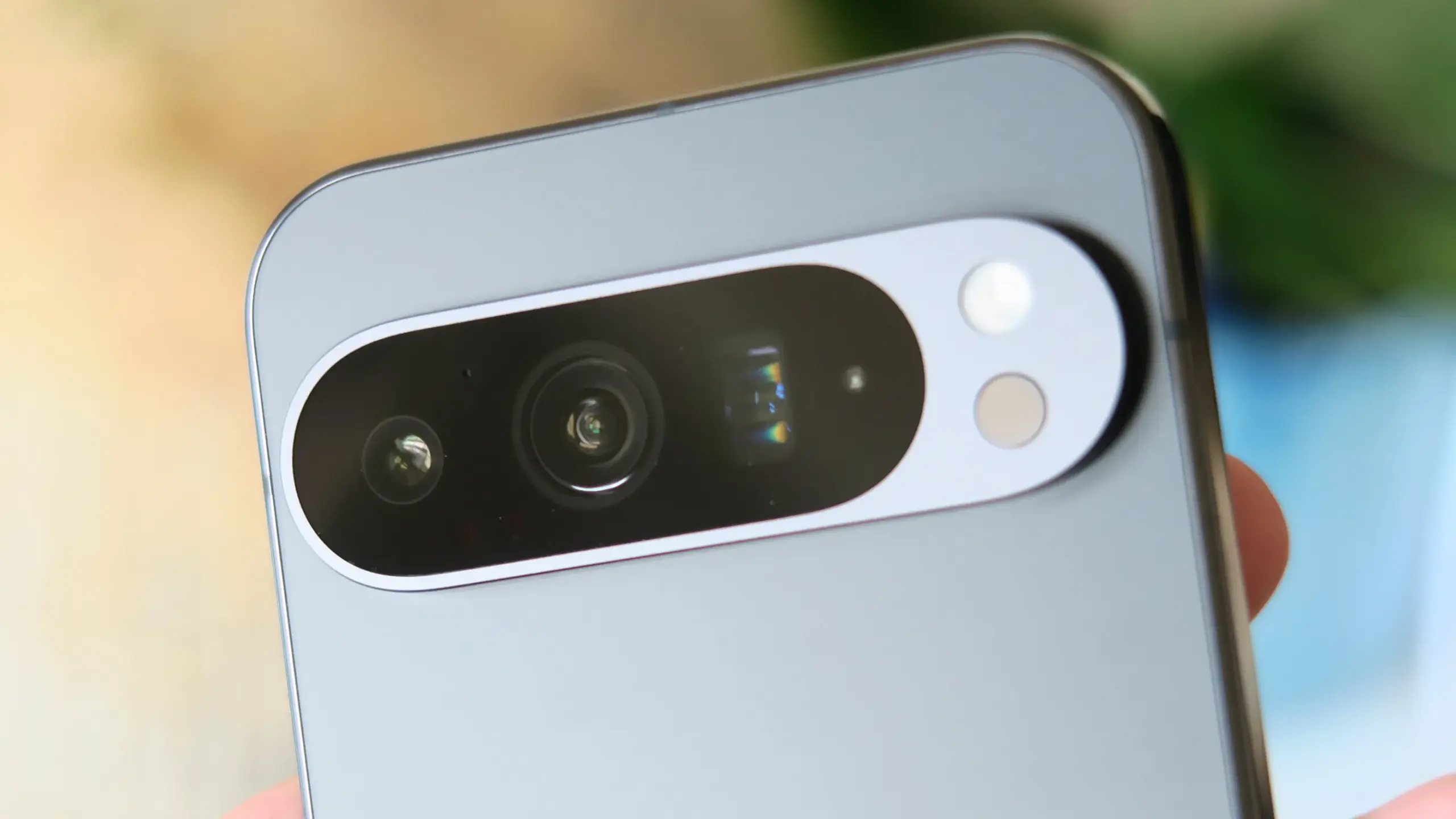
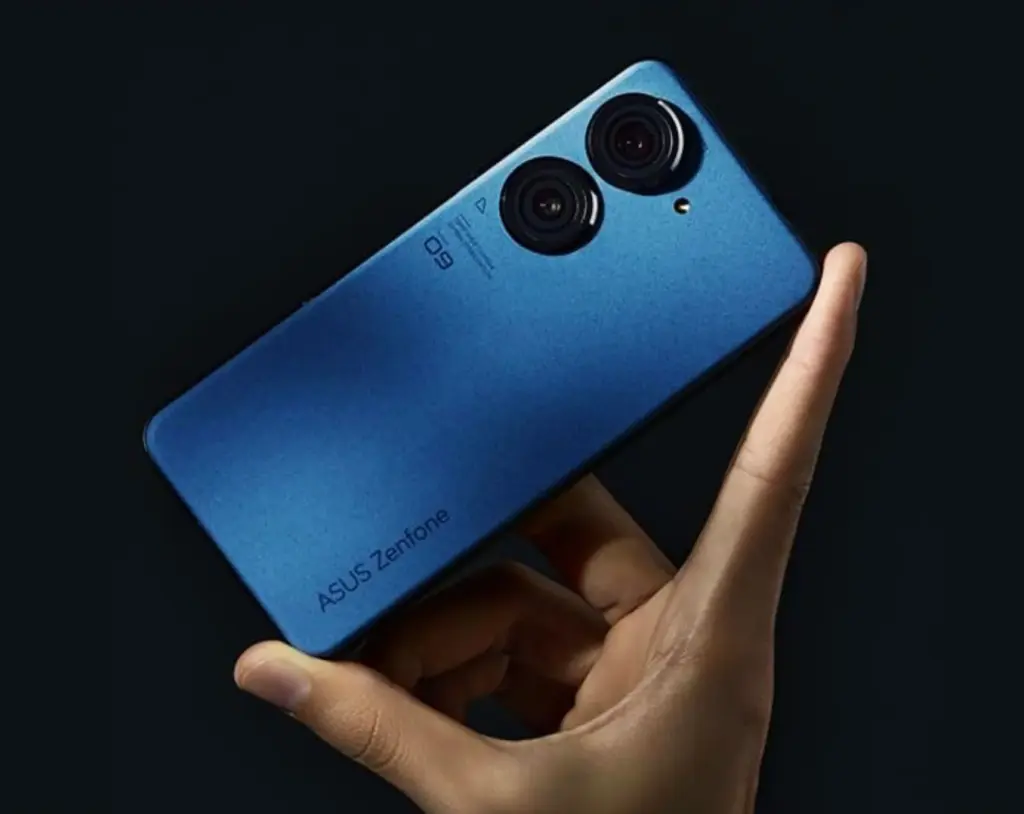
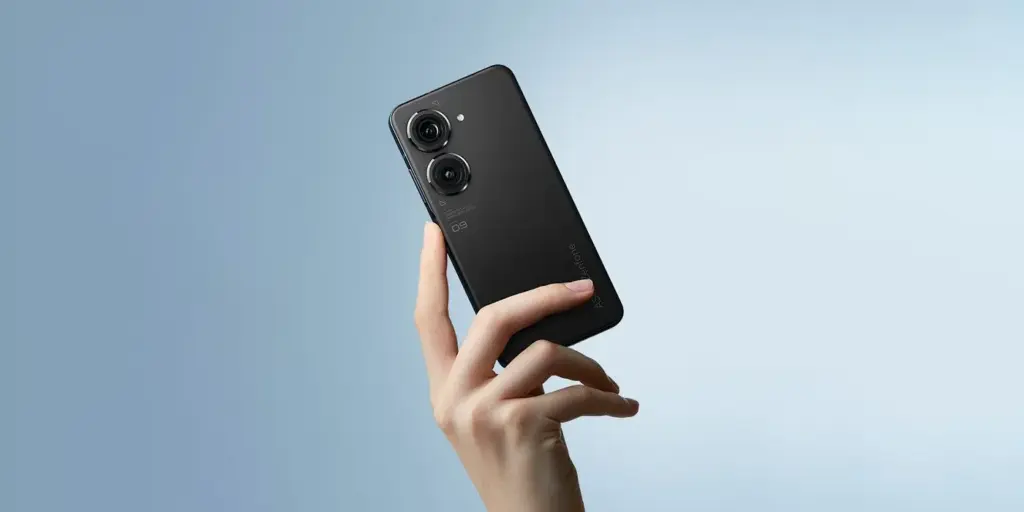
  • For the first time, Asus’ Zenfone series will support wireless charging with Zenfone 10.

    For the first time, Asus’ Zenfone series will support wireless charging with Zenfone 10.

    The Zenfone 10’s official launch date was recently disclosed by Asus. Together with the release date, the Taiwanese company also confirmed a few important details about the little device, including as a 5.9-inch display, a new generation of hybrid stabilization for its camera, and the introduction of wireless charging.

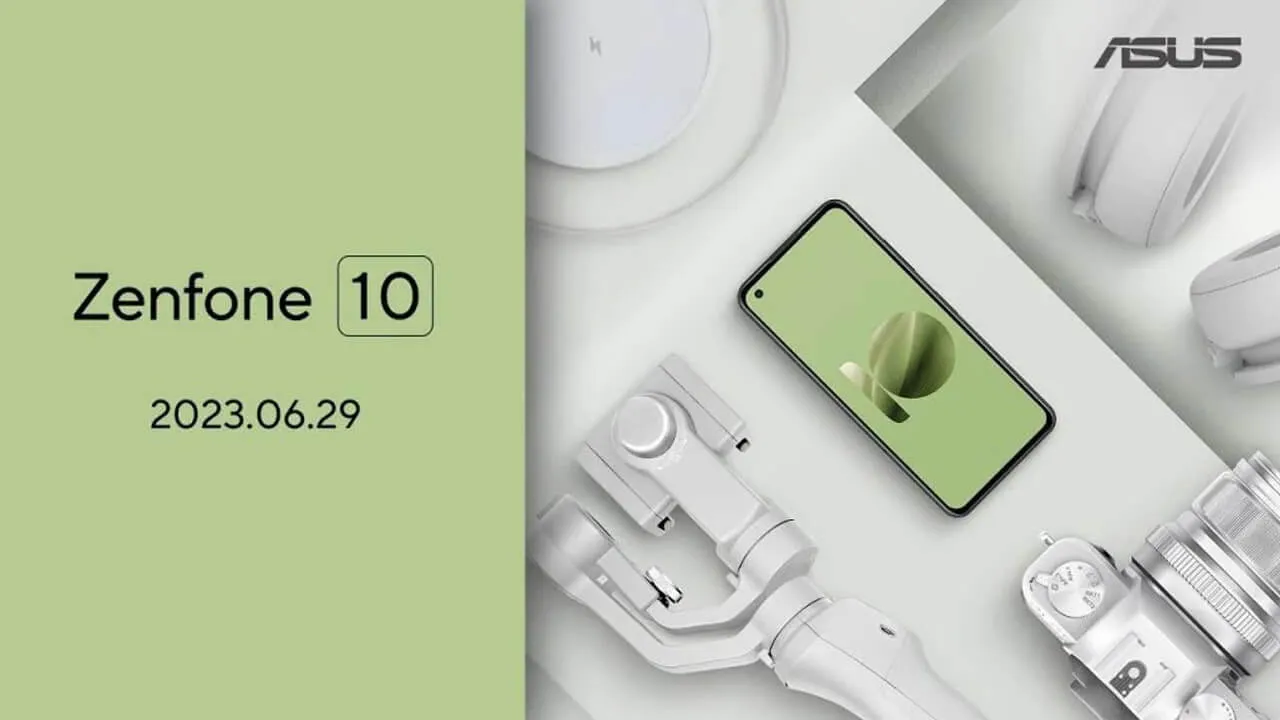
    After the Zenfone 9 broke cover at the end of July in 2022, this year’s flagship Android phone from Asus will be unveiled sooner than anticipated. On the current event page, Asus announced that the Zenfone 10 would launch on June 29 at precisely 10:00 PM in Taiwan (3:00 PM in Berlin) and 9:00 AM in New York. Users can sign up to receive updates and watch the event live online.

    zenfone 98393

    The business has begun to advertise a few of the Zenfone 10’s features as well. According to reports, the little phone would have a 5.9-inch screen with a punch hole in the upper left corner for the selfie camera, similar to the Zenfone 9 that we’ve reviewed. A second-generation 6-axis hybrid stabilization is also connected to the purportedly updated 200 MP primary camera.

    In addition, Asus will debut new hues with the product, such as the pale olive green shown in the illustration below. Shots of the red moon and the night sky were used to obliquely show the other colors, so possibly we are viewing a space-related subject or something similar.

    asus zenfone 10

    Wireless charging with Zenfone 10

    The way the Zenfone 10 will accept wireless charging is intriguing. In contrast, its predecessor glaringly lacked this functionality. What the speed rating is and whether reverse wireless charging will be available are still unknown.

    The Snapdragon 8 Gen 2 SoC, which is a noticeable improvement over the Snapdragon 8 Gen 1 in terms of efficiency and performance, will be in charge of the device’s chipset selection. With this, it is expected that the Zenfone 10 will experience an increase in battery life.

  • How to configure and use Android’s ADB wirelessly

    How to configure and use Android’s ADB wirelessly

    ADB is a command-line tool that makes it easier for your Android smartphone and a PC to communicate. The tool has many more applications besides only rooting and updating Android ROMs (more on this later).

    The traditional method for using ADB entails connecting your Android device to the Desktop through USB. But there is an alternative. Let’s examine at some wireless ADB usage options.

    Set up ADB

    You can skip this step if ADB has previously been configured on your Android and PC. If you haven’t, remember that everything is new to you!

    You must first download and unzip the Android SDK Platform Tools from the Android developer website before you can use ADB on your machine.

    By executing the command: brew install homebrew/cask/android-platform-tools, Mac users can use Homebrew to install ADB.

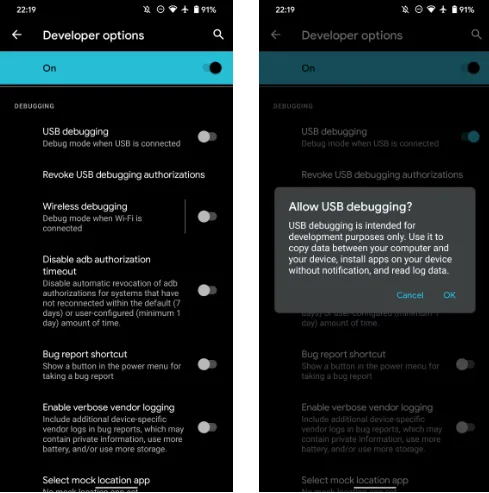
    Before you may connect your Android smartphone using ADB, you must first enable USB debugging in the developer settings.

    wireless adb setup

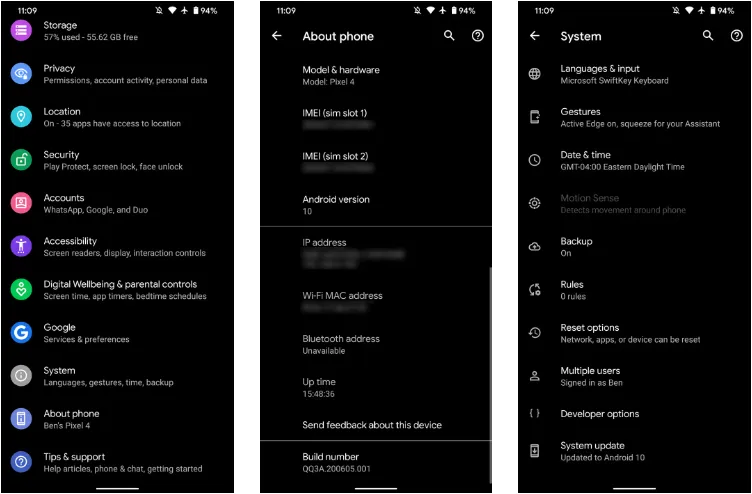
    Go to Settings > About phone then tap on the Build number several times. Once again, go to Settings > Developer options, then toggle on USB debugging.

    Once that is finished, use a USB cord to connect the Android device to your Desktop. You must utilize a cable initially even though we’re going to set up a wireless connection. The USB debugging prompt that will display on your Android device should always be accepted.

    enable usb debugging for ADB

    Open the command line or Terminal and navigate to the Platform Tools folder.

    If you’re on Windows, you can head to the downloaded Platform Tools folder and open the PowerShell window by pressing Shift and right-clicking anywhere in the folder, and selecting Open PowerShell Window here. On a Mac, open the Platform Tools folder and go to Finder > Services > New Terminal at Folder.

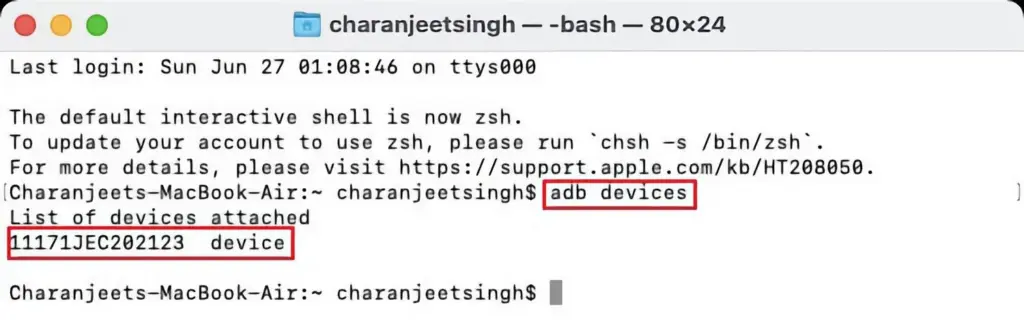
    If you’re using Windows, use the command adb devices into the command prompt. All instructions should be prefixed by a dot-slash on Linux and Mac, so it would be./adb devices.

    You should be able to find your device’s serial number in the list of attached devices if everything functions as it should.

    adb devices

    How to use Android wireless ADB

    The main topic at hand right now is how to connect your Android smartphone wirelessly to an ADB server. To use ADB wirelessly after configuring it and connecting your Android device to your PC, follow the instructions below.

    1. Type adb tcpip 5555 in the command line or Terminal and press Enter.
    2. Find your phone’s IP address in Settings > About Phone > Status > IP Address.
    3. Back in the command line or Terminal, type adb connect [your Android device’s IP address].
    4. Finally, press Enter again.

    The Android device should now be connected to ADB over a wireless connection. You can safely remove the USB cable.

    Is wireless ADB not working?

    Try installing Minimal ADB and Fastboot from the XDA Forums if your Android device won’t connect to Windows using ADB (you are getting errors in the command line). The required Android drivers are installed by this package, which may also assist you in fixing any command line issues.

    You can also utilize WebADB, which transfers all of ADB’s capabilities to your web browser. You can use the online tool to use ADB via Wi-Fi. In other words, you can completely forego installing ADB.

    What is ADB used for?

    The idea that Android ADB is solely helpful when rooting Android is a common one. It, however, is merely one of the several uses for the Android Debug Bridge.

    For example, you can use an ADB command to delete pre-installed apps from your Android device that is not rooted. Unwanted apps may be tough to remove from some Android cellphones, but ADB can assist.

    Without needing to root your device, you may also mirror your Android screen to a Desktop using the command line utility. This can be done using the free program Scrcpy. The tool’s wireless ADB connection results in extremely fantastic performance.

    Is safe to use?

    Using the utility won’t be a problem if you are familiar with ADB commands. There are risks involved with using ADB, especially if you are new to this field. If you are trying to root your device, using the incorrect commands could result in problems or, at worse, brick your phone.

    Although your Android smartphone won’t have any problems once you set up wireless ADB, you should always keep a backup of your data in the cloud or on an external storage device as a safety measure.

    No cables anymore

    Although though you first require a USB cord to set up ADB, the ability to utilize it wirelessly is incredibly useful. It allows you to walk around more freely while you work, allows you to simultaneously charge your phone at full speed, and is just much more practical in general. It’s definitely worth a go if you use ADB.

  • MagDart magnetic wireless charging devices from Realme

    MagDart magnetic wireless charging devices from Realme

    Realme is developing a magnetic wireless charging method for its Android phones, as The Verge reported last week, and the company has now announced a whole line of goods that will employ the new technology.

    MagDart

    MagDart

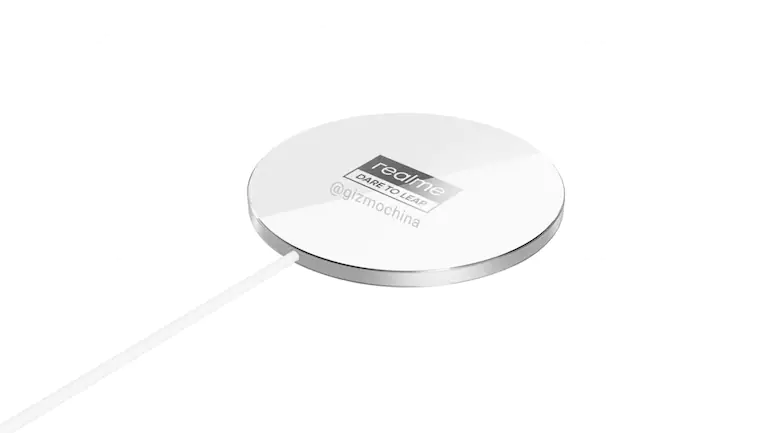
    The wireless charging device is known as MagDart by Realme, and it’s essentially a more powerful version of Apple’s MagSafe system for the iPhone 12 series of phones. The 50W MagDart charger, which Realme claims are the world’s fastest magnetic wireless charger, is the star of the show. It features an unavoidably hefty cuboid form to accommodate a cooling fan, but Realme is betting that users will accept this trade-off in exchange for faster-charging speeds.

    Realme claims that when plugged into the company’s 65W SuperDart wired charger, the MagDart charger would charge a 4,500mAh phone battery to 100% in 54 minutes. That’s almost as quick as the 50W wired charger from Realme. Realme is also working on a 15W MagDart charger, which looks similar to Apple’s MagSafe puck but is 26.4 percent slimmer and claims quicker charging speeds if you don’t want to have to put a charging brick into a charging brick.

    According to Realme, it can charge a 4,500mAh battery in 90 minutes, which is far faster than Apple’s 15W option. Aside from the simplicity of wireless charging, a magnetic design like MagDart and MagSafe opens up the possibility of elegant port-less accessories, and Realme has a slew of them.

    The MagDart Power Bank is comparable to Apple’s recently launched MagSafe Battery Pack, except it has a dock that allows you to utilize the battery as a phone stand. The MagDart Shell is a carbon fiber-style case featuring a pass-through USB-C port and headphone jack, as well as built-in MagDart connectivity, for the new Realme GT flagship phone. The MagDart Wallet is a three-card sleeve that looks a lot like Apple’s MagSafe wallet. This one, though, features a kickstand.

    The MagDart Beauty Light, a selfie-ready flip-up ring light powered by reverse wireless charging, is perhaps the best of the bunch. It contains 60 tiny LEDs and a separate control button for adjusting brightness and color temperature, among other things.

    Availability and Price

    Realme hasn’t announced a release date or price for any of these goods, and the Realme GT is the only phone that has been confirmed to operate with a MagDart gadget that is capable of carrying out iOS transfers as well- and that’s only if you buy the specific case

    For what is essentially the debut of a large new ecosystem of products, that’s a fairly big catch. However, if Realme incorporates MagDart into future phones, that might be a significant distinction.

    What can we expect?

    Wireless charging is one of the most common exclusions from Chinese phones with otherwise outstanding spec sheets – Oppo was one of the first to adopt the technology, and Vivo has yet to follow suit. And, given that Oppo’s VOOC fast-charging mechanism was ported to OnePlus and Realme phones thanks to the firms’ shared ownership and supply chain, MagDart may follow suit.

  • Wi-Fi Direct – what is Wi-Fi Direct and how do you use it on Android?

    Wi-Fi Direct – what is Wi-Fi Direct and how do you use it on Android?

    On our Android smartphones, the list of settings and features is very comprehensive and most of them either just pass by unnoticed when we see them, or we happily ignore them. One of those was Wi-Fi Direct, but we will clarify to you what it is and why you should use it. Click here to set it up.

    What is Wi-Fi Direct?

    When anyone discusses Wi-Fi most people would think about browsing the internet instantly, but there is more to it than just that. Wi-Fi Direct is a certificate issued by the Wi-Fi Alliance of more than 600 members, including Apple, LG, Intel , Microsoft and Dell. These days a range of devices are compliant with Wi-Fi Direct – most notably smartphones , laptops and digital cameras. One of the first smartphones to have this feature was the Samsung Galaxy S (launched in 2010), and as for Android 4.0 Ice Cream Sandwich, all Android smartphones have this feature included native.

    Wi-Fi Direct can be regarded as a kind of second-generation Wi-Fi, as it allows compatible devices that do not have their own internet connection to create a connection between them (hotspots, modems or routers). You can create a wireless network between multiple devices, thanks to Wi-Fi Direct. Additionally, in conjunction with Miracast, you can use Wi-Fi Direct to screen on another device with a monitor. Wi-Fi Direct’s newest generation is also compliant with NFC.

    Wi-Fi direct
    Wi-Fi Direct settings

    Why should you use Wi-Fi Direct?

    As already mentioned, Wi-Fi direct allows devices to connect to one that does without their own internet connection. In the case of Android smartphones and tablets, you can connect them and pass files easily without the cable hassle. So, is Wi-Fi Direct just a glorified Bluetooth version? Oh , yeah, yes and no. The benefit of using Wi-Fi Direct over Bluetooth is that the range and upload rates of Wi-Fi are considerably greater than those of Bluetooth. So in short-use Wi-Fi Direct to send files from one device to another, if you want a better way.

    Set up Wi-Fi Direct

    Each Android smartphone that uses Android 4.0 and above has Wi-Fi Direct features (some very rare exceptions are available). Although the user interfaces of the systems can differ, setting up this functionality for all devices is relatively easy and standardized. At the moment, Wi-Fi Direct does not allow file transfers natively, so you will need to install a third-party plugin. We suggest “Send Wherever”

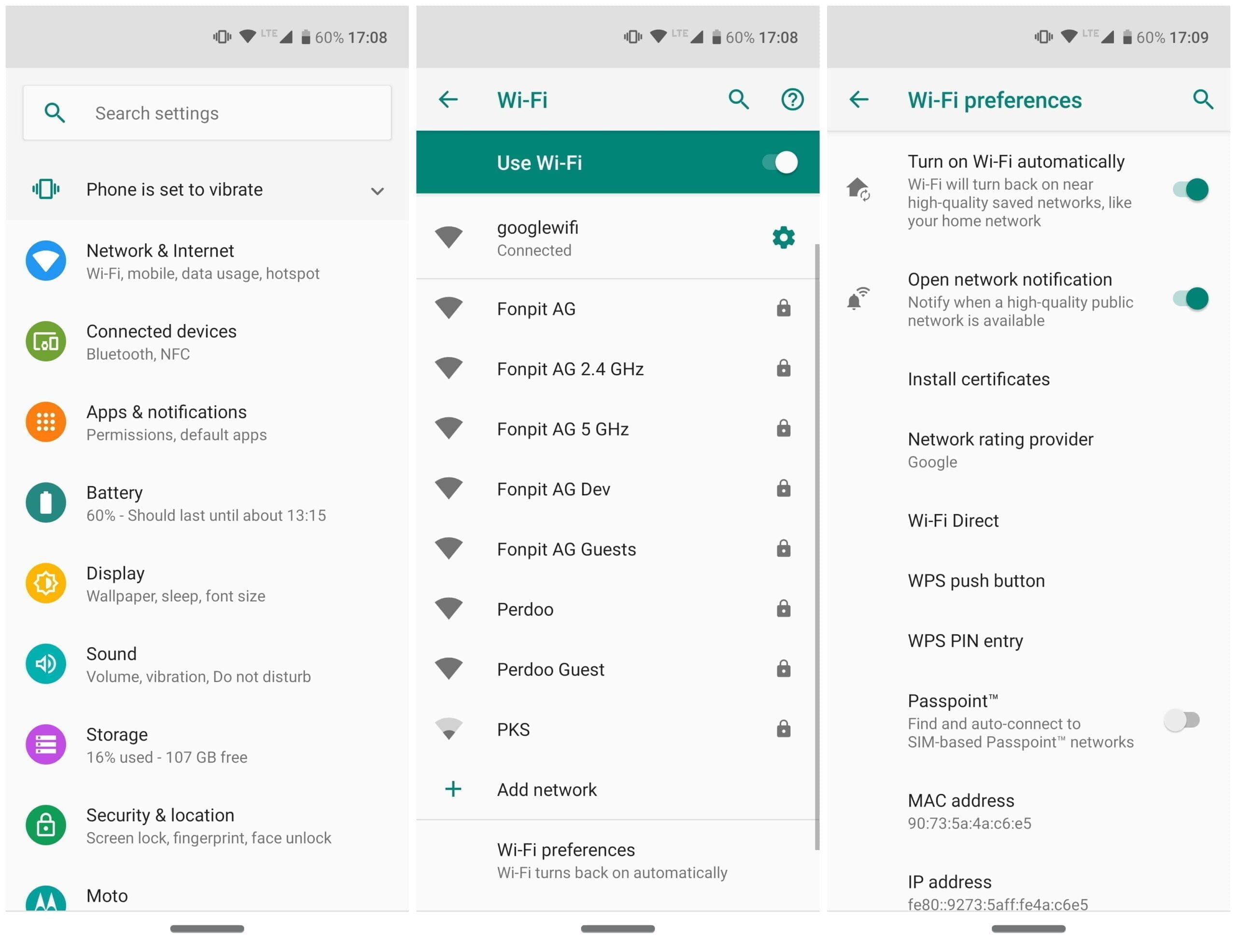
    To turn on Wi-Fi Direct, go into Settings -> Connections -> Wi-Fi then tap on the >Wi-Fi Direct tab at the top. Your smartphone will start scanning for devices that you can connect to.

    Unlike with Bluetooth, there is no button or anything that you need to tap to turn Wi-Fi Direct on. Wi-Fi Direct is enabled the moment you have a stable internet connection. This doesn’t mean that Wi-Fi Direct is on all the time. Your smartphone only starts scanning for nearby devices to connect to when you tap on the Wi-Fi Direct tab.

    Important: You also need to turn on Wi-Fi direct on your laptop, television, printer, or whichever device you are connecting to as well as having activated it on your smartphone using the steps above.

  • Fastest wireless charging – Xiaomi breaks a record

    Fastest wireless charging – Xiaomi breaks a record

    Xiaomi Vice President Chang Cheng announced on Weibo this afternoon that Xiaomi Wireless Charging’s charging rate has improved in recent years from 10W-30W mode. The company is however currently developing a new wireless charging that breaks its current 30W power. The company has a new 40W wireless fast charging system, according to Xiaomi VP, Chang Cheng. The Xiaomi 40W wireless charging capability is fairly impressive.

    The new Xiaomi smartphone uses a wireless 30W charging system. Now, the company is doing more to make future flagships more appealing. Wireless charging is clearly going to be a big growth field this year. The aim of Xiaomi is to achieve charging speeds which some OEMs are struggling to achieve with wired charging.

    Xiaomi’s latest flagships, Xiaomi Mi 10 and Xiaomi Mi 10 Pro but uses fast wireless charging solutions. The Xiaomi Mi 10 comes with a 4780 mAh custom strip fast charge battery, which supports 30W wired fast flash charging + 30W wireless fast flash charging + 10W wireless reverse charging. On the other hand, the Xiaomi Mi 10 Pro uses a 4500 mAh strip battery. However, it comes with a faster 50W fast flash charging technology. This charging solution achieves a full charge in just 45 minutes. In addition, it uses Xiaomi’s latest 30W wireless charging solution which is quite fast.