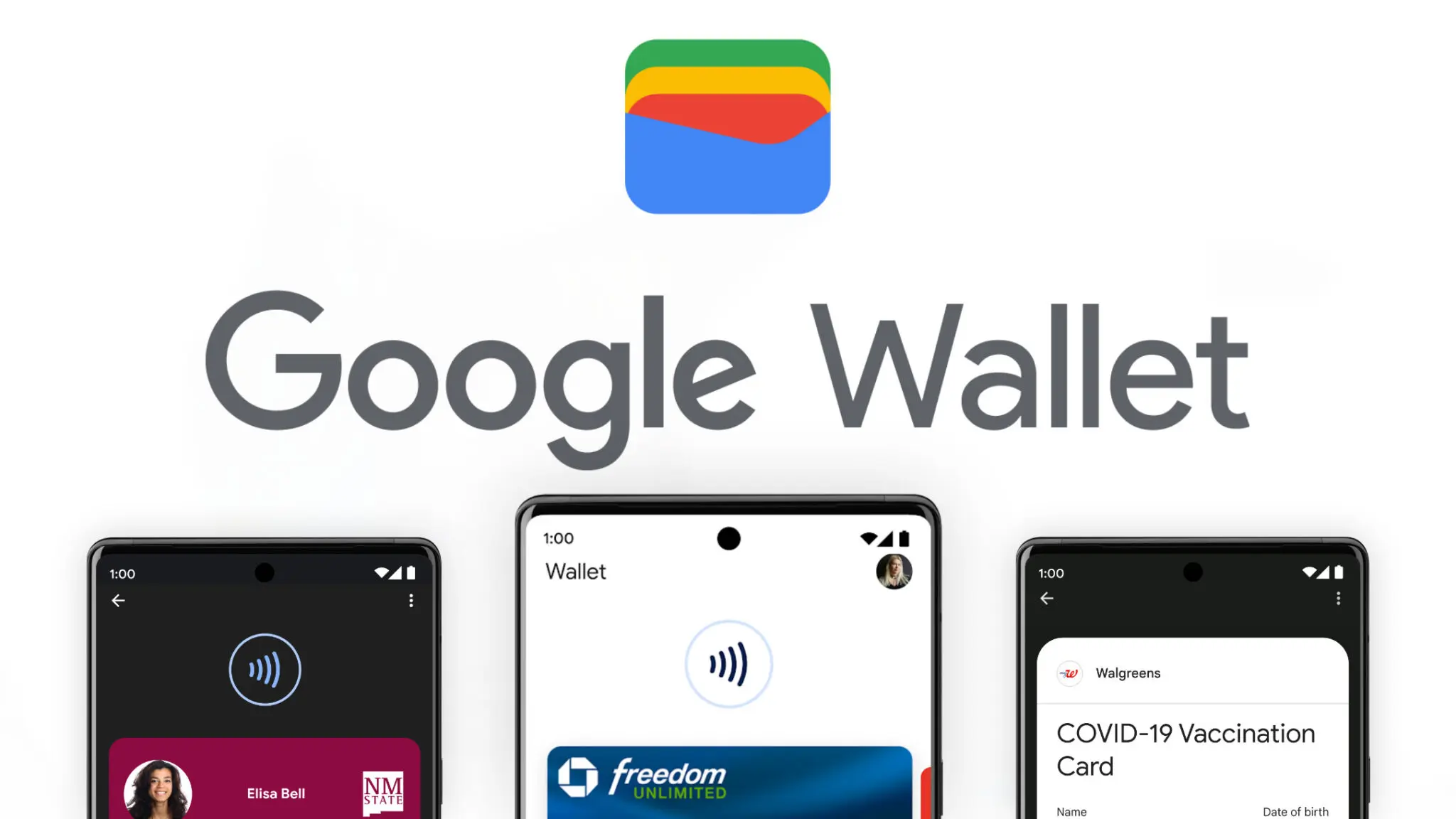
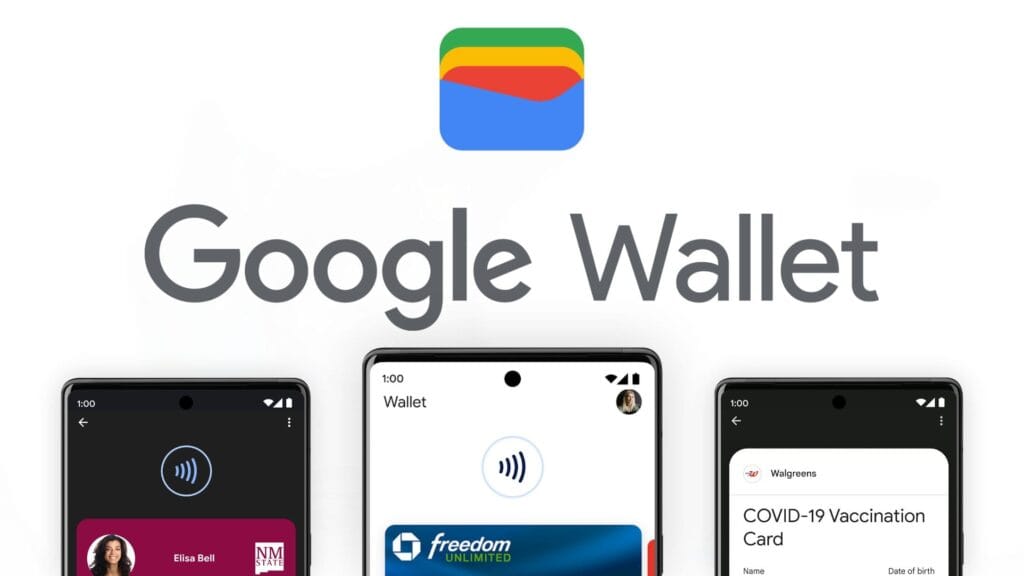
Google Wallet has grown into one of the most versatile digital wallet solutions available. Beyond storing credit and debit cards, it handles state IDs, passports, event tickets, transit passes, digital car keys, and plenty more – effectively everything you’d normally carry in a physical wallet. Over time, Google has steadily expanded its capabilities, adding features that feel obvious in hindsight but weren’t on anyone’s radar beforehand. One of those is Live Updates, which surfaces real-time data for transit and events directly within the app.
Live flight information, right on your lock screen
For those unfamiliar with Live Updates, the feature delivers current information about your transit method or upcoming events without requiring you to open a separate app, dig through emails, or hunt down the information yourself. With the latest Google Wallet update, that same convenience now extends to flights, as noted by 9to5Google.
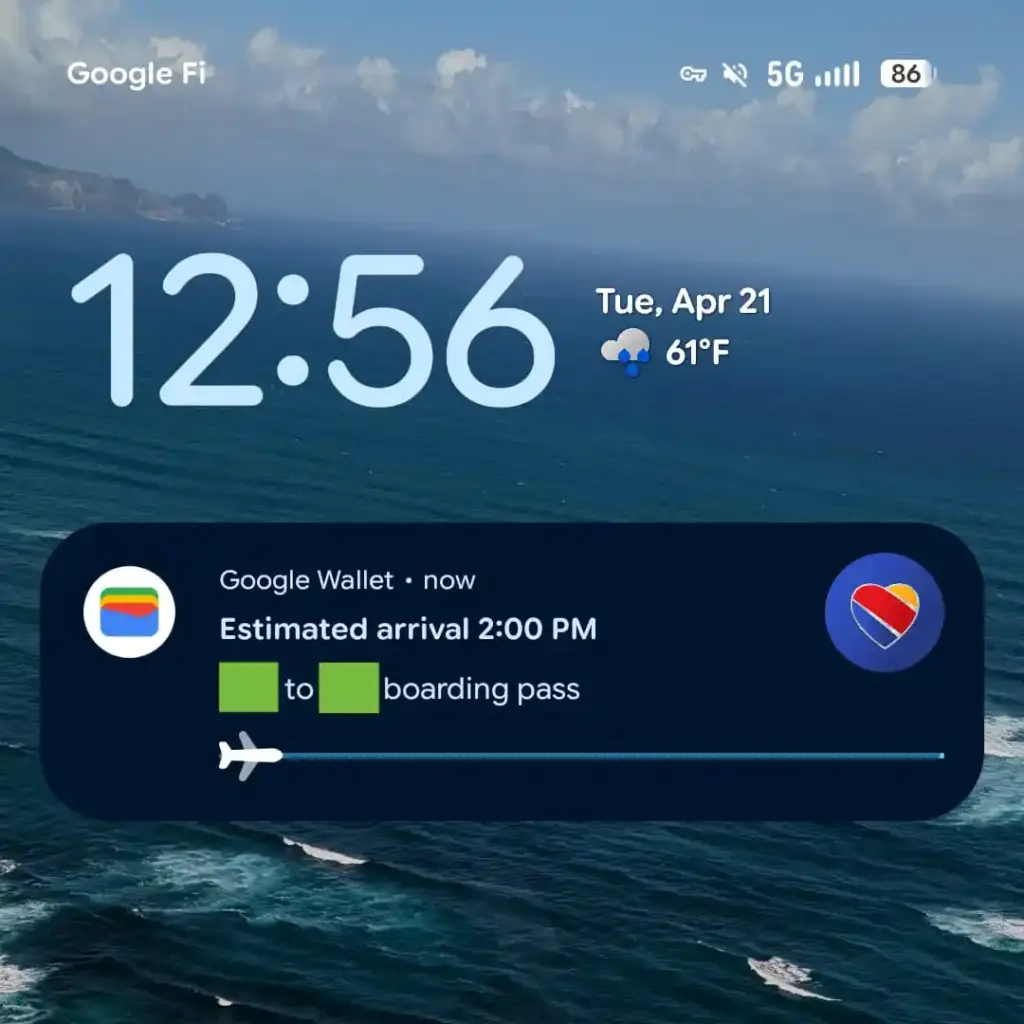
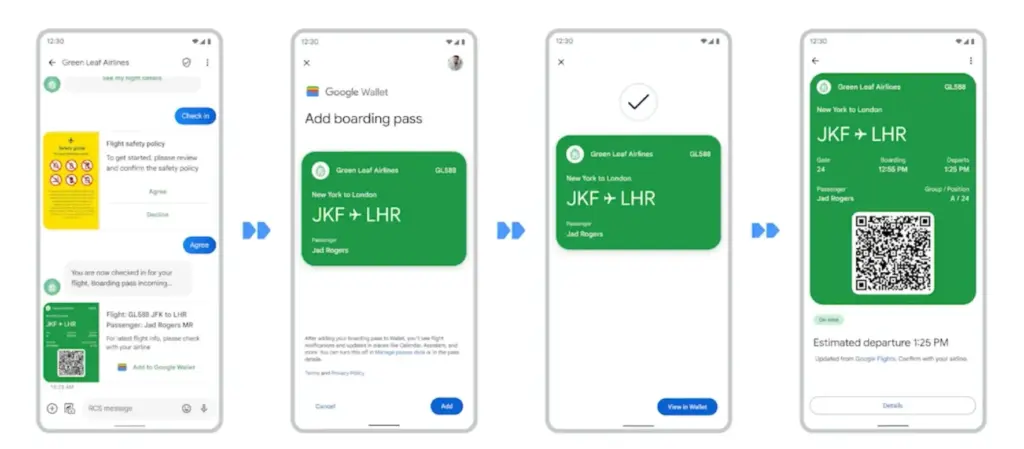
From the moment a flight is booked, Wallet is ready to track it and display the latest status. It also generates an easily accessible QR code for scanning at the gate when the time comes. On devices running Android 16 or later, Wallet will display takeoff time, total flight duration, and an estimated arrival time. All of this appears on the lock screen or always-on display, if that feature is enabled.
That kind of at-a-glance access becomes especially valuable on hectic travel days. The usual routine — checking in hours early, clearing security, settling in at the boarding gate – tends to go smoothly, but flights don’t always cooperate. Delays happen for all sorts of reasons, gates get reassigned, and cancellations aren’t unheard of. Rather than bouncing between airline apps, notification panels, and departure boards, having the key details visible the moment the screen lights up keeps things a lot simpler. It’s also easier to keep travel companions informed without constantly having to look things up.
To get Live Updates for flights working, Android 16 users will need to update Google Wallet along with any associated services. The timing works out well, with the rollout landing just ahead of what’s typically one of the busiest travel periods of the year.
Using a warning to backup the key to prevent losing access, a recently identified Android malware known as Crocodilus deceives users into entering the seed phrase for the bitcoin wallet.
Despite being a recent banking malware, Crocodilus has fully functional capabilities to remotely control, take over the device, and collect data.
According to researchers at the fraud prevention firm ThreatFabric, the malware is disseminated by a custom dropper that gets around security measures in Android 13 and later.
The dropper circumvents Accessibility Service limitations and installs the virus without activating Play Protect.
Crocodilus is unique because it uses social engineering to force victims to divulge their crypto-wallet seed phrase.
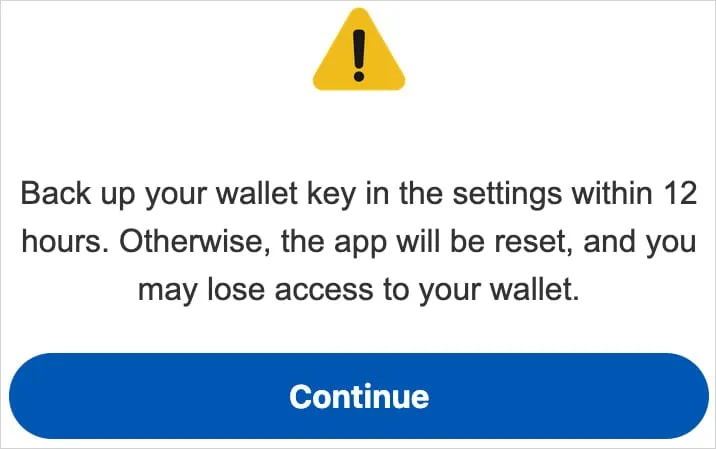
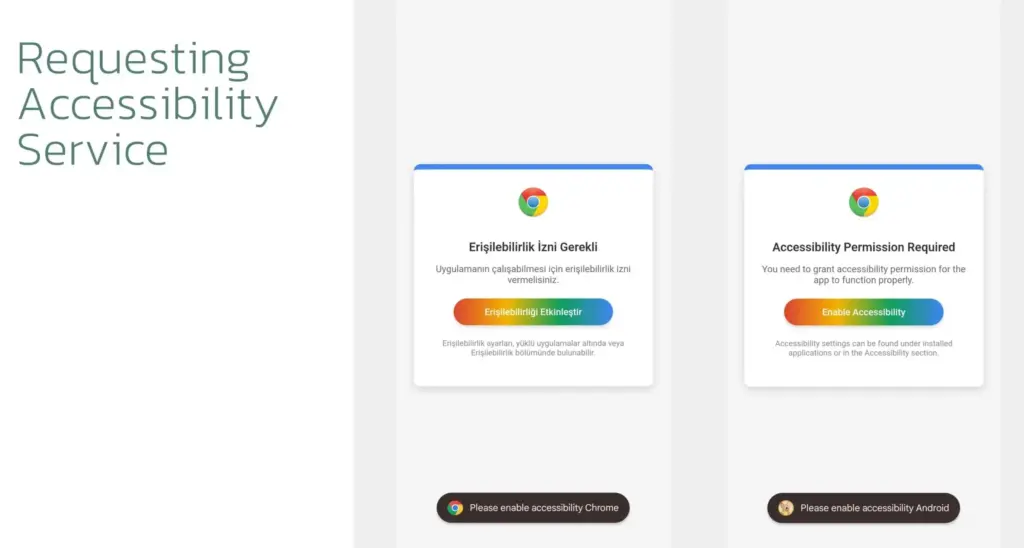
A screen overlay alerting users to “back up their wallet key in the settings within 12 hours” or risk losing your wallet is how it accomplishes this.
“This social engineering trick guides the victim to navigate to their seed phrase (wallet key), allowing Crocodilus to harvest the text using its Accessibility Logger,” ThreatFabric explains.
“With this information, attackers can seize full control of the wallet and drain it completely,” the researchers say.
Crocodilus was seen to target customers in Spain and Turkey, including bank accounts from those two nations, during its initial operations. Based on the debug messages, it seems that the infection originated in Turkey.
Although the exact mechanism of the first infection is unknown, users are usually duped into downloading droppers by malicious websites, phony SMS or social media advertisements, and third-party app shops.
When Crocodilus is launched, it has access to Accessibility Services, which are typically designated for helping individuals with disabilities. These services allow Crocodilus to make navigation motions, monitor for app launches, and unlock screen content.
Crocodilus puts a phony overlay over the legitimate app when the victim accesses a targeted banking or cryptocurrency app in order to obtain the victim’s login information.
The bot component of the malware supports a set of 23 commands that it can execute on the device, including:
Enable call forwarding
Launch a specific application
Post a push notification
Send SMS to all contacts or a specified number
Get SMS messages
Request Device Admin privileges
Enable a black overlay
Enable/disable sound
Lock screen
Make itself the default SMS manager
Additionally, the malware has remote access trojan (RAT) capabilities that let its operators swipe, tap, and browse the user interface, among other things.
To collect one-time password codes used for two-factor authentication account protection, a specific RAT command is also available to snap a screenshot of the Google Authenticator application.
To conceal the activity from the victim and give the impression that the device is locked, Crocodilus operators can mute the device and activate a black screen overlay while doing these tasks.
Crocodilus may soon expand its activities and add more apps to its target list, even if it currently seems to be targeting only Spain and Turkey.
It is recommended that Android users make sure Play Protect is constantly enabled on their devices and refrain from downloading APKs from sources other than Google Play.
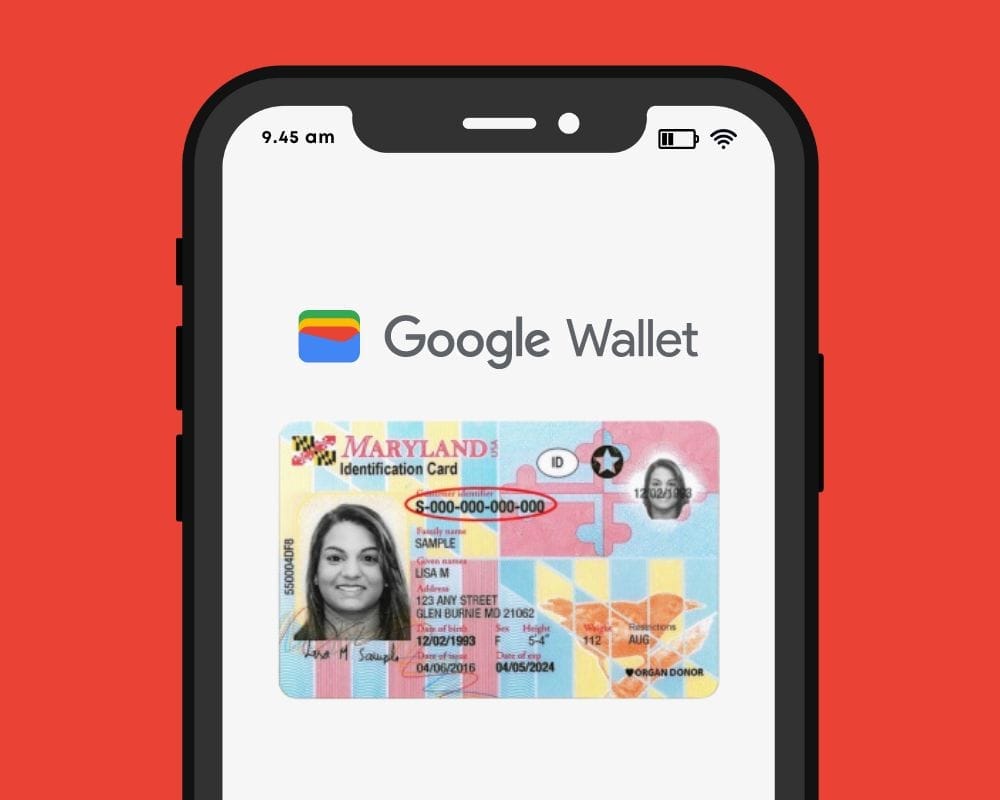
You can link your driver’s license or state ID to your Google Wallet in certain US states. It is a practical way to carry and show your ID, however there are some restrictions. Google has caught up to Apple, which was the first to introduce this feature in 2021.
You can add your driver’s license to Google Wallet if you know how to add your credit card. We let you know if you can add your driver’s license or state ID to Google Wallet and walk you through the process of adding and removing it. Google Wallet works with devices other than smartphones. With any of our favorite smartwatches, you can show your ID right from your wrist.
Where you can use your ID from Google Wallet
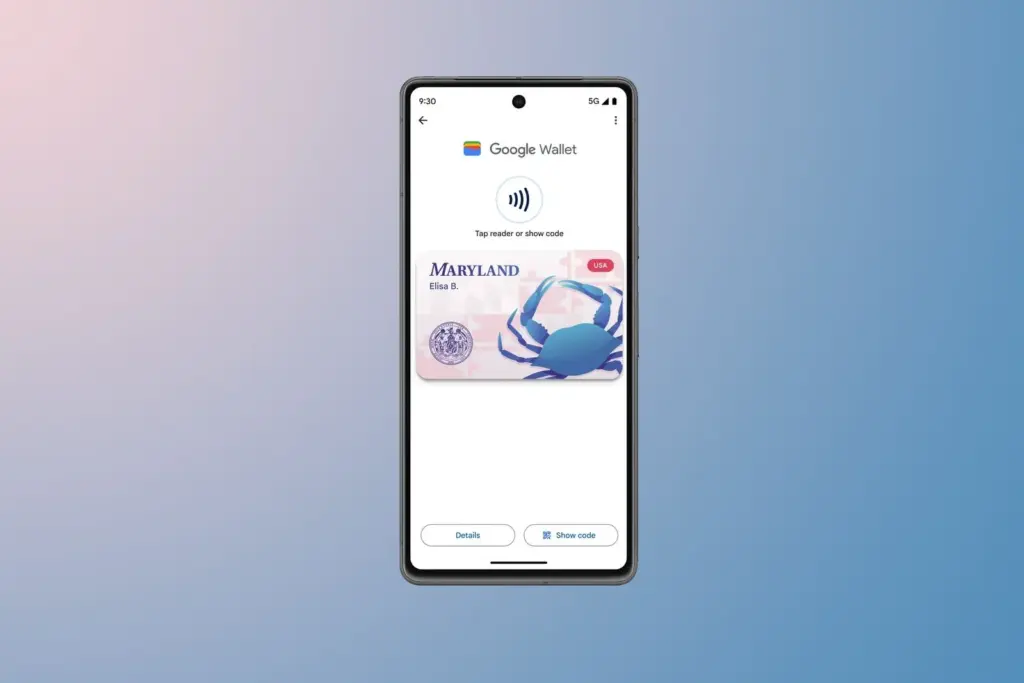
The only US states that permit IDs to be kept in the Google Wallet app are Arizona, Colorado, Georgia, and Maryland. Additionally, several states permit the storage of their IDs in Apple Wallet.
Since Google must collaborate with each state to integrate its IDs into Google Wallet, the rollout to more states is sluggish. The process is slowed substantially by the fact that every state handles IDs differently. Since Arizona and Georgia partnered with Apple in 2021, just six states have implemented digital ID systems.
The driver license can be added to Google Wallet too
Georgian and Maryland digital IDs saved in Google Wallet are accepted at a few participating airports nationwide. Colorado and Utah IDs are accepted in more contexts, such as when demonstrating your age at a restaurant. However, in any circumstance where your digital ID is approved, you must always carry your physical ID with you.
California and Utah, if you reside there, have their own digital ID applications and regulations regarding where you can use your ID. Whether Google Wallet will be supported in these states is unknown.
Is safe to store your ID in Google Wallet?
Although a digital copy of your driver’s license or state ID may appear less secure, there are steps in the process that ensure the security of your personal information. These components guarantee that only you have access to your personal information, however part of this is because of the setup procedure (which we will take you through soon).
Your digital ID is encrypted on your phone.
It can only be accessed with biometric authentication.
You choose what data is shared each time you show your ID.
Your digital ID can be deleted remotely.
How to add the ID or driver’s license to Google Wallet
You will know how to begin if you have added credit cards, transport passes, or rewards cards to Google Wallet before. But adding your driver’s license or state ID requires a more extensive procedure.
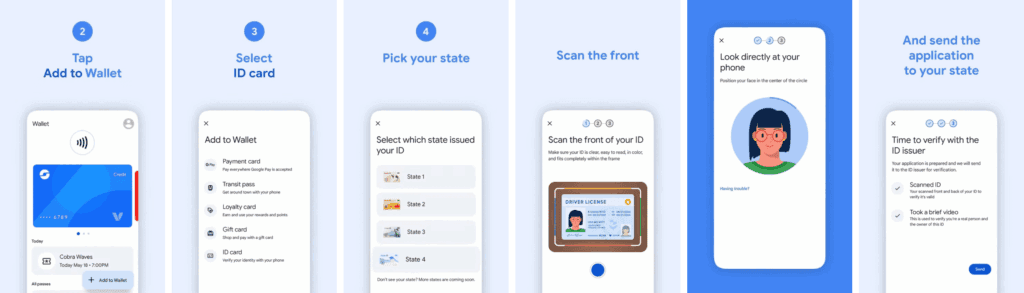
Open the Google Wallet app.
Tap Add to Wallet in the lower-right corner of your screen.
Tap ID card. This option only appears if you live in the US.
Tap your state ID.
Scan the front and back of your ID.
Record a short video where you’ll turn to show the front, sides, and bottom of your face.
Submit your application to the state.
Your application takes a few minutes to process. Your driver’s license is ready to view in Google Wallet when you receive the confirmation notification.
How to remove your state ID or driver’s license from Google Wallet
It only takes a few touches to delete your driver’s license or state ID if you are worried about its security. You can delete it remotely using the same technique as taking any digital card out of your wallet.
Remove your digital ID from the Google Wallet app
Open Google Wallet
Tap your ID card.
Tap the three-dot button in the upper-right corner of the screen.
How to provide your electronic identification at TSA PreCheck
You can display a QR code or utilize NFC with tap-to-pay to use your digital ID card. First, you must schedule an in-person visit at an enrollment location to register for TSA PreCheck. To utilize your digital ID after registering, take the following actions:
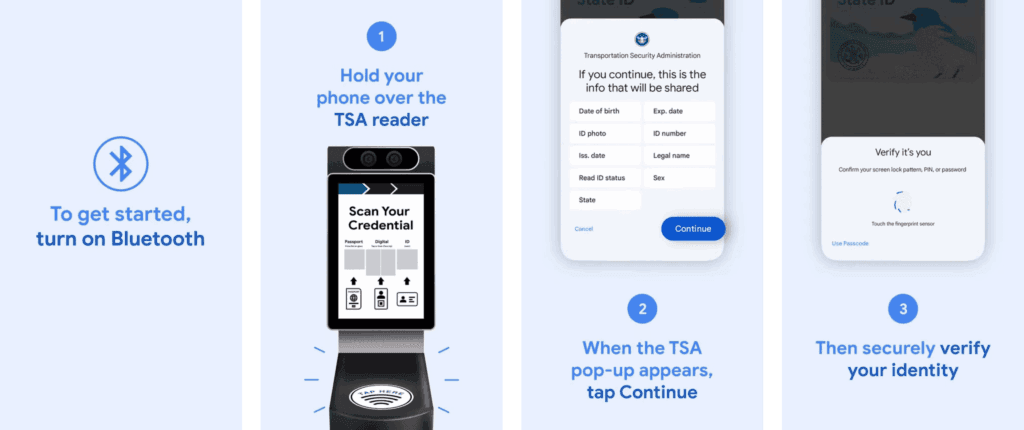
Hold your phone over the TSA reader terminal. The reader automatically pulls up your ID.
Confirm the data you are sharing by tapping Continue in the lower-right corner of your phone screen.
Verify your identity using biometric identification.
Display your ID safely and conveniently
There are numerous benefits to carrying your driver’s license on your phone as opposed to a physical card. It eliminates the need to carry your wallet to bars, though employees may refuse to serve you if they think it is inappropriate. You can only present the necessary documentation.
NFC communication is the backbone behind sharing your digital ID.
Digital wallets are becoming a more common option to pay on the go. The concept is simple: why carry a wallet when you can store your credit card on your Android phone? It makes logical and decreases the amount of items to keep track of. Google Wallet goes a step further, allowing you to add goods other than credit cards to your digital wallet. What products exactly?
Boarding passes
Boarding cards are required for airline travel. You need these to get past security, confirm the flight’s departure time, and find your gate. Traditionally, they were paper, but they have recently gone digital, via the airline’s app or a digital wallet. Google Wallet can save boarding passes, eliminating the need for physical boarding tickets. It also refreshes the gate or flight time on the boarding card as soon as it changes, keeping you informed of any changes.
Public transportaion tickets
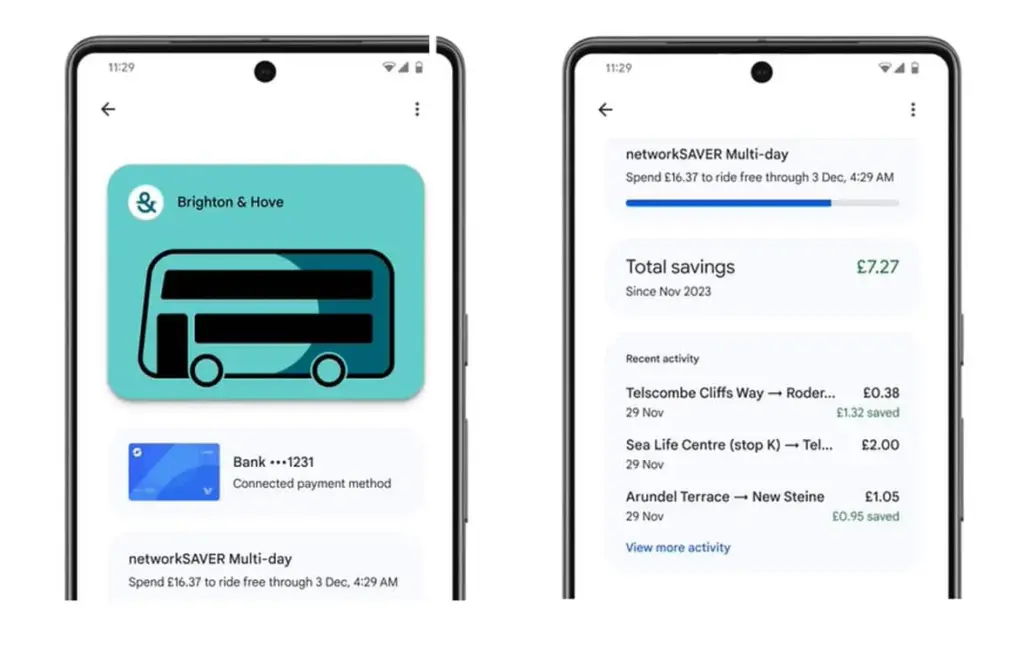
Public transportation is useful for traveling around, regardless of whatever major city you are in. Each system has its own type of passes, such as monthly passes or reloadable cards. Normally, catching a trip requires a specific app or physical pass, but Google Wallet allows you to store and utilize passes from several major transportation agencies around the United States. Then, you can utilize Google Wallet to travel whenever necessary.
Gift cards
present cards are a popular option to offer someone a flexible present that does not require a specific item. It allows the receiver to select an item that is ideal for them, and gift cards can be pooled to purchase a more expensive item. During holidays or birthdays, you may receive multiple gift cards that are difficult to keep track of. Google Wallet allows you to save all of your gift cards in one location and redeem them later.
Loyalty cards
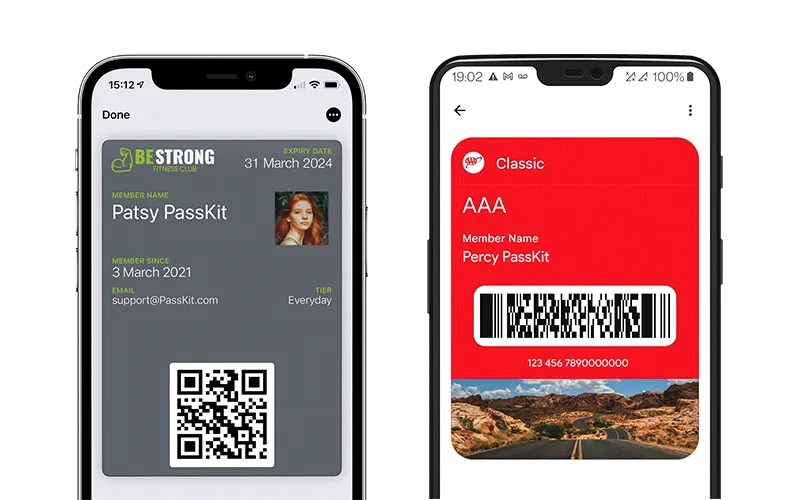
Most businesses have a loyalty or rewards program in place to provide perks to consumers who return frequently. Sometimes this takes the form of a physical card that is utilized at the checkout. If you have rewards cards from multiple businesses, they might fill up your wallet. Google Wallet can also hold loyalty cards. Google Wallet identifies common cards, adds them, and provides you with an easily readable barcode to scan at checkout.
Driver’s licenses
To be able to drive, you must have a driver’s license, which is the most frequent form of identification used to prove your identity and age. Keeping your license with you at all times is a good idea and occasionally necessary, but it can be difficult to keep track of if you do not want to carry a wallet. If you lose it, finding a replacement can be tough. In several states in the United States, you can keep your license in Google Wallet. It is not available in every state. It will only be offered in Arizona, California, Colorado, Georgia, Maryland, and New Mexico as of March 2025. Hopefully, its availability will increase with time.
Health insurance card
Health insurance cards are another vital piece of information to keep with you at all times in case you want medical assistance. While you can keep the physical card, you can also save it to Google Wallet. While it is not as straightforward as adding a credit card or other comparable item to Google Wallet, you can scan or save it through your healthcare provider. Then you will have all of the critical medical information you need at your fingertips whenever you need it.
Passport
Passports are required for travel and as a means of identification. With Google Wallet, you may use your phone to augment your passport with an ID pass. An ID pass enables Google Wallet to save your passport for use in specific instances. An ID pass cannot substitute a passport in all circumstances, however it can be used in some cases. An ID pass can be used at TSA checkpoints for domestic flights in some US airports. It can also be used as a form of identification in some instances, but keep your actual passport with you in case you need it.
Student IDs
Students need IDs for a variety of reasons, including building access, dining hall meals, and student discounts at specific establishments. If they lose their ID, they may be unable to obtain necessary services. Google allowed the ability to save student IDs to Google Wallet in 64 countries and territories, making them harder to lose and easier to use. Because students are likely to carry their phones with them at all times, having their student ID on the phone is more convenient.
Event tickets
You may attend a variety of enjoyable activities, including concerts, festivals, sports tournaments, and more. You must have a ticket to attend, and most are no longer printed on paper. However, depending on the venue or type of event, you may require multiple applications, which can be difficult to keep track of. Make it simple by adding them to Google Wallet. Google Wallet can store any sort of ticket or event pass, providing you with a convenient, centralized location to find everything you need. When the event is ended, Google Wallet makes it simple to remove the pass, so your app is not crowded with used tickets.
Hotel keys
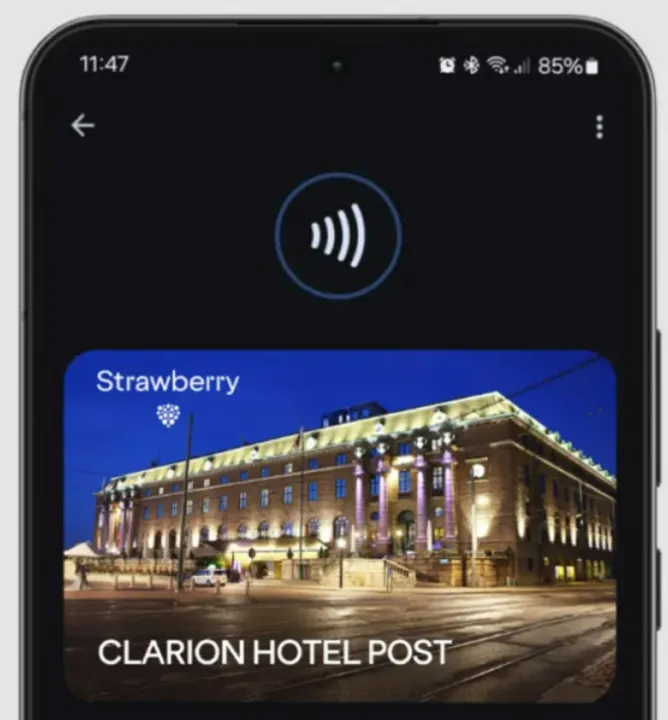
To get access to your hotel room, most hotels use key cards rather than physical keys. In increasingly modern hotels, however, you can enter your room by tapping your key card. Some hotels let visitors use Google Wallet to store hotel keys instead of a physical key card. It is now limited to Club Quarter Hotels and other random individual hotels, but we want to expand it shortly.
Corporate badges
Many company buildings require badges to enter, which increases security. You must have your badge to enter, and if you forget it, you may be permitted to use a government-issued ID or a company ID instead. To circumvent this, some buildings allow customers to save their pass to Google Wallet on their phone, either eliminating physical badges or providing a backup option. Then simply tap your phone to enter, nothing more.
One app for everything.
Google Wallet is useful for storing and using credit and debit cards, but it can do a lot more. It can also hold other goods like IDs, transport passes, gift cards, and so on.
Bank cards, tickets, passes, keys, identity cards, passports, and driver’s licenses may all be securely stored in the Google Wallet app, an advanced digital wallet.
This service, which has just been established in a couple of countries allows users to carry their critical credentials digitally on their smartphones.
Once you download the Google Wallet app, you can easily add your driving license details, ensuring quick and secure access wherever you are.
Google Wallet protects users’ ID passes, driver’s licenses, and state IDs with strong encryption and personal authentication. If your phone is lost or stolen, Google says your digital ID can be wiped remotely to prevent illegal access.
Steps to add your driving license to Google Wallet
Driving licenses are required for all drivers. Follow these steps to add it to Google Wallet:
Navigate to the bottom and tap “Add to Google Wallet.”
Select “ID” and then “Driver’s License.”
Tap “Get Started” and agree to the terms.
Scan both sides of your license.
For verification, upload your photos, including front and side poses.
Tap “Continue,” then “Done.”
Await the notification confirming the completion of verification.
This function is now only available in the United States, but it is planned to be expanded to other nations shortly. Notably, Google Wallet just launched in Pakistan, providing further ease to customers in the region.
Digital integration via systems such as Google Wallet provides a streamlined experience for keeping important papers, integrating technology with ease of use.
Android users can now add payment cards from major banks and experience features like tap-and-pay in stores, seamless online checkouts, and quick access to boarding tickets for trips.
Google Wallet is a straightforward and safe mobile wallet that can easily store anything from concert tickets to credit cards. However, what occurs if you are not within range of Wi-Fi or if your mobile data is unavailable? Is it still usable?
If you do not want to carry around a heavy physical wallet, Google Wallet can be rather useful. However, once we are out and about, we have no control over mobile signals or data connectivity. Therefore, it makes sense to be concerned about Google Wallet not working when there is no data connection.
Even if your phone or smartwatch loses data connectivity, most of its functionality will keep working. For example, you can use your bank card to make contactless payments even when your smartphone is turned off. However, you cannot add a new bank card.
Similarly, other cards and passes, such as boarding passes, event tickets, loyalty cards, digital IDs, and gift cards, do not usually include an online component for frequent use. If they are retrieved via an online service, you may require internet access to add them. Otherwise, they do not require a data connection to operate.
Digital IDs, corporate badges, car keys, health insurance cards, and hotel keys can also work offline.
However, if you are offline, Google Wallet will be unable to retrieve the most recent information about your stored cards and passes, such as loyalty point balances or updated flight timings.
Google Wallet
Safety starts with understanding how developers collect and share your data. Data privacy and security practices may vary based on your use, region, and age. The developer provided this information and may update it over time.
As previously stated, many of the cards and passes you save in Google Wallet do not have an active online component. As a result, utilizing these cards does not require the app to connect to the internet. However, payment cards work slightly differently.
When you add a bank card to Google Wallet, the app downloads a few one-time tokens from your card issuer, which effectively represent your payment card. When you pay with a contactless terminal, these codes are safely kept on your device and communicated to them. The terminal handles all the heavy lifting. It utilizes the token to communicate with the bank server and finish the transaction. So, you do not require the internet to pay using NFC because just the encrypted one-time code is transferred. This also protects the entire process from man-in-the-middle assaults.
However, if you frequently utilize contactless payments without taking your phone or smartwatch online, your one-use tokens may run out. In such a case, you will be unable to make further payments. So, if you want to continue using contactless payment without complications, make sure your smartphone is not offline for an extended period of time. Whenever your phone is online, Google Wallet refreshes its supply of one-time tokens for later usage.
Google Wallet normally saves a certain number of one-time tokens, which varies by card issuer. The number might range from roughly five to ten. Some card issuers may not support the offline payment option.
It may be better to go offline in poor network areas.
Although Google Wallet functions properly when connected to a stable internet connection, it may suffer with unstable data connections. So, if you see empty grey boxes while attempting to access the various cards or passes in your Google Wallet, your phone is most certainly experiencing connectivity troubles. The program attempts to connect to the internet to affirm the validity and other details of your inserted cards, but is unable to do so due to internet connectivity issues.
In these situations, it is best to turn off mobile data and Wi-Fi. This way, you will be able to access all of the app’s offline functions, including its main function, contactless payments. Once you have turned off mobile data and Wi-Fi, you can view and use your stored cards. This is especially useful in locations with inadequate networks.
Google Wallet is an useful and flexible tool for Android users. It has quickly become the preferred place for all of your cards, IDs, tickets, and passes.
This news item isn’t exactly one of the more dramatic ones. It’s only the most recent upgrade to Google Wallet, though. A recent report claims that the Google Wallet app is now receiving independent notifications.
Although it has a separate app, Google Wallet is not totally independent. Wallet has its own app, however it lacks its own notifications. Indeed, they originate from Google Play Services. When you use Wallet to make a purchase, you’ll receive a notification with a brief description of the transaction. Google believes that it is now appropriate for Google Wallet to go independent.
Google Wallet is getting notifications
We don’t entirely understand the company’s motivations for separating Wallet from Play Services. We do know that Google is developing a new version of the Wallet app. For all we know, Google might be developing a more significant overall overhaul for Wallet. To be sure, we’ll need to wait for additional details on this.
In any event, the Wallet icon will be there next to your notice when it comes from Google Wallet. So, you must use the app’s notifications and not Google Play Services if you wish to turn off the notifications.
Google Wallet is receiving additional updates.
You need to be aware of how Google Wallet uses space before you open it. The app has a great deal of unneeded empty space. The cards are shown in a huge horizontally scrolling carousel that is topped with a sizable NFC icon. You may access the settings by clicking on your profile image in the top right corner of the page. You can see more cards at the bottom of the screen.
Google, however, intends to promote a redesign that will improve the UI’s use of the available space. To begin with, the NFC logo will vanish, and your cards will take its place. You may see your other passes, such as gift cards and reward cards, immediately beneath your cards.
All in all, the cards and passes will better fill out the interface. We’re not sure when Google is going to push this update to more devices, but it shouldn’t take too much time.
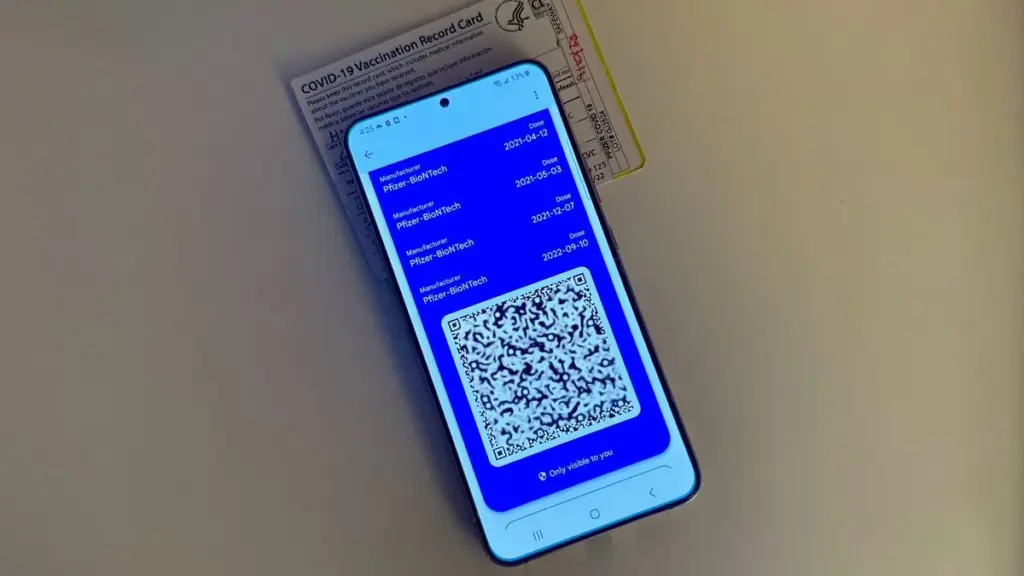
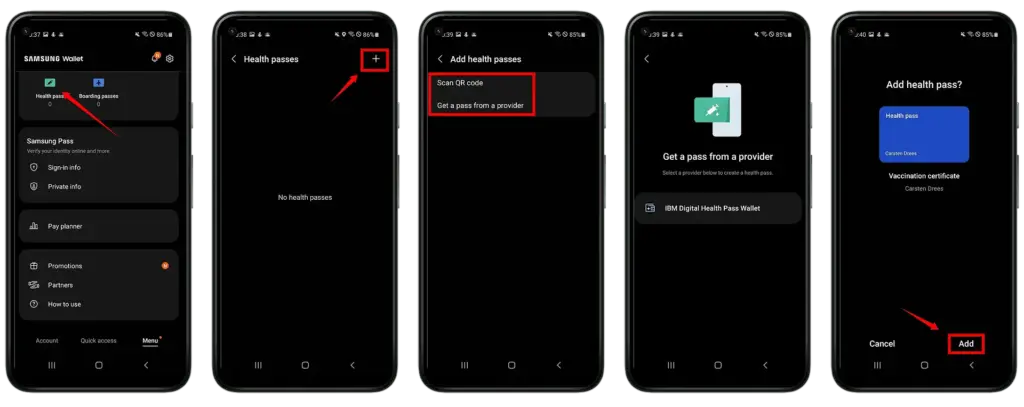
For Galaxy devices, the Samsung Wallet is the ideal way to save all of your credit cards, loyalty cards, and other cards in one location. However, did you know that you may save your immunization record here as well? You can see how it functions in this brief tutorial from Droid Tools.
If you frequently travel, you are aware of the problem: Each nation on the planet, and even certain states, has its own method for showing the status of vaccinations on mobile devices. Particularly if you currently use wallet apps to store credit card information and the like, practical solutions for keeping immunization passes include Samsung Wallet. Let me quickly go over everything you need to do.
Then select whether you want to scan a QR code or receive a pass from a provider. (The latter currently only works with the IBM Digital Health Pass Wallet).
Scan the QR code of your proof of vaccination, or select a screenshot of the code.
Confirm the process at the bottom right by clicking Add.
That’s it! From now on, all you need is the Samsung Wallet app to prove your vaccination status. If you open the Health Passport there, the QR code is displayed together with your name, date of birth and vaccination history.