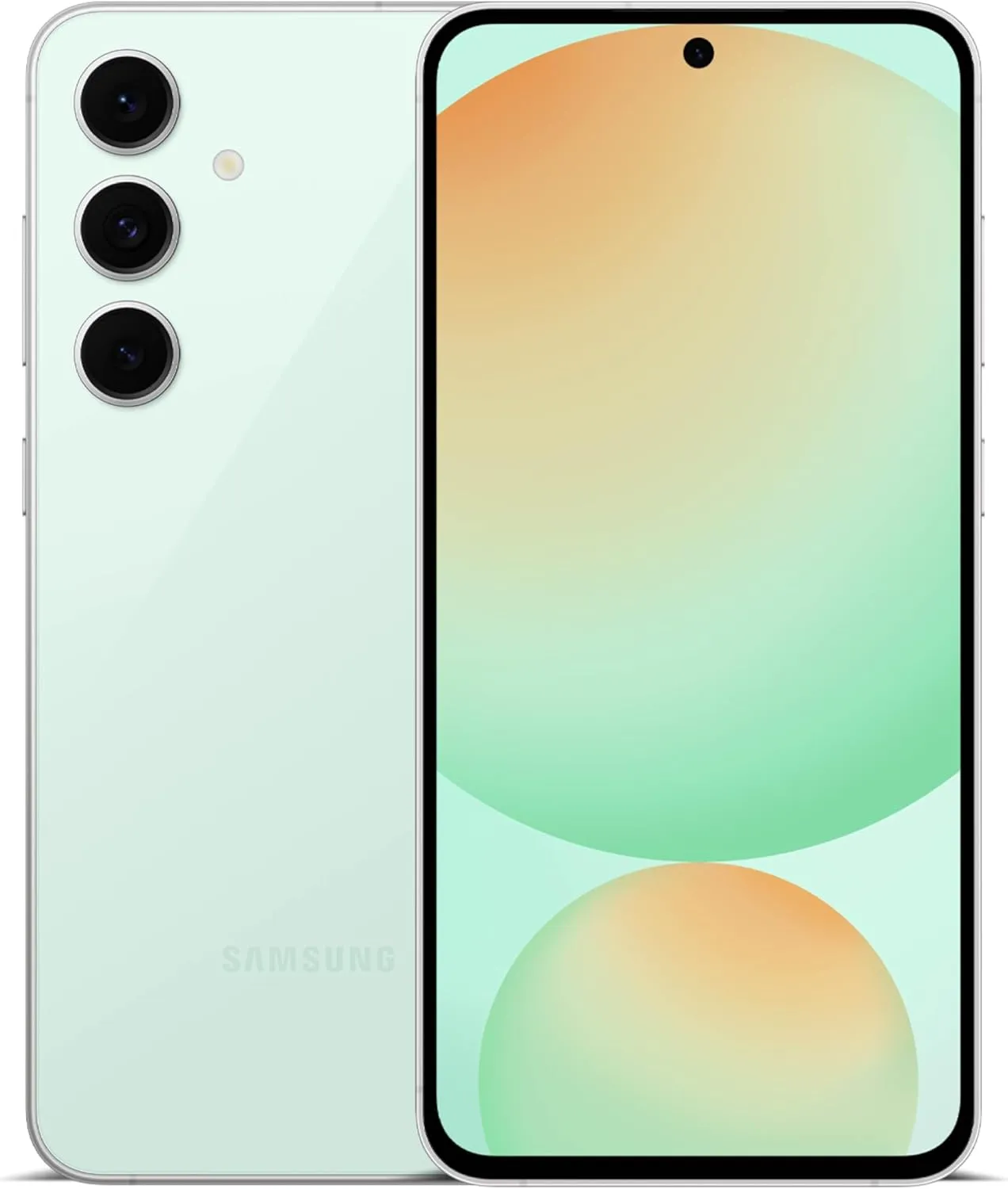
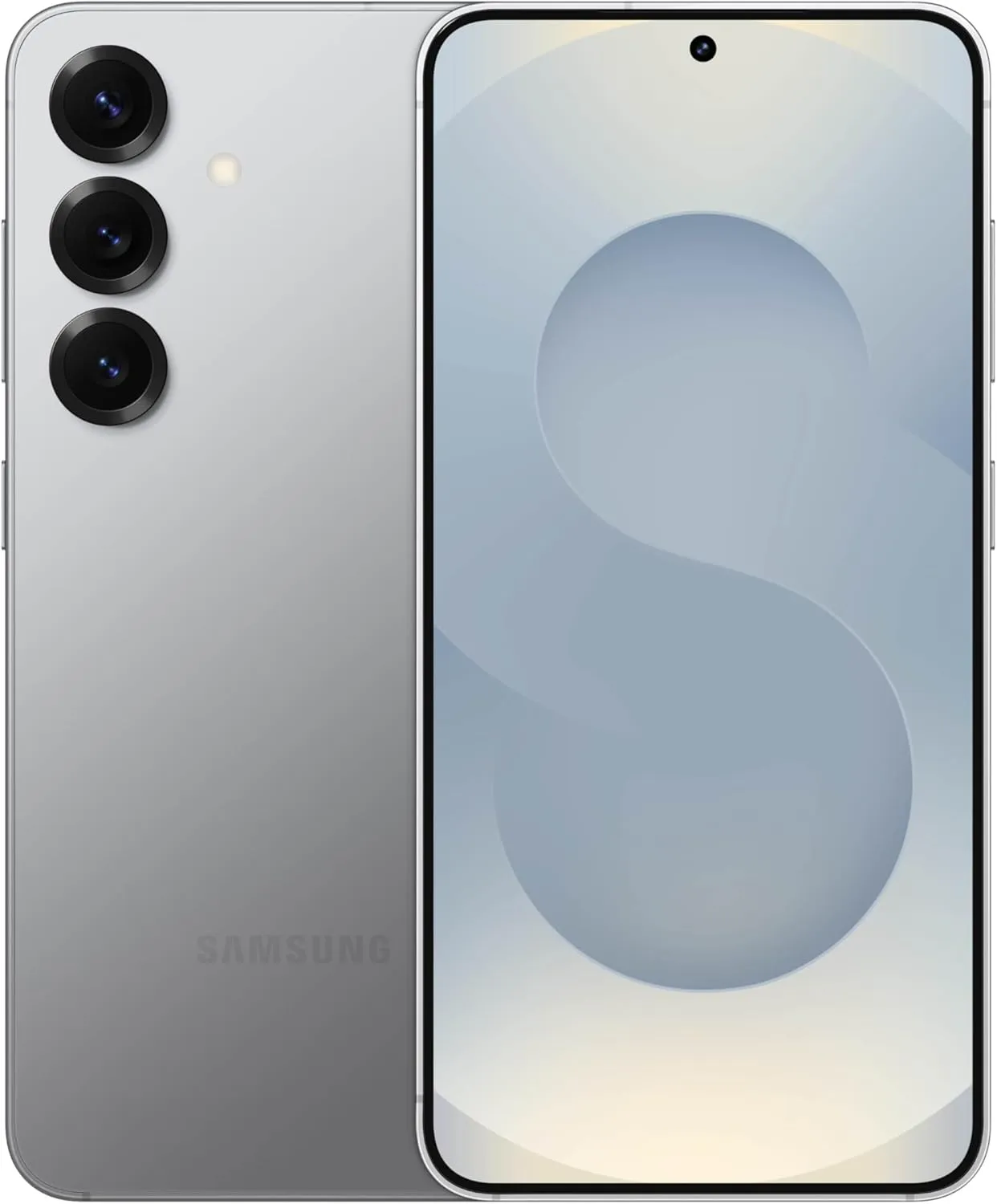
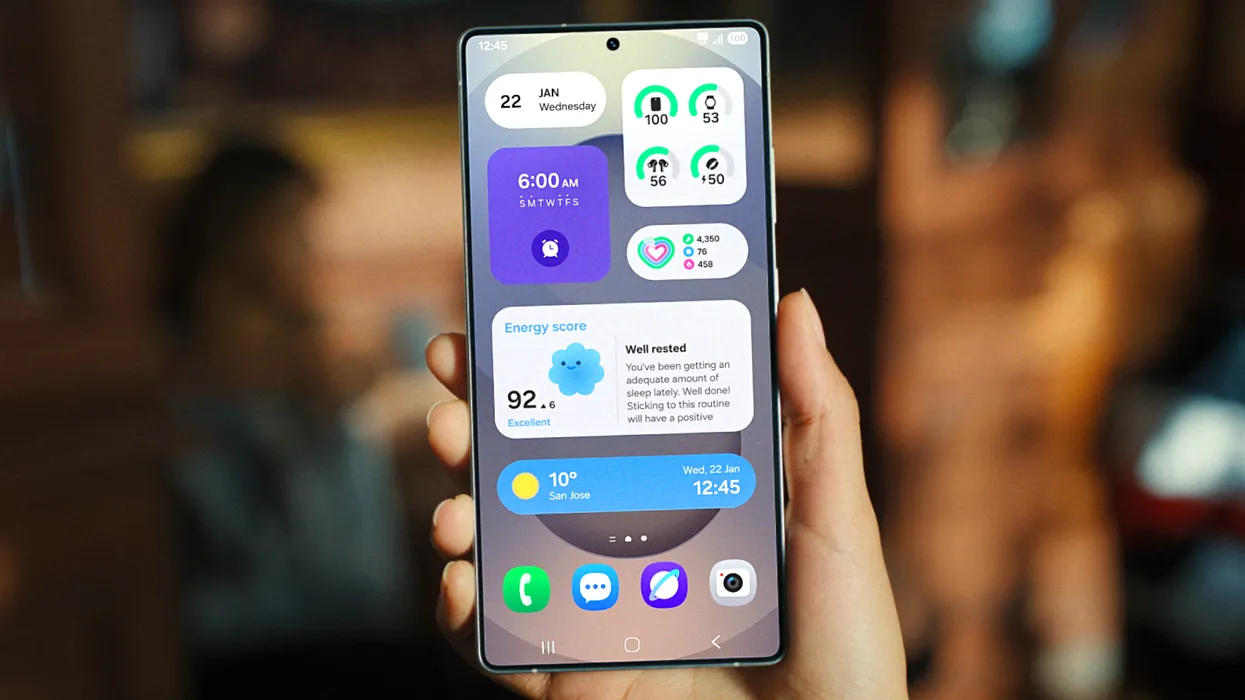
Samsung devices include a power-saving mode; while this feature is similar to all smartphones around the world, One UI 7.0 makes it more customisable.
Android and iOS smartphones have had a power saving mode for some time, but you may only be able to enable or disable it. Smartphones, by default, limit background processes such as network usage, synchronization, and location, as well as reducing the high refresh rate to 60 Hz, and you may not be able to adjust the power saving mode.
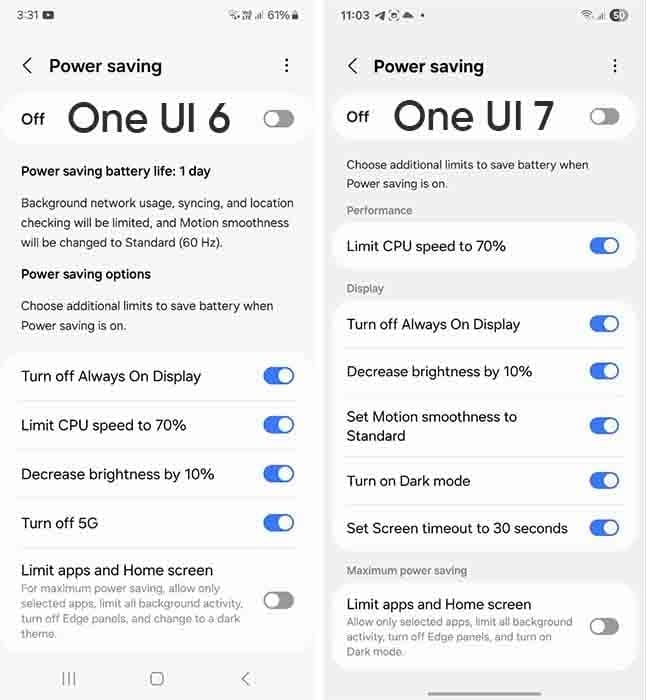
However, Samsung devices provide you with more control over this capacity due to extra limitations. This power saver can be enabled from either the fast settings panel or the battery settings. Additional power-saving settings from One UI 6.x are listed below:
Turn off Always on Display
Limit CPU speed to 70%
Decrease brightness by 10%
Turn off 5G
Limit apps and the Home screen
You can control these options with the toggle button in front.
Moving on, One UI 7.0 device users will now see three additional power saving limits, including:
Set motion smoothness to standard
Turn on Dark mode
Set screen timeout to 30 seconds
The refresh rate was previously deactivated automatically during power saving mode, but you can now set its limits. Similarly, Dark mode and screen timeout help to conserve power.
If you wish to maximize power efficiency, enable “Limit apps and Home screen”. It only permits certain apps, restricts background activity, disables Edge panels, and activates Dark Mode.
If you do not want to employ any of these additional power-saving features, you may click the toggle button to return to the system’s normal power usage restrictions. When you disable the high refresh rate option, the 70% CPU limit is reduced automatically. Additional power-saving limits can be found in Settings > Battery > Power saving.
There is no sugarcoating it. Samsung botched the deployment of One UI 7 on the top Galaxy phones. Still, it is one of the most significant redesigns in One UI history, adding an unmatched level of polish to the company’s appearance. You have surely heard about the Now Bar and the huge Galaxy AI improvements in One UI 7, but here are several tiny, underappreciated updates you might have overlooked.
Double-tap playback controls in AOD
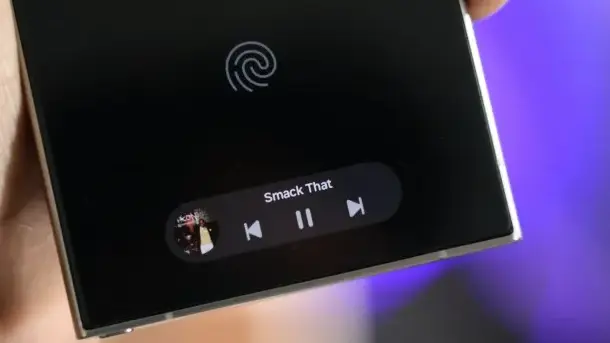
Now Bar is one of the significant new features in One UI 7, promising to provide relevant information at the right time. It also works with Always-on Display, displaying softly at the bottom. This is not the only way Samsung enhanced the Always-on Display with One UI 7. You may now control media playback via the Always On Display (AOD).
If you lock your Galaxy phone running One UI 7 while media is playing, the playback controls show at the bottom of the Now Bar. A single tap does nothing, but double tapping the playback controls will play, pause, or skip the current song or movie.
When you double-tap the album art, an expanded view of the media player appears, complete with larger controls and the ability to adjust media output.
Vertical app drawer
One UI 7 introduces a vertical app drawer to the One UI launcher. The option was included in One UI 5 and earlier releases, however it was deleted with Samsung’s Android 14-based One UI 5 update. The business promised to bring back the vertical app drawer with One UI 6.1.1, however this never happened.
If you have hundreds of apps installed on your Galaxy phone, a vertical app drawer will help you to easily swipe through them. In true Samsung form, there is an anomaly in how the feature was implemented.
Samsung does not specifically refer to it as a vertical app drawer. Instead, open the app drawer, hit the overflow menu button in the lower-left corner of the search bar, and choose Sort, then Alphabetical order. This converts the app drawer to a vertical style and organizes apps by name. You cannot move apps in this view, but you may position them within folders. Folders are located at the top, followed by applications and games.
A useful feature of the vertical app drawer is the addition of a fast-scroll bar on the right, which allows you to swiftly skim through and jump to any portion of your app list. The Home Up Good Lock module, which was updated with One UI 7, allows for more customisation of the home screen and app drawer.
Quick switch between the notification panel and Quick Settings
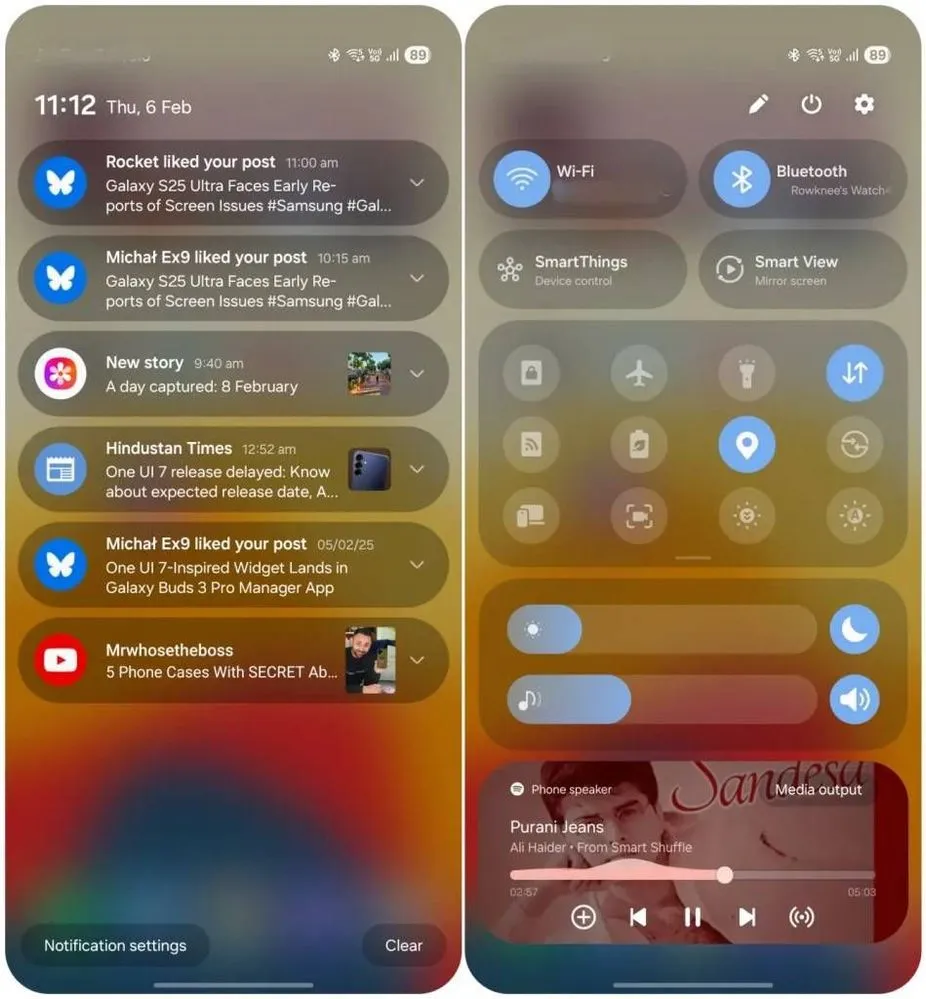
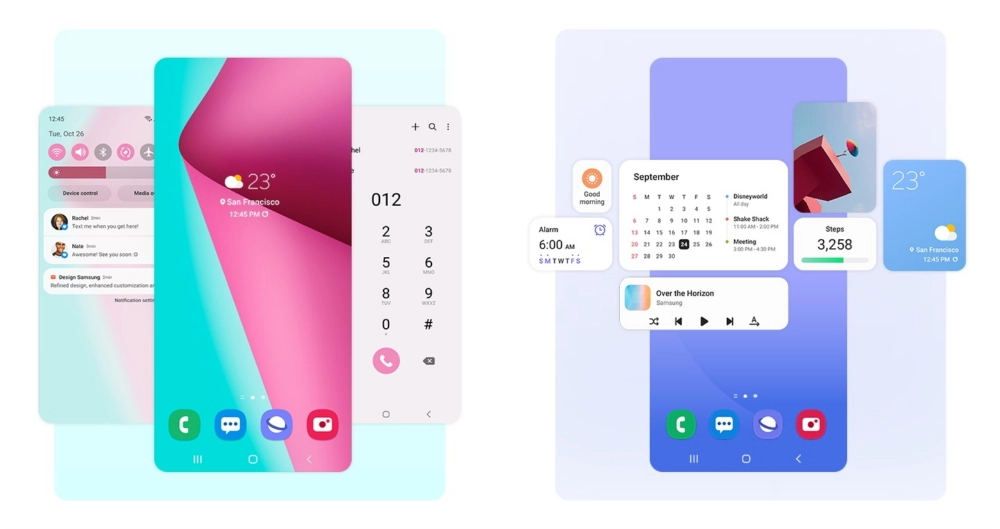
Samsung used an iOS-like approach with One UI 7, separating the notification panel and Quick Settings into two sections. You can return to the former One UI 6-like layout, but sample this adjustment for a few days before making a decision.
Compared to Apple’s distinct Quick Settings and notification panel design, Samsung’s method has one significant advantage. Swiping between the Quick Settings panel and the notification shade allows you to rapidly move between them. The same is true for phones from Xiaomi, Oppo, and OnePlus, all of which have long used separate Quick Settings and notification panels.
Although Samsung was not the first to market with the idea, it made care to include a helpful change in One UI 7.
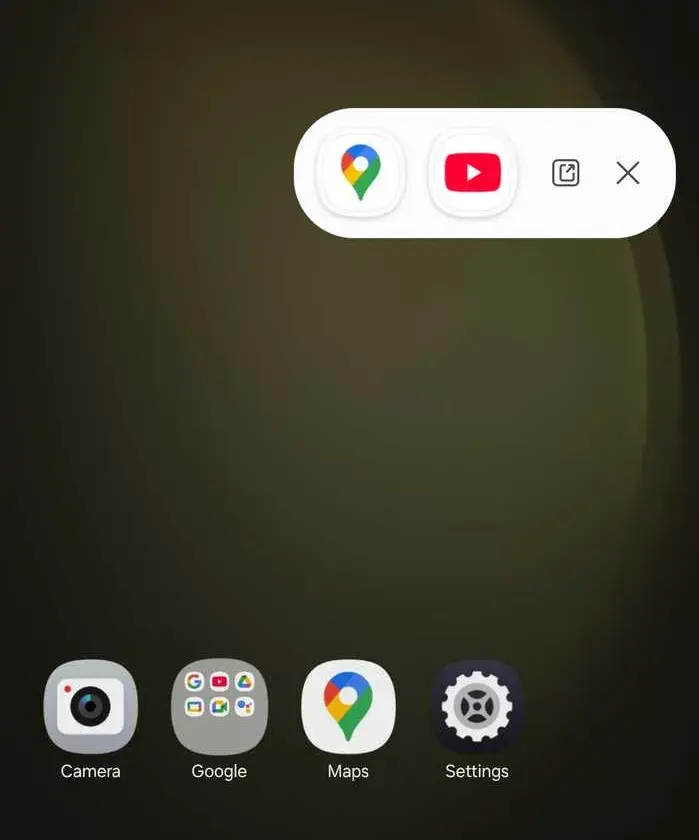
Minimized pop-up apps group together
Samsung’s Android skin includes a variety of useful multitasking capabilities, including the option to run programs in a pop-up view. This allows you to run many programs simultaneously and minimize them into a floating shortcut. When you minimize numerous apps in pop-up mode, your Galaxy phone’s display may appear cluttered.
One UI 7 solves this problem by grouping the floating shortcuts of all minimized programs. Even better, there is a shortcut for launching all minimized apps at once. If you do not frequently utilize pop-up view multitasking on your Galaxy phone, you may disregard this as a minor modification. If you rely significantly on it, you will benefit from this modification.
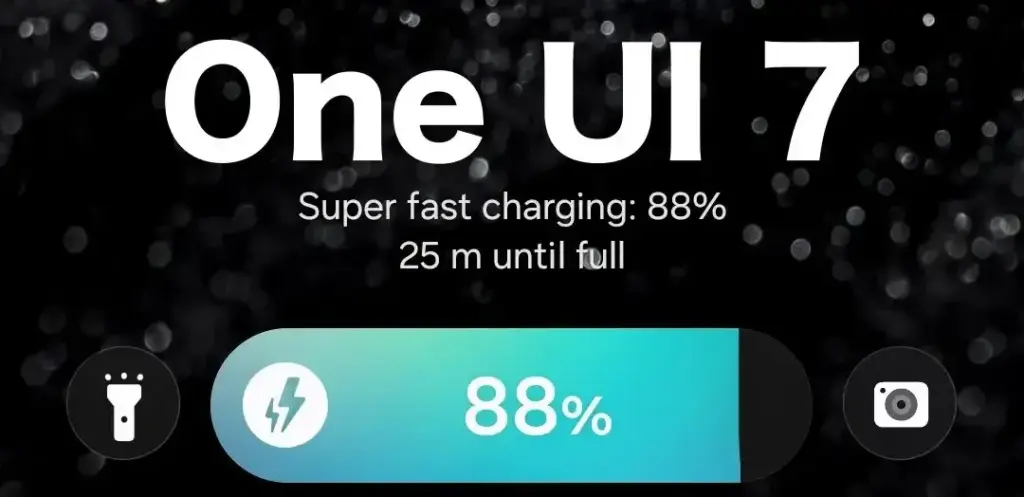
New charging animation
Samsung’s work with One UI 7 is evident, from the smooth system animations to the general fluidity. The experience rivals iOS in polish and feels substantially better than other Android skins. You will not encounter sporadic lags or stutters. The new charging animation demonstrates Samsung’s attention to detail in One UI 7.
If you put in your Galaxy phone to charge when the display is turned off, a charging pill with a slick animation appears at the bottom, where the Now Bar resides. It does not appear in extreme brightness, but rather in a dimmed state. When you are in a dark room, the phone automatically adjusts the brightness to make it even darker. The charging information can be displayed even when the screen is turned off.
One UI 7 is really improved
Samsung’s Android skin offers a feature-rich experience, including useful multitasking options. Still, it felt like One UI lacked the polish and attention to detail that Pixel UI and iOS possessed.
With One UI 7, Samsung steps up, demonstrating that when it wants to, it can create a professional and well-rounded Android experience while correcting some of its long-standing faults. So it is sad that the focus on One UI 7 is primarily on its rollout delays, rather than the polish and enhancements it delivers.
Samsung’s One UI 7 is now my favorite Android skin. It is quick, responsive, and simple. However, nothing is pre-programmed for your specific experience. You should personalize your smartphone to make it more appealing. I modify about a dozen settings on each Samsung Galaxy phone to better fit my needs, and I believe these will improve your user experience as well.
Here are some OneUI settings that I recommend adjusting to improve your Galaxy phone experience, ranging from selecting the highest attainable screen resolution to adding extra privacy-focused features. Please be aware that some settings may be phone-specific.
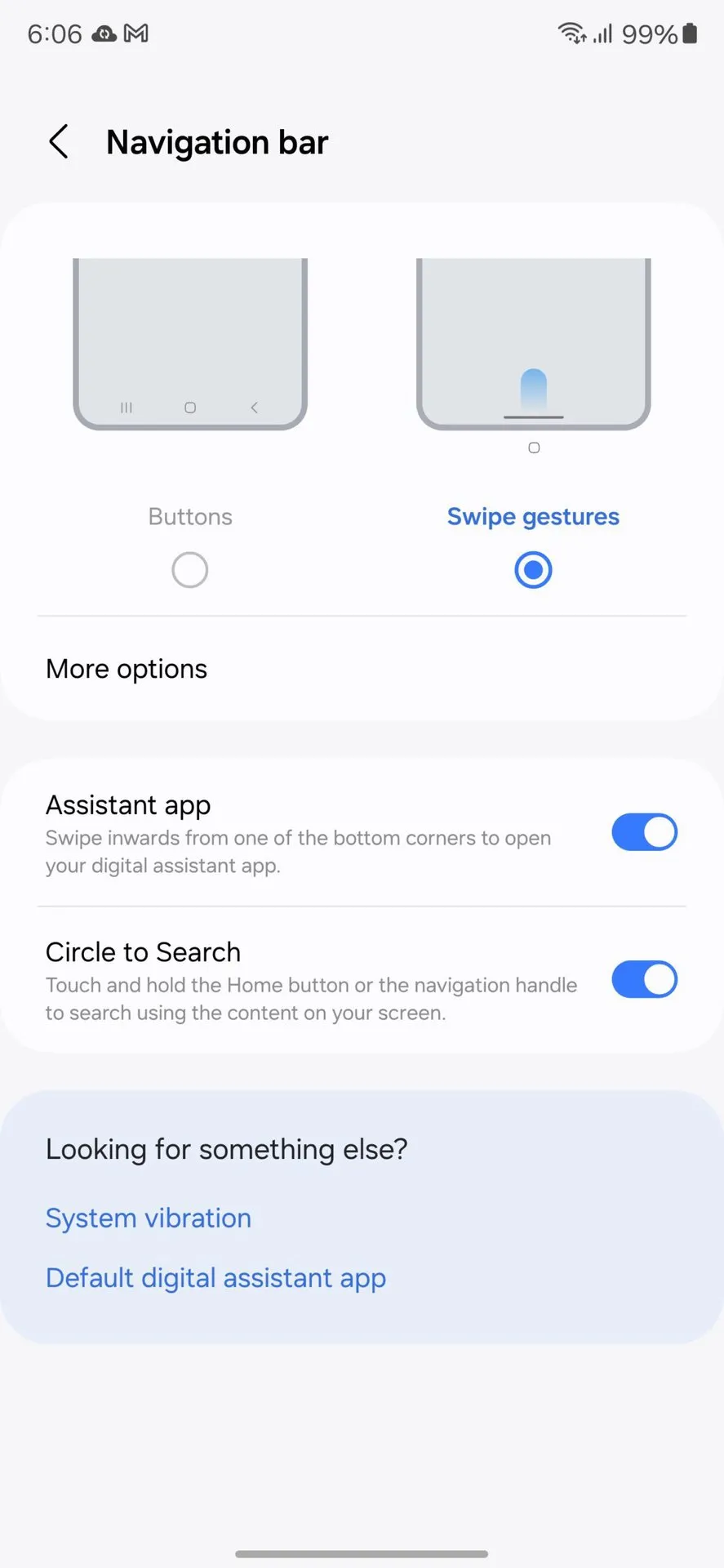
Switch to gesture navigation
Unless you are setting up your new Samsung Galaxy phone from an older model, it will use the outdated three-button navigation mechanism. If you enjoy it, that is OK. However, I find Android’s gesture navigation more intuitive—everything is a swipe away rather than an on-screen button.
If you want that, you can change the system navigation to gestures by going to Settings > Display > Navigation bar > Swipe gestures.
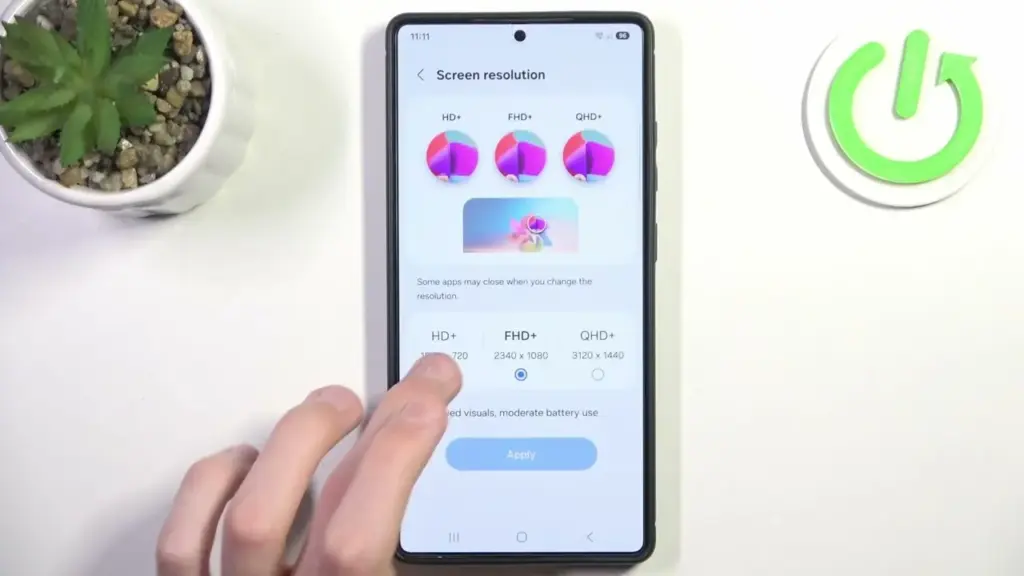
Set screen resolution to high – QHD+
The Samsung Galaxy S25 Ultra boasts the finest smartphone display available right now. It is less reflective and has better color display than its predecessor, thanks to second-generation Gorilla Armour. You have a great QHD+ screen, but it is not set to that resolution by default.
To have the best possible viewing experience, navigate to Settings > viewing > Screen resolution. The Ultra will consume more battery, but it is an efficient smartphone. Even after maxing out the screen resolution, I still have an all-day battery life.
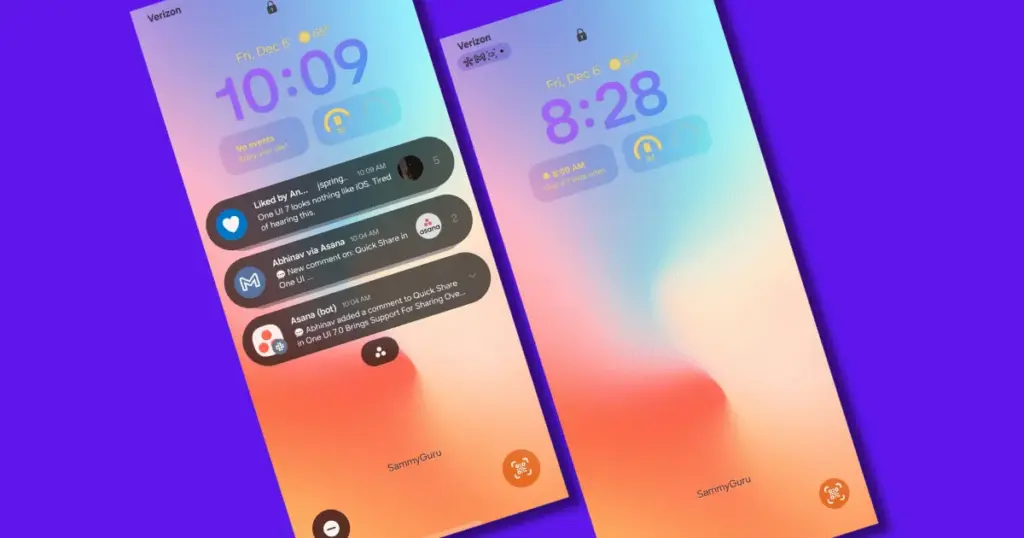
Adjust the lock screen notifications.
One UI 7 has modified the way notifications appear on your lock screen. It is set to display icons in the top left corner by default, which is a significant departure from the prior card view. I prefer that apps display notifications in the latter way. To modify this, navigate to Settings > Notifications > Lock screen notifications > Cards.
I also hide important notification content on the lock screen since I do not want anyone walking up to my phone and reading my personal communications. To modify this setting, select Hide content from the same Lock screen notifications menu.
Uninstall the bloatware
Samsung Galaxy phones provide numerous apps that you may not utilize. Unlike prior years, you may now remove or disable them to conserve memory. For example, I do not own a Samsung TV and do not want the Microsoft CoPilot app on my phone, so I uninstall both TV and CoPilot. Other programs that I disable or uninstall include Facebook, Samsung Tutor, and OneDrive.
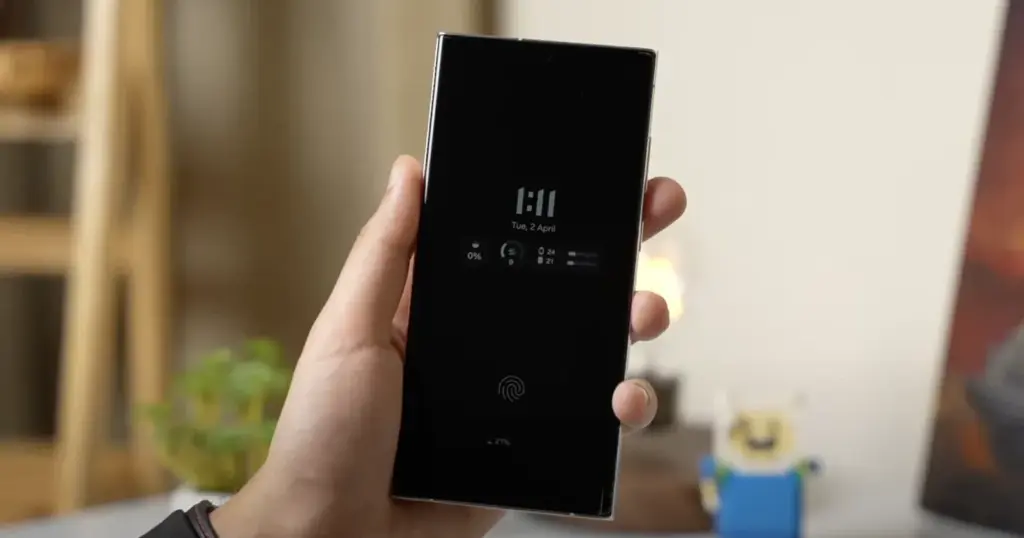
Always-on display
Samsung phones have efficient screens; make the most of them by enabling everything, including the Always On display. I enjoy having the time, day, and date information there on the screen, accessible at a look. Samsung defaults to the Tap to see setting, which requires you to tap on the screen to access information.
I recommend altering that to Always to make it more useful. Navigate to Settings > Lock Screen and AOD > Always-On Display > Always. You may select whether or not to display the wallpaper; I have set it to only display a black screen to save battery life.
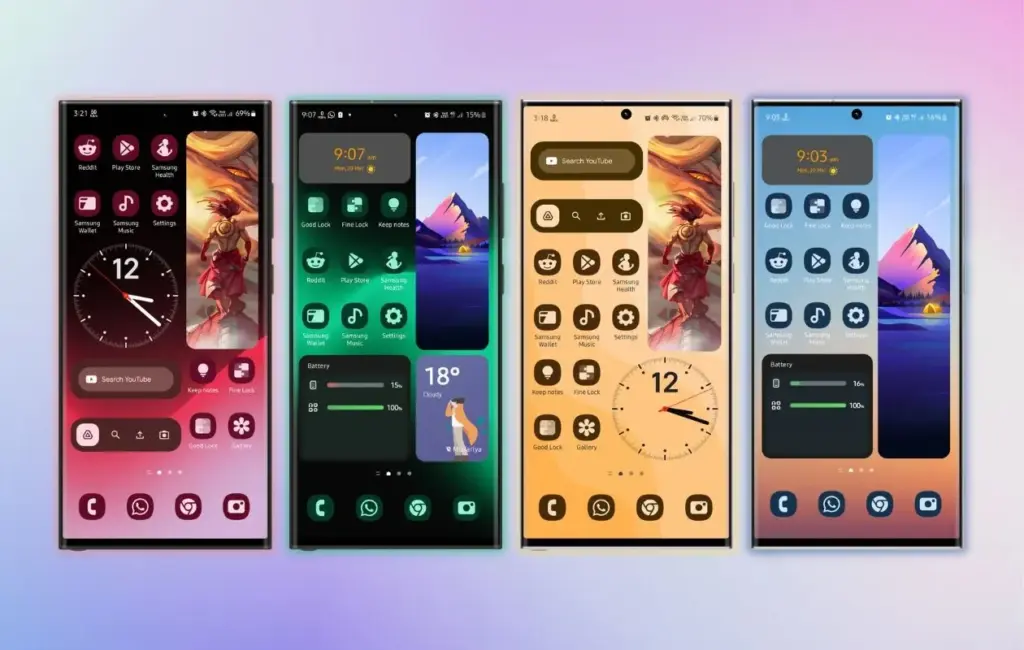
Homescreen customization
Samsung’s phone widgets are among the best available. I enjoy the Calendar widget since I can change the transparency. As a consequence, it looks nicer and retains functionality while preserving the structure of my home screen. I set it at the top so that everything is just a glance away, but it never asks for attention, unlike other opaque Calendar widgets.
Also, change the icon grid to a 5×5 layout to permit more icons in the bottom row. They are only a thumb tap away. In addition, I apply my wallpaper color tones to the program icons for a more appealing appearance. To apply wallpaper colors to the entire system, navigate to Wallpaper and Style > Color Palette and turn it on. It is not flawless, and some icons may still be unsupported. However, it appears better than the standard colors.
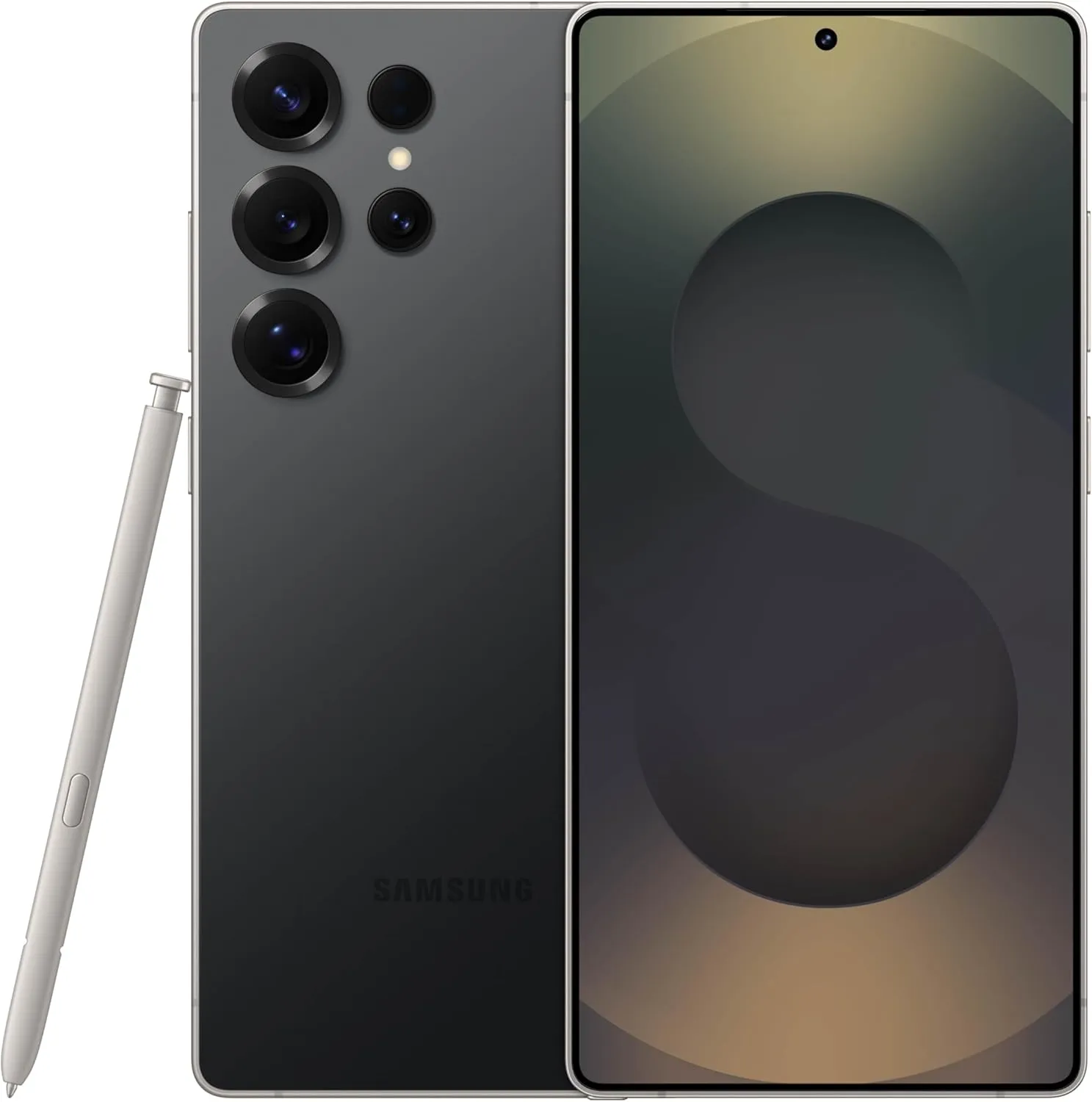
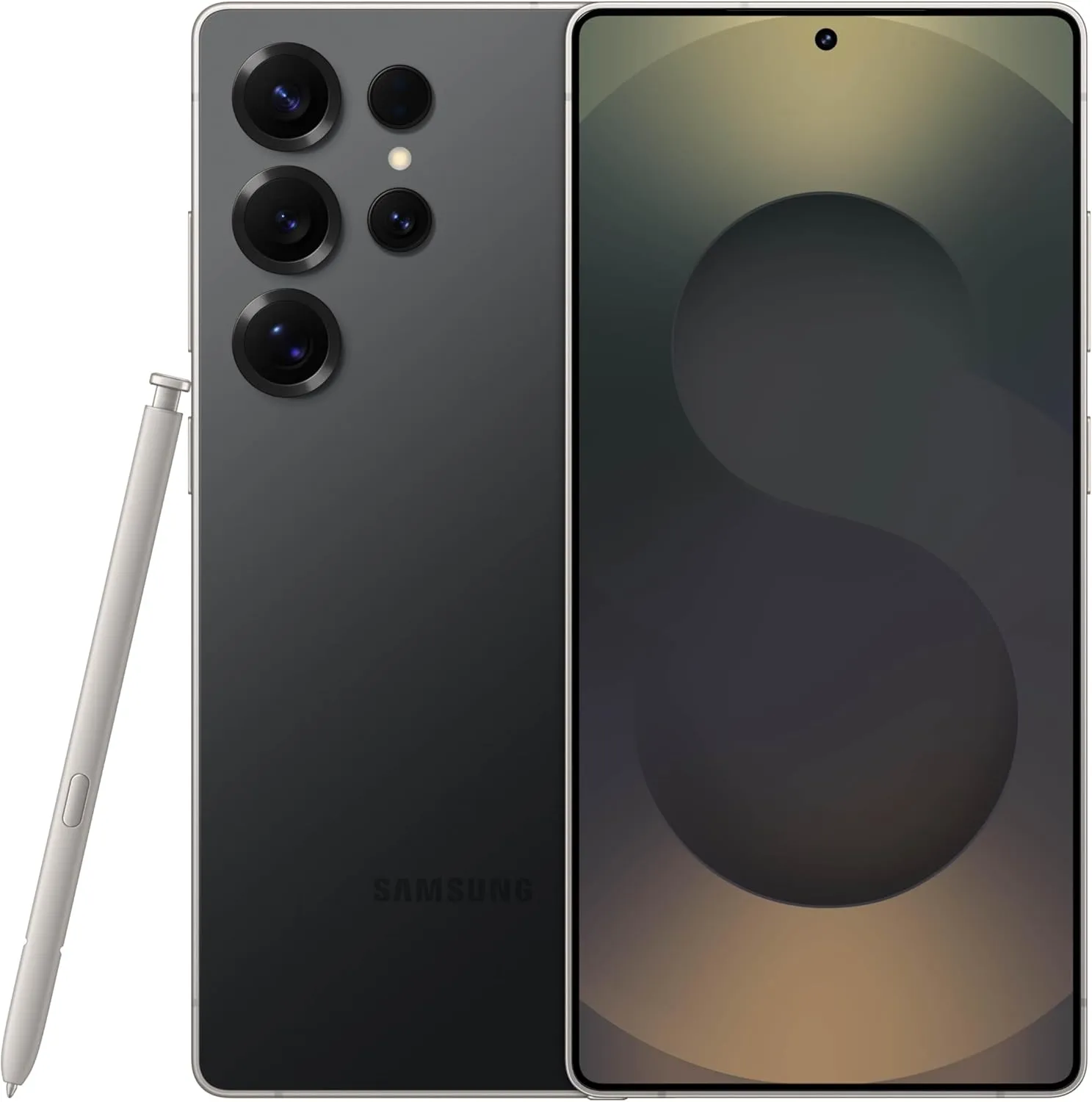
SAMSUNG Galaxy S25 Ultra
Streamline your day with an assistant that gets you. Ask it to Google search for a pet-friendly vegan restaurant nearby and text it to your friend— your Galaxy S25 Ultra handles multiple tasks with a single ask.
Other things I do on my Galaxy phones include switching to Google Keyboard and organizing the home drawer icons alphabetically for easier navigation. Samsung phones are among the best on the market. While they do not promise groundbreaking features, they are dependable and provide the most refined user interface with One UI. Simply modify these few options, and you will be all set.
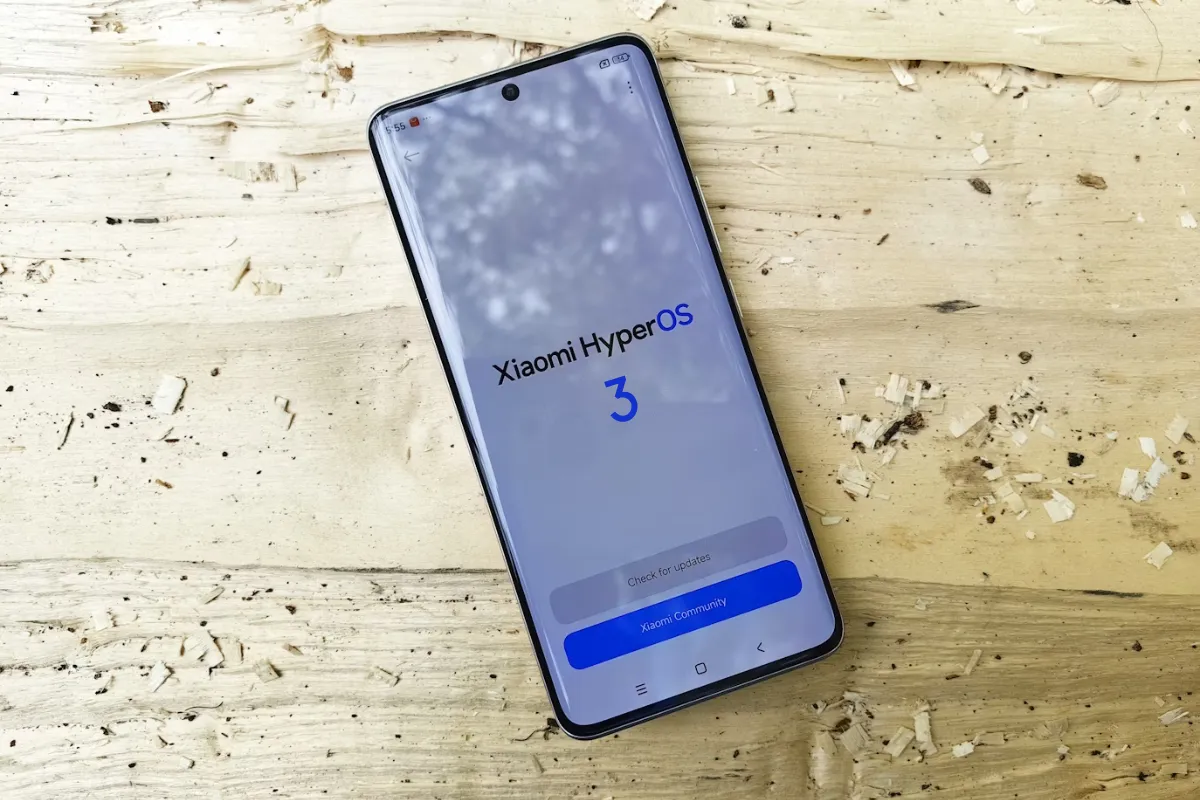
Xiaomi’s impending HyperOS 3 could challenge Apple’s decade-long interface dominance, following extraordinary stability improvements in HyperOS 2 and subsequent updates. After addressing stability issues in MIUI and HyperOS 1, Xiaomi improved the user experience with HyperOS 2.1 and 2.2, paving the way for a significant competitive advantage with its next-generation interface.
Android 16 foundation and release calendar
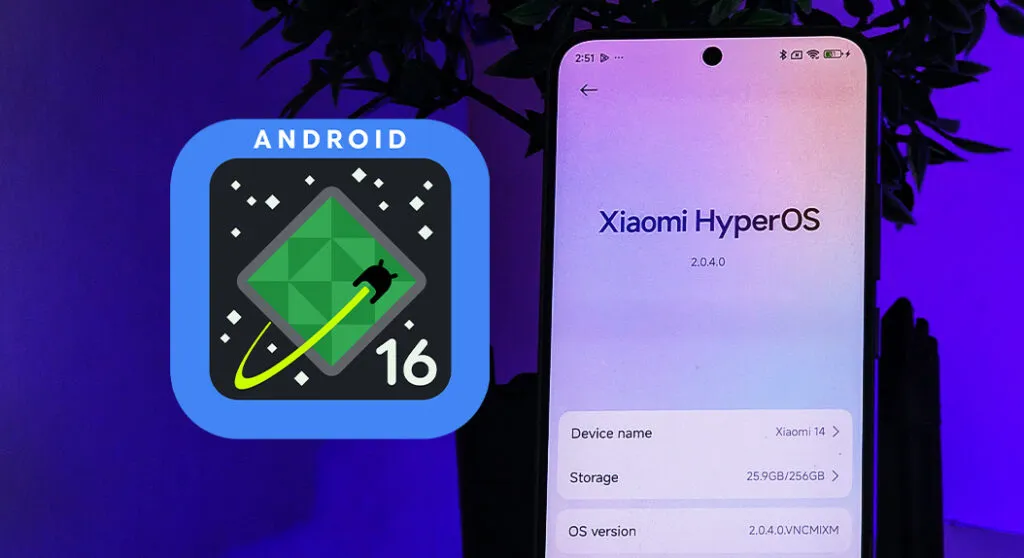
HyperOS 3 will primarily be based on Android 16, with select devices receiving an Android 15 version. By doing so, Xiaomi hopes to standardize the software experience across its wide portfolio of devices while ensuring that everyone receives the most recent UI innovations.
According to industry sources, Android 16 is scheduled to be released in the second quarter of 2025, which coincides nicely with Xiaomi’s usual October software release timetable. The schedule would allow Xiaomi’s development team plenty of time to implement Android 16’s core features while also adding their own tweaks and improvements.
What is particularly noteworthy about HyperOS 3 is how Google’s proposed design philosophy for Android 16 corresponds to visual signals traditionally associated with Apple’s iOS. Google is apparently working on a major interface makeover that will make extensive use of blur effects throughout the system UI – a visual approach that has been a hallmark of Apple’s design language for many generations.
This convergence offers a unique opportunity for Xiaomi since HyperOS 3 can potentially offer:
Greater visual depth with sophisticated blur effects
Intuitive layering of interface elements more
Improved visual hierarchy that aids usability
Smoother animations that are more natural and responsive
Greater visual consistency across the entire system
The fact that HyperOS 3 is being released at a time when the iOS interface is quite stable presents a chance for Xiaomi to overcome the perception gap between Android-based devices and Apple’s ecosystem. By combining Google’s core interface enhancements with Xiaomi’s performance optimizations and design sensibilities, HyperOS 3 has the potential to become the new benchmark for Android interfaces.
To Xiaomi users, this evolution represents the continuation of a favorable trend that began with HyperOS 2’s emphasis on stability and performance. The progressive modifications in successive releases have laid a firm foundation for HyperOS 3, allowing it to give both aesthetic polish and functionality advancements without sacrificing the stability to which customers have grown used.
Every year it appears as though Asus has regained its position as the ruler of gaming smartphones, and this year is no different. The flagship ROG Phone 6 Pro for gamers offers the best mobile gaming experience, but it also costs €1,299 (about $1,300 with taxes in the States). Is this astronomical price justified? In this comprehensive examination of the Asus ROG Phone 6 Pro, I offer you my assessment.
On July 5, 2022, the Asus ROG Phone 6 Pro was introduced in France, and pre-orders for the device began on August 1. It is available in a single 18/512 GB version that costs about $1,300 (plus taxes, of course).
We concur that your wallet will suffer as a result. With the same storage, it is less expensive than the Samsung Galaxy S22 Ultra ($1,400) and the iPhone 13 Pro Max ($1,690).
I don’t think it’s wise to get a smartphone that pricey and specialized. On the other hand, the ROG Phone 6 Pro unquestionably provides the industry’s greatest gaming experience in 2022. And when you take into account that many of its features and advantages are present on the entry-level ROG Phone 6, which begins at
Design
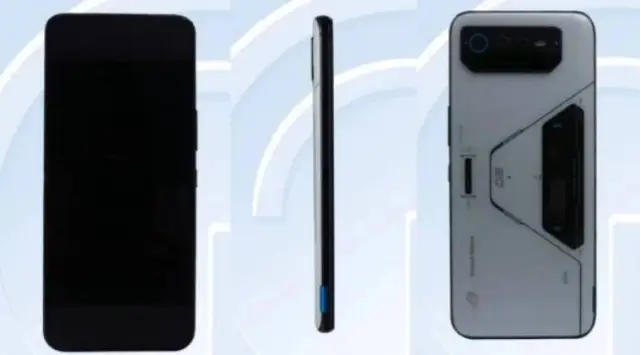
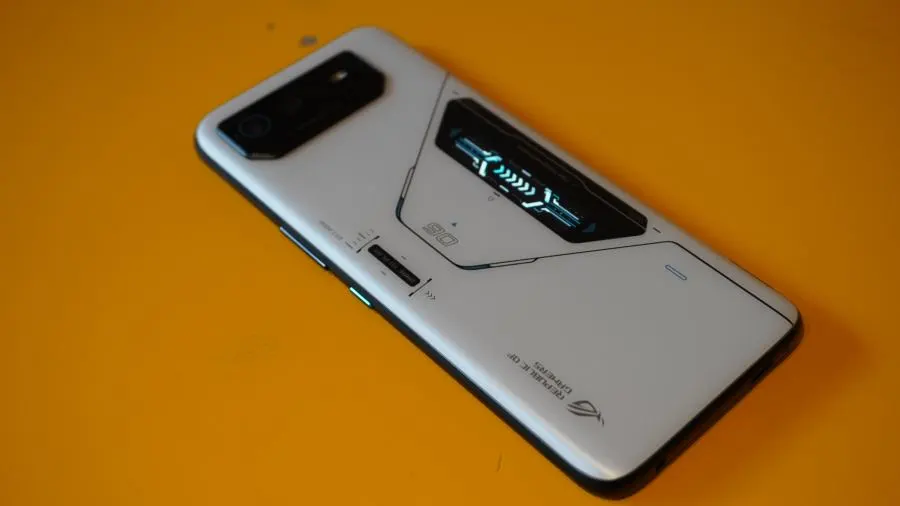
The Asus ROG Phone 6 Pro has a futuristic design evoking the fuselage of a spaceship. It features backlit LEDs as well as a small PMOLED add-on display on the back.
Pro:
Great Storm White color scheme with matte finish.
The small screen ROG Vision is a nice gimmick.
3.5 mm jack and finally an IPX4 rating.
The haptic triggers are always so responsive.
Cons:
Massive form factor and bulky weight.
No microSD port.
Storm White is the only shade of white available for the Asus ROG Phone 6 Pro. Black and light blue metallic screen prints contrast with the matte glass surface, which is very pleasant to the touch. The words “Dare to play” are written on a small backlit LED that is located on the rear. The tiny ROG Vision PMOLED display, which is located directly beneath, shows 60 contextual animations (time, notifications, etc). It’s gimmicky, but cool nonetheless, and that’s all that counts.
You can of course disable all of this to preserve your battery. The camera module is slightly off-center on the left but remains centered enough while not sticking out too much to prevent the smartphone from feeling wobbly when laid flat. The screen of the ROG Phone 6 Pro is quite flat with 2.5D edges and the grip is frankly good despite its massive dimensions of 173 x 77 x 10.3 mm and its weight of 239 g.
The ROG Phone 6 Pro boasts an IPX4 grade for water and dust protection for the first time. A 3.5 mm jack is also included, which is always a delight. To increase the storage, however, there is no microSD connector. The Corning Gorilla Glass Victus on the front and Gorilla Glass 3 on the rear of the ROG Phone 6 Pro provide protection.
Asus is also one of the few manufacturers that understands that a USB-C cable is the enemy of mobile gamers because it hinders the grip when holding the smartphone in landscape mode. That’s why the manufacturer offers two USB-C ports, one on the bottom cross slice (USB 2.0) and one on the left side slice, at the bottom in landscape mode (USB 3.1).
Finally, we find the classic haptic triggers (called Air Triggers) that are still as responsive and offer more possibilities for your touch controls.
Screen
he Asus ROG Phone 6 Pro packs a 6.78-inch Amoled display with a Full HD+ resolution of 2400 x 1080p with a variable refresh rate of up to 165 Hz, a touch sampling rate of 720 Hz and a maximum brightness of 1200 nits.
Pro:
The refresh rate goes up to 165 Hz.
Colorimetry well calibrated by default.
Response time of 1 ms and touch latency of 23 ms.
Cons:
The refresh rate not adaptive enough.
The 720 Hz touch sampling rate is a bit weak compared to some competitors.
The ROG Phone 6 Pro’s Amoled screen is ideal for gaming and multimedia use. To the unaided eye, the standard colorimetry is extremely accurate. The display has a 1ms response time (the time it takes for a pixel to change color) and a very low touch latency of 23ms. It is also HDR 10+ certified. This delay, when coupled with the 720Hz touch sampling rate, enables extremely responsive touch controls.
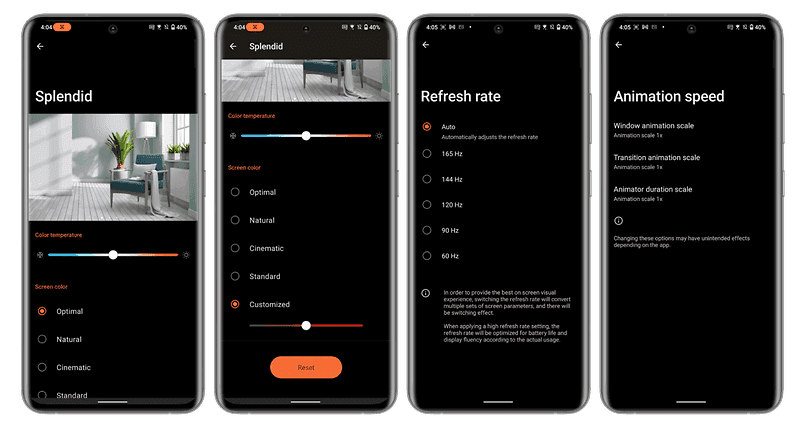
The refresh rate is adaptive, but Asus has not integrated the LTPO 2.0 technology. So it doesn’t vary much according to the different usage scenarios you can subject it to. By default, I was stuck at 120 Hz in the interface, even when I wasn’t touching the screen. On YouTube, I never went above 60 Hz, no matter what the framerate of the video in question was. And in games, I had to activate the X mode to go from 120 to 144 Hz.
By the way, oddly enough, I could only force the settings to 165 Hz by turning off auto refresh rate. Stranger still, when I turned on the X mode, which is supposed to improve performance, I automatically dropped back to 144 Hz.
In fact, Asus seems to voluntarily block the refresh rate at 144 Hz with the X mode. Maybe the manufacturer thinks that 165 Hz is not very useful since no game runs at 165 FPS and it is better to keep performance to allocate to other tasks. But this is quite counterintuitive.
UI – based on Android 12 and X mode
The Asus ROG Phone 6 Pro runs on the ROG UI overlay, a gaming version of ZenUI, Asus’ Android 12-based interface, and the manufacturer promises a fairly limited update policy.
Pro:
ZenUI and ROG UI are lightweight Android interfaces.
Android 12 features are well implemented.
The Armoury Crate menu is as complete as ever.
The ability to switch between ROG UI (gaming design) and ZenUI (more sober design) very easily.
Cons:
The too limited update policy.
Some bloatware (Facebook, Instagram, Messenger, Netflix).
The ROG UI is a customized and gaming-oriented version of ZenUI, Asus’ overlay based on Android 12. This interface is basically very light and close to stock Android. Asus has implemented the dynamic themes of Android 12 as well as the Privacy Dashboard.
And, apart from a few typically gaming stylistic effects on the icons and wallpapers, ROG UI does not push the envelope too far and remains quite sober.
Asus also offers a very basic update policy, guaranteeing only two major Android versions and at least two years of security updates.
The highlight of ROG UI is still the Armoury Crate menu, which allows you to manage the different performance modes: X mode, balanced mode and ultra durable mode. The X mode is the one that allows you to boost all the performance to concentrate the computing power of the CPU and GPU, the allocation of RAM, and your network to the game.
The Game Genie pop-up pane lets you control the refresh rate, enable haptics, control the strength of the external fan, and display specific information like the phone’s temperature or framerate in real time. It also lets you rapidly access many in-game settings.
Nothing very groundbreaking, but this menu is still pretty comprehensive. And the ability to separately create presets for each of your games is really nice. Additionally, you may turn on several filters and features to enhance graphics and, in particular, alter the thermal throttling threshold to push the smartphone as far as you want.
Asus really wants to give the user a level of control and performance customization that comes close, admittedly, to what you can do on a PC. And I think that’s great.
Performance
The Qualcomm Snapdragon 8+ Gen 1 SoC and Adreno 730 GPU, along with 512GB of UFS 3.1 storage and 18GB of LPDDR5 RAM, power the Asus ROG Phone 6 Pro. Additionally, Asus updated its GameCool cooling system.
Pro:
X mode really works and really boosts performance.
Zero overheating in real use.
The hyperefficient external fan.
Cons:
Overheating on a 20-minute benchmark with X mode enabled.
Since the ROG Phone 6 Pro is among the first smartphones to be released in Europe with the premium Snapdragon 8+ Gen 1 SoC, some benchmarks will naturally take some time to adjust. Because of this, 3D Mark’s results on the Wild Life benchmark, which simulates one minute of intensive use, weren’t very informative. The ROG Phone 6 Pro was merely flagged as being overly powerful by 3D Mark at the end of the test, despite the fact that the smartphone did not at all overheat.
However, what is intriguing are the outcomes with the well-known X mode, which improves performance. On the 3D Mark Wild Life Stress Test benchmark, this was accurate (simulating intense gaming use for 20 minutes). A considerable improvement in raw performance is visible. However, the smartphone was actually on fire.
However, the smartphone maintained its steadiness, hovering about 70%. To put it another way, the X mode only lowers the point at which the smartphone will begin thermal throttling. There is little to no throttling present if the smartphone heats up yet the framerate stays constant.
In real-world use, you will be able to run your games without any graphic concession. Even Apex Legends Mobile, a game that is not 100% optimized, runs full speed at 60 FPS with graphics and framerate at maximum. I didn’t experience any slowdowns and above all, no overheating in real conditions, even when I left the X mode on for several hours.
I’ve put a short excerpt of gameplay for you to see. This demonstration of my talent was recorded in 1080p at 120 FPS (the screen recorder settings do not allow more).
Camera
The Asus ROG Phone 6 Pro features a triple camera module on the back, with the well-known Sony IMX766 sensor for the main 50 MP lens, a 13 MP ultra-wide angle lens and a 5 MP macro lens. As for the selfie camera, it offers a 12 MP resolution.
Pro:
The Sony IMX766 which has proven itself both day and night.
The light photo processing and the natural colorimetry.
Cons:
Exactly the same ultrawide angle and macro lenses as the ROG Phone 5.
No dedicated telephoto lens, digital zoom too limited.
Average selfies.
I’m really going to skim over the photo part because Asus has absolutely not messed around this year. It’s exactly the same photo module as on last year’s ROG Phone 5.
It has proven itself and offers a very good level of detail overall, with shots rich in sharpness—a good dynamic range in short—I feel like I wrote the same thing in 5 other different tests.
The ultrawide angle images are a little underwhelming because they lack detail and are quite bland. It should come as no surprise that the digital zoom is constrained after the magnification multiplier reaches x2. The macro sensor, too? It is a macro sensor, I suppose. I don’t really care if I have 2 or 5 MP.
Overall, I think Asus’ software processing is pretty minimal, which results in a colorimetry that feels quite natural. However, occasionally, when there isn’t enough light, the images can be a little too plain for my tastes. Simply said, I have zero enthusiasm for this photo module. And I recognize that a gamer may not necessarily be searching for an advanced photo smartphone.
But the photo remains one, or maybe THE, essential purchase criteria for many users. It’s a shame to see Asus neglect this part when you know that with the computing power of the ROG Phone 6 Pro, there would be plenty to do.
In video, the ROG Phone 6 Pro can record up to 8K at 24 FPS with its main rear lens. The ultrawide angle is limited to 4K at 30 FPS maximum. As for the selfie camera, it can produce videos in 1080p at 60 FPS. I’ll leave you the clips below to get an idea.
Battery
A 6000 mAh battery on the ROG Phone 6 Pro enables 67 watts of wireless charging. There you have it, and it is more than enough.
The dual-cell battery in the ROG Phone 6 Pro charges utilizing the MMT (mid-mid-top) protocol. In essence, the cells don’t charge linearly from one end to the other; instead, they charge from the centre to the ends. Most manufacturers have perfected this technique.
Pro:
Big ass 6000 mAh double cell
67W fast charging does the job
Excellent battery life
USB-C charger included in the box
Cons:
–
On our PC Mark benchmark with the display set to an auto refresh rate and brightness set to 200 nits, the ROG Phone 6 Pro took 19:17 to drop below 20% remaining battery life. That’s an excellent score. Personally, I consider that a battery life is very good from 15 to 16 hours minimum. Here, the ROG Phone 6 Pro does very well when you consider that it powers a very greedy SoC, a large 6.78-inch AMOLED screen and all the LEDs as well as its auxiliary screen.
With a wattage of 67 watts, quick charging is more conventional. The bundled USB-C charger has the advantage of working with Qualcomm’s Quick Charge 5 standard as well as USB PD 3.0 and PPS. It works with the majority of your gadgets.
The ROG Phone 6 Pro, on the other hand, does not support wireless or reverse wireless charging. I was able to charge this large 6000 mAh battery completely in less than 45 minutes overall. And in any case, the ROG Phone 6 Pro’s edge-mounted USB-C connector enables you to play peacefully by connecting it to the power source without being bothered by the
So if the ROG Phone 6 Pro seduced you after this test but, like me, you are not ready to drop $1,300 dollars, then go for the ROG Phone 6. And if you can afford it, if you’re blowing your nose in 100’s of dollars, then PLEASE buy the ROG Phone 6 Pro, the best gaming smartphone of the year.
The launch of Samsung’s One UI in 2018 was undeniably a watershed moment for phone user interfaces. While the initial iPhone had shortcomings, it was clear that it had won the hearts and minds of the globe when everyone from OnePlus to Google copied much of its design. We’ve been fans since the beginning, but there’s one area where it’s always been difficult to look at, and that’s animations.
Samsung’s One UI is a mix of openness and closeness. Things are continually speeding, flowing, expanding, and contracting to an extreme degree. In fact, the animation bloat was so awful that Samsung included a feature named “Reduce Animations” at one time, almost as if they realized it was excessive.
It’s difficult to quantify how much that feature lowered everything, but we always advised you to enable it. Then Samsung took it down one day! If you wish to lessen animations, you must first activate developer options and alter the phone’s animation scales. That’s not tough, but we don’t like the fact that Samsung removed our earlier straightforward option.
Anyway, SamMobile believes that Samsung is set to dramatically increase the UI speed in One UI 5.0, which is positive and relevant news. One of the primary issues on the One UI 5 agenda, according to their sources, will be to improve UI navigation speeds and animations so that they are smoother.
We don’t have an official debut date for One UI 5, however Samsung usually releases new One UI updates alongside the latest Android version. For example, we were able to test One UI 4 with Android 12 before it was rolled out to all of Samsung’s finest phones by the end of 2021. If Samsung holds another developer conference in the fall, it could be a nice opportunity to preview the new One UI.
Finally, while we have someone in Samsung’s orbit’s attention, can we get a vertical app drawer already? For us, Samsung, it’s long past time to make the switch.
Realme is still providing the security patch for its handful of smartphones, but it’s not the latest one. The May 2022 security patch is rolling out for Realme Q5 Pro, Realme Q2, and Realme V5 5G in China.
The latest update for Realme Q5 Pro, Q2, and V5 seeding with build numbers C.07, C.17, and C.17, respectively. The update Optimizes system stability and improves user experience.
However, the changelog of Realme Q5 Pro is large and mentions camera and changing improvements – Optimize the blurred effect of the front portrait, the green and blue effects of video imaging, the clarity of night scene imaging.
Changelog:
Realme Q5 Pro 5G
System
Optimize system stability and improve user experience
Camera
Optimize the blurred effect of the front portrait
Optimize camera performance in some scenarios
Optimize the green and blue effects of video imaging
Optimize the clarity of night scene imaging
Charging
Optimize charging protection and charging icon display logic for individual scenarios
Samsung’s deployment of One UI 4, which is based on Android 12, has been lightning fast. This year, the firm made a first by launching beta programs for all of its major flagship smartphone lines, including the Galaxy S, Galaxy Note, Galaxy Z Flip, and Galaxy Z Fold. It then went on to release the stable update for devices like the Galaxy S21, Galaxy Z Flip3, and Galaxy Z Fold3 (although with some issues), and now the S20 and Note20 series are following suit.
In less than 48 hours, Samsung overcame a snag that stalled the One UI 4 deployment for its 2021 flagships, released a stable upgrade for the Galaxy Z Fold2, and began rolling out Android 12 to the S20 and Note20 (per SamMobile). In comparison, OnePlus has only recently stabilized Android 12 on its 9 series flagships, while Motorola and Sony have yet to release even a single upgrade – Samsung is clearly gaining ground. However, we hope that the firm conducts its due research to ensure that these updates work as planned and are not hampered by compatibility concerns, as we witnessed with the launching of the S21.
As we speak, Samsung’s stable One UI 4 software is coming out to the Galaxy S20, S20 Plus, S20 Ultra, Note20, Note20 Ultra, and even the S20 FE, so there’s a good possibility you’ll be ditching Android 11 by 2022. Users in Switzerland have already reported receiving Android 12 over the air, but owners of the S20 and Note20 in other regions of the world could anticipate the software to arrive in the next few days (unless Samsung has reason to halt the release). To see if the update is available for your phone, go to Settings > Software update > Download and install.
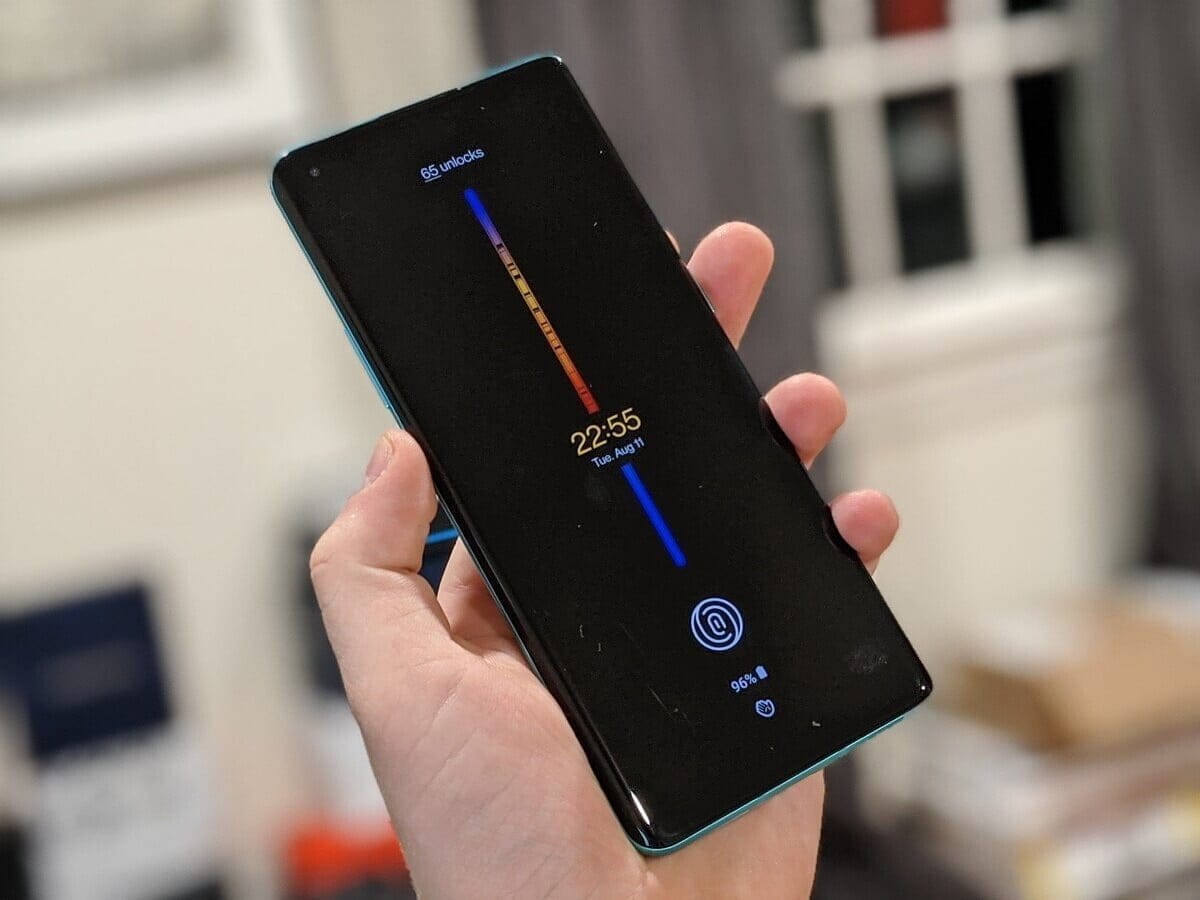
On August 10th, OnePlus will launch its latest 11-based OxygenOS 11. The first screenshots of the new version have been posted, which will feature significant improvements to the interface and new functionality. OxygenOS 11 has a OneUI-like look and has a rather convenient one-handed interface.
OxygenOS, which has a pure Android design in general until this time, will have a much more original design with the new version. OnePlus will open the closed test version to the community members with its event on August 10. The company invites its “most technically-inclined” community members to try the release. “Then once we’ve squashed most of the big bugs and improved over stability, we’ll release a full open beta to let even more of you try it out,” OnePlus CEO Pete Lau said.
AOD
Settings
Contacts
Weather
OxygenOS is also based on new features in Android. So in OxyegenOS 11 you can see all of the features of Android 11. It is not known on which devices a closed trial will be held on 10 August. This will probably be released for OnePlus 8 and 8 Pro, backed by Android 11 Beta.