Tag: screenshot

  • How to take scrolling screenshots on Android – the easy way

    How to take scrolling screenshots on Android – the easy way

    With just a few button presses, you can quickly take a screemshot of your Android device screen.

    What occurs, though, if the material you are attempting to store is too large for a single screen? It could be an app settings page, a lengthy web page, or a conversation thread. Scrolling screenshots can help with that.

    This tutorial describes how to take scrolling screenshots on Android without the use of third-party apps, how to handle the situation where the choice is not available, and how it functions on various devices.

    What is a scrolling screenshot?

    You can record vertically scrollable content in a single lengthy image by taking a scrolling screenshot, sometimes referred to as an extended screenshot. Your phone does it automatically, saving you the trouble of painstakingly piecing together many screenshots and providing you with a clear, comprehensive representation of the full page or discussion.

    Although some manufacturers had already included this capability through custom Android skins prior to the official distribution, Android 12 marked the wide availability of this feature. After taking a standard screenshot, you can continue taking screenshots as you scroll by selecting the scrolling screenshot option.

    Why scrolling screenshots are useful

    When you need to record a lot of information without dividing it into many photos, scrolling screenshots come in handy. Typical use scenarios include the following:

    • Capturing an entire article from a website for offline reading
    • Saving long chats or SMS conversations
    • Recording step-by-step settings in apps or system menus
    • Documenting online orders, receipts, or bank statements
    • Archiving long social media posts or comments

    Instead of managing and sending five or six individual screenshots, you get a single, clean image that’s easier to share, store, or annotate.

    How to take a scrolling screenshot on stock Android
    scrolling screenshots on stock Android

    If you’re using a Google Pixel or another phone running near-stock Android 12 or higher, the steps are straightforward:

    1. Navigate to the screen you want to capture.
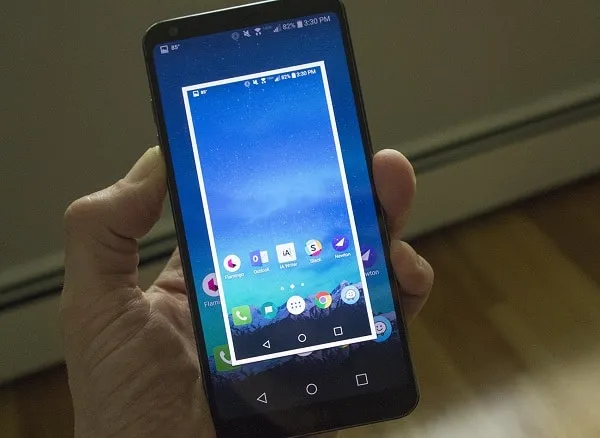
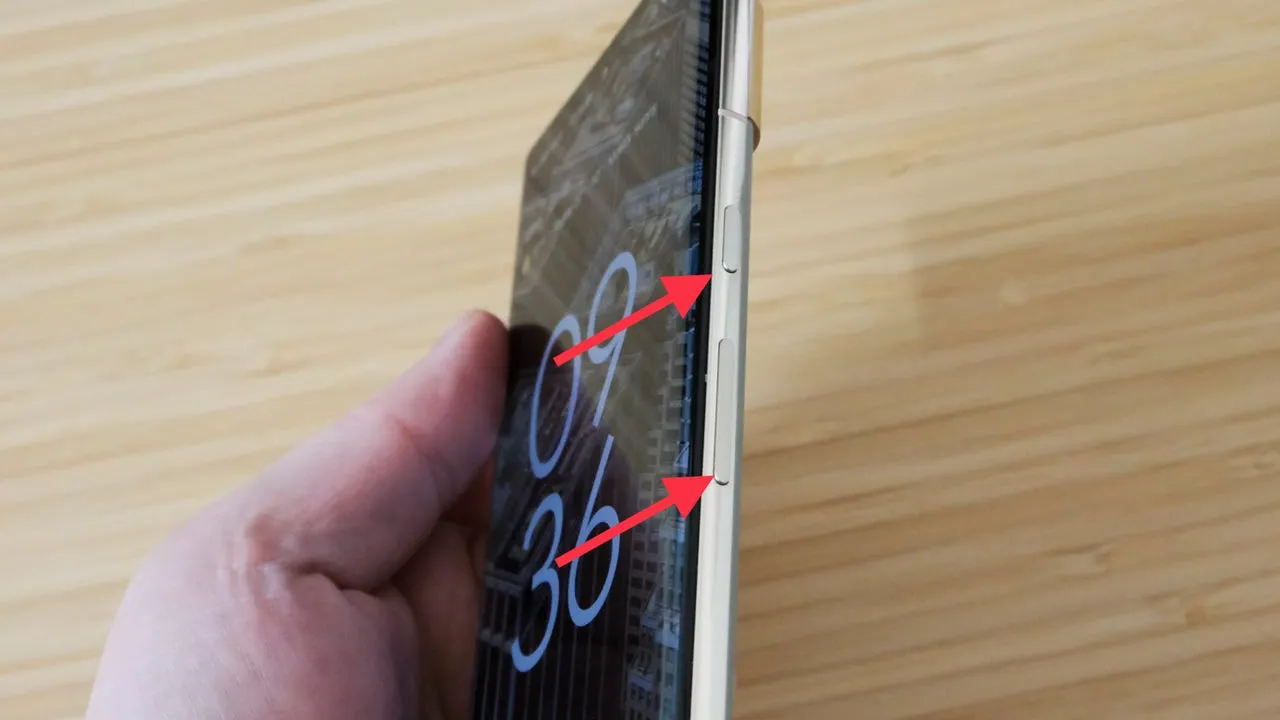
    2. Press the Power and Volume Down buttons at the same time to take a screenshot.
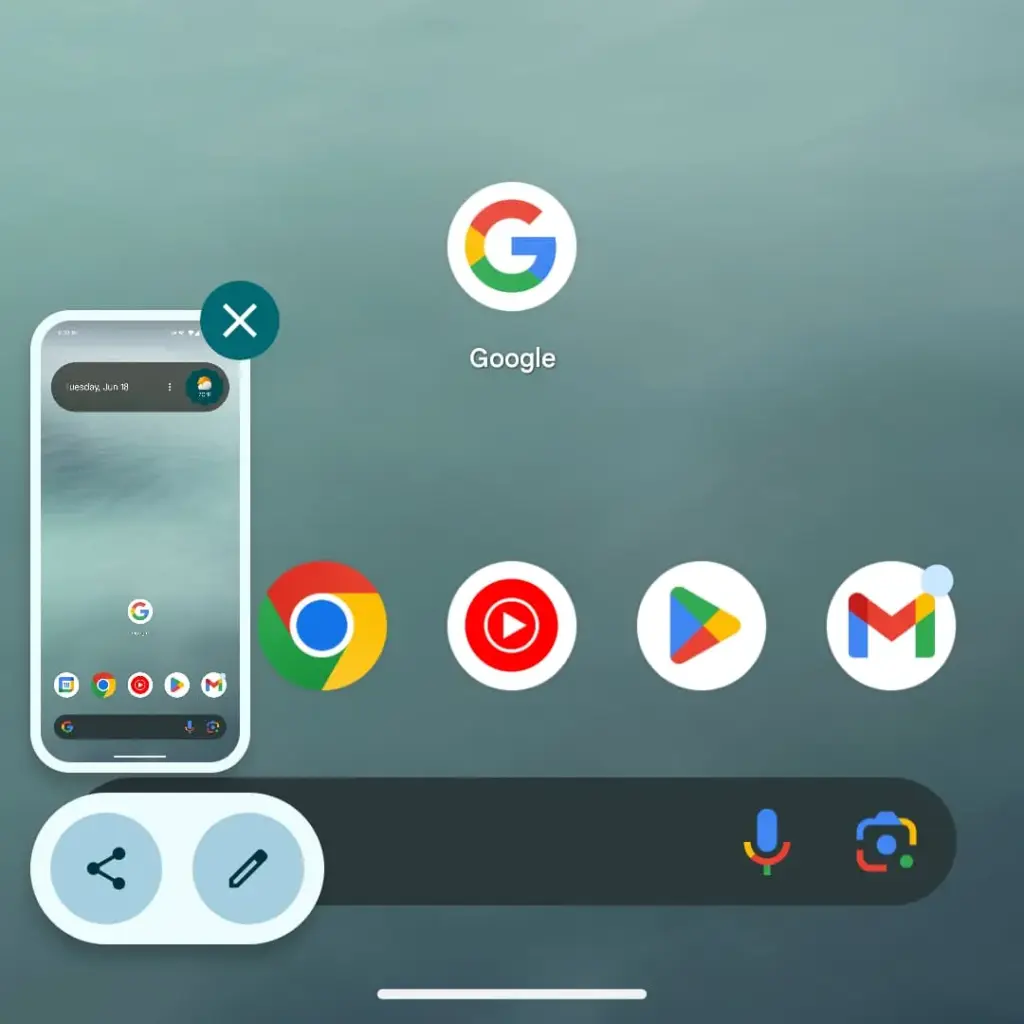
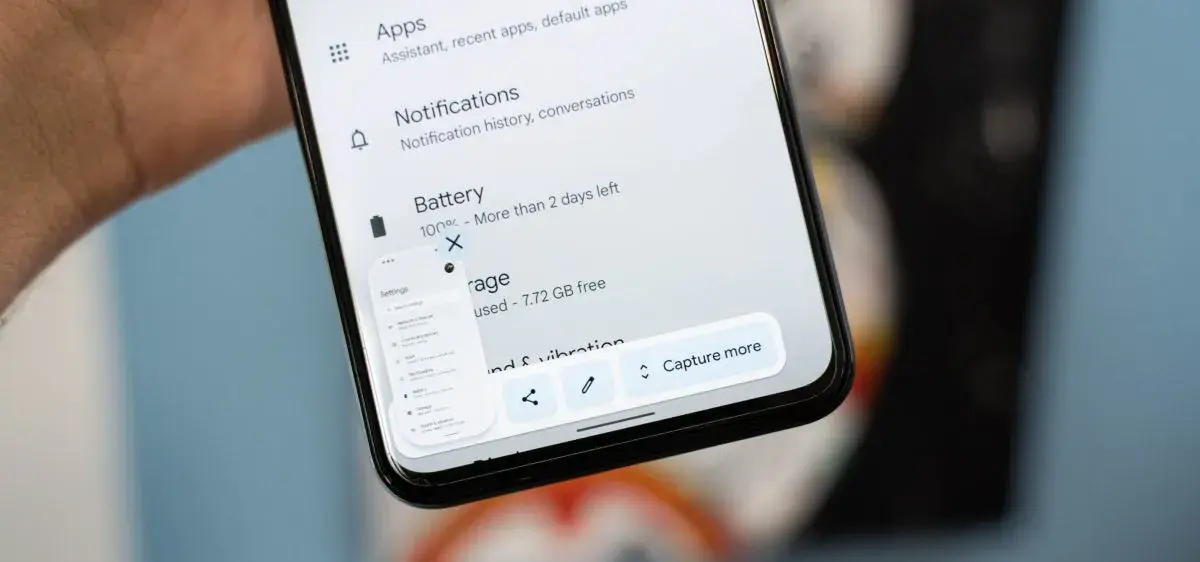
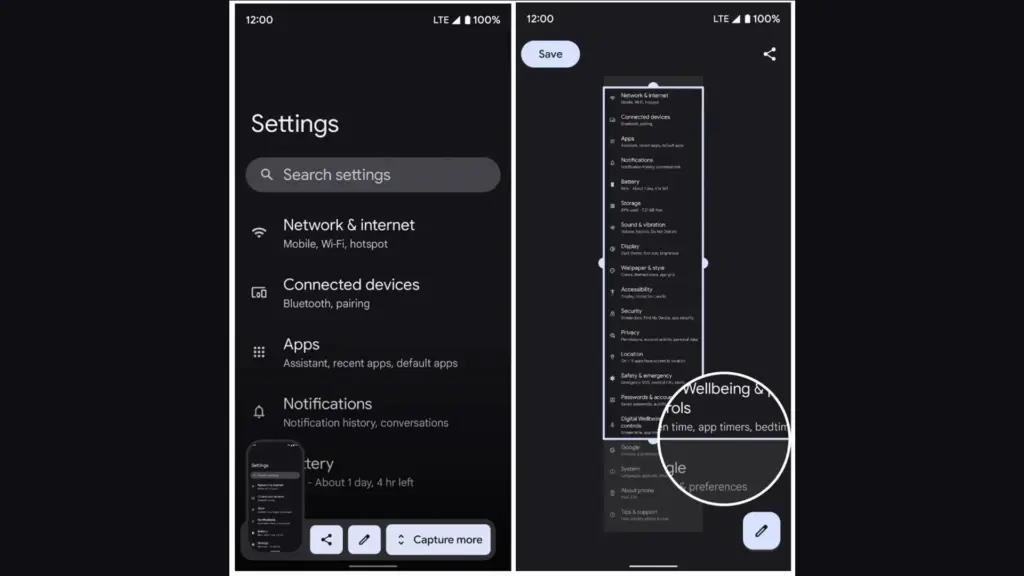
    3. After the screenshot is taken, a preview appears in the bottom corner with an option labeled Capture more.
    4. Tap Capture more to open a screen where you can scroll and adjust how much of the page to include.
    5. Drag the crop handles to select the desired length, then tap Save when finished.

    The scrolling screenshot will be saved to your Screenshots folder and accessible via the Google Photos or Files app.

    How it works on Samsung devices (One UI)

    Samsung introduced scrolling screenshots before Android 12 and calls the feature Scroll capture. To use it:
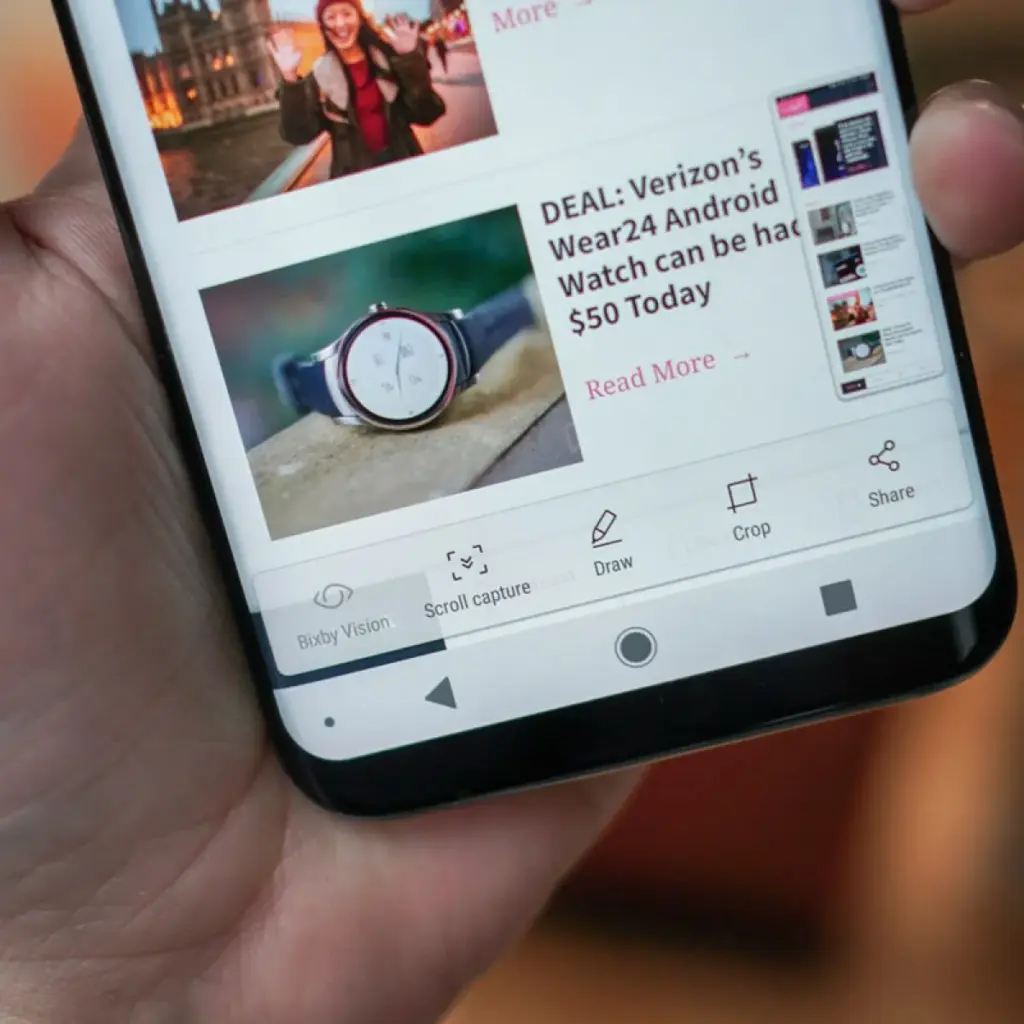
    scrolling screenshots on Samsung OneUI
    1. Open the page or conversation you want to capture.
    2. Take a screenshot by pressing Power + Volume Down, or use the palm swipe gesture if it’s enabled.
    3. A toolbar will appear at the bottom of the screen.
    4. Tap the Scroll capture icon (a downward arrow within a bracket) repeatedly to continue capturing more content.
    5. The phone scrolls down automatically each time you tap the icon, and stitches the new content to the previous image.
    6. Once finished, the combined screenshot is saved to your Gallery in the Screenshots folder.

    Samsung’s implementation is intuitive and works in most apps, including browsers, chat apps, and system settings.

    Taking scrolling screenshots on Xiaomi (MIUI)

    Xiaomi users with MIUI 12 or later can use the Scroll option built into the screenshot tool:

    1. Go to the screen you want to capture.
    2. Press Power + Volume Down, or use the three-finger swipe gesture.
    3. A floating screenshot preview will appear in the corner.
    4. Tap the Scroll option next to the preview.
    5. The device will automatically scroll the page and compile the screenshot.
    6. Tap Done or wait for the auto-scroll to finish.

    Your scrolling screenshot is then saved and ready to share or edit.

    How it works on OnePlus (OxygenOS)

    On most OnePlus phones running OxygenOS 11 or higher:

    1. Take a screenshot using Power + Volume Down or the three-finger swipe.
    2. A preview appears with a button called Expanded screenshot or Scroll.
    3. Tap the button, and the phone will begin scrolling down and capturing content.
    4. You can tap to stop the scroll when you’ve captured everything you need.
    5. The final result is a seamless long image.

    OnePlus makes the process easy and generally reliable in apps like Chrome, WhatsApp, and system menus.

    What to do if scrolling screenshot is not working

    If you don’t see the scrolling option after taking a screenshot, here are a few reasons and possible solutions:

    1. Your Android version is outdated

    With Android 12, scrolling screenshot functionality was formally introduced. The native option might not be available if you are using Android 11 or earlier and the manufacturer of your phone has not included the functionality in its unique user interface.

    Solution: Check for software updates under Settings > System > System update and update to the latest available Android version.

    2. The app you’re using doesn’t support it

    Certain applications may completely disable screen capture capabilities, particularly those with security limitations (such as banking or media streaming apps). In other situations, the scrolling capture feature will not be activated for static content that does not scroll vertically, such as games or films.

    Solution: Try taking the screenshot in another app to confirm the feature works elsewhere.

    3. The screenshot method didn’t trigger the right menu

    If you take screenshots using Google Assistant or a third-party button remapper, the scroll option may not appear.

    Solution: Stick with the hardware button method or built-in gesture support for consistent results.

    4. Your device brand disables it

    Rarely, the feature might be removed from select low-cost or carrier-locked devices. Check your device’s manual or a help website relevant to your brand if your Android version allows it but you are unable to see the choice.

    Solution: As a last resort, third-party apps like LongShot or Stitch & Share can be used, though they won’t integrate as seamlessly.

    Where scrolling screenshots are saved

    Your scrolling screenshots are typically saved in the same folder as regular screenshots. The default locations include:

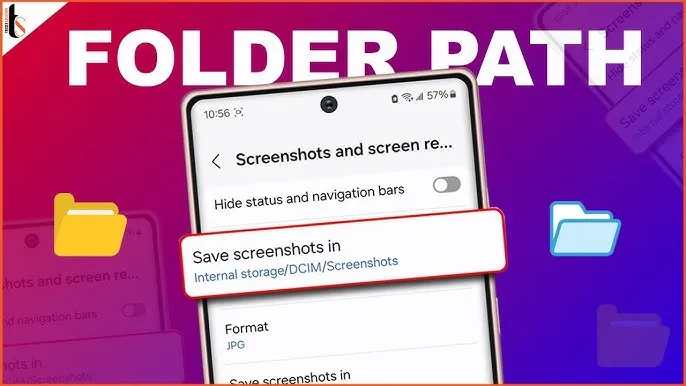
    • Internal Storage > DCIM > Screenshots
    • Internal Storage > Pictures > Screenshots

    You can also find them in gallery apps like Google Photos under the “Screenshots” album. The long image format will usually be saved as a standard PNG or JPEG file, depending on your phone.

    Scrolling screenshots make it significantly easier to capture and share large amounts of vertical content in one image. Whether you’re preserving a full article, archiving a conversation, or saving a list of settings for future reference, this feature streamlines the process and saves time.

    Most modern Android phones with Android 12 or later support scrolling screenshots natively, with even better integration in custom skins from brands like Samsung, Xiaomi, and OnePlus. If the feature isn’t available on your phone, checking for updates or exploring brand-specific gestures may help you unlock it.

    Scrolling screenshots are one of those tiny but useful features that you will find yourself utilizing regularly once you get used to it, particularly if you share content or document information from your phone on a regular basis.
  • The easiest ways to take a screenshot on any Android device (no 3rd app required)

    The easiest ways to take a screenshot on any Android device (no 3rd app required)

    Screenshots are quite useful. Most Android users save receipts, share humorous memes, and capture bugs to report on a daily basis. However, not all Android phones employ the same approach for taking screenshots.

    In this guide, you will learn how to take a screenshot on any Android device, including Samsung, Google Pixel, Xiaomi, OnePlus, and others. We will also show you how to take screenshots without using physical buttons, which are sometimes damaged or inconvenient.

    ✅ Common Methods to Take a Screenshot on Android

    📱 1. The Universal Button Combo: Power + Volume Down

    This method works on 99% of Android devices:

    • Press and hold the Power button and Volume Down at the same time
    • Hold for about 1 second until the screen flashes or you hear a shutter sound
    • A preview of the screenshot will appear with options to Edit, Share, or Delete

    📝 Works on: Samsung, Pixel, OnePlus, Xiaomi, Motorola, Realme, and most others.

    📸 Recommended image here: A screenshot showing fingers pressing Power + Volume Down on a phone.

    📲 Brand-Specific Methods (With Enhancements)

    📱 Samsung Galaxy Devices

    Samsung offers multiple screenshot options beyond the button combo:

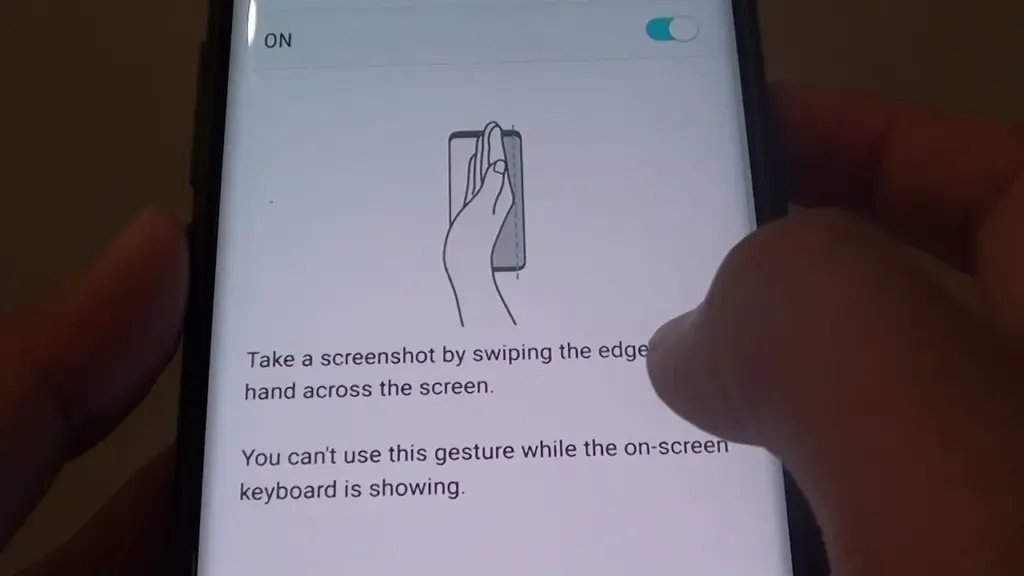
    ✋ Palm Swipe Gesture

    • Go to Settings > Advanced Features > Motions and Gestures
    • Toggle on Palm swipe to capture
    • Swipe your palm horizontally across the screen (left to right or vice versa)
    maxresdefault

    ✨ Smart Capture (Scroll Capture)

    • After taking a screenshot, tap the scroll icon in the preview to capture an entire page (e.g., a long webpage)

    🧠 Tip: Scroll Capture is perfect for saving full chats, articles, or receipts.

    📷 Google Pixel Devices

    Google Pixel sticks to simplicity:

    • Power + Volume Down is the main method
    • On Android 13+, when you open the Recent Apps view, there’s a Screenshot button under each app window

    🔒 Screenshots are disabled for secure apps like banking apps or Netflix (for DRM protection)

    android screenshot options

    ⚙️ Xiaomi, Redmi, and POCO (MIUI)

    Xiaomi devices give you gesture and quick-access methods:

    • Power + Volume Down (standard)
    • Swipe three fingers downward on the screen for a quick snap
    • Use the Quick Ball feature:
      • Enable via Settings > Additional Settings > Quick Ball
      • Tap it, and choose Screenshot from the floating menu

    🔴 OnePlus (OxygenOS)

    • Power + Volume Down
    • Three-finger swipe down also works (enable in Settings > Buttons & Gestures)
    • Long screenshot (scrolling) is available on preview pop-up

    🧑‍💻 How to Take a Screenshot Without Buttons

    If your power or volume buttons are broken, don’t worry—you can still capture the screen using these workarounds:

    🧠 1. Use Google Assistant or Voice Command

    Just say:

    “Hey Google, take a screenshot.”

    The Assistant will snap the screen and save it to your gallery.

    🔒 Note: Google Assistant cannot take screenshots in some secure apps or during voice calls.

    🧮 2. Enable On-Screen Screenshot Shortcut

    Some phones let you add a screenshot shortcut to the navigation bar or status shade:

    • Samsung: Add “Screenshot” to the Edge Panel or Quick Settings
    • Xiaomi: Enable Quick Ball or Button Shortcuts
    • OnePlus: Add Screenshot to the Navigation gestures

    ♿ 3. Use Accessibility Menu (for all Android phones)

    If you’re on Android 9 or later:

    1. Go to Settings > Accessibility > Accessibility Menu
    2. Enable it
    3. You’ll see a little person icon at the bottom right
    4. Tap it > Tap Screenshot

    This is a great method for users with limited mobility or hardware button issues.

    💡 4. Use Third-Party Apps (Optional)

    If built-in methods don’t work for you, apps like:

    • Screenshot Easy
    • Screen Master
    • Assistive Touch for Android

    …can provide floating buttons, auto scroll, and editing tools. But these aren’t always needed if your Android version is recent.

    🖼️ Where Are Screenshots Saved?

    Where Are Screenshots Saved?

    After taking a screenshot, your phone automatically saves it in a specific folder based on the manufacturer, Android version, and any file management settings.

    Here’s how to find them on most Android phones.

    DCIM > Screenshots
    This is the most common location for screenshots. “DCIM” stands for Digital Camera Images, and it’s where the system stores photos taken with your camera and screenshots.

    Pictures > Screenshots
    On some devices or third-party camera apps, screenshots go here instead of DCIM. This is especially true for older Android versions or modified versions like MIUI (Xiaomi) or ColorOS (OPPO/Realme).

    🧭 To manually browse:

    Navigate to DCIM > Screenshots or Pictures > Screenshots

    Open your File Manager or My Files app

    Tap Internal Storage

    You can also find them in the Google Photos app under the “Screenshots” section.


    ✂️ How to Edit or Share a Screenshot Instantly

    After taking a screenshot:

    • Tap the preview popup before it disappears
    • You can:
      • Crop or annotate the image
      • Share via WhatsApp, Gmail, social media
      • Delete if it was a mistake

    Some phones even allow adding text, shapes, or blur effects directly in the screenshot editor.

    🧼 Screenshot Tips & Tricks

    ✔️ Tip 1: Use Scroll Capture for Long Pages

    Don’t take 5 screenshots for a single chat—use the scrolling option instead.

    ✔️ Tip 2: Organize Your Screenshots

    Create folders like Receipts, Meme folder, Work notes in your file manager.

    ✔️ Tip 3: Don’t Rely on Screenshots for Sensitive Info

    Avoid screenshotting 2FA codes, passwords, or anything too personal. Use a secure note app instead.

    🔚 Wrapping Up

    Taking a screenshot on Android is easier than ever, with different options based on your phone and preferences. Whether you like buttons, gestures, or voice commands, Android has a technique for you.

    Now that you know how to screenshot on any Android phone, try each approach and discover which one works best for you. Also, remember to wipe up old screenshots every now and then – those memes add up quickly!

  • Take screenshots on Android when the app doesn’t allow it

    Take screenshots on Android when the app doesn’t allow it

    The freedom to do whatever you want is one of the key reasons why many tech enthusiasts prefer Android to other mobile operating systems. You may install anything and alter almost every aspect of your phone using Android.

    Despite all of this, there are still some things you are unable to perform. For instance, some apps decide to prohibit you from taking screenshots of the app for a variety of reasons. Then again, you might still want to grab a screenshot for a variety of reasons. Continue reading to see how to get around this limitation.

    Why these restriction?

    Despite how annoying it is, developers don’t prevent screenshots without a good cause. There is always some justification, whether it be for security or privacy.

    For security concerns, the majority of banking and payment apps prohibit screenshots. For privacy reasons, Chrome disables screenshots in Incognito tabs and windows. Another example would be the non-screenshottable self-destructing images on Telegram.

    You are still permitted to capture screenshots wherever you wish, despite the developers’ decision to limit them. Simply get your hands a little bit messy.

    There are various methods for taking screenshots in apps that don’t let you. Some methods work in most apps though not all. Here we take a look at two of these methods: One easy method which works in some cases, and an advanced method that should work every time.

    1. Google assistant can helps you

    Some Android apps that prevent screenshots only prevent your phone’s screenshot button combination from working. This indicates that if you take a screenshot using a technique other than tapping the button combination, you can get around the restriction.

    Google Assistant is a built-in app in most Android phones that lets you capture screenshots without using the button combination.

    1. Open the app that you want to screenshot.
    2. Activate Google Assistant. You can do this by saying Hey Google! or holding the home key depending on your settings.
    3. Say or type Take a screenshot. Google Assistant will now capture a screenshot.

    This approach, despite being straightforward, has little chance of working because it has been anticipated by the majority of apps that take screenshot blocking seriously. For instance, if you ask Google Assistant to take a screenshot of a Chrome Incognito tab, all that will appear on the screen is a black screen.

    Continue reading the following section where we’ll explain a method that allows you to take a screenshot of any app on your phone if this one didn’t work for you.

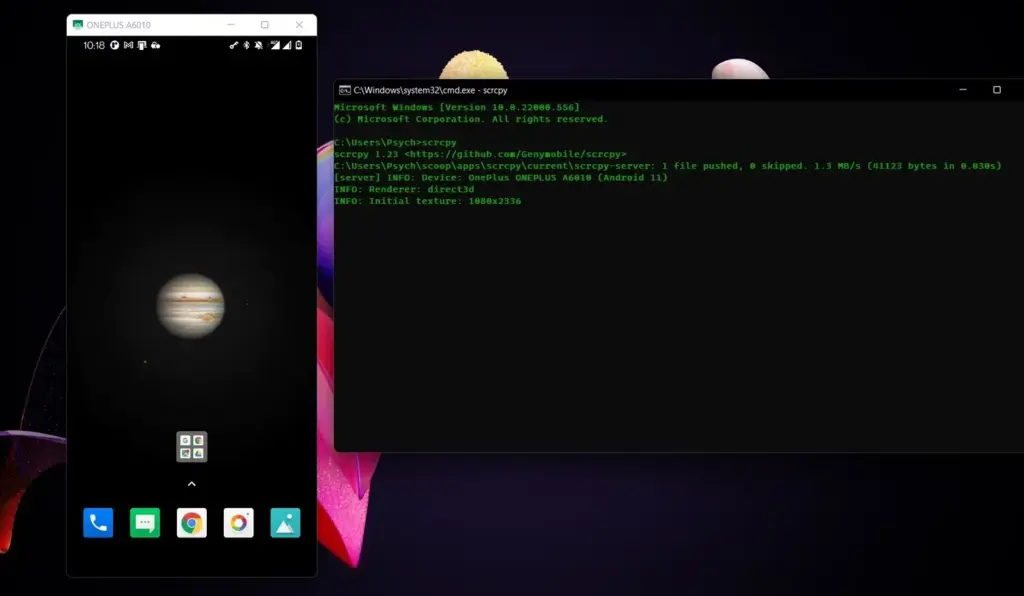
    2. scrcpy

    This is the ultimate method as it can bypass virtually any sort of screenshot restriction in Android apps. scrcpy is a lightweight screen mirroring program that lets you view and control your Android phone’s display on your PC. Once you mirror your Android phone’s screen on your computer, you can simply use print screen or Snipping Tool to take screenshots.

    scrcpy is available on Windows, macOS, and Linux. You can install scrcpy with Homebrew on macOS. Check the download link below for more details on installing scrcpy on Mac and Linux.

    As for this article, we’re going to install scrcpy on Windows, which you can do using Scoop. Read our article on how to install Scoop to get started.

    Download: scrcpy (Free)

    Once you have Scoop installed, it’s time to install scrcpy.

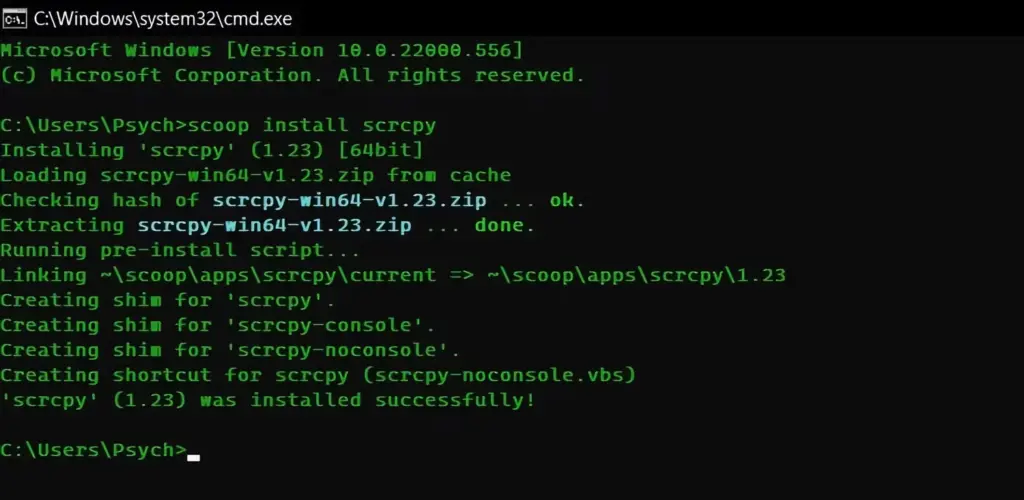
    1. Open Command Prompt. You can do this by searching for cmd in the Start menu.
    2. Once inside Command Prompt, run the following command: scoop install scrcpy
    3. This command will call on Scoop to install scrcpy. This can take a while depending on how fast your connection is.

    scrcpy screenshots

    Now that you have scrcpy installed the next stage is preparing your phone. For scrcpy to access your phone’s screen, you need to enable USB debugging on your Android device. You need to have Developer mode enabled to do this.

    1. Go to Settings on your Android phone.
    2. Scroll down to the bottom and select Developer options.
    3. Tap the switch next to USB Debugging to change it to On.

    Now both your phone and your computer are ready. Connect your phone to your computer’s USB and let’s get to the final steps.

    1. Open Command Prompt.
    2. Type in the command scrcpy and press Enter.

    scrcpy android user

    Your phone’s screen will be visible in an emerging window. Through this window, you may even navigate and type on your phone using the mouse and keyboard from your computer. You can freely take screenshots using print screen and other screen capture techniques now that the screen of your phone is mirrored onto your computer.

    Anything and Everything

    Even while some apps try to prevent you from taking screenshots within the program, if you’re determined to capture your screenshots, they will ultimately fail. Now that you’ve read this post, you know how to screenshot any program, despite any limitations. After all, it’s your phone, so you should be able to use it anyway you like.

  • 7 awesome Google Pixel features to use

    Right now, it’s difficult to talk about Pixels without the topic eventually turning to the brand-new Pixel 7 and Pixel 7 Pro. And it’s understandable why: both inside and out, Google’s most recent Pixel smartphones are just incredible. They have a ton of power and exciting new tricks that just ooze out of them.

    But what’s this? To reward yourself to new and exciting phone features, you don’t need to be the owner of a Pixel 7. Because your device’s software is always being updated, there are tons of valuable jewels hiding beneath the surface, which is the beauty of the Pixel world. The majority of Pixel owners simply don’t notice them, or perhaps they do but quickly forget afterward.

    In order to give several noteworthy Pixel features the attention they merit, today we’re going to take a step back. They should function for you regardless of whether you’re holding a Pixel 7 or an older model—even, in most circumstances, if your Pixel is too old to have received the most recent Android 13 update.

    Discover some extraordinary Pixel gems by reading on, then continue the celebration by enrolling in my Pixel Academy e-course. For my favorite Android Police friends, it’s a seven-day email trip that teaches you a ton of time-saving Pixel information and is totally free.

    Smarter storage

    The following is a further automation-focused intellect built into your Pixel and ready to be cuddled: The technology automatically deletes duplicates of the photos and movies you’ve already backed up to Google Photos when your phone’s local storage starts to run out of room.

    Of course, you can always do it on your own, but doing so requires (a) actually remembering to do it frequently and (b) spending the time to complete the process’s several manual phases. And while I don’t know about you, my brain is now made up of about 97% oatmeal, so everything I can automate to reduce the load on myself is a win in my book.

    Your path to effortless storage nirvana will vary depending on what Android version your personal Pixel companion is running:

    With Android 12

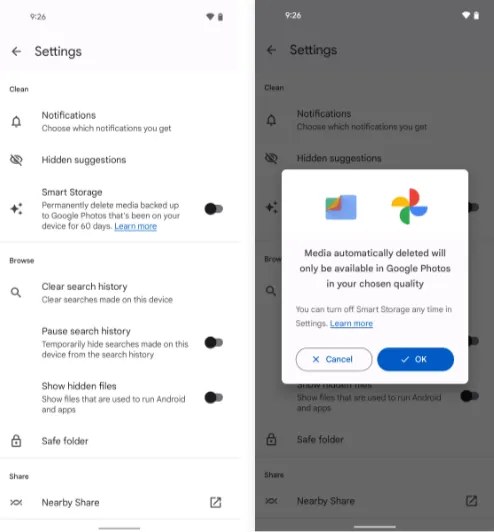
    If you’ve got a current Pixel with the snazzy new Android 12 software on it, open up the Files by Google app (or go download it, if it isn’t already on your phone).

    Then:

    • Tap the three-line menu icon in the app’s upper-left corner.
    • Select “Settings” in the menu that comes up.
    • Flip the switch next to “Smart Storage” into the on position and confirm that you want to activate the feature.
    pixel storage

    With Android 11 or earlier

    If your Pixel is on an older version of Android (howdy, Pixel 2 partners!), you’ll find the same option within your phone’s system settings:

    • Open up your settings and tap “Storage.”
    • Look for the line labeled “Smart Storage.” Tap it — tap it with gusto, damn it!
    • Choose whether you want your already-backed-up items to be deleted when they’re 30, 60, or 90 days old.
    • Activate the toggle at the top of the screen.

    Either way, you’ll just need to make sure you’re set to sync your photos and videos to Google Photos — by tapping your profile picture in the Google Photos app and then looking for the “Backup” line in the menu that comes up — and you’ll never have to think about your storage running low again.

    Image extracting

    Save yourself some time and let your Pixel make it simple the next time you need to grab a picture from someplace, whether it’s a website, a text message, a forum for earwig aficionados, or whatever the situation may be.

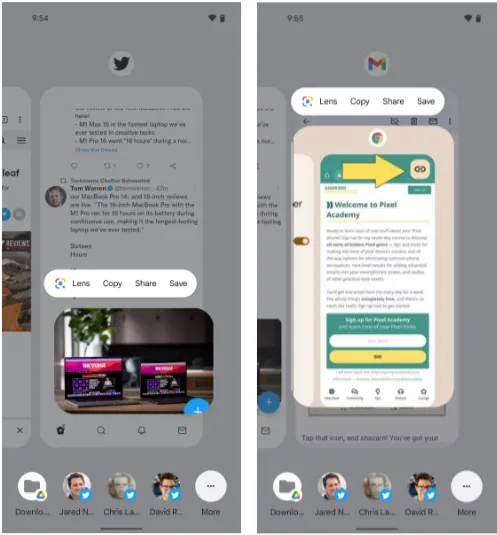
    The Overview screen on your Pixel phone includes a secret feature that lets you take pictures almost anywhere. And all it takes to access its magic is a simple swipe and a few fast taps:\

    • While you’re viewing any app with a visible image, open up the Overview interface — by swiping up about an inch from the bottom of your screen and then stopping, if you’re using the current Android gestures system, or by tapping the square-shaped icon along your screen’s lower edge, if you’re still using the old legacy button-nav setup.
    • Touch and hold your finger onto the image within the app’s preview.
    • Select the option to copy, share, or save the image — or use Google Lens to analyze it, if you really want to get wild.

    This will work in most any app where an image is present — even if it’s an app where you couldn’t typically save an image in any easy way (Gmail, Twitter, Earwiggalicious, etc).

    Let’s all say it together now: Pixel features can be incredibly beneficial once you remind yourself of their possibilities and then learn to properly take advantage of them! (Okay, so that rallying cry might need a little work.)

    image extraction

    Text extraction

    Following up on our previous Pixel feature, your fancy Google phone can help you pull text out of practically anywhere imaginable and then copy it, share it, and search for it to your heart’s content.

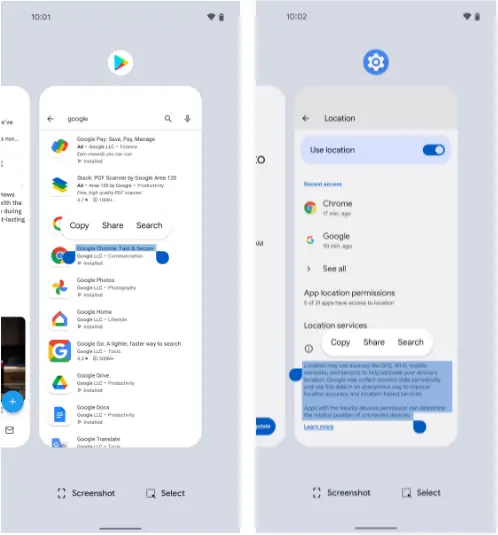
    What’s especially useful here is that just like with the last item, this feature works even in places where you couldn’t typically copy text — your feed in social media apps, parts of the Play Store, or even sections of your system settings.

    And it’s right in the same place as the image extractor we just finished exploring:

    • Head back into your Pixel’s Overview area.
    • Touch and hold your finger onto any text in the current app’s preview — or, if you’d rather (and if your Pixel is recent enough to be running Android 10 or higher), tap the “Select” text at the bottom of the screen and then highlight the specific text you want from there.
    • Choose “Copy,” “Share,” or “Search” from the menu that comes up.
    • Smirk knowingly at any iPhone users in the vicinity.
    pixel text extraction

    Simple screenshots

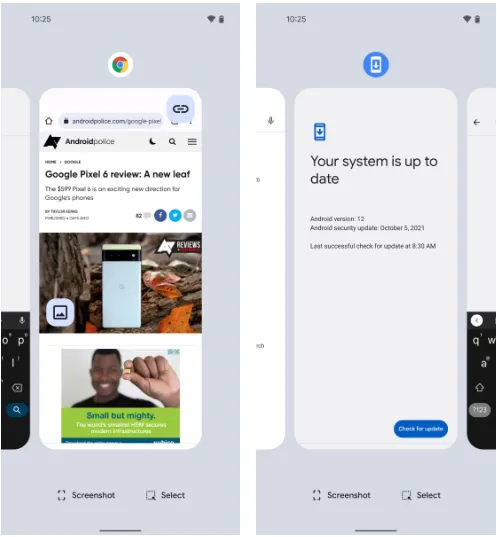
    One of the most frequent complaints I get from my fellow Android-loving primates is how difficult it may be to take a screenshot on a Pixel. ‘ See, back then, the system power-button menu on Pixels included a straightforward option to take a screenshot of the screen. But after that, Google, well, Googled. It changed that menu, and then, um, it changed it again a year later, and the choice vanished.

    Hold the phone, though: If you aren’t a fan of the old-fashioned physical button mechanism for capturing a screenshot, there is still another way.

    It’s right there in plain sight on that same Overview screen we were just gawking at, in fact, and yet hardly anyone seems to notice it.

    pixel screenshot

    Yes, that’s it; it’s down there on the screen. As long as you have Android 11 or higher, your Pixel will always offer up a “Screenshot” option directly inside its Overview interface, regardless of the program or area of Android you’re looking at. And selecting that will record whatever is visible on the screen of the active process.

    The system status bar, the bottom-of-screen navigation area, and any other extraneous items won’t appear in screenshots you take in this fashion as a bonus; this is a notable and occasionally useful departure from Android’s customary physical-button screenshot-capturing method.

    Tap to wake

    Pixels have plenty of options for easy screen activation. Maybe you like using the always-on time and info system, for instance. Or maybe you’re more of a lift-to-check kind of Pixel owner.

    Whether you’re using any of those features or not, though, your Googley phone has another useful system for waking up its display in a jiff. It harkens back to an earlier Android era, and it’s one of the Pixel’s most overlooked possibilities.

    Ready? Simply press the display twice to turn on the screen of your Pixel whenever you want. Just two quick taps are all it takes to wake up your phone. The unknown!

    The “Tap to check phone” option should be present on your lock screen by default, but if it isn’t, check your system settings, go to “Display,” then “Lock screen,” and see whether the option is present. If it is, you can verify that it is on and enabled. (On Pixels running previous versions of Android, you’ll need to touch “Advanced” before you can access that option, which is labeled “Double-tap to check phone.”)

    Automation

    Although there are many chances for advanced automation on Android, your Pixel comes with its own native rules system that can significantly increase the intelligence of your phone with hardly any work.

    It’s called, rather fittingly, Rules — and with about 30 seconds of setup, it can allow your phone to change its ringing and notification behavior based on where you are or what Wi-Fi network you’re connected to at any given moment.

    Here’s how to get it up and running:

    • Head into your Pixel’s system settings (by swiping down twice from the top of the screen and then tapping the gear-shaped icon in the lower-right corner of the panel that pops up).
    • Tap “System” followed by “Rules.”
    • Make sure the toggle at the top of the screen that says “Always allow location for Rules” is in the on position.
    • Look for a line that prompts you to allow the feature to run in the background. If you see that, tap it and then tap “Allow” on the confirmation that appears.
    • Pause to take a sip of the nearest fizzy beverage.
    • Tap “Add rule” and then consider your options.

    Then what? That’s really up to you. For a few ideas, you could instruct your Pixel to vibrate for incoming alerts when you’re at work, make it to go into Do Not Disturb mode whenever you’re at the movies, or configure it to ring whenever you’re connected to your home network.

    Smart screens

    The last item in our list of overlooked Pixel characteristics is a two-parter that your eyes will like.

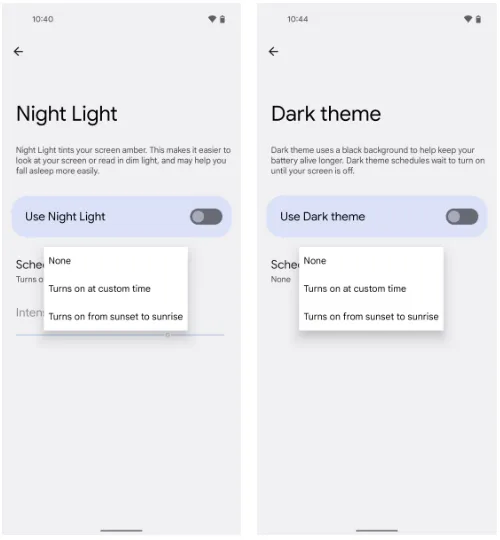
    The screen-tinting Night Light option can be automatically activated on your Pixel based on the sunrise and sunset times in your current location or a schedule you create. In this manner, your phone’s screen will adopt a softer, less harsh type of coloring that will be easier on your eyes when night falls and the lights get faint. And as soon as morning comes around, it will switch back to the regular daytime mode.

    Return to your Pixel’s system settings, select “Display,” then press “Night Light,” then “Schedule,” to configure your automated Night Light activation routine. The options to select the sunset-to-sunrise setup or to enter your own unique hours for dim-environment optimization are displayed there.

    While we’re on the subject of screen intelligence, think about if your phone’s theme changing from a lighter theme during the day to a darker one at night might be a good addition to your new Night Light intelligence. For me, the two patterns—standard screen colors and a light theme during the day and Night Light and Android’s dark mode during the night—are a lovely and extremely natural pairing.

    night light on pixel

    If you want to give that double-display whammy a whirl, back out to the main “Display” menu and look for the “Dark theme” line. Tap it, then tap “Schedule,” and you’ll see a selection that’s identical to the one you just configured for the Night Light.