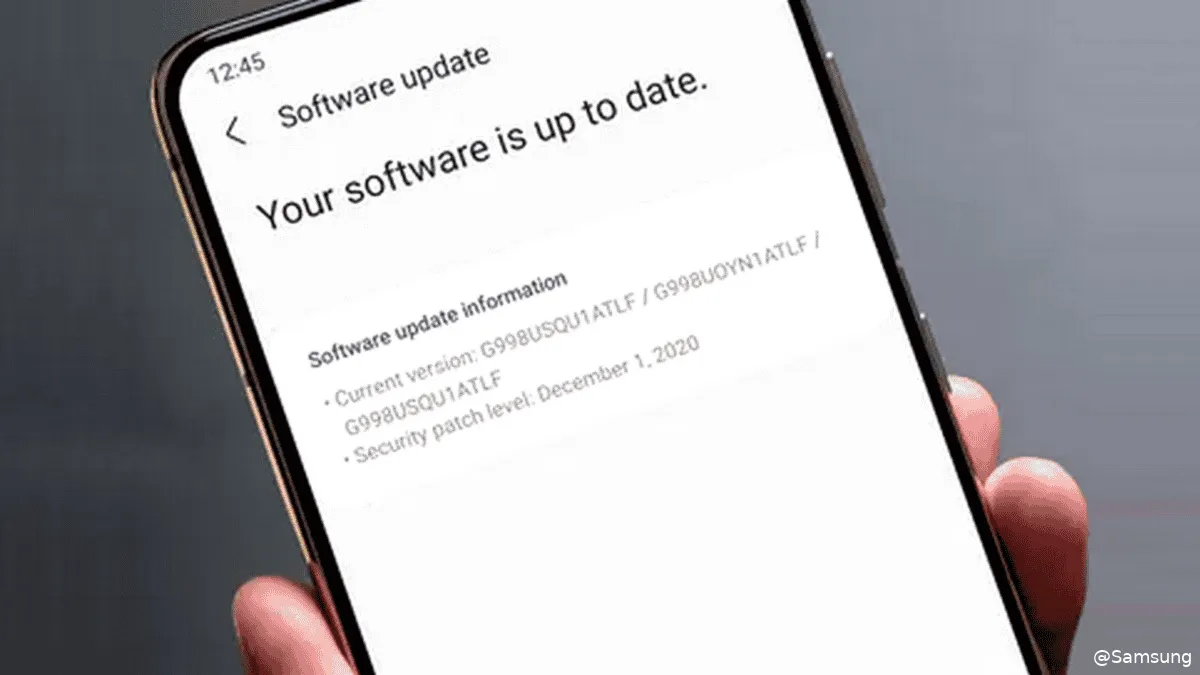
Although the One UI 8 update is already available for a large number of Samsung Galaxy phones, some models have a different situation. Samsung has put impacted users at risk by formally discontinuing software support for a number of devices. What that entails for Galaxy owners is as follows.
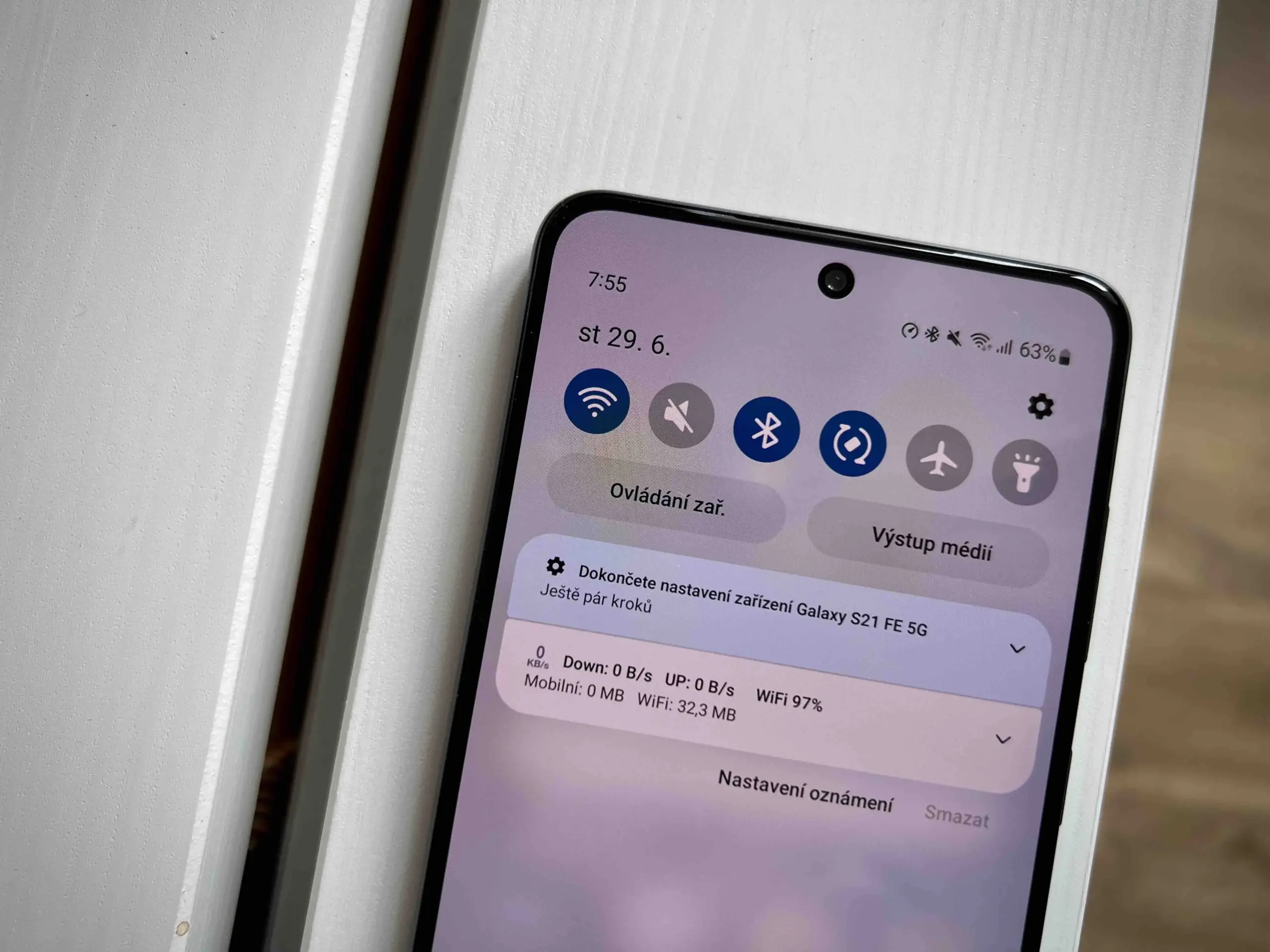
Samsung recently posted the most latest software schedules for Galaxy devices on its support page. Notably, some models now receive security upgrades every three months instead of every month. This includes the low-cost flagship Galaxy S21 FE, which will no longer receive monthly security fixes but rather three-monthly ones.
Android 16 via One UI 8 is still scheduled to be released for the Galaxy S21 FE in the upcoming weeks. It won’t receive Android 17 or One UI 9 next year because this will be its last significant update. Samsung might still release One UI 8.5, though, and it will probably be based on Android 16.1.
Final update rolls out to these Samsung Galaxy phones
The mid-range Galaxy A52s and low-cost Galaxy A03s have been taken off the support page as devices that are on the chopping block. June of this year saw the most recent security update for both. They won’t receive the September or October patches, based on their removal. The Galaxy F42 and M32 are also no longer on the list.
The Galaxy Tab A8, which was released in early 2022, might be the next in line. By the end of this year or January of the following year, it might get its last update.
These Samsung may be at risk
These devices will lose out on important security updates that guard against changing cyberthreats, even if they might still get software updates and small patches from the Google Play Store. Outdated devices are more susceptible to assaults that could jeopardize personal data or even result in financial loss if these patches are not installed.
The September security update, for example, fixed a number of vulnerabilities, including a number of high- and medium-severity problems. There have been reports of some of these being used in the wild.
Because risks are constantly changing, regular updates are crucial. Up-to-date software is just as important for staying safe as new hardware.
Upgrading to a newer gadget is the easiest solution for impacted consumers. Although it is feasible to keep using unsupported phones, users should be aware of the hazards. One strategy to lessen risk is to steer clear of banking and financial apps on mobile devices.
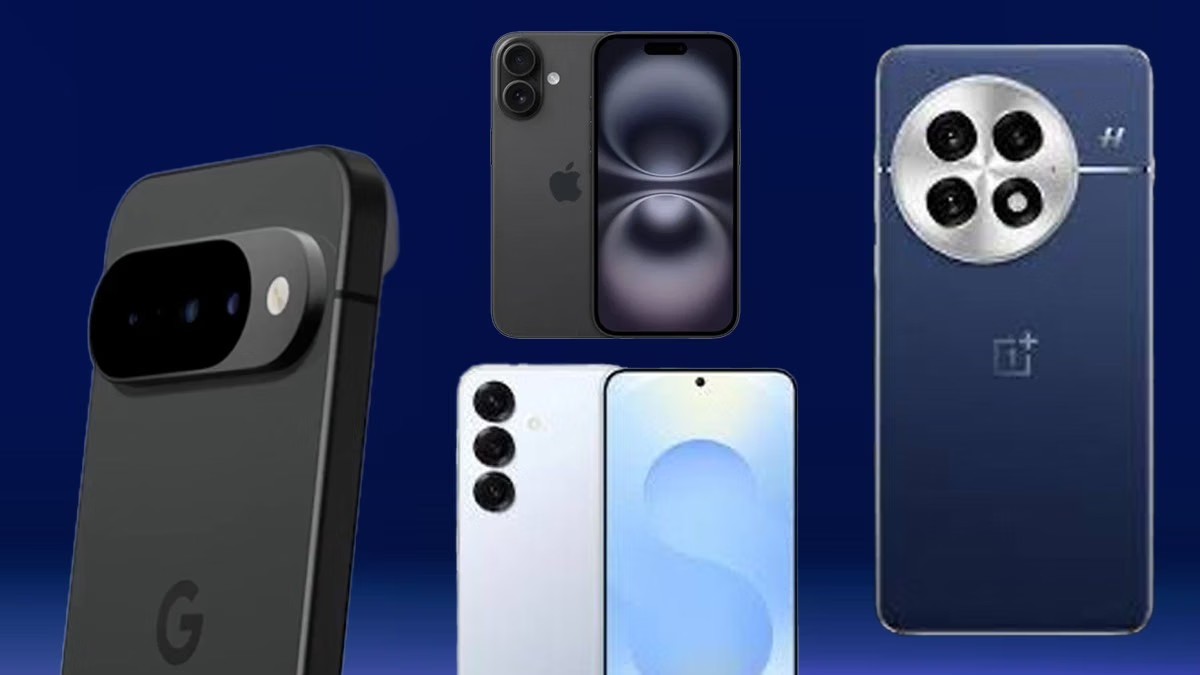
Given the constant release of new gadgets, shopping for a new smartphone may be quite difficult. The Google Pixel 10 is a popular option for many people, and it’s understandable why. It has a ton of fantastic functions, and Google’s unique software helps everything work together seamlessly. Nevertheless, the cost of $799 is high.
There are many alternative possibilities that can be a better fit for your needs, and the smartphone industry is enormous. Even if the Pixel 10 is an amazing device, there are less expensive solutions that can fit your budget or personal taste. Perhaps a new operating system, a longer-lasting battery, a special camera function, or just something more affordable without sacrificing performance are what you’d prefer.
Some very good smartphones with their own special benefits are excellent substitutes for the Google Pixel 10. Every one of these phones has distinctive characteristics that show how they stack up against Google’s flagship. These phones are excellent substitutes for Google’s Pixel 10, regardless of whether you’re a tech geek seeking a particular technological advantage or someone who simply wants the greatest price without sacrificing many features.
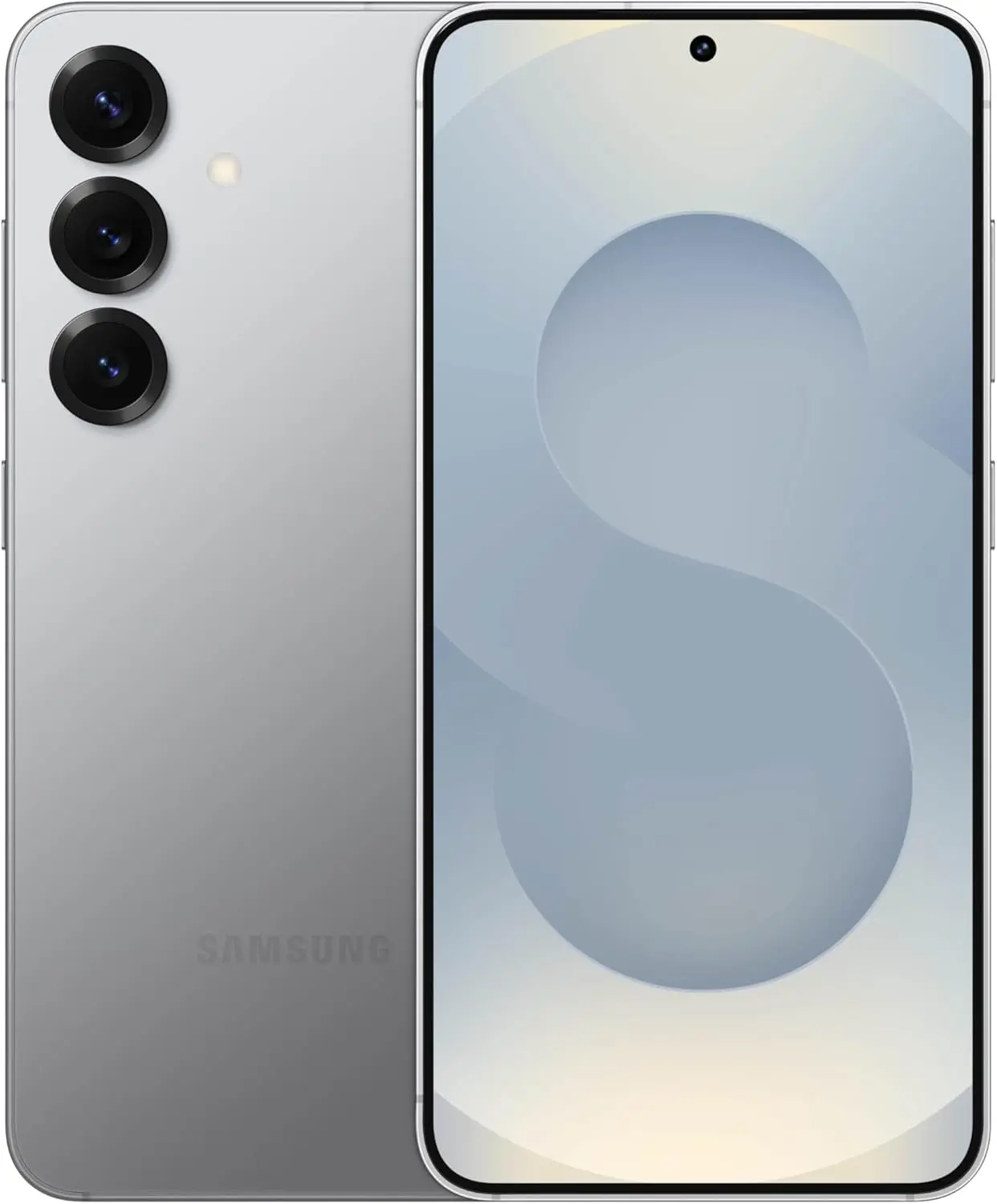
Samsung Galaxy S25
SAMSUNG Galaxy S25
Streamline your day with an assistant that gets you. Ask it to Google search for a pet-friendly vegan restaurant nearby and text it to your friend— your Galaxy S25 handles multiple tasks with a single ask.
The Samsung Galaxy S25 is the greatest choice if you’re looking for a new phone, especially when compared to the Google Pixel 10. The Galaxy S25 is available for less than $799, usually around $720, but the Pixel 10 costs $799. As we explained in our review, the S25 is a true beast in terms of performance. Its Qualcomm Snapdragon 8 Elite for Galaxy processor, which offers outstanding performance, powers it. Accordingly, the S25 is excellent for demanding Android apps that you wouldn’t use on a low-cost phone. Samsung’s bigger vapor chamber further enhanced cooling.
A 4,000 mAh battery and a bright 6.2-inch Dynamic AMOLED 2X screen with a peak brightness of 2,600 nits and a smooth 120Hz adaptive refresh rate make the S25 an excellent device to use outside in direct sunlight. The 50MP primary, 12MP ultrawide, and 10MP 3x telephoto lenses make up an amazing camera system.Your images and selfies will have better detail and realistic tones thanks to the ProVisual Engine and improved color science. In addition, Samsung has matched Google’s pledge to provide upgrades for the Pixel 10 with seven years of OS and security patches.
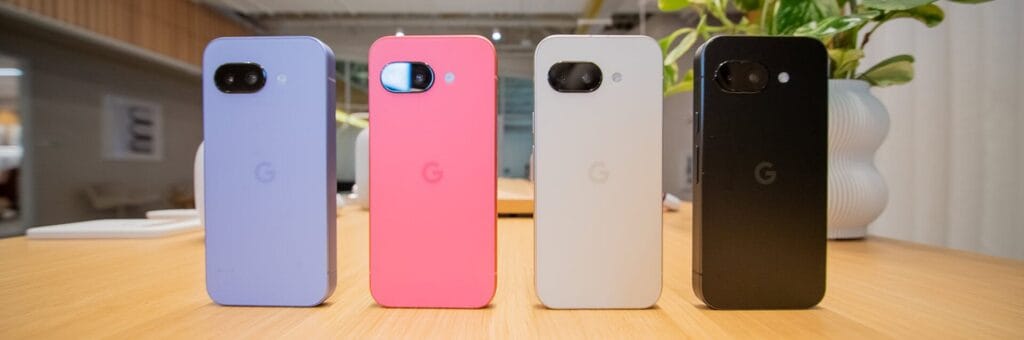
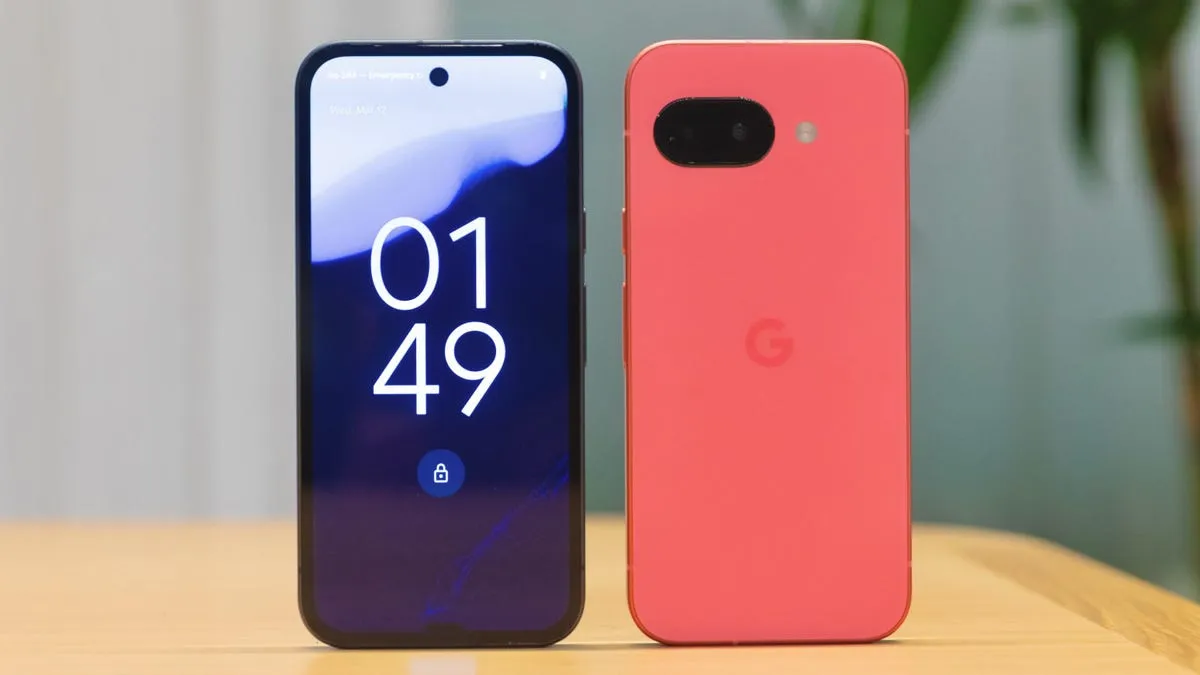
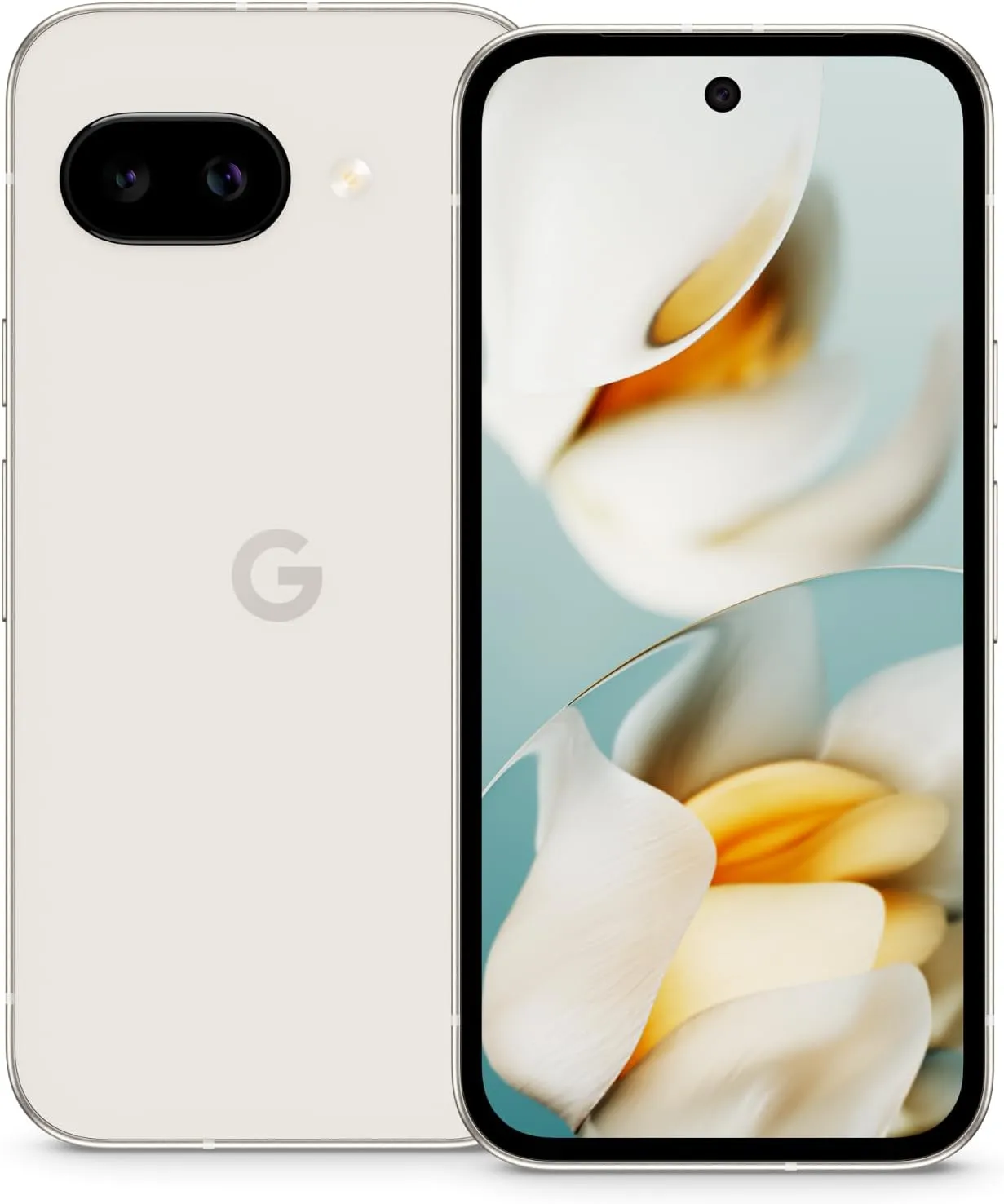
Google Pixel 9a
Google Pixel 9a
Google Pixel 9a is engineered by Google with more than you expect, for less than you think; like Gemini, your built-in AI assistant, the incredible Pixel Camera, and an all-day battery and durable design
If you want a fantastic phone without the hefty cost of the Google Pixel 10, the Google Pixel 9a is a strong candidate. Despite being from the previous generation, its pricing has allowed it to endure to this day. At launch, the Pixel 9a cost only $499, $300 less than the starting price of $799 for the Google Pixel 10.
The Pixel 9a has a fantastic display while being less expensive. We noted in our review that the Pixel 9a’s 6.3-inch Actua pOLED display, which boasts a refresh rate of 120 Hz, makes everything appear bright and feel fluid. Even in direct sunshine, you won’t have any problems viewing the screen thanks to its maximum brightness of 2,700 nits.
In fact, the Pixel 9a frequently outperforms its more costly sister in terms of battery life. At 5,100 mAh, it boasts the biggest battery of any Pixel to date. One of the Pixel 9a‘s main selling points is its camera, which is well regarded for being good for a mid-range phone. With its 48MP primary sensor and 13MP ultrawide camera, it captures crisp, well-balanced images with outstanding color and dynamic range using Google’s algorithms. Many of Google’s cutting-edge AI photo-editing features, like Magic Editor, Auto Frame, and Best Take, are also included.
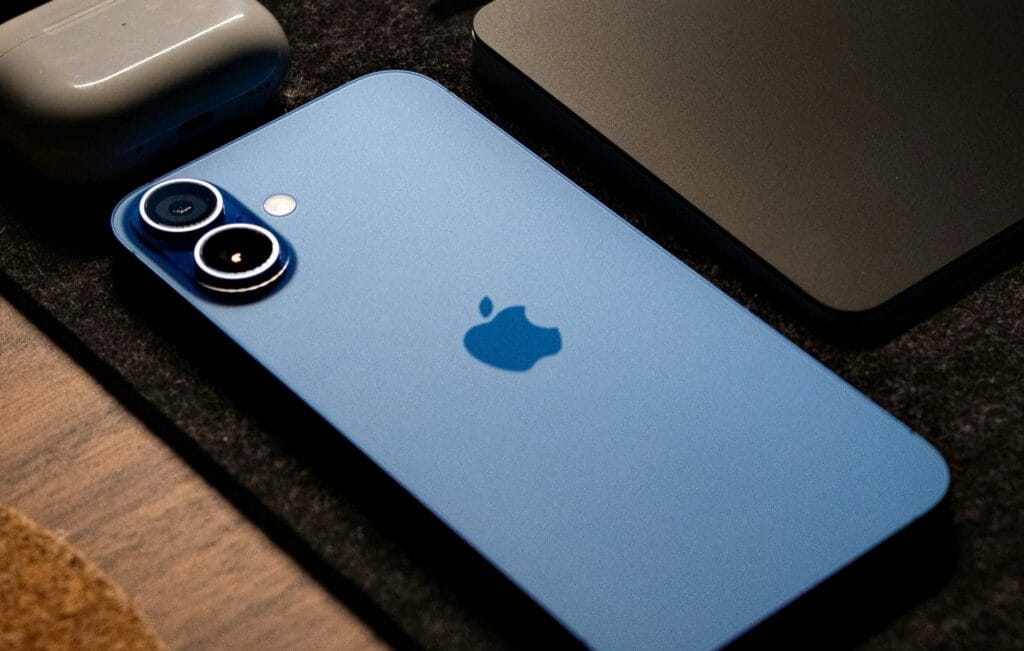
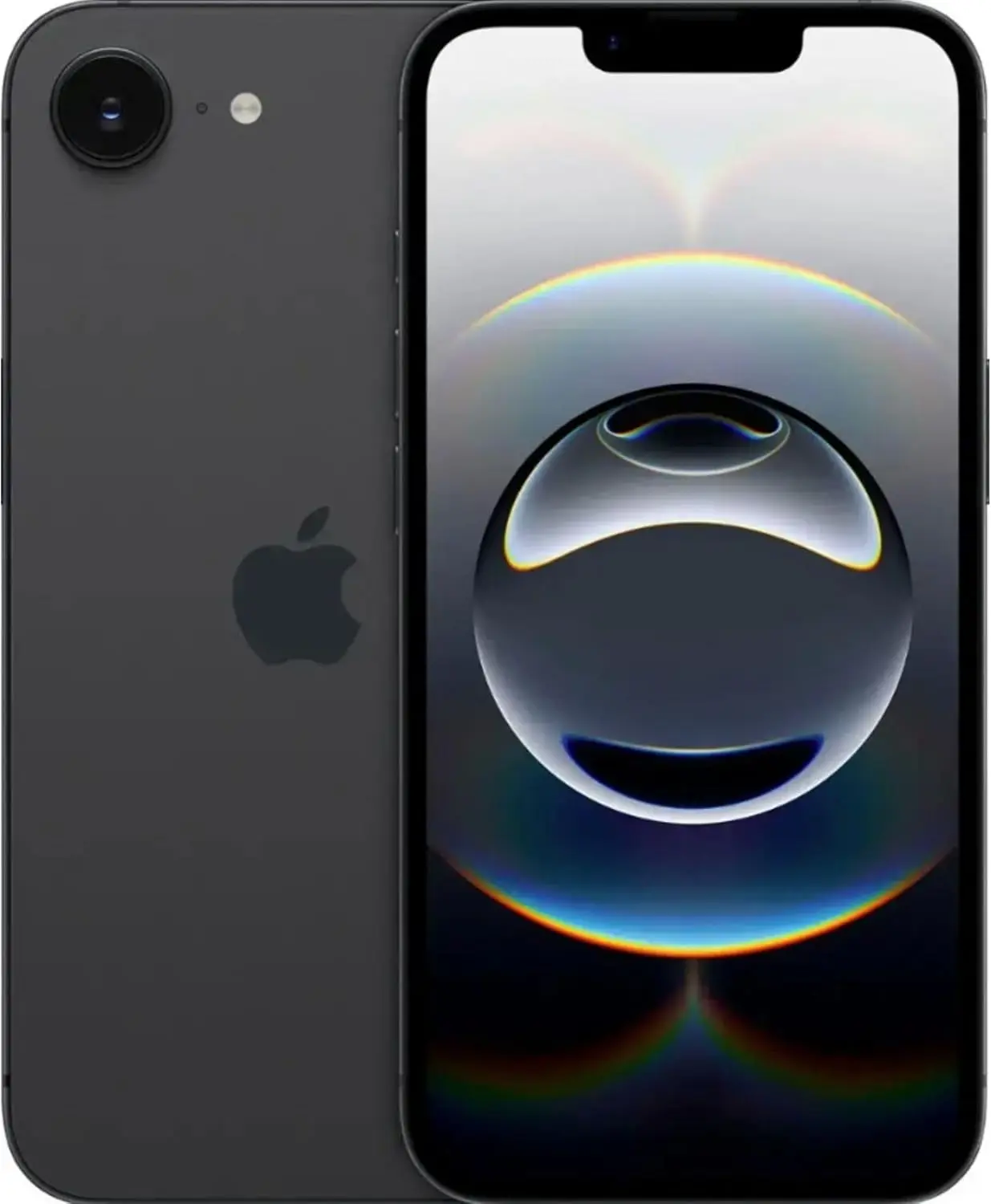
Apple iPhone 16e
The Apple iPhone 16e starts at just $599, which is $200 cheaper than the Google Pixel 10’s price tag. To be fair, even with that lower price, you’re still getting Apple’s latest A18 chip, the same one in the regular iPhone 16. It does have one fewer GPU core, but it still delivers excellent performance for everything from daily tasks to heavy-duty games and all those new Apple Intelligence features without any lag.
Apple iPhone 16e
This pre-owned product is not Apple certified, but has been professionally inspected, tested and cleaned by Amazon-qualified suppliers.
As we noted in our review, the iPhone 16e‘s battery life is yet another significant benefit. Compared to the standard iPhone 16 and many other mid-range Android phones, its battery can last even longer. According to Apple, it can play videos for up to 26 hours. The new, more power-efficient C1 modem from Apple is largely responsible for this longer battery life.
The primary camera is a powerful 48MP model with optical picture stabilization. It captures excellent 4K video and daily photographs. Even while it lacks the Pixel 10’s specialized telephoto and ultrawide lenses, you can still obtain a 2x zoom by cropping the primary sensor. The phone is running the clean iOS 18 software, which is fantastic for lifespan. You can anticipate four to seven years of software updates.
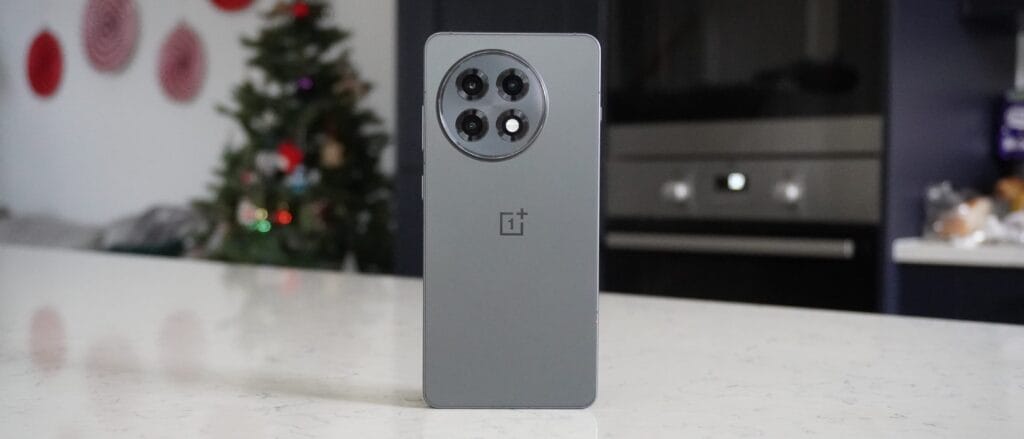
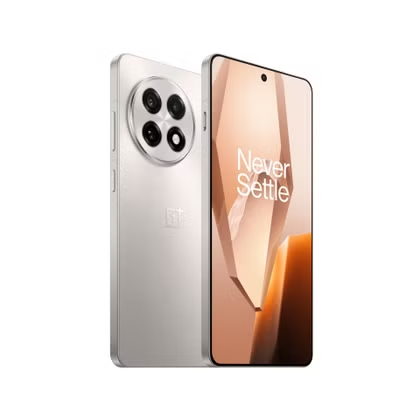
OnePlus 13R
OnePlus 13R
Performance with Snapdragon 8 Gen 3: Experience the cutting-edge power of the Snapdragon 8 Gen 3 chipset, offering blazing-fast speeds, enhanced gaming performance, and seamless multitasking for an ultra-smooth mobile experience.
The OnePlus 13R‘s pricing is its greatest advantage. It is $200 less expensive than the Pixel 10 at just $599. That kind of savings may seem like a lot of sacrifice, but it’s not. For its pricing, the OnePlus 13R is a beast in terms of performance. The Qualcomm Snapdragon 8 Gen 3 chipset, a top-tier CPU the previous year, powers it.
Even earlier Snapdragon chips can outperform the Pixel 10 in terms of sheer power, particularly when it comes to gaming, even if the Pixel 10 features Google’s Tensor G5 CPU. We noted in our evaluation that the 13R has a long battery life and charges quickly. With its enormous 6,000 mAh battery, it can comfortably run on moderate power for two full days.With the OnePlus 13R‘s 80W SuperVOOC wired charging capability, a 60% charge can be obtained in 30 minutes. Compared to the Pixel 10’s 30W cable charging, that is significantly faster.
The OnePlus 13R’s 50MP primary camera captures vibrant, clear images, even though the Pixel 10 boasts a triple-camera setup with a 5x optical zoom. Additionally, it features a bright 6.78-inch AMOLED screen with a refresh rate of 120 Hz.
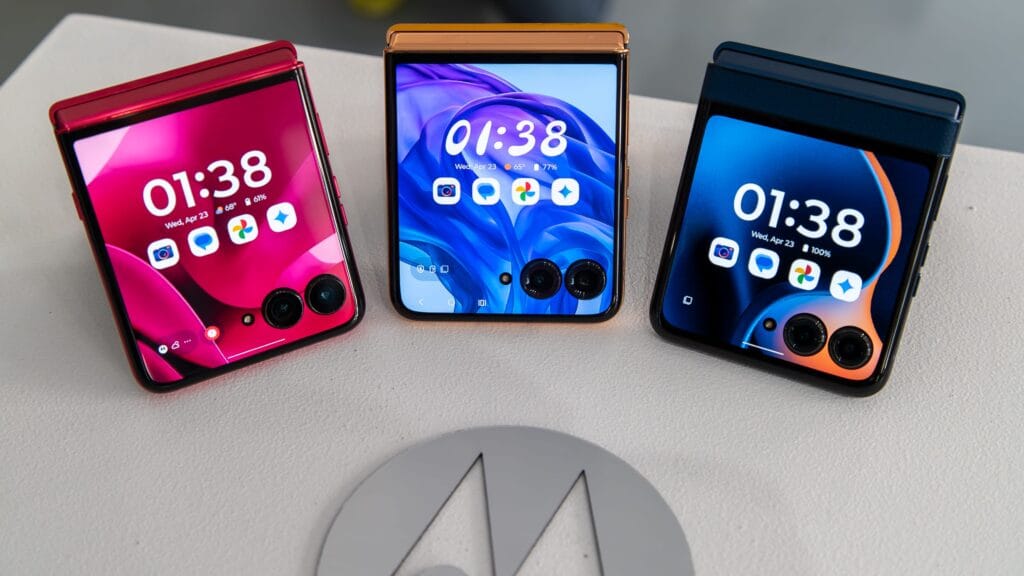
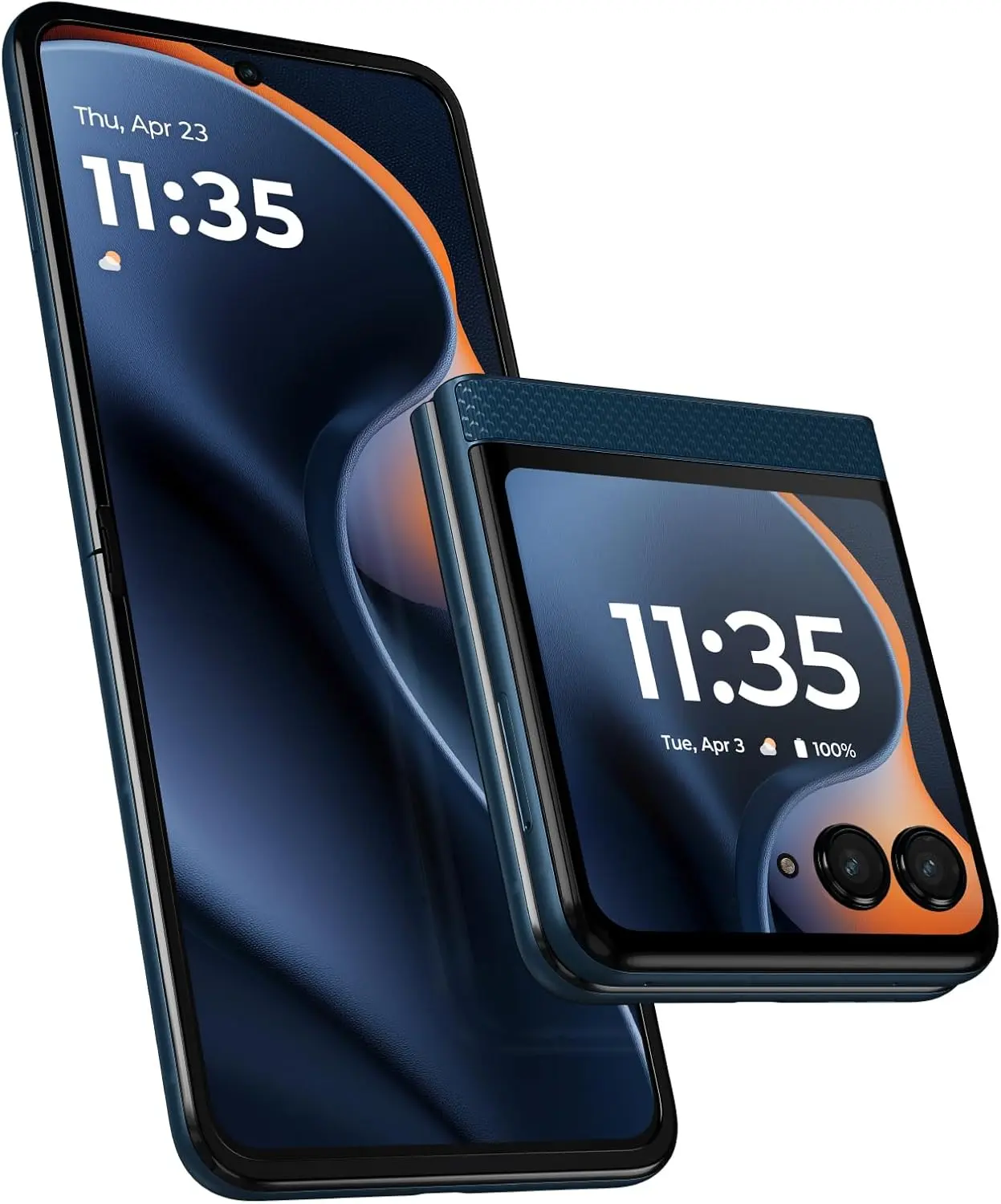
Motorola Razr 2025
Motorola Razr 2025
Iconic design, now even more durable: Ultra-compact flip design featuring a stronger hinge plate made with titanium, beautiful finishes, and curated Pantone Colors.
The Motorola Razr 2025 is an excellent option if you’re searching for a new phone that won’t break the bank. At $599, it’s less expensive than the Google Pixel 10. When folded, the Razr 2025 is incredibly small, but when opened, it reveals a sizable 6.9-inch AMOLED inner display with a fluid refresh rate of 120 Hz. The important apps that every Android owner should always have loaded can still be used on its convenient 3.6-inch pOLED outer screen.
The Razr 2025 has a very good battery life. Its 4,500 mAh battery has a 24-hour lifespan. With 15W wireless and 30W cable charging, it also offers respectable charging speeds. To be fair, the Razr 2025‘s three years of support is still commendable, even though the Pixel 10 offers seven years of software updates.
The Razr 2025 has a MediaTek Dimensity 7400X chipset, but the Google Pixel 10 boasts a triple-camera configuration with a 5x optical zoom and the most recent Tensor G5 CPU. All of your regular chores and light games can be handled by this chip. With a 50MP primary lens and a 13MP ultrawide, the camera setup performs admirably in well-lit environments.
The phones on this list are ranked according to their total worth. Performance, camera quality, battery life, and distinctive features are all factors that contribute to their asking price. Every phone has to be less expensive than the $799 price tag of the new Google Pixel 10. Since the Google Pixel 10 is a brand-new device, there are some older models that are equally or even superior for a significantly lesser cost.
It was crucial that we were knowledgeable enough to suggest these phones. In the end, all of the phones on our list are good options since they include the functionality that most people desire. Even less powerful phones, such as the Motorola Razr 2025, are excellent substitutes for the Google Pixel 10. To keep the price low, some of the phones on the list simply make a few larger compromises in areas like camera performance, charging speed, or general hardware.
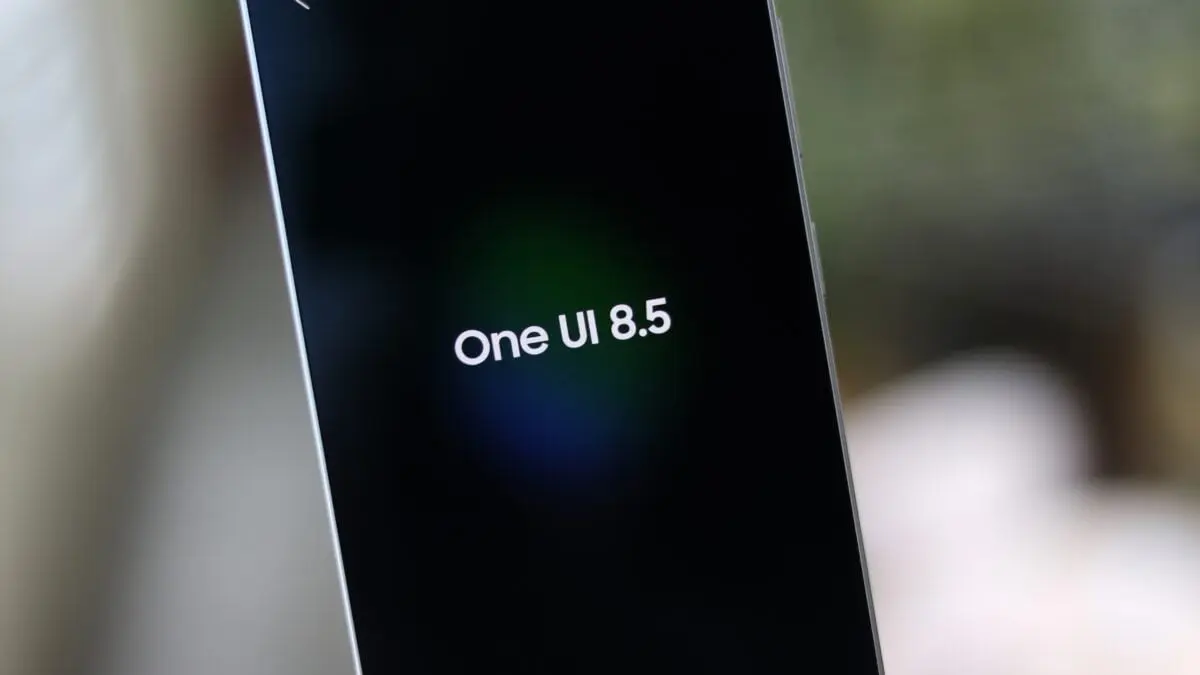
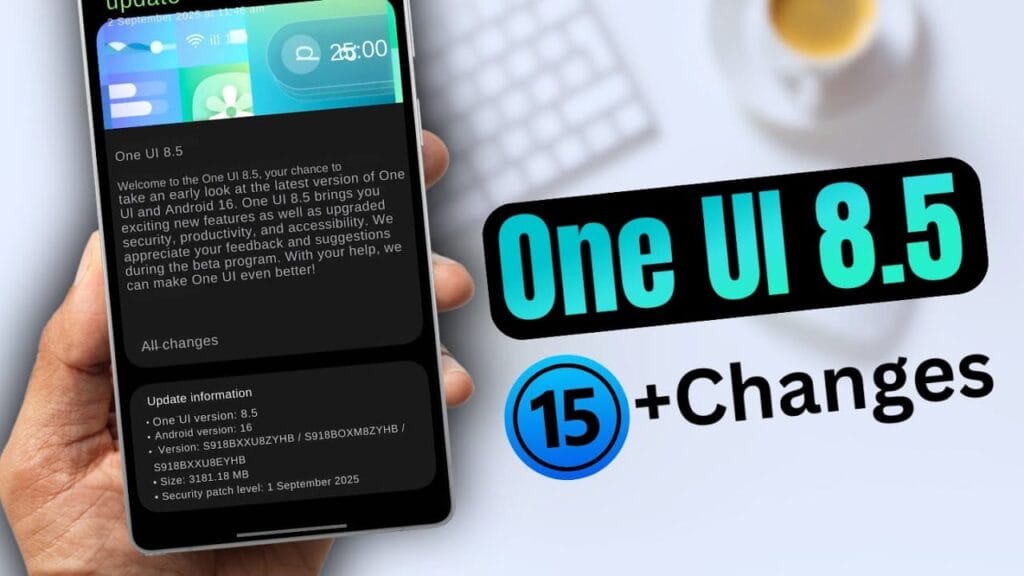
Early in the upcoming year, Samsung is anticipated to release the One UI 8.5 software along with the Galaxy S26 series. However, in terms of new features and cosmetic improvements, early build leaks have given little room for speculation.
Unfortunately, only a small number of users are able to test-run the program at this time, thus these early builds aren’t available to everyone. Although we are unsure of the exact date, we are aware that the firm will soon formally launch the One UI 8.5 beta program for its flagship phones. With a leak providing information on a possible release date for the initial beta update, that is now altering.
According to SamMobile’s exclusive tip, Samsung might activate the One UI 8.5 beta program before the end of November, possibly “around the week beginning November 24.” In contrast, after a protracted wait, Samsung released the One UI 7 public beta in December 2024, with the stable rollout taking place in April.
Samsung released the first One UI 8 beta in May and the stable version last month, changing things up for the next big software release. The devices that will be compatible with 8.5 and the areas in which it will be accessible are still unknown.
Will your older Galaxy phone get the One UI 8.5 beta update on schedule?
The beta update is likely to be available on almost every device running the Android 16-based One UI 8.0 software. At the top of the list of devices that qualify should be the Galaxy S25 series and the newly released Galaxy Z Fold 7 and Z Flip 7.
We should also mention that users of the Samsung flagships from 2024 had to wait about three months to receive the One UI 8 beta. With the next One UI beta, we can only hope that Samsung won’t do the same thing.
The software is expected to be a significant improvement over One UI 8, if the previous leaks of One UI 8.5 are any indication. Because it will be based on Android 16 QPR2, Galaxy owners will be able to use the most recent Android update available. A recently leaked hands-on video gave us a better look at the improvements in the new software.
This OneUI feature is perfect for fans of Samsung’s everything-but-the-kitchen-sink software strategy. Was one of the Samsung Galaxy phones’ best-kept secrets just revealed by a Reddit user? The most well-known aspect of OneUI, the software launcher that runs Samsung phones, is how many functions it has. Some of them are so buried or too many that you won’t utilize them at all.
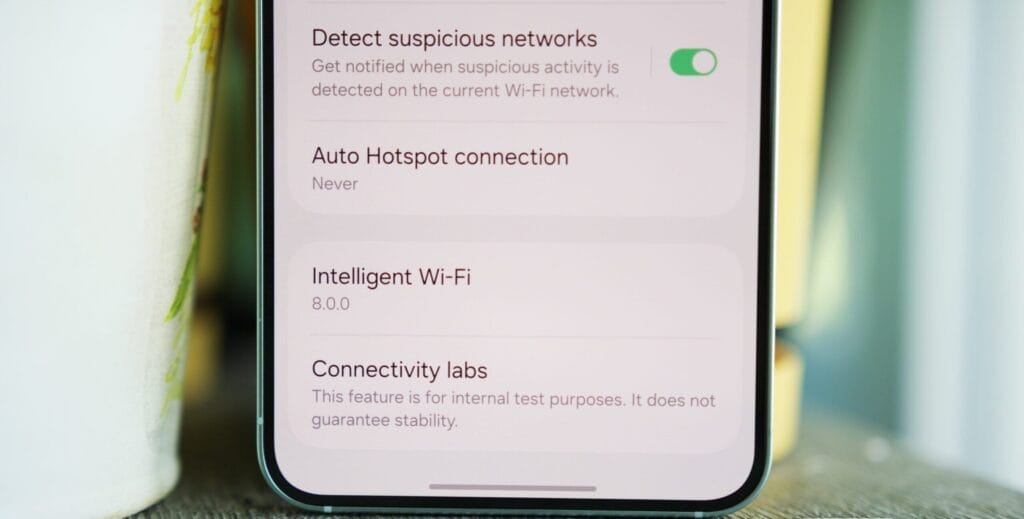
The best hidden feature award can go to a new discovery. The function, known as “Connectivity Labs,” can only be accessed by a hidden gesture in the Wi-Fi settings on your phone. That’s cool, isn’t it?
Even more amazing are the features offered by Connectivity Labs, which include developer options, AI-powered mobile data switching, a home Wi-Fi assessment tool, and more. Here are some of the greatest features you should start utilizing, how to access them, and which Samsung models are compatible.
Opening Intelligent Wi-Fi settings
In order to access your Intelligent Wi-Fi settings, you must first launch the Settings app, hit the Connections tab, select Wi-Fi, then tap the three dots in the upper-right corner (to expand options), and then select Intelligent Wi-Fi.
You will then get a list of Wi-Fi alternatives that are adaptable.
Turning on Connectivity Labs
Scroll to the bottom of the Intelligent Wi-Fi page, then tap the software version (now known as Intelligent Wi-Fi 7.0.0) seven times to enable Connectivity Labs.
You should see a pop-up message indicating the number of taps required to activate Connectivity Labs as you continue to tap. The secret menu will then show up at the bottom of the site after that.
Connectivity Labs
A column of graphs showing the different bands, types, and networks your phone is linked to appears when you first launch Connectivity Labs. Additionally, there is a “Daily Average” ticker that shows how long your phone spends on Wi-Fi each day.
But the bottom half of this page has the main content. A list of helpful internet connection toggles, such as Wi-Fi 7 mode, Wi-Fi handover, network quality information, and more, can be found as you read down.
Although the most of the alternatives are specialized, I’ve been trying with all of them, and three are generally helpful:
Home Wi-Fi inspection: This feature tests your Wi-Fi signal in real time, displaying connection strength fluctuations as you move around your house. I needed a convenient location for the monitoring hub after I recently placed new video security cameras across my property. After using the Wi-Fi inspection tool, I located a strong signal spot in my office and configured it.
Switching to mobile data faster: Have you ever had slow internet because your phone was switching between Wi-Fi and mobile data while you were outside of a cafe or office building, for example, and you were on the edge of a public connection? If you select this option, the phone will immediately switch to mobile data if it senses that your Wi-Fi signal is waning. If you have an unlimited data plan, this is a fantastic alternative.
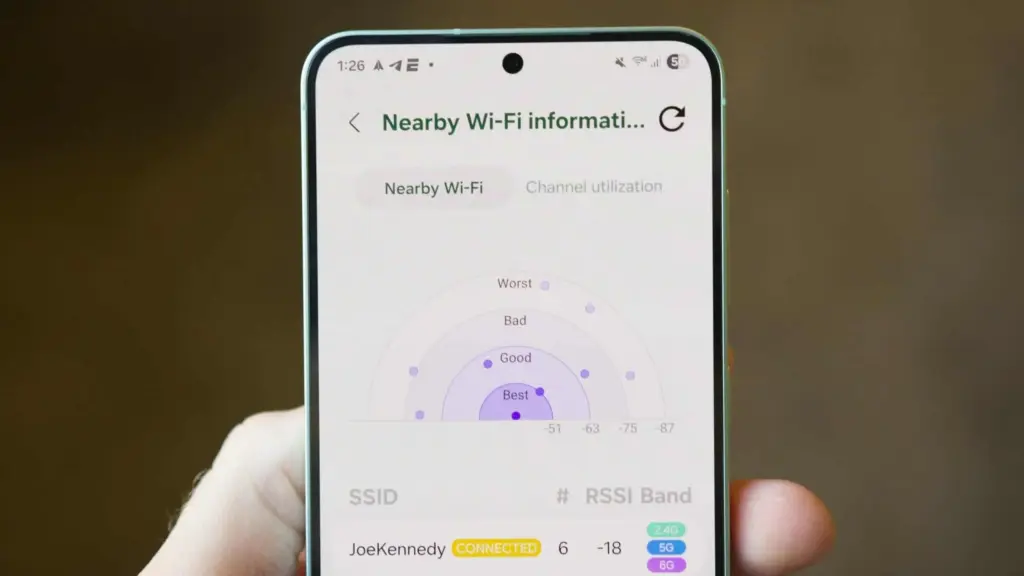
Wi-Fi Developer Options: One of the most useful settings on this menu is “Nearby Wi-Fi information,” which provides a list of the signal strengths of your nearby networks. When there are several public Wi-Fi networks available, such as at an airport, and you want to know which one will provide the quickest surfing speeds, this can be helpful.
Although I have only touched the surface of Connectivity Labs’ potential, it is evident that there are many helpful tools available to make more exploration worthwhile. I strongly advise spending some time looking into these settings, experimenting with them, and figuring out which ones best suit your unique need for internet connectivity. The amount of control and optimization you may attain without spending any money may surprise you.
Let’s say you just got a brand-new, sparkling TV. Like a child at Christmas, you open the box and get ready to enjoy all of its aesthetic splendor. It’s 2025,” you think to yourself. TV technology is booming, and it will always look fantastic. Thus, you plug it in without even checking the default settings. A huge error.
I’ve done it myself. And because it’s generally acknowledged that most customers forget to change the most fundamental settings when configuring their televisions, I’m fine with it. You may have never changed the default settings on your TV, even if it’s a few years old.
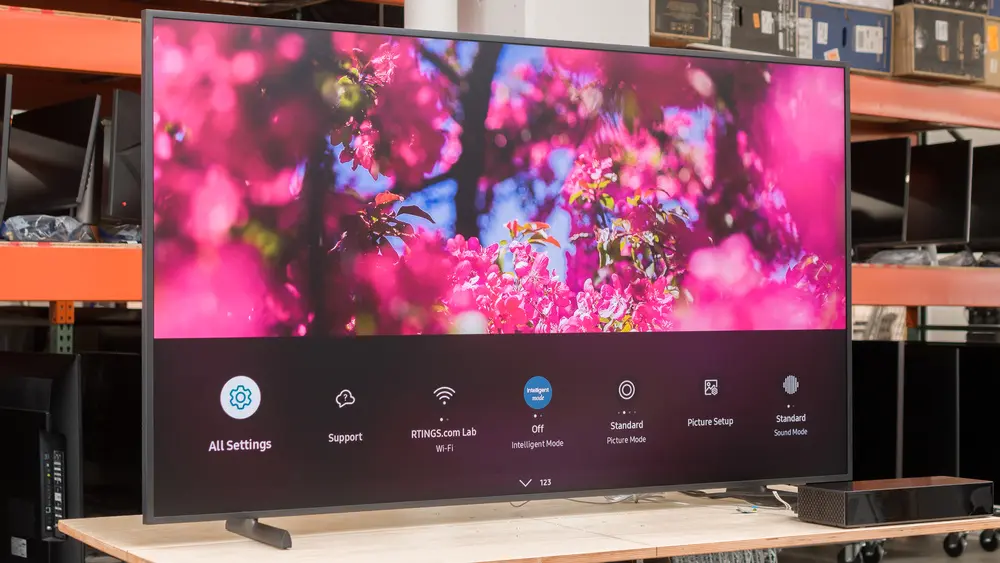
You may adjust a few settings on Samsung TVs in particular to enhance your viewing experience and add even more appeal to a dystopian survival thriller. Here are six suggestions to help you do that.
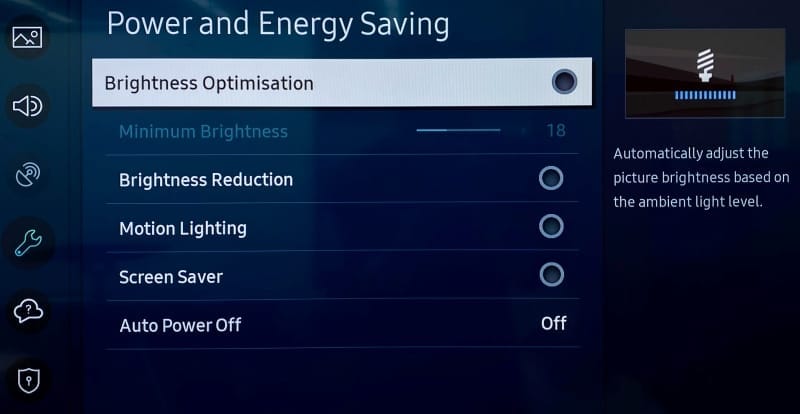
Turn off Brightness Optimization
Go ahead and turn off Brightness Optimization by turning it off as you’ve already reached Power and Energy Saving.
Nowadays, a lot of TVs have optical sensors that can determine the brightness of your room and its potential temperature. The TV then makes adjustments on its own, ostensibly optimizing color temperature and brightness based on that information. This isn’t always accurate, and the feature may end up producing worse results, particularly in a space where lighting conditions can fluctuate, such as on a sunny day when the sky is obscured by large clouds.
Adjust Brightness levels to suit your eyes
The type of content you’re viewing will determine the optimal brightness level. Even if HDR (high dynamic range) is gradually gaining popularity, SDR (standard dynamic range) has been the only option for decades of movies. You can readily change the brightness levels for both situations, though.
Open any software, like Prime, for SDR, but don’t start watching a video just yet. Proceed to All Settings > Picture > Expert Settings > Brightness (keep in mind that this is located under Picture Setup on some Samsung models). Adjust the sliders to determine the SDR brightness sweet spot, in your opinion.
Finding a video that is shown in high dynamic range is the first step in adjusting HDR brightness. Since many of its movies are tagged with brief descriptions identifying their genre, visiting YouTube TV is a quick way to make sure you are watching HDR content. Another option is to just search for “HDR video.”
You will notice a difference when viewing both technologies (SDR/HDR), however the brightness level you select depends on your personal preferences. I think HDR looks its best when the brightness is at its highest. You may discover that SDR appears best at a lower level.
Turn off Motion Smoothing for cinematic viewing
The majority of films are (and have always been) shot at 24 frames per second. Motion smoothing reduces juddering and blur by interpolating images in footage captured at 24 frames per second. Given that live television is filmed at 30 frames per second, this can be useful when watching sports.
However, Motion Smoothing—another popular default feature—has a reputation for giving televisions a “soap opera appearance.” Just from that description, you’ll likely understand. In photographic prints, I conceive of it as glossy versus matte, where glossy refers to the look of a soap opera that mimics a live broadcast. Even though I always strive for an immersive viewing experience, I don’t have to see the actors and crew filming the scene on the set.
Browse to Picture Clarity Settings under All Settings > Picture > Expert Settings.(Note that Motion Smoothing is referred to as Picture Clarity or Auto Motion Plus on Samsung TVs.)
From here, you can select Custom Settings or completely disable Picture Clarity (Motion Smoothing). You may want to increase the Blur Reduction and Judder Reduction sliders there if you’re playing a video game or watching a soccer match. Turning off Motion Smoothing, however, is the best option for traditional (filmic) aesthetics.
Choose a Picture Mode that suits you
The Movie, Cinema, or Filmmaker modes, in my opinion, are typically the best since they seek to offer the most genuine and accurate depiction of the content creator’s vision. These settings also lessen the possibility of introducing artifacts and other problems with image quality by cutting down on superfluous image processing.
Select Picture Mode from the All Settings menu. Then browse between these three selections (Movie, Cinema, or Filmmaker) to find your favorite.
The color temperature is typically cooler or bluer when using the standard mode by default. Vivid mode, which Samsung refers to as Dynamic mode, is frequently included with TVs. Both the Dynamic and Sports modes can make colors appear overly bright, giving the entire image a harsh shine, therefore I would suggest avoiding that. Because the colors will stand out more in storefronts, businesses are more likely to employ these modes when setting up display TVs.
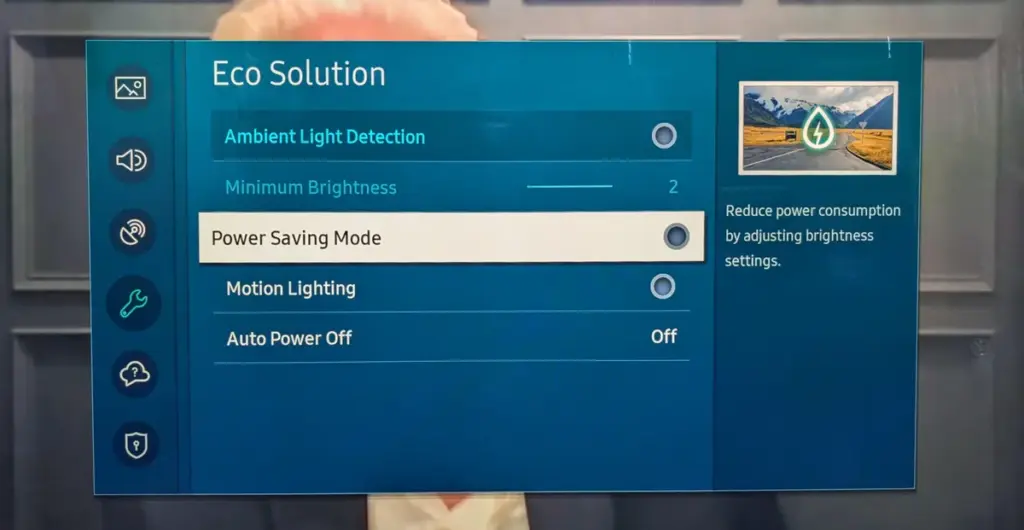
Turn off Eco Mode
Nowadays, almost every TV has some sort of “Eco Mode” on by default. By lowering the contrast and dimming the TV’s brightness, Eco Mode is intended to conserve power. According to a recent research, turning on Eco Mode can reduce your annual electric cost by as low as $7. (That is a daily amount of less than two cents.) There are other ways to more efficiently lower your carbon footprint, therefore it doesn’t make a big difference whether “eco” stands for economics or ecology.
To disable Eco Mode, click the gear button on your Samsung remote to access the settings. Then follow this path: All Settings > General and Privacy > Power and Energy Saving > Energy Saving Solution. Lastly, toggle Energy Saving Solution off.
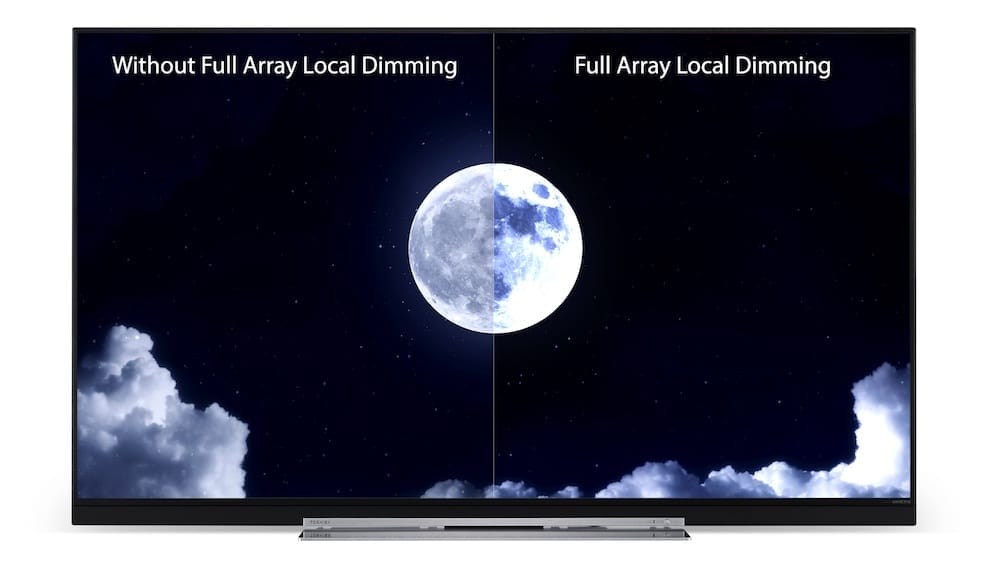
Check Local Dimming
There are three settings for Local Dimming on Samsung TVs, which is another control that affects brightness levels. Select Local Dimming under All Settings > Picture > Expert Settings.
To find the one that works best for you, try sampling Low, Standard, and High. When Local Dimming is set to Low, bright objects on dark backgrounds see reduced halo and blooming. My favorite setting on Samsung TVs is High since it maintains maximum brightness without haloing surrounding images.
After making changes to Local Dimming, you may wish to go back and evaluate if the brightness levels on both SDR and HDR content are adequate.
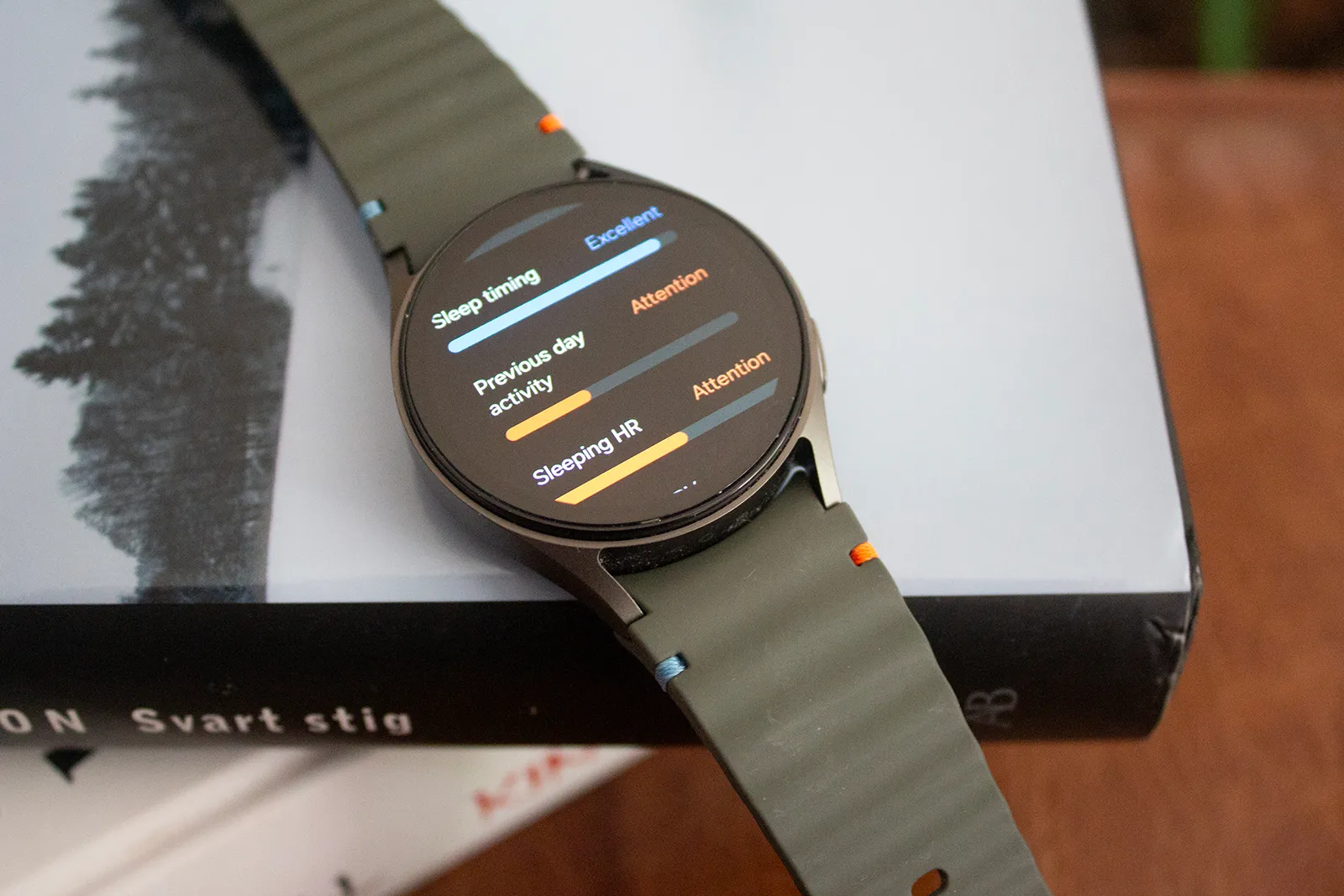
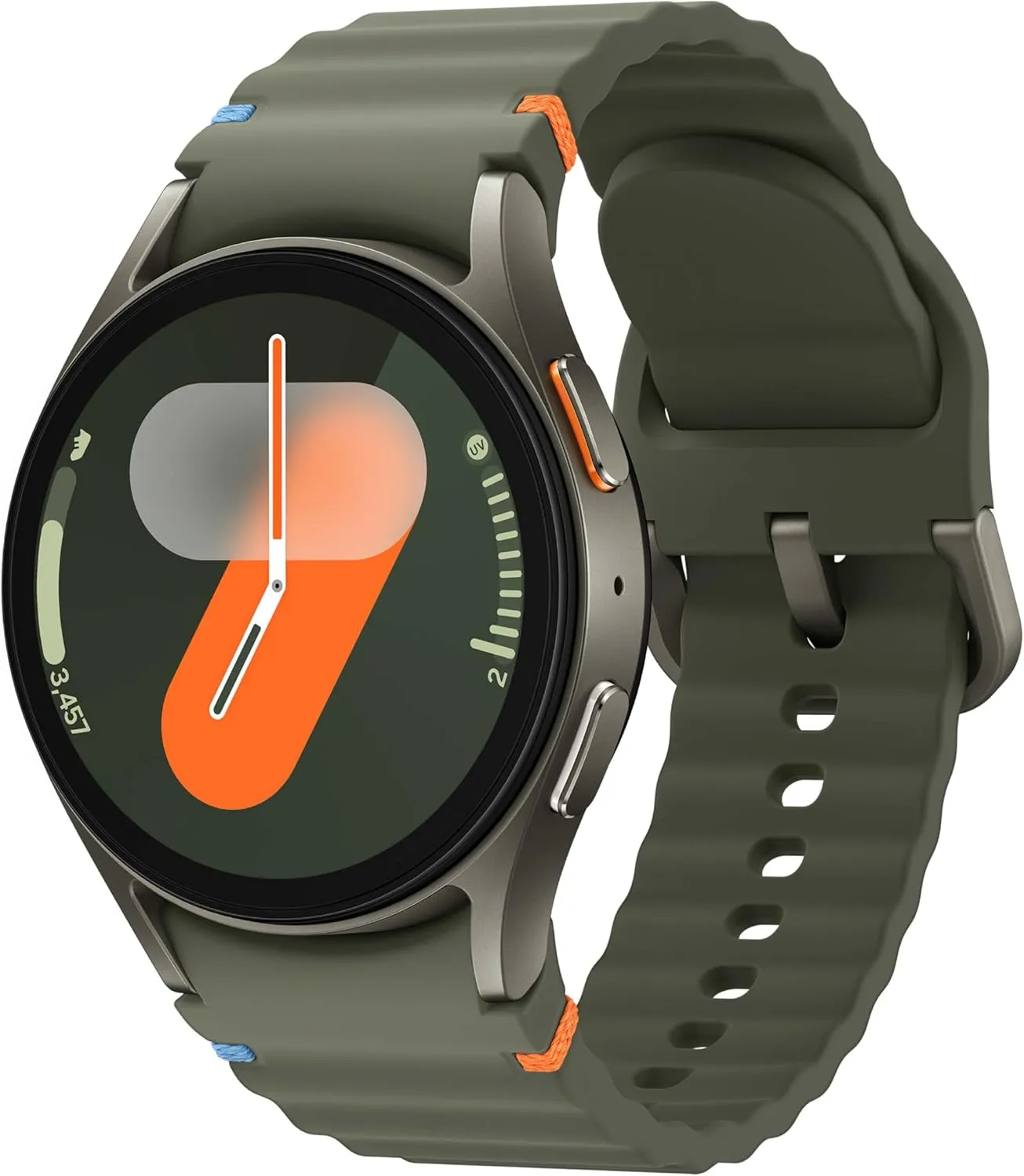
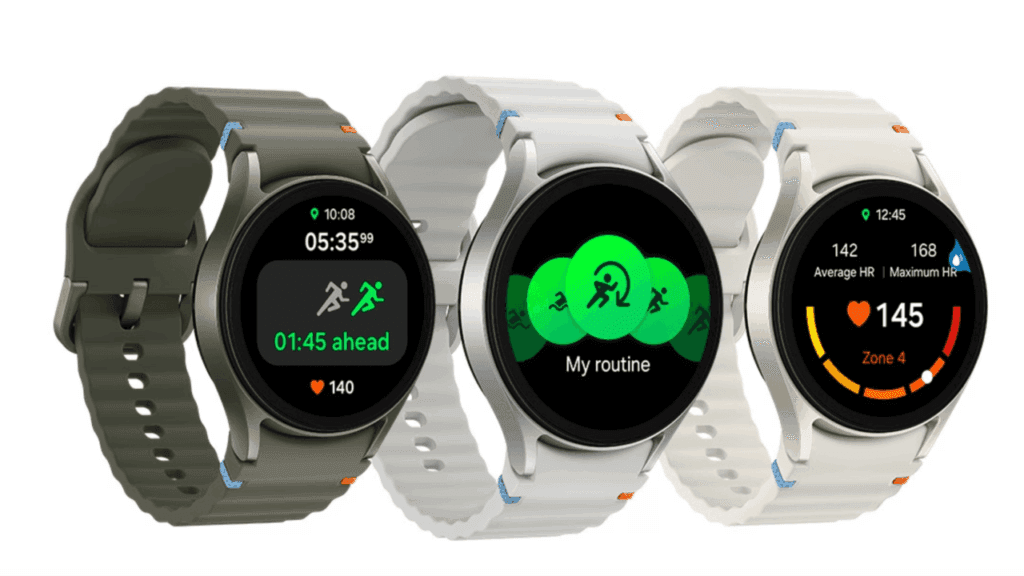
Prime Day is one of the ideal times to make that strategy work if, like me, you would rather wait for a new smartwatch model to come out so that the older model can be marked down. Samsung’s Galaxy Watches are currently on sale, with the Galaxy Watch 7 probably taking center stage. The 40mm GPS model is now only $149, which is a significant reduction from its usual $249 price.
That’s a significant decrease of $100 or 40% off. Additionally, you’re saving $150 when you take into account the Galaxy Watch 7’s initial launch pricing. It comes in two different color options: green and cream.
Samsung Galaxy Watch 7
Looking for a great way to bring out your personal best every day. Challenge yourself to excel on your next run or bike ride using tracking with Galaxy AI that lets you compare your current performance to your last one
Why the Samsung Galaxy Watch 7 is the best smartwatch choice right now
For users who are already familiar with the Galaxy ecosystem, Samsung’s Galaxy Watch 7 is still a functional Android smartwatch. You can combine it with phones that aren’t Samsung, but you won’t be able to use some of the special Galaxy capabilities.
For the majority of users, it is equally as dependable as the more recent Watch 8 because it performs the same essential tasks. Although it isn’t nearly as bright as the most recent model, the 1.3-inch AMOLED display still achieves an amazing 2,000 nits. Its Armor Aluminum 2 chassis, MIL-STD-810H certification, 5 ATM waterproofing, and IP68 dust and water resistance all contribute to the build’s durability.
The Exynos W1000 processor, the same chip used in the Watch 8, powers it from underneath. It includes sophisticated health tracking features including blood pressure and ECG and operates smoothly and steadily. The Wear OS 6 update, which will enable new features like the antioxidant index, is also planned for it.
Samsung Galaxy Watch 7
Looking for a great way to bring out your personal best every day. Challenge yourself to excel on your next run or bike ride using tracking with Galaxy AI that lets you compare your current performance to your last one
The rated 35-hour battery life is only a few hours longer than that of the more expensive model. That runtime can be almost doubled with power-saving mode. Nevertheless, both smartwatches charge at the same rate of 10 watts.
The Samsung Galaxy S25 Ultra and iPhone 17 Pro are two of the greatest phones available right now because of their incredible cameras and powerful processors. Even though these high-end flagships could be the best mobile devices available right now, getting them will cost you a fortune. Even phones that are affordable, like the Google Pixel 9A, are still expensive, and since people’s budgets are getting tighter everywhere, it’s more crucial than ever to get the most out of your purchases. Instead of updating more frequently, the simplest approach to achieve that is to just stay using your phone longer, spreading out that expensive purchase across the years.
Not only is it better for your wallet, but it’s also much better for the environment. If you upgrade your phone less frequently, fewer phones will be made and distributed, and fewer old phones will wind up in landfills. The good news is that manufacturers such as Apple, Google, Samsung, and others are extending the support period for their phones’ software updates, so the phone you purchase today will continue to be safe to use for many years to come.
You are responsible for the remainder. It takes some work, a lot of attention, and a few crucial tactics to keep your phone in good operating order for the seven or eight years of software support it may receive.
Therefore, these are the best ways to extend the life of your phone.
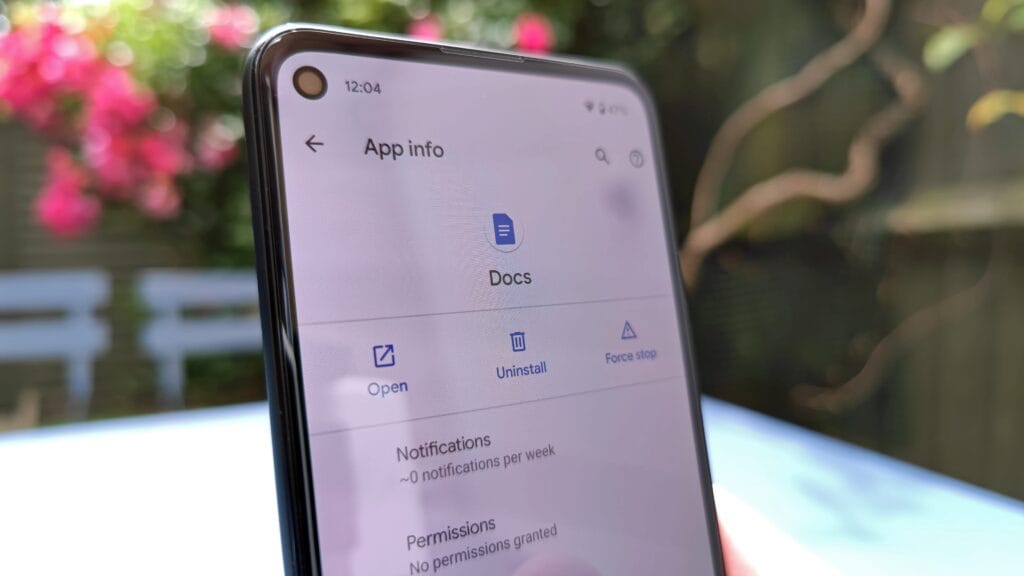
Update the software
Avoid using a phone that isn’t receiving security upgrades since it’s just not safe. Phones like the Google Pixel 9 series now come with seven years of software support, whereas before it was typical for many Android manufacturers to support new phones for only two to three years. Unfortunately, some less expensive phones, such as the recently released OnePlus Nord CE4 Lite, only get upgrades for a few years. When purchasing a new phone, be sure to inquire about its support duration since this will provide you with greater value during the phone’s lifetime.
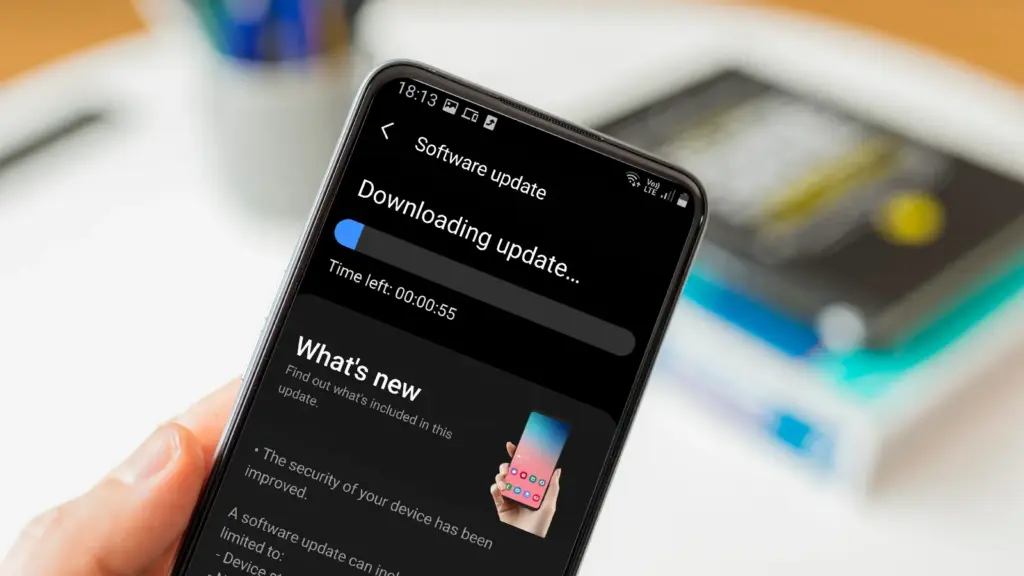
Keeping your phone up to date with the most recent security update will help prevent hackers and remove any dangerous software that might infiltrate and cause your phone to lag. If you have an older phone, go to the settings menu, scroll down to Software Update, and click to see if there is an update available. Most phones will automatically ask you to install the most recent upgrades, and you sh
This also applies to your apps, which must be updated to stay compatible with the iOS or Android version you’re using. Allowing apps to update automatically in the background is a good idea, but if you don’t, make sure you’re running the most recent versions by going into your preferred app store.
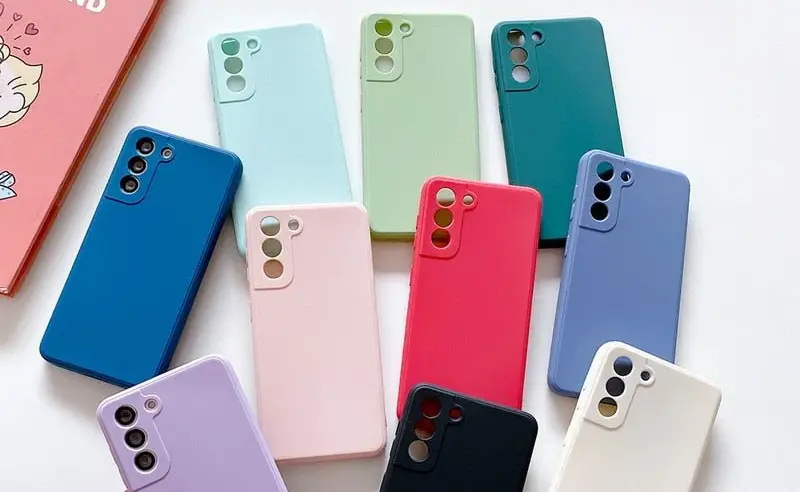
Protect it with a case
If you recently purchased a brand-new iPhone, installing a case right away is the best way to preserve it physically. In addition to protecting it in the event that you drop it, it will also assist prevent it from absorbing tiny scratches from your pocket’s coins or keys.
Since there isn’t much you can do to repair your phone’s screen after it becomes damaged, a screen protector is also a smart option. You can easily change a screen protector if it gets a severe scratch, keeping the phone itself looking brand new for many years to come. When it’s time to update, keeping your phone looking new could help you sell it for more money on the used market, even if you don’t intend to keep it for many years.
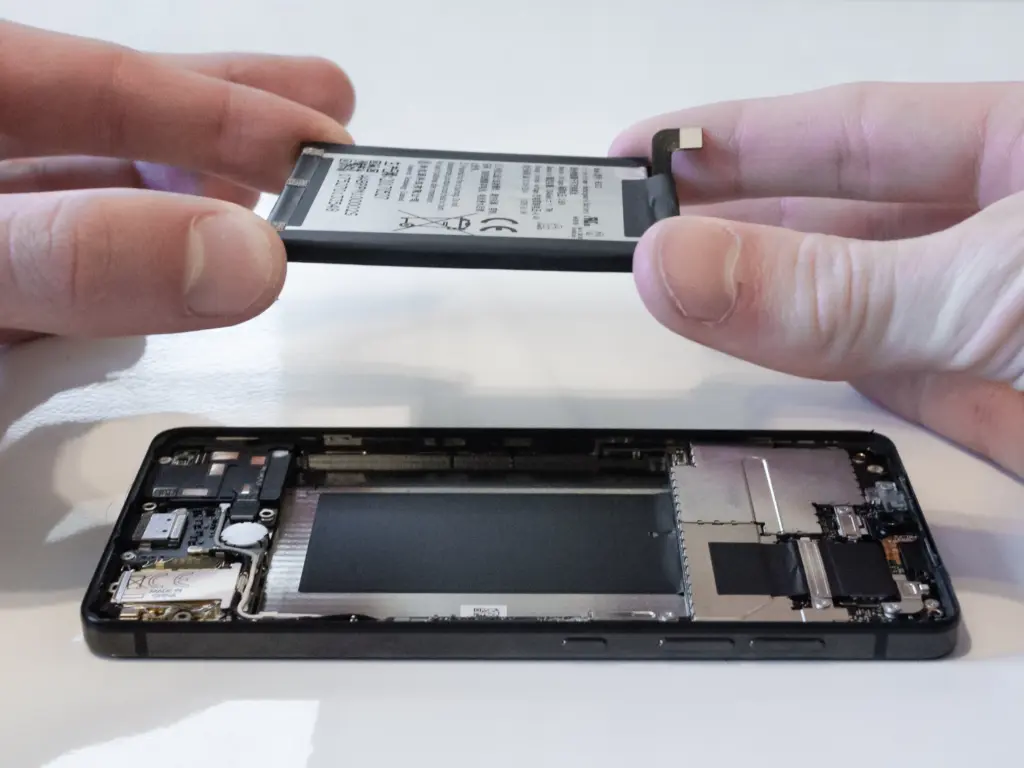
Replace the battery
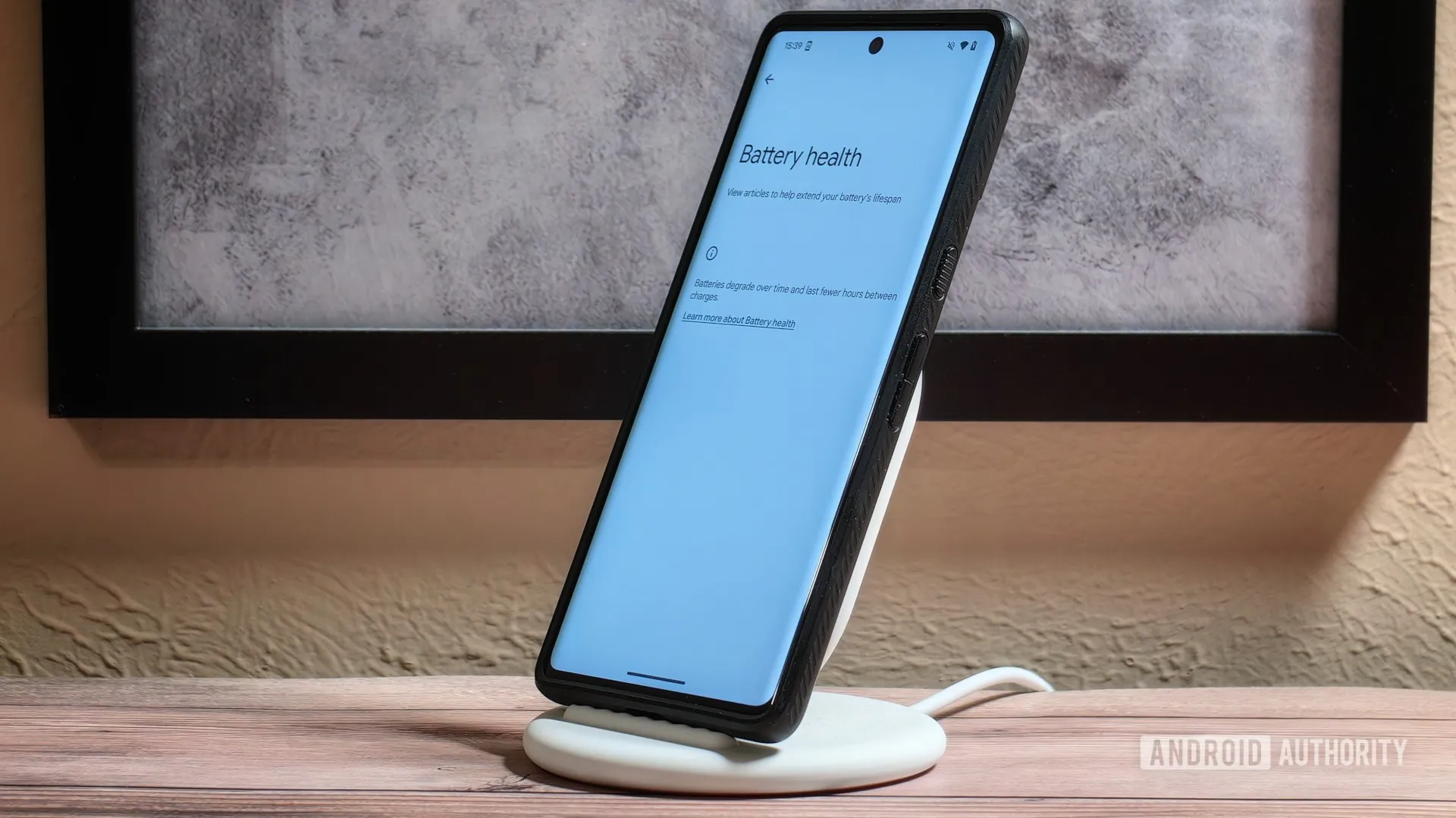
Over time, the battery in your phone will progressively degrade, giving it less life between charges than it did when it was brand-new. All phones are like this. Batteries in certain older phones might only provide 50% of their previous capacity. Your phone may even alert you when it senses that your battery isn’t providing enough power, in which case it may limit your processor to make up for it.
Don’t worry; most phones have a battery that is rather simple to change on your own to give it a fresh lease on life. If your battery is about to die, it could be worth trying to repair it yourself. iFixit offers a wide range of kits and third-party replacement batteries to fit a large number of phones.
If you’re not very confident with your screwdriver skills, this might be a nice alternative to think about. There are a number of places you can take your phone to have your battery replaced, or even other components like a broken screen. However, not all of them are really legitimate.
Remove old apps that you are not using anymore
Your phone is probably cluttered with thousands of pictures of your friends, pets, or the plates of food you’ve consumed over the years if you’ve owned it for a long time. You probably have a number of outdated apps and games that you downloaded on the spur of the moment, played for a few bus rides, and then switched to the newest mobile gaming craze.
In addition to negatively impacting your phone’s general performance, a shortage of storage may also make it more difficult to install important software updates. It’s worthwhile to look through your archives, remove anything from your phone that is wasting space, and backup any pictures and movies you wish to store to the cloud.
It might even be worth backing up all of your crucial data and performing a complete factory reset, starting over, and only installing the necessary apps if your phone has been slow for a long period.
Clean out your ports
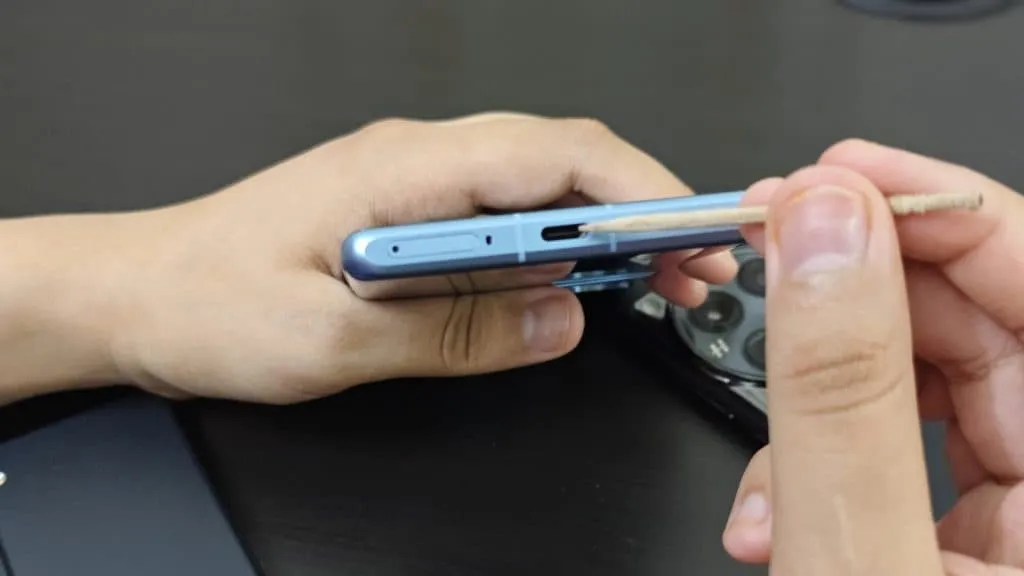
Last but not least, cleaning your phone can offer unexpected benefits. Your phone may suffer greatly from pocket fluff, especially when it comes to the charging connector, which frequently becomes clogged with bits of junk. As a result, your phone won’t charge when you plug in your charger because it can’t connect completely.
It’s tempting to assume that something has broken, like the cable or the charging port itself, but it could just be that the port is overflowing with lint. To make sure your charger fits without requiring forceful wriggling, occasionally insert a wooden toothpick into the area and try to ease out any dirt or debris you notice.
To make sure you can clearly hear—and be heard—during your phone calls, it’s also worthwhile to carefully brush away any debris you may discover near the speakers and microphones with an old toothbrush that has been cleaned and dried.
Now might be the ideal moment to get your first ultra-thin phone, especially a Samsung Galaxy model, if you’ve been on the fence about it. Samsung’s incredibly thin and light Galaxy S25 Edge looks to be on sale right now. Amazon is selling the unlocked smartphone for $699, which is its lowest price to date.
With this significant $400 discount, the base model with 256 GB of storage is now more than a third less expensive than it would normally be. Titanium Jetblack, Titanium Icyblue, and Titanium Silver are available hues from the vendor.
Samsung Galaxy S25 Edge
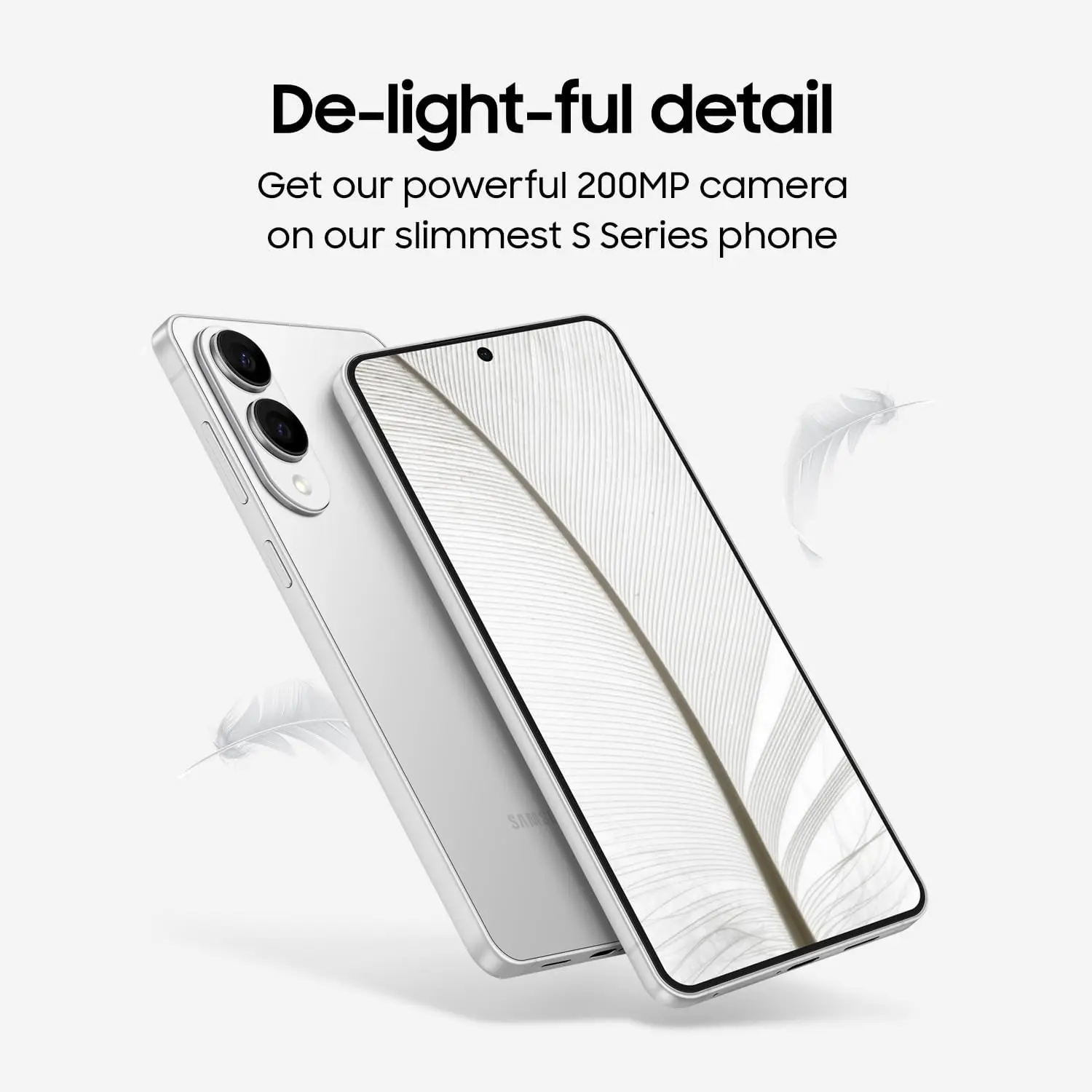
SUPER SLIM. SUPER LIGHT: Galaxy S25 Edge is surprisingly light and our slimmest S Series phone yet. You’ll want to show off this sleek, super-slim design that slips easily into your pocket or bag without bulking things up.
What sets the Samsung Galaxy S25 Edge apart from the rest?
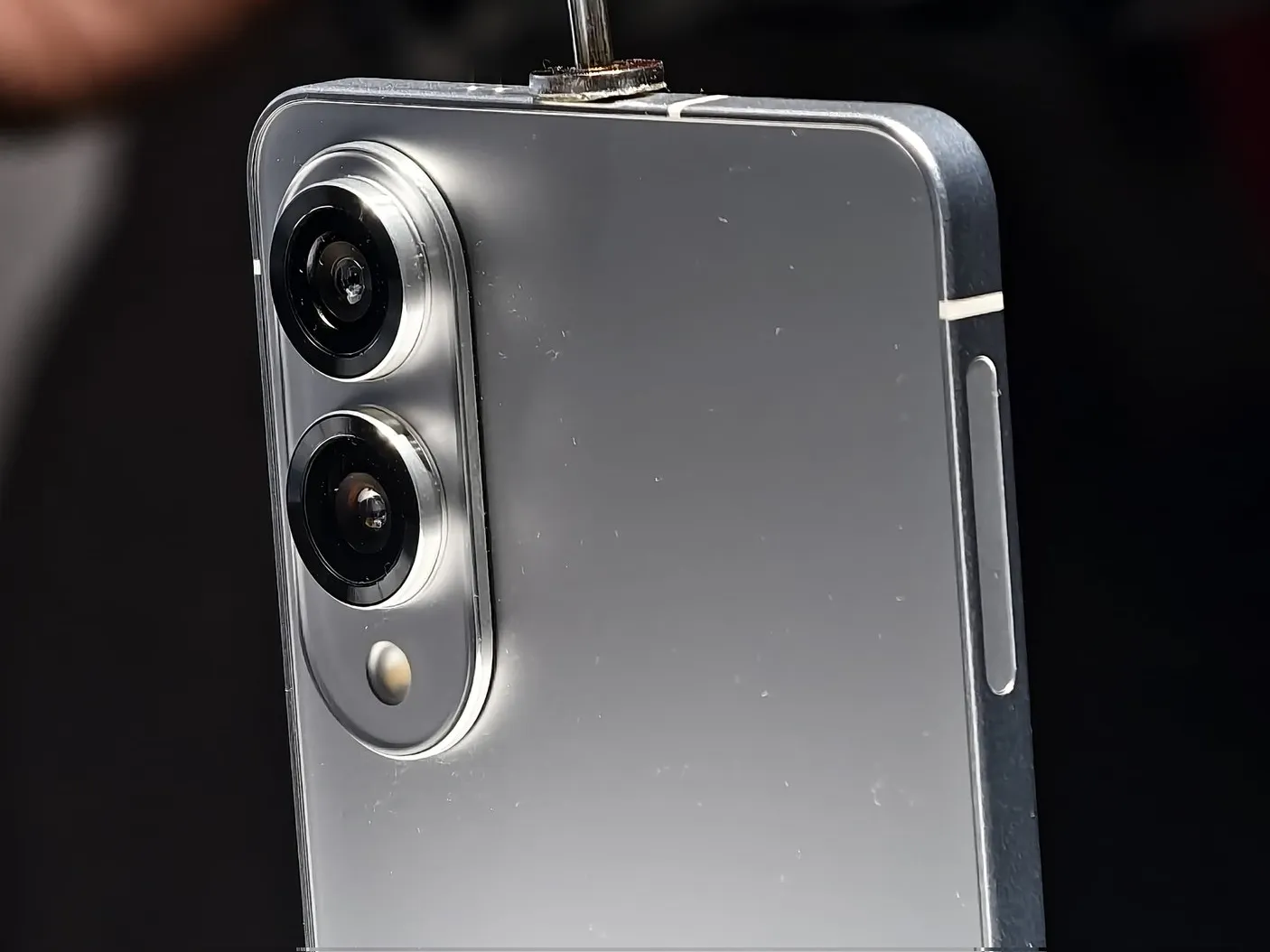
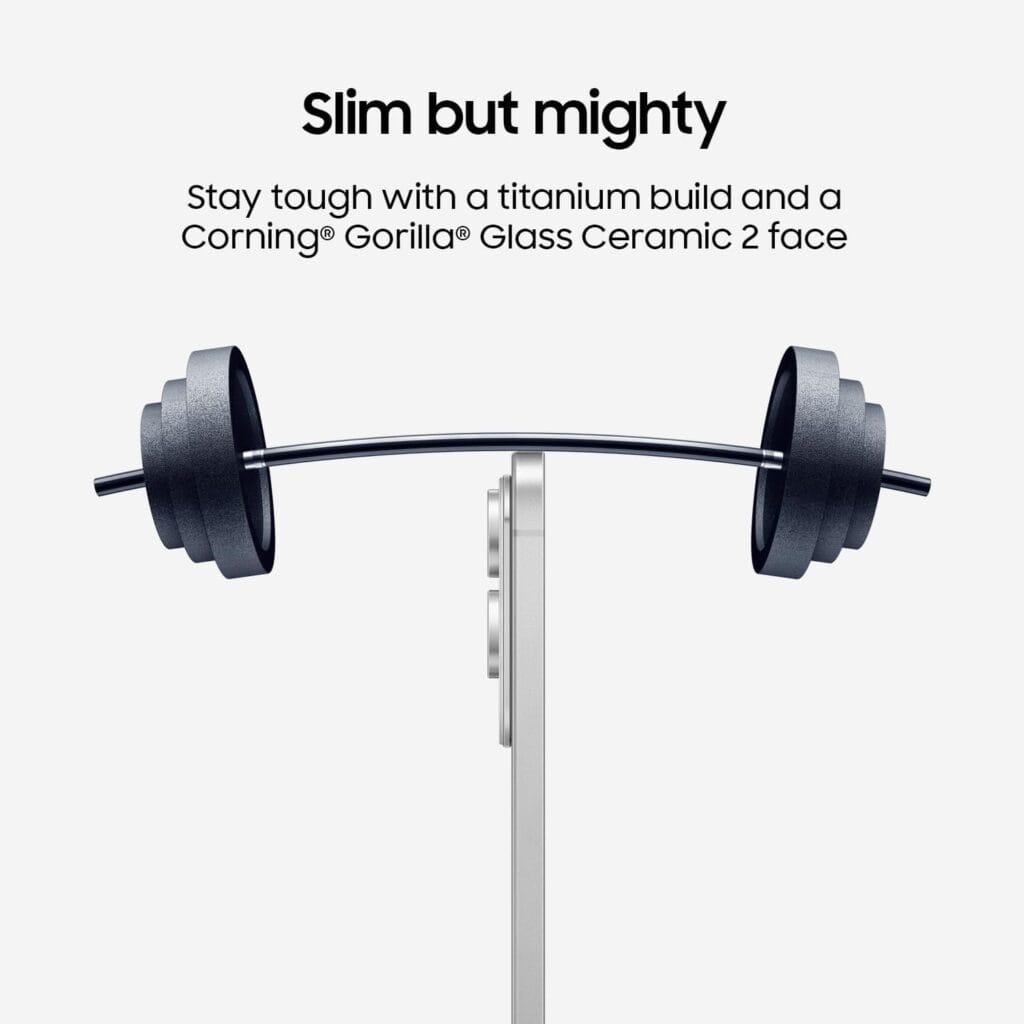
We were astounded by how incredibly slim Samsung’s sleek Galaxy S25 Edge was. With the camera bump removed, the titanium chassis on which the device is constructed is 5.8 mm (0.23 inches) thick. Even with a case on, it is manageable to hold in one hand because to its exceptional light weight of 163 grams (5.75 oz). Like the normal Galaxy S25, it features an IP68 dust and water resistance rating despite its sleek design.
The Galaxy S25 Edge still has high-end core components, even though it appears that some features were trimmed to create the incredibly tiny appearance. Among these is an amazing 6.7-inch AMOLED screen with a refresh rate of 120 Hz and 2,600 nits of brightness. Additionally, it makes use of a customized Gorilla Glass Ceramic 2, which is more resilient and scratch-resistant than the Victus 2 glass.
Samsung Galaxy S25 Edge
SUPER SLIM. SUPER LIGHT: Galaxy S25 Edge is surprisingly light and our slimmest S Series phone yet. You’ll want to show off this sleek, super-slim design that slips easily into your pocket or bag without bulking things up.
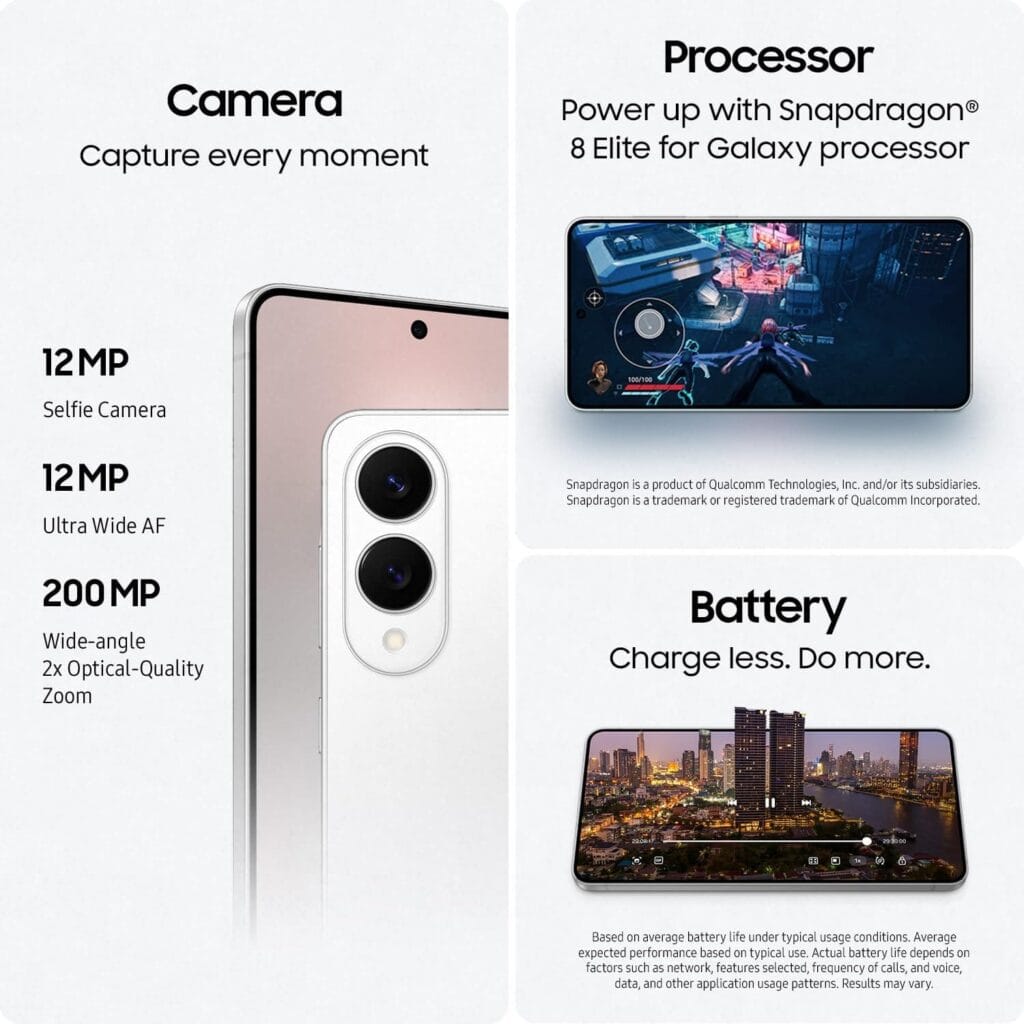
Internally, the Galaxy S25 Edge is equipped with the most advanced Snapdragon 8 Elite CPU available for Galaxy devices. Even when doing graphics-intensive operations and demanding tasks, you can count on incredibly fluid performance.
The telephoto lens, a reluctant casualty of the slim design, is one prominent omission. Nevertheless, the 200 MP primary camera is adaptable and competitive when combined with a 12 MP ultrawide sensor. For content creators, the phone’s ability to record up to 8K video is a plus.
Ultra-thin phones frequently struggle with battery life, but Samsung’s software optimization and effective chipset enable the S25 Edge to last a whole day – thankfully comparable to larger flagships. It charges quickly; a 25-watt charger will fill half the battery in 30 minutes.
In certain markets, Samsung could use the Exynos 2600, a new flagship processor for mobile devices, in its upcoming non-foldable flagship smartphone range, the Galaxy S26 series. The performance of the CPU and GPU has previously been revealed by SoC leaks.
But because the chipset was still being developed, the CPU benchmark that we previously saw wasn’t particularly outstanding. We now have the Exynos 2600 as a new CPU benchmark. This one demonstrates its far better performance, surpassing even the Snapdragon 8 Elite from Qualcomm.
Samsung’s forthcoming Exynos chip has been seen on Geekbench with a new benchmark listing (via @Jukanlosreve). As you can see in the screenshot below, the chipset received 3,309 points in the single-core CPU test and 11,256 points in the multi-core CPU test.
Samsung Exynos 2600 Geekbech
In contrast, the Snapdragon 8 Elite in the Galaxy S25 received 2,900 points for its single core and 9,300 points for its multi-core. On the other hand, the Exynos 2500 in the Galaxy Z Flip 7 received about 8,100 points in the multi-core test and 2,500 points in the single-core trial.
To put it another way, the CPU of the Exynos 2600 is 13% to 17% quicker than the Snapdragon 8 Elite and 32% to 38% faster than the Exynos 2500.
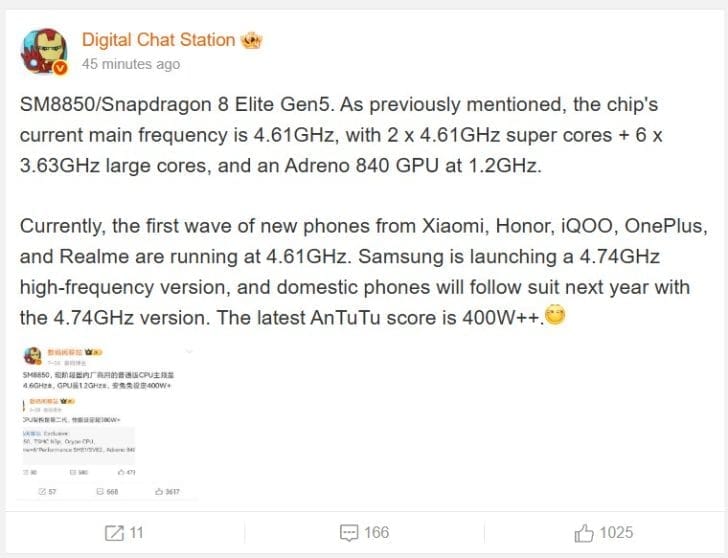
After a while, we discovered that the Snapdragon 8 Elite Gen 2 from Qualcomm might actually be the Snapdragon 8 Elite Gen 5. After a short lull, a new rumor has surfaced that offers some data about the specifications, allowing us to examine the advancements between the two generations more closely—at least on paper—because there is more. We should start investigating this report right away because the whistleblower who supplied these details also stated that the AnTuTu score is purportedly 50% higher what the Snapdragon 8 Elite achieved.
The Digital Chat Station, a Weibo tipster, has returned with some important information on the Snapdragon 8 Elite Gen 5. As its performance cores recorded on Geekbench 6 were 4.74GHz rather than the normal 4.61GHz mentioned in the most recent rumor, it appears that the version tested on the Galaxy S26 Edge was a higher-binned part. According to reports, the efficiency cores are capped at 3.63GHz, and the Snapdragon 8 Elite Gen 5 has a “2 + 6” CPU cluster, just like the Snapdragon 8 Elite.
As for the GPU, Qualcomm will couple its forthcoming flagship SoC with the Adreno 840, with the source adding that its default clock speed is 1.20GHz, making it slightly faster than the Adreno 830’s 1.10GHz speeds. The San Diego company seems to have some latitude in raising those frequencies thanks to TSMC’s third-generation 3nm technology, but how much of a difference will that translate into benchmarks? The Snapdragon 8 Elite Gen 5 allegedly scored over 4 million points in AnTuTu, according to the rumor.
The REDMAGIC 10 Pro, which has a Snapdragon 8 Elite processor, is the quickest Android smartphone according to benchmark leaderboards. The final score for this device was 2,662,615. These numbers will be 50% greater than those of its straight predecessor, assuming the Snapdragon 8 Elite Gen 5’s AnTuTu findings are genuine. Due to an exclusive arrangement with Qualcomm, Samsung will be the only company able to debut the Galaxy S26 series with the quickest flagship out of all the companies anticipated to do so. Stay tuned for additional developments as the chipset maker’s Snapdragon Summit gets underway on September 23. Any elusive specifics will be revealed throughout the event.