Tag: photo

  • How to hide photos and videos on Android without any app

    How to hide photos and videos on Android without any app

    Do you want to protect specific images and videos without downloading additional apps? Android offers you multiple options to conceal your media, whether it be private memories, sensitive work material, or sensitive information – no dangerous tools or third-party apps are needed.

    Using built-in capabilities like Google Photos, File Manager, and brand-specific tools like Samsung‘s Secure Folder or Xiaomi’s Hidden Album, you will discover various ways to conceal images and videos on Android in this guide.

    Why hide media on your device?

    Privacy isn’t just about hiding things from others – it’s also about peace of mind. You might want to hide photos or videos that are:

    • Sensitive work screenshots or files
    • Personal or intimate photos
    • Copies of IDs, passwords, or financial info
    • Photos you don’t want others to see when scrolling through your gallery

    And the good news? You don’t need to install any shady apps to protect your content.

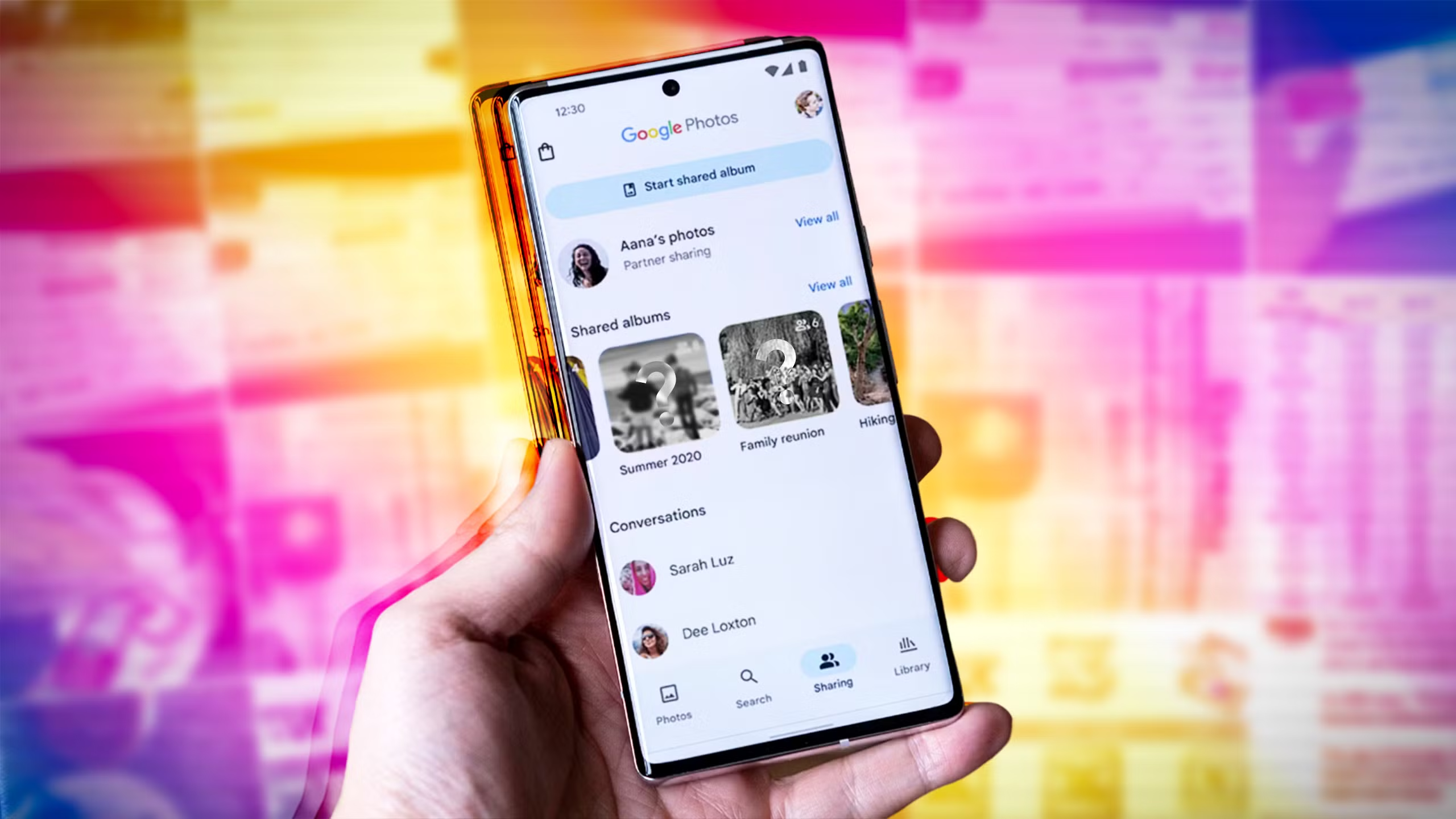
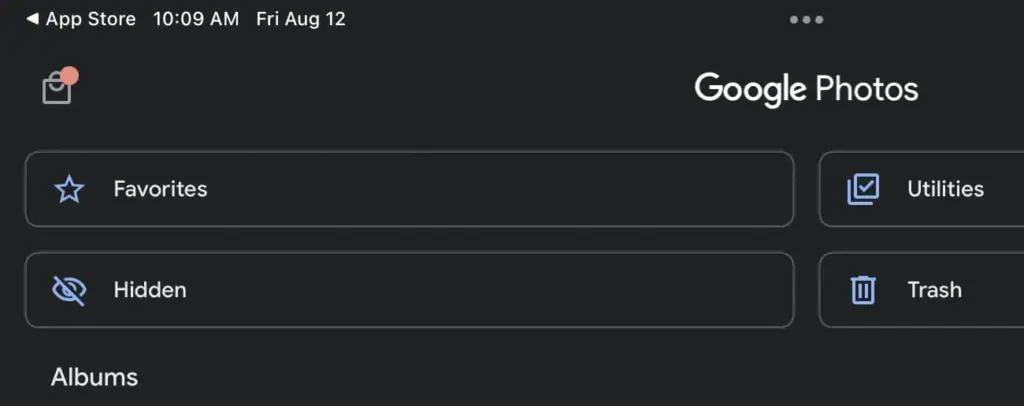
    Method 1: Hide Photos Using Google Photos Archive
    Hide Photos Using Google Photos Archive

    If you’re using Google Photos (which is pre-installed on most Android devices), archiving is the quickest and safest way to hide images from your main gallery view – all without deleting them or moving files around manually.

    Step-by-Step Instructions:

    1. Open the Google Photos app
    2. Select the image(s) or video(s) you want to hide
    3. Tap the three-dot menu in the top right
    4. Select “Move to Archive”

    These files will now disappear from your main timeline but stay safely stored in the “Archive” section.

    Where to find archived photos later:

    • Go to Library > Archive in the bottom navigation of the Google Photos app

    Why it’s useful:

    • Doesn’t delete or move files — just removes them from the spotlight
    • Perfect for semi-private content you might need later
    • Works across devices if you’re syncing with Google Account

    Note: Archived photos still appear in albums or search results unless you manually remove them from those albums.

    📌 Best for: Casual privacy without breaking anything or hiding files completely.

    Method 2: Use File Manager to Hide Files Manually

    Android file manager

    Regardless of brand or Android version, this is a universal solution that works with almost all Android phones. You will make a hidden folder that will be automatically ignored by the Android operating system and media scanning applications.

    Step-by-Step:

    1. Open the File Manager or My Files app on your phone
    2. Navigate to Internal Storage
    3. Create a new folder and name it with a dot (.) at the beginning, such as .HiddenMedia or .SecretFolder
    4. Move the photos and videos you want to hide into this folder

    Why it works:

    • Android treats folders starting with a “.” as hidden directories
    • Media in these folders won’t appear in your gallery, Google Photos, or other media apps

    Once done, your Gallery and Google Photos app will no longer detect those files — making them invisible unless you go looking.

    To view them again: enable “Show hidden files” in your file manager’s settings

    Best for: Total manual control over media hiding

    Method 3: Rename File Extensions

    This method only hides files so they will not open in photo or video apps; it does not actually hide them.

    Step-by-Step:

    1. Open your File Manager
    2. Find the photo or video file you want to hide
    3. Tap Rename and change the file extension (e.g., .jpg.xyz)

    At this point, the file will show up as an unopenable generic document. Just change the extension to its original format to get access again.

    Caution: Make sure you remember the original extension (.jpg, .png, .mp4, etc.) so you can restore it!

    Best for: Hiding media from gallery apps without deleting it

    Method 4: Use Built-In Secure Folder (Samsung, Xiaomi, Huawei)
    secure folder

    Nowadays, a lot of oems include built-in safe storage options that enable you to conceal documents, programs, and media using password or biometric security.

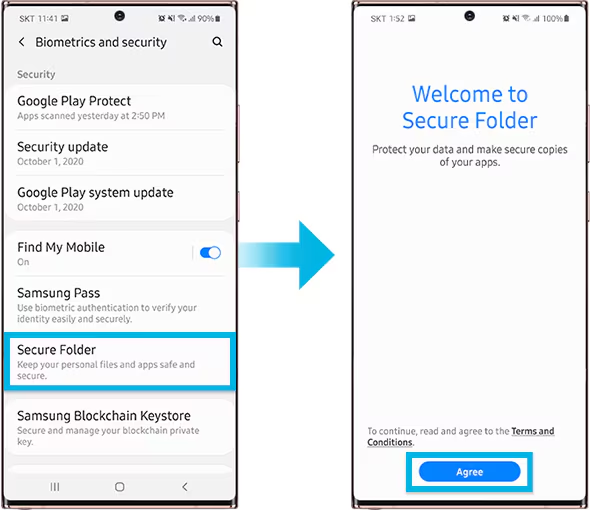
    Samsung: Secure Folder

    With Samsung’s Secure Folder, your phone has a private, encrypted area. It is secured by a distinct passcode or fingerprint, which is distinct from the lock on your phone.

    To set it up:

    • Go to Settings > Biometrics & Security > Secure Folder
    • Sign in with your Samsung account
    • Create your Secure Folder with fingerprint, PIN, or pattern
    • Open the Secure Folder and import photos/videos from your gallery

    Even the application’s access is limited without unlocking the folder, and these files are totally concealed from the main gallery and file manager.

    Xiaomi/Redmi: Hidden Album

    The Hidden Album function in Xiaomi’s Gallery app makes it quick and easy to conceal private material.

    How to use:

    • Open the Gallery app
    • Go to Albums > Hidden Album
    • Set up the feature (may require Mi account login)
    • Move selected images/videos to this section

    Content in the Hidden Album is protected and will not appear elsewhere unless explicitly restored.

    For Huawei or OnePlus:

    Use PrivateSpace (Huawei) or App Lock & Hidden Space (OnePlus). These offer similar levels of privacy and allow photos/videos to be locked with additional credentials.

    Best for: Maximum privacy with encryption and authentication — perfect for work or highly sensitive media.

    Method 5: Use Guest Mode or Multiple Users
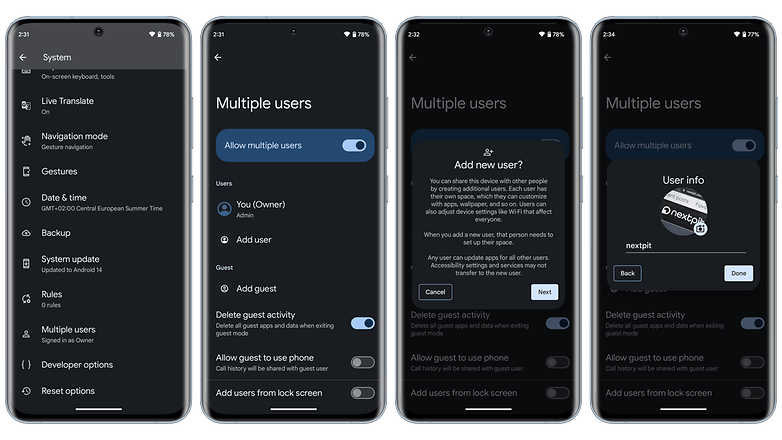
    guest mode on Android, hide photos and videos

    Another sneaky method is to create a Guest account on your phone:

    How to enable Guest Mode:

    Like a computer, Android allows for many user profiles. You can set up a Guest Mode on your phone to keep other users from seeing your messages, apps, or pictures.

    To activate Guest Mode:

    1. Open Settings > System > Multiple Users
    2. Enable Guest Mode or add a new User
    3. Switch to the guest profile when someone else is using your phone

    Switch to Guest mode when someone else wants to use your phone. This keeps all your media, apps, and settings hidden by default.

    Bonus Tip: Some phones allow locking the switch between users with a password or fingerprint.

    Best for: Sharing your phone without giving others access to your personal content.

    What NOT to Do

    While hiding media is easy, here are some common mistakes to avoid:

    • Don’t delete files unless you’re sure you have a backup
    • Don’t trust sketchy third-party apps from unknown developers—many are filled with ads, trackers, or even malware
    • Avoid cloud backups for sensitive files unless encrypted

    Extra Privacy Tips

    • Use a Gallery app with built-in vault (e.g., Simple Gallery Pro)
    • Encrypt your phone under Settings > Security > Encryption
    • Back up sensitive images to a secure cloud (e.g., Proton Drive or a password-protected ZIP file on Google Drive)

    Hide It the Smart Way

    You don’t need to clutter your phone with apps just to hide a few private photos. Android gives you several easy, built-in ways to hide images and videos safely:

    • Archive them in Google Photos
    • Move them to a dot-folder via File Manager
    • Use Secure Folder or Guest Mode for stronger protection

    Choose the method that best fits your comfort level and device brand—and enjoy peace of mind knowing your private media stays private.
  • 5 ways to enhance your Pixel Camera experience

    5 ways to enhance your Pixel Camera experience

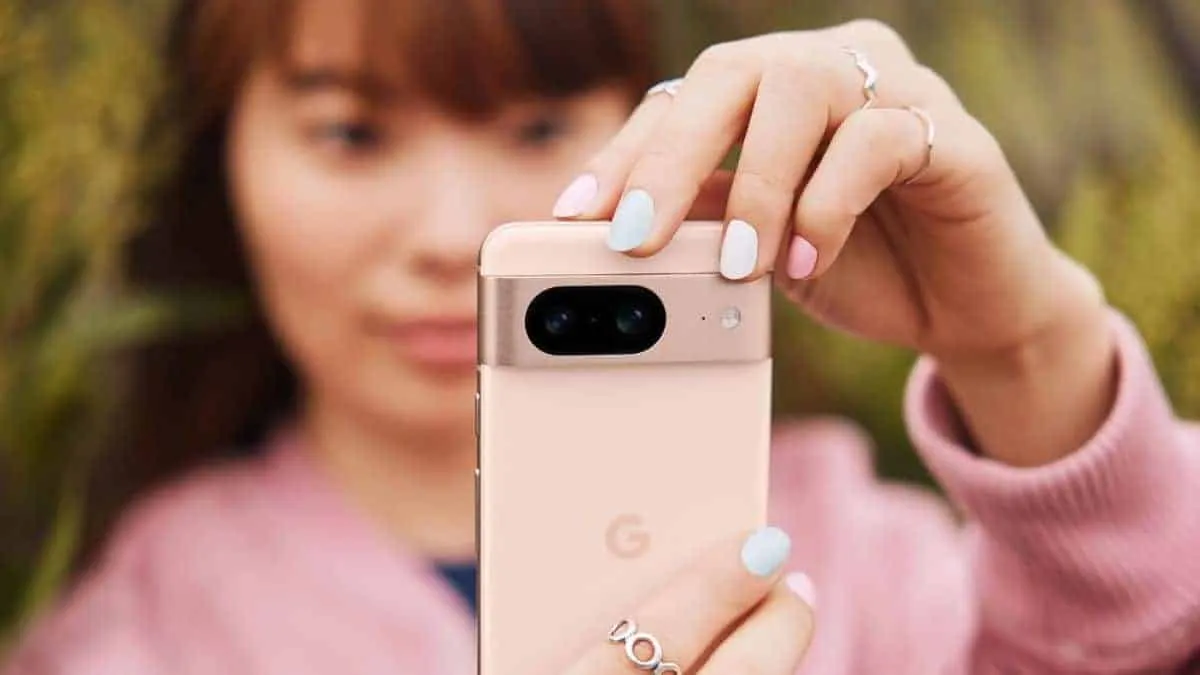
    The Google Pixel phones are notable for their outstanding photography capabilities, even with their flaws. You may capture beautiful pictures with a Pixel by pressing the shutter button. No need for retakes. The Pixel Camera app is crucial in providing that experience because it has the ideal combination of functionality and a clear, user-friendly layout.

    Even so, you have probably missed a number of the Pixel Camera app’s incredible features. Some make taking the ideal picture easy, while others streamline the image-sharing process.

    #deal – Google Pixel 9

    Google Pixel 9 with Gemini gets the best of Google AI first, so you can take amazing photos, make edits like magic, and get things done even easier

    Best choice
    $799.00$599.00Buy on Amazon

    Quick access controls

    The performance of their point-and-shoot cameras makes Pixel phones unique. The best results can be obtained without adjusting settings or switching to a specific mode. Remove your phone from your pocket, open the app, and begin taking pictures. To get the desired effect, you might need to change the brightness, shadows, or white balance.

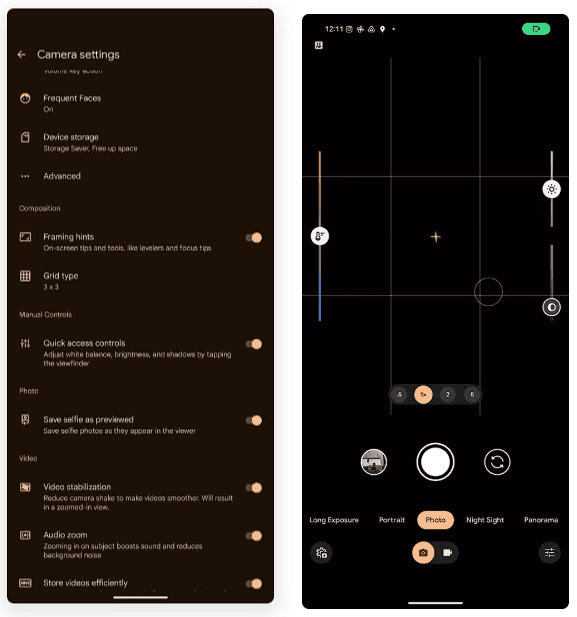
    Quick access controls google camera

    To adjust these settings, you do not have to go into Pro mode in the Pixel Camera app like you would on other phones. Instead, go to the settings menu and enable Quick access controls. Then, by tapping the viewfinder, you may activate sliders to adjust the brightness, shadows, and white balance.

    Panorama with audio

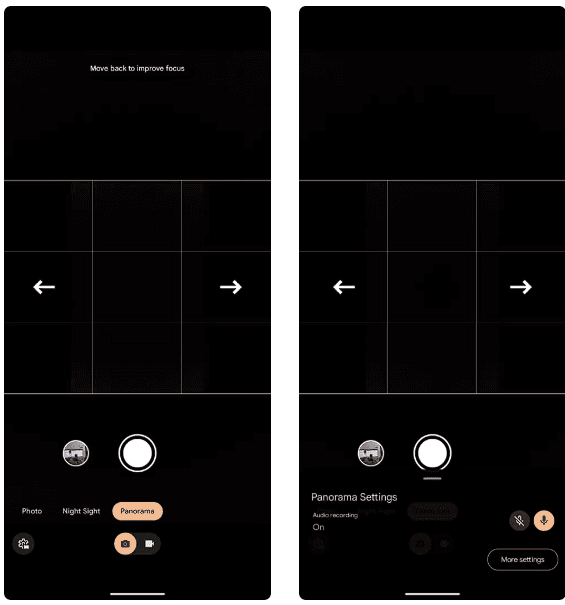
    The Google Pixel supports panoramic photography, just like a lot of Android phones. In contrast to most, they have a remarkable 50MP resolution for taking panoramas. But that is not it. The latest Pixel phones have yet another secret weapon. Audio can be recorded while taking a panorama picture. Although this feature may seem like a gimmick to you, there are several situations in which it might be helpful.

    google pixel panorama with audio

    Imagine recording a breathtaking panoramic scene and narrating it in the backdrop with your voice. After that, you can show it to your loved ones. This function is well-executed by Google, which makes sure the soundtrack plays in the background and fades in and out while you see the panoramic.

    The only drawback is that it can be challenging to share panorama photographs with audio. The noise is eliminated when sending the picture via Instagram, Google Messages, or WhatsApp. The panorama cannot even be uploaded to Google Photos. Sending the photograph to another Pixel using Quick Share is your best bet.

    Guided frame

    google pixel camera guided frame

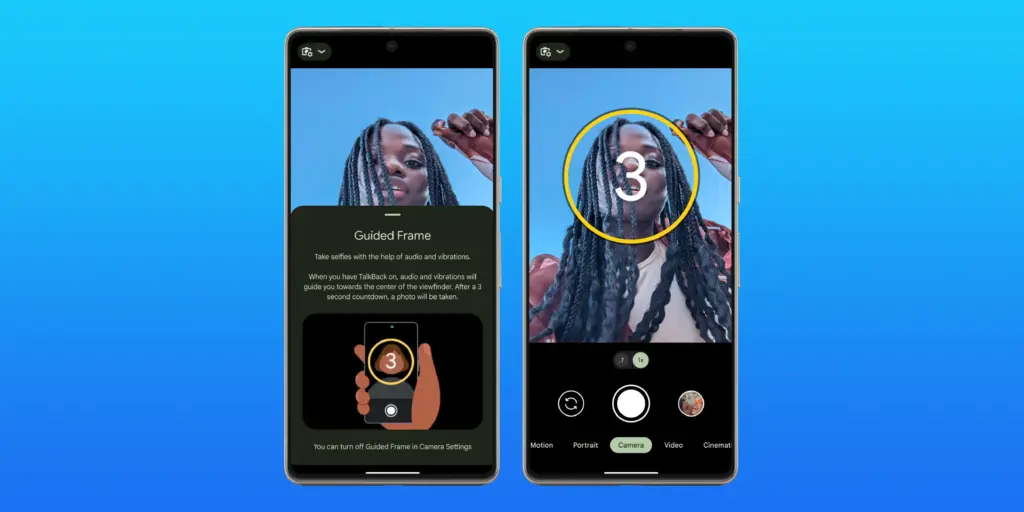
    Pixel phones have excellent photography. However, this does not imply that anyone can shoot beautiful photos with a Pixel phone. People with visual impairments may often find it challenging to frame their subjects correctly before taking a picture. This is where the Guided Frame function of the Pixel Camera is useful.

    This accessibility feature offers auditory and visual cues to assist in appropriately framing subjects. It is intelligent enough to assist with framing by automatically recognizing faces, objects, and scenes. Your Pixel phone will automatically take a picture when it is properly framed.

    When using the front camera to take selfies, Guided Frame is useful. You can move around until the Pixel Camera app recognizes better lighting circumstances after it recognizes your face. The picture is then automatically taken.

    By pressing the Settings icon in the bottom-left corner of the Pixel Camera app and selecting More settings > Guided Frame, you may enable guided frame. When you turn on TalkBack mode on your Pixel, the feature is automatically enabled.

    #deal – Google Pixel 9

    Google Pixel 9 with Gemini gets the best of Google AI first, so you can take amazing photos, make edits like magic, and get things done even easier

    Best choice
    $799.00$599.00Buy on Amazon

    Quick short video

    Enjoy posting quick videos on Snapchat or Instagram? For this, you do not have to put the Pixel Camera in video mode. Hold down the shutter button while using the camera app instead.

    A video is being recorded by your Pixel phone. When you remove your finger from the shutter, it stops. As an alternative, you can continue recording even after you pull your finger off the screen by sliding it to the lock icon on the left of the viewfinder.

    This tool is ideal for shooting video or swiftly taking brief clips. Additionally, you can export a full-resolution frame from the movie to share as a photo because Top Shot functions in this mode.

    Palm timer

    google pixel camera palm timer

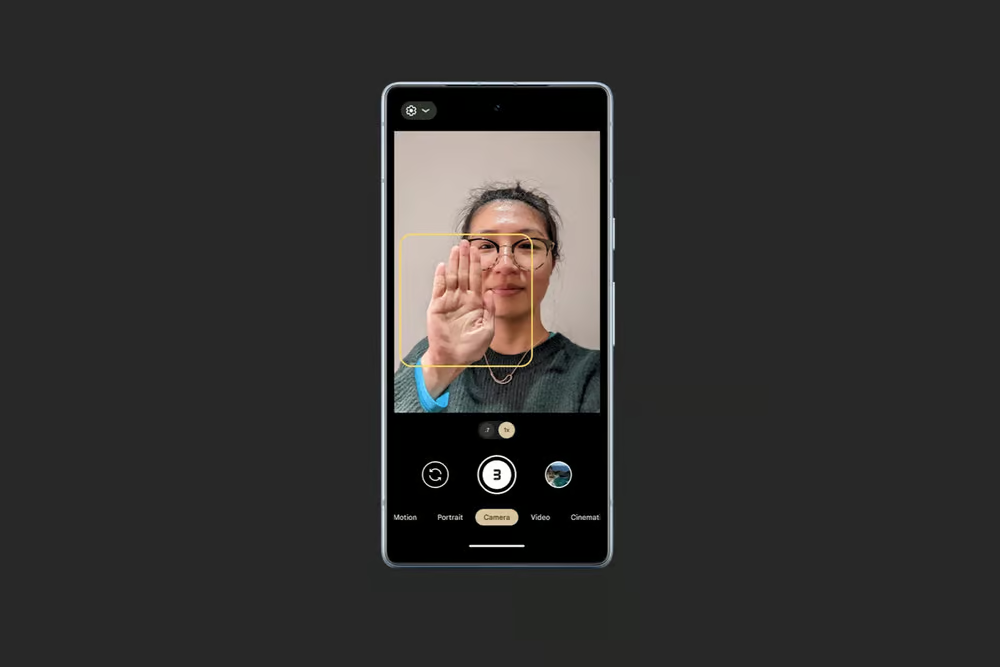
    Sometimes you want to capture a picture with your Pixel propped up on a table. Or, when taking a group selfie, have your arm fully extended. It can be challenging to press the volume key or tap the on-screen shutter button in these circumstances without shifting the phone or readjusting your grasp. In these circumstances, the Pixel Camera’s palm timer function can be useful.

    You may enable a three-second timer on your Pixel simply lifting your palm. You do not have to have it. Your Pixel automatically takes a picture after the countdown. It is helpful while taking solo photos with a tripod. Both the front and back cameras are compatible with the function.

    I use the Palm timer to take selfies or group photos using the rear camera, as the larger sensor means better quality images. You can enable Palm timer from the Pixel Camera settings.

    #deal – Google Pixel 9

    Google Pixel 9 with Gemini gets the best of Google AI first, so you can take amazing photos, make edits like magic, and get things done even easier

    Best choice
    $799.00$599.00Buy on Amazon
  • HyperOS 2.2 just got some exciting new features

    HyperOS 2.2 just got some exciting new features

    With a remarkable array of new features in HyperOS 2.2, Xiaomi is once again redefining smartphone innovation. These recent advancements further cement Xiaomi’s position as a mobile technology behemoth by spanning the domains of photography, artificial intelligence, and automotive connection. Explore the exciting new features that will completely transform your Xiaomi experience.

    Photo and video editing capabilities

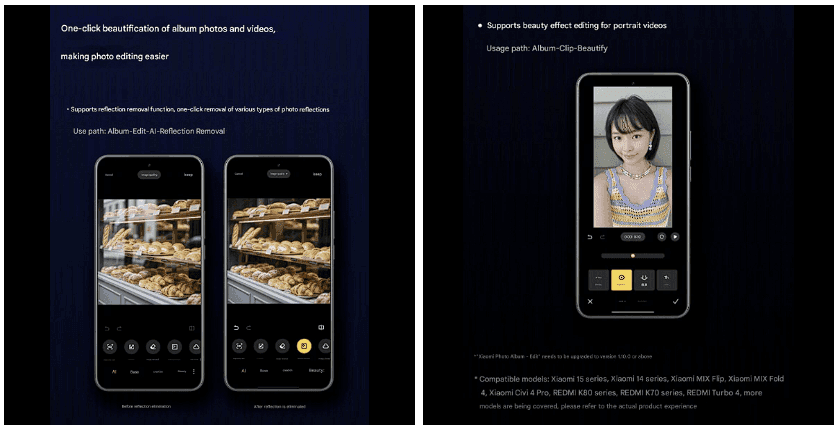
    With HyperOS 2.2, you may alter your visual memories in a whole new way. The new anti-glare feature, which can instantly remove reflections from your photos, is its main attraction. Getting those pictures in the window or in difficult lighting situations is now easier than ever thanks to this technology, which adjusts to various kinds of reflections.

    The update offers video enthusiasts beauty editing features specifically designed for altering portrait videos. With this tool, you can retouch your video recordings to the same level of personalization that was previously only possible with images. The Album app offers immediate access to these editing features through the Album-Clip-Beauty path for films and the Edit-AI-Anti-glare path for images.

    xiaomi hyperos photo and video editing

    These advanced editing capabilities will come to high-end Xiaomi models, including the Xiaomi 15 series, Xiaomi 14 series, Xiaomi MIX Flip, Xiaomi MIX Fold 4, Xiaomi Civi 4 Pro, REDMI K80 series, REDMI K70 series, and REDMI Turbo 4.

    AI-Powered schedule management

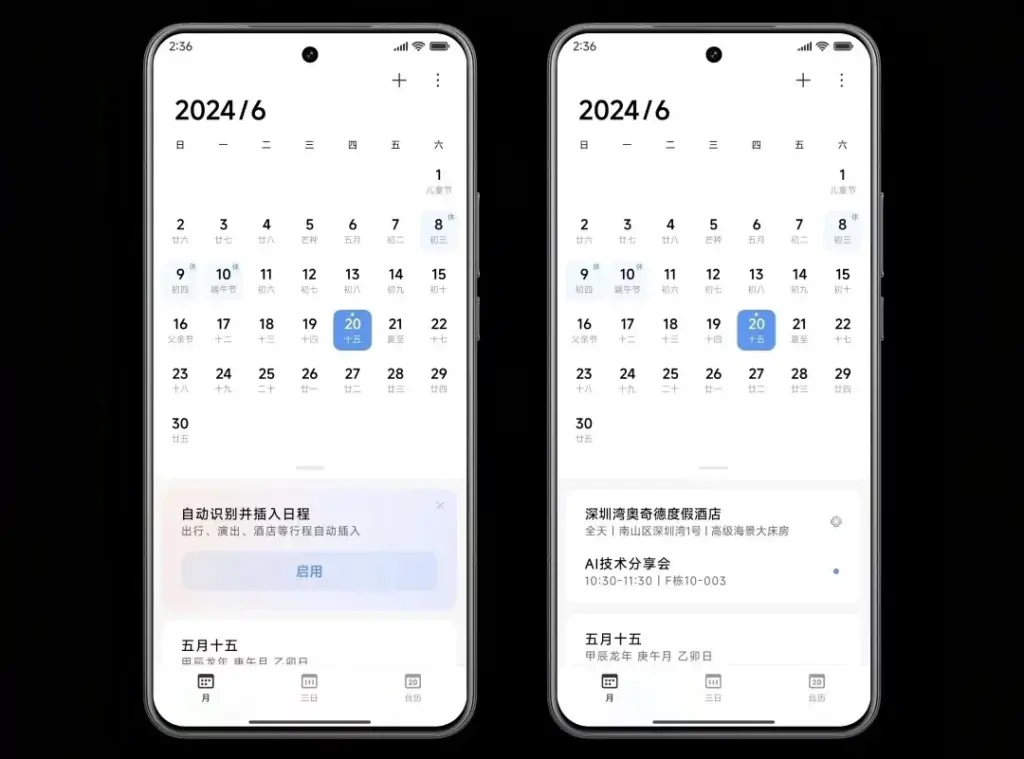
    The AI scheduling clever extraction tool is one of HyperOS 2.2’s most useful enhancements. Instead of requiring you to manually enter scheduling information, this function will identify and display it in your text messages.

    The system accommodates a variety of schedule types, including:

    • Train reservations
    • Flight information
    • Hotel booking
    • Restaurant reservations
    • Performance tickets
    • Movie tickets

    To turn on this handy functionality, simply go to Calendar-Settings and turn on “AI Schedule Extraction.” Be aware that the feature is only supported on Xiaomi HyperAI-enabled models.

    AI-Powered schedule management

    Enhanced CarWith functionality

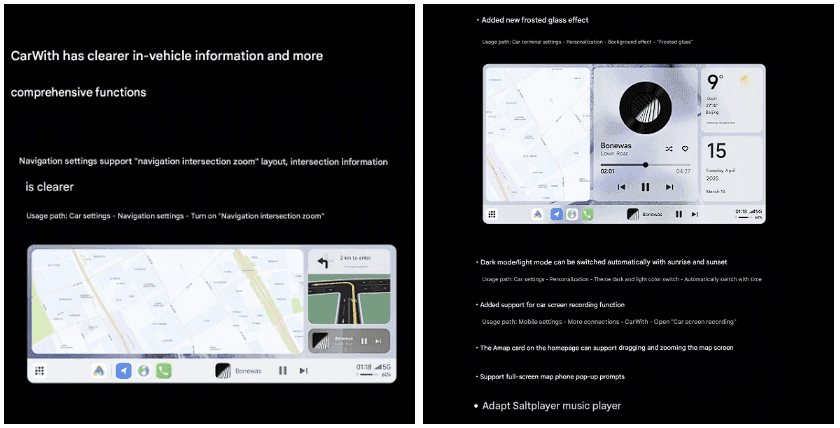
    HyperOS 2.2 significantly improves CarWith, transforming Xiaomi users’ in-car experiences. A new “Navigation intersection zoom” style improves navigation by making information at road intersections easier to read and making it simpler to understand turns and exits up ahead.

    A new frosted glass design further improves the visual experience, giving the car terminal a high-end aspect and feel. The dark mode/light mode can also switch automatically with dawn and sunset for added convenience, reducing eye strain both throughout the day and at night.

    Additional improvements to car connectivity are:

    • Car screen recording capability
    • Map dragging and zooming on the homepage card of Amap
    • Full screen map phone notifications Compatibility with the music player Saltplayer
    xiaomi CarWith

    System-Wide optimizations

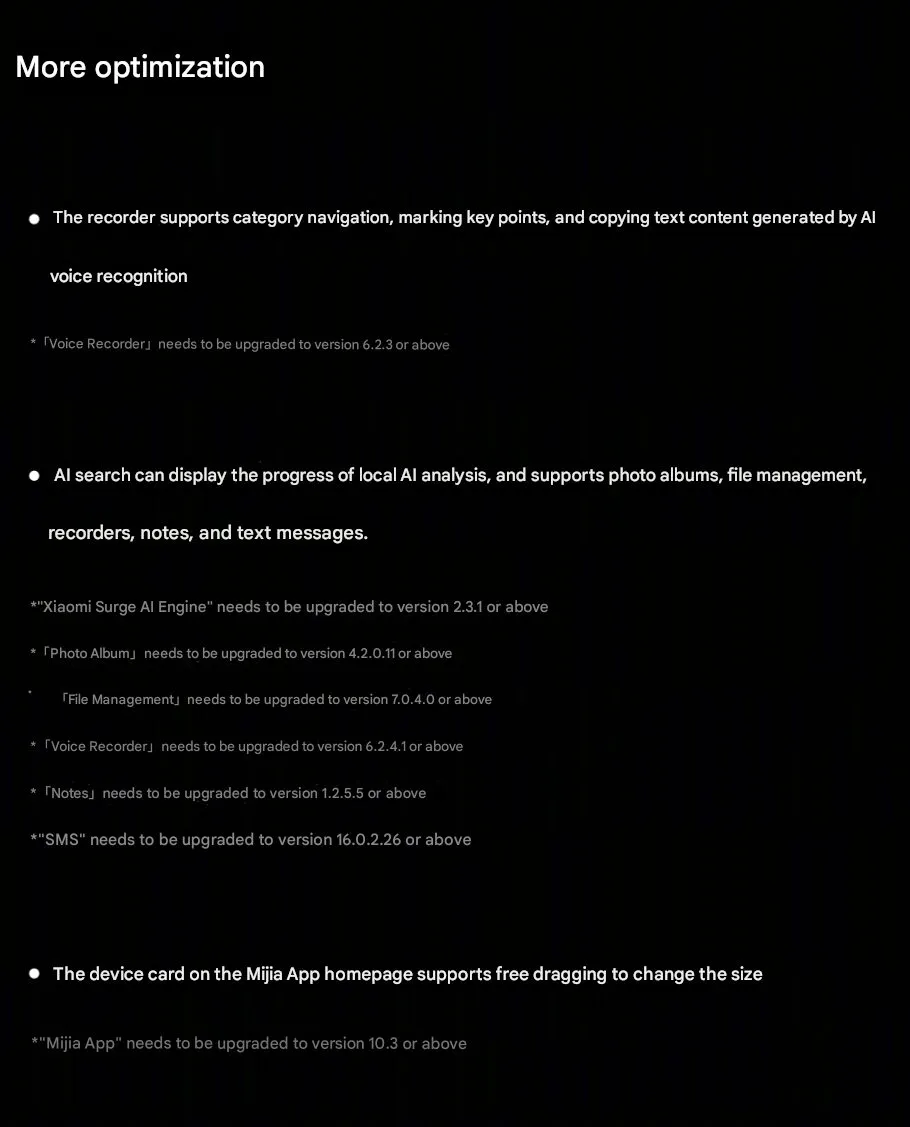
    Beyond these major improvements, HyperOS 2.2 includes several quality-of-life enhancements throughout the system:

    • Recorder app includes support for category browsing, highlighting of key points, and copying of text created by AI voice recognition
    • AI search shows activity of local AI processing and provides support to photo albums, file management, recorders, notes, and texts
    • Mijia App homepage device cards are now free to drag and resize
    Hyperos 2.2 System-Wide optimizations

  • Xiaomi 15 Ultra not in top 10 DXOMark’s even if it has a powerful camera

    Xiaomi 15 Ultra not in top 10 DXOMark’s even if it has a powerful camera

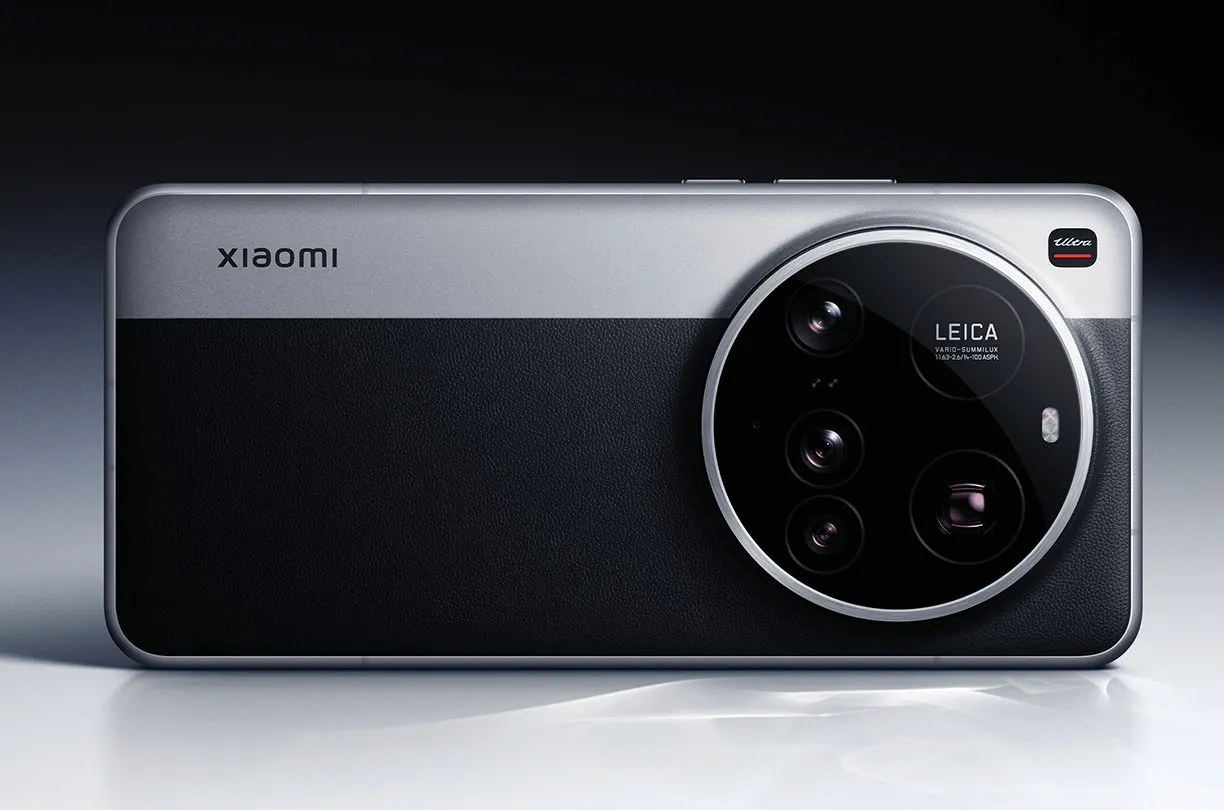
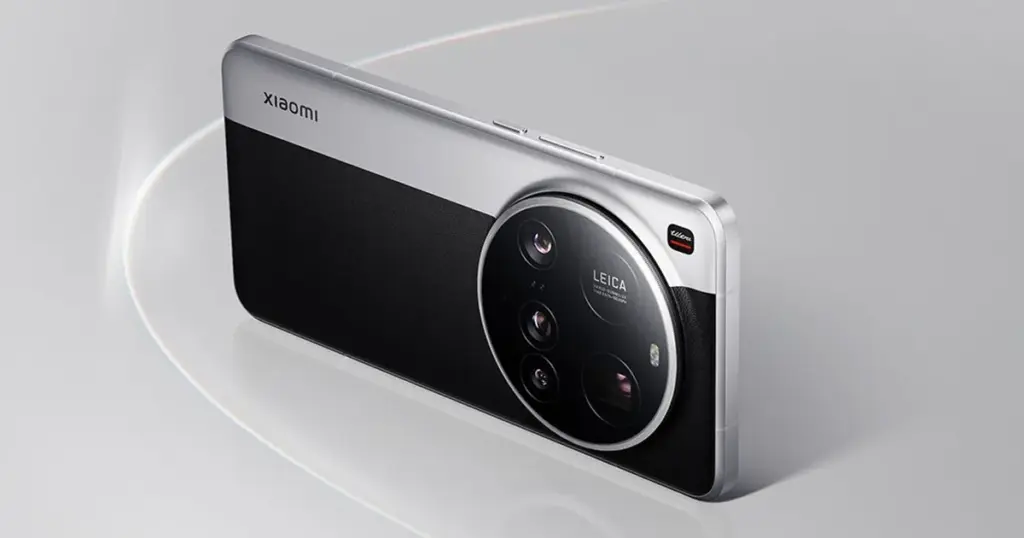
    The 15 Ultra, Xiaomi’s most recent flagship, is currently offered for sale worldwide. At €1,500, it has a huge 200MP periscope telephoto lens and a 1-inch primary sensor, which are both really amazing pieces of kit.

    These specs put it ahead of Apple’s flagship in terms of hardware. But even with all that firepower, the 15 Ultra hasn’t entered DXOMark’s top 10 camera rankings.

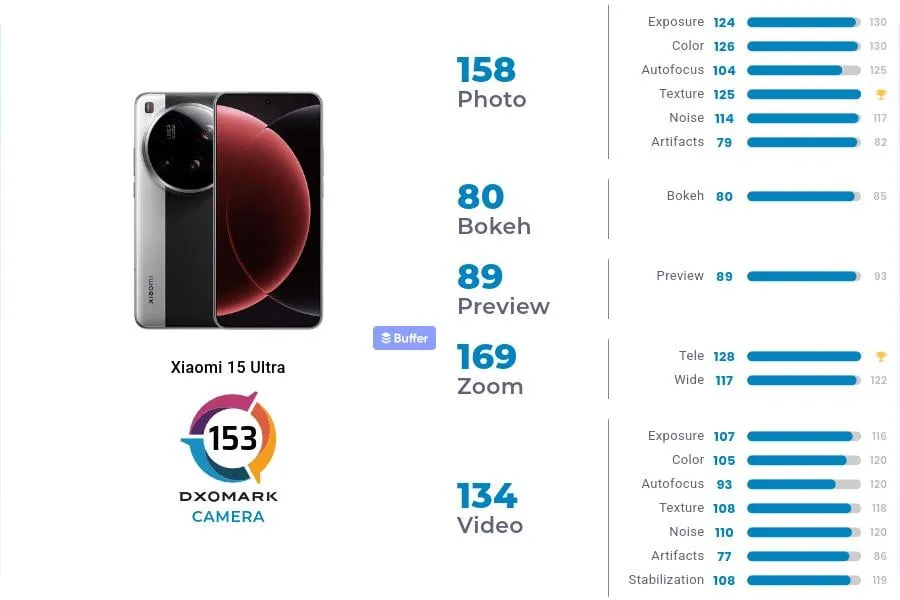
    In DXOMark’s camera testing, the 15 Ultra received 153 points, ranking 13th in the world. With 149 points, Xiaomi’s 14 Ultra from the previous year is in 19th place, which is their highest performance to date.In DXOMark’s camera testing, the 15 Ultra received 153 points, ranking 13th in the world. With 149 points, Xiaomi’s 14 Ultra from the previous year is in 19th place, which is their highest performance to date.

    Xiaomi 15 Ultra DXOMark rating

    However, both in China and the West, it continues to lag behind its most formidable competitors. The Honor Magic 6 Pro and Pixel 9 Pro XL are currently behind Huawei’s Pura 70 Ultra in the DXOMark rankings.

    To be clear, this doesn’t mean the 15 Ultra has a lousy camera—far from it. At number 24, even Samsung’s Galaxy S25 Ultra is ranked lower. The 15 Ultra was commended by DXOMark for its outstanding color rendering, broad dynamic range, precise exposure, low noise, and great texture detail.

    xiaomi 15 ultra back side

    Why Xiaomi 15 Ultra missed the top?

    DXOMark reports that the phone has trouble with visible abnormalities that affect image quality, contrast irregularities, and sporadic warm color casts in both images and videos. Additionally, there are problems with autofocus stepping and texture degradation under some circumstances, which can make focusing less fluid.

    Its limited depth of field, which causes blurry background faces in group photos, is another significant flaw. Keep in mind that its primary camera is the source of this limitation.

    These flaws could be disappointing for a phone that strives to be the finest of the best. Despite these figures, the 15 Ultra still has some of the best mobile camera hardware on the market.

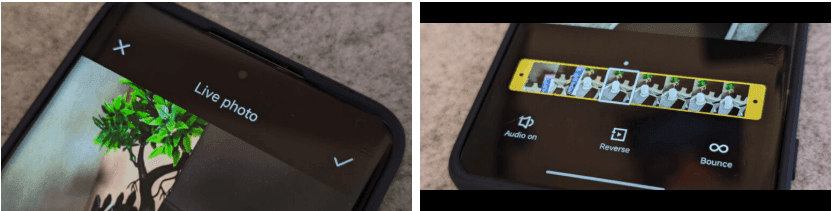
  • More devices may now use live photos thanks to Xiaomi HyperOS 2.

    More devices may now use live photos thanks to Xiaomi HyperOS 2.

    The cross-ecosystem LivePhoto transmission compatibility of HyperOS 2 was formally revealed by Xiaomi, enabling smooth live photo sharing between Xiaomi phones, Xiaomi Pads, iPhones, and iPads. Grayscale mode is supported, and the feature is progressively being made available in batches.

    The enhancement is one of the actions Xiaomi is taking to create a comprehensive ecosystem that will provide a more seamless experience across devices. For optimal compatibility, users who are interested in the functionality should update their smartphones to the most recent versions of Xiaomi Photo Album and Xiaomi Share.Xiaomi HyperOS is always evolving, providing consumers with fresh and creative features to enhance their convenience.

    LivePhoto Cross-Ecosystem Support Details

    Sharing dynamic pics in the LivePhoto format while maintaining their motion effects is now possible with Xiaomi HyperOS 2. Users can now share and enjoy LivePhotos on both Xiaomi and Apple devices with ease thanks to the latest update, which was revealed in the official Q&A (Episode 8) for Xiaomi HyperOS on March 7.

    How to use live photo transfer

    For successful transmission of LivePhotos, users must meet the following requirements:

    • Both devices must be on the same wireless LAN – The sending and receiving devices need to be on the same wireless local area network.
    • The applications must be upgraded to certain versions – Apple and Xiaomi devices must have the latest software upgrades to be able to support this.
    xiaomi live photos

    App Versions Required

    • Xiaomi Phones and Pads:
      • Xiaomi Share3.6.2 and later
      • Xiaomi Photo Album: Version 4.2.0.8 and above
    • Apple Devices (iPhone and iPad):
      • Xiaomi Internet Service: Version 1.3 and later

    The Xiaomi ecosystem is greatly improved by this function, which allows users to find and share LivePhotos on several platforms without compromising motion effects. It is easier than ever to switch between devices and share memories with pals via an iPhone. In the days ahead, customers may anticipate even more cross-platform interoperability capabilities as Xiaomi develops HyperOS 2. Keep an eye out for additional information regarding Xiaomi HyperOS 2 and its ongoing feature additions.

  • How to activate secret Pixel camera setting that enhances the vibrancy of your images

    How to activate secret Pixel camera setting that enhances the vibrancy of your images

    The camera on the Pixel phones is one factor contributing to its success. Most phone cameras are unable to match the depth, clarity, and vivid/accurate colors.

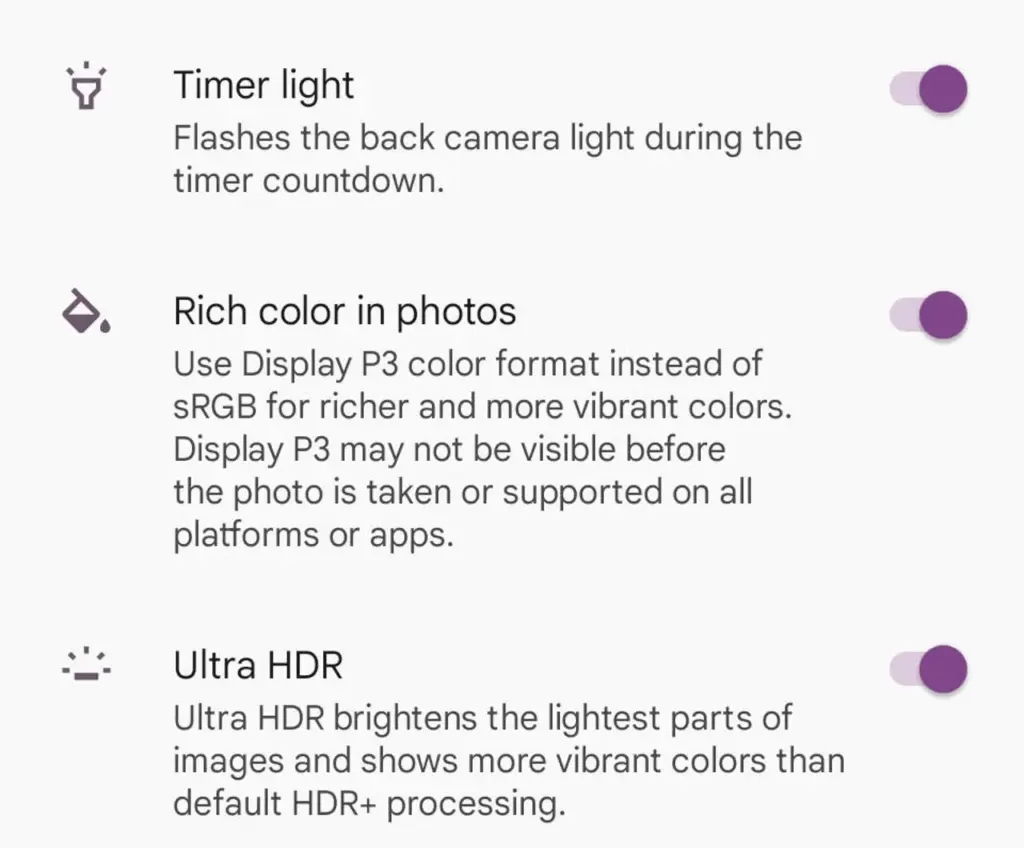
    With each new edition of the Pixel camera, Google aims to surpass itself. Google first debuted the P3 wide gamut capture feature with the Pixel 8, which was accompanied by the Ultra HDR format of Android 14. Photos truly come to life with color thanks to the Display P3’s wide gamut capture.

    Display P3: What is it?

    Display P3 is a color space that combines the following:

    • DCI-P3 color gamut
    • D65 white point
    • sRGB gamma curve

    Gamma is a nonlinear operation that is used to encode and decode brightness in images and videos, for those who were not present at the popular photography club table over lunch. Gamma is defined as the relationship between the luminance and the numerical value of a pixel, which is an even simpler description. Your photographs would not capture color as your eyes perceive it if gamma were not present.

    A camera can prevent color and light tint by using white point, often known as white balance. Consider it in terms of the temperature of color. Are you recording in warm inside light or in the daylight? Your images may appear amber or blue if the white point is set incorrectly.

    The range of colors in a color space that a device can replicate is known as the color gamut.

    The Society of Motion Picture and Television Engineers and the Digital Cinema Initiatives developed Display P3, or DCI-P3, as a color space in an effort to standardize colors used in motion pictures. P3 focuses on what you see in movies. The coordinates of the red (x =.68, y =.332), green (x =.265, y =.69), blue (x =.15, y =.06), and white points (x =.134, y =.351) are even charted.

    Anyone wishing to improve their smartphone photography skills should think about utilizing Display P3, as it gives a far wider variety of colors than sRGB. All of the phones in that range support P3, so if you own a Google Pixel 8 or 9, you are in luck.

    How to enable P3 in the Pixel camera app

    A Pixel 8 or 9 phone is all you will need for this. It may be XL, Pro, or ordinary.

    • Open the Camera app – to begin, unlock your phone and open the camera app.
    • Open Settings – Ttap the gear icon in the lower left corner of the window to open Settings.
    • Open More Settings – From the Settings pop-up, tap “More settings.”
    • Enable P3 – Move the On/Off slider for that entry until it’s in the On position. You can now back out of settings. 
    pixel camera setting

    The color enhancement may appear mild on some devices and striking on others when you take pictures.

    It should be noted that not all devices are compatible with P3. You may use the P3 gamut to snap a picture and then send it to someone whose device does not support it. The shot will not look nearly as good on their device as it does on yours.

  • 9 best DSLR apps

    9 best DSLR apps

    The majority of serious photographers use DSLR cameras, which are currently the industry standard. You can purchase a variety of cameras and lenses, which can be costly but worthwhile. However, you can enhance your experience even more by using apps. Generally speaking, your camera comes equipped with all the controls you need, but some apps can add features like remote control support or quicker, easier update processes. There are not many excellent options, but the ones that are available are good enough. Here are the top DSLR apps for Android!

    Adobe Lightroom

    Price: Free / Up to $52.99 per month

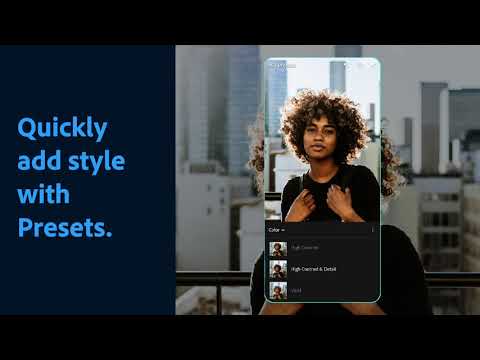
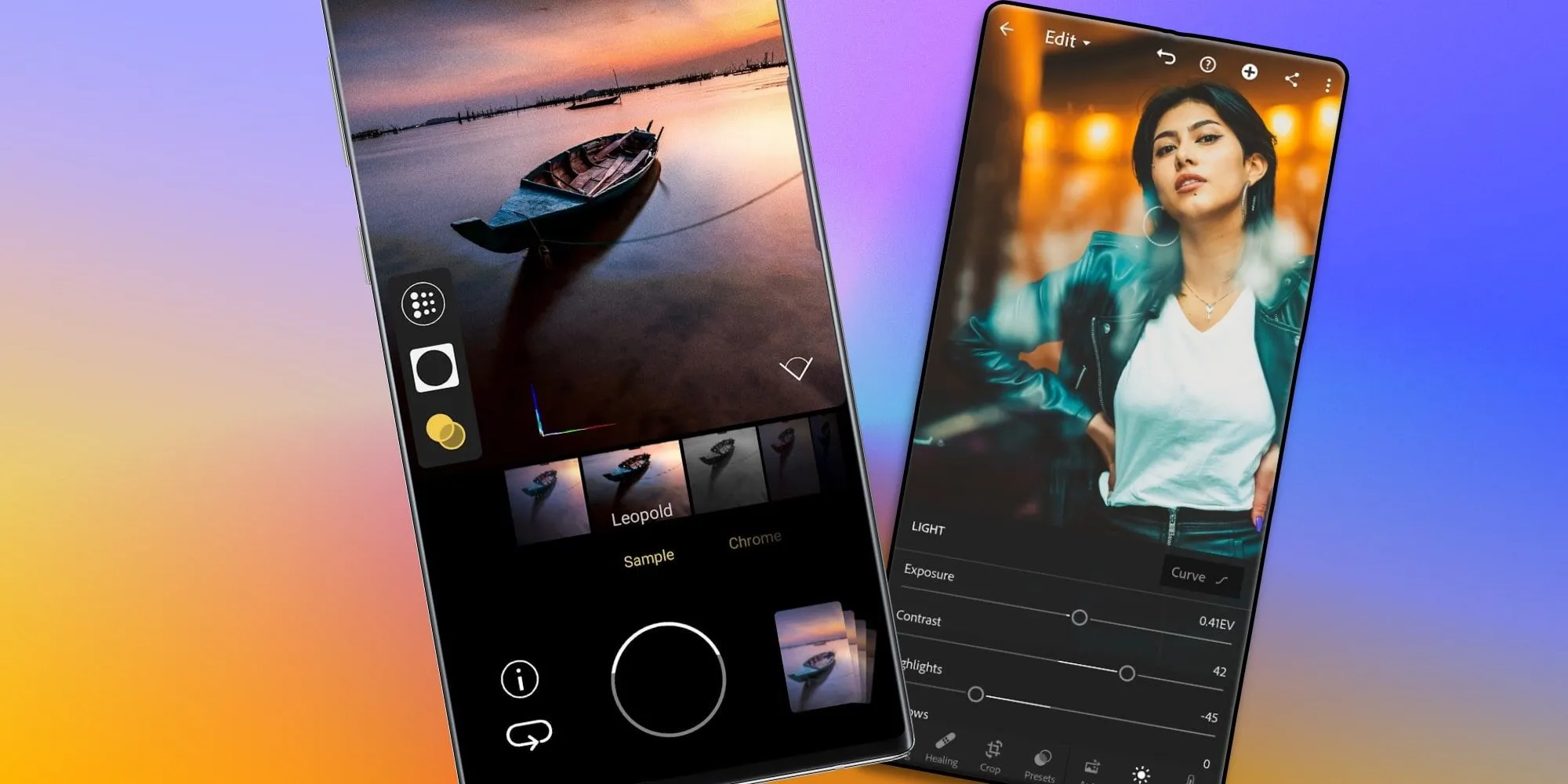
    A good photo editor app is one of a photographer’s most valuable tools, and Adobe Lightroom is one of the best; the mobile version offers many of the same features as the desktop version, such as support for RAW photos, easy reverting back to the original, and the ability to send the files to your desktop version if necessary.

    The majority of the features in the app are free, but if you already have an Adobe Creative Cloud subscription, you can access additional features. Overall, it is a good app for serious photographers.


    Youtube video

    Camera Connect

    Price: Free / Up to $5.99

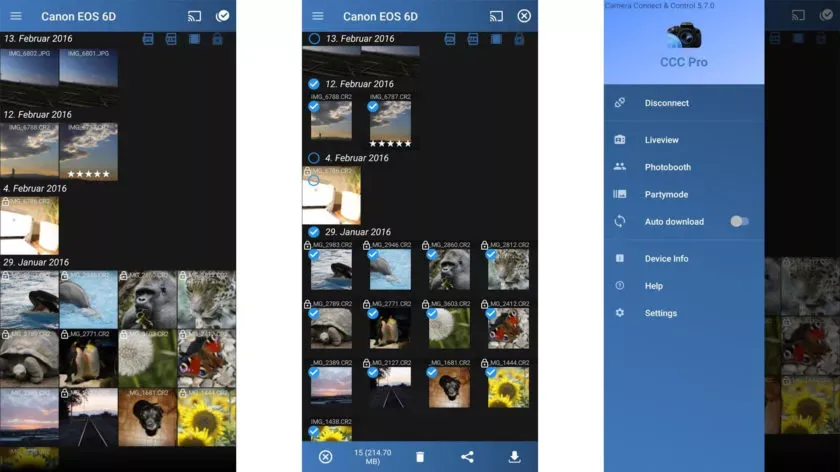
    One DSLR app that lets you control your camera is called Camera Connect and Control. It works with a number of cameras, including Nikon, Canon, Sony, and GoPro. Depending on your camera, you can connect via WiFi or USB.

    The app allows you to load your images to your phone and supports tethered shooting. Pro versions come with extra features like ad removal and access to EXIF data. The full pro version has even more features, but it has some bugs.


    Camera Connect and Control scree

    HyperFocal Pro

    Price: Free

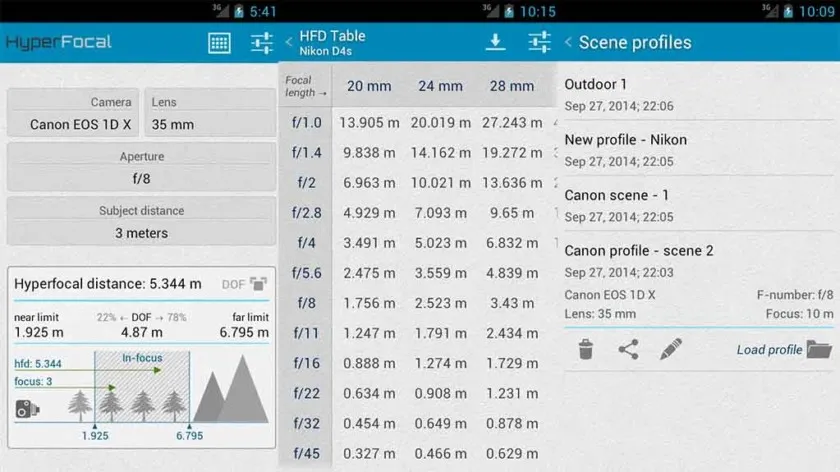
    A reference guide for photographers, HyperFocal Pro displays calculations to get the best focus, ideal focus ranges based on subject, distance, camera, and glass; it works with most cameras; it displays statistics for depth of field, angle of view, and field of view; it is easy to read; it is free of cost, has no in-app purchases, and has no advertising.

    For most beginning and intermediate photographers, it is a useful little tool.


    HyperFocal Pro

    Magic Viewfinder apps

    Price: Free / Varies

    The Magic Viewfinder app family is a collection of DSLR apps that do not control or connect to cameras; instead, they help you plan shots and see how your camera would perform by simulating your camera and lens setup. This allows you to accomplish tasks like framing without carrying your actual gear.

    The apps are available for free download, with cheap in-app purchases to unlock all of the features. While they are not always the most useful, they can be useful in certain situations.


    Youtube video

    qDslrDashboard

    Price: $8.66

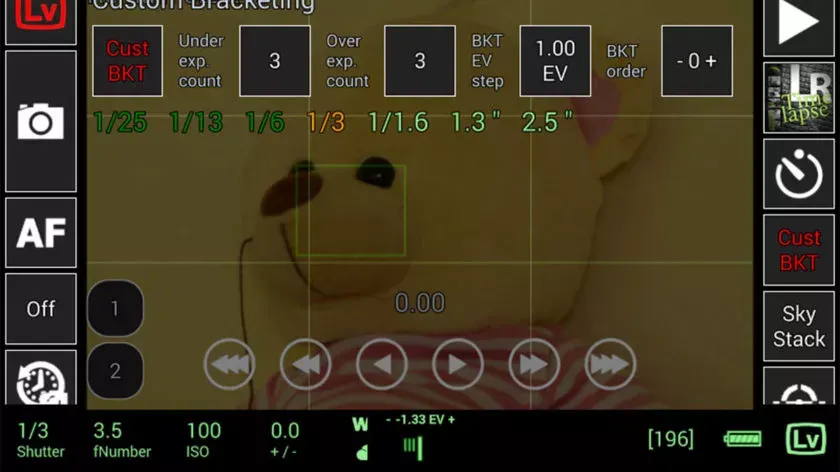
    This DSLR app, called qDslrDashboard, works with mirrorless cameras from Canon, Nikon, and Sony. It has a long list of features, such as support for multiple cameras, the ability to view and pull photos from a camera, time-lapse controls, wireless controls, and more. If you prefer to work wired, it can also be used over USB-OTG. However, not all cameras are compatible with this app, and many users have reported connection problems and other various bugs.

    Given its price tag, we imagine that’s why the rating is a bit lower than we’d normally see. In any case, if you try this, make sure to give it as thorough a testing as you can inside of the refund period, just in case.


    qDslrDashboard screenshot 840x47 1

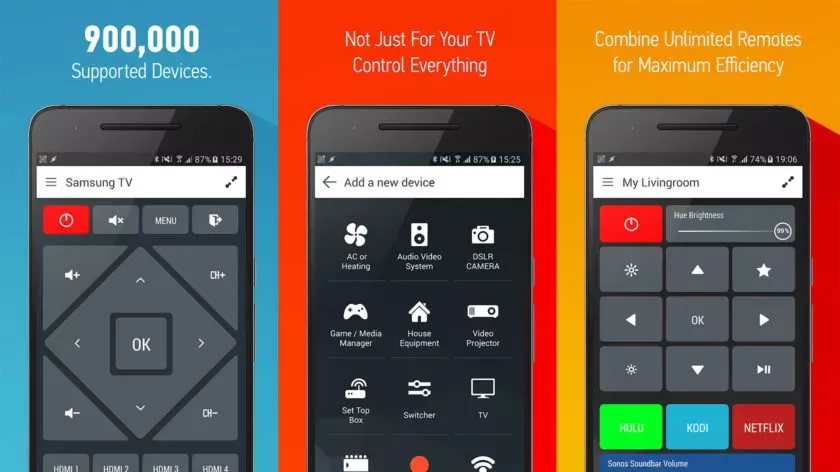
    Smart IR Remote

    Price: Free / $6.99

    With that said, there is an immediate caveat with this one: your device needs an IR blaster on the phone in order for this remote app to function at all. Other than that, it should work with almost anything that has an IR receiver, which does include some DSLR cameras and camera remotes. However, there is not an easy list to refer to as to what cameras work with this one. Smart IR Remote is primarily for TVs and other home electronics.

    The pro edition of the app is a bit pricey, but you definitely get what you pay for—it is arguably the greatest infrared remote software available on Google Play. Our recommendation is to download the free version and see if it functions with your camera.


    Smart IR Remote

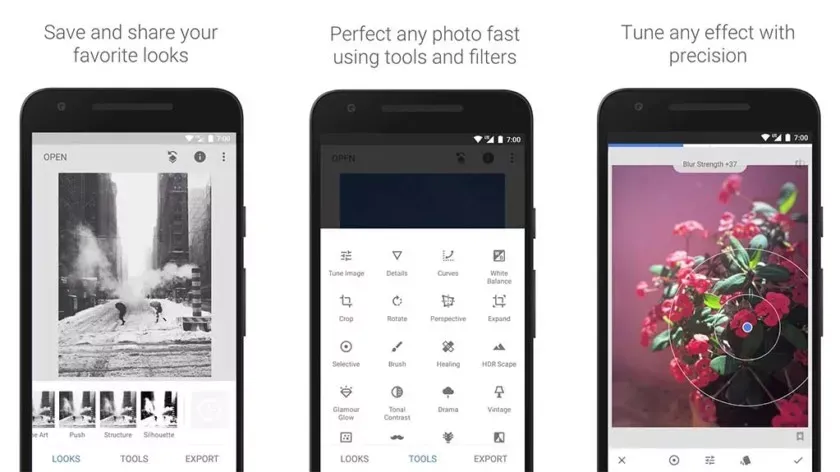
    Snapseed

    Price: Free

    Google’s Snapseed is an extremely feature-rich free photo editor app that supports RAW files in addition to offering 29 additional editing tools with intensity sliders for finer control; it can also perform standard photo editing functions like cropping and white balance.

    While it is not quite as powerful as desktop photo editors like Lightroom or Photoshop, Snapseed is probably the best option available for mobile devices.


    Snapseed

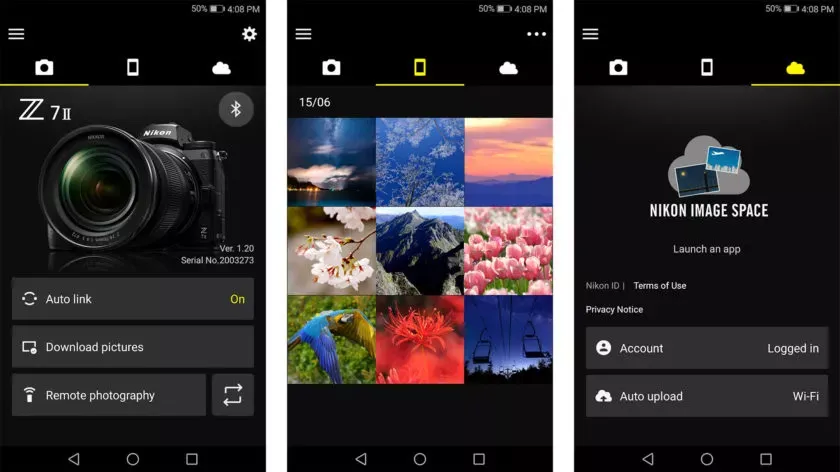
    Manufacturer DSLR apps

    Price: Free (usually)

    DSLR apps are available from most camera manufacturers. Canon, Sony, Nikon, Lumix, and other manufacturers have official apps designed to be used with their cameras. These apps are typically not the best—if they were, you would not be here and this list would not be necessary—but they can do basic functions like taking photos and transferring them to your phone.

    While most of the apps are free, there are some that are more functional and allow you to do things like download via Bluetooth, take pictures remotely, and perform other advanced tasks. It is advisable to try the official app for your camera first (assuming it has one and is compatible) before downloading any other apps.


    SnapBridge

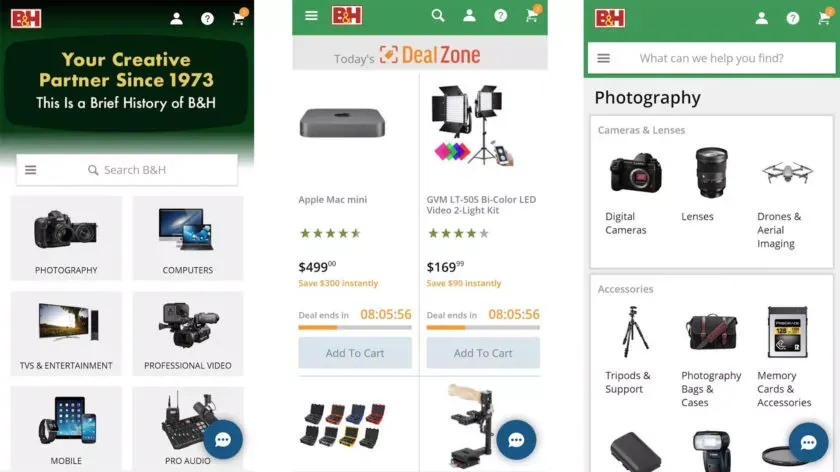
    DSLR shopping apps

    Price: Free

    There are a lot of apps that sell various DSLR cameras and accessories. Some examples include B&H Photo Video (linked at the button), Amazon Shopping (Google Play link), and Newegg (Google Play link). However, you can also find some neat stuff on sites like eBay if you want a new piece of glass or some lightly used accessories.

    Plus, those are excellent places to find lighting, filters, camera bags, cleaning supplies, and other things to make your photography life better. Hit all the links to check out the various apps.


    BH
  • Harnessing the Power of Digital Evolution: HEIC Conversion

    Harnessing the Power of Digital Evolution: HEIC Conversion

    The proliferation of images in the digital realm is undeniable. We’re constantly snapping photos, whether they’re professional shots or casual memories captured on our smartphones. And as technology continues to evolve, so do the file formats we use to store these images. Enter HEIC – a relatively new and efficient format that’s making waves, yet presents certain challenges that prompt the need for conversion tools.

    heic conversion

    Understanding HEIC’s Rise

    When Apple introduced HEIC (High-Efficiency Image File Format) as its default format for photos, it marked a shift in the digital imaging landscape. HEIC offers high-resolution image storage with almost half the size of its JPG counterpart. It’s the future, blending quality and efficiency. But like all advancements, it’s not without its teething issues.

    The HEIC Hurdle

    The brilliance of HEIC lies in its space-saving capacity without compromising on image quality. But this comes with the cost of compatibility. Most non-Apple devices, and even some popular software and platforms, have yet to adopt this format.

    So, what do you do when you have a top-quality HEIC image that needs to be viewed, edited, or shared on a platform that doesn’t support it? You resort to conversion.

    The Conversion Solution

    • JPG: The Universal Language of Images – The need to convert heic to jpg stems from the universal acceptance of the JPG format. Almost all devices and platforms recognize it. Converting HEIC to JPG allows users to maintain a balance between quality and compatibility. It ensures that your photos can be easily accessed, edited, and shared across various platforms.
    • PNG: Preserving Quality – For those who prioritize image integrity, especially when dealing with graphics or images with transparency, PNG is a preferred choice. Thus, the option to convert heic to png offers a lossless compression solution. This means every pixel of the original image is preserved, ensuring no degradation in quality.

    Why Convert?

    • Compatibility: While HEIC might be efficient, it’s not universally accepted. Converting ensures your images are accessible everywhere.
    • Flexibility: Different projects require different formats. Whether you’re designing a website or editing a photograph for print, having your image in the right format is crucial.
    • Storage Management: Although HEIC is efficient, there might be instances where you’d need to convert to JPG to reduce file size further or to PNG to maintain quality.

    Embracing the Future

    There’s no denying that HEIC is a testament to the ever-evolving digital world. As we move forward, it’s crucial to have the right tools to navigate these changes. Conversion tools serve as a bridge, ensuring that while we embrace the future, we remain rooted in the present’s practicalities. In the end, it’s all about ensuring our memories and professional works are not confined by formats but are free to be shared, appreciated, and utilized in the vast digital universe.

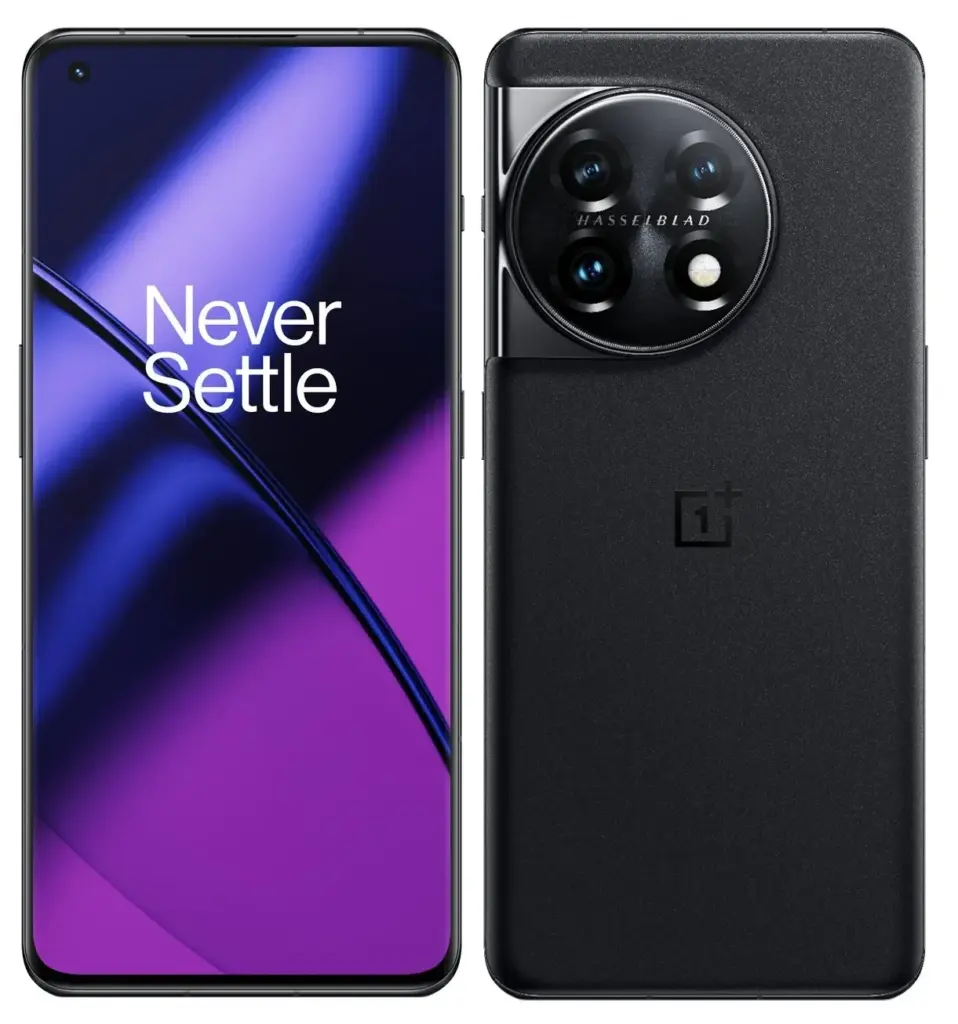
  • OnePlus 11 #leak reveals what’s in the box, and the phone’s key specs

    OnePlus 11 #leak reveals what’s in the box, and the phone’s key specs

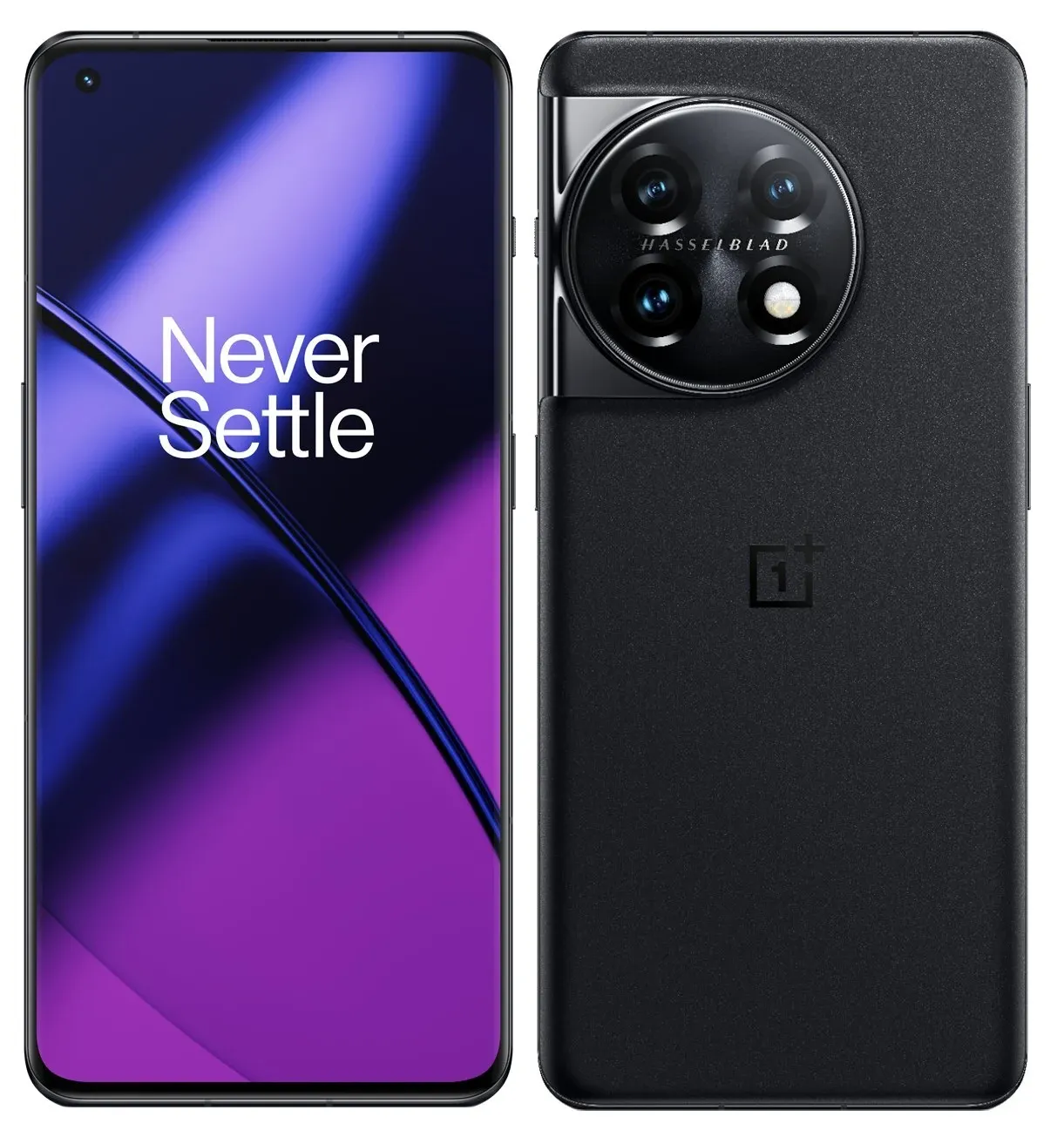
    The OnePlus 11 is scheduled to be revealed in China on January 4 before going global on February 7 in India. Despite the fact that we have already seen images of the phone, the one and only Evan Blass has added some new shots and information to his Twitter page. Before many of today’s tipsters even knew what a smartphone was, Blass has been providing trustworthy photographs and information about impending products.

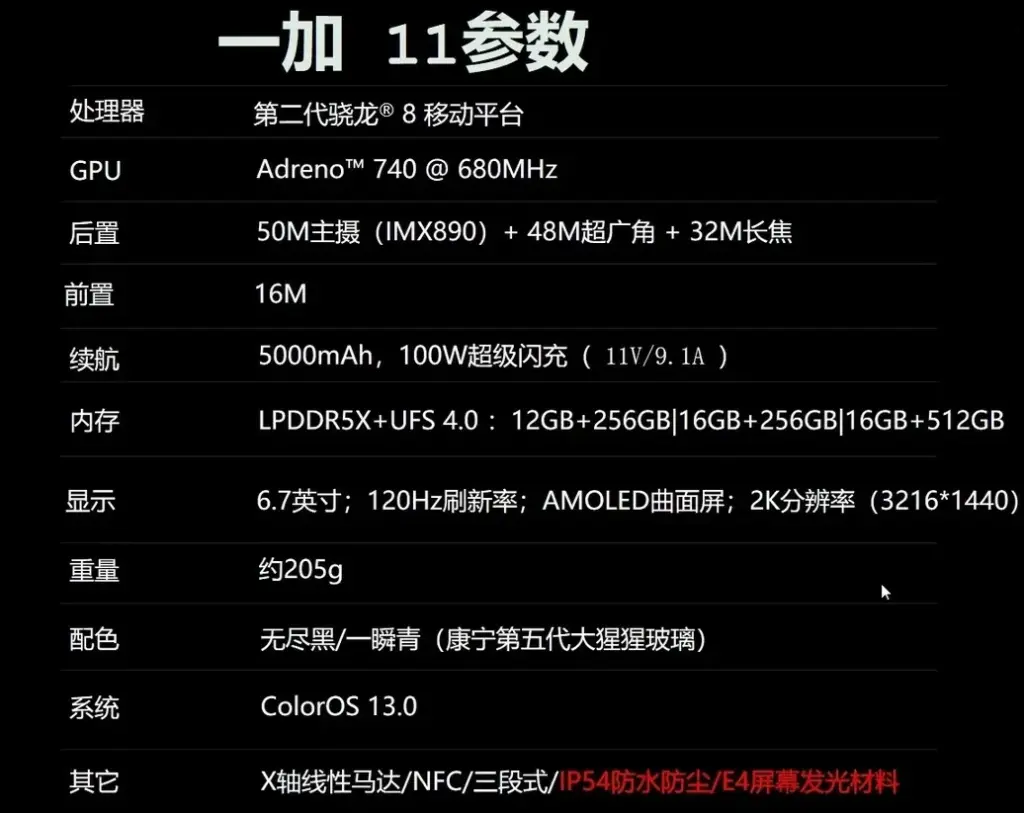
    According to the tweet, the OnePlus 11 will feature a 6.7-inch AMOLED curved display with a QHD+ resolution of 1440 x 3216. The Snapdragon 8 Gen 2 SoC will be under the hood with the following configurations offered: 12GB of RAM with 256GB of storage, 16GB of RAM with 256GB of storage, and 16GB of RAM with 512GB of storage. The phones will employ the fastest LPDDR5X RAM chips with UFS 4.0 storage. OnePlus has spared no expense as far as this aspect of the phone is concerned.

    The primary camera on the back of the phone will be powered by a 50MP Sony IMX890 sensor. A 48MP ultra-wide camera and a 32MP telephoto lens with a 2x optical zoom are also included in the array. The 16MP front-facing camera is used for selfies and video calls. A 5000mAh battery with a 100W quick charging capacity keeps the lights on. The phone will have an IP54 rating, which will protect it from sporadic sprays of water and dust. Don’t intentionally immerse the phone.

    ColorOS 13.0 will be pre-installed on the OnePlus 11 when it is unveiled in China. Its foundation is Android 13. The phone weights 205 grams and is available in Green and Black

    Blass’ leak also includes an image showing what will be inside the OnePlus 11 box. Besides the phone, there is a protective cover, a SIM tray pin, a manual, a charger (!), and a USB-C charging cable.

  • Google Camera (GCam) Mod for all Devices [v8.4.6]

    Google Camera (GCam) Mod for all Devices [v8.4.6]

    google camera app

    Download Google Camera (GCam) Mod For All Android Smartphones [v8.4.6] – Google Camera (Gcam), also called Pixel Camera, is a camera phone application developed by Google for Android. In comparison with the normal camera, it becomes clear that GCAM produces pictures that are true to the source and has a better dynamic range. It is chiefly known for its awesome features that allow the user to create a ‘Photo Sphere’, a 360-degree panorama photo, etc.

    Today we have very good news: the GCam version 8.4.6 is now available with a MOD compatible with a large part of Android phones. We’ll tell you everything you need to know and how to install it!

    You only need two requirements: run Android 10 or higher and have the Camera2 API. The main requirement for using the mod is that the device supports the Camera2 API. You can check this using a special application.

    If you meet both requirements, you have almost everything done. Installing the GCam 8.4.6 is something extremely easy that you can do in a few steps:

    1. Enter the BSG repository and click on ‘Download
    2. Once the APK has been downloaded, you can install it.
    3. Open the GCam app installed on your smartphone and you’re done

    The process is as simple as downloading the APK and installing it. You shouldn’t do anything else. Of course, depending on the device you have, you will be able to access some functions or others of the GCam. Not all sections are compatible with all smartphones.