Tag: messages

  • Samsung Messages Is Shutting Down — Here Are the Best Alternatives

    Samsung Messages Is Shutting Down — Here Are the Best Alternatives

    Samsung has officially confirmed what many Galaxy users feared: Samsung Messages is going away. The app will be fully discontinued in July 2026. It’s already been pulled from pre-installation on newer Galaxy devices, including the Galaxy S26 series. Once July hits, you won’t be able to download it from the Galaxy Store either. And shortly after that, sending messages through it will stop working — except to emergency numbers.

    If you’ve been using Samsung Messages as your daily driver for SMS and RCS conversations, this is the moment to start thinking about your next move. Not next month. Now.

    The good news? There are solid alternatives. The complicated news? None of them are perfect one-to-one replacements. Here’s an honest breakdown.

    Why Samsung Messages Shutting Down Is a Bigger Deal Than It Sounds

    Across Reddit threads, Galaxy owners have expressed real frustration with this decision. Some have said things like “we might as well get Google Pixels” – because part of what made Samsung phones feel distinct was the software layer on top of Android. Losing Samsung Messages removes one more point of differentiation.

    That’s a fair observation. Samsung Messages wasn’t just a texting app – it was a familiar interface for millions of users who had customized their notification sounds, set up message categories, and built habits around a specific UI. Switching costs are real, even for something as seemingly simple as a messaging app.

    The other dimension here is RCS. Rich Communication Services — think of it as the modern upgrade to traditional SMS — enables typing indicators, read receipts, high-quality media sharing, and improved group chats. No alternative texting app outside of Google Messages currently has access to RCS. That means if you go with a different app, you’re stepping back to a more basic messaging experience — no read receipts, no high-res photo sharing, and frustrating group conversations.

    That’s not a minor inconvenience. That’s a real trade-off.

    Google Messages: The Natural Heir (With Some Strings Attached)
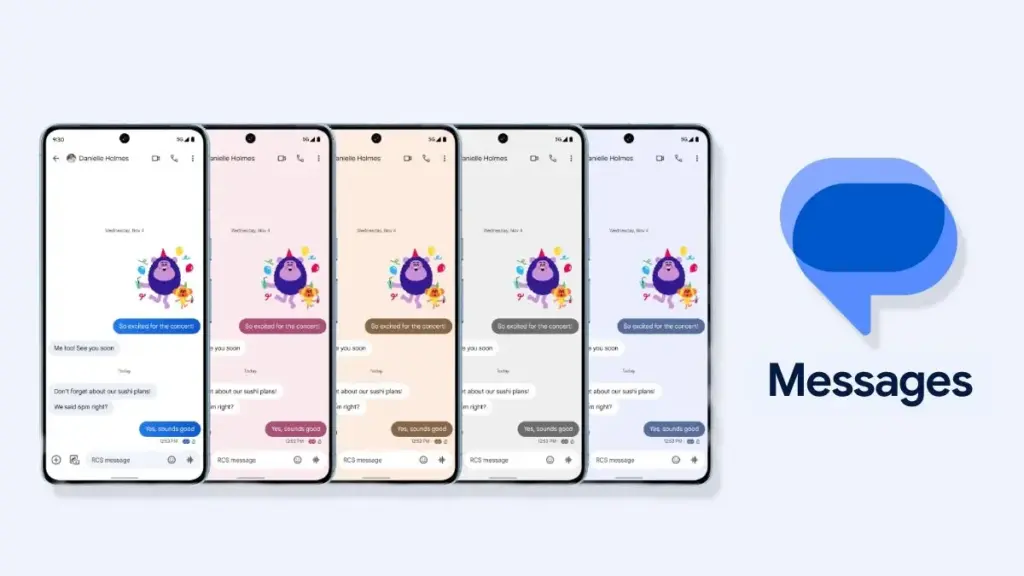
    Google Messages rolls out custom RCS conversation color themes more widely

    The most natural successor to Samsung Messages, especially if you want to keep RCS, is Google Messages. It’s already the default messaging app on most Android phones, and Google has been adding new features consistently to make it more capable.

    google messeges icon

    Google Messages

    Google Messages is the official Google app for messaging. Google Messages is revolutionizing how a billion users connect and is powered by Rich Communication Services (RCS), the industry standard for texting that replaces SMS and MMS.

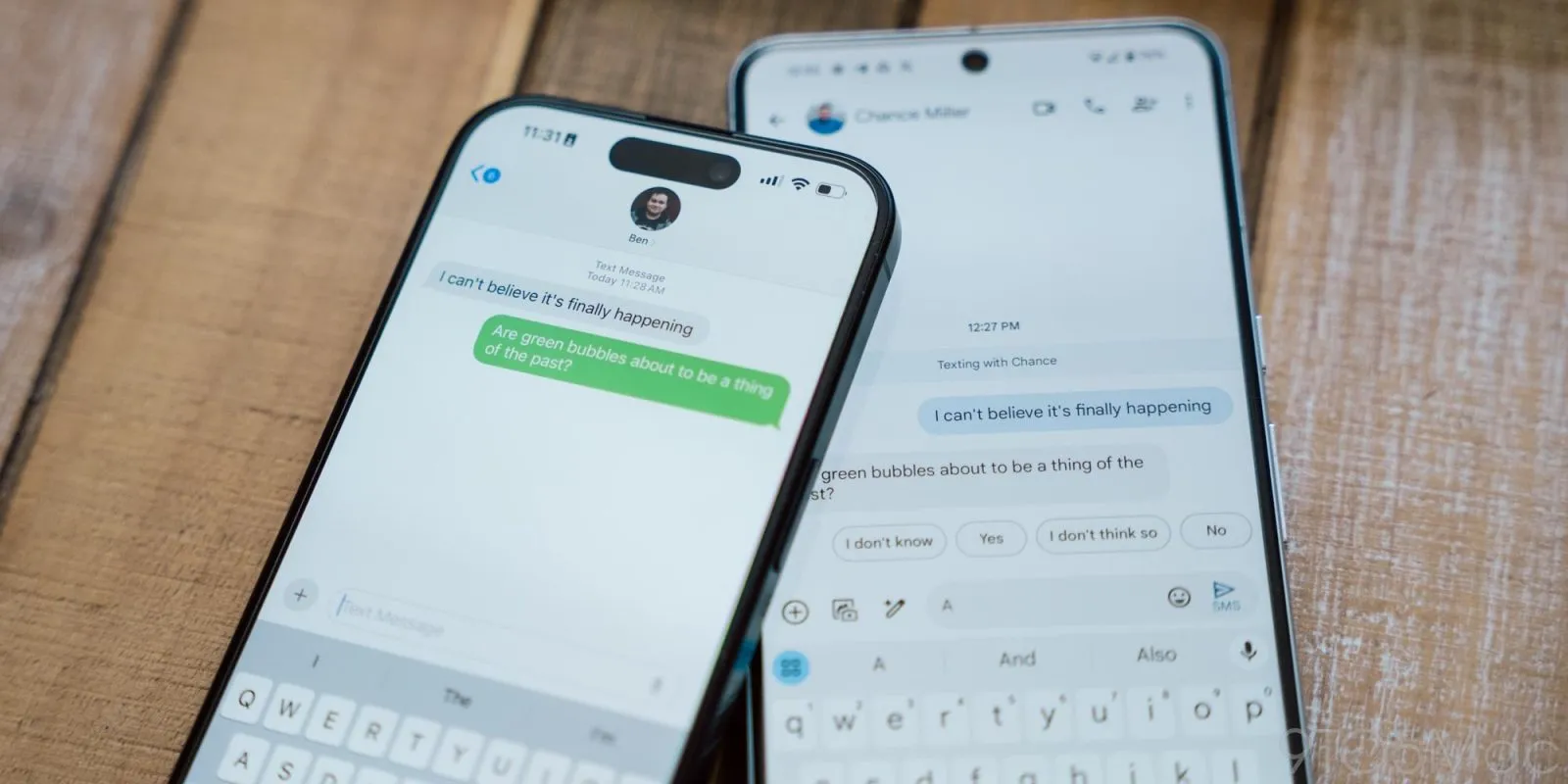
    With RCS enabled on Google Messages, you get typing indicators, message reactions, high-quality media sharing, and built-in spam protection. And since iOS 18, iPhones also support RCS – so cross-platform conversations with iPhone users are now much cleaner than the old SMS-green-bubble situation.

    From a practical standpoint, the migration is straightforward. All messages and conversations will automatically transfer between Samsung Messages and Google Messages, though the process can take up to approximately 24 hours depending on how much data you have. That’s not a dealbreaker — just plan ahead.

    What you’ll miss? Samsung Messages had better message categorization and a more flexible UI for organizing conversations. Google Messages is improving steadily, but it still feels slightly more rigid. And the Gemini AI integration – while genuinely useful for some – might feel intrusive if you just want a clean, minimal texting interface.

    Still. If RCS matters to you, this is your best bet. It’s well-maintained, it’s free, and it works.

    WhatsApp and Telegram: The Cross-Platform Heavyweights
    whatsapp and telegram getting familiar with each 1

    If you’re open to moving away from traditional SMS entirely, WhatsApp is probably the easiest transition. Most people already have it installed. It works across Android, iPhone, and even desktop. You get voice and video calls, group chats, message reactions, and end-to-end encryption by default.
    WhatsApp Messenger
    Telegram

    There have been recent concerns around privacy with WhatsApp, with reports suggesting Meta employees could potentially access private messages – although the company has denied these claims. It’s something worth knowing, even if you decide it doesn’t change your decision.

    Telegram is a different beast. It’s faster, more feature-rich than WhatsApp in some ways (channels, bots, large group support, customizable themes), and has a devoted user base. The catch: default chats on Telegram are not end-to-end encrypted – only “Secret Chats” are. That surprises a lot of people who assume Telegram equals private.

    Both WhatsApp and Telegram require your contacts to also use the app. There’s a chance many people you know are already on these platforms — it might be worth a quick conversation with friends and family to see which one already has the most traction in your circle.

    Signal: For Users Who Actually Care About Privacy
    Signal

    Signal is the gold standard for private messaging. Everything is end-to-end encrypted by default, the organization behind it is a nonprofit, and the app collects almost no metadata. If you’ve ever looked at WhatsApp’s privacy policy and felt uneasy, Signal is the answer.
    signal icon

    Signal Private Messenger

    Signal is a messaging app with privacy at its core. It is free and easy to use, with strong end-to-end encryption that keeps your communication completely private.

    The downside is that it’s not as widely used, and the feature set is more minimal compared to WhatsApp or Telegram. You’d need to convince your close contacts to switch — which isn’t always easy.

    Signal also can’t replace SMS for people outside the app. So it works best as a secure messaging layer for a specific group — close friends, family, work contacts who are already privacy-conscious. Not a universal solution, but for what it does, nothing comes close.

    The Niche Options: Textra, Fossify, and Others
    samsung messages icon

    Here’s where it gets more interesting.

    On Reddit, Galaxy owners have been recommending apps like Textra SMS, Handcent Next SMS, Fossify Messages, Pulse SMS, and ZenSMS as alternatives. These apps are primarily SMS-focused, which means they feel a lot closer to the traditional Samsung Messages experience — customizable themes, cleaner UIs, message scheduling on some of them.

    The trade-off is clear: none of them support RCS. You lose typing indicators, read receipts, and high-quality media delivery. If your contact list is split between Android and iPhone users and you’ve been enjoying the improved cross-platform experience that RCS brought, you’ll notice the difference immediately.

    Textra, specifically, has been around for years and is genuinely well-designed. It’s a solid choice if you value aesthetic customization and don’t have strong feelings about RCS. Fossify Messages is open-source and lightweight — a good pick for users who want minimal data collection and a clean interface.

    How to Switch Without Losing Your Messages

    One thing people often overlook: the practical mechanics of switching.

    To switch to Google Messages manually: open or download Google Messages from the Play Store, tap “Set default SMS app” when prompted, select Google Messages, and confirm. The switch is fairly painless.

    A few things to be aware of:

    • If you’re on an older Samsung device released before 2022, switching apps may temporarily disrupt ongoing RCS conversations. They’ll resume once both sides are on Google Messages.
    • Older Tizen OS watches (Galaxy Watch3 and earlier) won’t be able to display full message conversation history after the switch — though they’ll still let you read and send texts.
    • Back up your messages before switching. Samsung Cloud or Google One can handle this — and WhatsApp has its own built-in backup system if you’re going that route.

    The transfer itself is largely automatic. Just give it time.

    So, Which App Should You Actually Choose?

    Honestly? It depends on who you text.

    If most of your contacts are on Android and you care about a seamless, modern texting experience — Google Messages. It’s not as customizable as Samsung Messages, but it’s the only real RCS option.

    If you text internationally a lot and your social circle is already on it — WhatsApp. The network effect alone makes it worth considering.

    If you want something that looks and feels closer to Samsung Messages, and you’re okay giving up RCS — Textra or Fossify Messages.

    If privacy is non-negotiable — Signal, used alongside one of the above for regular SMS.

    There’s no perfect answer here. Samsung Messages built a loyal user base over years, and its shutdown is a genuine inconvenience. But the replacement options are functional, and in some cases — particularly Google Messages with RCS — objectively more capable.

    Start testing your top choice now, before July. Don’t wait until the last moment when the app goes dark.


    Frequently Asked Questions

    When exactly is Samsung Messages shutting down? Samsung Messages will be discontinued in July 2026 in the US market. Users on Android 11 or lower are not affected by this end-of-service change.

    Will I lose my messages when Samsung Messages shuts down? No — your SMS and MMS history is stored on your device, not in the app itself. Switching to a new app won’t delete your messages. RCS chat history may transfer automatically when you move to Google Messages.

    Does any alternative support RCS like Samsung Messages did? Currently, Google Messages is the only third-party SMS app with access to RCS. Apps like Textra and other SMS alternatives do not support RCS.

    Can I still use Samsung Messages after July 2026? After Samsung Messages is discontinued, sending messages through the app will no longer be possible, except for emergency service numbers or emergency contacts defined on your device.
  • Samsung Is Shutting Down Its Messages App in July

    Samsung Is Shutting Down Its Messages App in July

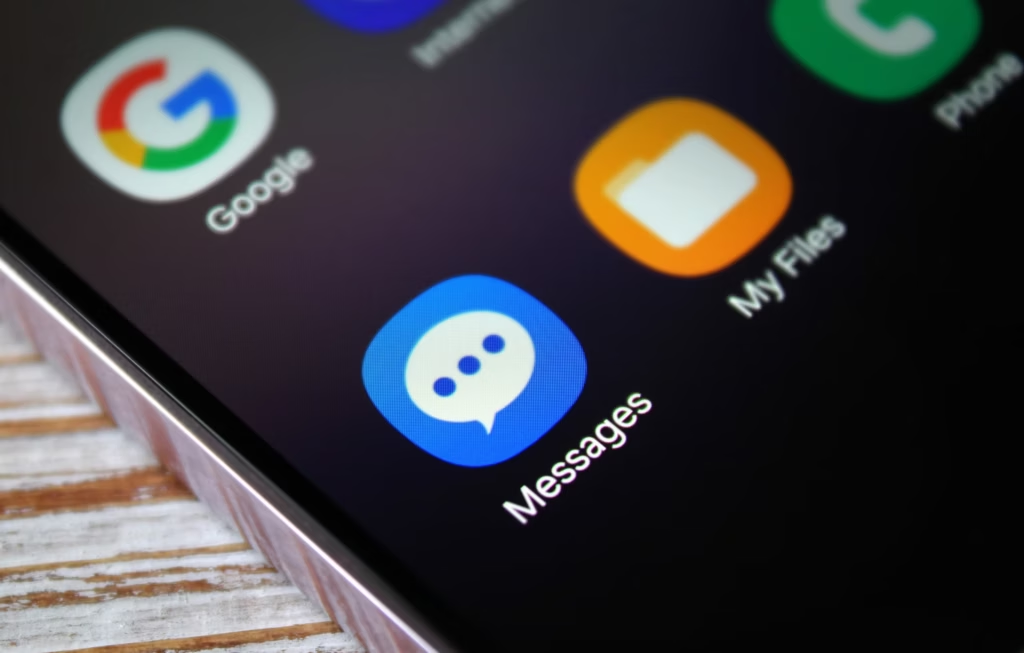
    Samsung has posted an official “End of Service” notice on its website confirming that its native Messages app will go dark sometime in July. The exact shutdown date hasn’t been pinned down yet — Samsung says it will be announced inside the app itself when the time comes. But the message is clear: the company wants its remaining Samsung Messages users to migrate to Google Messages, and it’s not leaving much room for hesitation.

    For longtime Samsung users, this might sting a little. Samsung Messages has been around for years, and for many Galaxy owners it’s just… the app they’ve always used. Familiar, reliable, good enough. But good enough doesn’t keep an app alive forever.

    samsung messages icon

    This has been coming for a while

    To be fair, Samsung has been telegraphing this move for some time. The company quietly stopped pre-loading Samsung Messages on new devices a couple of years ago, starting with the Galaxy Z Fold 6 and Flip 6, and then continuing with the S25 series — all of which shipped with Google Messages installed as the default instead. Samsung Messages remained available on the Galaxy Store for anyone who wanted it, but its days as a first-class citizen were already numbered. This official end-of-service announcement is less of a surprise and more of a formality.

    What you’re actually getting with Google Messages

    Here’s the thing — the switch isn’t a downgrade. For US users especially, Google Messages brings a meaningfully better messaging experience in several ways.

    The biggest upgrade is full RCS support. If you’re not familiar, RCS is essentially what SMS should have been all along — it supports higher-quality photo and video sharing, real-time typing indicators, read receipts, and proper group chats. Crucially, it works across platforms, so the experience doesn’t fall apart when you’re texting someone on an iPhone.

    Beyond that, Google Messages has Gemini built in, giving you access to AI tools directly inside your conversations — including the ability to remix and enhance photos before you send them. It’s a genuinely useful addition, not just a checkbox feature.

    And if you’re someone who bounces between devices throughout the day, Google Messages handles that well too. Your conversations stay in sync across your phone, tablet, and Galaxy Watch without any manual fiddling.

    You will lose a few of Samsung’s customization touches — some color themes, layout tweaks, that sort of thing. But for the vast majority of users, what Google Messages offers in return is a fair trade.

    Samsung Messages is technically still available on the Galaxy Store for now, so nobody is forcing your hand this second. But the clock is ticking, and switching on your own terms — before the deadline — beats scrambling when the app suddenly stops working. Get Google Messages set up now, import your contacts, and give yourself a few weeks to settle in. By the time July arrives, you won’t even notice the difference.

  • 7 reasons why Google Messages offers the best texting experience on Android devices

    7 reasons why Google Messages offers the best texting experience on Android devices

    Like nearly every other technological advancement, texting has improved over time. Although there are many tools that provide you more control over your messaging, the basic premise remains the same.

    The most important thing is to identify the features that can have the biggest impact, even though the amount of functions can vary depending on the text messaging app you use.

    Although Android offers many excellent texting apps, the Google Messages app stands out above the others, mostly because of its many robust features that make texting on Google’s operating system a breeze.

    9AZOTXU CpreTFAXUPAmJNkm8VGCb1C9

    Google Messages

    Safety starts with understanding how developers collect and share your data. Data privacy and security practices may vary based on your use, region, and age. The developer provided this information and may update it over time.

    OTP auto delete

    otp auto delete

    Because everyone has various objectives, different people have varied ideas on the traits they believe to be the best. But generally speaking, features that execute tasks rapidly and with little user effort are the best.

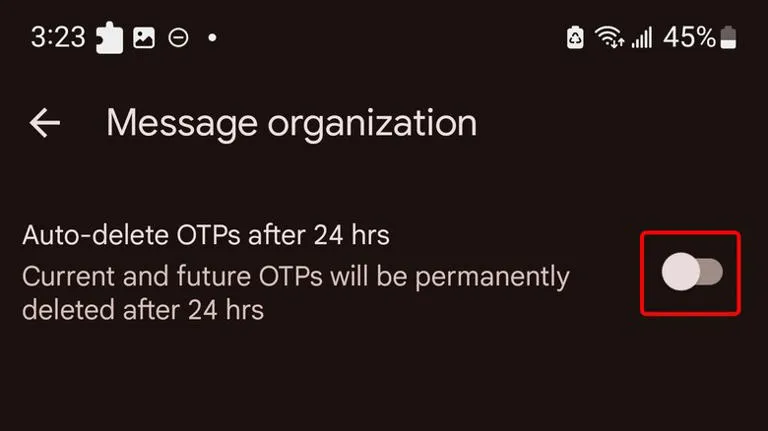
    An excellent illustration of this is the “Auto-delete messages” option. Once you give permission, it will automatically remove all of your one-time passwords and security codes from businesses after a 24-hour period. You may enable this from the Settings.

    Toggle the Auto-delete messages after 24 hours option under Settings > Message organization to activate this feature. You won’t need to manually clean up those OTPs once this is enabled.

    Personalized alert sounds for various contacts

    Businesses, friends and family, and organizations are some of the sources of text texts. As a result, not all of them are equally significant and do not merit your precious time.

    However, the ones that come from those closest to you are the ones you wouldn’t want to miss.

    Setting up a personalized notification sound for your most critical contacts is one of the simplest methods to accomplish this. In this manner, the notification’s sound will instantly identify the sender of the message.

    You can customize a notification sound for persons whose messages you need to respond to promptly, in addition to your loved ones. They could be your coworkers or even your employer. The answer is Google Messages.

    RCS

    messages

    Perhaps the most significant aspect of the Messages app is its support for RCS (Rich Communication Services), which is the sole reason why many people utilize it.

    With capabilities like the ability to send high-quality photos and videos, type indicators, read receipts, end-to-end encryption, reply to a specific message, and many more, RCS transforms the outdated SMS messaging system into a more contemporary one.

    RCS isn’t accessible by default, though. To begin using these features, you need to activate it from the Chat features setting. Additionally, the other person’s phone number must have RCS enabled.

    Because cross-platform RCS communication still lacks several crucial capabilities, such as end-to-end encryption, you receive the best RCS experience on Google Messages when both senders and recipients are using Android phones.

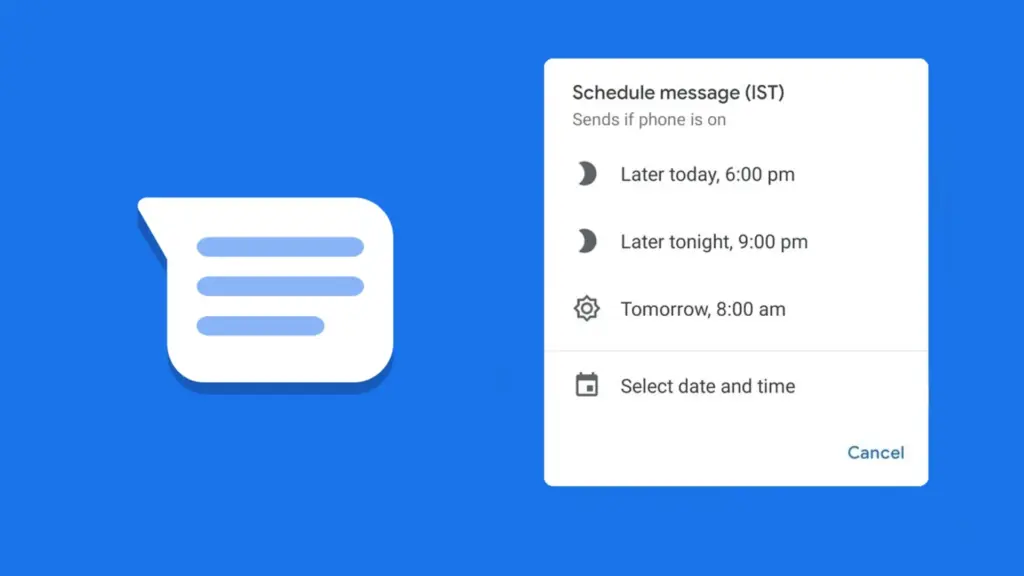
    Scheduled send

    Google Messages Scheduling Featu

    Google Messages lets users create a message and select a time and date, after which the app will automatically deliver it to the recipient.

    Despite how easy it seems, some of the most frequently used messaging programs, such as WhatsApp, still do not support this. Although scheduling a message in Google Messages is simple, the choice isn’t immediately apparent when you begin typing.

    After entering the message, you must long-press the send symbol to bring up Google Messages’ “Schedule send” feature. After that, you may select the day and time you would like that precise message to be delivered to that individual.

    You can alter the date and time or cancel the planned send if you decide to change your mind later.

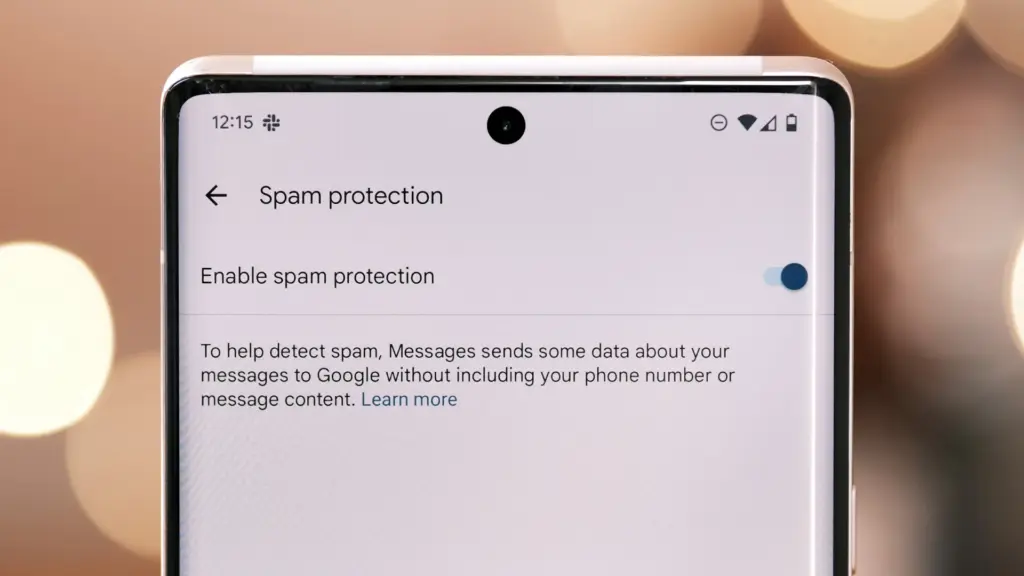
    Spam protection

    Google Messages Spam Protection

    Text messaging is one of the many ways that spam can happen. Depending on the platform, there are a number of strategies to prevent becoming a victim of spam.

    With its spam prevention function, Google Messages provides one of the simplest means of safeguarding oneself against such malicious individuals. From the Messages Settings, you may activate this option.

    When enabled, Google Messages will screen messages that contain such harmful links to phony websites and place them in the Spam and Blocked folders on your phone.

    The program removes the possibility that you would unintentionally click on one of those links and provide your personal information to bad actors because those dangerous text messages aren’t accessible within the app.

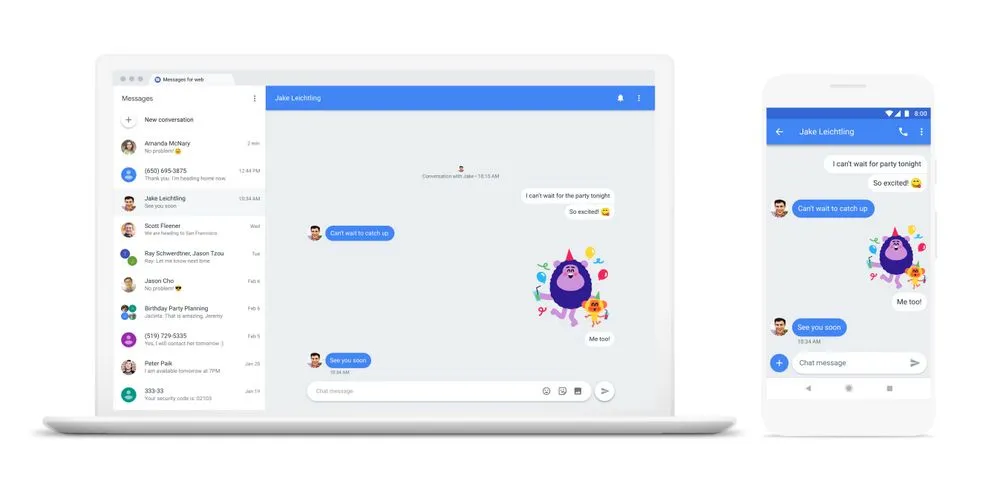
    Pair with the web app

    web messages

    When an app is available on several platforms, it becomes more helpful. Google Messages features a clever approach dubbed “Device pairing” to compensate for its inaccessibility outside of its ecosystem.

    It enables Google Messages to be paired with any computer that has a screen and an internet connection.

    You are using the same Google Messages app on your phone, but it is now operating on a different device via mirroring. You must connect your phone to the internet because your second device isn’t operating this natively.

    This can be paired with your Mac or PC, or even with another phone. Tap the profile symbol in the top-right corner, select Device pairing, and then adhere to the on-screen directions to pair.

    You can unpair Google Messages from each device if you are no longer using it on those devices. Additionally, it offers the ability to unlink a certain device.

    Pinned conversation

    Google Messaged Pinned Conversat

    You must locate the contact you wish to send a message to before scheduling it. Although you can type the contact’s name into the search bar, this isn’t the most effective method, particularly if they are significant individuals.

    You can pin or unpin messages using the pinning feature in the Google Messages app. In this manner, communications from certain people show up first when you launch the app. Therefore, you may locate those messages without using the search function or scrolling to the bottom.

    One of Google Messages’ user-friendly features is message pinning. You simply hit the pin symbol at the top after choosing the message from the list. The Messages app allows you to pin more than one message.

    Until you unpin them, those pinned messages always stay at the top. You must pick the pinned message and then tap the unpin symbol that shows at the top in order to unpin it.

    Google Messages offers the best texting experience for Android devices

    Like anything else, the Google Messages app has flaws. Its peculiarities might not be to everyone’s taste, and some people might find its UI a little cluttered.

    But Google Messages’ robust features function so effectively that you won’t even notice how quickly the program becomes essential.

    On the majority of recent Android phones, Google Messages is the default texting app. Therefore, it eliminates the need to search for a better texting app after the initial boot. It’s ready for you to start messaging your loved ones right now.

    There are a lot of useful features in Google Messages, and when the app is updated, more are added. Additionally, it is among the Google apps that receive the most updates.

  • Google Messages ads RCS label in contact list

    Google Messages ads RCS label in contact list

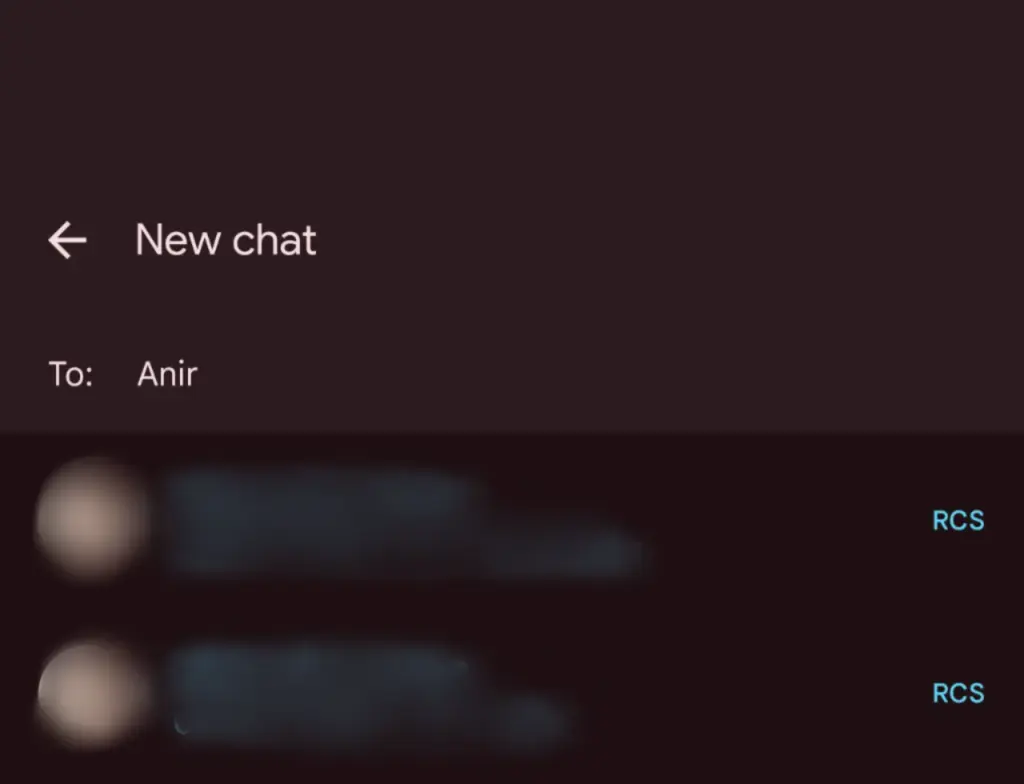
    Google Messages’ RCS texting feature isn’t as efficient as it could be. You can’t tell whether someone has RCS messaging enabled unless you start a chat with them. With a new RCS indication in Google Messages, Google is permanently resolving this issue.

    The “RCS” badge will appear on the right of numbers that support the upgraded texting experience (via Reddit) when you compose a new message and navigate through your contact list in Google Messages. The label won’t show up next to a saved contact if they are not able to send RCS texts.

    In addition to the label, dynamic color theming is used to further draw attention to RCS-enabled contacts. Regular numbers are shown in either white or black. Google Messages will show RCS availability for each number if a contact has more than one.

    google messages rcs label

    Even though this might not seem like much, it will contribute to a more reliable RCS experience. Now, you can easily check if a contact has RCS enabled. This modification should only serve to increase the uptake of RCS.

    Before, you had to begin writing a message with them in order to find out. In April of this year, Google was initially observed working on this Google Messages update.

    According to 9to5Google, there are further minor modifications. The “New conversation” title that was previously displayed on the screen that comes after tapping the “Start chat” button has been replaced with the “New chat” heading.

    Some users of the most recent Google Messages for Android beta (20250527_01_RC00) are seeing the RCS label. Since none of my phones have the label yet, it looks like this is a restricted server-side rollout.

    Google brings many features to Messages

    To its credit, Google has been working diligently on Google Messages, addressing numerous issues and incorporating new features to level it up with its rivals. The business merits recognition, even though there is still much to be done.

    Testing has revealed several planned Google Messages enhancements, such as threaded answers, a huge compose box for seeing your lengthy texts, and a new landscape style.

    If you want the latest Droid Tools news, follow us on X @droid_tools and like our page on Facebook to stay updated.

  • How to change the default apps on new Android devices

    How to change the default apps on new Android devices

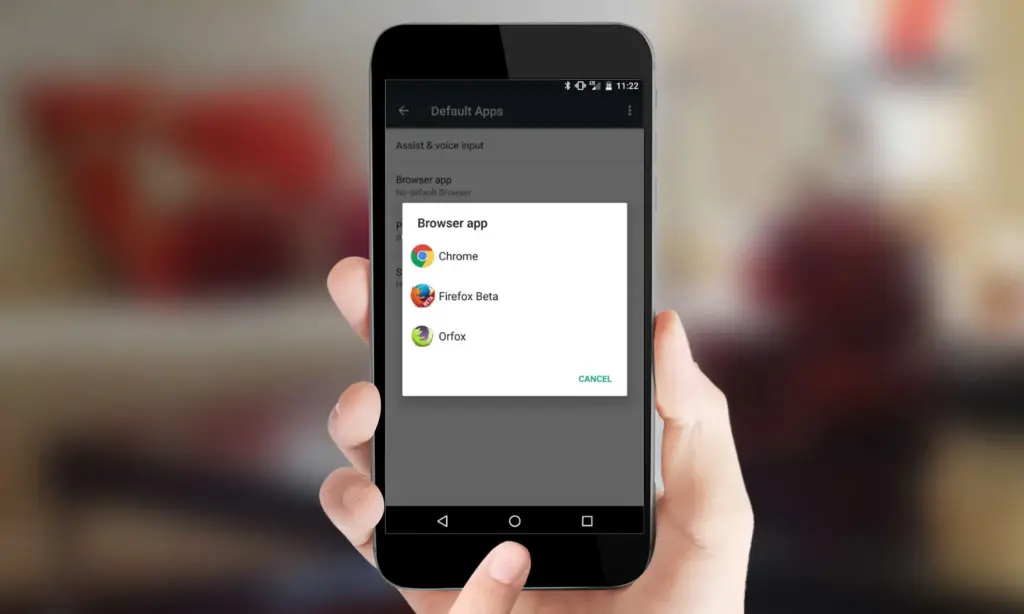
    You have complete control over the default apps you use on Android for email, calls, texts, browsing, and more. Android lets you select your favorite apps as defaults, whether it be Chrome or Firefox, Gmail or Outlook, or any other third-party software that is compatible, in contrast to other mobile operating systems that force you to use a limited number of apps.

    We will show you how to change the default Android apps in this tutorial. We will go over how it functions on both stock Android and well-known manufacturer skins, such as Xiaomi’s MIUI and Samsung’s One UI, as well as what to do in situations when Android lacks a default app option.

    Why change your default apps?

    Changing your default apps can increase productivity and improve your experience. For instance, you may wish to use:

    • A privacy-focused browser like DuckDuckGo instead of Chrome
    • A lightweight email app instead of the default one
    • A better gallery app with cloud backup support
    • A different SMS app with customization features

    Once set, Android uses your selected app automatically — no need to choose each time.

    change default apps in Android

    What types of default apps can be changed?

    Android supports default app selection for a variety of functions, including:

    • Browser (e.g., Chrome, Firefox, Brave)
    • Phone (dialer apps)
    • Messaging/SMS (e.g., Google Messages, Textra)
    • Email (e.g., Gmail, Outlook, K-9 Mail)
    • Home screen launcher
    • Digital assistant
    • Camera
    • Gallery/photos
    • Music player
    • Navigation apps (Maps, Waze, etc.)
    • Links handling (web, YouTube, etc.)

    Some apps will request to be the default when first installed or opened but you can always change this manually.

    How to change default apps on stock Android

    Here’s how to manage your default apps on phones running near-stock Android (such as Pixel, Motorola, or Nokia devices):

    1. Open the Settings app.
    2. Tap on Apps.
    3. Choose Default apps.
    4. You’ll see a list of categories: browser app, phone app, SMS app, assistant app, home app, etc.
    5. Tap any category to see installed apps compatible with that function.
    6. Choose your preferred app from the list.

    Android will immediately make the chosen app the activity’s default. If you change the browser’s default, for instance, any link you click will open in the selected browser.

    How to change default apps on Samsung (One UI)

    Samsung devices with One UI take a somewhat different path:

    1. Go to Settings.
    2. Tap on Apps.
    3. Tap the three dots in the top-right corner and select Default apps.
    4. You’ll see the same categories as stock Android: browser, calling, messaging, and more.
    5. Tap the category you want to change.
    6. Select your new default app.
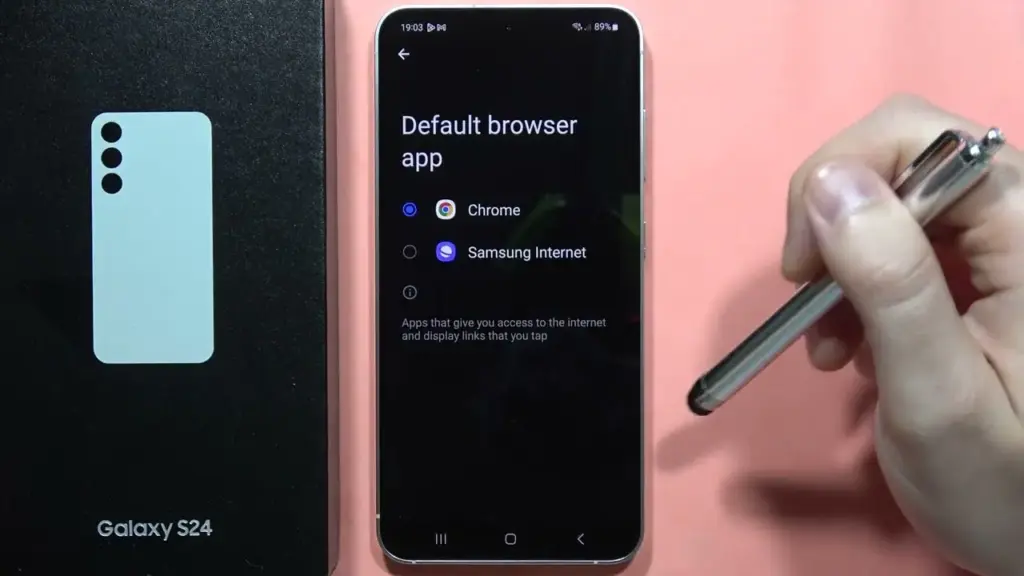
    change default broser on OneUI Samsung

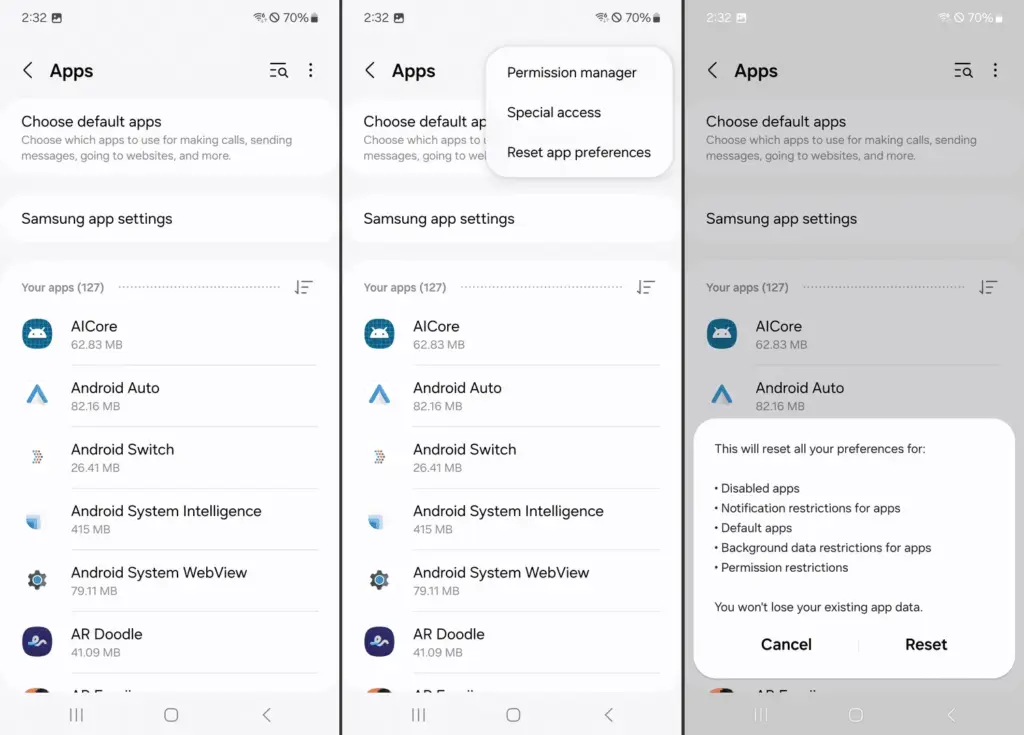
    Samsung devices also let you reset all default apps at once via Settings > Apps > Three dots > Reset app preferences.

    How to change default apps on Xiaomi (MIUI)

    MIUI includes a “Manage apps” section to control default apps:

    1. Open the Settings app.
    2. Go to Apps > Manage apps.
    3. Tap the three dots in the top-right and select Default apps.
    4. Choose a category like browser, dialer, messaging, or gallery.
    5. Select your desired app.

    MIUI might ask you to select a new default app after installation or when you attempt to open related content.

    How to handle app-specific defaults (like file types or links)

    Some apps don’t appear in the general default app settings but can still be set as defaults when opening certain file types or links.

    To manage these:

    1. Go to Settings > Apps.
    2. Tap See all apps and choose the app you want to configure.
    3. Tap Open by default.
    4. Enable Open supported links or clear defaults by tapping Clear defaults.

    This is useful if you want all YouTube links to open in the app rather than in a browser, or if you have accidentally enabled an app to always open PDFs or photos.

    How to reset default apps

    reset default apps on Android

    If you’ve set the wrong default app or want to start over:

    1. Open Settings > Apps.
    2. Tap the three dots (or menu icon).
    3. Select Reset app preferences.
    4. Confirm to reset all app defaults.

    This won’t delete any data but will clear app defaults, disabled apps, and permission restrictions.

    Alternatively, to reset just one app:

    • Go to Settings > Apps > [App Name] > Open by default
    • Tap Clear defaults

    This lets you reassign that app’s function later.

    Choosing the best default apps

    Here are some recommended apps to consider setting as default:

    • Browser: Firefox Focus (privacy), Brave (ad blocking), Chrome (sync)
    • Email: Gmail (Google integration), Outlook (work email), BlueMail (multi-account)
    • Messaging: Signal (privacy), Google Messages (RCS), Textra (customizable)
    • Gallery: Simple Gallery, Google Photos, Aves
    • Music: YouTube Music, VLC, Poweramp
    • Navigation: Google Maps, Waze, HERE WeGo

    Make sure the app supports being set as a default. Some lightweight or older apps may not offer this functionality.

    What if Android won’t let you change a default?

    Some Android versions or manufacturers may restrict default app changes for certain functions — especially camera or dialer apps. In those cases:

    • Make sure the new app is fully updated and has the necessary permissions.
    • Check for manufacturer limitations in forums.
    • Use Activity Launcher or ADB commands (for advanced users) to override.
    • Root access may be required for some deep changes — though this is not recommended for most users.

    Changing the default apps on Android provides you control over your digital experience. Whether you want a speedier browser, a cleaner messaging app, or a more powerful camera, Android allows you to select what works best for you.

    By looking into your device’s default app settings, you may optimize your workflows and eliminate annoyances such as accessing links in the wrong app or using services you dislike. With a few touches, Android becomes your own—not what the manufacturer or carrier wants you to use.

  • US Carriers that enabled RCS messaging for iPhones

    US Carriers that enabled RCS messaging for iPhones

    This week, Apple unveiled iOS 18, which includes a number of improvements, including the long-awaited Rich Communication Services, or RCS. The iPhone 16 was also announced alongside iOS 18. Since carrier activation is necessary for the messaging service to function, not all American networks will offer it at launch. The most recent list of carriers that support RCS on iPhones can be found on Droid Tools.

    Since Google originally implemented RCS on iPhones a few years ago, it has been a frequently desired feature. This messaging protocol was created to take the place of SMS and MMS on mobile or cellular phones. This has several capabilities including sending and receiving high-resolution photos, read receipts, typing indicators, and improved group chat management, even if it does not eliminate the green bubbles from Android messages.

    How to turn on RCS on an iPhone

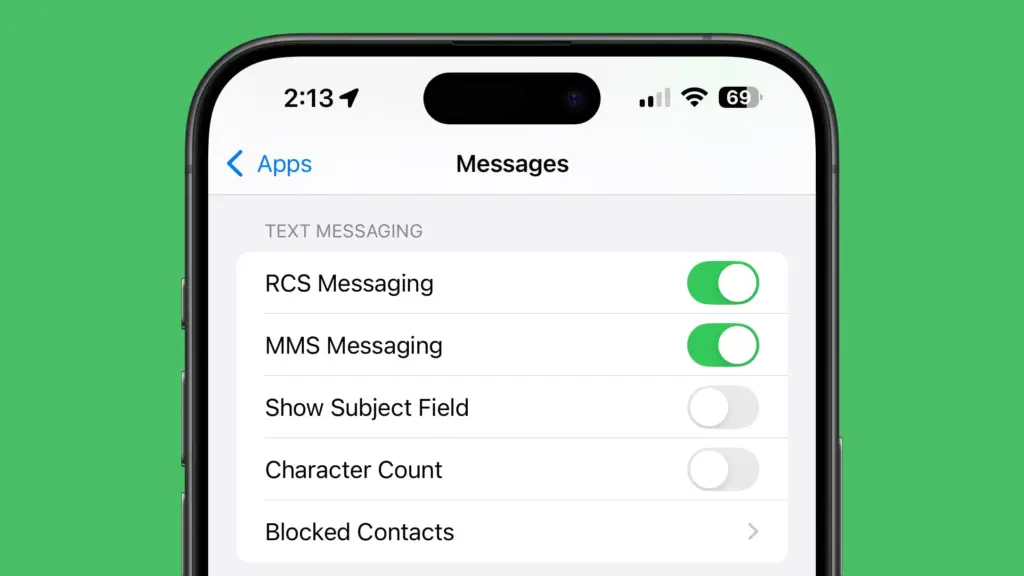
    Even after updating to iOS 18, RCS messaging is disabled by default. Users of upgraded iPhones will need to activate it through the settings. How to do it is as follows:

    1. Open the Settings app on your iPhone.
    2. Scroll down and tap Apps.
    3. Select Messages from the menu.
    4. Toggle on RCS.
    5. Exit the window to save changes.
    RCS messaging

    Which US carriers offer RCS for iPhones?

    Only a few carriers have enabled RCS since iOS 18 was released for compatible iPhones. Major carriers have been on the list, nevertheless, since the beginning. The carriers listed below provide RCS for iPhones.

    1. AT&T
    2. T-Mobile
    3. Verizon
    4. Metro by T-Mobile
    5. U.S. Cellular
    6. Cricket
    7. Spectrum
    8. TracFone
    9. Straight Talk
    10. Xfinity Mobile
    11. C Spire
    12. Consumer Cellular
    13. FirstNet
    14. PureTalk
    15. Red Pocket
    16. Visible

    There is no confirmation yet when other telco operators like Mint and Boost will enable RCS on their network.

    Which Canadian carriers offer RCS for iPhones?

    If you’re residing in Canada or traveling there, most major carriers there offer RCS on iPhones as well. You can find the list below.

    1. Bell
    2. Rogers
    3. Telus
    4. Fido
    5. Virgin Mobile
    6. Freedom Mobile
    7. Koodo
    8. Lucky Mobile
    9. Videotron
    10. Chatr

    If you would rather see it in a more organized manner, Apple’s support page has a list of several wireless providers in various nations and areas that have already integrated RCS into their networks.

  • Sunbird – brings iMessage on Android

    Sunbird – brings iMessage on Android

    iMessage has long been the primary distinction between iPhone and Android users (well, here in the US anyway). It’s created a massive rift between the two platforms because iPhone users have their own exclusive space to hang out where Android users are at best annoying and at worst downright prohibited.

    Many businesses have made an effort to address this issue. Despite its wealth and influence, Google has chosen to publicly mock the entire issue and urge Apple to implement RCS. By charging customers to link an Android handset with a real Apple device, like a Mac or even an iPhone, Beeper provides iMessage to Android.

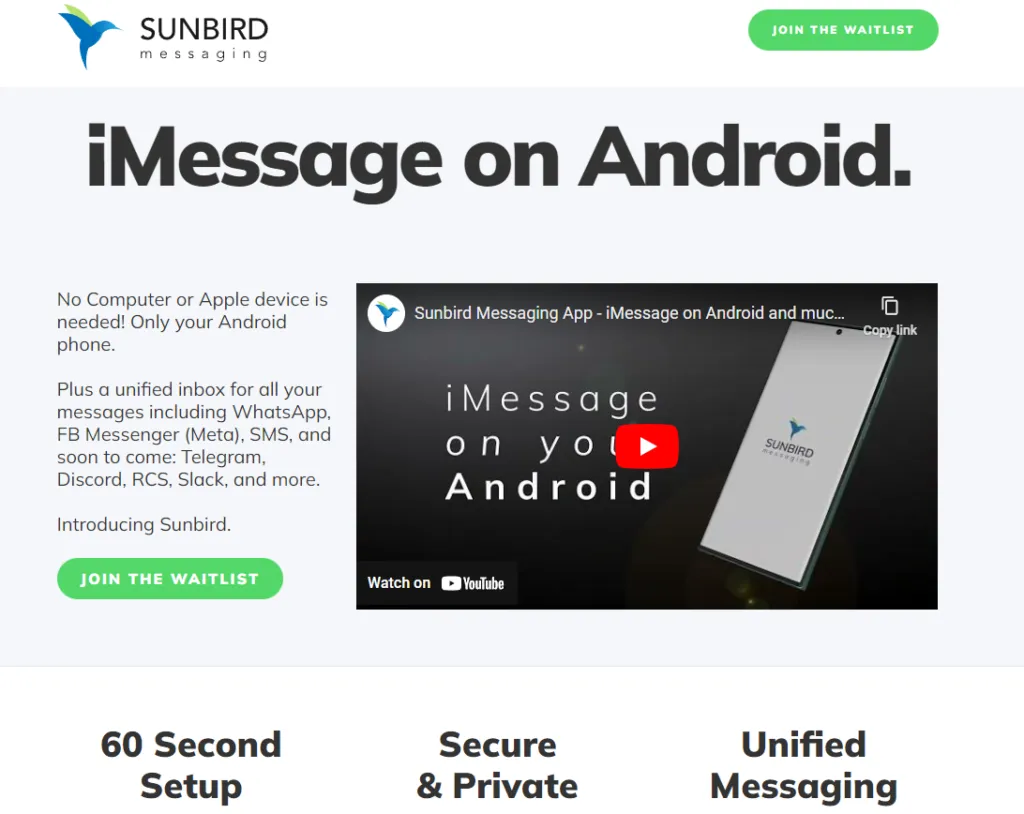
    Sunbird, though, is looking to be the one true app to rule them all. Today, the company gave Android Authority a rundown of the app (which is still in alpha) and how it works.

    sunbird imessage

    Sunbird: iMessage on Android

    A pre-recorded screencast showing a Samsung phone interacting with what appears to be an iPhone via iMessage was displayed during the company’s presentation. Blue bubbles, Emoji replies, typing indicators, etc. were all present. It appeared as though the Samsung phone was an iPhone in all respects.

    But the business never displayed what the iPhone saw. The fact that it was a pre-recorded film just added to our natural skepticism. We eventually received early access to the Sunbird app from the company so that we could test it out for ourselves.

    The good news is that Sunbird and my Apple ID might be linked. I was able to hypothetically connect the two by logging into Apple via the Sunbird app. My subsequent attempts to send iMessages were unsuccessful. Whether it was text, a picture, or a vCard, my messages were simply never delivered to my intended receivers.

    Sunbird and I tried to troubleshoot together, but we were unsuccessful. If we are successful in getting it running in the future, we will let you know.\

    Does it work and what will it cost?

    Sunbird has no intention of making its iMessage-to-Android technology open-source. Therefore, we were not given a thorough explanation of how this program functions (or at least should work).

    However, based on what the business did state, it appears like it has expanded on the Beeper approach, which involves connecting an Android phone to an Apple-based system. The first is that each user does not require their own connected gear. Sunbird has developed a method that enables tens of thousands of users to connect to a single computer. Second, the company has also discovered a way to maintain end-to-end encryption using this technique, something Beeper and similar companies are unable to do. Once more, Sunbird withheld its method of operation.

    Thankfully, if and when it does work and launches to the public, Sunbird says the app will be free — for a while. Early birds will get access to iMessage on Android and not have to pay a dime. In the future, the company could monetize the app by charging for other connected services, such as Telegram, Signal, or other chat apps.

    In the meantime, we’ll continue working with Sunbird to get the app up and running on our own devices.

  • Send a WhatsApp message without adding the number to your contact list

    Send a WhatsApp message without adding the number to your contact list

    With over 2 billion monthly users, Meta’s WhatsApp is one of the most popular messaging platforms on the planet. We occasionally need to send messages on WhatsApp, but in order for our contacts to appear in the list, we must first sync them.

    Despite the fact that WhatsApp does not have this capability, there is a way to message any number without saving it to your device’s contact list. Please bear with us. Follow the simple actions outlined here.

    We’ll go over the best methods for sending a messages without preserving your phone number in your contacts.

    You won’t have to install or do anything additional with this, and it’s the best method to have a brief chat with anyone who has an active WhatsApp account. Let’s have a look at it now, without further ado.

    • Open your internet browser on your device.
    • Then, in the browser’s address bar, type wa.me/phone number (phone number includes mobile number beginning with country/region code).
    • E.g., wa.me/+91xxxxxxxxx (+91 is a country/region code for India. (Use your code before entering the contact number.) | Find your country code here...
    • Hit enter, and it will show Continue the chat with the number.
    • Click on the green button, and from there you can chat, call, or check the details.
    WhatsApp
    WhatsApp

    You can perform this on any platform. It doesn’t matter if it’s on Android, iOS, Windows, or Linux. All you need for this is to have the app installed on your device and active internet connectivity. The recipient should have an active WhatsApp Mobile number.

    How is this possible, and is there any thread while using this method?

    No, there isn’t a problem because wa.me is a short-link that the app API uses to start a WhatsApp conversation. The same API is used to integrate WhatsApp Direct Messages, and you may find that this isn’t always the case. To talk or contact someone on WhatsApp, click here. It’s one of the references in the book.

    There are no threads to be concerned about. They’re perfectly safe and have always been wa.me. This is a short WhatsApp link. G.co for Google, youtu.be for YouTube, and fb.com for Facebook are examples of short links.

    Hopefully, this instruction was useful to you and you were able to send WhatsApp messages successfully. Thank you for joining us. We’d like to hear your thoughts and suggestions. If you have any questions, please leave them in the comments area below.

  • 14+ must have apps on your Android smartphone

    14+ must have apps on your Android smartphone

    Have you just got a new Android smartphone for your holidays? It might be a little overwhelming if it’s your first one, so to get you started, here are some apps you should install or set up on a new Android device immediately.

    Alternatively, it might be time to give them a shot if you’re not already using these apps!

    Google Messages (RCS)

    google messages rcs apps

    Messaging has historically been a sore point among Android smartphones in the US at least. Fortunately, Google has been working hard to address that in recent months and now, as of this year, the solution known as RCS (Rich Communication Services) is open to every Android smartphone in the world.

    How can you get your computer with RCS and, more importantly, what’s the advantage? Firstly, the advantage is that RCS is much more capable than SMS/MMS. Better quality photos can be submitted, typing indications, and more all arrive with RCS. Team chats are now having a big update as well. RCS is like Apple’s iMessage, essentially, just for Android phones.

    All you need to do is update Google Messages to get RCS on your Android phone. The free app is an SMS app at its heart, but it can also allow RCS messaging on any carrier and any Android smartphone in select countries, including the US. Just download it, set it as your default SMS app, and wait until the RCS prompt is switched on.

    Telegram & Discord

    telegram and discors

    You should go beyond the standard RCS and SMS if you want an app for even better messaging. One of our favourite messaging apps is Telegram and it functions a lot like the super famous WhatsApp. However, unlike that app, Telegram runs easily on several smartphones or tablets at one time and instantly backs up all your messages. Plus, all is always end-to-end encrypted and you have available both voice and video calls.

    Another great networking option is Discord, which provides private messages and “servers” to host a few friends or hundreds, all with rooms and chat managers. It’s a fantastic experience, and one that’s excellent for gamers in particular.

    Google Duo

    googe duo

    2020 has been a wild year, but sadly, with a pandemic already going on, we are entering 2021. With that in mind, one of the easiest and safest ways to stay in contact with loved ones is still with video calling apps.

    Google Duo is one of the best Android video-calling applications. The totally free app allows starting video calls on Android phones and tablets as well as Chromebooks, laptops, and even iOS devices super fast. Think of it as Facetime for Apple, but not locked up to one ecosystem.

    The app works with your phone number or email address and on certain devices it features fun filters and even screen sharing. However, the best function might be just how well it operates on less-than-ideal connections.

    Zoom

    ne of the most popular video calling/conferencing tools during the pandemic so far has been Zoom. By its popularity alone, this is an app you should have installed. The service offers meetings that you can connect to with just a link or a password, easily connecting with loved ones, friends, or using it for business meetings. Many schools are also using Zoom for remote learning. It’s a powerful app, and one that’s not going to cost you anything unless you’re the one hosting.

    Meet, Skype, Facebook Messenger

    Other great apps for video calling going into 2021 include:

    • Google Meet, an app that works a lot like Zoom but is attached to your Google account and is very popular especially with schools.
    • Skype, one of the original video calling apps that still works great especially for friends and family.
    • Facebook Messenger, a service that lots of people in the US currently use and has an excellent video calling option alongside its messaging features.

    Google Photos

    download

    One of the first things you should install on a new Android smartphone – or an iPhone for that matter – is Google Photos. For the vast majority of Android users, the app will be pre-installed on your device, but you’ll still need to get things set up.

    To do that, simply open the app, sign in with your preferred Google account, and decide on backup options. Photos will automatically backup your pictures and videos in the background, but you’ll need to tell it if you want that done over Wi-Fi only or on cellular data as well.

    From there, you’ll just need to decide on quality. For the next several months, everything is backed up to Google Photos with no limits for “high-quality,” slightly compressed backups, but in June you’ll need a Google One subscription to store anything past 15GB of data.

    If you want to backup your photos outside of Google, one of the best options is Amazon Photos which provides no-frills backups and, for Prime customers, unlimited storage for photos.

    Gboard

    The keyboards pre-installed on a lot of Android smartphones that are most popular today are, well, not nice. In particular, we have particular qualms about LG, but in any case, you can get more features and improved functionality from a different keyboard in many cases.

    Our top selection? Gboard of Google’s own. This keyboard has a fantastic layout that supports features such as gesture/swipe typing, GIF search and input, and so much more, and is convenient for typers of all types. There are also special features, such as the recent inclusion of the “Emoji Kitchen” that can produce some wacky emoji stickers on the fly. You may also subject Gboard to the desire of your heart.

    Put simply, it’s an excellent keyboard that’s totally free and, if it wasn’t already on your phone, it’s one you should absolutely try.

    Find My Device

    Here’s another app that every new Android device should already be loaded on. “Find my device” is an app from Google designed to help you keep track of your smartphone if it is lost. If, for some reason, the app isn’t activated on your computer, it is available through the Play Store.

    When you open Find My Laptop, a Google account will prompt you to sign in and enter your password as well. You’ll be able to see your computer as well as any others connected to your account until that’s completed. Any computer on your account can then ring, lock, or scrub. The same goes for your new phone, some other Android device you own, an Android phone from a friend, or even just a web browser.

    As a side note, in Google Play Services, the key feature of actually locating your phone with this app is on by default, but you can get a little more access using the app as well as being able to locate your other Android devices via the app as well as helping friends find their phones.

    Google One

    google one

    If you do lose or break your phone, you don’t have to lose your data. That’s where Google One comes in handy. With any Google One storage plan (starting at just $2/month), you’ll get improved backups of your phone. By default, Android already backs up core data for free to your Google account, but the One app can back up SMS messages and MMS messages along with your photos and videos.

    ActionDash

    ActionDash provides strategies such as pausing applications to prevent you from using them to help curb your mobile use, restricting how long an app can be used each day and more.

    Everything is done on-device and isn’t uploaded to the cloud and, better yet, the app is free and won’t hurt your battery either. ActionDash is available on Google Play.

    Let’s finally talk about the habits of smartphones. For many, mobile addiction is a major concern, and there are ways to help curb digital well-being apps by moving through a new decade. On your computer, there may already be one enabled, but if not, ActionDash is a free Android smartphone Digital Wellness app that works on almost any device.

    The app monitors how you use your phone during the day, including which applications are used, how many times your smartphone has been activated, and also how many updates you receive.

    Check these waterproof box with actions dash.

    Google’s Digital Wellbeing experiments

    If you really have a smartphone addiction and you want to find a way to guilt yourself into stopping, Google’s collection of Digital Wellbeing experiments might be able to help. These include:

    • Screen Stopwatch, a wallpaper that constantly updates with the amount of time you’ve been using your phone that day.
    • Activity Bubbles, a wallpaper that shows how many times you unlock your phone in a day and how long each “session” lasts.
    • Unlock Clock, a wallpaper that counts how many times you’ve opened up your phone each day.

    Google Keep Notes

    google keep

    By using a note-taking app, keeping track of reminders, lists, and more can be made even easier. Personally, Google Keep Notes is my favorite note-taking app on Android and it’s something that just seems to keep getting better over time.

    Google Keep is totally free and allows you to store in the app notes, lists, and even drawings. These notes are also synced to your Google account, which means that on any other device, including computers, you can access them. You can even use Google Assistant speakers like the Nest Mini to handle a shopping list with a fast setup!

    Microsoft OneNote – Google Keep alternative

    If you want something that’s not from Google and has a few more advanced features, Microsoft OneNote is an excellent option. The app is completely free, though works better with other Microsoft apps using a Microsoft 365 subscription. You can back up notes, drawings, and insert pictures in the app and, like Google’s app, they’ll sync across devices with your Microsoft account.

    A few more …

    • Waze: While Google Maps will do the trick for many, Waze offers crowdsourced live traffic data and reports for speed traps and more.
    • Google News: Especially in these times, keeping up with the latest news is important, and using personalized data, Google News will bring you top stories in a slick app that’s really easy to use.
    • Feedly: Want to keep track of the news using personalized RSS feeds? Feedly is one of the best apps for the job, and it’s free!
    • LastPass: We all have a ton of passwords and online security is important. If you need help managing your passwords, LastPass is an easy, free, and most importantly secure option. 1Password is also an excellent app for this purpose, but it requires a fee.
    • Google Home/Amazon Alexa: Got some smart home speakers or displays? You’ll want to have the Google Home or Amazon Alexa apps installed depending on what devices you own.
    • Get a 3rd-party launcher: Installing a new launcher is a great way to fully customize the homescreen on your new Android phone. Nova Launcher and Action Launcher are great options for this.