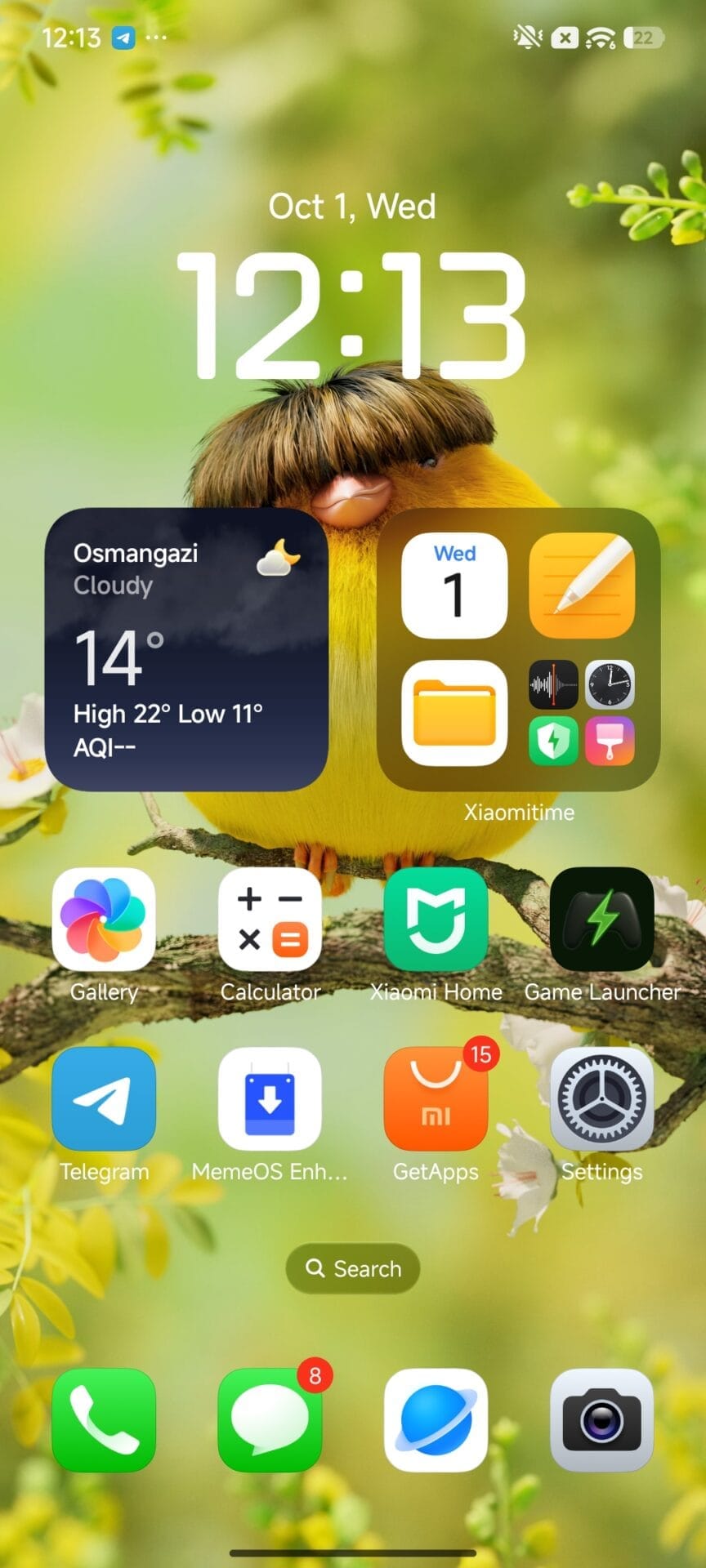
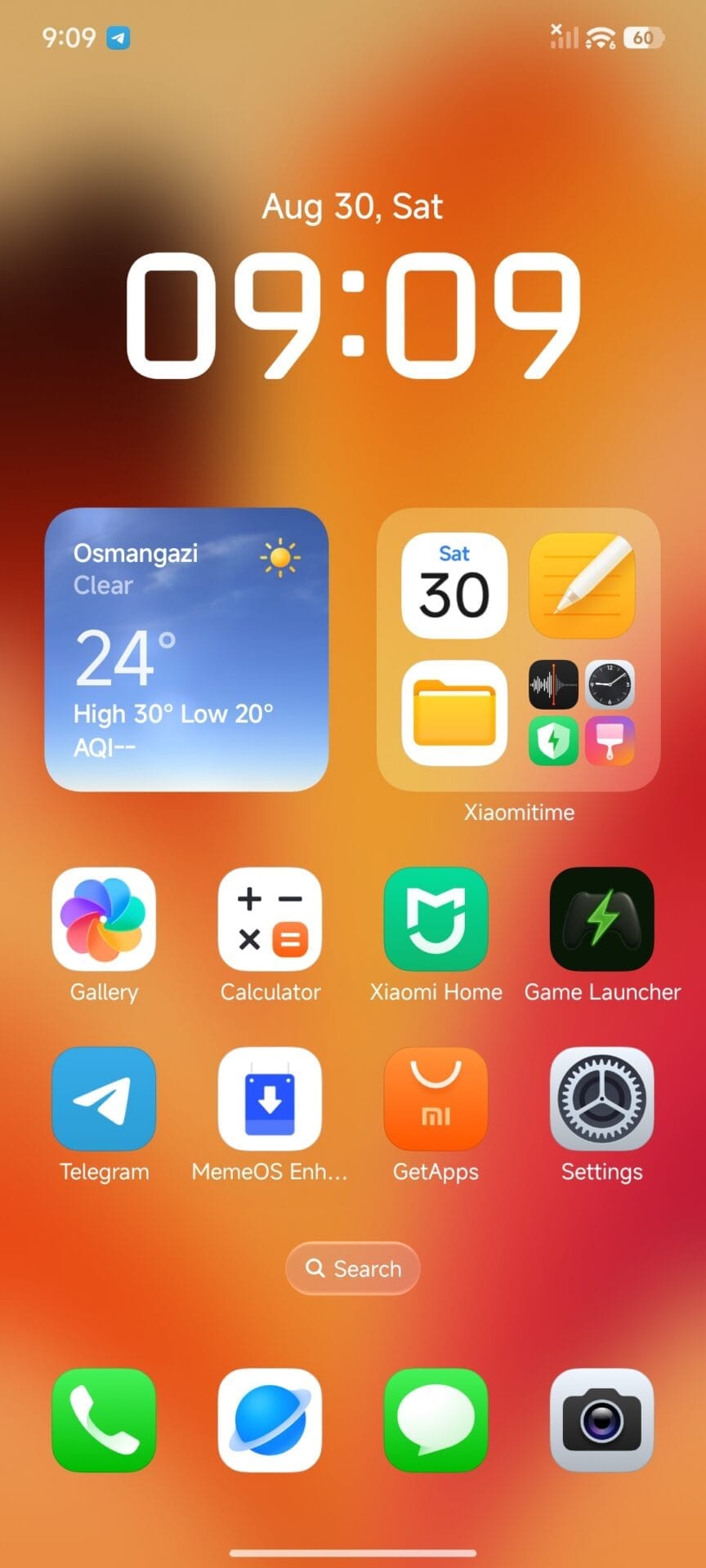
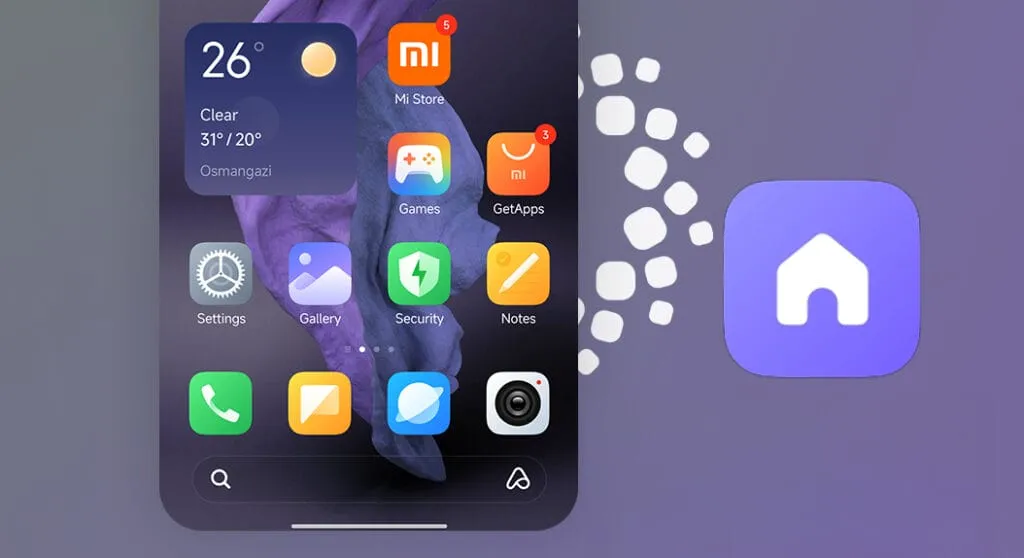
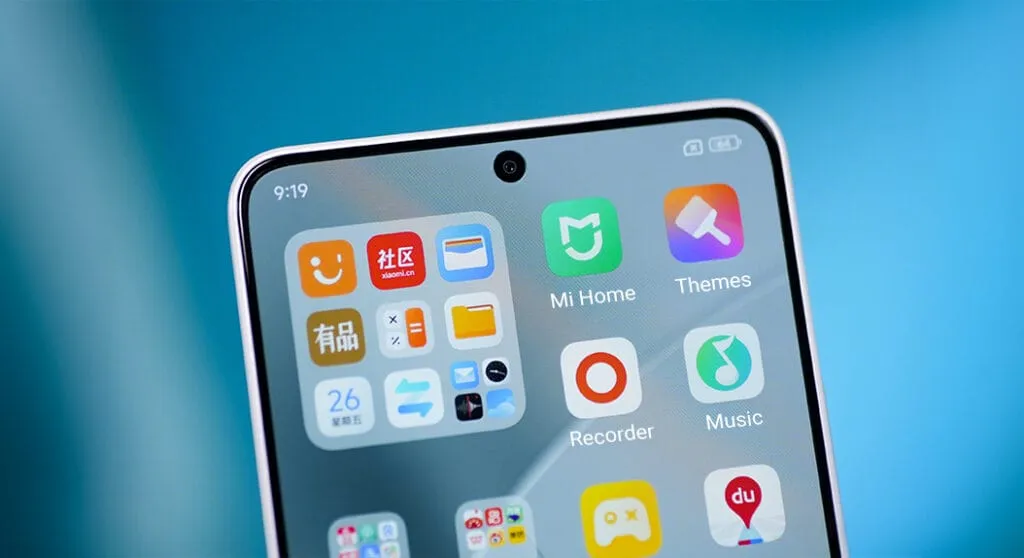
It’s time for your favorite Xiaomi gadgets to receive yet another essential update! This most recent version demonstrates Xiaomi’s dedication to improving the user experience, which is something the team is always working to do. The latest version of the Xiaomi HyperOS 3 Launcher, RELEASE-6.01.02.1236-09241346, may appear minor at first glance, but these important internal enhancements are what keep the system operating without a hitch.
Getting this version is a no-brainer for consumers who want to keep their performance and stability at their best. You’ll be happy to hear that this updated launcher version is compatible with HyperOS 2 devices as well, guaranteeing that a larger user base may take advantage of the improved stability if you’re using a device running the current HyperOS platform or even somewhat older versions.
HyperOS 3 launcher gains more stability
With build number RELEASE-6.01.02.1236-09241346, this particular version is solely focused on bug fixes and overall stability improvements. These upgrades are essential for resolving any small performance issues or unexpected crashes that users may have experienced with previous releases, even if Xiaomi hasn’t published a comprehensive changelog of every fix. A more dependable and pleasurable everyday usage experience is guaranteed by this commitment to polish.
Since it’s the program you use the most, a reliable launcher forms the cornerstone of your whole phone experience. As a result, fixing these little issues will greatly increase user happiness overall.
Officially, the firmware of the much awaited Xiaomi 17 Pro Max running its internal OS build OS3.0.17.0.WPBCNXM contained this version of the HyperOS 3 Launcher. Given that it is powered by Xiaomi’s state-of-the-art flagship hardware, this is a fantastic indication of the build’s quality and optimization. Xiaomi is effectively providing a stability boost by making this important system program accessible on other smartphones, which was formerly tailored for its newest and most potent hardware.
How to get the new HyperOS update
Since this is an application update, there are a few simple ways to obtain the most recent version and take advantage of the increased stability.
Official System Update: Keep an eye on your device’s System Updater, as the official rollout should be reaching all eligible devices soon.
Manual Installation: For those who prefer to update immediately, you can download the latest launcher APK. The best way to ensure you’re getting official, safe, and up-to-date system applications is by using a dedicated application manager. You can use MemeOS Enhancer to get all system app updates.
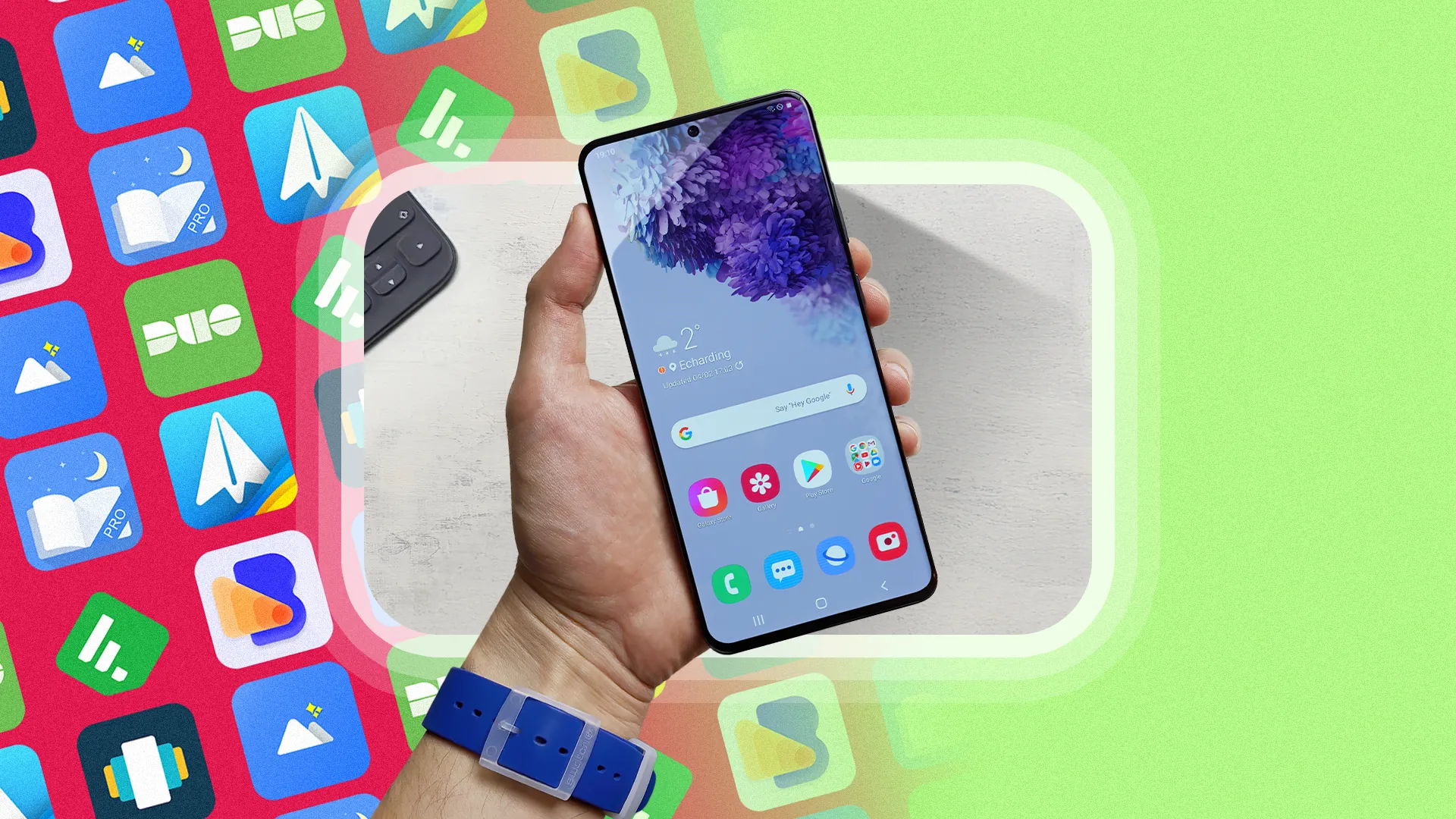
The top Android launchers are the best resources for making your Android experience unique. One of the best features of the Android ecosystem has always been user choice, and launchers make it even better. They allow you to customize the greatest Android phones in ways that Google and stock launchers could only imagine.
While some of the top launchers are made for a more minimalist experience, others allow you to customize nearly every aspect of Android. If you’re not like that, however, there are launchers that offer a rainbow of colors that rivals the hardware store’s painting section.
Whatever you decide, a launcher is the ideal option to update the appearance and feel of your phone without having to spend money on a new device. The only thing left to do is choose one, and we’ve been evaluating the top Android launchers to assist you in doing so.
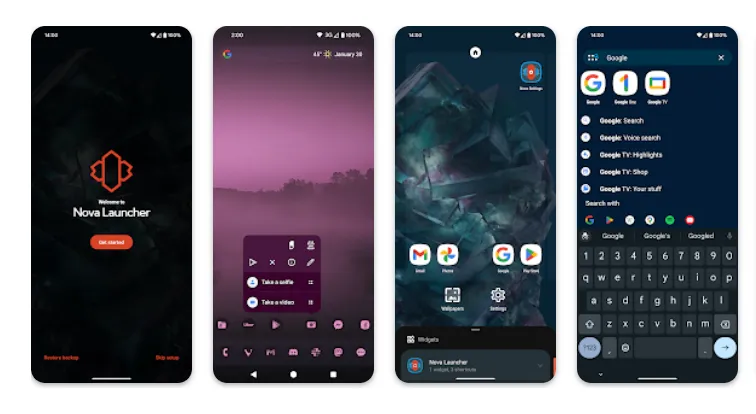
Nova Launcher
It would be impossible to discuss the top Android launchers without mentioning Nova Launcher. Nova Launcher is quick, svelte, and incredibly customizable. It strikes a compromise between a wide range of utility and look customizations and a low performance impact, allowing you to customize your home screen without sacrificing speed.
Color themes, icon packs, scrollable docks, app drawer modifications, folder settings, and endless scrolling are just a few of the many possibilities available. Sesame Shortcuts, animations, and other enhancements are just a few of the new features that the Nova team is constantly developing since they are never satisfied with what they have.
Choose Nova Launcher Prime, a $4.99 edition that has more functionality than the free download, if you want the most potent features.
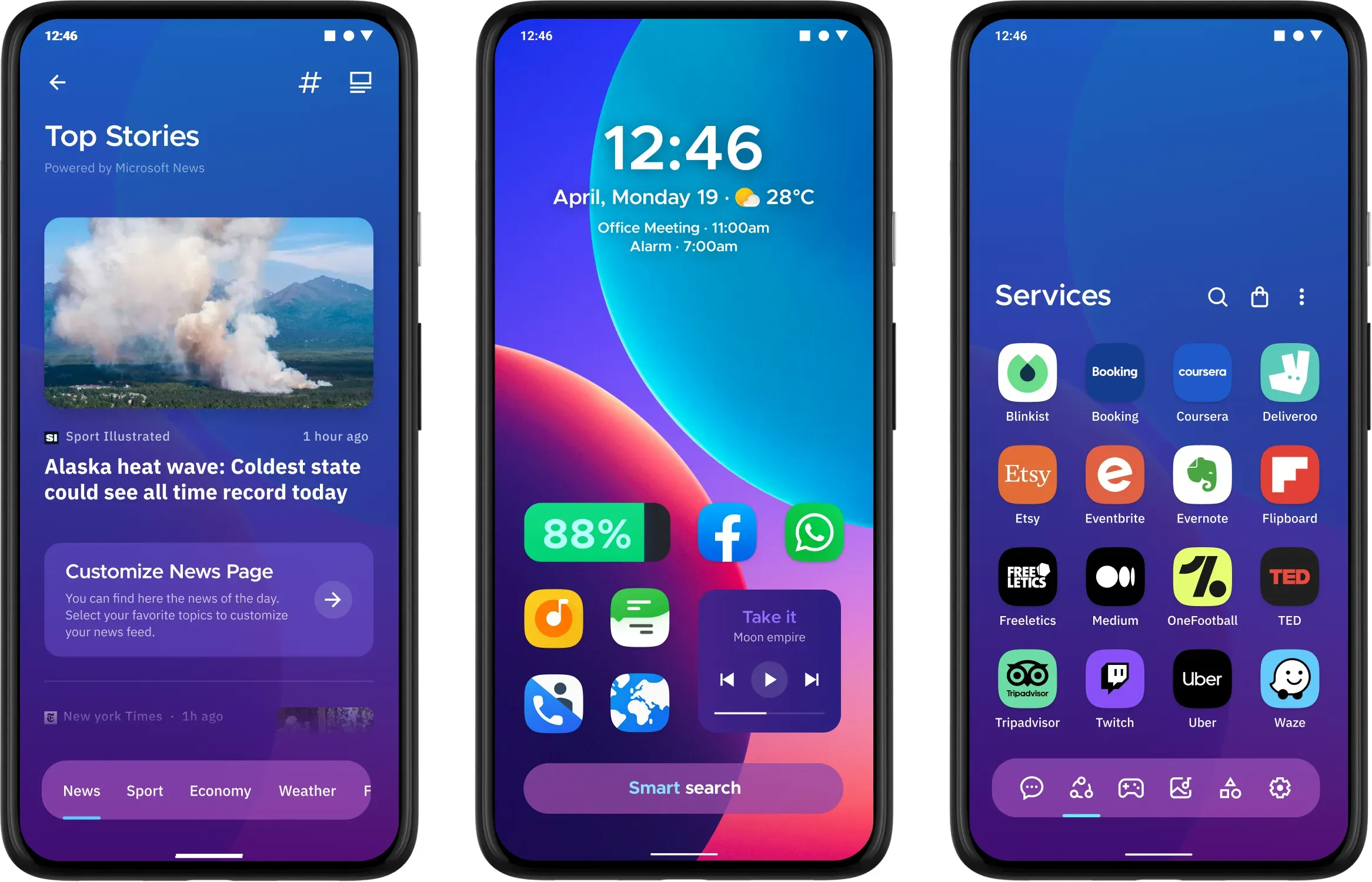
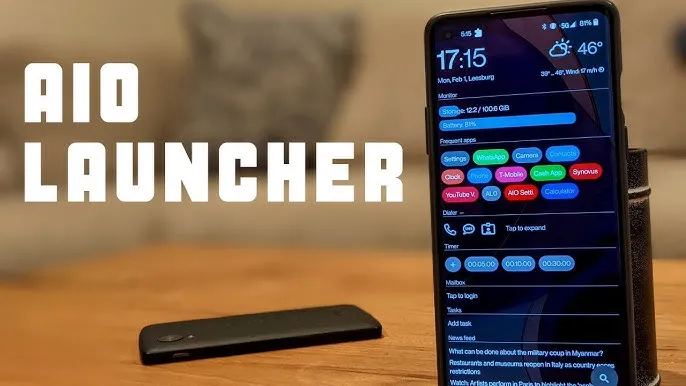
AIO Launcher focuses on packing as much information as possible into a comparatively simple format on your screen, while other launchers could include decluttering cosmetic changes.
In addition to system statistics, recently received calls, texts, and emails, the app shows your most used apps, upcoming calendar events, and more.
on-app purchases enable additional features like widget support, app icons, and Android notifications on the home screen stream, even though AIO Launcher is free. Even if it doesn’t have the most user-friendly design among the top Android launchers, if you don’t mind information density, it’s still a compelling option.
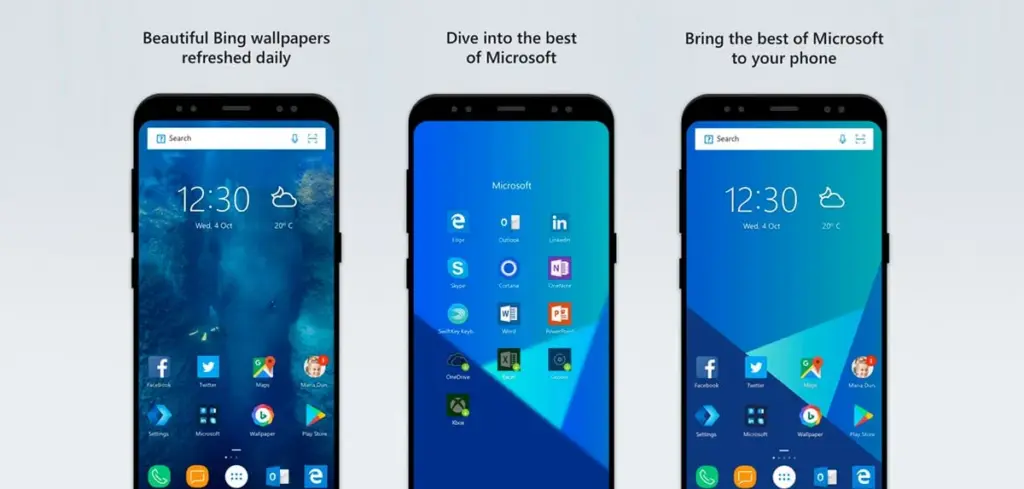
In addition to retaining Arrow’s small, context-sensitive app pages and customisable feed, Microsoft rebranded their fantastic Arrow Launcher as the Microsoft Launcher. The company is also aiming to enhance the interaction between your Android phone and Windows computer.
In addition to opening online links from mobile devices to PC Edge, users may rapidly take pictures with their phones and view them on their desktop. They can also begin editing Office 365 documents on their PC and continue while on the road using their mobile device.
This is all on top of Microsoft’s adjustable themes, universal search bar, and gesture controls.
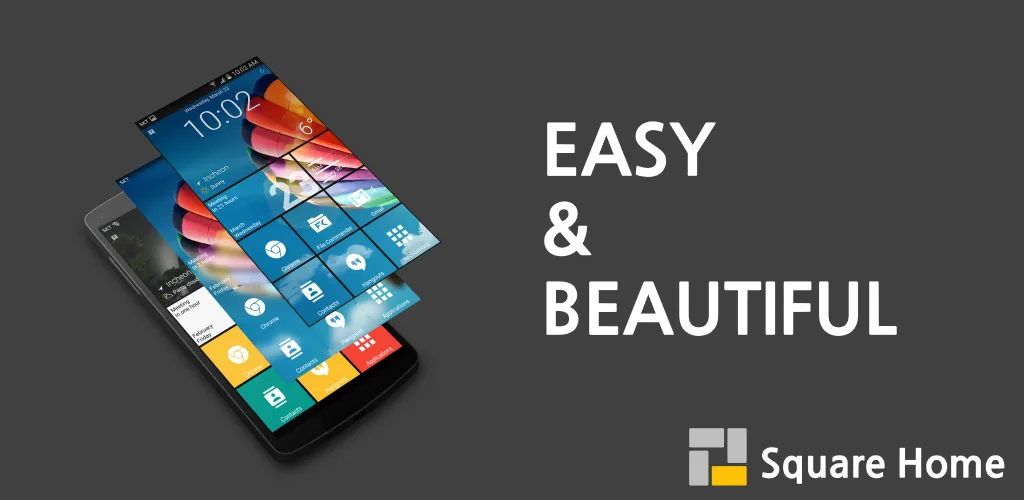
Square Home might be for you if you want a more traditional, or perhaps we should say Microsoft-inspired, mobile experience. Although its design isn’t exactly the same as Windows Phone 8, it does include a squared-off grid structure that should bring back fond memories of Microsoft’s doomed handsets.
If Microsoft hadn’t discontinued Windows Phone ten years ago, I like to think this is how it may have looked. For those of you who miss that specific design element, there is support for Live Tiles, home screen widgets, and a “Tiles on a Cube” system that allows you to swipe between tiles in a manner similar to twisting the top of a Rubik’s cube. Even better, it works with both foldables and Android tablets.
The downside? It’s not free for more than 2 weeks. After your 14-day trial you’ll be asked to unlock the full version of the app with even more features — which is a one-off $5 payment.
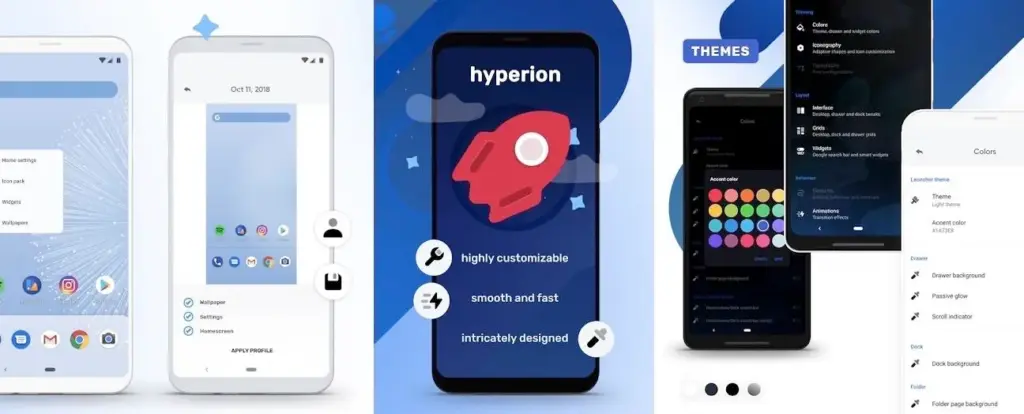
The developers of the well-known Substratum theming engine created Hyperion Launcher, a Pixel-like Android launcher that offers a wide range of customization options.
Users can customize a wide range of options for themes, folders, transparencies, animations, icon packs, and adaptive icons in addition to the normal wallpapers and widgets. Many of Hyperion’s features are available for free, while the Pro edition requires an in-app purchase to enable others, such as launcher-level font changes and custom gestures.
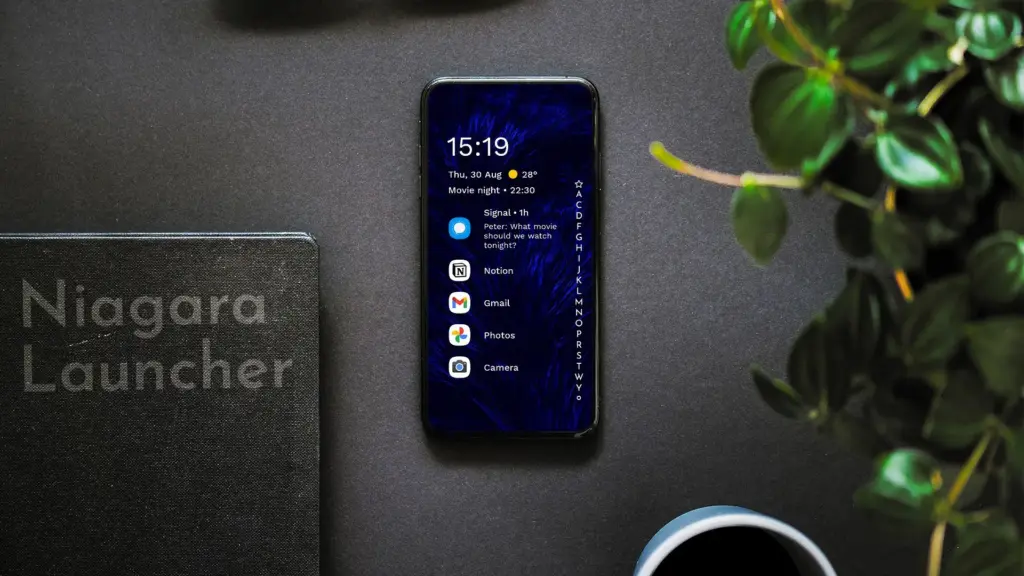
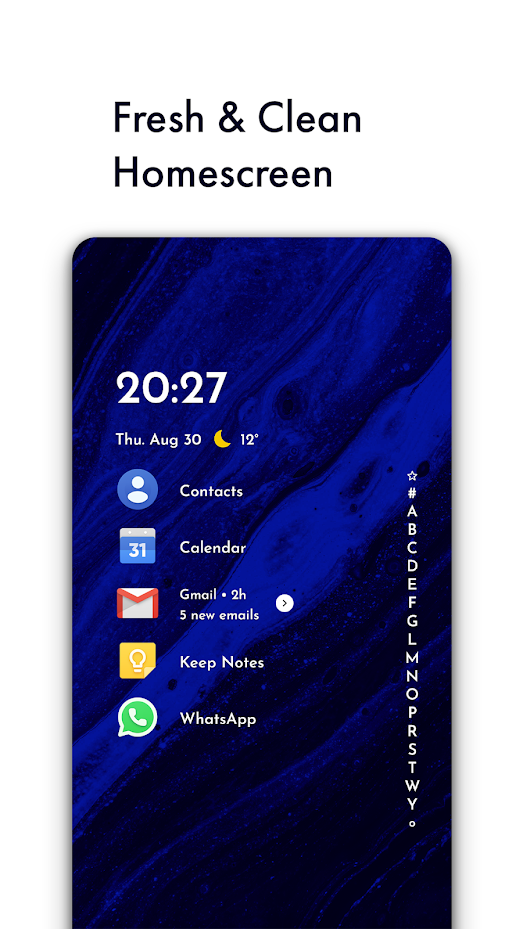
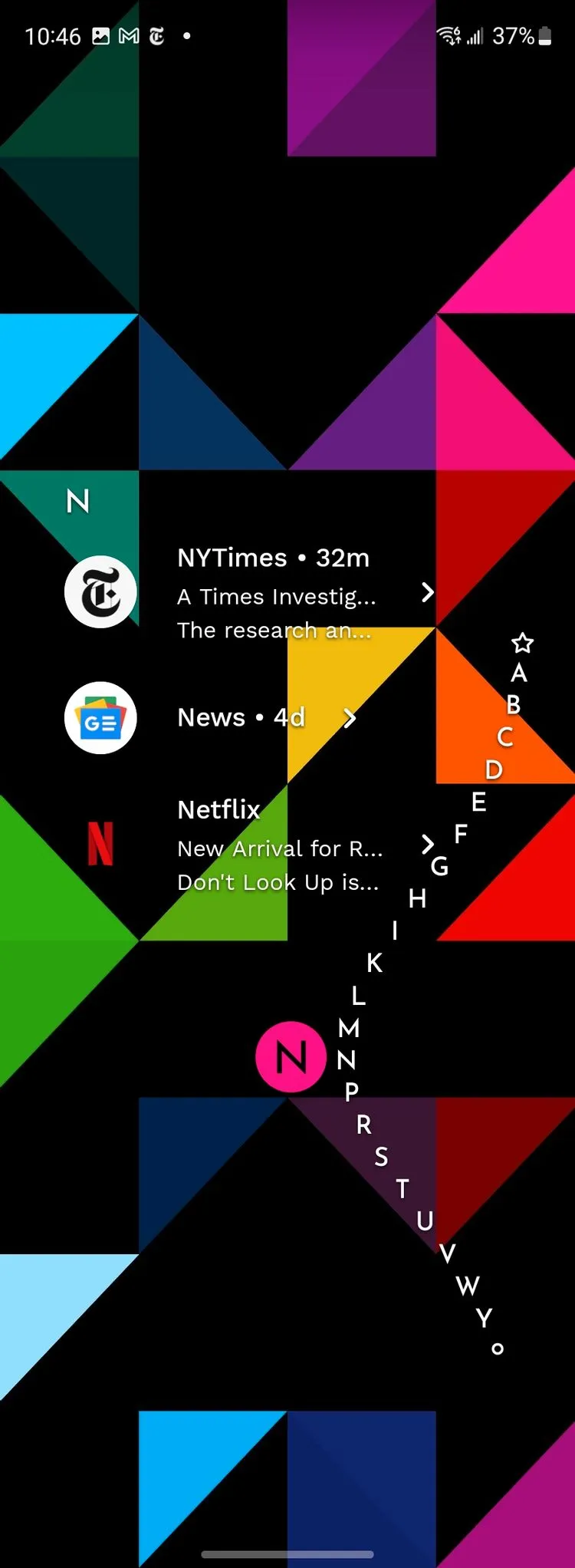
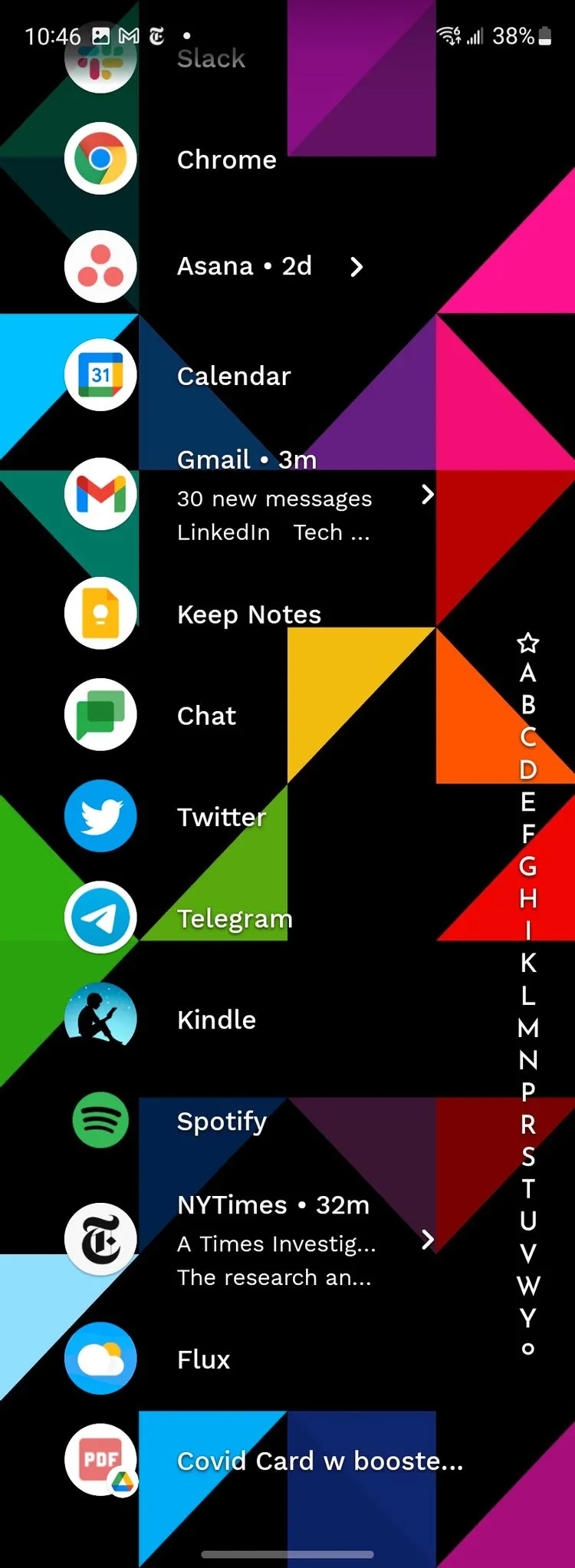
Niagara is a slim Android launcher made to minimize other distractions while emphasizing your apps and alerts. Spam and persistent notifications are automatically filtered out of the notifications that are shown on your home screen. In addition to offering convenient alphabetical shortcuts, the app drawer instantly brings up your preferred apps.
However, because of Niagara’s extreme simplicity, you shouldn’t anticipate any of the odd visual extras and features that you might anticipate from the majority of third-party launchers. It has a lot of promise and is often updated.
We evaluated each launcher on this list using a variety of criteria during our hands-on experience with them. In particular, their features, design decisions, and genuine comparisons to standard Android versions.
However, launchers are highly individualized, and what suits one user might not suit another. Therefore, ranking these rockets according to our perceptions and experiences was not the aim. Rather, we concentrated on the launcher’s goals and how successfully it achieved them.
Giving the user as much functionality and autonomy as they like is the main goal of several launchers, such as Nova. Others, such as Square Home, are designed to provide a very particular experience; whether or not that is effective depends on the individual’s preferences.
These launchers are ultimately just a small sampling of what is available. However, they do provide a great deal of choice and functionality in a number of areas. That’s why they’re so attractive. However, you are the only one who can decide which one is best for you, so make sure to try a few out for yourself.
A new version of the HyperOS 2.2 launcher, RELEASE-5.39.40.11322-06202031, has been released by Xiaomi. Although this version doesn’t have any noteworthy improvements, it’s nonetheless crucial because its main goals are system speed optimization and stability enhancement. These maintenance releases are essential to Xiaomi’s continuous dedication to user pleasure and a smooth experience throughout their ecosystem, as the firm has millions of users depending on its platform every day.
his update is all about improving the fundamentals. The HyperOS launcher, which serves as the main interface for all Xiaomi devices running the latest firmware, is now running smoother thanks to:
Greater system stability and fewer crashes
Improved memory management for enhanced multitasking
Smoother animations due to optimized resource allocation
Several bug fixes targeting launcher-related issues
Better compatibility with third-party apps
These adjustments help ensure the user interface remains responsive and reliable, especially for those using older Xiaomi devices.
It’s easy to update. Users can update via the built-in system updater or by downloading the APK if they would rather install it manually. The MemeOS Enhancer app on the Play Store offers extra tools for system app administration and update access for professionals who are in charge of several devices or who are searching for more sophisticated features.
Performance benefits for HyperOS 2.2 Launcher
Several performance snags noted in earlier releases have been fixed in this upgrade. Users should anticipate a discernible improvement in system responsiveness overall, as well as quicker home screen loading and seamless app transitions. In commercial settings, where device efficiency and dependability are non-negotiable, these enhancements are especially beneficial.
You have complete control over the default apps you use on Android for email, calls, texts, browsing, and more. Android lets you select your favorite apps as defaults, whether it be Chrome or Firefox, Gmail or Outlook, or any other third-party software that is compatible, in contrast to other mobile operating systems that force you to use a limited number of apps.
Once set, Android uses your selected app automatically — no need to choose each time.
What types of default apps can be changed?
Android supports default app selection for a variety of functions, including:
Browser (e.g., Chrome, Firefox, Brave)
Phone (dialer apps)
Messaging/SMS (e.g., Google Messages, Textra)
Email (e.g., Gmail, Outlook, K-9 Mail)
Home screen launcher
Digital assistant
Camera
Gallery/photos
Music player
Navigation apps (Maps, Waze, etc.)
Links handling (web, YouTube, etc.)
Some apps will request to be the default when first installed or opened but you can always change this manually.
How to change default apps on stock Android
Here’s how to manage your default apps on phones running near-stock Android (such as Pixel, Motorola, or Nokia devices):
Open the Settings app.
Tap on Apps.
Choose Default apps.
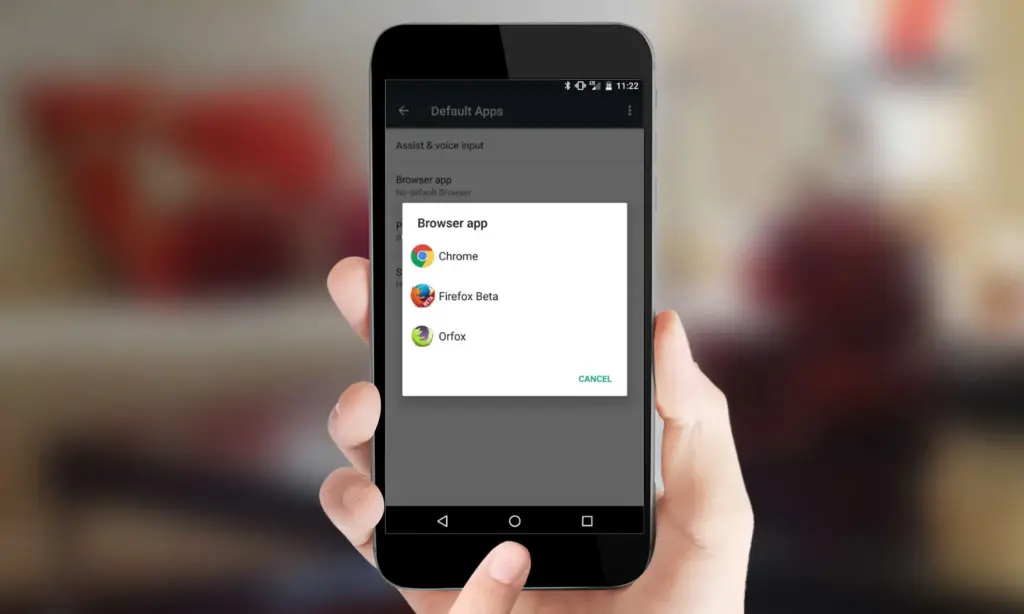
You’ll see a list of categories: browser app, phone app, SMS app, assistant app, home app, etc.
Tap any category to see installed apps compatible with that function.
Choose your preferred app from the list.
Android will immediately make the chosen app the activity’s default. If you change the browser’s default, for instance, any link you click will open in the selected browser.
How to change default apps on Samsung (One UI)
Samsung devices with One UI take a somewhat different path:
Go to Settings.
Tap on Apps.
Tap the three dots in the top-right corner and select Default apps.
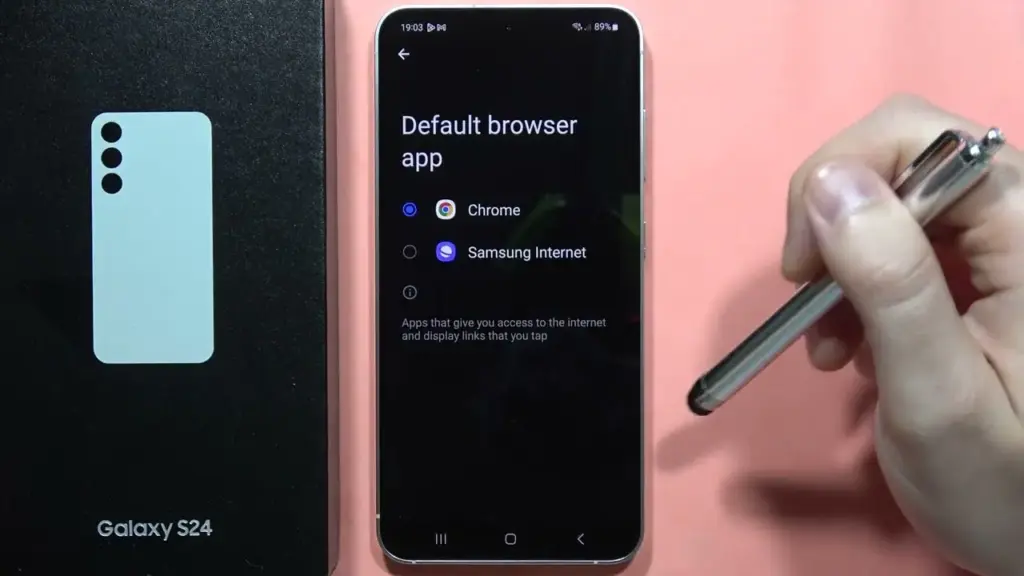
You’ll see the same categories as stock Android: browser, calling, messaging, and more.
Tap the category you want to change.
Select your new default app.
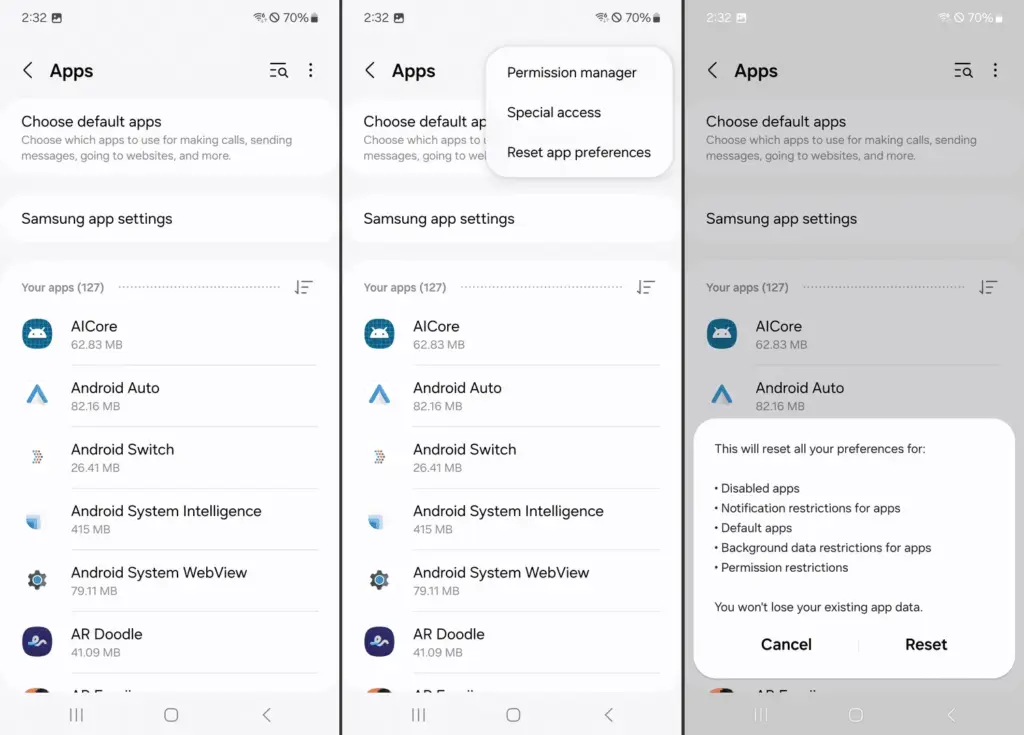
Samsung devices also let you reset all default apps at once via Settings > Apps > Three dots > Reset app preferences.
How to change default apps on Xiaomi (MIUI)
MIUI includes a “Manage apps” section to control default apps:
Open the Settings app.
Go to Apps > Manage apps.
Tap the three dots in the top-right and select Default apps.
Choose a category like browser, dialer, messaging, or gallery.
Select your desired app.
MIUI might ask you to select a new default app after installation or when you attempt to open related content.
How to handle app-specific defaults (like file types or links)
Some apps don’t appear in the general default app settings but can still be set as defaults when opening certain file types or links.
To manage these:
Go to Settings > Apps.
Tap See all apps and choose the app you want to configure.
Tap Open by default.
Enable Open supported links or clear defaults by tapping Clear defaults.
This is useful if you want all YouTube links to open in the app rather than in a browser, or if you have accidentally enabled an app to always open PDFs or photos.
How to reset default apps
If you’ve set the wrong default app or want to start over:
Open Settings > Apps.
Tap the three dots (or menu icon).
Select Reset app preferences.
Confirm to reset all app defaults.
This won’t delete any data but will clear app defaults, disabled apps, and permission restrictions.
Alternatively, to reset just one app:
Go to Settings > Apps > [App Name] > Open by default
Tap Clear defaults
This lets you reassign that app’s function later.
Choosing the best default apps
Here are some recommended apps to consider setting as default:
Browser: Firefox Focus (privacy), Brave (ad blocking), Chrome (sync)
Email: Gmail (Google integration), Outlook (work email), BlueMail (multi-account)
Messaging: Signal (privacy), Google Messages (RCS), Textra (customizable)
Gallery: Simple Gallery, Google Photos, Aves
Music: YouTube Music, VLC, Poweramp
Navigation: Google Maps, Waze, HERE WeGo
Make sure the app supports being set as a default. Some lightweight or older apps may not offer this functionality.
What if Android won’t let you change a default?
Some Android versions or manufacturers may restrict default app changes for certain functions — especially camera or dialer apps. In those cases:
Make sure the new app is fully updated and has the necessary permissions.
Check for manufacturer limitations in forums.
Use Activity Launcher or ADB commands (for advanced users) to override.
Root access may be required for some deep changes — though this is not recommended for most users.
Changing the default apps on Android provides you control over your digital experience. Whether you want a speedier browser, a cleaner messaging app, or a more powerful camera, Android allows you to select what works best for you.
By looking into your device’s default app settings, you may optimize your workflows and eliminate annoyances such as accessing links in the wrong app or using services you dislike. With a few touches, Android becomes your own—not what the manufacturer or carrier wants you to use.
For optimal performance and user experience, it is imperative to keep your Xiaomi smartphone updated, especially with the new HyperOS ecosystem. Five essential system apps will receive significant updates in April 2025 that enhance their usability, security, and appearance. All Xiaomi phones will offer a better, more potent experience thanks to these updates, which are made to work perfectly with HyperOS 2.1.
HyperOS Launcher
Updated on HyperOS Launcher was overhauled in full with many enhancements:
Improved Animations: Better folder animations bring a more refined, pleasing aesthetic experience
Enhanced Readability: Large fonts on the top drawer bar improve readability
MIUIX V3 UI Library: Implements modern design language for a fresher appearance with more uniform features
Adjustable Layout Options:
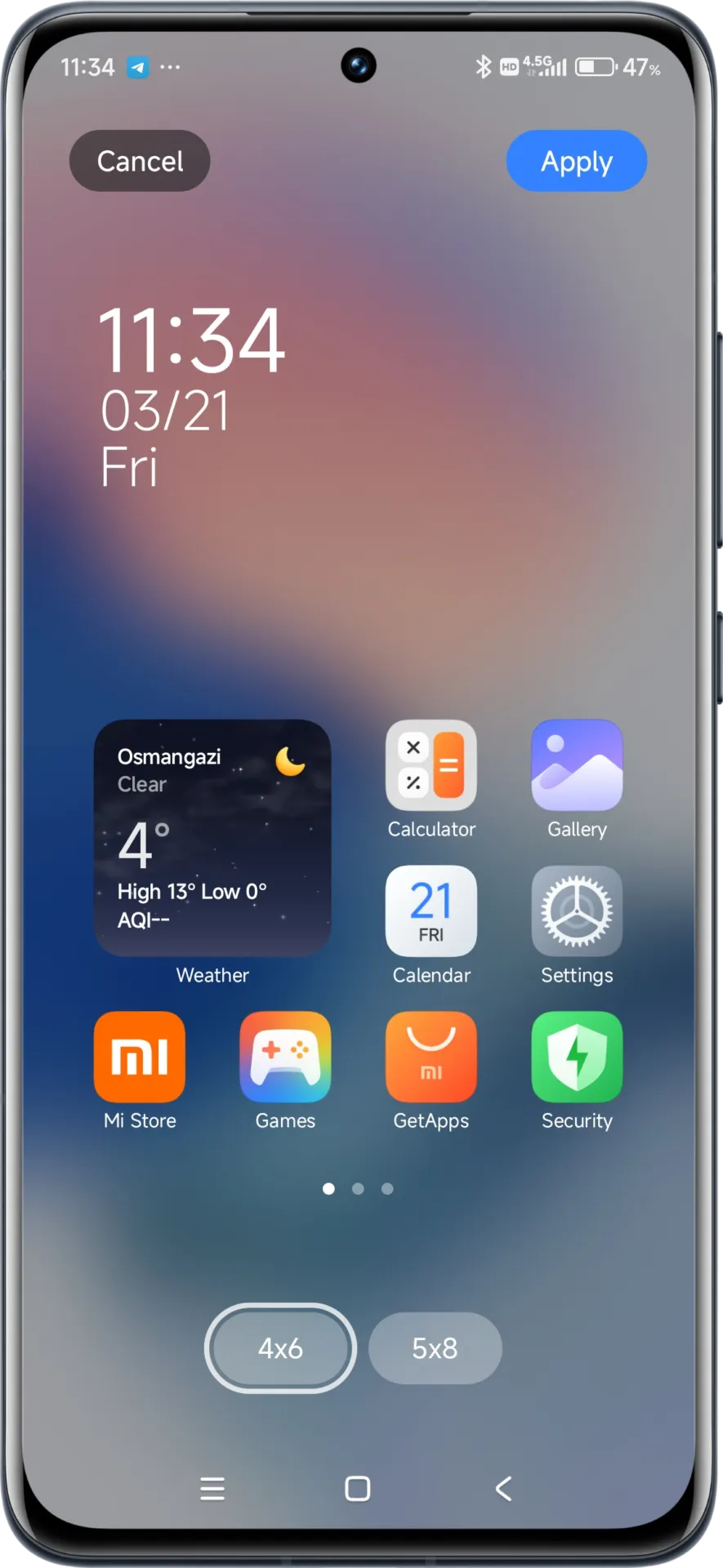
4×6 layout with search box 4×7 layout without search box
2K Screen Optimization: Popup UI now scaled correctly for high-resolution screens
The update to the launcher is centered on aesthetics and functionality, resulting in an improved user experience that still offers high performance.
HyperOS Themes
The updated HyperOS Themes has a better, more streamlined user interface. The update makes device customisation more comprehensive and accessible, allowing users to alter their gadgets to better reflect their own unique style.
With improved previewing and classifying capabilities, the simplified interface makes it possible to find and use new themes more quickly and easily.
HyperOS Security
The HyperOS Security updated for brings essential enhancements to gaming performance and device protection:
Turbocharged Game Performance: All-out performance enhancements with advanced optimization capabilities
Security Improvements: Several behind-the-scenes updates improve system and data security
Performance Optimizations: Enhanced resource allocation to ensure seamless performance even on high-intensity tasks
Privacy Controls: Broader choice for controlling app permissions and data access
These security enhancements play a crucial role in shielding personal data while providing stable system performance.
HyperOS Wallpaper
Updated on April. This new version emphasizes fixing bugs and performance enhancements. This update also solves problems that were causing lock screen and home screen wallpapers to:
Improved fluidity in switching wallpapers Improved stability throughout system transitions
Enhanced resource management for reduced battery usage
Improved integration with dynamic wallpaper features
Though mostly an update for maintenance, these changes considerably improve overall Wallpaper experience.
How to update HyperOS system apps
For an optimized upgrading process, Xiaomi users have an available HyperOS Downloader app:
The subject of launchers can be downright tribal. You become so accustomed to the way your apps are presented that even the tiniest variation in the formula is tremendously disturbing. Even as smartphones have evolved, I’ve kept with the same launcher approach for years. My current homescreen layout can be traced all the way back to 2011, and it’s no longer a tradition; it’s simply a bad habit. But, thanks to folding phones, I’ve had to reconsider everything, and the typical launcher style isn’t suitable to an expanding or tall display – but Niagara Launcher is.
Some of you may notice that I’m a little late to the party, but Android Police employees like Prasham Parikh have been enjoying it for almost a year. But, like many of our readers, I simply had a preferred method of doing things and didn’t want to change it. Lawnchair Launcher copies the lovely Pixel Launcher while also adding its own useful capabilities to any device, and I’ve had a layout that I’ve used since before I started blogging. And, on the majority of phones, I believe it is the best of the traditional launcher styles. But forcing myself to continue using my phone in the same manner hasn’t worked out. Sticking to the icons-on-a-grid formula wasn’t going to work with my Z Fold3.
The problem is two-fold (tee hee), and it affects a number of different phones. To begin with, Samsung’s “cover display” is so tall and narrow that standard icons are rendered useless. It can be a little annoying reaching up to the top of that tall-but-skinny display to hit a little target, just as it is difficult to type on such a thin screen. Sure, you can physically pack a lot of items in there, but reading the descriptions on those icons or actually tapping them can be a pain. However, Niagara easily resolves the problem: In a vertical list, all of your apps display.
You can scroll effortlessly through an alphabetized app drawer, available at any time on the screen’s edge, and you have a set of favorites that appear by default (nine works best on the Z Fold3’s cover display, but you can do more). If you have an Artem-level list of apps loaded, you can also hide the ones you don’t use very frequently from that scrollable list — they’ll still show up in search, but they won’t slow things down. Niagara even has its own conceptual take on the At-a-glance widget, with the ability to show the time, date, weather, and even forthcoming events, with an expanding agenda view, with a single swipe.
Although the style isn’t quite Material, it’s similar enough and works well with most modern interfaces, including those found on Samsung phones. Because it’s a single column view, you won’t have any trouble sifting through the incomprehensibly little icons on a field. It took about a week of genuinely forcing myself to use it (and hating every minute of it) for me to warm up to it, and now I’m stuck with it. This is the finest launcher for a display that is quite tall and thin. And, strangely enough, that translates to a very wide screen.
Because of its column-based technique, two side-by-side columns can easily fit on the inside folding display. Yes, you’ll have fewer apps on your home screen, but it will be lot more usable. It also enables “basic” foldable features such as different backgrounds for the cover and inner displays. It even has its own dynamic theming technology, allowing the program to use the wallpaper’s colors for its own accents. While the Galaxy Z Fold3 may not have access to that aspect of the Material You experience, you may fill in the gaps and enjoy a portion of it without it.
Your favorites list does not convert well between the folded and unfolded experiences, and your designated favorites persist between the two layouts. Niagara recommends having only enough favorites set so the list doesn’t have to scroll, but the dual-column layout has a lot more space than the single column on the cover display. So, while 14 app favorites fits nicely when unfurled, if you have more than nine, you’ll have to scroll down the cover display. It’s not ideal, but I think it’s still preferable to the sea of icons.
The traditional smartphone homescreen experience with a grid of icons dates all the way back to the iPhone — and before that, nearly time immemorial in desktop computing. It’s a tried and true, super-intuitive method, but it does break down when it comes to usability a little depending on screen size. Niagara Launcher brings a different approach. I’m not afraid to say: I don’t like it on a “normal” phone. But it’s perfect on foldables. And though there is a pretty rough acclimation period, It’s worth it if you can stick it out.
Niagara Launcher ‧ fresh/clean
The traditional home screen we know was made more than a decade ago, where phone screens were smaller than your credit card. Smartphones keep growing, but not your fingers. The minimalist Niagara Launcher makes everything accessible with one hand and lets you focus on what matters.