Tag: howto

  • 6 useful connectivity features you should know

    6 useful connectivity features you should know

    Connectivity features enable communication between networks and devices. Numerous tools are available on Android, with Bluetooth, Wi-Fi, Near-Field Communication, and mobile hotspot being among the most widely used. There are very few users that do not utilize any of them in a given day.

    You might be using a wireless connection to watch videos or pair your wireless headphones with your phone. You may be surprised to learn that there are more features available to improve your experience. Let’s examine your device’s settings in more detail and get you using them immediately.

    Use QR code to share your internet connection

    It’s uncomfortable to pause what you’re doing, type or speak out your Wi-Fi or mobile hotspot password, and ensure sure no one else can see or hear it. Use a QR code if you want to share it more quickly. Here’s how:

    For wi-fi network

    • Go to Settings > Wi-Fi.
    • While your device is connected to a network, tap the information icon beside the network.
    • Tap Share. You may need to enter your security method to continue.
    • You should see a QR code. It’s a square filled with a black and white pattern.
    • From the device you’re sharing to, access the QR code tile from Quick Settings.
    • Scan the QR code to get access immediately.
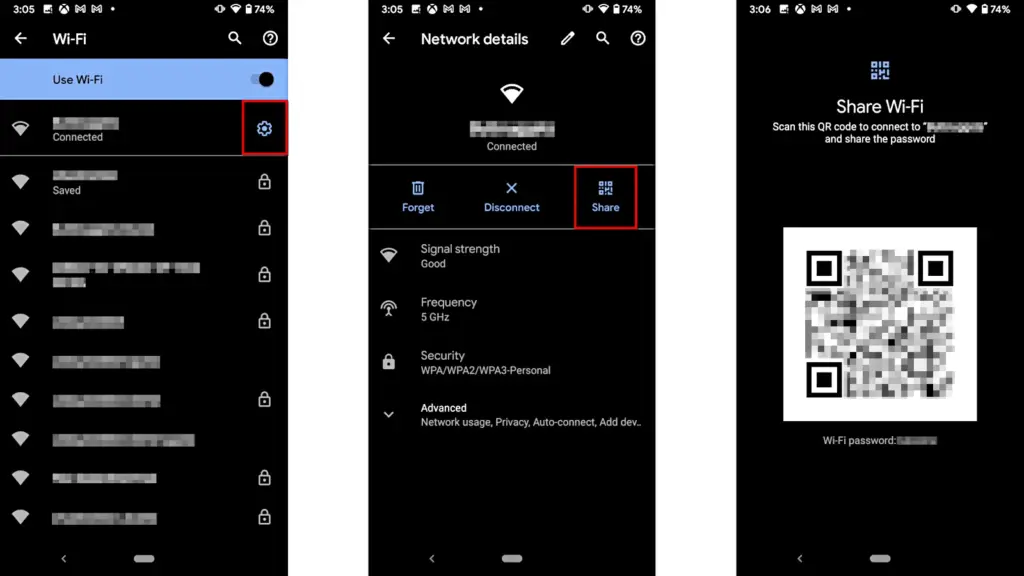
    android share network password

    Mobile hotspot password

    1. Open Settings.
    2. Go to Network & internet or Connection & sharing.
    3. Tap Hotspot & tethering or Personal hotspot.
    4. Tap the toggle button to enable hotspot.
    5. Tap the tiny QR code icon beside the hotspot name. You should see the enlarged version after entering your security unlock method.
    6. On the other devicce, access the QR code tile from Quick Settings and scan it to gain access.

    Share files to iPhone wirelessly

    It can be frustrating and difficult to move files and data between the iOS and Android environments. Due to Apple’s closed-off ecosystem design, cross-platform compatibility necessitates a significant amount of manual labor. Although it is incompatible with iPhones, Quick Share for Android is an alternative to Apple’s AirDrop. But on Android 15, OnePlus’ new Share with iPhone feature unites the worlds of Oppo, Realme, and OnePlus devices. Since the receiving device needs to download the O+ software in order to connect, the solution isn’t entirely native. Nevertheless, it’s quick and not too difficult. To utilize it, follow these steps:

    1. Open Settings.
    2. Go to Connection & sharing.
    3. Select Share with iPhone. Then tap the toggle button to turn on the feature.
    4. On the iPhone, install the O+ Connect app from the Apple App Store. Then open it and turn on Bluetooth.
    5. Select the files you want to send from either phone.
    6. You should see the detected devices while preparing to send them. Tap your preferred device.
    7. Accept the transfer request on the receiving device. The files should arrive in seconds, depending on the size.
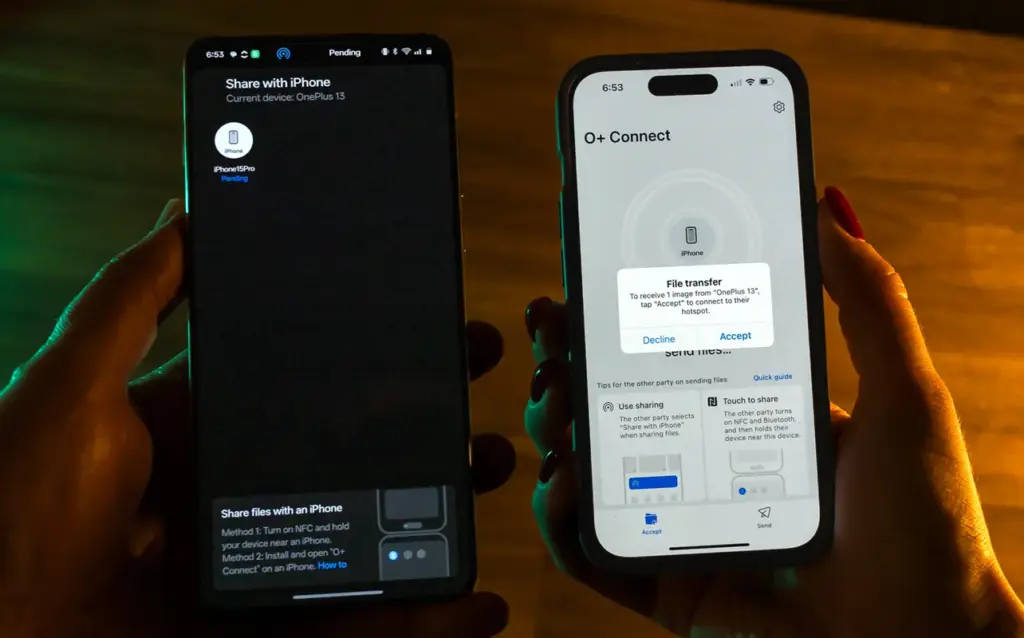
    OnePlus 13 share with iPhone

    Use Wi-FI calling and texting

    Signals from routine phone calls and texts travel through cell towers before they are received by the recipient. Connecting with individuals will be difficult if you’re in a rural location far from a cell tower or in a building with high walls. Use Wi-Fi calling instead for better outcomes. Your phone uses Wi-Fi to send a message or make a call over the internet, avoiding the cell tower, as long as you have access to a Wi-Fi network. To utilize it, follow these steps:

    1. Ensure that Wi-Fi is turned on and you’re connected to a network.
    2. Open the Google Phone app.
    3. Tap the three-dot icon in the upper-right corner. Then select Settings.
    4. Tap Calls.
    5. Select Wi-Fi calling.
    6. Turn on the toggle button beside Use Wi-Fi calling.
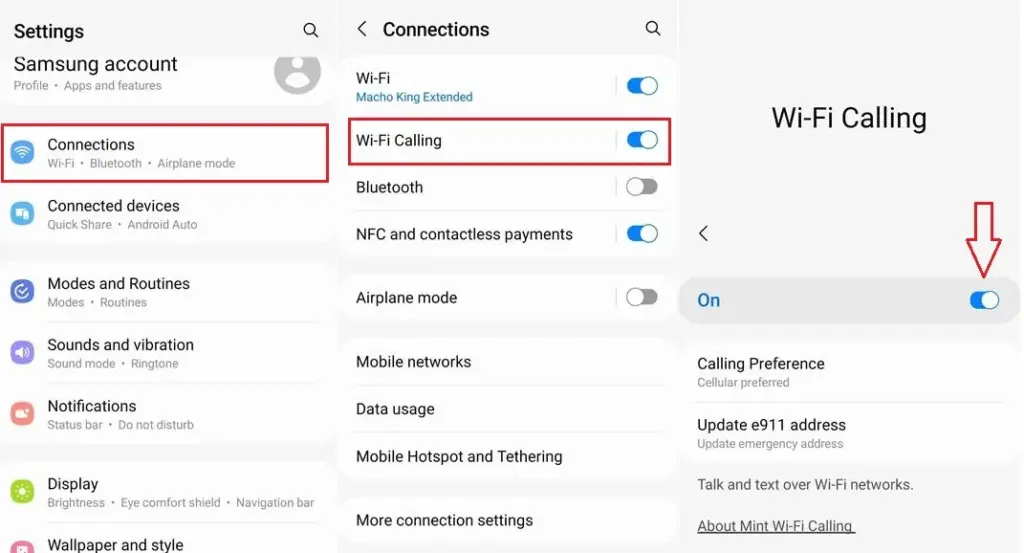
    enable android wifi calling og

    Use your phone as a PC webcam

    The size of the camera sensor and lens is constrained by the tiny area in the top bezel of a laptop. PC cameras are typically blurry and uninteresting for proper video calls because of this. Thankfully, your phone has more space for wider apertures and larger sensors, which provide sharper images. With Android 14, you can now take advantage of that feature and use your smartphone as a camera. It was enhanced with Android 15’s high-quality mode. To enhance your virtual meetings using the functionality, take the following actions:

    1. Connect your PC and phone with a USB cable. You should see a notification on your phone recognizing the connection.
    2. Tap the notification and choose to use USB for Webcam.
    3. Tap the HQ button in the upper-right corner of the call screen to use High Quality mode.

    Activate Bluetooth automatically every day

    iOS has had automatic Bluetooth activation for many years. It is only temporarily disabled when you disable it from the Control Center. Unless you disable the option from the settings menu, it reactivates. Keep it on if you’re constantly connecting to Bluetooth speakers, earphones, or even your automobile, even though most people find it annoying. The automation setting was first available on Pixel phones running Android 15, and it might eventually be available on other devices. Here’s how to make it active:

    1. Open the Settings app.
    2. Go to Connected devices Connection preferences.
    3. Tap Bluetooth.
    4. Turn on the toggle button beside Bluetooth, then the button beside Automatically turn on tomorrow.

    After you deactivate Bluetooth, it can now turn on by itself the next day. It probably tries to avoid interfering with your short-term preferences and believes you need it during your regular activity hours. As long as you aren’t actively using the linked device, it will drain the battery a little but not significantly. When no music is playing on the speaker or earphones you’re wearing, the connection remains in a low-power mode.

    Android’s best-kept secrets

    Every phone brand on Android has special features that are just waiting to be found, making it a labyrinth of capabilities. What you see on a Samsung may not be the same on a OnePlus or Pixel, and it’s precisely this diversity that adds excitement to the ecosystem. Digging behind those layers will reveal more hidden gems in productivity, privacy, accessibility, and multitasking.
  • How to uninstall system apps on Android (without root)

    How to uninstall system apps on Android (without root)

    Unnecessary system apps and bloatware can be annoying. They drain your battery, take up important storage, operate in the background, and are frequently impossible to remove with standard methods. Although rooting your Android device gives you complete control over system programs, most users are not advised to do so because it violates your warranty and jeopardizes security.

    Thankfully, there are secure and efficient methods for disabling or removing system programs without rooting, particularly when using ADB (Android Debug Bridge). We will go over every technique in this article, from basic settings adjustments to more sophisticated (yet secure) desktop tools.

    android system apps unistall with adb

    What are system apps and why can’t you delete them easily

    Applications that are pre-installed by the manufacturer or carrier of the device are known as system apps. These consist include third-party programs like Facebook or Netflix that OEMs package, stock utilities, or branded services.

    They cannot be removed using the standard app menu since they are installed in the system partition. ADB commands, however, can be used to disable or even uninstall many.

    Common examples of pre-installed system apps include:

    • Duplicate media players or browsers
    • OEM app stores
    • Partner bloatware like Amazon Shopping, LinkedIn, or TikTok
    • Preloaded games or theme services

    Disable system apps from settings

    This is the simplest method and doesn’t require a PC.

    Steps:

    1. Open Settings > Apps.
    2. Tap See all apps to view the complete list.
    3. Select the system app you want to disable.
    4. Tap Disable. You may be asked to confirm your choice.

    What happens when you disable an app:

    • It is removed from the app drawer.
    • It can no longer run in the background.
    • It won’t receive updates or use system resources.
    • The app is still stored on your device but rendered inactive.

    Limitations:

    • Not all system apps can be disabled (depends on OEM).
    • Disabled apps can be re-enabled manually.

    This is the safest approach for beginners.

    Uninstall system apps using ADB (no root)

    You can use ADB to perform advanced commands on your Android device by connecting it to a computer. This technique allows you to remove system programs for the current user without requiring root access.

    Step 1: Set up ADB on your computer

    1. Download the Android SDK Platform Tools for Windows, macOS, or Linux from Google’s official site.
    2. Extract the contents to a folder (e.g., C:\adb).

    Step 2: Enable developer options and USB debugging

    1. Go to Settings > About phone.
    2. Tap Build number 7 times until you see a message saying “You are now a developer.”
    3. Go back to Settings > System > Developer options.
    4. Enable USB debugging.

    Step 3: Connect your phone to your PC

    • Use a USB cable to connect your device.
    • When prompted on your phone, allow USB debugging.

    Step 4: Open ADB and check the connection

    1. Open a terminal or command prompt in the ADB folder.
    2. Type: adb devices – you should see your device listed.

    Step 5: Find the package name of the app

    To uninstall an app, you need its package name. You can find this using:

    adb shell pm list packages | grep [app name]

    For example, to find Facebook‘s package name:

    adb shell pm list packages | grep facebook

    Step 6: Uninstall the app

    Use the following command:

    adb shell pm uninstall --user 0 com.facebook.katana

    That command will remove Facebook from your user profile, freeing up memory and removing it from the interface.

    Note: The app is only removed for the current user, not deleted from the system partition.

    Method 3: Use a no-root app debloater tool (GUI)

    If you’re not comfortable with the command line, you can use a graphical tool like:

    • Universal Android Debloater (UAD)
    • ADB AppControl
    • Android Debloater by XDA Developers

    These tools allow you to:

    • Browse installed system apps
    • Uninstall or disable them safely
    • See app names with friendly UI
    • Restore apps if needed

    Most tools require:

    • ADB installed on your system
    • USB debugging enabled
    • Windows PC (some versions work with Linux/macOS)

    They’re beginner-friendly and support a wide range of devices.

    Should you uninstall or disable every system app?

    No. Some system apps are critical to core Android functions. Removing them may cause:

    • Boot loops
    • Broken system features (e.g., notifications, calls, camera)
    • Incompatibility with future updates

    Always check what a system app does before removing it. You can research package names or use a debloater tool with built-in safety warnings.

    Safe-to-remove examples:

    • Social media bloatware
    • OEM-specific cloud services you don’t use
    • Built-in browser (if you use Chrome)
    • AR apps, Game Launcher, or duplicate music players

    Unsafe-to-remove examples:

    • com.android.systemui
    • com.google.android.gms
    • com.android.providers.*

    How to restore system apps uninstalled via ADB

    If you want to bring back an app removed via ADB:

    adb shell cmd package install-existing [package name]

    For example:

    adb shell cmd package install-existing com.facebook.katana

    This will restore the app for the current user, assuming it wasn’t fully deleted from the system partition.

    Uninstalling system apps without root gives you more control over your Android phone without compromising safety. ADB is a powerful tool that helps remove bloatware, reclaim storage, and speed up your device. If you’re cautious and avoid critical system packages, you can safely declutter your phone and enjoy a cleaner experience.

    Whether you’re using the built-in disable function or running ADB commands, you don’t need root access to take control of your device anymore.

  • How to take scrolling screenshots on Android – the easy way

    How to take scrolling screenshots on Android – the easy way

    With just a few button presses, you can quickly take a screemshot of your Android device screen.

    What occurs, though, if the material you are attempting to store is too large for a single screen? It could be an app settings page, a lengthy web page, or a conversation thread. Scrolling screenshots can help with that.

    This tutorial describes how to take scrolling screenshots on Android without the use of third-party apps, how to handle the situation where the choice is not available, and how it functions on various devices.

    What is a scrolling screenshot?

    You can record vertically scrollable content in a single lengthy image by taking a scrolling screenshot, sometimes referred to as an extended screenshot. Your phone does it automatically, saving you the trouble of painstakingly piecing together many screenshots and providing you with a clear, comprehensive representation of the full page or discussion.

    Although some manufacturers had already included this capability through custom Android skins prior to the official distribution, Android 12 marked the wide availability of this feature. After taking a standard screenshot, you can continue taking screenshots as you scroll by selecting the scrolling screenshot option.

    Why scrolling screenshots are useful

    When you need to record a lot of information without dividing it into many photos, scrolling screenshots come in handy. Typical use scenarios include the following:

    • Capturing an entire article from a website for offline reading
    • Saving long chats or SMS conversations
    • Recording step-by-step settings in apps or system menus
    • Documenting online orders, receipts, or bank statements
    • Archiving long social media posts or comments

    Instead of managing and sending five or six individual screenshots, you get a single, clean image that’s easier to share, store, or annotate.

    How to take a scrolling screenshot on stock Android

    scrolling screenshots on stock Android

    If you’re using a Google Pixel or another phone running near-stock Android 12 or higher, the steps are straightforward:

    1. Navigate to the screen you want to capture.
    2. Press the Power and Volume Down buttons at the same time to take a screenshot.
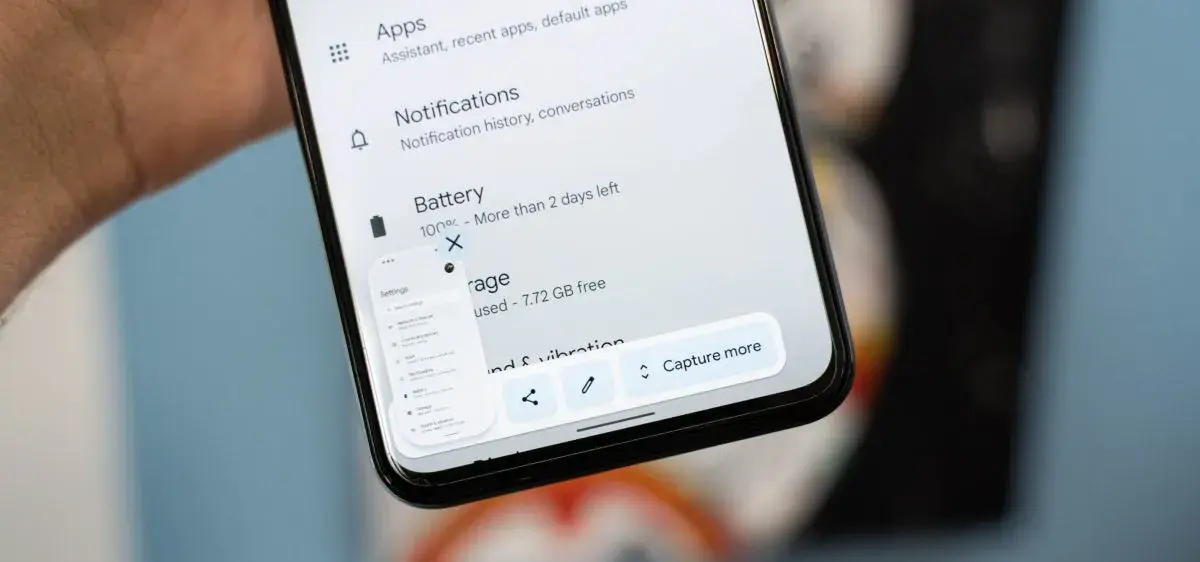
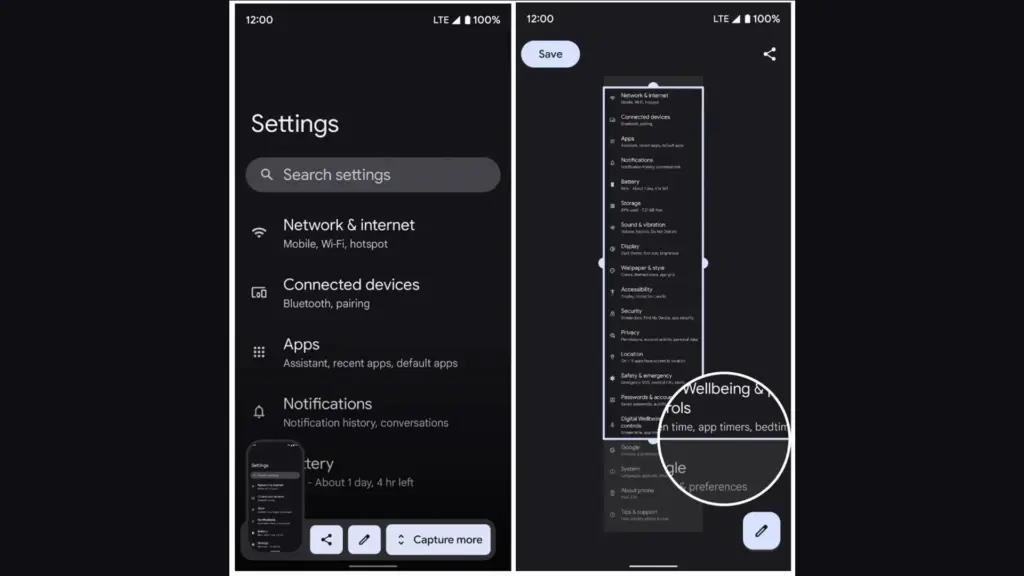
    3. After the screenshot is taken, a preview appears in the bottom corner with an option labeled Capture more.
    4. Tap Capture more to open a screen where you can scroll and adjust how much of the page to include.
    5. Drag the crop handles to select the desired length, then tap Save when finished.

    The scrolling screenshot will be saved to your Screenshots folder and accessible via the Google Photos or Files app.

    How it works on Samsung devices (One UI)

    Samsung introduced scrolling screenshots before Android 12 and calls the feature Scroll capture. To use it:

    scrolling screenshots on Samsung OneUI
    1. Open the page or conversation you want to capture.
    2. Take a screenshot by pressing Power + Volume Down, or use the palm swipe gesture if it’s enabled.
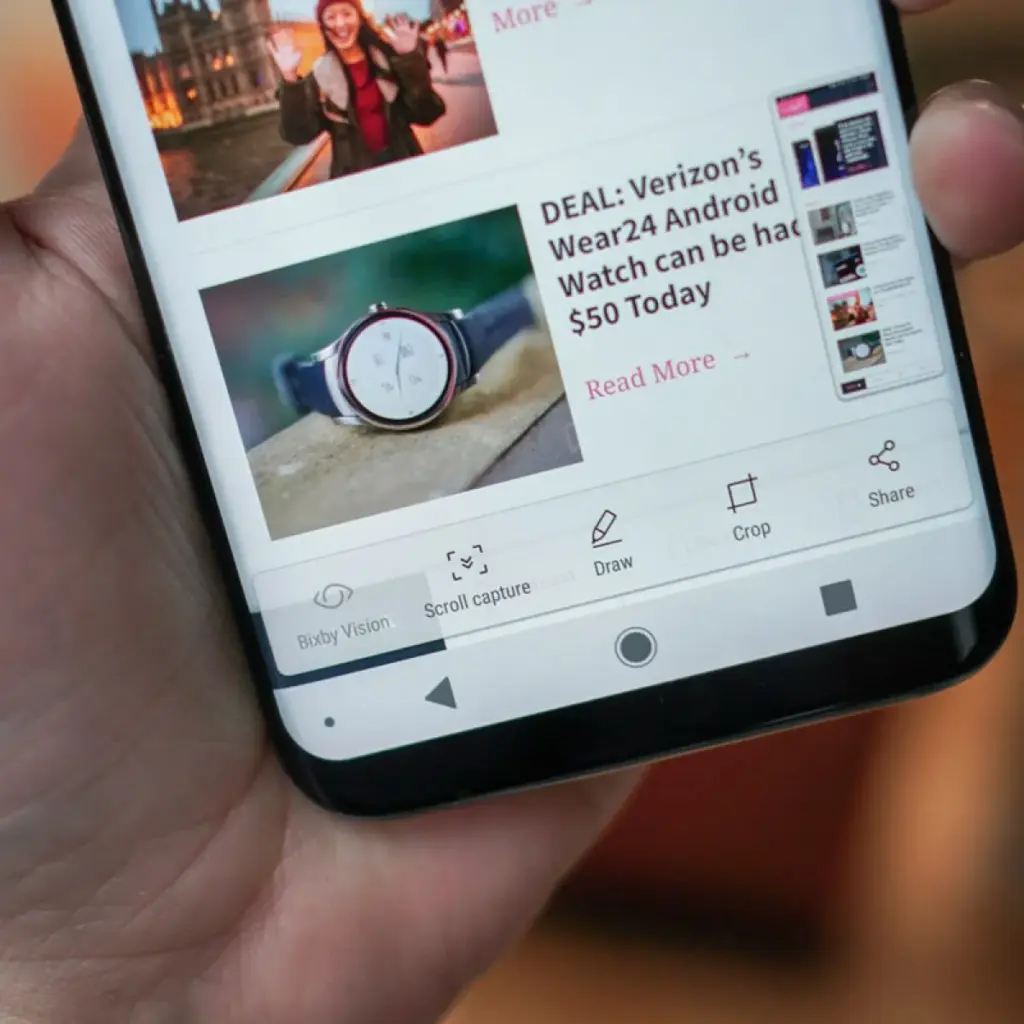
    3. A toolbar will appear at the bottom of the screen.
    4. Tap the Scroll capture icon (a downward arrow within a bracket) repeatedly to continue capturing more content.
    5. The phone scrolls down automatically each time you tap the icon, and stitches the new content to the previous image.
    6. Once finished, the combined screenshot is saved to your Gallery in the Screenshots folder.

    Samsung’s implementation is intuitive and works in most apps, including browsers, chat apps, and system settings.

    Taking scrolling screenshots on Xiaomi (MIUI)

    Xiaomi users with MIUI 12 or later can use the Scroll option built into the screenshot tool:

    1. Go to the screen you want to capture.
    2. Press Power + Volume Down, or use the three-finger swipe gesture.
    3. A floating screenshot preview will appear in the corner.
    4. Tap the Scroll option next to the preview.
    5. The device will automatically scroll the page and compile the screenshot.
    6. Tap Done or wait for the auto-scroll to finish.

    Your scrolling screenshot is then saved and ready to share or edit.

    How it works on OnePlus (OxygenOS)

    On most OnePlus phones running OxygenOS 11 or higher:

    1. Take a screenshot using Power + Volume Down or the three-finger swipe.
    2. A preview appears with a button called Expanded screenshot or Scroll.
    3. Tap the button, and the phone will begin scrolling down and capturing content.
    4. You can tap to stop the scroll when you’ve captured everything you need.
    5. The final result is a seamless long image.

    OnePlus makes the process easy and generally reliable in apps like Chrome, WhatsApp, and system menus.

    What to do if scrolling screenshot is not working

    If you don’t see the scrolling option after taking a screenshot, here are a few reasons and possible solutions:

    1. Your Android version is outdated

    With Android 12, scrolling screenshot functionality was formally introduced. The native option might not be available if you are using Android 11 or earlier and the manufacturer of your phone has not included the functionality in its unique user interface.

    Solution: Check for software updates under Settings > System > System update and update to the latest available Android version.

    2. The app you’re using doesn’t support it

    Certain applications may completely disable screen capture capabilities, particularly those with security limitations (such as banking or media streaming apps). In other situations, the scrolling capture feature will not be activated for static content that does not scroll vertically, such as games or films.

    Solution: Try taking the screenshot in another app to confirm the feature works elsewhere.

    3. The screenshot method didn’t trigger the right menu

    If you take screenshots using Google Assistant or a third-party button remapper, the scroll option may not appear.

    Solution: Stick with the hardware button method or built-in gesture support for consistent results.

    4. Your device brand disables it

    Rarely, the feature might be removed from select low-cost or carrier-locked devices. Check your device’s manual or a help website relevant to your brand if your Android version allows it but you are unable to see the choice.

    Solution: As a last resort, third-party apps like LongShot or Stitch & Share can be used, though they won’t integrate as seamlessly.

    Where scrolling screenshots are saved

    Your scrolling screenshots are typically saved in the same folder as regular screenshots. The default locations include:

    • Internal Storage > DCIM > Screenshots
    • Internal Storage > Pictures > Screenshots

    You can also find them in gallery apps like Google Photos under the “Screenshots” album. The long image format will usually be saved as a standard PNG or JPEG file, depending on your phone.

    Scrolling screenshots make it significantly easier to capture and share large amounts of vertical content in one image. Whether you’re preserving a full article, archiving a conversation, or saving a list of settings for future reference, this feature streamlines the process and saves time.

    Most modern Android phones with Android 12 or later support scrolling screenshots natively, with even better integration in custom skins from brands like Samsung, Xiaomi, and OnePlus. If the feature isn’t available on your phone, checking for updates or exploring brand-specific gestures may help you unlock it.

    Scrolling screenshots are one of those tiny but useful features that you will find yourself utilizing regularly once you get used to it, particularly if you share content or document information from your phone on a regular basis.

  • How to record screen on Android devices without third-party apps

    How to record screen on Android devices without third-party apps

    The days of rooting your device or looking for third-party apps to record your screen on Android devices are long gone. The majority of modern smartphones with Android 11 and later have an integrated screen recorder.

    Convenience, more privacy, and enhanced performance are provided by this native feature. Whether you are recording a livestream, creating a tutorial, or recording a game session, this guide will show you how to make the most of Android’s built-in screen recorder.

    Why screen recording matters

    For many Android users, the ability to record screen has become indispensable. Content producers frequently have to capture mobile gaming, app evaluations, and walkthroughs. Professionals might have to show colleagues how to use bugs or make quick educational videos. When recording video chats, social media stories, or instructions for assisting friends in troubleshooting a phone problem, this tool might be useful even for novice users.

    Users had to rely on apps from the Play Store prior to Android having this feature built in; many of these apps had restricted functionality, data tracking, advertisements, or required a subscription. Native tools now provide a smoother, safer, and ad-free experience.

    Check if your device supports native screen recording

    Android 11 and later versions support the built-in screen recording feature. Open the Settings app, navigate to “About phone,” and locate the Android version section to verify your Android version. You can move forward if your device is running version 11 or later.

    It is also important to note that almost every major brand has this capability in their operating systems, including Google, Samsung, OnePlus, Xiaomi, Realme, and Motorola. However, each manufacturer may have somewhat different interfaces and extra options.

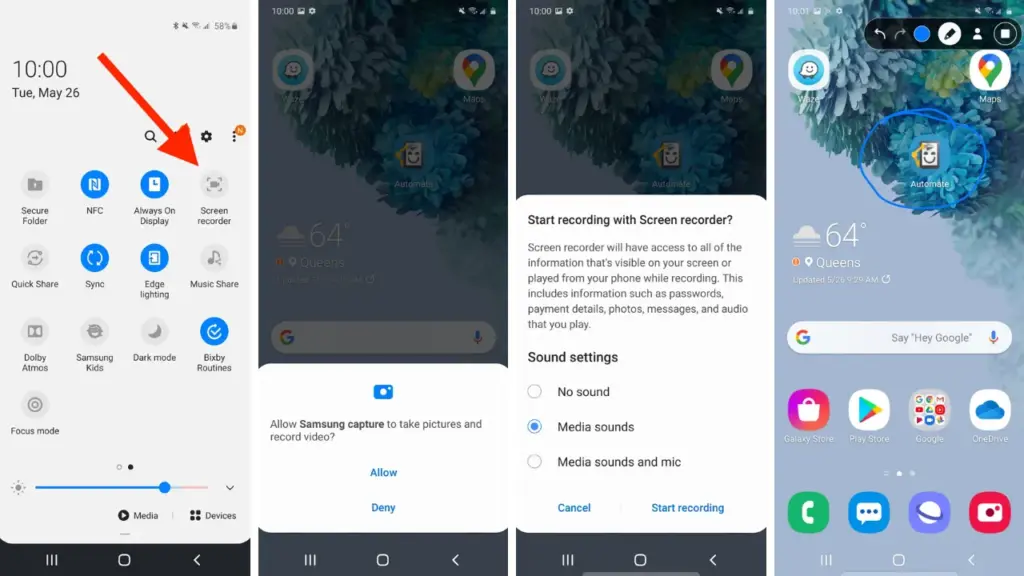
    screen record on Android Samsung OneUI

    How to start screen recording on Android

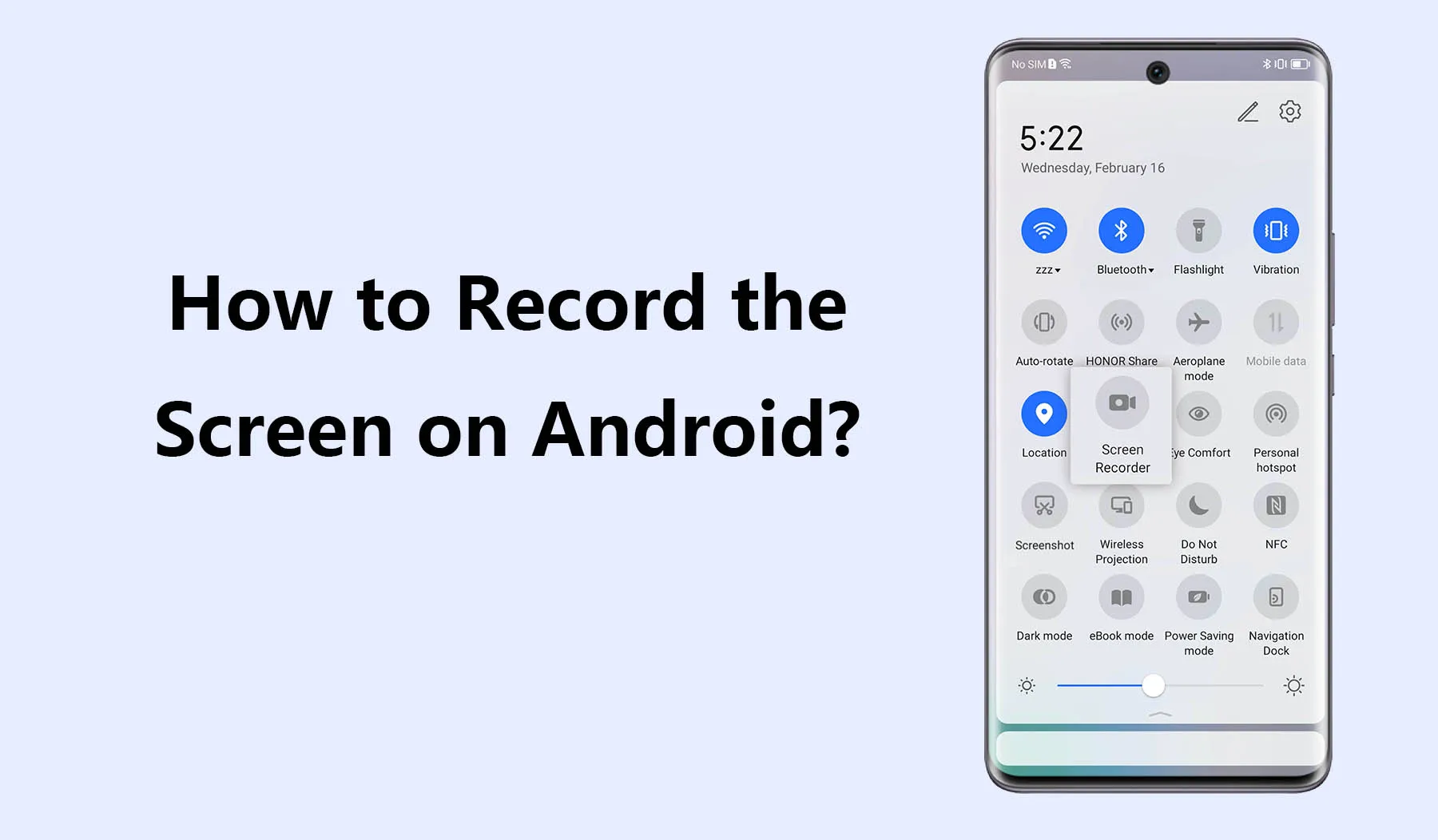
    Swipe down from the top of your screen to see the Quick Settings panel, then activate the screen recorder. To fully enlarge the panel, swipe down once more. Next, search for a tile that says “Screen record” or “Screen recorder” If it does not appear right away, you can add the screen recording option and reorder your Quick Settings tiles by tapping the pencil or “Edit” symbol.

    When you tap the tile, a dialog will pop up offering a few choices before recording begins. You can choose whether to:

    • Record audio from the microphone, internal device audio, or both
    • Show visual touches on the screen during the recording

    Depending on your recording requirements, these choices can be helpful. For example, you could want to use the microphone when narrating a tutorial. Internal sound may be better suitable if you are recording gaming or app audio. Once your choices have been set, press “Start” and watch for the three-second countdown. After that, your recording will start.

    A tiny toolbar or red symbol will show that the screen is being recorded during the recording. Pull down the notification shade and press the stop button when you are done. Your device’s storage will automatically store your video.

    How screen recording differs by device brand

    Each Android manufacturer may offer a slightly different version of the screen recorder:

    • Samsung (One UI): One of the most feature-rich native recorders is offered by Samsung. You can record your face with the front camera, record internal audio, and choose from a variety of video quality options. During the recording, you can even draw on the screen, which is a terrific way to graphically explain topics.
    • Google Pixel: Pixel phones running Android 11+ have a clean, minimal screen recorder built into Quick Settings. It’s simple to use but doesn’t offer the same advanced features as Samsung’s version.
    • Xiaomi and Redmi (MIUI): These devices often include a standalone “Screen Recorder” app, which can be found in the Tools folder. It allows you to configure video resolution, frame rate, sound source, and orientation. Recordings are saved in an organized, dedicated folder.
    • OnePlus (OxygenOS): Native screen recording is available from OnePlus as early as Android 10. It has settings to set bit rates and frame rates, record system sounds, and display touches. The user interface is clear and simple to use.
    • Realme and Oppo: These brands also offer native recording tools similar to Xiaomi, with a balance of customizability and ease of use.

    These slight differences can impact your experience, so it’s useful to explore your device’s specific implementation for the best results.

    Where screen recordings are saved

    Once you finish recording, the saved video can typically be found in your phone’s internal storage under:

    • Internal Storage > Movies > Screen recordings
    • Internal Storage > DCIM > Screen recordings

    Also, screen recordings are typically shown in a distinct folder or album called “Screen recordings” in your normal gallery software (like Google Photos or Samsung Gallery). Use a file manager tool and search for recently edited MP4 files if you are having problems finding your file.

    This consistent file structure helps you quickly retrieve, share, or edit your recordings.

    Tips for better screen recording results

    Here are some suggestions to improve the quality and usability of your recordings:

    • Use Do Not Disturb mode: This prevents interruptions from calls, texts, or notifications while recording.
    • Close unnecessary apps: Reducing background processes ensures smoother performance and fewer lags during recording.
    • Enable touch indicators: If you’re creating tutorials, visual touches help viewers understand where you’re interacting on the screen.
    • Choose appropriate resolution and frame rate: Higher settings give better quality but consume more storage space. For gameplay, use 1080p at 60fps if available.
    • Record with adequate lighting and contrast: If you’re recording apps or system settings, avoid dark themes that make the video harder to see.

    Limitations and common issues

    While native screen recorders are generally reliable, there are a few caveats:

    • DRM-protected content: Apps like Netflix or some banking services block screen recording to protect sensitive or copyrighted material. In such cases, you’ll see a black screen or an error message.
    • Lack of internal audio on some devices: Not all Android phones allow internal audio recording due to manufacturer restrictions or legal considerations. Some devices default to microphone-only input.
    • Storage limitations: Long screen recordings take up a lot of space. Ensure you have enough free storage to avoid failed recordings or low-quality output.

    In rare cases, the screen recorder might not appear in the Quick Settings panel. This can usually be fixed by updating your software or resetting the tile arrangement in settings.

    The screen recording feature built into Android is a game-changer for productivity, communication, and content creation. Whether you’re capturing a quick how-to for a family member, recording an epic moment in a mobile game, or documenting a tech issue for support, the ability to do it all without third-party apps makes the process simple and secure.

    As long as your device runs Android 11 or higher, you already have this powerful tool at your fingertips. With a few simple settings and some creative uses, you’ll be able to record anything on your screen with clarity and ease – no installations required.

  • How to check for Android updates manually – don’t miss crucial features & fixes

    How to check for Android updates manually – don’t miss crucial features & fixes

    Software updates are vital for keeping your Android smartphone secure, efficient, and compatible with the most recent apps. However, many users disable auto-updates, either to save data or to avoid unpleasant modifications. What is the good news? You can still manually check for and apply updates, rather than waiting for a system prompt.

    In this extensive article, we will teach you how to manually check for Android system updates across many brands and what to do if no update appears – even if you assume one is available.

    Why Android updates matter

    There are several good reasons to check for Android updates manually:

    1. Get Critical Security Patches Faster

    Waiting for the automatic update prompt could expose your phone to known exploits. Manually checking allows you to keep ahead of security issues by ensuring that your device always has the most recent patch.

    2. Access New Features Early

    Android upgrades frequently include new interface modifications, battery optimizations, and system features. Manual updates allow you to try the latest enhancements as soon as they are published.

    3. Fix Device Glitches or Bugs

    Some updates contain stability fixes for specific devices. If your phone has been behaving up, a system update may fix crashes, poor performance, or connectivity issues.

    4. Ensure App Compatibility

    Many apps now require the latest Android versions to function properly. Without regular upgrades, your favorite apps may cease to function or lose essential features.

    Check for updates via settings (standard Android)

    This is the most common way to check for updates on Android, regardless of the manufacturer.

    Steps:

    1. Open your device’s Settings.
    2. Scroll down and tap on System.
    3. Tap Software Update or System Update (name may vary).
    4. Tap Check for updates.
    5. If an update is available, follow the on-screen instructions to download and install.

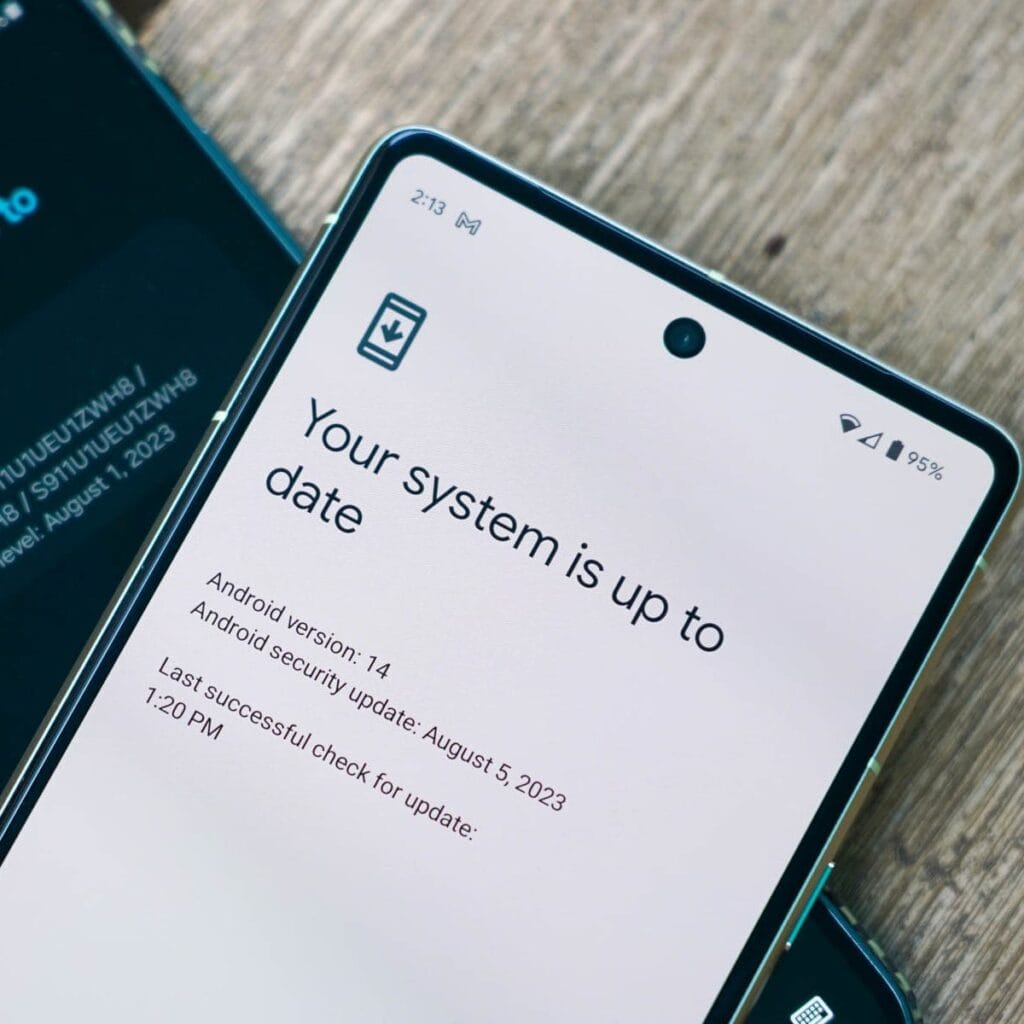
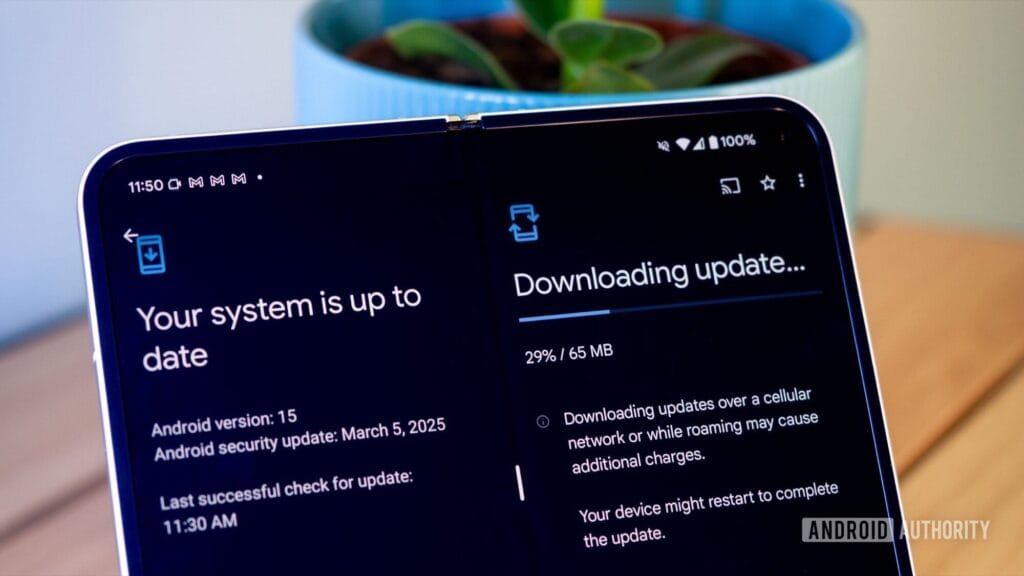
    What if it says “Your system is up to date”?

    Android updates system is up to date

    That alerting does not always indicate that there is no update; it could simply have not yet reached your region or device build. In that situation, consider the advanced methods listed below.

    How to check updates on specific Android oems

    Because manufacturers customize Android OS, the update settings may be in slightly different locations.

    Samsung Devices

    • Go to Settings > Software update > Download and install
    • Samsung pushes monthly security patches and One UI feature updates through this panel.

    Google Pixel

    • Go to Settings > System > System update
    • Pixel devices receive updates directly from Google — typically first among all brands.

    Xiaomi, Redmi, POCO (MIUI)

    • Go to Settings > About Phone > MIUI Version
    • Tap on Check for updates.
    • For advanced control, use the Updater app found in system apps.

    OnePlus (OxygenOS)

    • Go to Settings > About phone > OxygenOS version
    • Tap Check for updates
    • Alternatively, download the OnePlus Updater APK for sideloading updates.

    Oppo / Realme (ColorOS & Realme UI)

    • Go to Settings > Software update
    • Tap on Check for updates
    • Oppo also has an “Early Access” program for beta releases.

    Motorola

    • Go to Settings > System > Advanced > System Updates
    • Tap Check for updates

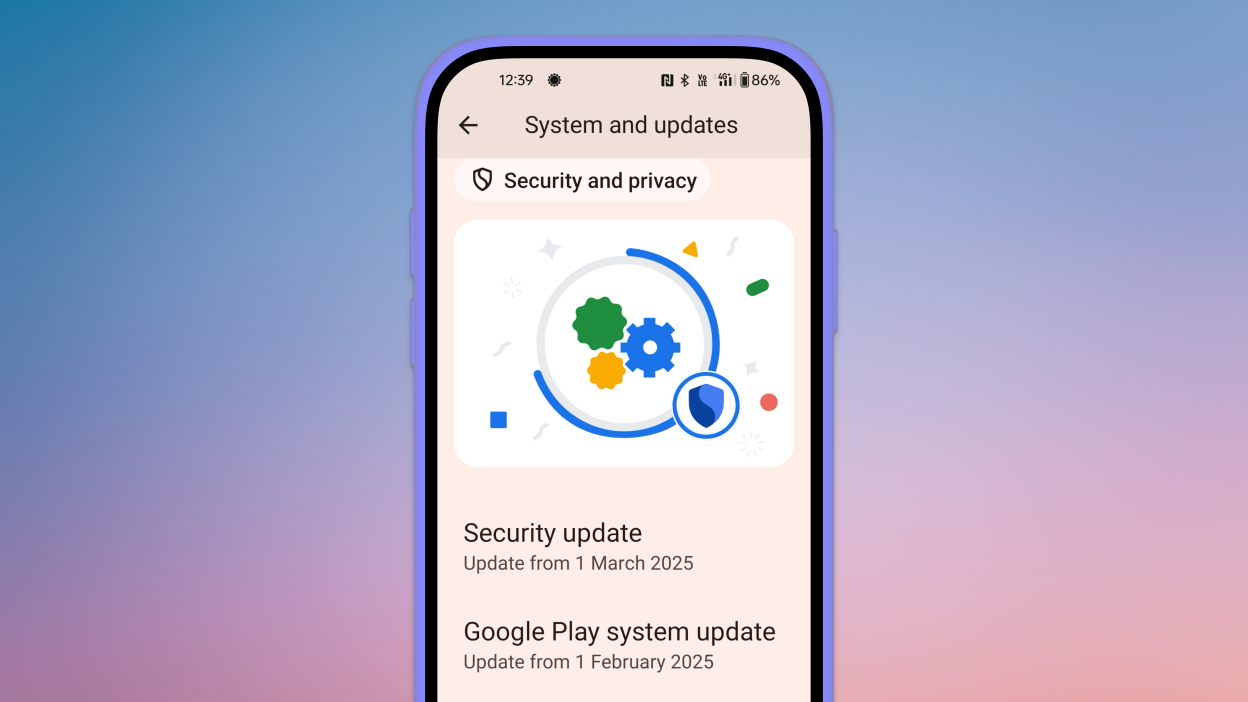
    Use Google Play system updates (separate from OS)

    android updates

    Since Android 10, Google has separated certain security and performance updates from full OS upgrades. These are delivered via Google Play system updates.

    How to check:

    1. Go to Settings > Security > Google Play system update
    2. Tap Check for update

    These are smaller updates that often improve background processes like biometric security, encryption modules, or system services.

    Force update with OTA Zip files (advanced users)

    If your manufacturer has released an official firmware update but it hasn’t reached your phone yet, you can manually install it using an OTA (Over-The-Air) zip file.

    Steps (for advanced users):

    1. Visit your manufacturer’s official website or trusted forums like XDA.
    2. Download the correct OTA update file for your model and region.
    3. Place the file in the root directory of your internal storage.
    4. Boot into Recovery Mode (usually via holding Power + Volume Up).
    5. Choose Apply update from SD card or Install update.zip.

    ⚠️ Caution: Flashing the wrong file or interrupting the process can brick your device. Always back up your data.

    What to Do If No Update Appears?

    If you’ve tried everything and your device still says it’s up to date, here are possible reasons:

    • Carrier Delay: Devices tied to mobile carriers often receive updates later than unlocked models.
    • Staged Rollouts: Updates are released in waves. Your device may be queued for later.
    • Region Restriction: Updates may reach some countries first. A VPN won’t help because updates are tied to device build numbers, not IP addresses.
    • Outdated Device: If your device is more than 2–3 years old, it may have reached its end of life for updates.

    Pro Tips to Get Updates Faster

    • Enroll in beta programs if your phone supports them (Pixel, Samsung One UI Beta, etc.)
    • Use the manufacturer’s official updater app (like the Xiaomi Updater).
    • Keep at least 3–5 GB of free storage so updates can install smoothly.
    • Fully charge your battery before downloading any major update.

    Final Thoughts

    Checking for Android updates manually is a good practice, especially if you value efficiency, security, or new features. While auto-updates may manage this silently in the background, taking control ensures that you are always using the most recent and safest version of Android.

    Whether you are using a Samsung, Pixel, Xiaomi, or Motorola, the steps are usually only a few taps away. Stay up to date and secure.

  • How to hide photos and videos on Android without any app

    How to hide photos and videos on Android without any app

    Do you want to protect specific images and videos without downloading additional apps? Android offers you multiple options to conceal your media, whether it be private memories, sensitive work material, or sensitive information – no dangerous tools or third-party apps are needed.

    Using built-in capabilities like Google Photos, File Manager, and brand-specific tools like Samsung‘s Secure Folder or Xiaomi’s Hidden Album, you will discover various ways to conceal images and videos on Android in this guide.

    Why hide media on your device?

    Privacy isn’t just about hiding things from others – it’s also about peace of mind. You might want to hide photos or videos that are:

    • Sensitive work screenshots or files
    • Personal or intimate photos
    • Copies of IDs, passwords, or financial info
    • Photos you don’t want others to see when scrolling through your gallery

    And the good news? You don’t need to install any shady apps to protect your content.

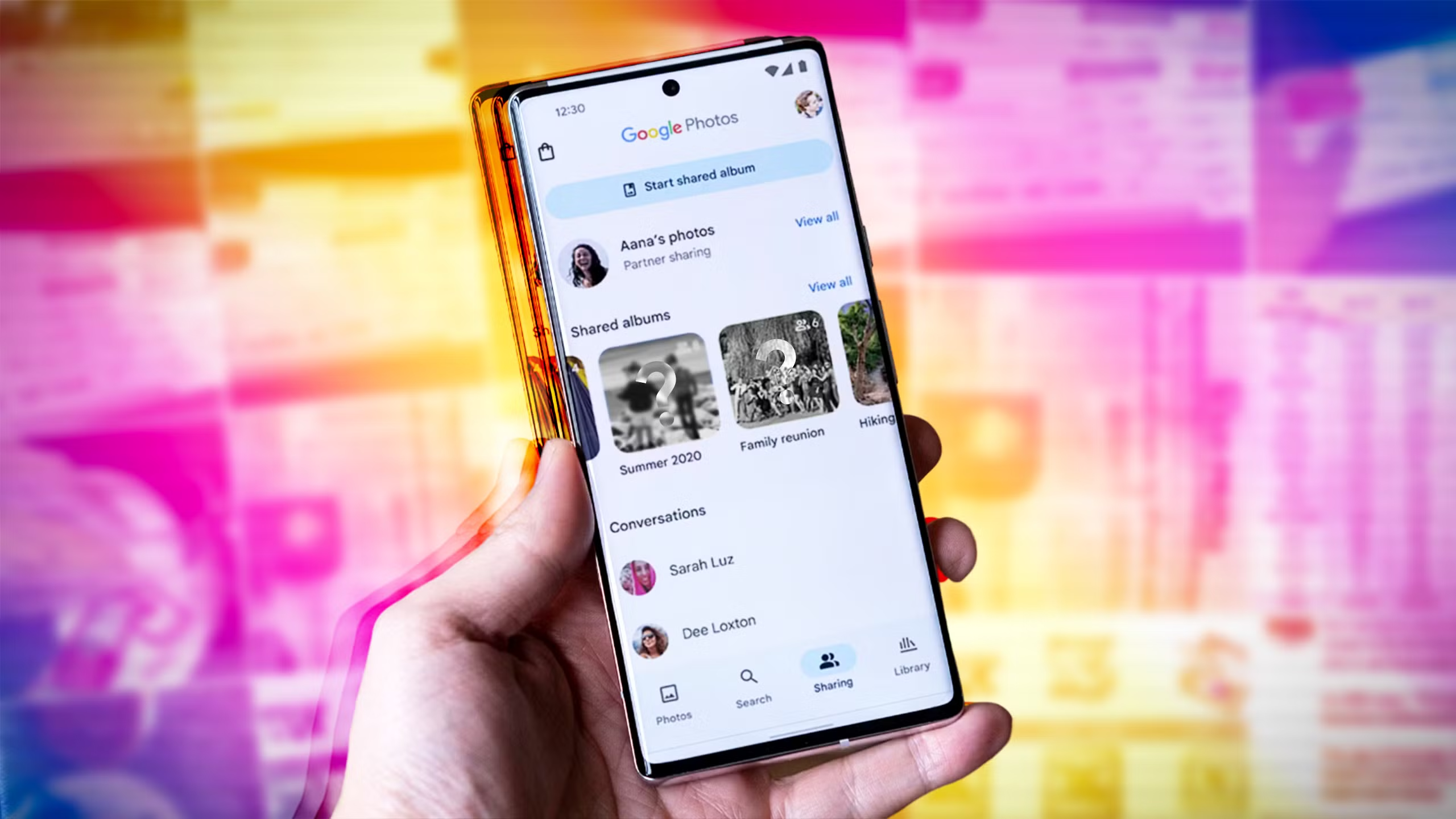
    Method 1: Hide Photos Using Google Photos Archive

    Hide Photos Using Google Photos Archive

    If you’re using Google Photos (which is pre-installed on most Android devices), archiving is the quickest and safest way to hide images from your main gallery view – all without deleting them or moving files around manually.

    Step-by-Step Instructions:

    1. Open the Google Photos app
    2. Select the image(s) or video(s) you want to hide
    3. Tap the three-dot menu in the top right
    4. Select “Move to Archive”

    These files will now disappear from your main timeline but stay safely stored in the “Archive” section.

    Where to find archived photos later:

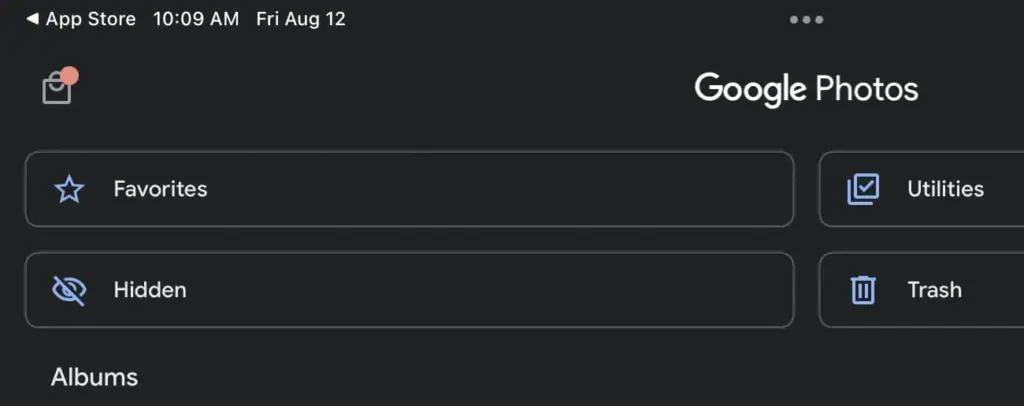
    • Go to Library > Archive in the bottom navigation of the Google Photos app

    Why it’s useful:

    • Doesn’t delete or move files — just removes them from the spotlight
    • Perfect for semi-private content you might need later
    • Works across devices if you’re syncing with Google Account

    Note: Archived photos still appear in albums or search results unless you manually remove them from those albums.

    📌 Best for: Casual privacy without breaking anything or hiding files completely.

    Method 2: Use File Manager to Hide Files Manually

    Android file manager

    Regardless of brand or Android version, this is a universal solution that works with almost all Android phones. You will make a hidden folder that will be automatically ignored by the Android operating system and media scanning applications.

    Step-by-Step:

    1. Open the File Manager or My Files app on your phone
    2. Navigate to Internal Storage
    3. Create a new folder and name it with a dot (.) at the beginning, such as .HiddenMedia or .SecretFolder
    4. Move the photos and videos you want to hide into this folder

    Why it works:

    • Android treats folders starting with a “.” as hidden directories
    • Media in these folders won’t appear in your gallery, Google Photos, or other media apps

    Once done, your Gallery and Google Photos app will no longer detect those files — making them invisible unless you go looking.

    To view them again: enable “Show hidden files” in your file manager’s settings

    Best for: Total manual control over media hiding

    Method 3: Rename File Extensions

    This method only hides files so they will not open in photo or video apps; it does not actually hide them.

    Step-by-Step:

    1. Open your File Manager
    2. Find the photo or video file you want to hide
    3. Tap Rename and change the file extension (e.g., .jpg.xyz)

    At this point, the file will show up as an unopenable generic document. Just change the extension to its original format to get access again.

    Caution: Make sure you remember the original extension (.jpg, .png, .mp4, etc.) so you can restore it!

    Best for: Hiding media from gallery apps without deleting it

    Method 4: Use Built-In Secure Folder (Samsung, Xiaomi, Huawei)

    secure folder

    Nowadays, a lot of oems include built-in safe storage options that enable you to conceal documents, programs, and media using password or biometric security.

    Samsung: Secure Folder

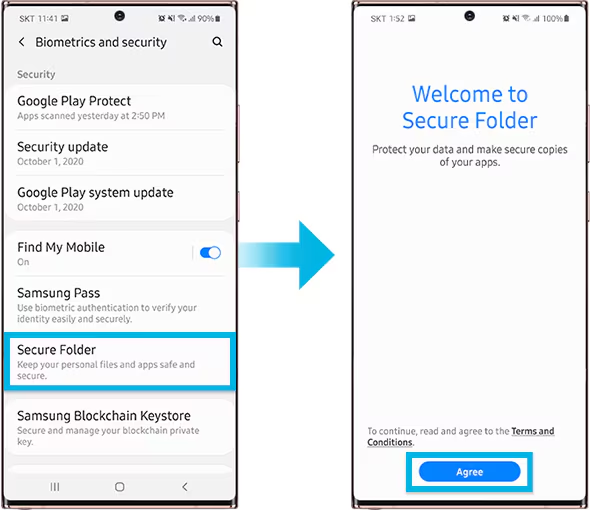
    With Samsung’s Secure Folder, your phone has a private, encrypted area. It is secured by a distinct passcode or fingerprint, which is distinct from the lock on your phone.

    To set it up:

    • Go to Settings > Biometrics & Security > Secure Folder
    • Sign in with your Samsung account
    • Create your Secure Folder with fingerprint, PIN, or pattern
    • Open the Secure Folder and import photos/videos from your gallery

    Even the application’s access is limited without unlocking the folder, and these files are totally concealed from the main gallery and file manager.

    Xiaomi/Redmi: Hidden Album

    The Hidden Album function in Xiaomi’s Gallery app makes it quick and easy to conceal private material.

    How to use:

    • Open the Gallery app
    • Go to Albums > Hidden Album
    • Set up the feature (may require Mi account login)
    • Move selected images/videos to this section

    Content in the Hidden Album is protected and will not appear elsewhere unless explicitly restored.

    For Huawei or OnePlus:

    Use PrivateSpace (Huawei) or App Lock & Hidden Space (OnePlus). These offer similar levels of privacy and allow photos/videos to be locked with additional credentials.

    Best for: Maximum privacy with encryption and authentication — perfect for work or highly sensitive media.

    Method 5: Use Guest Mode or Multiple Users

    guest mode on Android, hide photos and videos

    Another sneaky method is to create a Guest account on your phone:

    How to enable Guest Mode:

    Like a computer, Android allows for many user profiles. You can set up a Guest Mode on your phone to keep other users from seeing your messages, apps, or pictures.

    To activate Guest Mode:

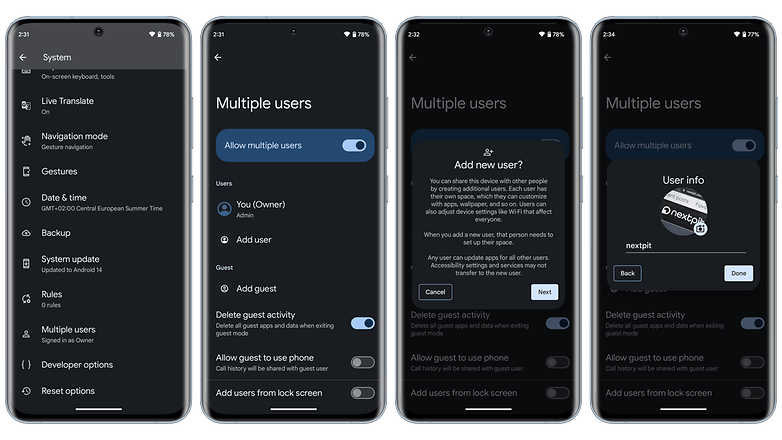
    1. Open Settings > System > Multiple Users
    2. Enable Guest Mode or add a new User
    3. Switch to the guest profile when someone else is using your phone

    Switch to Guest mode when someone else wants to use your phone. This keeps all your media, apps, and settings hidden by default.

    Bonus Tip: Some phones allow locking the switch between users with a password or fingerprint.

    Best for: Sharing your phone without giving others access to your personal content.

    What NOT to Do

    While hiding media is easy, here are some common mistakes to avoid:

    • Don’t delete files unless you’re sure you have a backup
    • Don’t trust sketchy third-party apps from unknown developers—many are filled with ads, trackers, or even malware
    • Avoid cloud backups for sensitive files unless encrypted

    Extra Privacy Tips

    • Use a Gallery app with built-in vault (e.g., Simple Gallery Pro)
    • Encrypt your phone under Settings > Security > Encryption
    • Back up sensitive images to a secure cloud (e.g., Proton Drive or a password-protected ZIP file on Google Drive)

    Hide It the Smart Way

    You don’t need to clutter your phone with apps just to hide a few private photos. Android gives you several easy, built-in ways to hide images and videos safely:

    • Archive them in Google Photos
    • Move them to a dot-folder via File Manager
    • Use Secure Folder or Guest Mode for stronger protection

    Choose the method that best fits your comfort level and device brand—and enjoy peace of mind knowing your private media stays private.

  • Android 15 Adaptive Vibration – how to setup guide

    Android 15 Adaptive Vibration – how to setup guide

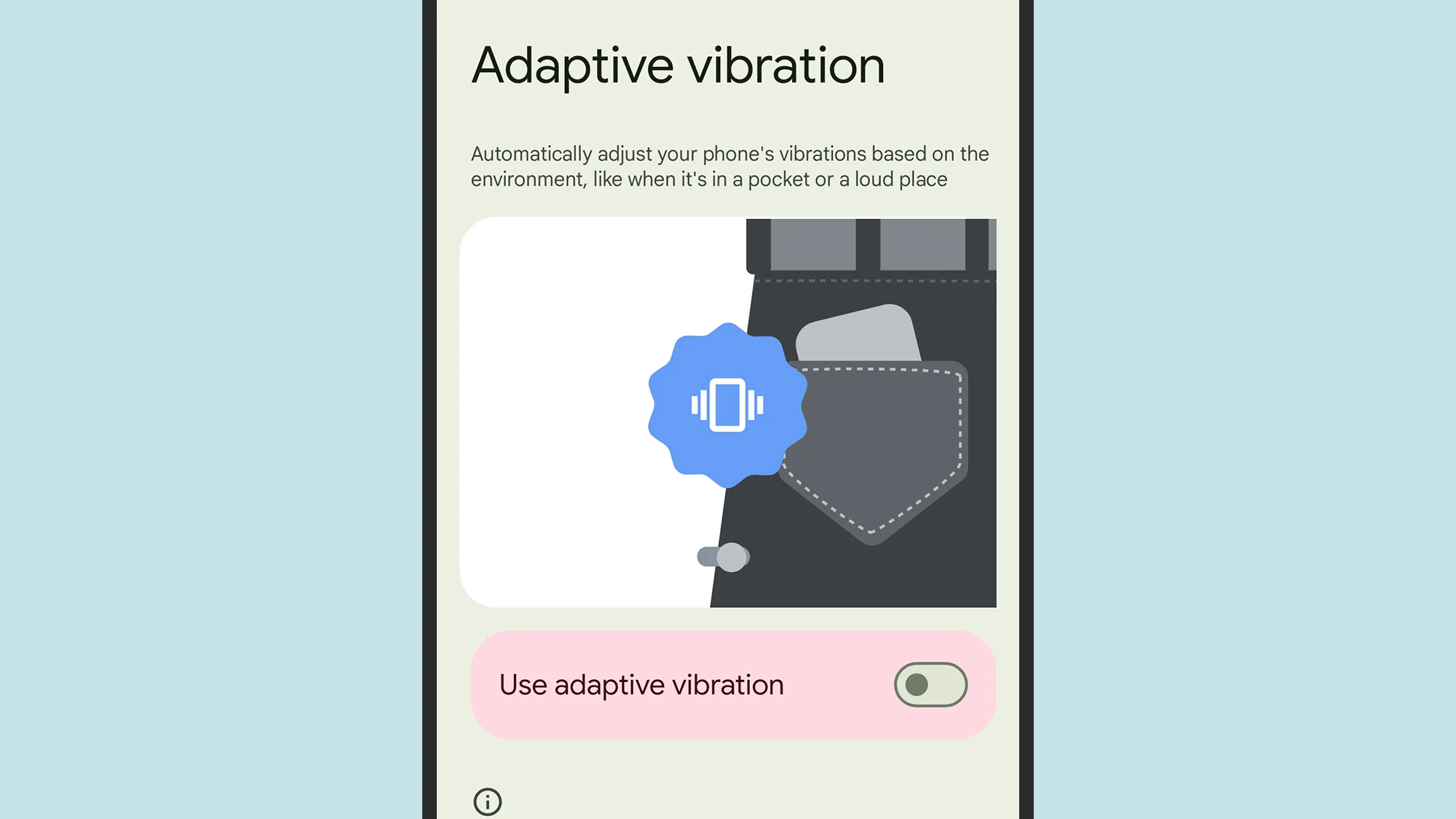
    When your phone is vibrating, do you miss any calls or messages? It is easy, and you are not alone. Google has an answer. The most recent Android 15 version for Google Pixel smartphones has an Adaptive Vibration feature to help you avoid missing notifications. This function determines the degree of movement, location, and environment the device is in using the microphones and sensors on your phone. It modifies the vibration motor’s strength based on the contextual information.

    You will notice when your phone buzzes thanks to Adaptive Vibration, even whether it is in your backpack, pocket, or lying away from you on your bed. It prevents loud vibrations when the gadget is put on a hard surface, such as a table. Adaptive Vibration takes only a few seconds to set up.

    How to turn on Adaptive Vibration

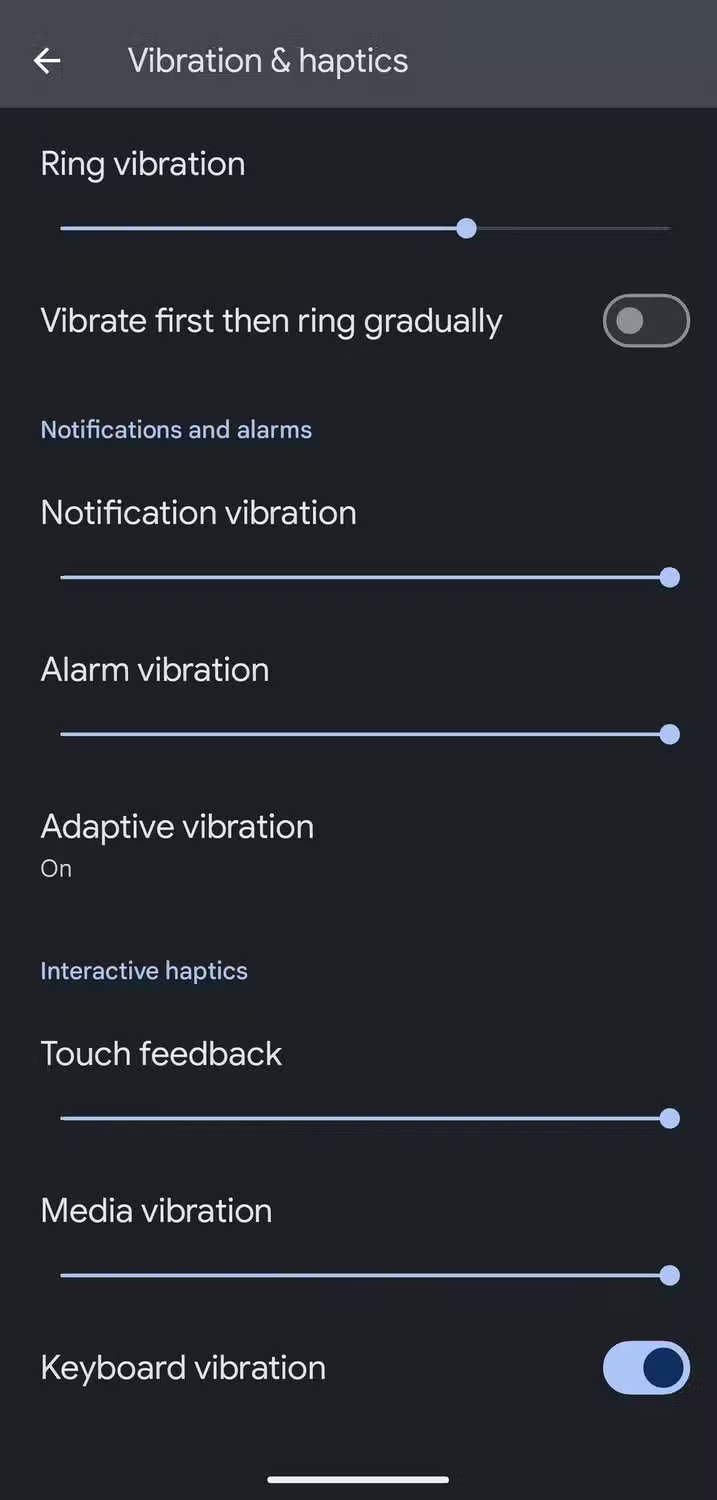
    To enable Android 15’s Adaptive Vibration function, launch the Pixel Settings app, navigate to the Sound & Vibration section, scroll down, and select Vibration & Haptics. Then select Adaptive Vibration and tap the toggle to enable it.

    android 15 vibration and haptics

    When turned on, it begins operating on incoming notifications like as calls and messages. The haptics of the keyboard are unaffected. Adaptive Vibration is useful in a variety of contexts, particularly in noisy surroundings where incoming notifications are difficult to detect. It also works the opposite way around, dampening the vibration in quiet environments where it could cause a stir, such as when resting the handset on a table in a library or at a movie theater.

    The feature is accessible on Google Pixel 7 phones and higher. You will need Android 15. If you have a compatible smartphone but can not discover the function, make sure it is up to date by accessing the device Settings, navigating to the System section, hitting Software Updates, and ensuring you are running Android 15.

    Other vibration features do Google Pixel phones

    Adaptive Vibration is the most recent vibration feature, however it is not the only one worth knowing about. For example, you can select several vibrating ringtones. Open the device’s Settings app, navigate to the Sound & Vibration section, and select an audible ringtone from the Phone Ringtone menu. When you flip between them, the vibration pattern adjusts to match the sound.

    The Vibration & Haptics option allows you to customize the strength of the vibration for each sort of alert, such as calls, notifications, and alarms. For phone calls, you can begin with a vibration before gradually turning on the out loud ring. On the same page, you may change the amount of haptic feedback you get when you touch the screen or keyboard, as well as when media plays.

    Another interesting way Pixel phones employ vibration is in the Weather app. If it is raining, the vibration motor simulates the sense of raindrops on the phone when you start the app, accompanied with an animation of rain falling. It is not the most useful feature, but it is a pleasant addition.

  • How to fix Galaxy Watches that aren’t tracking sleep properly

    How to fix Galaxy Watches that aren’t tracking sleep properly

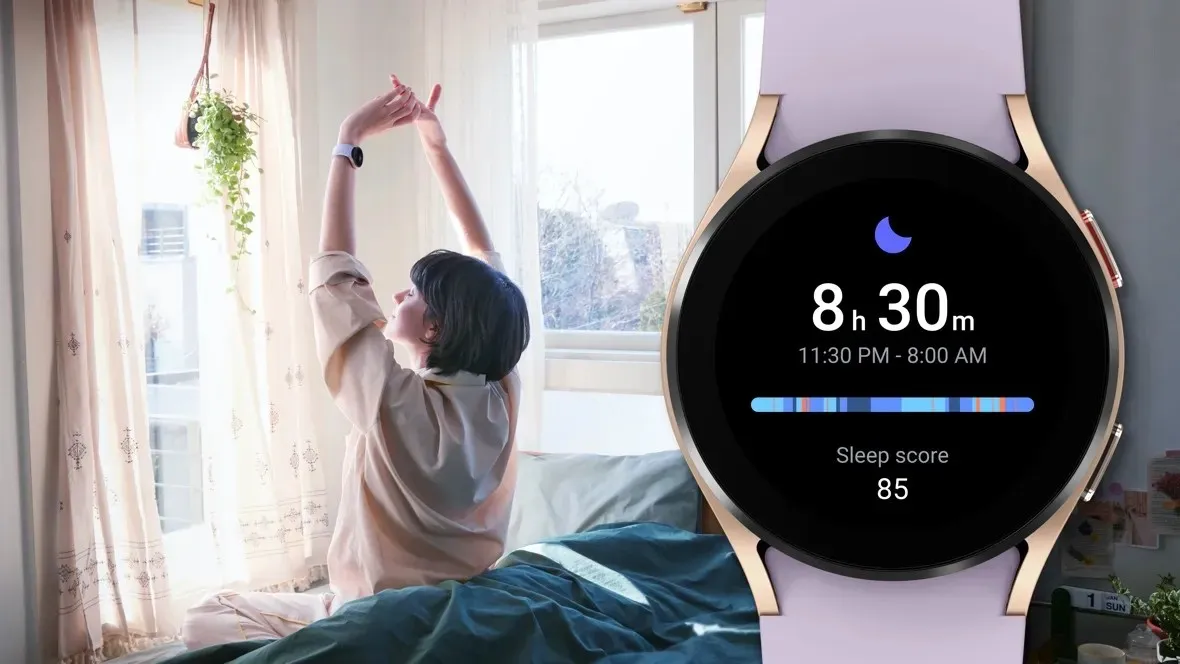
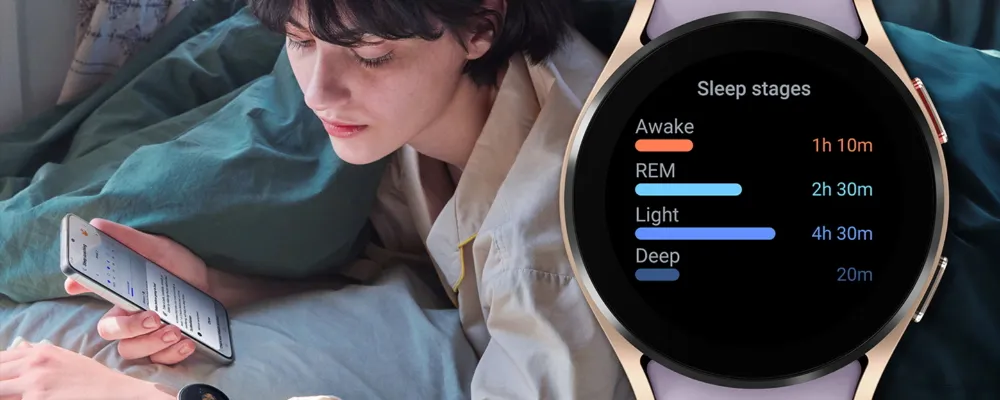
    Samsung has acknowledged that a sleep-tracking problem affects a number of its most recent Galaxy Watch models, but thankfully, it has also suggested a few solutions.

    SamMobile discovered a Samsung Community forum in Korea where the firm disclosed that the Galaxy Watch 7 and Galaxy Watch Ultra, two of its top smartwatches, might not be accurately detecting sleep.

    SamMobile discovered a Samsung Community forum in Korea where the firm disclosed that the Galaxy Watch 7 and Galaxy Watch Ultra, two of its top smartwatches, might not be accurately detecting sleep.

    The issue, which also affects the Galaxy Watch 4, 5, and 6, means that “sleep-related measurement values are not reflected properly in the Samsung Health app on the Galaxy Watch.”

    For consumers who might be having problems, Samsung has provided a few patches. We have contacted Samsung for further information, but as mentioned, this message was only made on a Korean forum, so it is unclear at this time whether the problem is regional.

    In any case, here are some fixes for your Galaxy Watch if you are experiencing problems with sleep monitoring.

    Galaxy Watch4 Sleep Week NSF mai

    How to correct the Galaxy Watch’s sleep tracking

    Samsung advises users to turn the device off and on again as the initial step in tech troubleshooting. It claims to be working on a new version of the Samsung Health app to address the problem in the meanwhile.

    In particular, Samsung advises users to activate and then deactivate the Galaxy Watch’s power-saving mode under the Watch’s Settings app.

    Lastly, users should get the most recent version of the Samsung Health software from the Galaxy Store. It is unclear whether this is the promised upgrade to the app or a temporary solution. However, all of these adjustments are fantastic starting points if your Galaxy Watch is having trouble tracking your sleep.

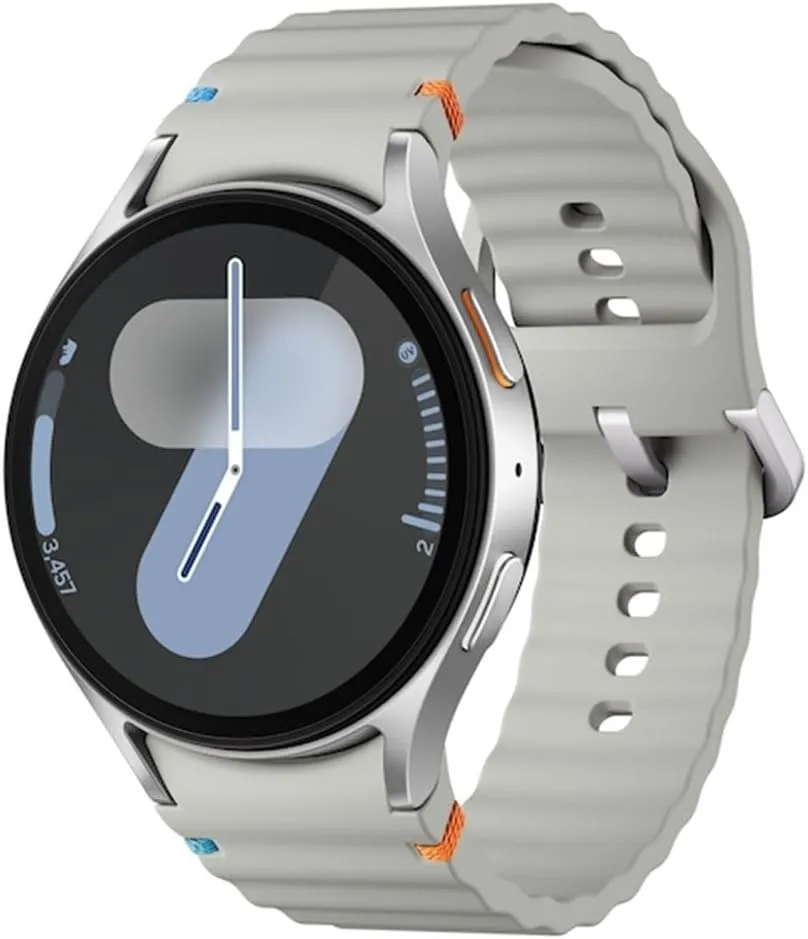
    galaxy watch 7

    Samsung Galaxy Watch 7

    1.5″ Super AMOLED, 480x480px ~327ppi, 425mAh Battery, Bluetooth 5.3, Wi-Fi, MIL-STD-810H compliant, 50m/5ATM water resistant (IP68), ECG certified, Sleep Coach, Heart Monitor

    very good

  • How to add you ID to Google Wallet

    How to add you ID to Google Wallet

    You can link your driver’s license or state ID to your Google Wallet in certain US states. It is a practical way to carry and show your ID, however there are some restrictions. Google has caught up to Apple, which was the first to introduce this feature in 2021.

    You can add your driver’s license to Google Wallet if you know how to add your credit card. We let you know if you can add your driver’s license or state ID to Google Wallet and walk you through the process of adding and removing it. Google Wallet works with devices other than smartphones. With any of our favorite smartwatches, you can show your ID right from your wrist.

    Where you can use your ID from Google Wallet

    The only US states that permit IDs to be kept in the Google Wallet app are Arizona, Colorado, Georgia, and Maryland. Additionally, several states permit the storage of their IDs in Apple Wallet.

    Since Google must collaborate with each state to integrate its IDs into Google Wallet, the rollout to more states is sluggish. The process is slowed substantially by the fact that every state handles IDs differently. Since Arizona and Georgia partnered with Apple in 2021, just six states have implemented digital ID systems.

    The driver license can be added to Google Wallet too

    Georgian and Maryland digital IDs saved in Google Wallet are accepted at a few participating airports nationwide. Colorado and Utah IDs are accepted in more contexts, such as when demonstrating your age at a restaurant. However, in any circumstance where your digital ID is approved, you must always carry your physical ID with you.

    California and Utah, if you reside there, have their own digital ID applications and regulations regarding where you can use your ID. Whether Google Wallet will be supported in these states is unknown.

    Is safe to store your ID in Google Wallet?

    Although a digital copy of your driver’s license or state ID may appear less secure, there are steps in the process that ensure the security of your personal information. These components guarantee that only you have access to your personal information, however part of this is because of the setup procedure (which we will take you through soon).

    • Your digital ID is encrypted on your phone.
    • It can only be accessed with biometric authentication.
    • You choose what data is shared each time you show your ID.
    • Your digital ID can be deleted remotely.

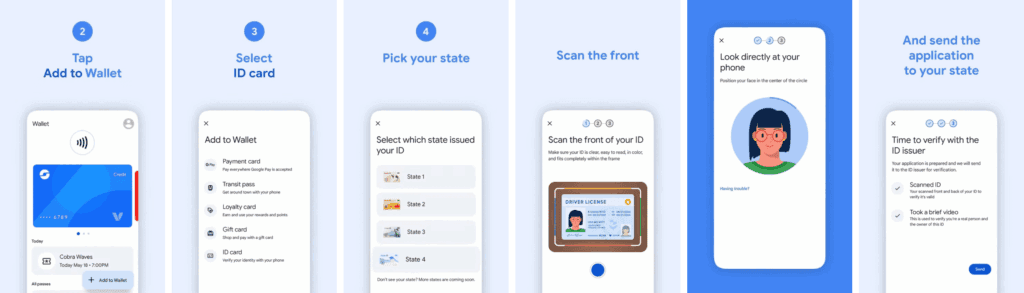
    How to add the ID or driver’s license to Google Wallet

    You will know how to begin if you have added credit cards, transport passes, or rewards cards to Google Wallet before. But adding your driver’s license or state ID requires a more extensive procedure.

    1. Open the Google Wallet app.
    2. Tap Add to Wallet in the lower-right corner of your screen.
    3. Tap ID card. This option only appears if you live in the US.
    4. Tap your state ID.
    5. Scan the front and back of your ID.
    6. Record a short video where you’ll turn to show the front, sides, and bottom of your face.
    7. Submit your application to the state.
    add id to google wallet 1

    Your application takes a few minutes to process. Your driver’s license is ready to view in Google Wallet when you receive the confirmation notification.

    How to remove your state ID or driver’s license from Google Wallet

    It only takes a few touches to delete your driver’s license or state ID if you are worried about its security. You can delete it remotely using the same technique as taking any digital card out of your wallet.

    Remove your digital ID from the Google Wallet app

    1. Open Google Wallet
    2. Tap your ID card.
    3. Tap the three-dot button in the upper-right corner of the screen.
    4. Tap Remove.

    Remove your digital ID remotely

    1. Login to your Google Account page on any browser.
    2. Click Personal info from the top of your screen.
    3. Scroll down and click Manage digital ID.
    4. Click Delete next to your ID.

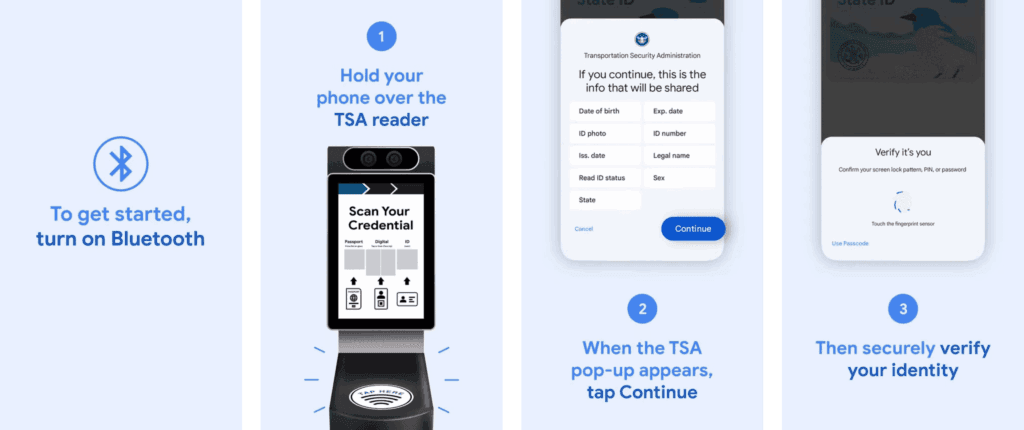
    How to provide your electronic identification at TSA PreCheck

    You can display a QR code or utilize NFC with tap-to-pay to use your digital ID card. First, you must schedule an in-person visit at an enrollment location to register for TSA PreCheck. To utilize your digital ID after registering, take the following actions:

    1. Turn on Bluetooth on your phone.
    2. Hold your phone over the TSA reader terminal. The reader automatically pulls up your ID.
    3. Confirm the data you are sharing by tapping Continue in the lower-right corner of your phone screen.
    4. Verify your identity using biometric identification.
    provide your electronic identification at TSA PreCheck

    Display your ID safely and conveniently

    There are numerous benefits to carrying your driver’s license on your phone as opposed to a physical card. It eliminates the need to carry your wallet to bars, though employees may refuse to serve you if they think it is inappropriate. You can only present the necessary documentation.

    NFC communication is the backbone behind sharing your digital ID.