Mobvoi has announced that the TicWatch Pro 5 and TicWatch Pro 5 Enduro smartwatches will soon receive an update. Version TMDB.240925.002 adds new capabilities to the wearables, including a safety tool and other sports.
In addition, these wearables have received a number of improvements and bug fixes.
The Mobvoi TicWatch Pro 5 and Pro 5 Enduro smartwatches are set to be updated. This release and a comparable upgrade for the latest TicWatch Atlas smartwatch have been announced on Facebook.
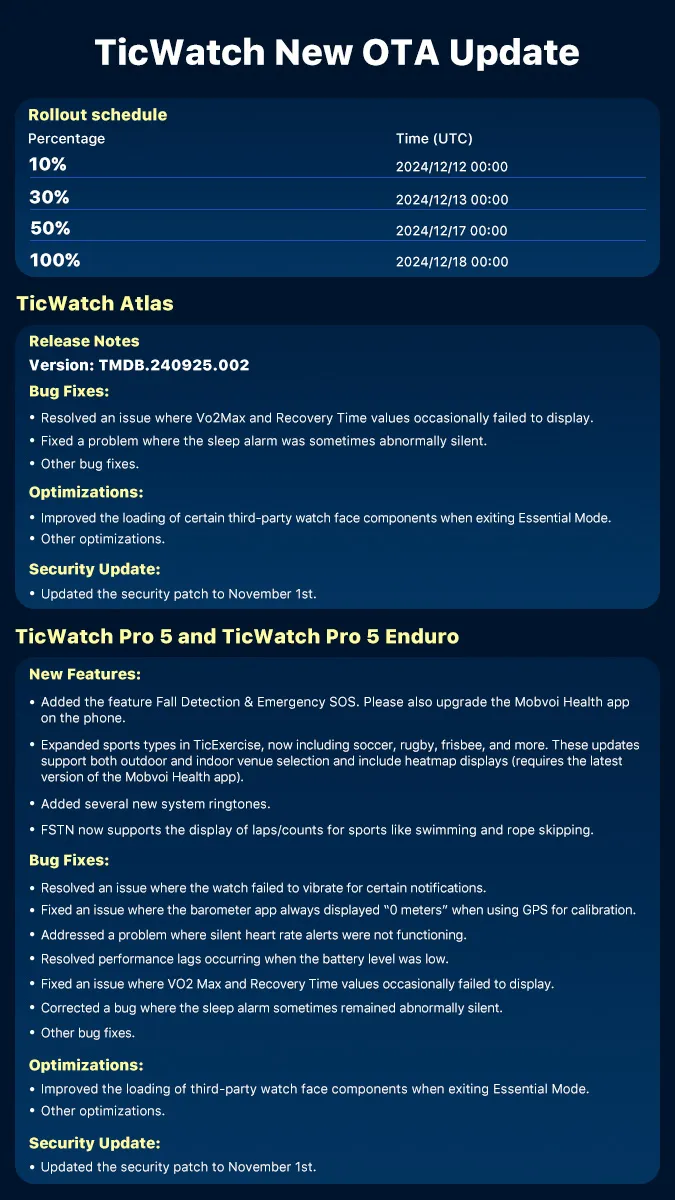
The version TMDB.240925.002 upgrade is expected to add new features to wearables. These include Fall Detection and Emergency SOS, which allow users to raise an alarm if they are in distress; however, you must also update the Mobvoi Health smartphone app to use this capability.
TicExercise now includes additional sports such as soccer, rugby, and frisbee. Additionally, there are new system ringtones, updates to several third-party watch face components, and a security patch for November 1st.
In addition, Mobvoi has fixed issues such as the watch failing to vibrate in response to a notification, missing VO2 Max and Recovery Time statistics, and performance lagging at low batteries.
Version TMDB.240925.002 will be available to TicWatch Pro 5 and Pro 5 Enduro smartwatch users beginning December 12th. It will initially be available to only 10% of units, growing to 50% on the 17th and 100% on the 18th. The TicWatch Pro 5 Enduro smartwatch is currently available on Amazon for $313.81.
Ticwatch Pro 5 Enduro
Experience uninterrupted productivity and training with TicWatch Pro 5 Enduro’s remarkable battery life.
You have undoubtedly seen Garmin’s wide range of cycling computers and athlete-focused fitness trackers in your search for a reliable fitness tracker. Even though they come with a ton of features already, the brand maintains momentum by regularly delivering feature updates automatically over the air. You can begin getting acquainted with the latest additions as one for December was recently announced.
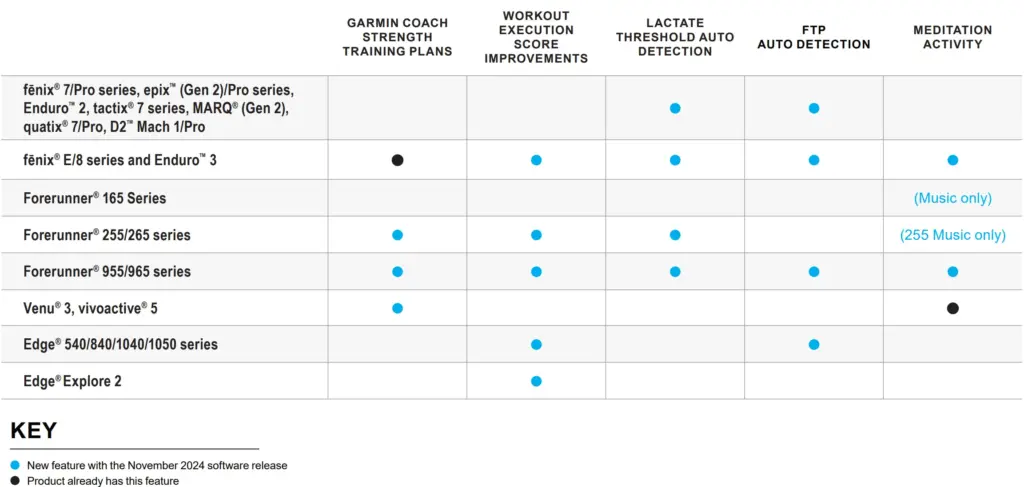
Garmin’s December feature update bulletin for wearable fitness trackers and cycling computers was just made public (via NotebookCheck). This edition has three notable additions. First of all, you may now monitor your meditation practice, which may aid in stress and anxiety management.
Your lactate threshold heart rate and other information can be used by the wearables to help you target the appropriate training intensities. As your muscles deteriorate, your level of weariness increases significantly beyond this point. Although this is computed automatically, Garmin advises against utilizing the data at first because the accuracy of threshold detection increases with additional workouts.
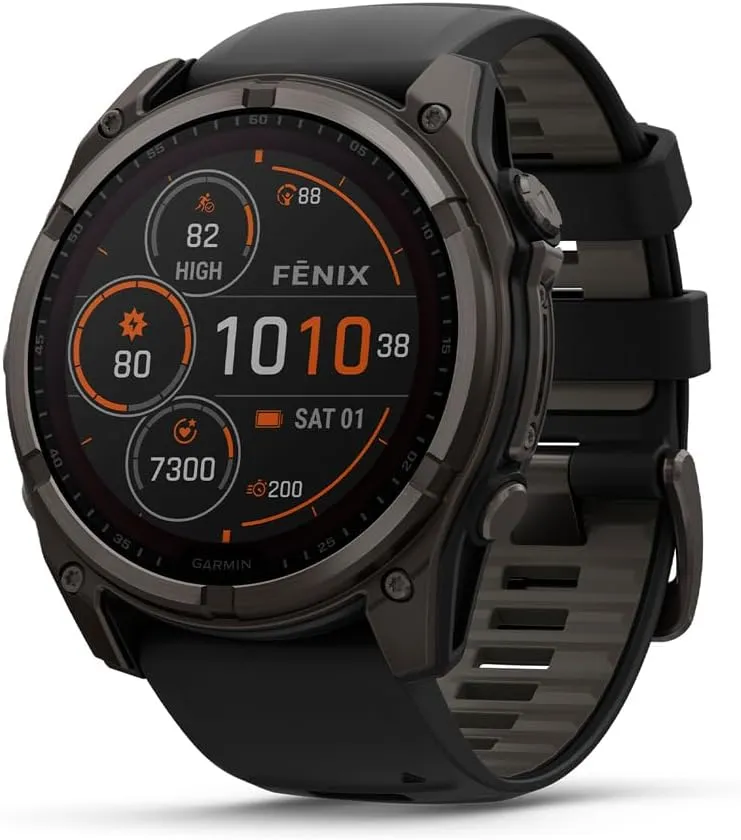
Garmin fēnix® 8
Be limitless. The fenix 8 multisport GPS smartwatches are built for serious athletes and outdoor adventurers who want to push beyond their limits. The fenix 8 Series now comes with a bright AMOLED display.
Garmin Coach strength training plans are the final significant addition this month. The companion app can assist you in creating a personalized workout routine to gain muscle or improve your fitness level, as the name implies.
The update is rolling out as we speak
According to Garmin’s announcement, the most latest and compatible devices will be updated in the upcoming weeks. Some of these features, nevertheless, have been included in new products since their introduction and are now being added to older versions.
For example, the Vivoactive 5 and Venu 3 offered meditation tracking, and the Fenix E, Fenix 8, and Enduro 3 have long included Garmin Coach strength training. Lactate threshold detection, however, is novel for every product. Additionally, owners of the Forerunner 955 and 965 will have access to all of the previously listed functionalities.
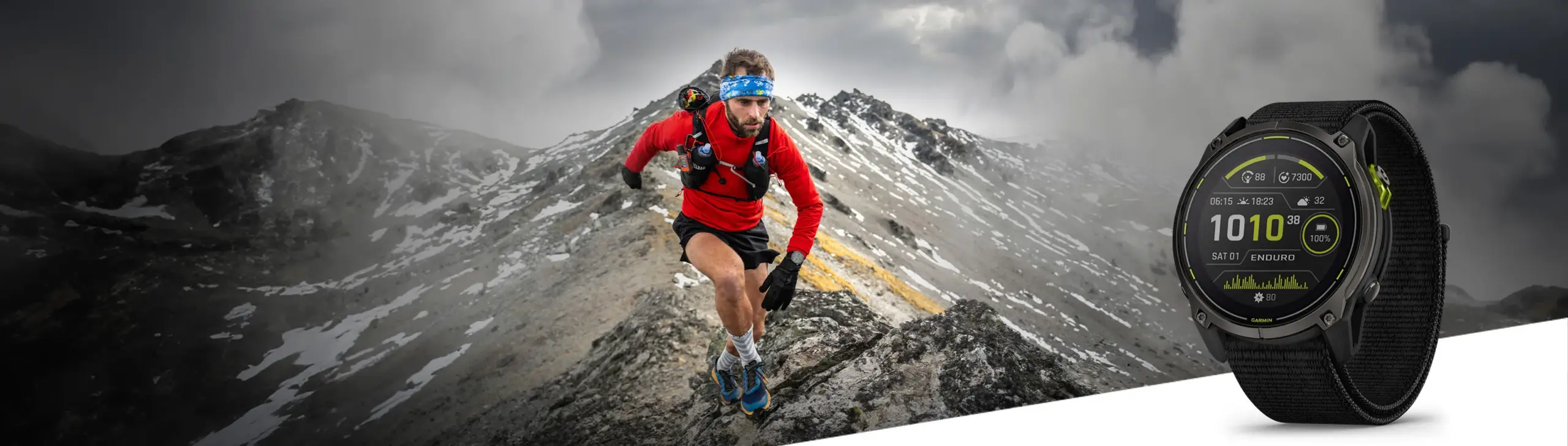
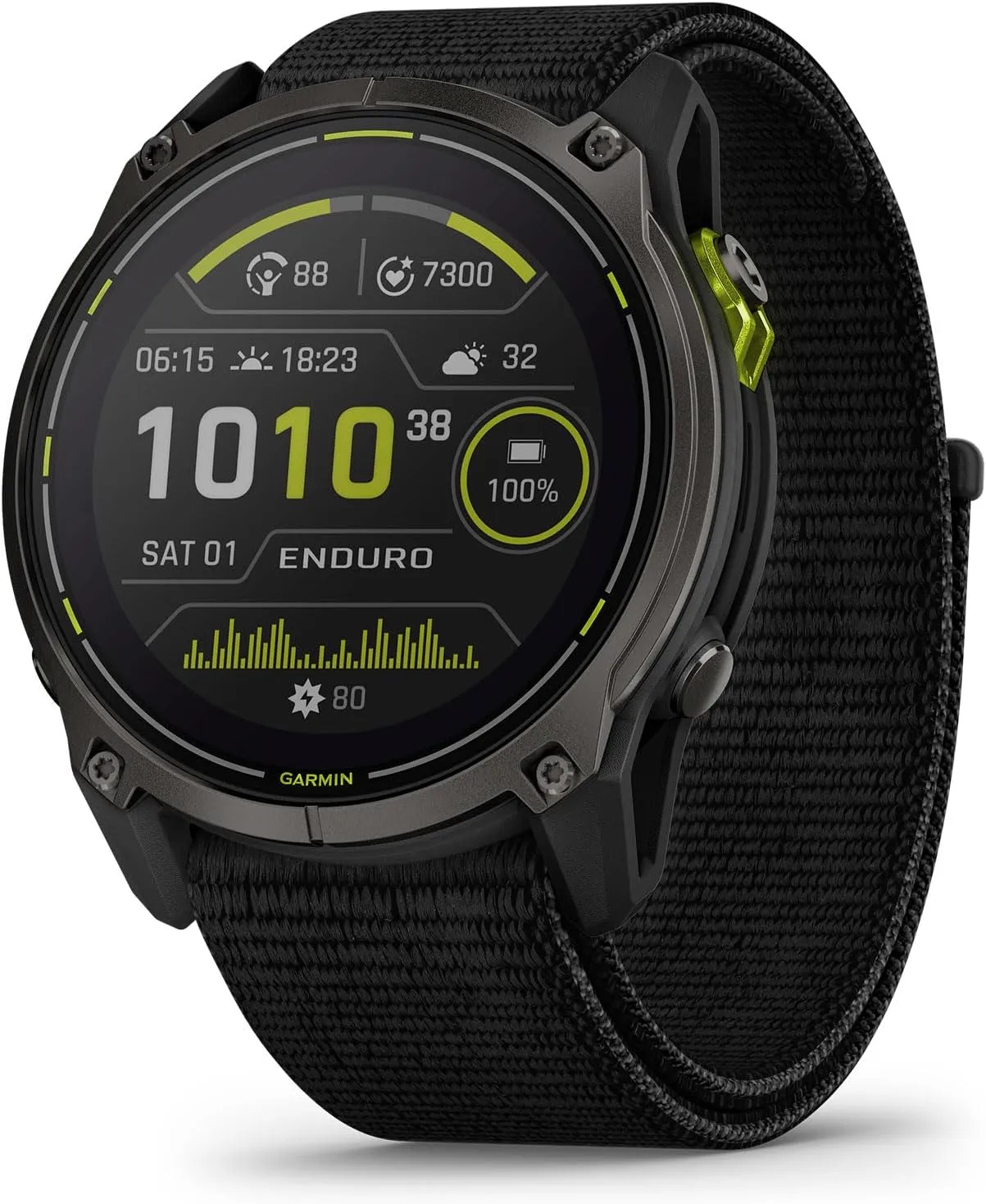
Garmin Enduro™ 3
Designed for ultra-endurance athletes, with a lightweight design weighing just 63 g to help improve performance.
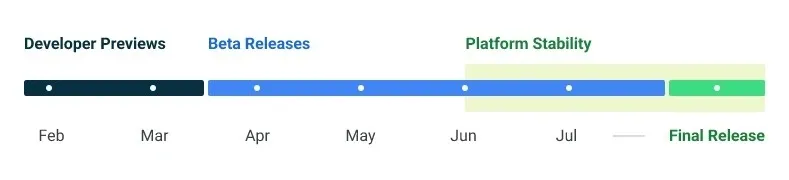
Google made the Android 14 Developer Preview (DP) available for testing on devices from the Pixel 7, Pixel 6, and Pixel 5 series, even the rudimentary Pixel 4a. A new DP edition is expected to be published in March, followed by a few beta releases until the summer, when more stable and feature-rich versions will be issued, and finally the final Android 14 release in the fall.
New Android 14 features
Speaking of new Android 14 features, as usual in the Developer Preview stage, there aren’t many user-facing ones, but rather deep under-the-hood changes that bring interface speed and power-draw optimizations, as well as security and privacy upgrades. Still, there is one biggie one it comes to new Android 14 feature that you will immediately notice.
System fonts
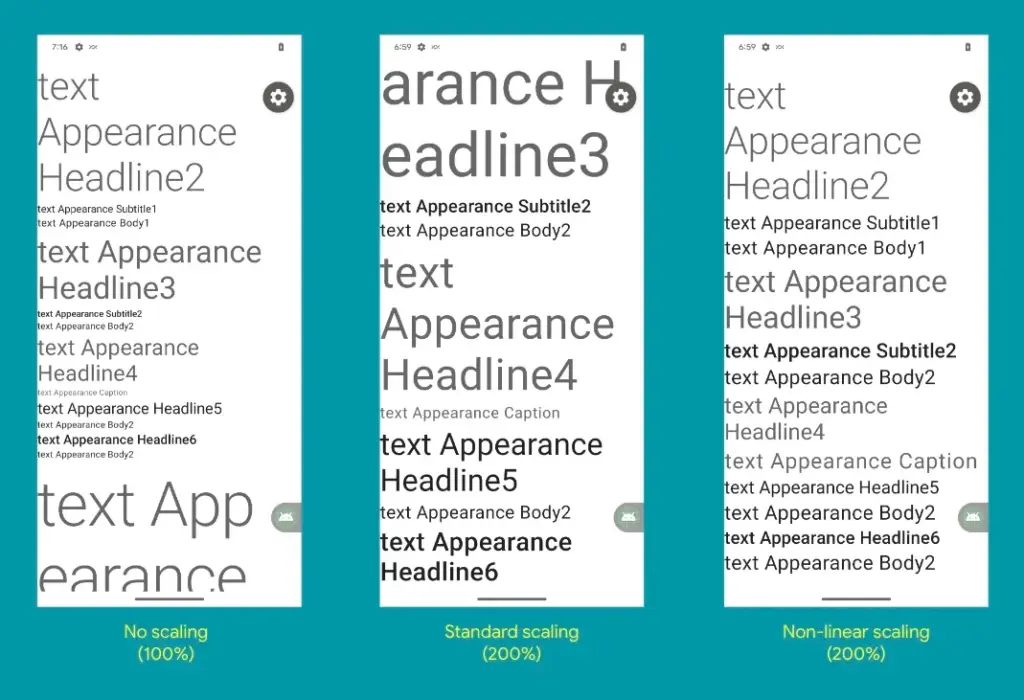
Bigger fonts with non-linear scaling is exactly what Google refers it as this new Android 14 option as. Instead of the current 130% threshold, Android phone owners will be able to increase the size of the system fonts by two times.
It makes sense considering that screens are growing bigger and bigger—we now have foldables with screens north of 7 inches diagonal and difficult-to-read small print. Without a doubt, Google uses “non-linear” scaling to raise text in fonts that are already sufficiently large compared to the smaller text that receives a size increase, rather than simply increasing the font size of Android 14 in a way that is deserving of the list of the best phones for seniors.
Performance and battery life
Android 14 will optimize the speed of the mobile OS system overall and offer less of a power pull from unnecessary activities thanks to a clever combination of background process optimization and presenting actionable requests to apps only when they are out of a cached state.
Additionally, without the user’s express consent, apps that don’t need a strict timing schedule, such clocks or calendars, won’t be able to continuously probe for resources by setting precise alarms.
Adapting to foreign language
With Android 14, a number of foreign language optimizations address the accessibility issues of the device by modifying the text to reflect the peculiarities of non-English speakers, such as tailored translations that take into account the different grammatical genders used in various languages.
The ability to dynamically update the list of foreign languages in an app’s settings to reflect the location and even alter the keyboard based on the interface language that the app is displaying in is another fantastic locale adaption improvement in Android 14.
Security and privacy
Down on the system level, Android 14 will include several new malware-fighting features that plug known exploits by blocking app installations or only allow them if they meet certain criteria.
Dynamically loaded applications that can be changed by injecting code in the process will be marked to be read-only in Android 14 in order to close another door for the installation of malware and various exploits.
Android 14 release date
Android 14 Beta: April 2023
Final Android 14 release build: October-November 2023
How to install Android 14 Developer Preview on Pixel phones
Flash an Android 14 system image on a Pixel 7 Pro, Pixel 7, Pixel 6a, Pixel 6 Pro, Pixel 6, Pixel 5a 5G, Pixel 5, or Pixel 4a (5G) phone.
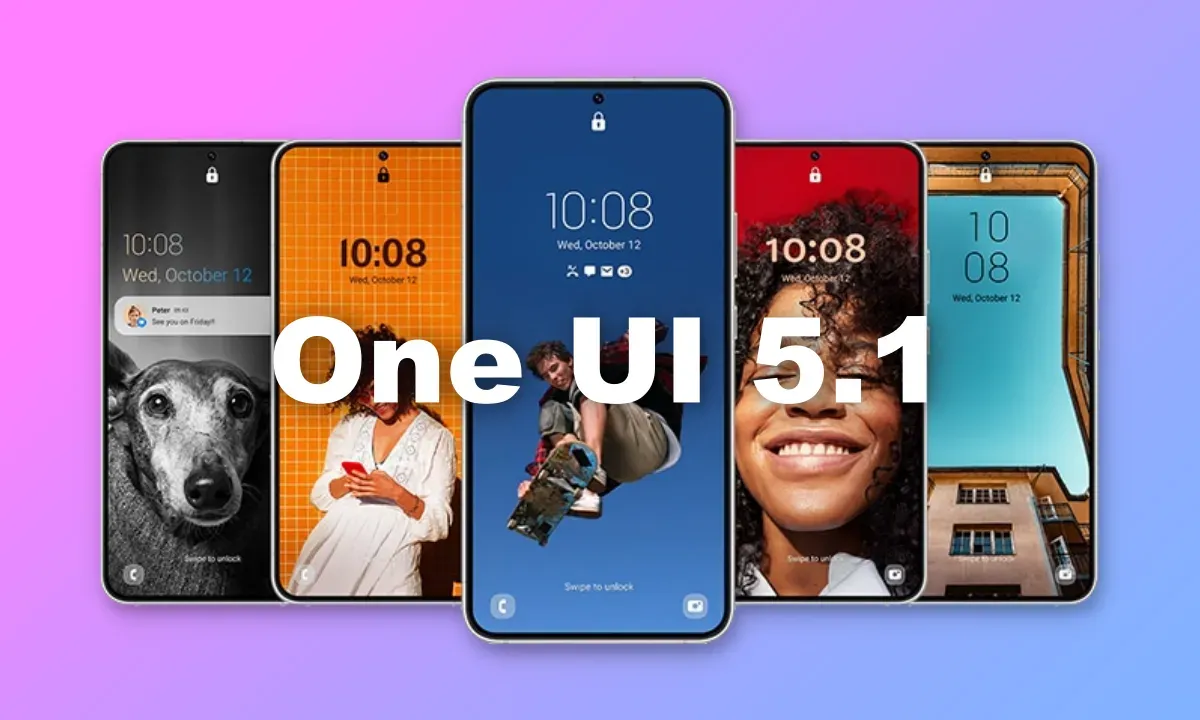
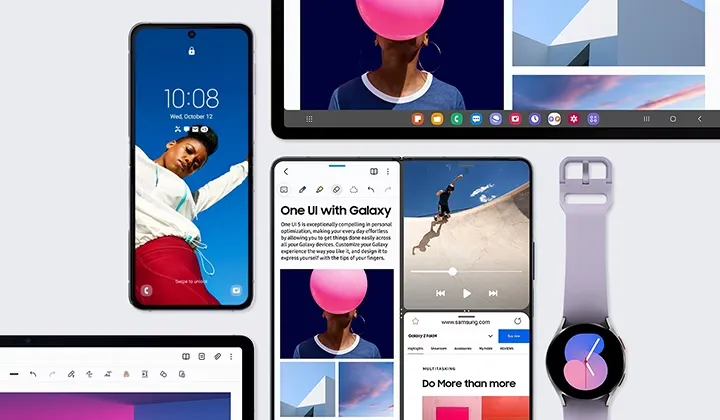
Snoopy Tech, a Twitter tipster, has published a number of documents that appear to be original Samsung docs. The sites add to the previously disclosed material we revealed in the original post below by listing the complete One UI 5.1 changelog.
The information in the tweets below also includes some existing OneUI 5 features, but the new ones are marked with “5.1” next to their description. Features market with the number “1” are those that’ll be exclusive to the Galaxy S23 series, S21 Ultra, Note 20 Ultra, S20 Ultra, Z Fold 4, Z Fold 3, and Z Fold 2.
Samsung’s flagship Galaxy S23 devices with OneUI 5.1 will go on sale. Older Galaxy flagships are also anticipated to receive the new software, although initially, it appears that the Galaxy S23 series will get some special features.
The new OneUI 5.1 features and updates are now clear to us thanks to a thorough leak from WinFuture. Instead of making substantial design modifications, the program will introduce a variety of functional enhancements. The entire OneUI 5.1 changelog has been placed at the end of this article. Let’s discuss some of the most noticeable modifications that the new software is expected to make for the time being.
What’s new?
With OneUI 5.1, the Gallery app is expected to receive the most new features. Now, you may share albums with your loved ones. By utilizing AI to recognize family members’ faces, the app will suggest images to add to your family albums. For what it’s worth, this function is already available in Google Photos. Up to six family members will each receive 5GB of free media storage from Samsung.
Additionally, the Gallery app’s search function is getting more practical. Now, you can look up multiple people at once. Instead of utilizing their tagged names, you may also search for people by looking up their faces.
With the Effects button on the side of the screen in the Camera app, OneUI 5.1 will make it simple to alter the color of selfies. The Advanced menu now makes it simple to use the Expert RAW app as well.
With OneUI 5.1, the AR Emoji Camera also gains greater functionality. Now, you can use Mask mode to take pictures of up to three people and swap out their faces for emojis.
OneUI 5.1 also has a new battery widget. From your home screen, you can check the battery life of your phone and any Galaxy devices that are connected to it, including your Galaxy Watch, Galaxy Buds, and more.
Depending on the phone mode you’ve selected, you can also set alternative backgrounds for the lock screen and home screen. As a result, by selecting several modes, you can have various backdrops for business, sports, and more.
If you’re migrating from an earlier Galaxy or another Android phone, one Galaxy S23-only feature will make it simpler to set up your new phone. By scanning a QR code on your previous device, it uses Bluetooth Low energy to assist you in moving your Wi-Fi networks, Samsung account, and Google account to the new device. According to the source, the Galaxy S23 series will have “AI Restoration,” another new OneUI 5.1 feature. It isn’t specifically mentioned in the changelog, though.
One UI 5.1 features
Camera
Changing the hue for a selfie just got easier: Easily change the hue of your selfies with the Effects button on the side of the screen.
Quick access to Expert RAW: The Expert RAW app allows you to capture high-quality images without any processing or compression, perfect for those who want to edit their photos later. Accessing Expert RAW is now easier from the Advanced menu.
Gallery
Common family album: With Shared Family Album, sharing photos with your family is easier than ever. Gallery recommends photos to add to your shared family album by recognizing your family members’ faces. You also get 5GB of storage per family member (up to 6 people).
Improved handling: Processing automatically removes shadows and reflections to make your photos look great. You can also recreate GIFs for better resolution and clarity.
Convenient information display: If you swipe up when viewing a picture or video in your gallery, you can see at a glance when and where the picture was taken, on which device, where it’s stored, and more.
Search has become more powerful: You can now search for more than one person or item at a time. You can even search for people without tagging their names, just by clicking on their faces.
Choose a location to save screenshots: Now you can save screenshots and screen recordings in a folder of your choice by setting it up in the advanced features.
AR Zone and AR Emoji
Use 3 Emojis in AR Emoji Camera: Take fun photos and videos with friends (up to 3 people) in mask mode. You can replace your friends’ faces with other characters by clicking the emoji.
Layout and editing improvements in AR Doodles: The brushes are now available on the main AR Doodle screen for quicker access. You can also resize and move drawings after you create them, and the new eraser tool lets you erase just a portion of your drawings without completely erasing them.
Widgets
New battery widget: With the new battery widget you can check the battery level of your Galaxy devices. Right from the home screen, you can see how much battery your smartphone, Galaxy Buds, Galaxy Watch and other supported devices have left.
Intuitive weather widget: The new illustration style and a summary of the current weather conditions make it easy to know the weather information, whether it’s sunny, cloudy, raining or snowing.
Modes and Scenarios
Different wallpapers depending on the mode: Set different wallpapers on the lock screen and the home screen depending on your current activities. Choose a background for work, one for sport and more by setting different modes.
More conditions and actions for scenarios: Run scripts automatically when you turn on airplane mode or mobile hotspot. Scripts can now open some apps, adjust left/right audio balance, and more. New actions now let you control Quick Share and touch sensitivity, as well as change the ringtone and font style.
Connectivity
Collaboration in Samsung Notes: Create a shared note that multiple people can edit at the same time. Write a report with colleagues, take notes for a study group, or draw a picture with a friend. The possibilities are endless.
Inviting to shared apps made easy: Now you can easily invite people to shared albums, notes, and calendars using a link that can be shared across apps like messenger, email, and social networks.
Advanced multiple controls between Galaxy Book and smartphone: Now you can use your Galaxy Book’s mouse, keyboard, or trackpad not only with your Galaxy tablet, but also with your Galaxy smartphone. You can easily copy and paste text and drag and drop images from one device to another as if it were the same device.
Media output for WiFi speakers: If you want to continue listening to music on Wi-Fi speakers via Spotify Connect and the built-in Chromecast™, simply open the media output from the quick access toolbar, not the music apps.
Continue surfing on the PC: If you surf the Internet on your smartphone with Samsung Internet and then continue browsing on your PC, you can find the websites you opened on your smartphone and continue browsing them with the PC browser.
Samsung Dex
Improved multitasking in DeX: In split screen mode, you can now drag the splitter in the middle of the screen to resize both windows. You can also snap a window to one of its corners so that it takes up a quarter of the screen.
Settings
Settings suggestions: Suggestions are now displayed at the top of the settings screen, letting you know about useful features to try or settings that need your attention so you can enable or try them right away.
Samsung Internet
Improved search: You can now search by folder name in bookmarks or by group name in tabs. Improved search logic allows you to find what you’re looking for, even if something is misspelled.
Setup Wizard
Faster and easier initial setup of your new Galaxy: If you’re switching to a new Galaxy from a Galaxy or other Android device, simply scan the QR code on your old device to automatically migrate your Wi-Fi networks, Samsung account, and Google account to the new one Device to transfer without typing anything.
Weather
Detailed weather information at a glance: Useful weather information is now displayed on the main screen of the Weather app. You can check severe weather alerts, daily weather reports, hourly precipitation and color temperature charts.
Calls
Bixby text calls: Use Bixby text calls to automatically answer calls and find out the purpose of the call. You’ll see what the caller is saying in a text chat, and you can tap or type replies to have them read aloud to the caller. Bixby text calls are only available in English and Korean.
OneUI 5.1 availability
According to information accidentally put out by Samsung itself, One UI 5.1 would be coming to “flagship models released after Galaxy S20 and Galaxy Z Flip.” This means the update should be headed to the Galaxy S21 series, Galaxy S22 series, and nearly all of Samsung’s foldables, including the Galaxy Z Fold 2, Galaxy Z Fold 3, Galaxy Z Fold 4, Galaxy Z Flip 5G, Galaxy Z Flip 3, and Galaxy Z Flip 4.
Since the software will debut with the Galaxy S23 series in February, it should start showing up on older Galaxy phones by March.
Right now, it’s difficult to talk about Pixels without the topic eventually turning to the brand-new Pixel 7 and Pixel 7 Pro. And it’s understandable why: both inside and out, Google’s most recent Pixel smartphones are just incredible. They have a ton of power and exciting new tricks that just ooze out of them.
But what’s this? To reward yourself to new and exciting phone features, you don’t need to be the owner of a Pixel 7. Because your device’s software is always being updated, there are tons of valuable jewels hiding beneath the surface, which is the beauty of the Pixel world. The majority of Pixel owners simply don’t notice them, or perhaps they do but quickly forget afterward.
In order to give several noteworthy Pixel features the attention they merit, today we’re going to take a step back. They should function for you regardless of whether you’re holding a Pixel 7 or an older model—even, in most circumstances, if your Pixel is too old to have received the most recent Android 13 update.
Discover some extraordinary Pixel gems by reading on, then continue the celebration by enrolling in my Pixel Academy e-course. For my favorite Android Police friends, it’s a seven-day email trip that teaches you a ton of time-saving Pixel information and is totally free.
Smarter storage
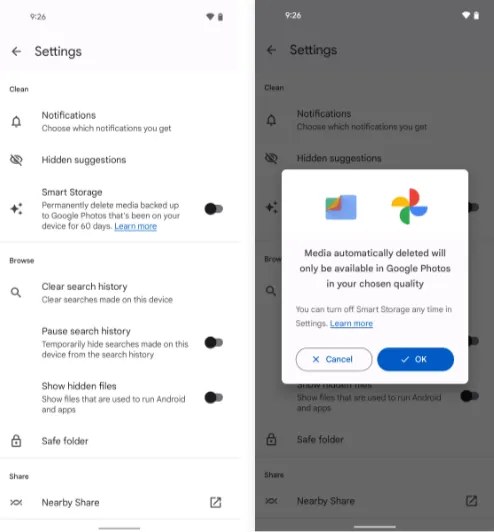
The following is a further automation-focused intellect built into your Pixel and ready to be cuddled: The technology automatically deletes duplicates of the photos and movies you’ve already backed up to Google Photos when your phone’s local storage starts to run out of room.
Of course, you can always do it on your own, but doing so requires (a) actually remembering to do it frequently and (b) spending the time to complete the process’s several manual phases. And while I don’t know about you, my brain is now made up of about 97% oatmeal, so everything I can automate to reduce the load on myself is a win in my book.
If you’ve got a current Pixel with the snazzy new Android 12 software on it, open up the Files by Google app (or go download it, if it isn’t already on your phone).
Then:
Tap the three-line menu icon in the app’s upper-left corner.
Select “Settings” in the menu that comes up.
Flip the switch next to “Smart Storage” into the on position and confirm that you want to activate the feature.
With Android 11 or earlier
If your Pixel is on an older version of Android (howdy, Pixel 2 partners!), you’ll find the same option within your phone’s system settings:
Open up your settings and tap “Storage.”
Look for the line labeled “Smart Storage.” Tap it — tap it with gusto, damn it!
Choose whether you want your already-backed-up items to be deleted when they’re 30, 60, or 90 days old.
Activate the toggle at the top of the screen.
Either way, you’ll just need to make sure you’re set to sync your photos and videos to Google Photos — by tapping your profile picture in the Google Photos app and then looking for the “Backup” line in the menu that comes up — and you’ll never have to think about your storage running low again.
Image extracting
Save yourself some time and let your Pixel make it simple the next time you need to grab a picture from someplace, whether it’s a website, a text message, a forum for earwig aficionados, or whatever the situation may be.
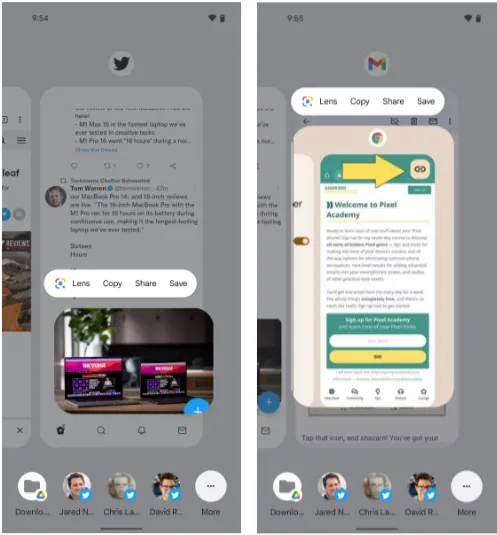
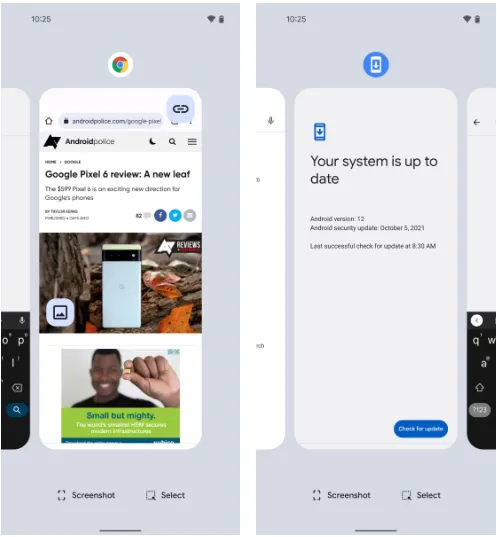
The Overview screen on your Pixel phone includes a secret feature that lets you take pictures almost anywhere. And all it takes to access its magic is a simple swipe and a few fast taps:\
While you’re viewing any app with a visible image, open up the Overview interface — by swiping up about an inch from the bottom of your screen and then stopping, if you’re using the current Android gestures system, or by tapping the square-shaped icon along your screen’s lower edge, if you’re still using the old legacy button-nav setup.
Touch and hold your finger onto the image within the app’s preview.
Select the option to copy, share, or save the image — or use Google Lens to analyze it, if you really want to get wild.
This will work in most any app where an image is present — even if it’s an app where you couldn’t typically save an image in any easy way (Gmail, Twitter, Earwiggalicious, etc).
Let’s all say it together now: Pixel features can be incredibly beneficial once you remind yourself of their possibilities and then learn to properly take advantage of them! (Okay, so that rallying cry might need a little work.)
Text extraction
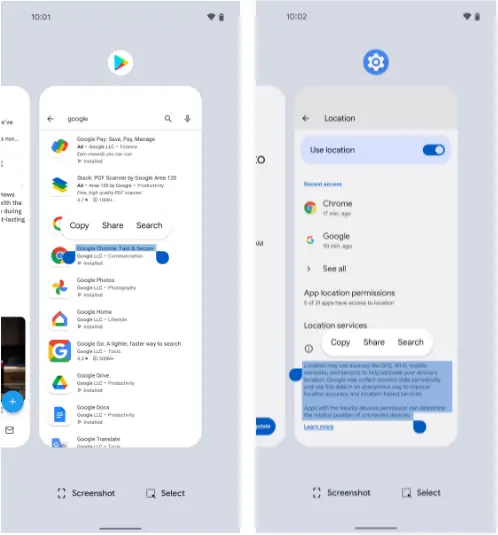
Following up on our previous Pixel feature, your fancy Google phone can help you pull text out of practically anywhere imaginable and then copy it, share it, and search for it to your heart’s content.
What’s especially useful here is that just like with the last item, this feature works even in places where you couldn’t typically copy text — your feed in social media apps, parts of the Play Store, or even sections of your system settings.
And it’s right in the same place as the image extractor we just finished exploring:
Head back into your Pixel’s Overview area.
Touch and hold your finger onto any text in the current app’s preview — or, if you’d rather (and if your Pixel is recent enough to be running Android 10 or higher), tap the “Select” text at the bottom of the screen and then highlight the specific text you want from there.
Choose “Copy,” “Share,” or “Search” from the menu that comes up.
Smirk knowingly at any iPhone users in the vicinity.
Simple screenshots
One of the most frequent complaints I get from my fellow Android-loving primates is how difficult it may be to take a screenshot on a Pixel. ‘ See, back then, the system power-button menu on Pixels included a straightforward option to take a screenshot of the screen. But after that, Google, well, Googled. It changed that menu, and then, um, it changed it again a year later, and the choice vanished.
Hold the phone, though: If you aren’t a fan of the old-fashioned physical button mechanism for capturing a screenshot, there is still another way.
It’s right there in plain sight on that same Overview screen we were just gawking at, in fact, and yet hardly anyone seems to notice it.
Yes, that’s it; it’s down there on the screen. As long as you have Android 11 or higher, your Pixel will always offer up a “Screenshot” option directly inside its Overview interface, regardless of the program or area of Android you’re looking at. And selecting that will record whatever is visible on the screen of the active process.
The system status bar, the bottom-of-screen navigation area, and any other extraneous items won’t appear in screenshots you take in this fashion as a bonus; this is a notable and occasionally useful departure from Android’s customary physical-button screenshot-capturing method.
Tap to wake
Pixels have plenty of options for easy screen activation. Maybe you like using the always-on time and info system, for instance. Or maybe you’re more of a lift-to-check kind of Pixel owner.
Whether you’re using any of those features or not, though, your Googley phone has another useful system for waking up its display in a jiff. It harkens back to an earlier Android era, and it’s one of the Pixel’s most overlooked possibilities.
Ready? Simply press the display twice to turn on the screen of your Pixel whenever you want. Just two quick taps are all it takes to wake up your phone. The unknown!
The “Tap to check phone” option should be present on your lock screen by default, but if it isn’t, check your system settings, go to “Display,” then “Lock screen,” and see whether the option is present. If it is, you can verify that it is on and enabled. (On Pixels running previous versions of Android, you’ll need to touch “Advanced” before you can access that option, which is labeled “Double-tap to check phone.”)
Automation
Although there are many chances for advanced automation on Android, your Pixel comes with its own native rules system that can significantly increase the intelligence of your phone with hardly any work.
It’s called, rather fittingly, Rules — and with about 30 seconds of setup, it can allow your phone to change its ringing and notification behavior based on where you are or what Wi-Fi network you’re connected to at any given moment.
Here’s how to get it up and running:
Head into your Pixel’s system settings (by swiping down twice from the top of the screen and then tapping the gear-shaped icon in the lower-right corner of the panel that pops up).
Tap “System” followed by “Rules.”
Make sure the toggle at the top of the screen that says “Always allow location for Rules” is in the on position.
Look for a line that prompts you to allow the feature to run in the background. If you see that, tap it and then tap “Allow” on the confirmation that appears.
Pause to take a sip of the nearest fizzy beverage.
Tap “Add rule” and then consider your options.
Then what? That’s really up to you. For a few ideas, you could instruct your Pixel to vibrate for incoming alerts when you’re at work, make it to go into Do Not Disturb mode whenever you’re at the movies, or configure it to ring whenever you’re connected to your home network.
Smart screens
The last item in our list of overlooked Pixel characteristics is a two-parter that your eyes will like.
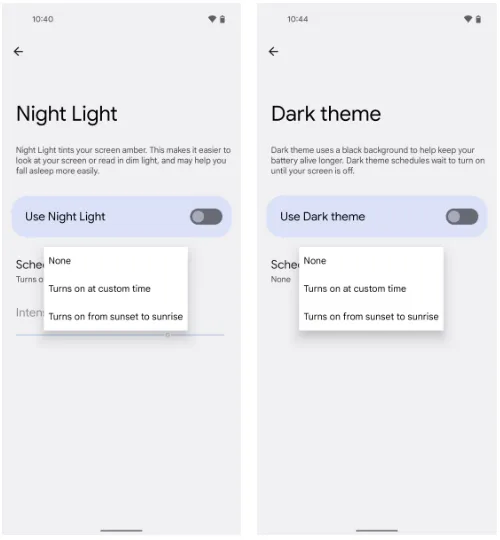
The screen-tinting Night Light option can be automatically activated on your Pixel based on the sunrise and sunset times in your current location or a schedule you create. In this manner, your phone’s screen will adopt a softer, less harsh type of coloring that will be easier on your eyes when night falls and the lights get faint. And as soon as morning comes around, it will switch back to the regular daytime mode.
Return to your Pixel’s system settings, select “Display,” then press “Night Light,” then “Schedule,” to configure your automated Night Light activation routine. The options to select the sunset-to-sunrise setup or to enter your own unique hours for dim-environment optimization are displayed there.
While we’re on the subject of screen intelligence, think about if your phone’s theme changing from a lighter theme during the day to a darker one at night might be a good addition to your new Night Light intelligence. For me, the two patterns—standard screen colors and a light theme during the day and Night Light and Android’s dark mode during the night—are a lovely and extremely natural pairing.
If you want to give that double-display whammy a whirl, back out to the main “Display” menu and look for the “Dark theme” line. Tap it, then tap “Schedule,” and you’ll see a selection that’s identical to the one you just configured for the Night Light.
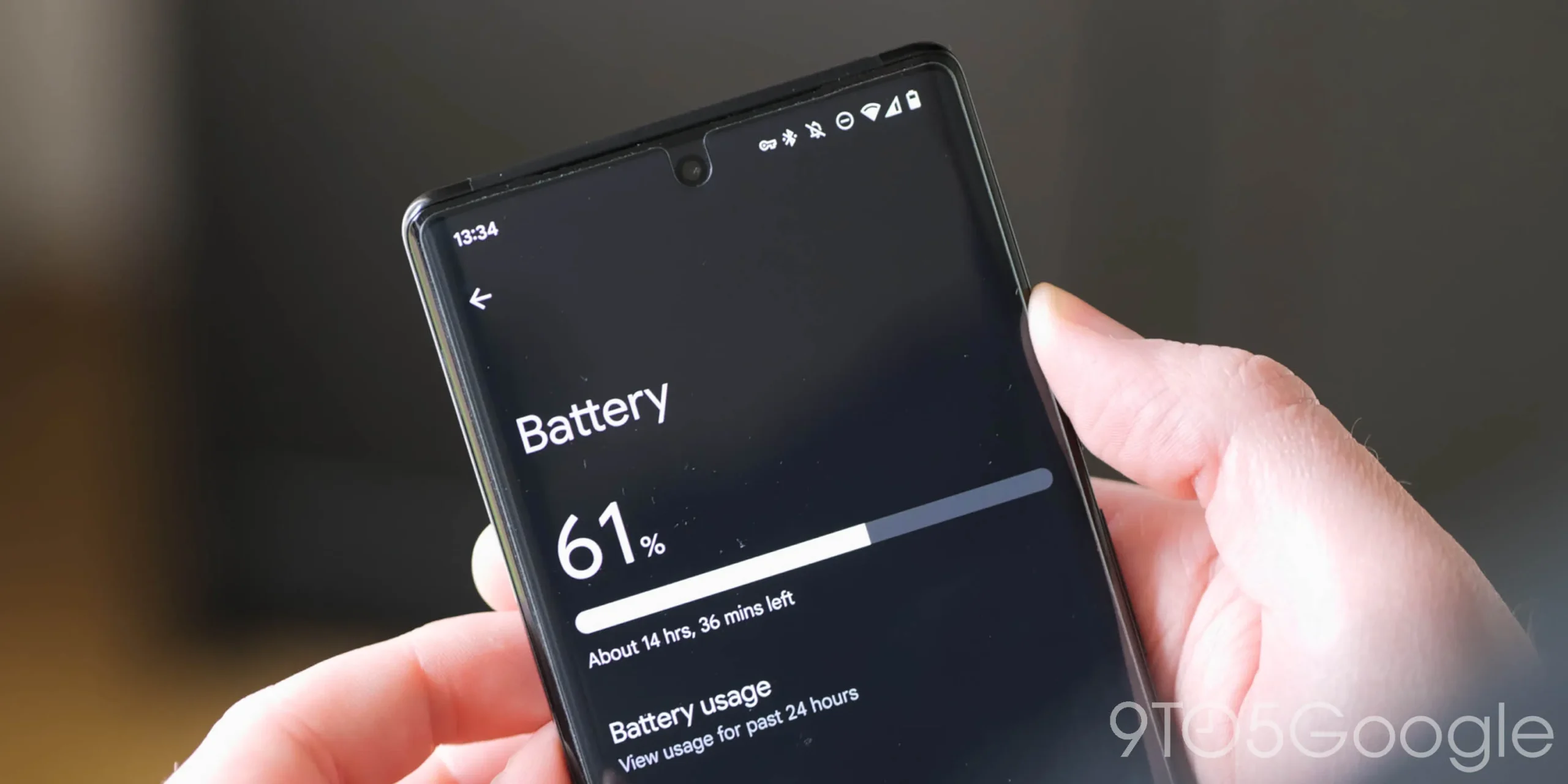
Owners of the Google Pixel 6 and Pixel 6 Pro recently had a problem with their handsets burning so hot and the batteries draining so quickly that some ran out of power by midday. Google’s September update was supposed to fix the issue, however Verizon customers who received the update late last week did not. These files, in the author’s personal experience, have not yet been received.
Here’s a quick fix for your Pixel 6 series phone that will extend battery life and reduce heat.
If you haven’t yet received the September update for your Pixel 6 or Pixel 6 Pro, or if the update hasn’t stopped your battery from draining, a Reddit user going by the handle Human Individual 815 made a suggestion that was initially so mocked by other owners of the Pixel 6 series that he had to remove it. But after hearing from others that this short fix was lengthening battery life while also cooling down the phones, he decided to repost the article. Judging by the feedback, it appears that the article will remain up.
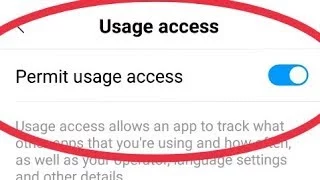
Toggle off Usage access to Digital Wellbeing and Device Health Services to attempt and extend the battery life and lower the temperature of your Pixel 6 series phone. To do this, open Settings and type “Usage access” into the search box at the top of the screen. You may access a list of apps by tapping on Usage access. Click Device Health Services, then turn “Permit usage access” off. Apply the same strategy to the listing for digital wellbeing. Restart and reboot.
Some functionalities will be removed if you do this. The Redditor who came up with this strategy claimed that by closing the two aforementioned apps, his battery life doubled. He added as well that “It will have an impact on charging and adaptive batteries. The adaptive connection will be impacted. Any of your bedtime mode items will be affected. Fitbits, fitness watches, and other devices of that nature, as well as probably many others, will be impacted. That we must disable these functionalities in order to use our phone is truly terrible.”
Impressive outcomes have been obtained. Using the username cloudacoustic93, a Reddit user comments, “Wow, this really worked. It’s only been a few hours, yet already there is a difference.” Rk3h, a different participant, claimed that after restarting and charging, the Accubattery app’s battery life immediately increased. Others were experiencing success. One Pixel 6 series user stated, “Tried and it is working for me, battery last more.” Another person responded, “Perfect, thank you.
Disable features you don’t use.
We can keep providing you with more feedback from others who have tried this. One of the best replies came from a member by the name of novelomaly, who said, “Thanks a lot! This worked for me, and now I can use my phone normally without worrying that it may die if I forget to charge it at night.”
Another post includes some information that we can consider: “Update: In 5h 23m SOT, we are at 40%! This seems to have worked out perfectly! By now, it should be at 10%. Most significantly, my phone hasn’t heated up at all, so that’s a great advantage. Regards for the advice! I hope things continue how they are until Google fixes the issue.”
What about yourself, then? Well, I consider myself to be a heavy user, so the battery life may have improved. My Pixel 6 Pro is not as hot as it was before I turned off usage access to Digital Wellbeing and Device Health Services, that much is for sure. Since my phone hasn’t yet received the September update, I’m waiting to see if it really makes a difference.
Why not give this a try if you have the Pixel 6 or Pixel 6 Pro, can fry an egg on it, and the battery isn’t lasting you until lunch? You can easily reverse it, and you might not care at all about the aspects that are affected. By leaving a comment in the box below, let us know whether you detect a change in the battery life of your Pixel 6 series phone.
According to reports and leaked marketing materials, a Google-branded smartwatch could be available within months. A recent report goes into great depth on what the Google Pixel Watch will be like next year, including software features and even a look at the chip.
Because Google is working on its own Wear OS handset, it will not be using the Fitbit name to promote the watch. The phrase “Pixel Experience Watch” was used to indicate exclusive features, and it appears that this watch will follow in the footsteps of phones like the Pixel 6.
Google has finally begun to take hardware seriously with the launch of its recent flagship phones, and previous rumors suggest that it may adopt a similar approach with its watch. It makes sense for the firm to maintain its smartphone goods under one brand, similar to how it keeps its smart home gadgets under the “Nest” moniker.
We don’t know anything about the device’s operating system just yet. Indeed, it’s difficult to picture Wear OS 3 without Samsung’s One UI skin. With the arrival of the Google Pixel Smartwatch, that’s likely to change. For starters, speculations claim that the latest version of Google Assistant, which launched with the Pixel 4, will emerge. Rather than having to connect to the smartphone for every activity, it would allow voice commands and searches to be done instantaneously on the watch.
In general, the upcoming introduction of some long-awaited Google wearable technologies promises to make 2022 an interesting year for smartwatch fans. Not only will the Google Pixel Watch be available in stores, but Wear OS 3 will finally be available on devices other than the Galaxy Watch4.
Google is one of the world’s most powerful technology companies. It has a wide ecosystem of products that can meet almost every technical need. Because it is always updated to provide the best experience to its consumers, the Silicon Valley-based corporation is usually at the top.
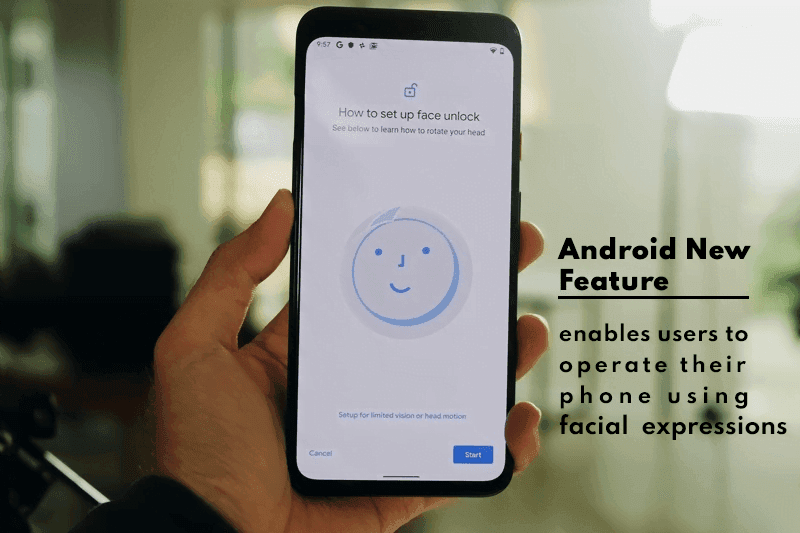
The tech juggernaut has been adding new features to Android lately. Google aims to maximize the use of AI; its latest feature will enables users to operate their phone using facial expressions
Latest Accessibility Feature
Though it isn’t always used for that purpose, Android has long offered an Accessibility API that allows developers to create apps and experiences that aid people with disabilities. Screen readers, switch-based input systems, and voice-based input systems are among the categories that Google envisions for apps that use the Accessibility API.
The company’s own “Android Accessibility Suite” software provides, as the name suggests, a set of accessibility capabilities to help people with disabilities use their devices. The Android Accessibility Suite’s most recent release provides a new option for users to control their devices: “Camera Switches.
The Android Accessibility Suite application was included in the fourth Android 12 beta release, which was pushed out to Pixel phones a few days ago, as beta version 12.0.0. Switch Access, one of the accessibility services included in the Android Accessibility Suite app, now has “Camera Switches.” Switch Access is a collection of tools that allow you to interact with your Android device without having to use the touchscreen.
You can use Switch Access to select objects, scroll, type, and more by connecting an external device through USB or Bluetooth. Users can now control their device with nothing more than their face thanks to “Camera Switches.”
Camera Switches now allows you to assign a few gestures to a few controllers, though this list may expand in the future. For example, you can have the app recognize when you wave your hand and then connect that to opening the notifications window. You may also have it detect when your brows are raised and then return the phone to the home screen.
In Other News
We noticed an intriguing pattern while looking through the Google Playstore recently. There appears to be a significant increase in utility apps, such asphone clone apps. The COVID-19 epidemic is most likely to blame for the rise in such apps. People have been forced to stay at home due to the pandemic, and as it continues to spread, they are turning to apps for help.
People are looking for more convenient solutions to address their problems because almost every monotonous work has shifted to the virtual realm. We’ll have to see if this trend persists or if it’s just a passing craze.
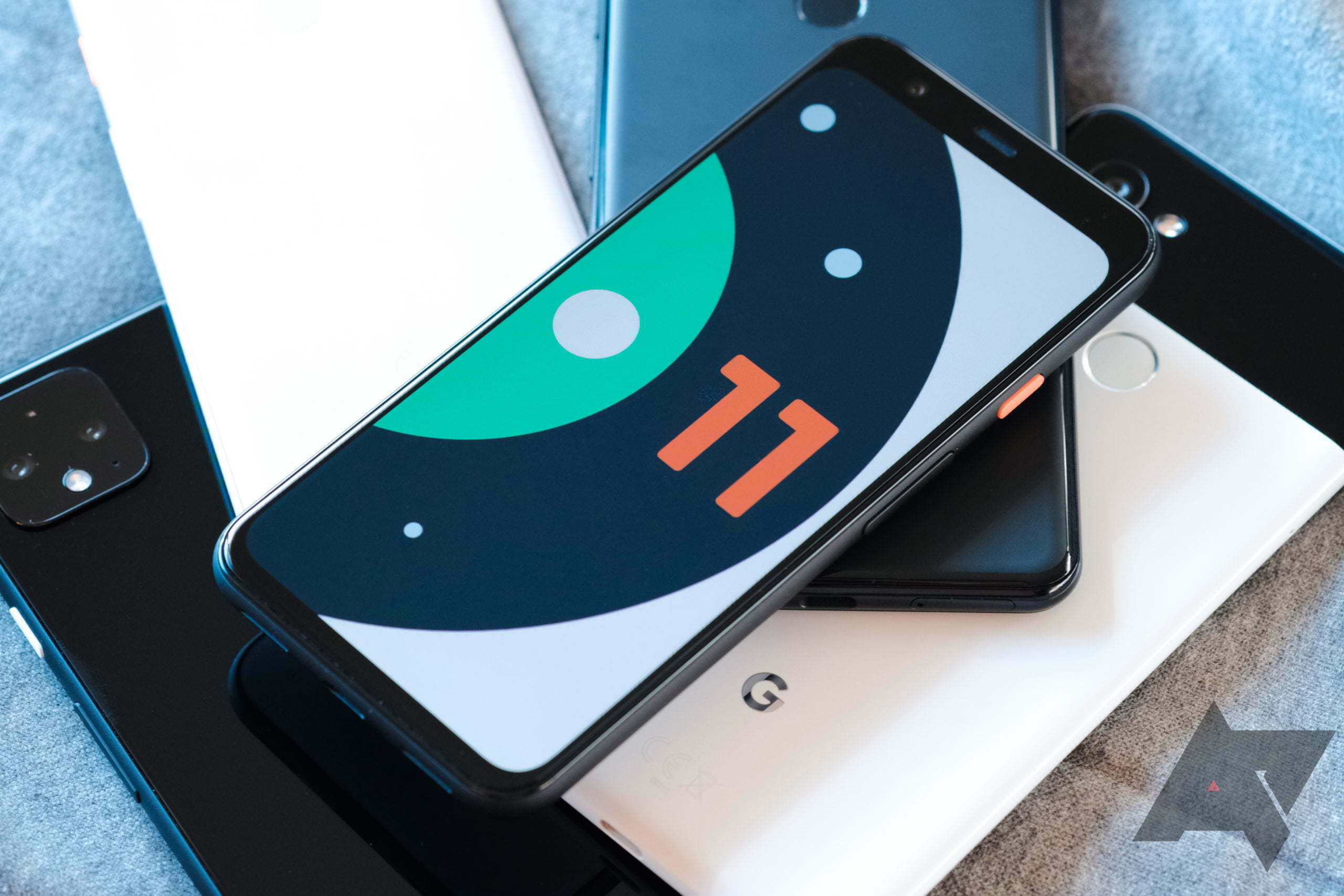
Google released the Android 11’s first ever prototype, albeit a bit earlier than anticipated. Nevertheless, the newest iteration of Android contains many impressive features, including visual updates, user enhancing add-ons, and support for new innovations such as Foldables and 5G. Until we explore Android 11’s best features, let’s talk about the Android 11 release date and when it’ll land on your Android device, if any.
Android 11 release date
It’s too early to say when Google officially rolls Android 11 out. We can still predict the release date month of Android 11 based on what we have.
Google has released a roadmap for the introduction of Android 11 2020, like last year. Google will release the next version of Android in Q3 2020 according to the official schedule.
We should predict the final release of Android 11 in August, due to Google having deviated from he Android 10 release schedule by a month.
In March, Google rolled out Android 10 DP1, and in September, the final version. Like I said, Andr id 11’s Developer Preview came in too early, meaning the final version would be released sooner han normal.
Android 11 supported devices
Android11 is still in the process of first public release, hence Google’s release program; few Andrid devices that are allowed to check the new version of Android may be weeks away.
In the future we’ll learn more about the apps that are sponsored. Google Pixel owners can now check out the newest update to Android 11. Here is a list:
Google Pixel 2/2XL
Google Pixel 3/3XL
Google Pixel 4/4XL
The features:
Dark Theme Scheduling
Google rolled out the dark mode around the device in Android 10. The new Android update brings a minor, but important, upgrade to the best features of Android.
Google rolled out the dark mode around the device in Android 10. The new Android update brings a minor, but important, upgrade to the best features of Android.
The Android 11 feature is currently being rolled out via the Pixel function drop to Google Pixel owners.
Screen Recorder
Currently, a native Android screen recorder has been in the pipeline for over a year. The function first came up in one of the Android 10 developer previews; however, it was published by Google before the final version.
It seems the in house screen recorder is actually ready now, not “now,” but in the final edition, hopefully, it will be. Actually, in the Android 11 DP1, users can toggle it from the notification shade, and that is it.
There are no external settings to alter address. In fact, the screen-recorder lacks the ability to standardly capture audio.
Share Menu Pin
Since the start the Android share menu has been problematic, particularly the changing categories whenever we reopen the menu. Google, however, fixed the issue in Android 11 with the pin-app option.
Users can pin up to four applications into the Android Sharing Menu in the new Android update. The function first appeared in the developer build for Android 10, but Google dropped it down for the final version. Ideally, the Sharing Menu option for Pin apps is here to stay with Android 11.
Dedicated conversation section
The latest “dedicated talk area” in the notification shade is one of the most useful features of Android 11.
App updates are a mess, in all honesty. Many are obtrusive and fill in the shade of the message, requiring users to make extra efforts to locate the appropriate ones.
Google addresses the problem by highlighting notification-shaded conversations. Android 11 features a new area for chat that appears right at the top of the tray for notifications. That makes a total of three Android notification sections — Conversations, Normal, and Silent.
Multi-colored Quick Settings Tiles
The multicolored icons in the Fast Settings region are a big visual improvement that users will expect in the final Android 11 update.
The new version of Android allows users to add different color codes to each icon in fast environment. Google, of course, does not want users to go overboard; therefore, it only provides the four colors— red, blue, yellow and green.
For now, coloring Fast Settings icons includes running a variety of ADB commands, so we’ll just leave a how – to post, assuming the Android 11 Developer Preview isn’t run by everyone.
“Bubbles”
Bubbles is a feature of Android 10 that Google didn’t introduce in the new update. The alternative is still hiding in Developer’s shadows.
Google will roll-out the app on Android 11 at full-throttle though. Developers were already told to include the feature’s API in the Android apps.
Bubbles allow multitasking and communicating with applications without the need to close the current program. Think of it as Facebook messenger chat heads — This Android 10 feature allows you to reduce any device into a tiny circle that floats above all other devices on your phone.
Google is also adding 12 new modules that will be updated through the Google Play Store instead of a full OS update. Google claims Android 11 devices will be able to hold “verifiable identification documents, such as ISO 18013-5 compliant Mobile Driving Licenses.”
Android 11 is still in early development. Therefore, Android fans should expect a sudden drop or addition of new features. We will keep updating this post as more information comes in.