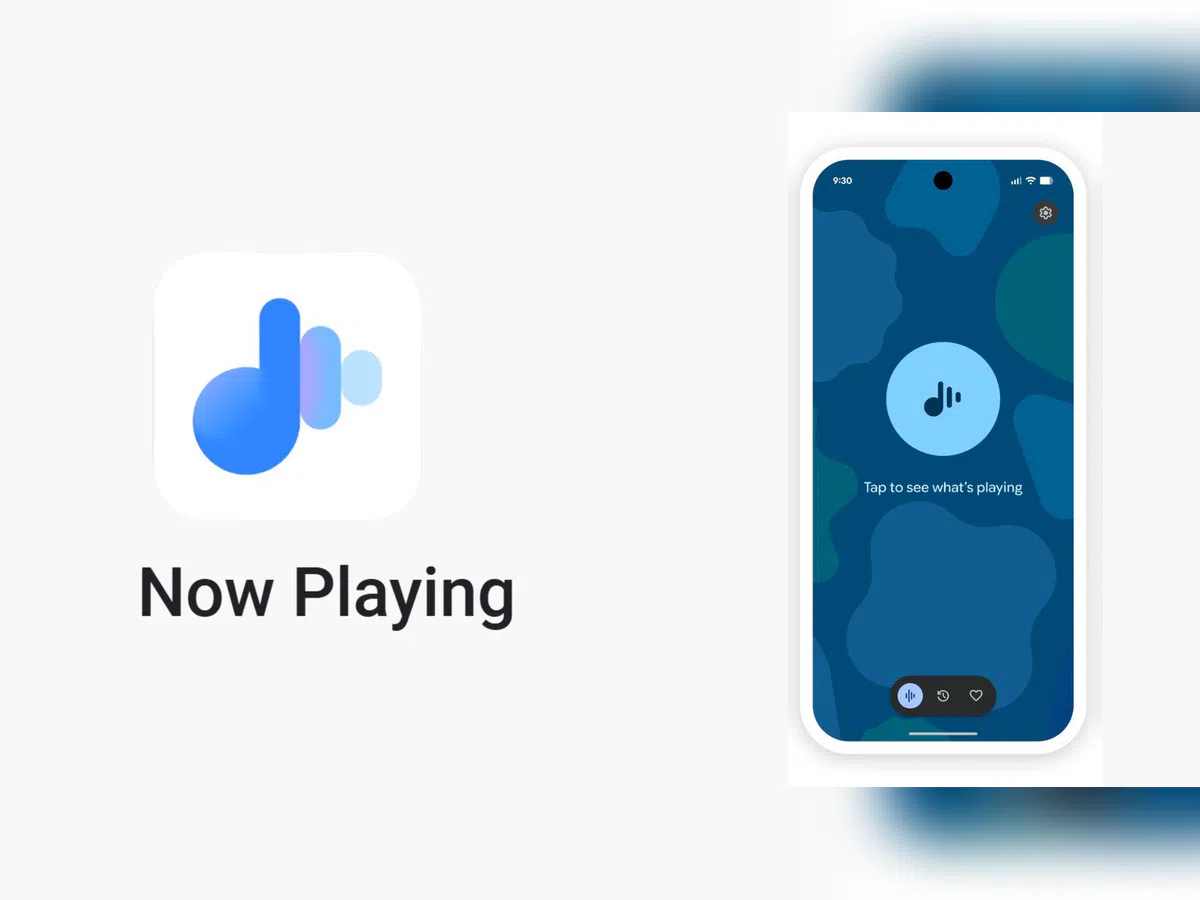
Now Playing has never been the most talked-about Pixel exclusive, but it’s been making headlines lately. Last month, Google gave it a major upgrade by spinning it off into a standalone app — a move that had been telegraphed by leaks well before the official announcement.
The app hasn’t stood still since launch. Shortly after release, it received a visual refresh on the lock screen, and now a fresh update has appeared on the Play Store. While it seems minor on the surface, it may be quietly bringing back something users didn’t realize they’d miss.
A small update with potentially big implications
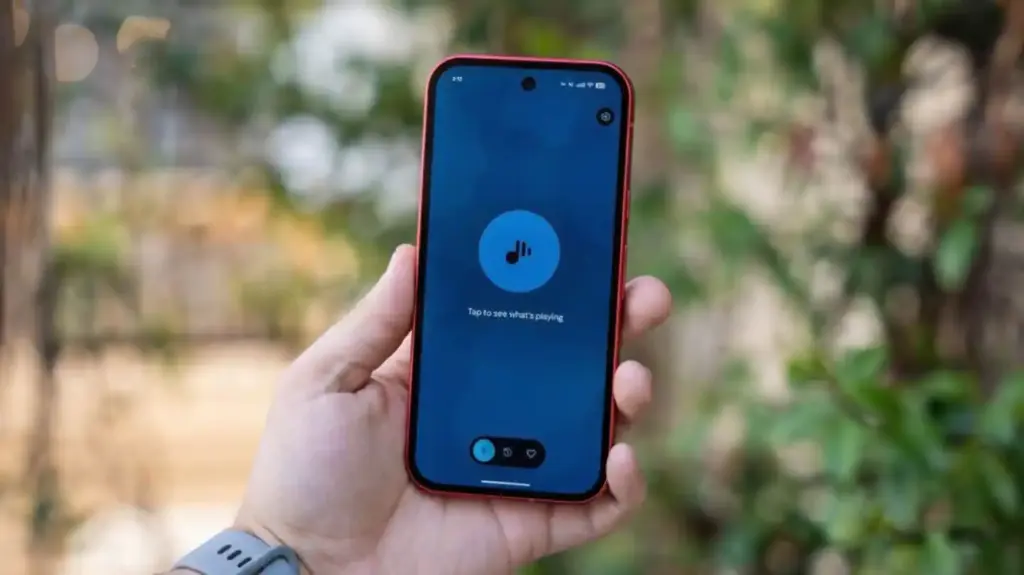
According to 9to5Google, the Now Playing app was updated to version 2026.03.24.x late Friday, bumping out the previous 2026.03.02.x build. The rollout appears to be gradual — the Play Store still shows the older version as the latest for many users, and the update hadn’t reached all devices as of the report. No obvious new features were found in the update, pointing to mostly behind-the-scenes bug fixes. But a Reddit user claims something notable did return: the “Tap to see what’s playing” prompt on the lock screen.
The return of ‘Tap to see what’s playing’
When Now Playing transitioned to a standalone app, most of its functionality came along for the ride — but not everything. One casualty was the “Tap to see what’s playing” prompt, a small but beloved lock screen feature that used to sit just below the fingerprint scanner. For many users, it was a core part of the
Now Playing experience.
According to the Reddit user, after receiving a notification about Now Playing’s new home, the lock screen feature reappeared. Whether this is directly tied to the v2026.03.24.x update isn’t confirmed, though the timing lines up.
It’s also worth noting another change that came with the app transition: Now Playing no longer sends quiet background notifications when it identifies a track. That functionality has been replaced by a Quick Settings tile, which can show the song title and artist — but only when expanded to the larger 2×1 size.
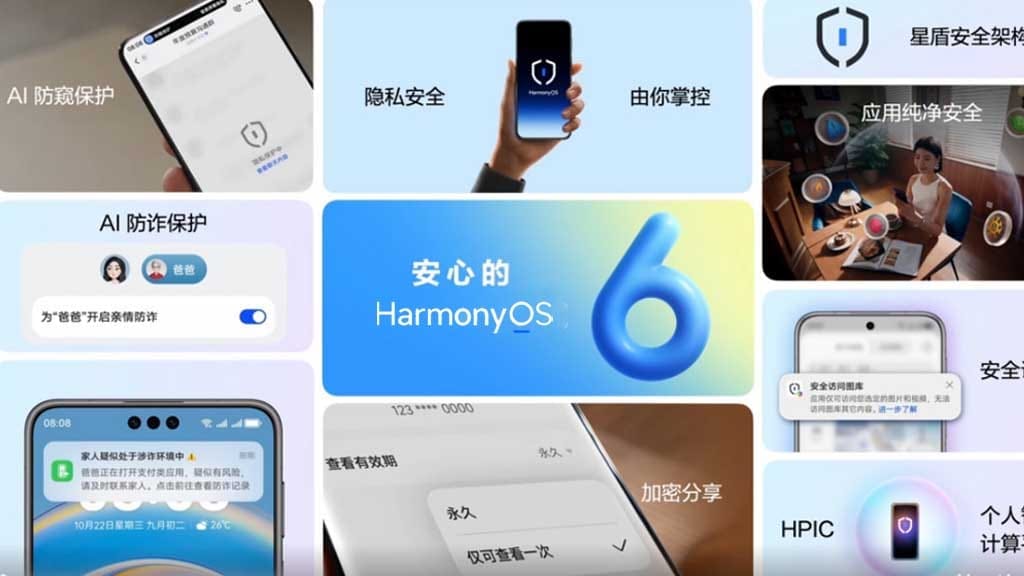
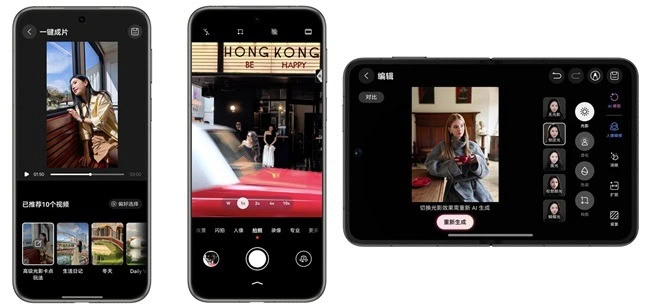
With the impending HarmonyOS 6.0 versions, Huawei has revealed additional intriguing AI photography features for its devices. Amazing watermarks, an AI color scheme for photos, touch-to-fireworks effects, and many other enhancements are included in the list.
New AI camera functions for HarmonyOS 6.0 smartphones will soon be available, according to Richard Yu, Executive Director and Chairman of Consumer Business at Huawei.
In a video posted on Weibo, the chief announced that he would want to share some positive news with Huawei users before to his upcoming business trip to Wuhan.
HarmonyOS 6 camera update
According to the information, HarmonyOS 6.0 smartphones will soon get new photo watermarks and unique effects inspired by the forthcoming Spring Festival.
By the end of this month, version 6.0.0.130 for high-end Huawei phones and tablets may make these additions available. To improve the camera’s effectiveness in low light, the business might incorporate an immersive light-sensing system. Additionally, you may give your New Year’s moments a unique label by using the Spring Festival watermark.
However, depending on your preferences, the AI coloring could make the pictures much more vivid and bright. The precise function of this feature is currently unknown, although future HarmonyOS 6 versions may provide more information.
The following devices will get the new HarmonyOS 6.0 AI camera features:
Huawei Pura 80 Series
Huawei Mate 80 Series
Huawei Pura X
Huawei Mate XTs
Huawei Pura 70 Series
Huawei Mate 70 Series
We might soon learn additional details regarding the new update’s features and compatible devices. To receive new updates on time, we advise keeping your phones up to date with the most recent versions.
HyperOS 3 is rumored to be under active development for Xiaomi 14 Ultra smartphones. Test servers have now marked the update as ready for release, indicating that it has reached the final stage, according to recent reports.
The upgrade has already begun to arrive on Chinese Xiaomi 14 Ultra devices, and sources say the worldwide version is also ready for release. This Android 16-based upgrade is scheduled to begin spreading out before November ends.
On internal servers, Xiaomitime found HyperOS 3 marked as distribution-ready. The worldwide build has the version OS3.0.3.0.WNAMIXM, tied to the Xiaomi 14 Ultra’s codename “Aurora,” with the status expressly described as “ready for stable rollout.” For comparison, the upcoming global build uses OS3.0.3.0.WNAMIXM, while the Chinese version debuted with OS3.0.4.0.WNACNXM.
HyperOS 3 update for Xiaomi 14 Ultra: Key Features
HyperOS 3 is supposed to feature a new UI with smoother animations and visual upgrades. The update focuses on minimizing stuttering and correcting battery-drain problems, while also delivering the latest security fixes and a powerful set of AI-powered capabilities.
Instant access to real-time information and alerts is made possible by Xiaomi Super Island’s stronger integration with multimedia apps and system features. Revamped media management and creativity capabilities include a new dedicated pet album that automatically finds and arranges pet photographs and a revised watermark system and advanced editing suite.
The option to drag music straight to share, facial recognition support for app-lock notifications, improved connectivity with Xiaomi Music and NetEase Cloud, and NFC card swipe notifications within Super Island are some further new features.
The Mountain View tech giant has more good news for Android users than just the recent announcement that call recording will be available in all areas where Pixel phones are sold.
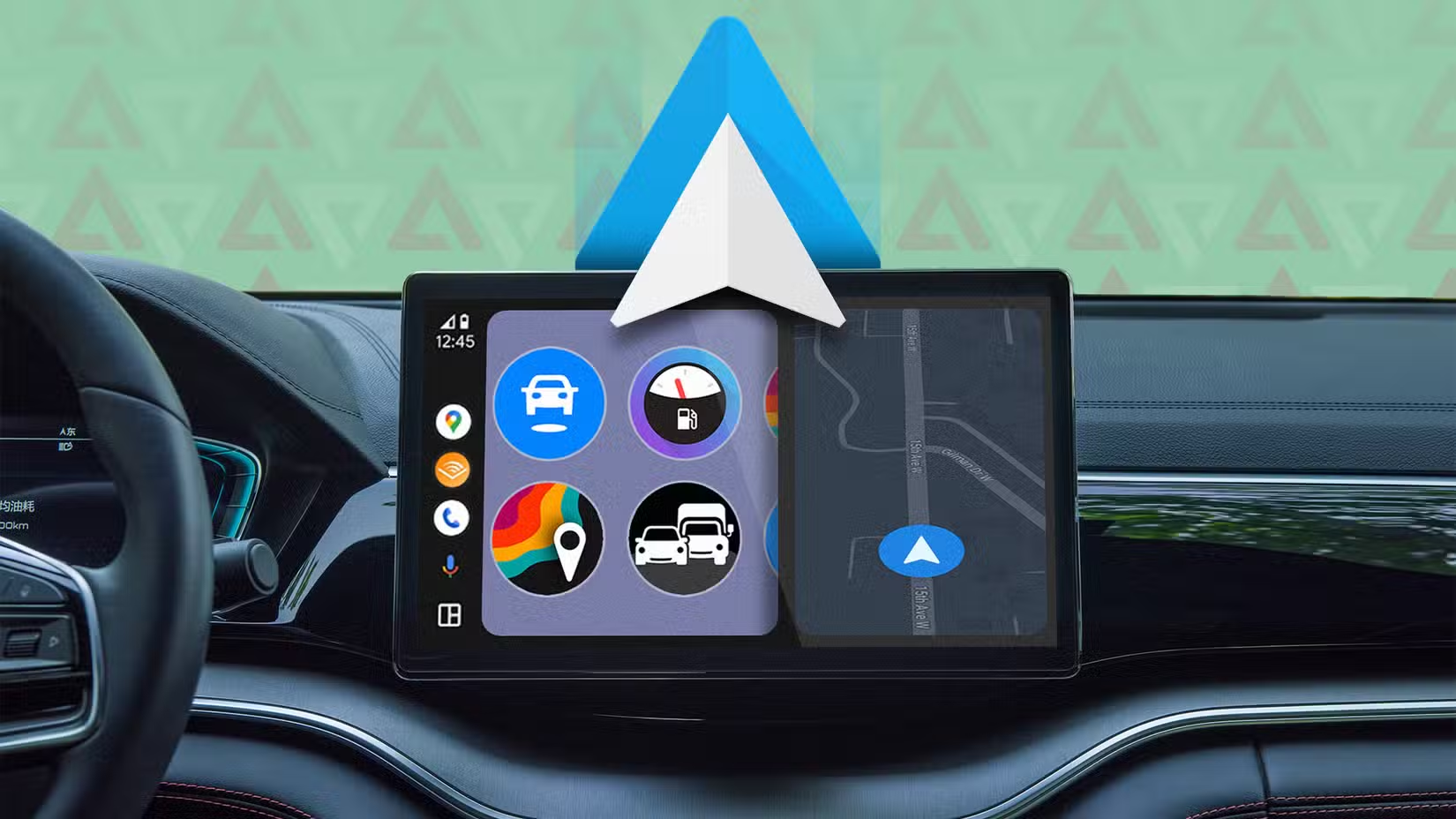
Android Auto gets Call Screening and Call Notes in latest update
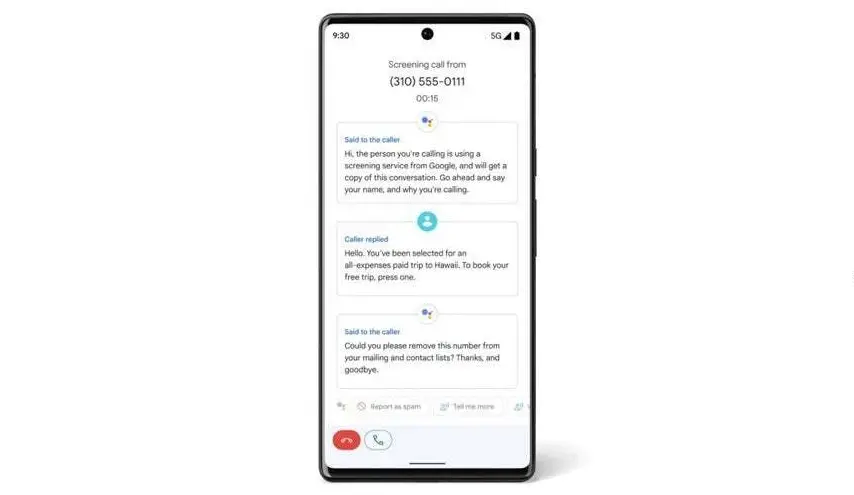
Android Auto can now screen calls in your car using your phone thanks to a recent upgrade. Later this year, Call Notes will also be available on Android Auto for crucial talks in which you are unable to take notes since you are ostensibly driving at the time.
These two Android Auto improvements are quite useful. Particularly useful is call screening, which can spare you time by preventing you from taking pointless calls while operating a motor vehicle.
Unknown callers and those not on your contact list can use the service. After it asks the caller who they are and why they are calling, you will receive this information. In this manner, you have the option to accept or reject the call.
Conversely, Call Notes generates a text synopsis of your conversation. The Pixel 9 series was the first to implement the functionality. If it’s a business call, this Android Auto feature will be quite useful.
Call Screening is becoming a must-have feature for smart car systems
These two new features make it even more practical. Apple, Google’s primary rival, has the Call Screening feature on its most recent iPhone models (which come with the just released iOS 26). The feature is compatible with CarPlay, Apple’s technology for connecting your phone to your vehicle’s infotainment system.
The ability to screen calls is quite helpful, particularly when driving. Bravo to Google for introducing it to Android Auto, as it removes annoying calls without requiring you to answer or handle them.
I’m thrilled that Google is adding these two fantastic new capabilities to Android Auto. In fact, I believe they are far more helpful for Android Auto than for your phone, and the same is true for Apple’s version. When I’m driving, I would absolutely appreciate these two features. I now hope that things will function well and without any issues.
The Google Pixel 10 Pro XL is a major advancement in smartphone design, emphasizing improved utility and more intelligent software integration over drastic hardware changes. This device is designed to improve your everyday interactions with features including wireless charging, camera technology, widgets, software automation, and performance improvements. We examine its top features below, highlighting the reasons the Pixel 10 series is unique in the crowded smartphone market.
Google Pixel 10 Pro with $200 Amazon Gift Card
Order the new Google Pixel 10 Pro and get an Amazon Gift Card. Valid 8/20/2025 until 9/4/2025 at 11:59pm PT, while supplies last and subject to availability
As the first significant Android smartphone to use the Qi2 wireless charging standard, the Pixel 10 series raises the bar for compatibility and ease of use. This method greatly increases charging efficiency by using magnets for exact alignment. It also makes it possible for MagSafe accessories to work seamlessly, so you can connect magnetic wallets, power banks, or stands without the need for additional cases or adapters.
This integration increases the phone’s functionality while also making charging easier. The Qi2 standard makes sure your gadget is always charged and prepared to fit your needs, whether you’re at home, at work, or on the go. This feature is a unique addition to the Pixel 10 series since it combines efficiency and ease.
Innovative Camera System in Pixel 10 series
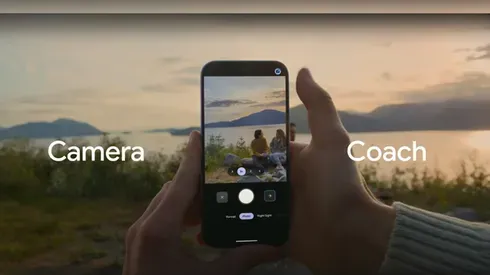
With its Gemini Eye technology, the Pixel 10 Pro XL elevates smartphone photography to a new level. A “Camera Coach,” which offers real-time advice on lighting, framing, and other settings to help you effortlessly take professional-quality photos, is a feature of this cutting-edge device. Even when photographing distant scenes, the 11-megapixel telephoto lens and up to 20x super-res zoom guarantee that your images stay crisp and clear.
The Gemini Eye technology makes it simpler to get amazing results, whether you’re a casual user taking short pictures or a photography fanatic striving for perfection. The Pixel 10 Pro XL is now a top option for those who are camera-focused thanks to these improvements, which demonstrate Google’s dedication to providing an excellent shooting experience.
Intelligent Automation with Magic Cue Assistant
The Magic Coup Assistant is another example of how Google is pushing the limits of software innovation. This tool automates repetitive chores and provides contextual recommendations by using machine learning to understand your preferences and behaviors. Magic Coup Assistant is made to make your life easier, from scheduling to changing settings according to your activity or location.
For instance, it can remind you of crucial deadlines, recommend routes depending on traffic, or automatically turn off messages during meetings. The Pixel 10 Pro XL is a sensible option for people who value efficiency and convenience because of this degree of personalization, which shows Google’s commitment to making the experience more intuitive and user-friendly.
Smarter Widgets with Gemini Space
Gemini Space, a development of Google’s “At a Glance” function, offers a major improvement to the Pixel 10 Pro XL’s widgets. This utility adds real-time updates from programs like Docs, Maps, and Gmail straight to your home and lock displays. Gemini Space keeps you focused and organized without requiring you to launch numerous apps by giving you access to real-time information at a glance.
Keeping track of appointments, managing hectic calendars, and remaining informed about critical activities are all made easier with this tool. It is a minor but significant innovation that improves the user experience overall because it might simplify your everyday routine. The Pixel 10 Pro XL provides a more user-friendly method of interacting with your smartphone with Gemini Space.
Google Pixel 10 Pro with $200 Amazon Gift Card
Order the new Google Pixel 10 Pro and get an Amazon Gift Card. Valid 8/20/2025 until 9/4/2025 at 11:59pm PT, while supplies last and subject to availability
The Google Pixel 10 Pro XL places a high priority on significant upgrades that boost speed and usability. This smartphone is made to satisfy the demands of the customers, from a more potent Tensor G5 chip to the cutting-edge Gemini Eye camera system and the creative Qi2 wireless charging. The experience is further enhanced by features like the Magic Cue Assistant and Gemini Space widgets, which provide a smooth fusion of convenience and functionality.
These well-considered improvements show Google’s dedication to providing a feature-rich gadget that fits your needs. Whether you’re a photography enthusiast, tech enthusiast, or someone looking for a dependable and effective smartphone, the Pixel 10 Pro XL provides an alluring blend of innovation and usefulness.
Android 16 offers a lot of innovations that I’m eager to test out on my Android phone, including Material 3 Expressive, a redesigned Quick Settings menu, and Live Updates. It seems like one of the biggest Android updates in a long time.
There weren’t many obvious adjustments that would have excited me. Prior to Google revealing new features at The Android Show: I/O Edition on May 13, Android 16 was looking like a really dull update.
New Quick Settings panel
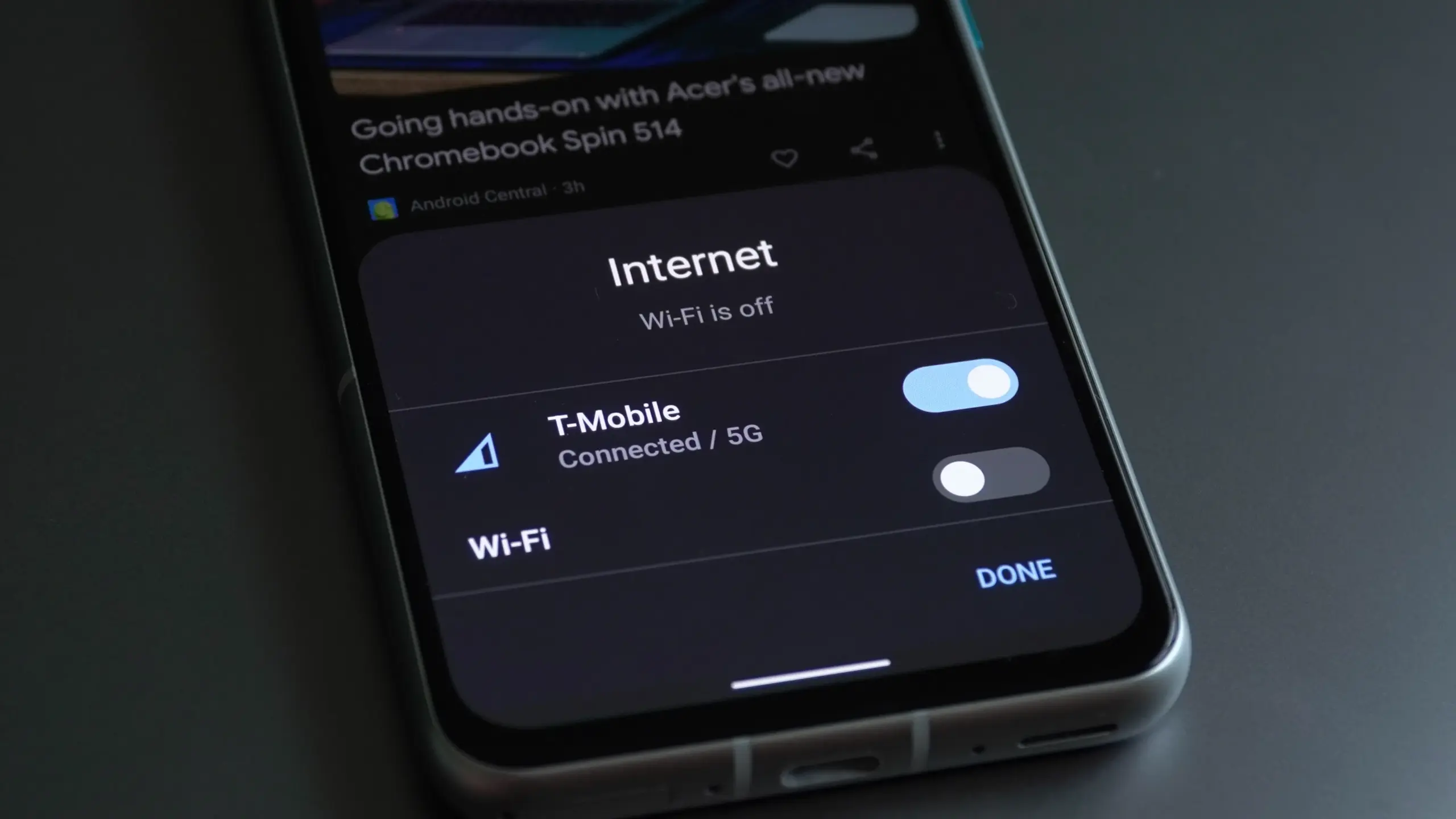
With each significant Android update, Google alters the Quick Settings panel almost like a ritual. That tendency will continue with Android 16, and I’m looking forward to the modifications Google has planned. Resizable toggles are being added. Additionally, one-click Bluetooth and Wi-Fi toggles are returning.
The tiles have a new appearance and take considerably less room than they did previously, which is another obvious alteration. Extending the Quick Settings panel will provide a depth effect by blurring the background, similar to what is seen on some Chinese Android skins.
Google appears to have drawn inspiration from the updated Control Center for Android 16 Quick Settings panel in iOS 18. It seems to be a significant improvement in usability.
The June release of Android 16 will not have the updated Quick Settings panel. It will come later in the year instead.
Material 3 Expressive
Google’s latest phone and tablet design language, Material 3 Expressive, makes its debut with Android 16. It is also among the OS’s most significant user-facing modifications. It doesn’t significantly alter the appearance. Rather, it expands upon Material Design 3 by including bolder fonts, larger buttons, slick and lively animations, and more.
The timing of Material 3 Expressive is perfect. The current look felt outdated because Google introduced Material look 3 with Android 13 four years ago. Additionally, it maintains familiarity while bringing about the appropriate enhancements. Rather than droning on about Material 3 Expressive, I’ll let this Google GIF speak by itself:
This polish is present throughout Android 16, particularly when switching the system volume or closing apps from the recent apps menu. It also features smooth animations and haptic feedback. Android 16 will upgrade the dynamic color themes in addition to Material 3 Expressive, allowing apps to use additional colors from your wallpaper.
One of the main Android 16 improvements that I am most looking forward to is Material 3 Expressive, which looks good based on what Google has demonstrated. The one sour note? When Android 16 is first made available to the public in June, Material 3 Expressive will not be included. It will come later in the year instead.
Live Updates
Apps for food delivery have permeated our daily lives. Uber, Grubhub, and other food delivery apps provide real-time, urgent notifications, unlike other apps. The same is true of sports apps. Instead of launching the app, you would prefer to get real-time information in the notification shade on your phone.
Even while Android’s notification panel is more capable than iOS’s, it has trouble efficiently delivering real-time updates. With Live Activities, Apple nailed this, making it simple to monitor real-time food delivery status and sports scores.
Google’s Android 16 will have a feature called Live Updates, which is modeled after iOS. It will show the status of your meal delivery in real time on the notification shade or the lock screen of your phone. When you use Always-On Display, the status is displayed. Additionally, Google’s approach enhances the Live Update notification with helpful Call, Message, and Tip buttons.
It’s time-consuming and annoying because I have to open the meal delivery app all the time to see how it’s doing. A feature akin to the iPhone’s Live Activities was added to the skins of Android manufacturers such as OnePlus and Oppo, although the execution is unreliable and glitchy. Google should address these problems with an official solution.
Ultra HDR support for HEIC images
I use my phone to shoot a lot of photos. I have my phone’s camera app set to save JPEGs in the space-efficient HEIC format because they take up a lot of storage. The catch is that images saved in the HEIC format are not compatible with Ultra HDR on Android. I therefore use JPEG for my photos, which uses up all of my 2TB of Google One storage.
This will be altered with Android 16’s addition of Ultra HDR capability for HEIC photos. Additionally, Google is developing UltraHDR support for AVIF files, which should be available soon.
With Android 14, Google debuted Ultra HDR. It enables images to have improved color and a wider dynamic range. These enhancements are provided without any compatibility problems. On devices with SDR screens, Ultra HDR JPEG images immediately revert to the SDR gain map. Google mandated Ultra HDR support for phones with performance class 15 starting with Android 15.
Let’s hope Google upgrades the Pixel Camera app to enable saving shots in HEIC by default rather than JPEG, because Android 16 now supports Ultra HDR for HEIC files.
Advanced Protection mode
Google has strengthened Android’s security over the past few years by adding a number of features. However, there is still opportunity for improvement. In addition, I believe that Android’s security features fall short of those of the iPhone.
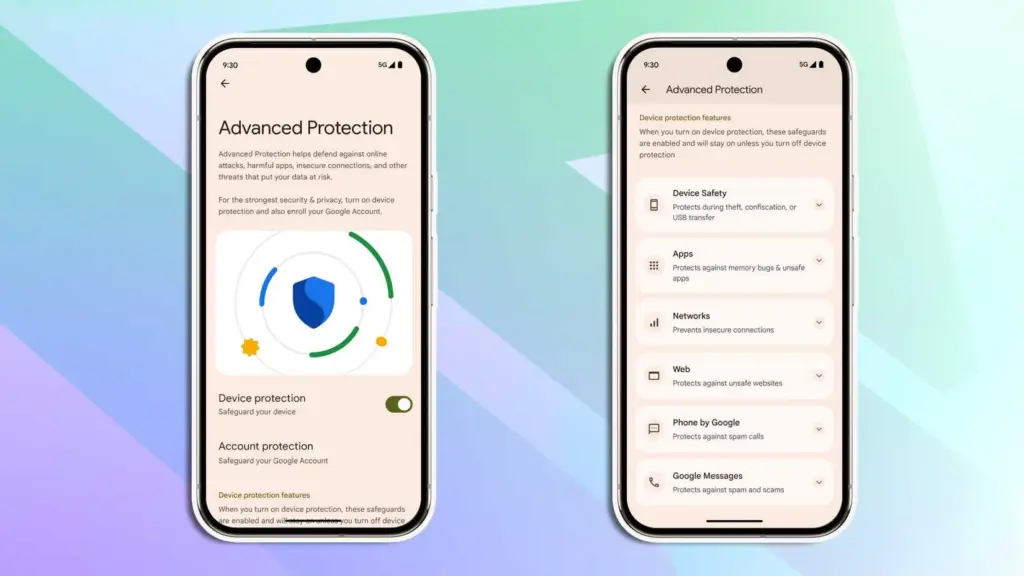
Google is making a significant effort to address issue with Android 16. Major security-related settings will be consolidated under a new Advanced Protection mode. To activate offline device locating or Theft Detection, you won’t need to go far into your phone’s settings menu.
With a single Advanced Protection toggle, you can enable all available security measures in Android across several categories. The list is as follows:
Intrusion Logging
Theft Detection Lock
Offline Device Lock
Inactivity Reboot
USB Protection
Google Play Protect
Unknown App Protection
Memory Tagging Extension
Android Safe Browsing
Chrome Safe Browsing
Javascript Protection
Unsafe Link Protection
Spam and Scam Protection (Google Messages)
Spam and Scam Protection (Phone by Google)
Called ID & Spam
Automatic Call Screening
2G Network Protection
Disable Auto-Reconnect to Insecure Networks
Numerous security mechanisms are dispersed across the operating system. For instance, the Google Play Protection option is located under Security & Privacy, whereas the Caller ID & Spam protection settings are located in the Phone app settings.
With Android 16, a new security feature called Intrusion Logging generates and preserves a device activity record for study after a compromise. It is safe but easily accessible because it is kept in the cloud and is end-to-end encrypted.
Another new security feature in Android 16 is Inactivity Reboot, which will restart your phone automatically after 72 hours of inactivity and lock-up. This will guarantee that no user data may be viewed until the device is opened by entering the password or PIN.
I won’t gain much from Android 16’s Advanced Protection Mode. I only activate these functions when I’m on the road. Nevertheless, it’s a useful innovation that will make Android more secure.
Despite being a feature-rich version, Android 16 will not ship with all the new goodies in June and still lacks several long-awaited additions. Rather, Google will make more significant improvements later in the year, most likely in conjunction with a quarterly platform release and the Pixel 10 family. Additionally, some improvements may not be available for non-Pixel phones because the manufacturer may choose not to incorporate them into their skin.If you want the latest Droid Tools news, follow us on X @droid_tools and like our page on Facebook to stay updated.
Connectivity features enable communication between networks and devices. Numerous tools are available on Android, with Bluetooth, Wi-Fi, Near-Field Communication, and mobile hotspot being among the most widely used. There are very few users that do not utilize any of them in a given day.
You might be using a wireless connection to watch videos or pair your wireless headphones with your phone. You may be surprised to learn that there are more features available to improve your experience. Let’s examine your device’s settings in more detail and get you using them immediately.
Use QR code to share your internet connection
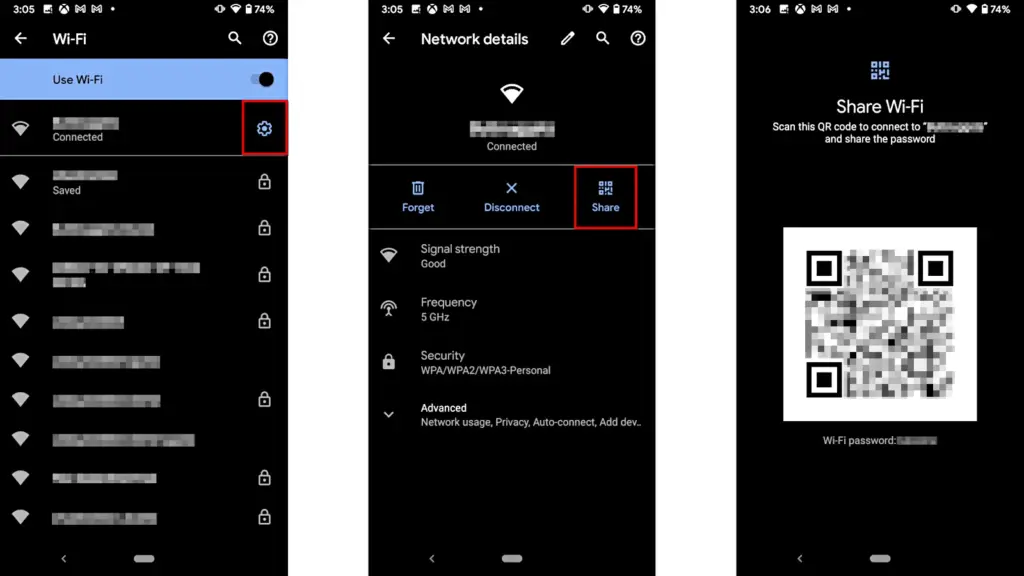
It’s uncomfortable to pause what you’re doing, type or speak out your Wi-Fi or mobile hotspot password, and ensure sure no one else can see or hear it. Use a QR code if you want to share it more quickly. Here’s how:
For wi-fi network
Go to Settings > Wi-Fi.
While your device is connected to a network, tap the information icon beside the network.
Tap Share. You may need to enter your security method to continue.
You should see a QR code. It’s a square filled with a black and white pattern.
From the device you’re sharing to, access the QR code tile from Quick Settings.
Scan the QR code to get access immediately.
Mobile hotspot password
Open Settings.
Go to Network & internet or Connection & sharing.
Tap Hotspot & tethering or Personal hotspot.
Tap the toggle button to enable hotspot.
Tap the tiny QR code icon beside the hotspot name. You should see the enlarged version after entering your security unlock method.
On the other devicce, access the QR code tile from Quick Settings and scan it to gain access.
Share files to iPhone wirelessly
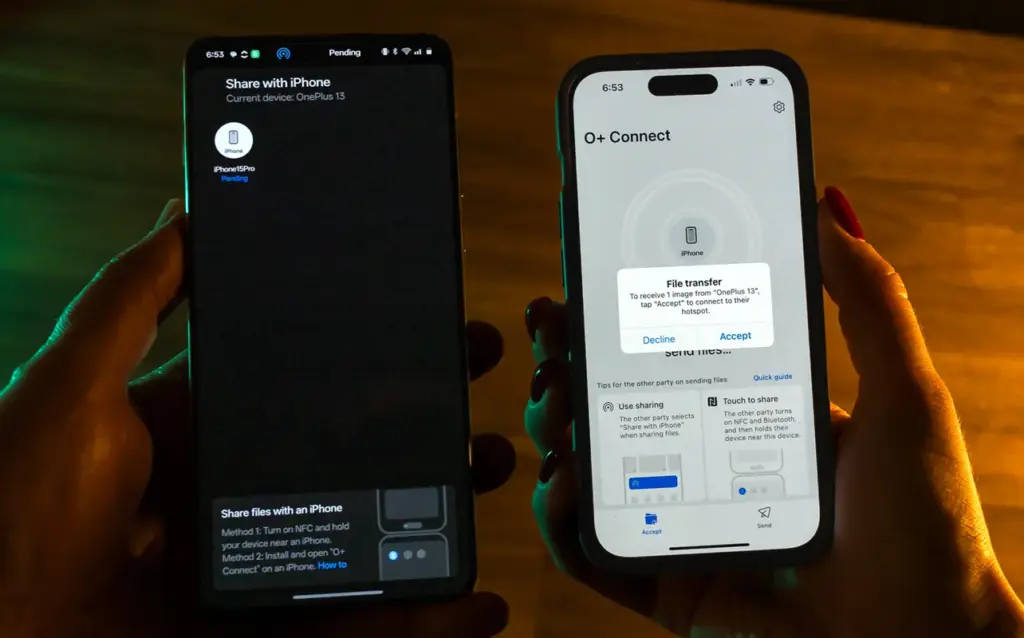
It can be frustrating and difficult to move files and data between the iOS and Android environments. Due to Apple’s closed-off ecosystem design, cross-platform compatibility necessitates a significant amount of manual labor. Although it is incompatible with iPhones, Quick Share for Android is an alternative to Apple’s AirDrop. But on Android 15, OnePlus’ new Share with iPhone feature unites the worlds of Oppo, Realme, and OnePlus devices. Since the receiving device needs to download the O+ software in order to connect, the solution isn’t entirely native. Nevertheless, it’s quick and not too difficult. To utilize it, follow these steps:
Open Settings.
Go to Connection & sharing.
Select Share with iPhone. Then tap the toggle button to turn on the feature.
On the iPhone, install the O+Connect app from the Apple App Store. Then open it and turn on Bluetooth.
Select the files you want to send from either phone.
You should see the detected devices while preparing to send them. Tap your preferred device.
Accept the transfer request on the receiving device. The files should arrive in seconds, depending on the size.
Use Wi-FI calling and texting
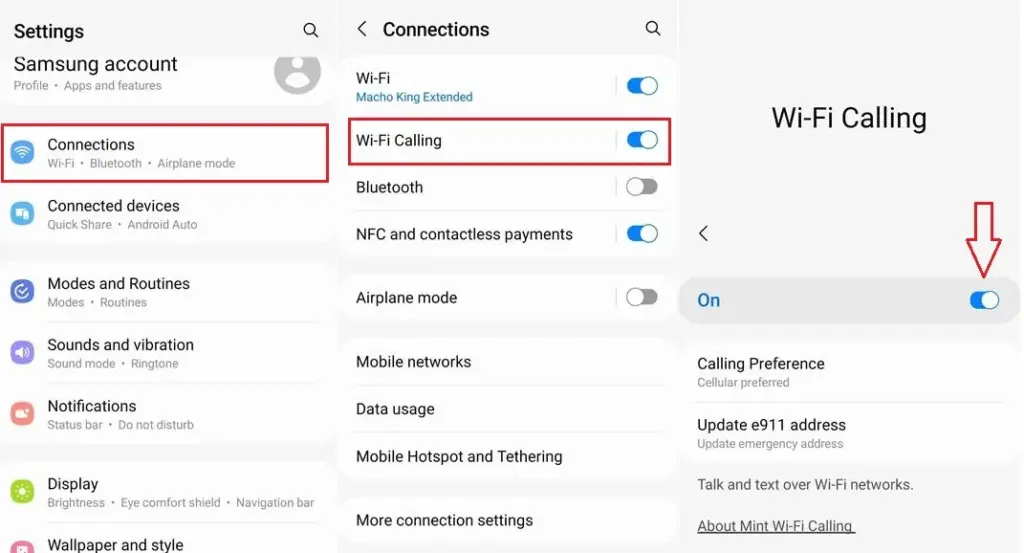
Signals from routine phone calls and texts travel through cell towers before they are received by the recipient. Connecting with individuals will be difficult if you’re in a rural location far from a cell tower or in a building with high walls. Use Wi-Fi calling instead for better outcomes. Your phone uses Wi-Fi to send a message or make a call over the internet, avoiding the cell tower, as long as you have access to a Wi-Fi network. To utilize it, follow these steps:
Ensure that Wi-Fi is turned on and you’re connected to a network.
Open the Google Phone app.
Tap the three-dot icon in the upper-right corner. Then select Settings.
Tap Calls.
Select Wi-Fi calling.
Turn on the toggle button beside Use Wi-Fi calling.
Use your phone as a PC webcam
The size of the camera sensor and lens is constrained by the tiny area in the top bezel of a laptop. PC cameras are typically blurry and uninteresting for proper video calls because of this. Thankfully, your phone has more space for wider apertures and larger sensors, which provide sharper images. With Android 14, you can now take advantage of that feature and use your smartphone as a camera. It was enhanced with Android 15’s high-quality mode. To enhance your virtual meetings using the functionality, take the following actions:
Connect your PC and phone with a USB cable. You should see a notification on your phone recognizing the connection.
Tap the notification and choose to use USB for Webcam.
Tap the HQ button in the upper-right corner of the call screen to use High Quality mode.
Activate Bluetooth automatically every day
iOS has had automatic Bluetooth activation for many years. It is only temporarily disabled when you disable it from the Control Center. Unless you disable the option from the settings menu, it reactivates. Keep it on if you’re constantly connecting to Bluetooth speakers, earphones, or even your automobile, even though most people find it annoying. The automation setting was first available on Pixel phones running Android 15, and it might eventually be available on other devices. Here’s how to make it active:
Open the Settings app.
Go to Connected devices > Connection preferences.
Tap Bluetooth.
Turn on the toggle button beside Bluetooth, thenthe button beside Automatically turn on tomorrow.
After you deactivate Bluetooth, it can now turn on by itself the next day. It probably tries to avoid interfering with your short-term preferences and believes you need it during your regular activity hours. As long as you aren’t actively using the linked device, it will drain the battery a little but not significantly. When no music is playing on the speaker or earphones you’re wearing, the connection remains in a low-power mode.
Android’s best-kept secrets
Every phone brand on Android has special features that are just waiting to be found, making it a labyrinth of capabilities. What you see on a Samsung may not be the same on a OnePlus or Pixel, and it’s precisely this diversity that adds excitement to the ecosystem. Digging behind those layers will reveal more hidden gems in productivity, privacy, accessibility, and multitasking.
There are some new features to look forward to with each Android update. Some updates include more new features than others, of course, because not all upgrades are made equal. There are a lot of exciting (rumored) features in Android 16 that are making me eager for its impending release.
Note that I used the word “rumored.” This is because, with each release, there are online speculations about what people “think” will be included in Google’s newest and greatest upgrade. You never know what will make the final cut, so you should be skeptical of this list.
However, I tested the Android 16 beta and searched the internet for all the best features that might be released this summer with Android 16 (using reputable websites like Android Authority, Android Police, Engadget, Android Developers, Business Today, Android Headlines, GSMArena, Android Update Tracker, and numerous forums), and here they are.
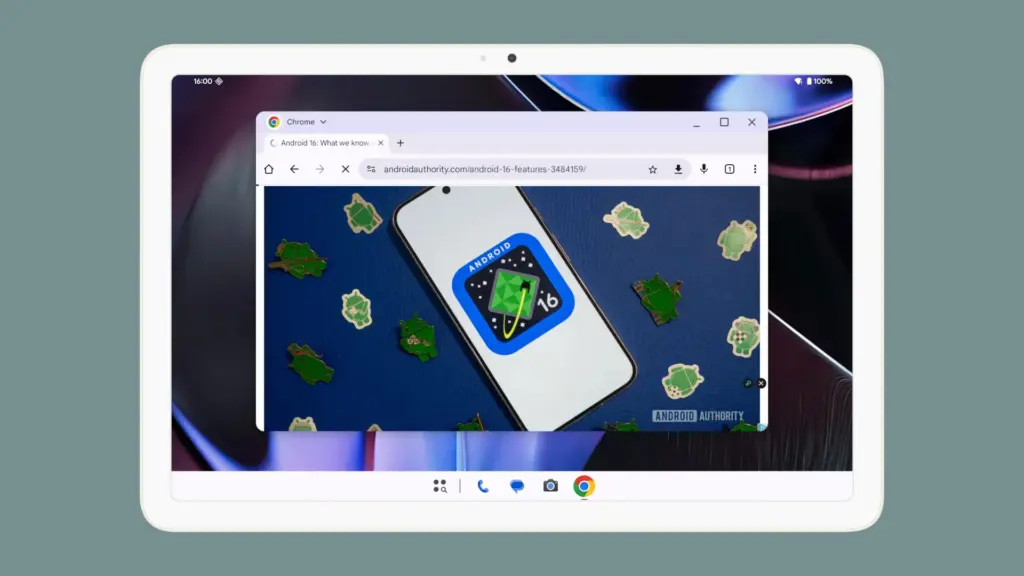
Desktop Windowing
When I see it, I’ll trust the rumors about this feature. The Samsung DeX, which enables users to connect an Android phone to an external display (through USB-C) and utilize a desktop-like interface that includes a top status bar, bottom taskbar, resizable, movable, snappable app windows, drag-and-drop support between apps, minimized windows, and physical keyboard and mouse support, will be mirrored by Desktop Windowing, which will bring desktop mode to Android phones.
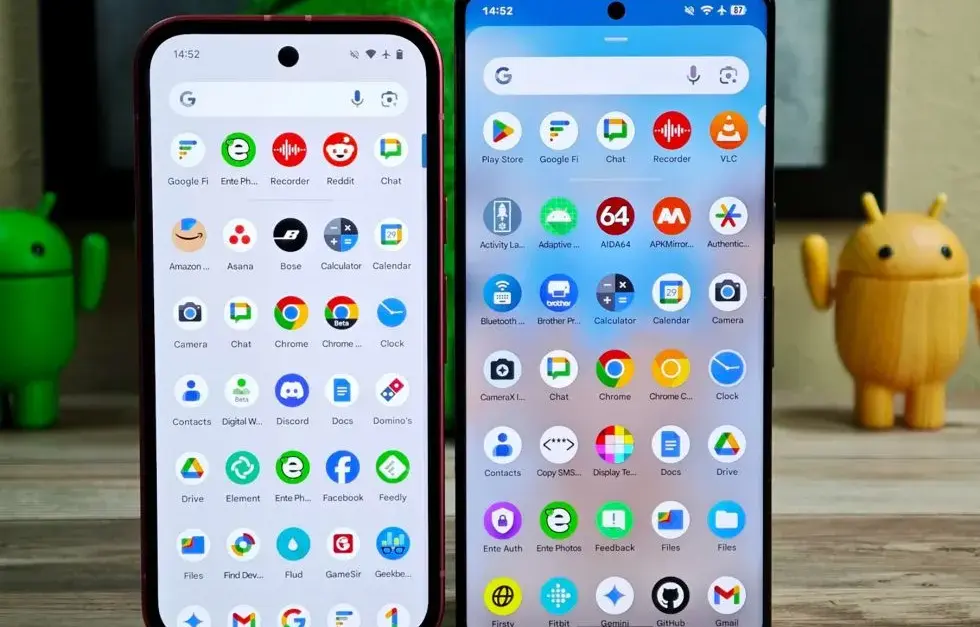
App drawer blur
Neither your phone’s performance nor your efficiency with it will improve as a result of this. But I’ve always found the Android app drawer to be rather dull. When you pull it down, the background is either black or white. While some home-screen launchers do let you change the appearance of the app drawer, the default home-screen launcher does not offer this feature. According to rumors, Android 16 will alter everything and give the app drawer a lovely backdrop blur.
Although I acknowledge that not everyone believes that aesthetics are as significant as other factors, including performance and dependability, the iPhone’s UI aesthetics are one of the main factors contributing to its popularity. The Android user interface will be on a level playing field with iOS if Google implements a great app drawer blur.
Live updates
According to rumors, Android 16 will also provide a new class of real-time notifications that are intended to tell you of ongoing operations like food delivery, ridesharing updates, and navigation. These real-time updates will show up as dynamic “chips” in the status bar that show current data, like ridesharing arrival times or delivery ETAs.
To keep you updated, a comprehensive notification pop-up displays beneath the status bar when you tap one of the live-update chips. Live updates are displayed above all other alerts (apart from the media player) under the Notification Shade.
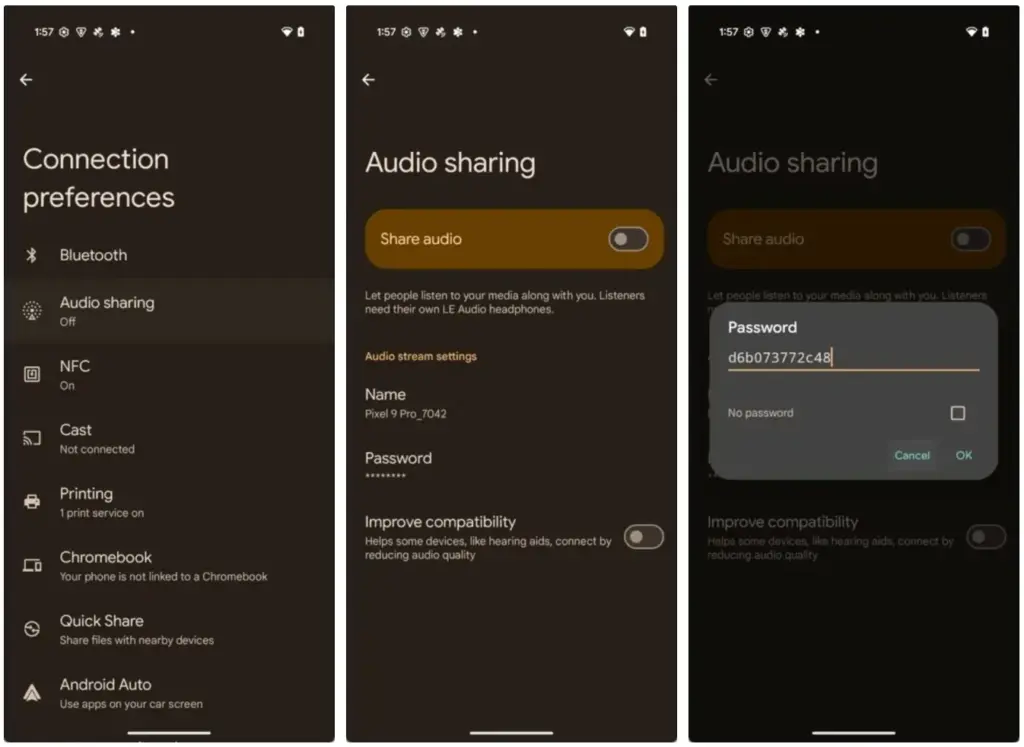
Auracast Broadcast audio support
The inclusion of Auracast broadcast audio would be fantastic, so hopefully this rumor is accurate. Auracast broadcast audio is a Bluetooth LE Audio feature that enables devices such as earphones and hearing aids to receive direct audio broadcasts from TVs, public spaces, or announcement systems, in case you were unaware.
Anyone who uses LE Audio earbuds or hearing aids frequently finds oneself in awkward situations, such busy or noisy places where announcements are essential (like train stations, airports, or concerts). By pairing your earphones or hearing aids with Auracast Broadcast support, you can tune into the broadcast and hear everything much more clearly.
Hybrid Auto Exposure in the camera
If you love taking pictures, you’ll love this function. You’ll have more control over the camera’s exposure settings with the hybrid auto-exposure. You will have the option to manually change the ISO or exposure time (shutter speed) or rely on the auto-exposure algorithm, rather than relying solely on full manual or auto exposure.
You will still have the simplicity and dependability of auto-exposure for everything else, but you will be able to adjust ISO to cut down on noise or select a precise shutter speed to get truly creative with your photos. Additionally, the Android 16 Camera app has enhanced support for high-quality image formats including HEIC and Ultra HDR, as well as accurate color-temperature and tint adjustments.
APV Codec support
Additionally, there are reports that Android 16 will support the APV codec. A professional-grade video format (created by Samsung) is included with the new native support for the Advanced Professional Video (APV) codec, enabling high-quality video recording, editing, and post-production.
Frame tiling (to provide immersive content and parallel encoding/decoding for efficient processing), intra-frame-only coding (for simpler editing workflows and lower processing demands), high bit-rate support (2K, 4K, and 8K resolutions), and lossless video quality (nearly raw footage) are some of APV’s cool features.
Once more, Google has been promising this feature for a very long time, so I will believe it when I see it. If they were to ever implement this functionality, Android would become one of the most flexible operating systems available, which would be really awesome.
Keep in mind that these are simply rumors, but I do think that most of the features mentioned above will be included in the final version of Android 16, which is also expected to be released in June 2025.
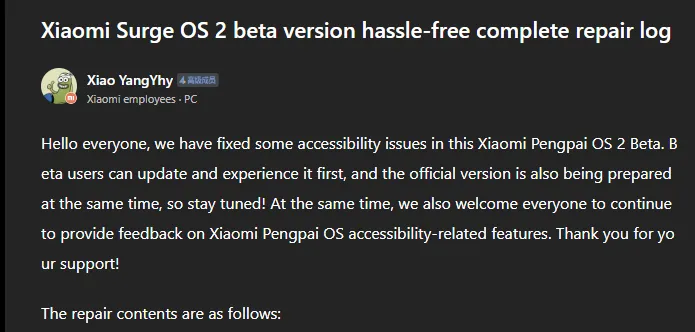
Xiaomi has taken a huge step in making its devices more inclusive by releasing a comprehensive accessibility repair log for HyperOS 2.2 Beta. Xiaomi employee @小杨Yhy shared a complete update in the Xiaomi Community, addressing accessibility concerns across the system, including basic controls, SMS functioning, and TalkBack improvements. This massive accessibility upgrade underscores Xiaomi’s dedication to create a more inclusive user experience, ensuring that their devices are usable by people with a variety of disabilities.
Common control enhancements in HyperOS
The accessibility update addresses a number of typical control issues that previously limited users with impairments. These improvements significantly improve the system’s overall user experience.
Key enhancements to standard controls are:
Corrected password control choices in the input fields
Resolved index bar operation and selection issues
Corrected focus problems with bubbles showing up when entering pages
Corrected switch control focus redundancy
Corrected wrong reading of switches as checkboxes
Included proper labeling to jump buttons in lists
Fixed reading problems with search and input boxes
Fixed focus and labeling problems with back buttons
Enhanced notifications of selection status
Provided proper labels to progress bar buttons
These fundamental upgrades will make the process more natural for users who rely on accessibility capabilities, particularly those who use screen readers or voice commands.
Communication and messaging enhancements
All users must be able to communicate, and the latest update significantly improves the SMS and phone accessibility capabilities. These changes make messaging and phoning more accessible to handicapped people.
Notable SMS and phone accessibility fixes include:
Correct labeling of satellite map SMS broadcasts
Addressed incorrect messaging in SMS multi-select action
Fixed the checkbox selection issue in message feedback.
Removed unnecessary blank focus fields in message details
Resolved incoming call number labeling issues
Fixed the dial pad focus and selection problems.
The new update also resolves several contact-related accessibility challenges to allow users greater control over their contact list and dialing irrespective of disability.
Control Center and System Settings Accessibility
System settings and the Control Center both benefit from extensive accessibility enhancements, making the management of the device more accessible to everyone.
Key improvements are:
Resolved focus penetration problems in the Control Center
Fixed switch status reporting issues
Included proper labeling throughout the Control Center
Fixed-coordinate position reporting during icon ordering adjustment
Enhanced focus of notification center and labeling
Fixed switch reading problems in settings
Added proper control type announcements
These enhancements guarantee that the users with disabilities can efficiently navigate and control their device settings without the presence of accessibility barriers.
Specific accessibility features for apps
The update also introduces several accessibility improvements to some of the Xiaomi apps, such as the Calculator, Calendar, Weather, Notes, Recorder, File Manager, Xiaomi Video, and Browser. These improvements work to achieve consistent accessibility within the entire Xiaomi ecosystem. TalkBack users stand to benefit most from the fixed volume adjustment problem and touch failure issues that previously hindered screen reader performance.
With a remarkable array of new features in HyperOS 2.2, Xiaomi is once again redefining smartphone innovation. These recent advancements further cement Xiaomi’s position as a mobile technology behemoth by spanning the domains of photography, artificial intelligence, and automotive connection. Explore the exciting new features that will completely transform your Xiaomi experience.
Photo and video editing capabilities
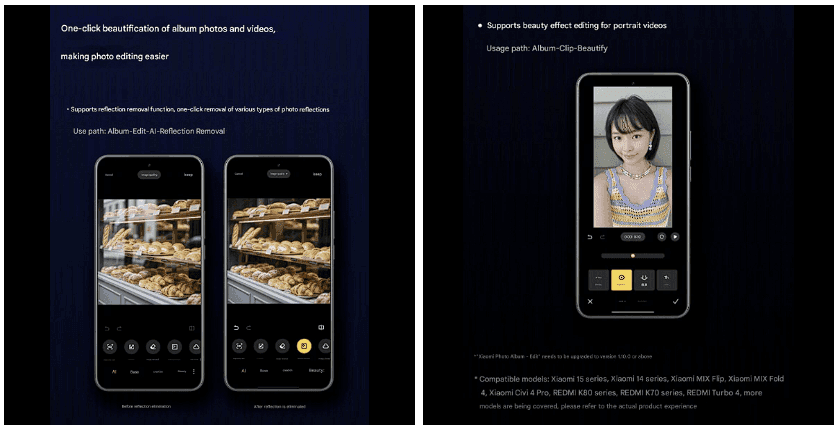
With HyperOS 2.2, you may alter your visual memories in a whole new way. The new anti-glare feature, which can instantly remove reflections from your photos, is its main attraction. Getting those pictures in the window or in difficult lighting situations is now easier than ever thanks to this technology, which adjusts to various kinds of reflections.
The update offers video enthusiasts beauty editing features specifically designed for altering portrait videos. With this tool, you can retouch your video recordings to the same level of personalization that was previously only possible with images. The Album app offers immediate access to these editing features through the Album-Clip-Beauty path for films and the Edit-AI-Anti-glare path for images.
These advanced editing capabilities will come to high-end Xiaomi models, including the Xiaomi 15 series, Xiaomi 14 series, Xiaomi MIX Flip, Xiaomi MIX Fold 4, Xiaomi Civi 4 Pro, REDMI K80 series, REDMI K70 series, and REDMI Turbo 4.
AI-Powered schedule management
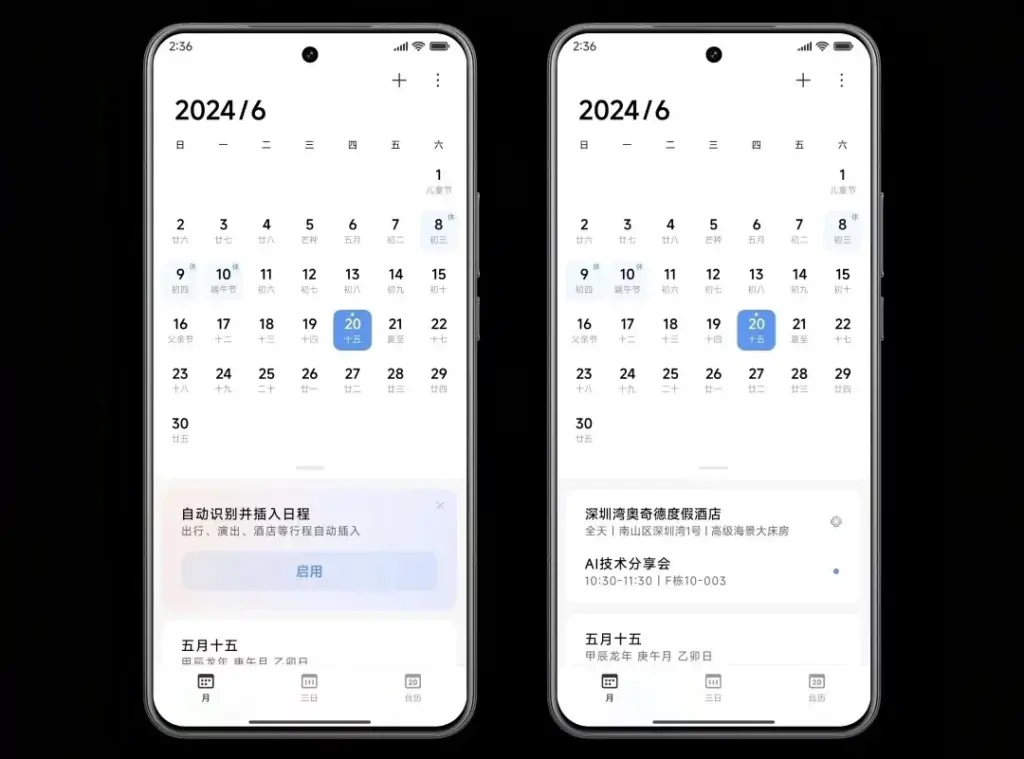
The AI scheduling clever extraction tool is one of HyperOS 2.2’s most useful enhancements. Instead of requiring you to manually enter scheduling information, this function will identify and display it in your text messages.
The system accommodates a variety of schedule types, including:
Train reservations
Flight information
Hotel booking
Restaurant reservations
Performance tickets
Movie tickets
To turn on this handy functionality, simply go to Calendar-Settings and turn on “AI Schedule Extraction.” Be aware that the feature is only supported on Xiaomi HyperAI-enabled models.
Enhanced CarWith functionality
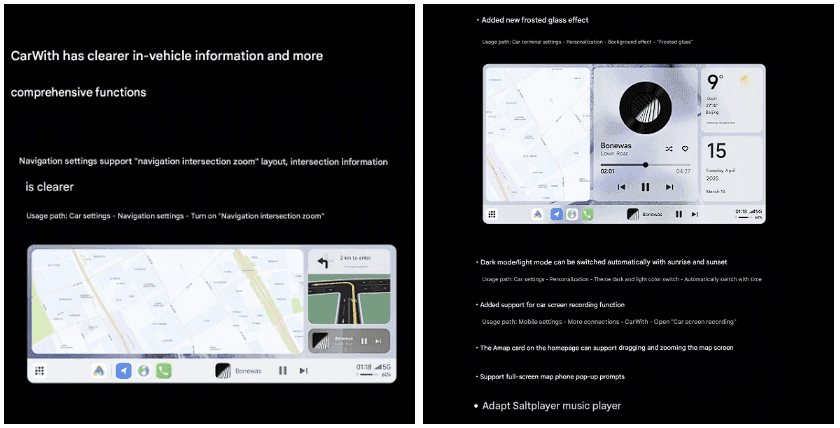
HyperOS 2.2 significantly improves CarWith, transforming Xiaomi users’ in-car experiences. A new “Navigation intersection zoom” style improves navigation by making information at road intersections easier to read and making it simpler to understand turns and exits up ahead.
A new frosted glass design further improves the visual experience, giving the car terminal a high-end aspect and feel. The dark mode/light mode can also switch automatically with dawn and sunset for added convenience, reducing eye strain both throughout the day and at night.
Additional improvements to car connectivity are:
Car screen recording capability
Map dragging and zooming on the homepage card of Amap
Full screen map phone notifications Compatibility with the music player Saltplayer
System-Wide optimizations
Beyond these major improvements, HyperOS 2.2 includes several quality-of-life enhancements throughout the system:
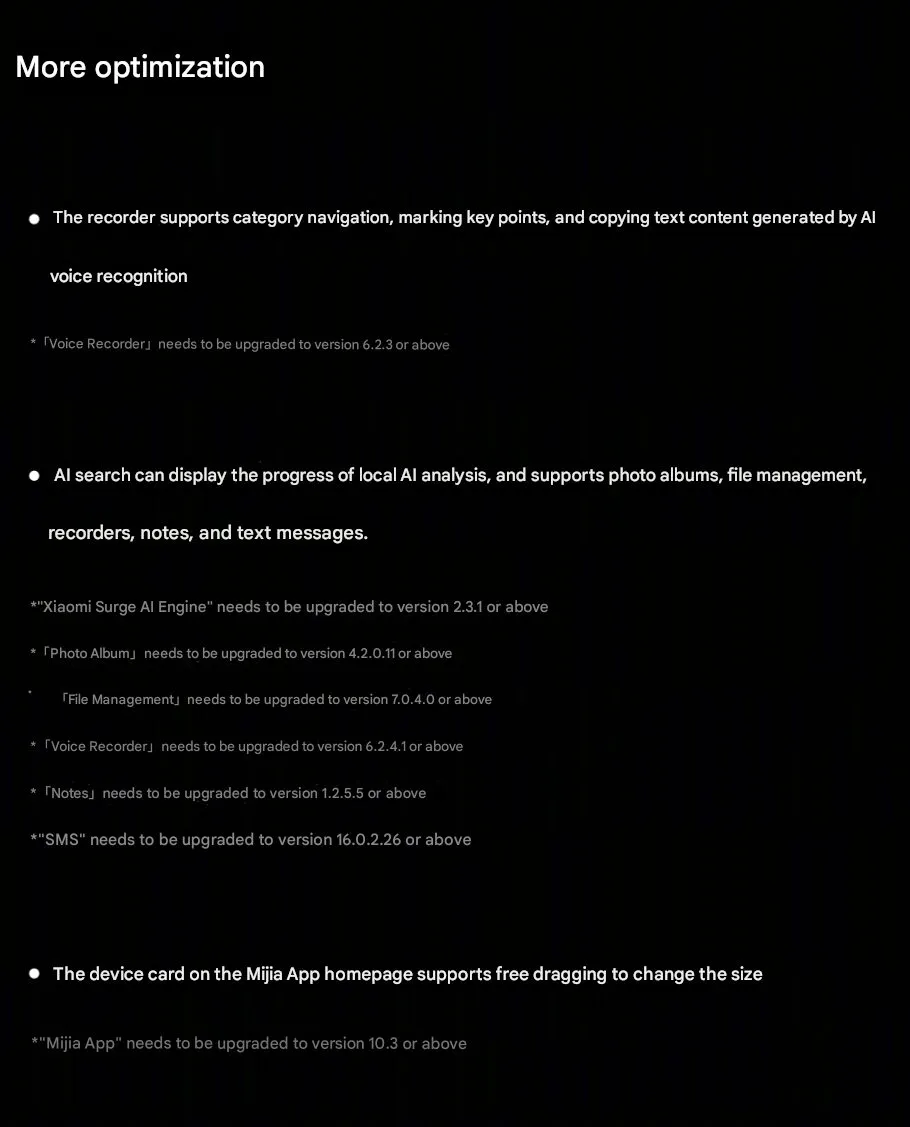
Recorder app includes support for category browsing, highlighting of key points, and copying of text created by AI voice recognition
AI search shows activity of local AI processing and provides support to photo albums, file management, recorders, notes, and texts
Mijia App homepage device cards are now free to drag and resize