Tag: data

  • Android device repair prep (stress-free) – the power guide to protect your data

    Android device repair prep (stress-free) – the power guide to protect your data

    Your android device is going in for service or repair, and yeah… it’s easy to tell yourself, “It’s just a screen replacement, what could happen?” Then you remember: your phone is basically your pocket brain. Photos, notes, bank apps, work chats, that one folder you never show anyone—everything.

    So let’s do this properly.

    This guide is a practical, no-drama checklist to prepare your android device before you hand it to a technician. Not the paranoid kind of prep. The smart kind. The kind that prevents data loss, protects your privacy, and makes the repair process smoother.
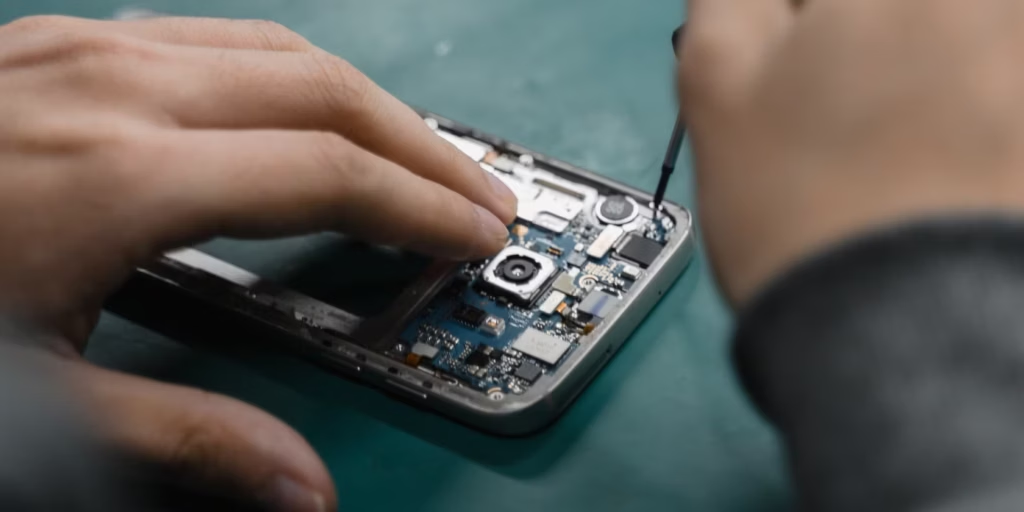
    android device preparation before repair

    Secondary keywords used naturally: Android backup, factory reset, phone repair checklist, protect personal data, Google account removal, SIM card and SD card, Find My Device.

    The “Quick Outline” (Internal, For Flow)

    You’ll go through:

    • Why prep matters (even with trustworthy shops)
    • Backup (cloud + local)
    • Remove SIM/SD and sensitive access
    • Decide on factory reset (and when not to)
    • Document your issue like a grown-up (so repairs go faster)
    • Privacy + security settings that actually matter
    • What to do at drop-off and pickup
    • Common mistakes and a simple final checklist

    Why Preparing an Android Device Before Repair Matters (More Than You Think)

    Here’s the uncomfortable truth: even honest repair shops can cause data loss.

    Not because they’re evil. Because diagnosing problems often involves resets, firmware updates, battery disconnects, or tests that can corrupt storage. And if your android device is acting weird already (boot loops, overheating, random restarts), the risk of “it died during testing” is real.

    Also, there’s privacy. Most technicians don’t care about your personal life. But your phone is still unlocked data sitting in someone else’s hands. It’s like leaving your house keys on the counter and hoping nobody opens the wrong door.

    You don’t need to be anxious. You just need a process.

    Step 1: Back Up Your Android Device (Cloud First, Local Second)
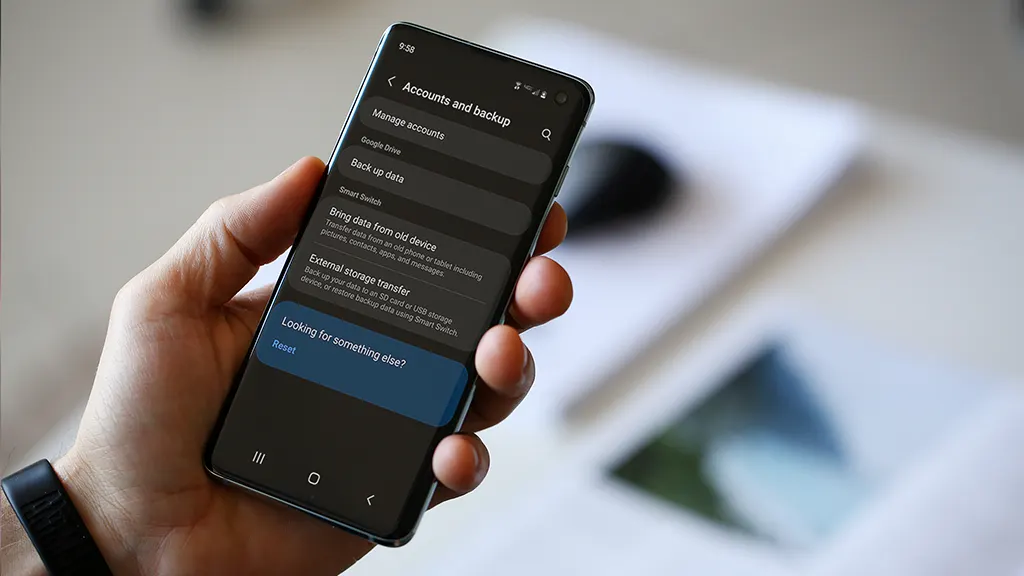
    android device backup

    If you only do one thing, do this.

    Use Google Backup (Fast and Built-In)

    On most phones:

    • Settings → Google → Backup
      or
    • Settings → System → Backup

    Turn it on and let it run. Then check the backup timestamp. Don’t assume it worked “at some point.”

    What it usually covers:

    • App list and some app data
    • Call history
    • Contacts (often via Google Contacts sync)
    • Device settings
    • SMS/MMS (on many devices)

    But – small contradiction – Google backup is both great and not enough. It’s reliable for basics, but it’s not a perfect clone of your phone.

    Back Up Photos and Videos

    If you use Google Photos:

    • Open Google Photos → profile icon → Photos settings → Backup

    Then scroll your gallery and confirm recent photos actually uploaded. People think they’re backed up… until they aren’t.

    Make a Local Copy (Because Clouds Have Limits)

    Plug your android device into a laptop/PC:

    • Select “File Transfer” (MTP)
    • Copy these folders:
      • DCIM (camera photos/videos)
      • Pictures
      • Download
      • Documents
      • WhatsApp/Telegram media folders (if you use them heavily)

    If you don’t have a PC, use:

    • An external USB drive with an OTG adapter
    • A microSD card (if your phone supports it)

    Local backup feels old-school. But it’s the “seatbelt” you’ll appreciate if the cloud fails.

    [img here – alt: android device backup before service]

    Don’t Forget Two “Annoying” Things

    These are the ones that hurt most when they’re gone:

    • Notes (Google Keep / Samsung Notes / third-party apps)
    • Authenticators (2FA apps)

    For authenticator apps, check inside the app for export/transfer options before your device gets wiped. Otherwise you might lock yourself out of accounts. Not fun.

    Step 2: Remove SIM Card and SD Card (Small Action, Big Protection)

    This part is quick and oddly satisfying.

    • Remove the SIM card (your number and carrier access)
    • Remove the SD card (your personal files and media)

    Even if the repair shop is trustworthy, SIM/SD cards can be misplaced. They’re tiny. Things happen.

    Also, if your SD card has photos—don’t leave it in the phone. Just don’t.

    Step 3: Decide If You Should Factory Reset the Android Device
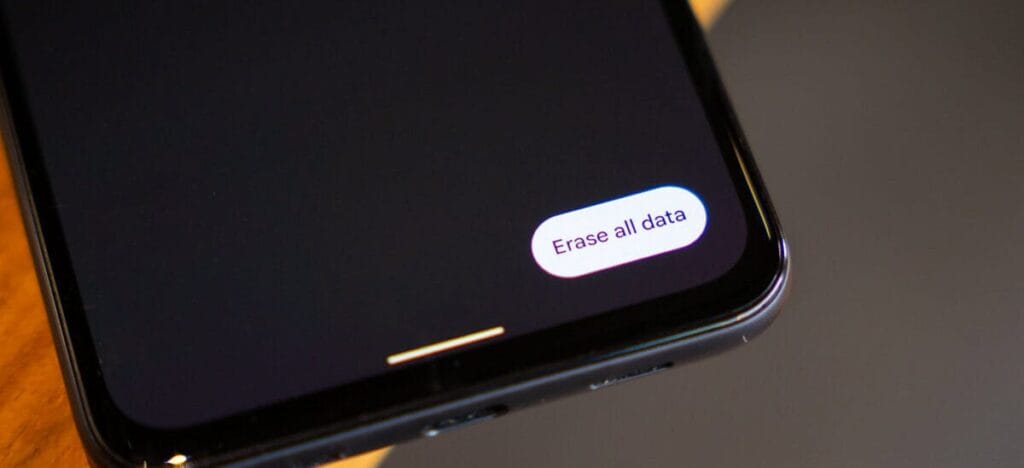
    Android factory reset e1768831900326

    This is where people get stuck.

    When a Factory Reset Makes Sense

    A factory reset is smart when:

    • The repair is software-related (crashes, freezing, weird bugs)
    • You’re shipping the phone to a service center
    • You don’t want anyone to access anything—even by accident
    • You’re okay with restoring everything later

    Path usually looks like:

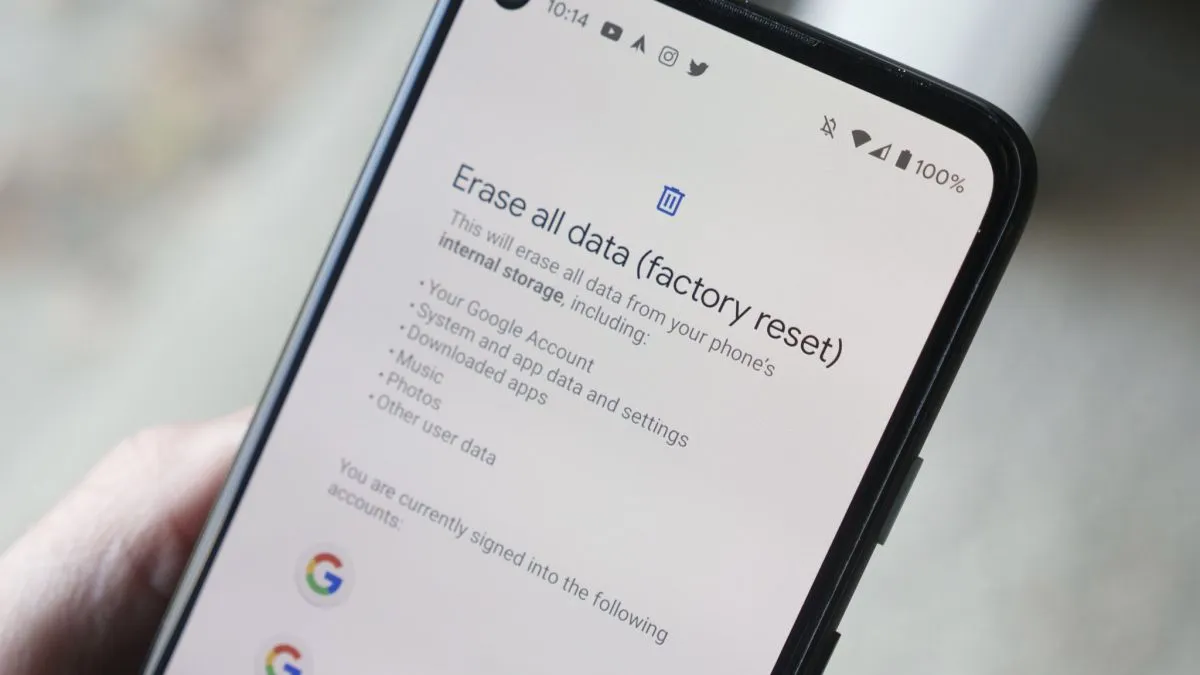
    • Settings → System → Reset options → Erase all data (factory reset)

    When You Shouldn’t Reset Yet

    Don’t reset if:

    • You need to show the issue (random reboots, screen glitch, camera error)
    • The repair center asks you not to (rare, but possible)
    • You rely on on-device data that you can’t back up properly

    Here’s the clarification: privacy matters, but so does diagnosis. If the technician can’t reproduce the issue, you might get the dreaded “no fault found” result. So sometimes you keep the data… but you lock it down.

    Step 4: Lock Down Access (Without Making the Repair Impossible)

    If you’re not factory resetting, this part is essential.

    Use a Strong Lock Screen

    Set a PIN (not 0000, please).
    Disable “Smart Lock” features that keep the phone unlocked at home or near a watch.

    Pause or Remove Highly Sensitive Apps

    For apps like:

    • Banking
    • Crypto wallets
    • Password managers

    At minimum:

    • Sign out
    • Remove biometric login
    • Consider uninstalling temporarily (after backup)

    Technicians don’t need that access to replace a screen.

    Keep “Find My Device” Enabled (Usually)

    If the phone is lost during transit or at a large facility, Find My Device can help locate it. Just make sure you remember your Google login.

    Step 5: Write a Simple Repair Note (This Speeds Everything Up)

    A good repair note is like giving the mechanic a clean description of the engine noise.

    Create a note (or email) with:

    • Phone model (e.g., “Samsung Galaxy A54”)
    • Android version (Settings → About phone)
    • What’s wrong (specific symptoms)
    • When it happens (after charging? after updates? only on Wi‑Fi?)
    • What you already tried (restart, safe mode, clearing cache, uninstalling an app)

    Example (copy style, not text):

    • “Screen goes black during calls, but touch still works. Happens 3–4 times/day. Started after last system update. Restart fixes temporarily.”

    That’s gold for technicians.

    Step 6: Clean Up “Embarrassing” Stuff (No Shame, Just Practical)

    This isn’t about being dramatic. It’s about comfort.

    Before service:

    • Close private tabs in your browser
    • Remove sensitive photos from the main gallery (move to a secure folder or cloud)
    • Turn off notification previews on lock screen

    Even if your phone stays locked, notifications can reveal a lot.

    [img here – alt: android device privacy before repair]

    Step 7: At Drop-Off—Ask the Right Questions (Politely)

    A simple script:

    • “Will you need my unlock code?”
    • “Is a factory reset likely?”
    • “Do you keep devices overnight, and how are they stored?”
    • “Can you note the condition (scratches/dents) on the intake form?”

    Also: take quick photos of your phone from all angles before you hand it over. It’s not accusatory. It’s just smart.

    Step 8: After Repair—Test Before You Leave

    Don’t rush out. Do a 2-minute test:

    • Screen touch everywhere
    • Charging port
    • Speaker and mic (quick voice recording)
    • Camera front/back
    • Wi‑Fi and Bluetooth
    • Fingerprint sensor (if you use it)

    If anything feels off, say it immediately. Fixes are easier on the spot.

    Common Mistakes People Make (So You Don’t)

    • Backing up “later” (and then forgetting)
    • Assuming Google Photos uploaded everything
    • Leaving the SIM/SD in the phone
    • Handing over a phone with banking apps logged in
    • Not writing down the symptoms (leading to “we can’t reproduce it”)
    • Forgetting 2FA authenticator migration
    • Not taking photos of device condition before drop-off

    The Final Checklist (Print This Mentally)

    Before service or repair:

    • Backup complete (cloud + local copy)
    • Photos verified in cloud
    • 2FA/authenticator transferred or backed up
    • SIM removed
    • SD card removed
    • Banking/password apps logged out or removed
    • Strong lock screen enabled (or factory reset done)
    • Repair note written (symptoms + model + what you tried)
    • Photos taken of device condition

    That’s it. That’s the whole play.
  • How antivirus software secures your Android data from theft and loss 

    How antivirus software secures your Android data from theft and loss 

    Android devices are extremely popular, mainly due to their open-source model, wide range of device options, and affordability, which makes them appealing to a broad demographic and accessible to people from diverse incomes.  

    However, due to its popularity, it makes Android devices an easy target for attacks, resulting in multiple risks associated with storing sensitive data on mobile devices.  

    This is why it is important to secure Android devices and data against theft and loss, especially in the current digital landscape.  

    Threats that Android users face 

    If you haven’t installed a suitable antivirus for Android, you are opening yourself to multiple cybersecurity threats to your private data, which can result in the theft and loss of confidential information that can lead to financial losses. 

    Malware Threats 

    These include viruses, spyware, ransomware, and trojans, among other malware. They are harmful for a number of reasons, which sometimes overlap with each other. 

    • They are sometimes disguised as legitimate apps.
    • Monitor activity and collect data to send to attackers
    • They can steal sensitive information like banking credentials 
    • They can intercept communications to access confidential information 
    • It locks or encrypts files to demand a ransom in order to restore access. 

    Phishing attacks

    • These attackers can create apps that mimic legitimate ones or fake overlay screens to trick users into entering their credentials.
    • They can disguise themselves as popular services which are distributed through unofficial app stores, bypassing Google Play’s protections 
    • They can send deceptive messages that come from seemingly trusted sources to click on malicious links or input sensitive information. 
    • Some phishing apps can read information from the Android notification bar and access information like one-time passcodes, which can help bypass multifactor authentication.  

    Biggest data concerns for Android users 

    • Widespread privacy concerns: Android users actively seek ways to configure privacy settings on their devices. This is due to the majority of privacy-related concerns reflecting anxiety on how personal data is handled by the OS and popular apps.  
    • Excessive Data Collection and Sharing: Android devices often collect and share large amounts of user data with third parties, sometimes they don’t offer users a way to opt out. Google tracks Android phones using cookies, identifiers, and other data stores, often without user awareness. 
    • Security Vulnerabilities and Exploits: Android’s open nature and fragmented update system expose users to high-severity vulnerabilities. This includes zero-day exploits that lead to privilege escalation and remote code execution. 
    • Malicious Apps and Sideloading Risks: Android users are at risk of malicious apps, especially those installed outside of the official Google Play Store, which can bypass Google’s security checks. These apps can introduce malware, spyware, and stalkerware that compromise device security and user privacy.  
    • Insecure App Permissions and Poor Passcode Hygiene: Many users grant excessive permissions to apps, which increases the risk of data misuse or leakage. Weak or reused passwords and simple device passcodes make it easier for attackers to gain unauthorised access. 
    • Biometric and financial data exposure: Vulnerabilities in Android can put biometric data, like fingerprints, and financial information, like credit card details, leaving many devices exposed to known vulnerabilities for extended periods.  

    Built-in Android security features 

    Android devices come with their own set of security features that attempt to protect data stored on them.  

    • Google Play Protect: The official store for downloading apps, scans apps and actively monitors for malware and prompts users to uninstall apps that may be harmful. It also blocks apps from untrusted sources.  
    • Safe browsing and permission management: Alerts users when they attempt to visit dangerous sites, suspicious links, or files that may be harmful.  
    • Encryption and authentication: The devices come with encryption by default, which ensures all data is stored securely, and only someone with the PIN, password, or authentication can access the data and protect it if the device is lost or stolen. 
    • Find My Device: For locating or erasing data on lost devices. It prevents unauthorised access to personal data. 

    Why Additional Measures are Needed 

    There are several gaps in Android’s native security, such as delayed security updates from manufacturers and the risks of sideloading apps and using public Wi-Fi. This is why additional protection, such as antivirus software, is needed.  

    Scenarios where antivirus is especially important 

    • Handling sensitive data such as banking, work files, and personal information. 
    • Frequent connection to unsecured networks. 
    • Downloading apps from third-party sources. 

    How anti-virus software protects your data

    • Real-time malware protection and detection, and removal of these threats. 
    • This software blocks ransomware before device lockout occurs. 
    • It scans for phishing URLs and fraudulent websites before users access them. 
    • Conducts privacy audits to monitor app permissions and data access. 
    • Monitors for identity theft protection and aids with secure online payments. 
    • Some software has VPN and secure browsing features. 
    • Has in place a remote device location, lock, or wipe in case of loss or theft.

    What to be wary of

    • With Antivirus Software: Some apps contain vulnerabilities, like exposing the address book or allowing attackers to disable the antivirus software itself. Some also track user data and end up creating new risks instead of eliminating them. 
    • Google Play Protect: These and other official store apps are not always foolproof;  malicious apps are able to slip through the vetting process, and antivirus software that scans before and after installation can add a layer of defence. 
    • Making the Choice: When choosing the right software for you, you want a comprehensive malware detection, real-time protection and updates, privacy controls, app permission management, and additional tools like VPN, anti-theft, backup, and Data Loss Prevention (DLP). 

    DLP and Advanced Security Features of Antivirus Software 

    • It encrypts data in transit and at rest. 
    • Separates personal and corporate data for business users. 
    • Centralised password and access management. 
    • Remote wipe and selective data erasure for lost or stolen devices. 
    • App and domain whitelisting to restrict access. 

    Practices for Maximising Android Security

    • Keep operating system and apps updated: Install the latest Android OS and app updates to patch vulnerabilities and protect against new threats. 
    • Regular review app permissions: Check which permissions each app has and revoke those that are unnecessary. Only grant essential permissions for app functionality.  
    • Avoid downloading from untrusted sources: Download apps from the Google Play Store or reputable sources. Avoid third-party app stores, which are more likely to host malicious apps.  
    • Use strong passwords and enable biometric authentication: Use a strong PIN pattern for the lock screen, and use fingerprint or face access for added security. 
    • Enable remote tracking: Enables wiping features if devices are lost or stolen to protect confidential information. 

    Conclusion

    Installing antivirus software on Android devices helps protect the device’s data from being compromised and open to cyber threats. To make the most of your protection attempts, make use of built-in features in conjunction with a reputable antivirus solution for comprehensive protection.

  • Wipe your Android smartphone before selling it or trading it in

    Wipe your Android smartphone before selling it or trading it in

    Are you planning to purchase the newest Samsung phone, or are you a bigger Pixel fan? You’ll want to reset your old Android phone to factory settings in order to remove all of your data before selling it on eBay, giving it away to a friend, discarding it, or trading it in for a discount on your new phone. Fortunately, doing that is fairly simple.

    Before you begin, keep in mind that while the process for the most of recent Android phones should essentially be the same, these instructions were tested on a Pixel 3 running Android 12. It goes without saying that you should first confirm that all of your data has been moved to your new phone, backed up, or both. No turning back after your previous phone has reset.

    • Go to Settings
    • Select System > Reset options
    • You will be presented with four choices. Reset Wi-Fi, mobile & Bluetooth is sometimes useful if you’re having trouble with connectivity. Reset app preferences will restore all of your app and notification defaults, among other things. Erase downloaded SIMs will help you delete any digital SIMs you no longer need. However, none of these will delete the data on your phone. That’s the job of the last choice, Erase all data (factory reset), and that’s the one you’re going to select.
    • The next screen will tell you what is going to be erased, and which accounts you’re signed into. Select Erase all data.
    • If you have a PIN or some other security setup, you’ll be asked to enter it
    • You’ll get another screen asking if you’re sure this is what you want to do. Are you sure? Then hit the Erase all data button.

    I’m done now! Typically, the procedure takes two to three minutes. After rebooting, your phone will ask you the customary questions about language, account, network, etc. When you see those, you’ll understand that it was successful.

    There are several things to keep in mind. Before you can reset your Samsung phone, you could first be prompted for your Samsung account password (provided you’ve made one and connected it to the device).

    If you’ve got an Android phone that is using an earlier version of the OS (say, before version 8), the reset may, after it reboots, ask for your login. This could be awkward if you’ve already sent the phone to someone else. As a result, if you’ve got an older phone, it’s a good idea to turn off your screen lock (by going to Security > Screen lock and selecting None) and deleting your Google account (which you’ll find at Settings > Account > Google) before you start the reset. (In fact, that may be a good idea in any case.)

    There is evidence that some data may remain on a phone even after it’s been reset. To be extra careful, you can encrypt the phone before resetting it:

    • Go to Settings > Security > Encryption & credentials and select Encrypt phone
    • Go back to your settings and start the reset process
  • Data safety is improved by Google by requiring apps to let users delete it

    Data safety is improved by Google by requiring apps to let users delete it

    All apps on Google’s platform will be impacted by a new requirement that is being added to the Play Store. The goal of this new requirement is to provide people more control and privacy over their data.

    All Google Play Store applications that currently support account creation will soon be required to support account deletion as well. The tech behemoth blogged about the new rule modification.

    For apps that enable app account creation, developers will soon need to provide an option to initiate account and data deletion from within the app and online. This web requirement, which you will link in your Data safety form, is especially important so that a user can request account and data deletion without having to reinstall an app.

    As the company mentions, the Data safety section in the Play Store already lets developers provide data deletion options. However, this move is meant to give users “an easier and more consistent way to request them.”

    delete data

    The developer will now have to remove the data connected to that account if you ask for your data to be erased. Hence, temporary account deactivation or deactivating will not be sufficient to comply with the new guideline. Developers must “clearly disclose those data retention procedures” if they need to retain data for justifiable purposes like fraud prevention or legal compliance.

    It appears that the rule change won’t go into effect immediately, however. To give developers enough time to comply with the order, Google is rolling out the policy slowly.

    As a first step, we’re asking developers to submit answers to new Data deletion questions in your app’s Data Safety form by December 7. Early next year, Google Play users will begin to see reflected changes in your app’s store listing, including the refreshed data deletion badge in the Data safety section and the new Data deletion area.

    The company also notes that developers who need more time can file for an extension in Play Console until May 31, 2024.

  • App data transfer between Xiaomi, Vivo  and Oppo now possible

    App data transfer between Xiaomi, Vivo and Oppo now possible

    Whether you’re switching from an iPhone or an Android device, Google has improved data transfers from old smartphones to new ones for years. The information is mainly restricted to contact information, user account information, and default settings. As a result, third-party apps are no longer supported and require configuration. Thankfully, Xiaomi and Oppo have now made this possible on Android.

    transfer

    Certain iOS and Android apps currently allow for the movement of third-party data, but doing so necessitates synchronizing your account and putting the necessary data in the cloud. However, there are additional processes like downloading the appropriate apps and entering your security information again on a new phone. Several of these laborious processes are being eliminated by the most recent Chinese OEM program.

    Third-party data transfer on Android

    The three Android device makers, including Vivo, declared that they would simplify data switching and migration between their products, beginning in China. Incidentally, upon starting a transfer, data from third-party Android apps, such as recorded chat messages, will also be moved.

    It was not stated which specific smartphones from these companies will be compatible or if there are plans to expand the availability of this feature to further nations and areas. To be safe, it might also only be available for the most recent models that make use of more advanced communication technologies like UWB (ultra wideband) or Bluetooth LE, on which Google’s Quick Pair is built.

    It’s also unknown whether Google will later, maybe with Android 14, introduce a comparable feature to Android. Also, the feature appears to have been developed jointly by the three Chinese firms, so the search engine giant will probably need to contact other significant producers like Samsung to make it possible for a larger acceptance rate.

    Via:9to5GoogleSource:Weibo

  • Restrict apps data network usage in Android

    Restrict apps data network usage in Android

    Except for home Wi-Fi connections, all of our mobile data is limited. So, in order to avoid unnecessary consumption, we must adhere to restrictions, or we must opt for limited speed unlimited data. In the App settings, you can always limit the details. However, if you do not use the app with reduced data speed, you will need to use additional software to track and manage the app’s data speed consumption.

    You can also use this app when you have limited bandwidth and want to prioritize essential apps. However, in order to manage the software, most of the available apps need root access. However, in this article, we will show you How to Limit Apps Data Network Use in Android Without Root.

    Is network usage limit for apps needed?

    We all use our smartphones for various reasons, and not everyone has unlimited storage. Some people don’t mind keeping their mobile data linked all day, while others will need to switch on the mobile network only when necessary. Since the beginning of time, smart devices and computers have been programmed to run certain applications in the background. These apps run in the background for a variety of reasons, and they, of course, make use of network data connections. So, if you have a restricted data plan, you may want to prevent those apps from running in the background to avoid wasting data.

    This article explains the various possible ways to stop certain apps from using your mobile data or even connect to the internet (via WiFi) when you’re not using them. Interestingly, the methods explained in this article do not require you to root your device before they’d work.

    How to limit data usage

    You can restrict the bandwidth (network speed) of specific apps on your phone using certain mobile applications. If you have a restricted data plan or mobile network, this will help you save more data. It will also help to increase the internet speed; since there are only a few applications running, the speed will be significant and seamless.

    Regardless, on rooted Android devices, you can use DroidWall to set the apps that should use your data and apps that should not. DroidWall packs a bunch of features, and it only works for rooted devices. But if your Android device is not rooted, try these apps below to limit your apps’ network speed and data usage.

    Restrict background data

    Apparently, all Android smartphones support an option in its Settings page that allows you to stop background apps from using your data. This feature is placed in different sub-menus in different phones. However, the best way to find it out is using the “Search” function.

    restrict data usage

    In practice, most Android phones have a “Search Bar” in the settings page that allows you to quickly find a setting option. As a result, when you open the settings tab, tap on the search bar and type in “history info.” Select the appropriate settings option and switch on the function.

    Once enabled, no app on your smartphone can connect to the internet unless you start it. Simply put, when you minimize your Facebook or IM app, it stops using your data to sync and stops sending you new chat messages – before you open it again.

    This is the best option for many people, and it works pretty efficiently. You may not need to install a 3rd-party app anymore. Restricting background data works “device-wide,” which means it also stops background services from draining your capped mobile data. However, this feature may not be very effective; it is more effective when using the mobile network.

    NoRoot Firewall

    unnamed

    The name tells it all. This mobile application helps you build a firewall that restricts any app you select from using your network. It doesn’t require root access on the smartphone, and it is straightforward to use.

    This app has some intriguing features, such as hostname/domain name filtering, fine-grained access control, and no questionable permissions on the firewall app itself. However, one of the most significant drawbacks of this app is its inability to support LTE; it is designed to support IPv4 rather than IPv6.

    This app will function as a data privacy app, preventing such apps from sharing your personal data over the internet. It displays a warning on your smartphone whenever an app attempts to link to the internet; it is then up to you to ALLOW or DENY the app’s internet access.

    Furthermore, this app lets you create firewall filter rules based on IP address, hostname, or domain name. It is safe to use and does not pose any harm to your privacy. This app is compatible with many Android devices; the requirements vary from device to device.

    NetGuard

    unnamed 1

    This is yet another mobile app that allows you to control how your applications use your mobile data. It also does not need root access, and the interface is simple to use. The NetGuard mobile app is recommended for people who want to limit their mobile data use by only allowing those applications to connect to the internet. This act will also help to shield one’s personal data from being accessed by snoops and prying eyes on the internet.

    NetGuard is a sophisticated app that is available for free and is compatible with Android smartphones running Android 4.0 or later. Users can restrict access to the internet for specific apps through the home interface. Users can also prevent addresses from accessing WiFi or mobile network data. You will certainly handle your limited data with this app.

    Furthermore, background apps drain the battery faster, and by limiting them, you can save more data while also preventing your battery from draining faster. In general, this mobile app is simple to use, open source, and the developers guarantee that it does not monitor your data.

    Summing it up

    For certain people, the “Restrict Background Data” choice could be the better option. However, for more advanced settings, you will need a third-party program, such as the two mentioned above. Some people, however, dislike limiting background data – even though they are on a restricted plan – because they enjoy receiving real-time alerts. It all comes down to personal preference, so here’s a question for you: would you prefer limiting background data Network Use through Android settings or using a third-party app for more advanced settings?