Kotlin 1.7.0, an update to the JVM, web, and mobile programming language from JetBrains, includes an alpha version of the ground-breaking K2 compiler.
K2 is designed to accelerate the creation of new language features, unify the platforms that Kotlin supports, and offer an API for compiler modifications in addition to enhancing performance. However, the alpha version is restricted to JVM projects. And only the kept plugin for annotation processors currently works with it.
Kotlin 1.7.0, an update to the JVM, web, and mobile programming language from JetBrains, includes an alpha version of the ground-breaking K2 compiler.
K2 is designed to accelerate the creation of new language features, unify the platforms that Kotlin supports, and offer an API for compiler modifications in addition to enhancing performance. However, the alpha version is restricted to JVM projects. And only the kept plugin for annotation processors currently works with it.
Definitely non-nullable types have been promoted to stable. These provide better interoperability when extending generic Java classes and interfaces.
Builder inference, a type inference that is useful when calling generic builder functions, is automatically activated if a regular type inference cannot get enough information about a type without specifying the -Xenable-builder-inference compiler option introduced in Kotlin 1.6.0 last November.
Opt-in requirements are now stable and do not require additional compiler configuration.
An underscore operator for type args can be used to automatically infer a type of argument when other types are specified.
Implementation by delegation to an inlined value of an inline class is enabled. Developers now can create lightweight wrappers that do not allocate memory in most cases.
There are much more entry-level cellphones than flagships on the market. Because of the low-end specifications of these cellphones, it is highly typical for them to have poor speeds. Even tiny apps can cause the smartphone to hang on low-end hardware. Furthermore, many web pages may take a long time to load. If you have a Xiaomi entry-level smartphone, though, you’re in luck. There are a few basic things you can do to boost the speed of your smartphone. Xiaomi’s most popular smartphones are entry-level models. As a result, they come with insufficient hardware, which may cause them to slow while under strain. You can make the MIUI UI run faster and prevent these smartphones from hanging or freezing.
Boost MIUI speed
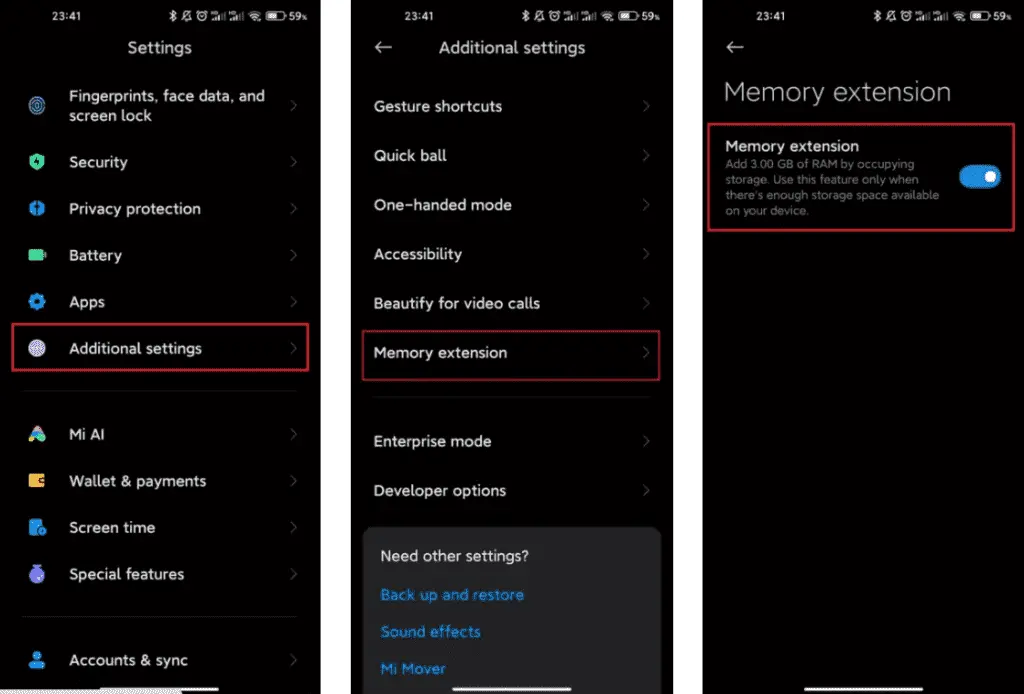
1. Extend your memory
Xiaomi, a Chinese company, has added a feature to its devices that may be of assistance. This is where the RAM expansion feature comes in. This capability has been available for the company’s smartphones since last year. This feature frees up RAM by using internal storage to create SWAP storage space. If you can activate this option, you’ll be able to boost the MIUI system’s speed. Although it is not as fast as physical RAM, it is a significant improvement.
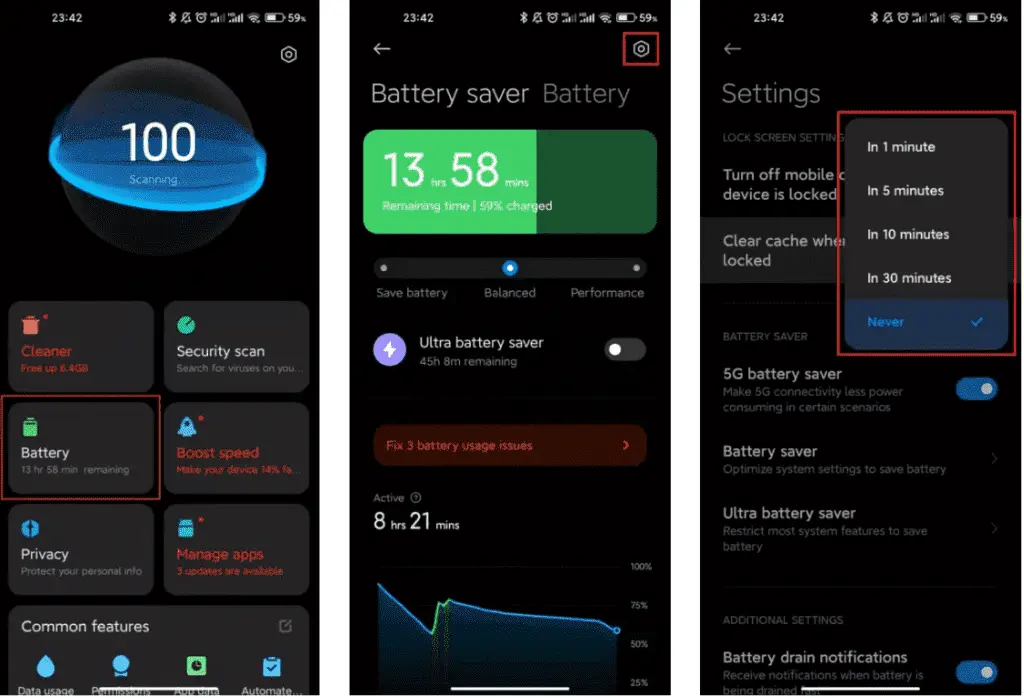
2. Clean cache
Whethere its a smartphone, tablet or even a desktop, clearing cache is very good for operation. When the cache storage is too heavy, it could cause the device to lag. The rate at which your cache storage fills up depends on how you use your device. With the automatic cache clearing feature, it is now very easy to clear cache. You no longer need to clear the cache via recovery mode.
Xiaomi MIUI automatic cache cleaning feature ensures that your cache is always clear. Whenever you lock your smartphone screen, this feature clears the cache. Furthermore, you can manually set this feature to clear the cache at intervals. Thus, whether your hardware is insufficient, clearing the cache will ensure that all its limited resources are spent on relevant operations.
3. Disable system apps and ads
You may have noticed that the MIUI system app has in-built advertisements when you run it. It’s vital to realize that these adverts consume some hardware resources. This means that it has the potential to slow down the smartphone. They can create delays in the opening of some functionalities since they require system resources. Xiaomi makes it optional to see these advertising because they might be quite unpleasant.
You may quickly disable advertising that you don’t want to see, and they won’t appear again. All you need to do is set up a private DNS server. In the private DNS provider, type “dns.adguard.com.” Then, just to be sure, look to see if these adverts are still visible. This will free up some hardware resources while also speeding up the MIUI system.
4. Disable system animations
This solution is compatible with any smartphone operating system. For entry-level cellphones, some functions are a great luxury. One of these features is system animation. Deactivating this feature is a common technique for making the operating system run faster. Make certain that the animation scales are set to 0 or 0.5. These animations will be faster than before, and MIUI itself will speed up.
5. Keep the storage clean
Obviously, filling your storage with “crap” is a recipe for disaster. This is because the storage capacity of your smartphone has a big impact on its use. This is also not unique to MIUI devices, but rather to all gadgets.
The pace of the smartphone slows down when the internal storage is full. You may notice minor latency and the device freezing at this stage. This can be avoided by keeping storage as basic as possible.
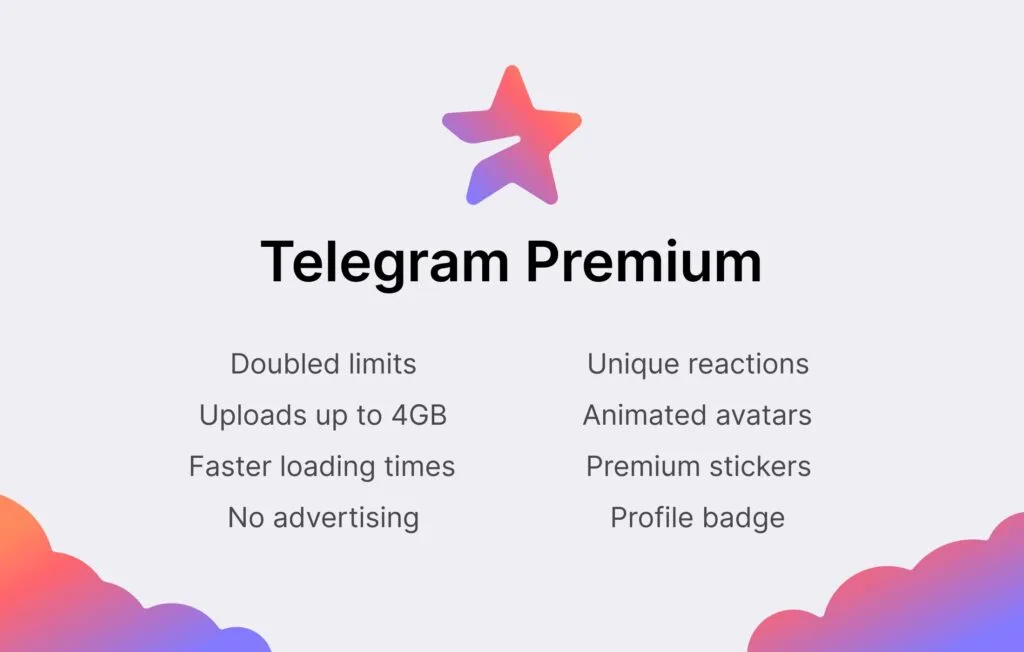
Telegram‘s founder Pavel Durov has disclosed that the company plans to add a premium membership service to its already remarkable feature set.
Telegram is a popular chat app that prioritizes privacy and security. It competes with WhatsApp and Signal in the same market, but it stands out for the sheer variety of functions it offers and its generous usage restrictions. According to Durov, the corporation intends to increase its capabilities and limitations even more, but at a cost.
The most difficult part of adding new services and increasing use limits, according to Durov, is figuring out how to do so without driving up infrastructure costs. With a paid subscription service, the revenues collected will assist the company cover its costs while also limiting the demand for enhanced usage restrictions to only those consumers who are ready to pay for the premium service.
The app’s existing functions will stay free, and the business expects to continue adding new capabilities to the free service, which is good news for customers. Some of the work that goes into the subscription edition will help all users.
“Moreover, even users who don’t subscribe to Telegram Premium will be able to enjoy some of its benefits: for example, they will be able to view extra-large documents, media, and stickers sent by Premium users, or tap to add Premium reactions already pinned to a message to react in the same way” Durov explains.
Durov says Telegram Premium will arrive in June 2022. Pricing was not divulged.
For your Google Pixel phone with Android 13, today is a huge day: we’ve reached the platform stability stage of the development cycle. The third beta of Android 13 is now available, and things are looking fantastic.
All app-facing behaviors and APIs are final in this Beta 3 build, which is available on the Pixel 4, Pixel 4a, Pixel 5, Pixel 5a, and Pixel 6 lines. For developers, this means creating apps ready for release while also knowing that nothing will change in the future. For you, the non-developer, this simply implies that we won’t see much changes in terms of features or UI in the future.
Do you want to try out Android 13 Beta 3 on your phone or tablet? Let’s get started.
How to download Android 13 Beta 3 on your Pixel
Android 13 Beta 3 is available on the following devices:
Pixel 4 and 4 XL
Pixel 4a and 4a (5G)
Pixel 5 and 5a
Pixel 6 and 6 Pro
Easiest way: If you own one of those devices, the easiest way to get Android 13 Beta 3 on device is to sign-up for the Android Beta Program (here). You’ll simply click the “Opt In” button on that page to join and then sit back and wait for Google to push an update as Android 13 over-the-air.
Once you have enrolled, you’ll head into Settings>System>Advanced>System update to check for it. Google may not push it immediately and could instead roll it out slowly throughout the day. Either way, feel free to check through there to tell Google you want it after enrolling in the program.
UPDATE 6/8 11:20AM: Google pulled all of the Beta 2 image and OTA files and replaced them with a message that reads, “Available soon.” We don’t know if soon means later today or in a couple of days. We’ll update this once the new files go live.
UPDATE 6/8 12:47PM: Google still hasn’t posted the files, but the build number for Beta 3 appears to be TPB3.220513.017.
UPDATE 6/8 12:56PM: All the files are now live!
Manual way: Want to get updated faster or would rather flash a factory image or OTA file through adb to feel more techie and important and smart? That’s still an option! I’ll be going the OTA route, but factory images are available too. You’ll find Android 13 Beta 3 factory images here and the OTA files here. For instructions on how to flash a factory image, here you go. For instructions on how to flash an OTA .zip file, here you go.
Already on an Android 13 Beta 2 build: If you are already on an Android 13 Beta build, Google says that you will receive the Beta 2 update over-the-air. Of course, you can manually flash a factory image or OTA file as well, since the over-the-air process often takes forever to process.
What’s new in Android 13 Beta 3?
Release date: June 8, 2022 Build: TPB3.220513.017 Emulator support: x86 (64-bit), ARM (v8-A) Security patch level: June 2022 Google Play services: 22.18.19
We’re diving in now to see what’s new, but Google describes new goodies as follows:
“There’s a lot to explore in Android 13, from privacy features like the new notification permission and photo picker, to productivity features like themed app icons and per-app language support, as well as modern standards like HDR video, Bluetooth LE Audio, and MIDI 2.0 over USB.”
Honest, there may not be much else new going forward. Once we hit Beta builds (and this is our third), Google doesn’t change much. It’s looking like Android 13 is a solid bug fixer from the big changes that were introduced in Android 12, and that’s completely fine. We love polish and stability. Let’s hope Android 13 gives that to us.
Should we see enough stuff to highlight, we’ll work on a separate post. Stay tuned.
There is no universal way for backing up and restoring Android phones that works for everyone. To keep things simple but effective, many users may choose a cloud-based system with automatic backups. Others, on the other hand, may want to store them offline and manually create backups for safekeeping. There is no right or wrong way to approach things here; depending on what you’re searching for, both options may have trade-offs. In this post, we’ll go over some of the most common techniques for backing up and restoring your Android phone.
Google One Backup
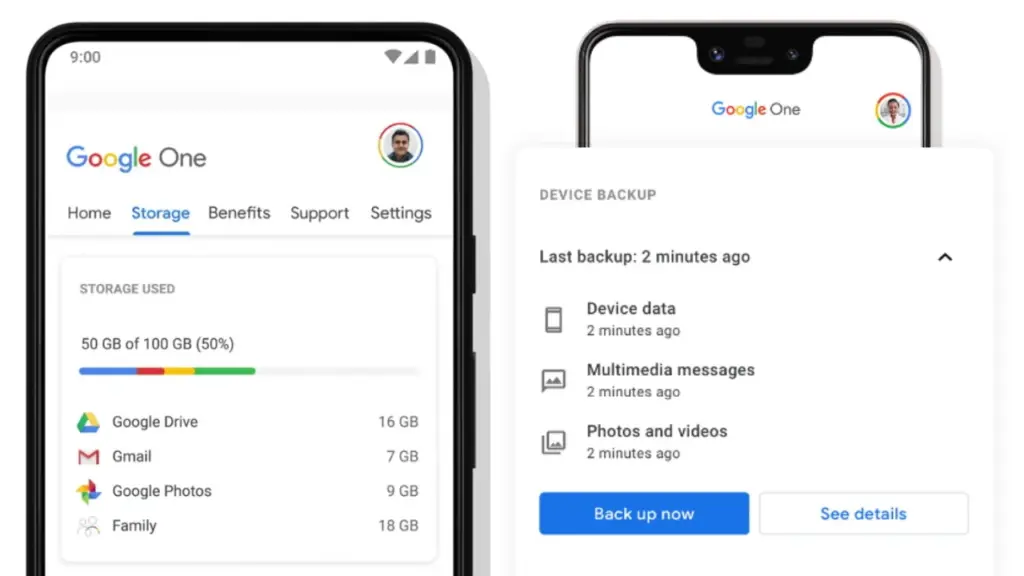
Google One is here to help you keep your life easy if you’re seeking for a fantastic, all-around backup solution for Android. Because Google is the official Android maintainer, it makes reasonable to utilize a first-party mechanism that can be accessed by almost any Android phone. To say the least, backing up your device with Google One allows you to save your images, messages, and a list of loaded apps. After your smartphone has been charging and idle for 2 hours over Wi-Fi, you’ll get automatic cloud backups.
Access Google One using the app
If you have a Pixel phone, Google One comes pre-installed as part of the operating system for quick access. Go to System Backup in the Settings app after opening it. All Google accounts come with 15 GB of free cloud storage for things like photographs, movies, and device backups. Increased storage capacity is available for a few bucks per month if needed. You may install Google One on your Pixel or any other Android phone by following these steps:
Download the Google One app if needed, then open it to continue.
Press the Set up device backup button to begin the process.
Tap Turn on to enable Google One backups for your device.
Hit Continue to grant the proper Google Photos permission as needed for your photos and videos.
You can always press Cancel if you don’t plan on using Google Photos to save your photos and videos.
Tap the Back up now button to begin backing up your device data to Google One.
Once the backup has been completed, you can view more info under the Backup details section.
Although Google One includes this feature during the setup process, it does not imply that you intend to use it. If you just want to back up your photographs and videos, you could always utilize Google Photos as a stand-alone alternative. You can use the Google Photos cloud storage capability by following these steps:
Download the Google Photos app if needed, then open it to continue.
Press the Turn on Backup button to enable the cloud storage feature.
Pick Original quality or Storage saver depending on your needs, then press Confirm.
Swipe through the intro page as needed, then press Done to get to the main screen.
You can also tap Skip to quickly move past the intro and onto the main app.
If you have any photos or videos waiting to be backed up, they should have started uploading now.
Tap your profile icon in the upper right to view the status of your uploads.
You’ll be good to go once it shows the Backup complete message.
After that, all the content that just backed up should appear on the main screen for you to view.
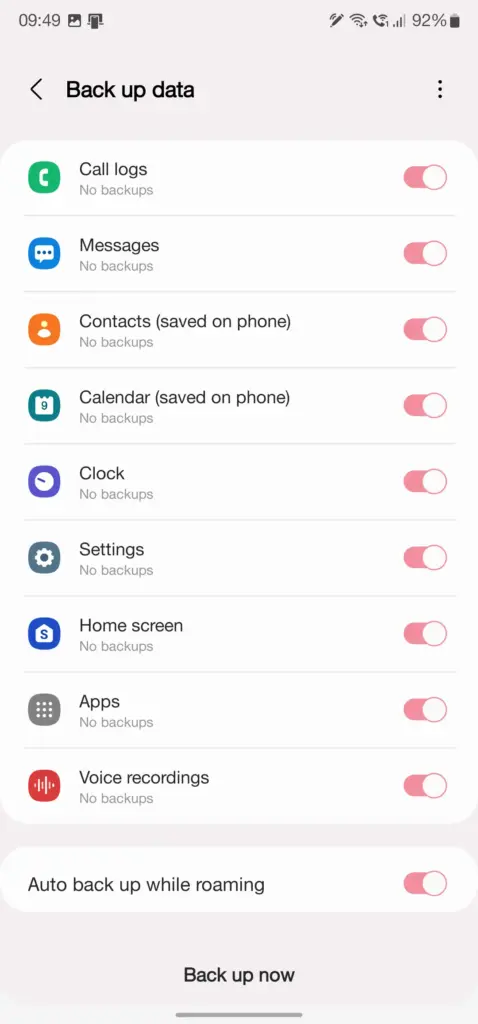
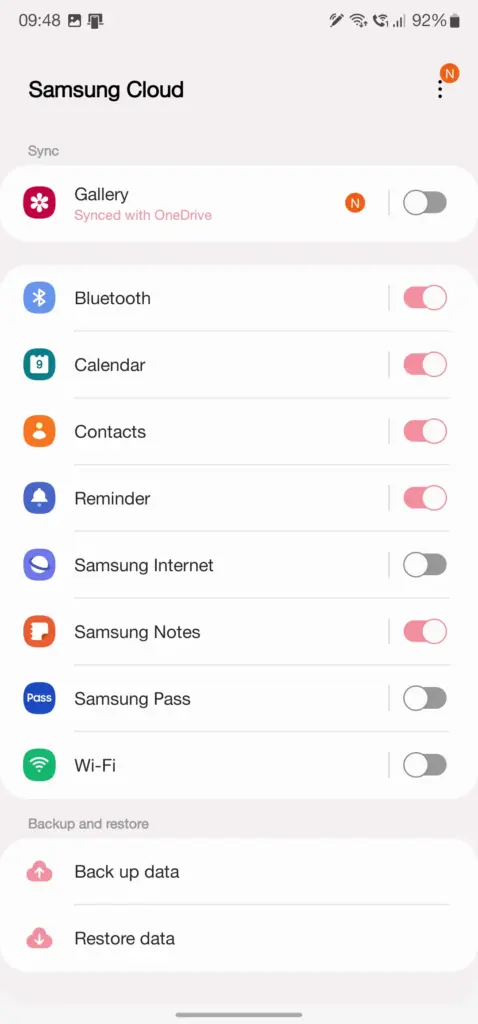
Users who have invested in the Samsung ecosystem can use Samsung Cloud, a dedicated service for their phone. This allows you to back up and restore your Samsung device in the event that it is lost, broken, or reset. System settings, Wi-Fi networks, and the layout of your home screen are just a few of the things you may back up and store in the cloud. The Samsung Cloud Backup app for Android is quick and simple to use, and it works across all of your devices.
When it comes to backing up your Android device, this is one of the most useful third-party apps available right now. With only a few short touches, Swift Backup allows you to perform batch activities. You may choose which apps you wish to store, hit a button, and it will handle the rest. It has a slight learning curve because it works with the Shizuku service, which grants you higher-level system rights. The good news is that many of its better features can be accessed without root access.
You’ll also be able to back up your messages, phone call logs, and device wallpapers in one go. And once the app is set up to your liking, you can create an automatic schedule to keep everything constantly backed up. We’ve personally tested Swift Backup and highly recommend it for offline and cloud-based solutions. If you want to learn more about Swift Backup, we have a guide here that gives you an in-depth view of how to use it.
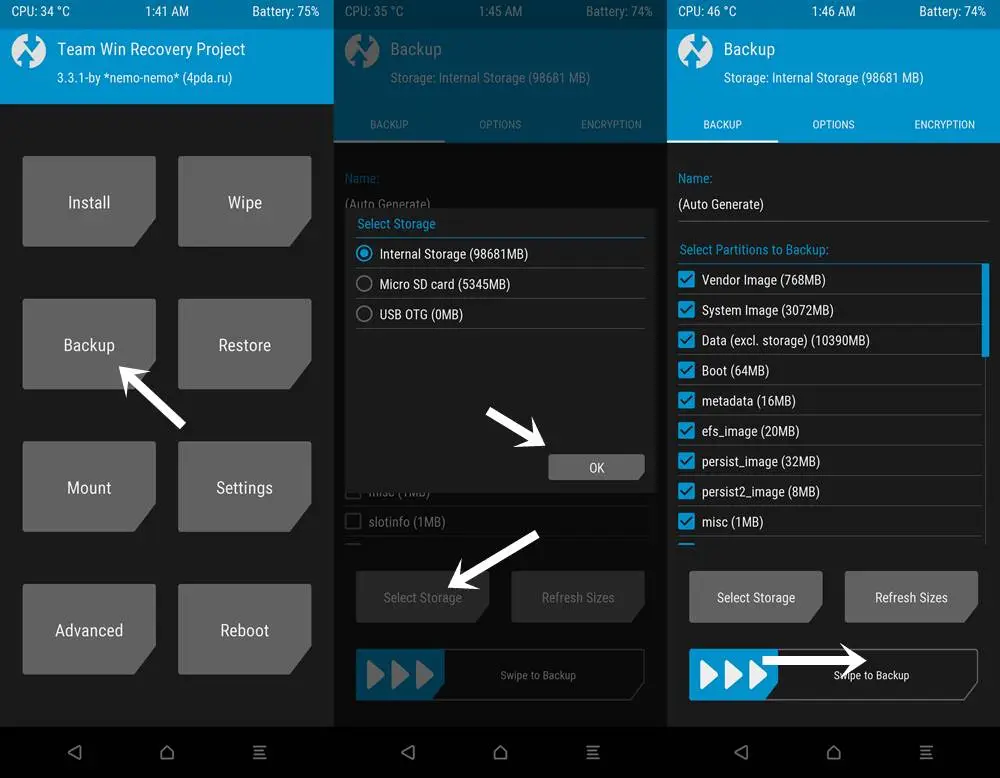
When it comes to backing up and restoring Android devices, sophisticated users have a handy trick under their sleeves. You can take full system image backups of your smartphone using a custom recovery environment like TWRP. A NANDroid backup in this situation allows you to practically clone your system and restore it exactly as you left it, including all app data. It doesn’t require root access, but it does require an unlocked bootloader, a device that supports TWRP, and some knowledge.
If you can get beyond the learning curve and qualifications, NANDroid backups can make your life easier. Once you’ve done that, all you have to do now is manually save your downloaded media files, images, and videos. Many Pixel, OnePlus, and Exynos variant Samsung phones should be on the list of Android devices that gain TWRP support. Because of the committed developer community, the Pixel 5, OnePlus 9 Pro, and Galaxy S22 Exynos edition all have access to TWRP.
Backing everything up
There are a slew of different proprietary backup alternatives available from Android device manufacturers, as well as a slew of third-party apps on the Play Store. In the above list, we’ve merely highlighted a handful of the more common and effective approaches. Which one you choose is entirely dependent on your personal preferences and requirements for your individual device. And now that you’ve had a good starting point, you should be able to identify the one that works best for you.
Only one name comes to mind when it comes to privacy-friendly search engines: DuckDuckGo. As narrow as it is, the company has managed to spin its success in other directions, including a privacy-focused browser for Android and iOS that is reportedly devoid of trackers. According to a new revelation, DuckDuckGo’s cooperation with Microsoft may have lost the company its position as a “no tracking” provider.
As detailed by Bleeping Computer, privacy researcher Zach Edward recently discovered that, while DuckDuckGo’s browser stopped sites like Facebook and Google from using trackers to scrape user data, Microsoft’s websites — including LinkedIn and Bing — bypassed this blockade entirely. It goes against the search engine’s biggest selling point, and more specifically, undermines the entire reason the DuckDuckGo Privacy Browser exists.
To his credit, CEO and founder Gabriel Weinberg quickly admitted that the browser does, in fact, allow Microsoft to evade its tracking filters within the browser, and that this is done on purpose. According to Weinberg, it all comes down to the two firms’ search syndication agreement, which allows DuckDuckGo to use Bing results in its search results. It’s the most important component of a collection of over 400 sources, which includes Wikipedia and Wolfram Alpha. Weinberg further highlighted that this agreement only applies to the browser and not the search engine.
Still, it’s difficult to justify when the app’s main selling point — literally the first line of its Play Store listing — is to disable trackers on the user’s behalf. Following Edward’s discovery on Twitter two days ago, Weinberg stated that the company was working with Microsoft to remove this specific stipulation from the contract, as well as offering a clarification update to the Play Store and App Store listings. The CEO also issued a statement to Bleeping Computer, emphasizing that, while its browser isn’t flawless, it is still significantly more private than the competitors, with faster load speeds. As Weinberg points out, DuckDuckGo’s browser has never guaranteed complete anonymity. Hopefully, this is an opportunity for the organization to improve.
Google and the community have been playing a cat and mouse game for a long time over evading SafetyNet. The community enjoys tinkering with the software on their phones, which usually starts with bootloader unlocking. However, this trips SafetyNet, causing a number of popular apps to cease working on the phone, some of which are justifiably so because they rely on a tamper-proof environment for execution.
SafetyNet is aimed at app creators, but they can choose whether or not to use it. However, as an ordinary end user, you have two options: give up on Android’s modding potential and pass the SafetyNet compatibility tests, or risk being blacklisted by software publishers. This guide should let you pass SafetyNet even if you’ve rooted or installed a custom ROM on your smartphone.
What is SafetyNet?
Android is built to run without granting the end user any privileged access to the underlying subsystems. If a person with administrative (a.k.a. “superuser”) capabilities on an Android device has similar access to administrative (a.k.a. “root”) permissions on a Linux machine, they can virtually change or replace Android system applications and settings. From the standpoint of an app developer, this means that the device on which their program is operating may be compromised. Some form of abuse detection mechanism should be in place to check the device’s software and hardware surroundings and reassure app developers that everything is fine. This is when SafetyNet enters the picture.
While modding is an important component of the Android ecosystem, security standards sometimes necessitate a high level of rigor in the operating system. The Google Play Services include a set of abuse-detection APIs called SafetyNet. Third-party applications can use the SafetyNet Attestation API to see if the device’s software environment has been tampered with in any way. The API compares the current state of the target Android device and verifies the integrity of the environment against a known’safe’ value on the server-side by checking for things like bootloader unlock status, signs of superuser binaries, and more.
SafetyNet tripping and its consequences
SafetyNet tripping is caused by a series of events that differ from the factory setup of an Android device. Even if you simply unlock your phone’s bootloader and leave the factory-installed OS alone, the SafetyNet check may fail due to a “CTS profile mismatch” (where CTS stands for the Compatibility Test Suite) issue. You’ll almost certainly wind up with a SafetyNet failed status if you root your Android device or replace the base firmware with a custom ROM. As a result, you won’t be able to utilize apps or games on the device that use SafetyNet validation. This is particularly true for banking and other financial apps like Google Pay, which rely solely on the SafetyNet Attestation result and will not accept anything else.
When it comes to games, developers use SafetyNet for assessing the device’s integrity so that they can prevent rogue players from cheating or modifying in-game variables for unfair advantages. Last but not least, you can also come across examples where publishers are simply misusing Google’s tamper detection mechanism for no practical reason, which is why power users want to evade the detection routines.
In a nutshell, the modding community will have to choose between having access to root/custom ROMs/kernels/etc. or their preferred apps and games. This might sound like the end of aftermarket development on Android, but there is hope.
Pass SafetyNet attestation
There is no true universal solution to avoid the inspections because Google modifies the backbone of the SafetyNet Attestation API on a regular basis. Because the limits are based on a variety of criteria, you may be able to get around SafetyNet in a modified environment by faking the most important characteristics on legacy devices, but the same approach may not work on later phones. Because of the ever-changing nature of the anti-abuse API, the aftermarket development community has come up with a number of approaches for passing the SafetyNet tests. However, keep in mind that a general implementation isn’t viable. This is a cat-and-mouse game; one day you’ll be ahead, the next day you won’t.
Google is depending on the security of the phone’s Trusted Execution Environment (TEE) or dedicated hardware security module (HSM) for tamper detection as it moves toward a hardware attestation method. Finding a serious security flaw in a device’s isolated secure environment and exploiting it to spoof SafetyNet’s client-side response isn’t a viable strategy, but there are alternative options.
1. Restoring the original firmware and relocking the bootloader
This is perhaps the simplest way to pass SafetyNet, but it has its own merits and demerits. All you need to do is find the correct firmware for your Android device, flash it, and finally re-lock the bootloader. Of course, you’ll lose most of the bells and whistles of Android modding, but it actually makes sense when you need to use your device in a managed environment with strict security policies or you’re trying to sell your device.
2. Using Magisk
If you own a legacy Android smartphone, Magisk is your best bet to pass SafetyNet without much hassle. Even though the current Canary channel of Magisk doesn’t feature MagiskHide anymore, you can still stick to last stable release (v23.0) and utilize MagiskHide to hide root status from apps. Furthermore, you can install Magisk modules like MagiskHide Props Config to change the device fingerprint in order to pass SafetyNet.
Talking about the Canary channel, the new “DenyList” feature of Magisk is an interesting development, which allows users to assign a list of processes where Magisk denies further modifications and reverts all changes it had done. With an appropriate configuration, it can also be used to pass SafetyNet in some scenarios.
Lastly, there’s Shamiko — a work-in-progress module written on top of Zygisk (Magisk in the zygote process). It reads the list of apps to hide from Magisk’s denylist to hide Magisk root, Zygisk itself, and Zygisk modules to circumvent SafetyNet. However, Shamiko can only work after disabling the DenyList feature.
3. Using Universal SafetyNet Fix
Bypassing Google’s hardware-backed SafetyNet attestation technique is a tad bit difficult, but it’s not entirely impossible. The Universal SafetyNet Fix project by XDA Senior Member kdrag0n cleverly accomplishes this feat by forcing the basic attestation over the hardware-backed checks.
Notably, Universal SafetyNet Fix has a dependency on Magisk when it comes to passing the basic attestation part. The developer offers two different builds of the fix: The Zygisk variant for Magisk Canary and the Riru variant for stable Magisk.
In case you don’t want to rely on Magisk to pass SafetyNet attestation, you can try out an experimental add-on named ih8sn. After applying, it can spoof a plethora of prop values in order to circumvent SafetyNet checks like the MagiskHide Props Config module, but there’s no dependency on Magisk in the first place.
The ih8sn tool is maintained by several LineageOS developers, but the LineageOS project doesn’t officially endorse it yet. To know more, take a look at its codebase by following the link below.
After applying one of the aforementioned SafetyNet passing methods, you may wish to verify the result. The Magisk app comes with an option to initiate the SafetyNet checking routine right from its main menu, which is really handy. You can also opt for an open source app named YASNAC (short for Yet Another SafetyNet Attestation Checker) to check the status and (optionally) examine the JSON response.
That’s how you can use your phone to pass SafetyNet. With a little effort and care, you can restore Android’s true modding capability without having to worry about SafetyNet Attestation failures. We’ll be adding more SafetyNet passing ways to this guide in the future, so check back!
The start of the year is usually slow, but we’ve had some good sales today, including some fantastic standouts. The first is Old Man’s Journey, a beautiful adventure game with a touching plot. The next game is Hexologic, which is similar to Sudoku but uses hexagons instead of squares. Last but not least, there’s ELOH, a soothing puzzle game with a captivating rhythm mechanic. As usual, I’ve bolded all of the fascinating titles to make it simpler for you to find them. Here are the finest temporarily free and on-sale apps and games for the end of the week, without further ado.
Russia has been invading Ukraine for over a month, and concerns about cybersecurity are growing. Even before the invasion, US officials blamed Russia for cyberattacks on Ukraine’s Ministry of Defense and two banks.
While the US Cybersecurity and Infrastructure Security Agency has stated that there are no particular or credible cyberthreats aimed at the US, it has also stated that hypothetical cyberattacks are more likely to target infrastructure. CISA advises that everyone be ready in case something goes wrong. When it comes to cyberdefense, safeguarding your mobile device is a smart place to start. Here are six things Android users may do to keep their data safe.
Always update you OS
Updating your operating system can resolve issues and repair known security risks. If you don’t update to the current version, you and your device are vulnerable to security weaknesses that could expose sensitive information to unscrupulous actors. Some individuals put off updating their operating system to avoid dealing with early glitches, but waiting too long can destroy your PC. Here’s all you need to know about Android 12.
Use two-factor authentication
In the event that your password is compromised, two-factor authentication, or 2FA, adds a second layer of security to your Android account. When you use 2FA, a second message is sent to another device after you enter your password, requesting you to confirm that you are trying to log in. It takes a little longer to log in, but the added degree of protection is well worth it. Here’s how to enable two-factor authentication.
Password manager
A password manager can assist you if you’re having problems remembering several passwords and creating unique passwords for each account. These tools can be used in conjunction with 2FA to securely store passwords and fill login pages automatically. They can also protect you from phishing schemes, which ask you to input your password on a phony website. Check out CNET’s reviews of password managers Bitwarden, LastPass, and 1Password for additional information.
Encrypt your device
Beginning in 2015, Google mandated that all Android smartphones be encrypted out of the box. After your device has been encrypted, every data saved on it is protected by a PIN number, fingerprint, pattern, or password that only the owner knows. Even Google won’t be able to unlock your device without the key. You may learn how to encrypt your phone here.
Remove data from Google
Because Android is a Google product, unencrypted device data may end up on a Google server. You can check with Google to see what data it has about you and request that it be deleted. It’ll take some time, but it’ll be worth it because your information can’t be stolen if it’s not in the system to begin with. Here’s how you ask Google to remove your data, but keep in mind that Google does not guarantee that it will comply with your request.
Last option – reset/delete your phone
You can remotely wipe your phone if you lose it or it is stolen. If you need to do this, our Android settings guide includes a walkthrough. Because this deletes all data from your phone, you should make a habit of backing it up on a second device if you have anything important on it.
Look no further if you’re looking for the best Google Pixel 6 prices or the most intriguing Google Pixel 6 Pro bargains. We’ve compiled all of the finest Google Pixel 6 deals so you can concentrate on picking your new favorite gadget.
Trading in your old device is a quick and easy method to save money, but if you’re willing to switch carriers or add a new line, there are also some good options. The offers roundup can be found at the bottom of this page, but first, let’s discuss the devices.
The Pixel 6 and Pixel 6 Pro have made waves as powerful and affordable alternatives to Samsung and Apple handsets since their arrival last autumn, but that wasn’t always the case. Previous incarnations of the smartphone were tarnished by software issues, unimaginative design, and poor battery performance, as we mentioned in our review of the Google Pixel 6. For years, the world pondered whether Google would ever change its mind and produce a high-end flagship smartphone.
Thankfully, with the Pixel 6 lineup, Google has finally delivered. The two Pixel 6 devices have wowed users with their advanced 50MP rear cameras and the introduction of the ‘Tensor’, Google’s very first in-house chipset. In fact, we went so far as to select the Pixel 6 and the Pixel 6 Pro as two of the best Android phones that you can buy right now.
The Google Pixel 6 has a beautiful 6.4-inch AMOLED display with a 90Hz refresh rate, and with a starting price of under $600, you’re paying much less than you would for a similar phone like the Samsung Galaxy S21.
The Pixel 6 Pro takes things even further, with a large 6.7-inch display, improved battery life, 12GB of RAM (compared to 8GB with the Pixel 6), and rounded edges for an elegant look. With a starting price of $899 for the 128GB version, it’s not quite as affordable as the Pixel 6, but you’re still getting a great value when you compare this device to non-Google competitors.
Although the rates are low, new discounts are always being added. We can move on to the discounts of the month now that you know a little more about the Pixel 6 series. We’ll start with some Google Pixel 6 bargains before moving on to Pixel 6 Pro deals.
If you’re still not convinced, check out our Pixel 6 and Pixel 6 Pro buying guides to learn more about the smartphones’ flaws and merits, as well as to see how their cutting-edge cameras perform.
Coming in at the top of our list is this very generous offer from Verizon. Sign up for a new line with an unlimited data plan, and the wireless carrier will basically hand over a new Google Pixel 6 at no cost to you and no trade-ins necessary.
Naturally, this deal will appeal the most to people who need a new phone line, but it’s an impressive offer nonetheless. If you’re a brand new Verizon subscriber who just switched, check to see if you’re eligible to receive a $1,000 gift card. VIEW DEAL
Buy the unlocked phone directly from the Google Store and you can get 0% interest if you pay over 24 months (that’s a monthly payment of $24.96). If you’re interested in Google Store Financing, the company is also offering a $100 statement credit for a limited time. VIEW DEAL
AT&T is offering some huge savings if you’re able to meet the requirements. Sign up for an unlimited data plan, trade in your old device, and receive up to $800 in credits over 36 months (the entire cost of a Google Pixel 6). There is a lot of fine print associated with this deal, but the value is huge if you can make it work.
This offer simply gives you a $100 gift card after three months if you buy a Google Pixel 6 and switch to Visible from another wireless carrier. The deal is good whether you buy the phone upfront or pay over 24 months (with 0% APR).
If you buy a new Google Pixel 6 and add one of their eligible lines, T-Mobile will give you $500.99 over two years in the form of monthly credits, bringing the price of the phone down to $99 with no trade-in required. VIEW DEAL