Blog

  • The Best 20 Examples of Narrow AI That You Must Like

    The Best 20 Examples of Narrow AI That You Must Like

    Narrow AI is preferable to doing specific tasks. It has many limitations. Weak AI does not preserve memory or experience. But, it is widely used. Out of 7 different types of AI, narrow AI is used everywhere. Find out the best 20 examples of narrow AI.

    Weak (narrow) AI refers to an AI system that is created for and focuses on one dedicated purpose, as opposed to a strong AI that could be applied to a host of problems or tasks. 

    In the future, artificial intelligence will be able to carry out human tasks more efficiently and with fewer errors. However, until scientists discover a way for machines to learn on their own and mimic biology more closely, we will always need humans in our society.

    These tasks are performed single-handedly by the computer, and it does it well. They can, however, display behavioral weakness too. This happens when a description of a material does not register, explain, or predict anything. They are pretty in the form of a programmed response.

    ai

    1. Face ID to unlock your cell phone

    The average individual with a personal device encounters narrow AI every single day. For example, if you use Face ID to unlock your cell phone, you use narrow AI! If you attempted to google something and recommended other options for your search, that is an example of narrow AI. 

    2. GPS tracking 

    Narrow AI is any technology that provides a specific, narrow solution to the user. Many companies use narrow AI in that it offers a SaaS revolving around GPS tracking for fleets across the nation, without the development of narrow AI. 

    3. Bot or software application

    Narrow AI is the program designed to do a specific task, i.e., handle a narrow task set. A bot or software application that uses AI to do a particular task can be categorized as ‘Narrow AI’.

    4. Driverless car’s AI system

    The work of a driverless car’s AI system is to comprehend a road’s situation, maps, traffic rules, and drive. So, it won’t understand your commands like ‘Dance’ if it is not programmed for that. It is narrow AI.

    5. X-ray machine

    An AI-enabled X-ray machine will only detect X-rays and won’t alert you on temperature changes in the room, as it is not working.

    6. Siri

    Siri – the famous AI-enabled person assistant – will respond to any of your queries, even if it is inaccurate or does not understand your query. 

    7. Vitalize human cognition

    Narrow AI (Artificial Intelligence) performs a single task in a programmed way. It is known to vitalize human cognition and into a limited specific area. It works beyond human expectations, or how do you explain playing a chess game with your device, that is an example of weak AI. The weak AI collects big data and transforms them into usable information by making predictions. 

    8. AI simulates human cognition

    Weak artificial intelligence (AI)—also called narrow AI—is a type of artificial intelligence limited to a specific or limited area. Weak AI simulates human cognition. It can benefit society by automating time-consuming tasks and analyzing data in ways that humans sometimes can’t. Weak AI can be contrasted to strong AI, a theoretical form of machine intelligence equal to human intelligence.

    9. Image and facial recognition systems

    Weak AI systems, such as those used by Facebook and Google to automatically identify persons in images, are examples of these systems.

    10. Chatbots and conversational assistants

    Google Assistant, Siri, and Alexa are examples of prominent virtual assistants. Simpler customer-service chatbots, such as one that aids clients in returning an item to a retail store, are also featured.

    11. Self-driving vehicles

    Narrow AI applications include autonomous or semi autonomous cars, such as some Tesla models and autonomous drones, boats, and factory robots.

    Narrow AI is often used to refer to machines that can perform specific tasks, such as playing chess or driving cars. These systems are very good at these particular tasks, but they don’t exhibit many other abilities typically associated with human-level intelligence. Critics have argued that narrow AI might perform precise actions, but they are not intelligent.

    Autonomous vehicles and drones;- are designed solely for self-driving locomotion

    12. Human-like decisions

    Artificial intelligence (AI) designs systems that can make human-like decisions and perform tasks that people otherwise have to do themselves. The concept of AI has been around since the dawn of science fiction, but it has only been in recent years that AI has been realized in hardware systems for specific tasks. Weak AI is one of the many terms used to characterize this type of AI and machine learning systems and automated tasks.

    13. Recommendation algorithms

    Recommendation algorithms on social media and streaming platforms such as Twitter, TikTok, YouTube, and Netflix are the best examples. Their sole purpose is to monitor user behavior and interaction on-site and use the data collected to predict and display content that the user might like.

    14. Image and facial recognition systems 

    Image and facial recognition systems identify people and images based on numerous data points collected. It is a weak AI because it serves no other purpose than identification.

    15. Medical field

    In the medical field, AI systems speed up the pharmacovigilance process by automating adverse report analysis, collecting medical evidence, and compiling final reports.

    16. AI exam proctoring

    AI exam proctoring systems stand as an excellent example of weak AI in the education field. The AI bots that answer your customer queries in the domain of business are also weak AI. When it comes to the transportation industry, weak AI exists in the form of digital receipt systems.

    17. Sensor and automated manufacturing machines

    Sensor and automated manufacturing machines in the manufacturing industry work as per the encoded functionalities. The banking domain has included weak AI in the form of automated customer dashboards.

    18. grammar correction systems

    AI-based grammar correction systems, AI resume analysis systems, and automated management systems are examples of narrow AI.

    19. Contextual recommendation engines 

    Contextual recommendation engines are also weak AI systems. They utilize deep learning concepts to recognize things such as language recognition and behavioral patterns and frequently searched-for or talked-about topics to provide users with recommendations tailored specifically for them. They are, however, unable to do anything further than that and are therefore weak AI.

    20. Google’s search engine

    Google‘s search engine is another example of weak AI. It isn’t designed to understand what you are asking but only to find relevant documents according to some set of criteria.

    Final Words

    Narrow AI, sometimes known as weak AI, uses artificial intelligence technology to create a high-functioning system that mimics — and possibly exceeds — human intelligence for a specific purpose.
  • Download Google Camera (Gcam) for Exynos devices

    Download Google Camera (Gcam) for Exynos devices

    If you enjoy mobile photography, particularly on Android devices, you should be aware of the GCam app. The Google Camera (GCam) app does not require any introduction because it is one of the best third-party camera apps for a non-Pixel Android device. Whether you have a mid-range or flagship Android device with a better camera, most images will lack crisp details and color accuracy if you don’t have the Google Camera app. We’ve included a link to download Gcam for all Samsung Exynos devices [GCam ZCam APK] below.

    If you don’t know, you might be wondering why Samsung Exynos? Because the majority of Samsung devices (global) use Exynos processors, users are unable to find a compatible or stable Gcam app for those specific models. While Snapdragon-powered devices are more developer-friendly than Exynos variants. As a result, you will receive GCam ported APK files for the majority of Snapdragon Samsung Galaxy devices. However, you can download a ZCam ported APK file of GCam for the Samsung Galaxy Exynos variant from the link provided below.

    google camera

    We all know that Samsung Galaxy smartphones have excellent cameras with a variety of modes and features such as Portrait mode, Slow-Motion mode, Panorama mode, improved hybrid zooming capability, and more. While newer Samsung Galaxy devices also include super steady video recording, night mode, sharp daylight images, up to 8K video recording, up to 100x hybrid zoom, and other features. However, when it comes to the Google Camera app, no other stock camera apps stand out from the crowd.

    With the help of powerful software development, the Gcam app delivers a stunning color contrast ratio with a better dynamic range, exposure level, etc. It features a simple camera interface with loads of advanced settings, Google Lens integration, Night Sight mode, Portrait mode with focus slider, Slow-Motion, HDR+, HDR+ Enhanced, Playground (AR Stickers), Lens Blur, PhotoSphere, RAW image option, improved video stabilization, etc.

    The GCam app also provides better edge detection in portrait shots, nice shadow & depth in low lighting conditions, and color levels that are close to reality, all of which contribute to capturing a better image. At the time of writing, ZGCam Exynos had shared ZGCam 692. (latest version). This developer deserves all of the credit. Now, without further ado, let’s get to the download link and installation instructions.

    Download Link

    • Google Camera 8.1 for Samsung Exynos: Download
    • Google Camera 7.4 for Samsung Exynos v1.03359: Download
    • Google Camera 7.4 for Samsung Exynos V1.03344: Download
    • Google Camera Samsung Exynos 3.8.01149: Download
    • Google Camera Samsung Exynos 3.8.01106: Download
    • Google Camera Samsung Exynos 3.8.01024: Download
    • Google Camera Samsung Exynos 3.8.00990: Download
    • Google Camera Samsung Exynos 3.8.00917: Download
    • Google Camera Samsung Exynos 3.8.00838: Download
    • Google Camera Samsung Exynos 3.8.00703: Download
    • Google Camera Samsung Exynos 3.8.00692: Download

    Download Config for ZGCAM

    Google Camera Samsung Exynos Installation

    1. Download the GCam APK file on your device.
    2. Now, enable Unknown Sources options from the device Settings > Security or Privacy.
    3. Tap on the GCam APK file again to install it.
    4. Launch the GCam app and give all the required permissions.
    5. You’re done.

    We hope you’ve found this article useful and you can now use the GCam ported app on any of your Samsung Galaxy Exynos variant devices. Feel free to ask in the comments below for any queries.

  • How to disable in-app purchases on smartphones & tablets

    How to disable in-app purchases on smartphones & tablets

    While smartphones and tablets are excellent temporary digital nannies for keeping children entertained, they also pose a risk of children spending their parents’ money on in-app purchases and the Google Play Store itself. This article will teach you how to avoid making unintentional or unwanted purchases on your Android smartphone or tablet.

    Anyone with young children has most likely placed a smartphone or tablet in the hands of their child, assuming the child does not already have their own device. However, with so many games offering in-app purchases, how do you keep them from exceeding your credit card limit?

    With the popularity of the one-click purchase feature, such convenience creates a risk for poorly secured devices in children’s hands. Securing your device will also assist you in avoiding impulse or even accidental purchases.

    Both Google and Apple offer tools to control or prevent such unwanted or accidental purchases on Android or iOS/iPadOS. In this article, we’ll show you how to do that in Google’s ecosystem.

    Avoid unwanted purchases on your smartphone by your child

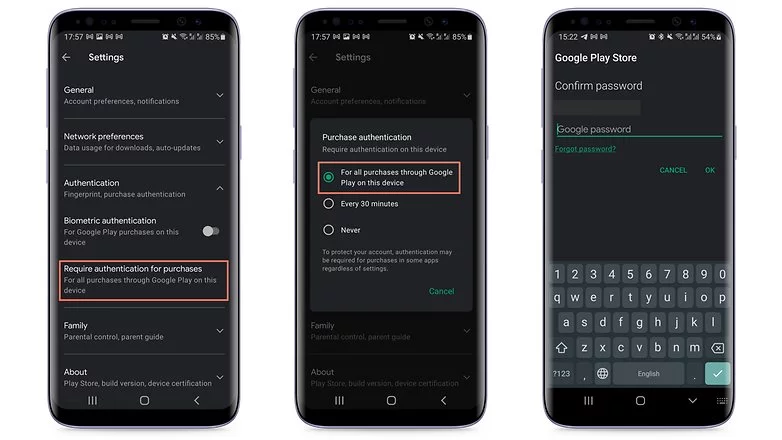
    If your child uses your smartphone or tablet while logged in to your Google account, the simplest solution is to make all purchases require approval via account password confirmation. Simply follow these steps to accomplish this:

    1. Tap the profile picture in the top corner of the screen in the Play Store.
    2. Choose Settings.
    3. Tap the Authentication field to launch the available options.
    4. Select Require authentication for purchases.
    5. Choose For all purchases through Google Play purchases on this device.
    in app purchases
    disable in app purchases android

    As the option itself already mentioned, you will need to repeat the steps on all tablets and smartphones used by the child.

    Otherwise, the child may authorize purchases using his or her fingerprint or other biometric systems registered on the device if the Biometric authentication option is enabled.

    Needless to say, the password to your Google account is private and should never be shared with your child. Disable biometric authentication as well if necessary.

    After following the above steps, every time you or anyone else using the device would like to make a purchase, you/they will need to authorize it by entering your Google account password, including in-game and in-app purchases that rely on the Google Play Services payment system.

    Another important point is to remember to repeat the steps for all user accounts that have been registered on the smartphone or tablet. Doing so will help avoid unwanted scares on devices used, for instance, covering both personal and professional areas.

    After you’ve completed the preceding steps, every time you or anyone else using the device wants to make a purchase, you’ll need to authorize it by entering your Google account password, including in-game and in-app purchases that use the Google Play Services payment system.

    Another important point to remember is to repeat the steps for all user accounts registered on the smartphone or tablet. This will help to avoid unwanted scares on devices used, for example, in both personal and professional settings.

    Use parental Control to prevent unwanted purchases

    If your child has his or her own tablet or smartphone, we recommend using parental controls to force purchase authorization. Google provides the Family Link app for just this purpose. This app allows you to create a user account just for your child or teen, as well as other admin options for YouTube, web search, and other services.

    After installing the app on your smartphone or the smartphone of the child’s guardian, launch Family Link and follow the steps shown below:

    ezgif.com gif maker 4
    1. After the app is launched, choose the user account of the parent or guardian.
    2. In the next screen, select the Parent option.
    3. Choose Next and then I’m ready.
    4. On the next screen, we will choose to create a new account for the child by tapping No.
      1. If she already has a Google account, just go to Settings on the other device, then Google > Parental Controls, and set up the device to be managed from your smartphone.
    5. Tap Next to begin the account creation process, which will require more information and can take around 10 minutes.
      1. During this step, you will need to agree to additional terms of use and confirm your user password, as well as accept the privacy rules for the new account.
    6. At the end of the creation process tap the Next button.

    After creating the Family Link account, use the login as the primary Google account on the child’s device. Return to your smartphone and launch the Family Link app to configure the following restrictions on the child’s account:

    ezgif.com gif maker 3
    1. Tap the View button under the profile that will have restricted purchases.
    2. Select the Manage settings option.
    3. Choose Google Play.
    4. Tap Require approval for.
    5. Select the All content option just to be safe!

    After that, each time the child attempts to purchase content, they must authorize the transaction on the parent or guardian’s device.

    Depending on how the secondary account is set up, make sure there is no form of payment registered in the account. If there are any, simply follow the steps in the next section.

    Remove associated credit or debit cards on the Google account

    This is a more extreme option, and it is not recommended if you also buy a lot of apps, have subscriptions or recurring payments associated with your Google account, or use the Google Pay service. Removing all payment methods from your Google account affects all devices associated with the login, so think twice before wiping your account clean.

    To remove a credit card, debit card, or other payment methods from your account, follow these steps:

    1. Launch the Play Store app and tap your profile photo.
    2. Select the Payments and subscriptions option.
    3. Choose Payment methods.
    4. Scroll down the screen and launch the More payment settings option.
    5. The browser will open a list of all available payment methods registered on the account. Tap Remove.
    6. Confirm the removal of the credit/debit card from the account by tapping Remove again.

    You will need to repeat these steps for each registered payment method, as well as all for all user accounts associated with the device.

  • Download LineageOS 18.1 for Pixel 5

    Download LineageOS 18.1 for Pixel 5

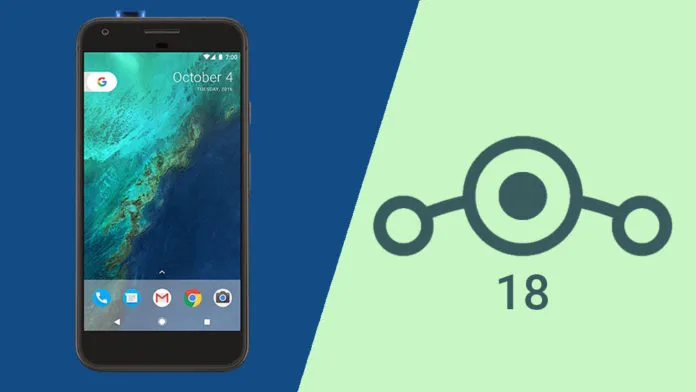
    LineageOS is a free, community built, aftermarket firmware distribution of Android 11, which is designed to increase performance and reliability over stock Android for your device.

    LineageOS is based on the Android Open Source Project with extra contributions from many people within the Android community. It can be used without any need to have any Google application installed. LineageOS does still include various proprietary hardware-specific code.

    All the source code for LineageOS is available in the LineageOS Github repo. And if you would like to contribute to LineageOS, please visit out Gerrit Code Review. You can also view the Changelog for a full list of changes & features.

    LineageOS private ROM 1 1

    Informations :

    • This ROM uses source built kernel, kernel modules, boot kernel modules (vendor_boot) and vendor image.
    • This ROM bundles the latest firmware so you don’t have to worry about updating firmware beforehand.
    • To use the eSIM you need to install GApps

    Instructions :

    1. Download the latest recovery image and rom zip
    2. Boot to bootloader
    3. fastboot flash boot lineage-recovery.img
    4. Boot to recovery
    5. Format data
    6. Sideload LineageOS zip
    7. Optionally flash any addons:
      • Advanced > Reboot to recovery
      • Sideload the addons
    8. Reboot

    See https://wiki.lineageos.org/devices/redfin/install for more detailed instructions​

    Downloads :

    Remember to provide as much info as possible. The more info you provide, the more likely that the bug will be solved.

    Known Issues

    Stock Google Camera app crashes in Night Mode or Astrophotography. As a workaround, install this magisk module.

    Source Code:https://github.com/LineageOS

    ROM OS Version: Android 11

    Source: XDA Developers

  • Pro version Apps for free – get them now!

    Pro version Apps for free – get them now!

    Google Play Store app promotions are pretty easy to predict, but it’s more complicated with those on the Apple Apps Store, since Apple doesn’t specify just how long the discount will remain valid.

    Here’s a tip: If you find an interesting app but can’t really use it right now? Install the app anyway, then delete it from your device. That way, the app will become part of your app library, and you can install it again for free when you need it. This is a good way not to miss out on a short-lived promo.

    Free Apps in the Google Play Store

    • Sketch Me! Pro ($1.49): Get a photo app that lets you turn your own pictures into crayon and pencil drawings with Sketch Me!
    • BlackCam Pro ($1.49): Valid through Sunday only – BlackCam Pro comes from the same developer as Sketch Me! and is a comprehensive camera for black-and-white photography.
    • Resize Me! Pro ($1.49): The third photo app from developer XNView is suitable for resizing or cropping images.
    • Gif Me! Pro ($1.49): And XnView’s GIF maker is also currently free in the Pro version. All in all, you’re getting a veritable arsenal of photo apps for free this weekend.
    • SUI File Explorer PRO ($1.99): A four-star rated file explorer. It lets you search files on your hard drive or conveniently install APKs, for example.
    • Multiscreen Calculator with Voice Input Pro ($3.99): You’re obviously getting a fantastic calculator here. From the screenshots, I wouldn’t have guessed that the app was rated 4.5 stars by nearly 4,000 users.
    • CP Meeting Notes ($2.99): A cross between a notes app and a voice recorder. Only rated by 35 voices so far, but you might find it quite interesting!
    • One Swipe Notes ($0.99): Another note app that lets you swipe away completed tasks. In my opinion a good feeling when you have finished a task!
    • My UI 9 – Icon Pack ($0.99): An icon pack that lets you add a little MIUI feel to your phone. Either something for Xiaomi fans or if you liked pulling the custom ROM onto your phone back in the day like I did!
    • Nougat Square – Icon Pack ($0.99): Another icon pack that puts Android Nougat’s icon design into boxes.
    apps

    Free games for Android

    • True Skate ($1.99) Kicks things off with a skateboarding game sure to please fans of Tony Hawk’s legendary sports game series!
    • College Days – Summer Break ($0.99): You shouldn’t expect too much action in so-called graphic novels. The focus is on the plot and College Days, who would have guessed, revolves around a group of teenagers in college.
    • Peppa Pig: Peppa Travels ($2.99): A mobile game for kids where your kids have to complete tasks with the popular cartoon piggy Peppa Pig.
    • Coloring Book+ ($7.49): A coloring game for adults reviewed by the experts at the Google Play Store. The rating is 4 stars out of nearly 360 votes.
    • Dead Bunker 2 HD ($0.99): An old acquaintance in our free apps! The HD version of Dead Bunker 2 is currently available for free.
    • Construction Machines SIM ($0.99): Here’s a clone of the popular simulation games for Android. However, the rating of 3.7 stars with 52 votes is not too promising.
  • Android devices secret codes – list of custom dialer USSD codes

    Android devices secret codes – list of custom dialer USSD codes

    These codes can be divided into two categories: USSD codes and MMI codes. While these hidden codes are rarely useful to the average smartphone owner, they can be used to pique your interest once in a while. As a result, the goal of this article is to compile a comprehensive list of these secret codes for Android devices.

    What is the USSD and MMI code?

    USSD codes

    While the average user may not need to know the distinction between these two, it is always useful to be aware of them. Both USSD and MMI codes are typically preceded by an asterisk or a pound symbol/hashtag. These codes are regularly updated as new versions of Android software are released, and some manufacturers have their own special codes as well.

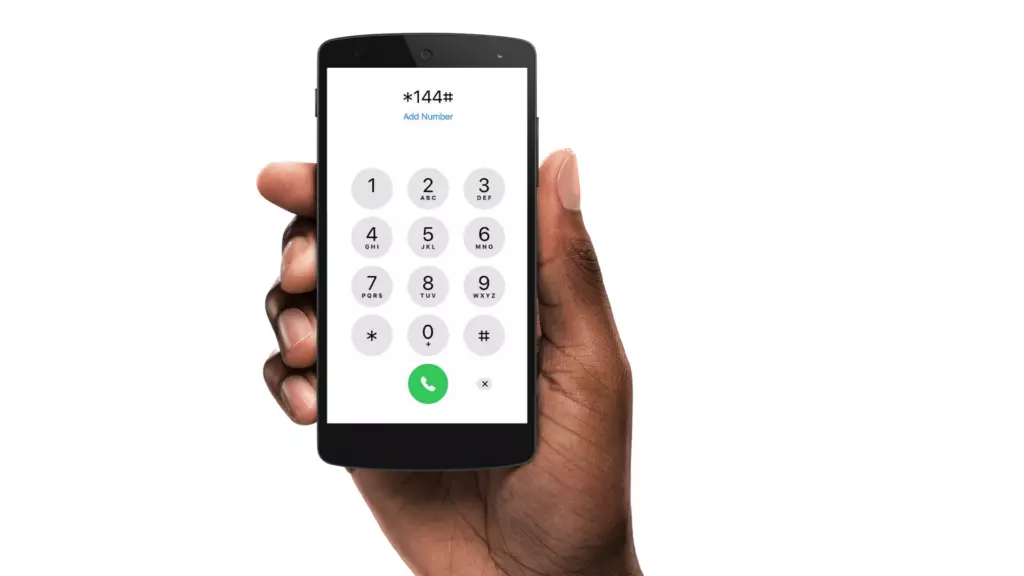
    The code entry procedure is straightforward, requiring only that you bring up your dialer keypad and enter the appropriate number sequence. It’s worth noting that some codes are carrier-specific, which means they won’t work on all devices. So, if your phone doesn’t respond to a code, don’t dwell on it; instead, move on and try again.

    USSD code

    USSD is an abbreviation for Unstructured Supplementary Service Data, and these codes are commonly used to communicate between your smartphone and your mobile network operator. This also means that in order for USSD codes to work, you must almost always be connected to your carrier.

    Previously, USSD codes were used to initiate and terminate specific value-added services. They were also helpful in informing you of your data usage and prepaid balance, as well as providing access to a wealth of carrier-specific information.

    fWhile smartphone enthusiasts continue to use them, USSD codes have largely fallen out of favor with general users because most carriers have their own app/website where most of this information can be easily accessed. USSD codes are typically carrier-specific and vary from one carrier to the next. You will need to contact your carrier to find out which ones apply to you.

    MMI Codes

    MMI codes, on the other hand, are part of the Man Machine Interface schema and are typically unique to a smartphone brand or model. MMI codes provide access to a variety of interesting features on your smartphone, ranging from your IMEI number and SAR values to hidden menus commonly used by smartphone engineers and repair services.

    Several smartphones, for example, allow users to enter an MMI code to access a ‘test’ menu. This menu allows users to quickly perform various tests on their smartphone, such as camera and vibration motor tests, as well as speaker and display tests.

    Note that there are only a few MMI codes that typically work on all Android smartphones. We have listed the most popular ones in the generic list of codes below.

    Info Codes

    Generic secret codes for Android phones (Info codes)

    CODEFUNCTION
    *#06#    Show phone’s IMEI
    *#07#Displays the Specific Absorption Rate (SAR) value of the device
    *#*#225#*#*Displays calendar storage info
    *#*#426#*#*Google Play Services info or Firebase Cloud Messaging diagnostics (Select devices only)
    *#*#759#*#*Access Rlz Debug UI (Select devices only)
    *#0*#    Info menu (Select devices only)
    *#*#4636#*#* Info menu (Select devices only)
    *#*#34971539#*#*Camera info (Select devices only)
    *#*#1111#*#* FTA software version (Select devices only)
    *#*#1234#*#* PDA software version
    *#12580*369# Software and hardware info
    *#7465625# Device lock status
    *#*#232338#*#* MAC address
    *#*#2663#*#* Touchscreen version
    *#*#3264#*#* RAM version
    *#*#232337#*# Bluetooth address
    *#*#2222#*#* Hardware version
    *#*#44336#*#* Software version and update info
    *#*#273282*255*663282*#*#*    Backup all media

    Testing codes

    CODEFUNCTION
    *#*#197328640#*#*Test mode
    *#*#232339#*#*Wi-Fi test
    *#*#0842#*#*Brightness and vibration test
    *#*#2664#*#*Touchscreen test
    *#*#232331#*#*Bluetooth test
    *#*#7262626#*#*Field test
    *#*#1472365#*#*GPS quick test
    *#*#1575#*#*Full GPS test
    *#*#0283#*#*Packet loopback test
    *#*#0*#*#*LCD display test
    *#*#0289#*#*Audio test
    *#*#0588#*#*Proximity sensor test

    Configuration codes

    CODEFUNCTION
    *#9090#Diagnostics settings
    *#301279#HSDPA/HSUPA settings
    *#872564#USB logging settings

    Developer codes

    CODEFUNCTION
    *#9900#System dump mode
    ##778 (+green/call button)EPST menu

    Manufacturer-specific codes

    Samsung codes

    CODEFUNCTION
    *#0*#Access diagnostics
    *#011#Network details and serving cell information
    *#0228#Battery status
    *#0283#Loopback Test menu
    *#0808#USB Settings
    *#1234#Software version/ Model details
    *#2663#Firmware details (Advanced)
    *#7353#Quick test menu
    *#9090#Advanced debugging tools
    *#9900#SysDump
    *#2683662#Service mode (Advanced)
    *#34971539#Camera firmware details

    Xiaomi Codes

    CODEFUNCTION
    *#*#64663#*#*  Access test menu

    Realme codes

    CODEFUNCTION
    *#800#Feedback menu
    *#888#Engineer mode – displays PCB number
    *#6776#Software version

    OnePlus codes

    CODEFUNCTION
    *#66#Encrypted IMEI
    *#888#Engineer mode – displays PCB number
    *#1234#Software version
    1+= (In stock calculator app)Displays ‘NEVER SETTLE’ on the calculator app
    *#*#2947322243#*#*Wipes internal memory

    Asus codes

    CODEFUNCTION
    *#07#Regulatory labels
    .12345+= (In calculator)Open engineering mode

    Motorola

    CODEFUNCTION
    *#*#2486#*#*Opens engineering mode
    *#07#Shows regulatory information
    ##7764726Hidden Motorola Droid menu

    HTC

    CODEFUNCTION
    *#*#3424#*#*HTC test program
    ##786#(Caution!) Phone reset menu
    ##3282#EPST menu
    ##3424#Diagnostic mode
    ##33284#Field test
    ##8626337#Launch Vocoder
    *#*#4636#*#*HTC info menu

    Sony codes

    CODEFUNCTION
    *#*#73788423#*#*Access service menu
    *#07#Certification details

    Nokia codes

    CODEFUNCTION
    *#*#372733#*#*Open service menu (FQC Menu)

    Other codes 

    CODEFUNCTION
    *#7780#(Caution!) Factory reset
    *2767*3855#(Caution!) Full factory reset
    *#*#7594#*#*Power off the phone
    *#*#8351#*#*Activate dialer log mode
    #*#8350#*#*Deactivate dialer log mode

    Stay away from these codes! Think before using!

    CODEFUNCTION
    *#*#7780#*#*(Caution! Risk of data loss and rendering phone useless) Factory data partition reset
    *2767*3855#(Caution! Risk of data loss and rendering phone useless) Format device

    USSD codes for US carriers

    These aren’t exactly hidden, but they’re not widely known either. Once dialed, USSD, or Unstructured Supplementary Service Data, codes connect to the phone’s network to perform specific functions, such as determining how much credit is left on your prepaid phone or how much data you’ve used this month. They change frequently, and the codes differ from carrier to carrier. Here are some examples for some of the major US carriers, along with links to more carrier-specific codes:

    AT&T

    • Check your data and SMS usage: *3282#

    Verizon

    • Check your data and SMS usage: #3282

    T-Mobile

    • Check your data usage: #932#

    Sprint

    • Check minutes, messages, and other usage stats: *4

    There’s a good chance you’ll never need to use most of these codes, but if you do, then now you know where to find them.

  • Get Pro versions for free! – free premium apps for this week

    Get Pro versions for free! – free premium apps for this week

    It’s time for our weekly roundup of free Android apps. We’ve compiled a list of normally paid apps and games that are currently available for free for a limited time. Don’t waste time and take advantage of the promotions!

    Here’s a tip: If you find an interesting app but can’t really use it right now? Install the app anyway, then delete it from your device. That way, the app will become part of your app library, and you can install it again for free when you need it. This is a good way not to miss out on a short-lived promo.

    Free apps in the Google Play Store

    • Correlate ($2.99): Record your habits, food and understand the relationships of your choices and actions in your daily life and health.
    • SnagBricks ($5,49): For construction engineers, designers and other professionals in the construction industry, this app helps track construction progress, with report export options.
    • SUI File Explorer PRO ($1.99): A four-star rated file explorer. It lets you search files on your hard drive or conveniently install APKs, for example.
    • Multiscreen Calculator with Voice Input Pro ($3.99): You’re obviously getting a fantastic calculator here. From the screenshots, I wouldn’t have guessed that the app was rated 4.5 stars by nearly 4,000 users.
    • CP Meeting Notes ($2.99): A cross between a notes app and a voice recorder. Only rated by 35 voices so far, but you might find it quite interesting!
    • One Swipe Notes ($0.99): Another note app that lets you swipe away completed tasks. In my opinion, a good feeling when you have finished a task!

    Free games in the Google Play Store

    • The Lone Hacker ($3.00): Still in development, become a digital security expert by finding flaws in computers around the world. Although still incomplete, the game has thousands of positive reviews on Play Store.
    • Sudoku Pro ($2.99): Contains ads and purchases: challenge your mind in more than 9,000 puzzles (yes, I only listed this game to enjoy the meme).
    • Cat Simulator Kitty Craft Pro Edition ($0.99): CAT SIMULATOR: if the internet is for viewing pictures of cats, that’s what cell phones and their multiple CPU and GPU cores are for.
    • Dead Bunker 2 HD ($0.99): An old acquaintance in our free apps! The HD version of Dead Bunker 2 is currently available for free.
  • In the Pixel 6, Exynos replaces the Qualcomm modem chip

    In the Pixel 6, Exynos replaces the Qualcomm modem chip

    Pixel 6 comes with Exynos modem

    Google has a similar ecosystem to Apple. Its users can choose from a large choice of items to meet their various tech needs. The IT behemoth has kept evolving, producing new product after inventive product. It started as a search engine and has now moved into the smartphone market with its mid-range models.

    Details about the Google Pixel 6 are scattered all over the web. According to the latest reports, for the upcoming Pixel 6, Google is ditching Snapdragon.

    exynos

    Exynos replaces Qualcomm’s modem chip

    Google has used Qualcomm as the sole producer of not only its Snapdragon CPUs but also its modem chips, for all previous iterations of the Pixel series. The Qualcomm Snapdragon 765G SoC and the Snapdragon Qualcomm X52 modem enable 5G connectivity on the Pixel 5.

    The reliance on Qualcomm chips is unsurprising, given that the United States is one of Google’s largest client bases, and Qualcomm has had a rigid monopoly on wireless chip technology in the country for the past 20 years. Qualcomm modem chips have been used solely in all smartphones sold in the United States, a reality that has become even more apparent with the introduction of 5G.

    Qualcomm has the greatest 5G networking technology out of the only three 5G modem chipmakers in the world, adopting a variation called Millimeter Wave (MMW), which can now harness the fastest speeds on 5G networks even carry out processes such as SMS Share swiftly.

    After Qualcomm, MediaTek, a Taiwanese fabless semiconductor business, and Samsung are the other two 5G-capable chip makers. One of Samsung’s newer Exynos 5G modems, the Exynos 5123, appears to have progressed far enough to interest Google’s attention.

    With Samsung’s Exynos 5123, the Pixel 6 will be the first smartphone in the US to use a non-Qualcomm wireless modem, shattering Qualcomm’s stranglehold across the country. Additionally, this will be a new kind of triumph for Samsung, as it will be the first time its Exynos modem processor will be seen in a non-Samsung phone.

    Collaboration between Google & Samsung

    On the Pixel 6, the modem chip isn’t the only Samsung component we’ll see. On the contrary, the lengths to which Google has gone to incorporate Samsung’s technology into its current Pixel flagship has led some to speculate that the two tech titans are working together, though neither has confirmed this.

    Apart from the modem, the Pixel 6’s display, camera, and processor will all be Samsung-made. Samsung’s main camera was confirmed to be either the GN1 or the more current GN2 ISOCELL sensor in some previously released code. The display is believed to have a 6.4-inch 90Hz AMOLED screen manufactured by Samsung. And the SoC, which will power the upcoming smartphone, will be the 5-nanometer Tensor chipset, which was built by Google but will be manufactured entirely by Samsung.

    It seems that the two tech companies have joined forces for the Google Pixel 6. If that is indeed the case, we have high expectations for the device. We’ll have to wait for official statements from both companies to acknowledge these rumors.

  • In 2021, Google will pay Apple $15 billion to be the default search engine in Safari

    In 2021, Google will pay Apple $15 billion to be the default search engine in Safari

    Google will pay Apple $15 billion

    Apple has its eco-system of products from phone to browsers hence users rarely need to venture outside the Apple world in search of third-party apps. Nevertheless, there seems to be a monopoly brewing between Apple and the G. According to recent reports, the latter will pay Apple $15 billion in 2021 to be the default Safari search engine.

    That’s quite a hefty sum but it will give an edge to him since currently, Apple does not have its search engine.

    google

    Further Details

    It’s no secret that Google pays Apple substantial money each year to keep its search engine as the default on iPhone, iPad, and Mac. According to a new projection from Bernstein analysts, Google’s payment to Apple might reach $15 billion in 2021, up from $10 billion in 2020.

    Google’s payment to Apple is expected to rise to $15 billion in 2021, and between $18 billion and $20 billion in 2022, according to analysts. The data is based on “disclosures in Apple’s public filings as well as a bottom-up analysis of Google’s traffic acquisition costs payments.”

    The big G is most likely “paying to prevent Microsoft from outbidding it.” According to the analysts, there are two major dangers for Google’s payment to Apple: regulatory risk and Google just deciding the agreement isn’t worth it.

    Over the years, Apple’s decision to keep Google as the default search engine on the iPhone, iPad, and Mac has been received with increasing criticism. Despite privacy concerns, Apple’s senior director of global privacy Jane Horvath explained why the contract was made in an interview earlier this year: “Right now, the G is the most popular search engine. We do support him but we also have built-in support for DuckDuckGo, and we recently also rolled out support for Ecosia.”

    The payment from the big G to Apple makes up a sizable portion of Apple’s crucial Services division. Apple has placed a strong emphasis on Services in recent years to demonstrate to investors that it can generate income and profit in ways other than through hardware sales.

    On another note

    We noticed an intriguing trend while visiting the Google Playstore recently. SMS Share apps, for example, appear to be gaining in popularity. The COVID-19 epidemic is most likely to blame for the rise in such apps. People have been forced to stay at home due to the outbreak, and as the disease spreads, they are turning to apps for help.

    Everyday work has shifted to the virtual sphere, people are looking for more convenient solutions to their difficulties. We’ll have to see if this trend persists or is just a passing craze.

    i

  • Motorola Edge 2021 Released: All You Need to Know

    Motorola Edge 2021 Released: All You Need to Know

    Motorola has announced the Motorola Edge 2021, which is the successor to last year’s Motorola Edge smartphone. In comparison to last year’s Motorola Edge, the newly released Motorola Edge 2021 has better specs and a flat display.

    The Snapdragon 778G chipset is at the heart of the device. The display of the phone is a 6.8-inch IPS LCD with Full HD+ resolution and a 144Hz refresh rate. 8GB of RAM, a 108MP triple-camera array, a 32MP selfie camera, and a 5000mAh battery are among the device’s other notable features.

    Availability and Price

    The Motorola Edge 2021 will set you back $699. For a limited time, the smartphone will be sold at a discounted price of $499. The Motorola Edge 2021 is only available in one color: Nebula Blue.

    Pre-orders for the smartphone will begin on August 23 in the United States. The phone will be available on Amazon.com, Best Buy, B&H Photo, and Motorola.com starting September 2. In the coming months, the Motorola Edge 2021 will also be available in Canada.

    motorola edge

    Specifications Worth Mentioning

    The Motorola Edge 2021 boasts a 6.5-inch IPS LCD with a 144Hz refresh rate and a Full-HD+ resolution of 1080 x 2460 pixels. The screen boasts a 20:9 aspect ratio, a screen-to-body ratio of 90.6 percent, and HDR10 support.

    The Snapdragon 778G SoC is at the heart of the gadget. The Adreno 642L GPU is in charge of graphics performance. The phone has an internal storage capacity of 256GB and 8GB of RAM. After observing the specs, we can safely say that the device will have no trouble carrying out functions such as file sharing.

    Additionally, the device has a triple-camera configuration for optical purposes. A 108MP main camera with an f/1.9 lens is included in the rear-facing camera module. An 8-megapixel ultra-wide-angle camera and a 2-megapixel depth camera complement the 108MP sensor. The smartphone sports a 32MP selfie camera with an f/2.25 aperture on the front.

    Wi-Fi 6E, 5G, Bluetooth v5.2, GPS, NFC, and a USB Type-C cable are among the device’s connectivity options. The phone has a fingerprint sensor on the side as well as a face unlock option. The smartphone is powered by a 5000mAh battery that supports 30W fast charging. The Motorola Edge 2021 has dimensions of 169 x 75.6 x 8.99mm and weighs 200 grams. The phone comes pre-installed with Android 11 with My UX on top. The device is also IP52 rated, which means it can withstand water and dust splashes.