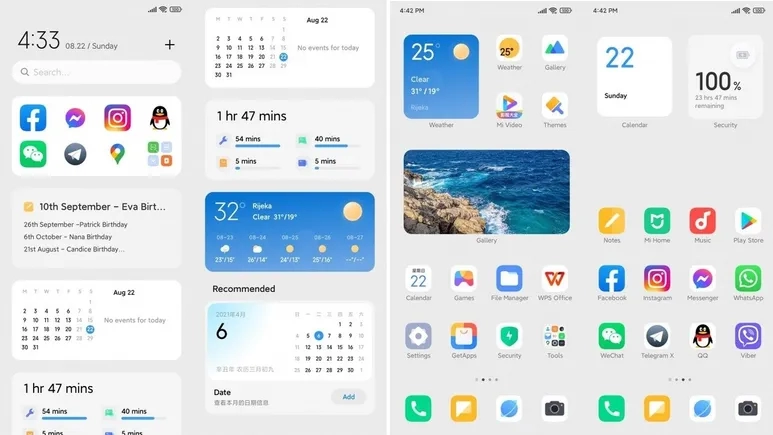
Xiaomi is actively developing MIUI 13, its upcoming Android skin. Remember that the MIUI 12 system was notoriously buggy, and the business had to cope with a slew of issues. In fact, Xiaomi will have to release an improved version of MIUI 12.5 to address the majority of the flaws. As it optimizes the MIUI 13 system, the Chinese maker keeps this in mind. Despite its flaws, MIUI is still one of the greatest Android skins created by Chinese manufacturers. MIUI is making every effort to improve and will undoubtedly perform better,” Xiaomi CEO Lei Jun said.
Furthermore, Lu Weibing, general manager of the Redmi brand, credits MIUI’s work with the Redmi Note 11 Pro’s exceptional battery performance. The Redmi Note 11 Pro battery, he claims, gets people more excited about the MIUI system. These remarks from Xiaomi executives have sparked suspicion that the MIUI 13 operating system may include a slew of new features. Of course, it’s reasonable to expect a significant number of changes in MIUI 13. This is due to the fact that its predecessor did not do much, so it will have a lot to deal with.
Furthermore, popular Weibo leakster, @DCS claims that the MIUI 13 comes with tons of changes. He further claims that many of the system interfaces have new UX. This Android skin will be based on Android 11 as well as Android 12.
MIUI 13 – launch at the end of the year
Not long ago, the Xiaomi MIUI team set up a pioneer team to fix various bugs and complaints coming from users. According to many user feedbacks, with the efforts of the MIUI pioneer team for several weeks, the current lagging and issues of many models have significantly reduced. The fluency and stability of the system are now gradually increasing.
Font Awesome is a widely used icon toolkit that may be found on a variety of websites. It features both a free and a paid icon collection, but the free collection has the majority of the icons. Unicode () will be used to represent each icon. In TextView, we utilize this unicode to display the icon. All text styling elements (color, size, paddings, etc.) can be added because it’s a regular TextView.
If you wish to display the android Robot logo, for example, you can use unicode as the TextView value.
To use the Font Awesome icon collection, simply add the font awesome font files to your assets and apply the relevant fontFace to the TextView, which is a much easier operation. However, we’d like the icons to appear in other widgets as well, such as Buttons, Menus, Bottom Navigation, and Navigation Drawer. It requires some effort to display an icon in a non-textual view. As a result, I created a library that has all of the essential methods for rendering icons in numerous widgets.
To get started, include the fontawesome in your build.gradle and sync your project.
dependencies {
    // font awesome
    implementation 'info.androidhive:fontawesome:0.0.5'
}
Using the FontTextView text and specifying the proper icon name as text value is the simplest way to display the font icon. Because this widget is derived from AppCompatTextView, it inherits all of the text view properties.
solid_icon: To display solid icon, set this value as true.
brand_icon: To display brand icon, set this value as true.
Using FontDrawable
Using the icon in xml layout is easy, but if you want to use the icon for other widget like button or menu, you can use the FontDrawable element to apply the icon.
For an example, if you want to use the font awesome icon to Floating Action Button, you can use the FontDrawable as shown below.
FloatingActionButton fab = findViewById(R.id.fab);

// using paper plane icon for FAB
FontDrawable drawable = new FontDrawable(this, R.string.fa_paper_plane_solid, true, false);

// white color to icon
drawable.setTextColor(ContextCompat.getColor(this, android.R.color.white));
fab.setImageDrawable(drawable);
Using in Menus (Bottom Navigation, Navigation Drawer etc.,)
You can also use font icons in widgets that use the menu file to generate elements like Toolbar icons, Bottom Navigation, and Navigation Drawer, among others. You can use the FontDrawable to configure the icons in menus, however it requires a few hacks using java code.
The below example shows rending the font awesome icons in Navigation Drawer menu. Full example can be found here.
public class MainActivity extends AppCompatActivity
        implements NavigationView.OnNavigationItemSelectedListener {
    @Override
    protected void onCreate(Bundle savedInstanceState) {
        super.onCreate(savedInstanceState);
        setContentView(R.layout.activity_main);

        intDrawerLayout();
    }

    /**
     * Changing navigation drawer icons
     * This involves looping through menu items and applying icons
     */
    private void intDrawerLayout() {
        NavigationView navigationView = findViewById(R.id.nav_view);
        navigationView.setNavigationItemSelectedListener(this);

        ImageView iconHeader = navigationView.getHeaderView(0).findViewById(R.id.nav_header_icon);
        FontDrawable drawable = new FontDrawable(this, R.string.fa_font_awesome, false, true);
        drawable.setTextColor(ContextCompat.getColor(this, android.R.color.white));
        drawable.setTextSize(50);
        iconHeader.setImageDrawable(drawable);

        int[] icons = {
                R.string.fa_home_solid, R.string.fa_calendar_alt_solid, R.string.fa_user_solid,
                R.string.fa_heart_solid, R.string.fa_comment_solid, R.string.fa_dollar_sign_solid, R.string.fa_gift_solid
        };
        renderMenuIcons(navigationView.getMenu(), icons, true, false);

        int[] iconsSubmenu = {R.string.fa_cog_solid, R.string.fa_sign_out_alt_solid};

        renderMenuIcons(navigationView.getMenu().getItem(7).getSubMenu(), iconsSubmenu, true, false);
    }

    /**
     * Looping through menu icons are applying font drawable
     */
    private void renderMenuIcons(Menu menu, int[] icons, boolean isSolid, boolean isBrand) {
        for (int i = 0; i < menu.size(); i++) {
            MenuItem menuItem = menu.getItem(i);
            if (!menuItem.hasSubMenu()) {
                FontDrawable drawable = new FontDrawable(this, icons[i], isSolid, isBrand);
                drawable.setTextColor(ContextCompat.getColor(this, R.color.icon_nav_drawer));
                drawable.setTextSize(22);
                menu.getItem(i).setIcon(drawable);
            }
        }
    }
}
Things have calmed down after a wild weekend of game sales, but I still have some awesome sales to share with everyone, including a few standouts. First up is KWGT Kustom Widget Pro Key, an unlock app for a popular widget creation app KWGT Kustom Widget Maker. Next, I have Mathematiqa, a puzzle and riddle game that’s amassed over 100K installs. Last but not least is LayerPaint HD, a lesser-known drawing app that offers a boatload of features and a reliable developer. As always, I’ve highlighted all of the interesting titles in bold in order to make discovery easier. So without further ado, here are 13 temporarily free and 30 on-sale apps and games for the middle of the week.
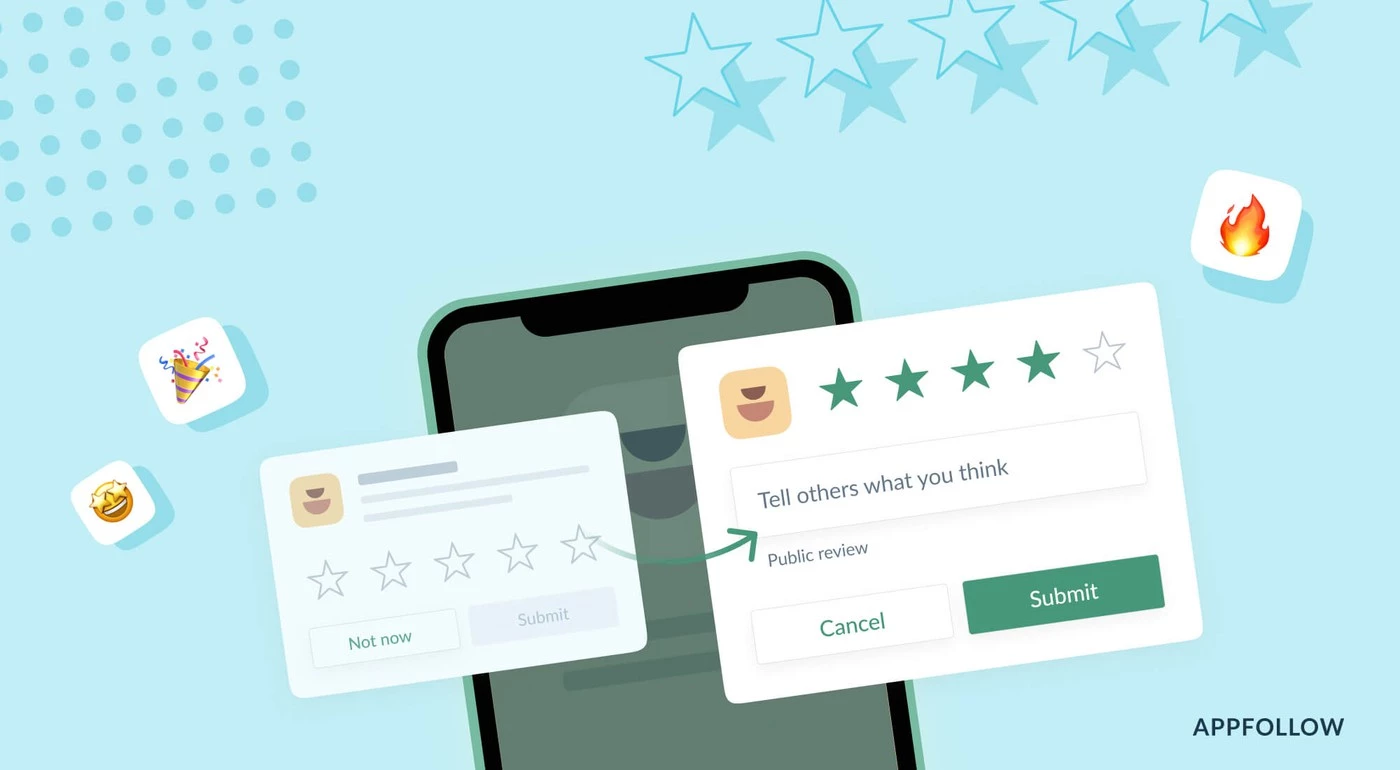
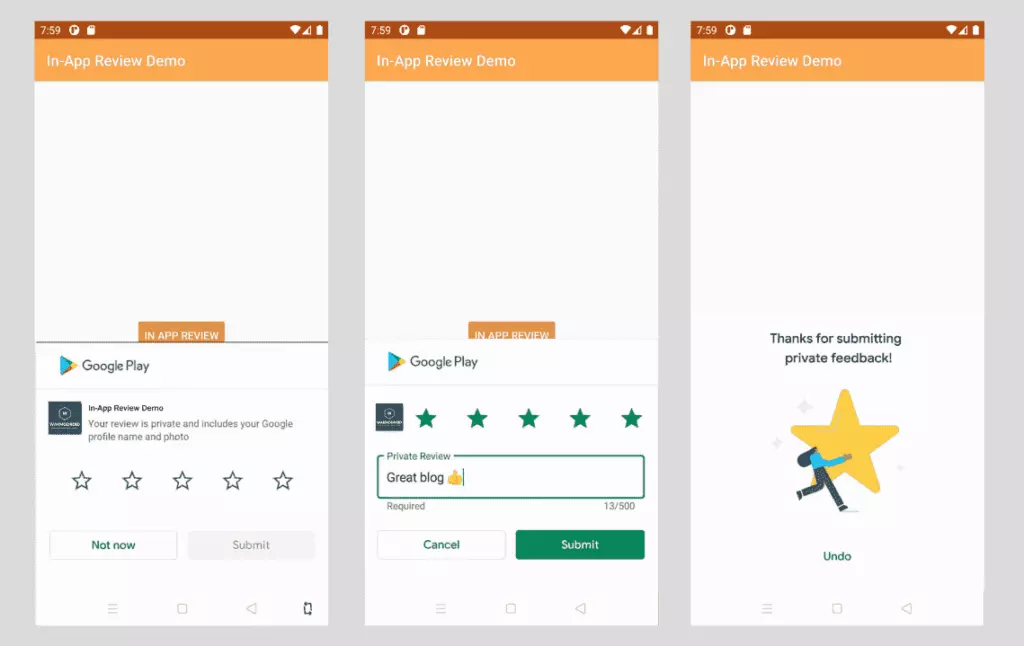
App ratings and reviews are critical factors in driving more downloads after your app is live on the Play Store. To do this, we typically ask users to rate the app by displaying a popup with a few buttons and referring them to the Google Play Store. With this user experience, there’s a potential the user won’t return to our app after being redirected to the Play Store. It’s also tough for a new user to rank the app on Google Play.
Luckly google provided an API called In-App Review to show the rating widget in the app itself without user leaving the app.
The In-App Review is part of play core library. Once the widget is integrated, we can see the rating widget displayed in the same app in a bottom sheet.
Good to know
In-app review works only on android devices running Android 5.0 (API level 21) or higher that have the Google Play Store installed.
The in-app review API is subject to quotas. The API decides how often the review widget should be shown to user. We shouldn’t call this API frequently as once user quota is reached, the widget won’t be shown to user which can break the user experience. You can read more about Quotas here.
The review flow will be controlled by API itself. We shouldn’t try to alter the design or place approrpiate content on top of the widget. You can read more about Design Guidelines here
The review flow doesn’t indicate whether user has reviewed the app or not, even it won’t tell us whether the widget has shown to user or not.
Integrate in-app review API
Integrating In-App review is very simple. It can be achived with very minimal code. Let’s see how to integrate it.
The In-App review API is part of Play Core API, so you have to include the library in your app’s build.gradle. Here I am adding material library as well as I want to show fallback rating dialog if there is any error in in-app review API.
app/build.gradle
// Play core library
implementation "com.google.android.play:core:1.8.0"

// optional material library to show the fallback rate us dialog
implementation "com.google.android.material:material:1.3.0-alpha02"
The next step is creating the instance of ReviewManager interface. This class provides necessary methods to start the review flow.
Once the new instance is created, we need to call requestReviewFlow() task which returns the ReviewInfo object upon on successful completion.
Using the ReviewInfo object, we need to call launchReviewFlow() method to start the review flow.
For some reason, if the requestReviewFlow fails, we can launch the usual Rate App dialog that redirects user to playstore app.
Below, showRateApp() method starts the in-app review flow. The showRateAppFallbackDialog() method acts as fallback method if requestReviewFlow throws an error. This fallback method shows usual material dialog with three buttons to redirect user to playstore app.
Here is the complete code required for in-app review flow.
MainActivity.java
import android.os.Bundle;
import androidx.appcompat.app.AppCompatActivity;
import com.google.android.material.dialog.MaterialAlertDialogBuilder;
import com.google.android.play.core.review.ReviewInfo;
import com.google.android.play.core.review.ReviewManager;
import com.google.android.play.core.review.ReviewManagerFactory;
import com.google.android.play.core.tasks.Task;

public class MainActivity extends AppCompatActivity {

    private ReviewManager reviewManager;

    @Override
    protected void onCreate(Bundle savedInstanceState) {
        super.onCreate(savedInstanceState);
        setContentView(R.layout.activity_main);

        init();
    }

    private void init() {
        reviewManager = ReviewManagerFactory.create(this);

        findViewById(R.id.btn_rate_app).setOnClickListener(view -> showRateApp());
    }

    /**
     * Shows rate app bottom sheet using In-App review API
     * The bottom sheet might or might not shown depending on the Quotas and limitations
     * https://developer.android.com/guide/playcore/in-app-review#quotas
     * We show fallback dialog if there is any error
     */
    public void showRateApp() {
        Task<ReviewInfo> request = reviewManager.requestReviewFlow();
        request.addOnCompleteListener(task -> {
            if (task.isSuccessful()) {
                // We can get the ReviewInfo object
                ReviewInfo reviewInfo = task.getResult();

                Task<Void> flow = reviewManager.launchReviewFlow(this, reviewInfo);
                flow.addOnCompleteListener(task1 -> {
                    // The flow has finished. The API does not indicate whether the user
                    // reviewed or not, or even whether the review dialog was shown. Thus, no
                    // matter the result, we continue our app flow.
                });
            } else {
                // There was some problem, continue regardless of the result.
                // show native rate app dialog on error
                showRateAppFallbackDialog();
            }
        });
    }

    /**
     * Showing native dialog with three buttons to review the app
     * Redirect user to playstore to review the app
     */
    private void showRateAppFallbackDialog() {
        new MaterialAlertDialogBuilder(this)
                .setTitle(R.string.rate_app_title)
                .setMessage(R.string.rate_app_message)
                .setPositiveButton(R.string.rate_btn_pos, (dialog, which) -> {

                })
                .setNegativeButton(R.string.rate_btn_neg,
                        (dialog, which) -> {
                        })
                .setNeutralButton(R.string.rate_btn_nut,
                        (dialog, which) -> {
                        })
                .setOnDismissListener(dialog -> {
                })
                .show();
    }
}
Testing
To test the in-app review flow, you should have the app approved already on PlayStore. This doesn’t mean the app should be available to public. At least you should have the account ready for Internal Testing or Internal App Sharing.
You can use Internal Test Track to release the app and test the in-app review flow.
You can use Internal App Sharing to test the in-app review flow.
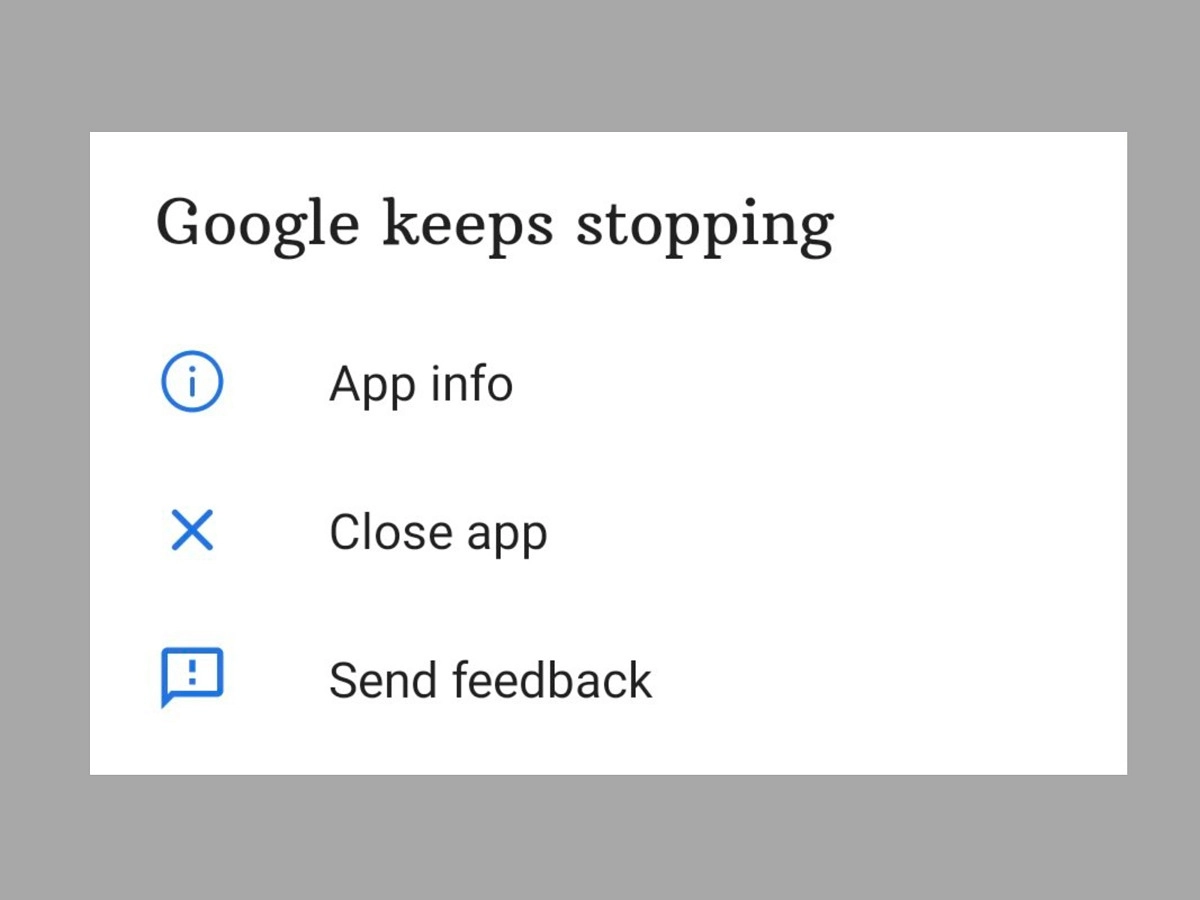
We’ll teach you how to fix the Android 12 app crashing issue in this post. Android 12 is currently accessible in the market, albeit it is not available to all users. Pixel users have had the opportunity to test Android 12 in both developer preview and public beta versions.
However, even after the stable build for the new Android iteration was released, there were several reports of glitches, freezing, lagging, and crashing.
The new features and improvements may be significant, but the Android 12 app crashing issue is now more prominent and has become an issue that many users are facing.
This tutorial is for individuals who are experiencing the same problem on their Android 12 phone and want to know how to repair the Android 12 app crashing issue. In this article, we’ll go through some troubleshooting options for this problem.
A Pixel device has the advantage of allowing users to try out development builds and public betas for the latest Android releases. However, because these builds are fresh, they are not without flaws and have a number of issues. This is the reason why users have so many problems and bugs. This includes regular app crashes as well.
Another issue that arose was that the Android WebView application was not working properly. For those who do not know, Android WebView is a tool that allows applications such as Gmail to display content from web pages through Chrome without having to leave the app’s own interface. But fortunately, the solution to this problem is now available on Google Issue Tracker.
If you also face frequent app crashes on Android 12 and want to know how to fix Android 12 App crashing issue, then try one of the two methods given below:
Tip1: Re-Enable Android System WebView
First of all, head over to the Settings app on your device and then go to the Apps section.
Then go to All Apps and then tap on Android System WebView
Now tap on Disable, confirm when the pop-up asks you to.
Now reset it by tapping on Enable.
This was the first method to fix Android 12 App crashing issue. If the issue is still not resolved, then you should try the above steps a few more times. If you still keep facing the issue, then try the second method below.
Tip 2: Uninstall Android System WebView
First up, open up the Settings app on your device.
After that, head over to the Apps section and then tap on All apps.
Find Android System WebView and tap on it.
Find the link to the App store page there.
Now tap on uninstall and after that, tap on Enable.
After that, your issue should be resolved. If you’re still having problems, your only choice is to wait until the developers address the problem with a new update.
So that was our take on how to resolve the Android 12 app crashing issue. We hope you find this information to be useful. Leave your thoughts in the comments section below.
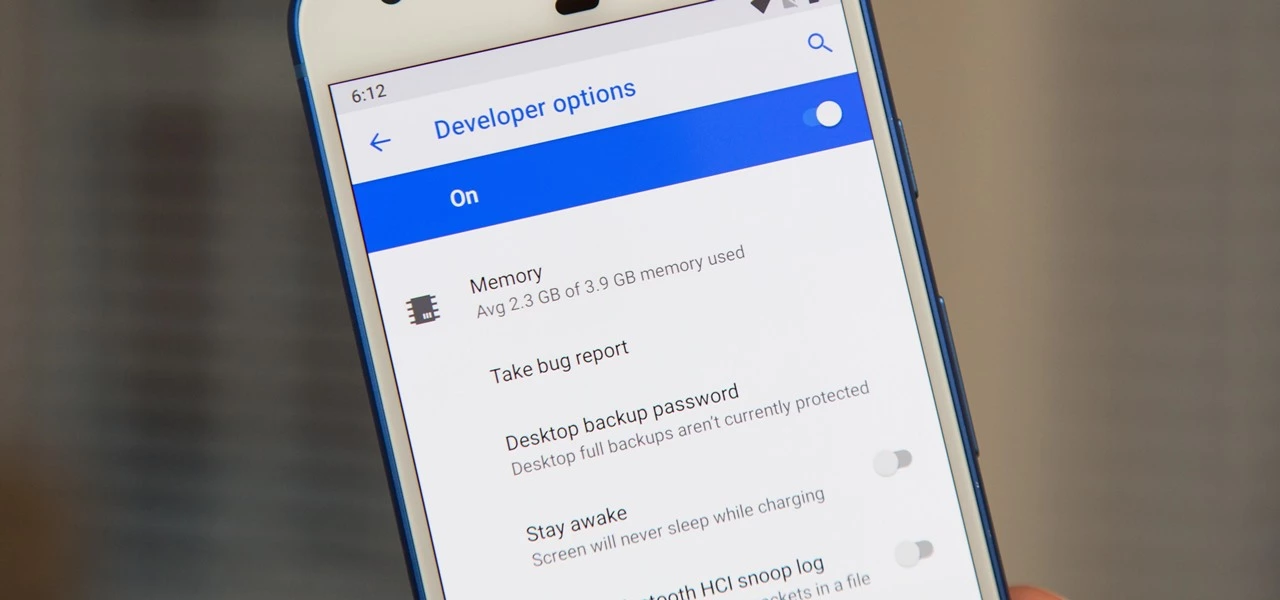
One of the first things you should do when you get your new Google Pixel 6 or 6 Pro is open the hidden “Developer options” menu. Don’t be put off by the word “developer” because this hidden Android 12 menu contains functionality that any Android user can use.
If you don’t have a Pixel 6 or 6 Pro, you can still access the “Developer options” menu on any other Pixel model, as well as devices from other OEMs such as Samsung. If you haven’t updated your system or purchased a Pixel 6 or 6 Pro, I’ll teach you how to accomplish it on Android 12. If you haven’t updated your system or purchased a Pixel 6 or 6 Pro, the process is basically the same on older Android versions.
Enable developer options in Android 12
Open up your Settings app and tap “About phone” from the list. To get to this menu even faster, use the new search tool in Android 12 from your app library (swipe up on the home screen), search for “about,” and select “About phone” from the results.
After that, scroll down to “Build number.” This is the backdoor to revealing the “Developer options” menu. Simply tap “Build number” at least seven times in a row, then confirm you want to unlock the menu by entering your PIN. (The PIN interface is concealed in screenshots, as shown below.)
For a few moment, you should see “You are now a developer!” appear to let you know it worked. You’ve already unlocked the menu if it reads, “No need, you’re already a developer.”
Newly unlocked developer options
Return to your Settings app’s main menu, hit “System,” and then select “Developer options” from the bottom of the list. Unlike “About phone,” you can’t search for “developer” in your app library’s search bar to get there right away, but you can locate it in Settings’ search bar.
In “Developer options,” there are plenty of things to explore. While there are plenty of reasons to unlock “Developer options” on your Pixel in Android 12, some quick ones to note include keeping your screen awake while charging, starting the process for unlocking your bootloader, making software updates install themselves when your device restarts, and showing a dot on the screen for each tap you make.
USB debugging is another popular setting that lets you use ADB to talk to and issue commands to your Android device from your computer.
Reset the developer options
Let’s say you suspect that something you enabled in “Developer settings” is causing your Pixel to malfunction or produce unexpected results, but you have no idea what the issue is. In that situation, you may quickly restore the developer menu to its previous state.
To do so, open the menu and untick the “Developer options” checkbox at the top. Then, on the “Allow development settings” prompt, toggle it back on and tap “OK.” Everything you changed in the menu earlier will be reset to their settings on Android.
Hide the developer options
You can hide the “Developer options” menu if you no longer want to utilize it. Toggle off the “Developer options” switch at the top of the menu by opening it. You won’t be able to get back into the menu unless you repeat Step 1 above. If you later re-enable “Developer options,” it will revert to its default settings, so any tools and preferences you specified before will have to be redone.
First up is Cultist Simulator, a highly-polished single-player card-based roguelike. Next, I have Slaughter 3: The Rebels, a third-person shooter that offers exemplarily graphics. Last but not least is Cessabit, a delightful black-and-white memory game. As always, I’ve highlighted all of the interesting titles in bold in order to make discovery easier. So without further ado, here are 14 temporarily free and 44 on-sale apps and games for the middle of the week.
The first game is Hidden Through Time, a charming hidden object game. Then there’s 911 Operator, a popular simulation game in which you play the role of a 911 operator. Last but not least is Distraint 2, a psychological horror game ideal for Halloween. As usual, I’ve highlighted all of the noteworthy titles in bold to make it easy to find them. So, without further ado, here are 26 applications and games that are currently free and 40 that are on sale for the start of the week.
First up is a huge discount for Evoland 2, an excellent RPG that’s easily worth a dollar. Next, I have a sale for Redsun RTS Premium, an older strategy game that still holds its own. Last but not least is a significant reduction in price for Dariusburst -SP-, an enjoyable shoot ’em up. As always, I’ve highlighted all of the interesting titles in bold in order to make discovery easier. So without further ado, here are 12 temporarily free and 33 on-sale apps and games for the middle of the week.
Google Photos remains one of the finest methods to sync your collection to the cloud, even without its free high-quality backups. It can be accessed from any web-connected device, although not all applications have the same tools. For years, the Photos app for Android has been unable to manually change metadata — a critical function for any gallery tool — but that is now changing with Google’s latest version.
The ability to add and alter information from photographs and videos is realistically required, and it is something that Android customers have long sought from the firm.
Not only did Google add it to the web client way back in 2015, but the iOS version of the app supports editing this info as well — something we’ve previously highlighted as an odd exclusion.
So while this feature is definitely overdue, it’s at least easy to use (via 9to5Google). To edit the time and date for an image, just tap on the pencil icon in the description field below your selection. It uses Android’s standard day and time picker to change this info, so it’s easy to select the exact timeframe you want. Once the new metadata is entered, just tap back to your photo to close it.
There is no method to remove or conceal metadata from individual photos, but you can set random entries if you want to remove or hide metadata from specific captures. There is also no ability to batch update your photos; instead, you must utilize the online app for group editing.
This appears to be a server-side upgrade, like with most Google app updates. However, we are seeing it on Google Photos v5.60, so it may already be on your phone. If you don’t see the edit button, try updating the app from the Play Store link below or downloading the most recent APK from APK Mirror.