In the smartphone industry now many smartphones have a large battery capacity of about 5000 mAh. With regular use, they can last up to 10 hours of full battery life, such as surfing, normal games, etc. Instead of a larger battery, modern smartphone companies are investing more in making fast chargers. In this guide, even if you don’t have easy charger help, we’ll show you how to charge a phone faster. These are 7 tips and tricks that have been tested and followed by users who operate perfectly with every smartphone in the world.
To check your current charging speed, use the Ampere app. Simply install Ampere on Android or iPhone and Plug-in the charger cable and wait for a second to measure the current input. At a normal 5V/2A charger, it would be approximately less than 2000mA showing in the app.
Tips and Tricks To Charge a Phone Faster
1. Turn ON Flight Mode
The first thing you should try is to turn on flight mode on your smartphone. Flight mode disables all incoming outgoing radio signals through the smartphone and significantly improves the charging speed. Alternatively, turn off other connectivities such as WiFi, Internet Data set to be off, Bluetooth, Hotspot, etc. Still, flight mode is more effective.
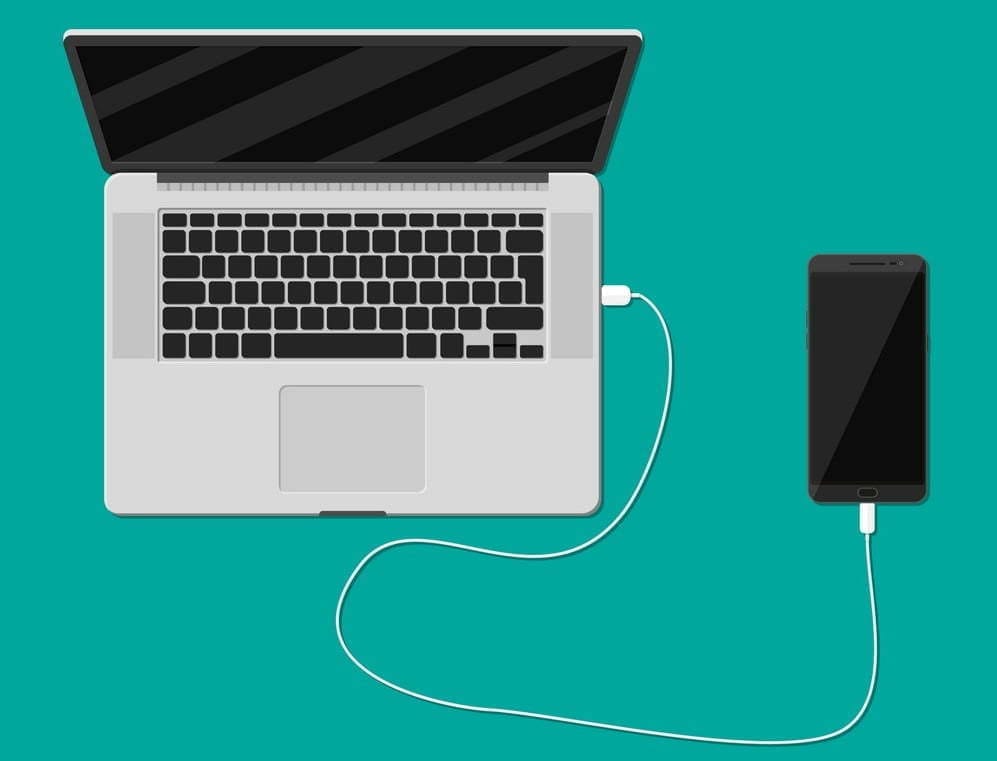
2. Do not charge your phone with Laptop
Charging your phone with a laptop could be a bad idea. When you charge your phone with an adapter, the charging speed mostly depends upon the power output of the adapter. A fast charger adapter produces from 20 to 55-watt output. Whereas, when you charge your phone using a laptop, the USB port is the current output source. And, mostly laptop’s USB ports produces 1 to 5-watt output. That’s why it would be a bad idea to charge a phone with a laptop. Instead, use a better fast charging cable and adapter.
3. Stop Background Running Apps
The reason why your battery percentage drops so quickly is running apps. There might be a few apps running in the background on the phone that result low in performance as well as slow charging speed. To prevent it, clear the recent apps from the menu and uninstall unused apps from your phone.
One more tip, do not install battery saver apps or similar apps. Those are useless apps and cut your charging speed and battery life along with smartphone performance.
4. Buy A Fast Charger
Generally, smartphone brands provide a normal 10-watt slow charge out of the box. However, if your phone supports fast charging, you should look for a quick charger with maximum output. Quick Charger 3.0 charges the battery pretty fast from 0 to 100%.
There are some hardcore gamers who like to play games all the time. Even when the smartphone is plugged-in to the charger. Doing this, you’re not only charging your phone at a very slow speed but also overheating can damager your phone or its battery. I highly recommend to not use your phone while charging, you better leave it idle.
6. Turn On Power Saving Mode
Batter saver or power saver mode is an inbuilt feature in Android and iPhones both. By turning on power save, you can expand your smartphone battery life as well as charge your phone faster. However, this mode turns off background running applications and background data usage in some cases.
To turn on Power saver in Android, go to Settings > Battery > Battery Saver > Tap to Enable. Power saver mode for iPhones, go to Settings > Battery > Turn Power Mode on.
7. Turn Off Your Phone to Charge Faster
Lastly, turn off your smartphone and plug-in to the charger. Switching off your smartphone disables almost every functionality and disconnects every connection. Hence, this is the most effective way to charge your smartphone’s battery at peak speed.
However, this wouldn’t be possible for users who receive important phone calls frequently
In the previous post, we discussed how by following some tips & tricks, you can boost the battery of your Android smartphone.
There are so many reasons why the performance of an Android smartphone would slow down. For instance, Android is too old, with low RAM & ROM, full storage, etc. Today, to get the best output from an Android phone, we’ll look at every problem and try to solve all of them. So, as you might have guessed, following are some smartphone tips to instantly enhance your Android smarthphone performance.
Uninstall unused apps
This is one of the reasons why it’s very sluggish on your Android. In general people install lots of Android applications even though they are not using them on their smartphone. Not only does having so many apps require room, but it also slows down performance. Just go to your smartphone settings then manage apps and uninstall those apps that you’re not using currently.
Your Android also has certain device bloatware that you can not easily uninstall. However to delete these types of software, I have made a separate post, you can read that from here, How to Uninstall Device Bloatware from Android Phones.
Keep some storage free
If your smartphone has a large storage capacity, the chances are it will not lag too much. This is because there will be lots of free spaces in memory to load apps resources. Whereas, there’ll no space to load the resources if your phone has low storage capacity. That’s the main reason for slowing down a smartphone performance. Always make sure that your smartphone has 3GB to 4GB memory free in ROM and slightly less in RAM.
To free your storage, you can delete the junk files and unnecessary files including useless WhatsApp photos, videos, thumbnails, etc.
Update your OS
With every Android update, smartphones still get better. New functionality, bug fixes, optimized performance and other enhancements are included in the update. So to get security updates and overall improved system performance, always keep your system updated.
An update, however, can often contain a massive bug, but it seldom occurs. You will collect reviews from users about the new update and then decide whether or not to install it.
Factory reset
After a long smartphone usage, it looses the performance overtime. Also, whenever smartphone software becomes too old, it loses the smoothness and performance as it was in the brand new smartphone. Which requires to perform a factory reset to fix some errors and clear all the smartphone logs from the memory. Well! there are many ways to reset an Android phone but you can reset your phone Settings > Backup & restore > Reset.
Do NOT INSTALL speed booster apps
From the play store, you can get tons of speed booster apps which promise to increase the performance of Android within a single tap. Oh, NO! Don’t install those kinds of software. Instead as a struggling launch app, that will make your phone much more laggy. They have clear frequent cache memory for multi-tasking, which is fine. In a nutshell, do not use boosters for speed.
Try new launcher
Some issues cause the output of the smartphone to slow down after using the default Android launcher for a long time. Well! Well! Oh! You’ve got too many launchers at the play store there. The best launcher, in my opinion, is Nova. See if your Android performance improves after upgrading to a new launcher, then follow other tips to stick with it.
Clear apps data or cache
An app increases its size when you start using it. And, sometimes size grows massive large to 1GB or more. Cache data are vital to load apps faster but creates problems when it stores than usual data that are no longer in use. And, it’s our responsibility to clear cache memory to free the useless filled storage. It makes smartphone fast as light. To clear cache of Android apps at once, go to Settings then tap Storage, choose Cache and delete them. Another way to do this, go to manage apps from settings and choose apps and clear data & cache one by one.
Increase animation speed
Increasing animation speed doesn’t directly increase the smartphone performance, however, it gives a feeling of fast performance. You can adjust the animation speed from Android developer settings. To get developer options, Go to Settings > About > Build number > tap 7 times.
Now, open developer settings and find these three options and set their value to 0.5 or turn it off completely.
One of the best apps for Android smartphones out there is Google Camera from the Pixel line up. A brand new Google Camera 8.0 APK with stunning features was launched by the search engine giant with the launch of Pixel 5G and Pixel 4a 5G. While you might not be able to mount the original Google Camera on third-party phones, all from Pixel 5, here is the newest Gcam 8.0 Mod for all Android smartphones by renowned developer Arnova.
Ultrawide lens support or Google Cameras, Cinematic Pan for images, Night Sight in Portrait Mode, Portrait Light, New Google Photos Editor, and many more are some of the main features of Google Camera 8.0 as mentioned in our previous article. New features in the Pixel 5 camera app include
We already detailed the original Google Camera 8.0 in our previous post, along with a Gcam 8.0 Mod by the developer cstark. Here is the universal GCAM 8.0 Mod by Arnova that can work with many modern smartphones running Android 11, 10, 9 Pie, or even older. The app has been tested working on the following Android devices from Google’s Pixel lineup to many third-party OEM smartphones from Samsung, OnePlus, Xiaomi, Huawei, Asus, Moto, Nokia, and more.
Download Latest GCAM 8.0 MOD APK For All Android Smartphones
Here is the first stable Gcam 8.0 mod for all Android devices by the renowned developer Arnova. The stable Gcam 8.0 mod by BSG (or MSG) is also listed. It has been tested on 44 Android smartphones. The latest Gcam supports Android 11, 10, or even older 9 Pie. As for the Pixel smartphones, you can install the Google camera app by developer cstark.
As expected, there are a boatload of apps and game sales available today, primarily premium apps/games, and yes, there are a bunch of noteworthy titles in the list. So without further ado, here are 29 temporarily free and a whopping 206 on-sale apps and games for Black Friday 2020.
One of the most fiercely fought fights in the entire mobile tech room is Android vs. iOS, and chances are, that will not change any time soon. There are some individuals that love Android completely, others who can’t use anything but iOS, and that causes a lot of back-and-forth.
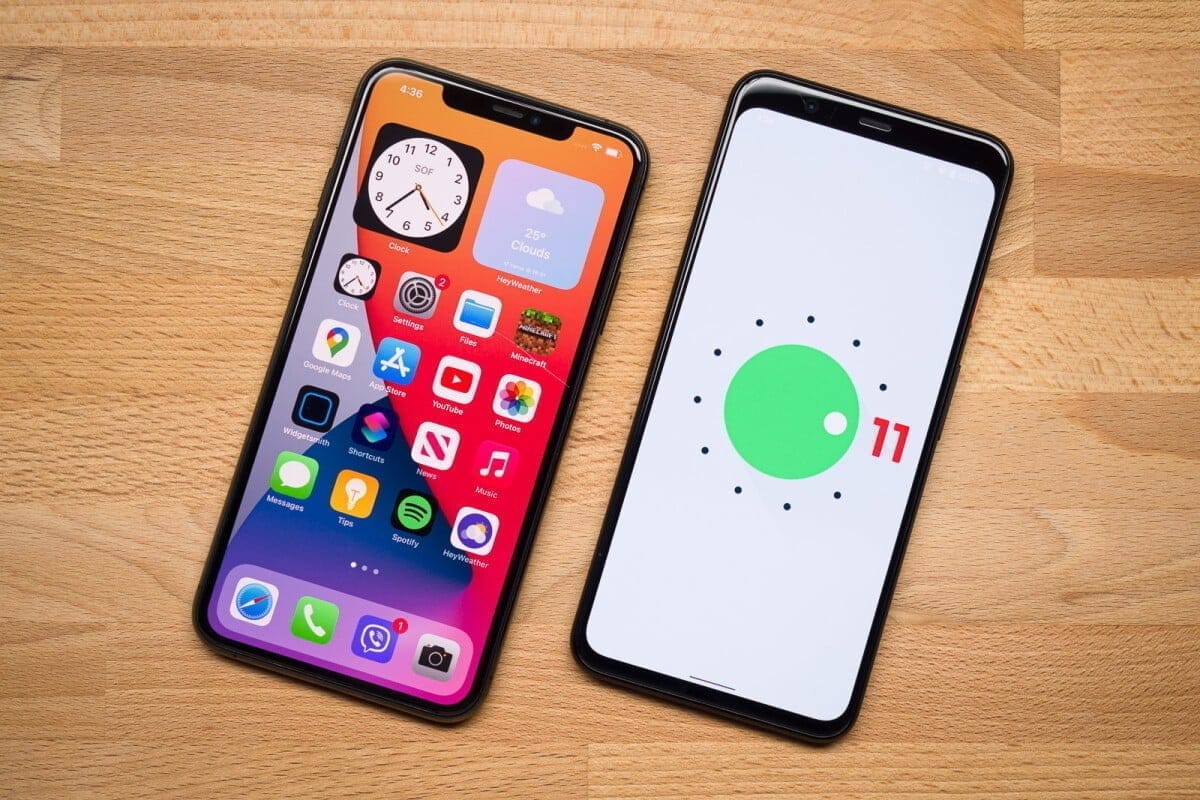
We’re certainly not here to suggest that Android is objectively better than iOS in any way, but we do want to take a closer look at the new Android 11 and iOS 14 updates. On top of a familiar base, the former provides small enhancements here and there, while the latter presents a full makeover that makes iOS more close to Android than it has ever been before.
iOS 14 is an impressive bit of software that does a lot of things really well, but if you ask us, there are certain things that Android 11 continues to be better at. To explain what we’re talking about, here are five reasons why Android 11 is the better operating system compared to iOS 14.
Better notifications
How it manages alerts is one of the strongest points people make in favor of Android. For a while now, updates on iOS have been really mediocre, and Google took an even bigger lead with Android 11 than it already had.
Android 11 separates your notification tray into three different parts, ranging from Conversations, Updates, and Silent as a priority. In Android 10, Alerts and Silent already existed, and with the introduction of Conversations, compared to anything else that pings your phone, it’s now much easier to see stuff like texts and telegram messages. Stuff labeled as conversation messages are moved to the top of your notification tray and show the profile picture of the person who sent you the message (along with an indicator of which messaging app the message came from).
It’s a small change, but I still feel like I’m doing a great job of keeping on top of updates with the Android phone as someone who carries two phones everyday, one with Android 11 and one with iOS 14. Things are clearly ordered, I can see easily if a new message is waiting for me and I usually feel like I have control of what’s happening.
There aren’t things I can say about the notification management of iOS 14, which all these years later appears to be a jumbled mess.
Chat bubbles – multiple conversation organizer
Speaking of conversations, chat bubbles are another major addition to Android 11. There’s an icon on the notification when you look at a contact notification that expands it out of the notification tray and into a floating bubble on your home screen, aka a chat bubble.
A glimpse of the ongoing conversation is shown by clicking on the chat bubble, enabling you to scroll through previous messages, type a new one, etc. Tapping it again reduces it back to the bubble button, which can be moved on either side of your screen anywhere.
Chat bubbles work with a number of messaging tools, including things such as Facebook Messenger, Google Messages, Telegram, and others. You can have several conversations packed in one chat bubble from various applications, making it easy to hop back and forth between conversations no matter where they take place.
At first, chat bubbles may seem a little gimmicky, but if you’re someone who does a lot of texting on your phone, even if you have a ton of other alerts pouring in during the day, they’re a genuinely nice way to keep things organized and within control. IOS 14 does not deliver anything comparable to chat bubbles, and for the near future, that will probably be the case.
Powerful permissions
It’s still something we’re going to recommend to take care of your digital privacy, and one of the easiest ways to start doing this is by taking control of device permissions on your devices. When downloading a new app, it’s just too easy to just grant all permissions, but the fact is that most applications do not require access to anything they ask for.
To its credit, iOS 14 has very strong controls on permissions. For any app installed from your Settings, you can look at permissions, with toggles to easily activate and disable permissions as you please. When you open a new app that asks for anything like your place, you will also be asked whether you only want to allow access once or anytime you use the app.
For Google with Android 11, permissions were a major priority, with them seeing a few main changes. The first takes Android up to iOS feature parity, with Android 11 now enabling an app to only give position authorization once. However, Android goes a step further by providing this one-time feature for requests for microphones and cameras, too.
Auto-resetting permissions are something else only found in Android 11. If you have granted permissions for an app that has not been used in a couple of months, those permissions will be revoked automatically. Next time you open the app, you can re-grant them, so it’s a way to guarantee that forgotten users don’t have access to things they don’t need.
Quick controls
Chances are that you have some smart home devices in your house/apartment, whether it’s light bulbs, your thermostat, or a wall socket. It is extremely nice to be able to monitor your lights when you are on holiday or kick on the heater on your way home from work, but juggling a bunch of different applications to do all that is anything but.
Google and Apple have already done a decent job by putting all these controls between the Google Home and Apple Home apps into one central location, but Android 11 makes it even better by making you incorporate your most-used controls right into your power menu.
No matter what you do on your screen, the redesigned power menu will be exposed by keeping the power button down. You still have the normal power controls, but this location is now used by Android 11 to also showcase your favorite Google Pay card and any smart home controls you want. Now it is possible to switch on the kitchen lights or change the temperature by simply keeping your power button and pressing the shortcut you have added.
Thanks to how many items I have related, my Google Home app is kind of a cluttered mess, so it is so much easier to have easy access to my most-used controls this way. With the latest shortcuts in your easy settings, iOS 14 also provides fast access to smart home toggles, but that still includes turning on the device and then swiping down. Being able to click the power button at any moment, regardless of whether the screen of my phone is on or off, is a much easier day-to-day experience.
Customizations
Without a doubt, the highlight feature of iOS 14 is its expanded customization. You can hide home screens you don’t want to see, there’s an app drawer to view everything installed on your phone, you can set default apps, and we finally have widgets that can be placed on home pages next to app icons. It’s one of the biggest changes we’ve ever seen for how iOS operates, and the execution is pretty darn great.
Apple deserves a lot of credit for everything it changed in this regard, but even with everything that’s new, Android 11 continues to offer more customization options — and by a long shot.
For instance take default apps. You can update your default web browser and email app with iOS 14 now, but that’s it. That’s not possible right now if you want to change stuff like your default navigation or camera app. In addition, if you ever turn your phone off/restart as Apple resets it all back to its own things, you will need to re-enable those default apps. It’s a much poorer experience compared to the default app setup we’ve had on Android for years.
In iOS 14, custom icons are kind of a thing, but for every single app you want to change the icon for, you need to build a Siri Shortcut. And when you build a Siri Shortcut and don’t directly alter the app icon, you won’t see your custom icon in the app drawer or outside the home screen anywhere on the device. Compare that with Android 11 or any previous edition, where it is as easy to change an app icon as downloading a custom icon pack and diving into the settings of your launcher.
On that note, on iOS 14 you still can’t use a different launcher. You can switch about and add widgets to your applications, but that is it. Android has seemingly infinite third-party launchers that in the blink of an eye can turn your entire home screen, enabling you to really make your phone the way you want it. Everybody on Android gets these comprehensive customization choices, no matter whether you have the best Android phone or not.
Youtube Vanced, which is essentially a modded version of the YouTube app, is a very popular Android app. Youtube Vanced provides lots of additional functionality, as you expect from a mod app, and also unlocks certain disabled features that were previously not compatible with your Android version. We will cover all the key features of YouTube Vanced in this tutorial and how to install YouTube Vanced on your Android phone, whether it is rooted or non-rooted.
Youtube Vanced enables so many feature that you get with premium Youtube plan. Such features include adblocker, background playback, override max resolution, picture in picture (PIP) mode, force HDR mode, swipe control to change brightness, preferred speed & resolution, black/dark themes available, etc.
Android is one of the most preferred operating systems out there, simply because of the customizability it offers.
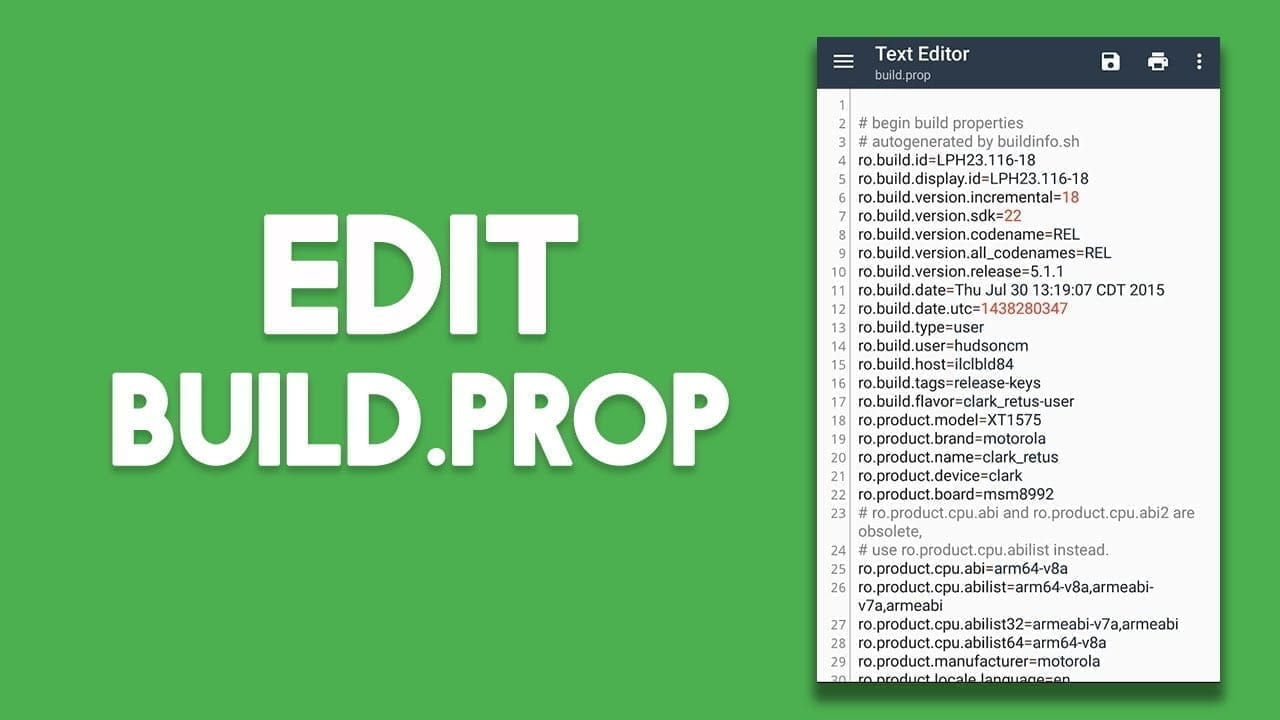
Almost every element of one’s computer can be modified by the consumer, and even tweaked in some ways to make sure their devices work better. All of this depends primarily on the config file of your computer, that is, the file build.prop. This file contains all of your device’s configuration data as well as the Android framework built on it. Many power users alter this file in order to further tweak their computer. We have recently done an article for your Android device on some of the coolest build.prop tweaks. Unfortunately, though, because this is a system file, the general principle is that a rooted computer is required. Ok don’t worry, because there’s still a way around that.
So, if you’re an Android user looking to the build.prop file on their Android device but don’t have root access, read on, as we share with you our guide on how to edit build.prop without root access:
Edit Build.prop without root access
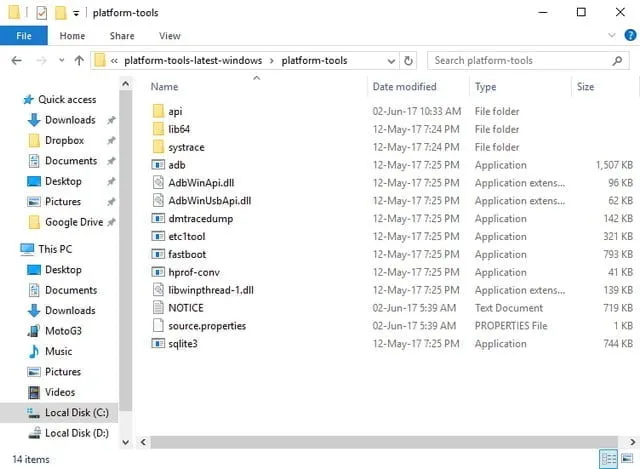
To begin with, download and install ADB and Fastboot drivers onto your system, as shown here.
Install an advanced text editor like Notepad++ or Sublime Text on your system. This is will be used later on to edit the build.prop file.
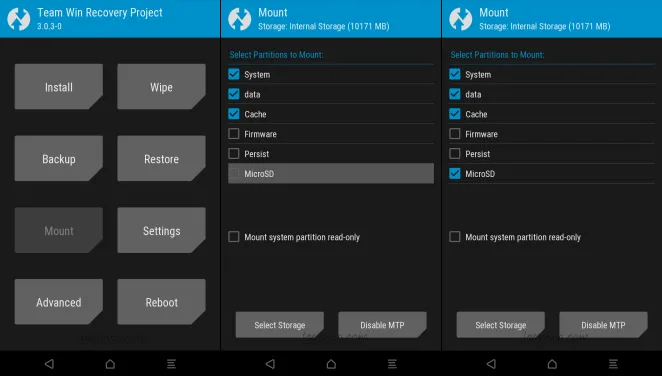
Next up, switch off your device and head over to the recovery mode. Once there, tap on “Mount”. A list of all the partitions on your device will open up. Make sure the checkbox next to ‘System’ is checked, and the checkbox next to “Mount system partition read-only” is unchecked.
Once you’ve mounted the /system partition, connect your device to your PC and open the ADB window. Once there, type in the following command to transfer the build.prop file onto your system:
adb pull /system/build.prop <path to save file>
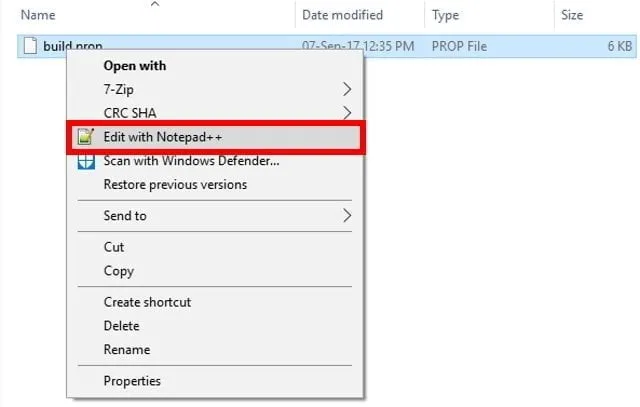
Now that your build.prop file has been transferred to your system, you can edit it easily using the text editor you downloaded previously. To do so, simply right-click on the build.prop file and select “Edit with Notepad++” or any other text editor that you may have downloaded.
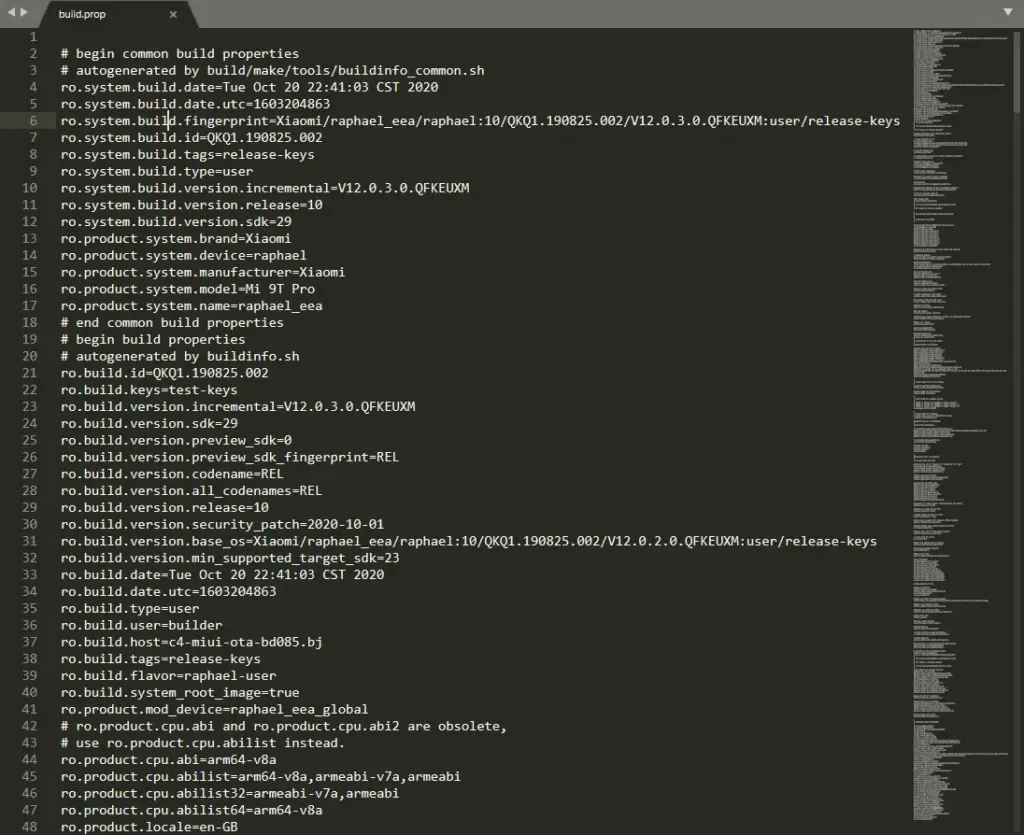
A new Notepad++ window should now open and you should easily be able to modify the build.prop file. Once you’re done with your edits, simply save the changes.
Now that you’ve edited the build.prop file, we need to transfer it back to your device. To do so, run the following command in the ADB window:
adb push <path to your file>/system/build.prop
Now that you’ve transferred the modified build.prop file, you need to set its permissions as well. To do so, open up the ADB shell by typing in the following command:
adb shell
Once you’re inside the ADB shell mode, type in the following command to set the right permissions:
chmod 644 /system/build.prop
And that’s it. You can now close the ADB window. Your build.prop file has now been modified as per your preferences.
It will help you get something out of your Android device by changing your build.prop file. Android’s greatest advantage over other operating systems is its level of customizability, which relies largely on the build.prop file. And while not everyone has root access, using the above form, one can still change their build files. Note that whatever you are doing with your build.prop file, just in case, always and always have a backup available. Well, this is all from my hand, but in the comments section below, I’d love to hear the various tweaks you tried to implement on your computer.
This week started off strong, though things have settled down a bit. Thankfully I still have a few standouts to share with everyone, including a couple of solid board game adaptations from Marmalade Game Studio, such as Battleship and Clue. I also have an unlock app for Sleep as Android, a well-reviewed alarm clock that sports a sleep cycle tracker. In order to make discover easier, I’ve highlighted all of the interesting titles in green bolded text. So without further ado, here are 30 temporarily free and 24 on-sale apps and games for the middle of the week.
The Android November security patch has just begun rolling out, and for Pixel users afflicted by a bug that silenced their starred contacts in Do Not Disturb (DND), it has something fantastic in tow. The issue should now be solved. When it’s necessary, no more missed calls from your loved ones. Make sure you go to your device settings and hit the update button if you have encountered the issue.
A few Pixel owners took to the Google support forum following the initial Android 11 update. They complained that their phones didn’t ring for starred contacts anymore, even though they set up the feature that way on Android 10. That had serious consequences: One affected person reported that their elderly mother couldn’t reach them while she was lying on the floor with a broken ankle.
There were a few troubleshooting tips, such as ensuring that via your volume rocker menu you haven’t switched off all warning sounds and some elaborate workarounds that included activating repeat callers. You can get into the specifics in the following paragraphs if you’re interested, but you really should just click your Pixel update button to get rid of the issue once and for all.
Solution 1: allow repeat callers
Many people could remedy the problems with a workaround posted by forum user Frank Longest. He writes that starred contacts could ring his Pixel 4 again after he turned on “allow repeat callers.” You can find that option by searching your phone settings for that term or by going to Sound -> Do Not Disturb -> People -> Calls. This will also allow non-starred contacts to reach you when they call twice within 15 minutes, so it’s not ideal.
If that doesn’t do the trick, forum user Titusz Rónai reports that you might also have to go to the Phone app info (tap and hold the icon in your launcher and look for the circled i symbol), and then Notifications -> Incoming Calls -> Advanced -> Override Do Not Disturb. However, this might cause the Phone app to always ring, regardless of who calls you.
Solution 3: factory reset
You can also have to reset your phone in the factory if none of these steps help, but this is the most drastic and time-consuming path. Make sure you’ve backed up all of your data in the cloud or on another computer to do so. Then, look for “factory reset” in the settings of your Pixel phone. Because we don’t know exactly what the culprit is, after resetting and restoring your phone from an Android backup, it’s entirely possible that the issue continues, so you may even have to start from scrap entirely. Your last resort really ought to be this solution.
Over the years, Samsung’s app has come a heck of a long way, being the only Android edition I consider worth using. Centered on Android 11, the One UI 3 beta seeks to further enhance things in multiple areas across the board, but currently it is only available on the S20 and Note20 series. However, with the company announcing a forthcoming beta program for the S10, Note10, Z Flip 5 G, and Z Fold 2, that’s about to change.
Samsung shared its intentions to kick off the beta program in its home country in a post on its South Korean forum, with other regions in Europe and the US to follow. A similar rollout followed the S20 and Note20, so no surprises there. All versions of the S10 and Note10 family are included, however the same can not be said for the Z Flip: for now, the beta seems to be restricted to the newer 5 G version, although that may change as we reach release.
The rollout has already begun for the Note10 +, according to users on Reddit and the Samsung website, so we can expect these other phones to catch up shortly.