Magisk doesn’t need to be introduced to the world of Android custom ROMs, so we’ll spare you some time. Topjohnwu has announced today that Magisk is being updated to version 22.0. The need and desire for root-level access to Android devices has helped Magisk to stay on top of the list for a number of years as one of the most dynamic and creative root solutions. The new update only goes to show that the above is real.
In the past few weeks, we have seen a couple of updates from topjohnwu in various forms, ranging from the merger of the Magisk Manager app with the Magisk installer ZIP to news regarding compatibility with Samsung’s latest flagship Galaxy S21 series. Earlier today, all the updates, technical chats, and discussions finally took the shape of a major update via stable channel. Version 22.0 formally marks the end of a separate Magisk Manager companion app, as the Magisk APK — simply referred to as the Magisk app from now on — can act as both a typical Android installation package and as a flashable ZIP file recognized by TWRP.
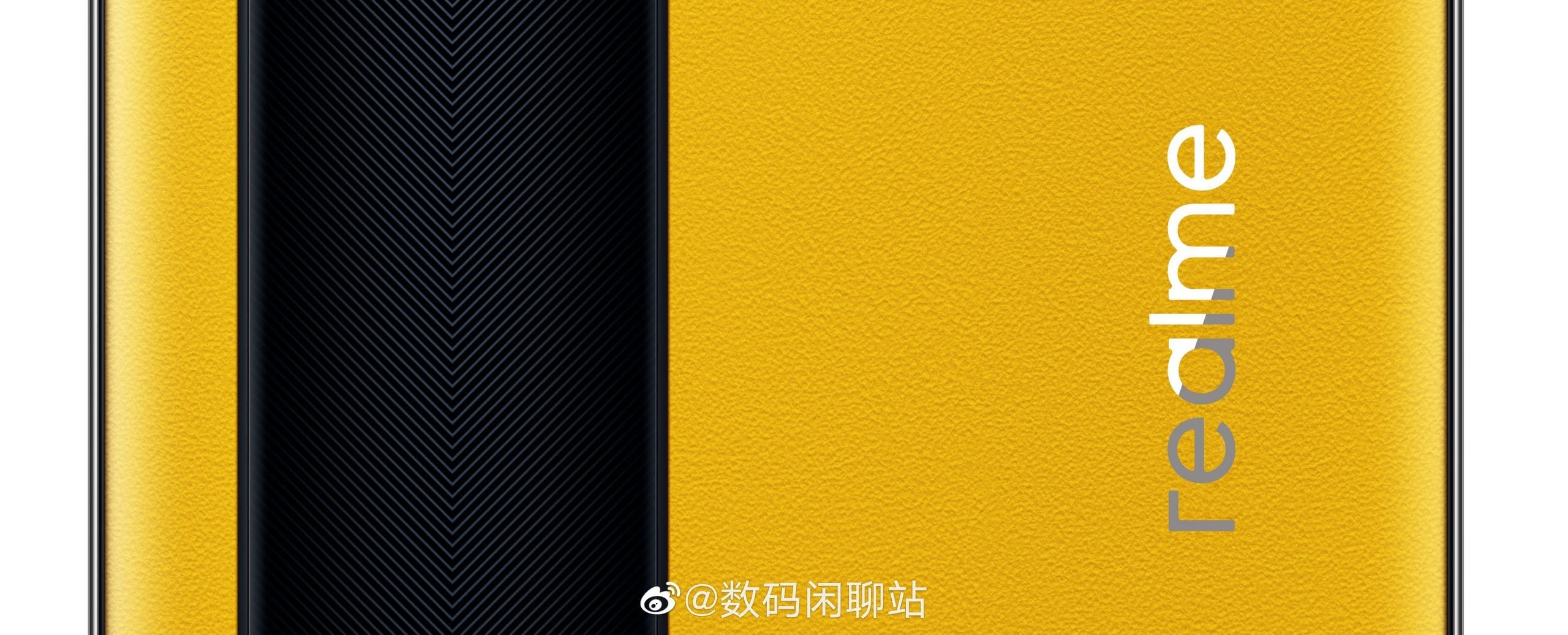
Realme’s new flagship smartphone was publicly previewed at the Shanghai 2021 Mobile World Congress (MWC). The Realme GT 5G will be officially unveiled on 4 March, but today the company has given us a glimpse of what to expect from a smartphone. The business also revealed its latest “Dual-Platform Dual-Flagship Strategy” which means that two flagship series will be introduced.
The Realme GT 5G will run on Qualcomm’s new Snapdragon 888 mobile chipset, which will be cooled by a stainless steel steam chamber cooling device. The cooling system is said to provide enhanced heat dissipation for sustained efficiency. The smartphone architecture is influenced by the idea of GT sports cars. A special dual-tone leather version of the handset will have a glossy black stripe on the back panel that represents a race track. The rest of the area will have a vegan leather finish that, according to the brand, offers “a more delicate texture, a softer touch and a better color effect.”
As for Realme’s new strategy for its flagship phones, the company plans to launch two separate series where one will be powered by Qualcomm’s Snapdragon 8xx series flagship processors to basically focus on the performance aspect while the other series will be powered by MediaTek’s Dimensity series having a focus on camera technology.
People are eagerly waiting for the Android 12 update especially since the release of a plethora of promising rumors and leaks. Most of what we know has been leaked but some of the information is gathered from the public source code which appeared before the Developer Preview. In light of the upcoming release, we have gathered every detail we could find regarding the Android 12 update and compiled them for you in this article.
The Desert Name
Since 2009, a trend can be observed in the naming of each software update. Every major release ever since has been named after a dessert that starts with a successive letter of the alphabet. In 2009 it was Cupcake then Donut then Froyo then Gingerbread and so on. However, this was not the case with Android 10, it seems that publicly Google had abandoned the practice of naming its software updates after deserts but internally the tradition still carried on. Hence Android 11 was “Red Velvet Cake” and Android 12 is reported as “Snow Cone”.
Design Mockups
The leaked mockups reveal a comprehensive design, it is worth noting that the actual design could be quite different since the mockups are just providing a visual aid to the leaks. The following images are not screenshots but render from artists of what the design could be.
Themes
After looking at the mockups, it can be observed that Google is going in a different direction with the themes. You can’t find the usually black and white colorways instead a primary color described as “Sand” can be observed. This change in color schemes could be due to an in-depth theming system that is set to debut. This feature will allow you to customize your theme by choosing from a selected number of primary colors.
Material NEXT
The following sets of features are referred to as, “Material NEXT”. It was reported by XDA that there will be various smaller tweaks to the overall interface including notification cards with much rounder corners, new shapes and spacing for quick settings tiles, and more. There may be more features that are under the Material NEXT tag or this could simply point towards the updates to the use of Material Design by Android’s built-in apps and UI.
New Widgets
The release of Android 12 could bring, “Conversations Widgets”, which will appear on the home screen. These widgets seem to display missed calls or messages by someone who you haven’t talked to in your while. There are no further details on its functionality but this feature aligns with Google’s aim which is making users more involved in the operating systems.
One-handed mode
This feature is directly aimed at those owners who use a foldable device or taller devices. Android 12 will be introducing a native one-handed mode that will decrease your phone’s screen vertically. This will make it easier to use the device with one hand, however, only the height will decrease not the width.
Privacy developments
It seems Google is ready to follow Apple’s stance on privacy, with Android 12 there might be a variety of movements to aid in privacy protection. Reportedly, a feature is in development that will allow users to know if an app is using or has used your camera or microphone recently. Additionally, it has been leaked that Android 12’s Settings app will get a revamped Privacy page where you can outright disable your phone’s camera, microphone, and location sensors.
Scrolling Screenshots
This feature is neither a rumor nor a leak, Google confirmed in 2019 that it was working on Scrolling Screenshots. Basically, your phone takes a screenshot, scrolls down, takes another, and stitches the two (or more) together.
Picture-in-picture upgrades
When Android 11 was introduced users could resize their floating picture-in-picture window by simply grabbing onto the corner and dragging. According to recent reports, users will now be able to resize with precision or double-tapped to quickly jump to maximum size. There might even be a way for users to “hide” the window so they can see more of their currently active app.
App Pairs
App Pairs is another feature that is being introduced due to the usage of foldable phones. This is a split-screen that allows users to operate two different tasks as one in recent apps view hence you will be able to switch from a pair of apps to another single app.
Game Mode
This feature will be a massive hit among gamers. There is a rumor that Android 12 may introduce a “game mode” option. As of now, it is called, “GameManager”, which is listed as a “service to manage game-related features.” No specific details have been released hence we are pretty much in the dark about this one.
Brightness Control
Android 12 will bring a “Reduce Brightness” tile in the quick settings. This seems to be an accessibility feature aimed at those with visual impairments.
Apps Hibernation
Premium flagship phones rarely have a storage issue but not everyone can afford the pricey devices with massive storage. To save storage space, Android 12 could introduce a way for apps to be “hibernated” when they aren’t being actively used. Again, the details on this are a bit vague.
Third-party app store
Last year Google assured Android app developers that it was considering their feedbacks and would make it easier to use a third-party app store. This is one of the features that Goggle has been hush-hush about but it is a fair compromise between Google and developers. This will also protect the user’s from malicious malware.
What’s next?
There is no definite release date by Google as of now but it is expected sooner rather than later. This set of features indicate that Google is trying to make its operating system more user-friendly. It is allowing the user to customize and personalize their devices. Additionally, it seems Google agrees with Apple’s privacy policies, to limit data sharing, which have been the center of controversy ever since its announcement. Many details reading these features are unknown and most of them are just sheer speculation. We’ll have to wait for the build and see how accurate our guesses were based upon the leaks.
The era of folding devices has begun and who better to execute this latest trend than Samsung. Just last year Samsung impressed consumers worldwide with the release of the Samsung Galaxy Z Fold and announced an impressive follow-up device, Samsung Galaxy Z Fold 2 in August of 2020.
The Galaxy Z Fold devices are ideal for those people who are looking for something innovative and have money to spare. The Samsung Galaxy Z Fold 2 is a step up from its predecessors and has all the positives of the original device but with certain tweaks to fix the bug issues. As of now, this is the finest foldable device in the market.
A Brief Description
Samsung Galaxy Z Fold 2 is the next-generation foldable phone from the South Korean tech giant. Since then multiple foldable devices have been released by companies such as Microsoft, Motorola, Huawei, Royale, Xiaomi, and TCL. While all of them are commendable competition, they do not come close to the Samsung Galaxy Z Fold 2. It is by far the best foldable phone in the market.
When the device is closed it has a 6.2-inch screen on one side and a robust camera bump on the other. However, when you unfold the device it opens up to reveal a 7.6-inch AMOLED display with an aspect ratio that’s similar to a square. A major upgrade that can be observed is that Samsung did not keep the slightly awkward notch found on the first Galaxy Fold for a smaller hole punch. The device’s refresh rate is up to 120Hz, it varies to give an optimized performance while conserving battery.
Additionally, Samsung is still aggressively marketing the multi-tasking feature. This particular feature allows users to use an app on the outside display and then continue that app experience on the interior display immediately. Users can even run multiple apps side by side. The phone itself is powered by Snapdragon 865 Plus processor. While the five camera lenses produce amazing photos.
The major downside is the price tag. It is quite a costly phone that it even surpasses some of the laptops available. A $2,000 device is not something everyone can afford but it is worth noting that you are getting a phone and a tablet rolled into one. The insurgence of foldable devices may make tablets obsolete.
How is it different from Samsung Galaxy Z Fold?
The original foldable phone was received quite well hence what does this new variant offer? One of the obvious upgrades is that the size of the outside display is much bigger; it takes over almost the entire closed front of the device. Another pleasant change is that there is a new rear camera module that looks similar to the module on the back of the Samsung Galaxy Note 20.
The cameras get revamped as well; consequently, the quality of images is improved. There are multiple finer tweaks made to the inner mechanisms. Furthermore, this variant is more durable as well thanks to its ultra-thin glass covers the interior, and Samsung’s “sweeper” technology prevents dust particles from settling in the hinge or making their way under the display. The Samsung Galaxy Z Fold 2 is a more polished version of the original fold.
Aforementioned, the cameras have been revamped to improve the quality of images. There are five total cameras on the Galaxy Z Fold 2: three on the back, one on the front, and one on the inside. The one on the inside is a hole-punch camera, so it doesn’t take up as much of the screen as it did on the previous model. The overall experience has improved mainly due to the larger front screen.
Users get the same control settings on both the external and internal cameras. While the pictures are quite remarkable. Although colors can be a bit over-saturated it is still a major step up. The photos are detailed and sharp. The only puzzling factor is that in this device Samsung opted for three 12MP shooters instead of its latest 108MP sensor, considering the price the tech mogul could have sprung for the latest sensors.
Battery
The Samsung Galaxy Z Fold 2 packs a 4,500mAh battery, which may seem inadequate considering the size of the device but it is sufficient for full-day use even for heavy users. According to testing reports users got six to seven hours of battery life on a single charge. Regardless, it has fast charging so you won’t have to wait long for the phone to be fully charged. A major positive is that the charger comes with the phone and you won’t have to buy it separately.
An additional power share feature is available with this device. If you own a pair of Galaxy Buds Live, you can share a bit of your battery with the Buds.
Durability and Everyday Usage
It has been reported in, “The Guardian”, that the screen has survived four months of use without a scratch, despite being made of softer, potentially scratch-prone material. The overall performance is remarkable but there are issues with the fingerprint sensor. It often has to be cleaned to unlock. Moreover, Apart from Samsung’s and a few third-party apps, not many have a full tablet-sized interface on the internal screen when held in portrait. However, many more websites and apps do resize properly to the big screen when the device is held in landscape.
Users can efficiently carry out everyday tasks such as texting and checking emails ordata sharing on the device plus the multi-tasking features works flawlessly. Although, users may have to get a stronger car mount since the phone weighs a lot due to which it will take some time to adjust to carrying the device.
Updates
It is a norm for security updates to arrive on Samsung phones before Google’s own devices. Samsung assures users that its devices will keep receiving updates for three years including the Galaxy Z Fold 2. This means the phone will get upgraded to Android 11, 12, and 13. As of now, the phone has gotten the Android 11 update.
Is the Samsung Galaxy Z Fold 2 worth it?
If you can manage the price tag and are looking for something innovative then this device is the one for you. It is a mind-blowing phone with amazing features, making it the best foldable phone on the market right now. The most appealing feature about this device is its interior screen which Samsung has executed with perfection. The 120Hz display is vibrant and flawless plus it switched to a lower refresh rate to extend battery life.
The device’s cost is a major issue since most consumers are reluctant to spend this much for a phone despite its premium features and elegant design. There is also no headphone jack and it’s not water-resistant.
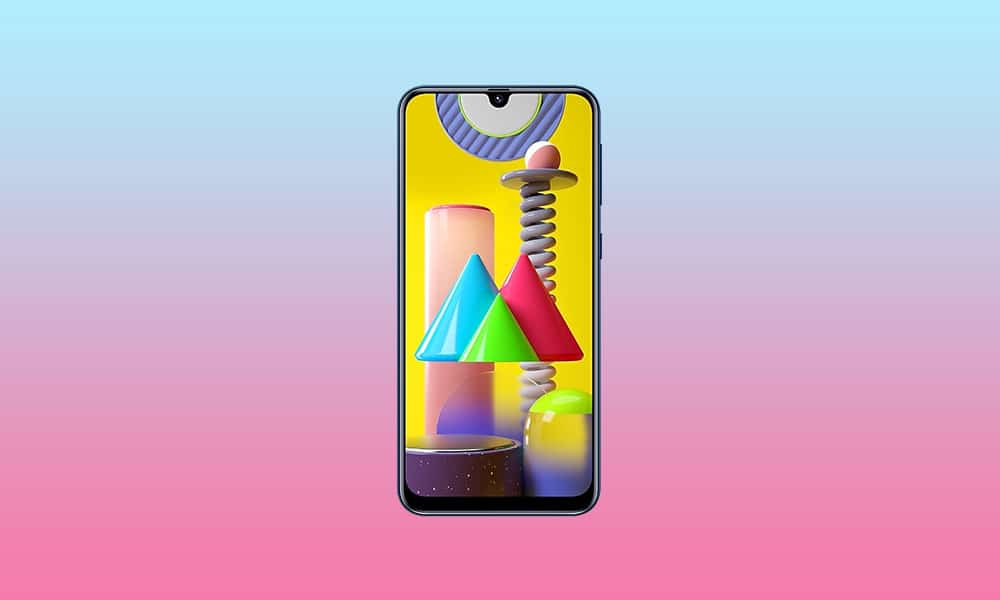
After the Magisk method is published, the root process is simple to compare with conventional methods. Yet it’s got its limits. We can’t use custom ROMs unless we have some custom recovery enabled. So, even after users have access to root, they prefer the TWRP method when it is released. Samsung Galaxy M31 comes with upper mid-range specs and can handle all of the apps. But if you need root access, you can use the following method to root your Samsung Galaxy M31 Android 10. Since we use custom recovery in this phase, you can install any necessary custom ROMs on your mobile device.
Compare with standard other root methods, this method has additional steps. So, You should care a little bit when you do the process. Since it doesn’t use a custom recovery, You can’t install custom ROMs. But, It is enough to run most of the root apps.
After root, you lose the official alerts. You need to update your smartphone manually. So, you should know why you need to do this before continuing with the process. If you are a frequent user, you can try some alternatives that do not require root for your function. If you are a frequent user and developer of root apps, you can follow the guide below to get root on your smartphone.
Root and Install TWRP on Samsung Galaxy M31 Android 10 One UI 2.0, 2.5 (SM-M315F)
Thanks to the developer- afaneh92 for the Root method and topjohnwu – this genius is the one who discovered and maintained Magisk. Samsung Galaxy M31 variants come with a flexible bootloader in some regions. It means that the smartphone can be easily rooted. The device can also accept installing TWRP recovery or any other custom recovery file/app. Don’t try with Snapdragon US Variants like Verizon devices. They come with a locked Bootloader.
But In the below method, we are going to Root this device by using Magisk. You can install Official TWRP using the official app when it is released. TWRP recovery is a custom recovery file that must be installed on your devices because you can root them successfully. This article explained the easiest method to follow and install Magisk on Samsung Galaxy M31. However, the tool required for rooting this device is the Magisk App.
Once available, you can flash TWRP. With the support of TWRP Recovery, you can easily flash Custom ROMs to your Samsung Galaxy M31. Before sharing a tutorial, you may want to know that you can easily install any root apps with Magisk on your computer. Does that sound complicated? Relax; everything will be briefly explained in the bullets.
Things to check out for;
Check your device model number.
You should Backup your current files and data- Full Data Loss Process (save them on external storage).
Install Latest Magisk Manager.
Make sure your device battery is above 50%
You cannot use Samsung Pay, Secured folder, and some official apps from Samsung.
You can’t update your firmware; to get new firmware, you must follow the below steps with the latest firmware.
Read the full tutorial before the process.
Unlock Bootloader
Enable USB Debugging Mode and OEM Unlock on your mobile. To do this, go to settings >>> about >>> Tap on the “Build Number” 7-10 times consistently to enable “Developer Options,” then go to the “Developer Options” and enable USB Debugging Mode and OEM Unlock. There is no complicated process in the Samsung Galaxy M31.
Switch off your device. Enter into Download Mode-> Volume Down+ Volume Up and Connect your mobile with PC using USB Cable. When the Download mode warning screen Appears, Press the Volume Up button to unlock Bootloader.
The above process will wipe your user data. After Setup your device, Please recheck the OEM Unlock in the settings. Sometimes It Will Lock Again.
Download Multi disabler.zip and Magisk.zip files (Don’t download .apk file) copy them on your Pendrive With OTG Cable. You can refer to the uses of OTG. (Or, you can prefer an external SD Card).
You can use Phone Info to know your firmware version.
Prepare patched boot image file
Download 7Zip-ZS, LZ4, and Install both on your PC. Extract the files in downloaded firmware using 7Zip-ZS. You will get four files. Click on the AP File and Extract again. You will get some data along with the boot.img.lz4.
Copy the boot.img.lz4 and Vbmeta.img.lz4 to LZ4 Installed folder. Convert the lz4 file to a .img file by dragging the .img file to the lz4 application file. You have to drag the file to that application. The script will automatically convert the file to .img format. After the conversion, Copy the boot — img file to your mobile. Leave Vbmeta in the PC folder.
Download Magisk Manager (Download Latest version) or Magisk canary and Install it on your mobile. Open Installed Magisk and Select Install in Magisk; it will ask For a zip file and Patch Boot Image File. Select the Boot Image file.
Navigate to your copied boot image file and patch the file.
Wait for the process to complete, in the end, you will get a magisk patched .img file. Rename this file into the boot.img.
Now copy boot. img and Vbmeta. img files to your PC. We already leave the Vbmeta. img file on PC. Drag those files into the downloaded TWRP.tar file. Now you can see there are three files within the TWRP.tar file. Don’t extract the data. The three files contain a single .tar file that should be flashed using ODIN.
Flash TWRP.tar with ODIN
Connect your USB cable with your PC. Switch off your device. Then, enter into Download mode. To do this, press and hold Volume Down+ Volume Up Buttons and Connect Your Mobile To PC via USB Cable; after Samsung Logo Appear, Release all keys.
Press the Volume Up button to continue when you see the warning message.
Now, connect the Samsung Galaxy M31 mobile to the computer via USB cable.
Launch the Odin app on your computer. If the device is detected by this app (Odin), it will show you a message that reads – added!!!
However, if the device is not correctly connected to the PC, you won’t see this message. So, you have to check the USB cable if it is reasonable and reconnect the device.
After connecting the Samsung device, click on the PDA/PA/AP button to browse/search and get the TWRP from where you saved it on your PC. Also, navigate to “options” and Un-tick the Auto-Reboot.
Click on “Start”
Once the file is loaded into the device, reboot your device.
Now you have just Installed the TWRP on your Samsung Galaxy M31. We installed TWRP. Don’t turn on your mobile.
Immediately, move to Magisk Installation steps.
Press the Volume Down+Power button to exit Download mode and quickly press Volume Up+ Volume Down+ Power Button to boot into Recovery mode.
Install Magisk on your Samsung Galaxy M31 with TWRP
Now you are in TWRP Recovery Mode.
Select Wipe->Advance Wipe->Select Cache Data. You can also take complete backup using TWRP. It will help you when something goes wrong.
Return to Home of TWRP select Install.
Select Multi disabler.zip.
Return to Home of TWRP select Install.
Select Magisk.zip.
You should Install them One by One. Don’t add more zips feature in TWRP. After the Installation, Reboot Your Mobile.
You can also install Magisk.apk in your Mobile Applications. Multi disabler avoids the Encryption issue after rooting. You can check your root status using Root Checker.
If you didn’t find Magisk in App Drawer, you should Install the Magisk app again.
Over the last few years, the challenge of bypassing SafetyNet Attestation has evolved from a simple cat and mouse game between Google and the modding community to a burgeoning battle full of obscure barriers. Thanks to the rise of hardware-backed certification techniques, it is very difficult to bypass the boot image integrity verification routine and hide root access. Installing Magisk on its own would not be enough to circumvent the latest update to SafetyNet, especially on newer devices. This is where the Universal SafetyNet Fix Magisk module comes in.
While legacy device owners, as well as custom ROM users, often use modules such as MagiskHide Props Config to spoof the CTS profile to pass basic certification, as long as the method in question relies on a valid combination of device and model names, fingerprint building, and security patch levels, there is no guarantee that the root hiding trick will remain useful in the future. This is due to the fact that Google Play Services is starting to use CTS profile validation hardware certification in many cases, even when a basic certificate is selected.
In case you have an Android device that has an unlocked bootloader (or locked using custom verified boot keys) and thus doesn’t pass hardware attestation, then the Universal SafetyNet Fix Magisk module may fix that. Created by Danny Lin AKA XDA Senior Member kdrag0n, the module works by taking advantage of the opportunistic nature of the hardware attestation routine. Quoting the developer:
… it (hardware attestation) falls back to basic attestation if key attestation fails to run — and prevent GMS from using key attestation at the framework level. This causes it to gracefully fall back to basic attestation and pass SafetyNet with an unlocked bootloader. … The “not implemented” error code from Keymaster is used to simulate the most realistic failure condition to evade detection, i.e. an old device that lacks support for key attestation.
The workaround is already available pre-integrated on the ProtonAOSP ROM from the same developer, which lets you pass SafetyNet without Magisk on fairly modern devices such as the Google Pixel 5. If you are a custom ROM maintainer and you wish to integrate this method with your build, you can do so by cherry-picking the necessary patches from this repository. On the other hand, the latest version of the ready-to-flash Magisk Module variant can be found here. Note that MagiskHide is still required if the target device is rooted.
Huawei’s misfortunes began back in 2019, when the Trump administration placed him on the Entity List, prohibiting him from doing business with US firms. With the recent change of guard in the country, there was hope that the government of Biden would show some leniency to Huawei. That possibility seems bleak now that the President’s appointment as Secretary of Commerce, Gina Raimondo, has said (h/t Bloomberg) that she sees “no reason” why Huawei and other Chinese companies should not remain subject to the trade embargo.
“I understand that parties are placed on the Entity List and the Military End-User List generally because they pose a risk to US national security or foreign policy interests. I currently have no reason to believe that entities on those lists should not be there. If confirmed, I look forward to a briefing on these entities and others of concern,” said Raimondo, responding to written questions from Senate Republicans about her stance on Huawei and Hikvision.
In response to Raimondo’s remarks, the Chinese Foreign Ministry spokesperson said that the eastern country remains opposed to sanctions imposed by the US on its companies. “We urge you to stop this wilful oppression of Chinese companies,” said Wang Wenbin at a press briefing held in Beijing on Thursday.
Meanwhile, Huawei is witnessing a significant decline in its global market share of smartphones. The company has lost its position in the top five smartphone vendors’ list, with a 35 percent drop in shipments in the fourth quarter of 2020.
With these latest developments, it looks unlikely that Huawei will get any reprieve from the stringent US sanctions anytime soon. It’s developing its own operating system to offset the loss of Google Mobile Services (GMS). However, that might not be enough to regain lost user interest.
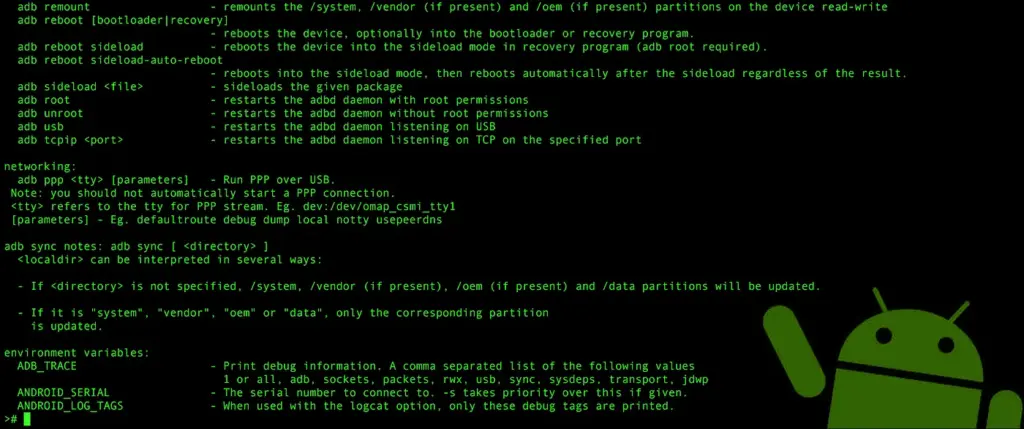
Whether you want to install a custom ROM, turn on some hidden Android features, or take screenshots from apps that prevent you from doing so, you’ll need the Android Debug Bridge (ADB) and fastboot. They’re part of the Google SDK platform tools and give you some lower-level access to your phone. You’ve got to prepare a few things before you can start, so here’s a comprehensive guide showing you how to get the platform tools up and running on any platform.
Setup your phone
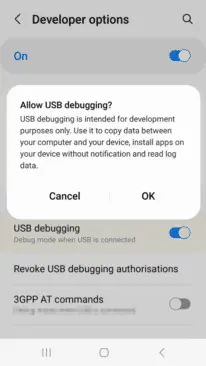
You need to set up your Android device first. If you haven’t already activated the developer options in your system settings, you will have to do so by going to the About section and taping the Build number entry seven times. You will be congratulated on becoming a developer, and a new entry called Developer Options will appear in your system settings. Enter them, look for the USB debugging toggle, and turn it on.
Installing ADB
Windows, macOS, Linux, and Chrome OS with Android Studio
If you’re a developer or looking to get into Android app development, you should install the Android Studio. It’s Google’s official IDE (Integrated Development Environment) for Android applications and has all the tools on board you need for creating your projects, including ADB and fastboot. The software will also ensure that your tools are always up to date. You can download Android Studio on the Android Developers website. The installation process is straight-forward — just follow the on-screen instructions from the installer.
Since Android Studio is quite huge when installed, the standalone SDK platform tools could be a better option if you want to save some precious space on your computer’s storage, especially if you don’t want to get into app development. The tools are comprised of the same interfaces you get when you install the Android Studio: ADB, fastboot, and systrace. They’re available on the Android Developers website. You’ll have to extract them and add them to your system’s path, but there are some scripts that simplify the process:
Nexus Tools
If you ask me, Nexus Tools is the fastest way to get ADB and the other platform tools up and running on your computer. It’s an open-source tool created by our own Corbin Davenport. Nexus Tools automatically downloads the latest platform tools from the Google website mentioned above, extracts them, and adds them to your system’s path for ease of use. You just need to paste the following command into a macOS or Linux terminal and hit enter:
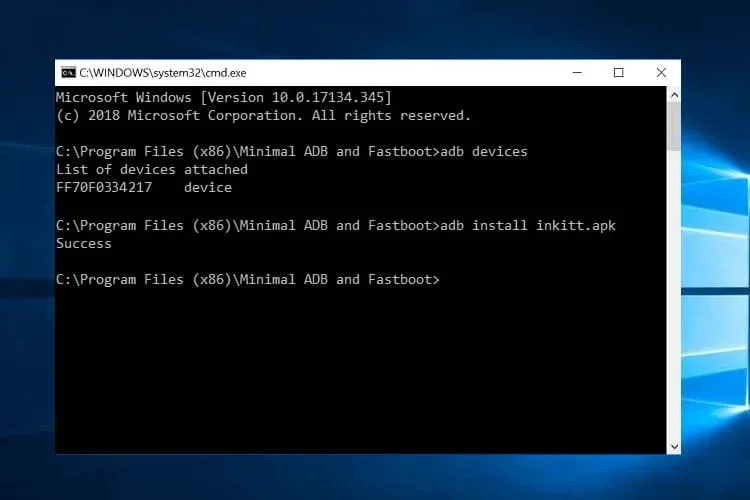
Once it’s finished installing, open a new terminal window and confirm that ADB works with the ADB devices command. If your phone is connected with USB debugging enabled, you should then be able to see its ID.
The script also works for the latest Macs with the M1 chip, Linux on Chromebooks (here’s how to enable Linux on Chrome OS), and Bash for Windows. However, the Windows subsystem for Linux doesn’t support USB, so you’ll have to rely on a wireless connection. That’s only really feasible if you have Android 11 or a rooted phone, and even then, there are some limitations.
You can find more information on Nexus Tools on Github, including uninstall and update instructions.
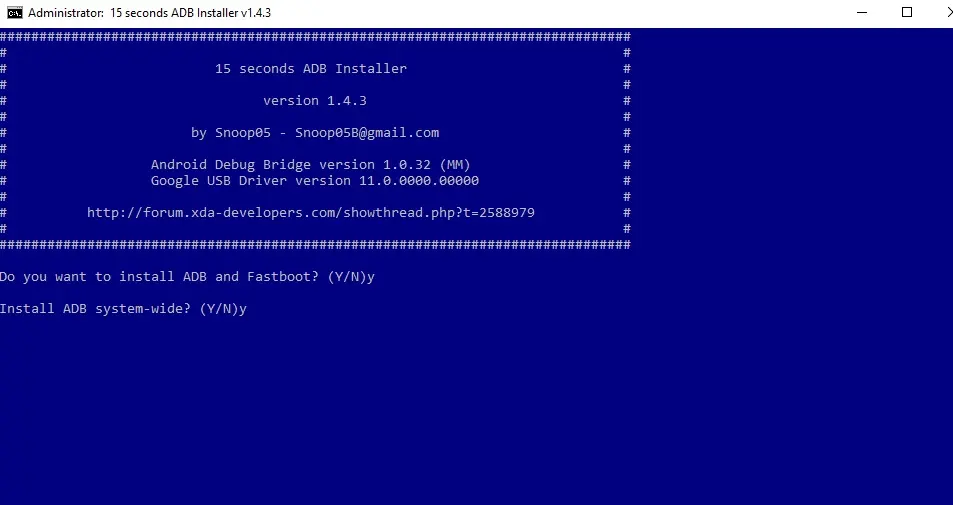
15 seconds ADB installer
For Windows, you can rely on another automatic tool from an XDA Developers Forum member, the 15 seconds ADB installer. However, some users report that the script doesn’t properly work for them, and it hasn’t been updated by the original maintainer for a long time. You can try using some of the recent revisions from another forum member or set up the platform tools manually:
Extract the ZIP file into a folder you can easily remember (like C:/platform-tools)
Open a command window in the folder by holding shift and right-clicking in an empty spot in the folder and selecting “Open command prompt/PowerShell here” in the menu. Then you can start using ADB — connect your phone and try .\ADB devices to see if it’s working. A list with attached devices should show up.
If you computer doesn’t recognize your phone, you may need to install its respective Windows USB driver additionally. Alternatively, there’s an open-source universal driver if you don’t want to go through the hassle of finding the correct one for your device.
If you want to be able to just open a command window and start using ADB without navigating to your platform-tools folder first, you’ll need to add the folder to your Windows path:
Search for “system environment” in the Windows 10 Start search and select “Edit the system environment variables” from the results.
Click “Environment Variables…” towards the bottom of the window that just opened.
In the lower section of the next window under “System variables,” look for the “Path” row. Select it and click “Edit…”
In the “Edit environment variable” window, you can hit the “New” button and add the path with the platform tools. In our example, that’s “C:/platform-tools.”
Exit all windows and save the changes you’ve made by selecting “OK.”
Open a new command prompt or PowerShell and see if ADB devices now works without navigating to your platform-tools folder first. You also won’t have to add .\ in front of it anymore. You might have to restart your computer before the change takes effect.
On your phone
If you don’t want to root your phone or install a custom ROM and just need access to the ADB shell, you don’t even need to connect your handset to a computer. The open-source LADB app allows you to run a shell locally, utilizing the wireless ADB protocol. However, setting it up is a little convoluted, and you’ll need to be on Android 11 to be truly free from a computer. We’ve got a tutorial that walks you through the process.
If you don’t have the Android 11 yet, or prefer to work with a larger screen, the WebADB might be for you. It’s an open-source web app that you can use to run the ADB shell, but it also comes with a file manager and supports SCRCPY for screenshots and screencasts in apps that don’t allow you to run them on a regular basis. The biggest caveat: being a web tool, you have to trust that developers don’t do anything fishy with your phone—you’re giving an unknown party low-level access, after all. Here’s our tool hands-on.
Depending on which install method you opted for, you may have to add a .\ in front of ADB commands to make them work. If you haven’t added your SDK tools installation to your path on Windows, keep in mind that you always have to run a terminal from the SDK tools folder.
There are tons of advanced features and tweaks you can enable or disable via ADB and the ADB shell. Here are just a few of the things we covered, but there are plenty of other things you can find all around the internet. Some of our favorites include SCRCPY, APK installation, stock-ifying Amazon Fire tablets, and more.
Welcome to Friday, everyone. Things may be slow, but I still have a few highlights to share with everyone. Both Doom & Destiny and Doom & Destiny Advanced are currently available at a discount. And if RPGs don’t float your boat, perhaps GoBlox Premium will scratch your puzzle itch. As always, I’ve highlighted all of the interesting titles in bold green text in order to make discovery easier. So without further ado, here are 19 temporarily free and 22 on-sale apps and games for the end of the week.