Blog

  • PayPal will let you transfer cryptocurrencies to third-party wallets

    PayPal will let you transfer cryptocurrencies to third-party wallets

    Since the end of 2020, PayPal has allowed users in the United States to buy and sell Bitcoin and other cryptocurrencies. The payment service even added the “Checkout With Crypto” option, so that users can pay with cryptocurrencies.

    And now, the platform wants to provide more tools for managing these virtual currencies, so it promises that Bitcoin and other cryptocurrencies will soon be transferable to third-party digital wallets.

    The future novelty was announced by PayPal’s vice president and general manager of Blockchain, Crypto, and Digital Currencies, Jose Fernandez da Ponte.

    paypal crypto

    During CoinDesk’s Consensus 2021 conference, Ponte told event moderator Jeff John Roberts that the cryptocurrency withdrawal function is in progress — which will also be available on PayPal and Venmo, a subsidiary of PayPal. Anyway, the details about the implementation are still scarce.

    We want to make it as open as possible, and we want to give a choice to our consumers, something that will let them pay in any way they want to pay. They want to bring their crypto to us so they can use it in commerce, and we want them to be able to take the crypto they acquired with us and take it to the destination of their choice,” said Ponte.

    PayPal understands that cryptocurrencies are much more useful when they can be moved, according to the executive. So the company is exploring how it could allow people to transfer cryptocurrencies to their wallets. He also pointed out that the company sends new developments every two months, on average. However, he did not specify when the function would be made available to users.

    He also gave no further details on how PayPal intends to handle the blockchain transactions that will be created when users send and receive cryptocurrencies.

  • Temporarily free and on-sale apps and games on Google Play Store

    Temporarily free and on-sale apps and games on Google Play Store

    We’ve had a busy week, so make sure to check out Wednesday’s sales since the list contains every Dragon Quest title on the Play Store, and they are still on sale. I also have some solid sales to share today, as well as some great standouts. First up is Crashlands, a great survival game that sports a wicked sense of humor. Next up is Lock’s Quest, a fantastic action RPG that made its way from the Nintendo DS to the Play Store. Last up is 9th Dawn III RPG, a deep and rewarding game that offers hundreds of hours of fun. As always, I’ve highlighted all of the interesting titles in bold green text in order to make discovery easier. So without further ado, here are 18 temporarily free and 42 on-sale apps and games for the end of the week.

    Free

    Apps

    1. CPUz Pro $5.49 -> Free; Sale ends in 6 days
    2. Learn Korean Language: Word Quiz Pro for Beginner $2.99 -> Free; Sale ends in 6 days
    3. Ray Financial Calculator Pro $2.49 -> Free; Sale ends in 6 days
    4. Sleep Faster, Meditation Pro: High-Quality Sounds $2.99 -> Free; Sale ends in 6 days
    5. Relaxing Sleep Sounds PRO $0.99 -> Free; Sale ends in 7 days
    6. Snipback – Lifehacker smart voice recorder PRO HD $2.99 -> Free; Sale ends in 7 days

    Games

    1. Hot Guns $1.99 -> Free; Sale ends in 1 day
    2. Spaxe | Procedural Survival Space Alien Shooter $0.99 -> Free; Sale ends in 1 day
    3. Warhammer Quest $3.99 -> Free; Sale ends in 1 day
    4. Empire Warriors Premium: Tower Defense Games $0.99 -> Free; Sale ends in 6 days
    5. Final Castle Defence : Idle RPG $0.99 -> Free; Sale ends in 6 days
    6. Hero Knights (idle RPG) $1.49 -> Free; Sale ends in 6 days
    7. Legend of the cartoon $2.49 -> Free; Sale ends in 6 days
    8. Fire and Water – Platformer Game $3.99 -> Free; Sale ends in 7 days
    9. Healing Matching Puzzle $0.99 -> Free; Sale ends in 7 days
    10. Hills Legend: Action-horror $0.99 -> Free; Sale ends in 7 days
    11. Infinite Puzzle $4.49 -> Free; Sale ends in 7 days
    12. Space Shooter: Alien vs Galaxy Attack (Premium) $0.99 -> Free; Sale ends in 7 days

    Sale

    Apps

    1. LayerPaint HD $6.99 -> $2.99; Sale ends in 10 hours
    2. Secure Clips – Secure & private clipboard manager $1.99 -> $0.99; Sale ends in 2 days
    3. KReader PRO: kindle read all formats (no Ads) $3.49 -> $1.49; Sale ends in 6 days
    4. Mushrooming $2.49 -> $0.99; Sale ends in 6 days
    5. Rapid Notifications Blocker PRO $2.49 -> $1.49; Sale ends in 6 days
    6. RE Equalizer Music Player $2.75 -> $0.99; Sale ends in 6 days
    7. Kids Music Classes: 10+ Music Instruments $3.49 -> $0.99; Sale ends in 7 days
    8. Sunnytrack – Sun Position, Shadows, Golden Hour $5.20 -> $0.99; Sale ends in 7 days
    9. Tinnitus Therapy Pro $6.99 -> $3.99; Sale ends in 7 days

    Games

    1. A Street Cat’s Tale : support edition $2.49 -> $0.99; Sale ends in 10 hours
    2. Despotism 3k $3.49 -> $1.49; Sale ends in 10 hours
    3. Unit 404 $2.99 -> $1.99; Sale ends in 10 hours
    4. Hue: Alter the color world $4.99 -> $2.49; Sale ends in 2 days
    5. The Lonely Hacker $3.00 -> $0.99; Sale ends in 2 days
    6. B.D.R.S : Biological Disaster Response System $3.99 -> $1.49; Sale ends in 3 days
    7. Crash Dive $3.99 -> $1.99; Sale ends in 3 days
    8. Crashlands: Story-driven Crafting ARPG $6.99 -> $4.75; Sale ends in 3 days
    9. Crash Dive 2: The Silent Service $9.99 -> $5.49; Sale ends in 3 days
    10. Earthlings Beware! $1.99 -> $0.99; Sale ends in 5 days
    11. Lock’s Quest $7.99 -> $3.99; Sale ends in 5 days
    12. Through the Darkest of Times $7.99 -> $3.99; Sale ends in 5 days
    13. 9th Dawn III RPG $9.99 -> $5.49; Sale ends in 6 days
    14. Mindcell $5.00 -> $0.99; Sale ends in 6 days
    15. My PlayHome Hospital $3.49 -> $0.99; Sale ends in 6 days
    16. My PlayHome : Play Home Doll House $3.49 -> $0.99; Sale ends in 6 days
    17. My PlayHome School $3.49 -> $0.99; Sale ends in 6 days
    18. My PlayHome Stores $3.49 -> $0.99; Sale ends in 6 days
    19. Pandemia: Virus Outbreak $3.49 -> $0.99; Sale ends in 6 days
    20. Flockers $1.99 -> $0.99; Sale ends in 7 days
    21. Hangman Premium $2.99 -> $0.99; Sale ends in 7 days
    22. Pocket Rogues: Ultimate $3.99 -> $2.49; Sale ends in 7 days
    23. The Angry Banana $1.99 -> $0.99; Sale ends in 7 days
    24. The Escapists: Prison Escape $6.49 -> $1.49; Sale ends in 7 days
    25. The Escapists 2: Pocket Breakout $6.99 -> $1.99; Sale ends in 7 days
    26. Word Search Premium $2.99 -> $0.99; Sale ends in 7 days
    27. Worms 2: Armageddon $5.49 -> $0.99; Sale ends in 7 days
    28. Muse Dash $2.99 -> $1.49; Sale ends in ?
    29. VERSUS: The Elite Trials $3.99 -> $2.99; Sale ends in ?
    30. VERSUS: The Lost Ones $3.99 -> $2.99; Sale ends in ?

    Icon packs & customization

    1. Vera Outline Black – Black linear icons $1.99 -> $0.99; Sale ends in 3 days
    2. Vera Outline White – White linear icons $1.99 -> $0.99; Sale ends in 3 days
    3. Kaorin – Icon Pack $1.99 -> $0.99; Sale ends in 7 days
  • Get your 4 exclusive rewards when you pre-register for PUBG in India

    Get your 4 exclusive rewards when you pre-register for PUBG in India

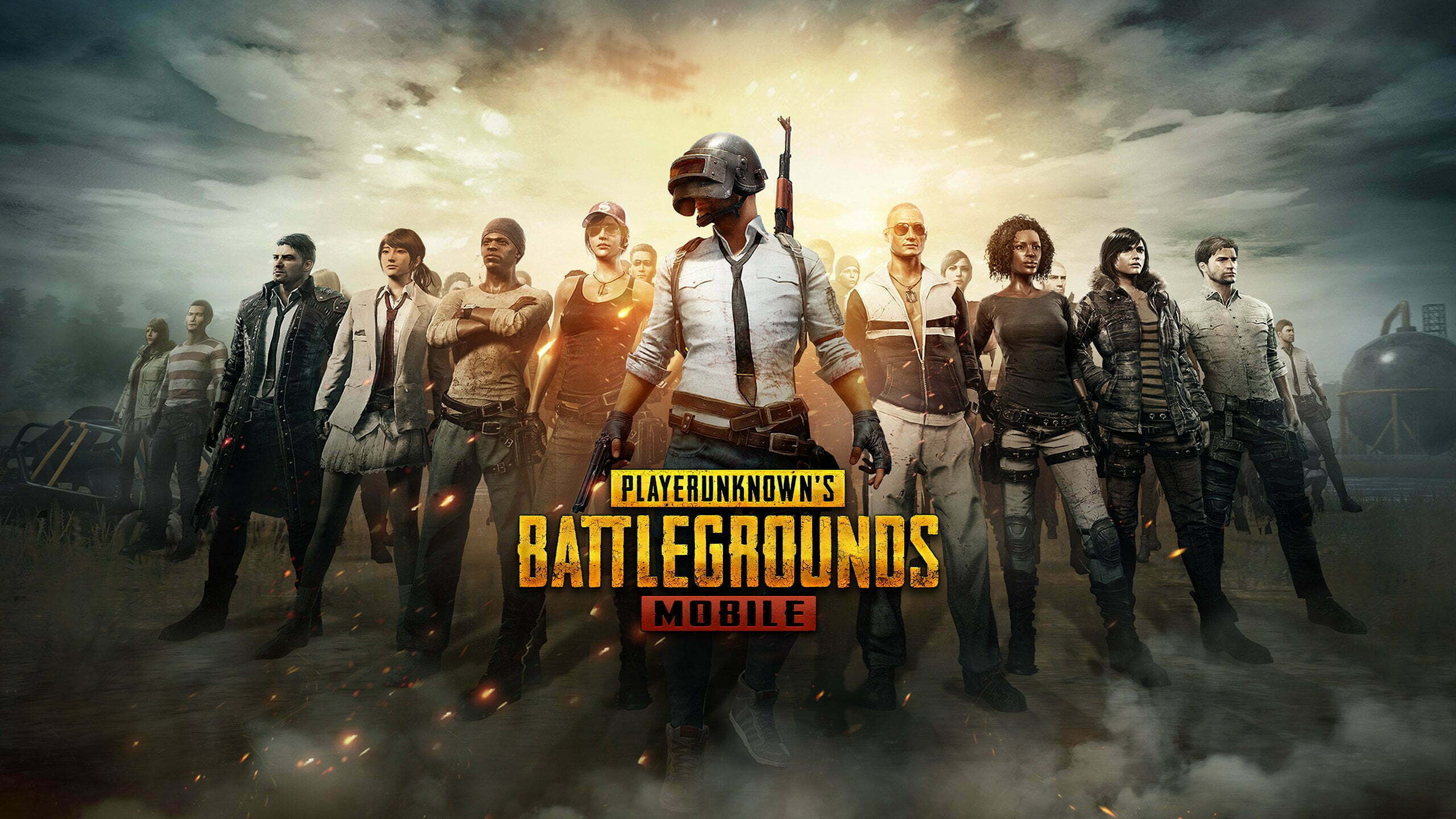
    PUBG Mobile was banned in India back in 2020 during a spree of Chinese app bans in the country. While it seemed clear the game would return as an Indian variant devoid of the Tencent server issue that caused the game to get banned in the first place, today, Krafton has confirmed the game is returning to the country as Battlegrounds Mobile India.

    Youtube video

    The first trailer for Battlegrounds Mobile India can be seen above, but it is only a teaser, so no gameplay is shown. I’m not sure why developers keep announcing games with nothing to show. Still, it stands to reason that Battlegrounds Mobile India will operate in the same manner as the original PUBG. However, it’s clear that the game will have its own eSports ecosystem separate from the main title. This also means that in-game events will differ between the two titles, and that the player base will soon be divided between two versions (the Lite version was recently retired), with a third game called PUBG New State arriving later this year. That is a lot of PUBG, possibly too much.

    pubg india

    So far, Krafton is tight-lipped on what to expect from Battlegrounds Mobile India, though a website is available, not that it details anything important. As most would assume, the game will be limited to India, it will be free-to-play, and a period for pre-registration will take place at a later date that’s yet to be revealed. Luckily TechCrunch has a few more details, and so we know the game will offer a number of restrictions to limit spending and game time for minors, and it will require a phone number of a parent or guardian to play if underage.

    Of course, as development moves forward, I’m sure we’ll hear more about Battlegrounds Mobile India, its planned pre-registration period, and eventually its release date. So stay tuned, as this story is far from over.

  • Top 6 Android Apps to improve your Mobile Utility

    Top 6 Android Apps to improve your Mobile Utility

    apps

    There are numerous apps released every week and it becomes hard to keep track of all of them. To make sure you don’t miss out on all the amazing apps, we have compiled this week’s best releases for you!

    One Swipe Notes

    One Swipe Notes is a promising utility app. It was free at the time of its release but is now for $0.99, which is quite reasonable. It is an intuitive note-taking app and easy to use with premium features.  The app enables users to swiftly take notes by opening a floating window with a single-window, taking quick notes, and exiting. However quick note mode, r, it is worth mentioning that in quick note mode, there is a limit to the information you can put in but users can always open the app and fill in the details afterward. Overall, it is an efficient note-taking app with a smart design and plenty of features.

    Princess Tale

    Princess Tale is a hybrid between gacha and an idle game. As of now, it is free for all to play. Once installed, players can obtain multiple characters and as the game progresses, the characters level up even if you don’t play often. The game itself, it quite impressive even though quite generic for its genre. There is a storyline user can follow along. The game does have a few kinks that the developers need to figure out but since it’s the game’s girt week, hopefully, the bug fixes are done over time.

    Cultivate

    ezgif.com gif maker 27 1

    Cultivate may seem like a gardening app at first but it is much more than that. It is a free motivational app that helps users complete tasks with the aid of digital plants. Users create plants and name them with certain actions. After acting, tap the plant and it will keep growing. As you continue performing the task, the plant will grow but if you don’t perform the respective task often, the plan with wither and die. It’s quite simple to use but an innovative idea to motivate people to be consistent with their activities. The activities can range from journaling to reading, basically anything you want to be more consistent with.

    Leap Trigger

    Leap Trigger is another interesting game. It is a free and a shooter game. The thing that sets it apart from most shooter games is that it heavily relies on AR much like Pokemon Go. Users can use the camera viewfinder to find their opponents and then shoot them with the on-screen controls. Players can avoid bullets. The game includes options such as multiplayer with its single-player mode.

    BYJU’S Learning App featuring Disney

    BYJU’S Learning App featuring Disney has three subscription packages ranging from free, $9.99 per month, and $99.99. To ensure maximum engagement from children the app uses Disney characters to enhance the learning experience. There are over 1,000 educational activities that kids can choose from. The app is kidSAFE and COPPA certified for child safety. Furthermore, as kids play games they are given incentives to keep playing in the form of stickers and rewards. The app is still under development hence a few bugs are expected. To gain full access it is better to opt for the paid version.

    Smart Transfer

    Smart Transfer is another innovative utility app. It is a free content transfer app with premium features that enables users to swiftly transfer all their data from one device to another. The app has multiple connectivity options such as Wi-Fi and Hotspot. This app is ideal for all data management needs and makes the cross-platform transfer much easier.

    Summing Up

    The aforementioned applications are quite impressive and worth try! Be sure to check them out and let us know if they worked for you.

  • How to connect to Google Home over Bluetooth

    How to connect to Google Home over Bluetooth

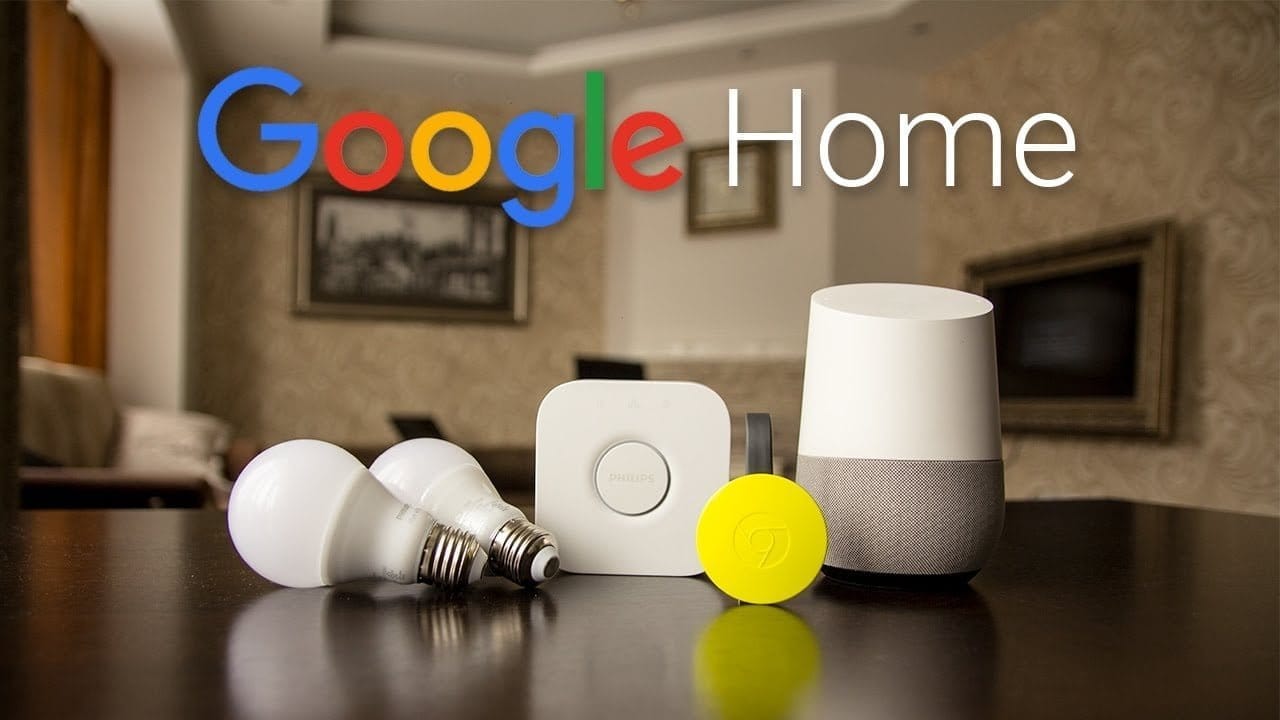
    Back at Google I/O, Google revealed that Bluetooth pairing for Google Home was on the way, paving the way for more flexible music control. Rather than relying on Google’s built-in Chromecast support or waiting for your favorite apps to catch up, you could simply connect your phone to Home via Bluetooth and play like you would with any other Bluetooth unit. It’s a feature that should have been available from the start. Aside from that debate, Bluetooth pairing is now available on Google Home.

    (adsbygoogle = window.adsbygoogle || []).push({});

    We figured we’d guide you through the very boring method of setting up Bluetooth connections because it’s not the easiest thing to do right now (we can’t find a voice command to get this going). It entails using the app to locate a semi-hidden setting, pairing your Home, and connecting through your phone’s Bluetooth settings.

    google home

    Instructions

    1. Open the Google Home app (install it if you don’t have it).

    2. Tap the Devices button in the top right corner of the app’s main screen.

    3. Find the Google Home you want to pair over Bluetooth.

    4. Tap its menu button and choose “Settings.”

    5. Under “Device info” choose “Paired Bluetooth devices.”

    6. Tap “Enable Pairing Mode” in the bottom right corner.

    7. After that, you’ll go into your phone’s Bluetooth settings and look for your Google Home device. It should be there available as a Bluetooth connection option.

    8. Tap on it to connect and allow whichever permissions it asks that you are comfortable with.

    9. And that’s it! You are connected over Bluetooth.

    10. To remove a connected device, you’ll head back into Google Home “Paired Bluetooth devices” and tap the “X” next to devices you want unpaired.

    11. Going forward, as you disconnect and want to reconnect, just look for your Google Home in your Bluetooth settings. It should always be there for connection once you have previously connected.

    (adsbygoogle = window.adsbygoogle || []).push({});
  • MIUI 13 update – features, device list, release date and everything else we know so far

    MIUI 13 update – features, device list, release date and everything else we know so far

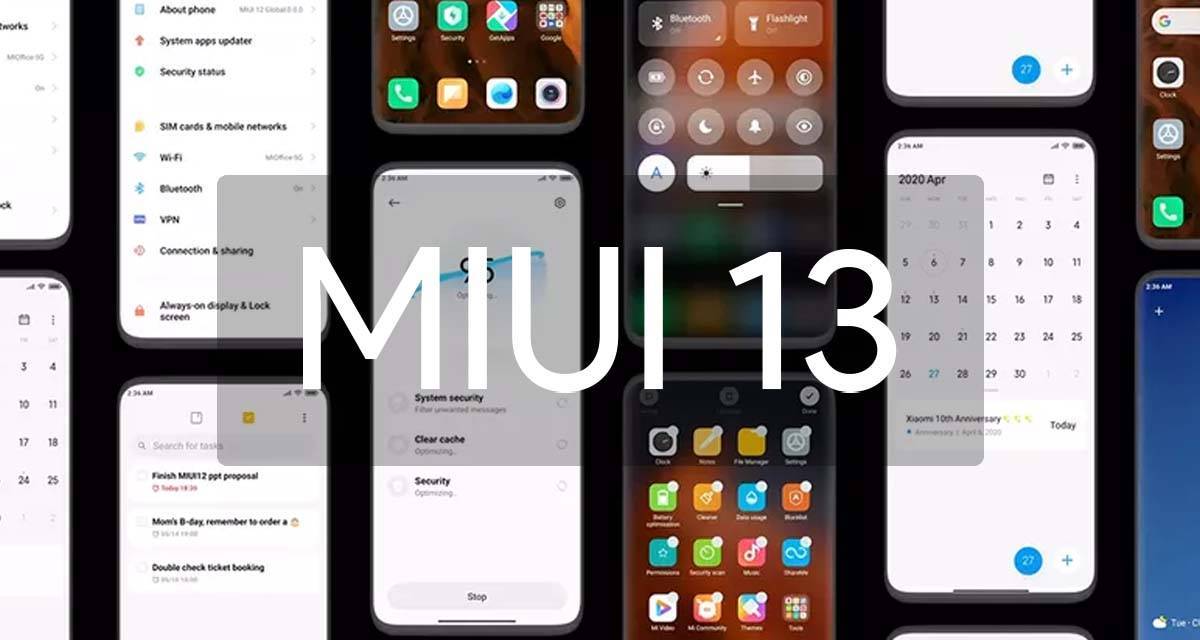
    If you own a Xiaomi phone, you likely use MIUI – it’s the company’s Android overlay that changes the software’s appearance and adds a few new features. MIUI 13 is the next version, and rumors abound that it’s coming pretty soon.

    Currently, the company’s newest phones like the Xiaomi Mi 11 and Mi 11 Ultra use MIUI 12; launched in May 2020, its new features included an app drawer, improved dark mode and an Ultra Battery Saver Mode, amongst other things, so it was a fairly big improvement.

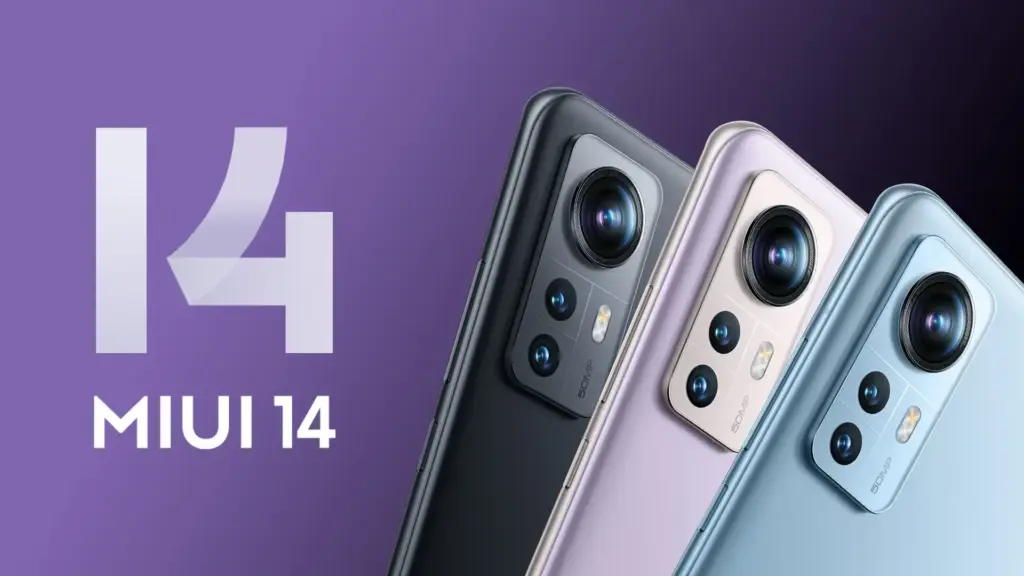
    Xiaomi 12 MIUI 14

    Even though MIUI 12.5 is still being pushed to Xiaomi smartphones, the MIUI 13 features, release date, download, and qualifying devices list have begun to circulate the internet. The upcoming custom Android skin, which will replace last year’s MIUI 12.5, is currently in the works. The Xiaomi MIUI 13 update is scheduled to be released in the second quarter, as have previous versions, and will be compatible with phones manufactured in 2019 or later. In terms of MIUI 13 functionality, it is expected to include optimized animations, new themes, wallpapers, and a slew of security enhancements, among other items.

    HIGHLIGHTS

    • Release date is tipped to be June 25th
    • The new custom skin is expected to come with a handful of improvements over last year’s MIUI 12.5
    • Features may include optimised animations, new themes, wallpapers, and plenty of security improvements 

    MIUI 13 release date

    The MIUI 13 release date is apparently set for June 25th, according to reports. The update is likely to be announced in China first, followed by other regions including India. There is no word on MIUI 13 release date in India yet, obviously. However, looking at Xiaomi’s past track record, the update could take around 2-3 months to reach India. MIUI 12, to recall, was originally announced in May but was only made available in the country in August.

    MIUI 13 update and download

    The MIUI 13 update will be released in stages, as is customary. The brand will initially distribute the beta version of the update to a small number of consumers, followed by the stable version for all compatible devices. The timetable for the MIUI 13 update release is currently unknown.

    miui 13

    Features

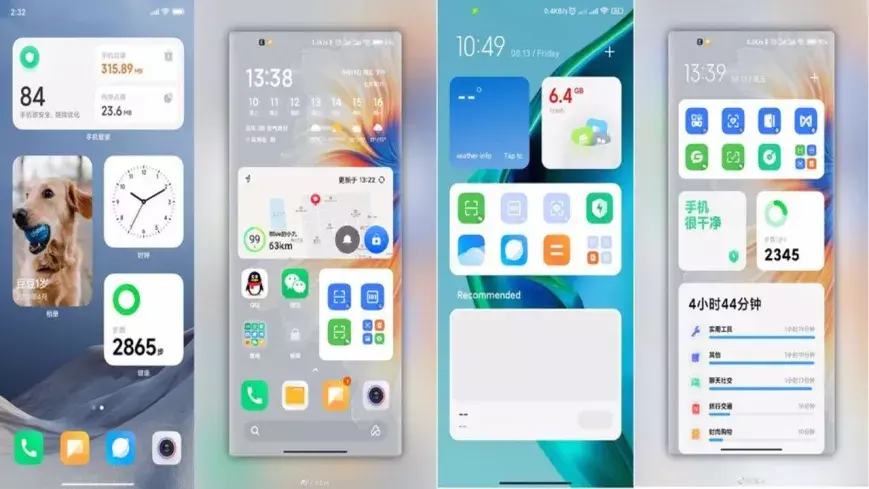
    Features list is too short at the moment to tell whether the update be a major upgrade or just an iterative of last year’s custom skin. Among the few that are rumoured so far include optimised animations to improve the overall experience of the new custom Android skin from Xiaomi. The update is also expected to come with design changes, enhanced touch sensitivity, advanced privacy options, native screen recording support, improved battery performance, new gestures, and enhanced notifications panel, among other things.

    MIUI 13 features (rumoured)

    • Improved in User Interface
    • Optimised Animations
    • Enhanced Touch sensitivity
    • Improved Scrolling screenshot
    • Native screen recording support
    • New Theme designs and improved gestures
    • Enhanced Always on Display
    • Scheduling option for Airplane mode 
    • Improved Notification panel for Social media apps for faster Reply and enhanced experience
    • More flexible storage experience
    • Fast charging improvements
    • New power saving mode to improve battery performance
    • Enhanced Notification system for managing older and newer notifications

    MIUI 13 could also bring Android 12 features such as Media Transcoding, new unified API, and wallpaper-based theming, to compatible Xiaomi mobile phones. Click here to know about the upcoming Android 12 features.

    MIUI 13: eligible devices

    The rumoured MIUI 13 eligible device list so far includes:

    • Mi 11 series
    • Mi 10 series
    • Mi Fold
    • Redmi Note 10 series
    • Redmi Note 9 series
    • Mi MIX Alpha
    • Redmi K40 series
    • Redmi K30 series
    • Redmi K20 series
    • Redmi 9 series
    • Redmi 10X series
    • POCO X3 series
    • POCO X2
    • POCO M2 series
    • POCO X2 Pro/ POCO X2 Pro
    • Black Shark 3 series
    • Black Shark 2 series

    While Xiaomi is known to roll out a new software update to devices as old as four years, rumours are rife that it has decided to skip MIUI 13 for its 2019’s flagships Mi 9 and Mi MIX 3, as well as last year’s mid-rangers like the Redmi Note 8 series and the Redmi 8 lineup.

  • Restrict apps data network usage in Android

    Restrict apps data network usage in Android

    Except for home Wi-Fi connections, all of our mobile data is limited. So, in order to avoid unnecessary consumption, we must adhere to restrictions, or we must opt for limited speed unlimited data. In the App settings, you can always limit the details. However, if you do not use the app with reduced data speed, you will need to use additional software to track and manage the app’s data speed consumption.

    You can also use this app when you have limited bandwidth and want to prioritize essential apps. However, in order to manage the software, most of the available apps need root access. However, in this article, we will show you How to Limit Apps Data Network Use in Android Without Root.

    Is network usage limit for apps needed?

    We all use our smartphones for various reasons, and not everyone has unlimited storage. Some people don’t mind keeping their mobile data linked all day, while others will need to switch on the mobile network only when necessary. Since the beginning of time, smart devices and computers have been programmed to run certain applications in the background. These apps run in the background for a variety of reasons, and they, of course, make use of network data connections. So, if you have a restricted data plan, you may want to prevent those apps from running in the background to avoid wasting data.

    This article explains the various possible ways to stop certain apps from using your mobile data or even connect to the internet (via WiFi) when you’re not using them. Interestingly, the methods explained in this article do not require you to root your device before they’d work.

    How to limit data usage

    You can restrict the bandwidth (network speed) of specific apps on your phone using certain mobile applications. If you have a restricted data plan or mobile network, this will help you save more data. It will also help to increase the internet speed; since there are only a few applications running, the speed will be significant and seamless.

    Regardless, on rooted Android devices, you can use DroidWall to set the apps that should use your data and apps that should not. DroidWall packs a bunch of features, and it only works for rooted devices. But if your Android device is not rooted, try these apps below to limit your apps’ network speed and data usage.

    Restrict background data

    Apparently, all Android smartphones support an option in its Settings page that allows you to stop background apps from using your data. This feature is placed in different sub-menus in different phones. However, the best way to find it out is using the “Search” function.

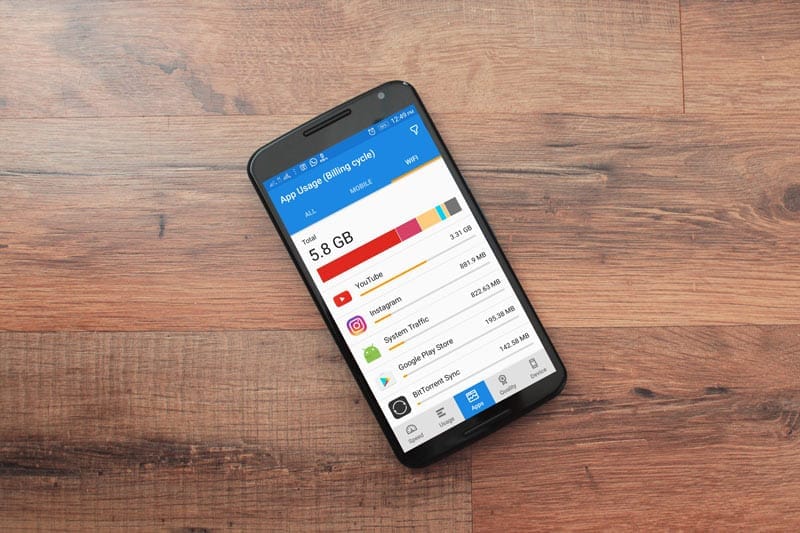
    restrict data usage

    In practice, most Android phones have a “Search Bar” in the settings page that allows you to quickly find a setting option. As a result, when you open the settings tab, tap on the search bar and type in “history info.” Select the appropriate settings option and switch on the function.

    Once enabled, no app on your smartphone can connect to the internet unless you start it. Simply put, when you minimize your Facebook or IM app, it stops using your data to sync and stops sending you new chat messages – before you open it again.

    This is the best option for many people, and it works pretty efficiently. You may not need to install a 3rd-party app anymore. Restricting background data works “device-wide,” which means it also stops background services from draining your capped mobile data. However, this feature may not be very effective; it is more effective when using the mobile network.

    NoRoot Firewall

    unnamed

    The name tells it all. This mobile application helps you build a firewall that restricts any app you select from using your network. It doesn’t require root access on the smartphone, and it is straightforward to use.

    This app has some intriguing features, such as hostname/domain name filtering, fine-grained access control, and no questionable permissions on the firewall app itself. However, one of the most significant drawbacks of this app is its inability to support LTE; it is designed to support IPv4 rather than IPv6.

    This app will function as a data privacy app, preventing such apps from sharing your personal data over the internet. It displays a warning on your smartphone whenever an app attempts to link to the internet; it is then up to you to ALLOW or DENY the app’s internet access.

    Furthermore, this app lets you create firewall filter rules based on IP address, hostname, or domain name. It is safe to use and does not pose any harm to your privacy. This app is compatible with many Android devices; the requirements vary from device to device.

    NetGuard

    unnamed 1

    This is yet another mobile app that allows you to control how your applications use your mobile data. It also does not need root access, and the interface is simple to use. The NetGuard mobile app is recommended for people who want to limit their mobile data use by only allowing those applications to connect to the internet. This act will also help to shield one’s personal data from being accessed by snoops and prying eyes on the internet.

    NetGuard is a sophisticated app that is available for free and is compatible with Android smartphones running Android 4.0 or later. Users can restrict access to the internet for specific apps through the home interface. Users can also prevent addresses from accessing WiFi or mobile network data. You will certainly handle your limited data with this app.

    Furthermore, background apps drain the battery faster, and by limiting them, you can save more data while also preventing your battery from draining faster. In general, this mobile app is simple to use, open source, and the developers guarantee that it does not monitor your data.

    Summing it up

    For certain people, the “Restrict Background Data” choice could be the better option. However, for more advanced settings, you will need a third-party program, such as the two mentioned above. Some people, however, dislike limiting background data – even though they are on a restricted plan – because they enjoy receiving real-time alerts. It all comes down to personal preference, so here’s a question for you: would you prefer limiting background data Network Use through Android settings or using a third-party app for more advanced settings?

  • Download stock firmware for Samsung Galaxy A80 SM-A8050/F/N Android 11

    Download stock firmware for Samsung Galaxy A80 SM-A8050/F/N Android 11

    As Full-Screen Display becomes popular, Samsung must release a product to compete with other companies. As a result, they launched the A80 with a Pop-Up camera. The A80 was released with Android Pie 9.0 and later upgraded to Android 10. Samsung has already released One UI 3.0, which is based on Android 11. In certain countries, the Samsung Galaxy A80 now runs Android 11. The update will be rolled out to all regions soon. When you’re on stock firmware, you can experiment with OTA. If you are using custom ROMs or are having problems with the standard software update process, you can use the manual method described below.

    Since Samsung uses a custom skin OS, they have to work much harder than stock Android models. In comparison to the initial release of One UI, Successor versions had a plethora of useful features. You can keep your phone up to date by using the OTA Software update feature in settings. However, if you are unable to do so, you can use this ODIN-based manual form.

    This method can also be used to unbrick your phone. Android 11 has a plethora of new functionality. Some notable features of the Android 11 version include direct Google Play Store security patch updates, enhanced privacy, and improved gestures.

    When you have root access on your mobile, You should follow a unique method to flash the firmware. If you follow below ODIN method, you will lose root access.

    How to update

    Official OTA Method

    If you want to update a security patch to the current month, don’t go for the manual method. Try this Automatic method.

    The process is straightforward and simple:

    • Go to your device setting menu and scroll down to the bottom.
    • Tap on “Software Update”
    • You may have to refresh the page to start the OTA upgrade process.

    Manual Method (SM-A8050, SM-A805F, SM-A805N)

    • Check Your Device Mobile No. If you flash a Different model number, you will lose some features based on your region.
    • Battery Percentage Above 50.
    • Backup Your Device.

    Using ODIN Method

    • Enable USB Debugging Mode and OEM Unlock; you’ll find these options at Settings >>> Developer options. If you didn’t see the developer options on your settings menu, then go to about >>> build number; click on the “Build Number” row about ten times regularly to activate “Developer Option” on your device.
    • Download the Samsung USB driver and install it on your PC.
    • We are using third-party software flashing. Download ODIN and install this also on your PC. In the version, select the latest version ODIN.
    • Download Firmware From the below links, For Samsung Galaxy A80 Official Firmware.
    • SM-A8050
    • SM-A805F
    • SM-A805N
    • Select recent firmware. When selecting firmware, refer- How to choose the correct firmware.
    • If the above mirror is not working, try the secondary mirror.
    • Switch off your Mobile. Enter into Download mode->Volume Down+ Volume Up Button and Connect Your Mobile To PC via USB Cable; after Samsung Logo Appear, Release all keys.
    • After entering into Download Mode, it will say Warning; press the Volume Up button to continue.
    • Launch Odin Application.
    • It Will Show the message added.
    • If you did not get this message, Repeat the above steps.
    • After Getting Added Message Select, AP/PDA Button, Browse for the Firmware file selects it. Tick the Auto-Reboot.
    • Press Start wait for the tasks to complete. It will automatically reboot after the process ends.

    Check Firmware

    You can Check the Firmware Details->Settings->About->Version.

    samsung firmware

    Samsung Galaxy A80 Android 11 One UI 3.0 Features

    samsung one ui 3

    One UI 3.0 is created based on Android 11. Samsung Always Add extra features to the OS. I listed Both Regular Android 11 Features and Some Exclusive One UI Features. We already covered Exclusive One UI 2.0 features that only available in Samsung Devices.

    Customization

    • With new image categories, we can setup up 5 different types in the Dynamic Lock Screen.
    • With newly added features, Now you can Pin or Reorder Samsung Internet tabs.
    • Enhanced Bixby Routines features are available.
    • Based on our routines, We can arrange the New icons and Lock screen widgets.
    • Now you can add some limited widgets like usage time in the Lock screen.
    • Interactive preview available when setting a wallpaper.
    • You can adjust the Always On Display, and Lock screen easier compares with the Android 10 slide.
    • We can add a call background to see a picture or video when we make or receive a call.
    • We can use two different Digital Wellbeing for personal and work profiles.

    Home screen and Lock screen

    • Like Tap on, You can Turn off the screen by double-tapping on a Home or Lock screen space. To enable this feature go to Settings > Advanced features > Motions and gestures.
    • Now you don’t have to search the available widget in Home Screen. You can create widgets by long-press the app and move the widget to the home screen.
    • On the Lock screen, tap the clock area to see additional widgets like calendar, weather, and music.

    Calls and chats

    • With the recent update, we can see individual contact conversations separately in the notification panel. Currently, it works with Messages and your favorite chat apps.
    • The identification and Remove duplicate contacts stored in the same account in Contacts. The storage period for deleted contacts has been extended from 15 days to 30 days.
    • Now you can edit multiple linked contacts from a single screen.
    • Trash folder is added in Messages so that recently deleted messages are stored for 30 days.

    Pictures and videos

    • With improved autofocus and auto exposure, you can take pictures quicker.
    • The Basic Edit feature is added within Gallery. Now, You can view, edit, and share pictures and videos more easily from the Gallery.
    • With new search features and categories in the Gallery, You can find pictures and videos quicker.
    • Now you can reverse the editing of photos even if you save the current settings.

    One UI 3 Settings

    one ui settings
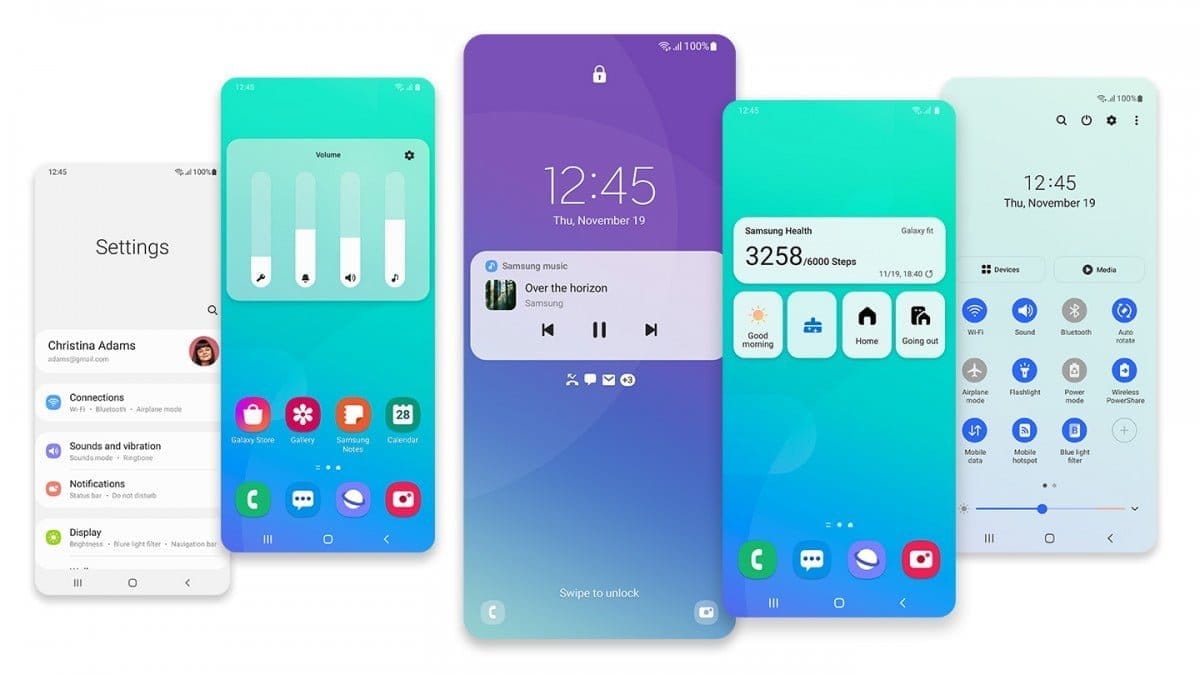
    • Settings are optimized as per the user’s feedback. It has a new, more straightforward look and feels. Your Samsung account is shown at the top, and Home screen settings are now easier to access.
    • With the enhanced Search feature in the settings, you can find more easily with new Search features. You’ll get better results for synonyms and common misspellings, and you can tap on tags to see groups of related settings.
    • With Quick settings, buttons have been reduced to provide only the most commonly used features. You can also add buttons to create your own customized quick panel.

    Samsung Keyboard

    • I Improved the keyboard layout with identified input to provide a larger space bar when entering web and email addresses.
    • You can reorganize Keyboard settings so it’s easier to access frequently used settings.
    • Now Samsung Keyboard can support up to 370 input languages.
    • Samsung Keyboard can now detect where to paste the copied images and texts based on the cursor position.
    • Now when you use a text-based emoticon, Your mobile will suggest the correct Emojis.

    Productivity

    • Based on your daily life and usage patterns, Bixby will recommend new routines. When you don’t like new habits, Bixby Routines provide a setting to return everything to the way it was before the routine ran.
    • We can hide the status and navigation bars for a more immersive experience during webpages translation in the Internet apps and quickly translate webpages.
    • When your mobile finds you are dealing with too many pop-ups or notifications, It will prompt you to block websites.
    • Now you don’t have to separate cloud storage apps to access your file. You can browse and select cloud drive files from the file selection screen in My Files.
    • You can now delete cache files in My Files without a separate app to quickly free up storage space.
    • Instead of showing separate tab or box for the same Events with the same start time are displayed together in the month and list views in Calendar.
    • You can use your phone or tablet app icon layout in Samsung DeX, so you know where everything is.
    • You can open the touchpad from the navigation bar on your phone or tablet, along with the navigation keys.

    Media and device control

    one ui 3 media control
    • Now you can see the full media controls and change the playback device from the Notification bar.
    • Identify and improve your digital habits.
    • Along with Improved Digital Well-being features, you can get weekly reports based on your activity.

    Accessibility for everyone

    • The enhanced Accessibility feature can give you loud feedback for your inputs even if Talkback is turned off. So, You can get feedback for pre-installed settings; You can get the dynamic response for your keyboard inputs.

    Stronger privacy protection

    • When the app doesn’t use the particular permission for a long time, Your mobile will revoke it.

    Additional improvements

    • Like ancient times, In Clock, you can hear the alarm’s time and preset name read aloud when an alarm rings.
    • Some apps will need to be updated separately after the One UI 3.0 update to get the latest features.
    • To adequately share the SD storage permission, select the Gallery or My Files, tap Share, and then select the app copy.
    • Wi-Fi Direct is no longer available. You can use Nearby Share instead. You can still receive files using Wi-Fi Direct.
    • We can’t use Chromecast using Smart View. We have to use Google Home instead.

    Summing up all

    The most important step in this process is to choose the right firmware. Select the firmware based on your country or territory. It is an ODIN manual process; you can flash the most recent edition. However, if you use the sideload form, you must flash the latest version of your mobile firmware or risk bricking your computer. There are several new features. One of the best aspects of this edition is the improved movements.

    If you can’t find your region, you can flash the Samsung Galaxy A80 Android 11 firmware from a nearby region. However, it should be within the same model number range. Following the light, you should contact your mobile operator to customize your network settings. There is an explanation why Custom skin OS manufacturers do not perform routine patch updates. According to company statistics, only a small number of people are concerned with software upgrades. In comparison to One UI 2.5, Samsung only introduced a few new features. If you already have a Custom ROM, try this new OS for a few weeks. It will undoubtedly provide you with a one-of-a-kind experience.

  • Custom ROMs for Samsung Galaxy S8, S8+, and Note 8

    Custom ROMs for Samsung Galaxy S8, S8+, and Note 8

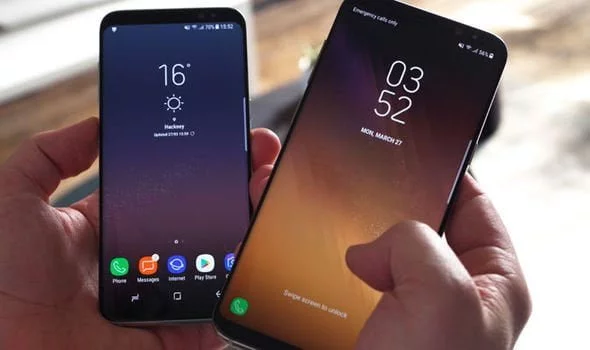
    Samsung offers 2 years of software support for their smartphones, which includes two big Android OS updates. The Samsung Galaxy S8, S8 Plus, and Note 8 have been on the market for well over two years and will never see Android 10. The same is true for the Galaxy S9 and Note 9 series, which have received the latest Android 10 update. Although the devices will continue to receive security patch updates for another year, this is unjust to the most successful Samsung flagship to date. So, here are some of the best custom ROMs based on Android 10 for the Samsung Galaxy S8, S8+, and Note 8.

    We’ve compiled a list of the most recent and reliable custom ROMs for the Galaxy S8 and Note 8 series right now. Lineage OS 17.1 and other common ROMs such as Havoc OS, Pixel Experience, and Corvus OS 10 have just been made official with Android 10. However, because of the design of Samsung Galaxy phones, official support for custom ROMs is difficult to come by. As a result, some custom ROMs based on Android 10 for the Samsung Galaxy S8, S8+, and Note 8 are still unofficial beta ports.

    Furthermore, the majority of custom ROMs are only for Exynos models. This is due to the fact that the Snapdragon Galaxy S8, S8+, and Note 8 variants’ bootloaders cannot be unlocked. So you cant install TWRP recovery, and hence, can’t flash a custom ROM.

    1. Havoc OS

    Havoc OS is currently one of the most stable Android 10 custom ROMs for Samsung Galaxy smartphones. In comparison to the other choices, users of the Galaxy S8 and Note 8 series strongly suggest the Havoc OS custom ROM. Most notably, it has recently been updated to Havoc OS 3.7, which means that it is based on Android 10 and incorporates some Android 11 features such as Material design 2.0, Dark Theme Support for AOSP apps, Android R Style screen record dialog, Rounded UI, Face Unlock support, built-in Gapps, Font Customisation, Pixel Lockscreen weather, and many more.

    Moreover, it also supports Face Unlock, HD/VoLTE toggle, 4G/LTE Icon toggle, 90 Hz refresh rate toggle, Themes styles and wallpapers support from the Pixel 4, and much more. Checkout the images from below and also see the complete screenshot repository from below.

    Download Havoc OS for Galaxy S8, S8+, and Note 8

    Source and Support

    Here is a list of all the sources you can get support from for the Havoc OS for Samsung Galaxy S8, S8 Plus, and Note 8.

    2. Pixel Experience Plus

    When it comes to having stock Google experience on your Android phone, Pixel Experience is everyone’s choice. It includes all of the Pixel 4’s functionality, the most recent Google UI, the most recent Google Assistant app, Digital Wellbeing, and support for the most recent Google products and services. As a result, you can receive the most recent Pixel Launcher, themes and style apps, wallpapers app, ringtones, icons, and everything else that is currently available on the Google Pixel 4 (XL) with Android 10.

    Wifi, RIL, Mobile data, GPS, Camera, Flashlight, Camcorder, Bluetooth, Fingerprint reader, NFC, Lights, Sound / vibration all work with Pixel Experience. However, some features, such as Volte, cast, and, according to some sources, even the face unlock feature, may not work.

    Pixel Experience Plus is an AOSP based ROM, included with Google apps and all the Google Pixel goodies like launcher, wallpapers, icons, fonts, bootanimation.

    pixel experience plus Samsung rom

    Download Pixel Experience for Galaxy S8, S8+, and Note 8

    Source and Support

    Here is a list of all the sources you can get support for the Pixel Experience on Samsung Galaxy S8, S8 Plus, and Note 8.

    3. Corvus OS

    Corvus OS is getting very popular lately among custom ROM flashers. The developers have also been very active in the development and supporting a large number of Android devices. Many have recommended Corvus OS over the past months as it is quite stable for its initial release. Covrus OS also brings Android 10 to the plate for Galaxy S8 series and Note 8.

    Corvus OS is inspired by Dirty Unicorn ROM and has many of its features. The ROM is full of customization options and has a dedicated section for each section including Themes, Notifications, Display, Lock Screen, and more. Stability is great with this one. It also gives stock AOSP experience making it light weight and fast. The ROM also includes some Google features like latest Pixel Launcher, Accent picker, Theme backup, Theme styles, wallpapers app, ringtones, icons, and more.

    Screenshots

    Download Corvus OS for Galaxy S8, S8+, and Note 8

    Source and Support

    Here is a list of all the sources you can get support for the Corvus OS for Samsung Galaxy S8, S8 Plus, and Note 8.

    4. Lineage OS 17.1

    lineage os custom rom for Samsung galaxy S8

    Lineage OS is one of the most popular custom ROMS out there. It supports a wide range of Android devices. Right from the obsolete phones from years ago to the most recent flagships. Lineage OS 17.1 is based on Android 10 and now supports Samsung Galaxy S8, S8+, and Note 8 unofficially.

    Download Lineage OS 17.1 for Galaxy S8, S8+, and Note 8

    Source and Support

    Here is a list of all the sources you can get support for the Lineage OS 17.1 OS on Samsung Galaxy S8, S8 Plus, and Note 8.

    How to update Samsung Galaxy S8, S8+, and Note 8 to Android 10?

    That’s it enjoy Android 10 on your Samsung Galaxy S8, S8+, or Note 8.

  • Backup and restore your SMS On Android devices?

    Backup and restore your SMS On Android devices?
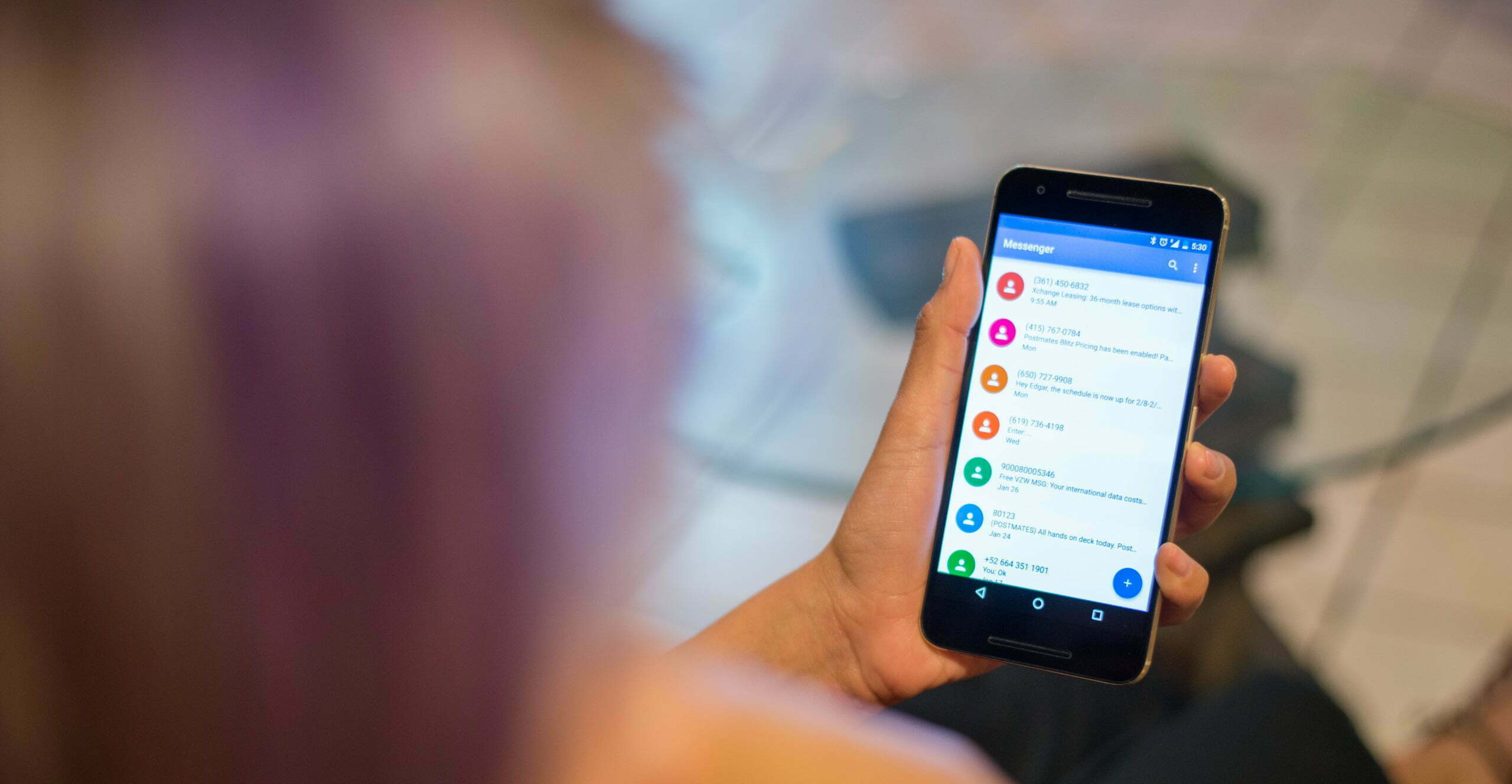
    Assume you got an essential text message and mistakenly deleted it while attempting to archive it. How do you restore deleted messages now? To prevent the hassle in the first place, you can use phone data recovery tools or backup all of your text messages on Android. You can either use the default Google backup or a third-party SMS backup and restore app to accomplish this.

    1. Backing Up SMS Using Google Backup

    Google provides an SMS backup and restore service. However, it has many limitations, including the fact that it is not available on all Android devices, that you cannot monitor when Google can perform the automatic SMS backup, and that the backup expires after 57 days.

    On the plus side, since it does not require the use of a third-party tool to backup and restore SMS, this is the best solution if you are worried about your privacy.

    How to backup text messages to Google Drive?

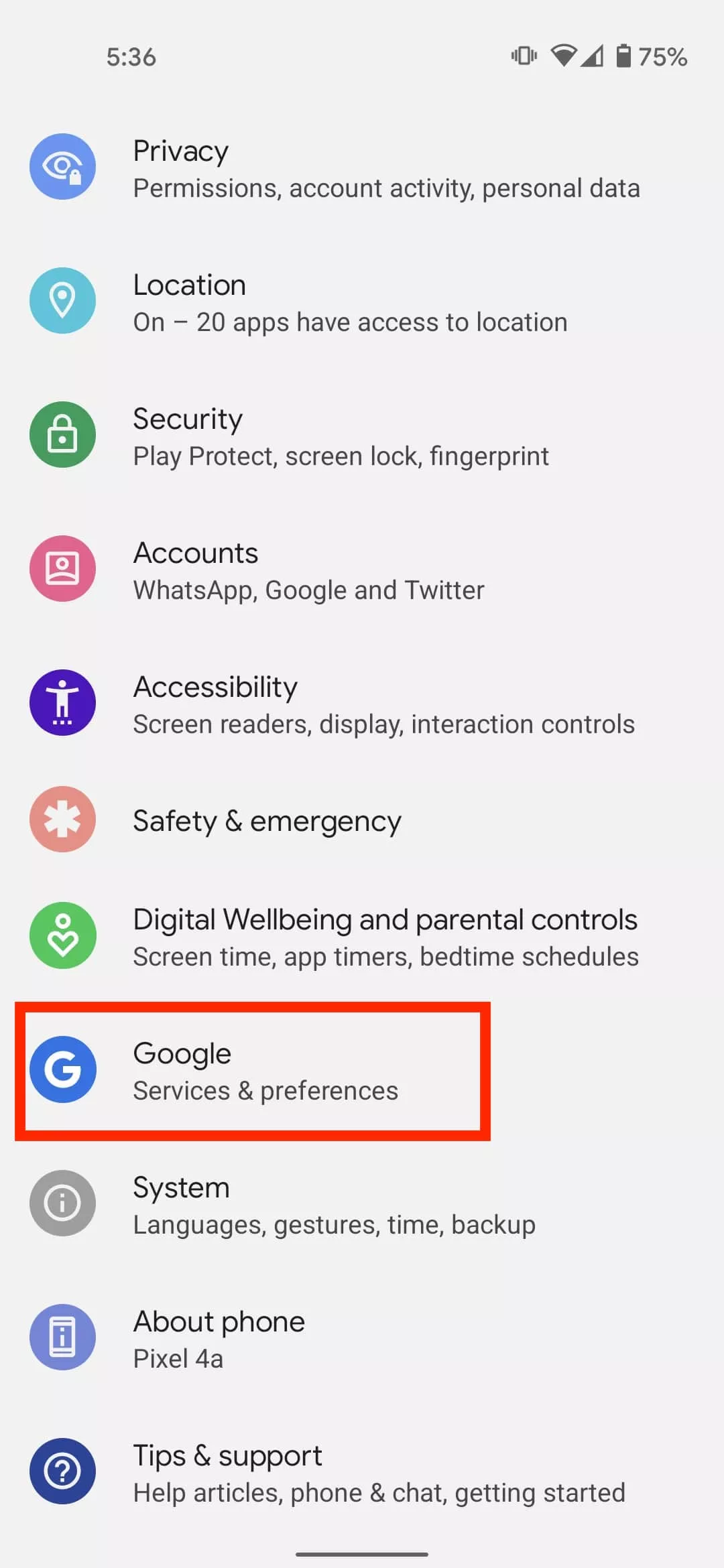
    1. Go to Android settings.

      How to backup SMS on Android
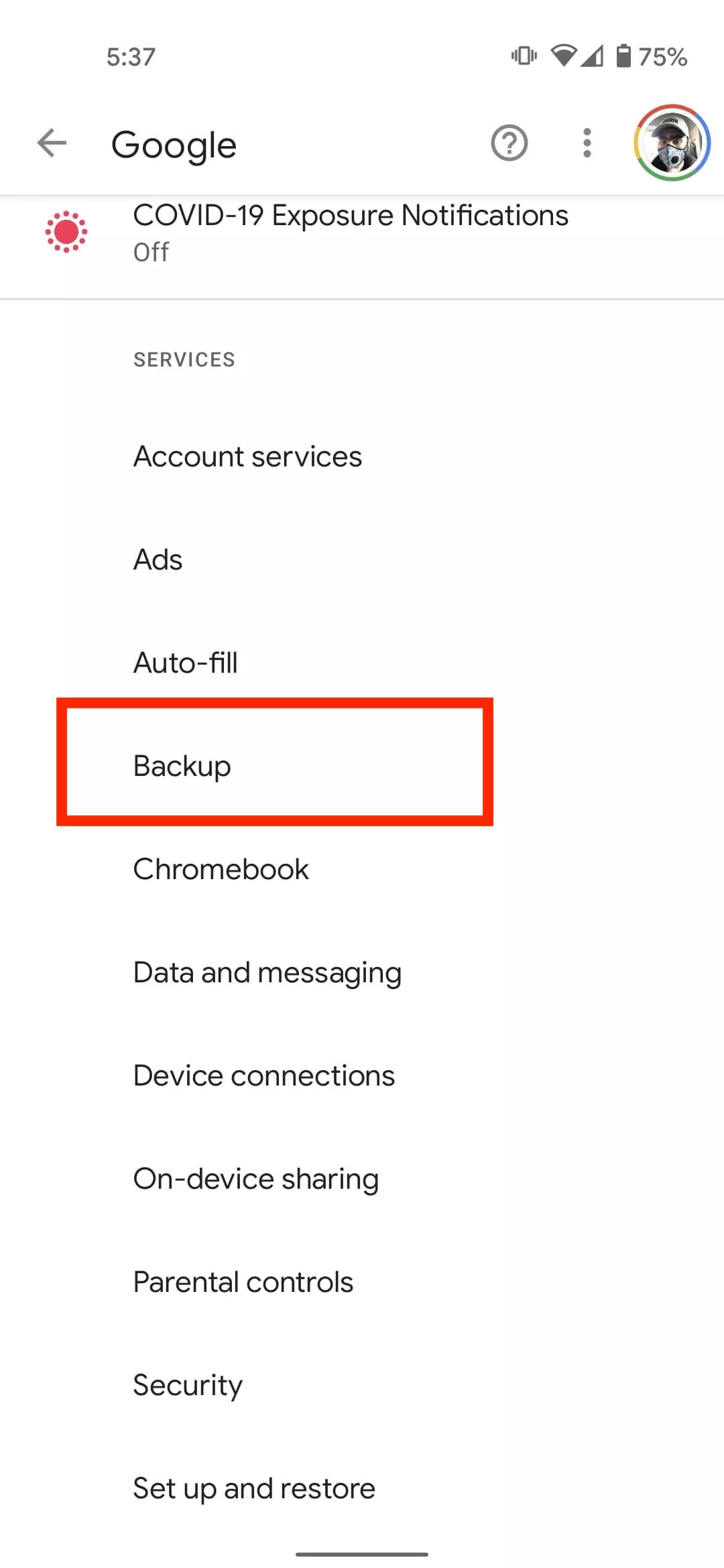
    2. Select Google > Select Backup.

      Select backup SMS Google
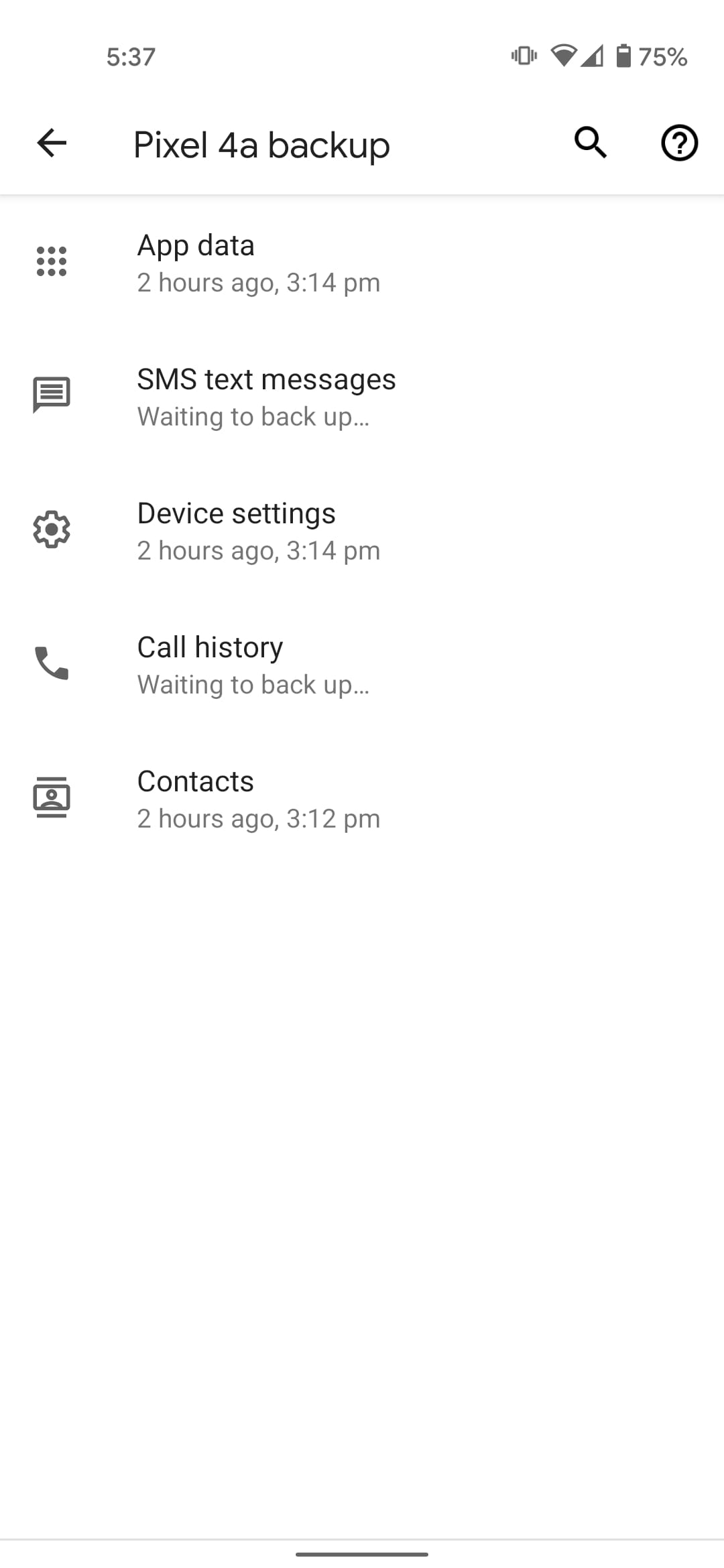
    3. Tap on your device name and see if the backup includes “SMS Text Messages.”

      backup text message AndroidSMS text message Google Backup
    4. Go back and Tap on Backup Now.

    Once the backup is complete, you will find it under the Backups tab of your Google Drive.

    2. Backing Up SMS Using A Third-Party Tool

    Another way to backup text messages on Android is through a third-party tool. SMS Backup and Restore is a great option and is often recommended. But I always prefer SMS Organizer from Microsoft.

    That’s because it’s not just a tool for backing up SMS on Android; it’s primarily an SMS app known for intuitively organizing text messages. I have been using SMS Organizer for a long time now and have never felt the need for another SMS app.

    Of course, if you are satisfied with the default Google messages app or any other SMS app, you can always use SMS Backup and Restore Android app to save text messages. But here, I will show you how you can backup text messages using SMS Organizer:

    How to backup text messages using SMS Organizer:

    1. Go to the SMS organizer app
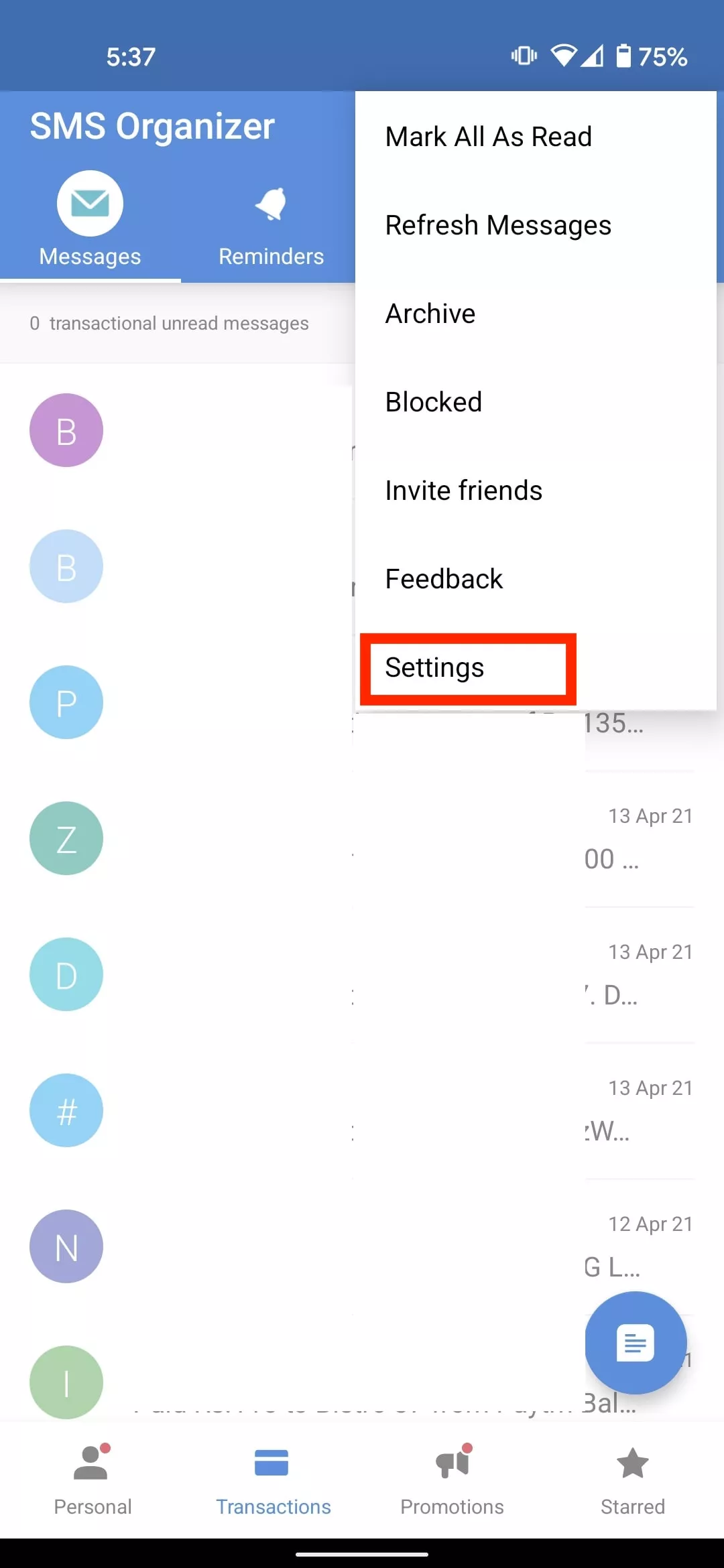
    2. Tap on the menu icon in the top right corner

      SMS Organizer go to Settings
    3. Select Settings
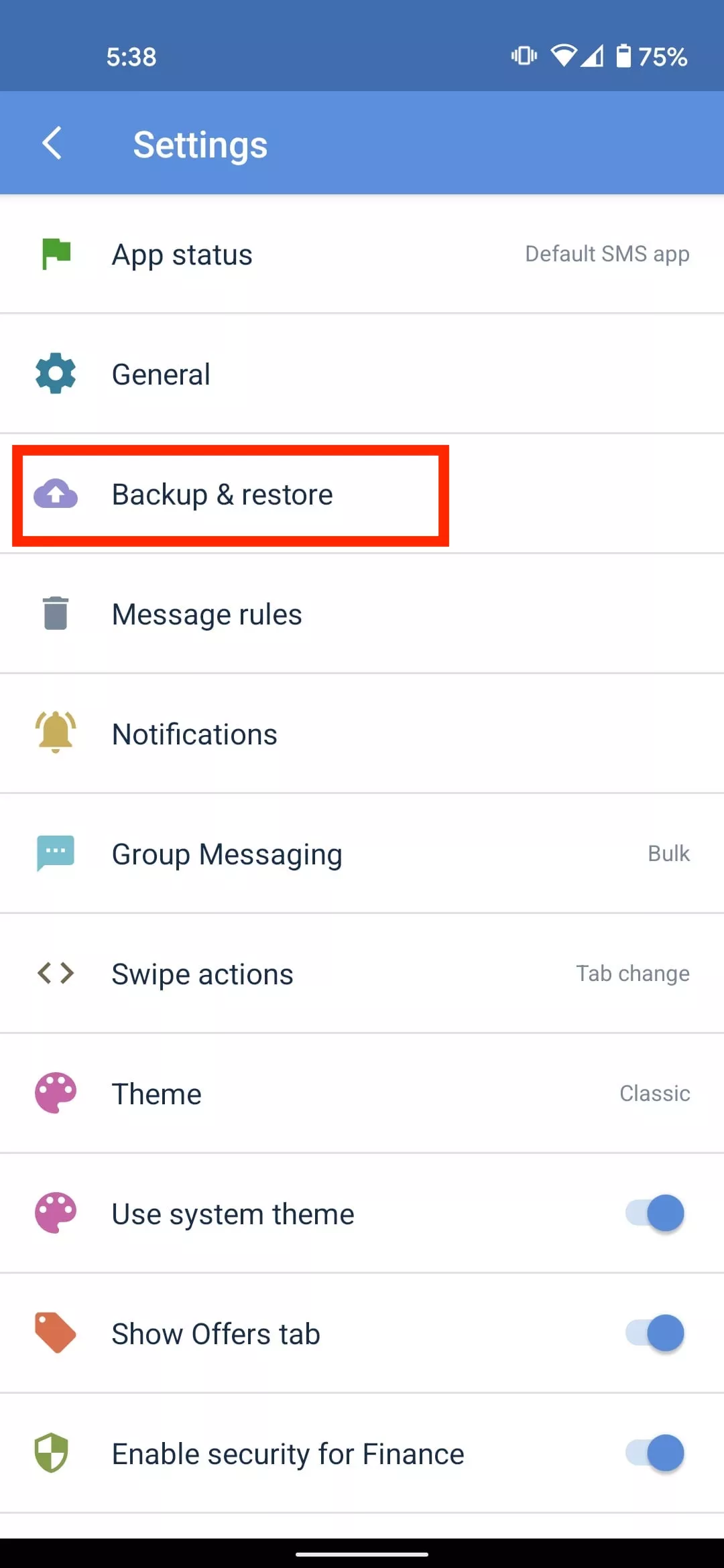
    4. Tap on Backup & Restore

      SMS Organizer backup & Restore
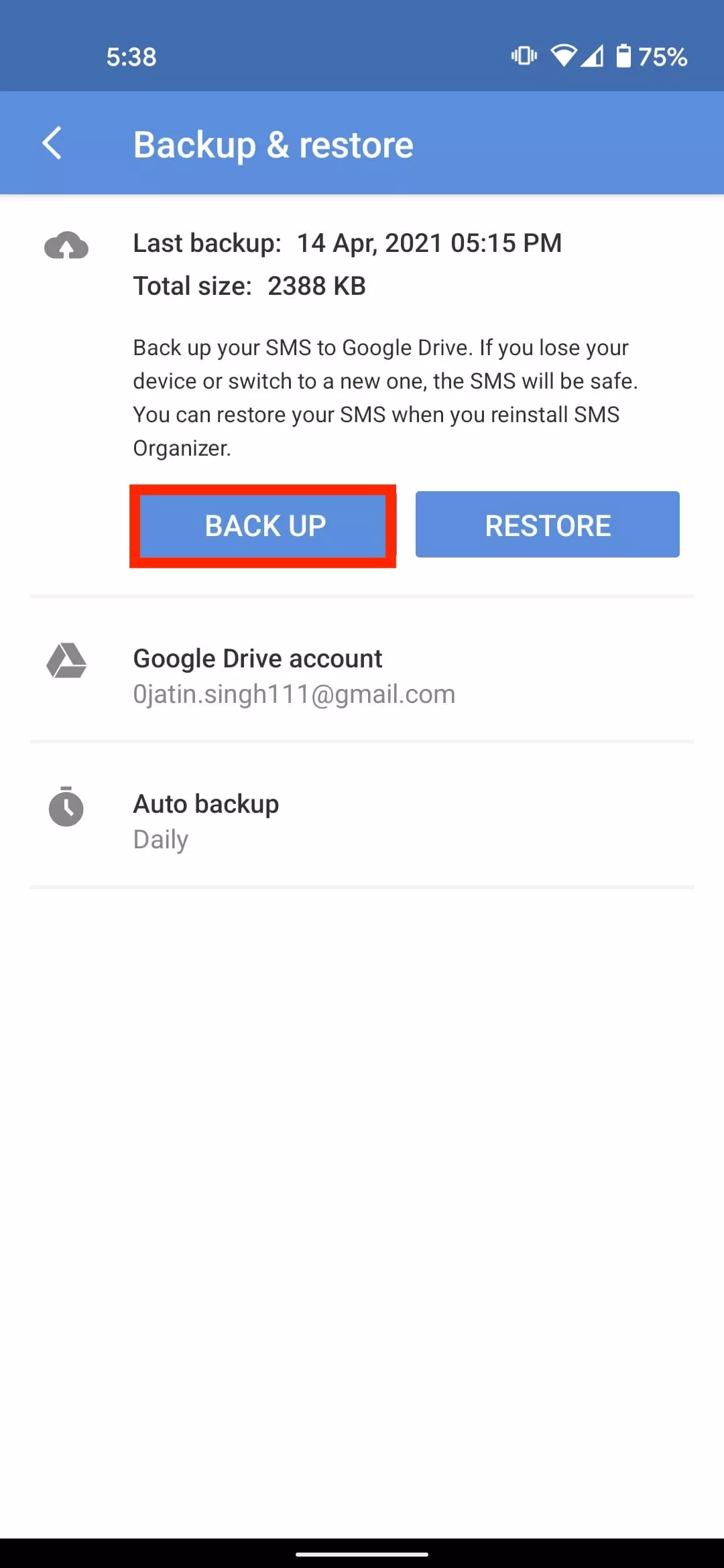
    5. Select Backup

      SMS organizer backup
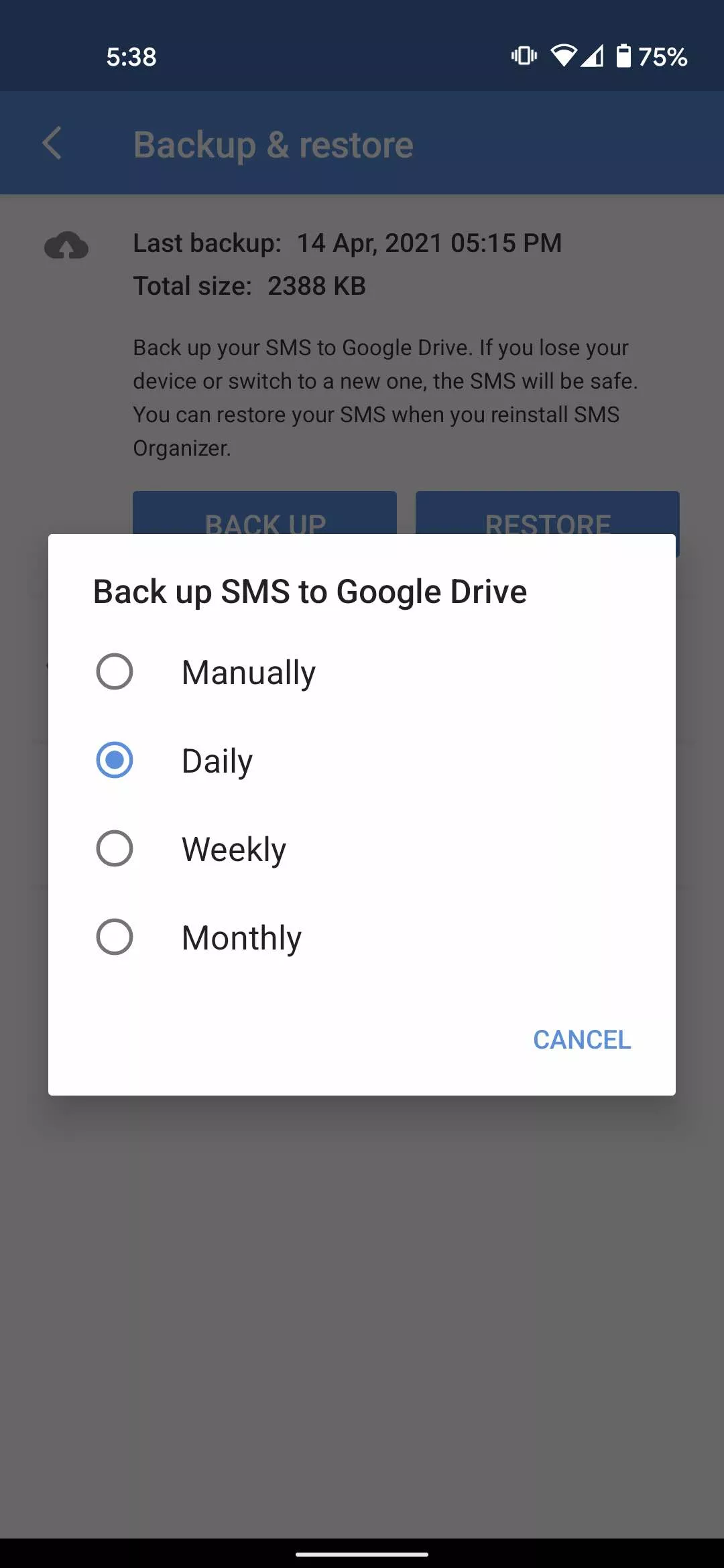
    6. Tap on Auto Backup and set the SMS backup to daily, weekly or monthly.

      SMS organizer daily backup

    If you want to restore text messages on a new Android device, simply install the app > Log in to your account and Select Restore.

    Unlike SMS Backup and Restore, the SMS organizer does not have the option to backup SMS hourly or set a recurring scheduled time for automatic backup. That being said, both apps are efficient for backing up your SMS on Android.