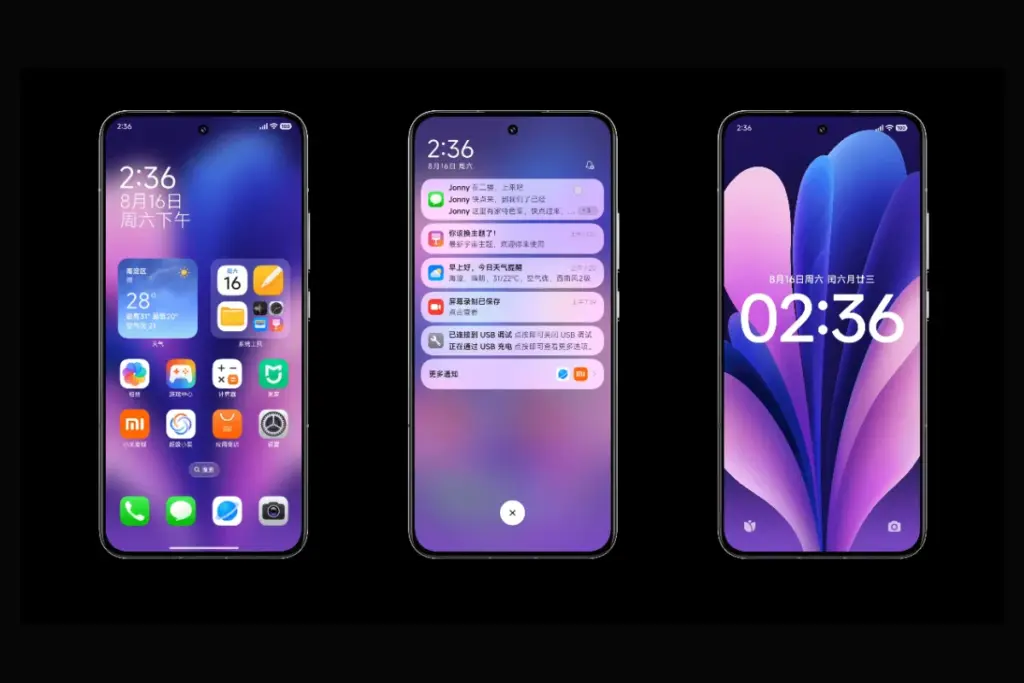
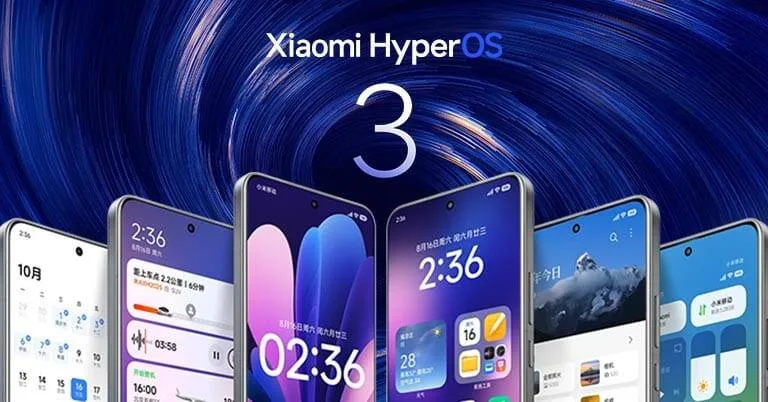
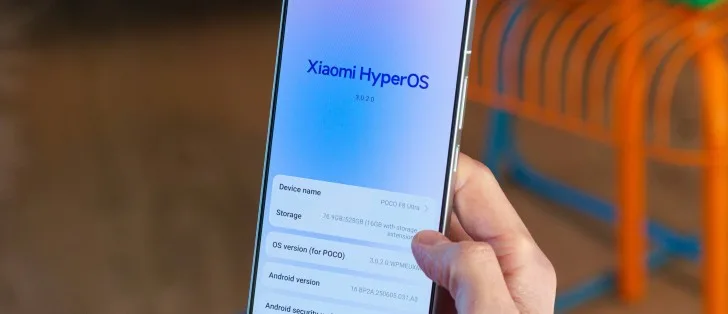
The latest version of Xiaomi’s HyperOS is almost here, and it looks like there will be a lot of changes. Xiaomi HyperOS 3.1 appears to be attempting to improve the appearance of their software by drawing inspiration from well-known skins. There is a significant hitch, though, that could let some users with outdated specs down. According to the most recent reports, this upgrade will only come on Android 16 devices because it is closely related to the underlying OS design.
What are the new features that are coming to HyperOS 3.1?
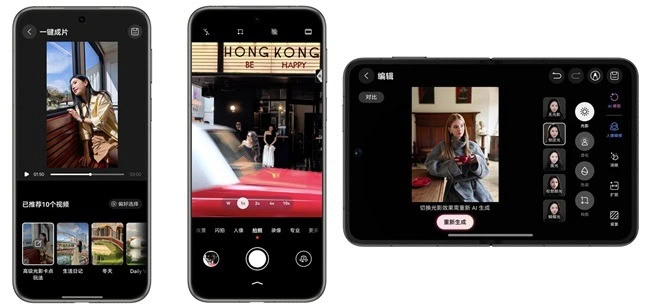
We have also been monitoring the development of Xiaomi’s latest software update, and version 3.1 has a long list of features. The “Stacked Layout Style” in more modern apps is likely to be the first thing you notice. You will therefore recognize this design if you have used an iPhone within the last year or so. A horizontal scroll where the apps stack seamlessly one after the other has replaced the conventional two-column grid. It’s noteworthy to note that individuals who are prepared to take the risk can already download this launcher upgrade.
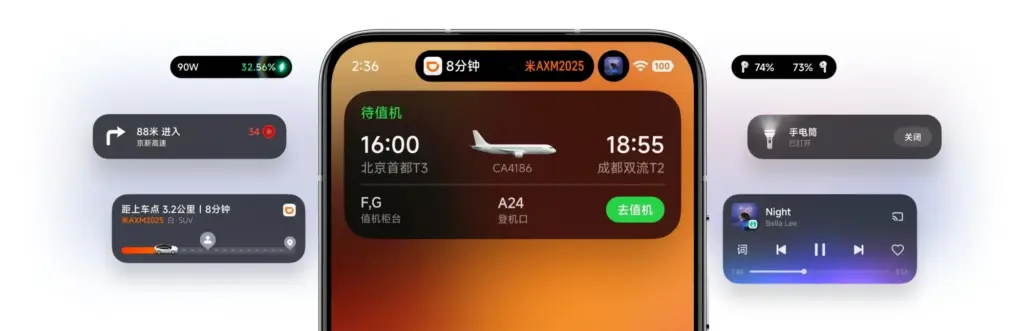
Improved “Super Island”
Additionally, Xiaomi is creating a Super Island settings page that lets users select which apps are linked to the animation effect and improving the HyperIsland feature. Not only is functionality being enhanced, but visual effects are as well. The media playing progress indicator on the island is now interactive thanks to new light effects. Additionally, the Super Island logic has been improved for smoother transitions. This was a problem that many users had previously brought up because animations were stuttering.
More customizations
In terms of versatility, HyperOS 3.1 is a great choice for home screen organizers. Drag-and-drop folder size changes are now properly regarded. To enable users to conceal numerous apps in a tiny area without sacrificing accessibility, new folder sizes including 2×1 and 1×2 have been included, along with page turning. A complete photo editing suite is added to the Lock Screen to facilitate the placement of widgets and the incorporation of depth effects.
System-wide improvements
There are other “under the hood” adjustments in addition to the aesthetic modifications that are intended to make the phone appear smarter.
Multi-Volume Adjustment: Managing media, ringer, or alarm volume all at once gets a new design.
Bluetooth Memory: The system will now remember the connection status of Bluetooth devices more accurately.
HyperAI Suggestions: The active suggestions in the app drawer and negative screen are getting the optimization boost. (China only)
Roadmap
The HyperOS 3 Beta Phase 2 recruitment will take place in two waves from January 22 to January 30, according to the official Xiaomi announcement. In its job ad, the business makes it clear that these are engineering builds that are not stable and should not be used as everyday drivers. The first round of updates, which concentrated on the newest flagship devices, started on January 22.
The following gadgets will be compatible with the first wave of upgrades for China:
While the testing process is underway, Xiaomi claims that beta testers are unable to upgrade to the stable build right away. Users in the first batch will begin receiving OTAs on January 22; users in the second batch will receive the update ten days after the distribution process begins.
When the update is expected?
According to our sources, Xiaomi HyperOS 3.1 is anticipated to become available in China in February. However, it is limited to Android 16-capable smartphones. This implies that the Xiaomi 17 series and other flagship devices, like the Xiaomi 15T Pro, will receive the updates first. The aforementioned upgrades might not be accessible to you if you are currently using a device that won’t be receiving the Android 16 update. Xiaomi typically transfers some of the functions to the outdated operating system, though.
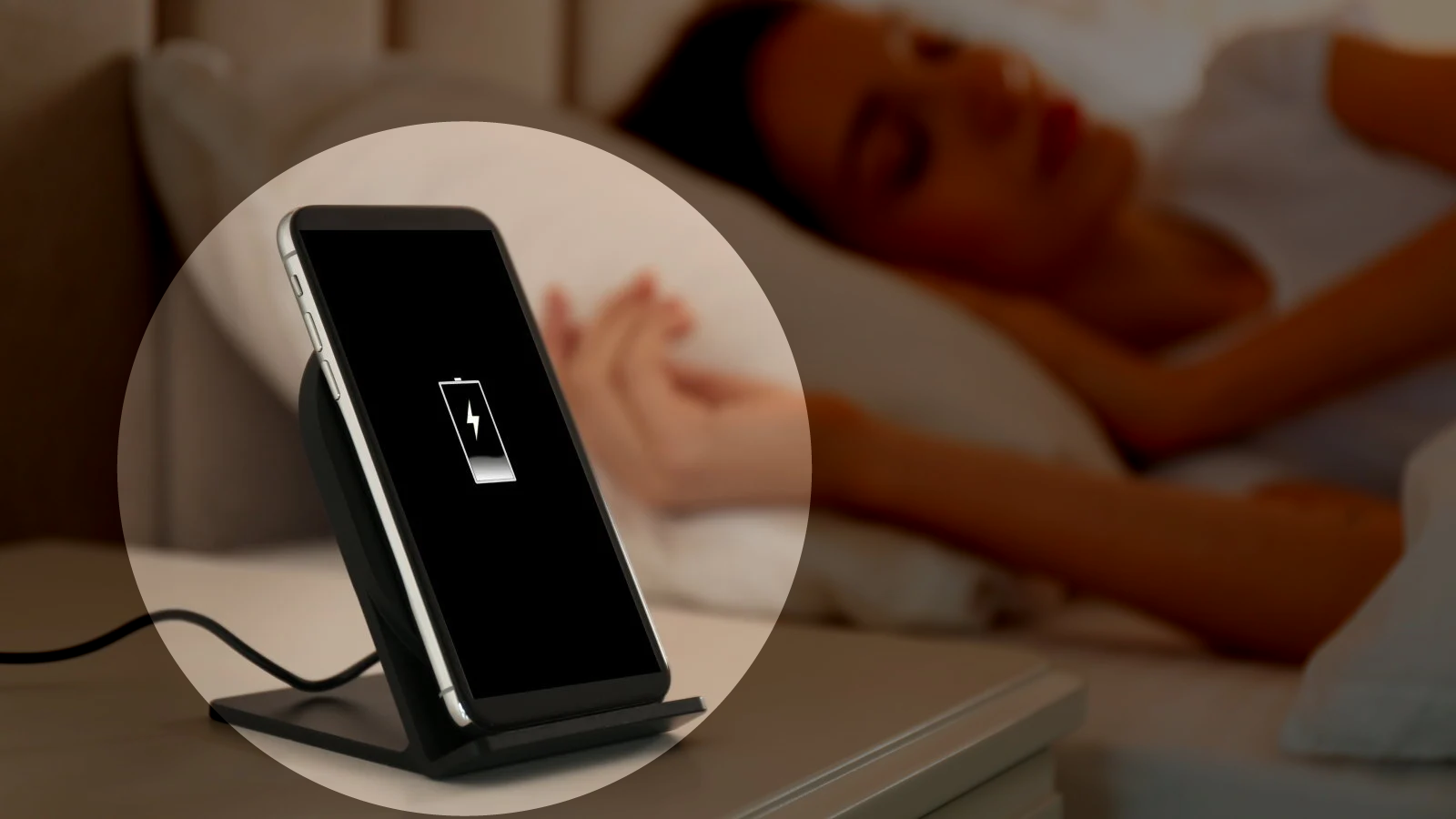
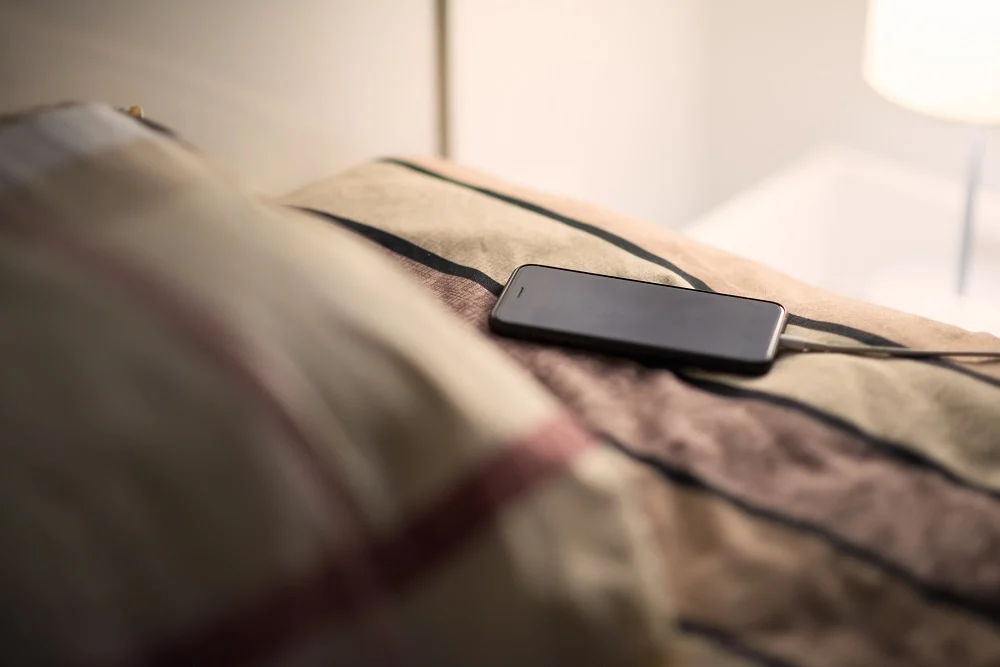
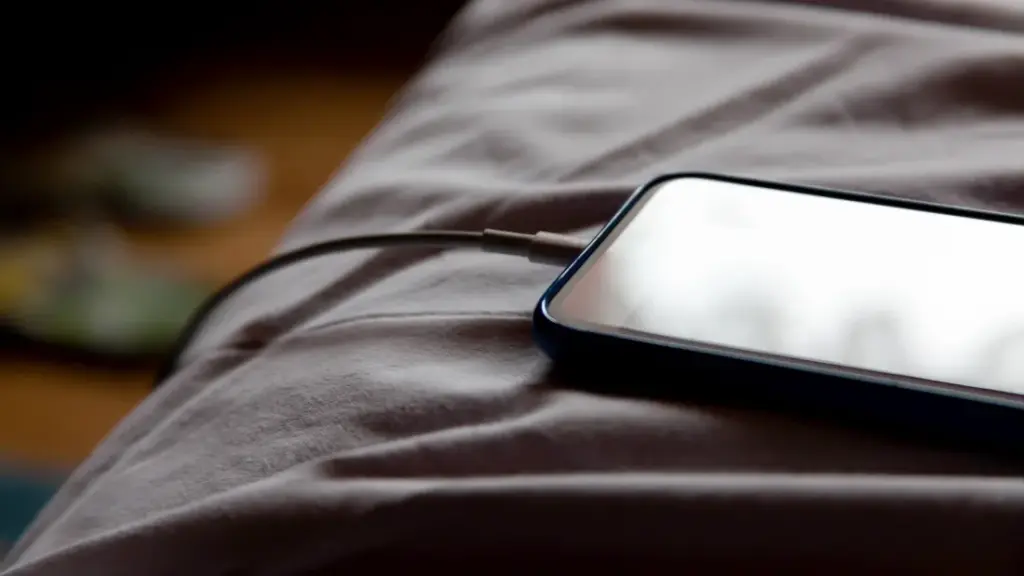
You’ve probably heard it a hundred times: “Don’t charge your phone overnight—it’ll ruin the battery.” Or maybe the opposite: “It’s fine, modern phones know what they’re doing.” Both sides sound convincing, but which is true? Overnight charging doesn’t destroy your battery overnight (pun intended), but there are real effects worth knowing about.
This guide cuts through the noise. We’ll look at what actually happens during overnight charging, why the myths persist, and what small changes can protect your battery without making life inconvenient. No scare tactics. Just facts and practical steps.
The science behind overnight charging (simpler than it sounds)
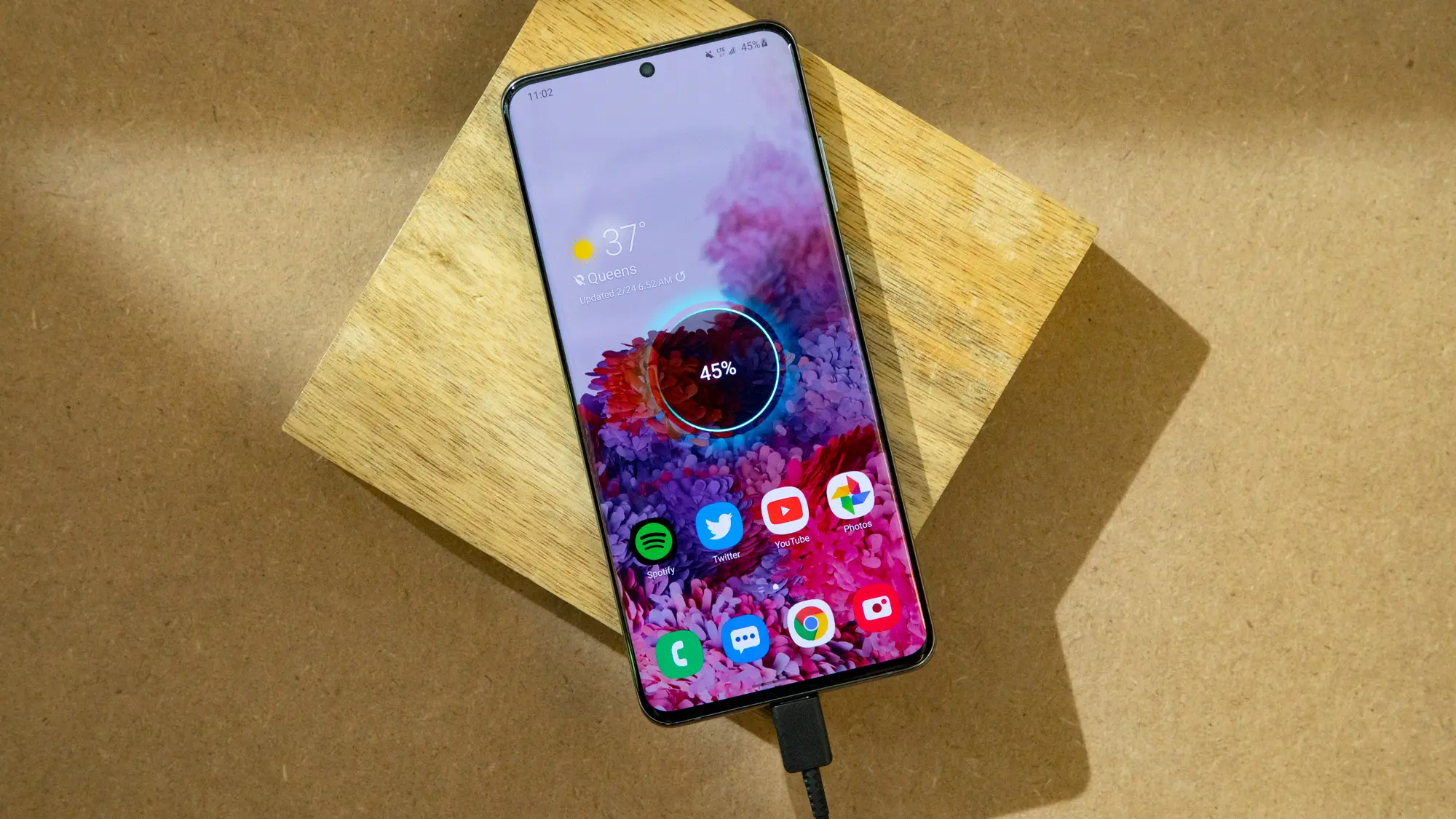
Modern smartphone batteries are lithium-ion cells with built-in smarts. When you plug in, the phone doesn’t just blindly pump electricity until something explodes. It has charging circuits that monitor voltage, current, and temperature, stopping the charge at 100% and switching to “trickle” mode to maintain it.
Here’s where confusion creeps in. Once your phone hits 100%, it doesn’t “overcharge” in the classic sense. But it does sit at full capacity for hours – sometimes 6-8 hours if you charge from bedtime to wake-up. That full state puts mild stress on the battery chemistry, especially if the phone gets warm.
On one hand, a single night of overnight charging won’t noticeably hurt. On the other hand, doing it every single night for two years adds up. Battery capacity naturally degrades over time anyway (to about 80% after 500 full cycles), but certain habits can speed that up or slow it down.
Why overnight charging gets such a bad rap
The fear comes from older battery tech and nickel-cadmium cells that really could overcharge and bulge. Those died out 20 years ago. Today’s lithium-ion batteries have protection circuits, and manufacturers test for worst-case scenarios.
But here’s the nuance: while overnight charging won’t brick your phone tomorrow, keeping lithium-ion batteries at 100% for extended periods accelerates chemical aging. It’s not dramatic day-to-day, but over months, it contributes to capacity loss. Heat makes it worse – think charging under a pillow or in a thick case.
Most phones now include features to counter this. Samsung’s “Protect battery” limits to 85%. Google Pixel has adaptive charging that learns your routine and finishes at wake-up time. These exist because overnight charging is common, but manufacturers know the trade-offs.
What really happens during an overnight charge
Let’s break down a typical 8-hour overnight charge:
Fast charge phase (0-80%): Phone pulls maximum safe current. This generates some heat.
Top-off phase (80-100%): Slower charging to avoid stress.
Full (100%+): Trickle mode kicks in. Phone sips tiny amounts of power to counter self-discharge. Battery sits at full voltage.
That trickle phase is where most “overnight charging damage” debates live. It doesn’t overcharge, but full voltage stresses the battery’s cathode material over time. Studies show batteries degrade faster when held at 100% vs cycling 20-80%.
Real-world tests confirm: phones charged overnight for a year lose slightly more capacity than those using charge limits. But the difference is often 2-5% over 12-18 months—not make-or-break unless you keep phones forever.
Common mistakes with overnight charging
People get overnight charging half-right, then undermine it:
Charging in hot environments: Under pillows, blankets, or summer cars. Heat accelerates everything bad about full-charge states. Solution? Charge on a nightstand, case off if warm.
Ignoring phone smarts: Many skip “adaptive charging” because they don’t trust it. Most phones learn your schedule after 3-5 nights and time the final 20% perfectly.
Thick cases during charging: They trap heat. Remove for overnight sessions, especially fast chargers.
Old cables/chargers: Cheap or damaged ones deliver unstable power, stressing circuits. Use originals or high-quality replacements.
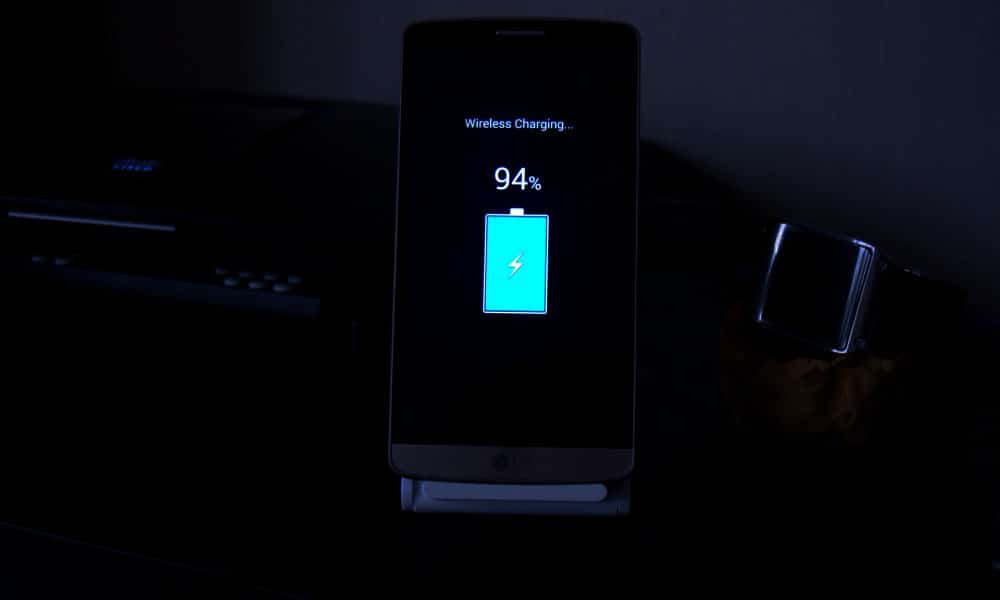
Wireless pads overnight: They run warmer than wired. Fine occasionally, but wired wins for regular overnight charging.
What most people miss: overnight charging isn’t “bad” in isolation. Context matters—phone model, case, room temp, charger quality.
Battery health checklist for overnight charging
Quick habits that make a difference:
Enable adaptive/optimized charging if available
Remove case during charging if phone feels warm
Charge on a hard surface (nightstand > pillow)
Use original or certified chargers/cables
Check battery health yearly (most phones show this in settings)
The 80-85% charging rule: worth it or overkill?
You’ve seen the advice: “Charge only to 80% for longevity.” It’s rooted in truth—batteries age slower in mid-range states—but it’s not universal.
When it helps most:
You keep phones 2+ years
Your phone has a built-in charge limit
Overnight charging is your main routine
When full charges make sense:
Travel days
Long meetings
Emergencies
Many flagships now automate this. OnePlus OxygenOS pauses at 80% until 30 minutes before your usual unplug time.
For average users: enable limits if available, charge to 100% when needed. The difference won’t make your phone immortal either way.
Heat: the real overnight charging villain
Temperature matters more than charge percentage. Lithium-ion batteries degrade 2-3x faster above 30°C (86°F). Overnight charging often coincides with warm rooms or insulating cases.
Quick fixes:
Room at 18-24°C (65-75°F) ideal
No blankets/pillows
Thin or no case
Avoid direct sun mornings
Phones throttle charging if too hot, but prevention beats reaction.
Alternatives to traditional overnight charging
Wireless slow charging: Less heat than fast wired, but pads must stay cool.
Power banks: Charge to 80-90% daytime, top off from bank evening. Less full-state stress.
Scheduled charging: Apps or built-in features pause at set times.
USB computer charging: Slower, cooler currents.
None beat wired overnight for convenience, but mixing methods spreads stress.
When overnight charging might actually help battery life
Counterintuitive truth: if your alternative is letting the phone hit 5% daily, overnight charging to 100% reduces deep discharges—which also stress batteries.
Deep cycles (0-100%) age cells faster than shallow ones (20-80%). Someone constantly running to 0% might benefit more from reliable overnight top-offs than perfect 80% habits.
Balance matters.
What phone makers don’t tell you about battery reporting
Most Android phones show “battery health” now, but accuracy varies:
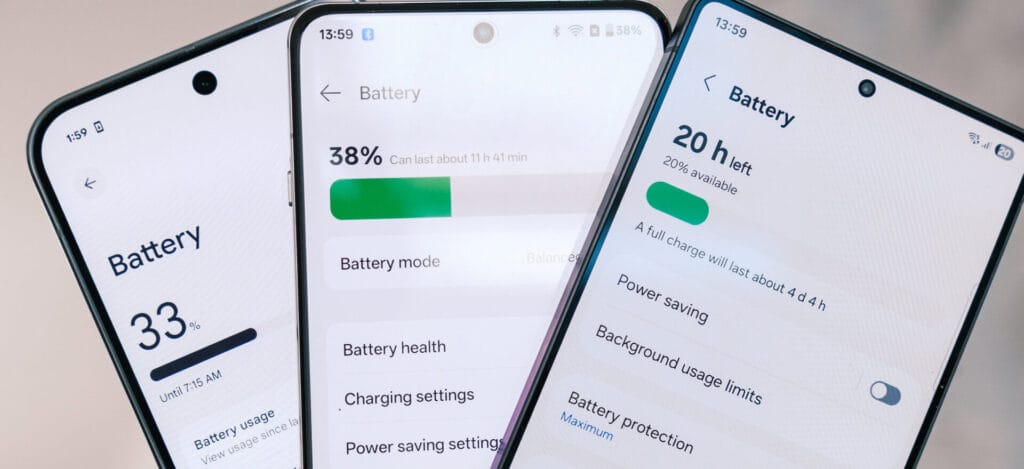
Samsung: Precise cycle count, capacity % Google Pixel: Basic health percentage OnePlus/Xiaomi: Cycle count, sometimes estimated capacity
Check monthly. If capacity dips below 85% after 12-18 months of heavy overnight charging, habits might contribute. Most settle at 88-92% after two years regardless.
Common mistakes section: overnight charging edition
Forgetting phone features exist: Adaptive charging on Pixel/Samsung learns your wake-up. Use it.
Blaming overnight charging for all drain: If battery dies mid-day, screen/apps/signal matter more.
Using junk chargers: Unstable voltage stresses circuits more than time-at-100%.
Ignoring heat signs: Warm phone mornings? Case off, room cooler.
One-size-fits-all thinking: Your 3-year-old phone reacts differently than a new flagship.
With the impending HarmonyOS 6.0 versions, Huawei has revealed additional intriguing AI photography features for its devices. Amazing watermarks, an AI color scheme for photos, touch-to-fireworks effects, and many other enhancements are included in the list.
New AI camera functions for HarmonyOS 6.0 smartphones will soon be available, according to Richard Yu, Executive Director and Chairman of Consumer Business at Huawei.
In a video posted on Weibo, the chief announced that he would want to share some positive news with Huawei users before to his upcoming business trip to Wuhan.
HarmonyOS 6 camera update
According to the information, HarmonyOS 6.0 smartphones will soon get new photo watermarks and unique effects inspired by the forthcoming Spring Festival.
By the end of this month, version 6.0.0.130 for high-end Huawei phones and tablets may make these additions available. To improve the camera’s effectiveness in low light, the business might incorporate an immersive light-sensing system. Additionally, you may give your New Year’s moments a unique label by using the Spring Festival watermark.
However, depending on your preferences, the AI coloring could make the pictures much more vivid and bright. The precise function of this feature is currently unknown, although future HarmonyOS 6 versions may provide more information.
The following devices will get the new HarmonyOS 6.0 AI camera features:
Huawei Pura 80 Series
Huawei Mate 80 Series
Huawei Pura X
Huawei Mate XTs
Huawei Pura 70 Series
Huawei Mate 70 Series
We might soon learn additional details regarding the new update’s features and compatible devices. To receive new updates on time, we advise keeping your phones up to date with the most recent versions.
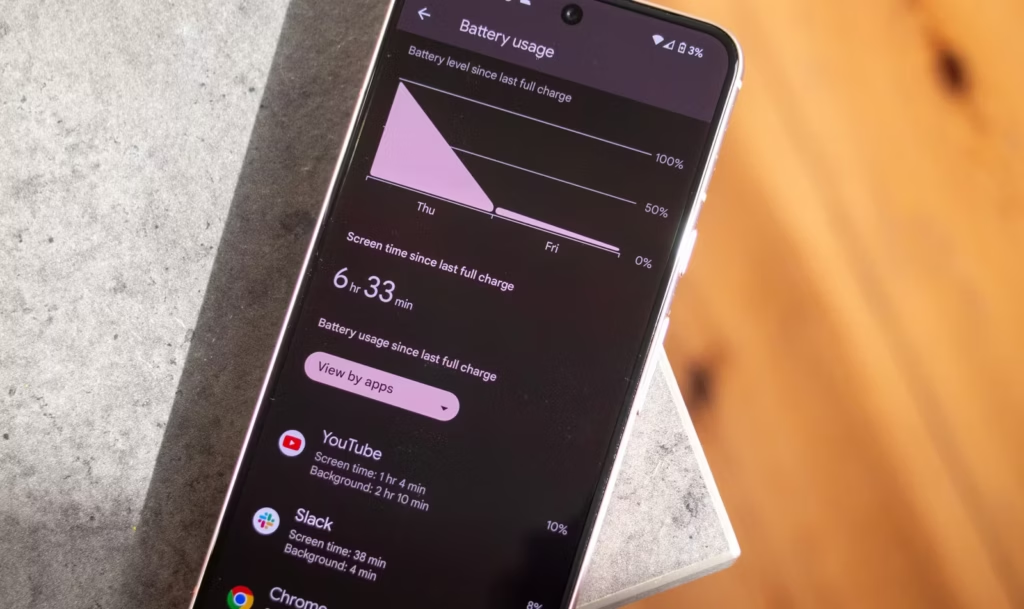
Battery Life is the one Android topic where everyone has an opinion—and somehow, half of those opinions are stuck in 2011. You’ve probably heard “drain it to zero,” “never charge overnight,” or “close every app or your battery will melt.” Meanwhile, your phone still hits 18% before dinner.
This guide is here to cleanly separate Battery Life myths from the real fixes that make a difference. Not miracle tricks. Not “turn off everything until your phone is basically a calculator.” Practical stuff you can do today, plus a few habits that keep your battery healthier over time.
Why Battery Life Feels Random (But Usually Isn’t)
Battery Life can feel unpredictable because it’s influenced by things you don’t notice in the moment—signal strength, background syncing, location services, screen brightness, and heat. Sometimes you change one setting, your phone lasts longer, and you assume you found “the secret.” Other times you do everything right and it still drains fast.
On the one hand, modern Android is genuinely good at managing power in the background. But here’s the catch: one badly-behaved app, a weak 5G signal, or a hot charging session can undo all that smart optimization. So the goal isn’t perfection. It’s control.
Before we fix anything, let’s kill the myths that waste your time.
Myth #1: “You Must Drain Your Phone to 0% to Keep the Battery Healthy”
This one is everywhere, and it sounds logical… until you remember: modern phones use lithium-ion batteries, not the older battery types that suffered from “memory effect.” Deep discharges can stress lithium-ion batteries over time, which is why many guides recommend avoiding constant 0% runs.
What to do instead (realistic version):
Try not to make 0% a daily habit.
If your day usually ends around 20–30%, that’s a pretty comfortable routine for both Battery Life and battery longevity.
Small nuance: letting your phone hit 0% occasionally isn’t a crime. It’s the repeated “red zone lifestyle” that tends to age batteries faster.
Myth #2: “Charging Overnight Overcharges and Ruins Your Battery”
Modern phones are designed to stop charging at 100%, so the old-school “overcharging” fear is mostly outdated. Overnight charging, by itself, isn’t automatically destructive.
But—and this is where people get it half-right—keeping a battery sitting at 100% for hours can add stress over the long term, especially if the phone is warm while charging. That’s why features like adaptive/optimized charging and charge limits exist.
Real fix:
Turn on “Adaptive Charging” / “Optimized Charging” if your phone offers it.
If there’s a “Protect Battery” or “Charge to 80–85%” option, use it when you can (especially if you keep phones for 2+ years).
Myth #3: “Closing All Apps Saves a Ton of Battery”
This is the classic “swipe everything away” habit.
Sometimes it feels like it helps, because your phone looks “clean.” But Android often manages background apps efficiently on its own, and constantly force-closing apps can even add overhead because apps need to reload again and again. (It’s like turning your car off at every red light to save fuel—technically it changes consumption, but not in the way you want.)
When it actually helps: when a specific app is misbehaving—running in the background, looping, overheating, or abusing location. In that case, the fix isn’t “close everything.” It’s “find the one problem app and deal with it.”
Myth #4: “Fast Charging Always Kills Batteries”
Fast charging is not automatically a battery death sentence. Real-world testing and good charging management have improved a lot. But here’s the catch: heat is the enemy.
Fast charging can create more heat depending on the charger, phone design, and environment. Heat accelerates battery wear, so it’s not the speed itself you fear—it’s the temperature that sometimes comes with it.
Practical approach:
Use fast charging when you need it (workdays, travel).
Use slower charging when you don’t (overnight, desk time), especially if your phone tends to run warm.
Myth #5: “Wi‑Fi and Bluetooth Should Always Be Off”
This used to be decent advice years ago. Today it’s more “it depends.”
Wi‑Fi can actually be more power-efficient than mobile data in many situations, and modern Bluetooth is generally low energy. The bigger issue is constant scanning, weak signals, and background activity triggered by connectivity.
Real fix:
Keep Wi‑Fi on if you’re in stable coverage; it can help Battery Life compared to a phone fighting for cellular signal.
Turn off unnecessary scanning settings if you don’t need them (varies by Android version/brand).
The Real Fixes: What Actually Improves Battery Life (Without Making Life Miserable)
Now the part that matters. These are the changes that most people can feel within 24–72 hours.
Fix #1: Control the Screen (Brightness and Sleep Timer)
For many users, the display is the biggest Battery Life drain. Not because your phone is “bad,” but because modern screens are bright and we keep them on longer than we realize.
Try this:
Enable Adaptive Brightness (so you’re not blasting 100% indoors).
Lower brightness one notch more than you think you need.
Reduce screen timeout (sleep) to something sensible (30 seconds to 1 minute).
Use Dark Mode if you like it—especially helpful on OLED screens.
This is not anti-app paranoia. It’s basic hygiene. Even reputable apps can bug out after updates.
Fix #3: Fix Location Permissions (Quiet Drain, Big Impact)
Location is one of the easiest Battery Life drains to miss, because it doesn’t always “look active.”
Set most apps to:
“While in use”
Only keep “Always” for apps that truly need it:
navigation while driving (if you want alerts)
family safety apps (if you use them intentionally)
Also consider turning off “precise location” for apps that don’t need it. Your weather app doesn’t need to know which side of the couch you’re on.
Fix #4: Signal Strength Matters More Than People Think
Here’s a sneaky Battery Life killer: poor signal.
When your phone struggles to maintain connection, it works harder—especially on unstable 5G. If you’re in a weak coverage area, your battery can drop faster even if you’re barely using the phone.
Try:
Use Wi‑Fi calling (if available).
Prefer Wi‑Fi when you’re home/work instead of letting mobile data do everything.
If 5G is unreliable in your area, test LTE for a day and compare Battery Life.
Fix #5: Use Battery Saver Earlier (Not Only at 10%)
Battery Saver isn’t only for emergencies. It’s a tool for predictable long days.
Try:
Turn Battery Saver on at 30–40% if you know you’ll be away from a charger.
Use “Extreme Battery Saver” only when you truly need survival mode.
This doesn’t mean living in Battery Saver forever. It means using it strategically—like carrying an umbrella when the sky looks suspicious.
What Most People Get Wrong About Battery Life (A Quick Reality Check)
Let’s call it out plainly:
People optimize the wrong things (closing apps constantly) and ignore the big drains (screen and signal).
People chase magic numbers (“always 80%”) but ignore heat, which often matters more.
People think “new phone = perfect Battery Life,” but a single app or a bad network environment can wreck it.
People don’t verify backups/updates and blame “Android” when it’s actually one app misbehaving.
And yes—sometimes the battery is simply aging. No setting can reverse chemistry.
Battery Life Checklist (Do This Today)
Quick checklist, no nesting, no drama:
Turn on Adaptive Brightness and reduce screen timeout.
Check Battery usage and identify the top 3 apps.
Restrict or remove the top “background drain” app you don’t trust.
Review Location permissions and switch most apps to “While in use.”
Enable Adaptive/Optimized Charging or an 80–85% limit if available.
Keep the phone cool while charging (no blankets, no hot car).
Charging Habits That Protect Battery Life Long-Term
Battery Life today is one thing. Battery health over two years is another.
A few habits that help longevity without making you obsessive:
Keep heat low (the boring but true advice)
Heat accelerates battery wear, so avoid:
charging under a pillow
gaming while charging
leaving the phone in direct sun while charging
This isn’t fear-mongering. It’s just how batteries age.
Use the “80% rule” as a tool, not a prison
Many sources recommend a “20–80%” or “30–80%” range for slower battery aging, but the exact number isn’t magical. The point is reducing time spent at very high charge levels, especially with heat.
If you’re traveling or need maximum Battery Life that day, charge to 100%. No guilt. Just don’t keep it sitting at 100% hot for hours every single day.
When It’s Not Settings: Signs Your Battery Is Actually Worn Out
Sometimes your Battery Life issues aren’t fixable with tweaks because the battery has aged.
Common signs:
Sudden drops from 30% to 10%
Random shutdowns at 15–20%
Noticeable heat during light tasks
Battery percentage behaving “jumpy”
At that point, consider:
battery replacement (often worth it on mid/high-end phones)
or upgrading if the phone is old and already struggling with performance
No shame either way. Batteries are consumables.
FAQs
1) Is it bad to charge my phone overnight?
Modern phones prevent classic “overcharging,” but staying at 100% for hours—especially with heat—can contribute to wear over time, so adaptive charging or charge limits are helpful.
2) Should I always charge only to 80% for better Battery Life?
Charging to 80–85% can reduce stress for long-term battery health, but it’s not mandatory. Use it when convenient, and charge to 100% when you need full-day Battery Life.
3) Does closing apps improve Battery Life?
Not usually in a big way. It helps mainly when an app is misbehaving and draining battery in the background.
4) Does Dark Mode improve Battery Life?
It can help, especially on OLED screens, because darker pixels can use less power. The impact varies by device and brightness.
5) Why does my Battery Life get worse in places with poor signal?
Your phone works harder to maintain a connection when coverage is weak, which increases power use—even if you’re not actively using the phone.
What to Do Next
If Battery Life has been frustrating lately, don’t try to fix everything at once. Do this in order:
Check Battery usage and identify the top drainers.
Reduce screen drain (brightness + timeout).
Fix location permissions and notifications.
Watch heat while charging for a week.
If nothing improves, consider battery wear and replacement.
Give it 2–3 days after changes and compare. Battery Life improvements are often “quiet,” not dramatic—but they’re real when you focus on the big levers.
Your android device is going in for service or repair, and yeah… it’s easy to tell yourself, “It’s just a screen replacement, what could happen?” Then you remember: your phone is basically your pocket brain. Photos, notes, bank apps, work chats, that one folder you never show anyone—everything.
So let’s do this properly.
This guide is a practical, no-drama checklist to prepare your android device before you hand it to a technician. Not the paranoid kind of prep. The smart kind. The kind that prevents data loss, protects your privacy, and makes the repair process smoother.
Secondary keywords used naturally: Android backup, factory reset, phone repair checklist, protect personal data, Google account removal, SIM card and SD card, Find My Device.
The “Quick Outline” (Internal, For Flow)
You’ll go through:
Why prep matters (even with trustworthy shops)
Backup (cloud + local)
Remove SIM/SD and sensitive access
Decide on factory reset (and when not to)
Document your issue like a grown-up (so repairs go faster)
Privacy + security settings that actually matter
What to do at drop-off and pickup
Common mistakes and a simple final checklist
Why Preparing an Android Device Before Repair Matters (More Than You Think)
Here’s the uncomfortable truth: even honest repair shops can cause data loss.
Not because they’re evil. Because diagnosing problems often involves resets, firmware updates, battery disconnects, or tests that can corrupt storage. And if your android device is acting weird already (boot loops, overheating, random restarts), the risk of “it died during testing” is real.
Also, there’s privacy. Most technicians don’t care about your personal life. But your phone is still unlocked data sitting in someone else’s hands. It’s like leaving your house keys on the counter and hoping nobody opens the wrong door.
You don’t need to be anxious. You just need a process.
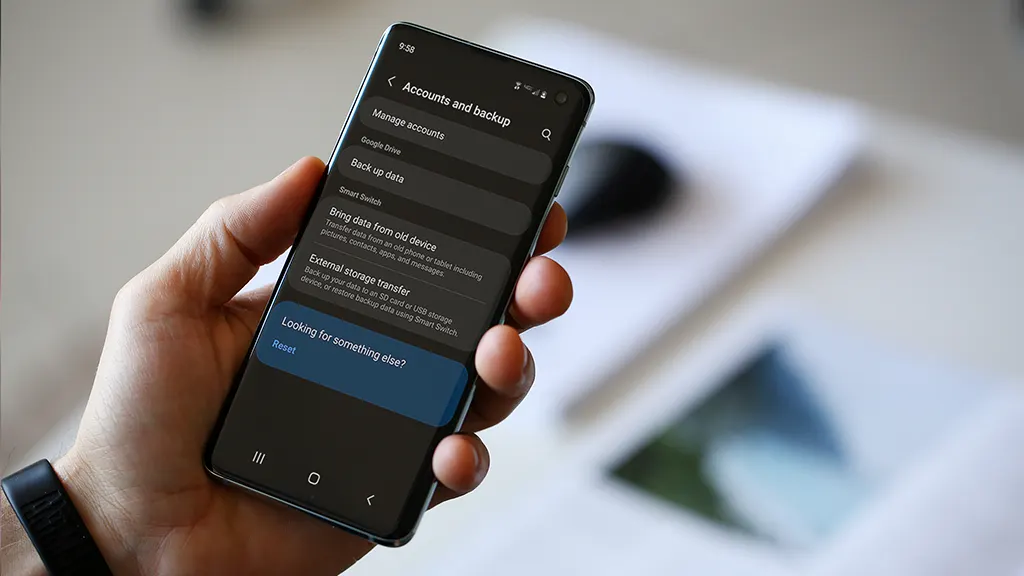
Step 1: Back Up Your Android Device (Cloud First, Local Second)
If you only do one thing, do this.
Use Google Backup (Fast and Built-In)
On most phones:
Settings → Google → Backup or
Settings → System → Backup
Turn it on and let it run. Then check the backup timestamp. Don’t assume it worked “at some point.”
What it usually covers:
App list and some app data
Call history
Contacts (often via Google Contacts sync)
Device settings
SMS/MMS (on many devices)
But – small contradiction – Google backup is both great and not enough. It’s reliable for basics, but it’s not a perfect clone of your phone.
Back Up Photos and Videos
If you use Google Photos:
Open Google Photos → profile icon → Photos settings → Backup
Then scroll your gallery and confirm recent photos actually uploaded. People think they’re backed up… until they aren’t.
Make a Local Copy (Because Clouds Have Limits)
Plug your android device into a laptop/PC:
Select “File Transfer” (MTP)
Copy these folders:
DCIM (camera photos/videos)
Pictures
Download
Documents
WhatsApp/Telegram media folders (if you use them heavily)
If you don’t have a PC, use:
An external USB drive with an OTG adapter
A microSD card (if your phone supports it)
Local backup feels old-school. But it’s the “seatbelt” you’ll appreciate if the cloud fails.
[img here – alt: android device backup before service]
Don’t Forget Two “Annoying” Things
These are the ones that hurt most when they’re gone:
For authenticator apps, check inside the app for export/transfer options before your device gets wiped. Otherwise you might lock yourself out of accounts. Not fun.
Step 2: Remove SIM Card and SD Card (Small Action, Big Protection)
This part is quick and oddly satisfying.
Remove the SIM card (your number and carrier access)
Remove the SD card (your personal files and media)
Even if the repair shop is trustworthy, SIM/SD cards can be misplaced. They’re tiny. Things happen.
Also, if your SD card has photos—don’t leave it in the phone. Just don’t.
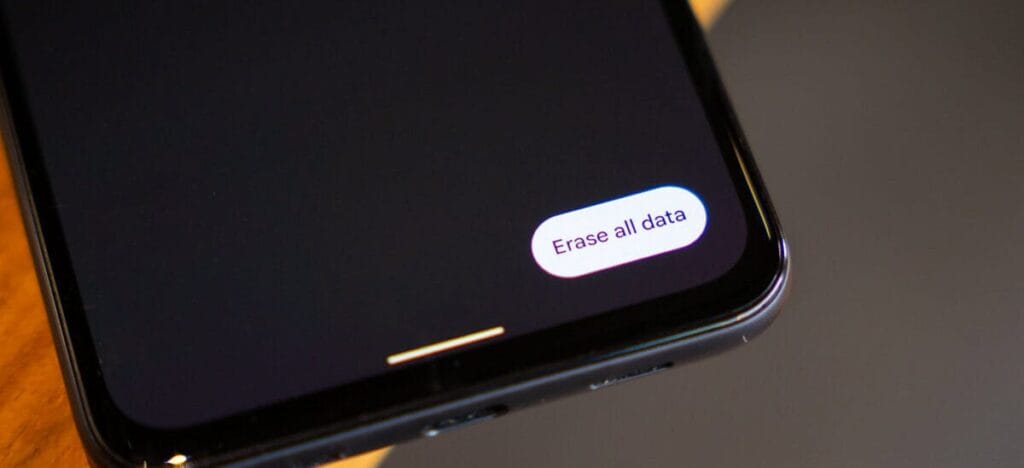
Step 3: Decide If You Should Factory Reset the Android Device
The repair is software-related (crashes, freezing, weird bugs)
You’re shipping the phone to a service center
You don’t want anyone to access anything—even by accident
You’re okay with restoring everything later
Path usually looks like:
Settings → System → Reset options → Erase all data (factory reset)
When You Shouldn’t Reset Yet
Don’t reset if:
You need to show the issue (random reboots, screen glitch, camera error)
The repair center asks you not to (rare, but possible)
You rely on on-device data that you can’t back up properly
Here’s the clarification: privacy matters, but so does diagnosis. If the technician can’t reproduce the issue, you might get the dreaded “no fault found” result. So sometimes you keep the data… but you lock it down.
Step 4: Lock Down Access (Without Making the Repair Impossible)
If you’re not factory resetting, this part is essential.
Use a Strong Lock Screen
Set a PIN (not 0000, please). Disable “Smart Lock” features that keep the phone unlocked at home or near a watch.
Pause or Remove Highly Sensitive Apps
For apps like:
Banking
Crypto wallets
Password managers
At minimum:
Sign out
Remove biometric login
Consider uninstalling temporarily (after backup)
Technicians don’t need that access to replace a screen.
Keep “Find My Device” Enabled (Usually)
If the phone is lost during transit or at a large facility, Find My Device can help locate it. Just make sure you remember your Google login.
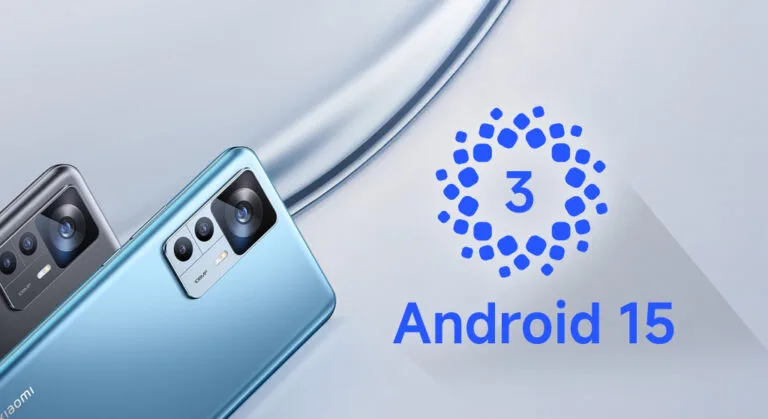
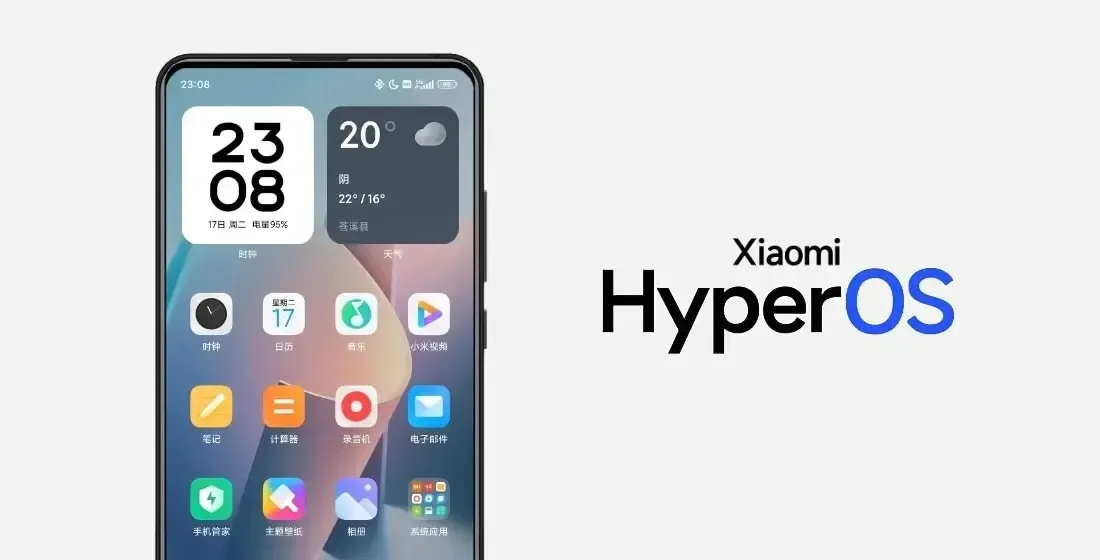
The HyperOS 3 upgrade for a new range of devices has started to be released by Xiaomi. This build of HyperOS 3 is unique. Its foundation is Android 15, which just started to be released for the Redmi K60 and Xiaomi Pad 6 Pro series. It is now being extended to further devices, such as the Xiaomi 12 series, Xiaomi 12S series, and others.
Currently, only China has access to the HyperOS 3 build, which is based on Android 15. According to Xiaomi Time, the most recent Xiaomi devices receiving this update are listed below, along with the firmware versions:
For these devices, the HyperOS 3 update is now accessible as a Mi Plot release, which is essentially a beta release. You must register to be a beta tester in order to receive this update (click here for all the processes). After Xiaomi confirms that the build is free of serious defects, the update will shortly be made available to non-beta customers.
The HyperOS 3 update, which is based on Android 15, has not yet been verified to be released worldwide by Xiaomi. Nonetheless, the inclusion of international versions like the Xiaomi 12, Xiaomi 12 Pro, and Xiaomi Civi 3 on the aforementioned list is encouraging. Usually, the company releases the update in China first, and after a few weeks, it spreads to the rest of the world.
We’ll continue to update our Xiaomi area with the most recent HyperOS updates. For the most recent information, don’t forget to frequently check this section. As an alternative, you may sign up for our Telegram channel to receive real-time notifications about new product releases, software updates, and the greatest tech news.
Earlier in October, Honor unveiled its flagship Magic8 series of smartphones, which includes the Magic8 and Magic8 Pro. According to reports, it now intends to expand the roster with another gadget. The phone was supposedly going to be released under the name Honor Magic8 Mini. It is possible, nevertheless, that the business will launch the gadget as the Magic 8 Air. A tipster has supplied an allegedly leaked photograph of the Honor Magic 8 Air (or Magic8 Air), which has revealed its potential design, even though there hasn’t been an official announcement yet.
Honor Magic 8 Air design surfaces in fresh leak images
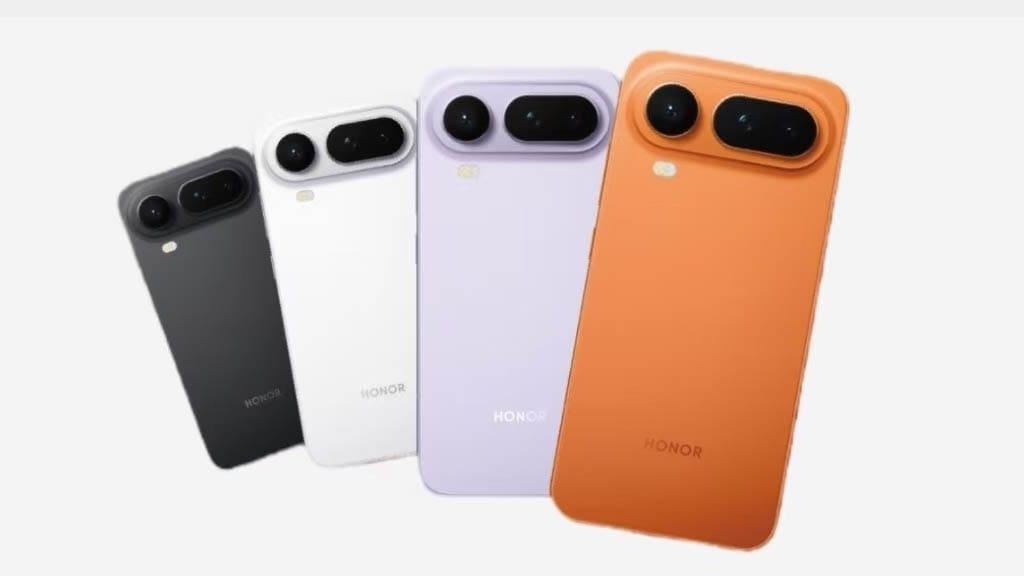
The Honor Magic 8 Air will have a sizable horizontal camera island if the leaked image is accurate. It resembles the Google Pixel 10 series in terms of design. According to the leaked images, it will have a brushed aluminum rear. It’s important to note that this picture is only a render, therefore the real Honor Magic 8 Air can have a different design.
Along with the power key and volume rocker, the device will also have a third physical button on the right side, according to the leaked render. Similar to the key on the previous Magic 8 series devices, there can be a specific key to activate the AI assistant.
Thicker, but lighter than the iPhone Air and Galaxy S25 Edge
In addition to the design, the source disclosed information about the weight and thickness of the Honor Magic 8 Air. The Magic 8 Air will have a waist circumference of 6.3mm, according to the tipster. In actuality, it will be thicker than the Galaxy S25 Edge (5.8mm) and iPhone Air (5.6mm). The phone will, however, be lighter than its competitors. Compared to the 165 grams of the iPhone Air and the 162 grams of the Galaxy S25 Edge, it will only weigh 158 grams.
Li Kun, the product manager of Honor, has also posted a picture that compares the Magic 8 Air to the iPhone Air on a scale. It demonstrates the Magic 8 Air’s superior weight over the iPhone Air.
According to reports, it would have a 6.31-inch screen. The MediaTek Dimensity 9500 processor might be used to power it. A massive 5,500mAh battery with 80W fast charging, an ultrasonic fingerprint sensor, a 200MP primary camera, and a 50MP telephoto lens are possible further highlights.
Magic 8 Air is anticipated to be released by Honor in the first quarter of 2026. Additionally, it will compete with the Galaxy S26 Edge, which is also anticipated to launch at the same time.
Xiaomi gives owners fantastic news to start 2026. For several models, the company offers up to five years of HyperOS support. POCO, Redmi, and Xiaomi tablets and phones get longer updates. For years, gadgets remain safe and continue to receive updates.
Strong software support is currently available from Xiaomi. Updates for flagship phones will be available until 2031. Budget and mid-range gadgets come next. Tablets are also added to the list.
The most recent HyperOS versions are longer enjoyed by users. AI tools, longer battery life, and security updates are added to phones. This aligns with Google’s and Samsung’s policies. People tend to keep gadgets longer. It benefits the environment and saves money.
Launch date determines the duration of support. More years are awarded to newer models. Extra months are given to the elderly.
HyperOS Eligible Devices – Support End Dates
Updates until 2031: Xiaomi 15T / 15T Pro, Xiaomi 15 Ultra, Xiaomi Pad 7, Redmi 15 / 15 5G / 13C, Redmi Note 14, POCO F8 Ultra / F8 Pro, POCO F7 / F7 Pro / F7 Ultra, POCO M7 / C85
Updates until 2029: Xiaomi 14T / 14T Pro, Xiaomi 14 Ultra, Xiaomi MIX Flip, Xiaomi Pad 7 Pro, Redmi A5, Redmi Pad 2 / 2 Pro / 2 Pro 5G series, POCO M7 Pro 5G, POCO Pad M1
Shorter support: Xiaomi 13 Lite (until 2027), older Xiaomi 12T / 12 series and some Redmi 12 models (extra months only)
Updates are released progressively per area. To find the most recent version, check the settings on your phone. This list of devices that are compatible with HyperOS brings significant value. Xiaomi phones are becoming more intelligent purchases.
The extended assistance is adored by fans. The action strengthens Xiaomi.
The foundation of our digital identity is our internet accounts, which are constantly targeted. Hackers are constantly looking for methods to access your data, whether it is through your social media accounts or your e-commerce login credentials, however they are more likely to target certain sites.
Unsurprisingly, consumers’ Google accounts are the most commonly hijacked online platforms, according to a recent study from Click Insight that examined search trends between November 2024 and October 2025.
It should come as no surprise that Google accounts are the holy grail for hackers since they are the key to unlocking a number of other native Google services. For this reason, there are more than 84,000 searches per month about “Google” account hacking.
Now that Google is out of the way, Meta’s traditional heavyweight ranks second. According to search statistics, Facebook has 40,058 monthly queries, making it the second most abused site in the United States.
Roblox, the third most commonly breached platform in the US, is ahead of another Meta-owned behemoth in the top five.
Given that almost 40% of Roblox users are younger than 13, it is not shocking that threat actors find the site to be an easy target. Conversely, Instagram (#4), one of the most widely used social media sites, is a veritable treasure for hackers who want to obtain much more than simply data.
Roblox and Instagram had 35,675 and 25,250 hack-related searches per month, respectively. With 18,643 monthly hack-related searches, Microsoft accounts complete the top five. Snapchat, Apple accounts, Amazon, TikTok, and Fortnite come next.
You need to go beyond simple passwords in order to stay safe online, regardless of the platform. Enabling 2FA authentication and using a password manager that supports passkeys is your best line of defense against threat actors.
Recently, Honor has been quite focused about batteries. The company’s new Win series phones, which have remarkably big 10,000mAh batteries, may be familiar to you if you’ve been keeping up with recent releases. These are high-end smartphones featuring Snapdragon 8-series processors.
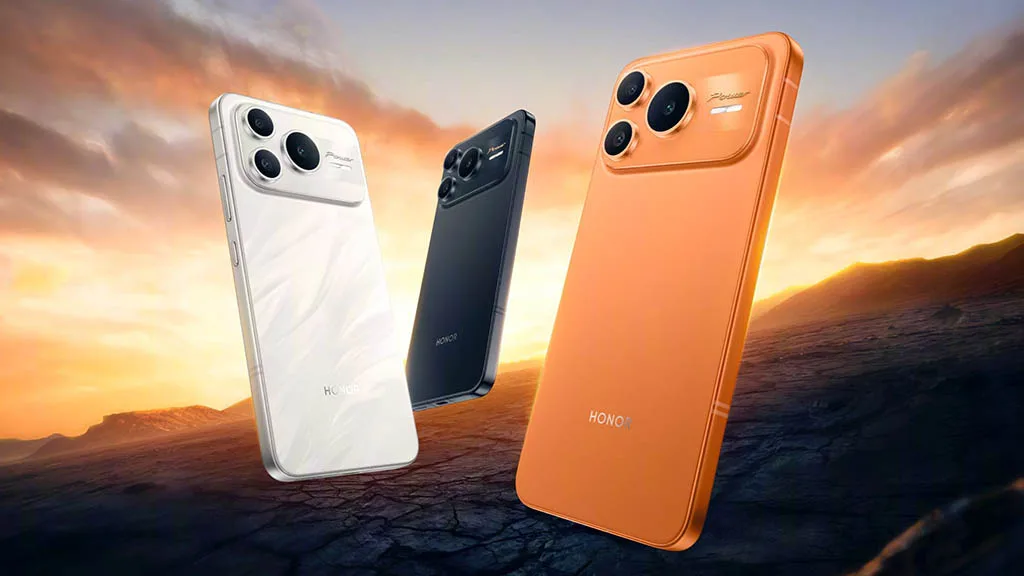
With its new mid-range phone, Power 2, the business is adopting a similar strategy. Unexpectedly, it also has an even larger battery.
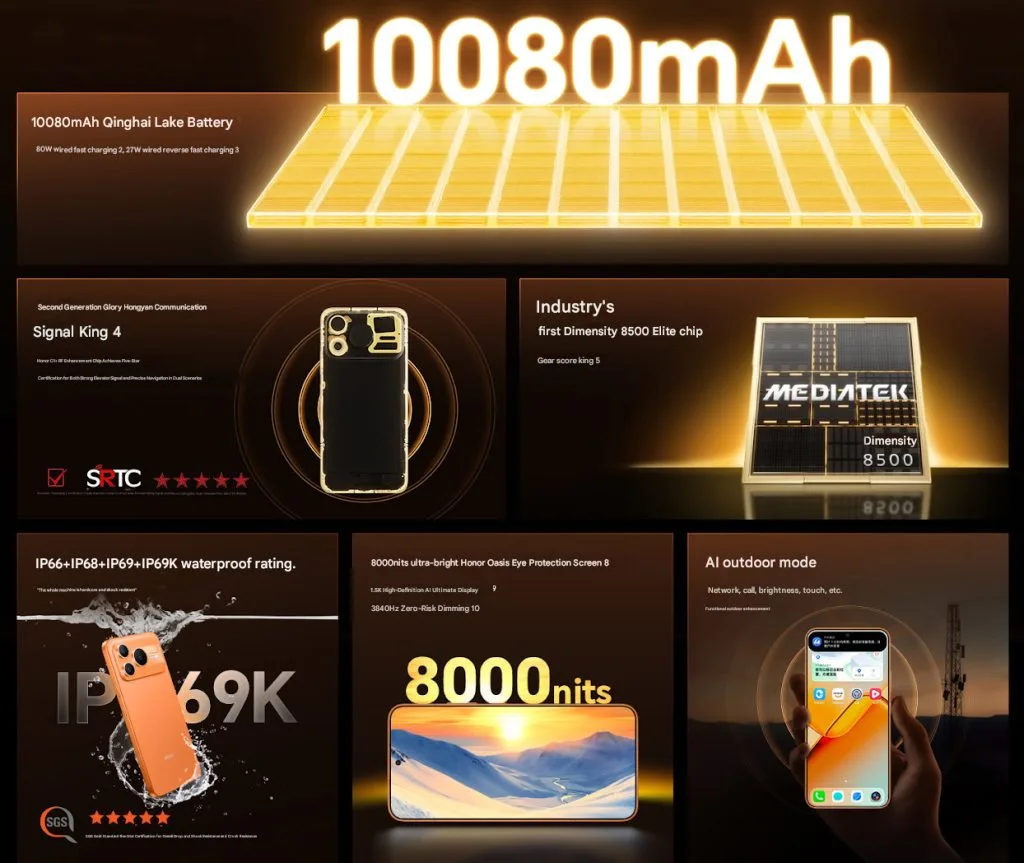
The Power 2’s casing is only 7.98mm thick and contains a slightly larger 10,080mAh battery. In contrast, the iPhone 17 Pro is 8.8mm and does not even have a 5,000mAh battery. At just 216 grams, it is also not very hefty.
In addition to supporting 80W wired charge, the battery also provides 27W reverse charging.
Honor Power 2 Specifications
The phone’s big 6.79-inch OLED LTPS flat display, which has a 1.5K resolution of 2600 x 1200 pixels, is located up front. Additionally, the screen’s 3,840Hz PWM dimming and maximum brightness of 8,000 nits are advertised.
The gadget is powered by MediaTek’s Dimensity 8500 Elite processor, which is combined with UFS 4.1 storage and LPDDR5x RAM. Honor says that the Dimensity 8500, a new mobile processor, has more than 2.4 million AnTuTu points.
Additionally, the Power 2 receives a respectable pair of camera configurations. A 5MP ultra-wide camera and a 50MP primary sensor with OIS are located on the back. On the other hand, the front has a 16MP camera. The Power 2’s operating system is Android 16 with a layer of MagicOS 10.
A metal frame, two speakers, an in-display fingerprint scanner, and an exceptionally thorough durability rating with IP66, IP68, IP69, and IP69K certifications are further highlights. Wi-Fi 6, Bluetooth 6.0, IR blaster compatibility, and sophisticated satellite location are among the connectivity possibilities.
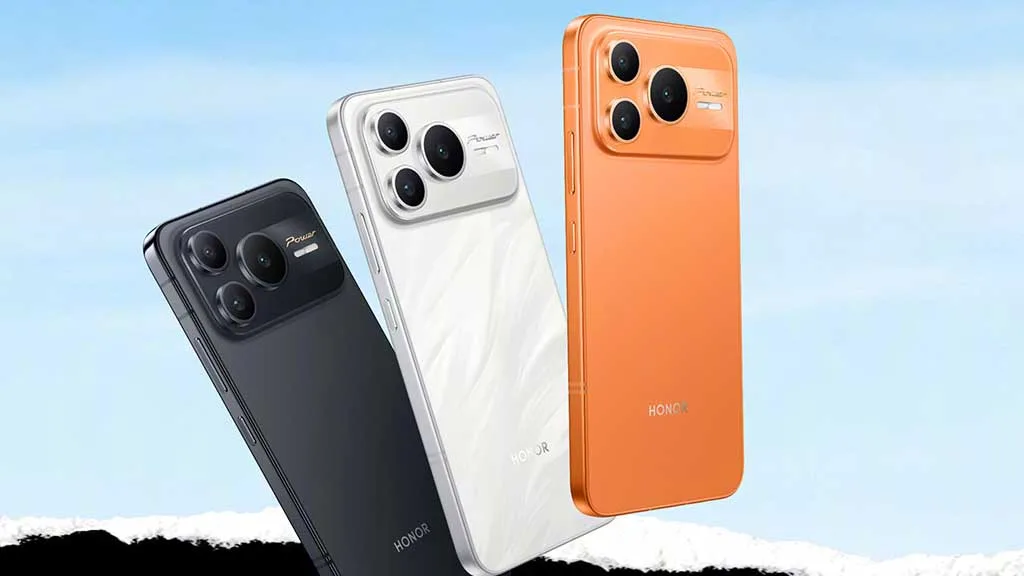
The Honor Power 2’s 12GB RAM and 256GB storage model costs 2,699 CNY (about $385), while the 512GB model costs 2,999 CNY (around $430). Phantom Black, Snowfield White, and Rising Sun Orange are the possible colors for the phone.