Author: Robert Haba

  • Download stock firmware for Samsung Galaxy A80 SM-A8050/F/N Android 11

    Download stock firmware for Samsung Galaxy A80 SM-A8050/F/N Android 11

    As Full-Screen Display becomes popular, Samsung must release a product to compete with other companies. As a result, they launched the A80 with a Pop-Up camera. The A80 was released with Android Pie 9.0 and later upgraded to Android 10. Samsung has already released One UI 3.0, which is based on Android 11. In certain countries, the Samsung Galaxy A80 now runs Android 11. The update will be rolled out to all regions soon. When you’re on stock firmware, you can experiment with OTA. If you are using custom ROMs or are having problems with the standard software update process, you can use the manual method described below.

    Since Samsung uses a custom skin OS, they have to work much harder than stock Android models. In comparison to the initial release of One UI, Successor versions had a plethora of useful features. You can keep your phone up to date by using the OTA Software update feature in settings. However, if you are unable to do so, you can use this ODIN-based manual form.

    This method can also be used to unbrick your phone. Android 11 has a plethora of new functionality. Some notable features of the Android 11 version include direct Google Play Store security patch updates, enhanced privacy, and improved gestures.

    When you have root access on your mobile, You should follow a unique method to flash the firmware. If you follow below ODIN method, you will lose root access.

    How to update

    Official OTA Method

    If you want to update a security patch to the current month, don’t go for the manual method. Try this Automatic method.

    The process is straightforward and simple:

    • Go to your device setting menu and scroll down to the bottom.
    • Tap on “Software Update”
    • You may have to refresh the page to start the OTA upgrade process.

    Manual Method (SM-A8050, SM-A805F, SM-A805N)

    • Check Your Device Mobile No. If you flash a Different model number, you will lose some features based on your region.
    • Battery Percentage Above 50.
    • Backup Your Device.

    Using ODIN Method

    • Enable USB Debugging Mode and OEM Unlock; you’ll find these options at Settings >>> Developer options. If you didn’t see the developer options on your settings menu, then go to about >>> build number; click on the “Build Number” row about ten times regularly to activate “Developer Option” on your device.
    • Download the Samsung USB driver and install it on your PC.
    • We are using third-party software flashing. Download ODIN and install this also on your PC. In the version, select the latest version ODIN.
    • Download Firmware From the below links, For Samsung Galaxy A80 Official Firmware.
    • SM-A8050
    • SM-A805F
    • SM-A805N
    • Select recent firmware. When selecting firmware, refer- How to choose the correct firmware.
    • If the above mirror is not working, try the secondary mirror.
    • Switch off your Mobile. Enter into Download mode->Volume Down+ Volume Up Button and Connect Your Mobile To PC via USB Cable; after Samsung Logo Appear, Release all keys.
    • After entering into Download Mode, it will say Warning; press the Volume Up button to continue.
    • Launch Odin Application.
    • It Will Show the message added.
    • If you did not get this message, Repeat the above steps.
    • After Getting Added Message Select, AP/PDA Button, Browse for the Firmware file selects it. Tick the Auto-Reboot.
    • Press Start wait for the tasks to complete. It will automatically reboot after the process ends.

    Check Firmware

    You can Check the Firmware Details->Settings->About->Version.

    samsung firmware

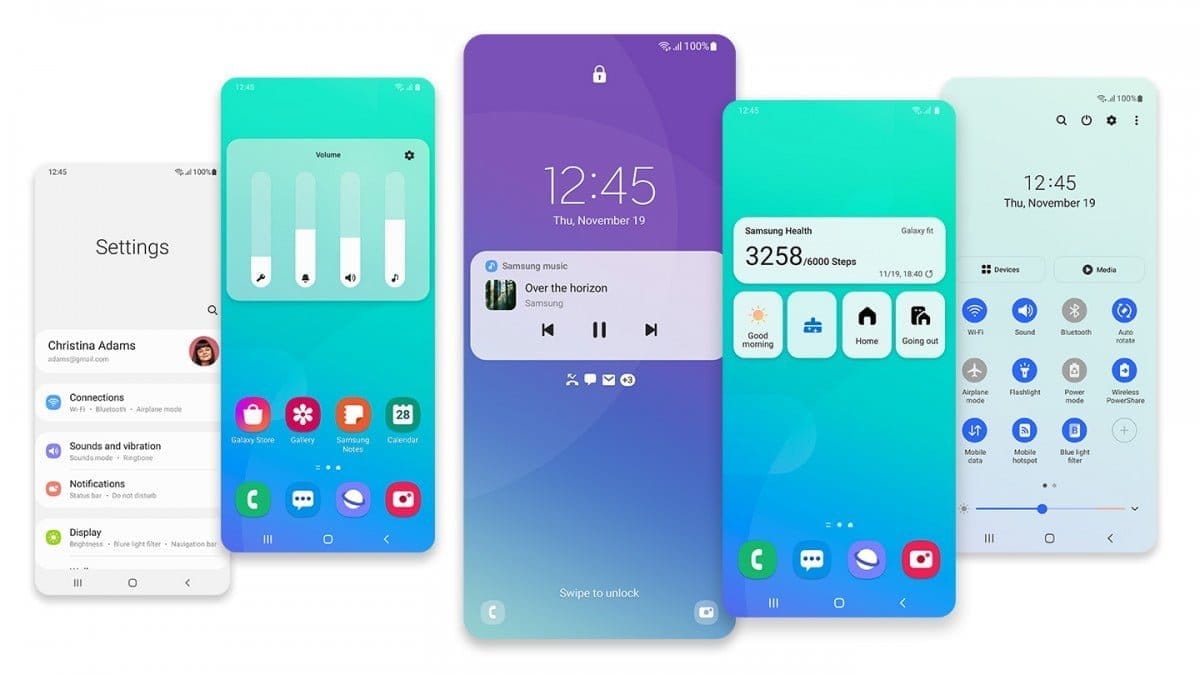
    Samsung Galaxy A80 Android 11 One UI 3.0 Features

    samsung one ui 3

    One UI 3.0 is created based on Android 11. Samsung Always Add extra features to the OS. I listed Both Regular Android 11 Features and Some Exclusive One UI Features. We already covered Exclusive One UI 2.0 features that only available in Samsung Devices.

    Customization

    • With new image categories, we can setup up 5 different types in the Dynamic Lock Screen.
    • With newly added features, Now you can Pin or Reorder Samsung Internet tabs.
    • Enhanced Bixby Routines features are available.
    • Based on our routines, We can arrange the New icons and Lock screen widgets.
    • Now you can add some limited widgets like usage time in the Lock screen.
    • Interactive preview available when setting a wallpaper.
    • You can adjust the Always On Display, and Lock screen easier compares with the Android 10 slide.
    • We can add a call background to see a picture or video when we make or receive a call.
    • We can use two different Digital Wellbeing for personal and work profiles.

    Home screen and Lock screen

    • Like Tap on, You can Turn off the screen by double-tapping on a Home or Lock screen space. To enable this feature go to Settings > Advanced features > Motions and gestures.
    • Now you don’t have to search the available widget in Home Screen. You can create widgets by long-press the app and move the widget to the home screen.
    • On the Lock screen, tap the clock area to see additional widgets like calendar, weather, and music.

    Calls and chats

    • With the recent update, we can see individual contact conversations separately in the notification panel. Currently, it works with Messages and your favorite chat apps.
    • The identification and Remove duplicate contacts stored in the same account in Contacts. The storage period for deleted contacts has been extended from 15 days to 30 days.
    • Now you can edit multiple linked contacts from a single screen.
    • Trash folder is added in Messages so that recently deleted messages are stored for 30 days.

    Pictures and videos

    • With improved autofocus and auto exposure, you can take pictures quicker.
    • The Basic Edit feature is added within Gallery. Now, You can view, edit, and share pictures and videos more easily from the Gallery.
    • With new search features and categories in the Gallery, You can find pictures and videos quicker.
    • Now you can reverse the editing of photos even if you save the current settings.

    One UI 3 Settings

    one ui settings
    • Settings are optimized as per the user’s feedback. It has a new, more straightforward look and feels. Your Samsung account is shown at the top, and Home screen settings are now easier to access.
    • With the enhanced Search feature in the settings, you can find more easily with new Search features. You’ll get better results for synonyms and common misspellings, and you can tap on tags to see groups of related settings.
    • With Quick settings, buttons have been reduced to provide only the most commonly used features. You can also add buttons to create your own customized quick panel.

    Samsung Keyboard

    • I Improved the keyboard layout with identified input to provide a larger space bar when entering web and email addresses.
    • You can reorganize Keyboard settings so it’s easier to access frequently used settings.
    • Now Samsung Keyboard can support up to 370 input languages.
    • Samsung Keyboard can now detect where to paste the copied images and texts based on the cursor position.
    • Now when you use a text-based emoticon, Your mobile will suggest the correct Emojis.

    Productivity

    • Based on your daily life and usage patterns, Bixby will recommend new routines. When you don’t like new habits, Bixby Routines provide a setting to return everything to the way it was before the routine ran.
    • We can hide the status and navigation bars for a more immersive experience during webpages translation in the Internet apps and quickly translate webpages.
    • When your mobile finds you are dealing with too many pop-ups or notifications, It will prompt you to block websites.
    • Now you don’t have to separate cloud storage apps to access your file. You can browse and select cloud drive files from the file selection screen in My Files.
    • You can now delete cache files in My Files without a separate app to quickly free up storage space.
    • Instead of showing separate tab or box for the same Events with the same start time are displayed together in the month and list views in Calendar.
    • You can use your phone or tablet app icon layout in Samsung DeX, so you know where everything is.
    • You can open the touchpad from the navigation bar on your phone or tablet, along with the navigation keys.

    Media and device control

    one ui 3 media control
    • Now you can see the full media controls and change the playback device from the Notification bar.
    • Identify and improve your digital habits.
    • Along with Improved Digital Well-being features, you can get weekly reports based on your activity.

    Accessibility for everyone

    • The enhanced Accessibility feature can give you loud feedback for your inputs even if Talkback is turned off. So, You can get feedback for pre-installed settings; You can get the dynamic response for your keyboard inputs.

    Stronger privacy protection

    • When the app doesn’t use the particular permission for a long time, Your mobile will revoke it.

    Additional improvements

    • Like ancient times, In Clock, you can hear the alarm’s time and preset name read aloud when an alarm rings.
    • Some apps will need to be updated separately after the One UI 3.0 update to get the latest features.
    • To adequately share the SD storage permission, select the Gallery or My Files, tap Share, and then select the app copy.
    • Wi-Fi Direct is no longer available. You can use Nearby Share instead. You can still receive files using Wi-Fi Direct.
    • We can’t use Chromecast using Smart View. We have to use Google Home instead.

    Summing up all

    The most important step in this process is to choose the right firmware. Select the firmware based on your country or territory. It is an ODIN manual process; you can flash the most recent edition. However, if you use the sideload form, you must flash the latest version of your mobile firmware or risk bricking your computer. There are several new features. One of the best aspects of this edition is the improved movements.

    If you can’t find your region, you can flash the Samsung Galaxy A80 Android 11 firmware from a nearby region. However, it should be within the same model number range. Following the light, you should contact your mobile operator to customize your network settings. There is an explanation why Custom skin OS manufacturers do not perform routine patch updates. According to company statistics, only a small number of people are concerned with software upgrades. In comparison to One UI 2.5, Samsung only introduced a few new features. If you already have a Custom ROM, try this new OS for a few weeks. It will undoubtedly provide you with a one-of-a-kind experience.
  • Custom ROMs for Samsung Galaxy S8, S8+, and Note 8

    Custom ROMs for Samsung Galaxy S8, S8+, and Note 8

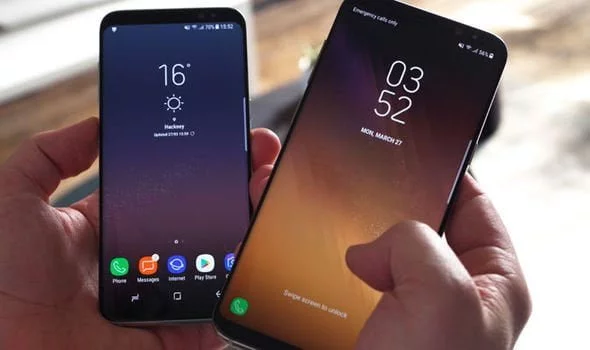
    Samsung offers 2 years of software support for their smartphones, which includes two big Android OS updates. The Samsung Galaxy S8, S8 Plus, and Note 8 have been on the market for well over two years and will never see Android 10. The same is true for the Galaxy S9 and Note 9 series, which have received the latest Android 10 update. Although the devices will continue to receive security patch updates for another year, this is unjust to the most successful Samsung flagship to date. So, here are some of the best custom ROMs based on Android 10 for the Samsung Galaxy S8, S8+, and Note 8.

    We’ve compiled a list of the most recent and reliable custom ROMs for the Galaxy S8 and Note 8 series right now. Lineage OS 17.1 and other common ROMs such as Havoc OS, Pixel Experience, and Corvus OS 10 have just been made official with Android 10. However, because of the design of Samsung Galaxy phones, official support for custom ROMs is difficult to come by. As a result, some custom ROMs based on Android 10 for the Samsung Galaxy S8, S8+, and Note 8 are still unofficial beta ports.

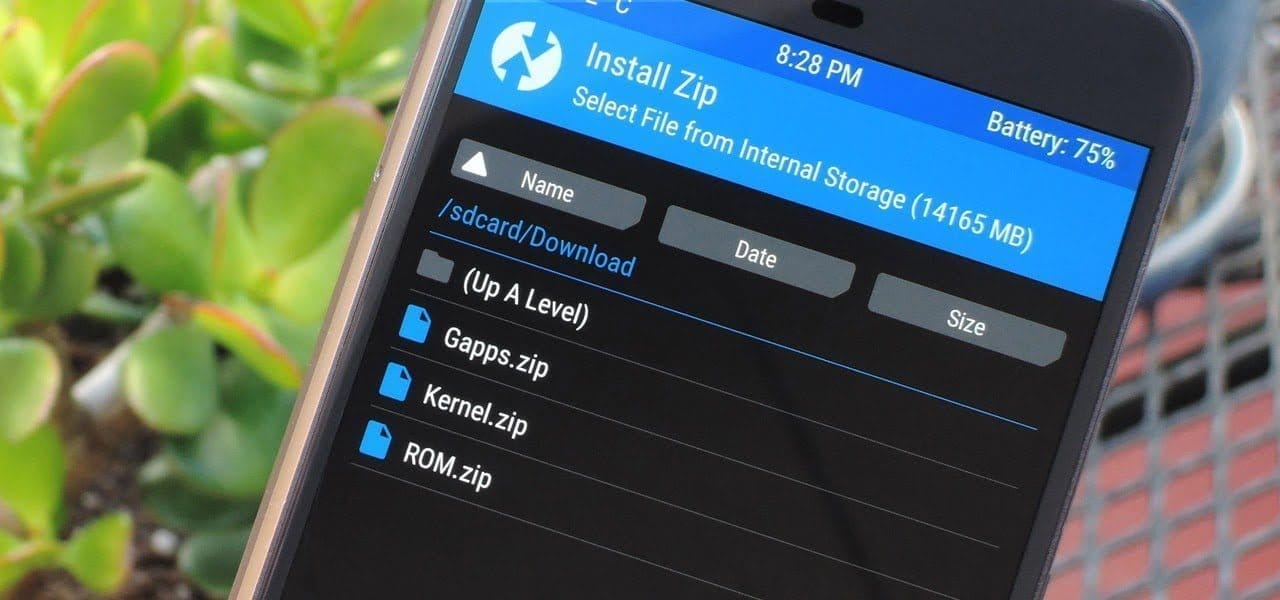
    Furthermore, the majority of custom ROMs are only for Exynos models. This is due to the fact that the Snapdragon Galaxy S8, S8+, and Note 8 variants’ bootloaders cannot be unlocked. So you cant install TWRP recovery, and hence, can’t flash a custom ROM.

    1. Havoc OS

    Havoc OS is currently one of the most stable Android 10 custom ROMs for Samsung Galaxy smartphones. In comparison to the other choices, users of the Galaxy S8 and Note 8 series strongly suggest the Havoc OS custom ROM. Most notably, it has recently been updated to Havoc OS 3.7, which means that it is based on Android 10 and incorporates some Android 11 features such as Material design 2.0, Dark Theme Support for AOSP apps, Android R Style screen record dialog, Rounded UI, Face Unlock support, built-in Gapps, Font Customisation, Pixel Lockscreen weather, and many more.

    Moreover, it also supports Face Unlock, HD/VoLTE toggle, 4G/LTE Icon toggle, 90 Hz refresh rate toggle, Themes styles and wallpapers support from the Pixel 4, and much more. Checkout the images from below and also see the complete screenshot repository from below.

    Download Havoc OS for Galaxy S8, S8+, and Note 8

    Source and Support

    Here is a list of all the sources you can get support from for the Havoc OS for Samsung Galaxy S8, S8 Plus, and Note 8.

    2. Pixel Experience Plus

    When it comes to having stock Google experience on your Android phone, Pixel Experience is everyone’s choice. It includes all of the Pixel 4’s functionality, the most recent Google UI, the most recent Google Assistant app, Digital Wellbeing, and support for the most recent Google products and services. As a result, you can receive the most recent Pixel Launcher, themes and style apps, wallpapers app, ringtones, icons, and everything else that is currently available on the Google Pixel 4 (XL) with Android 10.

    Wifi, RIL, Mobile data, GPS, Camera, Flashlight, Camcorder, Bluetooth, Fingerprint reader, NFC, Lights, Sound / vibration all work with Pixel Experience. However, some features, such as Volte, cast, and, according to some sources, even the face unlock feature, may not work.

    Pixel Experience Plus is an AOSP based ROM, included with Google apps and all the Google Pixel goodies like launcher, wallpapers, icons, fonts, bootanimation.

    pixel experience plus Samsung rom

    Download Pixel Experience for Galaxy S8, S8+, and Note 8

    Source and Support

    Here is a list of all the sources you can get support for the Pixel Experience on Samsung Galaxy S8, S8 Plus, and Note 8.

    3. Corvus OS

    Corvus OS is getting very popular lately among custom ROM flashers. The developers have also been very active in the development and supporting a large number of Android devices. Many have recommended Corvus OS over the past months as it is quite stable for its initial release. Covrus OS also brings Android 10 to the plate for Galaxy S8 series and Note 8.

    Corvus OS is inspired by Dirty Unicorn ROM and has many of its features. The ROM is full of customization options and has a dedicated section for each section including Themes, Notifications, Display, Lock Screen, and more. Stability is great with this one. It also gives stock AOSP experience making it light weight and fast. The ROM also includes some Google features like latest Pixel Launcher, Accent picker, Theme backup, Theme styles, wallpapers app, ringtones, icons, and more.

    Screenshots

    Download Corvus OS for Galaxy S8, S8+, and Note 8

    Source and Support

    Here is a list of all the sources you can get support for the Corvus OS for Samsung Galaxy S8, S8 Plus, and Note 8.

    4. Lineage OS 17.1

    lineage os custom rom for Samsung galaxy S8

    Lineage OS is one of the most popular custom ROMS out there. It supports a wide range of Android devices. Right from the obsolete phones from years ago to the most recent flagships. Lineage OS 17.1 is based on Android 10 and now supports Samsung Galaxy S8, S8+, and Note 8 unofficially.

    Download Lineage OS 17.1 for Galaxy S8, S8+, and Note 8

    Source and Support

    Here is a list of all the sources you can get support for the Lineage OS 17.1 OS on Samsung Galaxy S8, S8 Plus, and Note 8.

    How to update Samsung Galaxy S8, S8+, and Note 8 to Android 10?

    That’s it enjoy Android 10 on your Samsung Galaxy S8, S8+, or Note 8.

  • Great custom ROMs in 2021

    Great custom ROMs in 2021

    So, you have an Android smartphone, and the same old UI has begun to bore you. So, it’s time to dive into the world of custom ROMs. Installing Custom ROMs is one of the easiest ways to deal with overdue OEM updates and introduce a plethora of new features to your Android smartphone. Let’s take a look at the best Android Custom ROMs for 2021 that you can try.

    Since Android OS is open-source, the overly enthusiastic community-at-large is constantly working on their own versions of the OS, which is why Android is so popular. However, flashing a custom ROM necessitates unlocking the bootloader and installing a custom recovery, so be sure to read our article on the topic.

    Custom ROMs:

    1. LineageOS 18.1 (LOS ROM)

    You’ll not find a custom ROM list on the internet that doesn’t include LineagOS. LineageOS is the new age successor of the CyanogenMod ROM. Following CyanogenMod discontinuation in 2016, LineageOS took center stage and has not looked back since. This most popular custom ROM for Android cements its reputation purely on the sheer number of users and downloads that it has gotten over the years.

    LineageOS 18.1 custom rom

    Above all, LineageOS is the base of most of the other custom ROMs in the community (Example: Resurrection Remix). Stability is a stronghold, with the UI presenting itself as akin to Google’s very own Stock Android.

    It doesn’t provide a lot of customization options but, in the Android community, personalization isn’t everything. Nevertheless, it does play a huge role when it comes to the Android Custom ROM world and still remains one of the best Android custom ROMs for 2021.Download LineageOS Custom ROM

    2. Paranoid Android (PA ROM)

    Paranoid Android ROM is one of everyone’s personal favorites when it comes to Custom Firmware. Being one of the oldest ROMs available, AOSPA has come a long way. While being one of the few ROMs based on CAF, PA packs a punch in terms of stability, security, and performance.

    paranoid android custom rom

    Additionally, Ambient Display first made an appearance as part of PA Custom ROM with a feature name called Peek and was later ported into an APK. Certainly, the fact that even tech giants have looked up to this project to inspire innovation speaks for itself. Download Paranoid Android Custom ROM

    3. crDroid

    Based on LineageOs, crDroid is one of the very few feature-rich yet stable custom ROMs that you’ll find today. The ROM gains new features with every update and the security patches and main updates are also rolled out pretty quick

    crDroid rom

    The latest crDroid release (7) is supported on more than 63 devices from 12 manufacturers. Out of all the OEMs, Xiaomi/Redmi and OnePlus devices are the most loved devices in the crDroid community. The last time I installed crDroid was on my OG OnePlus 3T and I quite liked the stability and customizations that it bought to the table. Download crDroid Custom ROM

    4. Havoc OS

    havoc os

    Havoc OS has been pretty popular since the release of Android Oreo. This custom ROM is known for its all-around performance but, one area where it stands out is in the battery performance. Havoc OS is no slouch when it comes to customization options. Unlike other OSes that compromise one thing for the other, Havoc OS is a no-compromise ROM best suited for everyday usage.

    Initially, the Havoc team concentrated on providing the best of all worlds, tailoring a pleasant experience for the user. Now, things are very much different as the Havoc OS project is bringing new features that are attracting other developers in the Custom ROM realm.Download Havoc OS Custom ROM

    5. Pixel Extended

    pixel extended

    As the name suggests, Pixel Extended ROM is a derivative of Pixel Experience ROM which you’ll read about later in the article. It aims at solving the lack of customizations in the Pixel Experience ROM and, it does that very well with fewer caveats/compromises in areas like stability.

    While it doesn’t offer a lot of customizations compared to other contenders on this list like MSM-Xtended, it does strike a great balance of providing Pixel-exclusive features and significant customizations than the stock Pixel Experience ROM.Download Pixel Extended Custom ROM

    6. Corvus OS

    corvus os 1

    Corvus is yet another AOSP-based custom ROM that takes heavy inspiration from the OG Dirty Unicorns ROM. It comes with a lot of customization options and is best suited for people who value customizations more than anything else. As of writing this article, more than 42 devices are officially supported. The ROM has been downloaded over 300000 times.

    It is also one of the best ROMs when it comes to performance. Hence, if you’re looking for a Custom ROM for gaming, flash CorvusOS without any second thoughts.

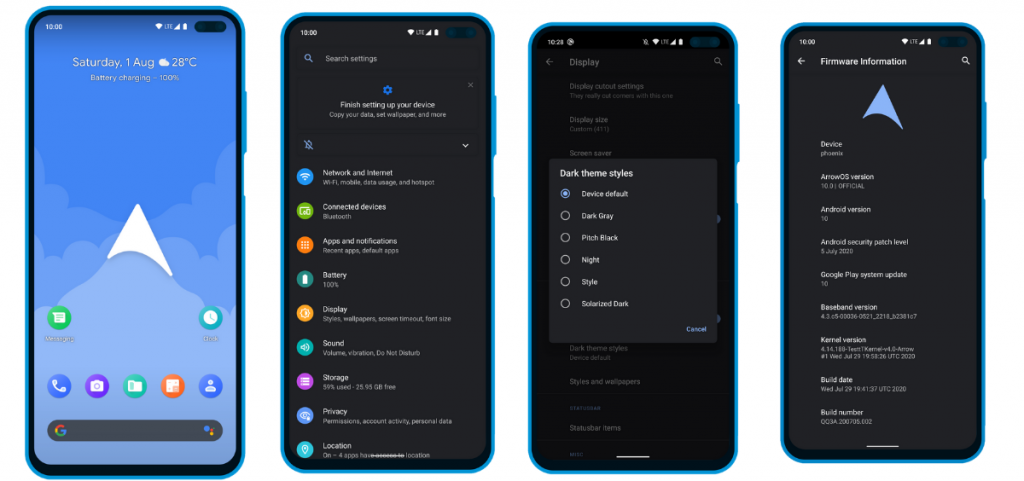
    7. ArrowOS

    In contrast to all the Custom ROMs mentioned in the list, Arrow OS provides less customization. As a result, this AOSP-based ROM is heavily oriented towards stability and battery life while offering a buttery smooth experience as a whole. Still, less doesn’t necessarily mean it’s bad. This ROM targets users that prefer better battery life and stability than overwhelming customization options.

    ArrowOS screenshots

    Apart from that, this ROM also gets timely security updates and OS updates. The device support is also pretty broad.Download ArrowOS Custom ROM

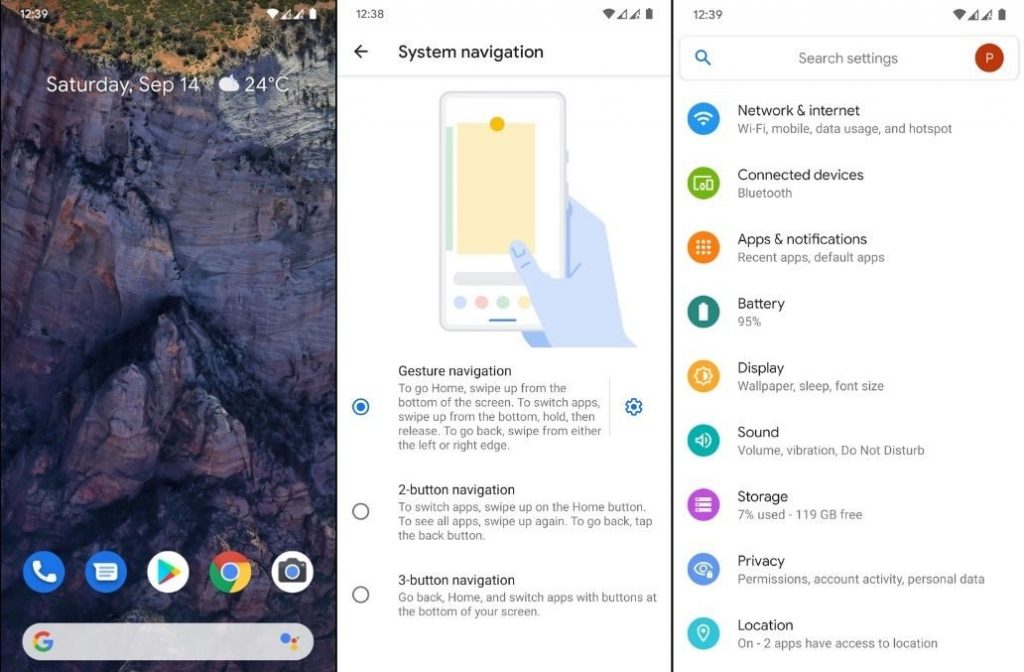
    8. Pixel Experience

    Say hello to one of the most simple and cleanest ROMs in the community, the Pixel Experience ROM. Derived from Google’s stock ROM on its Pixel devices, it delivers Pixel features right out of the box. Unlike the other ROMs in the list and precisely as the name suggests, the main purpose of the inception of this fantastic ROM is to provide a stable and secure Pixel-like experience rather than focusing on the area of customizability.

    pixel experience screenshots

    Although the Pixel Experience ROM holds some of the basic tweaks you would expect, tailoring every aspect of your device is not its goal. Another unique feature of the ROM is that it is CAF-based. For starters, a CAF-based ROM is an AOSP-based ROM that the chipset manufacturer Qualcomm uses to test their particular chipsets. CAF ROMs are tailored to offer incredible stability.Download POSP Custom ROM

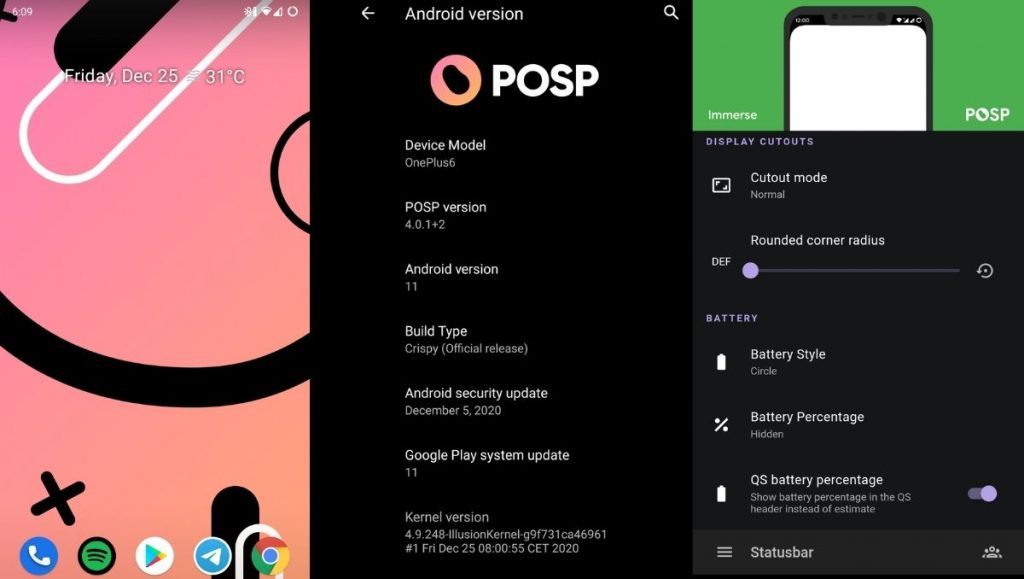
    9. POSP (Potato Open Sauce Project)

    Yup. You read that right. Certainly, Custom ROM developers can’t go wrong with crunchy names, right? Well, that holds true, at least in the case of POSP as many of the users might agree. Serving up a delicious-looking website with a cheerful undertone, this brilliant Custom Rom serves its purpose quite well.

    posp screenshots - best android custom ROMs for 2021

    This Popular Custom ROM provides ample choices for tweaking your device in the manner of your choice. Furthermore, the POSP Custom ROM now supports a wide variety of devices. Recently, the developers launched v4 adding several new features to the custom ROM. Finally, like it or hate it, these potatoes rock!Download POSP Custom ROM

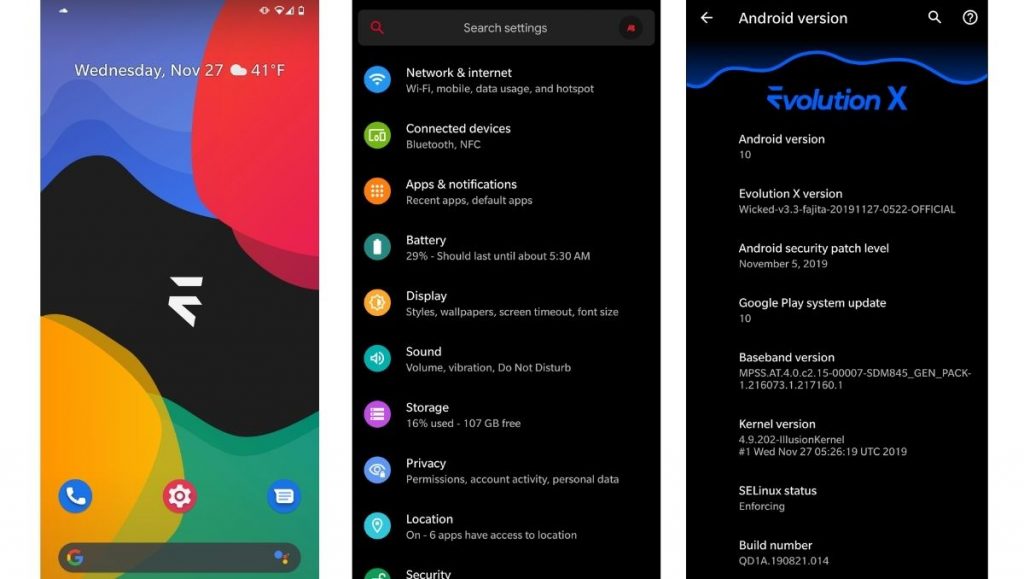
    10. EvolutionX

    EvolutionX is yet another custom ROM based on vanilla AOSP, similar to Pixel Experience. It is one of the most customizable custom ROMs in the Android community.

    evolutionx screenshots - best android custom ROMs for 2021

    Developers rolled out EvolutionX ROM based on Android 11 as soon as the official Android 11 came out. The custom ROM is especially popular due to its performance and stability and is preferred by users who don’t often hop custom ROMs. Be it CPU-intensive tasks or GPU-intensive, EvolutionX nails it in every aspect.

    Sure the customizations are less than other custom ROMs like HavocOS but, it strikes a perfect balance between performance and simplicity via stock Android experience.

    Download EvolutionX Custom ROMDownload EvolutionX Custom ROM

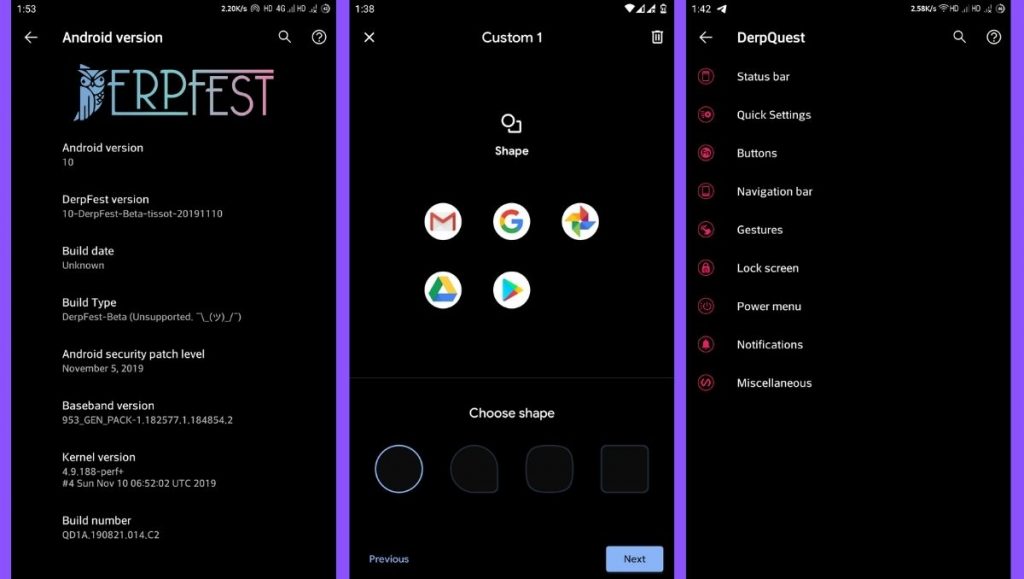
    11. AOSIP/Derpfest

    AOSIP (Android Open-Source Illusion Project) is hands down one of my favorite custom ROMs when it comes to delivering a Pixel-like experience and a lot of miscellaneous features. Based on AOSP with Pixel Experience as a base, it delivers a lot of features and, at the same time, keeps the experience simple.

    aosip screenshots - best custom roms for 2021

    Derpfest is an unofficial, community ROM based on AOSIP. Apart from a few added features here and there, there’s not much of a difference between the two. Everything from the monthly security patches to receiving new version updates is also quick on AOSIP.Download AOSIPDownload Derpfest Custom ROMs

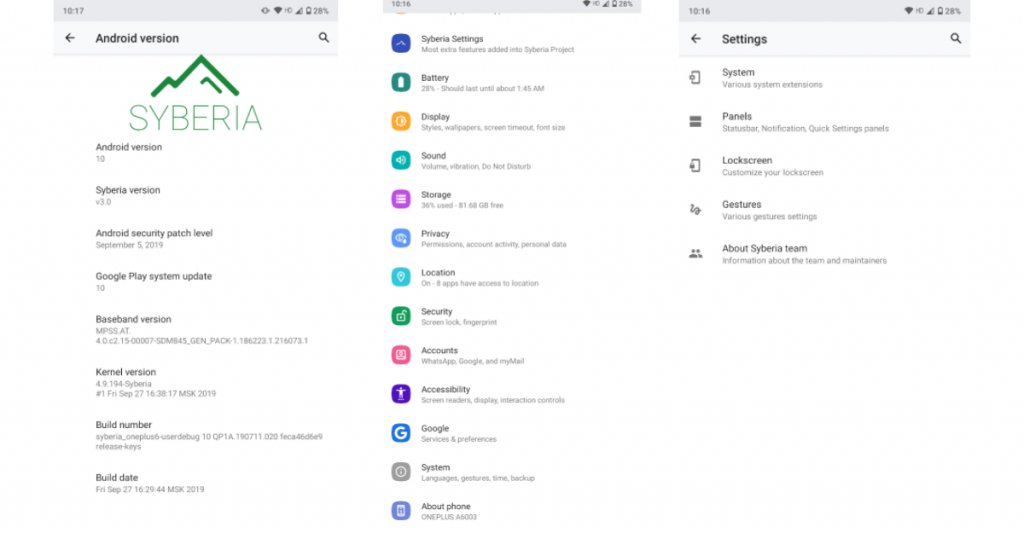
    12. Syberia Project

    Syberia ROM is yet another AOSP and CAF-based custom ROM known for its stability, customization features, and timely updates. A week that I spent with this ROM (Android 10.0) on my OnePlus 6, felt pretty great for daily usage.

    syberia os

    Apart from the Pixel experience and customization, what blew me away was how stable the ROM was. The Syberia OS community loves Xiaomi devices so, there’s a high chance that your Xiaomi device is/will be supported.Download Syberia Custom ROM

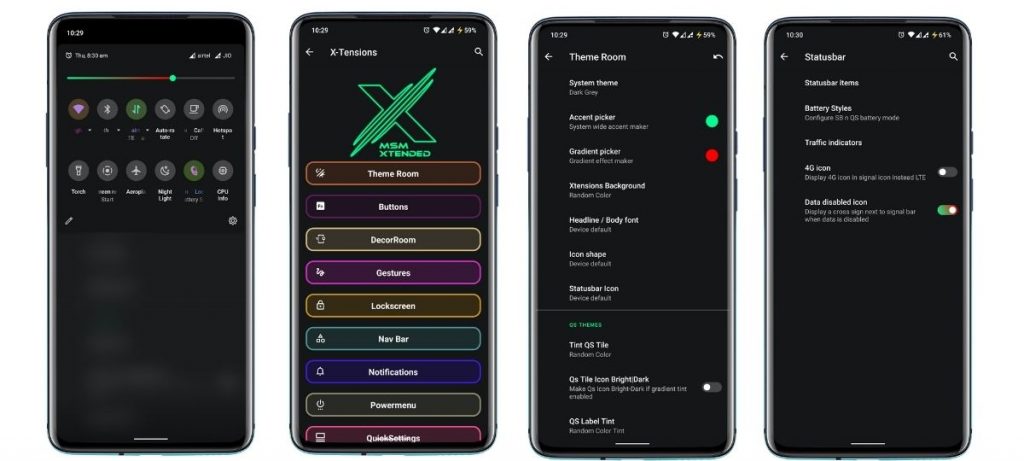
    13. MSM-Xtended

    Are you searching for a custom ROM that helps tweak every last bit of your Android experience? Meet MSM-Xtended – A highly customizable, yet another AOSP-based custom ROM whose tweaking abilities are off the charts.

    MSM-Xtended - best android custom roms for 2021

    I tried it on my older Xiaomi Mi A1 and honestly, I think the customizations are a serious overkill here. Nonetheless, I know there are a lot of people who want just that. Apart from that, it was pretty stable and always stayed up-to-date. Hence, it is one of the best android custom ROMs for 2021 for customizations.Download MSM-Xtended Custom ROM

    Wich one is the best?

    Before you start yelling at me for not having your favorite custom ROM on this list, please understand that this is a very subjective list. These custom ROMs are just the tip of the proverbial proverbial iceberg.

    Finally, it is strongly advised to peruse the XDA Forums to keep track of what works and user input. Certainly, the developers and maintainers of ROMs for your particular devices play a significant role. Get some fun blinking.

  • Clean your phone – 6 best apps that really clean your Android device

    Clean your phone – 6 best apps that really clean your Android device

    Most people just consider cleaning up their phone when something goes wrong. While Android devices are intelligent enough that routine maintenance isn’t needed, it’s still a good idea to perform a digital tune-up every now and then. Don’t underestimate the power of keeping digitally organized—-it might just keep your phone running longer.

    The trick is to find phone cleaner applications that deliver on their promises. A bad cleaner app, at best, wastes storage space; at worst, it can infect you with malware and flood you with ads. However, not all Android cleaner apps are worthless, so we’ll help you find the ones that are.

    1. Files by Google

    files clean device

    Google’s official Android file manager includes simple tools, making it the first Android junk cleaner someone can try. To access these options, launch the app and navigate to the Clean tab at the bottom.

    Here you’ll see several areas that the app identifies as wasting space. These include Junk filesDuplicatesBacked up photos, and Unused apps. Select an option to look at what’s taking up the most space, check what you want to remove, and confirm to have the app take care of the rest.

    While you can also use the Browse tab to explore your phone’s storage manually, letting the app weed out the biggest space hogs is more efficient.

    As we’ll see, many of the apps on this list have useful cleaning features but also have RAM optimizers and other nonsense you don’t need. Files is a nice solution to these problems; it’s one of the easiest ways to clean up Android with an easy, free app that isn’t bloated with unnecessary extras.

    Download: Files by Google (Free)

    2. Droid Optimizer

    droid optimizer clean android apps

    Droid Optimizer is one of the best-known Android cleaner tools, with over a million downloads on the Google Play Store. It’s simple to use, especially for newbies, with an introduction screen that walks you through permissions and features.

    It includes a “rating scale” to encourage you to keep your device in good working order. Droid Optimizer is the perfect Android cleaner for you if you don’t mind making your own smartphone shame you into better habits.

    One tap is all you need to begin a phone cleanup. You’ll see your stats at the top of the screen; free space and RAM show next to your “rank” score, where you receive points for your cleanup actions.

    If you’d rather set it and forget it, Droid Optimizer lets you schedule routine, automatic cleaning. This auto-cleanup will clear your cache, disable background apps, and remove any unused files. It also includes a “good night scheduler” to save energy by automatically disabling features like Wi-Fi while not in use.

    Droid Optimizer can also mass-delete apps—useful if you’re looking to quickly make some space.

    It’s not the most attractive app, but it works. If you’re looking for the best Android phone cleaner app and don’t want to do much of the work yourself, Droid Optimizer should be on your shortlist.

    Download: Droid Optimizer (Free, in-app purchases available)

    3. CCleaner

    ccleaner android app

    The same well-known desktop app for reclaiming disk space is also available on Android. We’ve discussed why CCleaner isn’t an essential app for Windows anymore, as it’s gone downhill somewhat since Avast acquired the service. And while the Android app isn’t perfect either, it’s better than a lot of the other spammy cleaner apps for Android.

    Indeed, CCleaner on Android is a multifunctional app that does its best to analyze and clean up stray files taking up your precious space. The main function is the cleaner feature that can wipe cache data from apps, purge empty folders, and delete various histories.

    It also has an App Manager, which offers a simple interface that lets you pick multiple apps for uninstallation. Lastly, the System Info page monitors your phone’s resources (CPU, RAM, device details) so you can see what’s going on at a quick glance.

    There is no need for root, and it is completely free, but you can upgrade to the Pro subscription for a few extras. It may be lacking in functionality, but it does the job if all you need is a fast way to reclaim storage space on your devices.

    Download: CCleaner (Free, subscription available)

    4. All-in-One Toolbox

    All-in-One Toolbox android app

    Cleaning your phone of unwanted files is just one step in the process. What about keeping track of your battery, CPU temperature, or those annoying mobile ads? The All-In-One Toolbox, as the name suggests, will do it all.

    It will clean your Android device’s temporary files, wipe your cache, and delete empty folders and orphaned files. It only takes one tap to examine your system, followed by another to uninstall, and you’re done. It’s the same mechanism in other parts of the app.

    The Boost function cleans your system cache and closes background apps, again with two taps. You can set this automatically with the Boost+ function if you’d prefer, but doing so requires an in-app purchase. If you’re running out of juice, the Battery Saver section is another background task killer (see below for a warning on this), but it also provides your current battery statistics.

    If that wasn’t enough, there’s also a mass app deleter, advanced file cleaning tools, and Wi-Fi analysis. As its name promises, All-In-One Toolbox tries to do it all. Like Droid Optimizer, there’s also a ranking system to encourage regular use.

    Download: All-in-One Toolbox (Free, in-app purchases available) | All-In-One Toolbox Pro ($15.99)

    5. SD Maid

    sd maid android app

    SD Maid claims to be “at your service” as the digital cleaner for your Android phone. It keeps the experience simple—opening up the app gives you four quick action features you can use to “tidy up” your device.
    The first, CorpseFinder, searches for and erases any orphaned files or folders left over from deleting an app. SystemCleaner is another search-and-delete tool, this time looking for common files and folders that SD Maid believes it can safely delete.
    If this sounds appealing, AppCleaner does the same thing with your games. To use this feature, you must first upgrade SD Maid Pro. There’s even a Databases section to further simplify any app databases in use—-in our test, this cleared 40MB from Spotify.

    There are also tools for storage analysis (to help you find and delete big files) and mass app removal if you’re looking at a bigger phone tune-up.

    Download: SD Maid (Free, in-app purchases available) | SD Maid Pro ($4)

    6. Norton Clean

    norton cleaner android app 1

    Aside from CCleaner (owned by Avast), none of these cleaner apps come from top-tier security firms. The search for the best cleaning app for Android can’t conclude without mentioning Norton Clean, the Android little brother of the famous Norton Antivirus from Symantec.

    Norton says that it will “clear the clutter” from your Android computer. It will scan for and wipe your cache, delete any junk files, and assist you in quickly removing any unused applications you have installed, just like the other entries. The Manage Apps section lists all of your apps and allows you to group them by last use, installation date, or storage use.

    The software takes a straightforward approach. Norton Clean has one of the cleanest, strongest, and most modern-looking user interfaces as compared to the other entries. Anything you need is just a few taps away, so you don’t need to be an Android expert to find it out.

    It’s lacking in functionality, consisting only of a file cleaner and app remover, with popular advertisements for other Norton applications. If you’re concerned about space, Norton Clean is simple enough to use to help you reclaim it. There are no in-app purchases or subscriptions to think about.

    Download: Norton Clean (Free)

    Keeping Android Clean and Tidy

    Regular maintenance isn’t vital for most Android users, but it can help to keep your device running smoothly. Yes, it’s true—your device should keep running even if you don’t spend time clearing out junk. Most modern Android devices have plenty of RAM and device storage to cope with anything you have installed or saved. You shouldn’t need to spend your days clearing app cache, either.

    That said, if you notice there’s a problem with your Android device, an Android cleaner could perk it up a little. If that doesn’t work, you might need to try manual cleaning next.

  • Customize chat list gestures in Telegram

    Customize chat list gestures in Telegram

    They’re useful for triaging messages and reminders that you don’t want or need to focus on, whether they’re used for navigating the operating system as implemented in Android 10 or for quickly performing tasks in apps like Gmail or Twitter. Swipe gestures are also useful if you, like me, choose to use your phone with one hand. That’s why I was ecstatic when Telegram revealed that users could now customize the swipe gestures available on the messages home screen. If you want to see what choices are open to you and learn how to customize Telegram chat list swipe movements, keep reading!

    Customize chat list swipe gestures in Telegram

    1. Open the Telegram app.
    2. Tap on the settings menu in the top left corner (three lines).
    3. Tap on Settings.
    4. Tap on Chat Settings.
    5. Scroll down until you see the Chat list swipe gesture options.
    6. Scroll through the options including Archive, Mute, Delete, Pin, and Read.
    7. Tap to select your preference, and then go back to the app’s home screen.

    Now when you go back and swipe on a chat, the new swipe behavior should be reflected.

  • Nokia’s new phone lineup – simplicity and longevity

    Nokia’s new phone lineup – simplicity and longevity

    If you’re perplexed by Nokia’s phone lineup and its penchant for decimal points, there’s some good news. HMD Global has redesigned the Nokia phone lineup for 2021, and it’s significantly simpler and more oriented — if not exactly what you were hoping.

    The Nokia phone lineup for 2021 is divided into just three categories, all of which are based on longevity. The X-series is the flagship model, with more advanced features, a two-day battery life, three years of OS updates (including regular security updates), and an extended warranty. The mid-range G-series shown above is intended to be more affordable, with three days of battery life, two years of OS updates, and three years of monthly security fixes. The C-series targets newcomers with a “all-day” battery and two years of quarterly security updates, but no OS enhancements are promised.

    nokia

    The Nokia X10 and X20 (pictured at middle) headline the 2021 models, although they’re low-to-mid-range phones. Both use 5G-capable Snapdragon 480 chips and sport 6.67-inch 1,080 x 2,400 displays. The X10 starts things off with a 48MP main camera, a 5MP ultra-wide cam, a 2MP macro cam, a 2MP depth sensor, and an 8MP hole-punch selfie shooter. You’ll also get between 4GB and 6GB of RAM, with 64GB to 128GB of expandable storage. Spring for the X20 and you’ll upgrade to a 64MP main camera, a 32MP front cam, and configurations that scale up to 8GB of RAM and 128GB of storage.

    The Nokia G10 and G20, meanwhile, are decidedly more modest entries to the 2021 line. Both use MediaTek processors (G25 in the G10, G35 in the G20) and revolve around 6.5-inch “HD+” screens. The G20 boasts a camera setup similar to the one in the X10, albeit in a teardrop notch for the front cam, while the G10 makes do with a 13MP primary camera and drops the ultra-wide sensor. You’ll get 4GB of RAM and up to 128GB of expandable space on the G20, but the G10 starts with 3GB of RAM and 32GB of storage.

    The C10 and C20 (below) run Android 11 Go edition and are clearly designed to occupy the no-frills places in Nokia’s 2021 selection. The displays are largely similar to what you’ll find in the G-series, but you’ll get basic Unisoc quad- (C10) and octa-core (C20) chips, 1GB to 2GB of RAM, 16GB or 32GB of expandable storage, and single front and rear 5MP cameras.

    You won’t have to wait long to get your hands on any of the Nokia 2021 smartphones, at least in some parts of the world. The G10 will be the first to arrive in the UK, with a late April delivery date and a price of £109.99. The G20 will be available in May for £129.99. The X20 will be available at the same time, with a starting price of £299.99. The £249.99 X10 (plus a lower-priced version from Three) won’t be available until early June, but the C20 will be available for only £79. There are no plans to ship the C10 to the United Kingdom.

    Nokia availability in US.

    As you might have noticed, none of the 2021 Nokia phones announced so far are high-end devices. Unfortunately, there’s no equivalent to the 9 PureView or other models that would compete with rival flagships. That’s not necessarily an issue if you’re more interested in raw value than speed. However, we’d add that phones like the Realme 7 5G offer 120Hz displays and other perks for similar money. While Nokia’s battery life and lengthier support are important considerations, they’re not the only factors in your purchase.

  • How to flash Android 12 Developer Preview

    How to flash Android 12 Developer Preview

    Android 12 Developer Preview 1 is here, but it’s not exactly easy to get. Because this first Android 12 version is meant for developers, Google isn’t just making it an opt-in process like later beta versions will be. But, if you’re willing to take the risk (and not get upset if and when things go wrong), here’s where to get it.

    Google’s developer site has been updated today with a whole host of Android 12-related details, and among them are a pair of download pages for full factory images and sideloadable OTA files. In the future, installing Android 12 will be a snap: Just register for the Android Beta Program. But right now, that program is closed, so the only way to install this preview is manually by using those files.

    Although you can unlock your bootloader and flash the complete factory picture, we don’t recommend it because it’s a hassle, potentially dangerous, can break SafetyNet attestation, and needs wiping your phone. Consider sideloading the OTA file for your computer instead, which does not require an unlocked bootloader and does not necessitate a scrub. However, if you aren’t prepared, you may need to do some preliminary work.

    Google’s stock OTA images site has instructions for the process, and the same details apply to these preview releases.

    If you are unfamiliar with the method, you can study a comprehensive walkthrough for your computer platform before attempting it on your own. Installing the required software and drivers is a simpler process on some operating systems than on others.

    Prerequisites:

    1. A computer (PC, macOS, or Linux). Or, if you’re exceptionally adventurous: Another phone with USB OTG functionality.
    2. A supported phone to install Android 12 on: Pixel 3 series, Pixel 3a series, Pixel 4 series, Pixel 4a series, or Pixel 5.
    3. A known good cable to connect #1 to #2.

    The easy way

    Google has made DP1 available with the Android Flash Tool, which makes the process pretty simple and linear, with no tools to install. Just fire up the site at the link below, plug in, and follow the instructions:

    This is our recommended route. However, as a backup, you can also install it manually.

    The older way

    android 12
    1. Install the Android SDK tools (i.e., ADB) and USB drivers (if you’re using Windows).
    2. Download the Developer Preview OTA image for your device.
    3. Connect your phone to your computer.
    4. Reboot into recovery (via ADB/USB debugging or the key combination) and enter sideloading mode. Power+volume up opens the Recovery menu, scroll via the volume keys to “apply update from ADB,” and select it with a tap of the power button.
      1. Check that and prior steps worked by entering “adb devices” (no quotes) in a shell or command prompt. If ADB is installed and your phone is in the correct mode, you should see an identifier for your phone and a “sideload” state reported.
    5. Flash the OTA via a shell or command prompt, using “adb sideload your_file_name_here.zip” with no quotes, where the filename is the name of the OTA image you downloaded earlier. On some platforms, you’ll need to precede adb commands with “./” for them to work correctly.
    6. Stare anxiously at your phone while it slowly installs.
    7. Reboot when done.

    Once you have the preview installed, future Android 12 updates and releases will be delivered like any other normal system update, without requiring that you hit all these steps again, and your phone will automatically end up in the beta track later.

  • Android 12 DP2 a bug-fixing update

    Android 12 DP2 a bug-fixing update

    android 12

    Android 12 DP2 just picked up its second bug-fixing update, bumping things numerically to DP2.2. This latest release includes a lot more fixes than DP2.1 did, including a fix for video encoding issues that I ran into, a crash tied to the Bluetooth section of Settings, disappearing widgets, and a failure to save Wi-Fi passwords, among others.

    Android 12 Developer Preview 2.2 (April 2021)
    
    If you’re already running a Developer Preview build, you will automatically receive an over-the-air (OTA) update to Developer Preview 2.2.
    
    This minor update to Android 12 Developer Preview 2 includes the following fixes:
    
    -Fixed an issue that sometimes caused the Settings app to crash when a user tried to access Bluetooth settings. (Issue #180962266)
    -Fixed an issue that caused widgets to be removed from the home screen after a user installed an OTA update.
    -Fixed an issue that caused notifications to be sent about low Bluetooth call quality even when call quality was currently unaffected.
    -Fixed an issue that caused WiFi network passwords to not be saved in some cases.
    -Fixed an issue that caused the notification shade to be activated when typing on the on-screen keyboard.
    -Fixed an issue with Codec 2.0 that could cause apps to crash on some devices.
    -Fixed an issue that could cause videos to be encoded incorrectly when shared.
    -Android 12 Developer Preview 2.1 (March 2021)
    
    This minor update to Android 12 Developer Preview 2 updates WebView to fix an issue that caused some apps to crash.-

    Some say that a problem with gesture navigation that was supposed to be resolved in a previous release remains in DP2.1, but no note was made of whether or not another patch for that issue is included in this release. It’s also likely that some unnamed changes slipped into this update — that happens from time to time, so we’ll keep an eye out.

    The update is already rolling out via the traditional means for those that have installed a prior Android 12 Developer Preview. Compatible phones remain the same: The Pixel 3 series, 3a series, 4 series, 4a series, and Pixel 5. OTA images are also available for manual sideloading/deconstruction if you prefer to install it yourself.

    If you’re doing it for the first time, we still recommend you wait until the Android Beta Program starts, but we have instructions here if you’re willing to assume the risks.

  • Free and on-sale apps and games for this Wednesday

    Free and on-sale apps and games for this Wednesday

    After a busy weekend, it looks like sales have slowed down for the middle of the week. Luckily we still have a few standout titles. As always, we’ve highlighted all of the interesting titles in bold green text in order to make discovery easier. So without further ado, here are 14 temporarily free and 19 on-sale apps and games for the middle of the week.

    Free

    Apps

    1. Dark screen filter – Blue light – Night mode $0.99 -> Free; Sale ends in 1 day
    2. HD voice recoder pro $2.99 -> Free; Sale ends in 5 days

    Games

    1. Dragon Raid (Hardcore – idle rpg) $2.99 -> Free; Sale ends in 6 days
    2. Galaxy Attack: Alien Shooter (Premium) $0.99 -> Free; Sale ends in 6 days
    3. Sword Knights : Idle RPG (Magic) $1.49 -> Free; Sale ends in 6 days
    4. Tap Town Premium (idle RPG) – Magic $0.99 -> Free; Sale ends in 6 days
    5. War 1944 VIP : World War II $2.99 -> Free; Sale ends in 6 days
    6. Warriors’ Market Mayhem VIP : Offline Retro RPG $0.99 -> Free; Sale ends in 6 days
    7. Buff Knight Advanced – Retro RPG Runner $1.99 -> Free; Sale ends in 7 days
    8. Defense Heroes Premium: Defender War Tower Defense $0.99 -> Free; Sale ends in 7 days
    9. Mystic Guardian PV: Old School Action RPG $3.49 -> Free; Sale ends in 7 days
    10. Theme Solitaire Tripeaks Tri Tower PV $3.49 -> Free; Sale ends in 7 days
    11. WindWings: Space shooter, Galaxy attack (Premium) $1.99 -> Free; Sale ends in 7 days

    Icon packs & customization

    1. GIN Icon Pack – Get It Now $0.99 -> Free; Sale ends in 4 days

    Sale

    Apps

    1. Smart Notify Unlocker $3.99 -> $2.49; Sale ends in 2 days
    2. Music Player Pro (Paid – No Ads) $4.49 -> $1.49; Sale ends in 5 days
    3. NoteLynX Pro Outliner Mindmap Wiki $2.99 -> $1.99; Sale ends in 6 days
    4. Password Manager Pro $4.49 -> $1.99; Sale ends in 6 days
    5. Scalar Pro — Most Advanced Scientific Calculator $2.49 -> $0.99; Sale ends in 6 days
    6. Bass Engineer $2.49 -> $0.99; Sale ends in 7 days

    Games

    1. Castles of Mad King Ludwig $7.99 -> $0.99; Sale ends in 11 hours
    2. Slaughter 3: The Rebels $5.00 -> $0.99; Sale ends in 6 days
    3. 7Days: Offline Mystery Puzzle Interactive Novel $3.99 -> $1.99; Sale ends in 7 days
    4. Buff Knight – Offline Idle RPG Runner $1.99 -> $0.99; Sale ends in 7 days
    5. Super8Pro (NE$/FC Emulator) $2.99 -> $1.99; Sale ends in 7 days
    6. Underworld Office: Offline Mystery Visual Novel $6.99 -> $2.99; Sale ends in 7 days
    7. Boom: Block Puzzle $5.00 -> $1.00; Sale ends in ?

    Icon packs & customization

    1. Flat Pie – Icon Pack $1.99 -> $0.99; Sale ends in 2 days
    2. AlineT Icon Pack – linear icons + transparent fill $1.99 -> $0.99; Sale ends in 4 days
    3. Pixly Vintage – Icon Pack $2.49 -> $0.99; Sale ends in 6 days
    4. X Launcher Pro $1.99 -> $0.99; Sale ends in 6 days
    5. MIU! 12 Circle Fluo – Icon Pack $2.49 -> $0.99; Sale ends in 7 days
    6. Pixly 3D – Icon Pack $2.49 -> $1.19; Sale ends in 7 days
  • Realme Narzo 30A: A buyers guide in 2021

    Realme Narzo 30A: A buyers guide in 2021

    realme narzo

    Realme launched the latest addition to its series of flagship phones on February 24. The Realme Narzo 30A is a mid-range device for those consumers that want a premium flagship device on a tight budget. This device joins the plethora of mid-range devices under $137.74. 

    Consumers will find smartphones with robust batteries, above-average cameras, and even some devices that run on Android in this price range. A device that has all of these features is quite hard to come by however some smartphones come close. The Realme Narzo 30A is one of those devices; it offers a perfect equilibrium of features and performance under a reasonable price.

    Design

    narzo

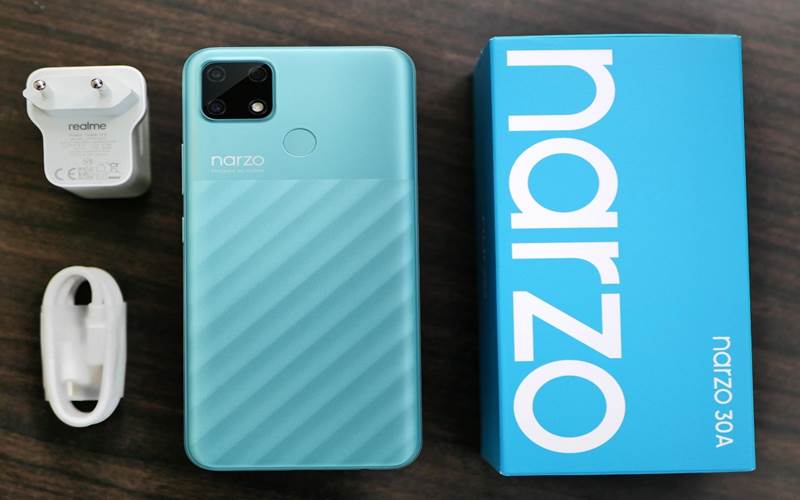
    Realme Narzo 30A does not have a hefty price tag hence the design is not something out o this world but t is impressive. It has a vibrant look and looks quite different than its predecessors. The back of the device has some sort of pattern with the bottom two-thirds having diagonal lines, while the upper section is plain. The pattern aids in gripping the phone easily.

    This time around Realme has opted for a square-shaped camera module which is similar to Realme Narzo 20. The device even has a rear-mounted fingerprint scanner that is easy to access. The side-mounted power and volume buttons are conveniently placed as well. Whereas, the Realme Narzo 30A has a large 6.5-inch display with a 20.9 aspect ratio. The large display does make single-hand usage difficult. The SIM tray is on the left side of the frame and has two Nano-SIM slots and a devoted slot for storage expansion.

    It is worth noting that this device is no lightweight, it weighs around 207g but Realme has rounded the sides to hide the thickness of the device and help in holding the phone. One pro of such a robust device is that it packs a 6,000mAh battery which provides amazing battery life. Additionally, the Realme Narzo 30A has a USB Type-C port, a 3.5mm headphone jack, and a loudspeaker at the bottom. It also comes with a bundled 18W charger in the box. This particular device is available in two color options: Lazer Black and Lazer Blue.

    Software and Specifications

    The smartphone company has leveled up with this device. The Realme Narzo 30A gets major upgrades as compared to the Realme Narzo 20A. It has a more potent MediaTek Helio G85 SoC that’s paired with either 3GB or 4GB of LPDDR4X RAM, this depends on which variant you opt for.  The variants support 32GB and 64GB of storage respectively. The storage can be furthered expanded to 256GB by a microSD card.

    If we look at the price tags, Realme has priced the normal variant quite harshly while the higher variant still has a reasonable price. The device supports dual-band Wi-Fi ac, Bluetooth 5, and three satellite navigation systems. Moreover, the phone is shipped with UI v1.0, based on Android 10.  The company assures its, users, that the UI v2.0 update is coming soon. The interface is quite easy to use since the Realme Narzo30A runs on the older Android skin. There are a few preinstalled applications on the device but they can be easily uninstalled or disabled.

    Performance

    The Realme Narzo 30A‘s performance was quite impressive during our testing. It is an excellent device for daily usage such as getting rid of duplicate photos. It is capable of handling occasional gaming as well. The rear-mounted fingerprint scanner was quick at authentication, and face recognition too did not need more than a single attempt to unlock the smartphone. It even has an HD+ resolution display.

    The display looks almost flawless indoors but once exposed under direct light it becomes extremely average. While the battery life is quite impressive, the phone lasted two days before needing charging. This is the ideal phone if you binge-watch videos on your device. The 18W charger in the box can charge the Narzo 30A to 15 percent in half an hour, and up to 33 percent in an hour. However, even with the fast charging, the device takes two and a half hours to fully charge the battery.

    Cameras

    The device sports a 13-megapixel primary camera and a monochrome portrait camera with an undetermined resolution. Whereas, there is an 8-megapixel camera at the front for selfies. The camera app was not that difficult to navigate through since it was more or less the same. There are multiple shooting modes available, along with a camera AI that can automatically tune the color settings based on the scene or object you’re pointing at.

    During our testing we discovered, the photos taken in daylight looked good on the phone’s display but they are not that impressive upon closer investigation. Text in the photos from a long distance was visible bur the picture overall lost its sharpness. There is a ‘Chroma Boost’ toggle that increases the contrast slightly and improves details in the shadows. The close-ups were good as well but the camera struggled to focus on smaller objects.

    Additionally, Portrait shots turned out quite well with good edge detection. Whereas the low-light camera performance is a bit underwhelming, there are delays between the shot and the result is quite blurry. There is even a Night Mode but it is not one of the standout features of the device but it does get the job done.

    Video recording tops out at 1080p for the primary camera and lacks stabilization, resulting in unsteady footage. Overall, a major letdown in some aspects.

    Verdict

    The Realme Narzo 30A is an impressive mid-range device. The overall performance is good even with the occasional bit of gaming. The battery is a major selling point, however, the camera is a letdown. It is one of the better devices in this price range and is ideal for those who have a tight budget and have moderate usage.